System tags
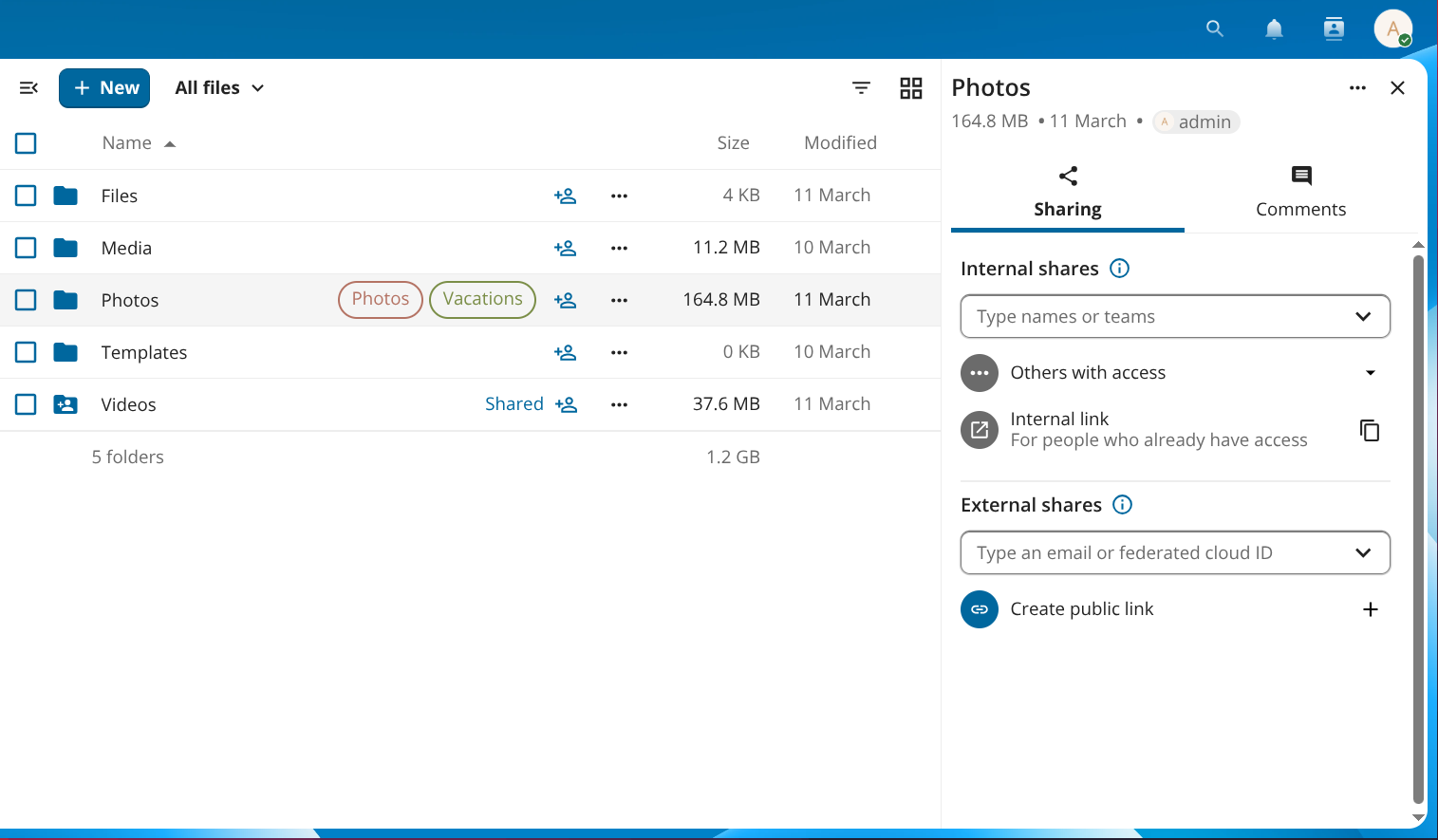
Tag access levels
Every tag has one of three access levels that control what regular users can see and do:
| Level | Visible to users | Users can assign / remove |
|---|---|---|
| Public | Yes | Yes |
| Restricted | Yes | No |
| Invisible | No | No |
Restricted and invisible tags are used by administrators for automated workflows. You cannot work around them by removing the tag yourself.
Browsing files by tag
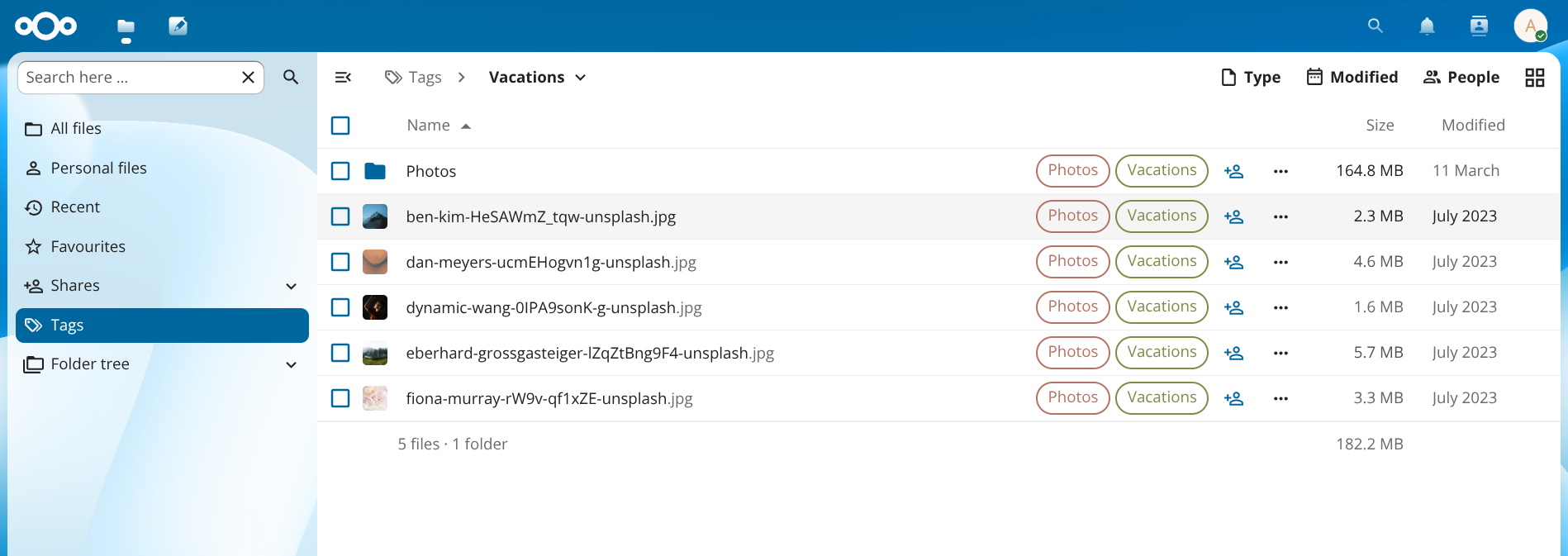
Figure 2: Clicking a tag in the navigation panel filters the file list to files with that tag.
Assigning tags to files
You can assign or remove tags on one file at a time or across a selection of files in one step.
Single file
- Click the three-dot action menu (…) next to a file or folder and select Details to open the details sidebar.
- In the details sidebar, click Add tags.
- Type a tag name in the search field and select the tag from the list.
- Click outside the picker to close it. Changes are saved immediately.
To remove a tag, open the same picker and click the × next to the tag name.
提示
Only public tags appear in the picker for regular users. Restricted and invisible tags can only be assigned by administrators.
Multiple files
- Select two or more files by clicking the checkbox to the left of each row.
- Click ··· Actions in the toolbar above the file list, then select Manage tags.
- Check or uncheck tags in the dialog that appears. An info line shows how the change will be applied across the selected files.
- Click Apply.
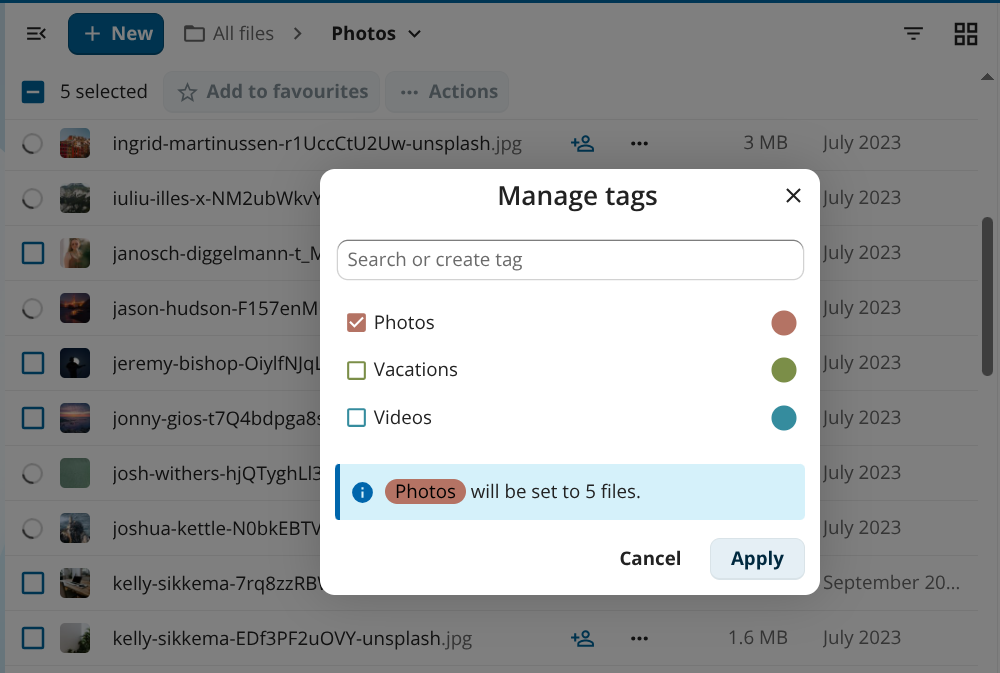
Figure 3: Manage tags lets you apply or remove tags across multiple files at once.
Creating and managing tags
If your administrator has not restricted tag creation, you can create a new tag directly from the Manage tags dialog or the single-file tag picker: type a new name in the Search or create tag field and select the Create tag option that appears.
Administrators create, rename, and delete tags under Administration settings → Server. For details on tag management and command-line tools, see the Automated tagging section of the administration manual.
谢谢你的反馈!