File sharing
Nextcloud users can share files and folders. Possible targets are:
- public links
- users
- groups
- circles
- talk conversations
- users or groups on federated Nextcloud servers
提示
Some options may not be available due to administrative configuration. See administrator documentation for details.
Public link shares
A random 15-digit token will be created. The link will look like https://cloud.example.com/s/yxcFKRWBJqYYzp4.
A number of options are available for public folder shares:
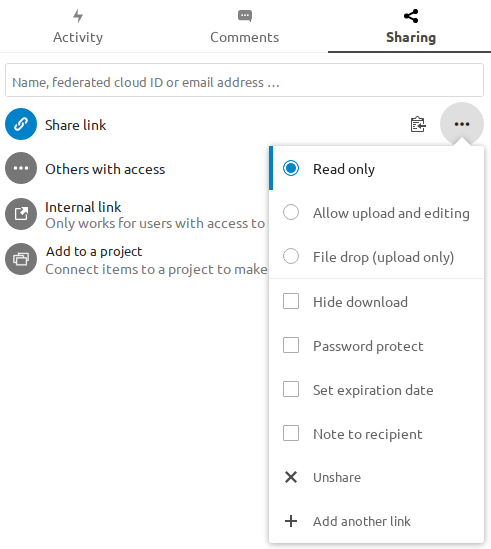
- Read only to allow viewing and downloading
- Allow upload and editing
- With File drop, the sharee can only upload files to a folder without seeing the files that are already in that folder.
- Hide download hides the download buttons and the default browser right-click options in order to make downloading for the sharee harder
- Password protect
- Set expiration date will automatically disable the share
- Note to recipient
- Unshare to revert the share
- Add another link to create multiple public links with different rights
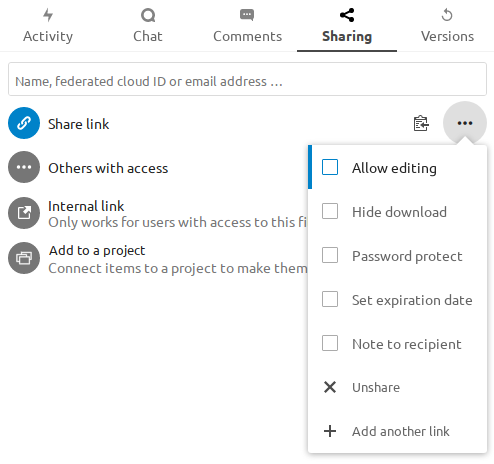
For public file shares, you may allow editing the file with one of Nextcloud's collaborative editing solutions:
提示
Password protection and file expiration are also propagated using Federated File Sharing since Nextcloud 22.
Internal shares with users and groups
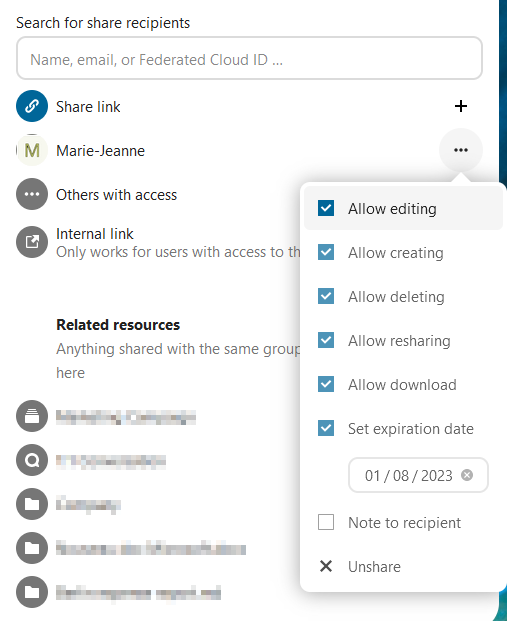
When sharing with users, groups, circles or members of a Talk conversation, rights for the files or folder contents are adjustable:
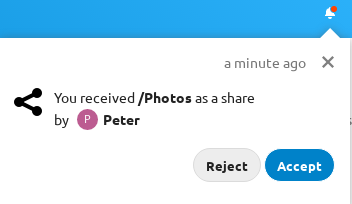
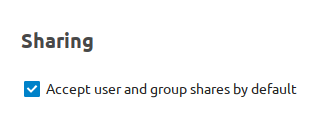
For adjusting the acceptance setting, go to Settings > Personal > Sharing:
注意
If the owner renames a shared file or folder, the new name will not be reflected on the recipient's side. This is needed to prevent overwriting existing files or folders on the recipient's end.
Others with access
In order to find out if a file or folder is accessible to others through sharing of a superior folder hierarchy level, click on Others with access in the sharing tab:
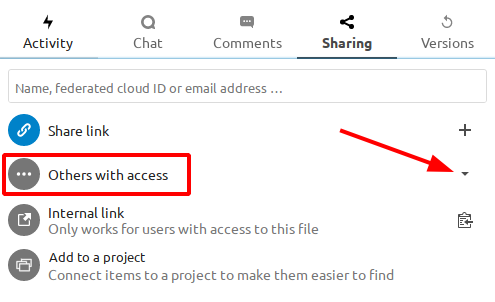
The list shows all users, groups, chats etc. that the current object has been given access to through sharing of a superior folder in the hierarchy:
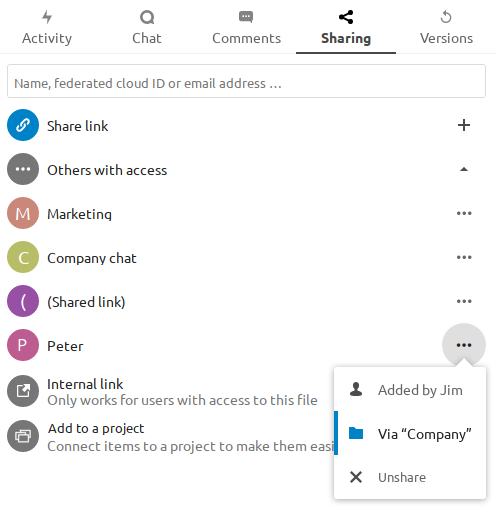
Click on the three dots to:
- see who initiated the share
- see where the share was initiated (click to navigate to the folder, as far as you have access there)
- unshare the initial share (only accessible for the share owner)
提示
This information is only visible to the owner of a file/folder or sharees with resharing rights.
Federated shares
Federation Sharing allows you to mount file shares from remote Nextcloud servers, in effect creating your own cloud of Nextclouds. You can create direct share links with users on other Nextcloud servers.
Creating a new federation share
Federation sharing is enabled by default. Follow these steps to create a new share with other Nextcloud or ownCloud servers:
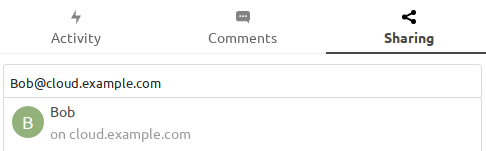
Go to your Files page and click the Share icon on the file or directory you want to share. In the sidebar enter the username and URL of the remote user in this form: <username>@<nc-server-url>. In this example, that is bob@cloud.example.com:
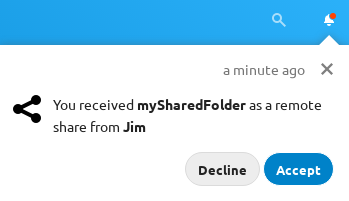
Adding a public share to your Nextcloud
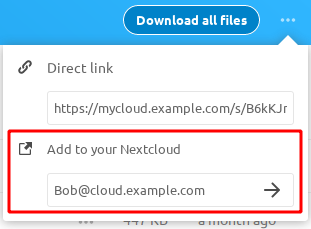
Nextcloud public link share pages offer an option to add that file or folder as a federated share into your own Nextcloud instance. Enter your <username>@<nc-server-url> as shown for outbound shares above:
谢谢你的反馈!