Adding a Page to the Navigation
Goal
Add a page to the navigation. For example, the About page.
Prerequisite knowledge
Site prerequisites
The About page content item must exist. See Creating a Content Item.
Steps
-
In the Manage administrative menu, navigate to Content (admin/content).
-
Find the About page, and click Edit in that row. The content editing form appears.

-
Click Menu settings on the right to expand it.
-
Check Provide a menu link for the menu options to appear.
-
Enter values from the table below:
Field name Explanation Example value Menu link title Title that will be displayed in the menu About Description Text that will be displayed when a visitor hovers over the link History of the market Parent link Location of the page in the menu hierarchy. For example, if you choose _<Main navigation>_, the page will appear in the highest level of the navigation. By choosing another menu link as parent, you can create a menu hierarchy of multiple levels. <Main navigation> Weight The order in which the page should appear in the menu (lower-weighted 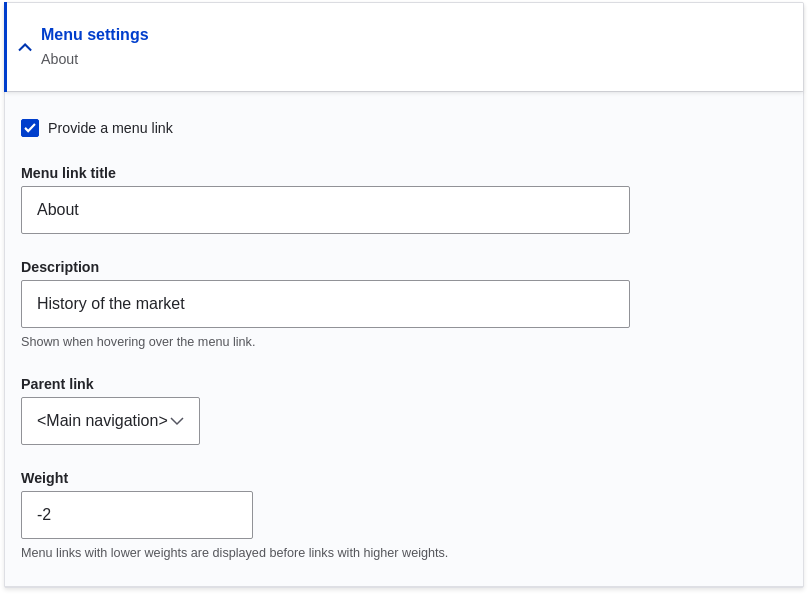
-
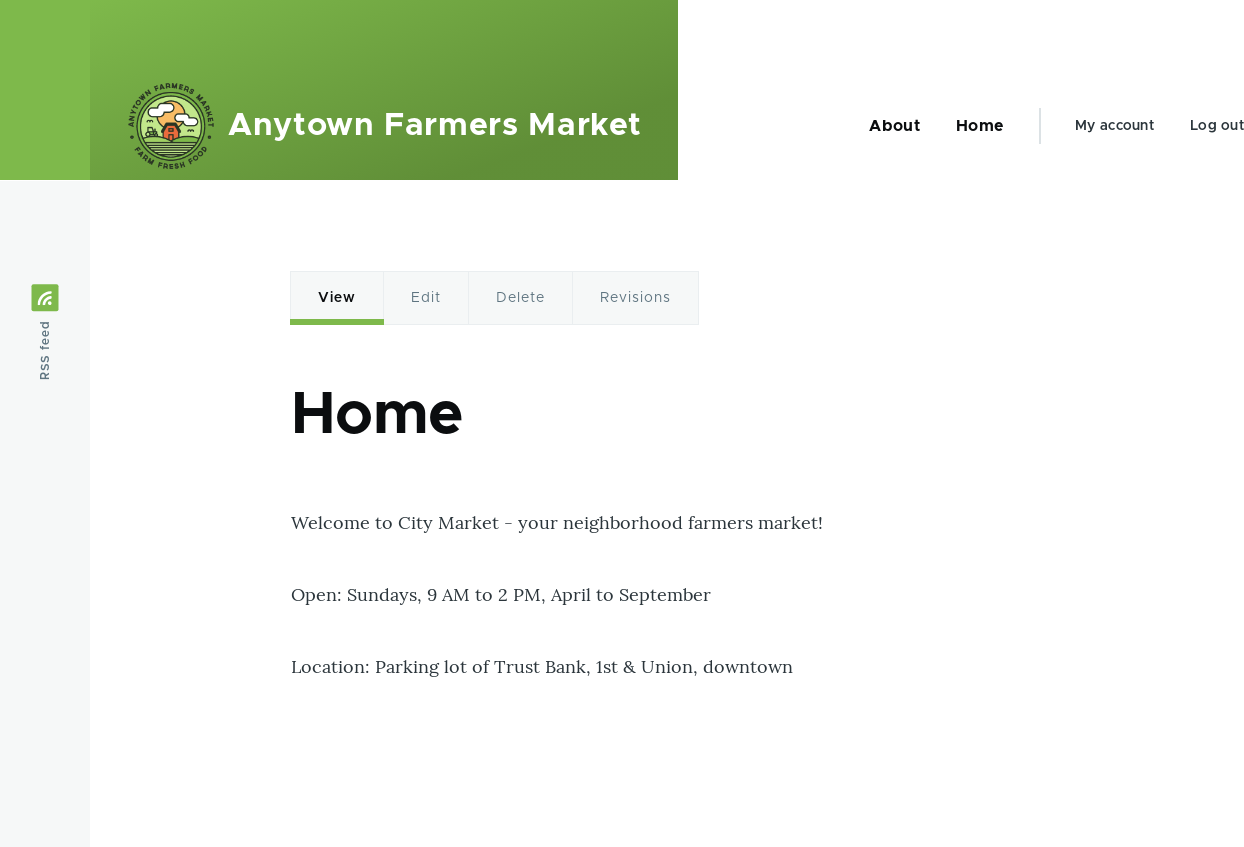
Click Save to save the changes. Click Home or Return to site in the navigation bar to see the result, which could look like the picture below.
Expand your understanding
Changing the Order of Navigation
Videos

Additional resources
Drupal.org community documentation page "Adding a link to a menu"
这篇文档对你有帮助吗?
谢谢你的反馈!