Editing Basic Site Information
Goal
Change basic site information such as Site name, Slogan, Default time zone.
Prerequisite knowledge
Concept: Administrative Overview
Steps
Configuring the basic site information
-
In the Manage administrative menu, navigate to Configuration > System > Basic site settings (admin/config/system/site-information) to change the Site name, Slogan, administrative Email address, or the Default front page path.
-
Fill in the available fields as appropriate for your site.
Field name Explanation Example value Site details > Site name Used to identify the site and displayed in browsers Anytown Farmers Market Site details > Slogan How this is used depends on your site's theme. Not displayed by default when using the Olivero theme. Farm Fresh Food Site details > Email address Used as _From_ address in automated email messages (registrations, password resets, etc) info@example.com 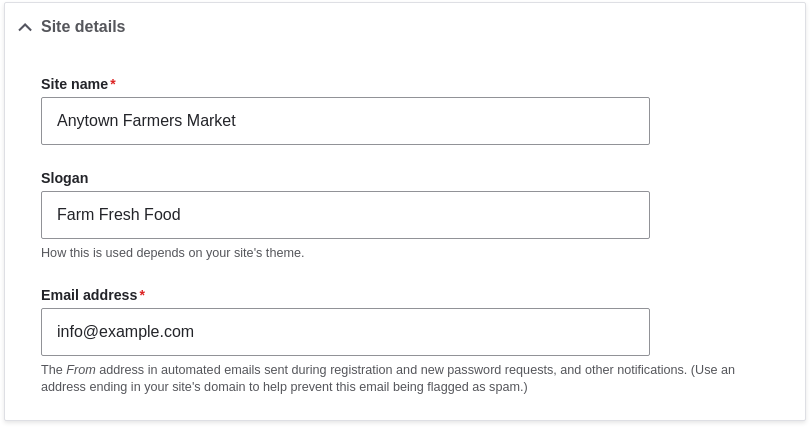
-
After editing the fields, click Save configuration to see the changes applied to the site.
Configuring default Regional settings
-
In the Manage administrative menu, navigate to Configuration > Regional and language > Regional settings (admin/config/regional/settings).
-
Fill in the form as follows:
Field name Explanation Example value Locale > Default country The primary country for your site United States Locale > First day of week The day when the week starts on calendars Sunday Time zones > Default time zone The primary time zone for your site America > Los Angeles Time zones > Users may set their own time zone Whether logged-in users can choose a different time zone for display of dates and times on the site Unchecked 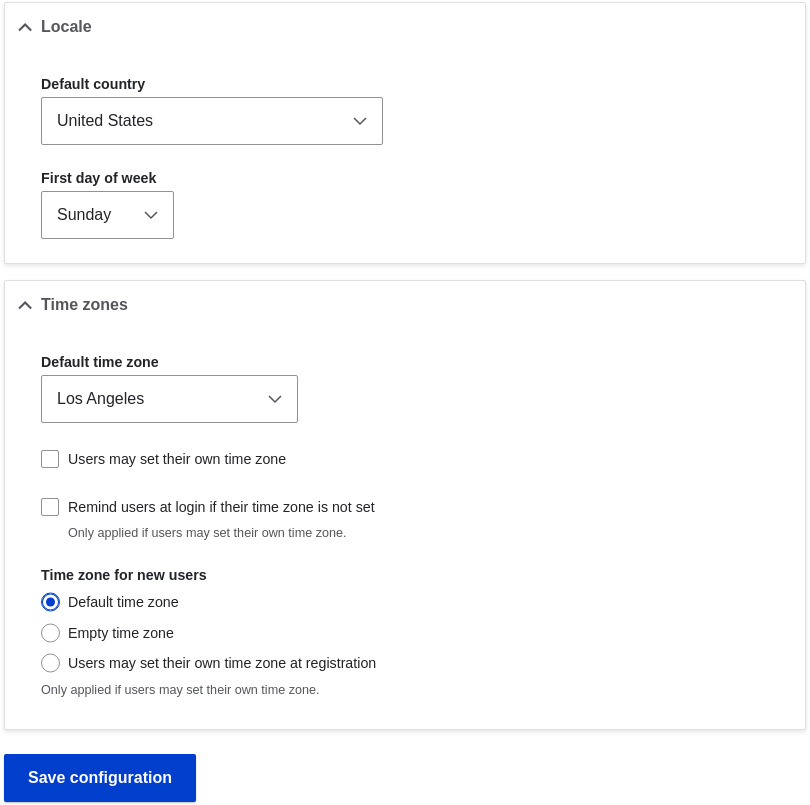
-
After editing the fields, click Save configuration to see the changes applied to the site.
Videos

Additional resources
Drupal.org community documentation page "Getting started with Drupal administration"
谢谢你的反馈!