# Working with JavaScript for the Block Editor
Developing blocks for the Block Editor often involves using modern JavaScript (ESNext and JSX), and most examples here in the Block Editor Handbook are written in these syntaxes.
However, this form of JavaScript must be transformed into a browser-compatible format, necessitating a build step. This process transforms, bundles, and optimizes JavaScript source code and related assets into a format suitable for production environments.
## JavaScript with a build process
Using a build process for block development unlocks the full potential of modern JavaScript, facilitating the use of ESNext and JSX.
[ESNext](https://developer.mozilla.org/en-US/docs/Web/JavaScript/JavaScript_technologies_overview#standardization_process) refers to JavaScript’s most recent syntax and features. [JSX](https://react.dev/learn/writing-markup-with-jsx) is a syntax extension developed by the React project that enables you to write JavaScript that resembles HTML.
Since browsers cannot directly execute ESNext and JSX, these syntaxes must be transformed into browser-compatible JavaScript.
[webpack](https://webpack.js.org/concepts/why-webpack/) is a pluggable tool that processes and bundles JavaScript for browser compatibility. [Babel](https://babeljs.io/), a plugin for webpack, converts ESNext and JSX into standard JavaScript.
Configuring webpack and Babel can be challenging, so it’s recommended that you use the [`@wordpress/scripts`](https://developer.wordpress.org/block-editor/reference-guides/packages/packages-scripts/) package. This tool simplifies development by preconfiguring both, so you rarely need to write custom webpack or Babel configurations.
For an introduction, refer to the [Get started with wp-scripts](https://developer.wordpress.org/block-editor/getting-started/devenv/get-started-with-wp-scripts/) guide.
### An overview of `wp-scripts`
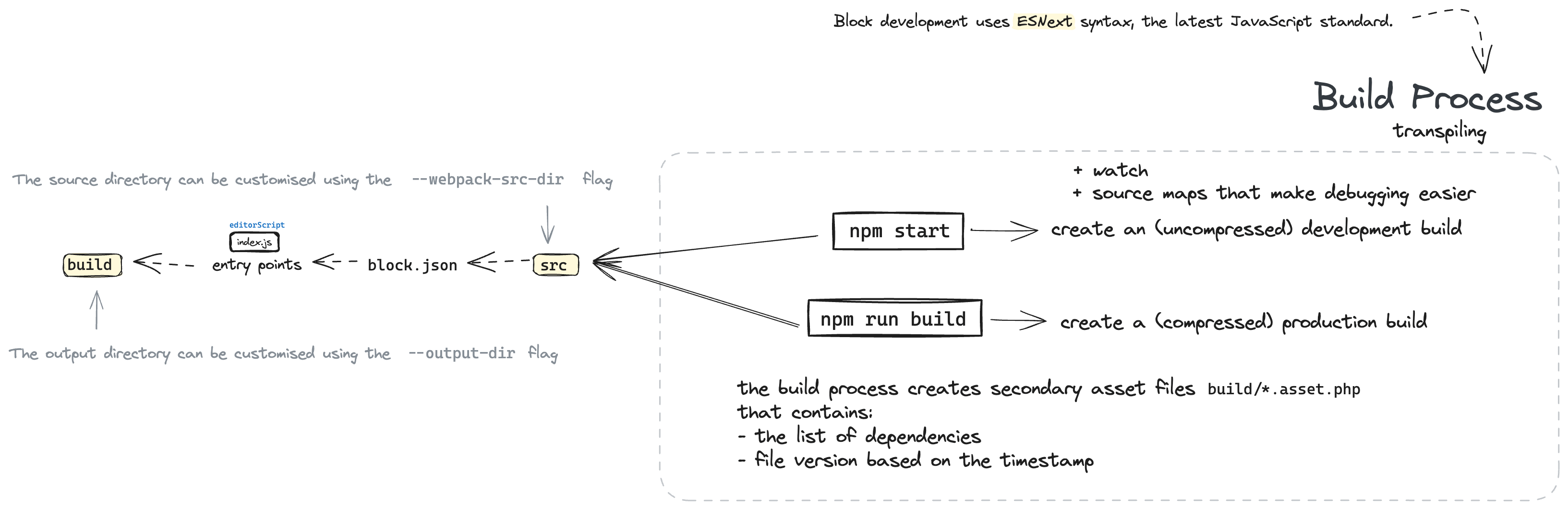
The diagram below provides an overview of the build process when using the `wp-scripts` package. It’s designed to work out of the box with [standard configurations](https://developer.wordpress.org/block-editor/getting-started/devenv/get-started-with-wp-scripts/#basic-usage) for development and production environments.
[ ](https://i0.wp.com/developer.wordpress.org/files/2023/11/build-process.png?ssl=1 "Open Build Process diagram image")
- **Production Mode (`npm run build`):** In this mode, `wp-scripts` compiles your JavaScript, minifying the output to reduce file size and improve loading times in the browser. This is ideal for deploying your code to a live site.
- **Development Mode (`npm start`):** This mode is tailored for active development. It skips minification for easier debugging, generates source maps for better error tracking, and watches your source files for changes. When a change is detected, it automatically rebuilds the affected files, allowing you to see updates in real-time.
The `wp-scripts` package also facilitates the use of JavaScript modules, allowing code distribution across multiple files and resulting in a streamlined bundle after the build process. The [block-development-example](https://github.com/WordPress/block-development-examples/tree/trunk/plugins/data-basics-59c8f8) GitHub repository provides some good examples.
In most situations, no customization will be needed, but you can provide a [`webpack.config.js`](https://developer.wordpress.org/block-editor/reference-guides/packages/packages-scripts/#provide-your-own-webpack-config) when using `wp-scripts` to modify the build process to suit your needs.
## JavaScript without a build process
Integrating JavaScript into your WordPress projects without a build process can be the most straightforward approach in specific scenarios. This is particularly true for projects that don’t leverage JSX or other advanced JavaScript features requiring compilation.
When you opt out of a build process, you interact directly with WordPress’s [JavaScript APIs](https://developer.wordpress.org/block-editor/reference-guides/packages/) through the global `wp` object. This means that all the methods and packages provided by WordPress are readily available, but with one caveat: you must manually manage script dependencies. This is done by adding [the handle](https://developer.wordpress.org/block-editor/contributors/code/scripts/) of each corresponding package to the dependency array of your enqueued JavaScript file.
For example, suppose you’re creating a script that registers a new block [variation](https://developer.wordpress.org/block-editor/reference-guides/block-api/block-variations/) using the `registerBlockVariation` function from the [`blocks`](https://developer.wordpress.org/block-editor/reference-guide/packages/packages-blocks/) package. You must include `wp-blocks` in your script’s dependency array. This guarantees that the `wp.blocks.registerBlockVariation` method is available and defined by the time your script executes.
In the following example, the `wp-blocks` dependency is defined when enqueuing the `variations.js` file.
``` php
function example_enqueue_block_variations() {
wp_enqueue_script(
'example-enqueue-block-variations',
get_template_directory_uri() . '/assets/js/variations.js',
array( 'wp-blocks' ),
wp_get_theme()->get( 'Version' ),
false
);
}
add_action( 'enqueue_block_editor_assets', 'example_enqueue_block_variations' );
```
Then in the `variations.js` file, you can register a new variation for the Media & Text block like so:
``` js
wp.blocks.registerBlockVariation(
'core/media-text',
{
name: 'media-text-custom',
title: 'Media & Text Custom',
attributes: {
align: 'wide',
backgroundColor: 'tertiary'
},
}
);
```
For scripts that need to run in the Block Editor, make sure you use the [`enqueue_block_editor_assets`](https://developer.wordpress.org/reference/hooks/enqueue_block_editor_assets/) hook coupled with the standard [`wp_enqueue_script`](https://developer.wordpress.org/reference/functions/wp_enqueue_script/) function.
Refer to [Enqueueing assets in the Editor](https://developer.wordpress.org/block-editor/how-to-guides/enqueueing-assets-in-the-editor/) for more information.
Open your browser’s dev tools and try running `wp.data.select('core/editor').getBlocks()` in the console when editing a post or when using the Site Editor. This command will return all available blocks.
## Additional resources
- [Package reference](https://developer.wordpress.org/block-editor/reference-guides/packages/)
- [Get started with wp-scripts](https://developer.wordpress.org/block-editor/getting-started/devenv/get-started-with-wp-scripts/)
- [Enqueueing assets in the Editor](https://developer.wordpress.org/block-editor/how-to-guides/enqueueing-assets-in-the-editor/)
- [WordPress package handles](https://developer.wordpress.org/block-editor/contributors/code/scripts/)
- [JavaScript reference](https://developer.mozilla.org/en-US/docs/Web/JavaScript) \| MDN Web Docs
- [block-development-examples](https://github.com/WordPress/block-development-examples) \| GitHub repository
- [block-theme-examples](https://github.com/wptrainingteam/block-theme-examples) \| GitHub repository
- [How webpack and WordPress packages interact](https://developer.wordpress.org/news/2023/04/how-webpack-and-wordpress-packages-interact/) \| Developer Blog
- [Build process diagram](https://excalidraw.com/#json=4aNG9JUti3pMnsfoga35b,ihEAI8p5dwkpjWr6gQmjuw)