# WooCommerce Developer Docs
相关中文文档:WooCommerce 文档 (https://docs.cocobook.com/books/woocommerce-docs-zh);WooCommerce REST API 文档 (https://docs.cocobook.com/books/woocommerce-rest-api-zh)
WooCommerce Developer Docs。内容保持上游原样。
# Docu Tools
# Website
This website is built using [Docusaurus](https://docusaurus.io/), a modern static website generator.
## Installation
```bash
pnpm install
```
## Local Development
```bash
pnpm start
```
This command starts a local development server and opens up a browser window. Most changes are reflected live without having to restart the server.
## Build
```bash
pnpm build
```
This command generates static content into the `build` directory and can be served using any static contents hosting service.
## Deployment
The contents in the `woocommerce/docs` folder are pulled via a nightly GitHub Actions cron job in the [woocommerce-woo-docs-multi-com repository](https://github.com/wpcomvip/woocommerce-woo-docs-multi-com), built for production, and a PR is created against the main branch of the same repository. The PR is then merged and the changes are deployed to the live site.
Changes to the developer docs will typically show up [on the live site](https://developer.woocommerce.com/docs/) within 24 hours of being merged.
# Apis
# Getting Started with WooCommerce APIs
WooCommerce provides a number of programmatic APIs to interact with WooCommerce store data.
## WC REST API
The WC REST API is a powerful part of WooCommerce which lets you read and write various parts of WooCommerce data such as orders, products, coupons, customers, and shipping zones. It based on the [WordPress REST API](https://developer.wordpress.org/rest-api/).
Explore the [WC REST API](./rest-api/) documentation.
## Store API
The Store API provides public REST API endpoints for the development of customer-facing cart, checkout, and product functionality. In contrast to the WooCommerce REST API, the Store API is unauthenticated and does not provide access to sensitive store data or other customer information.
Explore the [Store API](./store-api/README.md) documentation.
## Dual API (code + GraphQL, experimental)
The dual API is an experimental, code-first API architecture: you write plain PHP classes (the code API) and a build script generates a matching GraphQL endpoint from them. The engine is provided by the WooCommerce Dual API plugin, and any plugin can use it to build its own dual API.
Explore the [Dual API](./dual-api/README.md) documentation.
## Other Resources
Beyond the powerful REST APIs, WooCommerce offers a suite of PHP-based APIs designed for developers to deeply integrate and extend the core functionality of their store. These APIs allow for direct interaction with WooCommerce classes, enabling custom behaviors for settings, payment gateways, shipping methods, and more.
### Settings API
The Settings API is used by extensions to display, save, and load settings.
Explore the [Settings API](/docs/extensions/settings-and-config/settings-api) documentation.
### Payment Gateway API
The Payment Gateway API is used by extensions to interact with the payment gateway.
Explore the [Payment Gateway API](/docs/features/payments/payment-gateway-api/) documentation.
### Shipping Method API
The Shipping Method API is used by extensions to extend shipping methods and add their own rates.
Explore the [Shipping Method API](/docs/features/shipping/shipping-method-api/) documentation.
### Payment Token API
The Payment Token API is used for storing and managing payment tokens for gateways.
Explore the [Payment Token API](/docs/features/payments/payment-token-api/) documentation.
### WooCommerce Code Reference
The WooCommerce Code Reference is a comprehensive documentation of the WooCommerce API. It is a great resource for developers to learn about the WooCommerce API and how to use it.
The WooCommerce Code Reference is a comprehensive documentation of the internal WooCommerce Classes, API, and functions. It is a great resource for developers to learn about the WooCommerce functionality and how to extend it.
Explore the [WooCommerce Code Reference](https://woocommerce.github.io/code-reference/) documentation.
# WooCommerce Dual API
The **dual API** is a code-first API architecture: you write plain PHP classes (the **code API**), and a build script generates a fully functional **GraphQL API** that mirrors them.
The dual API was introduced as an experimental feature in WooCommerce core 10.9, but as of WooCommerce 11.2 its engine has moved to a dedicated plugin, [WooCommerce Dual API](https://github.com/woocommerce/woocommerce-dual-api), which any plugin can use to build its own dual API.
> **This feature is experimental.** Everything under the `Automattic\WooCommerce\Api` namespace can change in backwards-incompatible ways, or be removed, in any release. Do not use it in production extensions.
## Where the documentation lives
The engine and its documentation live in the plugin's repository:
- **Plugin**: [woocommerce/woocommerce-dual-api](https://github.com/woocommerce/woocommerce-dual-api)
- **Documentation**: the [`docs/` directory](https://github.com/woocommerce/woocommerce-dual-api/tree/trunk/docs) of that repository
- **Working example**: [woocommerce/woocommerce-simple-events](https://github.com/woocommerce/woocommerce-simple-events), a runnable reference plugin that exercises the engine end to end
## Requirements
WooCommerce 11.2 or newer on PHP 8.1+, with the WooCommerce Dual API plugin installed and active. There is no feature flag: activating the plugin enables the engine.
WooCommerce 10.9 to 11.1 ship the engine inside core, behind a hidden `dual_code_graphql_api` feature flag (`wp option update woocommerce_feature_dual_code_graphql_api_enabled yes` to enable it). The plugin stays dormant on those versions and the flag remains the switch there.
# WooCommerce Store API
**The Store API provides public Rest API endpoints for the development of customer-facing cart, checkout, and product functionality. It follows many of the patterns used in the [WordPress REST API](https://developer.wordpress.org/rest-api/key-concepts/).**
In contrast to the WooCommerce REST API, the Store API is unauthenticated and does not provide access to sensitive store data or other customer information.
Example of a valid API request using cURL:
```sh
curl "https://example-store.com/wp-json/wc/store/v1/products"
```
Possible uses of the Store API include:
1. Obtaining a list of products to display that can be searched or filtered
2. Adding products to the cart and returning an updated cart object for display
3. Obtaining shipping rates for a cart
4. Converting a customer’s cart to an Order, collecting addresses, and then facilitating payment
## Requirements and limitations
* This is an unauthenticated API. It does not require API keys or authentication tokens for access.
* All API responses return JSON-formatted data.
* Data returned from the API is reflective of the current user (customer). Customer sessions in WooCommerce are cookie-based.
* Store API cannot be used to look up other customers and orders by ID; only data belonging to the current user.
* Likewise, Store API cannot be used to write store data e.g. settings. For more extensive access, use the authenticated [WC REST API.](/docs/apis/rest-api/)
* Endpoints that do allow writes, for example, updating the current customer address, require a [nonce-token](https://developer.wordpress.org/plugins/security/nonces/).
* Store API is render-target agnostic and should not make assumptions about where content will be displayed. For example, returning HTML would be discouraged unless the data type itself is HTML.
## Store API Namespace
Resources in the Store API are all found within the `wc/store/v1` namespace, and since this API extends the WordPress API, accessing it requires the `/wp-json/` base. Currently, the only version is `v1`. If the version is omitted, `v1` will be served.
Examples:
```http
GET /wp-json/wc/store/v1/products
GET /wp-json/wc/store/v1/cart
```
The API uses JSON to serialize data. You don’t need to specify `.json` at the end of an API URL.
## Resources and endpoints
Available resources in the Store API are listed below, with links to more detailed documentation.
| Resource | Methods | Endpoints |
| --- | --- | --- |
| [`Cart`](/docs/apis/store-api/resources-endpoints/cart) | `GET` | [`/wc/store/v1/cart`](/docs/apis/store-api/resources-endpoints/cart#get-cart) |
| | `POST` | [`/wc/store/v1/cart/add-item`](/docs/apis/store-api/resources-endpoints/cart#add-item) |
| | `POST` | [`/wc/store/v1/cart/remove-item`](/docs/apis/store-api/resources-endpoints/cart#remove-item) |
| | `POST` | [`/wc/store/v1/cart/update-item`](/docs/apis/store-api/resources-endpoints/cart#update-item) |
| | `POST` | [`/wc/store/v1/cart/apply-coupon`](/docs/apis/store-api/resources-endpoints/cart#apply-coupon) |
| | `POST` | [`/wc/store/v1/cart/remove-coupon`](/docs/apis/store-api/resources-endpoints/cart#remove-coupon) |
| | `POST` | [`/wc/store/v1/cart/update-customer`](/docs/apis/store-api/resources-endpoints/cart#update-customer) |
| | `POST` | [`/wc/store/v1/cart/select-shipping-rate`](/docs/apis/store-api/resources-endpoints/cart#select-shipping-rate) |
| [`Cart Items`](/docs/apis/store-api/resources-endpoints/cart-items) | `GET`, `POST`, `DELETE` | [`/wc/store/v1/cart/items`](/docs/apis/store-api/resources-endpoints/cart-items#list-cart-items) |
| | `GET`, `POST`, `PUT`, `DELETE` | [`/wc/store/v1/cart/items/:key`](/docs/apis/store-api/resources-endpoints/cart-items#single-cart-item) |
| [`Cart Coupons`](/docs/apis/store-api/resources-endpoints/cart-coupons) | `GET`, `POST`, `DELETE` | [`/wc/store/v1/cart/coupons`](/docs/apis/store-api/resources-endpoints/cart-coupons#list-cart-coupons) |
| | `GET`, `DELETE` | [`/wc/store/v1/cart/coupon/:code`](/docs/apis/store-api/resources-endpoints/cart-coupons#single-cart-coupon) |
| [`Checkout`](/docs/apis/store-api/resources-endpoints/checkout) | `GET`, `POST`, `PUT` | [`/wc/store/v1/checkout`](/docs/apis/store-api/resources-endpoints/checkout) |
| [`Checkout order`](/docs/apis/store-api/resources-endpoints/checkout-order) | `POST` | [`/wc/store/v1/checkout/:id`](/docs/apis/store-api/resources-endpoints/checkout-order) |
| [`Order`](/docs/apis/store-api/resources-endpoints/order) | `GET` | [`/wc/store/v1/order/:id`](/docs/apis/store-api/resources-endpoints/order) |
| [`Products`](/docs/apis/store-api/resources-endpoints/products) | `GET` | [`/wc/store/v1/products`](/docs/apis/store-api/resources-endpoints/products#list-products) |
| | `GET` | [`/wc/store/v1/products/:id`](/docs/apis/store-api/resources-endpoints/products#single-product-by-id) |
| [`Product Collection Data`](/docs/apis/store-api/resources-endpoints/product-collection-data) | `GET` | [`/wc/store/v1/products/collection-data`](/docs/apis/store-api/resources-endpoints/product-collection-data) |
| [`Product Attributes`](/docs/apis/store-api/resources-endpoints/product-attributes) | `GET` | [`/wc/store/v1/products/attributes`](/docs/apis/store-api/resources-endpoints/product-attributes#list-product-attributes) |
| | `GET` | [`/wc/store/v1/products/attributes/:id`](/docs/apis/store-api/resources-endpoints/product-attributes#single-product-attribute) |
| [`Product Attribute Terms`](/docs/apis/store-api/resources-endpoints/product-attribute-terms) | `GET` | [`/wc/store/v1/products/attributes/:id/terms`](/docs/apis/store-api/resources-endpoints/product-attribute-terms) |
| [`Product Categories`](/docs/apis/store-api/resources-endpoints/product-categories) | `GET` | [`/wc/store/v1/products/categories`](/docs/apis/store-api/resources-endpoints/product-categories) |
| [`Product Brands`](/docs/apis/store-api/resources-endpoints/product-brands) | `GET` | [`/wc/store/v1/products/brands`](/docs/apis/store-api/resources-endpoints/product-brands) |
| [`Product Reviews`](/docs/apis/store-api/resources-endpoints/product-reviews) | `GET` | [`/wc/store/v1/products/reviews`](/docs/apis/store-api/resources-endpoints/product-reviews) |
| [`Product Tags`](/docs/apis/store-api/resources-endpoints/product-tags) | `GET` | [`/wc/store/v1/products/tags`](/docs/apis/store-api/resources-endpoints/product-tags) |
## Pagination
If collections contain many results, they may be paginated. When listing resources you can pass the following parameters:
| Parameter | Description |
| :--------- | :------------------------------------------------------------------------------------- |
| `page` | Current page of the collection. Defaults to `1`. |
| `per_page` | Maximum number of items to be returned in result set. Defaults to `10`. Maximum `100`. |
In the example below, we list 20 products per page and return page 2.
```sh
curl "https://example-store.com/wp-json/wc/store/v1/products?page=2&per_page=20"
```
Additional pagination headers are also sent back with extra information.
| Header | Description |
| :---------------- | :------------------------------------------------------------------------ |
| `X-WP-Total` | The total number of items in the collection. |
| `X-WP-TotalPages` | The total number of pages in the collection. |
| `Link` | Contains links to other pages; `next`, `prev`, and `up` where applicable. |
## Status codes
The following table gives an overview of how the API functions generally behave.
| Request type | Description |
| :----------- | :---------------------------------------------------------------------------------------------------------- |
| `GET` | Access one or more resources and return `200 OK` and the result as JSON. |
| `POST` | Return `201 Created` if the resource is successfully created and return the newly created resource as JSON. |
| `PUT` | Return `200 OK` if the resource is modified successfully. The modified result is returned as JSON. |
| `DELETE` | Returns `204 No Content` if the resource was deleted successfully. |
The following table shows the possible return codes for API requests.
| Response code | Description |
| :----------------------- | :------------------------------------------------------------------------------------------------------------------------------------------ |
| `200 OK` | The request was successful, the resource(s) itself is returned as JSON. |
| `204 No Content` | The server has successfully fulfilled the request and that there is no additional content to send in the response payload body. |
| `201 Created` | The POST request was successful and the resource is returned as JSON. |
| `400 Bad Request` | A required attribute of the API request is missing. |
| `403 Forbidden` | The request is not allowed. |
| `404 Not Found` | A resource could not be accessed, for example it doesn't exist. |
| `405 Method Not Allowed` | The request is not supported. |
| `409 Conflict` | The request could not be completed due to a conflict with the current state of the target resource. The current state may also be returned. |
| `500 Server Error` | While handling the request something went wrong server-side. |
## Contributing
There are 3 main parts to each route in the Store API:
1. Route - Responsible for mapping requests to endpoints. Routes in the Store API extend the `AbstractRoute` class; this class contains shared functionality for handling requests and returning JSON responses. Routes ensure a valid response is returned and handle collections, errors, and pagination.
2. Schema - Routes do not format resources. Instead we use _Schema_ classes that represent each type of resource, for example, a Product, a Cart, or a Cart Item. Schema classes in the Store API should extend the `AbstractSchema` class.
3. Utility - In more advanced cases where the Store API needs to access complex data from WooCommerce core, or where multiple routes need access to the same data, routes should use a Controller or Utility class. For example, the Store API has an Order Controller and a Cart Controller for looking up order and cart data respectfully.
Typically, routes handle the following types of requests:
* `GET` requests to read product, cart, or checkout data.
* `POST` and `PUT` requests to update cart and checkout data.
* `DELETE` requests to remove cart data.
* `OPTIONS` requests to retrieve the JSON schema for the current route.
Please review the [Store API Guiding principles](/docs/apis/store-api/guiding-principles). This covers our approach to development, and topics such as versioning, what data is safe to include, and how to build new routes.
## Extensibility
The approach to extensibility within the Store API is to expose certain routes and schema to the ExtendSchema class. [Documentation for contributors on this can be found here](/docs/apis/store-api/extending-store-api/).
If a route includes the extensibility interface, 3rd party developers can use the shared `ExtendSchema::class` instance to register additional endpoint data and additional schema.
This differs from the traditional filter hook approach in that it is more limiting, but it reduces the likelihood of a 3rd party extension breaking routes and endpoints or overwriting returned data which other apps may rely upon.
If new schema is required, and any of the following statements are true, choose to _extend_ the Store API rather than introducing new schema to existing Store API schemas:
* The data is part of an extension, not core
* The data is related to a resource, but not technically part of it
* The data is difficult to query (performance wise) or has a very narrow or niche use-case
If the data is sensitive (for example, a core setting that should be private), or not related to the current user (for example, looking up an order by order ID), [choose to use the authenticated WC REST API](/docs/apis/rest-api/).
If you're looking to add _new routes and endpoints_, rather than extending the Store API _schema_, extending the Store API is not necessary. You can instead utilize core WordPress functionality to create new routes, choosing to use the same pattern of Store API if you wish. See:
* [`register_rest_route()`](https://developer.wordpress.org/reference/functions/register_rest_route/)
* [Rest API Permissions Callbacks](https://developer.wordpress.org/rest-api/extending-the-rest-api/adding-custom-endpoints/#permissions-callback)
# Extending the Store API
Your application can change the way the Store API works by extending certain endpoints. It can add data to certain endpoints to make your server-side data available to the client-side.
You can also use the Store API trigger a server-side cart update from the client which will then update the client-side cart with the data returned by the API.
The documents listed below contain further details on how to achieve the above.
| Document | Description |
|----------|-------------|
| [Exposing your data](./extend-store-api-add-data/) | Explains how you can add additional data to Store API endpoints. |
| [Available extensible endpoints](./available-endpoints-to-extend/) | A list of all available endpoints to extend. |
| [Available Formatters](./extend-store-api-formatters/) | Available `Formatters` to format data for use in the Store API. |
| [Updating the cart on-demand](./extend-store-api-update-cart/) | Update the server-side cart following an action from the front-end. |
| [Adding fields and passing values](./extend-store-api-add-custom-fields/) | How to add custom fields to Store API endpoints. |
| [Marking a cart item as a child](./extend-store-api-parent-item/) | Declare a parent for a child cart item in a Store API response. |
# Block Development
# WooCommerce Block Development
Welcome to the WooCommerce Block Development documentation!
This section is your starting point for learning how to build, customize, and extend blocks for WooCommerce.
Whether you’re new to block development or looking to deepen your expertise, this guide will walk you through the process step by step, from the basics to advanced extensibility.
## Start Here
- **[Getting Started](/docs/block-development/getting-started/extensibility-overview/)**: Set up your environment and create your first block.
- **[Tutorials](/docs/category/tutorials/)**: Follow hands-on guides to build and enhance your blocks.
- **[Reference](/docs/category/reference/)**: Look up APIs, filters, and block details as you build.
- **[Extensibility](/docs/category/extensible-blocks/)**: Learn to extend and customize blocks for advanced use cases.
- **[Cart & Checkout](/docs/block-development/extensible-blocks/cart-and-checkout-blocks/)** and **[Product Collection](/docs/block-development/extensible-blocks/product-collection-block/)**: Explore specialized block documentation.
Happy building!
# Getting started with Cart and Checkout extensibility
This document is a high-level overview of the moving parts required to extend the Cart and Checkout blocks.
To get started, it is recommended to first read the [Block Development Environment](https://developer.wordpress.org/block-editor/getting-started/devenv/) documentation from WordPress and follow [Tutorial: Build your first block
](https://developer.wordpress.org/block-editor/getting-started/tutorial/).
## Example block template package
There is an example block template in the WooCommerce repository. Having this template set up while reading this document may help to understand some of the concepts discussed. See the [`@woocommerce/extend-cart-checkout-block` package documentation](https://github.com/woocommerce/woocommerce/tree/trunk/packages/js/extend-cart-checkout-block/README.md) for how to install and run the example block.
(Note: the code in the repository linked above will not be very useful alone; the code there is templating code. It will be transformed into regular JS and PHP after following the README instructions.)
## Front-end extensibility
To extend the front-end of the blocks, extensions must use JavaScript. The JavaScript files must be enqueued and loaded on the page before they will have any effect.
### Build system
Some extensions may be very simple and include only a single JavaScript file, other extensions may be complex and the code may be split into multiple files. Either way, it is recommended that the files are bundled together and minified into a single output file. If your extension has several distinct parts that only load on specific pages, bundle splitting is recommended, though that is out of scope for this document.
To set up the build system, the recommended approach is to align with WordPress and use a JavaScript package called [`@wordpress/scripts`](https://developer.wordpress.org/block-editor/reference-guides/packages/packages-scripts/). This package contains a script called `build`. By default, this will build your scripts into a single output file that can be enqueued using `wp_enqueue_script`.
The base configuration of the `build` script in `@wordpress/scripts` can be overridden by creating a `webpack.config.js` file in the root of your plugin. The example block shows how the base config can be extended.
#### `WooCommerceDependencyExtractionWebpackPlugin`
See [`WordPress Dependency Extraction Webpack Plugin`](https://github.com/WordPress/gutenberg/tree/trunk/packages/dependency-extraction-webpack-plugin) and
[`WooCommerce Dependency Extraction Webpack Plugin`](https://github.com/woocommerce/woocommerce/tree/trunk/packages/js/dependency-extraction-webpack-plugin#dependency-extraction-webpack-plugin).
This Webpack plugin is used to:
- Externalize dependencies that are available as shared scripts or modules on WordPress sites.
- This means when you import something from `@woocommerce/blocks-checkout` it resolves that path to `window.wc.wcBlocksCheckout` without you needing to change your code. It makes your code easier to read and allows these packages to be loaded onto the page once.
- Add an asset file for each entry point that declares an object with the list of WordPress script or module dependencies for the entry point. The asset file also contains the current version calculated for the current source code.
The PHP "asset file" that this plugin outputs contains information your script needs to register itself, such as dependencies and paths.
If you have written code that is built by Webpack and using the WooCommerce Dependency Extraction Webpack Plugin, there will be an asset file output for each entry point. This asset file is a PHP file that contains information about your script, specifically dependencies and version, here's an example:
```php
array(
'react',
'wc-settings',
'wp-block-editor',
'wp-blocks',
'wp-components',
'wp-element',
'wp-i18n',
'wp-primitives'
),
'version' => '455da4f55e1ac73b6d34'
);
```
When enqueueing your script, using this asset file will ensure the dependencies are loaded correctly and that the client gets the most up-to-date version of your script (the version is used to ensure your script is fetched fresh, rather than from the cache).
```php
[],
'version' => $this->get_file_version( $script_path ),
];
wp_register_script(
'example-blocks-integration-handle',
$script_url,
$script_asset['dependencies'],
$script_asset['version'],
true
);
```
Please see the [Cart and Checkout – Handling scripts, styles, and data](/docs/block-development/reference/integration-interface/) document for more information about how to correctly register scripts using the `IntegrationInterface`.
### Creating a block
In the example block, there is a "checkout-newsletter-subscription-block" directory which contains the files needed to register an inner block in the Checkout. The example block template is only set up to import and build a single block, but the Webpack config can be modified to build multiple blocks. Doing this is not supported as part of this document, refer to the [Webpack documentation](https://webpack.js.org/concepts/) instead.
The principles covered in [Tutorial: Build your first block
](https://developer.wordpress.org/block-editor/getting-started/tutorial/) apply here too.
### Modifying existing values on the front-end
You may not need to create a block to get your extension working the way you want, for example, if your extension only modifies existing content through filters.
In this case, you could remove the block folder from the example block, modify the Webpack config file so it no longer reads from that directory, and include the code you need in the entry JavaScript file.
More information about how to use filters can be found in the [Filter Registry](https://github.com/woocommerce/woocommerce/blob/trunk/plugins/woocommerce/client/blocks/packages/public-api/blocks-checkout/filter-registry/README.md) and [Available Filters](/docs/block-development/extensible-blocks/cart-and-checkout-blocks/filters-in-cart-and-checkout/) documents.
### Importing WooCommerce components into your extension
Components can be imported from `@woocommerce/blocks-components` (externalized to `window.wc.blocksComponents` by `@woocommerce/dependency-extraction-webpack-plugin`). The list of available components can be seen in [the WooCommerce Storybook](https://woocommerce.github.io/woocommerce/?path=/docs/woocommerce-blocks_external-components-button--docs), listed under "WooCommerce Blocks -> External components".
An example of importing the `Button` component is:
```js
import { Button } from '@woocommerce/blocks-components';
const MyComponent = () => {
return
;
}
```
### Importing WooCommerce utilities and React hooks
Some checkout utilities and React hooks are available for external use from `@woocommerce/blocks-checkout`. See the [Checkout Utilities](/docs/block-development/extensible-blocks/cart-and-checkout-blocks/checkout-utilities/) documentation for available utilities.
For accessing store data, using the [`wc/store/...`](https://github.com/woocommerce/woocommerce/blob/trunk/plugins/woocommerce/client/blocks/docs/third-party-developers/extensibility/data-store/) data stores is preferred over importing internal hooks like `useStoreCart`.
## Back-end extensibility
### Declaring compatibility with the Cart and Checkout blocks
Declaring compatibility helps merchants understand whether an extension supports the Cart and Checkout blocks if compatibility conflicts arise. Extensions usually fall into one of these categories:
- An extension that is incompatible with the Cart and Checkout blocks should declare its incompatibility.
- An extension that is compatible with the Cart and Checkout blocks should declare its compatibility.
- An extension that does not affect the Cart or Checkout flow does not need to declare compatibility.
WooCommerce only checks block compatibility for extensions that declare the `WC tested up to` header in the main plugin file. Add the header with the WooCommerce version your extension has tested against:
```php
args?.context === 'summary';
const modifyCartItemClass = ( defaultValue, extensions, args ) => {
if ( isOrderSummaryContext( args ) ) {
return 'my-custom-class';
}
return defaultValue;
};
const modifyCartItemPrice = ( defaultValue, extensions, args ) => {
if ( isOrderSummaryContext( args ) ) {
return ' for all items';
}
return defaultValue;
};
const modifyItemName = ( defaultValue, extensions, args ) => {
if ( isOrderSummaryContext( args ) ) {
return `${ defaultValue }`;
}
return defaultValue;
};
const modifySubtotalPriceFormat = ( defaultValue, extensions, args ) => {
if ( isOrderSummaryContext( args ) ) {
return ' per item';
}
return defaultValue;
};
registerCheckoutFilters( 'example-extension', {
cartItemClass: modifyCartItemClass,
cartItemPrice: modifyCartItemPrice,
itemName: modifyItemName,
subtotalPriceFormat: modifySubtotalPriceFormat,
} );
```
## Troubleshooting
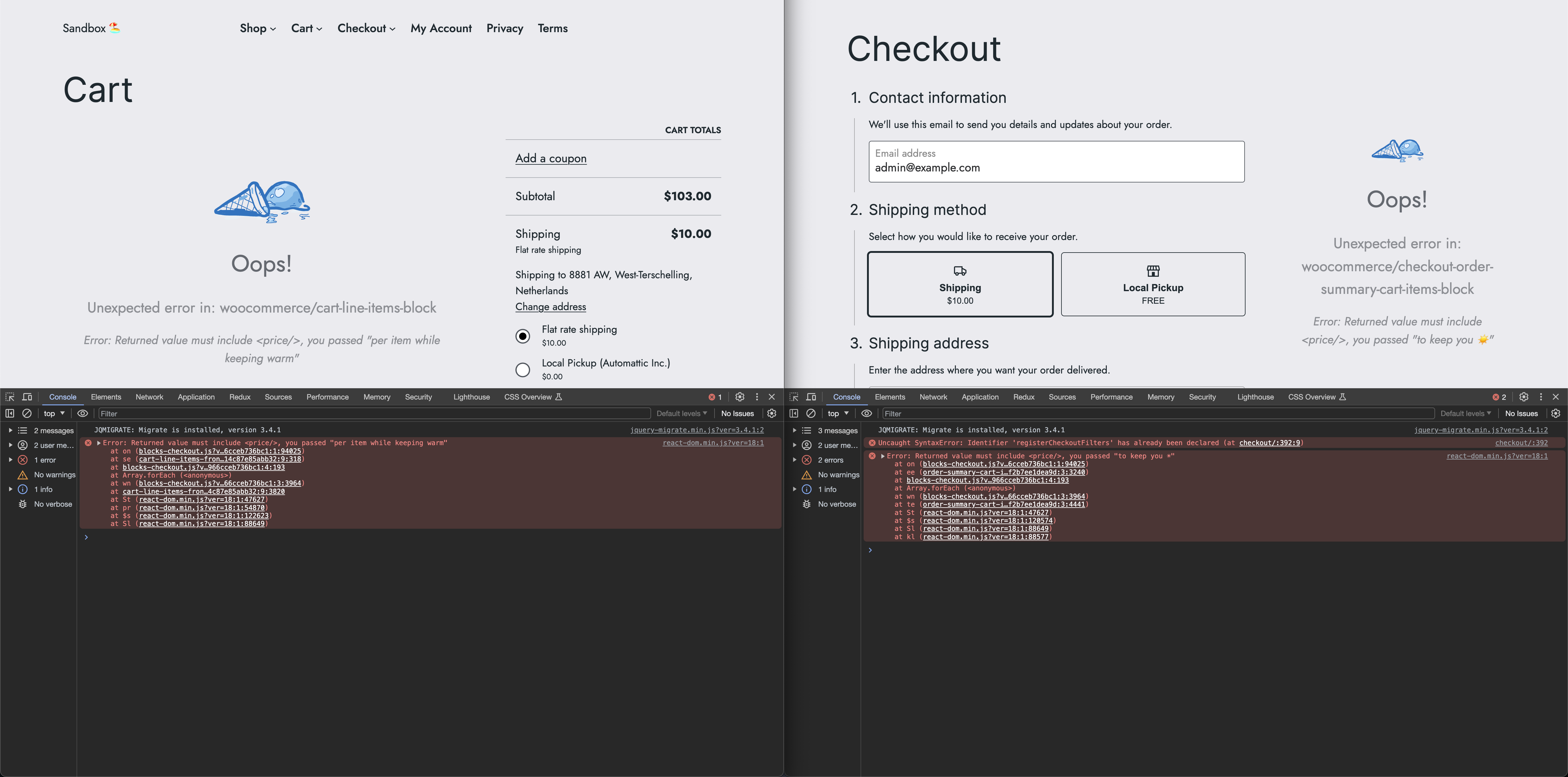
If you are logged in to the store as an administrator, you should be shown an error like this if your filter is not
working correctly. The error will also be shown in your console.
# Product collection block
Display a collection of products from your store.
## Start here
1. [DOM events sent from product collection block](/docs/block-development/extensible-blocks/product-collection-block/dom-events)
2. [Registering custom collections in product collection block](/docs/block-development/extensible-blocks/product-collection-block/register-product-collection)
# On-Sale Badge block
The On-Sale Badge block displays a "Sale" badge on products that are on sale.
> **Note:** This block uses the slug `woocommerce/product-sale-badge`.
## `woocommerce_sale_badge_text`
### Description {/* omit in toc */}
The `woocommerce_sale_badge_text` filter allows customization of the sale badge text based on product context.
### Parameters {/* omit in toc */}
- _$sale_text_ `string` (default: `'Sale'`) - The sale badge text.
- _$product_ `WC_Product` - The product object.
### Returns {/* omit in toc */}
- `string` - The filtered sale badge text.
### Code examples {/* omit in toc */}
#### Basic example {/* omit in toc */}
```php
add_filter( 'woocommerce_sale_badge_text', 'custom_sale_badge_text', 10, 2 );
function custom_sale_badge_text( $sale_text, $product ) {
return __( 'On Sale', 'your-textdomain' );
}
```
#### Product-specific customization {/* omit in toc */}
```php
add_filter( 'woocommerce_sale_badge_text', 'custom_sale_badge_by_product_type', 10, 2 );
function custom_sale_badge_by_product_type( $sale_text, $product ) {
if ( $product->is_type( 'variable' ) ) {
return __( 'Save Now', 'your-textdomain' );
}
if ( $product->is_type( 'simple' ) ) {
return __( 'Limited Offer', 'your-textdomain' );
}
return $sale_text;
}
```
#### Discount percentage {/* omit in toc */}
```php
add_filter( 'woocommerce_sale_badge_text', 'show_discount_percentage_badge', 10, 2 );
function show_discount_percentage_badge( $sale_text, $product ) {
if ( $product->is_type( 'simple' ) || $product->is_type( 'external' ) ) {
$regular_price = (float) $product->get_regular_price();
$sale_price = (float) $product->get_sale_price();
if ( $regular_price > 0 ) {
$percentage = round( ( ( $regular_price - $sale_price ) / $regular_price ) * 100 );
return sprintf( __( '-%s%%', 'your-textdomain' ), $percentage );
}
}
return $sale_text;
}
```
## Difference from `woocommerce_sale_flash`
| Aspect | `woocommerce_sale_badge_text` | `woocommerce_sale_flash` |
| --- | --- | --- |
| **Context** | On-Sale Badge block | Classic templates (`loop/sale-flash.php`, `single-product/sale-flash.php`) |
| **Output** | Plain text | HTML markup |
| **Parameters** | `$sale_text`, `$product` | `$html`, `$post`, `$product` |
| **Default** | `'Sale'` | `'Sale!'` |
| **Since** | WooCommerce 10.0.0 | WooCommerce 2.x |
### Output handling
The block filter expects plain text only. HTML tags will be escaped and displayed as text.
```php
// Correct - plain text
add_filter( 'woocommerce_sale_badge_text', function( $text, $product ) {
return 'Hot Deal';
}, 10, 2 );
// Incorrect - HTML will be escaped
add_filter( 'woocommerce_sale_badge_text', function( $text, $product ) {
return 'Hot Deal'; // Displays as "<strong>Hot Deal</strong>"
}, 10, 2 );
```
The classic filter expects HTML markup:
```php
add_filter( 'woocommerce_sale_flash', function( $html, $post, $product ) {
return 'Hot Deal';
}, 10, 3 );
```
### Supporting both
To support both block and classic themes, implement both filters:
```php
// Block filter
add_filter( 'woocommerce_sale_badge_text', 'my_custom_sale_badge', 10, 2 );
function my_custom_sale_badge( $sale_text, $product ) {
return __( 'Special Offer', 'your-textdomain' );
}
// Classic filter
add_filter( 'woocommerce_sale_flash', 'my_classic_sale_flash', 10, 3 );
function my_classic_sale_flash( $html, $post, $product ) {
return '' . __( 'Special Offer', 'your-textdomain' ) . '';
}
```
## Notes
- The sale badge only renders when `$product->is_on_sale()` returns `true`.
- Filter output is escaped with `esc_html()` by the block.
- For Cart and Checkout blocks, use the [`saleBadgePriceFormat` filter](/docs/block-development/extensible-blocks/cart-and-checkout-blocks/filters-in-cart-and-checkout/cart-line-items/#salebadgepriceformat) instead.
# Data Store
This document provides an overview of the data stores registered with `wp.data` for use by various blocks. Store descriptions are exported as constants on the `wc.wcBlocksData` export (externally registered as `@woocommerce/block-data` and enqueued via handle `wc-blocks-data-store`). For any block using the store, it's recommended to import the store description rather than using the reference directly to ensure dependencies are extracted correctly. It is assumed readers have some familiarity with the `wp.data` API. You can read more about that [in the @wordpress/data reference guide](https://developer.wordpress.org/block-editor/reference-guides/packages/packages-data/).
## [Cart Store (wc/store/cart)](cart.md)
The **[Cart Store (wc/store/cart)](cart.md)** is responsible for handling cart-related data and operations. To access this store using a constant, you can use:
```ts
const { cartStore } = window.wc.wcBlocksData;
```
## [Checkout Store (wc/store/checkout)](checkout.md)
The **[Checkout Store (wc/store/checkout)](checkout.md)** manages the checkout process, ensuring a seamless experience for users. To access this store using a constant, you can use:
```ts
const { checkoutStore } = window.wc.wcBlocksData;
```
## [Collections Store (wc/store/collections)](collections.md)
The **[Collections Store (wc/store/collections)](collections.md)** holds data indexed by namespace, model name, and query string. To access this store using a constant, you can use:
```ts
const { COLLECTIONS_STORE_KEY } = window.wc.wcBlocksData;
```
## [Payment Store (wc/store/payment)](payment.md)
The **[Payment Store (wc/store/payment)](payment.md)** deals with all payment-related data and transactions. To access this store using a constant, you can use:
```ts
const { paymentStore } = window.wc.wcBlocksData;
```
## [Query-State Store (wc/store/query-state)](query-state.md)
The **[Query-State Store (wc/store/query-state)](query-state.md)** holds arbitrary values indexed by context and key. It's often used for tracking the state of query objects for a given context. To access this store using a constant, you can use:
```ts
const { QUERY_STATE_STORE_KEY } = window.wc.wcBlocksData;
```
## [Schema Store (wc/store/schema)](schema.md)
The **[Schema Store (wc/store/schema)](schema.md)** is primarily used for accessing routes and has more of an internal usage. To access this store using a constant, you can use:
```ts
const { SCHEMA_STORE_KEY } = window.wc.wcBlocksData;
```
## [Store Notices Store (wc/store/store-notices)](store-notices.md)
The **[Store Notices Store (wc/store/store-notices)](store-notices.md)** is dedicated to handling various store notices and alerts. To access this store using a constant, you can use:
```ts
const { storeNoticesStore } = window.wc.wcBlocksData;
```
This `StoreDescriptor` can be passed in the `mapSelect` function of `useSelect` and in `useDispatch`.
## [Validation Store (wc/store/validation)](validation.md)
The **[Validation Store (wc/store/validation)](validation.md)** holds data relating to validation errors, it is primarily used in the Cart and Checkout flows to ensure the Checkout doesn't continue while invalid data is present. To access this store using a constant, you can use:
```ts
const { validationStore } = window.wc.wcBlocksData;
```
# Hooks
We have several hooks that can be used by extensions, some are new and some are hooks that already exist in WooCommerce core.
- [Filters](https://github.com/woocommerce/woocommerce/blob/trunk/plugins/woocommerce/client/blocks/docs/third-party-developers/extensibility/hooks/filters.md)
- [Actions](https://github.com/woocommerce/woocommerce/blob/trunk/plugins/woocommerce/client/blocks/docs/third-party-developers/extensibility/hooks/actions.md)
We also have a list of hooks that have been migrated from WooCommerce Core, but that have been renamed.
- [List of migrated hooks](./migrated-hooks.md)
# Code Snippets
# Using the Code Snippets Plugin
## What is a Code Snippet?
Customizing WooCommerce functionality often requires adding code snippets to modify behavior, enhance features, or integrate with third-party tools. Instead of editing theme files or the `functions.php` file directly, we recommend using the **Code Snippets** plugin from the WordPress.org repository. This approach ensures a safer, more manageable, and more organized way to add custom code to your WooCommerce store.
## Why Use the Code Snippets Plugin?
Editing your theme’s `functions.php` file or adding custom code directly to WooCommerce files can lead to several issues:
- **Loss of Custom Code on Theme Updates:** When you update your theme, modifications made in `functions.php` are lost.
- **Potential for Errors and Site Breakage:** A single syntax error can make your website inaccessible.
- **Difficult Debugging:** Managing multiple customizations in a single `functions.php` file can become unorganized.
The **Code Snippets** plugin addresses these issues by allowing you to:
- Add, activate, and deactivate snippets without modifying core files.
- Organize custom snippets with descriptions and tags.
- Avoid losing changes when updating your theme or WooCommerce.
- Debug and test code safely before deploying to a live site.
## How to Install the Code Snippets Plugin
1. Log in to your WordPress admin dashboard.
2. Navigate to **Plugins > Add New**.
3. Search for **"Code Snippets"** in the search bar.
4. Click **Install Now** on the "Code Snippets" plugin by **Code Snippets Pro**.
5. After installation, click **Activate**.
## Adding Custom WooCommerce Snippets
Once the plugin is installed and activated, follow these steps to add a WooCommerce customization:
1. Navigate to **Snippets** in your WordPress dashboard.
2. Click **Add New**.
3. Give your snippet a descriptive title.
4. Enter your WooCommerce-specific PHP code in the code editor.
5. Select **Only run in administration area** or **Run everywhere**, depending on your needs.
6. Click **Save Changes and Activate**.
## Example: Add a Custom Message to the WooCommerce Checkout Page
```php
add_action('woocommerce_before_checkout_form', function() {
echo '
Reminder: Ensure your shipping address is correct before placing your order.
';
});
```
## Managing and Troubleshooting Snippets
- **Deactivating Snippets:** If a snippet causes issues, simply deactivate it from the Code Snippets interface without affecting the rest of your site.
- **Error Handling:** The plugin detects fatal errors and automatically deactivates problematic snippets.
- **Backup and Export:** You can export your snippets for backup or transfer to another site.
## Next Steps
For more advanced customizations, refer to the [WooCommerce Developer Documentation](https://developer.woocommerce.com/) to build blocks, extensions, and more!
# Contribution
# Contribute to Woo
Interested in joining the Woo contributor community? The links in this doc summarize and direct you to the order of operations you will need to make your first contribution. If you are a seasoned WooCommerce developer, feel free to skip ahead and utilize the template links, or the reference docs and guides below.
## Contributing to WooCommerce Core
The WooCommerce core plugin code can be found in our [monorepo](https://github.com/woocommerce/woocommerce). Here you can contribute to:
- [WooCommerce Core Plugin](https://github.com/woocommerce/woocommerce/tree/trunk/plugins/woocommerce)
- [WooCommerce Blocks](https://github.com/woocommerce/woocommerce/blob/trunk/plugins/woocommerce/client/blocks)
## Setting up your development environment
Please check out [our getting started guide](https://github.com/woocommerce/woocommerce#getting-started) for information about prerequisites and initial setup.
We also have [more in-depth documentation](https://github.com/woocommerce/woocommerce/blob/trunk/DEVELOPMENT.md) on how to develop in our repository. This also includes information about how to set up the development environment.
## Code of Conduct
Contributing to an open source project requires cooperation amongst individuals and organizations all working to make our project a stable and safe place to build and ask questions. Please thoroughly read our [Code of Conduct](https://github.com/woocommerce/woocommerce/blob/trunk/CODE_OF_CONDUCT.md) to get familiar with our standards and processes.
## Contributor Guidelines
Our [contributor guidelines](https://github.com/woocommerce/woocommerce/blob/trunk/.github/CONTRIBUTING.md) layout the first steps to contributing.
- [Prerequisites and developer tools to get started](https://github.com/woocommerce/woocommerce/blob/trunk/README.md#getting-started)
- [PNPM commands, plugin development environment packages, and troubleshooting](https://github.com/woocommerce/woocommerce/blob/trunk/DEVELOPMENT.md)
- [Coding standards, E2E testing links](https://github.com/woocommerce/woocommerce/blob/trunk/.github/CONTRIBUTING.md)
- [Community contributions](/docs/contribution/contributing/community-contributions/)
- [WordPress and WooCommerce version support policy](/docs/contribution/contributing/version-support-policy/)
## Templates, Bug Reports, and Feature Requests
- [Pull Request template](https://github.com/woocommerce/woocommerce/blob/trunk/.github/PULL_REQUEST_TEMPLATE.md)
- [Core Issue template](https://github.com/woocommerce/woocommerce/blob/trunk/.github/ISSUE_TEMPLATE.md)
- [Bug Report template](https://github.com/woocommerce/woocommerce/blob/trunk/.github/ISSUE_TEMPLATE/1-bug-report.yml)
- [Enhancement template](https://github.com/woocommerce/woocommerce/blob/trunk/.github/ISSUE_TEMPLATE/2-enhancement.yml)
- [Feature requests](https://woocommerce.com/feature-requests/woocommerce/)
## Security
Security and safety for data management are incredibly important to us at Woo. Please check out the [Automattic security policy](https://automattic.com/security/) to learn about our foundational requirements.
Please report any vulnerabilities or security issues by reading through Woo's [security policy](https://github.com/woocommerce/woocommerce/blob/trunk/SECURITY.md).
# Releasing WooCommerce
The WooCommerce release process is managed by a rotating release lead, alongside two standing Product DRI seats in `@woo-core-release` (see [release roles](/docs/contribution/releases/readiness#release-roles)). The documentation below outlines the process for managing releases. To get started with a new release, see [Building and Publishing WooCommerce](/docs/contribution/releases/building-and-publishing).
## Process Overview
* [Building and Publishing](/docs/contribution/releases/building-and-publishing)
* [Readiness and Go/No-Go](/docs/contribution/releases/readiness)
* [Decision Matrix](/docs/contribution/releases/decision-matrix)
* [Troubleshooting](/docs/contribution/releases/troubleshooting)
* [Point Releases](/docs/contribution/releases/point-releases)
* [Security Support](/docs/contribution/releases/security-support)
* [Cherry-picking](/docs/contribution/releases/backporting)
* [Pre-releases](/docs/contribution/releases/prereleases)
* [Release Schedule](/docs/contribution/releases/schedule)
* [Release Monitoring](/docs/contribution/releases/monitoring)
* [Package Releases](/docs/contribution/releases/package-releases)
* [Workflows](/docs/contribution/releases/workflows)
# Testing
Setting up your test environment and writing tests when contributing to WooCommerce Core are essential parts of our development pipeline. The links below are also included in our [Contributing Guidelines](https://github.com/woocommerce/woocommerce/blob/trunk/.github/CONTRIBUTING.md) on GitHub.
If you have questions about testing, reach out to the developer community in our public channels: [Developer Blog](https://developer.woocommerce.com/blog/), [GitHub Discussions](https://github.com/woocommerce/woocommerce/discussions), or [Community Slack](https://woocommerce.com/community-slack/).
## Unit testing
[Unit tests](https://github.com/woocommerce/woocommerce/blob/trunk/plugins/woocommerce/tests/README.md) run against the WooCommerce PHP test suite. The recommended local setup uses `wp-env`.
## End-to-end testing
[End-to-end tests](https://github.com/woocommerce/woocommerce/tree/trunk/plugins/woocommerce/tests/e2e) are powered by Playwright. The test site is spun up using `wp-env`.
## API testing
[API tests](https://github.com/woocommerce/woocommerce/tree/trunk/plugins/woocommerce/tests/e2e/tests/api-tests) are part of the Playwright suite and use the same `wp-env` test environment as end-to-end tests.
## PHP version coverage
Use the [PHP version guidelines](/docs/contribution/testing/php-version-coverage/) to understand how to choose representative, minimum, and latest PHP versions, and where each belongs in E2E and PHP unit testing.
## Testing instructions
When opening a pull request, use the [testing instructions guide](/docs/contribution/testing/writing-high-quality-testing-instructions/) to write clear steps that cover the behavior changed in the PR.
## Calls for testing
Keep tabs on calls for testing on our [developer blog](https://developer.woocommerce.com/blog/), and read our [beta testing instructions](/docs/contribution/testing/beta-testing/) to help us build new features and enhancements.
# Extensions
# Core concepts
This section covers the fundamental principles, best practices, and essential knowledge you need to develop robust, maintainable WooCommerce extensions.
Learn about everything from basic setup and architecture to advanced development patterns. Whether you're building your first WooCommerce extension or maintaining existing ones, these guides will help you follow best practices and create high-quality code.
## Getting started
[Check if WooCommerce is active](./check-if-woo-is-active.md) to learn the proper way to ensure WooCommerce is installed and active before your code runs. This prevents errors and ensures your extension works reliably. You'll also want to understand the [core WooCommerce classes](./class-reference.md) and how to work with them, from the main `WooCommerce` class to `WC_Product`, `WC_Customer`, and `WC_Cart`.
## Internal code boundaries
WooCommerce contains both public APIs intended for extension use and internal infrastructure code. **Extensions must not use internal code**, as backwards compatibility between WooCommerce releases is not guaranteed:
- **Internal namespace**: All classes under `Automattic\WooCommerce\Internal` are internal infrastructure.
- **@internal annotations**: Code entities (classes, methods, hooks) marked with `@internal` in their docblocks.
Using internal code may cause your extension to break when merchants update WooCommerce. See the [extension development best practices](../best-practices-extensions/extension-development-best-practices.md) and the [Internal namespace documentation](https://github.com/woocommerce/woocommerce/blob/trunk/plugins/woocommerce/src/Internal/README.md) for details.
## Development patterns
[Adding actions and filters](./adding-actions-and-filters.md) to master the art of extending WooCommerce through hooks. Learn when and how to add actions and filters, following WordPress and WooCommerce standards. For long-term success, discover strategies for [writing maintainable code](./maintainability.md) and establishing update processes that keep your extensions current and secure. You'll also need to [manage deactivation and uninstallation](./handling-deactivation-and-uninstallation.md) to ensure your extension cleans up properly when deactivated or uninstalled, including scheduled actions, admin notes, and tasks.
## Plugin structure and standards
See the [example header plugin comment](./example-header-plugin-comment.md) format for your extension's main plugin file header, including all required metadata. You'll also want to learn the standard [changelog format](./changelog-txt.md) for documenting changes in your extension's changelog file, and understand the [WooCommerce plugin API callback](./woocommerce-plugin-api-callback.md) for proper integration with WooCommerce's plugin API for seamless functionality.
# Get started building extensions
This section provides guides and resources for building, testing, and distributing WooCommerce extensions.
## Important: Internal vs public code
Not all WooCommerce code is intended for use by extensions. Classes in the `Automattic\WooCommerce\Internal` namespace and code marked with `@internal` are for WooCommerce core use only: backwards compatibility between WooCommerce releases is not guaranteed and your extension may break if you use them. See the [extension development best practices](../best-practices-extensions/extension-development-best-practices.md) and the [Internal namespace documentation](https://github.com/woocommerce/woocommerce/blob/trunk/plugins/woocommerce/src/Internal/README.md).
## Getting started
- [Design a simple extension](/extensions/getting-started-extensions/how-to-design-a-simple-extension) - Learn extension architecture and best practices
- [Build your first extension](/extensions/getting-started-extensions/building-your-first-extension) - Create your first WooCommerce extension
- [Core concepts](/extensions/core-concepts/) - Master fundamental concepts like plugin headers, lifecycle management, and security
## Submit to the WooCommerce Marketplace
Join the WooCommerce Marketplace and get your extension in front of 3.6M+ active stores worldwide.
Learn more about [why extension developers are choosing the WooCommerce Marketplace](https://woocommerce.com/partners/) and [submit your extension](https://woocommerce.com/document/submitting-your-product-to-the-woo-marketplace/)
### Quality Insights Toolkit (QIT)
#### Available to all developers with a WooCommerce.com vendor profile
QIT (Quality Insights Toolkit) is a testing platform developed by WooCommerce for plugins and themes. It allows developers to quickly run a variety of managed tests out-of-the-box, as well as integrate their own custom E2E tests to ensure their extensions are reliable, secure, and compatible.
#### Key features
- **Managed test suites:** Run pre-configured end-to-end tests, activation tests, security scans, PHPStan analysis, API tests, and more
- **Custom E2E testing:** Write and run your own Playwright-based E2E tests directly through QIT
- **Continuous quality checks:** Seamlessly integrate QIT into your development workflows via CLI, GitHub Actions, and more
- **Marketplace integration:** Currently in closed beta for extensions listed on the WooCommerce Marketplace
[Learn more about QIT](https://qit.woo.com/docs/)
## Development tools
- [Extension scaffolds](/getting-started/scaffolding/#extension-scaffolds) - Learn how to scaffold new extensions with our [create-woo-extension](https://www.npmjs.com/package/@woocommerce/create-woo-extension) package.
- [WooCommerce CLI](/wc-cli/cli-overview) - Command-line tools for WooCommerce development
# Review guidelines
Reviews are an integral part of the online shopping experience, and people installing software pay attention to them. Prospective users of your extensions will likely consider average ratings when making software choices.
Many of today's most popular online review platforms - from Yelp business reviews, to Amazon product reviews - have a range of opinion that can be polarized, with many extremely positive and/or negative reviews, and fewer moderate opinions. This creates a "J-shaped" distribution of reviews that isn't as accurate or as helpful as could be.
WooCommerce.com and WordPress.org both feature reviews heavily, and competing extensions having a higher rating likely have the edge in user choice.
## Primary considerations around reviews
Requesting more reviews for a extension with major issues will not generate good reviews, and analyzing existing reviews will help surface areas to address before soliciting reviews.
It is extremely rare for users of WordPress plugins to leave reviews organically (.2% of users for WordPress.org leave reviews), which means that there's an untapped market of 99.8% of users of the average plugin.
These plugins are competing with other plugins on the same search terms in the WordPress.org plugin directory, and ratings are a large factor in the ranking algorithm. This is not usually a factor to the same extent on the WooCommerce Marketplace. For instance, WooCommerce's PayPal extension directly competes on all possible keywords with other PayPal extensions on the WordPress.org repository, while it does not compete with other PayPal payments extensions on the Marketplace.
# Settings APIs and admin pages
Managing your settings, admin pages, and more is possible through the Settings APIs. The docs in this section cover what the Settings APIs and admin pages system offers in general. This guide goes further to map all of the various approaches you have available, some of the scenarios they cover, and the trade-offs of each approach.
There are also code examples for your reference before you commit to an implementation path. However, reading through the approach you're interested in will give you greater scope to understand and apply the principles of each.
## Approaches at a glance
The Settings API and admin pages section has six approaches, outlined in the table. The four core concepts (Settings API, settings pages, settings tab sections, and admin pages) cover most settings and admin placement decisions, while the remaining approaches cover specialized integrations and navigation shortcuts.
| Approach | Use when | Requires |
| :---- | :---- | :---- |
| [Settings API](/docs/extensions/settings-and-config/settings-api/) | Defining settings for a configurable component, such as a payment gateway or shipping method | PHP |
| [Settings pages](/docs/extensions/settings-and-config/extend-wc-settings-page/) | Your extension needs a full tab under **WooCommerce > Settings** with one or more sections | PHP |
| [Settings tab sections](/docs/extensions/settings-and-config/adding-a-section-to-a-settings-tab/) | Your settings belong under an existing WooCommerce tab rather than a new page | PHP |
| [Admin pages](/docs/extensions/settings-and-config/working-with-woocommerce-admin-pages/) | Your extension needs a standalone page outside WooCommerce's settings structure | PHP or JavaScript |
| [Integration settings](/docs/extensions/settings-and-config/implementing-settings/) | Your extension connects to a third-party service and needs a page under the Integrations tab | PHP |
| [Store management links](/docs/extensions/settings-and-config/how-to-add-your-own-store-management-links/) | Surfacing quick-access links on the WooCommerce home screen | JavaScript |
## Settings API
`WC_Settings_API` provides field definition, rendering, loading, and saving for configurable WooCommerce components. Plugin developers usually inherit it through `WC_Payment_Gateway`, `WC_Shipping_Method`, or `WC_Integration` rather than extending it directly.
Use the [Payment Gateway API](/docs/features/payments/payment-gateway-api/), [Shipping Method API](/docs/features/shipping/shipping-method-api/), or [integration settings](/docs/extensions/settings-and-config/implementing-settings/) guide for a complete implementation.
## Settings pages
Use `WC_Settings_Page` when your extension needs a full tab under **WooCommerce > Settings**. A settings page class registers the tab, renders one or more sections, defines fields with WooCommerce's settings array format, and lets WooCommerce handle saving through the existing settings form.
The main trade-off is navigation weight. If your extension only needs a few settings that clearly belong under an existing WooCommerce settings tab, add a section to that tab instead of creating a new top-level tab. If the extension needs an interface outside WooCommerce settings entirely, use admin page registration.
```php
final class My_Plugin_Settings_Page extends WC_Settings_Page {
public function __construct() {
$this->id = 'my_plugin';
$this->label = __( 'My plugin', 'my-plugin' );
parent::__construct();
}
protected function get_settings_for_default_section() {
return array(
array(
'title' => __( 'My plugin settings', 'my-plugin' ),
'type' => 'title',
'id' => 'my_plugin_options',
),
array(
'title' => __( 'Enable feature', 'my-plugin' ),
'id' => 'my_plugin_enabled',
'type' => 'checkbox',
'default' => 'no',
),
array(
'type' => 'sectionend',
'id' => 'my_plugin_options',
),
);
}
}
add_filter(
'woocommerce_get_settings_pages',
function( $settings_pages ) {
$settings_pages[] = new My_Plugin_Settings_Page();
return $settings_pages;
}
);
```
## Settings tab sections
Rather than creating a whole new page, you can add a section beneath an existing WooCommerce settings tab using two filters:
- `woocommerce_get_sections_{tab}` registers the section.
- `woocommerce_get_settings_{tab}` supplies its fields.
The `{tab}` portion of each filter corresponds to the settings page ID for the tab you want to extend. For instance, `products` targets the **Products** tab, while `account` targets **Accounts & Privacy**.
Placing settings under an existing tab keeps the admin area organized and means merchants find your extension's options in an understandable context. The limit is that linking to your section from documentation or onboarding flows requires a URL with both a tab and a section parameter rather than a page URL you control.
```php
add_filter(
'woocommerce_get_sections_products',
function( $sections ) {
$sections['my_extension'] = __( 'My Extension', 'my-extension' );
return $sections;
}
);
add_filter(
'woocommerce_get_settings_products',
function( $settings, $current_section ) {
if ( 'my_extension' === $current_section ) {
return array(
array(
'title' => __( 'My Extension', 'my-extension' ),
'type' => 'title',
'id' => 'my_extension',
),
array(
'title' => __( 'Enable feature', 'my-extension' ),
'type' => 'checkbox',
'id' => 'my_extension_enabled',
),
array(
'type' => 'sectionend',
'id' => 'my_extension',
),
);
}
return $settings;
},
10,
2
);
```
## Admin page registration
When your extension needs a page outside WooCommerce's settings structure, you register it with the `PageController`. This attaches the WooCommerce Admin header and activity panel to the page and WooCommerce provides two registration paths:
- `wc_admin_connect_page()` for PHP-powered pages.
- `wc_admin_register_page()` for React-powered pages.
PHP registration connects an existing admin page to the WooCommerce Admin shell. This will suit extensions that already render an interface with PHP. React registration creates a menu entry and renders a component you supply, which gives you a component-driven interface but requires a JavaScript build step.
Both paths are for extensions with an interface that's too distinct to fit within WooCommerce's settings tabs. For example, this could be a reporting dashboard, a product import tool, or any page with its own layout.
```php
// PHP-powered page.
wc_admin_connect_page(
array(
'id' => 'my-extension-page',
'screen_id' => 'my-extension-page',
'title' => array( 'My Extension', 'Settings' ),
'path' => add_query_arg( 'page', 'my-extension', 'admin.php' ),
)
);
```
```jsx
// React-powered page.
import { addFilter } from '@wordpress/hooks';
const MyPage = () =>
My Extension
;
addFilter( 'woocommerce_admin_pages_list', 'my-extension', ( pages ) => {
pages.push( {
container: MyPage,
path: '/my-extension',
breadcrumbs: [ 'My Extension' ],
} );
return pages;
} );
```
## Integration settings
`WC_Integration` extends `WC_Settings_API` and creates a settings page under **WooCommerce > Settings > Integrations**. It also handles data saving and sanitization for you. You should use it when your extension connects to an external service and a dedicated page under the **Integrations** tab is the right home for its settings.
The main trade-off is placement: if your settings belong under an existing WooCommerce tab or on a standalone page, this is not the path. `WC_Integration` is great for fields such as API keys or toggle switches because you get saving and sanitization without writing that logic yourself.
```php
class My_Integration extends WC_Integration {
public function __construct() {
$this->id = 'my-integration';
$this->method_title = __( 'My Integration', 'my-integration' );
$this->method_description = __( 'Connect to My Service.', 'my-integration' );
$this->init_form_fields();
$this->init_settings();
add_action(
'woocommerce_update_options_integration_' . $this->id,
array( $this, 'process_admin_options' )
);
}
public function init_form_fields() {
$this->form_fields = array(
'api_key' => array(
'title' => __( 'API Key', 'my-integration' ),
'type' => 'text',
),
);
}
}
add_filter(
'woocommerce_integrations',
function( $integrations ) {
$integrations[] = 'My_Integration';
return $integrations;
}
);
```
## Store management links
The WooCommerce home screen includes a store management dashboard that displays quick-access links and statistics for merchants. You can add your own link there using the `woocommerce_admin_homescreen_quicklinks` JavaScript filter.
However, two constraints apply:
- Links must point to pages within WooCommerce as external URLs are not supported.
- All extension-added links appear under a fixed **Extensions** category and custom categories are not available.
You enqueue your script using `admin_enqueue_scripts`, with a dependency on `wp-hooks` and a priority higher than 15 to ensure it runs before the section renders.
Note that this approach doesn't *configure* settings as its purpose is discoverability for merchants who use the WooCommerce home screen as a starting point for day-to-day tasks.
```js
import { megaphone } from '@wordpress/icons';
import { addFilter } from '@wordpress/hooks';
addFilter( 'woocommerce_admin_homescreen_quicklinks', 'my-extension', ( quickLinks ) => {
return [
...quickLinks,
{
title: 'My Extension',
href: 'link/to/my-extension',
icon: megaphone,
},
];
} );
```
## Next steps
With the trade-offs and code examples for each approach as a reference, you can work through the full documentation for the one your extension needs.
1. [Settings API](/docs/extensions/settings-and-config/settings-api/). Core reference for the `WC_Settings_API` class.
2. [Adding a settings page](/docs/extensions/settings-and-config/extend-wc-settings-page/). Creating a full tab under **WooCommerce > Settings**.
3. [Adding a section to a settings tab](/docs/extensions/settings-and-config/adding-a-section-to-a-settings-tab/). Adding a section beneath an existing WooCommerce tab.
4. [Working with WooCommerce admin pages](/docs/extensions/settings-and-config/working-with-woocommerce-admin-pages/). Registering PHP and React admin pages.
5. [Implementing settings with `WC_Integration`](/docs/extensions/settings-and-config/implementing-settings/). How to use the `WC_Integration` class for third-party service connections.
6. [Adding store management links](/docs/extensions/settings-and-config/how-to-add-your-own-store-management-links/). Navigation shortcuts on the WooCommerce home screen.
# Extension Guidelines
This section covers general guidelines, and best practices to follow in order to ensure your product experience aligns with WooCommerce for ease of use, seamless integration, and strong adoption.
We strongly recommend you review the current [WooCommerce setup experience](https://woocommerce.com/documentation/plugins/woocommerce/getting-started/) to get familiar with the user experience and taxonomy.
We also recommend you review the [WordPress core guidelines](https://developer.wordpress.org/plugins/wordpress-org/detailed-plugin-guidelines/) to ensure your product isn't breaking any rules, and review [this helpful resource](https://woocommerce.com/document/grammar-punctuation-style-guide/) on content style.
## General
Use existing WordPress/WooCommerce UI, built in components (text fields, checkboxes, etc) and existing menu structures.
Plugins which draw on WordPress' core design aesthetic will benefit from future updates to this design as WordPress continues to evolve. If you need to make an exception for your product, be prepared to provide a valid use case.
- [WordPress Components library](https://wordpress.github.io/gutenberg/?path=/story/docs-introduction--page)
- [Figma for WordPress](https://make.wordpress.org/design/2018/11/19/figma-for-wordpress/) | ([WordPress Design Library Figma](https://www.figma.com/file/e4tLacmlPuZV47l7901FEs/WordPress-Design-Library))
- [WooCommerce Component Library](https://woocommerce.github.io/woocommerce/)
## Component Library - Storybook
> Storybook is an open source tool for developing UI components in isolation for React, React Native and more. It makes building stunning UIs organized and efficient.
The WooCommerce repository also includes [Storybook](https://storybook.js.org/) integration that allows testing and developing in a WooCommerce-agnostic context. This is very helpful for developing reusable components and trying generic JavaScript modules without any backend dependency.
You can launch Storybook by running `pnpm --filter=@woocommerce/storybook watch:build` locally. It will open in your browser automatically.
You can also test Storybook for the current `trunk` branch on GitHub Pages: [https://woocommerce.github.io/woocommerce](https://woocommerce.github.io/woocommerce)
# Features
# Model Context Protocol (MCP) Integration
## Introduction
WooCommerce registers product and order abilities in WordPress. With the MCP Adapter plugin, AI clients can discover and run these store operations through the Model Context Protocol (MCP), subject to WordPress and WooCommerce permissions.
:::info
**Developer Preview Notice**
The MCP implementation in WooCommerce is currently in developer preview. Implementation details, APIs, and integration patterns may change in future releases as the feature matures.
:::
## Enabling MCP Integration
WooCommerce always registers its abilities through the WordPress Abilities API; there is no WooCommerce setting to turn on. To make them available to MCP clients, install and activate the [MCP Adapter plugin](https://wordpress.org/plugins/mcp-adapter/):
```bash
wp plugin install mcp-adapter --activate
```
WooCommerce does not bundle the MCP adapter.
## Authentication and Security
### WordPress Application Password Requirements
Remote HTTP connections authenticate using a WordPress username and an [Application Password](https://developer.wordpress.org/rest-api/using-the-rest-api/authentication/#basic-authentication-with-application-passwords). Do not use your account password or a WooCommerce REST API key.
To create an Application Password:
1. In the WordPress dashboard, navigate to **Users → Profile**.
2. Under **Application Passwords**, enter a name for the MCP client.
3. Click **Add New Application Password**.
4. Copy the generated password and store it securely. WordPress only displays it once.
Use the WordPress username and generated password as `WP_API_USERNAME` and `WP_API_PASSWORD` in the remote proxy configuration. Application Passwords can be revoked independently from the user's profile.
### HTTPS Enforcement
Use HTTPS for remote HTTP connections so credentials are encrypted in transit. Local STDIO connections authenticate through WP-CLI using the configured `--user` and do not require an Application Password.
### Permission Validation
The MCP Adapter authenticates requests as the WordPress user associated with the Application Password. The default server requires an authenticated user with the `read` capability, and each WooCommerce ability also enforces its own permission callback. Use a dedicated WordPress user with only the capabilities the MCP client needs.
## Server Endpoint
WooCommerce abilities are available through the WordPress MCP Adapter's default server:
```text
https://yourstore.com/wp-json/mcp/mcp-adapter-default-server
```
The WooCommerce-specific `/wp-json/woocommerce/mcp` endpoint was removed in WooCommerce 11.3. See [Removed in WooCommerce 11.3](#removed-in-woocommerce-113).
## Connecting to the MCP Server
Choose a connection method based on where the WordPress site is running. For a detailed overview and application-specific instructions, see [Connecting AI applications](https://developer.wordpress.org/news/2026/02/from-abilities-to-ai-agents-introducing-the-wordpress-mcp-adapter/#connecting-ai-applications) and the [wordpress/mcp-adaptor repository](https://github.com/wordpress/mcp-adapter).
### Local Sites Using STDIO
For a local WordPress installation, MCP clients can connect directly through the MCP Adapter's WP-CLI command. The client needs access to the WordPress files and a working WP-CLI installation.
#### JSON Configuration
Add the following server to your MCP client configuration. Replace the WordPress path and user with values from your local environment:
```json
{
"mcpServers": {
"woocommerce_store": {
"command": "wp",
"args": [
"--path=/path/to/your/wordpress/site",
"mcp-adapter",
"serve",
"--server=mcp-adapter-default-server",
"--user=admin"
]
}
}
}
```
Claude Desktop, Claude Code, and Cursor use the `mcpServers` property shown above. For VS Code, use `servers` instead.
#### Command-Line Configuration
Claude Code users can add the same server from the command line:
```bash
claude mcp add woocommerce_store -- \
wp --path=/path/to/your/wordpress/site \
mcp-adapter serve \
--server=mcp-adapter-default-server \
--user=admin
```
You can verify the server directly with WP-CLI:
```bash
echo '{"jsonrpc":"2.0","id":1,"method":"tools/list","params":{}}' | \
wp --path=/path/to/your/wordpress/site \
mcp-adapter serve \
--server=mcp-adapter-default-server \
--user=admin
```
### Remote Sites Using HTTP
For a remote WordPress installation, use the `@automattic/mcp-wordpress-remote` proxy. The proxy translates the MCP client's local STDIO messages into HTTP requests to the WordPress MCP Adapter.
Before connecting:
1. Create or select a dedicated WordPress user with the minimum required capabilities.
2. Open the user's **Profile** screen and create a WordPress Application Password.
3. Confirm the site uses HTTPS and non-Plain permalinks.
#### JSON Configuration
Add the following server to your MCP client configuration. Replace the example URL, username, and Application Password:
```json
{
"mcpServers": {
"woocommerce_store": {
"command": "npx",
"args": [
"-y",
"@automattic/mcp-wordpress-remote@latest"
],
"env": {
"WP_API_URL": "https://yourstore.com/wp-json/mcp/mcp-adapter-default-server",
"WP_API_USERNAME": "your-username",
"WP_API_PASSWORD": "your-application-password"
}
}
}
}
```
Claude Desktop, Claude Code, and Cursor use the `mcpServers` property shown above. For VS Code, use `servers` instead. Do not commit a configuration containing an Application Password to version control.
#### Command-Line Configuration
Claude Code users can add the remote server from the command line:
```bash
claude mcp add \
--env WP_API_URL=https://yourstore.com/wp-json/mcp/mcp-adapter-default-server \
--env WP_API_USERNAME=your-username \
--env WP_API_PASSWORD='your-application-password' \
woocommerce_store \
-- npx -y @automattic/mcp-wordpress-remote@latest
```
**Troubleshooting**: For common setup issues with npx versions or SSL in local environments, see the [mcp-wordpress-remote troubleshooting guide](https://github.com/Automattic/mcp-wordpress-remote/blob/trunk/Docs/troubleshooting.md).
## Discover WooCommerce Abilities
The default MCP server exposes three tools: `mcp-adapter-discover-abilities`, `mcp-adapter-get-ability-info`, and `mcp-adapter-execute-ability`. A `tools/list` response shows these adapter tools, not a separate tool for each WooCommerce ability. Use the discovery tool to list available abilities, then get an ability's schema before executing it.
For a local site, you can check discovery with WP-CLI:
```bash
echo '{"jsonrpc":"2.0","id":1,"method":"tools/call","params":{"name":"mcp-adapter-discover-abilities","arguments":{}}}' | \
wp --path=/path/to/your/wordpress/site \
mcp-adapter serve \
--server=mcp-adapter-default-server \
--user=admin
```
On a WooCommerce 11.3 site, the response should include abilities such as `woocommerce/products-query` and `woocommerce/order-notes-query`. Each ability checks permissions when it runs. See the [MCP Adapter default server guide](https://github.com/WordPress/mcp-adapter/blob/trunk/docs/guides/default-server.md) for the discovery and execution flow.
## Background
The Model Context Protocol (MCP) is an open standard that enables AI applications to securely connect to external data sources and tools. Using MCP with WooCommerce relies on two core technologies:
- **[WordPress Abilities API](https://github.com/WordPress/abilities-api)** - A standardized system for registering capabilities in WordPress, included in WordPress core
- **[WordPress MCP Adapter](https://github.com/WordPress/mcp-adapter)** - The core MCP protocol implementation, installed as the [MCP Adapter plugin](https://wordpress.org/plugins/mcp-adapter/)
This architecture allows WooCommerce to expose operations as MCP tools through the flexible WordPress Abilities system while maintaining existing security and permission models.
## What's Available
WooCommerce registers purpose-built abilities for core store operations. These abilities are available through the WordPress Abilities API and can be surfaced through the shared WordPress MCP adapter.
### Purpose-Built WooCommerce Abilities
#### Product Management
- Query products with filtering and pagination
- Create new products
- Update existing products
- Delete products
#### Order Management
- Query orders with filtering and pagination
- Query notes for an order (`woocommerce/order-notes-query`)
- Update order status
- Add order notes
All operations respect WooCommerce's existing permission system. MCP clients authenticate through the MCP Adapter as a WordPress user.
### Removed in WooCommerce 11.3
WooCommerce 11.3 removed the deprecated WooCommerce MCP endpoint and everything that only existed to support it:
- The `/wp-json/woocommerce/mcp` endpoint and its WooCommerce REST API key authentication (`X-MCP-API-Key`). Requests to the endpoint now return HTTP 410 with a JSON-RPC error that explains how to connect through the MCP Adapter.
- The REST-derived product and order abilities (`woocommerce/products-list`, `woocommerce/orders-get`, and similar), along with the `woocommerce_mcp_include_ability`, `woocommerce_mcp_allow_insecure_transport`, and `woocommerce_check_rest_ability_permissions_for_method` filters and the `expose_in_deprecated_woocommerce_mcp` ability metadata.
Custom abilities registered by extensions or custom code that appeared in the removed endpoint don't carry over automatically. Before WooCommerce 10.9, the endpoint included abilities in the `woocommerce/` namespace; from 10.9, it included abilities with `expose_in_deprecated_woocommerce_mcp` set to `true`; and the `woocommerce_mcp_include_ability` filter could add or remove abilities in either version. The MCP Adapter's default server ignores all of these. It only exposes an ability when its `meta.mcp.public` is `true` (if `meta.mcp.public` is not set, the adapter falls back to the top-level `meta.public`). To keep a custom ability available to MCP clients, set that metadata as shown in [Adding Custom Abilities](#adding-custom-abilities).
To keep using WooCommerce with MCP, install the [MCP Adapter plugin](https://wordpress.org/plugins/mcp-adapter/) and connect your MCP client to its default server, as described in [Connecting to the MCP Server](#connecting-to-the-mcp-server). Stores that had the WooCommerce MCP feature enabled see an admin notice about the change.
:::warning
**Data Privacy Notice**
Order and customer operations may expose personally identifiable information (PII) including names, email addresses, physical addresses, and payment details. You are responsible for ensuring compliance with applicable data protection regulations. Connect MCP clients as a dedicated WordPress user with only the capabilities they need, revoke Application Passwords you no longer use, and follow your organization's data retention and handling policies.
:::
## Architecture
### Data Flow Overview
The MCP integration uses a multi-layered architecture to bridge between MCP clients and WordPress:
```text
AI Client (Claude, etc.)
↓ (MCP protocol over stdio/JSON-RPC)
Local MCP Proxy (mcp-wordpress-remote)
↓ (HTTP/HTTPS requests with authentication)
Remote WordPress MCP Server (mcp-adapter)
↓ (WordPress Abilities API)
WooCommerce Abilities
↓ (REST API calls or direct operations)
WooCommerce Core
```
### Architecture Components
**Local MCP Proxy** (`mcp-wordpress-remote`)
- Runs locally on the developer's machine as a Node.js process
- Converts MCP protocol messages to HTTP requests
- Handles authentication header injection
- Bridges the protocol gap between MCP clients and WordPress REST endpoints
**Remote WordPress MCP Server** (`mcp-adapter`)
- Is provided by the [MCP Adapter plugin](https://wordpress.org/plugins/mcp-adapter/), which must be installed and active
- Powers MCP tool discovery and execution for WordPress abilities
#### WordPress Abilities System
- Provides a standardized way to register and execute capabilities
- Acts as an abstraction layer between MCP tools and actual operations
- Enables flexible implementation approaches (direct operations, REST bridging, and so on)
### Core Components
**Abilities Registry** ([`AbilitiesRegistry.php`](https://github.com/woocommerce/woocommerce/blob/trunk/plugins/woocommerce/src/Internal/Abilities/AbilitiesRegistry.php))
- Initializes WooCommerce ability categories and loaders
- Bridges WordPress Abilities API with WooCommerce operations
- Enables ability discovery for MCP servers and other Abilities API consumers
**Purpose-Built Domain Abilities** ([`Domain`](https://github.com/woocommerce/woocommerce/tree/trunk/plugins/woocommerce/src/Internal/Abilities/Domain))
- Provide WooCommerce product and order abilities backed by domain APIs
- Use shared WordPress MCP adapter metadata (`mcp.public` and `mcp.type`) for MCP exposure
- Keep the ability contract focused on agent-friendly store operations
### Implementation Approach
WooCommerce implements its abilities as purpose-built domain abilities. These abilities use schemas and response shapes designed for agent workflows instead of automatically projecting every REST-shaped operation into MCP.
## Extending MCP Capabilities
Third-party plugins can register additional abilities using the WordPress Abilities API. Abilities can be implemented in various ways, including direct operations, custom logic, REST endpoint bridging, or external integrations.
### Adding Custom Abilities
Register an ability category first, then register the ability during the WordPress Abilities API init hook:
```php
add_action( 'wp_abilities_api_categories_init', function() {
if ( ! function_exists( 'wp_register_ability_category' ) ) {
return;
}
if ( function_exists( 'wp_has_ability_category' ) && wp_has_ability_category( 'your-plugin' ) ) {
return;
}
wp_register_ability_category(
'your-plugin',
array(
'label' => __( 'Your Plugin', 'your-plugin' ),
'description' => __( 'Abilities provided by Your Plugin.', 'your-plugin' ),
)
);
});
add_action( 'wp_abilities_api_init', function() {
if ( ! function_exists( 'wp_register_ability' ) ) {
return;
}
wp_register_ability(
'your-plugin/custom-operation',
array(
'label' => __( 'Custom Store Operation', 'your-plugin' ),
'description' => __( 'Performs a custom store operation.', 'your-plugin' ),
'category' => 'your-plugin',
'execute_callback' => 'your_custom_ability_handler',
'permission_callback' => function () {
return current_user_can( 'manage_woocommerce' );
},
'input_schema' => array(
'type' => 'object',
'properties' => array(
'store_id' => array(
'type' => 'integer',
'description' => 'Store identifier',
),
),
'required' => array( 'store_id' ),
),
'output_schema' => array(
'type' => 'object',
'properties' => array(
'success' => array(
'type' => 'boolean',
'description' => 'Operation result',
),
),
),
'meta' => array(
'show_in_rest' => true,
'mcp' => array(
'public' => true,
'type' => 'tool',
),
),
)
);
});
```
The `mcp.public` and `mcp.type` metadata tells the shared WordPress MCP adapter that the ability can be exposed as an MCP tool. The `show_in_rest` metadata exposes the ability through the Abilities API REST routes.
## Development Example
For a complete working example, see the [WooCommerce MCP Ability Demo Plugin](https://github.com/woocommerce/wc-mcp-ability). This demonstration plugin shows how third-party developers can:
- Register custom abilities using the WordPress Abilities API
- Define comprehensive input and output schemas
- Implement proper permission handling
- Integrate with MCP through the shared WordPress MCP adapter
The demo plugin creates a `woocommerce-demo/store-info` ability that retrieves store information and statistics, demonstrating the integration patterns for extending WooCommerce MCP capabilities while using a direct implementation approach rather than REST endpoint bridging.
## Troubleshooting
### Common Issues
## MCP Server Not Available
- Verify the MCP Adapter plugin is installed and active
- Confirm the client connects to `/wp-json/mcp/mcp-adapter-default-server`, not the removed `/wp-json/woocommerce/mcp` endpoint
## Authentication Failures
- Confirm `WP_API_USERNAME` matches the WordPress user that created the Application Password
- Confirm `WP_API_PASSWORD` contains an active Application Password, not the user's account password or a WooCommerce REST API key
- Verify the WordPress user has the capabilities required by the ability
- Ensure HTTPS is used for remote HTTP connections
## Ability Not Found
- Confirm the ability category is registered during `wp_abilities_api_categories_init`
- Confirm abilities are registered during `wp_abilities_api_init`
- Verify ability callbacks are accessible
Check **WooCommerce → Status → Logs** for entries with source `woocommerce-abilities`.
## Important Considerations
- **Developer Preview**: This feature is in preview status and may change
- **Implementation Approach**: WooCommerce uses purpose-built domain abilities
- **Breaking Changes**: Future updates may introduce breaking changes
- **Production Testing**: Thoroughly test before deploying to production
- **API Stability**: The WordPress Abilities API and MCP adapter are evolving
## Related Resources
- [WordPress Abilities API Repository](https://github.com/WordPress/abilities-api)
- [WordPress MCP Adapter Repository](https://github.com/WordPress/mcp-adapter)
- [WooCommerce MCP Demo Plugin](https://github.com/woocommerce/wc-mcp-ability)
- [Model Context Protocol Specification](https://modelcontextprotocol.io/)
- [WooCommerce REST API Documentation](/docs/apis/rest-api/)
# High Performance Order Storage (HPOS)
WooCommerce has traditionally stored store orders and related order information (like refunds) as custom WordPress post types or post meta records. This comes with performance issues.
[High-Performance Order Storage (HPOS)](https://developer.woocommerce.com/2022/09/14/high-performance-order-storage-progress-report/) also previously known as "Custom Order Tables" is a solution that provides an easy-to-understand and solid database structure - specifically designed for eCommerce needs. It uses the WooCommerce CRUD design to store order data in custom tables - optimized for WooCommerce queries with minimal impact on the store's performance.
In January 2022, we published the [initial plan for the Custom Order Tables feature](https://developer.woocommerce.com/2022/01/17/the-plan-for-the-woocommerce-custom-order-table/) and since then, we've been working hard to bring the High-Performance Order Storage (HPOS) to WooCommerce Core. In May 2022, we invited you to [test the order migration process](https://developer.woocommerce.com/2022/05/16/call-for-early-testing-custom-order-table-migrations/) and provide feedback on how our initial work performs on real stores of varied configurations.
From WooCommerce 8.2, released on October 2023, [High-Performance Order Storage (HPOS)](https://developer.woocommerce.com/2022/09/14/high-performance-order-storage-progress-report/) is officially released under the stable flag and will be enabled by default for new installations.
## What's New with High-Performance Order Storage?
Bringing High-Performance Order Storage (HPOS) to WooCommerce improves these three essential properties for eCommerce stores.
### Scalability
The rise in the number of customers and customer orders increases the load on your store's database - making it difficult to handle customer order requests and deliver a seamless user experience.
With High-Performance Order Storage, you get dedicated tables for data like orders and order addresses and thus dedicated indexes which results in fewer read/write operations and fewer busy tables. This feature enables eCommerce stores of all shapes and sizes to scale their business to their maximum potential - without expert intervention.
### Reliability
High-Performance Order Storage makes implementing and restoring targeted data backup easier. You'll no longer need to worry about losing orders, inventory numbers, or client information with reliable backup in these custom order tables. It'll also facilitate implementing read/write locks and prevent race conditions.
### Simplicity
You no longer have to go through a single huge database to locate underlying data and WooCommerce entries.
With High-Performance Order Storage, you can easily browse through the separate tables and easy-to-handle entries, independent of the table `_posts`, to find data or understand the table structure. It also lets you easily develop new plugins, implement designs for shops and products, and modify WooCommerce with more flexibility.
## Background
Before the release of version 8.2, WooCommerce relied on the `_post` and `_postmeta` table structures to store order information, which has served well over the years.
However, High-Performance Order Storage introduces dedicated tables for data like orders and order addresses and thus dedicated indexes which results in fewer read/write operations and fewer busy tables. This feature enables eCommerce stores of all shapes and sizes to scale their business to their maximum potential - without expert intervention.
The order data is synced from `_posts` and `_postmeta` table to four custom order tables:
1. `_wc_orders`
2. `_wc_order_addresses`
3. `_wc_order_operational_data`
4. `_wc_orders_meta`
## Enabling the feature
From WooCommerce 8.2, released on October 2023, HPOS is enabled by default for new installations. Existing stores can check [How to enable HPOS](https://developer.woocommerce.com/docs/how-to-enable-high-performance-order-storage/)
## Database tables
A number of database tables are used to store order data by HPOS. The `get_all_table_names` method in [the OrdersTableDataStore class](https://github.com/woocommerce/woocommerce/blob/trunk/plugins/woocommerce/src/Internal/DataStores/Orders/OrdersTableDataStore.php) will return the names of all the tables.
## Authoritative tables
At any given time, while the HPOS feature is enabled, there are two roles for the involved database tables: _authoritative_ and _backup_. The authoritative tables are the working tables, where order data will be stored to and retrieved from during normal operation of the store. The _backup_ tables will receive a copy of the authoritative data whenever [synchronization](#synchronization) happens.
If the `woocommerce_custom_orders_table_enabled` options is set to true, HPOS is active and [the new tables](#database-tables) are authoritative, while the posts and post meta tables act as the backup tables. If the option is set to false, it's the other way around. The option can be changed via admin UI (WooCommerce - Settings - Advanced - Custom data stores).
[The CustomOrdersTableController class](https://github.com/woocommerce/woocommerce/blob/trunk/plugins/woocommerce/src/Internal/DataStores/Orders/CustomOrdersTableController.php) hooks on the `woocommerce_order_data_store` filter so that `WC_Data_Store::load( 'order' );` will return either an instance of [OrdersTableDataStore](https://github.com/woocommerce/woocommerce/blob/trunk/plugins/woocommerce/src/Internal/DataStores/Orders/OrdersTableDataStore.php) or an instance of [WC_Order_Data_Store_CPT](https://github.com/woocommerce/woocommerce/blob/trunk/plugins/woocommerce/includes/data-stores/class-wc-order-data-store-cpt.php), depending on which are the authoritative tables.
In order to preserve data integrity, switching the authoritative tables (from the new tables to the posts table or the other way around) isn't allowed while there are orders pending synchronization.
## Synchronization
_Synchronization_ is the process of applying all the pending changes in the authoritative tables to the backup tables. _Orders pending synchronization_ are orders that have been modified in the authoritative tables but the changes haven't been applied to the backup tables yet.
This can happen in a number of ways:
### Immediate synchronization
If the `woocommerce_custom_orders_table_data_sync_enabled` setting is set to true, synchronization happens automatically and immediately as soon as the orders are changed in the authoritative tables.
### Manual synchronization
When immediate synchronization is disabled, it can be triggered manually via command line as follows: `wp wc cot sync`. It can also be triggered programmatically as follows:
```php
$synchronizer = wc_get_container()->get(Automattic\WooCommerce\Internal\DataStores\Orders\DataSynchronizer::class);
$order_ids = $synchronizer->get_next_batch_to_process( $batch_size );
if ( count( $order_ids ) ) {
$synchronizer->process_batch( $order_ids );
}
```
where `$batch_size` is the maximum count of orders to process.
### Scheduled synchronization
If immediate synchronization gets activated (`woocommerce_custom_orders_table_data_sync_enabled` is set to true) while there are orders pending synchronization, an instance of [DataSynchronizer](https://github.com/woocommerce/woocommerce/blob/trunk/plugins/woocommerce/src/Internal/DataStores/Orders/DataSynchronizer.php) will be enqueued using [BatchProcessingController](https://github.com/woocommerce/woocommerce/blob/trunk/plugins/woocommerce/src/Internal/BatchProcessing/BatchProcessingController.php) so that the synchronization of created/modified/deleted orders will happen in batches via scheduled actions. This scheduling happens inside [CustomOrdersTableController](https://github.com/woocommerce/woocommerce/blob/trunk/plugins/woocommerce/src/Internal/DataStores/Orders/CustomOrdersTableController.php), by means of hooking into `woocommerce_update_options_advanced_custom_data_stores`.
If for some reason immediate synchronization is already active but synchronization is not scheduled, a trick to restart it is to go to the settings page (WooCommerce - Settings - Advanced - Custom data stores) and hit "Save" even without making any changes. As long as "Keep the posts table and the orders tables synchronized" is checked the synchronization scheduling will happen, even if it was checked before.
If the `woocommerce_auto_flip_authoritative_table_roles` option is set to true (there's a checkbox for it in the settings page), the authoritative tables will be switched automatically once all the orders have been synchronized. This is handled by [the CustomOrdersTableController class](https://github.com/woocommerce/woocommerce/blob/trunk/plugins/woocommerce/src/Internal/DataStores/Orders/CustomOrdersTableController.php).
### Deletion synchronization
Synchronization of order deletions is tricky: if an order exists in one set of tables (new tables or posts) but not in the other, it's not clear if the missing orders need to be created or if the existing orders need to be deleted. Theoretically, the orders missing from the backup tables imply the former and the orders missing from the authoritative tables imply the latter; but that's dangerous as a bug in the involved code could easily lead to the deletion of legitimate orders.
To achieve a robust order deletion synchronization mechanism the following is done. Whenever an order is deleted and immediate synchronization is disabled, a record is created in the `wp_wc_orders_meta` table that has `deleted_from` as the key and the name of the authoritative table the order was deleted from (`wp_wc_orders` or the posts table). Then at synchronization time these records are processed (the corresponding orders are deleted from the corresponding tables) and deleted afterwards.
An exception to the above are the [placeholder records](#placeholder-records): these are deleted immediately when the corresponding order is deleted from `wp_wc_orders`, even if immediate synchronization is disabled.
When the "**High-Performance Order Storage**" and "**Compatibility mode**" are enabled, WooCommerce populates the HPOS tables with data from posts & postmeta tables. The synchronization between the tables is [explained in detail in this document](https://developer.woocommerce.com/2022/09/29/high-performance-order-storage-backward-compatibility-and-synchronization/#synchronization).
> You can find a deeper explanation about the synchronization between the tables in [this document about high-performance-order-storage-backward-compatibility-and-synchronization](https://developer.woocommerce.com/2022/09/29/high-performance-order-storage-backward-compatibility-and-synchronization/#synchronization).
## Placeholder records
Order IDs must match in both the authoritative tables and the backup tables, otherwise synchronization wouldn't be possible. The order IDs that are compared for order identification and synchronization purposes are the ones from the `id` field in both the `wp_wc_orders` table and the posts table.
If the posts table is authoritative, achieving an order ID match is easy: the record in `wp_wc_orders` is created with the same ID and that's it. However, when the new orders tables are authoritative there's a problem: the posts table is used to store multiple types of data, not only orders; and by the time synchronization needs to happen, a non-order post could already exist having the same ID as the order to synchronize.
To solve this, _placeholder records_ are used. Whenever the new orders tables are authoritative and immediate synchronization is disabled, creating a new order will cause a record with post type `shop_order_placehold` and the same ID as the order to be created in the posts table; this effectively "reserves" the order ID in the posts table. Then, at synchronization time, the record is filled appropriately and its post type is changed to `shop_order`.
## Order Data Storage
You can switch between data stores freely to sync the data between the tables.
- If you select **"WordPress Post Tables"**, the system will save the order data within `_post` and `_postmeta` tables. The order tables are not utilized in this scenario.
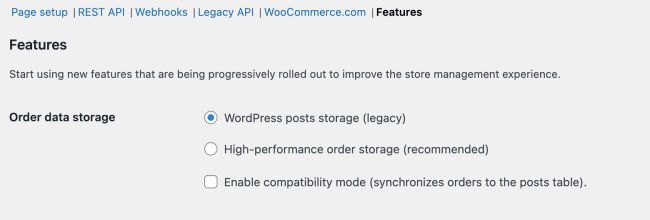
- If you select **"High-Performance Order Storage"**, the system will save the order data within the new WooCommerce order tables
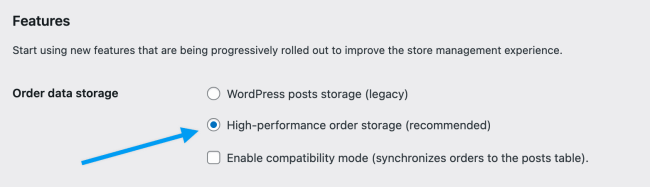
- If you select **"WordPress Post Tables"** and **"Enable compatibility mode"**, the system will sync the order data between the posts/postmeta and the WooCommerce order tables.
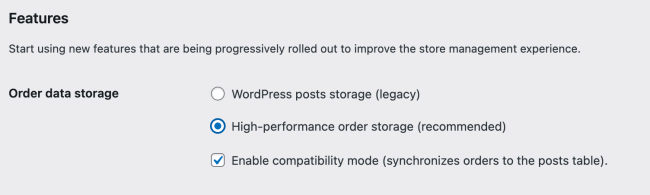
## Incompatible Plugins
If you are using a plugin that is not compatible with High-Performance Order Storage, then the HPOS option will be disabled under **WooCommerce > Settings > Advanced > Features**.

- You can click on "**View and manage**" to review the list of incompatible plugins
- Or you can visit `https://example.com/wp-admin/plugins.php?plugin_status=incompatible_with_feature&feature_id=custom_order_tables` to review the list of incompatible plugins (please replace `example.com` with your site domain)

> **Note:** If you are using a third-party extension that isn't working properly with High-Performance Order Storage then please notify the developers of the extension and ask them to update their extension to add support for HPOS. It's up to the extension developers to add support for HPOS. We have [developer resources and documentation](https://developer.woocommerce.com/2022/09/14/high-performance-order-storage-progress-report/) available to help with their integration efforts.
## Disabling HPOS
If you encounter problems or if you need to continue working with plugins that are not yet compatible with HPOS, then we recommend temporarily switching back to **WordPress posts storage**.
To do this, navigate to **WooCommerce ▸ Settings ▸ Advanced ▸ Features** and start by making sure that **compatibility mode** is enabled. If it was not already enabled, you may find you need to wait for some time while order data is synchronized across data-stores.
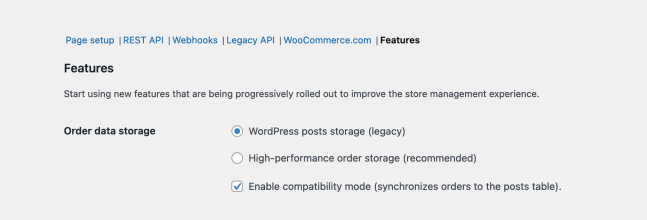
Once synchronization has completed, you can select **WordPress posts storage (legacy)** as your preferred option. You can also disable compatibility mode at this point. Once you are ready to re-enable HPOS, simply follow the instructions posted at the [start of this doc](/docs/features/orders/high-performance-order-storage/#enabling-the-feature). Finally, remember to save this page between changes!
As noted earlier, we also strongly recommend reaching out to the support teams of any plugins that are incompatible, so they can take corrective action.
# Payments Guidelines
When building payments extensions, you should ensure you follow the [WooCommerce Extension Guidelines](https://developer.woocommerce.com/docs/extensions/ux-guidelines-extensions/).
Payments plugins come in many types: payment processors and gateways, wallets, Buy Now Pay Later, crypto, and more.
The choice between payment plugins depends on the specific needs and preferences of the merchant and their customers. Some merchants may choose to use multiple types of payment plugins to offer their customers a wider range of payment options.
A merchant can discover a payments plugin in the following ways:
- Through direct installation from WordPress plugins.
- Through Woo's public list of payment services on the Marketplace.
- Through the admin onboarding tasks and payments settings. To be added to the list of payment gateways in the Woo admin, the payments plugin must meet the criteria listed in these guidelines.
# Getting Started
# Getting started
WooCommerce is a customizable, open-source eCommerce platform built on WordPress. It empowers businesses worldwide to sell anything from physical products and digital downloads to subscriptions, content, and even appointments.
* Get familiar with [WordPress Plugin Development](https://developer.wordpress.org/plugins/).
* Take a moment to familiarize yourself with our [Developer Resources](https://developer.wordpress.org/plugins/plugin-basics/).
* Join the [Woo Community Slack](https://woo.com/community-slack/)
---
## Build WooCommerce extensions
Explore comprehensive guides and resources to build and enhance WooCommerce extensions. Dive into development best practices and innovative techniques for creating powerful extensions.
* [How to build your first extension](/docs/extensions/getting-started-extensions/building-your-first-extension)
* [Designing a simple extension](/docs/extensions/getting-started-extensions/how-to-design-a-simple-extension)
* [Extension development best practices](/docs/extensions/best-practices-extensions/extension-development-best-practices)
Learn more about [extension development](/docs/extensions/getting-started-extensions/)
---
## Build WooCommerce themes
Discover the art of WooCommerce theme development. Learn about theme customization, design principles, and enhancing user experience to create visually appealing and functional themes.
* [How to set up and use a child theme](/docs/theming/theme-development/set-up-a-child-theme)
* [Classic theme developer handbook](/docs/theming/theme-development/classic-theme-developer-handbook)
* [Theme design and user experience guidelines](/docs/theming/theme-development/theme-design-ux-guidelines)
Learn more about [classic theme development](/docs/theming/theme-development/classic-theme-developer-handbook) or [Block theme development](/docs/theming/block-theme-development/theming-woo-blocks)
---
## Contribute to WooCommerce
Join our open-source community and contribute to WooCommerce. Explore how you can make a difference by tackling open issues and enhancing the WooCommerce ecosystem.
* [Visit the WooCommerce monorepo](https://github.com/woocommerce/woocommerce)
* [Open Issues on GitHub](https://github.com/woocommerce/woocommerce/issues)
* [Woo contributor guidelines](/docs/contribution/contributing/)
Learn more about [contributing](/docs/contribution/contributing)
---
## Additional resources
* [WooCommerce Official Website](https://woocommerce.com/)
* [Woo Marketplace](https://woocommerce.com/marketplace)
* All [WooCommerce Repositories on GitHub](https://woocommerce.github.io/)
---
## Not a developer?
This documentation site is intended for developers. If you're a merchant or are new to WooCommerce, please check out [woocommerce.com](https://woocommerce.com/) for our merchant-facing docs.
# Wc Cli
# WooCommerce CLI Commands
## Overview
This document serves as a comprehensive reference for the WooCommerce Command Line Interface (WC-CLI) commands. It includes syntax, options, and brief descriptions for each command. These commands are applicable for WooCommerce version 3.0.0 and later.
## General Command Structure
The general syntax for WC-CLI commands is:
```bash
wp wc [command] [options]
```
For detailed help on any specific command, use:
```bash
wp wc [command] --help
```
## Commands
| Command | Description |
| --- | --- |
| [wc blueprint](/docs/wc-cli/wc-cli-commands/wc-blueprint/) | Imports and exports WooCommerce Blueprints. |
| [wc com](/docs/wc-cli/wc-cli-commands/wc-com/) | Interacts with extensions from the WooCommerce.com marketplace via CLI. |
| [wc customer](/docs/wc-cli/wc-cli-commands/wc-customer/) | Manage WooCommerce customer resources. |
| [wc customer_download](/docs/wc-cli/wc-cli-commands/wc-customer-download/) | Manage WooCommerce customer download resources. |
| [wc hpos](/docs/wc-cli/wc-cli-commands/wc-hpos/) | Commands for managing High-Performance Order Storage (HPOS). For detailed examples, see [HPOS CLI tools](/docs/features/orders/high-performance-order-storage/cli-tools/). |
| [wc order_note](/docs/wc-cli/wc-cli-commands/wc-order-note/) | Manage WooCommerce order note resources. |
| [wc palt](/docs/wc-cli/wc-cli-commands/wc-palt/) | Commands for managing the product attributes lookup table. The table stores denormalized product attribute term data used to speed up catalog filtering. |
| [wc payment_gateway](/docs/wc-cli/wc-cli-commands/wc-payment-gateway/) | Manage WooCommerce payment gateway resources. |
| [wc product](/docs/wc-cli/wc-cli-commands/wc-product/) | Manage WooCommerce product resources. |
| [wc product_attribute](/docs/wc-cli/wc-cli-commands/wc-product-attribute/) | Manage WooCommerce product attribute resources. |
| [wc product_attribute_term](/docs/wc-cli/wc-cli-commands/wc-product-attribute-term/) | Manage WooCommerce product attribute term resources. |
| [wc product_cat](/docs/wc-cli/wc-cli-commands/wc-product-cat/) | Manage WooCommerce product category resources. |
| [wc product_review](/docs/wc-cli/wc-cli-commands/wc-product-review/) | Manage WooCommerce product review resources. |
| [wc product_shipping_class](/docs/wc-cli/wc-cli-commands/wc-product-shipping-class/) | Manage WooCommerce product shipping class resources. |
| [wc product_tag](/docs/wc-cli/wc-cli-commands/wc-product-tag/) | Manage WooCommerce product tag resources. |
| [wc product_variation](/docs/wc-cli/wc-cli-commands/wc-product-variation/) | Manage WooCommerce product variation resources. |
| [wc setting](/docs/wc-cli/wc-cli-commands/wc-setting/) | Manage WooCommerce setting resources. |
| [wc shipping_method](/docs/wc-cli/wc-cli-commands/wc-shipping-method/) | Manage WooCommerce shipping method resources. |
| [wc shipping_zone](/docs/wc-cli/wc-cli-commands/wc-shipping-zone/) | Manage WooCommerce shipping zone resources. |
| [wc shipping_zone_location](/docs/wc-cli/wc-cli-commands/wc-shipping-zone-location/) | Manage WooCommerce shipping zone location resources. |
| [wc shipping_zone_method](/docs/wc-cli/wc-cli-commands/wc-shipping-zone-method/) | Manage WooCommerce shipping zone method resources. |
| [wc shop_coupon](/docs/wc-cli/wc-cli-commands/wc-shop-coupon/) | Manage WooCommerce shop coupon resources. |
| [wc shop_order](/docs/wc-cli/wc-cli-commands/wc-shop-order/) | Manage WooCommerce shop order resources. |
| [wc shop_order_refund](/docs/wc-cli/wc-cli-commands/wc-shop-order-refund/) | Manage WooCommerce shop order refund resources. |
| [wc tax](/docs/wc-cli/wc-cli-commands/wc-tax/) | Manage WooCommerce tax resources. |
| [wc tax_class](/docs/wc-cli/wc-cli-commands/wc-tax-class/) | Manage WooCommerce tax class resources. |
| [wc tool](/docs/wc-cli/wc-cli-commands/wc-tool/) | Runs WooCommerce system status tools from the CLI. |
| [wc update](/docs/wc-cli/wc-cli-commands/wc-update/) | Runs all pending WooCommerce database updates. |
| [wc webhook](/docs/wc-cli/wc-cli-commands/wc-webhook/) | Manage WooCommerce webhook resources. |
| [wc webhook_delivery](/docs/wc-cli/wc-cli-commands/wc-webhook-delivery/) | Manage WooCommerce webhook delivery resources. |