Timber 主题开发文档
Timber v2 主题开发文档,介绍 Twig 模板与 WordPress 集成。
- Timber v2.x
- A post archive
- A single post
- Introduction
- Template inheritance and includes
- Cheatsheet
- Class Maps
- Comments
- Context
- Image Cookbook
- Text Cookbook
- Custom Fields
- Custom Integrations
- Custom Page Templates
- Date/Time in Timber
- Debugging
- Escaping
- Extending Timber
- Extending Twig
- Functions
- Block Editor (Gutenberg)
- Hosts & Servers
- Internationalization
- Menus
- Pagination
- Performance/Caching
- Posts
- Routing
- Shortcodes
- Sidebars
- Template Locations
- Terms
- Automated Testing
- Twig Blocks
- Twig filters
- Twig
- Users
- Widgets
- WooCommerce
- 0040-guides-wp-cli
- Installation
- 0042-installation-intro-to-composer
- 0043-installation-manage-timber-with-composer
- Advanced Custom Fields
- Upgrade to 1.0
- Upgrade to 2.0
Timber v2.x
What is Timber?
Timber helps you create fully-customized WordPress themes faster with more sustainable code.
Simplifies the way you write your templates
With Timber, you write your HTML with the Twig Template Engine. This cleans up your theme code. Your PHP file can focus on providing the data or logic and your Twig files can focus 100% on the HTML and display.
Let’s look at a simple example. First, we prepare the data in our PHP file.
single.php
use Timber\Timber;

$context = Timber::context();

Timber::render('single.twig', $context);
And then we render that data in your Twig template.
single.twig
{% extends 'base.twig' %}

{% block content %}
	<article>
		<h1>{{ post.title }}</h1>

		<img
            src="{{ post.thumbnail.src }}"
            alt="{{ post.thumbnail.alt }}"
        >

		<div class="post-content">
			{{ post.content }}
		</div>
	</article>
{% endblock %}
Unifies interacting with WordPress data
Timber makes Posts, Terms, Users, Comments and Menus more object-oriented. You can use the common WordPress objects in a way that makes sense.
For example, have you ever tried to get the thumbnail of a post? Here’s how that looks like in traditional WordPress themes:
$thumb_id = get_post_thumbnail_id($post->ID);
$url = wp_get_attachment_url($thumb_id);

?>

<img
    src="<?php echo $url; ?>"
    alt="Thumbnail for <?php echo $post->post_title; ?>"
/>
And here’s how it looks like with Timber and Twig:
<img
    src="{{ post.thumbnail.src }}"
    alt="Thumbnail for {{ post.title }}"
/>
Use it a little, use it a lot
Timber works with your existing themes to unlock new power. You don’t have to throw out everything you already have working. You can replace parts of your theme with Timber bit by bit. Say you want to just include an HTML snippet with a variable from your database:
home.php
$data['welcome_message'] = get_option('welcome_message');

Timber::render('welcome.twig', $data);
welcome.twig
<p class="intro">{{ welcome_message }}</p>
Who is Timber for?
Timber is for both WordPress pros and rookies:
- Developers who want to write their WordPress theme in a way that’s common in the PHP industry.
- Developers who are new to WordPress and don’t want to dive deep into the the WordPress way of writing themes.
- WordPress professionals who want to take advantage of object-oriented patterns that adhere to DRY and MVC principles.
- Agencies and studios that want to make it easier for teams to develop WordPress themes collaboratively. With Timber, your best WordPress engineer can focus on building the
.phpfiles with requests from WordPress and pass the data into.twigfiles. Once there, your frontend developer can mark-up data and build out a site’s look-and-feel. - Agencies and studios that want to build their own framework for building WordPress websites. Lumberjack is a great example of this.
When is Timber not the right tool for the job?
Timber does things differently than many WordPress themes and plugins. Naturally, this can create compatibility problems. There are ways to work around these problems, but sometimes they are not really worth it and might feel like you have to use a lot of hacks to make it work. Because of this, we believe that Timber might not the best tool for every job when
- you want to connect a lot of existing WordPress plugins and functionality.
- a WordPress plugin is the primary driver of your project like WooCommerce, or Easy Digital Downloads or Events Calendar Pro, just to name some examples.
It’s still possible to make Timber work with pretty much everything, and there are existing integrations for popular plugins (like Advanced Custom Fields). We want to stress that it’s still possible to use Timber only for certain parts of your theme; you can still mix it with traditional WordPress code.
A post archive
Here’s how a PHP template file for a WordPress archive looks like.
index.php
$context = Timber::context();

Timber::render('index.twig', $context);
For basic archives, that’s all you need. Behind the scenes, Timber already prepared a posts variable for you that holds all the posts that you would normally find in The Loop.
You can then loop over your posts with a for-loop in Twig. Here's what your archive page could look like.
index.twig
{% extends "base.twig" %}

{% block content %}
    {% if posts is not empty %}
        <ul>
            {% for post in posts %}
                <li>{{ include('teaser.twig') }}</li>
            {% endfor %}
        </ul>
    {% endif %}

    {{ include('pagination.twig') }}
{% endblock %}
A post teaser
<img
    src="{{ post.thumbnail.src('medium') }}"
    alt="{{ post.thumbnail.alt }}"
    width="{{ post.thumbnail.width }}"
    height="{{ post.thumbnail.height }}"
    loading="lazy"
>

<h2>
    <a
        href="{{ post.link }}"
        aria-describedby="desc-{{ post.slug }}"
    >{{ post.title }}</a>
</h2>

<p>{{ post.excerpt }}</p>

<span
    id="desc-{{ post.slug }}"
    aria-hidden="true"
>Read more</span>

<small>By {{ post.author }}</small>
There are two new things that you see here:
{{ post.slug }}– This property is the same aspost.post_name, which is the version of a post’s title that is safe to use in URLs and will be used for permalinks.{{ post.excerpt }}– This is an advanced function that pulls in the excerpt of a post, if it exists. Otherwise, it will generate an excerpt from your post’s content. Check out the documentation forTimber\Post::excerpt()to learn more about the parameters you can control the output with.
Using custom queries
Sometimes you’ll want to use your own queries for archive pages or to display a list of posts in other places. For that, you can use Timber::get_posts(). Here’s an example for a more complex query, that selects posts that have certain movie genres and actor terms assigned. The parameters you use are the same as those for WP_Query.
$args = [
    'post_type' => 'post',
    'tax_query' => [
        'relation' => 'AND',
        [
            'taxonomy' => 'movie_genre',
            'field' => 'slug',
            'terms' => ['action', 'comedy'],
        ],
        [
            'taxonomy' => 'actor',
            'field' => 'id',
            'terms' => [103, 115, 206],
            'operator' => 'NOT IN',
        ],
    ],
];

$context['posts'] = Timber::get_posts($args);
An example: related posts
You might want to show teasers for other posts from the same category at the bottom of a singular post. How would we do that?
First, you would prepare the data in your PHP template. For this, we add related_posts to $context.
single.php
$context = Timber::context();

$post = $context['post'];

$context['related_posts'] = Timber::get_posts([
    'post_type' => 'post',
    'posts_per_page' => 3,
    'no_found_rows' => true,
    'orderby' => 'date',
    'order' => 'DESC',
    'post__not_in' => [$post->ID],
    'category__in' => $post->terms([
        'taxonomy' => 'category',
        'fields' => 'ids',
    ]),
]);

Timber::render('single.twig', $context);
And then, in your singular view, you would loop over them. We can also reuse the teaser.twig view, that we introduced earlier.
single.twig
{% if related_posts is not empty %}
    <ul>
        {% for post in related_posts %}
            <li>{{ include('teaser.twig') }}</li>
        {% endfor %}
    </ul>
{% endif %}
You can read more about custom queries in the Posts Guide.
A single post
Let’s look at a singular post template in more detail, because echoing a post’s title with {{ post.title }} is not the only thing you can do.
In this guide, we’re looking at a typical blog post. You can use most of the things we show here for other post types, too.
single.twig
<article>
<header>
<h1>{{ post.title }}</h1>
<p>
Posted by {{ post.author.name }} <span>•</span>
<time
datetime="{{ post.date('Y-m-d H:i:s') }}"
>{{ post.date }}</time>
<p>
</header>
<section>
{{ post.content }}
</section>
</article>
In this example, you see that we can also use post.author, post.date and of course, post.content to actually display a post’s content.
The {{ post }} variable in Twig is not an array, it’s a PHP object. More specifically, it’s an instance of Timber\Post. When you look at the documentation for Timber\Post, you see what else you can access.
If you look for title in that post object in PHP, you will see that it’s actually not a property, but a function.
In Twig, we don’t have to write {{ post.title() }} including the parentheses, we can simply use {{ post.title }} to call the function and echo out what it returns. If this is still all confusing to you, then don’t worry. You don’t have to completely understand this just yet.
When you dump the post object with {{ dump(post) }}, you will see that there are properties that you might find familiar:
post.post_titlepost.post_contentpost.post_excerpt- …
These are properties that a Timber post inherits from WP_Post. They are the raw values directly from the database. You should only use these if you really need the raw value. Otherwise, you should use the methods provided by Timber, because Timber runs these values through the proper filter hooks:
post.titlewill usepost.post_titleand apply thethe_titlefilter.post.contentwill usepost.post_contentand apply thethe_contentfilter. Thethe_contentfilter will convert WordPress block markup into HTML or convert shortcodes.- …
Apart from the post title and content, we can also access the assigned author of a post through {{ post.author }}. The author is another Timber object. It’s not a post object though, but a Timber\User object. We can get the result of the name method through {{ post.author.name }}. This displays the name of the author.
There’s also {{ post.date }}, but we won’t go into details about it here, because that’s a whole other chapter. You can read more about it in the Date/Time Guide.
The featured image
If you want to display a post’s image, you can access it through {{ post.thumbnail }}. The thumbnail is yet another Timber object, a Timber\Image object.
single.twig
<img
    src="{{ post.thumbnail.src }}"
    alt="{{ post.thumbnail.alt }}"
>
But you probably don’t want to use the full size of an image. Use any registered size for your image by passing a parameter to the src() function:
<img
    src="{{ post.thumbnail.src('large') }}"
    alt="{{ post.thumbnail.alt }}"
>
There’s much more to images. Learn everything you need to know in the Images Guide.
Terms and categories
When you want to list all the categories that the blog post is assigned to, then you can use the post.terms() function in Twig:
<ul>
    {% for term in post.terms({ taxonomy: 'category' }) %}
        <li>
            <a href="{{ term.link }}">{{ term.title }}</a>
        <li>
    {% endfor %}
</ul>
We just used a for-loop here. This works a little different than foreach in PHP.
And here, we have yet another Timber object. Each term is a Timber\Term object. For terms, you also have methods like title or link. To learn more about how terms are handled in Timber, refer to the Terms Guide.
Add your own data
This is what a PHP template for a singular post in Timber looks like:
single.php
$context = Timber::context();

Timber::render('single.twig', $context);
For very basic themes, this is all you need to start working. But for more advanced functionality, you might have to add your own data. For that, you can add your data to $context.
Here’s an example where you would call a function to calculate the reading time for a post.
$context = Timber::context();
$post = $context['post'];

$context['reading_time'] = reading_time($post);

Timber::render('single.twig', $context);
Now, you can head on to the next chapter about Post Archives.
If you want to know more about advanced methods to extend Timber, you can learn about it in the Extending Timber Guide.
Introduction
Let’s get familiar with some of the concepts of Timber and Twig.
Tutorial theme
If you want to start from scratch, you can use the following command. Run it from the wp-content/themes folder of your WordPress installation.
composer create-project timber/learn-timber-theme learn-timber-theme
And now …
- Go to your WordPress Admin and activate the new theme under Design → Themes.
- Create a page with any title you like.
- Select the newly created page as the Homepage under Settings → Reading.
A view
You’re maybe used to set up the template file for a single post like this:
single.php
<h1><?php the_title(); ?></h1>
This template displays a post’s title by calling the PHP function the_title(). In Timber, we don’t do it like that. Instead, we make use of the Twig templating engine.
The goal of a templating engine is to separate your logic from your HTML templates. When working with Timber, you’ll want to prepare the data you’ll need for your templates in PHP first – and then pass it to a Twig template. We call the Twig templates "views".
To render a view, you can use Timber::render().
index.php
Timber::render('index.twig');
This will look for an index.twig file in the views folder of your theme and render the contents of that template.
index.twig
<h1>A Timber Tutorial</h1>
We don’t have any data yet. Let’s create an array with data that we then pass to our view with the second parameter for Timber::render().
$data = [
    'title' => 'A Timber Tutorial',
];

Timber::render('index.twig', $data);
index.twig
<h1>{{ title }}</h1>
Our associative $data array was turned into variables that we can use directly in our Twig template.
The {{ }} delimiters are more or less the same as the echo command in PHP. Whenever you want to output a variable or an expression in Twig, use the double curly braces. You can also see that when we reference variables in Twig, we don’t need a $ like we do in PHP.
Make it dynamic
The title variable is still a static string. Let’s make it a little more dynamic by using the get_the_title() function instead of a static title to get the title of the current WordPress post.
index.php
$data = [
    'title' => get_the_title(),
];

Timber::render('index.twig', $data);
See how there’s no HTML in our PHP file? And do you see how we fetch the data we need in PHP and output it in Twig? This is an important concept called separation of concerns.
The context
In Timber, we prepare a lot for you in the background, so you don’t have to remember function names like get_the_title().
Most Timber templates look like this:
index.php
$context = Timber::context();

Timber::render('index.twig', $context);
What happens here? In Timber, you can use the Timber::context() function to get an array of data that you need in most of your templates. It includes things like the site name, the site description or the navigation menu that you probably need in every template. You can read more about this in the Context Guide whenever you’re ready.
Timber always prepares some of the data you will need behind the scenes. And for a singular post template, this will be a post variable that holds information about your post.
index.twig
<h1>{{ post.title }}</h1>
The title is a property (or a method, but more on that later) of post. And you can access properties in Twig by using dots.
Let’s keep improving. Continue reading about Template Inheritance and Includes in the next section.
Template inheritance and includes
Template inheritance
You might have realized that there’s no HTML skeleton around the HTML for a post yet. We’re missing a <head> and a <body> and the navigation and the footer section. Let’s get to that.
First, create a basic post template.
single.twig
{% extends 'base.twig' %}

{% block content %}

    <article>

        <header>
            <h1>{{ post.title }}</h1>
        </header>

        <section>
            {{ post.content }}
        </section>

    </article>

{% endblock %}
The part that you should take note of here is this one:
{% extends 'base.twig' %}
You use the extend tag to tell the template engine that this template extends another template. This means that single.twig is using base.twig as its parent template. Here's what your base.twig could look like:
<!DOCTYPE html>
<html>
    <head>
        {% block head %}
            <title>{{ site.title }}</title>
        {% endblock %}
    </head>

    <body>
        <main>
            {% block content %}
            {% endblock %}
        </main>

        <footer>
            {% block footer %}
                <p>Brought to you with ❤ by the Timber.</p>
            {% endblock %}
        </footer>
    </body>
</html>
If you look at single.twig again, you see opening and closing block declarations that surround the main page contents.
{% extends 'base.twig' %}

{% block content %}

    {# Other stuff here ... #}

{% endblock %}
Twig will take the content inside the {% block %} tag and put it where you defined your block in base.twig. Everything in between {% block content %} and {% endblock %} in your single.twig will go into your <main> tag in your base.twig.
Blocks are one of the most important and powerful concepts in managing your templates. The official Twig Documentation has more details.
While you can define your own custom number of blocks, you can also create any number of base files to extend from (we use the name "base" as a naming convention, but it’s not required).
Nesting Blocks and Multiple Inheritance
Here is where things get really cool. While most people use a lot of PHP includes after each other, in Twig you can create infinite levels of nested blocks to control your page templates. For example, let’s say you occasionally want to replace the title/headline on your single.twig template with a custom image or typography.
For this introduction, let’s assume that the name of the page is "All about Jared" (making the slug of the page all-about-jared). First, we’re going to surround the part of the template we want to control with block declarations:
single.twig
{% extends 'base.twig' %}
{% block content %}
<article
class="article post-type-{{ post.post_type }}"
id="post-{{ post.ID }}"
>
<section class="article-content">
{% block headline %}
<header>
<h1 class="article-title">{{ post.title }}</h1>
<p role="doc-subtitle">{{ post.subtitle }}</p>
</header>
{% endblock %}
<p class="article-author"><span>By</span> {{ post.author.name }} <span>•</span> {{ post.date }}</p>
{{ post.content }}
</section>
</article>
{% endblock %}
Compared to the earlier example, we now have the {% block headline %} bit surrounding the <header> tag of the post.
To inject a custom bit of markup, we’re going to create a file called single-all-about-jared.twig in the views directory. The logic for which template should be selected is controlled in single.php, but generally follows WordPress conventions on Template Hierarchy.
Now, to replace the headline block single.twig, we define it in our new file.
single-all-about-jared.twig
{% extends 'single.twig' %}

{% block headline %}
    <header>
        <h1>Jared and his mug</h1>

        <img
            src="/wp-content/uploads/2014/05/jareds-face.jpg"
            alt="Jared’s Mug"
        />
    </header>
{% endblock %}
So there are two big concepts going on here:
- Multiple Inheritance: We’re extending single.twig, which itself extends base.twig. Thus we stay true to the DRY principle and don’t have very similar code between our two templates hanging around.
- Nested Blocks:
{% block headline %}is located inside{% block content %}. So while we’re replacing the headline, we get to keep all the other markup and variables found in the parent template.
What if you wanted to add something to the block as opposed to replace? In this case you can use {{ parent() }} where the parent block’s content should go.
{% extends "single.twig" %}

{% block headline %}
    {{ parent() }}

    <p class="reading-time">Reading time: 15 min</p>
{% endblock %}
Includes
Another very useful functionality is Twig’s include function. You can use it to extract reusable parts of your theme and build your own component library.
Let’s the example of the headline again.
single.twig
{% extends 'base.twig' %}

{% block content %}
    <article
        class="article post-type-{{ post.post_type }}"
        id="post-{{ post.ID }}"
    >
        <section class="article-content">
            {% block headline %}
                {{ include('header.twig') }}
            {% endblock %}

            {{ include('article-author.twig') }}

            {{ post.content }}
        </section>
    </article>
{% endblock %}
With the include function, you don’t have to pass down all the variables you want to use, they will be available automatically in the included template.
You’re free to choose what folder structure you’ll want to use for your views. You can place all in the same folder, or you can load them from nested subfolders.
The following are all fine.
{{ include('header.twig') }}
{{ include('partials/header.twig') }}
{{ include('components/post/header.twig') }}
There’s a couple of neat functionalities when using include(), so it’s definitely worth reading through its documentation.
Use it a little, use it a lot
We want to mention here that if you want to use Timber, you don’t have to rewrite your whole theme with Timber. You can start replacing different parts of your theme with Timber. Instead of using get_template_part() or get_extended_template_part(), you can use Timber::render().
Here’s an example from the Twenty Twenty theme.
singular.php
<?php get_header(); ?>

<main id="site-content" role="main">

	<?php

    if (have_posts()) {
        while (have_posts()) {
            the_post();

            get_template_part('template-parts/content', get_post_type());
        }
    }

    ?>

</main>

<?php get_template_part('template-parts/footer-menus-widgets'); ?>

<?php get_footer(); ?>
If you wanted to introduce Timber, you could start replacing different parts of the content with Timber::render(). In the following example, we display a post’s content with Timber.
<?php get_header(); ?>

<main id="site-content" role="main">

    <?php
    $template = sprintf('content-%s.twig', get_post_type());
    $post = Timber::get_post();

    $post->setup();

    Timber::render($template, [
        'post' => $post,
    ]);
?>

</main>

<?php get_template_part('template-parts/footer-menus-widgets'); ?>

<?php get_footer(); ?>
Read more about what else you can do in singular post templates.
Cheatsheet
Here are some helpful conversions for functions you’re probably well familiar with in WordPress and their Timber equivalents. These assume a PHP file with the Timber::context(); function at the top. For example:
$context = Timber::context();

Timber::render('single.twig', $context);
Blog Info
blog_info('charset')=>{{ site.charset }}blog_info('description')=>{{ site.description }}blog_info('sitename')=>{{ site.name }}blog_info('url')=>{{ site.url }}
Body Class
implode(' ', get_body_class())=><body class="{{ body_class }}">
Post
the_content()=>{{ post.content }}the_permalink()=>{{ post.link }}the_title()=>{{ post.title }}get_the_tags()=>{{ post.tags }}
Theme
get_template_directory_uri()=>{{ theme.uri }}Template directory URI for the active (parent) theme (ex:https://example.org/wp-content/themes/my-timber-theme)get_template_directory_uri()=>{{ theme.parent.link }}Explicitly return directory uri of parent theme (ex:https://example.org/wp-content/themes/my-timber-parent-theme)get_stylesheet_directory_uri()=>{{ theme.link }}Template directory URI for the active (child) theme (ex:https://example.org/wp-content/themes/my-timber-theme)get_template_directory()=>{{ theme.parent.path }}Explicitly return relative directory path of parent theme (ex:/wp-content/themes/my-timber-parent-theme)get_stylesheet_directory()=>{{ theme.path }}Relative directory path for the active (child) theme (ex:/wp-content/themes/my-timber-theme)
In WordPress parlance, stylesheet_directory = child theme, template directory = parent theme. Both WP and Timber functions safely return the current theme info if there's no parent/child going on.
Class Maps
The Class Map is the central hub for Timber to select the right PHP class for post or term objects. Whenever you want to extend existing Timber classes with your custom classes, you’ll have to register them through a Class Map so that Timber will know when to use it.
There are several different Class Maps in Timber:
timber/post/classmapfor poststimber/term/classmapfor termstimber/comment/classmapfor commentstimber/menu/classmapandtimber/menu/classfor menustimber/menuitem/classmapandtimber/menuitem/classfor menu item classestimber/user/classfor users
The Post Class Map
When you extend Timber\Post, the logic you add is usually for a certain post type. With the timber/post/classmap filter, you can tell Timber which class it should use for certain post types.
The Post Class Map is used:
- When you get a post through
Timber::get_post(). - When you get a collection of posts through
Timber::get_posts(). - When you use a function that returns other posts, like
$post->children()or$post->thumbnail().
functions.php
use Book;
use Page;

add_filter('timber/post/classmap', function ($classmap) {
    $custom_classmap = [
        'page' => Page::class,
        'book' => Book::class,
    ];

    return array_merge($classmap, $custom_classmap);
});
Post types that you don’t list in the Post Class Map will take the default Timber\Post class.
In case you need more fine-grained control over which class is used for your post object, you can use a callback function:
use Book;
use PreciousBook;

add_filter('timber/post/classmap', function ($classmap) {
    $custom_classmap = [
        'book' => function (\WP_Post $post) {
            if ($post->id === 3) {
                return PreciousBook::class;
            }

            return Book::class;
        },
    ];

    return array_merge($classmap, $custom_classmap);
});
The callback function receives a WP_Post object and should return the name of the class to use.
Here’s another example, where you could use a different attachment class for a featured image that belongs to a certain post type.
use BookAttachment;
use Timber\Attachment;

add_filter('timber/post/classmap', function ($classmap) {
    $custom_classmap = [
        'attachment' => function (\WP_Post $post) {
            if ('book' === get_post_type($post->post_parent)) {
                return BookAttachment::class;
            }

            return Attachment::class;
        },
    ];

    return array_merge($classmap, $custom_classmap);
});
The Term Class Map
When you extend Timber\Term, the logic you add is usually for a certain taxonomy. With the timber/term/classmap filter, you can tell Timber which class it should use for certain taxonomies.
The Term Class Map is used:
- When you get a post through
Timber::get_term(). - When you get a collection of posts through
Timber::get_terms(). - When you use a function that returns other terms, like
$post->terms().
functions.php
use Genre;

add_filter('timber/term/classmap', function ($classmap) {
    $custom_classmap = [
        'genre' => Genre::class,
    ];

    return array_merge($classmap, $custom_classmap);
});
Taxonomies that you don’t list in the Term Class Map will take the default Timber\Term class.
When you need more fine-grained control over which class is used for your term object, you can use a callback function:
use ComedyGenre;
use Genre;

add_filter('timber/term/classmap', function ($classmap) {
    $custom_classmap = [
        'genre' => function (\WP_Term $term) {
            if ($term->term_id === 2) {
                return ComedyGenre::class;
            }

            return Genre::class;
        },
    ];

    return array_merge($classmap, $custom_classmap);
});
The callback function receives a WP_Term object and should return the name of the class to use.
The Comment Class Map
When you extend Timber\Comment, the logic you add is usually for comments related to a certain post type. With the timber/comment/classmap filter, you can tell Timber which class it should use for comments that belong to a certain post type.
The Comment Class Map is used:
- When you get a single comment through
Timber::get_comment(). - When you get the comments for a post through
$post->comments().
functions.php
use CommentBook;
use CommentPost;

add_filter('timber/comment/classmap', function ($classmap) {
    $custom_classmap = [
        'post' => CommentPost::class,
        'book' => CommentBook::class,
    ];

    return array_merge($classmap, $custom_classmap);
});
Comments for post types that you don’t list in the Comment Class Map will take the default Timber\Comment class name as an argument.
When you need more fine-grained control over which class is used for your comment object, you can use a callback function:
use BookChildComment;
use BookComment;

add_filter('timber/comment/classmap', function ($classmap) {
    $custom_classmap = [
        'book' => function (\WP_Comment $comment) {
            $post = get_post($comment->comment_post_ID);

            if (0 !== $post->post_parent) {
                return BookChildComment::class;
            }

            return BookComment::class;
        },
    ];

    return array_merge($classmap, $custom_classmap);
});
The callback function receives a WP_Comment object and should return the name of the class to use. If you need the post ID a comment is associated with, you can get that through $comment->comment_post_ID.
The Menu Class Map
Here’s an example for a basic filter where we select different menu objects based on the primary and secondary nav menu locations.
functions.php
add_filter('timber/menu/classmap', function ($classmap) {
    $custom_classmap = [
        'primary' => MenuPrimary::class,
        'secondary' => MenuSecondary::class,
    ];

    return array_merge($classmap, $custom_classmap);
}, 10);
The following example demonstrates how you can use custom classes (SingleLevelMenu or MultiLevelMenu) based on the depth of the menu.
add_filter('timber/menu/class', function ($class, $term, $args) {
    if ($args['depth'] === 1) {
        return SingleLevelMenu::class;
    }

    return MultiLevelMenu::class;
}, 10, 3);
The MenuItem class map filter
Here’s an example for a basic filter where we select different menu objects based on the primary and secondary nav menu locations.
add_filter('timber/menuitem/classmap', function ($classmap) {
    $custom_classmap = [
        'primary' => MenuItemFooter::class,
        'secondary' => MenuItemHeader::class,
    ];

    return array_merge($classmap, $custom_classmap);
});
The MenuItem class filter
functions.php
add_filter('timber/menuitem/class', function ($class, $item, $menu) {
    if ($menu instanceof MenuPrimary) {
        return MenuItemPrimary::class;
    }

    return $class;
}, 10, 3);
In the above example, the MenuItem class filter receives the default Timber\MenuItem class name, the WordPress menu item (which is an instance of WP_Post) and the Timber\Menu object that the item is assigned to. You should be able to decide which class to use based on these parameters. This example demonstrates how you can use a custom class (MenuItemPrimary) when the parent menu has a (custom) class of MenuPrimary.
Here’s another example where you would use a different class if the menu item is in a menu assigned to the secondary menu location.
add_filter('timber/menuitem/class', function ($class, $item, $menu) {
    if ('secondary' === $menu->theme_location) {
        return MenuItemPrimary::class;
    }

    return $class;
}, 10, 3);
The Pages Menu Class filter
With the timber/pages_menu/class filter, you can tell Timber which class it should use for the pages menu object.
Here’s an a example for a basic filter where you would always return your custom ExtendedMenu class.
functions.php
use ExtendedPagesMenu;

add_filter('timber/pages_menu/class', function ($class) {
    return ExtendedPagesMenu::class;
});
The User class filter
With the timber/user/class filter, you can tell Timber which class it should use for user objects.
The User Class Map is used:
- When you get the currently logged-in user through
Timber::get_user(). - When you get a user by ID through
Timber::get_user( $user_id ). - When you get a post’s author (or authors) through
$post->author()or$post->authors().
functions.php
use UserExtended;

add_filter('timber/user/class', function ($class, \WP_User $user) {
    return UserExtended::class;
}, 10, 2);
In the above example, the User class filter receives the default User class and a WP_User object as arguments. You should be able to decide which class to use based on that user object.
In case you need a different User class based on the current template you're displaying, you can use Conditional Tags.
add_filter('timber/user/class', function ($class, \WP_User $user) {
    // Use Author class for single post template.
    if (is_singular('post')) {
        return Author::class;
    }

    return $class;
}, 10, 2);
If you need to have a special class based on the capabilities a user has, work with $user->has_cap().
add_filter('timber/user/class', function ($class, \WP_User $user) {
    if ($user->has_cap('manage_options')) {
        return Administrator::class;
    } elseif ($user->has_cap('edit_pages')) {
        return Editor::class;
    }

    return $class;
}, 10, 2);
If you need to check for user roles, check the $user->roles array. Don’t work with $user->has_cap() to check for roles, because it may lead to unreliable results.
add_filter('timber/user/class', function ($class, \WP_User $user) {
    if (in_array('editor', $user->roles, true)) {
        return Editor::class;
    } elseif (in_array('author', $user->roles, true)) {
        return Author::class;
    }

    return $class;
}, 10, 2);
Comments
Simple Comment Implementation
Looking to do non-threaded comments? This pattern can be expanded upon. If you're looking to customize the HTML of the comment form, you can get the necessary HTML from the starter theme's comment-form.twig file.
single.twig
<section class="post-{{ post.id }}">
  <h1>{{ post.title }}</h1>
  <div class="content">
    {{ post.content }}
  </div>
  <div class="comments">
    {% for comment in post.comments %}
      <article class="comment" id="comment-{{ comment.id }}">
      	<h5 class="comment-author">{{ comment.author.name }} says</h5>
        {{ comment.content }}
      </article>
    {% endfor %}
    {{ function('comment_form') }}
  </div>
</section>
Threaded Comments (Method 1)
You can implement threaded comments this way (if you don't mind using WordPress’s comment markup).
single.twig
<section class="post-{{ post.id }}">
  <h1>{{ post.title }}</h1>
  <div class="content">
    {{ post.content }}
  </div>
  <div class="comments">
    {{ function('comments_template') }}
  </div>
</section>
functions.php
//Include the comment reply Javascript
add_action('wp_print_scripts', function () {
    if ((!is_admin()) && is_singular() && comments_open() && get_option('thread_comments')) {
        wp_enqueue_script('comment-reply');
    }
});
Threaded Comments (Method 2)
Timber contains the CommentThread class to help manage comment threads. If you need to build something custom, you can implement it like so:
single.twig
{# single.twig #}
<div id="post-comments">
  <h4>Comments on {{ post.title }}</h4>
  <ul>
    {% for comment in post.comments %}
      {% include 'comment.twig' %}
    {% endfor %}
  </ul>
  <div class="comment-form">
    {{ function('comment_form') }}
  </div>
</div>
{# comment.twig #}
<li>
  <div>{{ comment.content }}</div>
  <p class="comment-author">{{ comment.author.name }}</p>
  {{ function('comment_form') }}
  <!-- nested comments here -->
  {% if comment.children %}
    <div class="replies">
      {% for child_comment in comment.children %}
        {% include 'comment.twig' with { comment:child_comment } %}
      {% endfor %}
    </div>
  {% endif %}
</li>
Context
The context is one of the most important concepts to understand in Timber. Think of the context as the set of variables that are passed to your Twig template.
In the following example, $data is an associative array of values. Each of the values will be available in the Twig template with the key as a variable name.
single.php
$data = [
    'message' => 'This can be any variable you want',
    'author' => 'Tom',
];

Timber::render('single.twig', $data);
single.twig
<h3>Message by {{ author }}</h3>
<p>{{ message }}</p>
The Timber::context() function
You don’t have to figure out all the variables you need in a template for yourself. Timber will provide you with a set of useful variables when you call Timber::context().
single.php
$context = Timber::context();

Timber::render('single.twig', $context);
Follow this guide to get an overview of what’s in the context, or use var_dump( $context ); in PHP or {{ dump() }} in Twig to display the contents of the context in your browser.
Setting variables in the context
After you’ve called Timber::context(), you can add additional variables or overwrite existing variables in your context.
$context = Timber::context();

$context['today'] = wp_date('Ymd');

Timber::render('single.twig', $context);
Another way to do this is to pass your custom data to the Timber::context() function itself:
$context = Timber::context([
    'today' => wp_date('Ymd'),
]);

Timber::render('single.twig', $context);
Global context
The global context is the context that is always set when you load it through Timber::context().
Global context variables
Among others, the following variables will be available:
- site – The
sitevariable is aTimber\Siteobject which will make it easier for you to retrieve info about your WordPress site. If you’re used to usingblog_info( 'sitename' )in PHP, you can use{{ site.name }}in Twig instead. - theme - The
themevariable is aTimber\Themeobject and contains info about your theme. - user - The
uservariable will be aTimber\Userobject if a user/visitor is currently logged in and otherwise it will benull.
For a full list of variables, go have a look at the reference for Timber::context().
Hook into the global context
In your theme, you probably have elements that you use on every page, like a navigation menu, or a postal address or phone number. You don’t want to add these variables to the context every time you call Timber::render() or Timber::compile(). And you don’t have to! You can use the timber/context filter to add your own data that will always be available.
Here’s an example for how you could add a navigation menu to your context so that it becomes available in every template you use:
functions.php
// Example: Add a menu to the global context.
add_filter('timber/context', function ($context) {
    $context['menu'] = Timber::get_menu('primary-menu');

    return $context;
});
Context cache
The global context will be cached. That’s why you need to define your timber/context filter before using Timber::context() for the first time. Otherwise, the cache will be set before you could add your own data.
Having a cached global context can be useful if you need the context in other places. For example if you compile the template for a shortcode:
/**
 * Shortcode for address inside a WYSIWG field.
 */
add_shortcode('company_address', function () {
    return Timber::compile(
        'shortcode/company-address.twig',
        Timber::context_global()
    );
});
In this example, we've provided all the global context variables to shortcode/company-address.twig via Timber::context_global(). Whenever you only need the global context, you should use the Timber::context_global() function. You can call that function multiple times without losing performance.
Timber will not cache template contexts.
Template contexts
When WordPress decides which PHP template file it will display, it has already run database queries to fetch posts for archive templates or to set up the $post global for singular templates.
When you call Timber::context(), Timber will automatically populate your context with different variables like post, posts, term, terms or author, depending on which type of template file you’re in.
Singular templates
The post variable will be available in singular templates (when is_singular() returns true), like posts or pages. It will contain a Timber\Post object of the currently displayed post.
single.php
$context = Timber::context();

Timber::render('single.twig', $context);
By calling Timber::get_post() without any arguments, Timber will use the $post global for the current singular template.
Getting the current post
Now, Timber has already fetched the current post for your in Timber::context(). Here’s how you could access it:
$context = Timber::context();

$post = $context['post'];

Timber::render('single.twig', $context);
Using a custom post class
If you want to use your own post class, you can use the Post Class Map to register that class for your post type. Timber::context() will then automatically set the post variable using your class.
If you want to overwrite the existing post variable in the context, you can do that.
// Getting another post.
$post = Timber::get_post(12);
$post->setup();

// Get context with your post.
$context = Timber::context([
    'post' => $post,
]);
Or even shorter:
// Getting another post.
$post = Timber::get_post(12);

$context = Timber::context([
    'post' => $post->setup(),
]);
Be aware! Whenever you set up a post in a singular template (instead of relying on Timber::context() to do it for you), you need to set up your post through $post->setup(). The setup() function improves compatibility with third-party plugins.
Archive templates
The posts variable will be available in archive templates (when is_archive() returns true). In addition to that, it will also contain post or term variables for different archive types. Here’s a small overview.
| Archive | Condition | Context variables |
|---|---|---|
| Home | is_home() |
postposts |
| Taxonomy Archive | is_category()is_tag()is_tax() |
termposts |
| Author Archive | is_author() |
authorposts |
| Search Archive | is_search() |
postssearch_query |
| All other archives | is_archive() |
posts |
The posts variable will contain an object that implements Timber\PostCollectionInterace with the posts that WordPress already fetched for your archive page.
Use the default query
archive.php
$context = Timber::context();

Timber::render('archive.twig', $context);
Write your own query
When you don’t need the default query, you can pass in your own arguments to Timber::get_posts().
archive.php
$context = Timber::context([
    'posts' => Timber::get_posts([
        'post_type' => 'book',
        'posts_per_page' => -1,
        'post_status' => 'publish',
    ]),
]);
Change arguments for default query
Sometimes you don’t want to use the default query, but build on the default query and only change a little thing. You can change arguments for the default query that WordPress will use to fetch posts by using the merge_default argument. For example, if you’d want to change the default query to only show posts written by a specific group of authors, you could pass in an author__in argument:
archive.php
$context = Timber::context([
    'posts' => Timber::get_posts(
        [
            'author__in' => [1, 6, 14],
        ],
        [
            'merge_default' => true,
        ]
    ),
]);

Timber::render('archive.twig', $context);
Timber will accept the parameters that can be found in WordPress's WP_Query class.
Use a custom post class
By default, Timber::get_posts() will contain Timber\Post objects. If you want to control what class will be used for the posts, you can use the Post Class Map.
Image Cookbook
Timber makes it damn easy to use an image in a tag.
Automatically, Timber will interpret images attached to a post’s thumbnail field ("Featured Image" in the admin) and treat them as instances of Timber\Image. Then, in your Twig templates, you can access them via {{ post.thumbnail }}.
Basic image stuff
Again, pretty damn easy:
<img src="{{ post.thumbnail.src }}" class="my-thumb-class" alt="Image for {{ post.title }}" />
Use a WordPress image size
You can use WordPress image sizes (including ones you register with your theme/plugin) by passing the name of the size to src like so:
<img src="{{ post.thumbnail.src('medium') }}" class="my-thumb-class" alt="Image for {{ post.title }}" />
Note: If the WordPress size (e.g medium) has not been generated, it will return an empty string.
Arbitrary resizing of images
Want to resize an image? Here we’re going to use Twig Filters.
<img src="{{ post.thumbnail.src|resize(300, 200) }}" />
The first parameter is width, the second is height (optional). So if you don’t know the height of the image, but still want to scale it proportionally, you can do:
<img src="{{ post.thumbnail.src|resize(640) }}" />
All of these filters are written specifically to interact with WordPress’s image API. So don’t worry, no weird TimThumb stuff going on—this is all using WordPress’s internal image sizing stuff.
Be aware of the limitations of this function when working with a CDN.
Letterboxing images
Let’s say you have an image that you want to contain to a certain size without any cropping. If the proportions don’t fit you’ll letterbox the extra space. I find this is really useful when getting logos to all appear next to each other. You can do this with:
<img src="{{ post.thumbnail.src|letterbox(400, 400, '#FFFFFF') }}" />
Here width and height are required. The third argument is the background color in hex format (default is #000000).
Converting images
Let’s say your client or editor is a bit lazy and they resort to PNGs where only JPGs are required. We have all seen this a lot. People will just upload screenshots that are saved by default as PNGs. No problemo!
<img src="{{ post.thumbnail.src|tojpg }}" />
You can use this in conjunction with other filters.
<img src="{{ post.thumbnail.src|tojpg|resize(300, 300) }}" />
Filters are executed from left to right. You’ll probably want to convert to JPG before running the resizing, etc.
Using WebP images
Similar to the |tojpg filter, there’s a |towebp filter.
<picture>
   <source srcset="{{ post.thumbnail.src|towebp }}" type="image/webp">
   <source srcset="{{ post.thumbnail.src|tojpg }}" type="image/jpeg">
   <img src="{{ post.thumbnail.src|tojpg }}" alt="{{ post.title }}">
</picture>
Generating retina sizes
You can use Timber to generate @2x image sizes for retina devices. For example, using srcset:
<img src="{{ post.thumbnail.src }}" srcset="{{ post.thumbnail.src|retina(1) }} 1x,
    {{ post.thumbnail.src|retina(2) }} 2x,
    {{ post.thumbnail.src|retina(3) }} 3x,
    {{ post.thumbnail.src|retina(4) }} 4x">
Unfortunately, it’s not possible to use the |retina() filter in combination with |resize(), because it would create an upscaled image. We are working on making this work eventually.
Using images in custom fields
Let’s say you're using a custom field plugin (like the amazing Advanced Custom Fields). You can use the resulting images in your Twig templates very easily.
When setting up your custom fields you’ll want to save the image_id to the field. The image object, url, etc. will work but it’s not as fool-proof.
The quick way (for most situations)
{% set image = get_image(post.hero_image) %}

<img src="{{ image.src }}" alt="{{ image.alt }}" />
The long way (for some special situations)
This is where we’ll start in PHP.
single.php
$post = Timber::get_post();

if (isset($post->hero_image) && strlen($post->hero_image)) {
    $post->hero_image = Timber::get_image($post->hero_image);
}

$data = Timber::context([
    'post' => $post,
]);

Timber::render('single.twig', $data);
Timber\Image should be initialized using a WordPress image ID. It can also take URLs and image objects, but that requires extra processing.
You can now use all the above functions to transform your custom images in the same way. The format will be:
<img src="{{ post.hero_image.src|resize(500, 300) }}" />
Work with external images
Timber can work with URLs to external images. If you use a filter like |resize, |tojpg, |towebp or |letterbox and Timber detects that you passed an URL that’s not on your server, it will download that image to your server first and then process it.
External images (we call them sideloaded images) are loaded into an external subfolder in your uploads folder (i.e. /wp-content/uploads/sideloaded). You can control this behavior using the timber/sideload_image/subdir filter.
Limitations when working with a CDN
Timber’s image functions may be somewhat limited when using a CDN. There are differences between Pull CDN and Push CDN.
Using a Pull CDN
You should be fine when you use a Pull CDN, because there, you pass in which directories of your website you want to map to your CDN. The links to assets in those directories will be automatically replaced with the links to the CDN in the resulting HTML. The Pull CDN will «pull» these files to the server, if they don’t exist yet.
Using a Push CDN
When you use a Push CDN, you need to be aware of the following limitation:
When you use a filter that creates a new image, like |resize(), |letterbox() or a filter that converts your image to another format, like |tojpg or |towebp, it probably won’t work. With these filters, Timber creates a new file locally. But WordPress doesn’t know about that file, because it’s not associated with a WordPress image size registered through add_image_size(). Because of that, some CDN plugins will not be able to upload/push that image to the CDN server, because they don’t know the file exists, either.
You are safe if you use {{ image.src }} or if you get the source of a WordPress image size, like {{ image.src('large') }}.
Examples for plugins that work with Push CDN:
Text Cookbook
There’s tons of stuff you can do with Twig and Timber filters to make complex transformations easy (and fun).
Dates
Example 1: Bylines
Timber does bylines like a boss:
<p class="byline">
    <span class="name">By {{ post.author.name }}</span>
    <span class="date">{{ post.post_date|date('F j, Y') }}</span>
</p>
Renders
<p class="byline"><span class="name">By Mr. WordPress</span><span class="date">September 28, 2013</span></p>
Example 2: Copyright year
Nothing is worse than an out-of-date copyright year in the footer. Nothing.
<footer>
<p class="copyright">© {{ now|date('Y') }} by {{ bloginfo('name') }}</p>
</footer>
Renders
<footer><p class="copyright">© 2015 by The Daily Orange</p></footer>
Standard transforms
Run WordPress’ auto-paragraph filter
<p class="content">{{ post.my_custom_text|wpautop }}</p>
Run WordPress shortcodes over a block of text
<p class="content">{{ post.my_custom_text|shortcodes }}</p>
Code samples
Code Samples? Lord knows I’ve got ’em:
<div class="code-sample">{{ post.code_samples|pretags }}</div>
Calling PHP functions inside of your templates
WordPress template:
<p class="entry-meta"><?php twentytwelve_entry_meta(); ?></p>
Twig template:
<p class="entry-meta">{{ function('twentytwelve_entry_meta') }}</p>
You can read more about using functions in the Functions guide.
Custom Fields
Timber tries to make it as easy as possible for you to retrieve custom meta data for Post, Term, User and Comment objects. And it works with a range of plugins that make it easier for you to create custom fields, like Advanced Custom Fields. While most of this guide applies to everything you do with custom fields, we have a detailed guide for ACF.
Accessing custom values
When you have a custom field that’s named my_custom_field, you can access it in 3 different ways:
- Access it through the
meta()method. - Access it through the
raw_meta()method. - Define your own method.
- Directly access it through the field’s name.
Each of these methods behaves a little differently. Let’s look at each one in more detail.
The meta() method
This method is the recommended way to access meta values. You’ll get values that are filtered by third-party plugins (e.g. Advanced Custom Fields).
Twig
{{ post.meta('my_custom_field') }}
PHP
$my_custom_field = $post->meta('my_custom_field');
The raw_meta() method
With this method, values are raw (directly from the wp_meta table in the database) and are not filtered by third-party plugins (e.g. Advanced Custom Fields).
Twig
{{ post.raw_meta('my_custom_field') }}
PHP
$my_custom_field = $post->raw_meta( 'my_custom_field' );
Define your own method
Sometimes you need to modify a meta value before it is returned. You can do that by extending a Timber object and defining your own method. In the following example, we set a custom price() method to format the price that’s saved in a custom field named price.
PHP
class CustomPost extends Timber\Post
{
    /**
     * Gets formatted price.
     */
    public function price()
    {
        $price = $this->meta('price');

        // Remove decimal digits.
        return number_format($price, 0, '', '');
    }
}
In Twig, you would access it like this:
Twig
{{ post.price }}
You’ll know from looking at the code that you call a defined property or method. Be aware that through this method, you might overwrite a method that already exists on for a Timber\Post object (like date), which is totally fine if you know what you’re doing.
Direct access through custom field name
If a directly accessed property or method doesn’t exist, Timber will fall back to the equivalent {{ post.meta('post') }} call. This means that you can always write {{ post.price }}, even if you don’t have a method defined.
We don’t recommend to use this method, because you might run into conflicts with existing properties or methods on an object.
For example, when you use a custom field that you name date and try to get its value through {{ post.date }}, it won’t work. That’s because date is a method of the Timber\Post object that returns the date a post was published.
In PHP, you’d access the property through $post->date and call the date method through $post->date(). But in Twig, you can call methods without using parentheses. And methods take precedence over properties. Timber uses a PHP technique called Overloading to get meta values using PHP’s __get magic method on Timber\Post, Timber\Term, Timber\User and Timber\Comment objects. This means that when you use {{ post.date }}, it will ...
- Check if method
dateexists. If it does, it will return what the method produces. - Otherwise, it will check if a property
dateexists. If it does, it will return its value. - Otherwise, it will hit the
__get()method, which handles undefined or inaccessible properties. Timber’s__get()method will look for existing meta and return these.
Now, if you ever run into this problem, you should either use the meta() or raw_meta() method.
Accessing all meta values
In earlier versions of Timber, you could use the custom property on an object to check which meta values were set on a post, term, user or comment object.
Now, to get the values for all meta values that are set on an object, you can use meta() or raw_meta() without passing a field name.
{{ dump(post.meta()) }}
{{ dump(post.raw_meta()) }}
This is only recommended for development purposes, because it might affect your performance if you always request all values.
Performance
You might be tempted to set variables for repeated calls to meta() or raw_meta() in Twig to save performance. This is not really necessary. Timber uses get_post_meta() internally, which fetches all meta values for an object from the database when the first value is requested and caches the meta values for later meta requests. The only thing you will be bypassing are a couple of filters, which is unlikely to result in a performance savings.
For example, in most cases it’s totally fine to use meta() in an if statement before using it again to display the value:
{% if book.meta('author') %}
    <h3>Author</h3>
    <span>{{ book.meta('author') }}</span>
{% endif %}
However, you should be careful when you use custom field plugins like Advanced Custom Fields, where a lot of processing can happen in filters (like with repeaters or flexible content fields). Here, you might want to cache the result of the meta function either in PHP or in Twig:
{% set gear_items = post.meta('gear_items') %}

{% if gear_items %}
    <h2>Gear Items</h2>

    {% for gear in gear_items %}
        <h3>{{ gear.brand_name }}</h3>

        {% for gear_feature in gear.features %}
            <li>{{ gear_feature }}</li>
        {% endfor %}
    {% endfor %}
{% endif %}
You might also think that you could load all meta values by not passing a field name and access all required values from there. You shouldn’t do this either, because then a lot of filters might run that you won’t need.
DON’T DO THIS
{% set meta = book.meta() %}

{% if meta.author %}
    <h3>Author</h3>
    <span>{{ meta.author }}</span>
{% endif %}
Site options
You can get site options through a similar method. Instead of meta(), it’s called option(). Here’s an example to retrieve the admin email address:
{{ site.option('admin_email') }}
For site options, it’s also possible to access it directly through its name:
{{ site.admin_email }}
Please be aware that using this might conflict with existing Timber methods on the Timber\Site object. That’s why the option() method is the preferred way to retrieve site options.
You cannot fetch ACF options with site.option(). You will need to add the fields to the context yourself. This process is described in the ACF integration documentation.
Query by custom field value
This example that uses a WP_Query array shows the arguments to find all posts where a custom field called color has a value of red.
$args = [
    'posts_per_page' => -1,
    'post_type' => 'post',
    'meta_key' => 'color',
    'meta_value' => 'red',
];

$context['posts'] = Timber::get_posts($args);
Custom Integrations
The new Integrations API (available from Timber 2.0) provides a generalized way to integrate with third-party plugins.
It’s how, for example, the built-in Advanced Custom Fields integration is implemented: There is nothing in the Timber core (i.e. Timber\Timber) that "knows" about ACF. All the convenient meta mapping and stuff gets hooked in by a single class (Timber\Integration\AcfIntegration).
To achieve this, that class implements an interface: Timber\Integrations\IntegrationInterface:
namespace Timber\Integration;

interface IntegrationInterface
{
    public function should_init(): bool;

    public function init(): void;
}
A simple example
There are two main steps to a custom Timber integration:
- Define a class that implements
Timber\Integration\IntegrationInterface. - Add your class’s name to the list of integrations using the
timber/integrationsfilter.
This is the simplest way to run your integration code when the plugin is activated and provide a safe fallback to core Timber behavior when it’s not.
Implementing IntegrationInterface
Here’s a simplified example of the ACF integration. Timber defines and adds an AcfIntegration automatically, but for illustration purposes, let’s rename it MyAcfIntegration.
namespace MyProject;

use ACF;

/**
 * Class used to handle integration with Advanced Custom Fields
 */
class MyAcfIntegration implements IntegrationInterface
{
    public function should_init(): bool
    {
        return class_exists(ACF::class);
    }

    public function init(): void
    {
        // Hook into Timber’s post meta logic.
        add_filter('timber/post/pre_meta', [$this, 'post_get_meta_field'], 10, 5);
    }

    public static function post_get_meta_field($value, $post_id, $field_name, $post, $args)
    {
        $args = wp_parse_args($args, [
            // Apply formatting logic (defined when configuring the field).
            'format_value' => true,
        ]);

        // NOTE: get_field() is defined by ACF itself. We’re simply delegating.
        return get_field($field_name, $post_id, $args['format_value']);
    }
}
This tells Timber two important things:
First, the should_init() method tells Timber to initialize this integration (i.e. call init()) if Advanced Custom Fields is activated (in which case the ACF class will exist). In your own integration, this should return true if and only if the plugin of choice is activated. Choosing a reasonable check to make is up to you, and will of course depend on the plugin.
Second, init() extends Timber’s core logic, in this case the timber/post/pre_meta hook, which is called internally in Timber\Post before the core WordPress function get_post_meta() is called. This ensures that Timber will always prefer ACF’s behavior over the normal WP way.
There are many actions and filters to hook into: For your integration, find the ones you need to override and call them from your init() method.
Note this is the simplified version, favoring brevity over completeness. The actual ACF integration has to handle more than this.
Adding your integration
The hard part’s over. Now you need to tell Timber about your class:
functions.php
use MyProject\MyAcfIntegration;

add_filter('timber/integrations', function (array $integrations): array {
    $integrations[] = new MyAcfIntegration();

    return $integrations;
});
Timber will call the method(s) you defined and initialize your integration if applicable.
Custom Page Templates
Imagine that you’ve created a page called «About Us» and WordPress has given it the slug about-us. How would you create a custom template just for this page?
There are a few ways to manage custom pages in WordPress and Timber, in order from simple to complex.
Custom Twig File
If you're using the Timber Starter Theme you can
- Create a file called page-about-us.twig inside your
viewsand go crazy. - Copy and paste the contents of page.twig so you have something to work from.
How does this work?
In the page.php file you'll find this code:
Timber::render([
    'page-' . $post->post_name . '.twig',
    'page.twig',
], $context);
This is telling PHP to first look for a Twig file named page-{{ slug }}.twig and then fall back to page.twig if that doesn't exist. With the array notation, you can add as many fallbacks as you need.
Custom PHP File
If you need to do something special for a page in PHP, you can use the standard WordPress template hierarchy to gather and manipulate data for this page. In the example above, you would create a file
/wp-content/themes/my-theme/page-about-us.php
and populate it with the necessary PHP. You can use the contents of the starter theme’s page.php file as a guide.
Custom Page Template
Create a file with the following comment header:
/**
 * Template Name: My Custom Page
 * Description: A Page Template with a darker design.
 */

// Code to display Page goes here...
In the WordPress admin, a new entry will be added in your page’s list of available templates like so:
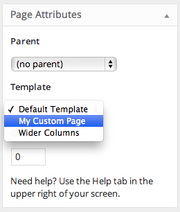
- Name it something like /wp-content/themes/my-theme/template-my-custom-page.php.
- Do NOT prefix the filename with
page-or WordPress will get very confused due to WordPress template hierarchy.
Date/Time in Timber
Working with dates and times in WordPress
Before we tell you how to work with dates and times in Timber, we need to look at how WordPress handles date and time.
When you work with dates and times in a WordPress context, it’s best if you stick to the date and time functionality that WordPress provides for you. Timber tries to use the default functionality as much as it can. To prepare your environment, make sure to check the following WordPress settings:
- Set the correct timezone in Settings → General.
- Set the desired date and time formats in Settings → General. You can change the format whenever you display a date later.
In WordPress 5.3, there were improvements for the Date/Time component. Read that post as an introduction to what you should and shouldn’t do when working with dates and times in WordPress.
WordPress and timezones
One of the most important things to understand with dates in WordPress is that WordPress always works with UTC as a default timezone. You shouldn’t try to change the default timezone with date_default_timezone_set().
Timezones in WordPress are handled by the timezone_string setting in the database. WordPress calculates timezone offsets from that timezone setting.
To get the timezone with the setting from the database, you’ll have two functions at hand:
wp_timezone()– Gets the site time zone as aDateTimeZoneobject.wp_timezone_string()– Gets the site time zone as a string. Might return aRegion/Locationstring or a±NN:NNoffset.
Creating dates from strings
If you want to create a DateTime object or a timestamp from a time string, you have multiple possibilities. What you need to use depends on how you stored your dates and how you use them.
WordPress recommends to store your dates either as Unix timestamps or formats that are precise moments in time, such as DATE_RFC3339/DATE_ATOM.
Create a date from a timestamp
When you have a timestamp, you can create your object with DateTimeImmutable or date_create_immutable().
$datetime = new DateTimeImmutable( '@' . $timestamp );
// or
$datetime = date_create_immutable( '@' . $timestamp )

// Note that we’re reassigning here, since PHP’s immutable functions/methods return new values.
$datetime = $datetime->setTimezone( wp_timezone() );
Using DateTimeImmutable instead of DateTime is recommended by WordPress, because it’s more predictable when working with different timezones.
It’s important to set the timezone after you created the datetime object. You can’t pass the timezone as the second parameter in DateTimeImmutable::__construct() or date_create_immutable(), because it will be ignored when you use a timestamp (See note in the documentation for $timezone parameter).
Create a date from a date string
When you know the format of the string, use DateTimeImmutable::createFromFormat() or date_create_immutable_from_format().
$datetime = DateTimeImmutable::createFromFormat(
    DATE_ATOM,
    '2020-01-02T00:09:30+02:00'
);

// or

$datetime = date_create_immutable_from_format(
    DATE_ATOM,
    '2020-01-02T00:09:30+02:00'
);

$timestamp = $datetime->getTimestamp();
When the date string already includes the timezone, like when you use the DATE_ATOM format, then you don’t need to pass a timezone. When it doesn’t, you may have to pass it, depending on how you manage/use your dates.
If you stored your dates with a certain timezone applied, then you will have to create them with a timezone. You can do this by passing wp_timezone() as the third parameter.
$datetime = DateTimeImmutable::createFromFormat(
    'Y-m-d H:i',
    '2016-10-31 09:30',
    wp_timezone()
);

// or

$datetime = date_create_immutable_from_format(
    'Y-m-d H:i',
    '2016-10-31 09:30',
    wp_timezone()
);

// Note that we’re reassigning here, since PHP’s immutable functions/methods return new values.
$datetime = $datetime->setTimezone(wp_timezone());

$timestamp = $datetime->getTimestamp();
Dates without times
The principle above also applies to dates without times: If you stored your dates with a certain timezone applied, then you will have to create them with a timezone.
A time zone is still relevant if you only need dates and not times. Because dates are created with the current time applied by default, time zone matters. Why? Here’s an example: If your date object is created from the string 2016-10-31 at 00:30 at night and your timezone offset to UTC is +1, then you might end up with a date that’s one day later, 2016-11-01.
Here’s the same example explained with code:
Don’t do this
// Current time is 00:30, timezone is UTC + 1
$datetime = date_create_immutable_from_format('Y-m-d', '2016-10-31');

// 2016-10-31 23:30
echo $datetime->format('Y-m-d H:i');

// 2016-11-01 00:30
echo wp_date('Y-m-d H:i', $datetime->getTimestamp());
To work around that, use wp_timezone() when creating your datetime object.
Do this
// Current time is 00:30, timezone is UTC + 1
$datetime = date_create_immutable_from_format(
    'Y-m-d',
    '2016-10-31',
    wp_timezone()
);

// 2016-10-31 00:30
echo $datetime->format('Y-m-d H:i');

// 2016-10-31 00:30
echo wp_date('Y-m-d H:i', $datetime->getTimestamp());
strtotime()
If you don’t know the exact format of the date, you can try using strtotime() or date_create_immutable(). Valid formats are explained in Supported Date and Time Formats.
$timestamp = strtotime('2008-08-07 18:11:31');

// No timezone needed, because it’s already included in the string.
$datetime = date_create_immutable('2020-01-02T00:09:30+02:00');

// Either with or without a timezone, depending on how you saved your dates.
$datetime = date_create_immutable('2008-08-07 18:11:31', wp_timezone());
$datetime = date_create_immutable('2008-08-07 18:11:31');

// Either with or without a timezone, depending on how you saved your dates.
$datetime = new DateTimeImmutable('2008-08-07 18:11:31', wp_timezone());
$datetime = new DateTimeImmutable('2008-08-07 18:11:31');
Control the date display format
When you’ve worked with dates and times in PHP before, you’re probably used to the date() function, or DateTime::format(). In WordPress, we usually don’t use these function to change the date format. Instead, we used the date_i18n() function to get a date in a translated format, using the correct timezone. As of WordPress 5.3, there’s the wp_date() function, which you should use whenever you can. It’s a replacement for date_i18n().
By default, Timber uses the date format set in Settings → General. That settings is saved in the date_format option.
// With a timestamp.
wp_date('F j, Y @ g:i a', $timestamp);

// With a DateTime object.
wp_date('F j, Y @ g:i a', $datetime->getTimestamp());
If you want to display a date in a different timezone than the site’s timezone, use the $timezone parameter in wp_date().
wp_date('F j, Y @ g:i a', $timestamp, 'Australia/Sydney');
Post dates
The date a post was published is accessible through {{ post.date }}.
{# With default date format from Settings → General #}
{{ post.date }}
Similarly, to get the date a post was modified, you can use {{ post.modified_date }}.
{# With default date format from Settings → General #}
{{ post.modified_date }}
If you want to change the display format, use an argument for the function. Check the documentation for date() to see which formatting options you can use.
Twig
{{ post.date('F j, Y @ g:i a') }}
{{ post.modified_date('F j, Y @ g:i a') }}
Twig filters and functions
Twig includes a date filter as well as a date() function. Timber supports this functionality out of the box and sets the correct timezones in the background. You don’t have to set timezones in the Twig Environment yourself.
Remember, you should set the correct timezone in Settings → General in the WordPress admin to make this work correctly.
{{ my_date|date('j. F Y') }}
{{ post.date|date('j. F Y') }}
{{ post.modified_date|date('j. F Y') }}
{{ '2020-02-20 20:20'|date('j. F Y') }}
{{ 'now'|date('j. F Y') }}
Current date
To get the current date in WordPress, you can use one of the following functions:
time()– Gets the current time as a timestamp.current_datetime()– Gets the current time as aDateTimeImmutableobject in the site’s timezone.wp_date()– Gets a formatted date with correct translation in the site’s timezone.
Don’t use the date() function in PHP to get the current date in a custom format. And remember, if you create new DateTime objects directly, they will be in the UTC timezone, and not in the timezone set in in your WordPress settings.
PHP
$timestamp = time();

$datetime_object = current_datetime();
$formatted_date = $datetime_object->format('Ymd');

$formatted_date = wp_date('Ymd');

// Don’t do this.
$today = date('Ymd');
In Twig, you’ll have more options with the date() function or the now keyword. Yes, while you shouldn’t use date() in PHP, you can use it in Twig.
Twig
{# Current date as a DateTime object #}
{{ date() }}

{# Current date, formatted #}
{{ 'now'|date('F j, Y @ g:i a') }}
Time differences
WordPress comes with a handy human_time_diff() function, which returns the difference between two times in a human readable format, e.g. "1 hour", "5 mins", "2 days".
In Timber, you can use the Timber\DateTimeHelper::time_ago() function. The function also exists as a time_ago filter in Twig.
PHP
DateTimeHelper::time_ago($post->date());
Twig
{{ post.date('U')|time_ago }}
HTML
3 days ago
It works both for future and past dates.
Comparing dates
When you want to compare dates, then compare Unix timestamps, DateTimeInterface objects (like the DateTime class), or string–comparable dates in the same timezone.
$same = $timestamp === $timestamp;
$same = new DateTimeImmutable() === new DateTimeImmutable();
$same = wp_date('U') === time();

// Check if post publishing date is before today.
$before_today = $post->date('Ymd') < wp_date('Ymd');
$before_today = $post->date('U') < current_datetime()->getTimestamp();
In Twig, there's the date() function which you can use to compare dates.
{% if date(post.meta('show_until')) >= date('now') %}
    {# do something #}
{% endif %}
Debugging
Enable debugging
To use debugging, the constant WP_DEBUG needs to be set to true.
wp-config.php
define('WP_DEBUG', true);
Using Twig’s native functions
Twig includes a dump function that can output the properties of an object.
Twig
{{ dump(post) }}
Which will give you:

You can also dump everything sent to your template (all the contents of $context that were passed to the Twig file) via:
{{ dump() }}
This will give you something like:

Formatted output
For a highlighted output like you see it above, you need to have xDebug enabled in your local development environment. With some environments like MAMP, enabling it is as easy as ticking a checkbox and restarting the server. Other times, it might be more complex.
An easier solution is to use the Timber Dump Extension, which will make use of the Symfony VarDumper component to generate output like this when using {{ dump() }} in Twig:

It also works in PHP. Instead of using var_dump or print_r, you will use dump() as well:
dump($post);
If you want to dump and stop code execution, you can "dump & die" using dd:
dd($post);
You can also make use of the VarDumper Configurator which will enhance a bit further the output by creating links on classes, objects, etc. that will open the related file in your favorite IDE/editor.
Commented Twig includes
Sometimes it’s difficult to know which Twig file generated a certain output. Thankfully, there’s the Timber Commented Include extension. It will generate HTML comments that indicate where a template starts and where it ends:
<!-- Begin output of "partials/navigation.twig" -->
<nav class="navigation">...</nav>
<!-- / End output of "partials/navigation.twig" -->).
The extension is only active when WP_DEBUG is set to true.
Set breakpoints in Twig
Twig breakpoints in PhpStorm
With PhpStorm, you can set breakpoints right in your Twig files. To make it work, you need to enable the caching of Twig files:
functions.php
Timber::$twig_cache = true;
Then, you need to reference the path to the cached files in Settings/Preferences → Languages & Frameworks → PHP → Debug → Templates. If you’ve installed Timber through Composer, the path will be vendor/timber/timber/cache/.
Remember that you can set the location of the cache files through the timber/cache/location filter:
add_filter('timber/cache/location', function () {
    return '/absolute/path/to/your/cached/twig/files';
});
Twig breakpoints in other IDEs
Other IDEs don’t allow you to set breakpoints in your PHP code. You can try out the AjglBreakpointTwigExtension extension, that allows you to set breakpoints and inspect environment and context variables.
Install it as a dev-dependency:
composer require ajgl/breakpoint-twig-extension --dev
And then add it to Timber’s Twig environment:
functions.php
add_filter('timber/twig', function (\Twig\Environment $twig) {
    if (defined('WP_DEBUG') && WP_DEBUG
        && class_exists('Ajgl\Twig\Extension\BreakpointExtension')
    ) {
        $twig->addExtension(new Ajgl\Twig\Extension\BreakpointExtension());
    }

    return $twig;
});
Finally, you can set a breakpoint anywhere in your Twig file:
<nav>
    {{ breakpoint() }}
</nav>
Timber Debugger
The Timber Debugger package includes all three extensions mentioned above: the Timber Dump extension, the Timber Commented Include extension and the Twig Breakpoints extension.
Using Timber Debug Bar plugin
There’s a Timber add-on for the WordPress debug bar. Warning: this currently requires PHP 5.4.
Escaping
Escaping describes the practice of securing output before rendering it for the end user of your website. Data in WordPress comes from all sorts of places and a general mindset for development is: Don’t trust any data.
Escaping in Timber
While Twig has escaping enabled by default, Timber’s Twig does not escape the output of standard tags (i.e. {{ post.field }}).
If you want to enable Twig’s autoescape behavior, you can enable it with the timber/twig/environment/options filter:
functions.php
add_filter('timber/twig/environment/options', function ($options) {
    $options['autoescape'] = 'html';

    return $options;
});
Why should I escape?
In terms of security, developing a Timber theme is no different than developing a normal WordPress theme. It’s important that you develop a security mindset:
- Don’t trust any data.
- Never assume anything.
- Escape as late as possible.
- Sanitation is okay, but validation/rejection is better.
You can read more about the basics of theme security and how to escape your output in WordPress in the WordPress Developer Resources.
Escapers
Twig offers a variety of escaping functions out of the box. They are intended to escape a string for safe insertion into the final output.
In addition to these standard escaping functions, Timber comes with some valuable custom escapers for your WordPress theme. To use the escaper (see documentation link above), you pipe your content through a function e and if you want to use a custom escaper, you would supply an argument to the function, e.g. e('wp_kses_post').
wp_kses_post
KSES is a recursive acronym for KSES Kills Evil Scripts. It’s goal is to ensure only "allowed" HTML element names, attribute names and attribute values plus only sane HTML entities in the string. Allowed means based on a configuration.
The wp_kses_post escaper uses the internal WordPress function wp_kses_post() that sanitizes content for allowed HTML tags for the post content. The configuration used can be found by running wp_kses_allowed_html( 'post' );.
Twig
<p class="intro">{{ post.post_content|wp_kses_post }}</p>
In this example, post.post_content contains the following string:
<div foo="bar" src="bum">Foo</div><script>DoEvilThing();</script>
Output
<div>Foo</div>
DoEvilThing();
esc_url
Uses WordPress’ internal esc_url function on a text. This should be used to sanitize URLs.
Twig
<a href="{{ post.meta('custom_link')|esc_url }}"></a>
Output
<a href="https://google.com"></a>
esc_html
Escaping for HTML blocks. Converts any potentially conflicting HTML entities to their encoded equivalent to prevent them from being rendered as markup by the browser, e.g. converts < to < and double quotes " to $quot;.
This is for plain old text. If your content has HTML markup, you should not use esc_html, which will render the HTML as it looks in your code editor. To preserve the HTML you will want to use wp_kses_post.
Twig
<div class="equation">{{ post.meta('equation')|esc_html }}</div>
Output
<div class="equation">is x < y?</div>
esc_attr
Escaping for HTML attributes. Encodes the <, >, &, ” and ‘ (less than, greater than, ampersand, double quote and single quote) characters. Will never double encode entities. Always use when escaping HTML attributes (especially form values) such as alt, value, title, etc.
Twig
<input type="text" name="name" value="{{ user.name|esc_attr }}">
Output
<input type="text" name="name" value="Han Solo" />
esc_js
Escapes text strings for echoing in JavaScript. It is intended to be used for inline JavaScript (in a tag attribute, for example onclick="…"). Note that the strings have to be in single quotes. The WordPress filter js_escape will also be applied here.
Twig
<script>var bar = '{{ post.meta('name')|esc_js }}';</script>
Output
<script>
  var bar = "Gabrielle";
</script>
Extending Timber
There’s a myth that Timber is for making simple themes, but in fact it’s for making incredibly complex themes look easy. But yes, you can also make simple sites from it.
The beauty of Timber is that its object-oriented nature lets you extend it to match the exact requirements of your theme.
Extending Timber classes
One of the main concepts for extending Timber is to extend its classes. You can add your custom methods and properties to Posts, Terms and other objects. This way, you can reduce the amount of logic in your template files as well as your Twig files.
Let’s look at how we could add a method to calculate the reading time for a blog post. First, let’s create a BlogPost class with a method that calculates the reading time.
src/BlogPost.php
/**
 * Class BlogPost
 */
class BlogPost extends \Timber\Post
{
    /**
     * Estimates time required to read a post.
     *
     * The words per minute are based on the English language, which e.g. is much
     * faster than German or French.
     *
     * @link https://www.irisreading.com/average-reading-speed-in-various-languages/
     *
     * @return string
     */
    public function reading_time()
    {
        $words_per_minute = 228;

        $words = str_word_count(wp_strip_all_tags($this->content()));
        $minutes = round($words / $words_per_minute);

        /* translators: %s: Time duration in minute or minutes. */
        return sprintf(_n('%s minute', '%s minutes', $minutes), (int) $minutes);
    }
}
By extending Timber\Post, we have all the methods from that class available to us by using $this->method_name(). In the example, we get the post’s content through $this->content().
Use Class Maps
To register your own classes with Timber, you use Class Maps. Refer to the Class Maps Guide for a detailed explanation for how they work. For the BlogPost class, it would work like this:
functions.php
require_once('src/BlogPost.php');

add_filter('timber/post/classmap', function ($classmap) {
    $custom_classmap = [
        'post' => BlogPost::class,
    ];

    return array_merge($classmap, $custom_classmap);
});
With that, Timber will use the BlogPost class for all your posts with the post type post, whenever you use a Timber function that returns a Timber\Post.
Use it in Twig
Now, in Twig, you can use this new method using {{ post.reading_time }}.
<header>
<h1>{{ post.title }}</h1>
<p>
{{ post.reading_time }} to read <span>•</span>
Written by {{ post.author.name }} <span>•</span>
<time
datetime="{{ post.date('Y-m-d H:i:s') }}"
>{{ post.date }}</time>
<p>
</header>
Your custom methods can get pretty complex. And that’s the beauty. The complexity lives inside the context of the object, but looks very simple when it comes to your Twig templates.
Register a custom namespace in Composer
To make it a little easier to load your custom classes, you could either require that class in your functions.php to make it available for Timber to use:
require_once 'inc/BlogPost.php';
Or, because you already use Composer to handle dependencies, you can register your own namespace to be autoloaded. For example, you could add a src folder to your project and declare it as the Theme namespace.
composer.json
"autoload": {
  "psr-4": {
    "Theme\\": "src/"
  }
},
Then, you would use that namespace for your BlogPost class.
src/BlogPost.php
namespace Theme;

class BlogPost
{
    // ...
}
And in your Class Map, you could reference that class with the use statement.
use Theme\BlogPost;

add_filter('timber/post/classmap', function ($classmap) {
    $custom_classmap = [
        'post' => BlogPost::class,
    ];

    return array_merge($classmap, $custom_classmap);
});
Move your logic from your template files to your classes
In the Getting Started Guide for Archive Pages, we looked at how you can load related posts and add them to the context.
$context = Timber::context();

$post = $context['post'];

$context['related_posts'] = Timber::get_posts([
    'post_type' => 'post',
    'posts_per_page' => 3,
    'orderby' => 'date',
    'order' => 'DESC',
    'post__not_in' => [$post->ID],
    'category__in' => $post->terms([
        'taxonomy' => 'category',
        'fields' => 'ids',
    ]),
]);

Timber::render('single.twig', $context);
We can move this function over to the BlogPost class. The only difference is that instead of using $post, you would use $this to reference properties and methods.
class MySitePost extends \Timber\Post
{
}

/**
 * Class BlogPost
 */
class BlogPost extends \Timber\Post
{
    /**
     * Gets related posts for that post object.
     *
     * @return \Timber\PostQuery
     */
    public function related_posts()
    {
        return Timber::get_posts([
            'post_type' => $this->post_type,
            'posts_per_page' => 3,
            'orderby' => 'date',
            'order' => 'DESC',
            'post__not_in' => [$this->ID],
            'category__in' => $this->terms([
                'taxonomy' => 'category',
                'fields' => 'ids',
            ]),
        ]);
    }
}
Now, you can still loop over your related posts in your Twig template:
single.twig
{% if post.related_posts is not empty %}
    <ul>
        {% for post in post.related_posts %}
            <li>{{ include('teaser.twig') }}</li>
        {% endfor %}
    </ul>
{% endif %}
However, because of the if-statement, we call the related_posts() method twice. This might be bad for performance, because we call Timber::get_posts() twice. So let’s add a small cache via a related_posts property. This way, we can call related_posts() as many times as we need.
/**
 * Class BlogPost
 */
class BlogPost extends \Timber\Post
{
    /**
     * Related posts cache.
     *
     * @var \Timber\PostCollectionInterface
     */
    protected $related_posts;

    /**
     * Gets related posts for that post object.
     *
     * @return \Timber\PostCollectionInterface
     */
    public function related_posts()
    {
        // Return related posts early if we already loaded them.
        if (!empty($this->related_posts)) {
            return $this->related_posts;
        }

        $this->related_posts = Timber::get_posts([
            'post_type' => $this->post_type,
            'posts_per_page' => 3,
            'orderby' => 'date',
            'order' => 'DESC',
            'post__not_in' => [$this->ID],
            'category__in' => $this->terms([
                'taxonomy' => 'category',
                'fields' => 'ids',
            ]),
        ]);

        return $this->related_posts;
    }
}
Magazine example
Let’s look at an example where you work with a post’s relationship to other WordPress objects. In the following example, each post is a part of an "issue" of a magazine. We want an easy way to reference the issue in the Twig file:
single-post.twig
<header>
    <h1>{{ post.title }}</h1>
    <p>From the {{ post.issue.title }} issue</p>
</header>
Of course, Timber\Post has no built-in concept of an issue. Imagine there’s a custom taxonomy called issue. So we're going to extend Timber\Post to give it an issue() method.
class MySitePost extends \Timber\Post
{
}

class MagazinePost extends \Timber\Post
{
    /**
     * Issue cache.
     *
     * @var \Timber\Term
     */
    protected $issue;

    /**
     * Gets a magazine’s issue.
     *
     * @return \Timber\Term|null;
     */
    public function issue()
    {
        if (!empty($this->_issue)) {
            return $this->issue;
        }

        $issues = $this->terms([
            'taxonomy' => 'issues',
        ]);

        if (is_array($issues) && !empty($issues)) {
            $this->issue = $issues[0];
        }

        return $this->issue;
    }
}
So now we’ve got an easy way to refer to {{ post.issue }} in our Twig templates.
Working with meta fields
A very common use case is to use custom methods for handling meta values. Also refer to the Custom Fields Guide for more information.
Here, we take an custom post type event an example.
Keep your logic in PHP
An event probably has a date that you define in the meta field date_start. You could get the date and manipulate the output format through Twig’s date filter.
{{ post.meta('date_start')|date('F j Y') }}
But you could also define your own date_display method to display that date.
/**
 * Class Event
 */
class Event extends \Timber\Post
{
    /**
     * Gets display date.
     *
     * @return string
     */
    public function date_display($date_format = 'F j Y')
    {
        $date_start = DateTimeImmutable::createFromFormat('Ymd', $this->meta('date_start'));

        if (empty($date_start)) {
            return '';
        }

        return wp_date($date_format, $date_start->getTimestamp());
    }
}
And use it in Twig:
{# With your default date format #}
{{ post.date_display }}

{# With a different format #}
{{ post.date_display('F j') }}
This is better, because
- You now have a clear name for your functionality.
- You can use it everywhere where an
Eventpost is used.
Additionally, if there’s more logic, you probably shouldn’t write it in Twig anyway. Twig is powerful, but it shouldn’t replace PHP.
Consider that you might also have an end date for the event that you save in a meta field date_end. Suddenly, you have many more cases to handle. You might have to account for empty end dates or maybe display the date a little different if there’s an end date present. Maybe you would want to say May 30 – June 4 2020, but 4 – 6 June 2020 instead of June 4 – June 6 2020 if the month of the two dates is the same.
You can also make the date formats a little more dynamic here by using an arguments array. By using wp_parse_args(), you can make sure that all arguments you need are there, even when you only want to overwrite one of the date formats.
/**
 * Class Event
 */
class Event extends \Timber\Post
{
    /**
     * Gets display date.
     *
     * @param array $formats An array of date formats.
     *
     * @return string
     */
    public function date_display($formats = [])
    {
        $formats = wp_parse_args($formats, [
            'single' => 'F j Y',
            'yearless' => 'F j',
            'same_month_start' => 'j',
            'same_month_end' => 'j F Y',
        ]);

        $date_start = DateTimeImmutable::createFromFormat(
            'Ymd',
            $this->meta('date_start')
        );
        $date_end = DateTimeImmutable::createFromFormat(
            'Ymd',
            $this->meta('date_end')
        );

        if (empty($date_start)) {
            return '';
        }

        if (empty($date_end)) {
            // There’s only a start date.
            $date_string = wp_date($formats['single'], $date_start->getTimestamp());
        } else {
            // Different format if month is the same.
            if ($date_start->format('m') === $date_end->format('m')) {
                $date_string = sprintf(
                    '%1$s &ndash %2$s',
                    wp_date($formats['same_month_start'], $date_start->getTimestamp()),
                    wp_date($formats['same_month_end'], $date_end->getTimestamp())
                );
            } else {
                $date_string = sprintf(
                    '%1$s &ndash %2$s',
                    wp_date($formats['yearless'], $date_start->getTimestamp()),
                    wp_date($formats['single'], $date_end->getTimestamp())
                );
            }
        }

        return $date_string;
    }
}
In Twig, you could use it like this:
{# With your default date format #}
{{ post.date_display }}

{# With customized date formats #}
{{ post.date_display({
    same_month_end: 'j M Y'
}) }}
You could make it even more dynamic and use the default date format you set in your WordPress settings.
$formats = wp_parse_args($formats, [
    'single' => get_option('date_format'),
    'yearless' => trim(
        preg_replace('/[Yy]/', '', get_option('date_format'))
    ),
    'same_month_start' => 'j',
    'same_month_end' => 'j F Y',
]);
Or you could add a filter to update your date formats globally.
$formats = wp_parse_args($formats, [
    'single' => 'F j Y',
    'yearless' => 'F j',
    'same_month_start' => 'j',
    'same_month_end' => 'j F Y',
]);

$formats = apply_filters('theme/event/date_formats', $formats);
You would use that filter like this.
add_filter('theme/event/date_formats', function ($formats) {
    $formats['same_month_end'] = 'j M Y';

    return $formats;
});
And with this, we have a method or even a class that we can reuse in other projects.
Extending IDs to Timber objects
Imagine that each event has a meta field that contains an array of post IDs of posts of the post type sponsor, with which you can select all the organizations that make your event possible with their donations.
You could do this in Twig and use get_posts() to convert your IDs to Timber\Post objects:
{% set sponsors = get_posts(post.meta('sponsors')) %}

{% if sponsors is not empty %}
    <h2>Many thanks to our generous sponsors</h2>

    <ul>
        {% for post in sponsors %}
            <li>{{ sponsor.title }}</li>
        {% endfor %}
    </ul>
{% endif %}
But you could also reduce the logic you have in Twig an move it your custom class.
/**
 * Class Event
 */
class Event extends \Timber\Post
{
    /**
     * Sponsors cache.
     *
     * @var \Timber\PostCollectionInterface
     */
    protected $sponsors;

    /**
     * Gets event sponsors.
     *
     * @return \Timber\PostCollectionInterface
     */
    public function sponsors()
    {
        if (empty($this->sponsors)) {
            return $this->sponsors;
        }

        $this->sponsors = Timber::get_posts($this->meta('sponsors'));

        return $this->sponsors;
    }
}
In Twig:
{% if post.sponsors %}
    <h2>Many thanks to our generous sponsors</h2>

    <ul>
        {% for post in post.sponsors %}
            <li>{{ sponsor.title }}</li>
        {% endfor %}
    </ul>
{% endif %}
Extending Twig
If you want to extend Twig with your own functionality, check out the Extending Twig Guide.
Extending Twig
Twig Environment
Twig has a \Twig\Environment class that you can use to extend Twig. One of the most common ways this is used is to add functions and filters to Twig. But it could also be used to add globals, extensions, and more.
Timber creates a \Twig\Environment object for you. You can use the timber/twig filter to access that object and extend Twig through it.
Timber further abstracts some of that functionality for you, so you can add functions or filters more easily.
Functions
If you have functions that you use a lot and want to improve readability of your code, you can make them available in Twig.
By default, you’ll have to use {{ fn('function_name') }} to call a function in Twig. To use a function directly without using fn(), you can use the timber/twig/functions filter.
functions.php
add_filter('timber/twig/functions', function ($functions) {
    $functions['wp_get_shortlink'] = [
        'callable' => 'wp_get_shortlink',
    ];

    return $functions;
});
The $functions variable is an array of functions that Timber already adds by default.
In the example above, we add a wp_get_shortlink function by defining an array with a callable key that contains the name of the PHP function we want to call. In this case: wp_get_shortlink().
In Twig, we can then use it like this:
single.twig
{# Get shortlink for the current post #}
<a href="{{ wp_get_shortlink() }}">Short URL</a>

{# Get shortlink for a specific post #}
<a href="{{ wp_get_shortlink(post.id) }}">Short URL</a>
Functions that Timber provides
Timber already comes with a list of functions it adds by default. You can read more about these functions in the Functions Guide.
You can also var dump all filters directly by adding the following code to your functions.php file:
functions.php
add_filter('timber/twig/functions', function ($functions) {
    var_dump($functions);

    return $functions;
});
Changing functions
You can replace a function with your own function or even remove a function by updating the array items in $functions.
add_filter('timber/twig/functions', function ($functions) {
    // Replace a function.
    $functions['get_image'] = [
        'callable' => 'custom_get_image',
    ];

    // Remove a function.
    unset($functions['get_image']);

    return $functions;
});
Filters
Timber comes with a set of filters that you can use in your Twig templates. You can read more about these filters in the Twig Filters Guide.
To extend Twig with your own filters, you can use the timber/twig/filters filter in PHP. The benefit of filters is that they make your code somewhat more readable, because you chain filters with pipes (|) instead of nesting a value inside function calls.
Here’s an example where we add our own |price filter. We pass the name of the PHP that should be called – in this case it’s format_price() – with a callable key.
functions.php
add_filter('timber/twig/filters', function ($filters) {
    // Add your own filters.
    $filters['price'] = [
        'callable' => 'format_price',
    ];

    $filters['slugify'] = [
        'callable' => 'sanitize_title',
    ];

    return $filters;
});
In Twig, we can then use it like this:
<h2 id="{{ post.title|slugify }}">{{ post.title }}</h2>

<span class="price">{{ post.meta('price')|price }}</span>
Filters provided by Timber
You could use the same filter to dump a list of all available filters for debugging:
add_filter('timber/twig/filters', function ($filters) {
    var_dump($filters);

    return $filters;
});
Changing filters
You can replace a filter with your own function or even remove a filter by updating the array items in $filters.
add_filter('timber/twig/filters', function ($filters) {
    // Replace a filter.
    $filters['list'] = [
        'callable' => 'custom_list_filter',
    ];

    // Remove a filter.
    unset($filters['list']);

    return $filters;
});
Adding functionality with the Twig Environment filter
You can still extend the Twig Environment directly with the timber/twig filter. The only disadvantage of this is that once functions or filters are added to Twig, the can’t be removed anymore.
Here’s the same functions and filters that we add above. But instead of using timber/twig/functions and timber/twig/filters, we use timber/twig directly.
add_filter( 'timber/twig', function( \Twig\Environment $twig ) {
    $twig->addFunction(
        new \Twig\TwigFunction( 'edit_post_link', 'edit_post_link' )
    );

    $twig->addFilter(
        new \Twig\TwigFilter( 'price', 'format_price' )
    );

    $twig->addFilter(
        new \Twig\TwigFilter( 'slugify', 'sanitize_title' )
    ];

    return $twig;
} );
Functions
Timber makes it easy to work with PHP functions in your Twig templates. You have three options:
- Use built-in Timber functions - Timber provides a set of functions for common tasks like retrieving posts, terms, users, and rendering content.
- Call any PHP function with
function()- Need to use a custom or WordPress function that isn't pre-registered? Use thefunction()helper to call it directly from your templates. - Register your own functions - For better performance and cleaner templates, you can register your custom functions to be directly available in Twig, just like the built-in ones.
Let's explore each approach.
Available Built-in Functions
Timber provides a wide range of built-in functions that are directly available in Twig templates without any additional setup.
Content Retrieval Functions
These functions allow you to fetch posts, terms, users, and comments:
get_post()- Retrieve a single postget_posts()- Retrieve multiple postsget_image()- Retrieve an imageget_external_image()- Retrieve an external imageget_attachment()- Retrieve an attachmentget_attachment_by()- Retrieve attachment by specific criteriaget_term()- Retrieve a single termget_terms()- Retrieve multiple termsget_user()- Retrieve a single userget_users()- Retrieve multiple usersget_comment()- Retrieve a single commentget_comments()- Retrieve multiple comments
Utility Functions
action()- Execute WordPress actions, see Twig – WordPress Actionsshortcode()- Process WordPress shortcodes viado_shortcode()bloginfo()- Get WordPress site information
Translation Functions
Timber supports multilingual sites and provides functions to facilitate translation in Twig templates. You can read more about these functions in the internationalization Guide:
__()- Translate texttranslate()- Translate text_e()- Echo translated text_n()- Translate with plural support_x()- Translate with context_ex()- Echo translated text with context_nx()- Translate with plural and context support_n_noop()- Register plural strings for translation_nx_noop()- Register plural strings with context for translationtranslate_nooped_plural()- Translate plural strings registered with_n_noop()or_nx_noop()
Calling Any PHP Function with function()
If you need to call a PHP function that isn't available as a built-in Timber function, you can use the function() helper. This allows you to call any PHP function directly from your Twig templates.
For example, if you need to call wp_head() and wp_footer():
{# single.twig #}
<html>
<head>
<!-- Add whatever you need in the head, and then...-->
{{ function('wp_head') }}
</head>
<!-- etc... -->
<footer>
Copyright © {{ "now"|date('Y') }}
</footer>
{{ function('wp_footer') }}
</body>
</html>
You can also use fn('my_function') as an alias for function('my_function').
Passing Arguments
To pass arguments to a function, add them as additional arguments after the function name:
{# single.twig #}
<div class="embed-link">
    {{ function('get_post_embed_url', post.id) }}
</div>
Important note about context: While this works in a single.twig file that retains the context of the current post, it may not work the same way in The Loop (like in archive.twig or index.twig). Functions like get_post_embed_url try to guess the post ID from the current post context. In archive or index templates, you need to explicitly pass the post ID:
{# index.twig #}
<div class="embed-link">
    {{ function('get_post_embed_url', post.ID) }}
</div>
Register Your Own Functions in Twig
For better performance and cleaner template syntax, you can register your custom functions to be directly available in Twig. This is preferable to using function() for functions you use frequently.
Check out the Extending Twig Guide to learn how to make your own functions available in Twig.
Handling Functions That Echo Output
The concept of Timber (and templating engines like Twig in general) is to prepare all the data before you pass it to a template. Some functions in WordPress echo their output directly, which can cause issues since the output would appear before your template is rendered.
There are two ways to work around this:
- Using
Helper::ob_function- If you want to capture the output as a string to use in your context, useHelper::ob_function. - Using
FunctionWrapper- If a function needs to be called exactly where you use it in your template (because it depends on certain global values), useFunctionWrapper:
$context['my_custom_function'] = new FunctionWrapper('my_custom_function', $array_of_arguments);
Block Editor (Gutenberg)
Using the Block Editor with Timber
Timber works with the Block Editor (also called Gutenberg) out of the box. If you use {{ post.content }}, Timber will render all the Gutenberg blocks.
ACF Blocks
ACF Blocks are an alternative way to create content blocks without advanced JavaScript knowledge.
Concept
A (ACF) block is an individual element that can be added to a page or post. It can be a simple text block, a gallery, a call to action, or a complex layout. Blocks are the building blocks of your website. In this tutorial, we will show you how to create a simple block with ACF and Timber.
Prerequisites
Before you can start using ACF Blocks, you must install Advanced Custom Fields Pro 6.0 or later.
Add Blocks Directory Structure
First, we will create a blocks directory in our theme folder. This directory will house folders for each of our custom blocks. Inside each block directory, we will have a block.json file, a CSS file and a Twig template.
- Create a
blocksdirectory in the root of your theme. - Add a directory with the block name of your choice. Example: my-block.
- Within your custom block directory, create a block.json file.
- Also within your custom block directory, add a CSS file to reference in the settings.
- Note: this is optional. You can reference CSS from any directory or rely on sitewide styling to get applied to your block on production.
Your theme structure should look like this:
|--...
|-- wp-content
|   |-- themes
|       |-- your-theme                  # Your theme directory
|           |-- blocks                  # Your blocks directory
|               |-- my-block            # Your block
|                   |-- block.json      # Your block settings
|                   |-- my-block.css    # Styles for your block
|                   |-- my-block.twig   # Your block template
The block settings file: block.json
The block.json file is a configuration file that contains the settings for your block. It is used to define the block’s name, title, description, category among many other settings.
WordPress has a full example of the values you can add to your block.json. For our example, we’ll follow ACF’s example with the minimal settings plus the specific ACF property. We will use renderCallback instead of renderTemplate so we can set a function callback to render all our blocks instead of creating a function for each individual block.
Example contents of the block.json
{
  "name": "acf/my-block",
  "title": "My Block",
  "description": "Description for my block",
  "style": ["file:./my-block.css"],
  "category": "formatting",
  "icon": "format-aside",
  "keywords": ["my", "block"],
  "acf": {
    "mode": "preview",
    "renderCallback": "my_acf_block_render_callback"
  }
}
Notes:
- Learn more about the different entries in the block.json file in the WordPress documentation.
- For the entries under
acf, learn more in the ACF documentation. - For the
nameproperty, you are not required to useacfas the namespace in the naming conventionnamespace/block-name, but you do have to provide one. For example: you could also name themmy-project/block-name. We recommend using the same namespace throughout your blocks and that, in the case you use another namespace thenacf, you need to change the render callback as well to omit your chosen namespace.
Register the Block
Your theme needs to know the block exists on init so we will use the register_block_type() function and trigger the function on the init action.
Here’s the straight-forward way to do this.
functions.php
function register_acf_blocks() {
    // The register_block_type() function will look in the current directory and
    // register the block you specify. Add additional register_block_type()
    // functions for each of your custom blocks.
    register_block_type( __DIR__ . '/blocks/my-block' );
}

add_action( 'init', 'register_acf_blocks' );
Alternatively, you can dynamically register each block. This will keep our code DRY and prevent you from having to register each individual block every time you create a new one.
function register_acf_blocks() {
    foreach ($blocks = new DirectoryIterator( __DIR__ . '/blocks' ) as $item) {
        // Check if block.json file exists in each subfolder.
        if ($item->isDir() && !$item->isDot()
            && file_exists($item->getPathname() . '/block.json')
        ) {
            // Register the block given the directory name within the blocks
            // directory.
            register_block_type($item -> getPathname());
        }
    }
}

add_action('init', 'register_acf_blocks');
Render block
Now that we have our block registered, we need to create a function to render our blocks. We will create a function called my_acf_block_render_callback() that will be used to render all our blocks. In this function, we will prepare the context for our block and render the block using Timber.
/**
 * Render callback to prepare and display a registered block using Timber.
 *
 * @param    array    $attributes The block attributes.
 * @param    string   $content The block content.
 * @param    bool     $is_preview Whether or not the block is being rendered for editing preview.
 * @param    int      $post_id The current post being edited or viewed.
 * @param    WP_Block $wp_block The block instance (since WP 5.5).
 * @return   void
 */
function my_acf_block_render_callback($attributes, $content = '', $is_preview = false, $post_id = 0, $wp_block = null) {
    // Create the slug of the block using the name property in the block.json.
    $slug = str_replace( 'acf/', '', $attributes['name'] );

    $context = Timber::context();

    // Store block attributes.
    $context['attributes'] = $attributes;

    // Store field values. These are the fields from your ACF field group for the block.
    $context['fields'] = get_fields();

    // Store whether the block is being rendered in the editor or on the frontend.
    $context['is_preview'] = $is_preview;

    // Render the block.
    Timber::render(
        'blocks/' . $slug . '/' . $slug . '.twig',
        $context
    );
}
We call this function in the renderCallback object in the block.json file of our block. This function will work for all blocks as long as we follow the naming convention of acf/your-block-name for the name property in the block.json and name the template your-block-name.twig in the blocks/your-block-name folder inside the root of your theme.
Create fields in ACF
ACF has precise guidance on how to create the fields for your block. The important thing is to make sure the field group is enabled for your specific block:
- Show field group if: Block
- Operator: is equal to
- Selector: My Block
Block Template
Now that we have our block directory and settings, we need the a Twig template for our block that will be used to display our block.
Within our new Twig template, we will call each of the fields we created in ACF for our block. Each field we define for this block in ACF will be prepended with the fields key. Here is a simple example:
my-block.twig
<div>
    <h2>{{ fields.title }}</h2>
    <p>{{ fields.text }}</p>
</div>
Using repeaters
{% for field in fields.repeater %}
    Title: {{ field.title }} <br/>
    Url: {{ field.url }}
{% endfor %}
Using groups
Title: {{ fields.group.title }} <br/>
Url: {{ fields.group.url }}
Hosts & Servers
This guide serves as reference for any host or server-specific information we gather. If you have experience hosting WordPress with a particular host, stack, or service (AWS, Azure, etc.) please add that information here so it can be shared.
WordPress VIP
Automattic offers a paid service called WordPress VIP for enterprise customers. To get Timber to play nice with their stack, we need to disable functionality related to caching and writes to the filesystem:
functions.php
add_filter('timber/cache/mode', function () {
    return 'none';
});
add_filter('timber/allow_fs_write', '__return_false');
This means you will not be able to use on-the-fly image resizing through Timber. Don't despair! You can set custom image sizes for WordPress to use:
functions.php
add_image_size('my_custom_size', 220, 220, ['left', 'top']);
single.twig
<img src="{{ post.thumbnail.src('my_custom_size') }}" alt="{{ post.thumbnail.alt() }}">
WordPress VIP has its own caching mechanisms. So when we disable caching, we're only disabling Timber and Twig's caching — not other layers that WP VIP applies.
Internationalization
Internationalization of a Timber theme works pretty much the same way as it does for default WordPress themes. Follow the guide in the WordPress Theme Handbook to setup i18n for your theme.
Twig has its own i18n extension that gives you {% trans %} tags to define translatable blocks, but there’s no need to use it, because with Timber, you have all you need.
Translation functions
Timber supports all the translation functions used in WordPress:
- __()
- _x()
- _n()
- _nx()
- _n_noop()
- _nx_noop()
- translate()
- translate_nooped_plural()
The functions _e() and _ex() are also supported, but you probably won’t need them in Twig, because {{ }} already echoes the output.
WordPress:
<p class="entry-meta"><?php _e('Posted on', 'my-text-domain') ?> [...]</p>
Timber:
<p class="entry-meta">
    {{ __('Posted on', 'my-text-domain') }} [...]
</p>
sprintf notation
You can use sprintf-type placeholders, using the format filter:
WordPress:
<p class="entry-meta">
  <?php printf(__('Posted on %s', 'my-text-domain'), $posted_on_date) ?>
</p>
Timber:
<p class="entry-meta">
    {# Translators: The placeholder will be replaced with the localized post date #}
    {{ __('Posted on %s', 'my-text-domain')|format(posted_on_date) }}
</p>
If you want to use the sprintf function in Twig, you have to add it yourself.
Generating localization files
wp-i18n-twig (recommended)
The Timber team provides a dedicated WP-CLI package that takes care of extracting translations from Twig files.
The main benefit over other tools is that it perfectly integrates with the existing wp i18n make-pot command, making .pot file generation simple and easy.
Note that the package isn't Timber specific, it will work with any Twig implementation that also provides WordPress translation functions.
Alternatives
Poedit 2
You can also generate .pot, .po and .mo files, with Poedit.
Poedit 2 fully supports Twig file parsing (Pro version only) with the following functions: __(), _x(), _n(), _nx().
Menus
In Timber, we handle menus a little differently than in WordPress. We’d say it’s a little smoother and more versatile than using WordPress’s wp_nav_menu() function. And you never again need to rely on a crazy Walker Function.
Getting menus
You can pass the slug of the menu you want to use:
$menu = Timber::get_menu('primary-navigation');
Or the ID number of the menu:
$menu = Timber::get_menu(3);
Or the proper name from the admin:
$menu = Timber::get_menu('Primary Navigation');
Or the slug of the registered location:
$menu = Timber::get_menu('primary');
What you get in return is a Timber\Menu object that holds a collection of Timber\MenuItem objects. If no menu can be found with the argument you provided, the function will return null.
In earlier versions of Timber, it was possible to pass in nothing. We’ve removed that functionality because it led to confusing cases where a menu built from your pages was returned. If you still want to get a menu from your existing pages, use Timber::get_pages_menu().
Options
Optionally, you can send additional options to Timber::get_menu() in the second parameter.
$menu = Timber::get_menu('primary', [
    'depth' => 2,
]);
Currently, only depth is supported (see wp_nav_menu() for reference).
- depth – (int) How many levels of the hierarchy are to be included. 0 means all levels will be included. Default 0.
Menus need to be registered
Be aware that you first need to register your menu locations with register_nav_menus() before you call Timber::get_menu().
/**
 * Register Menus
 */
add_action('after_setup_theme', function () {
    register_nav_menus([
        'primary' => 'Primary Menu',
        'secondary' => 'Secondary Menu',
        'footer' => 'Footer Menu',
    ]);
});
Extending menus
If you need additional functionality that the Timber\Menu and Timber\MenuItem classes don’t provide or if you want to have cleaner Twig templates, you can extend the Timber\Menu or Timber\MenuItem class with your own classes:
class MenuPrimary extends \Timber\Menu
{
}
class MenuItemPrimary extends \Timber\MenuItem
{
}
To initiate your new MenuPrimary menu that will hold MenuItemPrimary objects, you also use Timber::get_menu().
$menu = Timber::get_menu('primary');
In the same way that you can’t instantiate post objects directly, you can’t instantiate Timber\Menu or Timber\MenuItem objects or an object that extends this class with a constructor. Timber will use the Menu Class Map and the MenuItem Class Map to sort out which class it should use.
Pages Menu
Timber includes a function to create menu from your pages, without having to register menus first. This is a quick way to create a menu if you have a small website with only a couple of pages.
$menu = Timber::get_pages_menu();
This function will return an instance of Timber\PagesMenu, which is not quite the same as Timber\Menu, but it contains the same Timber\MenuItem objects as you know them.
If you want to extend a pages menu, you would do it like this:
class ExtendedPagesMenu extends \Timber\PagesMenu
{
}
There’s a special PagesMenu Class Map which you can use to make Timber use your custom class.
Setting up a menu globally
Most of the time, you need the menu on every page. To achieve that, you can add your menu to the global context through the timber/context filter. This will make the menu available as an object in the context. The first thing to do is to initialize your menu using Timber::get_menu().
functions.php
add_filter('timber/context', 'add_to_context');

/**
 * Global Timber context.
 *
 * @param array $context Global context variables.
 */
function add_to_context($context)
{
    // So here you are adding data to Timber's context object, i.e...
    $context['foo'] = 'I am some other typical value set in your functions.php file, unrelated to the menu';

    // Now, in similar fashion, you add a Timber Menu and send it along to the context.
    $context['menu'] = Timber::get_menu('primary');

    return $context;
}
Now, when you call Timber::context(), your menu will already be set in the context. You don’t need to initialize the menu in all your template files.
index.php
$context = Timber::context();

Timber::render('index.twig', $context);
Set up all menus globally
Here’s a small snippet that you can use to automatically set up all your registered menus in the context.
functions.php
add_filter('timber/context', 'add_to_context');

/**
 * Global Timber context.
 *
 * @param array $context Global context variables.
 */
function add_to_context($context)
{
    // Set all nav menus in context.
    foreach (array_keys(get_nav_menu_locations()) as $location) {
        $menu = Timber::get_menu($location);
        $context[$location] = $menu;
    }

    return $context;
}
Displaying the menu items
In your Twig file, you can loop over the menu items like normal arrays with {{ menu.items }}. You’re in complete control of the markup. You can use item.children to check for and loop over child menu items.
index.twig
<nav>
    <ul class="nav-main">
        {% for item in menu.items %}
            <li class="nav-main-item {{ item.classes|join(' ') }}">
                <a
                    class="nav-main-link" href="{{ item.link }}"
                    {{ item.is_target_blank ? 'target="_blank"' }}
                >{{ item.title }}</a>

                {% if item.children %}
                    <ul class="nav-drop">
                        {% for child in item.children %}
                            <li class="nav-drop-item">
                                <a
                                    href="{{ child.link }}"
                                    {{ item.is_target_blank ? 'target="_blank"' }}
                                >{{ child.title }}</a>
                            </li>
                        {% endfor %}
                    </ul>
                {% endif %}
            </li>
        {% endfor %}
    </ul>
</nav>
The current menu item
When you need to check whether a menu item is the current menu item, you can use the current property.
Here’s an example to display child menu items only if it’s the menu item is the currently visited page:
Twig
{% if item.current and item.children %}
    <ul class="nav-child">
        {% for child in item.children %}
            <li class="nav-child-item">
                <a
                    class="nav-child-link"
                    href="{{ child.link }}"
                >{{ child.title }}</a>
            </li>
        {% endfor %}
    </ul>
{% endif %}
Other available properties are
current_item_parentfor direct parents of a menu item andcurrent_item_ancestorfor when you have deeper nesting.
Getting the current menu item outside the loop
Say you want to display sibling menu items of the current page, for example in
a sidebar. You can use the current_item() helper to achieve this:
Twig
<div class="sidebar">
    <a href="{{ menu.current_item.link }}">
        {{ menu.current_item.title }}
    </a>
    <ul>
        {% for child in menu.current_item.children %}
            <li>
                <a href="{{ child.link }}">{{ child.title }}</a>
            </li>
        {% endfor %}
    </ul>
</div>
Getting a current menu ancestor
You can limit the traversal depth of the tree when looking for the current
item by passing a $depth parameter to current_item.
Going off the previous example, say you wanted the root node of your sidebar
to be the second level of the main menu tree. In that case, you could
specify a depth of 2:
Twig
<div class="sidebar secondary-nav">
    <a href="{{ menu.current_item(2).link }}">
        {{ menu.current_item(2).title }}
    </a>
    <ul class="third-level-nav-items">
        {% for child in menu.current_item(2).children %}
            <li>
                <a href="{{ child.link }}">{{ child.title }}</a>
            </li>
        {% endfor %}
    </ul>
</div>
Getting the current top-level item
For getting the top-level (that is, level-1) item corresponding to the
current post, you can call current_top_level_item(). This method
takes no arguments and is just an alias for current_item(1).
Menu item targets
To get the target for a menu item, you can use item.target:
<a href="{{ item.link }}" target="{{ item.target }}">
You might not need a value _self for the target attribute, because _self is the default value, which opens a link in the same tab/window. If you want to add target="_blank" only if needed, then you can use the conditional function item.is_target_blank :
<a
    href="{{ item.link }}"
    {{ item.is_target_blank ? 'target="_blank"' }}
>{{ item.title }}</a>
What about external links? If your site is example.org, then google.com/whatever is an external link. Whether it makes sense to open links in new tabs is not the topic to discuss here. If you still decide that you want that, you can check whether an item link is external with item.is_external:
<a
    href="{{ item.link }}"
    {{ item.is_external ? 'target="_blank"' }}"
>{{ item.title }}</a>
You could also use it in combination with item.is_target_blank:
<a
    href="{{ item.link }}"
    {{ item.is_target_blank or item.is_external ? 'target="_blank"' }}
>{{ item.title }}</a>
Tips
Pagination
There are three types of pagination, which all work differently, but can easily be confused with each other, because they use similar terms:
- Pagination for archive templates
- Adjacent post pagination for singular templates
- Paged content within a post
Let’s look at them in more detail.
Pagination for archive templates
The pagination for archive pages applies to template files with an active query of multiple posts, like archive.php or home.php. When you have a lot of posts, you wouldn’t list all of the posts on one page, because that would slow down your site too much. Instead, you would only show a defined number of results and use other pages that show the next set of results. Here’s an example:
posts/– Shows first 10 posts.posts/page/2– Shows posts 11-20.
Default pagination
archive.php
$context = Timber::context();

Timber::render('archive.twig', $context);
Because we’re on an archive page, Timber already prepared a posts variable in the context for us. You could then markup the output like so:
archive.twig
<div class="tool-pagination">
	{% if posts.pagination.prev %}
		<a
            href="{{ posts.pagination.prev.link }}"
            class="prev {{ posts.pagination.prev.link|length ? '' : 'invisible' }}"
        >Previous</a>
	{% endif %}

	<ul class="pages">
		{% for page in posts.pagination.pages %}
			<li>
				{% if page.link %}
					<a
                        href="{{ page.link }}"
                        class="{{ page.class }}"
                    >{{ page.title }}</a>
				{% else %}
					<span class="{{ page.class }}">{{ page.title }}</span>
				{% endif %}
			</li>
		{% endfor %}
	</ul>

	{% if posts.pagination.next %}
		<a
            href="{{ posts.pagination.next.link }}"
            class="next {{ posts.pagination.next.link|length ? '' : 'invisible' }}"
        >Next</a>
	{% endif %}
</div>
What if I’m not using the default query?
If you want to overwrite the default query, you can do that by overwriting posts in the context with a new query. Make sure to include the paged parameter in the query.
archive-event.php
global $paged;

if (!isset($paged) || !$paged) {
    $paged = 1;
}

$context = Timber::context([
    'posts' => Timber::get_posts([
        'post_type' => 'event',
        'posts_per_page' => 5,
        'paged' => $paged,
    ]),
]);

Timber::render('archive-event.twig', $context);
Pagination with pre_get_posts
Custom query_posts sometimes shows 404 on example.com/page/2. In that case you can also use pre_get_posts in your functions.php file:
function my_home_query($query)
{
    if ($query->is_main_query() && !is_admin()) {
        $query->set('post_type', ['movie', 'post']);
    }
}

add_action('pre_get_posts', 'my_home_query');
Your archive.php or home.php template wouldn’t change:
$context = Timber::context();

Timber::render('archive.twig', $context);
Adjacent post pagination for singular templates
A pagination for singular templates works different, because unlike for archive pages, you don’t have a collection of posts. But you can show links to the previous and next posts – they are called adjacent posts – with {{ post.next }} and {{ post.prev }}. These two functions are available on every instance of Timber\Post.
single.twig
{% if post.prev %}
    <h3>Previous article</h3>

    <a href="{{ post.prev.link }}">{{ post.prev.title }}</a>
{% endif %}

{% if post.next %}
    <h3>Next article</h3>

    <a href="{{ post.next.link }}">{{ post.next.title }}</a>
{% endif %}
The posts are sorted by default. But if you use a plugin like Simple Custom Post Order to order posts manually, it will affect the order for {{ post.next }} and {{ post.prev }} as well.
Paged content within a post
Paged content is yet another form of pagination that appears in WordPress. You can split the content of a single post into multiple pages and use a pagination to add links to the next and previous pages of the post.
- If you use the Classic Editor, you can insert
<!--nextpage-->wherever you want to add a page break. - If you use the Block Editor, you can’t use
<!--nextpage-->. Instead, use the Page Break block.
Then, instead of using {{ post.content }}, use {{ post.paged_content }} to display only the content of the current page.
{{ post.paged_content }}
To display the links for the next and previous pages, you will use {{ post.pagination }}. Here’s an example where you would display the links to the next and previous pages.
{% if post.pagination.next is not empty %}
	<a href="{{ post.pagination.next.link|e('esc_url') }}">Go to next page</a>
{% endif %}

{% if post.pagination.prev is not empty %}
	<a href="{{ post.pagination.prev.link|e('esc_url') }}">Go to previous page</a>
{% endif %}
You can also display links to all pages, using an accessible pagination markup.
{% if post.pagination.pages is not empty %}
    <nav aria-label="pagination">
        <ul>
            {% for page in post.pagination.pages %}
                <li>
                    {% if page.current %}
                        <span aria-current="page">Page {{ page.title }}</span>
                    {% else %}
                        <a href="{{ page.link|e('esc_url') }}">Page {{ page.title }}</a>
                    {% endif %}
                </li>
            {% endfor %}
        </ul>
    </nav>
{% endif %}
Performance/Caching
Timber, especially in conjunction with WordPress and Twig, offers a variety of caching strategies to optimize performance. Here’s a quick rundown of some of the options, ranked in order of most-broad to most-focused.
tl;dr
In my tests with Debug Bar, Timber has no measurable performance hit. Everything compiles to PHP. @fabpot has an overview of the performance costs on his blog (scroll down to the table).
Cache Everything
You can still use plugins like W3 Total Cache in conjunction with Timber. In most settings, this will skip the Twig/Timber layer of your files and serve static pages via whatever mechanism the plugin or settings dictate.
Cache the Entire Twig File and Data
With Timber you can cache the full Timber render/compile calls. When you do this, the whole template you render and its data will be cached. This results in faster page rendering by skipping queries and Twig compilations. But here’s the cool part: Timber hashes the fields in the view context. This means that as soon as the data changes, the cache is automatically invalidated. Yay!
For Timber caching to take effect on your Timber::render() and Timber::compile() calls, you need to set the $expires argument. If the $expires argument is not set, Timber will not cache that particular template, even if the (global)cache mode is set.
Example:
$context['posts'] = Timber::get_posts();

Timber::render('index.twig', $context, 600);
In this example, Timber will cache the template for 10 minutes (600 / 60 = 10) with the default cache mode which is "transient". You can change the cache mode for Timber globally or on a per method basis. See Timber cache modes for more information.
This caching method is very effective, but crude - the whole template is cached. So if you have any context dependent sub-views (eg. current user), this mode won’t do.
Timber cache modes
Timber has 5 cache modes that it can use for the Timber Timber::render() and Timber::compile() methods. The following cache modes are available:
| Mode | Description |
|---|---|
Timber\Loader::CACHE_NONE |
Disable caching |
Timber\Loader::CACHE_OBJECT |
WP Object Cache |
Timber\Loader::CACHE_TRANSIENT |
Transients |
Timber\Loader::CACHE_SITE_TRANSIENT |
Network wide transients |
Timber\Loader::CACHE_USE_DEFAULT |
Use whatever caching mechanism is set as the default for Timber\Loader, the default is CACHE_TRANSIENT. |
By default the cache mode is set to transients. You can change the default cache mode globally by using a filter or on a per method basis. We will go over them both.
Set Timber cache mode globally
The default cache mode can be changed by using the timber/cache/mode filter. For example:
add_filter('timber/cache/mode', function () {
    return Timber\Loader::CACHE_OBJECT;
});
Sets the global/default cache mode to CACHE_OBJECT.
Set Timber cache mode per compile or render method
As a fourth parameter for Timber::render() and Timber::compile(), you can set the $cache_mode.
For example:
Timber::render($filenames, $data, 600, Timber\Loader::CACHE_OBJECT);
Cache the Twig File (but not the data)
Every time you render a .twig file, Twig compiles all the HTML tags and variables into a big, nasty blob of function calls and echo statements that actually gets run by PHP. In general, this is pretty efficient. However, you can cache the resulting PHP blob by turning on Twig’s cache via:
functions.php
add_filter('timber/twig/environment/options', function ($options) {
    $options['cache'] = true;

    return $options;
});
You can look in your your /vendor/timber/timber/cache directory to see what these files look like.
If you want to change the path where Timber caches the Twig files, you can pass in an absolute path for the cache option:
add_filter('timber/twig/environment/options', function ($options) {
    $options['cache'] = '/absolute/path/to/twig_cache';

    return $options;
});
This does not cache the contents of the variables. But rather, the structure of the Twig files themselves (i.e. the HTML and where those variables appear in your template). Once enabled, any change you make to a .twig file (just tweaking the HTML for example) will not go live until the cache is flushed.
Thus, during development, you should enable the option for auto_reload:
add_filter('timber/twig/environment/options', function ($options) {
    $options['cache']       = true;
    $options['auto_reload'] = true;

    return $options;
});
Enabling Timber::$cache works best as a last step in the production process. Once enabled, any change you make to a .twig file (just tweaking the HTML for example) will not go live until the cache is flushed.
Note that when WP_DEBUG is set to true, changes you make to .twig files will be reflected on the site regardless of the Timber::$cache value.
To flush the Twig cache you can do this:
$loader = new Timber\Loader();
$loader->clear_cache_twig();
Cache Parts of the Twig File and Data
If you want to use cache tag in Twig, you’ll have to install the twig/cache-extra package:
composer require twig/cache-extra
And register it in Timber like this:
functions.php
use Symfony\Component\Cache\Adapter\FilesystemAdapter;
use Symfony\Component\Cache\Adapter\TagAwareAdapter;
use Twig\Extra\Cache\CacheExtension;
use Twig\Extra\Cache\CacheRuntime;
use Twig\RuntimeLoader\RuntimeLoaderInterface;

add_filter('timber/twig', function ($twig) {
		$twig->addRuntimeLoader(new class implements RuntimeLoaderInterface
		{
			public function load($class)
			{
				if (CacheRuntime::class === $class) {
					return new CacheRuntime(new TagAwareAdapter(new FilesystemAdapter('', 0, TIMBER_LOC . '/cache/twig')));
				}
			}
		});
		$twig->addExtension(new CacheExtension());

    return $twig;
});
You can then use it like this:
{% cache 'index;content' %}
    {% for post in posts %}
        {% include ['tease-' ~ post.post_type ~ '.twig', 'tease.twig'] %}
    {% endfor %}
{% endcache %}
Read more about it in Twig’s cache documentation.
If you want to use something meaningful for the cache key, you can also generate a cache key from the variables that you use. In the following example, we generate a cache key from $posts and then generate a key from it:
$generator = new Timber\Cache\KeyGenerator();
$key = $generator->generateKey($posts);
Extra: TimberKeyGeneratorInterface
Instead of hashing a whole object, you can specify the cache key in the object itself. If the object implements TimberKeyGeneratorInterface, it can pass a unique key through the method get_cache_key(). That way a class could for example pass a 'last_updated' property as the unique key.
If arrays contain the key _cache_key, that one is used as cache key.
This may save yet another few processor cycles.
Cache the PHP data
Sometimes the most expensive parts of the operations are generating the data needed to populate the twig template. You can of course use WordPress’s default Transient API to store this data.
You can also use some syntactic sugar to make the checking/saving/retrieving of transient data a bit easier:
home.php
$context = Timber::context();

$context['main_stories'] = Timber\Helper::transient('main_stories', function () {
    $posts = Timber::get_posts();

    // As an example, do something expensive with these posts
    $extra_teases = get_field('my_extra_teases', 'options');

    foreach ($extra_teases as &$tease) {
        $tease = Timber::get_post($tease);
    }

    $main_stories = [
        'posts' => $posts,
        'extra_teases' => $extra_teases,
    ];

    return $main_stories;
}, 600);

Timber::render('home.twig', $context);
Here main_stories is a totally made-up variable. It could be called foo, bar, elephant, etc.
Measuring Performance
Some tools like Debug Bar may not properly measure performance because its data (as in, the actual HTML it’s generating to tell you the timing, number of queries, etc.) is swept-up by the page’s cache.
Timber provides some quick shortcuts to measure page timing. Here’s an example of them in action:
single.php
// This generates a starting time
$start = Timber\Helper::start_timer();

$context = Timber::context([
    'whatever' => get_my_foo(),
]);

Timber::render('single.twig', $context, 600);

// This reports the time diff by passing the $start time
echo Timber\Helper::stop_timer($start);
Important notes
- Never use
{% apply spaceless %}tags to minify your HTML output. These tags are only meant to control whitespace between HTML tags.
Posts
To get a post object in Timber, you use Timber::get_post() and pass the WordPress post ID as an argument.
$post = Timber::get_post($post_id);
This function is similar to get_post() and accepts one argument: a post ID. If you don’t pass in any argument, Timber will use get_queried_object() to try and work with the currently queried post.
$post = Timber::get_post();

// Is the same as…
$post = Timber::get_post(get_queried_object_id());
What you get in return is a Timber\Post object, which is similar to WP_Post. This object provides you with functions and properties for pretty much everything you need for developing theme templates.
Here’s a Twig template that received the post above in a post variable.
<article class="article post-type-{{ post.type }}" id="post-{{ post.ID }}">
<section class="article-content">
<h1 class="article-h1">{{ post.title }}</h1>
<h2 class="article-h2">{{ post.meta('subtitle') }}</h2>
<p class="article-author">
<span>By</span> {{ post.author.name }} <span>•</span> {{ post.date }}
</p>
{{ post.content }}
</section>
</article>
Twig
You can convert a post ID to post objects in Twig using the get_post() function.
{% set post = get_post(post_id) %}
This is especially helpful if you only have an image ID and want to convert it to an image:
<img src="{{ get_image(attachment_id).src }}">
It also works if you have an array of post IDs that you want to convert to Timber\Post objects.
{% set posts = get_posts(post_ids) %}
{% if posts is not empty %}
<ul>
    {% for post in posts %}
        <li>{{ post.title }}</li>
    {% endfor %}
</ul>
{% endif %}
Invalid posts
If no valid post can be found with the post ID you provided, the Timber::get_post() function will return null. With this, you can always check for valid posts with a simple if statement.
$post = Timber::get_post($post_id);

if ($post) {
    // Handle post.
}
Or in Twig:
{% if post %}
    {{ post.title }}
{% endif %}
Extending Timber\Post
If you need additional functionality that the Timber\Post class doesn’t provide or if you want to have cleaner Twig templates, you can extend the Timber\Post class with your own classes:
class Book extends Timber\Post
{
}
To initiate your new Book post, you also use Timber::get_post().
$book = Timber::get_post($post_id);
You can’t instantiate a Timber\Post object or an object that extends this class with a constructor – you can’t use $post = new Book( $post_id ). In Timber, we’ve chosen to go a different way to prevent a lot of problems that would come with direct instantiation.
So, how does Timber know about your Book class? Timber will use the Post Class Map to sort out which class it should use.
Querying Posts
If you want to get a collection of posts, you can use Timber::get_posts().
$posts = Timber::get_posts($query);
You can use this function similarly to how you use WP_Query. If you don’t pass in any argument, Timber will use the global query.
// Use the global query.
$posts = Timber::get_posts();

// Using the WP_Query argument format.
$posts = Timber::get_posts([
    'post_type' => 'article',
    'category_name' => 'sports',
]);
The Timber::get_posts() function accepts a second parameter with options for the query. For example, with the merge_default option you can tell Timber that it should merge your query parameters with the default query parameters of the current template. You can check out merge_default and all the other options in the documentation for Timber::get_posts().
$posts = Timber::get_posts($query, $options);
The default query
In archive templates like archive.php or category.php, Timber will already fetch the default query when you call Timber::context() and make it available under the posts entry. Read more about this in the Context Guide.
Class Map
When you query for certain post types, Timber will use the Post Class Map to check which class it should use to instantiate your posts.
Post Collections
The analogous Timber methods for getting Users, Terms, and Comments (Timber::get_users(), Timber::get_terms(), and Timber::get_comments()) all return arrays. But to make pagination work and making Timber compatible with The Loop, we treat Posts with special care.
What you get as a return value when running Timber::get_posts() is not a pure array of posts, but an instance of Timber\PostCollectionInterface, an ArrayObject that is very similar to an array as you know it. That means you can still loop over a PostCollectionInterface directly:
$posts = Timber::get_posts( /* optional args */);

foreach ($posts as $post) {
    echo $post->title();
}
You can also directly access an index, like a normal array:
$first = $posts[0]; // Timber\Post instance
In Twig, you can also loop over the collection.
{% for post in posts %}
    {{ post.title }}
{% endfor %}
What doesn’t work with objects that implement Timber\PostCollectionInterface are PHP’s Array functions like array_filter() or WordPress helper functions like wp_list_filter(). If you want to work with those, you can turn a Timber\PostCollectionInterface instance into a pure array with to_array(). But be aware that when you do that, you lose the pagination functionality and compatibility optimizations with The Loop.
$filtered = wp_list_filter($posts->to_array(), [
    'comment_status' => 'open',
]);
Types of Post Collections
Like every other PHP interface, PostCollectionInterface cannot be instantiated directly, i.e. new PostCollectionInterface() will not work. You can only create instances of concrete classes that implement the interface.
Timber offers two implementations of PostCollectionInterface: the Timber\PostQuery and Timber\PostArrayObject classes. Both extend PHP’s ArrayObject class, which means you can loop over and index them directly (see examples above).
The common case: PostQuery
Timber\PostQuery is what you will likely deal with most of the time. It is what is returned when:
- calling
Timber::get_posts()with no arguments - passing an associative array, e.g.
Timber::get_posts( [ 'post_type' => 'post' ] ) - passing a
WP_Queryobject, e.g.Timber::get_posts( new WP_Query( [ 'post_type=post' ] ) ) - calling
$term->posts()on aTimber\Termobject - calling
$user->posts()on aTimber\Userobject - calling
$post->children()on aTimber\Postobject
The Timber\PostQuery class contains some optimization for tight integration with The Loop, including support for advanced pagination. To get a Pagination object you can use for rendering a pagination navigation component, call $post_query->pagination().
The fallback case: PostArrayObject
Sometimes you may not have direct access to a WP_Query instance; you may only have an array of WP_Post objects, e.g. when calling a helper function defined in a plugin:
$wp_posts = fancy_plugin_get_custom_posts(); // -> an array of WP_Posts
In this scenario, you can still easily map each of these posts to instances of Timber\Post or the appropriate subclass, according to the Class Map you’ve defined:
$timber_posts = Timber::get_posts($wp_posts); // -> Timber\PostArrayObject
Here’s an example:
// Define your Post Class Map.
add_filter('timber/post/classmap', function ($classmap) {
    return array_merge([
        'page' => MyPage,
        'custom' => CustomPost,
        // Omitting an entry for "post" here means it defaults to Timber\Post.
    ]);
});

$timber_posts = Timber::get_posts($wp_posts);

array_map(function ($p) {
    return $p->post_type;
}, $wp_posts);
// -> ["post", "page", "custom"]
array_map('get_class', $timber_posts);
// -> ["\Timber\Post", "\MyProject\MyPage", "\MyProject\MyCustom"]
In short, Timber\Post instances are always created polymorphically, whether they are inside some kind of Post Collection or not.
Debugging Post Collections
At query time and directly afterward, Post Collections do not necessarily contain instances of Timber\Post. Instead, Post objects are created lazily, meaning only when explicitly requested, such as by iterating over a Post Collection or accessing an index:
$posts = Timber::get_posts(); // -> PostQuery containing only raw WP_Post instances

$first = $posts[0]; // -> Timber\Post (or subclass) instance ON DEMAND!

foreach ($posts as $post) {
    // $post is a Timber\Post instance, again created ON DEMAND.
}
To force eager instantiation, you can call the realize() method on a Post Collection:
$posts = Timber::get_posts()->realize();
// -> PostQuery containing realized (eagerly instantiated) Timber\Post instances
This is mostly an implementation detail for performance reasons.
See Laziness and Caching for details about how this interacts with caching.
Differences from WP core’s get_posts()
It might seem like Timber::get_posts() is the same as get_posts() in WordPress. But it isn’t. It’s more similar to using WP_Query. WP core’s get_posts() function applies different default parameters and performs the same database query as it would when calling Timber::get_posts() like this:
$posts = Timber::get_posts([
    'ignore_sticky_posts' => true,
    'suppress_filters' => true,
    'no_found_rows' => true,
]);
If you’re used to using get_posts() instead of WP_Query, you will have to set these parameters separately in your queries.
Of course, the other main difference is that instead of returning plain WP_Post objects, Timber::get_posts() returns instances of Timber\Post.
Serialization
When you want to work with post data in JavaScript, you will want to convert it to JSON first.
Under normal circumstances, this wouldn't be a problem. However, Timber posts are instantiated lazily. This means that most methods will only calculate and return a value the first time you call them. Take the Timber\Post::link() method for example. You use it to get the permalink for a post.
$permalink = $post->link();
Now let’s say you need to access that link in JavaScript, so you would convert your post data to JSON:
$post = Timber::get_post(84);
$json = wp_json_encode($post);
Because link is a method of your post object, you wouldn’t have access to it in JavaScript, because when you JSON-encode a post, you will only get its properties.
console.log(post.link); // undefined
Luckily, support for serialization is baked into Timber queries when you implement PHP’s JsonSerializable interface.
Say you create a Book class that extends Timber\Post. You define a jsonSerialize() method for that class. This method returns an array with all the data you want to use in JavaScript.
use Timber\Post;
/**
* Class Book
*
* Implements custom JSON serialization.
*/
class Book extends Post implements JsonSerializable
{
/**
* Defines data that is used when post is converted to JSON.
*
* @return array
*/
public function jsonSerialize()
{
return [
'title' => $this->title(),
'link' => $this->link(),
'thumbnail' => $this->thumbnail()->src('thumbnail'),
'price' => $this->meta('price'),
];
}
}
Once you define with Class Maps that all book post types should be instantiated with your Book class, you can directly convert your posts query to JSON:
$posts = Timber::get_posts([
'post_type' => 'book',
]);
$posts_json = wp_json_encode($posts_json);
Now, when you access your posts in JavaScript, you will have all the data you defined in your Book::jsonSerialize() method as object properties of your post.
console.log(post);
{
title: 'The magic serialization of posts',
link: 'https://example.org/book/the-magic-serialization-of-posts',
thumbnail: 'https://example.org/wp-content/uploads/the-magic-serializaton-of-posts-150x150.jpg',
price: 100
}
Now you might think: Why do I have to add all the data manually? Could we not just add all the data from all the methods of a post? Well, technically we could. But all that data would end up in your HTML output, which might not be a good idea:
- There could be sensitive data that you don’t want to have publicly available in your HTML.
- All the data you add to the HTML will make your page size bigger. For performance reasons, it makes sense to only load the data you need.
Performance
Consider using the pre_get_posts action
Data will always be fetched from the database if you
- Use
Timber::get_posts()with aqueryargument - Use
Timber::get_post()with an argument.
These two cases are always a performance hit. As long as you don’t change any query parameters, Timber will use the default query that is already set up and no additional database query will be run.
If you care about performance and want to change the query that WordPress runs before deciding which template file it will use, you need to use the pre_get_posts action.
Count rows only if needed
Whenever you query for a collection of posts, but you don’t need pagination for them, you should set no_found_rows to true.
$posts = Timber::get_posts([
'no_found_rows' => true,
]);
In the back, the query will not count the number of found rows. This can result in better performance if you have a large number of posts.
Laziness and Caching
Timber\Post instances inside Post Collections are created lazily. That is, until it is accessed directly, each index inside a Post Collection is just a raw WP_Post object. We do it this way because creating a Timber\Post object may require additional database round trips or other expensive operations to import a post’s data.
Here is a timeline of what normally happens when you call Timber::get_posts():
- Timber decides what kind of Post Collection it will return (or returns
nullon error). - It populates the new Post Collection, either with
WP_Postobjects it queries from WordPress core or with ones it was already passed, and returns the Collection object. - The Collection (say,
$coll) now contains zero or more rawWP_Postinstances passed in/returned from the query. - Calling
$coll[ $numeric_index ]realizes aTimber\Postobject from theWP_Postat$numeric_index, running it through any Post Class Map you've defined, and replaces the object at that index internally, so it doesn't have to repeat that work in the future. - Looping over
$collrepeats the above step for each index that has not been realized. For indexes that have been realized, it simply returns the realizedTimber\Postobject that already lives at that index.
This is usually what you want. But sometimes, you may want to force Timber to realize a collection up front, such as if you are caching an expensive post query:
$eager_posts = \Timber\Helper::transient('my_posts', function () {
$query = \Timber\Timber::get_posts([
'post_type' => 'some_post_type',
]);
// Run Post::setup() up front.
return $query->realize();
}, HOUR_IN_SECONDS);
foreach ($eager_posts as $post) {
// No additional overhead here.
}
// Later...
foreach (get_transient('my_posts') as $post) {
/**
* Same deal!
*
* No repeated overhead here because the realized Posts are already cached.
*/
}
Using posts or post collections in the context
Timber will automatically set the post or posts variable for you in the context depending on the template file you’re using. Read more about this in the Context Guide.
Password protected posts
It’s recommended to use the post_password_required() function to check if a post requires a password. You can add this check in all your single PHP template files
single.php
$context = Timber::context();
if (post_password_required($post->ID)) {
Timber::render('single-password.twig', $context);
} else {
Timber::render(
['single-' . $post->ID . '.twig', 'single-' . $post->post_type . '.twig', 'single.twig'],
$context
);
}
single-password.twig
{% extends "base.twig" %}
{% block content %}
{{ function('get_the_password_form') }}
{% endblock %}
Using a Filter
Alternatively, with a WordPress filter, you can use a specific PHP template for all your password protected posts. Note: this is accomplished using only standard WordPress functions. This is nothing special to Timber
functions.php
/**
* Use specific template for password protected posts.
*
* By default, this will use the **password-protected.php** template file. If you want password
* templates specific to a post type, use **password-protected-$posttype.php**.
*/
add_filter('template_include', 'get_password_protected_template', 99);
function get_password_protected_template($template)
{
global $post;
if (!empty($post) && post_password_required($post->ID)) {
$template = locate_template([
'password-protected.php',
"password-protected-{$post->post_type}.php",
]) ?: $template;
}
return $template;
};
With this filter, you can use a password-protected.php template file with the following contents:
$context = Timber::context([
'post' => Timber::get_post(),
'password_form' => get_the_password_form(),
]);
Timber::render('password-protected.twig', $context);
To display the password on the page, you could then use {{ password_form }} in your Twig file.
Routing
Timber 1.x shipped with the Upstatement/routes package for custom routes (see Routing Guide for Timber v1). However, Timber 2.x and above ships without a default routing library.
If you still want to use Routing as it were before, you can install the package yourself:
composer require upstatement/routes
Here’s a selection of routing options that you can use in conjunction with Timber:
Shortcodes
Let’s implement a [youtube] shortcode which embeds a youtube video.
For the desired usage of [youtube id=xxxx], we only need a few lines of code:
functions.php
// Should be called from within an init action hook
add_shortcode('youtube', 'youtube_shortcode');
function youtube_shortcode($atts)
{
if (isset($atts['id'])) {
$id = sanitize_text_field($atts['id']);
} else {
$id = false;
}
// This time we use Timber::compile since shortcodes should return the code
return Timber::compile('youtube-short.twig', [
'id' => $id,
]);
}
In youtube-short.twig we have the following template:
{% if id %}
<iframe width="560" height="315" src="//www.youtube.com/embed/{{ id }}" frameborder="0" allowfullscreen></iframe>
{% endif %}
Now, when the YouTube embed code changes, we only need to edit the youtube-short.twig template. No need to search your PHP files for this one particular line.
Layouts with Shortcodes
Timber and Twig can process your shortcodes by using the {% apply shortcodes %} tag. Let’s say you're using a [tab] shortcode, for example:
{% apply shortcodes %}
[tabs tab1="Tab 1 title" tab2="Tab 2 title" layout="horizontal" backgroundcolor="" inactivecolor=""]
[tab id=1]
Something something something
[/tab]
[tab id=2]
Tab 2 content here
[/tab]
[/tabs]
{% endapply %}
Sidebars
So you want a sidebar?
Method 1: PHP file
Let's say every page on the site has the same content going into its sidebar. If so, you would: Create a sidebar.php file in your theme directory (so wp-content/themes/mytheme/sidebar.php)
$context = [];
$context['widget'] = my_function_to_get_widget();
$context['ad'] = my_function_to_get_an_ad();
Timber::render('sidebar.twig', $context);
Use that php file within your main PHP file (home.php, single.php, archive.php, etc):
single.php
$context = Timber::context([
'sidebar' => Timber::get_sidebar('sidebar.php'),
]);
Timber::render('single.twig', $context);
In the final twig file make sure you reserve a spot for your sidebar:
single.twig
<aside class="sidebar">
{{ sidebar }}
</aside>
Method 2: Twig file
In this example, you would populate your sidebar from your main PHP file (home.php, single.php, archive.php, etc).
Make a Twig file for what your sidebar should be:
<h3>Related Stories</h3>
{% for post in related %}
<h4><a href="{{ post.get_path }}">{{ post.post_title }}</a></h4>
{% endfor %}
Send data to it via your main PHP file:
single.php
$post = Timber::get_post();
$post_cat = $post->get_terms('category');
$post_cat = $post_cat[0]->ID;
$sidebar_context = [
'related' => Timber::get_posts([
'cat' => $post_cat,
]),
];
$context = Timber::context([
'post' => $post,
'sidebar' => Timber::get_sidebar(
'sidebar-related.twig',
$sidebar_context
),
]);
Timber::render('single.twig', $context);
In the final twig file, make sure you have spot for your sidebar:
single.twig
<aside class="sidebar">
{{ sidebar }}
</aside>
Method 3: Dynamic
This is using WordPress's built-in dynamic_sidebar tools (which, confusingly, are referred to as "Widgets" in the interface). Since sidebar is already used; I used widgets in the code to describe these:
$context = [
'dynamic_sidebar' => Timber::get_widgets('dynamic_sidebar'),
];
Timber::render('sidebar.twig', $context);
<aside class="my-sidebar">
{{ dynamic_sidebar }}
</aside>
Template Locations
Timber::render('teaser.twig');
When you use Timber::render(), Timber::compile(), or Twig includes to render a Twig template file, Timber will look for that template in different directories. It will first look in the child theme and then falls back to the parent theme (it’s the same logic as in WordPress).
The default load order is:
- User-defined locations – See filters below.
- Directory of calling PHP script (if not in the theme). If you’re using Timber in a plugin it will use the twig files in the plugin’s directory.
- Child theme
- Parent theme
- Directory of calling PHP script (including the theme)
Changing the default folder for Twig files
By default, Timber looks in your child and parent theme’s views directory to pull .twig files. If you don't like the default views directory (which by default resides in your theme folder), you can change that.
Example: If you want to use /wp-content/themes/my-theme/twigs as your default folder, you can either configure it with a string or use an array with fallbacks.
Configure with a string
functions.php
Timber::$dirname = 'twigs';
Use an array with fallbacks
This is an alternative to configuring $dirnames with a string.
functions.php
Timber::$dirname = [
[
'templates',
'templates/shared/mods',
'twigs',
'views',
],
];
Subdirectories
You can always reference subdirectories in your template folders relatively. For example:
Timber::render('shared/headers/header-home.twig');
... might correspond to a file in
/wp-content/themes/my-theme/views/shared/headers/header-home.twig.
Add your own locations
You can set your own locations for your twig files with...
functions.php
add_filter('timber/locations', function ($paths) {
$paths[] = ['/Users/lukas/Sandbox/templates'];
return $paths;
});
Use the full file path to make sure Timber knows what you're trying to draw from. You can also send an array for multiple locations:
functions.php
add_filter('timber/locations', function ($paths) {
$paths[] = [
'/Users/lukas/Sandbox/templates',
'~/Sites/timber-templates/',
ABSPATH . '/wp-content/templates',
];
return $paths;
});
Register your own namespaces
You can use namespaces in your locations, too. Namespaces allow you to create a shortcut to a particular location. Just define it as the value next to a path, for example:
functions.php
add_filter('timber/locations', function ($paths) {
$paths['styleguide'] = [
ABSPATH . '/wp-content/styleguide',
];
return $paths;
});
In the example above the namespace is called styleguide. You must prefix this with @ when using it in templates (that's how Twig can differentiate namespaces from regular paths).
Assuming you have a template called menu.twig within that namespace, you would call it like so:
{{ include('@styleguide/menu.twig') }}
You can also register multiple paths for the same namespace. Order is important as it will look top to bottom and return the first one it encounters, for example:
functions.php
add_filter('timber/locations', function ($paths) {
$paths['styleguide'] = [
ABSPATH . '/wp-content/styleguide',
'/Users/lukas/Sandbox/styleguide',
];
return $paths;
});
You only need to do this once in your project (in functions.php of your theme). When you call one of the render or compile functions from a PHP file (say single.php), Timber will look for Twig files in these locations before it checks the child or parent theme.
Terms
Get a term
To get a term object in Timber, you use Timber::get_term() and pass the WordPress term ID as an argument.
$term = Timber::get_term($term_id);
This function is similar to get_term() and accepts one argument: a term ID. If you don’t pass in any argument, Timber will use get_queried_object() to try and work with the currently queried term.
$term = Timber::get_term();
// Is the same as…
$term = Timber::get_term(get_queried_object_id());
What you get in return is a Timber\Term object, which is similar to WP_Term.
Get term by field
If you don’t have a term ID, you can also get a term by other fields, like slug or name through Timber::get_term_by().
// Get a term by slug.
$term = Timber::get_term_by('slug', 'news', 'category');
// Get a term by name.
$term = Timber::get_term_by('name', 'News', 'category');
Twig
You can convert terms IDs to term objects in Twig using the get_term() function.
{% set term = get_term(term_id) %}
If you have an array of terms IDs that you want to convert to Timber\Term objects, you can use get_terms().
{% for term in get_terms(term_ids) %}
{% endfor %}
Invalid terms
If no valid term can be found with the term ID you provided, the Timber::get_term() function will return null. With this, you can always check for a valid term with a simple if statement.
$term = Timber::get_term($term_id);
if ($term) {
}
Or in Twig:
{% if term %}
{{ term.title }}
{% endif %}
Extending Timber\Term
If you need additional functionality that the Timber\Term class doesn’t provide or if you want to have cleaner Twig templates, you can extend the Timber\Term class with your own classes:
class BookGenre extends Timber\Term
{
}
To initiate your new BookGenre term, you also use Timber::get_term().
$term = Timber::get_term($term_id);
In the same way that you can’t instantiate post objects directly, you can’t instantiate a Timber\Term object or an object that extends this class with a constructor. Timber will use the Term Class Map to sort out which class it should use.
Querying Terms
If you want to get an array of terms, you can use Timber::get_terms().
$terms = Timber::get_terms();
If you don’t pass in any argument, Timber will use get_taxonomies() to get a list of terms from all taxonomies.
You can pass the same arguments to this function that you know from using WP_Term_Query.
// Using the WP_Term_Query argument format.
$terms = Timber::get_terms([
'taxonomy' => 'book_genre',
'count' => true,
]);
Also check out the documentation for Timber::get_terms().
You get array of terms as a return value that you can loop over.
foreach ($terms as $term) {
echo $term->title();
}
In Twig, you can do the same.
{% for term in terms %}
{{ term.title }}
{% endfor %}
When you query for terms, Timber will use the Term Class Map to check which class it should use to instantiate your terms.
Listing terms in Twig
When you want to display your terms in a textual list, you can make use of Twig filters:
{# A comma separated list #}
{{ terms|join(', ') }}
You don’t have to provide {{ term.title }}, because when you use {{ term }}, Timber will automatically return a term’s title.
If you want to separate the last item in your list with something else than a comma, use the second argument in Twig’s join filter.
{{ terms|join(', ', 'and') }}
And now, you probably also want to link these terms as well. You can make use of Twig’s map filter. While we use a dot (.) in PHP to concatenate strings, we use the tilde (~) in Twig.
{{ terms|map(
term => '<a href="' ~ term.link ~ '">' ~ term.title ~ '</a>'
)|join(', ', ' and ') }}
Or you can use a for loop:
{% for term in terms -%}
<a href="{{ term.link }}">{{ term.title }}</a>
{{ not loop.last ? 1 == loop.revindex0 ? ' and ' : ', ' }}
{%- endfor %}
We make use of the loop variable in Twig to either display an and or a comma.
See how we end the opening tag of the for-loop with -%} and start the closing tag with {%-? These are Whitespace Controls and can come in quite handy. Here, we use them to remove all the superfluous markup whitespace we don’t need.## Get terms from a post collection
Get terms from a post collection
When working with a collection of posts (via Timber::get_posts()), you can get all the terms that are associated with those posts using the terms() method. This is useful for creating taxonomy filters, tag clouds, or displaying all terms used across a set of posts.
$posts = Timber::get_posts([
'post_type' => 'article',
'posts_per_page' => 20,
]);
// Get all terms from all taxonomies used by these posts
$all_terms = $posts->terms();
// Get only categories
$categories = $posts->terms('category');
// Get multiple taxonomies, grouped by taxonomy name
$terms_by_taxonomy = $posts->terms(['category', 'post_tag'], ['merge' => false]);
In Twig, you can use the same approach:
{# Get posts #}
{% set posts = get_posts({
post_type: 'project',
posts_per_page: 10
}) %}
{# Display all categories used in these posts as filter links #}
<div class="filters">
{% for category in posts.terms('category') %}
<a href="{{ category.link }}" class="filter-link">
{{ category.name }}
</a>
{% endfor %}
</div>
{# Or group terms by taxonomy #}
{% set terms_by_tax = posts.terms('all', {merge: false}) %}
{% for taxonomy, terms in terms_by_tax %}
<h3>{{ taxonomy|title }}</h3>
<ul>
{% for term in terms %}
<li><a href="{{ term.link }}">{{ term.name }}</a></li>
{% endfor %}
</ul>
{% endfor %}
Parameters
The terms() method accepts two parameters:
$query_args (string|array) – Optional. Default: []
- A taxonomy slug as a string:
'category' - An array of taxonomy slugs:
['category', 'post_tag'] - A full
WP_Term_Queryarguments array with additional parameters
$options (array) – Optional. Default: []
merge(bool) – Whether to merge terms from all taxonomies into a single array (true, default) or return them grouped by taxonomy name (false)
Examples
Get terms from a specific query
$featured_posts = Timber::get_posts([
'post_type' => 'post',
'meta_key' => 'featured',
'meta_value' => '1',
]);
// Get all tags used in featured posts
$featured_tags = $featured_posts->terms('post_tag');
Create a dynamic filter navigation
{% set posts = get_posts({category_name: 'news'}) %}
<nav class="tag-filters">
<h4>Filter by tag:</h4>
{% for tag in posts.terms('post_tag') %}
<a href="{{ tag.link }}">{{ tag.name }}</a>
{% endfor %}
</nav>
Get terms grouped by taxonomy
$posts = Timber::get_posts(['post_type' => 'article']);
// Get terms organized by taxonomy
$grouped_terms = $posts->terms('all', ['merge' => false]);
// $grouped_terms will be an array like:
// [
// 'category' => [Term, Term, ...],
// 'post_tag' => [Term, Term, ...],
// ]
This feature works on both PostQuery objects (when querying with WP_Query arguments) and PostArrayObject (when passing an array of post IDs or existing posts to Timber::get_posts()).
Automated Testing
Setup a testing environment with PHPUnit
Follow the setup steps for Varying Vagrant Vagrants. If you’re having trouble I recommend starting 100% fresh (uninstall and delete everything including VirtualBox). For this walk-through we’re going to start from scratch:
1. Install VVV
Follow the setup instructions — don't forget to install VirtualBox and Vagrant first! For this tutorial I'm going to assume you've installed into ~/vagrant-local/
2. Set up Timber for tests
$ cd ~/vagrant-local/www/
$ git clone git@github.com:timber/timber.git
3. Install WordPress's Development Version
VVV no longer installs the development version of WordPress by default so we have to re-provision with it enabled. Edit vvv-custom.yml and find this line:
wordpress-trunk:
skip_provisioning: true # provisioning this one takes longer, so it's disabled by default
Set skip_provisioning to false
wordpress-trunk:
skip_provisioning: false # provisioning this one takes longer, so it's disabled by default
Now re-provision Vagrant
$ vagrant halt && vagrant up --provision
Warning: this one will take a while.
4. Configure WordPress tests
Copy /wordpress-trunk/public_html/wp-tests-config-sample.php to /wordpress-trunk/public_html/wp-tests-config.php. Assuming you're using VVV's defaults, we just need to specify how to access the database:
define('DB_NAME', 'wordpress_unit_tests');
define('DB_USER', 'root');
define('DB_PASSWORD', 'root');
5. Install WordPress tests
SSH into Vagrant to install Timber's tests and run them
$ vagrant ssh
$ cd /srv/www/timber
And install the tests!
$ bin/install-wp-tests.sh wordpress_tests root root
All done! Now, the fun part (and the only part you have to do in the future when writing/running tests)
6. Run the tests!
Connect to your Vagrant instance trough SSH (if you're not already):
$ vagrant ssh
Now wait for it to bring you into the virtual box from the virtual environment...
$ cd /srv/www/timber
$ composer install
$ phpunit
You should see a bunch of gobbledygook across your screen (the whole process will take about 4 mins.), but we should see that WordPress is testing successfully. Hurrah! For more info, check out the Handbook on Automated Testing.
Writing tests
Now we get to the good stuff. You can add tests to the timber/tests directory. Any new features should be covered by tests. You can be a hero and help write tests for existing methods and functionality.
Gotchas!
- You may need to setup authorization between VVV and GitHub. Just follow the prompts to create a token if that interrupts the
composer install. - You may have memory problems with Composer. In case that happens, here’s the script I run:
sudo /bin/dd if=/dev/zero of=/var/swap.1 bs=1M count=1024
sudo /sbin/mkswap /var/swap.1
sudo /sbin/swapon /var/swap.1
Static Analysis
Version 2.x is also covered by static analysis courtesy of PHPStan. This analyzes our code files and structure to ensure things like existence and accessibility of called methods and functions, number of passed arguments, data types in docs, etc.
To run, use:
vendor/bin/phpstan analyze -l 1
Where the last argument is the level of strictness (0-7) to apply. We're currently starting at level 1 and working our way up over time.
Twig Blocks
Timber provides powerful functionality for rendering specific blocks from Twig templates, both from PHP and within Twig templates themselves. This allows you to create reusable template components and render only specific portions of a template when needed.
What are Twig Blocks?
Twig blocks are sections of a template that can be defined with {% block %} tags. They're commonly used for template inheritance, but with Timber's block rendering functions, you can also use them as standalone, reusable components.
{# components/alerts.twig #}
{% block error %}
<div class="alert alert-error" role="alert">
{{ message }}
</div>
{% endblock %}
{% block success %}
<div class="alert alert-success" role="alert">
{{ message }}
</div>
{% endblock %}
{% block warning %}
<div class="alert alert-warning" role="alert">
{{ message }}
</div>
{% endblock %}
PHP Functions
Timber provides two PHP functions for working with Twig blocks:
Timber::compile_twig_block()
Returns the rendered block as a string.
/**
* @param string $block_name The name of the block to render
* @param array|string $filenames Template file(s) to load
* @param string|array|null $caller Optional. Value from a `LocationManager` method to control lookup.
* Use `LocationManager::get_calling_script_dir()` (string) or
* `LocationManager::get_locations()` (array). When `null`, Timber uses
* `LocationManager::get_calling_script_dir(1)`.
* @param array $data Data to pass to the template
* @param bool|int|array $expires Cache expiration (optional)
* @param string $cache_mode Cache mode (optional)
* @return string|false The rendered block content
*/
Timber::compile_twig_block(
$block_name,
$filenames,
$caller = null,
$data = [],
$expires = false,
$cache_mode = Loader::CACHE_USE_DEFAULT
)
Timber::render_twig_block()
Directly echoes the rendered block content.
/**
* @param string $block_name The name of the block to render
* @param array|string $filenames Template file(s) to load
* @param string|array|null $caller Optional. Value from a `LocationManager` method to control lookup.
* Use `LocationManager::get_calling_script_dir()` (string) or
* `LocationManager::get_locations()` (array). When `null`, Timber uses
* `LocationManager::get_calling_script_dir(1)`.
* @param array $data Data to pass to the template
* @param bool|int|array $expires Cache expiration (optional)
* @param string $cache_mode Cache mode (optional)
*/
Timber::render_twig_block(
$block_name,
$filenames,
$caller = null,
$data = [],
$expires = false,
$cache_mode = Loader::CACHE_USE_DEFAULT
)
Twig Function
Within Twig templates, you can use the render_twig_block() function:
{{ render_twig_block(block_name, filenames, data, expires, cache_mode) }}
Basic Usage Examples
Simple Alert Component
Create a reusable alert component template:
views/components/alerts.twig
{% block error %}
<div class="bg-red-500 text-white p-4 rounded" role="alert">
<strong>Error:</strong> {{ message }}
</div>
{% endblock %}
{% block success %}
<div class="bg-green-500 text-white p-4 rounded" role="alert">
<strong>Success:</strong> {{ message }}
</div>
{% endblock %}
{% block warning %}
<div class="bg-yellow-500 text-black p-4 rounded" role="alert">
<strong>Warning:</strong> {{ message }}
</div>
{% endblock %}
PHP Usage:
// Display a success message
$success_alert = Timber::compile_twig_block('success', 'components/alerts.twig', [
'message' => 'Your form was submitted successfully!'
]);
echo $success_alert;
// Or render directly
Timber::render_twig_block('error', 'components/alerts.twig', [
'message' => 'Please fix the errors below.'
]);
Twig Usage:
{# In your main template #}
<main>
<h1>Contact Form</h1>
{% if form_errors %}
{{ render_twig_block('error', 'components/alerts.twig', {
message: 'Please correct the errors below.'
}) }}
{% endif %}
{% if form_success %}
{{ render_twig_block('success', 'components/alerts.twig', {
message: 'Thank you! Your message has been sent.'
}) }}
{% endif %}
{# Rest of your form here #}
</main>
Card Components
Create a flexible card component with multiple variations:
views/components/cards.twig
{% block basic_card %}
<div class="card">
<h3>{{ title }}</h3>
<p>{{ content }}</p>
</div>
{% endblock %}
{% block image_card %}
<div class="card card--with-image">
<img src="{{ image.src }}" alt="{{ image.alt }}" class="card__image">
<div class="card__content">
<h3>{{ title }}</h3>
<p>{{ content }}</p>
{% if link %}
<a href="{{ link.url }}" class="card__link">{{ link.text }}</a>
{% endif %}
</div>
</div>
{% endblock %}
{% block featured_card %}
<div class="card card--featured">
<div class="card__badge">Featured</div>
<h3>{{ title }}</h3>
<p>{{ content }}</p>
<div class="card__meta">
<span>{{ date }}</span>
<span>{{ author }}</span>
</div>
</div>
{% endblock %}
PHP Usage:
// Get some posts and render different card types
$featured_post = Timber::get_post(['meta_key' => 'featured', 'meta_value' => true]);
$recent_posts = Timber::get_posts(['posts_per_page' => 3]);
// Render featured card
if ($featured_post) {
echo Timber::compile_twig_block('featured_card', 'components/cards.twig', [
'title' => $featured_post->title,
'content' => $featured_post->excerpt,
'date' => $featured_post->date,
'author' => $featured_post->author->name,
]);
}
// Render regular cards for recent posts
foreach ($recent_posts as $post) {
echo Timber::compile_twig_block('image_card', 'components/cards.twig', [
'title' => $post->title,
'content' => $post->excerpt,
'image' => $post->thumbnail,
'link' => [
'url' => $post->link,
'text' => 'Read More'
]
]);
}
Advanced Usage Examples
Dynamic Component Selection
Use variables to determine which block to render:
{# views/page.twig #}
{% for component in page.components %}
{{ render_twig_block(component.type, 'components/all.twig', component.data) }}
{% endfor %}
// In your PHP file
$context['page'] = [
'components' => [
[
'type' => 'hero',
'data' => [
'title' => 'Welcome to Our Site',
'subtitle' => 'Building amazing experiences',
'background_image' => $hero_image
]
],
[
'type' => 'text_block',
'data' => [
'content' => 'Lorem ipsum dolor sit amet...',
'alignment' => 'center'
]
],
[
'type' => 'call_to_action',
'data' => [
'title' => 'Ready to Get Started?',
'button_text' => 'Contact Us',
'button_url' => '/contact'
]
]
]
];
Layout Section Rendering
Render specific sections of a larger layout:
views/layouts/page-sections.twig
{% block header %}
<header class="page-header">
<h1>{{ title }}</h1>
{% if subtitle %}
<p class="page-subtitle">{{ subtitle }}</p>
{% endif %}
</header>
{% endblock %}
{% block sidebar %}
<aside class="sidebar">
<h3>Related Links</h3>
<ul>
{% for link in sidebar_links %}
<li><a href="{{ link.url }}">{{ link.title }}</a></li>
{% endfor %}
</ul>
</aside>
{% endblock %}
{% block footer %}
<footer class="page-footer">
<p>© {{ "now"|date('Y') }} {{ site.title }}</p>
</footer>
{% endblock %}
Email Template Components
Create reusable email template blocks:
views/email/components.twig
{% block email_header %}
<div style="background: #f8f9fa; padding: 20px; text-align: center;">
<img src="{{ logo_url }}" alt="{{ site_name }}" style="max-width: 200px;">
<h1 style="color: #333; margin: 10px 0;">{{ subject }}</h1>
</div>
{% endblock %}
{% block email_button %}
<div style="text-align: center; margin: 20px 0;">
<a href="{{ url }}" style="background: #007cba; color: white; padding: 12px 24px; text-decoration: none; border-radius: 4px; display: inline-block;">
{{ text }}
</a>
</div>
{% endblock %}
{% block email_footer %}
<div style="background: #f8f9fa; padding: 20px; text-align: center; border-top: 1px solid #ddd;">
<p style="color: #666; margin: 0;">{{ footer_text }}</p>
<p style="color: #666; margin: 5px 0 0;">
<a href="{{ unsubscribe_url }}" style="color: #666;">Unsubscribe</a>
</p>
</div>
{% endblock %}
PHP Usage for Email Generation:
function send_welcome_email($user_email, $user_name) {
$header = Timber::compile_twig_block('email_header', 'email/components.twig', [
'logo_url' => get_template_directory_uri() . '/assets/logo.png',
'site_name' => get_bloginfo('name'),
'subject' => 'Welcome to Our Platform!'
]);
$button = Timber::compile_twig_block('email_button', 'email/components.twig', [
'url' => home_url('/dashboard'),
'text' => 'Get Started'
]);
$footer = Timber::compile_twig_block('email_footer', 'email/components.twig', [
'footer_text' => 'Thanks for joining us!',
'unsubscribe_url' => home_url('/unsubscribe')
]);
$email_body = $header . '<div style="padding: 20px;"><p>Hello ' . $user_name . ',</p><p>Welcome to our platform!</p></div>' . $button . $footer;
wp_mail($user_email, 'Welcome!', $email_body, ['Content-Type: text/html; charset=UTF-8']);
}
Fallback Behavior
When a specified block doesn't exist, Timber will render the entire template instead:
// If 'nonexistent_block' doesn't exist, this will render the whole template
$output = Timber::compile_twig_block('nonexistent_block', 'components/alerts.twig', $data);
This provides a graceful fallback, ensuring your site doesn't break if a block name is misspelled or removed.
Performance and Caching
Block rendering supports the same caching options as regular template rendering:
// Cache for 1 hour
$cached_block = Timber::compile_twig_block('expensive_block', 'components/complex.twig', $data, expires: 3600);
// Different cache times for logged-in vs anonymous users
$user_specific_cache = Timber::compile_twig_block('user_block', 'components/user.twig', $data, expires: [3600, 300]);
Real-World Examples
AJAX Component Loading
Use block rendering to dynamically load components via AJAX:
function ajax_render_component() {
check_ajax_referer('render_component', 'nonce');
$component_type = sanitize_text_field($_POST['component_type']);
$component_data = json_decode(stripslashes($_POST['component_data']), true);
$output = Timber::compile_twig_block(
$component_type,
'components/ajax.twig',
$component_data
);
wp_send_json_success(['html' => $output]);
}
add_action('wp_ajax_render_component', 'ajax_render_component');
Modular Layout Building
Build complex layouts from smaller block components:
views/components/layout-builder.twig
{% block hero_section %}
<section class="hero" style="background-image: url({{ background_image.src }});">
<div class="hero__content">
<h1>{{ title }}</h1>
<p>{{ subtitle }}</p>
{{ render_twig_block('primary_button', 'examples/buttons.twig', {
text: cta_text,
url: cta_url
}) }}
</div>
</section>
{% endblock %}
{% block text_section %}
<section class="text-section">
<div class="container">
<h2>{{ title }}</h2>
<div class="content">{{ content|raw }}</div>
</div>
</section>
{% endblock %}
{% block gallery_section %}
<section class="gallery">
<div class="container">
<h2>{{ title }}</h2>
<div class="gallery__grid">
{% for image in images %}
<div class="gallery__item">
<img src="{{ image.src('medium') }}" alt="{{ image.alt }}">
</div>
{% endfor %}
</div>
</div>
</section>
{% endblock %}
PHP Usage:
$page_sections = get_field('page_sections');
foreach ($page_sections as $section) {
echo Timber::compile_twig_block(
$section['section_type'] . '_section',
'components/layout-builder.twig',
$section
);
}
Best Practices
1. Organize Your Block Templates
Create a clear structure for your block templates:
views/
├── components/
│ ├── alerts.twig
│ ├── cards.twig
│ ├── forms.twig
│ ├── buttons.twig
│ └── navigation.twig
├── email/
│ ├── components.twig
│ └── notifications.twig
└── layouts/
├── sections.twig
└── layout-builder.twig
2. Use Meaningful Block Names
Choose descriptive names that clearly indicate the block's purpose:
{# Good #}
{% block primary_navigation %}
{% block error_message %}
{% block featured_product_card %}
{# Avoid #}
{% block nav %}
{% block msg %}
{% block card %}
Block rendering with Timber provides a powerful way to create modular, reusable template components that can be used both in PHP and Twig contexts, making your theme development more efficient and maintainable.
Twig filters
General Filters
Twig offers a variety of filters to transform text and other information into the desired output. In addition, Timber has added some extra filters to filter data the WordPress way. Below is a comprehensive list of available filters, categorized by their functionality. Click on any filter name to jump to its detailed documentation and examples.
Image Filters
resize- Resize an imageretina- Create a retina-ready imageletterbox- Letterbox an imagetojpg- Convert image to JPG formattowebp- Convert image to WebP format
Text Filters
excerpt- Trim text to a word countexcerpt_chars- Trim text to a character counttruncate- Trim text to a word countwpautop- Add paragraph tags automaticallystripshortcodes- Remove WordPress shortcodesshortcodes- Process WordPress shortcodespretags- Convert entities in<pre>tagssanitize- Sanitize title for URLs
Array & Collection Filters
array- Convert value to arraylist- Format array as list with separatorspluck- Extract specific field from array of objectswp_list_filter- Filter array of objects
Date & Time Filters
URL Filters
relative- Convert absolute URL to relative URL
Utility Filters
function- Execute a PHP functionapply_filters- Apply WordPress filterssize_format- Format file size for display
Security & Escaping Filters
These filters help protect against security vulnerabilities:
esc_url- Escape URLs for safe use in HTML attributesesc_attr- Escape HTML attributesesc_html- Escape HTML contentesc_js- Escape JavaScript stringswp_kses- Strip unwanted HTML tags with allowed listwp_kses_post- Strip unwanted HTML tags (allows post content tags)
Available Twig Filters
array
Makes sure a variable is an array to safely loop over it without running into an error.
PHP
$things = 'thing';
// Or
$things = ['thing', 'thang'];
Twig
{% for thing in things|array %}
{{ thing }}
{% endfor %}
excerpt
Trims text to a certain number of words.
Twig
<p class="intro">{{ post.post_content|excerpt(30) }}...</p>
Output
<p class="intro">
Steve-O was born in London, England. His mother, Donna Gay (née Wauthier), was
Canadian, and his father, Richard Glover, was American. His paternal
grandfather was English and his maternal step-grandfather ...
</p>
excerpt_chars
Trims text to a certain number of characters.
Twig
<p class="intro">{{ post.post_content|excerpt_chars(124) }}...</p>
Output
<p class="intro">
Steve-O was born in London, England. His mother, Donna Gay (née Wauthier), was
Canadian, and his father, Richard Glover, was ...
</p>
function
Runs a function where you need. Really valuable for integrating plugins or existing themes.
The |function filter is deprecated. Use function() instead. You can read more about this in the Functions Guide.
Twig
{# 🚫 Don’t do this #}
<div class="entry-meta">{{ 'twenty_ten_entry_meta'|function }}</div>
{# ✅ Do this instead #}
<div class="entry-meta">{{ function('twenty_ten_entry_meta') }}</div>
Output
<div class="entry-meta">Posted on September 6, 2013</div>
relative
Converts an absolute URL into a relative one, for example:
My custom link is <a href="{{ 'https://example.org/2015/08/my-blog-post'|relative }}">here!</a>
My custom link is <a href="/2015/08/my-blog-post">here!</a>
pretags
sanitize
Converts Titles like these into titles-like-these. This is great for converting titles to use them in id attributes.
Twig
<h1 id="{{ post.title|sanitize }}">{{ post.title }}</h1>
Output
<h1 id="my-awesome-post">My awesome post</h1>
shortcodes
Runs text through WordPress's shortcodes filter. In this example imagine that you've added a shortcode to a custom field like [gallery id="123" size="medium"]
Twig
<section class="gallery">
{{ post.custom_shortcode_field|shortcodes }}
</section>
Output
<section class="gallery">
Here is my gallery
<div class="gallery" id="gallery-123"><img src="...." />...</div>
</section>
stripshortcodes
Removes all shortcode tags from the given content using strip_shortcodes().
Twig
{{ post.content|stripshortcodes }}
time_ago
Displays a date in timeago format:
Twig
<p class="entry-meta">Posted: <time>{{ post.post_date_gmt|time_ago }}</time></p>
Output
<p class="entry-meta">Posted: <time>3 days ago</time></p>
truncate
Twig
<p class="entry-meta">{{ post.character.origin_story|truncate(8) }} ...</p>
Output
<p class="entry-meta">Bruce Wayne’s parents were shot outside the opera ...</p>
wpautop
Adds paragraph breaks to new lines.
Twig
<div class="body">
{{ post.meta('custom_text_area')|wpautop }}
</div>
Output
<div class="body">
<p>Sinatra said, "What do you do?"</p>
<p>"I'm a plumber," Ellison said.</p>
<p>
"No, no, he's not," another young man quickly yelled from across the table.
"He wrote The Oscar."
</p>
<p>
"Oh, yeah," Sinatra said, "well I've seen it, and it's a piece of crap."
</p>
</div>
wp_list_filter
Uses wp_list_filter().
list
Converts an array of strings into a comma-separated list.
PHP
$context['contributors'] = [
'Blake Allen',
'Rachel White',
'Maddy May',
];
Twig
Contributions made by {{ contributors|list(',', '&') }}
Output
Contributions made by Blake Allen, Rachel White & Maddy May
pluck
Extracts a specific attribute or key from each item in an array, useful for getting all values of the same property.
PHP
$context['posts'] = [
['title' => 'First Post', 'author' => 'John'],
['title' => 'Second Post', 'author' => 'Jane'],
];
Twig
{% set titles = posts|pluck('title') %}
Titles: {{ titles|list(', ') }}
Output
Titles: First Post, Second Post
apply_filters
Applies a WordPress filter hook to the given content. You can read more about this filter in the Functions Guide.
Twig
{{ content|apply_filters('my_custom_filter') }}
size_format
Formats a number of bytes into a human-readable file size (e.g., "1 MB", "2.5 GB").
Twig
File size: {{ 1048576|size_format }} {# 1 MB #}
Large file: {{ 5368709120|size_format }} {# 5 GB #}
Image Filters
You can read more about the image filters in the Image Cookbook.
resize
Resizes an image to specific dimensions.
Twig
<img src="{{ image|resize(400, 300) }}" alt="{{ image.alt }}">
retina
Creates a retina-ready version of an image (doubled dimensions and URL handling).
Twig
<img src="{{ image|retina }}" alt="{{ image.alt }}">
letterbox
Adds letterboxing to an image to fit specific dimensions while maintaining aspect ratio.
Twig
<img src="{{ image|letterbox(400, 300) }}" alt="{{ image.alt }}">
tojpg
Converts an image to JPG format.
Twig
<img src="{{ image|tojpg }}" alt="{{ image.alt }}">
towebp
Converts an image to modern WebP format.
Twig
<picture>
<source srcset="{{ image|towebp }}" type="image/webp">
<img src="{{ image }}" alt="{{ image.alt }}">
</picture>
date
Formats a date using WordPress date formats, while considering the timezone and date format settings you set in your WordPress settings. For more details, see Twig's date filter documentation.
Twig
Posted on {{ post.post_date|date('Y-m-d') }}
{{ post.post_date|date('F j, Y') }}
Output
Posted on 2023-09-15
September 15, 2023
Security & Escaping Filters
You can read more about escaping and security filters in the Escaping Guide.
esc_url
Escapes URLs for safe use in HTML attributes. Prevents XSS attacks in URL contexts.
Twig
<a href="{{ post.link|esc_url }}">{{ post.title }}</a>
esc_attr
Escapes strings for safe use in HTML attributes.
Twig
<div class="{{ custom_class|esc_attr }}" data-value="{{ custom_data|esc_attr }}">
Content
</div>
esc_html
Escapes HTML content to display as plain text, preventing scripts from executing.
Twig
<p>{{ user_comment|esc_html }}</p>
esc_js
Escapes strings for safe use in JavaScript contexts.
Twig
<script>
var title = "{{ post.title|esc_js }}";
</script>
wp_kses
Strips unwanted HTML tags while preserving an allowed list of tags. Requires an allowed tags parameter.
Twig
{# Only allow <b>, <i>, and <em> tags #}
{{ user_content|wp_kses('<b><i><em>') }}
wp_kses_post
Strips unwanted HTML tags while allowing standard post formatting tags (paragraphs, lists, links, etc.).
Twig
<div class="entry-content">
{{ post.post_content|wp_kses_post }}
</div>
Twig
With Timber, you can use all the features that Twig has to offer, plus some more. In this guide, we repeat some important Twig information.
Dot notation
In Twig, you mostly use the dot notation:
{{ post.title }}
Twig doesn’t care whether post is an object or an array, or whether title is an array item, an object property or an object method.
(It will use what it finds first, in a specific order. This is important to understand and you can read more about this in the Variables section of the Twig documentation.)
From looking at the code, you wouldn’t know whether title is a variable or a function call. In this particular case, you could also add the function parenthesis.
{{ post.title() }}
It’s totally fine to call functions without the parenthesis. You’ll only need them if you want to pass parameters to the function.
Now, because title is a function, when you dump the post object, you won’t see what the title() method returns.
{{ dump(post) }}
Instead, you will see that post also contains a post_title property. This is what the post inherits from the WP_Post object. It’s the raw title that didn’t run through the the_title filter yet.
Accessing array items
Consider this array with a key that has a dash in it:
$item = [
'id' => 7,
'has-balcony' => true,
];
In Twig, you could access the id with item.id, but you couldn’t use item.has-balcony because of the -. Luckily, you can use item['has-balcony'].
{# Array item. #}
{{ item[0] }}
{# Normal associative array item. #}
{{ item.id }}
{# Array item with special characters in the key. #}
{{ item['has-balcony'] }}
{# Array item with variable as key. #}
{{ item[key] }}
String concatenation
In PHP, you might be used to concatenate your strings with dots (.). In Twig, you’ll use a tilde (~).
PHP
$string = $variable + '-suffix';
Twig
{% set string = variable ~ '-suffix' %}
Or, if you want to use string interpolation:
{% set string = "#{variable}-suffix" }
You could also use the format filter, which works the same way as sprintf.
{% set string = '%s-suffix'|format(variable) %}
Includes
Simple include
{{ include('footer.twig') }}
In earlier versions of Twig you would also see includes that looked like this:
{% include 'footer.twig' %}
The include tag still works, but Twig recommends to use the include function.
Be sure to read through that documentation, because it provides helpful information. For example, it will tell you how to deal with missing files using ignore_missing.
When using includes, Timber will use the same Template Locations it uses for Timber::render() and Timber::compile().
Dynamic includes
If you want to build the name of your Twig template dynamically using a variable, you can use a tilde (~) to concatenate your strings:
{{ include(
'blocks/block-' ~ block.slug ~ '.twig',
ignore_missing = true
) }}
Template arrays
You can pass an array of template to Twig includes. Twig will then use the first template it finds. In combination with dynamic includes, this would mean that block/block.twig would act as a fallback template.
{{ include(
['blocks/block-' ~ block.slug ~ '.twig', 'blocks/blog.twig'],
ignore_missing = true
) }}
Default values
When you want to define default values for Twig variables that you use in your templates, you can either use the default filter or the ternary (?:) or null-coalescing (??) operator.
Consider a template that you use to display a page title.
page-title.twig
<h1 class="heading-1">{{ post.title }}</h1>
If you wanted to reuse this for archive pages or pages where you pass a specific title, then you could use a title variable that uses post.title as the default value.
archive.twig
{{ include('page-title.twig', {
title: 'All posts'
}) }}
page-title.twig
<h1 class="heading-1">{{ title|default(post.title) }}</h1>
{# Or with the null-coalescing operator #}
<h1 class="heading-1">{{ title ?? post.title }}</h1>
Pay special attention when you use boolean default values and use ?? instead of the default filter.
{# 🚫 Don’t do this #}
{% if show_pagination|default(true) %}
{{ include('pagination.twig') }}
{% endif %}
{# ✅ Do this #}
{% if show_pagination ?? true %}
{{ include('pagination.twig') }}
{% endif %}
You can read more about this in the default filter documentation.
WordPress Actions
You can call actions in your Twig templates like this:
{# Without parameters #}
{% do action('my_action') %}
{# With parameters #}
{% do action('my_action_with_args', 'foo', 'bar') %}
If you ask yourself why there’s no underline between do and action: The expression do is a feature of Twig which calls a function without printing its return value, like {{ }} does. Timber only registers an action function, which then calls the do_action() function.
If you want anything from the template’s context, you'll need to pass that manually:
{% do action('my_action', 'foo', post) %}
functions.php
add_action('my_action_with_args', 'my_function_with_args', 10, 2);
function my_function_with_args($foo, $post)
{
echo 'I say ' . $foo . '!';
echo 'For the post with title ' . $post->title();
}
WordPress Filters
Timber already comes with a set of useful filters. If you have your own WordPress filters that you want to easily apply in Twig, you can use apply_filters.
Twig
{{ post.content|apply_filters('default_message') }}
{{ "my custom string"|apply_filters('default_message', param1, param2, ...) }}
Or you can use a filter with the Twig apply tag.
{% apply apply_filters('default_message') %}
{{ post.content }}
{% endapply %}
{% apply apply_filters('default_message', 'foo', 'bar, 'baz' ) %}
I love pizza
{% endapply %}
In PHP, you can get the content of the block with the first parameter and the rest of parameters like that.
add_filter('default_message', 'my_default_message', 10, 4);
function my_default_message($tag, $param1, $param2, $param3)
{
var_dump($tag, $param1, $param2, $param3); // 'I love pizza', 'foo', 'bar, 'baz'
echo 'I have a message: ' . $tag; // I have a message: I love pizza
}
Real world example with WooCommerce
Sometimes in WooCommerce we find very long lines of code:
echo '<li class="woocommerce-notice woocommerce-notice--info woocommerce-info">' . apply_filters(
'woocommerce_no_available_payment_methods_message',
WC()->customer->get_billing_country()
? esc_html__('Sorry, it seems that there are no available payment methods for your state. Please contact us if you require assistance or wish to make alternate arrangements.', 'woocommerce')
: esc_html__('Please fill in your details above to see available payment methods.', 'woocommerce')
) . '</li>';
In Twig, you can do it like this:
<li class="woocommerce-notice woocommerce-notice--info woocommerce-info">
{{ customer.get_billing_country()
? __('Sorry, it seems that there are no available payment methods for your state. Please contact us if you require assistance or wish to make alternate arrangements.', 'woocommerce')
: __('Please fill in your details above to see available payment methods.', 'woocommerce')
|apply_filters('woocommerce_no_available_payment_methods_message')
}}
</li>
And with the filter tag, it would look like this:
<li class="woocommerce-notice woocommerce-notice--info woocommerce-info">
{% apply apply_filters('woocommerce_no_available_payment_methods_message') %}
{% if customer.get_billing_country() %}
{{ __('Sorry, it seems that there are no available payment methods for your state. Please contact us if you require assistance or wish to make alternate arrangements.', 'woocommerce') }}
{% else %}
{{ __('Please fill in your details above to see available payment methods.', 'woocommerce') }}
{% endif %}
{% endapply %}
</li>
Using Twig vars in live type
Imagine a scenario where you have a text input for a footer message in the WordPress admin panel that your editor users can edit:
Copyright {{ year }} by Timber Corporation, Ltd. All Rights Reserved
But on the website itself, you want it to render as:
Copyright 2022 by Timber Corporation, Ltd. All Rights Reserved
Ready? There are a bunch of ways to do this, but here’s one helpful example. First, we’re preparing the data in PHP.
PHP
$data = [
'year' => wp_date( 'Y' ),
// "Copyright {{ year }} by Upstatement, LLC. All Rights Reserved"
'copyright' => get_option( 'footer_message' );
];
Timber::render( 'footer.twig', $data );
And then, we pass it to Twig, where we use Twig’s own template_to_string() function.
{% include template_from_string(copyright) %}
Twig tools
Text editor add-ons
- Text Mate & Sublime text bundle – Anomareh's PHP-Twig
- Emacs – Web Mode
- Geany – Add Twig/Symfony2 detection and highlighting
- PhpStorm – Built in coloring and code hinting. The Twig extension is recognized and has been for some time. Twig Details for PhpStorm.
WordPress tools
- Lisa Templates – allows you to write Twig-templates in the WordPress Admin that renders through a shortcode, widget or on the_content hook.
Other
- Watson-Ruby – An inline issue manager. Put tags like
[todo]in a Twig comment and find it easily later. Watson supports Twig as of version 1.6.3.
JavaScript
- Twig.js – Use those
.twigfiles in the Javascript and AJAX components of your site. - Nunjucks – Another JS template language that is also based on Jinja2
Users
To get a user object in Timber, you use Timber::get_user() and pass the WordPress user ID as an argument.
$user = Timber::get_user($user_id);
This function is similar to get_userdata() and accepts one argument: a user ID. If you don’t pass in any argument, Timber will use get_current_user_id() to work with the currently logged in user.
$user = Timber::get_user();
// Is the same as…
$user = Timber::get_user(get_current_user_id());
What you get in return is a Timber\User object, which is similar to WP_User.
Get user by field
If you don’t have a user ID, you can also get a user by other fields, like email or login through Timber::get_user_by().
// Get a user by email.
$user = Timber::get_user_by('email', 'user@example.com');
// Get a user by login.
$user = Timber::get_user_by('login', 'keanu-reeves');
Twig
You can convert user IDs to user objects in Twig using the get_user() function.
{% set user = get_user(user_id) %}
It also works if you have an array of user IDs that you want to convert to Timber\User objects. Use the get_users() function.
{% for user in get_users(user_ids) %}
{% endfor %}
Invalid user
If no user can be found with the user ID you provided, the Timber::get_user() function will return null. With this, you can always check for valid users in a template a simple if statement.
$user = Timber::get_user($user_id);
if ($user) {
// Handle user.
}
Or in Twig:
{% if user %}
{{ user.name }}
{% endif %}
Login state
Similar to checking for valid users, you can also check whether a user is currently logged in to WordPress. When you don’t provide an ID for Timber::get_user(), it will return null if no user is currently logged in.
$user = Timber::get_user();
if ($user) {
// A user is logged in.
} else {
// No user is logged in.
}
This allows you to check for a login state with an if statement.
{% if user %}
Hello {{ user.name }}!
{% else %}
Hello visitor!
{% endif %}
User data
If you need to access user data like the first and the last name, you can either load them from the properties set on user or with {{ user.meta }} for user values that are saved as meta values.
Here’s a little cheat sheet:
{# Display name #}
{{ user.name }}
{{ user.display_name }}
{# Nice name #}
{{ user.slug }}
{{ user.user_nicename }}
{# Email #}
{{ user.user_email }}
{# Website #}
{{ user.user_url }}
{# Values loaded from user meta. #}
{{ user.meta('first_name') }}
{{ user.meta('last_name') }}
{{ user.meta('description') }}
{# Contact info #}
{{ user.meta('facebook') }}
{{ user.meta('instagram') }}
{{ user.meta('linkedin') }}
{{ user.meta('pinterest') }}
{{ user.meta('soundcloud') }}
{{ user.meta('tumblr') }}
{{ user.meta('twitter') }}
{{ user.meta('youtube') }}
{{ user.meta('wikipedia') }}
Extending Timber\User
If you need additional functionality that the Timber\User class doesn’t provide or if you want to have cleaner Twig templates, you can extend the Timber\User class with your own classes:
class Author extends Timber\User
{
}
To initiate your new Author user, you also use Timber::get_user().
$author = Timber::get_user($user_id);
You can’t instantiate a Timber\User object or an object that extends this class with a constructor – you can’t use $author = new Author( $user_id ). In Timber, we’ve chosen to go a different way to prevent a lot of problems that would come with direct instantiation.
So, how does Timber know about your User class? Timber will use the User Class Map to sort out which class it should use.
Querying Users
If you want to get an array of users, you can use Timber::get_users().
$users = Timber::get_users($query);
You can use this function in a similar way to how you use WP_User_Query.
// Get all users that only have a subscriber role.
$subscribers = Timber::get_users([
'role' => 'subscriber',
]);
// Get all users that have published posts.
$post_authors = Timber::get_users([
'has_published_posts' => ['post'],
]);
Instead of a query, you can also pass an array of user IDs.
$users = Timber::get_users([27, 83, 161]);
If you don’t pass in any argument, Timber::get_users() will do nothing and return an empty array.
// Returns an empty array.
$users = Timber::get_users();
Widgets
In a world where the block editor is used more and more, widgets are getting less important. However, they are still a part of WordPress and you might need to use them. Timber can help you with that.
First we will have to register the widget area in our theme. This is done in the functions.php file for example.
function site_widgets_init() {
register_sidebar([
'name' => 'Footer widgets',
'id' => 'footer_widgets'
'description' => 'Add widgets here to appear in your footer.',
'before_widget' => '<section id="%1$s" class="widget %2$s">',
'after_widget' => '</section>',
'before_title' => '<h3 class="widget__title">',
'after_title' => '</h3>',
]);
}
add_action('widgets_init', 'site_widgets_init');
Then you can add the widgets to the global context.
function add_to_context($context) {
$context['footer_widgets'] = Timber::get_widgets('footer_widgets');
return $context;
}
add_filter('timber/context', 'add_to_context');
Then use it in your template:
base.twig
<footer>
{{ footer_widgets }}
</footer>
Using Timber inside your own widgets
You can also use twig templates for your widgets! Let’s imagine we want a widget that shows a random number each time it is rendered.
Inside the widget class, the widget function is used to show the widget:
class My_Widget extends WP_Widget
{
public function widget($args, $instance)
{
$number = rand();
Timber::render('random-widget.twig', [
'args' => $args,
'instance' => $instance,
'number' => $number,
]);
}
}
The corresponding template file random-widget.twig looks like this:
{{ args.before_widget|raw }}
{{ args.before_title|raw }}{{ instance.title|apply_filters('widget_title') }}{{ args.after_title|raw }}
<p>Your magic number is: <strong>{{ number }}</strong></p>
{{ args.after_widget|raw }}
The raw filter is needed here to embed the widget properly.
You may also want to check if the Timber plugin was loaded before using it:
class My_Widget extends WP_Widget
{
public function widget($args, $instance)
{
if (!class_exists('Timber')) {
// if you want to show some error message, this is the right place
return;
}
$number = rand();
Timber::render('random-widget.twig', [
'args' => $args,
'instance' => $instance,
'number' => $number,
]);
}
}
WooCommerce
Point of entry - main WooCommerce PHP file
The first step to get your WooCommerce project integrated with Timber is declaring WooCommerce support in your theme’s functions.php file like so:
function theme_add_woocommerce_support()
{
add_theme_support('woocommerce');
}
add_action('after_setup_theme', 'theme_add_woocommerce_support');
For more information about how you can enable or disable features and change settings through theme support, refer to the WooCommerce Theme Developer Handbook.
Once that’s done you can start integrating WooCommerce into your theme by creating a file named woocommerce.php in the root of your theme. That will establish the context and data to be passed to your Twig files:
if (!class_exists('Timber')) {
echo 'Timber not activated. Make sure you activate the plugin in <a href="/wp-admin/plugins.php#timber">/wp-admin/plugins.php</a>';
return;
}
$context = Timber::context();
$context['sidebar'] = Timber::get_widgets('shop-sidebar');
if (is_singular('product')) {
$context['post'] = Timber::get_post();
$product = wc_get_product($context['post']->ID);
$context['product'] = $product;
// Get related products
$related_limit = wc_get_loop_prop('columns');
$related_ids = wc_get_related_products($context['post']->id, $related_limit);
$context['related_products'] = Timber::get_posts($related_ids);
// Restore the context and loop back to the main query loop.
wp_reset_postdata();
Timber::render('views/woo/single-product.twig', $context);
} else {
$posts = Timber::get_posts();
$context['products'] = $posts;
if (is_product_category()) {
$queried_object = get_queried_object();
$term_id = $queried_object->term_id;
$context['category'] = get_term($term_id, 'product_cat');
$context['title'] = single_term_title('', false);
}
Timber::render('views/woo/archive.twig', $context);
}
You will now need the two Twig files loaded from woocommerce.php: views/woo/single-product.twig and views/woo/archive.twig.
Archives
Create a Twig file according to the location asked by the above file, in this example that would be views/woo/archive.twig:
{% extends 'base.twig' %}
{% block content %}
{% do action('woocommerce_before_main_content') %}
<div class="before-shop-loop">
{% do action('woocommerce_before_shop_loop') %}
</div>
<div class="loop">
{% for post in products %}
{% include ["partials/tease-product.twig"] %}
{% endfor %}
</div>
{% do action('woocommerce_after_shop_loop') %}
{% do action('woocommerce_after_main_content') %}
{% endblock %}
You’ll notice the inclusion of several of WooCommerce’s default hooks, which you’ll need to keep the integration seamless and allow any WooCommerce extension plugin to still work.
Next, we’ll take care of the single product view.
Single Product
Create a Twig file according to the location asked by the above file, in this example that would be views/woo/single-product.twig:
{% extends "base.twig" %}
{% block content %}
<div class="product">
{% do action('woocommerce_before_single_product') %}
<article itemscope itemtype="https://schema.org/Product" class="single-product-details {{ post.class }}">
<div class="entry-images">
{% do action('woocommerce_before_single_product_summary') %}
<img src="{{ post.thumbnail.src('shop_single') }}" />
</div>
<div class="summary entry-summary">
{% do action('woocommerce_single_product_summary') %}
</div>
{% do action('woocommerce_after_single_product_summary') %}
<meta itemprop="url" content="{{ post.link }}" />
</article>
{% for post in related_products %}
{% include ["partials/tease-product.twig"] %}
{% endfor %}
{% do action('woocommerce_after_single_product') %}
</div>
{% endblock %}
Again we are keeping things simple by using WooCommerce’s default hooks. If you need to override the output of any of those hooks, my advice would be to remove and add the relevant actions using PHP, keeping your upgrade path simple.
If you wanna use the same tease-product.twig output as your related products, you have to remove the default related-products from theme, add the following to your functions.php file:
remove_action( 'woocommerce_after_single_product_summary', 'woocommerce_output_related_products', 20 );
Finally, we’ll need to create a teaser file for products in loops. Considering the code above that would be views/partials/tease-product.twig:
Tease Product
<article {{ fn('post_class', ['entry'] ) }}>
{{ fn('timber_set_product', post) }}
<div class="media">
{% if showthumb %}
<div class="media-figure {% if not post.thumbnail %}placeholder{% endif %}">
<a href="{{ post.link }}">
{% if post.thumbnail %}
<img src="{{ post.thumbnail.src|resize(post_thumb_size[0], post_thumb_size[1]) }}" />
{% else %}
<span class="thumb-placeholder"><i class="icon-camera"></i></span>
{% endif %}
</a>
</div>
{% endif %}
<div class="media-content">
{% do action('woocommerce_before_shop_loop_item_title') %}
{% if post.title %}
<h3 class="entry-title"><a href="{{ post.link }}">{{ post.title }}</a></h3>
{% else %}
<h3 class="entry-title"><a href="{{ post.link }}">{{ fn('the_title') }}</a></h3>
{% endif %}
{% do action( 'woocommerce_after_shop_loop_item_title' ) %}
{% do action( 'woocommerce_after_shop_loop_item' ) %}
</div>
</div>
</article>
This should all sound familiar by now, except for one line:
{{ fn('timber_set_product', post) }}
For some reason, products in the loop don’t get the right context by default. This line will call the following function that you need to add somewhere in your functions.php file:
function timber_set_product($post)
{
global $product;
if (is_woocommerce()) {
$product = wc_get_product($post->ID);
}
}
Without this, some elements of the listed products would show the same information as the first product in the loop. If you see an error like Warning: call_user_func_array() expects parameter 1 to be a valid callback, no array or string given, this is your problem.
Note: Some users reported issues with the loop context even when using the timber_set_product() helper function. Turns out the default WooCommerce hooks interfere with the output of the aforementioned function.
One way to get around this is by building your own image calls, that means removing WooCommerce’s default hooks and declare your own template for the HTML to show the image:
{% if post.thumbnail %}
<img src="{{ post.thumbnail.src|resize(shop_thumbnail_image_size) }}" />
{% endif %}
To remove the default image, add the following to your functions.php file:
remove_action('woocommerce_before_shop_loop_item_title', 'woocommerce_template_loop_product_thumbnail');
This comes with the added benefit that you’ll have total control over where your image is created in the markup.
0040-guides-wp-cli
title: "WP-CLI" order: "1670"
Timber includes its own wp timber command for WP-CLI, the WordPress Command Line Interface.
Preparations
Before you can use the CLI, you need to install WP-CLI separately.
Commands
You can run the following CLI commands from the root directory of your WordPress installation.
If you need help with a command, use wp help timber or wp help timber <command>, e.g. wp help timber clear-cache.
wp timber clear-cache
Clears Timber and Twig caches. Runs Timber\Cache\Cleaner::clear_cache() in the background.
# Clear all caches.
wp timber clear-cache
# Clear Timber caches.
wp timber clear-cache timber
# Clear Twig caches.
wp timber clear-cache twig
Contributing commands
If you want to contribute more commands, we’re happy to receive pull requests to the Timber repository.
Installation
You can install Timber through Composer. If you’re not familiar with Composer yet, read our short introduction and then come back here.
In earlier versions of Timber, you could install Timber as a WordPress plugin. We dropped support for that, because Timber is not really a plugin. Plugins are supposed to enhance functionality. But when you're developing with Timber, it’s really a dependency — and Composer is the premier PHP dependency manager.
Install Timber into an existing project
To install Timber, you can use the following command:
composer require timber/timber
Now in which folder do you run that command?
You can choose yourself where in your project you want to include Timber.
- Some developers prefer to have Timber installed as a theme dependency, so they would run this command from the theme root (ex: /wp-content/themes/my-theme/).
- Others want to use Timber as a WordPress dependency, which means you would run the command above from the WordPress root (ex: /var/www/).
If your theme or project is not already set up to pull in Composer’s autoload file, you will need to add the following line at the top of your functions.php file:
// Load Composer dependencies.
require_once __DIR__ . '/vendor/autoload.php';
// Initialize Timber.
Timber\Timber::init();
Use the Starter Theme
If you want to use Timber’s Starter Theme, you can use composer create-project. Run the following command from the wp-content/themes folder of your WordPress installation.
composer create-project upstatement/timber-starter-theme --no-dev
This command will install the Starter Theme with Timber included as a Composer dependency.
1. Navigate to your WordPress themes directory
Like where twentyeighteen and twentynineteen live, the Timber Starter Theme will live at the same level.
/wp-content/themes/twentyeighteen
/twentynineteen
/timber-starter-theme
You should now have:
/wp-content/themes/timber-starter-theme
You should probably rename this to something better.
2. Select your theme in WordPress
3. Let’s write our theme!
Dive right in or use the Getting Started Guide to learn more about how to develop themes with Timber.
0042-installation-intro-to-composer
title: "A short intro to Composer" hideInMenu: true order: "20"
If you’re familiar with the WordPress plugin world, but haven’t used Composer before, this introduction is for you.
Composer is the industry standard for managing community-built PHP packages. Much like NPM for JavaScript.
With Composer, you don’t have to download, extract and move a library or piece of functionality into your project, but you can install it with a simple command that you run in your terminal.
To install Timber, you would use composer require.
composer require timber/timber
Before you can run this command, you need to have Composer installed. Follow the official guide for the installation.
In addition to that, you probably want to be able to use the composer command in your terminal.
# Install Composer as a global command.
mv composer.phar /usr/local/bin/composer
Now, after you’ve installed Composer, where would you run the composer require timber/timber command? It depends. But generally, you would run it from your project’s root folder.
When you run that command, Composer will do a couple of things.
composer.json
Composer will create composer.json file if there isn’t already one in your project. In that file, it will make a new entry for the installed package:
{
require: {
"timber/timber": "^2.0.0"
}
}
The vendor folder
Composer will create a vendor folder in your project and download the Timber package as well as other packages that Timber relies on into that folder.
It will also create a vendor/autoload.php file, which is the entry point to all your packages. Here’s where Composer really shines.
Autoloading
Maybe you’re used to require all the files you need separately?
require_once 'functionality-a.php';
require_once 'class-b.php';
require_once 'class-c.php';
With Composer, the only thing you need to do to make all functionality available is the following.
require_once __DIR__ . '/vendor/autoload.php';
Usually, you would do that at the top of your functions.php file of your WordPress theme.
After that, you can initialize and use all Timber classes, they will be autoloaded as soon as they’re needed.
0043-installation-manage-timber-with-composer
title: "Managing Timber with Composer" order: "30"
The following guide should help you manage the installed version of Timber. While we work with specific examples for Timber here, what we describe works for most Composer packages.
Updating Timber
When you want to update to the latest version of Timber, you can run
composer update
This command will also update all other packages to the latest version. If you want to update Timber only, then you can run the following command.
composer update timber/timber
Be aware that depending on what is listed in your composer.json file, updating Timber will give you the latest update within your specified version range.
composer.json
{
"require": {
"timber/timber": "^2.0"
}
}
With this example, you would install all Timber versions bigger than 2.0.0, but smaller than 3.0.0. Here are some other examples:
2.4.0: install exactly version2.4.0^2.4: bigger or equal to2.4.0, but smaller than3.0.0^2.4.4: bigger or equal to2.4.4, but smaller than3.0.0~2.4.4: bigger or equal to2.4.4, but smaller than2.5.0
The Tilde Version Range ~ in the last example would allow you to restrict updating Timber within a minor version. You can read more about that under Version and Constraints.
That’s the beauty of Semantic Versioning and one the reasons we chose to use Composer to manage Timber and not release it as a WordPress plugin. Because when you have a plugin, you can’t really follow semantic versioning and put developers in control of when they want to do a major update.
To install a specific version with the composer require command, you can append the version after a :.
# composer require timber/timber:{version}
composer require timber/timber:2.0.1
Installing non-stable releases
Installing a pre-release
Pre-releases of Timber are used to test out releases before we make them stable. Pre-releases are suffixed with -alpha, -beta or -rc.
# Alpha versions.
-alpha1
-alpha2
# Beta versions.
-beta1
-beta2
# Release candidates.
-rc.1
-rc.2
Installing a development version
When you want to install a development version, you can select pre-release or a Git branch:
# Install the master branch.
composer require timber/timber:dev-master
# Install the beta version of 2.x.
composer require timber/timber:2.x-beta1
# Install the latest work on the 2.x branch.
composer require timber/timber:dev-2.x
# Install a specific commit
composer require timber/timber:dev-master#2cfc7a2eb6c6db743518f8d9d77f2c6259b5d277
To be able to install non-stable releases, you might have to update your minimum stability of your installed packages.
{
"minimum-stability": "dev",
"prefer-stable": "true"
}
This means that you will allow Composer to install development versions of packages if they are specifically requested, but still prefer the stable version (with prefer-stable) of other packages, if the version range allows it.
Advanced Custom Fields
Timber is designed to play nicely with the amazing Advanced Custom Fields plugin.
Getting data from ACF
If you’ve worked with ACF before, you’re use to use get_field( 'my_acf_field' ) all the time. In Timber, getting data from ACF works the same way as getting WordPress’s native meta data in general:
Twig
{{ post.meta('my_acf_field') }}
PHP
$meta = $post->meta('my_acf_field');
Transform values to Timber/PHP objects
Timber by default returns all field values as is based on the return type set in your ACF field setting.
But sometimes you might want to transform values directly into Timber/PHP objects. For example, if you have a relationship field, you might want to transform the values directly into Timber\Post objects.
You can do so using the timber/meta/transform_value filter:
functions.php
add_filter('timber/meta/transform_value', '__return_true');
Or you can use the transform_value parameter to transform values on a field by field basis:
Twig
{{ post.meta('my_acf_field', { transform_value: true }) }}
PHP
$meta = $post->meta('my_meta_field', ['transform_value' => true]);
You can also use both the filter and parameter options at the same time to globally transform values and then opt-out on a field by field basis by setting transform_value to false.
The values of the following field types will be transformed into Timber/PHP objects when using transforms:
| Field type | Returns |
|---|---|
| File | Timber\Attachment |
| Image | Timber\Image |
| Gallery | array of Timber\Post objects |
| Date picker | DateTimeImmutable |
| Date time picker | DateTimeImmutable |
| Post object | array of Timber\Post objects |
| Relationship | array of Timber\Post objects |
| Taxonomy | array of Timber\Term objects |
| User | array of Timber\User objects |
Unformatted values
In ACF, all values are filtered. If you want to use unfiltered, raw values from the database, you’re probably used to using the third parameter for get_field(), which is called $format_value. This defaults to true. In Timber, you’d pass it like so:
Twig
{{ post.meta('my_acf_field', { format_value: false }) }}
PHP
$meta = $post->meta('my_acf_field', [
'format_value' => false,
]);
You can also use the faster raw_meta() method, which accesses values directly from the database and bypasses any ACF filters:
Twig
{{ post.raw_meta('my_acf_field') }}
WYSIWYG Field (and other requiring text)
<h3>{{ post.title }}</h3>
<div class="intro-text">
{{ post.meta('my_wysiwyg_field') }}
</div>
This will apply your expected paragraph breaks and other pre-processing to the text.
Image Field
You can retrieve an image from a custom field, then use it in a Twig template. The most reliable approach is this: When setting up your custom fields, you’ll want to use Image ID as the field's return value. The image object, URL, etc. should work, but it’s not as fool-proof.
The quick way (for most situations)
<img src="{{ get_image(post.meta('hero_image')).src }}" />
The long way (for some special situations)
This is where we’ll start in PHP.
single.php
$post = Timber::get_post();
$context = Timber::context([
'post' => $post,
]);
Timber::render('single.twig', $context);
Timber\Image should be initialized using a WordPress image ID. It can also take URLs and image objects, but that requires extra processing.
You can now use all the above functions to transform your custom images in the same way, the format will be:
{% if post.meta('hero_image') %}
<img src="{{ get_image(post.meta('hero_image')).src | resize(500, 300) }}" />
{% endif %}
Gallery Field
{% for image in post.meta('gallery') %}
<img src="{{ get_image(image) }}" />
{% endfor %}
Group Field
{{ post.meta('group').first_field }}
{{ post.meta('group').second_field }}
or
{% set group = post.meta('group') %}
{{ group.first_field }}
{{ group.second_field }}
Relationship field
The post data returned from a relationship field will not contain the Timber methods needed for easy handling inside of your Twig file. To get these, you’ll need to convert them into proper Timber\Post objects using get_posts():
{% for item in get_posts(post.meta('relationship_field')) %}
{{ item.title }}
{# Do something with item #}
{% endfor %}
Repeater Field
You can access repeater fields within Twig files:
single.twig
<h2>{{ post.title }}</h2>
<div class="my-list">
{% for item in post.meta('my_repeater') %}
<div class="item">
<h4>{{ item.name }}</h4>
<h6>{{ item.info }}</h6>
<img src="{{ get_image(item.picture).src }}" />
</div>
{% endfor %}
</div>
Nested Repeater fields
When you run meta on an outer ACF field, everything inside is ready to be traversed. You can refer to nested fields via item_outer.inner_repeater
{% for item_outer in post.meta('outer') %}
{{ item_outer.title }}
{% for item_inner in item_outer.inner_repeater %}
{{ item_inner.title }}
{% endfor %}
{% endfor %}
Troubleshooting Repeaters
A common problem in working with repeaters is that you should only call the meta method once on an item. In other words if you have a field inside a field (for example, a relationship inside a repeater or a repeater inside a repeater, do not call meta on the inner field). More:
DON’T DO THIS: (Bad)
{% for gear in post.meta('gear_items') %}
<h3> {{ gear.brand_name }} </h3>
{% for gear_feature in gear.meta('features') %}
<li> {{ gear_feature }} </li>
{% endfor %}
{% endfor %}
DO THIS: (Good)
{% for gear in post.meta('gear_items') %}
<h3> {{ gear.brand_name }} </h3>
{% for gear_feature in gear.features %}
<li> {{ gear_feature }} </li>
{% endfor %}
{% endfor %}
Flexible Content Field
Similar to repeaters, get the field by the name of the flexible content field:
{% for media_item in post.meta('media_set') %}
{% if media_item.acf_fc_layout == 'image_set' %}
<img src="{{ get_image(media_item.image).src }}" />
<p class="caption">{{ get_image(media_item.image).caption }}</p>
<aside class="notes">{{ media_item.notes }}</aside>
{% elseif media_item.acf_fc_layout == 'video_set' %}
<iframe width="560" height="315" src="https://www.youtube.com/embed/{{media_item.youtube_id}}" frameborder="0" allowfullscreen></iframe>
<p class="caption">{{ media_item.caption }}</p>
{% endif %}
{% endfor %}
Repeater in Flexible Content Field
Similar to nested repeaters, you should only call the meta method once when you use a repeater field inside a flexible content field:
{% for media_item in post.meta('media_set') %}
{% if media_item.acf_fc_layout == 'image_set' %}
{% for image_item in media_item.image_set %}
<img src="{{ get_image(image_item.image).src }}" />
<p class="caption">{{ get_image(image_item.image).caption }}</p>
<aside class="notes">{{ image_item.notes }}</aside>
{% endfor %}
{% endif %}
{% endfor %}
Split Flexible Content Fields into includes / chunks
We can break Flexible Content Fields into small blocks with include files utilizing the acf_fc_layout value. This way you have more flexibility and reusability for included sections. For instance, this is a great way to build landing pages that re-use the same blocks in different configurations.
You could use a blocks subdirectory where you put all your Twig template files for your blocks. For example: wp-content/themes/example-theme/views/blocks.
{% for block in post.meta( 'blocks' ) %}
{{ include("blocks/#{ block.acf_fc_layout|sanitize ) }.twig", {
block: block
}) }}
{% endfor %}
The sanitize filter will slugify the block name.
Consider this example for a Flexible Content Field named Photo with a text field named credit. You would create a blocks/photo.twig file which is automatically included:
<p>Photo by: {{ block.credit }}</p>
To prevent errors with include files that can’t be found, you can optionally use the ignore_missing parameter for include():
{% for block in post.meta( 'blocks' ) %}
{{ include("blocks/#{ block.acf_fc_layout|sanitize ) }.twig", {
block: block
}, ignore_missing = true) }}
{% endfor %}
Options Page
PHP
$context['site_copyright_info'] = get_field('copyright_info', 'options');
Timber::render('index.twig', $context);
Twig
<footer>{{ site_copyright_info }}</footer>
Get all info from your options page
$context['options'] = get_fields('options');
Timber::render('index.twig', $context);
ACF Pro has a built in options page, and changes the get_fields( 'options' ) to get_fields( 'option' ).
<footer>{{ options.copyright_info }}</footer>
Use options info site wide
To use any options fields site wide, add the option context to your functions.php file:
add_filter('timber/context', 'global_timber_context');
/**
* Filters global context.
*
* @param array $context An array of existing context variables.
* @return mixed
*/
function global_timber_context($context)
{
$context['options'] = get_fields('option');
return $context;
}
Now, you can use any of the option fields across the site instead of per template.
<footer>{{ options.copyright_info }}</footer>
Getting ACF info
You can grab specific field label data like so:
single.php
$context['acf'] = get_field_objects($data['post']->ID);
{{ acf.your_field_name_here.label }}
Upgrade to 1.0
A significant part of this 1.0 release is removing lots of deprecated functions and methods that go back to the earliest designs for Timber in early 2013.
Should I upgrade?
Maybe. Read on:
I have a legacy site
If you wrote a theme in 2014, it's running fine and the development of the site has concluded: stop right there! Do not upgrade! While there are some slight performance benefits (and not having the warning light on the plugin dashboard) it's not worth it to you. Close this window and forget you ever heard about Timber 1.0
I have a site under continued development
Maybe. There are going to be tradeoffs with whatever route you pick. I recommend testing your site thoroughly with a staging or local copy to find all the issues before applying Timber 1.0 to production. However, you're the best judge of how much potential refactoring you're looking at and whether it's worth the benefits.
I am starting a new site.
Definitely. You'll get the benefits of being on the newest platform. We have some cool stuff ahead that you'll want to include in your development workflow, and of course you'll learn about the newest/best ways to make Timber themes.
Routes
The Routes feature has now been totally deprecated. If you have custom routes you'll need to add the Upstatement/routes repo to your theme? How to do this?
1. Add to Composer (optional, but recommended)
Simply add Upstatement/routes to your composer.json file like so:
"require": {
"timber/timber":"1.*",
"advanced-custom-fields/advanced-custom-fields-pro": "*",
"Upstatement/routes": "*"
},
Here's a full Gist of what this looks like. Run a composer install to update your theme's dependencies.
Note: because we're not monsters, the [Upstatement/routes] repo will continue to be included with Timber for the next several versions
2. Add to your theme
If you haven't already, you'll need to load Composer's autoload file into your theme via:
functions.php
require_once('vendor/autoload.php');
3. Update your Routes
Now just update the PHP for your old routes to the new ones. It'll be basically the same code, but with cleaner syntax and a different arguments order for the ::load method
Before
Timber::add_route('myfoo/bar', 'my_callback_function');
Timber::add_route('my-events/:event', function ($params) {
$query = new WP_Query('post_type=event');
Timber::load_view('single.php', $query, 200, $params);
});
After
Routes::map('myfoo/bar', 'my_callback_function');
Routes::map('my-events/:event', function ($params) {
$query = new WP_Query('post_type=event');
/* please note the different order of arguments vs. Timber::load_template */
Routes::load('single.php', $params, $query, 200);
});
... and that's the hardest part, done!
Post Object Properties
- If you're using
{{ post.permalink }}or{{ post.get_permalink }}you should replace with{{ post.link }} - If you're using
{{ post.url }}or{{ post.get_url }}you should replace with{{ post.link }} - If you're using
{{ post.thumbnail.url }}or{{ post.get_thumbnail.url }}you should replace with{{ post.thumbnail.src }}
Static methods
Way back in 0.18, a new helper library was added for URLs. In my infinite wisdom I called it TimberURLHelper. Previously old static methods in TimberHelper still worked (like TimberHelper::get_current_url) — they don't any longer. The full list of methods you'll need to update is...
TimberHelper::get_current_url--- becomes --->Timber\URLHelper::get_current_url()TimberHelper::is_url--- becomes --->Timber\URLHelper::is_url()TimberHelper::get_path_base--- becomes --->Timber\URLHelper::get_path_base()TimberHelper::get_rel_url--- becomes --->Timber\URLHelper::get_rel_url()TimberHelper::is_local--- becomes --->Timber\URLHelper::is_local()TimberHelper::get_full_path--- becomes --->Timber\URLHelper::get_full_path()TimberHelper::get_rel_path--- becomes --->Timber\URLHelper::get_rel_path()TimberHelper::remove_double_slashes--- becomes --->Timber\URLHelper::remove_double_slashes()TimberHelper::prepend_to_url--- becomes --->Timber\URLHelper::prepend_to_url()TimberHelper::preslashit--- becomes --->Timber\URLHelper::preslashit()TimberHelper::is_external--- becomes --->Timber\URLHelper::is_external()TimberHelper::download_url--- becomes --->Timber\URLHelper::download_url()TimberHelper::get_params--- becomes --->Timber\URLHelper::get_params()
Deprecated
Many of the aliases with get_* are now deprecated. For awhile, we've recommended using post.title instead of post.get_title, post.thumbnail instead of post.get_thumbnail, etc. In future versions this will be enforced.
Upgrade to 2.0
Version 2.0 of Timber
- Will only work as a Composer package.
- Tries to make the naming of functions and filters more consistent.
- Refactors how Timber Core works under the hood to improve compatibility with WordPress Core and be ready for future challenges.
- Removes a lot of deprecated code.
New requirements
We upgraded Timber to work with more modern PHP and functionalities that only were introduced in newer versions of Timber. That’s why we now have the following requirements to run Timber:
- Timber 2.0 requires you to use a PHP version >= 7.4.
- Timber 2.0 requires WordPress 5.3 or greater. This was changed to take advantage of new Date/Time improvements built into WordPress. If you need to use WordPress 5.2 or earlier, please continue to use Timber 1.x.
- Timber now requires Twig in a version >= 2.15.3.
No more plugin support
As of version 2.0, We will stop releasing Timber as a plugin. You need to install it through Composer.
If you are currently using Timber as a plugin, you can follow this guide to switch from the plugin to Timber 1.x. After that, you can follow the Upgrade to 2.0 guide to switch from (Composer-based) Timber 1.x to Timber 2.0.
Initializing Timber
Up until now, you had to initialize Timber by instantiating a new object of the Timber\Timber class. The constructor of that class is now protected and you’ll run into an error (Call to protected Timber\Timber::__construct() from invalid context) if you try to initialize Timber with it.
🚫 Before
new Timber\Timber();
The new way to initialize Timber is to call Timber\Timber::init().
✅ Now
Timber\Timber::init();
Don’t use a $timber global
The Timber\Timber::init() method doesn’t return anything. If you use an older pattern where you use a global variable to assign Timber, then it won’t do anything:
🚫 Don’t do this
global $timber;
$timber = Timber\Timber::init();
Checking Timber’s version
If you need to check what Timber version is installed, you can use Timber::version.
if (version_compare(Timber::$version, '2.0.0', '>=')) {
// Timber 2.x is installed.
}
Removed functionality
Removed Routes
The routing feature had been deprecated in Timber 1.x and was fully removed in Timber 2.0. Routing in Timber is outside its primary mission. Many of its use cases can usually be solved via existing WordPress functionality. We wanted to make it easier for developers to use other routing libraries.
In case you still need routing as it were before, you can install the library that Timber used before:
composer require upstatement/routes
Or you can use one of the available libraries and hook it into your code. Follow the Routing Guide for more information.
Removed Twig cache extension
Timber used the twig/cache-extension package, which was abandoned. You only need this package if you’ve used the {% cache %} tag in Twig.
You should use twig/cache-extra instead, which you can implement yourself. Check you the relevant section in the Performance/Caching Guide for more information.
If you still need the twig/cache-extension package before moving to twig/cache-extra, you can still install it yourself:
composer require twig/cache-extension
And then, you can enable it with the following filter:
functions.php
add_filter('timber/cache/enable_extension', '__return_true');
Removed Timber\Request class
We removed the Timber\Request class without replacement, because it provided only limited functionality.
The Timber\Request class was used to create a request entry in the global Timber context. With this you had access to $_GET and $_POST in Twig.
🚫 This doesn’t work anymore
{{ request.get }}
{% if request.get.something %}{% endif %}
{{ request.post }}
{% if request.post.something %}{% endif %}
If you still need to work with requests in Twig, you can use a maintained and well-tested library. Here are some examples:
- Nyholm/psr7 – A super lightweight PSR-7 implementation.
- guzzle/psr7 – PSR-7 HTTP message library.
- laminas/laminas-diactoros – PSR HTTP Message implementations
And here’s an example for how you could add Nyholm/psr7 as a request object in Twig.
add_filter('timber/context', function($context) {
$psr17Factory = new \Nyholm\Psr7\Factory\Psr17Factory();
$creator = new \Nyholm\Psr7Server\ServerRequestCreator(
$psr17Factory, // ServerRequestFactory
$psr17Factory, // UriFactory
$psr17Factory, // UploadedFileFactory
$psr17Factory // StreamFactory
);
$context['request'] = $creator->fromGlobals();
return $context;
});
Namespaced class names
Namespaced class names were already introduced in Timber version 1.0. Up until now, you could still the use the old, non-namespaced class names. Only namespaced class names are used now. In version 2.0, we removed the following class aliases:
TimberArchives, useTimber\ArchivesinsteadTimberComment, useTimber\CommentinsteadTimberCore, useTimber\CoreinsteadTimberFunctionWrapper, useTimber\FunctionWrapperinsteadTimberHelper, useTimber\HelperinsteadTimberImage, useTimber\ImageinsteadTimberImageHelper, useTimber\ImageHelperinsteadTimberIntegrations, useTimber\IntegrationsinsteadTimberLoader, useTimber\LoaderinsteadTimberMenu, useTimber\MenuinsteadTimberMenuItem, useTimber\MenuIteminsteadTimberPost, useTimber\PostinsteadTimberPostCollection, without replacementTimber\PostsCollection, without replacementTimberPostGetter, without replacementTimberQueryIterator, without replacementTimberRequest, without replacementTimberSite, useTimber\SiteinsteadTimberTerm, useTimber\TerminsteadTimberTermGetter, without replacementTimberTheme, useTimber\ThemeinsteadTimberTwig, useTimber\TwiginsteadTimberURLHelper, useTimber\URLHelperinsteadTimberUser, useTimber\UserinsteadTimberCommand, useTimber\CommandinsteadTimber_WP_CLI_Command, useTimber\Timber_WP_CLI_Commandinstead
Timber\Timber
A special case is the class alias Timber for the Timber\Timber class. We decided to keep it, because it’s more convenient to write Timber::render() instead of Timber\Timber::render() if you don’t use the use operator.
Twig classes
Timber requires a Twig version (2.12) which comes with its own namespaced classes:
- Instead of
Twig_FunctionorTwig_SimpleFunction, you need to useTwig\TwigFunction. - Instead of
Twig_FilterorTwig_SimpleFilter, you need to useTwig\TwigFilter. - Instead of
Twig_Environment, you need to useTwig\Environment.
You maybe use one of those classes with the timber/twig filter. Make sure you update them.
In Timber v1, we used to have Timber\Twig_Function and Timber\Twig_Filter as interim classes that could be used for better compatibility with the different class names that exist with Twig. These are now removed as well. Use the classes Twig\TwigFunction and Twig\TwigFilter instead.
An updated API to get Timber objects
In Timber 2.0, we updated the API to get Timber objects to avoid certain pitfalls. Here’s the short list:
- Use
Timber::get_post()to get a post. Usingnew Timber\Post()will not work anymore. - Use
Timber::get_posts()to get posts. Usingnew Timber\PostQuery()will not work anymore. - Use
Timber::get_term()to get a term. Usingnew Timber\Term()will not work anymore. - Use
Timber::get_terms()to get terms. - Use
Timber::get_comment()to get a comment. Usingnew Timber\Comment()will not work anymore. - Use
Timber::get_comments()to get comments. - Use
Timber::get_menu()to get a menu. Usingnew Timber\Menu()will not work anymore. - Use
Timber::get_user()to get a user. Usingnew Timber\User()will not work anymore. - Use
Timber::get_users()to get users.
You will find more details in the following sections.
Factories
Behind the scenes, Timber now uses a Factory Pattern to get Timber objects. We added factories for posts, terms, menus, menu items, comments and users. Most of the work for version 2 went into the factories.
No worries, you don’t have to understand this programming pattern to work with Timber. But it is very helpful for developers who use advanced coding patterns and extend Timber with their own PHP classes. Now it’s easier to control which PHP classes are used to create the different Timber objects using Class Maps.
Removed classes
By using the Factory Pattern, we refactored a lot of code and by moving logic into the factory classes were able to remove the following classes:
Timber\PostCollection– Timber now uses different classes for collections of posts, that all implement the newTimber\PostCollectionInterface. Learn more about Post Collections in the Posts Guide.Timber\PostGetterTimber\TermGetterTimber\QueryIterator
Better compatibility with plugins
We updated the Timber\PostsIterator class for better compatibility with other WordPress plugins when looping over posts. We took great care to make sure that Timber calls the right functions and WordPress hooks in the right places when looping over posts.
For this, we used setup() and teardown() methods for posts. These methods can be used if you need to manipulate post objects before they are accessed in a loop.
We removed the timber/class/posts_iterator filter hook, which you could use to use a custom post iterator. The functionality that you handled with a custom post iterator can now be handled with the setup() and teardown() methods on a post. To write custom setup() and teardown() methods, you can extend the Timber\Post class. Learn more about extending Timber in the Extending Timber Guide.
If you’ve used a custom post iterator to handle a plugin incompatibility before, it might be that you won’t need to do anything and that the issue is resolved with the existing post iterator implementation in Timber 2.0.
Posts
Before version 2.0, when you wanted to get a collection of posts, the standard way was to use Timber::get_posts(), and Timber::get_post() to get a single post. But you could also use new Timber\Post() or new Timber\PostQuery().
We deprecated the possibility to instantiate objects directly. Instead, you should only use Timber::get_post() and Timber::get_posts().
Make sure you also read the new Posts Guide.
Timber::get_post()
Use Timber::get_post() instead of new Timber\Post()
It’s not possible anymore to directly instantiate a post with new Timber\Post(). Instead, you always need to use Timber::get_post() and pass in the ID of the post.
single.php
// Figure out post to get from current query.
$post = Timber::get_post();
Any template
// Pass in a post ID to get a particular post.
$post = Timber::get_post(56);
Updated function signature for Timber::get_post()
We updated the function parameters for Timber::get_post().
🚫 Before
function get_post($query = false, $PostClass = 'Timber\Post')
{
};
✅ Now
function get_post(mixed $query = false, array $options = [])
{
};
We deprecated the $PostClass parameter. If you want to control the class your post should be instantiated with, use a Class Map filter. Instead, we now have an $options array.
Changed return type Timber::get_post() on failure
Timber::get_post() returned false if no post could be found in 1.x. Now, that function will return null if no post could be found. We recommend using null instead of false for when no objects are found to match modern PHP practices.
Timber::get_posts()
Use Timber::get_posts() instead of new Timber\PostQuery()
🚫 Before
$query = [
'post_type' => 'book',
'posts_per_page' => 10,
'post_status' => 'publish',
];
$latest_books = new Timber\PostQuery($query);
✅ Now
$query = [
'post_type' => 'book',
'posts_per_page' => 10,
'post_status' => 'publish',
];
$latest_books = Timber::get_posts($query);
foreach ($latest_books->to_array() as $book) {
// Do something.
}
Use an array instead of query strings in Timber::get_posts()
It will no longer be possible to pass in arguments to Timber::get_posts() as a query string. Instead, you will have to use the array notation.
🚫 Before
Timber::get_posts('post_type=article');
✅ Now
Timber::get_posts([
'post_type' => 'article',
]);
Updated function signature for Timber::get_posts()
We updated the function parameters for Timber::get_posts().
🚫 Before
function get_posts($query = false, $PostClass = 'Timber\Post', $return_collection = false)
{
}
✅ Now
function get_posts(array $query, array $options = [])
{
}
The function still accepts the $query parameters as the first argument. Most of your queries will still work.
The following two parameters were removed:
$PostClass– You can’t directly pass the class to instantiate the object with anymore. Instead, you will have to use a Class Map filter.$return_collection– You can’t tell the function whether it should return aTimber\PostCollectionor an array of posts. It will always return an object implementingTimber\PostCollectionInterface. But you can always convert to collection to posts when you useto_array():
$posts_as_array = Timber::get_posts()->to_array();
🚫 Before
$args = [
'post_type' => 'book',
'posts_per_page' => 10,
'post_status' => 'publish',
];
$latest_books_collection = Timber::get_posts($args, 'Book', true);
$latest_books_array = Timber::get_posts($args, 'Book');
✅ Now
$args = [
'post_type' => 'book',
'posts_per_page' => 10,
'post_status' => 'publish',
];
$latest_books_collection = Timber::get_posts($args);
$latest_books_array = Timber::get_posts($args)->to_array();
The new $options parameter can be used to pass in options for the query. Check out the documentation for Timber::get_posts() to see all options.
Post queries in Twig
You can run post queries in Twig. Pass the parameters in an argument hash (in Twig, key-value arrays are called hashes, and you use curly braces {} instead of brackets [] for them).
{# Hash notation #}
{% set posts = get_posts({
post_type: 'post',
post_status: 'publish',
posts_per_page: 10
}) %}
{% if posts is not empty %}
<ul>
{% for post in posts %}
<li><a href="{{ post.link }}">{{ post.title }}</a></li>
{% endfor %}
</ul>
{% endif %}
We still recommend you to run queries and prepare posts in PHP and not in Twig. But sometimes this is not possible when you don’t have access to the relevant PHP files, but only to Twig.
Post Collections
We added some documentation about how to work with Post Collections, which are returned when you use Timber::get_posts().
Make sure you also read about the Laziness of posts.
Post Serialization
When converting post data to JSON, for example to use post data in JavaScript, then we talk about Serialization. We added some documentation for that.
Terms
Similar to posts, when you wanted to get a Timber term object before version 2.0, you could either use Timber::get_term() or new Timber\Term(). Now, instantiating Timber\Term directly doesn’t work anymore. You will always have to use Timber::get_term().
Make sure you also read the new Terms Guide.
Timber::get_term()
Use Timber::get_term() instead of new Timber\Term()
It’s not possible anymore to directly instantiate a term with new Timber\Term(). Instead, you always need to use Timber::get_term() and pass in the ID of the term.
// Pass in a term ID (or a WP_Term object) to get a particular term.
$term = Timber::get_term(17);
Updated function signature for Timber::get_term()
We updated the function parameters for Timber::get_term().
🚫 Before
function get_term($term, $taxonomy = 'post_tag', $TermClass = 'Timber\Term')
{
};
✅ Now
function get_term($term = null)
{
};
- We removed the
$taxonomyparameter. Timber needs the ID of a term or aWP_Termobject. It can figure out the taxonomy itself. - We removed the
$TermClassparameter. If you want to control the class your term should be instantiated with, use a Term Class Map filter.
Removed edge case logic
When you use Timber::get_term() without any parameter, Timber returns the queried term if the queried object is a term.
We removed that logic, because it could also lead to unexpected behavior.
Timber::get_terms()
Updated function signature for Timber::get_terms()
We updated the function parameters for Timber::get_terms().
🚫 Before
function get_terms($args = null, $maybe_args = [], $TermClass = 'Timber\Term')
{
};
✅ Now
function get_terms($args = null, array $options = [])
{
};
- The function still accepts an
$argsparameter where you pass in the same arguments that you would pass toWP_Term_Query(). Most of your calls toTimber::get_terms()should still work the same. - The
$optionsparameter is not used yet, but it might be used in the future. - We removed the
$TermClassparameter. If you want to control the class your term should be instantiated with, use a Term Class Map filter.
Updated default query parameters for Timber::get_terms()
Before Timber 2.0, we set the default argument hide_empty to false in the term query, which is not what WordPress does by default. WordPress always hides empty terms by default in term queries. For version 2, we don’t change these defaults and follow what WordPress does.
If you need empty terms, you need to explicitly set hide_empty to false.
$terms = Timber::get_terms([
'taxonomy' => 'category',
'hide_empty' => false,
]);
Comments
To get a Timber comment object before version 2.0, you would use new Timber\Comment( $comment_id ). We removed the possibility to instantiate comment objects directly. You will always have to use the new Timber::get_comment() function.
🚫 Before
$comment = new Timber\Comment($comment_id);
✅ Now
$comment = Timber::get_comment($comment_id);
Menus
Before version 2.0, when you wanted to get a menu, the standard way was to use new Timber\Menu(). We removed the possibility to instantiate menu objects directly. Instead, you should only use the new Timber::get_menu() function.
🚫 Before
$menu = new Timber\Menu('primary');
✅ Now
$menu = Timber::get_menu('primary');
A parameter is always required
Before 2.0, you could pass in nothing to the constructor of Timber\Menu to get the first menu Timber found. We removed the possibility to pass in nothing when getting a menu because it led to confusing cases.
🚫 Before
This will cause an error.
$menu = new Timber\Menu();
✅ Now
Always pass a parameter.
$menu = Timber::get_menu('primary');
The Pages Menu
Previously, if you didn’t provide a parameter to Timber\Menu() and didn’t have any menus registered, Timber would build a menu from your existing pages. To achieve this same functionality, you must now use the new Timber::get_pages_menu() function.
🚫 Before
$menu = new Timber\Menu();
✅ Now
$menu = Timber::get_pages_menu();
Users
To get a Timber user object before version 2.0, you would use new Timber\User( $user_id ). We removed the possibility to instantiate user objects directly. You will always have to use the new Timber::get_user() function.
🚫 Before
$user = new Timber\User($user_id);
✅ Now
$user = Timber::get_user($user_id);
Context
Global context
The context variables {{ wp_head }} and {{ wp_footer }} were removed definitely from the global context. Use {{ function('wp_head') }} and {{ function('wp_footer') }} in your Twig template directly.
Template context
Version 2.0 introduces the concept of template contexts for Timber. This means that Timber will automatically set different variables like post in your context for singular templates and posts and maybe term or author for archive templates. Check out the section in the Context Guide for an overview.
Through the context, compatibility for third party plugins will be improved as well. Refer to the new Context Guide to learn more.
In short:
- If you use
$context['post'] = Timber::get_post()or$context['posts'] = Timber::get_posts()in your template files, you can probably omit these, because the context will do this for you. You might also benefit from better compatibility with third party plugins, because for singular templates, Timber will handle certain globals and hooks when setting uppost. - If you decide to still use
$context['post'] = …in your template file, then you should to set up your post through$context['post']->setup(). Thesetup()function improves compatibility with third-party plugins. - It’s now possible to overwrite the default arguments that are passed to the default query for
posts. - When you need the global context in partials, then use
Timber::context_global()to only load the global context.
Passing variables directly to context
It’s now possible to pass data directly to Timber::context().
Here’s an example: Instead of setting a posts variable in $context after you’ve called Timber::context(), you can pass an associative array with a posts key and the same value to the Timber::context() function:
Still correct
$context = Timber::context();
$context['posts'] = Timber::get_posts([
'post_type' => 'book',
'posts_per_page' => -1,
'post_status' => 'publish',
]);
Timber::render('archive.twig', $context);
Another way to do it
$context = Timber::context( [
'posts' => Timber::get_posts( [
'post_type' => 'book',
'posts_per_page' => -1,
'post_status' => 'publish',
],
] );
Timber::render( 'archive.twig', $context );
Twig
Updated function names
In Twig, you could use functions that were called the same as classes to convert objects or IDs of objects into Timber object. To have the same function names as in Timber’s public API, we’ve added the following functions:
{{ get_post() }}{{ get_posts() }}{{ get_attachment_by() }}{{ get_term() }}{{ get_terms() }}{{ get_user() }}{{ get_users() }}{{ get_comment() }}{{ get_comments() }}
The following functions are now deprecated:
| Deprecated functions | Use one of these instead |
|---|---|
{{ TimberPost() }}{{ Post() }} |
{{ get_post() }}{{ get_posts() }} |
{{ TimberTerm() }}{{ Term() }} |
{{ get_term() }}{{ get_terms() }} |
{{ TimberImage() }}{{ Image() }} |
{{ get_image() }}{{ get_post() }}{{ get_attachment() }}{{ get_attachment_by() }}{{ get_posts() }} |
{{ TimberUser() }}{{ User() }} |
{{ get_user() }}{{ get_users() }} |
Updated timber/twig filters
In Timber 1.x, apart from timber/twig, we had various (non-official) filters to filter the Twig Environment.
timber/twig/functionstimber/twig/filterstimber/twig/escapers
You shouldn’t use any of those to add functionality to the Twig Environment (\Twig\Environment) anymore. In Timber 2.x, you should only use timber/twig to extend \Twig\Environment.
If you use any of the above filters to extend the Twig Environment, you’ll get a Call to a member function addFunction() on array or a Call to a member function addFilter() on array error.
Here’s how the filters are used in Timber 2.0:
| Filter | Usage before | Usage now |
|---|---|---|
timber/twig |
Extend \Twig\Environment |
Extend \Twig\Environment |
timber/twig/functions |
🚫 Extend \Twig\Environment |
✅ Add/remove Twig functions |
timber/twig/filters |
🚫 Extend \Twig\Environment |
✅ Add/remove Twig filters |
timber/twig/escapers |
🚫 Extend \Twig\Environment |
✅ Add/remove Twig escapers |
Check out the new Extending Twig Guide to learn more and see some examples.
Namespaced Twig locations
You can now use namespaced Twig locations. Read more about this in the Template Locations Guide.
Better compatibility with Twig date functions
Twig has a date filter as well as a date() function. Timber 2.0 has much better compatibility with this functionality than before. Now, you can use any of the functionality described in Twig’s documentation.
Timber will automatically load the timezone as well as the default date format from the WordPress settings when you work with dates in Twig. Even if it’s advised in the Twig documentation, you shouldn’t update the timezone in Twig (unless you know what you’re doing):
// Don’t do this!
$twig = new \Twig\Environment($loader);
$twig->getExtension(\Twig\Extension\CoreExtension::class)->setTimezone('Europe/Paris');
Also refer to the new Date/Time Guide for extended information on working with dates in Timber.
No context argument when calling actions in Twig
In version 1.x of Timber, you would always get the context as a last argument in the hook function:
{% do action('my_action', 'foo') %}
add_action('my_action_with_args', 'my_function_with_args', 10, 3);
function my_function_with_args($foo, $post, $context)
{
echo 'I say ' . $foo . '!';
echo 'For the post with title ' . $context['post']->title();
}
In version 2.0, a context argument will no longer be passed to the hook function. Now, if you want anything from the template’s context, you’ll need to pass in the argument manually:
{% do action('my_action', 'foo', post) %}
add_action('my_action_with_args', 'my_function_with_args', 10, 2);
function my_function_with_args($foo, $post)
{
echo 'I say ' . $foo . '!';
echo 'For the post with title ' . $post->title();
}
Deprecated Twig filters
The following Twig filters have been deprecated and will be removed in future versions of Timber:
|get_class|print_r
In addition, the confusingly named (and non-functional) |get_type filter has been removed.
Twig deprecations
Apart from the deprecations listed above, you should also consider the deprecations by Twig itself.
- Deprecated features in Twig 2.x – Make sure you check out the deprecated features for Tags.
- Deprecated features in Twig 3.x – Twig mainly removes all deprecated features in 2.x.
There are a couple we want to highlight:
Spaceless
The spaceless tag is deprecated, you should use the apply tag using the spaceless filter instead.
🚫 Before
{% spaceless %}
{% endspaceless %}
✅ Now
{% apply spaceless %}
{% endapply %}
Filter tag
The filter tag is deprecated. Use the apply tag in combination with apply_filters() instead.
🚫 Before
{% filter apply_filters('your_filter_name') %}
{% endapply %}
✅ Now
{% apply apply_filters('your_filter_name') %}
{% endapply %}
Meta
Deprecating direct access to meta values
In Timber 1.x, it was possible to access meta values via dynamic properties. For example, you could do:
{{ post.my_custom_field_name }}
This is no longer the recommended way to access meta values because there might be conflicts with existing Timber methods or properties. For example, if you named a custom field date and accessed it through {{ post.date }}, it wasn’t clear if you would get the posts’ date or the value for your custom field named date.
Access meta values through meta()
The new recommended way to access meta values is through meta():
{{ post.meta('my_custom_field_name') }}
This way, your values will be filtered by third-party plugins like ACF.
Access raw meta values
If you want to access the raw and unfiltered value directly from the database instead, you can use the new raw_meta() method:
{{ post.raw_meta('my_custom_field_name') }}
The custom property
Maybe you were also used to use the $custom property on an object:
{{ post.custom.my_custom_field_name }}
This property was removed and you can no longer access meta values through it. It was only meant as a reference for you to see which meta values exist for an object when you use {{ dump() }} or var_dump(). To access the values, you should always use the meta('field_name') and raw_meta('field_name') methods. If you still need to know which meta values exist on an object, you can use meta() or raw_meta() without a field name:
{{ dump(post.meta()) }}
{{ dump(post.raw_meta()) }}
This is only recommended for development purposes, because it might affect your performance if you always request all values.
The meta() and raw_meta() methods work the same way for all Timber\Post, Timber\Term, Timber\User and Timber\Comment objects. You can read more about this in the Custom Fields Guide as well as the ACF Integrations Guide.
New classes
New Attachment class
Up until now, there was only a representation for WordPress image attachments in Timber. With version 2.0, we introduce a new Timber\Attachment class that represents WordPress attachments – including the ones that might not necessarily be images, like PDF files.
- The
Timber\Imageclass now extends theTimber\Attachmentclass. All your code should already be compatible with this change. But in the future, you could use the newTimber\Attachmentclass if you work with an attachment that is not an image. - We’ve added new methods for
Timber\Attachment. See the section below. - To get attachments from attachment IDs in Twig, you can use
{{ get_attachment(attachment_id) }}. Behind the curtains, Timber uses Class Maps to use theTimber\ImageandTimber\Attachmentclasses for attachment posts.
New ExternalImage class
With Timber 2.0, we differentiate between images that are WordPress attachments and "external" images that are loaded from a different location in your WordPress installation, for example from your theme folder.
Previously, when you used {{ Image(url).src }} in Twig, you could also provide a path or URL to an external image. Now, you should use {{ get_external_image(url).src }}.
With the new Timber::get_external_image() function, you can load an external image in PHP.
New PagesMenu class
To handle cases where you wanted to build a menu from your existing pages separately, we added a Timber\PagesMenu class that will be used when you use the new Timber::get_pages_menu() function.
Deprecated functions and variables
The following functions are being deprecated and will be removed in a future version of Timber.
Timber\Timber
get_context()- usecontext()instead.Timber::$autoescape– use thetimber/twig/environment/optionsfilter instead.Timber::$twig_cache– use thetimber/twig/environment/optionsfilter instead.Timber::$cache– use thetimber/twig/environment/optionsfilter instead.
Timber\Post
get_preview()- useexcerpt()instead.get_field()- usemeta()instead.import_field()- usemeta()instead.preview()- useexcerpt()instead.update()- use WordPress core’supdate_post_meta()instead.
Timber\PostQuery
get_query(), usequery()instead.
Timber\Image and Timber\Attachment
get_pathinfo()– usepathinfo()instead.get_dimensions()– usewidth()orheight()instead.get_dimensions_loaded()– usewidth()orheight()instead.get_dimension()– usewidth()orheight()instead.get_dimension_loaded()– usewidth()orheight()instead.get_post_custom()– usemeta()instead.
Timber\Term
get_children()– usechildren()instead.get_edit_url()– useedit_link()instead.get_field()– usemeta()instead.get_meta_field()– usemeta()instead.get_posts()– useposts()instead.update()- use WordPress core’supdate_metadata()instead.
Timber\Comment
get_field()- use{{ comment.meta('my_field_name') }}insteadget_meta_field()- use{{ comment.meta('my_field_name') }}insteadupdate()- use WordPress core’supdate_metadata()instead.
Timber\MenuItem
external()– use{{ item.is_external }}instead.get_children()– use{{ item.children }}instead.get_field()– use{{ item.meta }}instead.
Timber\User
get_field()– use{{ user.meta('my_field_name') }}instead.get_meta()– use{{ user.meta('my_field_name') }}instead.get_meta_field()– use{{ user.meta('my_field_name') }}instead.
Timber\Site
$pingbackproperty – use$pingback_url.meta()– useoption()instead.update()– use WordPress core’supdate_blog_option()instead.url()– uselink()instead.
Timber\Archives
get_items()– useitems()instead.
Timber\Twig
intl_date(), useTimber\DateTimeHelper::wp_date()instead.time_ago(), useDateTimeHelper::time_ago()instead.
Timber\Loader
template_exists()– No longer used internally.
Timber\LocationManager
get_locations_user()– Useadd_filter( 'timber/locations', $locations )instead
Removed functions and properties
The following functions and properties were removed from the codebase, either because they were already deprecated or because they’re not used anymore.
Timber\Timber
add_route()- The routes feature was completely removed in 2.0.get_pagination()– Use{{ posts.pagination }}instead. Follow the Pagination Guide for more information.
Timber\Site
get_link(), use{{ site.link }}insteadget_url(), use{{ site.link }}instead
Timber\Post
audio(), use get_media_embedded_in_content() instead.get_author()– use{{ post.author }}insteadget_categories()– use{{ post.categories }}insteadget_category()– use{{ post.category }}insteadget_children()– use{{ post.children }}insteadget_comment_count()– use{{ post.comment_count }}insteadget_comments()– use{{ post.comments }}insteadget_content()– use{{ post.content }}insteadget_edit_url()– uselink()insteadget_format()– use{{ post.format }}insteadget_image()– use{{ get_image(post.meta('my_image')) }}or{{ get_attachment(post.meta('my_file')) }}insteadget_link()– use{{ post.link }}insteadget_modified_author()– use{{ post.modified_author }}insteadget_modified_date()– use{{ post.modified_date }}insteadget_modified_time()– use{{ post.modified_time }}insteadget_next()– use{{ post.next }}insteadget_pagination()– use{{ post.pagination }}insteadget_parent()– use{{ post.parent }}insteadget_path()– use{{ post.path }}insteadget_permalink()– use{{ post.link }}insteadget_post_id_by_name()get_post_type()– use{{ post.type() }}insteadget_prev()– use{{ post.prev }}insteadget_tags()– use{{ post.tags }}insteadget_terms()– use{{ post.term }}insteadget_thumbnail()– use{{ post.thumbnail }}insteadget_title()– use{{ post.title }}insteadinit()– no replacement.permalink()– use{{ post.link }}insteadprepare_post_info()video(), use get_media_embedded_in_content() instead.
Timber\Term
get_link()– use{{ term.link }}insteadget_path()– use{{ term.path }}insteadget_term_from_query()- useTimber::get_term()instead
Timber\Image
init()– only relevant if you’ve extended theTimber\Imageclassdetermine_id()– only relevant if you’ve extended theTimber\Imageclassget_attachment_info()– useget_info()insteadget_src()– use{{ image.src }}insteadget_url()– use{{ image.src }}insteadurl()– use{{ image.src }}insteadis_image()– without replacement. Timber now checks whether a post is an image if you useTimber::get_post()orTimber::get_image()and only returns aTimber\Imageobject for attachments that are images.$captionproperty – usecaption()method instead. You can still use{{ image.caption }}in Twig. In PHP$image->captionalso still works because magic properties will automatically resolve to$image->caption().$sizesproperty - usesizes()method instead. You can still use{{ image.sizes }}in Twig. In PHP$image->sizesalso still works because magic properties will automatically resolve to$image->sizes().
Timber\MenuItem
get_link()– use{{ item.link }}insteadget_path()– use{{ item.path }}insteadpermalink()– use{{ item.link }}insteadtype()– use the theMenuItem::$typeproperty instead. In Twig, this is still the same:{{ item.type }}.
Timber\Comment
$PostClassproperty – use Class Maps instead.
Timber\CommentThread
$CommentClassproperty – use Class Maps instead.
Timber\User
$nameproperty – usename()method instead. You can still use{{ user.name }}in Twig.$first_nameproperty – use{{ user.meta('first_name') }}instead.$last_nameproperty – use{{ user.meta('last_name') }}instead.$descriptionproperty – use{{ user.meta('description') }}instead.
Timber\Helper
function_wrapper()– use{{ function( 'function_to_call' ) }}insteadtrim_words()– useTextHelper::trim_words()insteadclose_tags()– useTextHelper::close_tags()insteadget_comment_form()– use{{ function('comment_form') }}insteadpaginate_links()– usePagination::paginate_links()insteadget_current_url()– useTimber\URLHelper::get_current_url()insteadfilter_array()– usearray_filter()orTimber\Helper::wp_list_filter()instead.
Timber\TextHelper
starts_with()- usestr_starts_with()instead.ends_with()- usestr_ends_with()instead.
Timber\Integration\Command
The whole Timber\Integration\Command class was removed. Its methods were moved over to the Timber\Cache\Cleaner class.
clear_cache(), useTimber\Cache\Cleaner::clear_cache()instead.clear_cache_timber(), useTimber\Cache\Cleaner::clear_cache_timber()instead.clear_cache_twig(), useTimber\Cache\Cleaner::clear_cache_twig()instead.
New functions
Timber\Timber
context_global()- Gets the global context.context_post()- Gets post context for a singular template.context_posts()- Gets posts context for an archive template.get_attachment()– Gets an attachment.get_attachment_by()– Gets an attachment by its URL or absolute file path.get_menu()– Gets a menu object for a specific menu.get_image()– Gets an image that is a WordPress attachment.get_external_image()– Gets an image that is not a WordPress attachment.get_pages_menu()– Gets a menu object built from your existing pages.get_post_by()– Gets a post by title or slug.get_term_by()– Gets a post by title or slug.get_user()– Gets a single user.get_users()– Gets one or more users as an array.get_user_by()– Gets a user by field.
Timber\Post
raw_meta()– Gets a post meta value directly from the database.wp_object()- Gets the underlying WordPress Core object.
Timber\Term
raw_meta()– Gets a term meta value directly from the database.wp_object()- Gets the underlying WordPress Core object.
Timber\User
raw_meta()– Gets a user meta value directly from the database.wp_object()- Gets the underlying WordPress Core object.edit_link()– Gets the edit link for a user if the current user has the correct rights.
Timber\Comment
raw_meta()– Gets a comment meta value directly from the database.wp_object()- Gets the underlying WordPress Core object.edit_link()- Gets the edit link for a comment if the current user has the correct rights.
current_item()– Gets the current menu item. Read more about this in the functions’s documentation or the Menu Guide.current_top_level_item()– Gets the top level parent of the current menu item.wp_object()- Gets the underlying WordPress Core object.
target()– Gets the target of a menu item according to the «Open in new tab» option in the menu item options.is_target_blank()– Checks whether the «Open in new tab» option checked in the menu item options in the backend.wp_object()- Gets the underlying WordPress Core object.
Timber\Attachment
size()- Gets the filesize of an attachment in bytes.size_raw()- Gets the filesize of an attachment in a human-readable format. E.g.16 KBinstead of16555 bytes.extension()- Gets the extension of the attached file.
Timber\User
wp_object()- Gets the underlying WordPress Core object.
New and updated functions
Timber\Timber
get_post_by()– Gets a post by post slug or post title.
Timber\Post
children()– We removed the$child_post_classparameter in this function. Use Class Maps instead to control which class to instantiate child posts with.comments()– We removed the$CommentClassparameter in this function. Use Class Maps instead to control which class to instantiate child posts with.
Timber\Cache\Cleaner
clear_cache()- We remove the possibility to pass an array to that function. Now, only strings are accepted.
Timber\Post::terms()
The Timber\Term::terms() function already supported using an array of query arguments. But to make it more consistent with how other functions are used in Timber, we changed the signature to use two parameters: $query_args and $options.
Function Signature
// 🚫 Before
function terms($args = [], $merge = true, $term_class = '')
{
};
// ✅ Now
function terms($query_args = [], $options = [])
{
};
PHP
// 🚫 Before
$terms = $post->terms('category');
// ✅ Now
$terms = $post->terms([
'taxonomy' => 'category',
]);
or
// 🚫 Before
$terms = $post->terms([
'query' => [
'taxonomy' => 'custom_tax',
'orderby' => 'count',
],
'merge' => false,
]);
// ✅ Now
$terms = $post->terms([
'taxonomy' => 'custom_tax',
'orderby' => 'count',
], [
'merge' => false,
]);
Twig
{# 🚫 Before #}
{% for term in post.terms('category') %}
{# ✅ Now #}
{% for term in post.terms({ taxonomy: 'category' }) %}
{# or #}
{# ✅ Now #}
{% for term in post.terms({
query: {
taxonomy: 'custom_tax',
orderby: 'count'
},
merge: false
})}
Timber\Post::get_info()
We changed the function signature for the get_info() function. This function is responsible for the properties that are imported in the Timber\Post object from a WP_Post object.
This change is only relevant if you extend the Timber\Post class and add a custom get_info() method.
Before, the function got a post ID as a parameter and returned a WP_Post object. Now, the function gets an array of post data and returns an updated array with data that will then be imported.
Before
protected function get_info($post_id)
{
}
Now
protected function get_info(array $data) : array
{
// Access the original post through $this->wp_object.
return $data;
}
Timber\Term::posts()
We changed the function parameters for the Timber\Term::posts() function to better support different use cases. Basically, you’ll use the same query parameters that you already know from WP_Query.
Function Signature
// 🚫 Before
function posts($numberposts_or_args = 10, $post_type_or_class = 'any', $post_class = '')
{
};
// ✅ Now
function posts($query_args = [])
{
};
🚫 Old usage
In PHP:
$genre->posts(-1, 'book');
And in Twig:
{% for book in genre.posts(-1, 'book) %}
✅ New usage
In PHP:
$genre->posts([
'post_type' => 'book',
'post_per_page' => -1,
'orderby' => 'menu_order',
]);
And in Twig:
{% for book in genre.posts({
post_type: 'book',
posts_per_page: -1,
orderby: 'menu_order'
}) %}
You can still also pass an integer as the sole argument, to tell it how many posts you want.
$genre->posts(3);
This is equivalent to:
$genre->posts([
'posts_per_page' => 3,
'post_type' => 'any',
]);
Timber\URLHelper
Timber\URLHelper::get_params()
The Timber\URLHelper::get_params() method now returns false if passed an index that does not exist, whereas before it returned null in that case. This is for better consistency with other core API methods and only affects code using === or equivalent checks on return values from this method.
Timber\URLHelper::is_local() and Timber\URLHelper::is_external()
The Timber\URLHelper::is_local() and Timber\URLHelper::is_external() methods were updated to fix some bugs with false positives, e.g. when an URL appeared as part of the query. The methods will now analyze the hostname instead of just checking the whole URL for the site’s URL.
Post Excerpts
Excerpt instead of Preview
We renamed the Timber\PostPreview class to Timber\PostExcerpt and also changed all instances of the term "preview" to "excerpt". The reason for this change is that the term "preview" in WordPress is mainly used for previewing a post before you save changes in the admin. For the short texts that are used in post teasers, the term "excerpt" is used. We wanted to follow the WordPress terminology here.
For this, we…
- Renamed the
Timber\PostPreviewclass toTimber\PostExcerpt. - Added a
Timber\Post::excerpt()function that you should use instead ofTimber\Post::preview(). - Changed filter names.
Read more links and end strings will not always be added
We updated the logic for when read more links and end strings (… by default) will be added. For example, if the excerpt is generated from the post’s content, but the post’s content isn’t longer than the excerpt, then no read more link and no end string will be added.
You can control this behavior with these two new parameters for excerpts:
always_add_read_more– Controls whether a read more link should be added even if the excerpt isn’t trimmed (when the excerpt isn’t shorter than the post’s content). The default isfalse.always_add_end– Whether the end string should be added even if the excerpt isn’t trimmed. The default isfalse.
Filter the defaults
There’s a new timber/post/excerpt/defaults filter that can be used to update default options for excerpts, including always_add_read_more and always_add_end.
add_filter('timber/post/excerpt/defaults', function ($defaults) {
// Only add a read more link if the post content isn’t longer than the excerpt.
$defaults['always_add_read_more'] = false;
// Set a default character limit.
$defaults['words'] = 240;
return $defaults;
});
post.excerpt takes arguments in array/hash notation
The {{ post.excerpt }} function was added as a replacement for {{ post.preview }}. When using {{ post.preview }}, you could pass in arguments by chaining them. It’s now possible to pass in arguments as an array in PHP or in hash style in Twig. This finally cleans up how the previews of posts are handled. Here’s an example:
PHP
$post->excerpt([
'words' => 50,
'chars' => false,
'end' => '…',
'force' => false,
'strip' => true,
'read_more' => 'Read More',
]);
Twig
{{ post.excerpt({
words: 50,
chars: false,
end: "…",
force: false,
strip: true,
read_more: "Read More"
}) }}
Hooks
In version 1.0, we already introduced some filters and actions that were namespaced with a timber/ prefix. In version 2.0, we refactored all filters to have the same naming standard. If you still use an old action or filter, you will see a warning with the name of the new hook. See the Hooks section in the documentation that lists all the current hooks. There, you’ll also see which hooks are deprecated.
Deprecated hooks
You should update the following hooks because they will be removed in a future version of Timber. We use apply_filters_deprecated(), so you should get a proper warning when WP_DEBUG is set to true.
Timber\Timber
timber_render_file, usetimber/render/fileinsteadtimber_render_data, usetimber/render/datainsteadtimber_compile_file, usetimber/compile/fileinsteadtimber_compile_data, usetimber/compile/datainsteadtimber_compile_done, usetimber/compile/doneinstead
Timber\Post
timber_post_get_meta_field_pre, usetimber/post/pre_metainsteadtimber_post_get_meta_pre, usetimber/post/pre_getinsteadtimber_post_get_meta_field, usetimber/post/metainsteadtimber_post_get_meta, usetimber/post/metainsteadTimber\PostClassMap, usetimber/post/classmapinstead
Timber\PostGetter
Timber\PostClassMap, usetimber/post/classmap
Timber\PostPreview
timber/post/preview/read_more_class, usetimber/post/excerpt/read_more_classinsteadtimber/post/get_preview/read_more_link, usetimber/post/excerpt/read_more_linkinstead
Timber\Term
timber/term/meta/field, usetimber/term/metainsteadtimber_term_get_meta_field, usetimber/term/metainsteadtimber_term_get_meta, usetimber/term/metainstead
Timber\Comment
timber_comment_get_meta_field_pre, usetimber/comment/pre_metainsteadtimber_comment_get_meta_pre, usetimber/comment/pre_metainsteadtimber_comment_get_meta_field, usetimber/comment/metainsteadtimber_comment_get_meta, usetimber/comment/metainstead
Timber\User
timber_user_get_meta_field_pre, usetimber/user/pre_metainsteadtimber_user_get_meta_pre, usetimber/user/pre_metainsteadtimber_user_get_meta_field, usetimber/user/metainsteadtimber_user_get_meta, usetimber/user/metainstead
Timber\Site
timber_site_set_meta, usetimber/site/update_optioninstead
Timber\Loader
timber/cache/location, use an absolute path in thecacheoption in thetimber/twig/environment/optionsfilter instead.timber/loader/paths, usetimber/locationsinstead
Timber\URLHelper
The following filter names have changed to match the WordPress naming convention for hooks, which says that hooks should be all lowercase:
timber/URLHelper/url_to_file_system/path, usetimber/url_helper/url_to_file_system/pathinsteadtimber/URLHelper/file_system_to_url, usetimber/url_helper/file_system_to_urlinsteadtimber/URLHelper/get_content_subdir/home_url, usetimber/url_helper/get_content_subdir/home_urlinstead
Deprecated without replacement
The following filters were deprecated without a replacement and will be removed in the next major version:
- The filters
timber_term_set_metaandtimber/term/meta/setwere deprecated. They were used byTerm::update(), which is now deprecated as well (without a replacement).
timber/term/meta
If you’ve used timber/term/meta before, you might have to switch to timer/term/get_meta_fields. The timber/term/meta filter was introduced in 2.0 to be used instead of timber/term/meta/field and timber_term_get_meta_field. However, a filter timber/term/meta already existed in Term::get_meta_values() for version 1.0 and was renamed to timber/term/get_meta_fields to match the new naming conventions.
Removed hooks
The following filters were removed without a replacement:
Timber\PostClassMap– use the Post Class Map instead.timber/get_posts/mirror_wp_get_posts– This filter was used so thatTimber::get_posts()mimics the behavior of WordPress’sget_posts()function. We removed it becauseTimber::get_posts()is the new official API. If you want the same behavior, there are arguments that you can pass to this function.timber_post_getter_get_posts– Removed because theTimber\PostGetterclass doesn’t exist anymore.timber/class/posts_iterator– Removed because theTimber\PostCollectionclass doesn’t exist anymore. Use customPost::setup()andPost::teardown()methods instead. Read more about this in the Better compatibility with plugins section.
New hooks
We added new hooks that let you filter things you couldn’t filter before:
timber/term/classmaptimber/menu/classmaptimber/menuitem/classtimber/pages_menu/classtimber/user/classtimber/comment/classmaptimber/twig/environment/options
Sideloaded/external images
We changed the folder for images that are loaded from external URLs through Timber\ImageHelper::sideload_image() or when you use the |resize filter.
They will now be loaded to a folder named external in your uploads folder. We added this change because when you use a year-month-based folder structure, sideloaded images would be downloaded again each month.
You can control this behavior using the timber/sideload_image/subdir filter.
We also integrated sideloading images in the new Timber::get_external_image() function. If you provide it with an external image, it will sideload the image and return a Timber\ExternalImage object to easily work with it.
Escaping
While Twig has escaping enabled by default, Timber doesn’t automatically enable escaping for Twig. To enable autoescaping in Timber 1.x, you would use Timber::$autoescape = true. The value true was deprecated for Twig 2.0, you now have to use html or another auto-escaping strategy instead. You’ll need to use the timber/twig/environment/options filter:
add_filter('timber/twig/environment/options', function ($options) {
$options['autoescape'] = 'html';
return $options;
});
Read more about this in the Escaping Guide.
Integrations
There’s a new way how integrations are initialized internally. Timber uses a new timber/integrations filter to get all integrations it should init. Each integration uses an interface with a should_init() and an init() method that Timber can use to check whether an integration should be initialized before it actually initializes an integration.
With that filter and the interface, it’s easier to add your own integrations and remove or replace existing Timber integrations. Read all about it in the new Custom Integrations Guide.
WP-CLI
Timber already had an integration for WP-CLI in version 1, but only few people knew about it. It is now documented in the WP CLI Guide.
We updated the WP-CLI commands for Timber:
🚫 Before
wp timber clear_cache
wp timber clear_cache_timber
wp timber clear_cache_twig
✅ After
wp timber clear-cache
wp timber clear-cache timber
wp timber clear-cache twig
Documentation
We added a couple of new guides that you may want to read through in addition to this Upgrade Guide:
- Posts Guide
- Terms Guide
- Users Guide
- Class Maps Guide
- Context Guide
- Custom Fields Guide, which is now decoupled from the ACF Integrations Guide.
- Custom Integrations Guide
- WP CLI Guide