Gutenberg 区块编辑器文档
Gutenberg 区块编辑器文档中文翻译,面向区块与编辑器扩展。
- Gutenberg 私有 API
- 无障碍测试
- 文件夹结构
- Localizing Gutenberg
- Repository Management
- 分类
- Gutenberg versions in WordPress
- 自动化精选合并
- 将代码反向合并到 WordPress 核心
- 向后兼容性
- 构建系统:函数前缀与块加载
- 编码规范
- 弃用说明
- 代码贡献入门指南
- Git 工作流程
- 如何让你的 Pull Request 获得审阅?
- 管理软件包
- 脚本
- 测试概览
- 过度使用快照
- 基于 React Native 的移动版 Gutenberg 入门指南
- React Native 集成测试指南
- React Native 国际化指南
- React Native 开发环境配置指南(macOS)
- 发布到 NPM 的软件包和 WordPress 核心更新
- Gutenberg 插件发布
- 区块即界面
- 文案撰写指南
- How to guide template
- 历史
- 自动化测试
- 数据流与数据格式
- 实体与撤销/重做
- 站点编辑模板
- 核心概念
- 模块化
- 性能
- 编辑器中的样式
- 动画
- 区块设计
- 资源
- 常见问题解答
- 术语表
- 快速入门指南
- 教程:构建你的第一个区块
- 开始使用 create-block
- 开始使用 wp-env
- 开始使用 wp-scripts
- Node.js 开发环境
- 编辑器中的区块
- block.json
- 区块包装器
- 区块的文件结构
- 为区块编辑器使用 JavaScript
- 区块的标记表示
- 区块注册
- 区块的静态或动态渲染
- 无障碍访问
- 在编辑器中加载资源
- 功能开关
- 格式工具栏 API
- 国际化
- 元数据框
- 插件侧边栏
- 区块类型的更新传播
- Thunks in Core-Data
- 使用样式与样式表
- 创建动态区块
- 扩展查询循环区块
- 嵌套区块:使用 InnerBlocks
- 区块锁定 API
- 禁用编辑器功能
- Filters and hooks
- 模式
- theme.json
- 安装
- 构建页面列表
- 构建编辑表单
- 构建创建页面表单
- 添加删除按钮
- 构建自定义区块编辑器
- 全局设置与样式 (theme.json)
- 主题支持
- 关于传统小工具区块
- 恢复经典小工具编辑器
- 小工具区块编辑器概述
- 核心区块参考
- 包参考文档
- RichText 参考
- 注解
- Attributes
- 绑定
- 上下文
- 弃用
- 编辑与保存
- Metadata in block.json
- 模式
- 注册
- 选择器
- 样式
- 区块支持
- 模板
- 转换
- Variations
- 迁移区块以实现 iframe 编辑器兼容性
- 注释
- 区块目录
- 区块编辑器的数据
- 区块类型数据
- 命令数据
- Customize Widgets
- 编辑器界面数据
- 编辑站点
- 编辑小工具
- 文章编辑器的数据
- 键盘快捷键数据
- 通知数据
- NUX(新用户体验)数据
- 偏好设置
- 可复用区块
- 富文本
- 视口数据
- WordPress 核心数据
- 自动补全
- 区块过滤器
- 编辑器钩子
- Global Styles Filters
- i18n 过滤器
- Parser Filters
- 指令与状态存储
- 关于交互性 API
- 常见问题解答
- 快速入门指南
- 客户端导航
- 服务器端渲染:在服务器上处理指令
- 响应式与声明式思维模式
- 理解全局状态、局部上下文、派生状态与配置
- 使用 TypeScript
- MainDashboardButton
- PluginBlockSettingsMenuItem
- PluginDocumentSettingPanel
- PluginMoreMenuItem
- PluginPostPublishPanel
- PluginPostStatusInfo
- PluginPrePublishPanel
- PluginSidebarMoreMenuItem
- PluginSidebar
- Available Styles Options
- Theme.json 版本 3 参考(最新版)
- 迁移 Theme.json 至新版本
- Theme.json 版本 1 参考
- Theme.json 版本 2 参考文档
Gutenberg 私有 API
本文概述 Gutenberg 包公开的私有 API。这些 API 用于实现 Gutenberg 编辑器(文章编辑器、站点编辑器、核心区块等)的部分功能,但未向插件和主题开发者或自定义 Gutenberg 集成的开发者公开。
本文档旨在展示我们拥有多少私有 API,以及如何利用 @wordpress/* 系列包提供的库和框架,使用这些 API 构建 Gutenberg 编辑器应用。
data
注册表有两个私有方法:
privateActionsOfprivateSelectorsOf
每个存储都有一个用于注册私有选择器/操作的私有 API:
privateActionsregisterPrivateActionsprivateSelectorsregisterPrivateSelectors
blocks
core/blocks 存储
私有操作:
addBlockBindingsSourceremoveBlockBindingsSourceaddBootstrappedBlockTypeaddUnprocessedBlockType
私有选择器:
getAllBlockBindingsSourcesgetBlockBindingsSourcegetBootstrappedBlockTypegetSupportedStylesgetUnprocessedBlockTypeshasContentRoleAttribute
组件
私有导出项:
__experimentalPopoverLegacyPositionToPlacementComponentsContextTabsThemeMenukebabCase
命令
私有导出项:
useCommandContext(2023年5月在 #50543 中添加)
core/commands 存储
私有操作:
setContext(与useCommandContext一同添加)
preferences
私有导出:(于 2024 年 1 月在 #57639 中添加)
PreferenceBaseOptionPreferenceToggleControlPreferencesModalPreferencesModalSectionPreferencesModalTabs
仅有一个公开导出的组件!
block-editor
私有导出:
AdvancedPanelBackgroundPanelBorderPanelColorPanelDimensionsPanelFiltersPanelImageSettingsPanelTypographyPaneluseHasBackgroundPaneluseHasBorderPaneluseHasBorderPanelControlsuseHasColorPaneluseHasDimensionsPaneluseHasFiltersPaneluseHasImageSettingsPaneluseHasTypographyPaneluseSettingsForBlockElementExperimentalBlockCanvas:公共BlockCanvas的版本,具有几个额外属性:contentRef、shouldIframe、iframeProps。ExperimentalBlockEditorProvider:公共BlockEditorProvider的版本,过滤掉几个私有/实验性设置。另请参阅__experimentalUpdateSettings。getDuotoneFiltergetRichTextValuesPrivateQuickInserterextractWordsgetNormalizedSearchTermsnormalizeStringPrivateListViewResizableBoxPopoverBlockInfouseHasBlockToolbarcleanEmptyObjectBlockQuickNavigationLayoutStyleBlockRemovalWarningModaluseLayoutClassesuseLayoutStylesDimensionsToolResolutionToolTabbedSidebarTextAlignmentControlusesContextKeyuseFlashEditableBlocksuseZoomOutglobalStylesDataKeyglobalStylesLinksDataKeyselectBlockPatternsKeyrequiresWrapperOnCopyPrivateRichText:在 #58916 和 #60327(2024 年 2 月和 3 月)中添加了额外属性readOnly。PrivateInserterLibrary:在 #62130(2024 年 5 月)中添加了额外属性onPatternCategorySelection。reusableBlocksSelectKeyPrivateBlockPopover:有两个额外属性,__unstableContentRef和__unstablePopoverSlot。PrivatePublishDateTimePicker:公共PublishDateTimePicker的版本,具有两个额外属性:isCompact和showPopoverHeaderActions。useSpacingSizesuseBlockDisplayTitle__unstableBlockStyleVariationOverridesWithConfigsetBackgroundStyleDefaultssectionRootClientIdKey__unstableCommentIconFill__unstableCommentIconToolbarFill
core/block-editor 存储
私有操作:
__experimentalUpdateSettings:公共updateSettings操作的版本,会过滤掉某些私有/实验性设置。clearBlockRemovalPromptclearRequestedInspectorTabdeleteStyleOverrideensureDefaultBlockexpandBlockhideBlockInterfacemodifyContentLockBlockprivateRemoveBlocksrequestInspectorTabresetZoomLevelsetBlockRemovalRulessetInsertionPointsetLastFocussetOpenedBlockSettingsMenusetStyleOverridesetZoomLevelshowBlockInterfacestartDraggingstopDraggingstopEditingAsBlocks
私有选择器:
getAllPatternsgetBlockRemovalRulesgetBlockSettingsgetBlockStylesgetBlockWithoutAttributesgetClosestAllowedInsertionPointgetClosestAllowedInsertionPointForPatterngetContentLockingParentgetEnabledBlockParentsgetEnabledClientIdsTreegetExpandedBlockgetInserterMediaCategoriesgetInsertionPointgetLastFocusgetLastInsertedBlocksClientIdsgetOpenedBlockSettingsMenugetParentSectionBlockgetPatternBySluggetRegisteredInserterMediaCategoriesgetRemovalPromptDatagetRequestedInspectorTabgetReusableBlocksgetSectionRootClientIdgetStyleOverridesgetTemporarilyEditingAsBlocksgetTemporarilyEditingFocusModeToRevertgetZoomLevelhasAllowedPatternsisBlockInterfaceHiddenisBlockSubtreeDisabledisDraggingisResolvingPatternsisSectionBlockisZoomOut
core-data
私有导出:
useEntityRecordsWithPermissions
core 存储
私有操作:
receiveRegisteredPostMetaeditMediaEntity
私有选择器:
getBlockPatternsForPostTypegetEntityRecordPermissionsgetEntityRecordsPermissionsgetNavigationFallbackIdgetRegisteredPostMetagetUndoManager
patterns(该包创建于 2023 年 8 月,没有公开导出项,所有内容均为私有)
私有导出项:
OverridesPanelCreatePatternModalCreatePatternModalContentsDuplicatePatternModalisOverridableBlockuseDuplicatePatternPropsRenamePatternModalPatternsMenuItemsRenamePatternCategoryModalPatternOverridesControlsResetOverridesControlPatternOverridesBlockControlsuseAddPatternCategoryPATTERN_TYPESPATTERN_DEFAULT_CATEGORYPATTERN_USER_CATEGORYEXCLUDED_PATTERN_SOURCESPATTERN_SYNC_TYPES
core/patterns 存储库
私有操作:
convertSyncedPatternToStaticcreatePatterncreatePatternFromFilesetEditingPattern
私有选择器:
isEditingPattern
区块库
私有导出:
BlockKeyboardShortcuts
router(仅限私有导出)
私有导出:
useHistoryuseLocationRouterProvider
core-commands(仅限私有导出)
私有导出:
useCommands
编辑器
私有导出项:
CreateTemplatePartModalBackButtonEntitiesSavedStatesExtensibleEditorPluginPostExcerptPostCardPanelPreferencesModalusePostActionsToolsMoreMenuGroupViewMoreMenuGroupResizableEditorregisterCoreBlockBindingsSourcesinterfaceStoreActionItemComplementaryAreaComplementaryAreaMoreMenuItemFullscreenModeInterfaceSkeletonPinnedItems
core/editor 存储
私有操作:
createTemplatehideBlockTypesregisterEntityActionregisterPostTypeActionsremoveTemplatesrevertTemplatesaveDirtyEntitiessetCurrentTemplateIdsetIsReadyshowBlockTypesunregisterEntityAction
私有选择器:
getEntityActionsgetInsertergetInserterSidebarToggleRefgetListViewToggleRefgetPostBlocksByNamegetPostIconhasPostMetaChangesisEntityReady
edit-post
core/edit-post 存储
私有选择器:
getEditedPostTemplateId
edit-site
core/edit-site 存储
私有操作:
registerRoutesetEditorCanvasContainerView
私有选择器:
getRoutesgetEditorCanvasContainerView
无障碍测试
这是一份关于如何在 Gutenberg 中测试无障碍功能的指南。这是一份动态文档,可以随着新方法和技术的出现而不断完善。
开始之前
请确保您已按照入门指南中的说明设置好本地环境。
键盘测试
除了鼠标,请确保界面对于仅使用键盘的用户完全可访问。尝试仅使用键盘与您的更改进行交互:
- 确保交互元素可以通过 Tab、Shift+Tab 或方向键获得焦点。
- 按钮应能通过按 Enter 和 空格 键激活。
- 单选按钮和复选框应能通过按 空格 键(而非 Enter 键)选中。
如果元素可以使用方向键获得焦点,但不能使用 Tab 或 Shift+Tab,请考虑使用 WAI-ARIA 复合子类角色之一(例如 toolbar、menu 和 listbox)对它们进行分组。
如果交互对您来说复杂或令人困惑,请考虑到它也会影响仅使用键盘的用户。
Screen reader testing
According to the WebAIM: Screen Reader User Survey #8 Results, these are the most common screen reader and browser combinations:
| Screen Reader & Browser | # of Respondents | % of Respondents |
|---|---|---|
| JAWS with Chrome | 259 | 21.4% |
| NVDA with Firefox | 237 | 19.6% |
| NVDA with Chrome | 218 | 18.0% |
| JAWS with Internet Explorer | 139 | 11.5% |
| VoiceOver with Safari | 110 | 9.1% |
| JAWS with Firefox | 71 | 5.9% |
| VoiceOver with Chrome | 36 | 3.0% |
| NVDA with Internet Explorer | 14 | 1.2% |
| Other combinations | 126 | 10.4% |
When testing with screen readers, try to use some of the combinations at the top of this list. For example, when testing with VoiceOver, it's preferable to use Safari.
NVDA with Firefox
NVDA is a free screen reader for Windows and the most popular one.
After installing it, you can activate NVDA by opening the app as you would do with other programs. An icon will appear on the System Tray where you have access to more options. It's recommended to enable the "Speech viewer" dialog so it's easier to demonstrate what's being announced by NVDA when you take screenshots.

While in the Gutenberg editor, with NVDA activated, you can press Insert+F7 to open the Elements List where you can find elements grouped by their types, such as links, headings, form fields, buttons and landmarks.

Make sure the elements have proper labels and prefer to navigate through landmarks and then use Tab and arrow keys to move through the elements within the landmarks.
VoiceOver with Safari
VoiceOver is the native screen reader on macOS. You can enable it on System Preferences > Accessibility > VoiceOver > Enable VoiceOver or by quickly pressing Touch ID three times while holding the Command key.

While in the Gutenberg editor, with VoiceOver activated, you can press Control+Option+U to open the Rotor and find more easily the different regions and elements on the page. This is also a good way to make sure elements are labelled correctly. If a name on this list doesn't make sense, it should be improved.

Prefer to select a region or another larger area to begin with instead of individual elements on the Rotor so you can better test the navigation within that region.
Once you find the region you want to interact with, you can use Control+Option plus right or left arrow keys to move to the next or previous elements on the page. Then, follow the instructions that VoiceOver will announce.
文件夹结构
以下代码片段说明了 Gutenberg 仓库的结构,省略了无关或明显的项目,并提供进一步解释:
│ ├── LICENSE ├── README.md ├── SECURITY.md ├── CONTRIBUTING.md │ ├── .editorconfig ├── .eslintignore ├── .eslintrc ├── .jshintignore ├── .eslintignore ├── .prettierrc.js ├── .stylelintignore ├── .stylelintrc.js ├── .markdownlintignore ├── .npmpackagejsonlintrc.json ├── phpcs.xml.dist │ 用于配置仓库中各种代码检查工具(PHP、JS、样式...)的点文件和配置文件。 │ ├── .browserslistrc ├── babel.config.js ├── jsconfig.json ├── tsconfig.json ├── tsconfig.base.json ├── webpack.config.js │ 转译和打包配置文件。 │ ├── .wp-env.json │ 开发和测试环境的配置文件。 │ 包含 WordPress 和 Gutenberg 插件。 │ ├── composer.lock ├── composer.json │ 处理 PHP 依赖项。主要用于开发工具。 │ 生产代码不使用外部 PHP 依赖项。 │ ├── package-lock.json ├── package.json │ 处理 JavaScript 依赖项。包括开发工具和生产依赖项。 │ package.json 也用于定义日常开发中使用的常见任务和脚本。 │ ├── changelog.txt ├── readme.txt │ 托管在 WordPress 插件仓库中的 Gutenberg 插件的自述文件和变更日志。 │ ├── gutenberg.php │ Gutenberg 插件的入口点。 │ ├── post-content.php │ Gutenberg 插件中用于展示编辑器的演示文章内容。 │ ├── .github/* │ 不同 GitHub 功能的配置(问题和 PR 模板、CI、所有者)。 │ ├── bin/api-docs │ 用于生成 API 文档的工具/脚本。 │ ├── bin/packages │ 用于构建 WordPress 包的脚本集。 │ ├── bin/plugin │ 用于执行 Gutenberg 插件发布以及 npm 发布的工具。 │ ├── docs/tool │ 用于生成区块编辑器手册 Markdown 页面的工具。 │ ├── docs/.md │ 构成区块编辑器手册的文档页面集。 │ ├── platform-docs │ 面向非 WordPress 开发者的文档网站,这些开发者在自己的应用程序中使用 Gutenberg。 │ 部署在 https://wordpress.org/gutenberg-framework/。 │ │ ├── lib │ Gutenberg 插件的 PHP 源代码。 │ ├── lib/compact/wordpress-x.x │ 在 WordPress X.X 版本中已包含到 WordPress 中的 PHP 代码。 │ 保留此代码以确保插件与旧版 WordPress 的兼容性。 │ ├── packages │ WordPress 包的源代码。 │ 包可以是: │ - 在 WordPress 和 Gutenberg 插件上加载的生产环境 JavaScript 脚本和样式,或作为 npm 包分发。 │ - 在 npm 上可用的开发工具。 │ ├── packages/{packageName}/package.json │ 当前包的依赖项。 │ ├── packages/{packageName}/CHANGELOG.md ├── packages/{packageName}/README.md │ ├── packages/{packageName}/src/**/.js ├── packages/{packageName}/src//*.scss │ 给定包的源代码。 | ├── packages/{packageName}/src//.test.js │ JavaScript 单元测试。 | ├── packages/{packageName}/src//{ComponentName}/index.js │ 给定组件的入口点。 | ├── packages/{packageName}/src//{ComponentName}/style.scss │ 给定组件的样式入口点。 │ ├── packages/{packageName}/src/**/{ComponentName}/stories/.jsx │ 在 Gutenberg storybook 中加载的组件故事。 │ ├── phpunit │ Gutenberg 插件 PHP 代码的单元测试。 │ ├── storybook │ Gutenberg Storybook 的配置。 │ ├── test/integration │ WordPress 包集成测试集。 │ ├── test/native │ Gutenberg Mobile 单元测试的配置。 │ ├── test/unit │ 包单元测试的配置。 │ ├── test/e2e │ Gutenberg 插件的端到端测试。 │ ├── test/performance │ 性能指标。结果在 Gutenberg 性能仪表板 上跟踪。 │ ├── tools/eslint │ ESLint 代码检查器的配置文件。 │ ├── tools/webpack │ webpack 构建的配置文件。
Localizing Gutenberg
The Gutenberg plugin is translated via the general plugin translation system (GlotPress) at https://translate.wordpress.org. Review the GlotPress translation process documentation for additional information.
To translate Gutenberg in your locale or language, select your locale here and translate Development (which contains the plugin's string) and/or Development Readme (please translate what you see in the Details tab of the plugin page).
A Global Translation Editor (GTE) or Project Translation Editor (PTE) with suitable rights will process your translations in due time.
Language packs are automatically generated once 95% of the plugin's strings are translated and approved for a locale.
The inclusion of Gutenberg into WordPress core means that more than 51% of WordPress installations running a translated WordPress installation have Gutenberg's translated strings compiled into the core language pack as well.
Repository Management
This is a living document explaining how we collaboratively manage the Gutenberg repository. If you’d like to suggest a change, please open an issue for discussion or submit a pull request to the document.
This document covers:
问题管理
一个健康的问题列表应确保所有问题都具备相关性和可操作性。_相关性_指问题与项目当前优先级相符;_可操作性_指解决该问题所需采取的行动清晰明确。
任何无关或不可操作的问题都应被关闭,因为它们会阻碍项目进展。不妨将问题列表想象成办公桌:桌上杂物越多,有效利用空间完成工作就越困难。
标签
所有议题都应具有一个或多个标签。
工作流标签以“Needs”开头,可根据需要应用。理想情况下,每个工作流标签都应有一个对应的跟进小组,例如无障碍团队负责 Needs Accessibility Feedback,测试团队负责 Needs Testing 等。
Priority High 和 Priority OMGWTFBBQ 议题应指定负责人和/或处于活跃的开发里程碑中。
帮助请求或“如何操作”类问题应首先发布在相关的支持论坛中。如果某问题可能是错误但不明确,支持团队或论坛志愿者可以帮助排查,以获取有效错误报告所需的所有正确信息。
以下是一些您可能常见的标签:
- Good First Issue - 被确定为适合新贡献者处理的议题。请评论说明您打算处理该议题,并在提交的拉取请求中引用议题编号。
- Good First Review - 被确定为适合有兴趣进行代码审查的新贡献者处理的拉取请求。
- Needs Accessibility Feedback - 影响无障碍性的变更,需要相应审查(例如标记更改)。
- Needs Design Feedback - 以某种方式修改设计或用户体验的变更,需要批准。
- [Type] Bug - 现有功能在某些方面出现问题。
- [Type] Enhancement - 添加此改进将使 Gutenberg 变得更好。
- [Type] Plugin Interoperability - 记录 Gutenberg 与插件或扩展之间的冲突。应通知插件作者并提供如何解决的文档。
- [Status] Needs More Info - 该议题需要更多信息才能具有可操作性和相关性。通常这需要原始报告者的跟进。
查看标签目录以获取所有标签的列表。
里程碑
我们将议题归入里程碑以便更好地分类。以 WordPress 开头的里程碑用于存放议题,而以 (Gutenberg) 结尾的里程碑则用于存放拉取请求。
以下是一些您可能会看到的里程碑:
- WordPress X.Y:为未来 WordPress 版本应完成的任务。
- X.Y (Gutenberg):针对 Gutenberg 插件 X.Y 版本的拉取请求。
- 未来:这是经所有人确认有益但不符合其他标准的事项。
问题分类
为保持问题列表的健康状态,需要定期进行分类处理。_分类_是指审查现有问题,确保它们具有相关性、可操作性,并包含所有必要信息。
任何人都可以帮助进行分类,但您需要拥有 Gutenberg 仓库的贡献者权限才能修改问题标签或编辑其标题。
详情请参阅分类贡献者指南。
拉取请求
Gutenberg 对所有代码和文档变更采用功能分支拉取请求工作流。从高层次来看,流程如下:
- 在本地检出新的功能分支。
- 进行更改,并彻底测试。
- 对更改满意后提交,并推送分支。
- 打开您的拉取请求。
- 如果您是具有适当访问权限的常规贡献者,请适当地标记和命名您的拉取请求(见下文)。
关于标记和命名拉取请求,以下是一些有助于使变更日志编译更高效、更有条理的指导原则。这些指导原则对常规贡献者尤其相关。不要让以下要求成为分享您工作的障碍——错误在所难免,且易于修复!
- 处理实验性屏幕和功能时,请应用
[Type] Experimental标签,而不是Feature、Enhancement等。 - 处理技术包(脚本、create-block、添加 React 钩子等)的新功能时,请应用
[Type] New API标签,而不是Feature、Enhancement等。 - 修复错误或对项目中使用的内部工具进行增强时,请应用
[Type] Build Tooling标签,而不是Bugs、Enhancement等。 - 在拉取请求标题中,与其描述为修复问题所做的代码更改,不如考虑提及实际修复的错误。例如:与其说“在组件中检查可为空的对象”,不如说“修复点击复制块按钮时编辑器崩溃的问题”。
除了此流程外,还有几点需要提及:
- 重要的拉取请求之前应有一个相关议题,该议题定义了要解决的问题,并允许在实际编写代码之前讨论最合适的解决方案。
- 为了使您的代码更容易合并,每个拉取请求应仅包含一个概念上的更改。保持贡献的原子性可以使拉取请求的讨论集中在一个主题上,并使得能够逐案批准更改。
- 单独的拉取请求可以处理其链接议题中的不同项目或待办事项,如果议题很重要,无需单个拉取请求覆盖单个议题。
代码审查
每个拉取请求除了通过自动化测试外,还需经过人工代码审查。代码审查的目标可归纳为以下几点:
- 正确性 — 变更是否实现了预期功能?
- 安全性 — 恶意方是否会找到利用此变更的途径?
- 可读性 — 几个月后你还能理解此变更吗?
- 优雅性 — 变更在整体风格和架构上是否协调美观?
- 利他性 — 此变更如何为整体项目做出贡献?
作为审查者,你的反馈应聚焦于想法本身而非个人。力求理解、保持尊重,并专注于建设性对话。
作为贡献者,你的责任是从建议中学习,并根据反馈迭代完善你的拉取请求。力求协作,为整体项目做出最佳贡献。
我们鼓励所有愿意尝试的人参与代码审查。如果你审查了拉取请求并对变更充满信心,请批准它。如果你觉得它尚未完全准备好合并,请添加审查意见并注明在最终批准前需要他人复核。这有助于过滤明显错误,并为核心成员的审查工作减负。参与后续审查也将提升你未来的审查信心。
如果你尚未准备好进行完整审查,可以尝试在 PR 中发表评论。关于功能或变更缘由的提问同样很有帮助。你也可以仅针对你理解的代码部分发表意见,无需进行完整审查。
如果你在获取审查时遇到困难,请参阅:如何让你的拉取请求获得审查?
设计评审
如果你的拉取请求涉及设计/用户界面,需要正确添加标签以提醒设计团队。如需申请设计评审,请在 PR 上添加 Needs Design Feedback 标签。若存在需要更新设计/用户界面的 PR,请使用 Figma Library Update 标签。
作为参考,以下变更应接受评审:
- 基于先前设计的变更,需确认设计在变更后仍然有效。
- 任何视觉层面的改动。
- 若你希望就某个想法或探索获得设计反馈。
合并拉取请求
当拉取请求满足以下条件时,通常可以合并:
- 被认为是对代码库有价值的更改。
- 符合所有相关的代码审查标准。
- 在必要时,有足够的测试覆盖。
- 已针对所有潜在边缘情况进行审查。
- 已正确添加更新日志条目。
- 已由原作者以外的其他人审查。
- 已变基到
trunk分支的最新版本。
最终的拉取请求合并决定由 @wordpress/gutenberg-core 团队做出。
GitHub 上 WordPress 组织的所有成员都有能力审查和合并拉取请求。如果您已审查某个 PR 并对代码有信心,请批准该拉取请求并发表评论,提及 @wordpress/gutenberg-core 或参与该 PR 的特定核心成员。一旦他们确认没有异议,您就可以自由地将 PR 合并到主干分支。
大多数拉取请求会自动分配一个发布里程碑,但请确保您合并的拉取请求已分配一个。这样做可以创建代码何时落地的历史记录,并使所有项目贡献者(甚至是非技术贡献者)都能访问此信息。
关闭拉取请求
有时,无论付出多少额外努力,拉取请求可能都无法合并(例如超出范围)。在这种情况下,最好在说明关闭原因的同时,礼貌地与贡献者沟通,这有助于鼓励他们未来继续积极参与。
请确保:
- 感谢贡献者付出的时间和努力。
- 充分解释关闭拉取请求的决策理由。
- 尽可能链接相关的支持文档。
如果您需要参考模板:
感谢 ____ 在此拉取请求上花费的时间。
我关闭此拉取请求是因为 ____。进一步说明,____。
更多详情,请参阅 ____ 和 ____。
团队
该项目使用两个 GitHub 团队。
-
Gutenberg Core:由积极参与项目的人员组成的团队:定期参加会议、参与问题分类会议、定期执行代码审查、处理功能开发和错误修复,以及执行插件和 npm 发布。
-
Gutenberg:由对项目至少做出 2-3 次有意义贡献的贡献者组成的团队。
如果您符合此标准,即有多项有意义的贡献已被仓库接受,并希望加入 Gutenberg 团队,请随时在 #core-editor Slack 频道中提出。
项目
我们使用 GitHub 项目 来跟踪那些暂时无法立即执行,但希望保留以备将来参考的详细信息。
分类
为保持仓库健康,需要定期进行分类处理。分类是指审查现有议题和拉取请求,确保它们具有相关性、可操作性且包含所有必要信息。任何人都可以协助分类,但您需要成为 Gutenberg 仓库分类团队的成员才能修改议题标签或编辑其标题。
除了本页面,如何在 GitHub 上进行分类教程是另一个了解分类工作的绝佳资源
加入分类处理团队
分类处理团队是一个开放的群体,其特殊职责是确保在 Gutenberg 代码库中保持一致的分类处理流程。分类处理有多种形式:
- 成员利用个人时间进行的定期自主分类处理。
- 在固定时间以小组形式组织的分类处理会议。您可以查看会议页面来查找这些分类处理会议及相应的 Slack 频道。
- 针对特定看板、标签或功能的专题分类处理会议。
成为分类处理团队成员有以下期望:
- 您需要至少每周进行一次分类处理,即使是自主处理。
- 在可能的情况下,尝试参加组织的分类处理会议。
- 如果您加入分类处理团队是为了专注于特定标签或看板,期望您将重点放在该领域。请将此告知其他分类处理团队成员。
如果您想加入这个团队,随时可以在 #core-editor Slack 频道中提出申请。
处理你的首个议题
开始时,只需从以下筛选列表中选择一个。注意:你可以在总议题页面选择“排序”选项找到大部分这些筛选条件。
- 所有未分配标签的 Gutenberg 议题。通过简单添加标签进行分类,能帮助关注 Gutenberg 特定方面的人更容易找到相关议题并开始处理。
- 所有未分配标签的 Gutenberg 拉取请求。这需要一定的代码熟悉度。关于使用哪些标签最佳,请查看拉取请求标签部分获取指导。你也可以随时与拉取请求的作者确认,确保标签符合他们的意图。
- 最近更新最少的 Gutenberg 议题。处理那些陈旧且可能过时的议题,能防止重要工作被忽视。
- 所有无评论的 Gutenberg 议题。处理此列表有助于确保所有议题得到关注,并能识别在可操作前可能需要更多信息或讨论的议题。
- 评论最少的 Gutenberg 议题。处理此列表有助于社区确定哪些提案可能仍需关注。
- 评论最多的 Gutenberg 议题。如果你愿意参与且对话已停滞,处理这类议题的最佳方式是总结迄今的讨论,并尽力识别行动项、阻碍等。处理此列表能让重要且复杂议题的解决方案得以推进。
- 你也可以在 GitHub 上创建自定义筛选器集。如果你认为某个筛选器可能对社区有用,欢迎提交拉取请求将其添加到此列表。
通用问题分类流程
在处理问题分类时,无论是针对上述列表还是一般问题,请逐一处理每个问题。以下是为每个问题可以执行的一些步骤:
- 首先搜索重复项。如果问题是重复的,请通过评论“重复于 #”来关闭它,并将任何相关的新细节添加到现有问题中。(别忘了也搜索已关闭问题中的重复项!)。
- 如果问题缺少标签,请添加一些以更好地分类(需要加入分类团队后获得的适当权限)。添加标签时,一个好的起点是应用一个以 [Type] 为前缀的标签(例如 [Type] Enhancement 或 [Type] Bug)来指示问题的类型。之后考虑添加更具描述性的标签。如果问题涉及特定的核心区块,请添加一个以 [Block] 为前缀的标签。或者,如果问题影响特定功能,则有 [Feature] 标签。最后,还有影响特定兴趣领域的标签,如 Accessibility 和 Internationalization。您可以在此处查看所有可能的标签。
- 如果标题未能清晰传达问题,请编辑它以使其更清晰(需要适当权限)。具体来说,我们建议将问题相关的主要功能放在标题的开头(示例),并且标题通常应尽可能简洁且具有描述性(示例)。
- 如果是错误报告,请测试以确认报告或添加
Needs Testing标签。如果没有足够的信息来确认报告,请添加[Status] Needs More Info标签并询问所需的详细信息。当错误报告包含重现步骤时尤其有益,因此如果缺少这些步骤,请要求报告者添加。 - 当不再需要时,移除
[Status] Needs More Info标签,例如,如果问题作者已回复足够的详细信息。 - 如果作者在 2 周以上未回复,请关闭不活跃的
[Status] Needs More Info问题并附上说明。 - 如果问题上有对话但未确定可操作的步骤,请跟进参与者以了解哪些是可操作的。在评论中回复时,请确保 @ 每个参与者。
- 如果您有信心进一步分类问题,那么您还可以:
- 通过调试来检查错误报告是否有效,看看是否能追踪到技术细节。
- 检查问题是否缺少某些细节,并尝试填补这些细节。例如,如果错误报告缺少视觉细节,在本地重现问题并上传截图或 GIF 会很有帮助。
- 如果您认为这是一个相对简单的问题,适合首次贡献者尝试解决,请考虑添加 Good First Issue 标签。
常用标签
Generally speaking, the following labels are very useful for triaging issues and will likely be the ones you use the most consistently. You can view all possible labels here.
| Label | Reason |
|---|---|
[Type] Bug |
When an intended feature is broken. |
[Type] Enhancement |
When someone is suggesting an enhancement to a current feature. |
[Type] Help Request |
When someone is asking for general help with setup/implementation. |
Needs Technical Feedback |
When you see new features or API changes proposed. |
Needs More Info |
When it’s not clear what the issue is or it would help to provide additional details. |
Needs Testing |
When a new issue needs to be confirmed or old bugs seem like they are no longer relevant. |
Determining priority labels
If you have enough knowledge about the report at hand and feel confident in doing so, you can consider adding priority. Note that it’s on purpose that no priority label infers a normal level.
| Label | Reason |
|---|---|
Priority: High |
Fits one of the current focuses and is causing a major broken experience (including flow, visual bugs and blocks). |
Priority: Low |
Enhancements that aren’t part of focuses, niche bugs, problems with old browsers. |
关闭议题
议题因以下原因被关闭:
- 某个 PR 和/或最新版本已解决所报告的问题。
- 与当前报告重复。
- 更适合在 WordPress.org 论坛处理的帮助请求。
- 无法复现的问题。
- 需要更多信息但议题作者超过两周未回复。
- 被确定为无法修复或按预期工作的事项。
专项问题分类
发布专项分类
以下是在临近发布期间进行问题分类时需遵循的指南。与常规分类相比,这尤为重要,以便准确识别有问题的、阻碍发布的缺陷并找到解决方案。
- 若缺陷在候选发布版(RC)中引入,且将破坏大量工作流程,请将其添加至版本里程碑,并在 WordPress.org Slack 的 #core-editor 频道中标记。
- 若缺陷在最新版本中引入,且尚未发布下一个候选发布版,理想情况下开发者应在候选发布版前推动修复!修复的推动力度应与破坏可能性成正比。此时,请添加至候选发布版里程碑,若情况紧急,可在 WordPress.org Slack 的 #core-editor 频道中提醒。
- 若缺陷并非在最新版本中引入,请勿添加里程碑。相反,若为紧急问题,可使用如
[Priority] High的标签,必要时可在每周核心会议中提请关注。
专项设计分类
除了之前列出的通用分类流程外,针对参与分类的设计思维人员,还有一些针对设计中心的特定补充流程。
- PR 测试与审查:这应是您每日自我分类的第一站。
- 标签
Needs Design Feedback:检查问题是否确实需要设计反馈,并在可能的情况下提供反馈。您可以按优先级、项目板或评论最少来组织处理。一旦有足够的意见,请移除此标签并决定后续步骤(例如添加 Needs Design 标签)。 - 标签
Needs Design:它真的需要设计吗?是否符合某个重点领域?如果已有设计,请标记为Needs Design Feedback以更好地分类问题。
提醒事项:
- 根据需要请求截图。
- 在合并前请求迭代并记录任何更改。
- 如果问题不在任何项目板中,请检查它是否不符合特定的重点领域。
- 如果问题/拉取请求尚未确定优先级,请考虑添加优先级标签以推动问题进展。
有关每周设计分类的更多详细信息以及如何参与,请查阅此指南。
Gutenberg versions in WordPress
With each major release of WordPress a new version of Gutenberg is included. This has caused confusion over time as people have tried to figure out how to best debug problems and report bugs appropriately. To make this easier we have made this document to serve as a canonical list of the Gutenberg versions integrated into each major WordPress release. Of note, during the beta period of a WordPress release, additional bug fixes from later Gutenberg releases than those noted are added into the WordPress release where it is needed. If you want details about what's in each Gutenberg release outside of the high level items shared as part of major WordPress releases, please review the release notes shared on Make Core.
Also note that during WordPress point versions (e.g. 6.8.1, 6.8.2, etc.) additional bug fixes from later Gutenberg releases than those noted are added into the WordPress release where it is needed. So for example, WordPress 6.8 ships with Gutenberg 20.4, but 6.8.1, 6.8.2, and 6.8.3 also include very specific bug fixes from Gutenberg versions after 20.4. But the base version remains 20.4. This started to apply since Gutenberg 4.8 and WordPress 5.1 onwards.
If anything looks incorrect here, please bring it up in #core-editor in WordPress.org slack.
| Gutenberg Version | WordPress Version |
|---|---|
| 22.6 | 7.0.X |
| 21.9 | 6.9.X |
| 20.4 | 6.8.X |
| 19.3 | 6.7.X |
| 18.5 | 6.6.X |
| 17.7 | 6.5.X |
| 16.7 | 6.4.X |
| 16.1 | 6.3.X |
| 15.1 | 6.2.X |
| 14.1 | 6.1.X |
| 13.0 | 6.0.X |
| 11.9 | 5.9.X |
| 10.7 | 5.8.X |
| 9.9 | 5.7.X |
| 9.2 | 5.6.X |
| 8.5 | 5.5.X |
| 7.5 | 5.4.X |
| 6.5 | 5.3.X |
| 5.4 | 5.2.X |
| 4.8 | 5.1.X |
| 4.7.1 | 5.0.3-5.0.22 |
| 4.7.0 | 5.0.2 |
| 4.6.1 | 5.0.0-5.0.1 |
自动化精选合并
npm run other:cherry-pick 可自动将带有特定标签的 Pull Request 精选合并到当前分支。
这对于主要的 WordPress 版本发布特别有用,因为默认情况下脚本会查找带有 Backport to WP Beta/RC 标签且已合并的 Pull Request。
您也可以通过传递自定义标签作为第一个参数,在不同场景中使用它。请参阅本文档末尾的 Gutenberg 插件发布示例。
运行 npm run other:cherry-pick 会出现以下提示:
您当前在 "wp/6.2" 分支。
本脚本将:
• 将标记为 "Backport to WP Beta/RC" 的已合并 PR 精选合并到此分支
• 询问您是否要推送此分支
• 在每个 PR 上添加评论
• 从每个 PR 中移除标签

后两个操作将使用您链接到 GitHub CLI(gh 命令)的
GITHUB 账户来执行

是否继续?(Y/n)
一旦您同意,将发生以下操作:
尝试逐一进行精选合并..

$ git pull origin wp/6.2 --rebase...
$ git fetch origin trunk...

找到以下需要精选合并的 PR:
   #41198 – 站点编辑器:为样式预览设置最小宽度

获取提交 ID... 完成!
   #41198 – 860a39665c318d33027d – 站点编辑器:为样式预览设置最小宽度...

尝试逐一进行精选合并...

第一轮精选合并:
    精选合并提交:afe9b757b4  对应 PR:#41198 – 站点编辑器:为样式预览设置最小宽度...
精选合并完成!

总结:
    1 个 PR 已成功精选合并
    0 个 PR 失败

即将推送到 origin/wp/6.2
是否继续?(Y/n)
这次运行成功了,太棒了!您可以利用这个时机确认正确的 PR 已被精选合并。
如果精选合并未能顺利应用怎么办?脚本会应用其余部分并重试。 如果某些精选合并仍然失败,脚本会跳过它们并告知您哪些冲突需要手动解决。
无论哪种情况,一旦您通过精选合并阶段,将发生以下操作:
推送到 origin/wp/6.2
添加评论并移除标签...
  41198:我已将此 PR 精选合并到 wp/6.2 分支,以便将其包含在下一个版本中:afe9b757b4
完成!
评论部分是可选的,并且只有在您安装了 gh 命令行工具 时才可能执行。
我可以使用 Backport to WP Beta/RC 以外的标签吗?
可以!将其作为第一个参数传递:
npm run other:cherry-pick "另一个标签"
如何将其用于 Gutenberg 插件发布?
# 切换到发布分支
git checkout release/X.Y

# 精选合并所有带有相关回传标签的已合并 PR
npm run other:cherry-pick "Backport to Gutenberg RC"
未来改进
未来,如果脚本能根据当前所选分支自动选择相关标签就更好了:
- release/X.Y - 插件发布 – "Backport to Gutenberg RC"
- wp/X.Y - WordPress 发布 – "Backport to WP Beta/RC"
将代码反向合并到 WordPress 核心
对于 WordPress 软件的主要版本,需要将 Gutenberg 的功能合并到 WordPress 核心中。这通常涉及获取 Gutenberg 仓库中 .php 文件的更改,并在 WP 核心代码库中进行相应的更新。
标准
文件/目录
对以下文件/目录内文件的更改通常需要反向合并到 WP 核心:
lib/phpunit/
忽略的目录/文件
以下目录/文件不需要反向合并到 WP 核心:
lib/load.php- 插件特定代码。lib/experiments-page.php- 实验功能是插件特定的。packages/block-library- 这会在包同步过程中自动处理。packages/e2e-tests/plugins- 仅与 e2e 测试相关的 PHP 文件。主要是测试数据生成器。phpunit/blocks- 代码在 Gutenberg 中维护,因此测试也应如此。
请注意,此列表并非详尽无遗。
拉取请求标准
通常,自上一个稳定 WP 核心版本中包含的最终 Gutenberg 发布日期以来,提交到 Gutenberg 仓库的所有 PHP 代码都应考虑反向合并到 WP 核心。
然而,该规则存在某些例外情况。符合以下标准的 PR 不需要反向合并到 WP 核心:
- 不包含对 PHP 代码的更改。
- 带有
Backport from WordPress Core标签 - 此代码已在 WP 核心中,并正在同步回 Gutenberg。 - 带有
Backported to WordPress Core标签 - 此代码已同步到 WP 核心。
延伸阅读
另请参阅关于 Gutenberg PHP 代码 的附加文档。
向后兼容性
历史上,WordPress 一直以保持跨版本向后兼容性而闻名。Gutenberg 在其生产环境的公共 API 中尽可能遵循这一原则。在极少数情况下,破坏向后兼容性不可避免,此时应遵循以下原则:
- 应尽可能将破坏范围限制在 API 的小部分区域内。
- 应通过开发说明向第三方开发者尽可能清晰地记录变更。
什么构成生产环境公共 API
Gutenberg 代码库由两种不同类型的包组成:
- 生产环境包:这些包作为 WordPress 脚本发布(例如:wp-components、wp-editor...)。
- 开发环境包:这些包由开发者工具组成,可供第三方开发者用于检查、测试、格式化和构建他们的主题和插件(例如:@wordpress/scripts、@wordpress/env...)。通常,这些包在第三方项目中作为 npm 依赖项使用。
向后兼容性保证仅适用于生产环境包,因为更新是通过 WordPress 升级进行的。
生产环境包使用 wp 全局变量向第三方开发者提供 API。这些 API 可以是 JavaScript 函数、变量和 React 组件。
如何保持 JavaScript 函数的向后兼容性
- 函数名称不应更改。
- 函数参数的顺序不应更改。
- 函数的返回值类型不应更改。
- 如果保证所有先前的调用仍然可行,则可以修改参数(新增参数、修改语义)。
如何保持 React 组件的向后兼容性
- 组件名称不应更改。
- 组件的属性不应被移除。
- 应继续支持现有的属性值。如果组件接受一个函数作为属性,我们可以更新组件以接受同一属性的新类型,但这不应破坏现有用法。
- 允许添加新属性。
- 只有在确保不破坏先前上下文契约的前提下,才能添加或移除 React Context 依赖。
如何保持区块的向后兼容性
- 当编辑器加载时,现有区块的使用不应中断或被标记为无效。
- 应确保现有区块的样式保持不变。
- 应尽可能限制标记更改,但如果某个区块需要更改其保存的标记,导致先前版本无效,则应添加该区块的弃用版本。
类名与 DOM 更新
React 组件树内部使用的类名和 DOM 节点不被视为公共 API 的一部分,因此可能被修改。
修改这些内容需谨慎,因为它们可能影响第三方代码的样式和行为(即使第三方代码本不应依赖这些内容)。尽可能保留原有类名和节点。若无法保留,请记录变更并编写开发说明。
弃用说明
随着项目发展,现有 API 的缺陷会被发现,或者需要更新以支持新功能。出现这种情况时,我们会尽力确保现有 API 不被破坏,并构建新的替代 API。
为了鼓励第三方开发者采用新 API,我们可以使用 deprecated 辅助工具来显示说明弃用的消息,并在旧 API 被使用时推荐替代方案。
请明确说明功能何时被弃用。使用辅助方法的 since 和 plugin 选项。
示例:
deprecated( 'wp.components.ClipboardButton', {
	since: '10.3',
	plugin: 'Gutenberg',
	alternative: 'wp.compose.useCopyToClipboard',
} );
开发说明
开发说明是在 WordPress 发布前于 make/core 站点发布的文章,旨在向第三方开发者通报开发者 API 的重要变更,这些变更可能包括:
- 新增 API。
- 可能影响现有插件和主题的现有 API 变更(例如:类名更改等)。
- 不可避免的向后兼容性破坏,附原因说明和迁移流程。
- 重要的弃用(即使未造成破坏),附原因说明和迁移流程。
开发者说明工作流程
- 在开发拉取请求时若发现需要编写开发者说明,请为该 PR 添加 Needs Dev Note 标签。
- 如有可能,请在 PR 中添加评论说明为何需要开发者说明。
- 当即将发布的 WordPress 版本首个测试版发布后,请检查该版本中已合并且带有 Needs Dev Note 标签的 PR 列表。
- 针对每个此类 PR 撰写开发者说明,并与 WordPress 版本负责人协调发布事宜。
- 当 PR 的开发者说明发布后,请移除该 PR 的 Needs Dev Note 标签。
构建系统:函数前缀与块加载
Gutenberg 使用一套构建系统来自动转换 PHP 函数名称,以避免与 WordPress 核心发生冲突。该系统允许 Gutenberg 在源代码中使用标准的 WordPress 函数名,同时确保插件能与 WordPress 核心共存而不会产生命名冲突。
核心理念
源文件使用标准的 WordPress 函数名(例如 block_core_navigation_link_build_css_colors),但构建系统会在实际运行时加载的构建文件中将其转换为带前缀的版本(例如 gutenberg_block_core_navigation_link_build_css_colors)。
系统工作原理
源代码结构
Gutenberg 的源代码组织在 packages/ 目录中:
packages/block-library/src/
├── navigation-link/
│   ├── index.php          # 包含标准函数名的源文件
│   ├── block.json
│   └── edit.js
├── post-time-to-read/
│   ├── index.php          # 包含标准函数名的源文件
│   └── block.json
└── ...
构建过程
构建系统在 packages/block-library/package.json 中配置,并转换以下内容:
构建文件位置
构建系统在 build/ 目录中创建转换后的文件:
build/
├── block-library/                    # 主块库
│   ├── navigation-link.php          # 带前缀的函数
│   ├── post-time-to-read.php        # 带前缀的函数
│   └── ...
├── scripts/block-library/            # 脚本特定构建
│   ├── navigation-link.php          # 相同的带前缀函数
│   └── ...
└── scripts/style-engine/             # 带前缀类的样式引擎
    ├── class-wp-style-engine-gutenberg.php
    └── ...
lib/blocks.php 文件按优先级顺序加载构建好的块。
为何需要此系统
- 避免 WordPress 核心与 Gutenberg 插件之间的函数名冲突
- 实现向后移植兼容性 - 当函数被向后移植到核心时,Gutenberg 可以继续使用带前缀的版本
- 提供插件独立性 - Gutenberg 可以独立于 WordPress 核心发布周期进行演进
- 允许测试隔离 - 测试可以针对特定的函数版本(Gutenberg 版与核心版)
测试构建的 PHP 函数
有关如何测试构建(带前缀)的 PHP 函数的信息,请参阅测试概述文档中的测试带前缀的函数部分。
该系统确保 Gutenberg 能够独立演进,同时保持与 WordPress 核心的兼容性,为区块编辑器的持续发展提供了坚实的基础。
编码规范
本文档旨在规定 Gutenberg 项目特有的编码规范。基础编码规范遵循 WordPress 编码标准。以下章节概述了 Gutenberg 项目中使用的额外模式和约定。
CSS
命名规范
为避免类名冲突,类名必须遵循以下准则,这些准则的灵感部分来源于 BEM(块、元素、修饰符)方法论。
分配给元素的所有类名都必须以包名为前缀,后跟一个短横线和组件所在目录的名称。组件根元素的所有后代元素必须在基础类名后追加一个由短横线分隔的描述符,并通过两个连续的下划线 __ 与基础部分分隔。
- 根元素:
package-directory - 子元素:
package-directory__descriptor-foo-bar
根元素被视为 index.js 中默认导出返回的最高祖先元素。值得注意的是,如果你的文件夹包含多个文件,每个文件都有自己的默认导出组件,那么只有 index.js 导出的组件所渲染的元素才能被视为根元素。所有其他元素都应被视为后代。
示例:
考虑位于 packages/components/src/notice/index.js 的以下组件:
export default function Notice( { children, onRemove } ) {
	return (
		<div className="components-notice">
			<div className="components-notice__content">{ children }</div>
			<Button
				className="components-notice__dismiss"
				icon={ check }
				label={ __( 'Dismiss this notice' ) }
				onClick={ onRemove }
			/>
		</div>
	);
}
组件可以被分配表示状态的类名(例如,“活动”标签或“已打开”面板)。这些修饰符应作为单独的类名应用,并通过 is- 作为形容词表达式前缀(is-active 或 is-opened)。在极少数情况下,你可能会遇到修饰符前缀的变体,通常是为了提高可读性(has-warning)。由于修饰符类名不与特定组件上下文绑定,因此在样式表中应始终与正在修改的组件一起编写(.components-panel.is-opened)。
示例:
再次考虑通知示例。我们可能希望对可关闭的通知应用特定样式。clsx 包 可以作为一个有用的工具,用于有条件地应用修饰符类名。
import clsx from 'clsx';

export default function Notice( { children, onRemove, isDismissible } ) {
	const classes = clsx( 'components-notice', {
		'is-dismissible': isDismissible,
	} );

	return <div className={ classes }>{ /* ... */ }</div>;
}
组件的类名绝不应在其自身文件夹之外使用(极少数例外情况如 _z-index.scss)。若需在自己的组件中继承其他组件的样式,应渲染该其他组件的实例。最坏情况下,也应在自身组件的样式表中复制这些样式。此举旨在通过将共享组件隔离为可复用接口来提升可维护性,通过适配有限的通用组件以支持多样化用例,从而减少相似UI元素的表面积。
块级元素的 SCSS 文件命名规范
构建流程会在 Webpack 运行时,将块级元素库目录中的 SCSS 拆分为两个独立的 CSS 文件。
置于 style.scss 文件中的样式将被构建到 blocks/build/style.css,以便在前端主题和编辑器中加载。如需针对块级元素在编辑器中的显示添加特定样式,请将其添加到 editor.scss 文件中。
同时出现在主题和编辑器中的样式示例包括图库列和首字下沉效果。
JavaScript
Gutenberg 中的 JavaScript 使用了 ECMAScript 语言规范的现代语言特性以及 JSX 语言语法扩展。这些功能通过预设配置组合启用,特别是项目 Babel 配置中用作预设的 @wordpress/babel-preset-default。
虽然引入新 JavaScript 语言特性的分阶段流程允许在功能完成前使用新特性,但 Gutenberg 项目和 @wordpress/babel-preset-default 配置仅支持已达到第 4 阶段("已完成")的提案。
导入
在 Gutenberg 项目中,我们使用 ES2015 导入语法来创建模块化代码,从而清晰地区分特定功能的代码、跨不同 WordPress 功能共享的代码以及第三方依赖。
这些区分通过文件顶部的多行注释来标识,这些注释用于说明从其他文件或源导入的代码。
外部依赖
外部依赖是指不由 WordPress 贡献者维护的第三方代码,而是作为默认脚本包含在 WordPress 中或从外部包管理器(如 npm)引用的代码。
示例:
/**
 * External dependencies
 */
import moment from 'moment';
WordPress 依赖项
为提升功能间的可复用性,我们的 JavaScript 被拆分为特定领域的模块,这些模块会export一个或多个函数或对象。在 Gutenberg 项目中,我们在顶级目录下区分了这些模块。每个模块服务于独立的目的,并且代码经常在它们之间共享。例如,为了本地化其文本,编辑器代码需要包含来自 i18n 模块的函数。
示例:
/**
 * WordPress 依赖项
 */
import { __ } from '@wordpress/i18n';
内部依赖
在特定功能模块中,代码被组织到独立的文件和文件夹中。与外部依赖和 WordPress 依赖类似,你可以使用 import 关键字将这些代码引入作用域。主要区别在于:导入内部文件时,应使用相对于当前工作顶级目录的相对路径。
示例:
/**
 * 内部依赖
 */
import VisualEditor from '../visual-editor';
遗留实验性 API、插件专用 API 及私有 API
遗留实验性 API
历史上,Gutenberg 使用 __experimental 和 __unstable 前缀来表明某个 API 尚未稳定,可能会发生变更。这是一种遗留惯例,应避免使用,转而采用下文所述的插件专用 API 模式或私有 API 模式。
使用这些前缀的问题在于,这些 API 很少被稳定化或移除。截至 2022 年 6 月,WordPress 核心包含了 280 个在主要 WordPress 版本发布期间从 Gutenberg 插件合并而来的公开导出实验性 API。许多插件和主题开始依赖这些实验性 API 来实现无法通过其他方式访问的核心功能。
遗留的 __experimental API 已不能再随意移除。它们已成为 WordPress 公共 API 的一部分,并受 WordPress 向后兼容性政策 约束。移除它们需要经过弃用流程。对于某些 API 来说可能相对容易,但对于其他 API 则可能需要付出努力并跨越多个 WordPress 版本发布周期。
总而言之,请勿为新 API 使用 __experimental 前缀。应改用插件专用 API 和私有 API。
仅限插件使用的 API
仅限插件使用的 API 是从模块导出的临时值,其存在要么有待未来修订,要么为实现目标提供即时手段。
对于外部使用者:
仅限插件使用的 API 不提供支持承诺。 它们可能且将会在没有提前警告的情况下被移除或更改,包括作为次要版本或补丁版本的一部分。作为外部使用者,您应避免使用这些 API。
对于项目贡献者:
仅限插件使用的 API 是指计划最终公开可用,但需进一步实验、测试和讨论的 API。应尽快使其稳定或移除。
仅限插件使用的 API 被排除在 WordPress 核心之外,仅在 Gutenberg 插件中可用:
// 使用 globalThis.IS_GUTENBERG_PLUGIN 允许 Webpack 将此导出
// 从 WordPress 核心中排除:
if ( globalThis.IS_GUTENBERG_PLUGIN ) {
	export { doSomethingExciting } from './api';
}
此类 API 的公共接口尚未最终确定。除了代码中的引用外,这些 API 不应在任何 CHANGELOG 中记录或提及。从外部视角来看,它们实际上应被视为不存在。在大多数情况下,它们应仅被暴露以满足此仓库中维护的包之间的需求。
虽然仅限插件使用的 API 通常可能稳定为公开可用的 API,但不能保证一定会如此。
私有 API
每个需要内部访问或暴露私有 API 的 @wordpress 包可以通过选择加入 @wordpress/private-apis 来实现:
// 在 packages/block-editor/private-apis.js 中:
import { __dangerousOptInToUnstableAPIsOnlyForCoreModules } from '@wordpress/private-apis';
export const { lock, unlock } =
	__dangerousOptInToUnstableAPIsOnlyForCoreModules(
		'我确认私有功能不适用于主题或插件,否则将在下一版 WordPress 中失效。',
		'@wordpress/block-editor' // 调用 __dangerousOptInToUnstableAPIsOnlyForCoreModules 的包名称,
		//(不是你想访问其 API 的包名称)
	);
每个 @wordpress 包只能选择加入一次。该流程明确告知扩展者不应使用它。本文档将重点介绍使用示例,但你可以在其 README.md 中了解更多关于 @wordpress/private-apis 包的信息。
一旦包选择加入,你就可以使用 lock() 和 unlock() 工具:
// 假设这个对象是从包中导出的:
export const publicObject = {};

// 但这个字符串是内部的,不应公开可用:
const privateString = '私有信息';

// 解决方案:将字符串“锁定”在对象内部:
lock( publicObject, privateString );

// 字符串未嵌套在对象中,也无法从中提取:
console.log( publicObject );
// {}

// 访问字符串的唯一方式是“解锁”对象:
console.log( unlock( publicObject ) );
// "私有信息"

// lock() 接受所有数据类型,不仅仅是字符串:
export const anotherObject = {};
lock( anotherObject, function privateFn() {} );
console.log( unlock( anotherObject ) );
// function privateFn() {}
继续阅读以了解如何使用 lock() 和 unlock() 来避免公开导出不同类型的 私有 API。
Private selectors and actions
You can attach private selectors and actions to a public store:
// In packages/package1/store.js:
import { privateHasContentRoleAttribute } from './private-selectors';
import { privateToggleFeature } from './private-actions';
// The `lock` function is exported from the internal private-apis.js file where
// the opt-in function was called.
import { lock, unlock } from './lock-unlock';

export const store = registerStore( /* ... */ );
// Attach a private action to the exported store:
unlock( store ).registerPrivateActions( {
	privateToggleFeature,
} );

// Attach a private action to the exported store:
unlock( store ).registerPrivateSelectors( {
	privateHasContentRoleAttribute,
} );
// In packages/package2/MyComponent.js:
import { store } from '@wordpress/package1';
import { useSelect } from '@wordpress/data';
// The `unlock` function is exported from the internal private-apis.js file where
// the opt-in function was called.
import { unlock } from './lock-unlock';

function MyComponent() {
	const hasRole = useSelect(
		( select ) =>
			// Use the private selector:
			unlock( select( store ) ).privateHasContentRoleAttribute()
		// Note the unlock() is required. This line wouldn't work:
		// select( store ).privateHasContentRoleAttribute()
	);

	// Use the private action:
	unlock( useDispatch( store ) ).privateToggleFeature();

	// ...
}
私有函数、类和变量
// 在 packages/package1/index.js 中:
import { lock } from './lock-unlock';

export const privateApis = {};
/* 将私有数据附加到导出的对象上 */
lock( privateApis, {
	privateCallback: function () {},
	privateReactComponent: function PrivateComponent() {
		return <div />;
	},
	privateClass: class PrivateClass {},
	privateVariable: 5,
} );
// 在 packages/package2/index.js 中:
import { privateApis } from '@wordpress/package1';
import { unlock } from './lock-unlock';

const {
	privateCallback,
	privateReactComponent,
	privateClass,
	privateVariable,
} = unlock( privateApis );
请记住,始终在已注册的 store 上注册私有 actions 和 selectors。
有时这很简单:
export const store = createReduxStore( STORE_NAME, storeConfig() );
// `register` 使用与 `createReduxStore` 创建的相同的 `store` 对象。
register( store );
unlock( store ).registerPrivateActions( {
	// ...
} );
然而,某些包可能同时调用 createReduxStore 和 registerStore。在这种情况下,请始终选择已注册的 store:
export const store = createReduxStore( STORE_NAME, {
	...storeConfig,
	persist: [ 'preferences' ],
} );
const registeredStore = registerStore( STORE_NAME, {
	...storeConfig,
	persist: [ 'preferences' ],
} );
unlock( registeredStore ).registerPrivateActions( {
	// ...
} );
Private function arguments
To add a private argument to a stable function you'll need
to prepare a stable and a private version of that function.
Then, export the stable function and lock() the unstable function
inside it:
// In @wordpress/package1/index.js:
import { lock } from './lock-unlock';

// A private function contains all the logic
function privateValidateBlocks( formula, privateIsStrict ) {
	let isValid = false;
	// ...complex logic we don't want to duplicate...
	if ( privateIsStrict ) {
		// ...
	}
	// ...complex logic we don't want to duplicate...

	return isValid;
}

// The stable public function is a thin wrapper that calls the
// private function with the private features disabled
export function validateBlocks( blocks ) {
	privateValidateBlocks( blocks, false );
}

export const privateApis = {};
lock( privateApis, { privateValidateBlocks } );
// In @wordpress/package2/index.js:
import { privateApis as package1PrivateApis } from '@wordpress/package1';
import { unlock } from './lock-unlock';

// The private function may be "unlocked" given the stable function:
const { privateValidateBlocks } = unlock( package1PrivateApis );
privateValidateBlocks( blocks, true );
Private React component properties
To add a private argument to a stable component you'll need
to prepare a stable and a private version of that component.
Then, export the stable function and lock() the unstable function
inside it:
// In @wordpress/package1/index.js:
import { lock } from './lock-unlock';

// The private component contains all the logic
const PrivateMyButton = ( { title, privateShowIcon = true } ) => {
	// ...complex logic we don't want to duplicate...

	return (
		<button>
			{ privateShowIcon && <Icon src={ someIcon } /> } { title }
		</button>
	);
};

// The stable public component is a thin wrapper that calls the
// private component with the private features disabled
export const MyButton = ( { title } ) => (
	<PrivateMyButton title={ title } privateShowIcon={ false } />
);

export const privateApis = {};
lock( privateApis, { PrivateMyButton } );
// In @wordpress/package2/index.js:
import { privateApis } from '@wordpress/package1';
import { unlock } from './lock-unlock';

// The private component may be "unlocked" given the stable component:
const { PrivateMyButton } = unlock( privateApis );
export function MyComponent() {
	return <PrivateMyButton data={ data } privateShowIcon={ true } />;
}
私有编辑器设置
WordPress 扩展程序无法自行更新私有区块设置。@wordpress/block-editor 存储的 updateSettings() 操作将过滤掉所有不属于公共 API 的设置。实际存储这些设置的唯一方法是通过私有操作 __experimentalUpdateSettings()。
要将区块编辑器设置私有化,请将其添加到 /packages/block-editor/src/store/actions.js 中的 privateSettings 列表:
const privateSettings = [
	'inserterMediaCategories',
	// 在此处列出区块编辑器设置以使其私有化
];
私有 block.json 与 theme.json API
目前尚无法将 block.json 和 theme.json API 限制在 Gutenberg 代码库内使用。但未来新的私有 API 将仅适用于核心 WordPress 区块,插件和主题将无法访问这些 API。
在 thunk 中内联小型操作
最后,与其引入新的操作创建器,不如考虑使用 thunk:
export function toggleFeature( scope, featureName ) {
	return function ( { dispatch } ) {
		dispatch( { type: '__private_BEFORE_TOGGLE' } );
		// ...
	};
}
公开私有 API
某些私有 API 可能受益于社区反馈,将其暴露给 WordPress 扩展开发者是有意义的。但同时,将它们转变为 WordPress 核心的公共 API 并不合适。你应该怎么做?
你可以将该私有 API 重新导出为仅限插件的 API,使其仅在 Gutenberg 插件中公开:
// 此函数在任何上下文中都不能被扩展开发者使用:
function privateEverywhere() {}

// 此函数可以在 Gutenberg 插件中被扩展开发者使用,但不能在原生 WordPress 核心中使用:
function privateInCorePublicInPlugin() {}

// Gutenberg 在内部将这两个函数都视为私有 API:
const privateApis = {};
lock( privateApis, { privateEverywhere, privateInCorePublicInPlugin } );

// privateInCorePublicInPlugin 函数被显式导出,
// 但由于 globalThis.IS_GUTENBERG_PLUGIN 检查,此导出不会合并到 WordPress 核心中。
if ( globalThis.IS_GUTENBERG_PLUGIN ) {
	export const privateInCorePublicInPlugin =
		unlock( privateApis ).privateInCorePublicInPlugin;
}
对象
在定义对象属性值时,尽可能使用简写表示法:
const a = 10;

// 不推荐:
const object = {
	a: a,
	performAction: function () {
		// ...
	},
};

// 推荐:
const object = {
	a,
	performAction() {
		// ...
	},
};
字符串
字符串字面量应使用单引号声明,_除非_字符串本身包含需要转义的单引号——这种情况下应使用双引号。如果字符串同时包含单引号_和_双引号,可以使用 ES6 模板字符串来避免转义引号。
注意: 在面向用户的字符串中(如 it’s 或 haven’t),切勿使用单引号字符(')代替撇号(’)。在测试代码中仍鼓励使用真正的撇号。
通常应避免使用反斜杠转义引号:
// 错误:
const name = "Matt";
// 正确:
const name = 'Matt';

// 错误:
const pet = "Matt's dog";
// 同样错误(未使用撇号):
const pet = "Matt's dog";
// 正确:
const pet = 'Matt’s dog';
// 同样正确:
const oddString = "She said 'This is odd.'";
应尽可能使用 ES6 模板字符串而非字符串拼接:
const name = 'Stacey';

// 错误:
alert( 'My name is ' + name + '.' );
// 正确:
alert( `My name is ${ name }.` );
可选链
可选链是 ECMAScript 规范 2020 版本引入的新语言特性。虽然该特性对于访问可能为 null-ish(null 或 undefined)对象的属性非常方便,但在使用可选链时需要注意一些常见的陷阱。这些问题可能在未来通过代码检查(linting)和/或类型检查来帮助防范。目前,您需要注意以下几点:
- 当对使用可选链求值的值进行取反(
!)操作时,应注意如果可选链到达无法继续的点,它将产生一个假值,该值在取反时会转换为true。在许多情况下,这不是预期的结果。- 示例:
const hasFocus = ! nodeRef.current?.contains( document.activeElement );如果nodeRef.current未赋值,将得到true。 - 相关 issue:#21984
- 类似的 ESLint 规则:
no-unsafe-negation
- 示例:
- 当赋值布尔值时,注意可选链可能产生假值(
undefined、null),但不严格等于false。当该值以期望为布尔值(true或false)的方式传递时,这可能成为一个问题。虽然这在布尔值中很常见——因为布尔值通常以逻辑上广泛考虑真值和假值的方式使用——但当急切地假设属性访问链末端的结果类型时,其他可选链也可能出现这些问题。类型检查可能有助于防止这类错误。- 示例:
document.body.classList.toggle( 'has-focus', nodeRef.current?.contains( document.activeElement ) );可能错误地添加类,因为第二个参数是可选的。如果传递undefined,它不会像传递false那样取消设置该类。 - 示例:
<input value={ state.selected?.value.trim() } />可能通过受控和非受控输入之间的切换,在 React 中无意间导致警告。当急切地假设trim()的结果总是返回字符串值时,很容易陷入这个陷阱,而忽略了可选链可能导致求值更早中止并返回undefined值的事实。
- 示例:
React 组件
建议将所有组件实现为函数组件,并使用钩子来管理组件状态和生命周期。除了错误边界外,您不应遇到必须使用类组件的情况。请注意,WordPress 关于代码重构的指南在此适用:无需集中精力批量更新类组件,而应将其视为结合其他变更的良好重构机会。
使用 JSDoc 的 JavaScript 文档
Gutenberg 遵循 WordPress JavaScript 文档标准,并针对其在文件组织中对导入语义的特殊使用、使用 TypeScript 工具进行类型验证,以及使用 @wordpress/docgen 自动生成文档,制定了额外的指南。
如需更多指导,请查阅以下资源:
自定义类型
使用 JSDoc @typedef 标签 定义自定义类型。
自定义类型应包含描述,并且始终应包含其基础类型。
自定义类型的命名应尽可能简洁,同时保持含义清晰并避免与其他全局或作用域内的类型冲突。所有自定义类型都应使用 WP 前缀。避免使用多余或冗余的前缀和后缀(例如 Type 后缀或 Custom 前缀)。自定义类型默认不是全局的,因此自定义类型不需要过度针对特定包。然而,其命名应具有足够的特异性,以避免在与其他类型处于同一作用域时产生歧义或名称冲突。
/**
 * 块选择对象。
 *
 * @typedef WPBlockSelection
 *
 * @property {string} clientId     块客户端 ID。
 * @property {string} attributeKey 块属性键。
 * @property {number} offset       属性值偏移量,基于富文本值。
 */
请注意,在 @typedef 和类型名称之间没有 {Object}。由于下面的 @property 告诉我们这是一个对象类型,建议在定义对象类型时不要使用 {Object}。
自定义类型也可用于描述一组预定义选项。虽然类型联合可以与字面值一起用作内联类型,但在遵守 80 字符最大行长度的同时对齐标签可能很困难。使用自定义类型定义联合类型可以提供描述这些选项目的的机会,并有助于避免这些行长问题。
/**
 * 命名的断点尺寸。
 *
 * @typedef {'huge'|'wide'|'large'|'medium'|'small'|'mobile'} WPBreakpoint
 */
请注意在定义一组字符串字面量时使用引号。根据 JavaScript 编码标准,当将字符串字面量指定为类型或作为默认函数参数时,或在指定导入类型的路径时,应使用单引号。
导入和导出类型
使用 TypeScript import 函数 从其他文件或第三方依赖项导入类型声明。
由于导入的类型声明可能占用过多的可用行长度,并且在多次引用时变得冗长,建议在文件顶部紧随 import 分组之后,使用 @typedef 声明为外部类型创建别名。
/** @typedef {import('@wordpress/data').WPDataRegistry} WPDataRegistry */
请注意,定义在其他文件中的所有自定义类型都可以被导入。
在考虑应从 WordPress 包中提供哪些类型时,应将包入口点脚本中的 @typedef 语句视为与其公共 API 基本相同。了解这一点很重要,既可以避免无意中将内部类型暴露在公共接口上,也可以作为暴露项目公共类型的一种方式。
// packages/data/src/index.js

/** @typedef {import('./registry').WPDataRegistry} WPDataRegistry */
在此代码片段中,@typedef 将支持前一个示例中 import('@wordpress/data') 的用法。
外部依赖
许多第三方依赖会分发它们自己的 TypeScript 类型声明。对于这些依赖,import 语义应该"直接可用"。

如果你在编辑器中使用了 TypeScript 集成,通常可以看到当类型解析为除默认的 any 类型之外的任何类型时,此功能即正常工作。
对于不自行分发 TypeScript 类型的包,如果存在相应的社区维护类型定义,欢迎安装并使用 DefinitelyTyped 的类型定义。
泛型类型
当记录泛型类型(如 Object、Function、Promise 等)时,务必包含关于预期记录类型的详细信息。
// 错误示例:

/** @type {Object} */
/** @type {Function} */
/** @type {Promise} */

// 正确示例:

/** @type {Record<string,number>} */ /* 或 */ /** @type {{[setting:string]:any}} */
/** @type {(key:string)=>boolean} */
/** @type {Promise<string>} */
当对象被用作字典时,可以通过两种方式定义其类型:可索引接口({[setting:string]:any})或 Record。如果对象的键名(如 setting)能为开发者提供操作提示,请使用可索引接口。否则,使用 Record。
此处的函数表达式使用了 TypeScript 的函数类型语法,有助于提供关于预期参数名称和类型的更详细信息。更多信息,请参阅 TypeScript @type 标签函数建议。
在更高级的情况下,您可以使用 TypeScript @template 标签将自定义类型定义为泛型类型。
类似于关于类型联合和字面量值的“自定义类型”建议,您可以考虑创建自定义类型 @typedef 来更好地描述对象记录的预期键值,或提取复杂的函数签名。
/**
 * apiFetch 中间件处理程序。传入 fetch 选项后,中间件应在完成处理后调用 `next` 中间件。
 *
 * @typedef {(options:WPAPIFetchOptions,next:WPAPIFetchMiddleware)=>void} WPAPIFetchMiddleware
 */
/**
 * 命名的断点尺寸。
 *
 * @typedef {"huge"|"wide"|"large"|"medium"|"small"|"mobile"} WPBreakpoint
 */

/**
 * 断点名称与生效像素宽度的哈希映射。
 *
 * @type {Record<WPBreakpoint,number>}
 */
const BREAKPOINTS = { huge: 1440 /* , ... */ };
可为空、undefined 和 void 类型
你可以使用前置的 ? 来表示一个可为空的类型。仅当描述类型或显式的 null 值时,才使用类型的可为空形式。不要使用可为空形式作为可选参数的指示符。
/**
 * 返回给定键的配置值(如果存在)。如果没有配置值,则返回 null。
 *
 * @param {string} key 要检索的配置键。
 *
 * @return {?*} 配置值(如果存在)。
 */
function getConfigurationValue( key ) {
	return config.hasOwnProperty( key ) ? config[ key ] : null;
}
类似地,仅当你期望一个显式的 undefined 值时,才使用 undefined 类型。
/**
 * 如果下一个 HTML 令牌关闭了当前令牌,则返回 true。
 *
 * @param {WPHTMLToken}           currentToken 要比较的当前令牌。
 * @param {WPHTMLToken|undefined} nextToken    要比较的下一个令牌。
 *
 * @return {boolean} 如果 `nextToken` 关闭了 `currentToken`,则为 true,否则为 false。
 */
如果参数是可选的,请使用方括号表示法。如果一个可选参数有一个默认值,并且可以在函数表达式中表示为默认参数,则无需在 JSDoc 中包含该值。如果函数参数有一个有效的默认值,该值需要复杂的逻辑且无法使用默认参数语法表达,你可以选择在 JSDoc 中包含该默认值。
/**
 * 渲染一个工具栏。
 *
 * @param {Object} props             组件属性。
 * @param {string} [props.className] 要设置在容器 `<div />` 上的类。
 */
当一个函数不包含 return 语句时,它被称为具有 void 返回值。如果返回类型是 void,则无需包含 @return 标签。
如果一个函数有多个代码路径,其中某些(但非全部)条件导致 return 语句,你可以将其记录为包含 void 类型的联合类型。
/**
 * 返回给定键的配置值(如果存在)。
 *
 * @param {string} key 要检索的配置键。
 *
 * @return {*|void} 配置值(如果存在)。
 */
function getConfigurationValue( key ) {
	if ( config.hasOwnProperty( key ) ) {
		return config[ key ];
	}
}
在记录函数类型时,你必须始终包含 void 返回值类型,否则函数将被推断为返回混合("any")值,而不是 void 结果。
/**
 * 一个 apiFetch 中间件处理程序。传递获取选项后,中间件应在完成其处理后调用 `next` 中间件。
 *
 * @typedef {(options:WPAPIFetchOptions,next:WPAPIFetchMiddleware)=>void} WPAPIFetchMiddleware
 */
记录示例
由于使用 @wordpress/docgen 工具生成的文档会包含已定义的 @example 标签,因此为函数和组件包含使用示例被视为最佳实践。这对于记录包公共 API 的成员尤为重要。
在记录示例时,请使用 Markdown 的 ``` 代码块来标记代码示例的开始和结束。一个示例可以跨越多行。
/**
 * 给定已注册存储的名称,返回该存储选择器的对象。选择器函数已预先绑定,以自动传递当前状态。作为使用者,您只需传递选择器的参数(如果适用)。
 *
 * @param {string} name 存储名称。
 *
 * @example
 * ```js
 * select( 'my-shop' ).getPrice( 'hammer' );
 * ```
 *
 * @return {Record<string,WPDataSelector>} 包含该存储选择器的对象。
 */
记录 React 组件
在可能的情况下,所有组件都应实现为函数组件,并使用钩子来管理组件生命周期和状态。
记录函数组件应被视为与记录任何其他函数相同。记录组件时的主要注意事项是,该函数通常只接受一个参数("props"),该参数可能包含许多属性成员。使用参数属性的点语法来记录各个 prop 的类型。
/**
 * 将区块配置的标题渲染为字符串,如果无法确定标题,则渲染为空。
 *
 * @example
 *
 * ```jsx
 * <BlockTitle clientId="afd1cb17-2c08-4e7a-91be-007ba7ddc3a1" />
 * ```
 *
 * @param {Object} props
 * @param {string} props.clientId 区块的客户端 ID。
 *
 * @return {?string} 区块标题。
 */
对于类组件,没有关于记录组件 props 的建议。Gutenberg 不使用也不认可 propTypes 静态类成员。
PHP
我们使用 phpcs (PHP_CodeSniffer) 配合 WordPress 编码标准规则集 来对本项目中的所有 PHP 代码进行大量自动化检查。这确保我们遵循 WordPress PHP 编码标准。
使用 PHPCS 最简单的方式是通过本地环境。安装完成后,你可以运行 npm run lint:php 来检查你的 PHP 代码。
如果你倾向于在本地安装 PHPCS,应该使用 composer。在你的电脑上安装 composer,然后运行 composer install。这将安装 phpcs 和 WordPress-Coding-Standards,之后你可以通过 composer lint 来运行检查。
弃用说明
对于 Gutenberg 插件中包含的功能,弃用政策旨在尽可能支持向后兼容两个次要插件版本。WordPress 稳定版本中包含的功能和代码不在此弃用时间线内,而是遵循 WordPress 项目的版本控制政策。当前的弃用项如下所列,并按 它们将被完全移除的版本 分组。如果您的插件依赖这些行为,必须在指定版本前更新至推荐替代方案。
未发布版本
wp.blocks.isValidBlockContent已被移除。请改用wp.blocks.validateBlock。
11.0.0
wp.blocks.registerBlockTypeFromMetadata方法已被移除。请改用wp.blocks.registerBlockType方法。
10.3.0
- 不再支持将带有
as属性的组件元组传递给ActionItem.Slot组件。请改为传递一个带有as属性的组件。示例:<ActionItem.Slot name="my/slot" label={ __( 'My slot' ) } - as={ [ MenuGroup, MenuItem ] } + as={ MenuGroup } />
9.7.0
InterfaceSkeleton组件中的leftSidebar属性已被移除。请改用secondarySidebar属性。
8.6.0
- 与区块上下文的区块 API 集成已更新。注册区块时,请在 JavaScript 文件中使用
usesContext和providesContext对,在 PHP 文件中使用uses_context和provides_context对,以替代之前的context和providesContext对。
8.3.0
- PHP 函数
gutenberg_get_post_from_context已被移除。请改用区块上下文。 - 旧的区块模式 API
register_pattern/unregister_pattern已被移除。请改用新函数。
5.5.0
- 已移除 PHP 函数
gutenberg_init。 - 已移除 PHP 函数
is_gutenberg_page。请改用WP_Screen::is_block_editor。 - 已移除 PHP 函数
the_gutenberg_project。 - 已移除 PHP 函数
gutenberg_default_post_format_template。 - 已移除 PHP 函数
gutenberg_get_available_image_sizes。 - 已移除 PHP 函数
gutenberg_get_autosave_newer_than_post_save。 - 已移除 PHP 函数
gutenberg_editor_scripts_and_styles。
5.4.0
- 已移除 PHP 函数
gutenberg_load_plugin_textdomain。 - 已移除 PHP 函数
gutenberg_get_jed_locale_data。 - 已移除 PHP 函数
gutenberg_load_locale_data。
5.3.0
- 已移除 PHP 函数
gutenberg_redirect_to_classic_editor_when_saving_posts。 - 已移除 PHP 函数
gutenberg_revisions_link_to_editor。 - 已移除 PHP 函数
gutenberg_remember_classic_editor_when_saving_posts。 - 已移除 PHP 函数
gutenberg_can_edit_post_type。请改用use_block_editor_for_post_type。 - 已移除 PHP 函数
gutenberg_can_edit_post。请改用use_block_editor_for_post。
5.2.0
- PHP 函数
gutenberg_parse_blocks已被移除。请改用parse_blocks。 - PHP 函数
get_dynamic_blocks_regex已被移除。 - PHP 函数
gutenberg_render_block已被移除。请改用render_block。 - PHP 函数
strip_dynamic_blocks已被移除。如需用于摘要准备,请考虑改用excerpt_remove_blocks。 - PHP 函数
strip_dynamic_blocks_add_filter已被移除。 - PHP 函数
strip_dynamic_blocks_remove_filter已被移除。 - PHP 函数
gutenberg_post_has_blocks已被移除。请改用has_blocks。 - PHP 函数
gutenberg_content_has_blocks已被移除。请改用has_blocks。 - PHP 函数
gutenberg_register_rest_routes已被移除。 - PHP 函数
gutenberg_add_taxonomy_visibility_field已被移除。 - PHP 函数
gutenberg_get_taxonomy_visibility_data已被移除。 - PHP 函数
gutenberg_add_permalink_template_to_posts已被移除。 - PHP 函数
gutenberg_add_block_format_to_post_content已被移除。 - PHP 函数
gutenberg_add_target_schema_to_links已被移除。 - PHP 函数
gutenberg_register_post_prepare_functions已被移除。 - PHP 函数
gutenberg_silence_rest_errors已被移除。 - PHP 函数
gutenberg_filter_post_type_labels已被移除。 - PHP 函数
gutenberg_preload_api_request已被移除。请改用rest_preload_api_request。 - PHP 函数
gutenberg_remove_wpcom_markdown_support已被移除。 - PHP 函数
gutenberg_add_gutenberg_post_state已被移除。 - PHP 函数
gutenberg_bulk_post_updated_messages已被移除。 - PHP 函数
gutenberg_kses_allowedtags已被移除。 - PHP 函数
gutenberg_add_responsive_body_class已被移除。 - PHP 函数
gutenberg_add_edit_link_filters已被移除。 - PHP 函数
gutenberg_add_edit_link已被移除。 - PHP 函数
gutenberg_block_bulk_actions已被移除。 - PHP 函数
gutenberg_replace_default_add_new_button已被移除。 - PHP 函数
gutenberg_content_block_version已被移除。请改用block_version。 - PHP 函数
gutenberg_get_block_categories已被移除。请改用get_block_categories。 - PHP 函数
register_tinymce_scripts已被移除。请改用wp_register_tinymce_scripts。 - PHP 函数
gutenberg_register_post_types已被移除。 gutenberg主题支持选项已被移除。请改用align-wide。- PHP 函数
gutenberg_prepare_blocks_for_js已被移除。请改用get_block_editor_server_block_settings。 - PHP 函数
gutenberg_load_list_reusable_blocks已被移除。 - PHP 函数
_gutenberg_utf8_split已被移除。请改用_mb_substr。 - PHP 函数
gutenberg_disable_editor_settings_wpautop已被移除。 - PHP 函数
gutenberg_add_rest_nonce_to_heartbeat_response_headers已被移除。 - PHP 函数
gutenberg_check_if_classic_needs_warning_about_blocks已被移除。 - PHP 函数
gutenberg_warn_classic_about_blocks已被移除。 - PHP 函数
gutenberg_show_privacy_policy_help_text已被移除。 - PHP 函数
gutenberg_common_scripts_and_styles已被移除。请改用wp_common_block_scripts_and_styles。 - PHP 函数
gutenberg_enqueue_registered_block_scripts_and_styles已被移除。请改用wp_enqueue_registered_block_scripts_and_styles。 - PHP 函数
gutenberg_meta_box_save已被移除。 - PHP 函数
gutenberg_meta_box_save_redirect已被移除。 - PHP 函数
gutenberg_filter_meta_boxes已被移除。 - PHP 函数
gutenberg_intercept_meta_box_render已被移除。 - PHP 函数
gutenberg_override_meta_box_callback已被移除。 - PHP 函数
gutenberg_show_meta_box_warning已被移除。 - PHP 函数
the_gutenberg_metaboxes已被移除。请改用the_block_editor_meta_boxes。 - PHP 函数
gutenberg_meta_box_post_form_hidden_fields已被移除。请改用the_block_editor_meta_box_post_form_hidden_fields。 - PHP 函数
gutenberg_toggle_custom_fields已被移除。 - PHP 函数
gutenberg_collect_meta_box_data已被移除。请改用register_and_do_post_meta_boxes。 window._wpLoadGutenbergEditor已被移除。请改用window._wpLoadBlockEditor。注意:这是一个私有 API,不供公共使用。未来可能会被移除。- PHP 函数
gutenberg_get_script_polyfill已被移除。请改用wp_get_script_polyfill。 - PHP 函数
gutenberg_add_admin_body_class已被移除。如果需要在样式表中限定样式到块编辑器屏幕,请使用.block-editor-page类选择器。
4.5.0
Dropdown.refresh()已被弃用,因为其包含的Popover现在会自动刷新。wp.editor.PostPublishPanelToggle已被弃用,建议使用wp.editor.PostPublishButton。
4.4.0
wp.date.getSettings已被移除。请改用wp.date.__experimentalGetSettings。wp.compose.remountOnPropChange已被移除。- 以下编辑器存储操作已被移除:
createNotice、removeNotice、createSuccessNotice、createInfoNotice、createErrorNotice、createWarningNotice。请使用@wordpress/notices模块中同名的等效操作。 wp.nux.DotTip的 id 属性已被移除。请改用 tipId 属性。wp.blocks.isValidBlock已被移除。请改用wp.blocks.isValidBlockContent,但请注意参数顺序已更改。wp.data的registry.registerReducer已被弃用。请改用registry.registerStore。wp.data的registry.registerSelectors已被弃用。请改用registry.registerStore。wp.data的registry.registerActions已被弃用。请改用registry.registerStore。wp.data的registry.registerResolvers已被弃用。请改用registry.registerStore。moment已从日期模块的公共 API 中移除。
4.3.0
4.2.0
- 已移除将解析器写作异步生成器的功能。请改用 controls 插件。
- 已移除
wp.components.AccessibleSVG组件。请改用wp.components.SVG。 wp.editor.UnsavedChangesWarning组件不再接受forceIsDirty属性。- 已移除
setActiveMetaBoxLocations操作 (core/edit-post)。 - 已移除
initializeMetaBoxState操作 (core/edit-post)。 wp.editPost.initializeEditor不再返回对象。请使用setActiveMetaBoxLocations操作 (core/edit-post) 来替代原对象的initializeMetaBoxes函数。- 已移除
setMetaBoxSavedData操作 (core/edit-post)。 - 已移除
getMetaBoxes选择器 (core/edit-post)。请改用getActiveMetaBoxLocations选择器 (core/edit-post)。 - 已移除
getMetaBox选择器 (core/edit-post)。请改用isMetaBoxLocationActive选择器 (core/edit-post)。 - 已移除属性类型强制转换。请省略 source 以通过序列化的注释定界符来保留类型。
wp.editor.mediaUpload的onFileChange回调所接收对象中的mediaDetails。请改用media_details属性。- 已移除
wp.components.CodeEditor。请直接使用wp.codeEditor。 - 已移除
wp.blocks.setUnknownTypeHandlerName。请改用setFreeformContentHandlerName和setUnregisteredTypeHandlerName。 - 已移除
wp.blocks.getUnknownTypeHandlerName。请改用getFreeformContentHandlerName和getUnregisteredTypeHandlerName。 - 可重用块数据 API 已标记为实验性,因其未来可能发生变化。
4.1.0
wp.data.dispatch( 'core/editor' ).checkTemplateValidity已被移除。区块重置时会自动验证有效性。
4.0.0
wp.editor.RichTextProvider已被移除。请改用wp.data.select( 'core/editor' )方法。- 作为 DOM 节点拖拽处理器的
wp.components.Draggable已被移除。请将wp.components.Draggable作为包装组件用于你的 DOM 节点拖拽处理器。 wp.i18n.getI18n已被移除。请改用__、_x、_n或_nx。wp.i18n.dcnpgettext已被移除。请改用__、_x、_n或_nx。
3.9.0
- RichText 的
getSettings属性已被移除。如需继续使用,可使用unstableGetSettings属性。强烈不建议使用不稳定 API,它们可能会在未经通知的情况下被移除。 - RichText 的
onSetup属性已被移除。如需继续使用,可使用unstableOnSetup属性。强烈不建议使用不稳定 API,它们可能会在未经通知的情况下被移除。 wp.editor.getColorName已被移除。请改用wp.editor.getColorObjectByColorValue。wp.editor.getColorClass已重命名。请改用wp.editor.getColorClassName。wp.editor.withColors传递的颜色对象中的value属性已被移除。请改用 color 属性。- 副标题区块已被移除。请改用段落区块。
wp.blocks.getDefaultBlockForPostFormat已被移除。
3.8.0
wp.components.withContexthas been removed. Please usewp.element.createContextinstead. See: https://react.dev/reference/react/createContext.wp.coreBlocks.registerCoreBlockshas been removed. Please usewp.blockLibrary.registerCoreBlocksinstead.wp.editor.DocumentTitlecomponent has been removed.getDocumentTitleselector (core/editor) has been removed.
3.7.0
wp.components.withAPIData已被移除。请直接使用核心数据模块或wp.apiFetch。wp.data.dispatch("core").receiveTerms已被弃用。请改用wp.data.dispatch("core").receiveEntityRecords。getCategories解析器已被弃用。请改用getEntityRecords解析器。wp.data.select("core").getTerms已被弃用。请改用wp.data.select("core").getEntityRecords。wp.data.select("core").getCategories已被弃用。请改用wp.data.select("core").getEntityRecords。wp.data.select("core").isRequestingCategories已被弃用。请改用wp.data.select("core/data").isResolving。wp.data.select("core").isRequestingTerms已被弃用。请改用wp.data.select("core").isResolving。wp.data.restrictPersistence、wp.data.setPersistenceStorage和wp.data.setupPersistence已被移除。请改用数据持久化插件。
3.6.0
wp.editor.editorMediaUpload已被移除。请改用wp.editor.mediaUpload。wp.utils.getMimeTypesArray已被移除。wp.utils.mediaUpload已被移除。请改用wp.editor.mediaUpload。wp.utils.preloadImage已被移除。supports.wideAlign已从区块 API 中移除。请改用supports.alignWide。wp.blocks.isSharedBlock已被移除。请改用wp.blocks.isReusableBlock。fetchSharedBlocks操作 (core/editor) 已被移除。请改用fetchReusableBlocks。receiveSharedBlocks操作 (core/editor) 已被移除。请改用receiveReusableBlocks。saveSharedBlock操作 (core/editor) 已被移除。请改用saveReusableBlock。deleteSharedBlock操作 (core/editor) 已被移除。请改用deleteReusableBlock。updateSharedBlockTitle操作 (core/editor) 已被移除。请改用updateReusableBlockTitle。convertBlockToSaved操作 (core/editor) 已被移除。请改用convertBlockToReusable。getSharedBlock选择器 (core/editor) 已被移除。请改用getReusableBlock。isSavingSharedBlock选择器 (core/editor) 已被移除。请改用isSavingReusableBlock。isFetchingSharedBlock选择器 (core/editor) 已被移除。请改用isFetchingReusableBlock。getSharedBlocks选择器 (core/editor) 已被移除。请改用getReusableBlocks。
3.5.0
wp.components.ifCondition已被移除。请改用wp.compose.ifCondition。wp.components.withGlobalEvents已被移除。请改用wp.compose.withGlobalEvents。wp.components.withInstanceId已被移除。请改用wp.compose.withInstanceId。wp.components.withSafeTimeout已被移除。请改用wp.compose.withSafeTimeout。wp.components.withState已被移除。请改用wp.compose.withState。wp.element.pure已被移除。请改用wp.compose.pure。wp.element.compose已被移除。请改用wp.compose.compose。wp.element.createHigherOrderComponent已被移除。请改用wp.compose.createHigherOrderComponent。wp.utils.buildTermsTree已被移除。wp.utils.decodeEntities已被移除。请改用wp.htmlEntities.decodeEntities。- 所有对区块
uid的引用已替换为针对clientId的等效属性和选择器。 wp.editor.MediaPlaceholder组件的onSelectUrl属性已重命名为onSelectURL。wp.editor.UrlInput组件已重命名为wp.editor.URLInput。- 文本列区块已被移除。请改用列区块。
InnerBlocks的分组布局已被移除。请改用中间嵌套的内部区块。请参考列/栏目区块的实现。RichText显式的element格式已被移除。请改用兼容的children格式。
3.4.0
Popover组件中的focusOnMount属性已从仅接受Boolean值更改为枚举式属性,现接受"firstElement"、"container"或false。请将所有<Popover focusOnMount />用法转换为<Popover focusOnMount="firstElement" />。- 移除了
wp.utils.keycodes工具函数。请改用wp.keycodes。 - 移除了
edit函数中的块id属性。请改用块的clientId属性。 - 移除了
property源。请改用等效的text、html或attribute源,或注释属性。
3.3.0
- 已从 Block API 中移除
useOnce: true。请改用supports.multiple: false。 - 使用
componentWillMount生命周期方法序列化组件。请改用构造函数。 - 已移除
blocks.Autocomplete.completers过滤器。请改用editor.Autocomplete.completers。 - 已移除
blocks.BlockEdit过滤器。请改用editor.BlockEdit。 - 已移除
blocks.BlockListBlock过滤器。请改用editor.BlockListBlock。 - 已移除
blocks.MediaUpload过滤器。请改用editor.MediaUpload。
3.2.0
wp.data.withRehydratation已重命名为wp.data.withRehydration。wp.editor.ImagePlaceholder组件已移除。请改用wp.editor.MediaPlaceholder。wp.utils.deprecated函数已移除。请改用wp.deprecated。wp.utils.blob已移除。请改用wp.blob。getInserterItems:移除了allowedBlockTypes参数,并新增了parentUID参数。getFrecentInserterItems选择器已移除。请改用getInserterItems。getSupportedBlocks选择器已移除。请改用canInsertBlockType。
3.1.0
wp.blocks.*中的所有组件已被移除。请改用wp.editor.*。wp.blocks.withEditorSettings已被移除。请使用数据模块访问编辑器设置wp.data.select( "core/editor" ).getEditorSettings()。wp.utils.*中的所有 DOM 工具函数已被移除。请改用wp.dom.*。- Block API 中的
isPrivate: true已被移除。请改用supports.inserter: false。 wp.utils.isExtraSmall函数已被移除。请改用wp.viewport模块。getEditedPostExcerpt选择器(core/editor)已被移除。请改用getEditedPostAttribute( 'excerpt' )。
3.0.0
- 移除了
wp.blocks.registerCoreBlocks函数。请改用wp.coreBlocks.registerCoreBlocks。 RichText的原始 TinyMCE 事件处理器已被弃用。请改用文档化的属性、祖先事件处理器,或通过 onSetup 访问内部编辑器实例的事件中心。
2.8.0
wp.components.Autocomplete中的原始自动补全接口已更新。请改用最新的自动补全接口。更多信息请参阅自动补全。getInserterItems:allowedBlockTypes参数现为必填项。getFrecentInserterItems:allowedBlockTypes参数现为必填项。
2.7.0
- 移除了
wp.element.getWrapperDisplayName函数。请改用wp.element.createHigherOrderComponent。
2.6.0
- 移除了
wp.blocks.getBlockDefaultClassname函数。请改用wp.blocks.getBlockDefaultClassName。 - 移除了
wp.blocks.Editable组件。请改用wp.blocks.RichText组件。
2.5.0
- 不再支持从块
save函数返回原始 HTML。请改用wp.element.RawHTML组件。 - 移除了
wp.data.query高阶组件。请改用wp.data.withSelect。
2.4.0
- 移除了
wp.blocks.BlockDescription组件。请改用description区块属性。 - 移除了
wp.blocks.InspectorControls.*组件。请改用wp.components.*组件。 - 移除了
wp.blocks.source.*匹配器。请改用声明式属性。更多信息请参阅区块属性。 - 移除了
wp.data.select( 'selector', ...args )。请改用wp.data.select( reducerKey' ).*。 - 移除了
wp.blocks.MediaUploadButton组件。请改用wp.blocks.MediaUpload组件。
代码贡献入门指南
以下指南将帮助您设置本地环境,以便为 Gutenberg 项目做出贡献。用于贡献的环境与用于扩展 WordPress 区块编辑器的环境存在大量重叠。您可以查阅开发环境教程获取更多设置信息。
前提条件
- Node.js Gutenberg 是一个 JavaScript 项目,需要 Node.js。该项目目前使用 Node.js v20 和 npm v10 构建。尽管我们尽力始终使用 Node.js 的 Active LTS 版本,但这并非总能保证。更多详情,请参阅 Node.js 发布计划。
我们推荐使用 Node Version Manager (nvm),因为这是在 macOS、Linux 和使用 WSL2 的 Windows 10 上安装和管理 Node.js 最简单的方法。更多安装说明,请参阅 我们的开发工具指南 或 Node.js 官网。
-
Git Gutenberg 使用 git 进行版本控制。请确保您的计算机上安装了最新版本的 git,并拥有一个 GitHub 账户。您可以阅读 Git 工作流程 以了解更多关于在 Gutenberg 中使用 git 和 GitHub 的信息。
-
[推荐] Docker Desktop 我们推荐使用 wp-env 包 在本地设置 WordPress 环境。您需要安装 Docker 才能使用
wp-env。更多详细信息,请参阅 开发环境教程。注意:要在 Windows 10 家庭版上安装 Docker,请遵循 适用于 WSL2 的 Docker for Windows 安装说明。
作为 Docker 设置的替代方案,您可以使用 Local、WampServer 或 MAMP,甚至可以使用远程服务器。
- GitHub CLI 虽然不是必需,但 GitHub CLI 在帮助您本地检出拉取请求方面非常有用,无论是来自 Gutenberg 仓库还是分叉仓库。这在代码审查和测试拉取请求时可以节省大量时间。
获取 Gutenberg 代码
Fork Gutenberg 仓库,将其克隆到您的计算机,并将 WordPress 仓库添加为上游。
$ git clone https://github.com/YOUR_GITHUB_USERNAME/gutenberg.git
$ cd gutenberg
$ git remote add upstream https://github.com/WordPress/gutenberg.git
将 Gutenberg 作为插件构建
安装 Gutenberg 依赖项并以开发模式构建代码:
npm install
npm run dev
注意:安装脚本要求系统已安装 Python 并配置在环境变量中。某些操作系统可能默认已安装,否则需要手动下载安装。
有两种构建代码的方式。开发时,建议使用 npm run dev 以便在源文件更改时自动执行持续构建。开发构建还包含额外的警告和错误信息,便于开发调试。完成修改后,可运行 npm run build 创建优化的生产构建。
构建完成后,Gutenberg 即可作为 WordPress 插件使用!
本地 WordPress 环境
要测试 WordPress 插件,您需要先安装 WordPress 本身。如果您已设置好 WordPress 环境,只需将 gutenberg 目录放入您的 wp-content/plugins/ 目录中,即可将上述 Gutenberg 构建作为标准 WordPress 插件使用。
如果您尚未设置本地 WordPress 环境,请按照本部分后续步骤创建一个。
使用 Docker 和 wp-env
wp-env 包 是随 Gutenberg 项目开发的,旨在通过 Docker 快速创建标准 WordPress 环境。它也被发布为 @wordpress/env npm 包。
默认情况下,wp-env 可以在插件目录中运行,以创建并运行一个 WordPress 环境,并自动挂载和激活该插件。您也可以配置 wp-env 以使用现有安装、多个插件或主题。完整文档请参阅 wp-env 包。
确保 Docker 正在运行,然后在 gutenberg 目录内启动 wp-env:
npm run wp-env start
此脚本将在后台创建一个使用最新 WordPress Docker 镜像的 Docker 实例,然后将您本地副本中的 Gutenberg 插件代码作为 Docker 卷映射到环境中。这样,您对本地代码所做的任何更改都会立即反映在 WordPress 实例中。
注意:
npm run将使用 Gutenberg 项目中指定的wp-env/WordPress?? 版本,确保您运行的是最新的 wp-env 版本。
要停止运行中的环境:
npm run wp-env stop
如果一切顺利,您应该在终端中看到以下消息:
WordPress 开发站点已启动,地址:http://localhost:8888/
MySQL 正在监听端口 51220

 ✔ 完成!(耗时 261s 898ms)
如果您通过右键单击菜单栏(在 Mac 上)或系统托盘(在 Linux 和 Windows 上)中的图标并选择“仪表板”来打开 Docker 仪表板,您将看到脚本已下载了一些 Docker 镜像,并且正在运行一个安装了功能完整的 WordPress 的 Docker 容器:
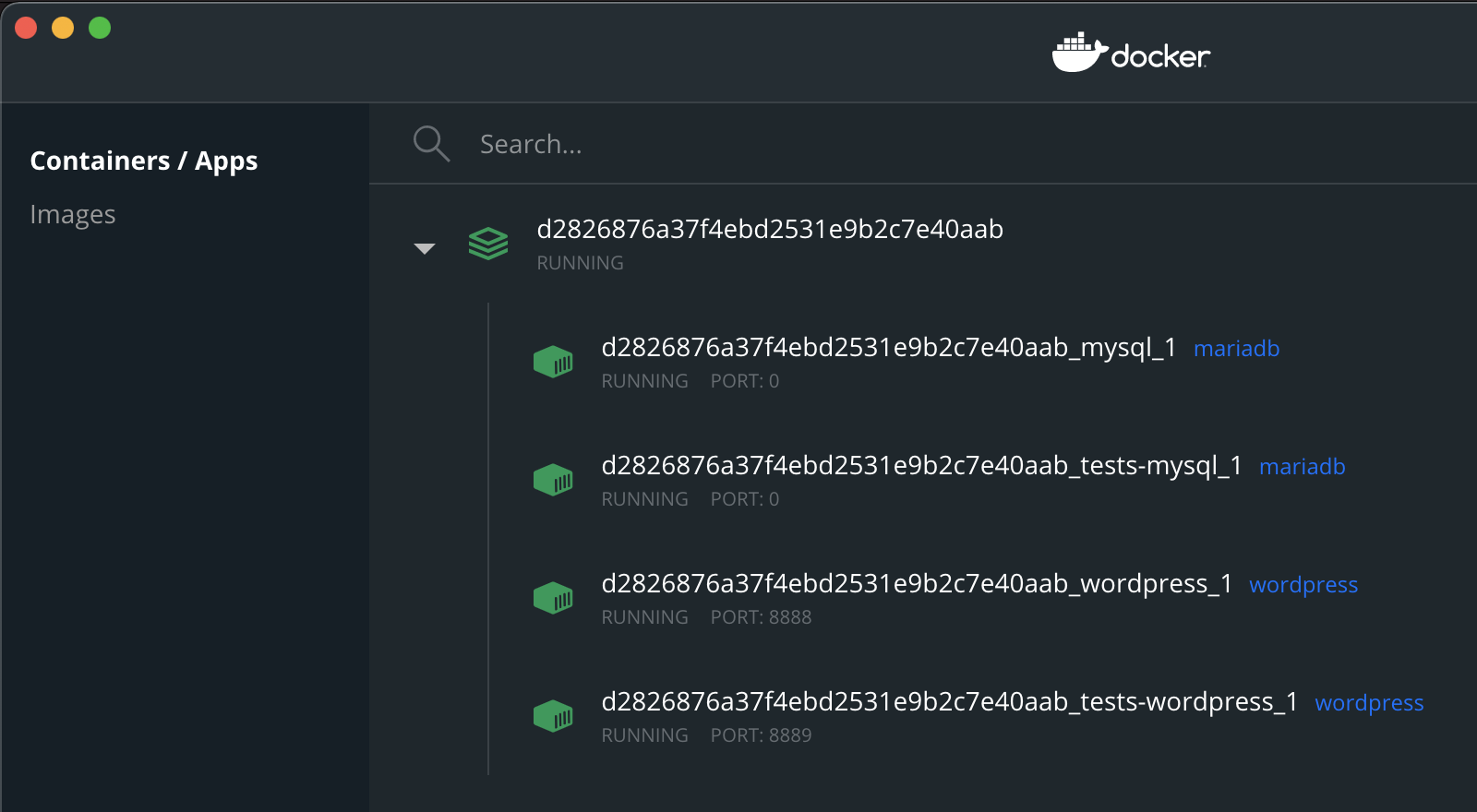
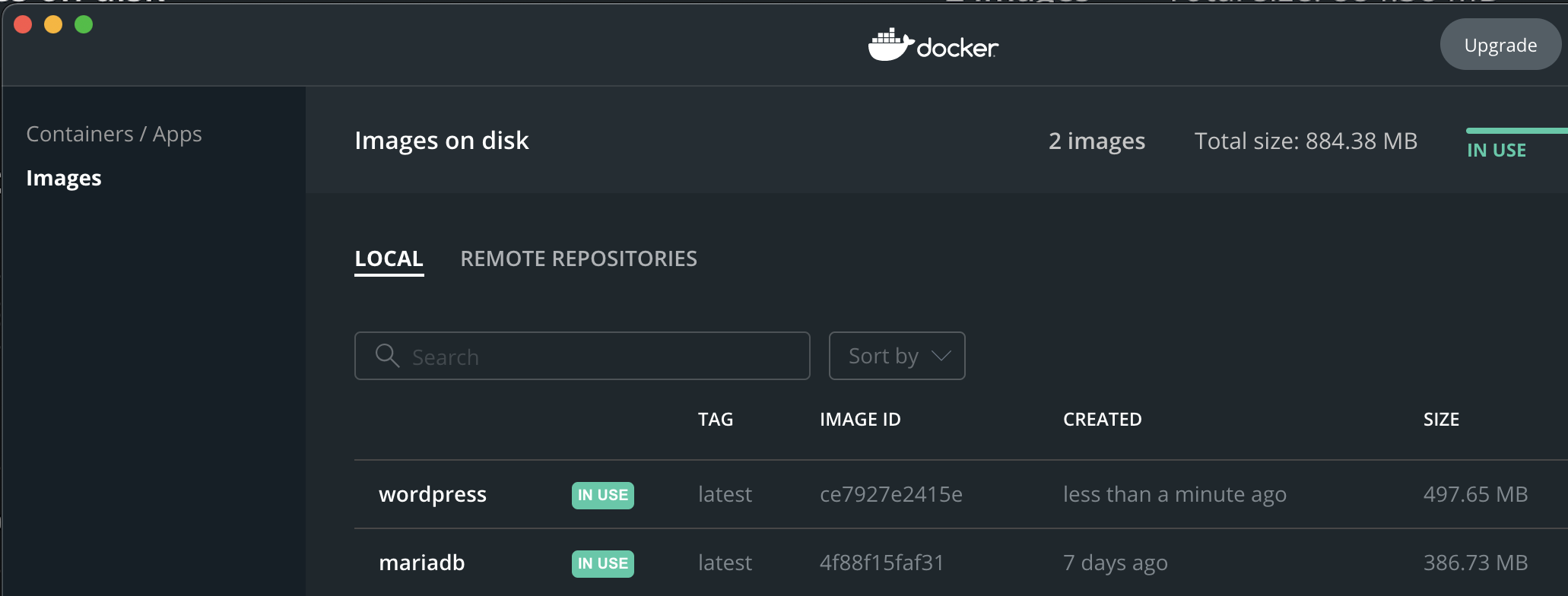
要完全销毁安装:
npm run wp-env destroy
更多命令请探索 包文档。
访问本地 WordPress 安装
现在应该可以通过 http://localhost:8888 访问 WordPress 安装。
您可以使用 用户名:admin 和 密码:password 在 http://localhost:8888/wp-admin/ 访问仪表板。您会注意到 Gutenberg 插件已安装并激活,这就是您的本地构建。
访问 MySQL 数据库
Gutenberg 项目默认提供 phpMyAdmin。您可以通过以下地址访问 MySQL 数据库:http://localhost:9000/。
如果您想通过其他工具访问数据库,首先需要获取连接信息。操作步骤如下:
- 在终端中,导航到您的本地 Gutenberg 代码仓库。
- 运行
npm run wp-env start- 关于wp-env环境的各种信息将输出到终端。 - 在步骤 2 的输出中,查找关于 MySQL 端口的信息: 例如:
MySQL 正在监听端口 {MYSQL_PORT_NUMBER}
- 复制/记下此端口号(请注意,每次
wp-env重启时此端口号都会改变)。 - 现在您可以使用以下详细信息连接到 MySQL 实例(请务必将
{MYSQL_PORT_NUMBER}替换为第三步中的端口号):
Host: 127.0.0.1
Username: root
Password: password
Database: wordpress
Port: {MYSQL_PORT_NUMBER}
请注意:每次 wp-env 重启时,MySQL 端口号都会改变。如果您发现无法再访问数据库,只需重复上述步骤以找到新的端口号并恢复连接即可。
提示:Sequel Ace 是一个用于访问 MySQL 数据库的有用 GUI 工具。其他工具可在此关于访问 WordPress 数据库的文章中找到相关文档。
故障排除
若遇到问题,请查阅 wp-env 文档中的故障排除章节。
使用 Local 或 MAMP
作为 Docker 和 wp-env 的替代方案,你也可以使用 Local、WampServer 或 MAMP 来运行本地 WordPress 环境。为此,请通过创建符号链接或将目录复制到正确的 wp-content/plugins 目录,将 Gutenberg 作为常规插件克隆并安装到你的环境中。
你还需要进行一些额外配置才能运行端到端测试。
将当前目录切换到插件文件夹,并为所有端到端测试插件创建符号链接:
ln -s gutenberg/packages/e2e-tests/plugins/* .
如果添加了新插件,你需要重新运行此命令。运行端到端测试:
WP_BASE_URL=http://localhost:8888/gutenberg/ npm run test:e2e
PHP 文件缓存
您需要禁用 OPCache 才能正确处理 PHP 文件。修复方法:
- 前往 MAMP > 首选项 > PHP
- 在 缓存 下,选择 关闭
- 点击 确定 确认
入站连接
默认情况下,MAMP 启动的 Web 服务器(Apache)会监听所有入站连接,而不仅仅是本地连接。这意味着同一本地网络上的任何人(在某些情况下,互联网上的任何人)都可以访问您的 Web 服务器。这可能是有意为之,对于在其他设备上测试站点很有用,但大多数情况下,这可能会带来隐私或安全问题。请记住这一点,不要在此服务器上存储敏感信息。
虽然可以修复此问题,但您应自行承担风险,因为它会破坏 MAMP 解析 Web 服务器配置的能力,从而导致 MAMP 认为 Apache 正在监听错误的端口。请考虑改用其他工具。否则,您可以执行以下操作:
- 编辑
/Applications/MAMP/conf/apache/httpd.conf - 将
Listen 8888更改为Listen 127.0.0.1:8888
链接到其他目录
您可能希望在 plugins 和 themes 目录中创建指向其他文件夹的链接,例如:
- wp-content/plugins/gutenberg -> ~/projects/gutenberg
- wp-content/themes/twentytwenty -> ~/projects/twentytwenty
如果是这样,您需要配置 Apache 以允许跟随此类链接:
- 打开或新建文件
/Applications/MAMP/htdocs/.htaccess - 添加以下行:
Options +SymLinksIfOwnerMatch
使用 WP-CLI
像 MAMP 这样的工具通常会将 MySQL 配置为使用非默认端口 3306,而更倾向于使用 8889。这可能会影响 WP-CLI,导致其在尝试连接数据库时失败。要解决此问题,请编辑 wp-config.php 文件,将 DB_HOST 常量从 define( 'DB_HOST', 'localhost' ) 更改为 define( 'DB_HOST', '127.0.0.1:8889' )。
在远程服务器上
您可以通过本地构建然后将构建文件作为插件上传到远程服务器,在开发中使用远程服务器。
构建步骤:打开终端(或在 Windows 上打开命令提示符)并导航到克隆的代码库。输入 npm ci 来设置所有依赖项。完成后,输入 npm run build。
构建完成后,克隆的 gutenberg 目录包含完整的插件,您可以将整个代码库上传到 wp-content/plugins 目录,并通过 WordPress 管理后台激活插件。
另一种构建后上传的方法是运行 npm run build:plugin-zip 来创建插件压缩文件——这需要 bash 和 php 环境。该脚本会生成 gutenberg.zip,您可以通过 WordPress 管理后台安装 Gutenberg。
Storybook
Storybook 是一款开源工具,用于独立开发 React、React Native 等框架的 UI 组件。它让构建精美 UI 的过程变得井然有序且高效。
Gutenberg 仓库也集成了 Storybook,支持在与 WordPress 无关的环境中进行测试和开发。这对于开发可复用组件和尝试无需后端依赖的通用 JavaScript 模块非常有帮助。
你可以在本地运行 npm run storybook:dev 来启动 Storybook。它会自动在浏览器中打开。
你也可以在 GitHub Pages 上测试当前 trunk 分支的 Storybook:https://wordpress.github.io/gutenberg/
开发者工具
我们建议配置编辑器以自动检查语法和代码规范错误。这将在开发过程中通过自动修复细微的格式问题来帮助您节省时间。以下是为 Visual Studio Code(许多核心开发者使用的流行编辑器)设置这些工具的指南,这些工具也适用于其他编辑器。
EditorConfig
EditorConfig 定义了一套标准配置来设置你的编辑器,例如使用制表符而非空格。你应该安装 EditorConfig for VS Code 扩展,它将自动配置你的编辑器以匹配 .editorconfig 中定义的规则。
ESLint
ESLint 通过静态分析代码来发现问题。代码检查规则已集成到持续集成流程中,必须通过检查才能提交代码。你应该为 Visual Studio Code 安装 ESLint 扩展,更多编辑器集成请参阅 eslint 文档的编辑器集成部分。
安装扩展后,ESLint 将使用 Gutenberg 代码库根目录下的 .eslintrc.js 文件作为格式化规则。它会在开发时高亮显示问题,你也可以设置以下首选项,以便在保存时自动修复代码检查问题。
    "editor.codeActionsOnSave": {
        "source.fixAll.eslint": "explicit"
    },
Prettier
Prettier 是一款工具,它允许您定义一种固定的代码格式,并自动修复代码以匹配该格式。Prettier 和 ESlint 类似,但 Prettier 更侧重于格式和样式,而 ESlint 用于检测编码错误。
要在 Visual Studio Code 中使用 Prettier,您应该安装 Prettier - Code formatter 扩展。然后,您可以通过在设置中添加以下内容,将其配置为默认格式化工具,并在保存时自动修复问题。注意:根据您查看此文档的位置,括号可能显示为双括号,但正确的格式仅为单括号。
"[[javascript]]": {
    "editor.defaultFormatter": "esbenp.prettier-vscode",
    "editor.formatOnSave": true
},
"[[markdown]]": {
    "editor.defaultFormatter": "esbenp.prettier-vscode",
    "editor.formatOnSave": true
},
这将使用 Gutenberg 仓库根目录中包含的 .prettierrc.js 文件。该配置来自 @wordpress/prettier-config 包。
如果您只想在 Gutenberg 项目中使用此配置,请在 Gutenberg 的顶层创建一个名为 .vscode 的目录,并将您的设置放在该目录的 settings.json 文件中。Visual Studio Code 将此称为工作区设置,仅适用于该项目。
对于其他编辑器,请参阅 Prettier 的编辑器集成文档。
TypeScript
TypeScript 是 JavaScript 语言的类型化超集。Gutenberg 项目通过 JSDoc 使用 TypeScript 来对 JavaScript 文件进行类型检查。如果你使用 Visual Studio Code,它内置了 TypeScript 支持,否则请参阅 TypeScript 编辑器支持以了解编辑器集成。
Git 工作流程
本文档旨在帮助您开始将 Git 与 Gutenberg 结合使用。Git 是一款强大的源代码管理工具;要深入学习 Git,请查阅遵循 CC BY-NC-SA 3.0 许可免费在线提供的 Pro Git 书籍。
如果您不熟悉 Git 的使用,值得花时间探索和实践。请尝试 Git 教程 以及 Git 用户手册 来帮助您入门。
Gutenberg 项目遵循标准的拉取请求流程进行贡献。有关拉取请求的更多详细信息,请参阅 GitHub 的相关文档。
概述
贡献者参与流程概述如下:
- 复刻 Gutenberg 仓库。
- 克隆复刻的仓库。
- 创建新分支。
- 进行代码修改。
- 确认测试通过。
- 在新分支中提交代码更改。
- 将分支推送到复刻的仓库。
- 向 Gutenberg 仓库提交拉取请求。
有关 Gutenberg 项目如何使用 GitHub 的更多信息,请参阅仓库管理文档。
Git 工作流程详解
代码和文档的工作流程是相同的,因为两者都在 GitHub 中进行管理。你可以观看贡献文档的视频讲解以及配套的为 Gutenberg 做贡献的教程。
以下是 Git 工作流程的视觉概览:

步骤 1:访问 GitHub 上的 Gutenberg 仓库并点击 Fork。这会在你的账户下创建主 Gutenberg 仓库的一个副本。

步骤 2:将你 fork 的仓库克隆到本地。它位于:https://github.com/YOUR-USER-NAME/gutenberg。克隆操作会将所有文件复制到你的计算机上。打开终端并运行:
git clone https://github.com/YOUR-USER-NAME/gutenberg
这将创建一个名为 gutenberg 的目录,其中包含项目的所有文件。这可能需要几分钟,因为它正在下载 Gutenberg 项目的完整历史记录。
步骤 3:为你的更改创建一个分支(分支命名规则见下文)。在这个例子中,分支名称是完整的字符串:update/my-branch
git switch -c update/my-branch
步骤 4:进行代码更改。彻底地构建、确认和测试你的更改。请参阅编码指南和测试概览以获取指导。
步骤 5:使用良好的提交信息提交你的更改。这会将你的更改提交到你的本地仓库副本。
git commit -m "Your Good Commit Message" path/to/FILE
步骤 6:将你的更改推送到 GitHub。更改将被推送到你在 GitHub 上的仓库 fork。
git push -u origin update/my-branch
步骤 7:访问你在 GitHub 上的 fork 仓库——它会自动检测到更改,并为你提供一个创建拉取请求的链接。

步骤 8:创建拉取请求。这将在 WordPress Gutenberg 仓库上创建一个请求,以集成来自你 fork 仓库的更改。
步骤 9:跟进拉取请求上的新动态。如果要求进行任何额外的更改或更新,则在本地进行更改并推送到 GitHub,遵循步骤 4-6。
不要为更新创建新的拉取请求;通过将更改推送到你的仓库,它将更新同一个 PR。从这个意义上说,PR 是 WordPress Gutenberg 仓库指向你副本的一个指针。所以当你更新你的副本时,PR 也会被更新。
就是这样!一旦审核通过并合并,您的更改就会被纳入主仓库。🎉
分支命名
您应该使用前缀和简短描述来命名分支,例如:[类型]/[变更]。
建议的前缀:
add/= 添加新功能try/= 实验性功能,“尝试性添加”update/= 更新现有功能remove/= 移除现有功能fix/= 修复现有问题
例如,add/gallery-block 表示您正在添加一个新的画廊区块。
保持分支最新状态
当多人同时在一个项目上工作时,拉取请求可能会很快过时。"过时"的拉取请求是指不再与开发主线保持同步的请求,需要先更新才能合并到项目中。
有两种更新方式:合并和变基。在 Gutenberg 中,推荐使用变基。变基意味着将你的更改重写为基于开发主线的最新状态,这能确保提交历史始终保持整洁和线性。在开发拉取请求期间,可以根据需要多次执行变基操作。请尽早分享你的工作——先创建拉取请求,并在开发过程中持续保持历史记录的变基状态。
开发主线被称为 trunk 分支。如果你的拉取请求分支因冲突无法合并到 trunk(长期运行的拉取请求可能出现这种情况),则需要在变基过程中手动解决本地副本中的冲突。更多信息请参阅《如何对拉取请求进行变基》中的章节《执行变基》。
在本地解决所有冲突后,可以使用 git push --force-with-lease 更新拉取请求。使用 --force-with-lease 参数非常重要,它能确保你不会意外覆盖他人的工作。
总结来说,你需要获取仓库中的新更改,将你的分支变基到 trunk 之上,然后将结果推回仓库。具体命令如下:
git fetch
git rebase trunk
git push --force-with-lease origin 你的分支名称
保持你的复刻仓库同步更新
处理拉取请求的第一步是复刻 Gutenberg 仓库,创建你的独立工作副本。随着新的拉取请求被合并到主仓库,你的工作副本很容易变得不同步。这里你的工作仓库是 fork,而主 Gutenberg 仓库是 upstream。在处理新的拉取请求时,你应该在运行 git checkout -b my-new-branch 创建分支进行功能开发或修复之前,始终先更新你的复刻仓库。
你需要添加一个 upstream 远程仓库来保持你的复刻仓库同步更新。
git remote add upstream https://github.com/WordPress/gutenberg.git
git remote -v
origin	git@github.com:your-account/gutenberg.git (fetch)
origin	git@github.com:your-account/gutenberg.git (push)
upstream	https://github.com/WordPress/gutenberg.git (fetch)
upstream	https://github.com/WordPress/gutenberg.git (push)
要同步你的复刻仓库,首先需要获取上游的更改并将其合并到你的本地副本中:
git fetch upstream
git checkout trunk
git merge upstream/trunk
本地副本更新完成后,推送你的更改以更新你在 GitHub 上的复刻仓库:
git push
以上命令将从 upstream 更新你的 trunk 分支。要更新任何其他分支,请将 trunk 替换为相应的分支名称。
杂项
Git 考古学
在寻找引入特定更改的提交时,忽略仅包含样式或格式更改的修订版本可能会有所帮助。
幸运的是,新版本的 git 获得了跳过历史提交的能力:
git blame --ignore-rev f63053cace3c02e284f00918e1854284c85b9132 -L 66,73 packages/api-fetch/src/middlewares/media-upload.js
所有样式和格式修订版本都使用 Gutenberg 仓库中的 .git-blame-ignore-revs 文件进行跟踪。你可以使用此文件一次性忽略它们:
git blame --ignore-revs-file .git-blame-ignore-revs -L 66,73 packages/api-fetch/src/middlewares/media-upload.js
如何让你的 Pull Request 获得审阅?
有时我们发布了一个 Pull Request,却没有人审阅我们的工作。该怎么办?
吸引审阅很大程度上不在于代码本身——而在于让审阅变得容易。
如果你发布了一个 Pull Request 却没有得到任何评论或审阅,可以尝试核心贡献者们使用的策略:
创建合理的最小 PR
批准一个 2000 行的 PR 需要数月时间,让人望而生畏。
批准一个 50 行的 PR 只需几天或几小时,感觉轻松。
大批量的工作会拖慢进度。将你的工作分成小块提交,以便更快合并、更快学习。
分享相关背景:
阐明:
- 你正在解决什么问题?
- 你的 PR 如何解决它?
- 你需要什么反馈?
- 哪些内容不在范围内?
- 哪些地方不够直观?
- 如何测试?
总结任何相关的问题和 PR。
这比让别人去弄清楚要容易得多。
让你的 PR 引人注目
所有贡献都在争夺注意力。让你的 PR 脱颖而出。
最简单的方法?说明它为什么重要:
❌ 一个新的 React Hook 用于获取数据
✅ useEntityRecord:用减少 10 倍样板代码的方式获取数据
然后用代码示例、视觉效果和屏幕录像来证明。
展示你的工作
在相关问题和 PR 中发布你的 PR 链接。
@ 提及相关问题的评论者、之前的提交者和技术负责人。
在 WordPress.org Slack 的 #core-editor 频道中提出。获得反馈最简单的方法是在每周核心编辑器会议的开放讨论环节中发言。
分配相关的标签、里程碑和项目(或请人帮忙分配)。
审阅他人的工作
这是让他人注意到你的最简单方法。
查找相关问题的评论者、之前的提交者和技术负责人的 PR。然后审阅它们。
他们的工作不熟悉吗?可以:
- 花些时间理解它
- 提议进行结对编程
- 跳过,审阅下一个 PR
通过清晰度降低风险
风险会增加摩擦——一个批准可能在日后带来问题。
清晰度就像润滑剂。清晰地记录:
- 涉及哪些风险?为什么要承担这些风险?
- 为什么这个 PR 是最佳解决方案?
- 如何将风险降至最低?
- 还尝试过哪些其他方法?
关注热点
有些 PR 天然比其他 PR 获得更多关注。
在这些 PR 上投入更多精力。
有些问题比其他问题更具时效性(例如,那些列在即将发布版本目标中的问题),因此会获得更多关注。专注于这些问题将更容易吸引审阅者。
如何快速做到这一点?帮助处理 WordPress 路线图中的活跃项目。
管理软件包
本仓库使用 npm workspaces 来管理 WordPress 软件包,并使用 lerna 将它们发布到 npm。这强制规定了工作流程中的某些步骤,详情请参阅 packages 文档。
维护数十个 npm 软件包是困难的——跟踪变更可能很棘手。这就是为什么我们为每个软件包使用 CHANGELOG.md 文件来简化发布流程。作为贡献者,每次贡献生产代码时,都应按照 维护更新日志 章节所述,在上述文件中添加一个条目。
通过将其与每两周一次的 Gutenberg 插件 RC1 版本同步,WordPress 软件包发布到 npm 的过程已实现自动化。您可以在 Gutenberg 发布流程文档 中了解更多关于此过程以及其他发布 npm 软件包新版本的方式。
脚本
编辑器为插件开发者提供了多个供应商和内部脚本。脚本名称、句柄和描述详见下表。
WordPress 脚本
编辑器包含多个功能包以实现不同功能。插件开发者可利用它们创建区块、编辑器插件或通用插件。
| Script Name | Handle | Description |
|---|---|---|
| Blob | wp-blob | Blob utilities |
| Block Library | wp-block-library | Block library for the editor |
| Blocks | wp-blocks | Block creations |
| Block Serialization Default Parser | wp-block-serialization-default-parser | Default block serialization parser implementations for WordPress documents |
| Block Serialization Spec Parser | wp-block-serialization-spec-parser | Grammar file (grammar.pegjs) for WordPress posts |
| Components | wp-components | Generic components to be used for creating common UI elements |
| Compose | wp-compose | Collection of handy Higher Order Components (HOCs) |
| Core Data | wp-core-data | Simplify access to and manipulation of core WordPress entities |
| Data | wp-data | Data module serves as a hub to manage application state for both plugins and WordPress itself |
| Date | wp-date | Date module for WordPress |
| Deprecated | wp-deprecated | Utility to log a message to notify developers about a deprecated feature |
| Dom | wp-dom | DOM utilities module for WordPress |
| Dom Ready | wp-dom-ready | Execute callback after the DOM is loaded |
| Editor | wp-editor | Building blocks for WordPress editors |
| Edit Post | wp-edit-post | Edit Post Module for WordPress |
| Element | wp-element | Element is, quite simply, an abstraction layer atop React |
| Escape Html | wp-escape-html | Escape HTML utils |
| Hooks | wp-hooks | A lightweight and efficient EventManager for JavaScript |
| Html Entities | wp-html-entities | HTML entity utilities for WordPress |
| I18N | wp-i18n | Internationalization utilities for client-side localization |
| Is Shallow Equal | wp-is-shallow-equal | A function for performing a shallow comparison between two objects or arrays |
| Keycodes | wp-keycodes | Keycodes utilities for WordPress, used to check the key pressed in events like onKeyDown |
| List Reusable blocks | wp-list-reusable-blocks | Package used to add import/export links to the listing page of the reusable blocks |
| NUX | wp-nux | Components, and wp.data methods useful for onboarding a new user to the WordPress admin interface |
| Plugins | wp-plugins | Plugins module for WordPress |
| Redux Routine | wp-redux-routine | Redux middleware for generator coroutines |
| Rich Text | wp-rich-text | Helper functions to convert HTML or a DOM tree into a rich text value and back |
| Shortcode | wp-shortcode | Shortcode module for WordPress |
| Token List | wp-token-list | Constructable, plain JavaScript DOMTokenList implementation, supporting non-browser runtimes |
| URL | wp-url | A collection of utilities to manipulate URLs |
| Viewport | wp-viewport | Module for responding to changes in the browser viewport size |
| Wordcount | wp-wordcount | WordPress word count utility |
Vendor scripts
The editor also uses some popular third-party packages and scripts. Plugin developers can use these scripts as well without bundling them in their code (and increasing file sizes).
| Script Name | Handle | Description |
|---|---|---|
| React | react | React is a JavaScript library for building user interfaces |
| React Dom | react-dom | Serves as the entry point to the DOM and server renderers for React, intended to be paired with React |
| Moment | moment | Parse, validate, manipulate, and display dates and times in JavaScript |
| Lodash | lodash | Lodash is a JavaScript library which provides utility functions for common programming tasks |
Polyfill scripts
The editor also provides polyfills for certain features that may not be available in all modern browsers.
It is recommended to use the main wp-polyfill script handle which takes care of loading all the below mentioned polyfills.
| Script Name | Handle | Description |
|---|---|---|
| Babel Polyfill | wp-polyfill | Emulate a full ES2015+ environment. Main script to load all the below mentioned additional polyfills |
| Fetch Polyfill | wp-polyfill-fetch | Polyfill that implements a subset of the standard Fetch specification |
| Promise Polyfill | wp-polyfill-promise | Lightweight ES6 Promise polyfill for the browser and node |
| Formdata Polyfill | wp-polyfill-formdata | Polyfill conditionally replaces the native implementation |
| Node Contains Polyfill | wp-polyfill-node-contains | Polyfill for Node.contains |
| Element Closest Polyfill | wp-polyfill-element-closest | Return the closest element matching a selector up the DOM tree |
打包与代码共享
当使用像 webpack 这样的 JavaScript 打包工具时,此处提到的脚本可以从打包文件中排除,并通过 WordPress 以脚本依赖项的形式提供,参见 wp_enqueue_script。
@wordpress/dependency-extraction-webpack-plugin 提供了一个 webpack 插件,用于帮助从打包文件中提取 WordPress 依赖项。@wordpress/scripts 的 build 脚本默认已包含此插件。
测试概览
Gutenberg 包含 PHP 和 JavaScript 代码,并鼓励对两者进行测试和代码风格检查。
为何需要测试?
除了测试将为你的生活带来乐趣之外,测试的重要性不仅在于它们有助于确保我们的应用程序按预期运行,还因为它们提供了如何使用代码的简明示例。
测试也是我们代码库的一部分,这意味着我们对它们采用与所有应用程序代码相同的标准。
与所有代码一样,测试也需要维护。为了有测试而编写测试并非目标——相反,我们应该努力在覆盖预期和意外行为、快速执行和代码维护之间找到适当的平衡。
编写测试时请考虑以下几点:
- 我们正在测试什么行为?
- 运行此代码时可能出现哪些错误?
- 测试是否确实测试了我们认为的内容?还是我们引入了误报/漏报?
- 测试是否可读?其他贡献者能否通过查看相应的测试来理解我们的代码行为?
JavaScript 测试
JavaScript 测试使用 Jest 作为测试运行器,并使用其 API 来处理全局函数(describe、test、beforeEach 等)、断言、模拟、监视和模拟函数。如果需要,你也可以使用 React Testing Library 进行 React 组件测试。
需要注意的是,过去 React 组件曾使用 Enzyme 进行单元测试。然而,现在所有现有和新的测试都改用 React Testing Library (RTL)。
假设你已经按照说明安装了 Node 和项目依赖项,可以通过命令行使用 NPM 运行测试:
npm test
代码检查是一种静态代码分析,用于强制执行编码标准并避免潜在错误。本项目使用 ESLint 和 TypeScript 的 JavaScript 类型检查来捕获这些问题。虽然上述 npm test 会同时执行单元测试和代码检查,但也可以通过运行 npm run lint 独立验证代码检查。运行 npm run lint:js:fix 可以自动修复一些 JavaScript 问题。
为了改善你的开发工作流程,你应该设置编辑器代码检查集成。更多信息请参阅入门文档。
如果只想运行单元测试而不运行代码检查器,请改用 npm run test:unit。
文件夹结构
请将测试文件存放在工作目录的 test 文件夹中。测试文件应与被测文件同名。
+-- test
|   +-- bar.js
+-- bar.js
只有测试文件(至少包含一个测试用例)应直接放在 /test 目录下。如需添加外部模拟或固定数据,请将其置于子文件夹中,例如:
test/mocks/[file-name].jstest/fixtures/[file-name].js
导入测试
根据之前的文件夹结构,在导入被测试代码时尽量使用相对路径,而不是项目路径。
推荐做法
import { bar } from '../bar';
不推荐做法
import { bar } from 'components/foo/bar';
这样当您决定将代码移动到应用程序目录的其他位置时,会让您的工作更轻松。
Describing tests
Use a describe block to group test cases. Each test case should ideally describe one behaviour only.
In test cases, try to describe in plain words the expected behaviour. For UI components, this might entail describing expected behaviour from a user perspective rather than explaining code internals.
Good
describe( 'CheckboxWithLabel', () => {
    test( 'checking checkbox should disable the form submit button', () => {
        ...
    } );
} );
Not so good
describe( 'CheckboxWithLabel', () => {
    test( 'checking checkbox should set this.state.disableButton to `true`', () => {
        ...
    } );
} );
设置与清理方法
Jest API 包含一些实用的设置与清理方法,允许你在每个或所有测试之前/之后执行任务,或在特定 describe 代码块内的测试前后执行操作。
这些方法可以处理异步代码,以便执行通常无法内联完成的设置操作。与单个测试用例类似,你可以返回 Promise,Jest 会等待其解析:
// 为*所有*测试执行一次性设置
beforeAll( () =>
	someAsyncAction().then( ( resp ) => {
		window.someGlobal = resp;
	} )
);

// 为*所有*测试执行一次性清理
afterAll( () => {
	window.someGlobal = null;
} );
afterEach 和 afterAll 提供了在测试后进行"清理"的完美(且推荐)方式,例如通过重置状态数据。
请避免在断言语句后放置清理代码,因为如果其中任何测试失败,清理操作将不会执行,并可能导致无关测试的失败。
模拟依赖项
依赖注入
将依赖项作为参数传递给函数通常可以使代码更易于测试。在可能的情况下,避免引用更高作用域中的依赖项。
不够理想
import VALID_VALUES_LIST from './constants';

function isValueValid( value ) {
	return VALID_VALUES_LIST.includes( value );
}
这里我们必须导入并使用 VALID_VALUES_LIST 中的一个值才能通过测试:
expect( isValueValid( VALID_VALUES_LIST[ 0 ] ) ).toBe( true );
上述断言测试了两种行为:1) 函数能否检测列表中的项目,以及 2) 它能否检测 VALID_VALUES_LIST 中的项目。
但是,如果我们不关心 VALID_VALUES_LIST 中存储了什么,或者列表是通过 HTTP 请求获取的,而我们只想测试 isValueValid 能否检测列表中的项目,该怎么办?
理想做法
function isValueValid( value, validValuesList = [] ) {
	return validValuesList.includes( value );
}
因为我们将列表作为参数传递,所以可以在测试中传递模拟的 validValuesList 值,并且额外测试更多场景:
expect( isValueValid( 'hulk', [ 'batman', 'superman' ] ) ).toBe( false );
expect( isValueValid( 'hulk', null ) ).toBe( false );
expect( isValueValid( 'hulk', [] ) ).toBe( false );
expect( isValueValid( 'hulk', [ 'iron man', 'hulk' ] ) ).toBe( true );
Imported dependencies
Often our code will use methods and properties from imported external and internal libraries in multiple places, which makes passing around arguments messy and impracticable. For these cases jest.mock offers a neat way to stub these dependencies.
For instance, lets assume we have config module to control a great deal of functionality via feature flags.
// bilbo.js
import config from 'config';
export const isBilboVisible = () =>
	config.isEnabled( 'the-ring' ) ? false : true;
To test the behaviour under each condition, we stub the config object and use a jest mocking function to control the return value of isEnabled.
// test/bilbo.js
import { isEnabled } from 'config';
import { isBilboVisible } from '../bilbo';

jest.mock( 'config', () => ( {
	// bilbo is visible by default
	isEnabled: jest.fn( () => false ),
} ) );

describe( 'The bilbo module', () => {
	test( 'bilbo should be visible by default', () => {
		expect( isBilboVisible() ).toBe( true );
	} );

	test( 'bilbo should be invisible when the `the-ring` config feature flag is enabled', () => {
		isEnabled.mockImplementationOnce( ( name ) => name === 'the-ring' );
		expect( isBilboVisible() ).toBe( false );
	} );
} );
测试全局对象
我们可以使用 Jest 间谍 来测试调用全局方法的代码。
import { myModuleFunctionThatOpensANewWindow } from '../my-module';

describe( 'my module', () => {
	beforeAll( () => {
		jest.spyOn( global, 'open' ).mockImplementation( () => true );
	} );

	test( 'something', () => {
		myModuleFunctionThatOpensANewWindow();
		expect( global.open ).toHaveBeenCalled();
	} );
} );
User interactions
Simulating user interactions is a great way to write tests from the user's perspective, and therefore avoid testing implementation details.
When writing tests with Testing Library, there are two main alternatives for simulating user interactions:
- The
fireEventAPI, a utility for firing DOM events part of the Testing Library core API. - The
user-eventlibrary, a companion library to Testing Library that simulates user interactions by dispatching the events that would happen if the interaction took place in a browser.
The built-in fireEvent is a utility for dispatching DOM events. It dispatches exactly the events that are described in the test spec - even if those exact events never had been dispatched in a real interaction in a browser.
On the other hand, the user-event library exposes higher-level methods (e.g. type, selectOptions, clear, doubleClick...), that dispatch events like they would happen if a user interacted with the document, and take care of any react-specific quirks.
For the above reasons, the user-event library is recommended when writing tests for user interactions.
Not so good: using fireEvent to dispatch DOM events.
import { render, screen } from '@testing-library/react';

test( 'fires onChange when a new value is typed', () => {
	const spyOnChange = jest.fn();

	// A component with one `input` and one `select`.
	render( <MyComponent onChange={ spyOnChange } /> );

	const input = screen.getByRole( 'textbox' );
	input.focus();
	// No clicks, no key events.
	fireEvent.change( input, { target: { value: 62 } } );

	// The `onChange` callback gets called once with '62' as the argument.
	expect( spyOnChange ).toHaveBeenCalledTimes( 1 );

	const select = screen.getByRole( 'listbox' );
	select.focus();
	// No pointer events dispatched.
	fireEvent.change( select, { target: { value: 'optionValue' } } );

	// ...
Good: using user-event to simulate user events.
import { render, screen } from '@testing-library/react';
import userEvent from '@testing-library/user-event';

test( 'fires onChange when a new value is typed', async () => {
	const user = userEvent.setup();

	const spyOnChange = jest.fn();

	// A component with one `input` and one `select`.
	render( <MyComponent onChange={ spyOnChange } /> );

	const input = screen.getByRole( 'textbox' );
	// Focus the element, select and delete all its contents.
	await user.clear( input );
	// Click the element, type each character separately (generating keydown,
	// keypress and keyup events).
	await user.type( input, '62' );

	// The `onChange` callback gets called 3 times with the following arguments:
	// - 1: clear ('')
	// - 2: '6'
	// - 3: '62'
	expect( spyOnChange ).toHaveBeenCalledTimes( 3 );

const select = screen.getByRole( 'listbox' );
	// 分发焦点、指针、鼠标、点击和变更事件。
	await user.selectOptions( select, [ 'optionValue' ] );

	// ...
} );
区块 UI 集成测试
集成测试是指将不同部分作为整体进行测试的一种测试类型。在本场景中,我们要测试的"部分"是指渲染特定区块或编辑器逻辑所需的不同组件。最终,它们与单元测试非常相似,因为它们都使用 Jest 库通过相同命令运行。主要区别在于,集成测试中的区块是在区块编辑器的特殊实例中运行的。
这种方法的优势在于,无需启动完整的端到端测试框架,就能测试区块编辑器的大部分功能(区块工具栏和检查器面板交互等)。这意味着测试可以运行得更快、更可靠。建议尽可能用集成测试覆盖区块的 UI 功能,而端到端测试则用于需要完整浏览器环境的交互,例如文件上传、拖放等。
封面区块就是一个使用这种测试级别来覆盖大部分编辑器交互的区块示例。
为集成测试设置 Jest 文件:
import { initializeEditor } from 'test/integration/helpers/integration-test-editor';

async function setup( attributes ) {
	const testBlock = { name: 'core/cover', attributes };
	return initializeEditor( testBlock );
}
initializeEditor 函数返回 @testing-library/react 的 render 方法的输出。它也可以接受区块元数据对象的数组,允许您设置包含多个区块的编辑器。
集成测试编辑器模块还导出了一个 selectBlock 函数,可用于通过区块包装器上的 aria-label 选择要测试的区块,例如 "Block: Cover"。
快照测试
这是关于[快照测试]的概述以及如何最好地利用快照测试。
太长不看版:快照测试失败时
当快照测试失败时,仅仅意味着组件的渲染结果发生了变化。如果这个变化是无意的,那么快照测试就防止了一个 bug 😊
然而,如果这个变化是有意的,请按照以下步骤更新快照。运行以下命令来更新快照:
# --testPathPattern 是可选的,但通过只运行匹配的测试会快得多
npm run test:unit -- --updateSnapshot --testPathPattern path/to/tests

# 更新端到端测试的快照
npm run test:e2e -- --update-snapshots path/to/spec
- 检查差异,确保更改是预期且有意为之的。
- 提交更改。
什么是快照?
快照是由测试生成的某些数据结构的表示形式。快照存储在文件中,并与测试一同提交。当测试运行时,生成的数据结构会与文件中的快照进行比较。
创建快照非常简单:
test( 'foobar test', () => {
	const foobar = { foo: 'bar' };

	expect( foobar ).toMatchSnapshot();
} );
这是生成的快照:
exports[ `test foobar test 1` ] = `
  Object {
    "foo": "bar",
  }
`;
你永远不应直接创建或修改快照,它们由测试生成和更新。
优势
- 添加测试简单明了。
- 防止意外更改。
- 易于使用。
- 无需运行应用程序即可揭示内部结构。
劣势
- 表达性不强。
- 仅在引入更改时发现问题。
- 对于任何非确定性内容都有问题。
使用场景
快照主要针对组件测试。它们让我们能够感知组件结构的变化,这使其成为重构的_理想_工具。如果快照在一系列提交过程中保持更新,快照差异就能记录组件结构的演变过程。相当酷 😎
import { render, screen } from '@testing-library/react';
import SolarSystem from 'solar-system';

describe( 'SolarSystem', () => {
	test( 'should render', () => {
		const { container } = render( <SolarSystem /> );

		expect( container ).toMatchSnapshot();
	} );

	test( 'should contain mars if planets is true', () => {
		const { container } = render( <SolarSystem planets /> );

		expect( container ).toMatchSnapshot();
		expect( screen.getByText( /mars/i ) ).toBeInTheDocument();
	} );
} );
Reducer 测试也非常适合使用快照。它们通常是庞大复杂的数据结构,不应该发生意外变化——这正是快照的专长所在!
使用快照
当快照不匹配导致 CI 测试失败时,你可能会措手不及。如果更改是预期的,你需要[更新快照]。快速但粗糙的解决方案是使用 --updateSnapshot 调用 Jest。可以按如下方式操作:
npm run test:unit -- --updateSnapshot --testPathPattern path/to/tests
--testPathPattern 不是必需的,但指定路径将通过运行测试子集来加快速度。
工作时在后台保持运行 npm run test:unit:watch 是个好主意。Jest 将仅运行与更改文件相关的测试,当快照测试失败时,只需按 u 即可更新快照!
痛点
非确定性测试可能无法生成一致的快照,因此需要谨慎对待。当处理任何随机、基于时间或其他非确定性的内容时,快照可能会出现问题。
处理已连接的组件比较棘手。要对已连接的组件进行快照,你可能需要导出未连接的组件:
// my-component.js
export { MyComponent };
export default connect( mapStateToProps )( MyComponent );

// test/my-component.js
import { MyComponent } from '..';
// 运行这些 MyComponent 测试…
需要手动提供已连接的属性。这是一个审查已连接状态的好机会。
最佳实践
如果你要开始重构,快照非常有用,你可以将它们作为分支上的第一个提交,并观察其演变过程。
快照本身并不表达我们的预期。快照最好与其他描述我们期望的测试结合使用,就像上面的例子:
test( '如果 planets 为 true 则应包含 mars', () => {
	const { container } = render( <SolarSystem planets /> );

	// 快照将捕获意外更改
	expect( container ).toMatchSnapshot();

	// 这才是我们实际期望在测试中找到的内容
	expect( screen.getByText( /mars/i ) ).toBeInTheDocument();
} );
另一个好技巧是使用 toMatchDiffSnapshot 函数(由 snapshot-diff 包 提供),它允许仅对 DOM 两个不同状态之间的差异进行快照。这种方法适用于测试属性更改对结果 DOM 的影响,同时生成更小的快照,例如:
test( '当 isShady 为 true 时应渲染更暗的背景', () => {
	const { container } = render( <CardBody>Body</CardBody> );
	const { container: containerShady } = render(
		<CardBody isShady>Body</CardBody>
	);
	expect( container ).toMatchDiffSnapshot( containerShady );
} );
类似地,toMatchStyleDiffSnapshot 函数允许仅对组件两个不同状态关联的样式之间的差异进行快照,例如:
test( '应渲染边距', () => {
	const { container: spacer } = render( <Spacer /> );
	const { container: spacerWithMargin } = render( <Spacer margin={ 5 } /> );
	expect( spacerWithMargin ).toMatchStyleDiffSnapshot( spacer );
} );
故障排除
有时我们需要为某些使用引用的故事模拟引用。请查阅以下文档了解更多信息:
- 为什么我们需要在 React 中使用模拟引用进行快照测试。
在这种情况下,您可能会看到测试失败,以及 Jest 在尝试从 ref.current 访问属性时报告 TypeError。
调试 Jest 单元测试
运行 npm run test:unit:debug 将在调试模式下启动测试,以便 node 检查器客户端 可以连接到进程并检查执行情况。有关使用 Google Chrome 或 Visual Studio Code 作为检查器客户端的说明,请参阅 wp-scripts 文档。
原生移动端测试
单元测试套件包含一组 Jest 测试,用于运行基于 React Native 开发的原生移动端代码路径。由于这些测试在 Node 环境中运行,您可以在本地开发机上启动它们,无需特定的原生 Android 或 iOS 开发工具或 SDK。这也意味着可以使用典型的开发工具进行调试。请继续阅读以下调试说明。
调试原生移动端单元测试
要在本地以调试模式运行测试,请按照以下步骤操作:
- 确保已运行
npm ci以安装所有包 - 在 Gutenberg 根目录下的 CLI 中运行
npm run test:native:debug。此时 Node 正在等待调试器连接。 - 在 Chrome 中打开
chrome://inspect - 在 "Remote Target" 部分,找到
../../node_modules/.bin/jest目标并点击 "inspect" 链接。这将打开一个新窗口,其中 Chrome DevTools 调试器已附加到进程,并停在jest.js文件的开头。或者,如果目标不可见,请点击同一页面上的Open dedicated DevTools for Node链接。 - 您可以在代码(包括测试代码)中设置断点或
debugger;语句来暂停执行并进行检查 - 点击 "Play" 按钮以继续执行
- 享受调试原生移动端单元测试的过程!
原生移动端到端测试
Gutenberg 贡献者会注意到,PR 包含在 Android 和 iOS 上运行原生移动端 E2E 测试的持续集成 E2E 测试。如需排查失败的测试,请查阅我们在持续集成中运行原生移动测试的指南。有关在本地运行这些测试的更多信息,请参见此处。
原生移动端集成测试
目前正在为原生移动端项目添加集成测试,使用 react-native-testing-library 库。编写集成测试的指南可在此处找到:此处。
端到端测试
端到端测试使用 Playwright 作为测试框架。最佳实践和详细说明请参阅专门的 端到端测试指南。
使用 wp-env
如果你正在使用内置的本地环境,你可以使用以下命令在本地运行 e2e 测试:
npm run test:e2e
或者以交互模式运行
npm run test:e2e -- --ui
场景测试
如果你发现端到端测试在本地运行时通过,但在 GitHub Actions 中失败,可以通过模拟慢速 CPU 或网络来隔离 CPU 或网络相关的竞态条件:
THROTTLE_CPU=4 npm run test:e2e
THROTTLE_CPU 是减速因子(在此示例中为 4 倍减速乘数)
参见 Chrome 文档:setCPUThrottlingRate
SLOW_NETWORK=true npm run test:e2e
SLOW_NETWORK 模拟相当于 Chrome 开发者工具中“快速 3G”的网络速度。
参见 Chrome 文档:emulateNetworkConditions 和 NetworkManager.js
OFFLINE=true npm run test:e2e
OFFLINE 模拟网络断开连接。
参见 Chrome 文档:emulateNetworkConditions
核心区块测试
每个核心区块必须至少包含一组用于主保存功能的测试夹具文件,以及每组弃用功能对应的测试夹具。这些夹具用于测试区块的解析和序列化功能。更多信息和操作说明请参阅集成测试夹具自述文件。
不稳定测试
当某个测试在多次重试尝试中无需代码更改即可通过或失败时,即被视为不稳定测试。我们在 CI 上最多自动重试失败测试两次,以检测它们并通过 report-flaky-tests GitHub Action 自动报告到 GitHub issues 的 [Type] Flaky Test 标签下。请注意,连续失败三次的测试不计为不稳定测试,也不会被报告到 issue 中。
PHP 测试
PHP 测试使用 PHPUnit 作为测试框架。如果你使用内置的本地环境,可以通过以下命令在本地运行 PHP 测试:
npm run test:php
要在文件更改时自动重新运行测试(类似于 Jest),请运行:
npm run test:php:watch
注意:phpunit 命令要求 wp-env 正在运行且 composer 依赖已安装。如果 wp-env 尚未运行,包脚本会为你启动它。
在其他环境中,请运行 composer run test 和 composer run test:watch。
PHP 代码风格使用 PHP_CodeSniffer 强制执行。建议你使用 Composer 安装 PHP_CodeSniffer 和 WordPress Coding Standards for PHP_CodeSniffer 规则集。安装 Composer 后,在项目目录中运行 composer install 以安装依赖项。上述 npm run test:php 将同时执行单元测试和代码检查。可以通过运行 npm run lint:php 独立验证代码检查。
要仅运行单元测试而不运行代码检查,请改用 npm run test:unit:php。
测试带前缀的函数
Gutenberg 的构建系统会自动为 PHP 函数添加 gutenberg_ 前缀,以避免与 WordPress 核心发生冲突。在为区块函数编写测试时,必须测试函数的构建(带前缀)版本,而非源代码版本。
如果测试被反向移植到 WordPress 核心,则必须更新它们以测试不带前缀的函数。
Writing Tests for Prefixed Functions & Classes
Always test the built (prefixed) function names and class names in your PHPUnit tests:
// phpunit/blocks/my-block-test.php
class My_Block_Test extends WP_UnitTestCase {
    public function test_my_function() {
        // Test the built function (with gutenberg_ prefix)
        $result = gutenberg_block_core_my_block_render_function( $args );
        $this->assertEquals( $expected, $result );
    }

    public function test_my_class() {
        // Test the built class (with _Gutenberg suffix)
        $handler = new WP_Example_Block_Handler_Gutenberg();
        $result = $handler->process( $input );
        $this->assertEquals( $expected, $result );
    }
}
For more detailed information about the build system and function prefixing, see the Build System: Function Prefixing and Block Loading documentation.
性能测试
为确保编辑器在添加功能时保持高性能,我们监控拉取请求和版本发布对以下关键指标的影响:
- 编辑器加载所需时间
- 输入时浏览器响应时间
- 选择区块所需时间
性能测试是运行编辑器并捕获这些指标的端到端测试。请确保已准备好端到端测试环境。
要设置端到端测试环境,请检出 Gutenberg 仓库并切换到要测试的分支。运行以下命令准备环境:
nvm use && npm install
npm run build
运行以下命令执行测试:
npm run test:performance
这将给出当前运行环境中对应分支/代码的结果。
此外,您还可以通过运行命令 ./bin/plugin/cli.js perf [branches] 来比较不同分支(或标签、提交)之间的指标,例如:
./bin/plugin/cli.js perf trunk v8.1.0 v8.0.0
最后,您可以传递额外的 --tests-branch 参数来指定要运行哪个分支的性能测试文件。这在修改/扩展性能测试时特别有用:
./bin/plugin/cli.js perf trunk v8.1.0 v8.0.0 --tests-branch add/perf-tests-coverage
注意 此命令执行基准测试可能需要较长时间。运行期间请尽量避免使用计算机或运行大量后台进程,以尽量减少可能影响跨分支结果的外部因素。
过度使用快照
看看下面的代码。你能一眼看出这个测试试图做什么吗?
await editor.insertBlock( { name: 'core/quote' } );
await page.keyboard.type( '1' );
await page.keyboard.press( 'Enter' );
await page.keyboard.press( 'Enter' );

expect( await editor.getEditedPostContent() ).toMatchSnapshot();

await page.keyboard.press( 'Backspace' );
await page.keyboard.type( '2' );

expect( await editor.getEditedPostContent() ).toMatchSnapshot();
这段代码改编自 gutenberg 中的真实代码,移除了测试标题和注释,并重构为 Playwright 版本。理想情况下,端到端测试应该是自文档化且对最终用户可读的;毕竟,它们试图模拟最终用户与应用程序的交互方式。然而,这段代码中存在一些值得警惕的问题。
Problems with snapshot testing
Popularized by Jest, snapshot testing is a great tool to help test our app when it makes sense. However, probably because it's so powerful, it's often overused by developers. There are already multiple articles about this. In this particular case, snapshot testing fails to reflect the developer's intention. It's not clear what the assertions are about without looking into other information. This makes the code harder to understand and creates a mental overhead for all the other readers other than the one who wrote it. As readers, we have to jump around the code to fully understand them. The added complexity of the code discourages contributors from changing the test to fit their needs. It could sometimes even confuse the authors and make them accidentally commit the wrong snapshots.
Here's the same test with the test title and comments. Now you know what these assertions are actually about.
it( 'can be split at the end', async () => {
	// ...

	// Expect empty paragraph outside quote block.
	expect( await getEditedPostContent() ).toMatchSnapshot();

	// ...

	// Expect the paragraph to be merged into the quote block.
	expect( await getEditedPostContent() ).toMatchSnapshot();
} );
The developer's intention is a bit more readable, but it still feels disconnected from the test. You might be tempted to try inline snapshots, which do solve the issue of having to jump around files, but they're still not self-documented nor explicit. We can do better.
解决方案
与其在注释中编写断言,我们可以尝试直接明确地写出它们。借助 editor.getBlocks,我们可以将其重写为更简单、更原子化的断言。
// ...

// 期望引用块外存在空段落。
await expect.poll( editor.getBlocks ).toMatchObject( [
	{
		name: 'core/quote',
		innerBlocks: [
			{
				name: 'core/paragraph',
				attributes: { content: '1' },
			},
		],
	},
	{
		name: 'core/paragraph',
		attributes: { content: '' },
	}
] );

// ...

// 期望段落被合并到引用块中。
await expect.poll( editor.getBlocks ).toMatchObject( [ {
	name: 'core/quote',
	innerBlocks: [
		{
			name: 'core/paragraph',
			attributes: { content: '1' },
		},
		{
			name: 'core/paragraph',
			attributes: { content: '2' },
		},
	],
} ] );
这些断言更具可读性和明确性。你可以添加额外的断言或将现有断言拆分为多个,以突出其重要性。是否保留注释取决于你,但当代码本身已足够清晰时,通常可以省略它们。
快照变体
由于 Playwright 缺乏内联快照功能,一些迁移后的测试使用字符串断言(toBe)来模拟类似效果,而无需创建大量快照文件。
expect( await editor.getEditedPostContent() ).toBe( `<!-- wp:paragraph -->
<p>Paragraph</p>
<!-- /wp:paragraph -->` );
我们可以将这种模式视为快照测试的一种变体,编写时应遵循相同的规则。通常最好使用 editor.getBlocks 或其他方法重写它们,以进行显式断言。
await expect.poll( editor.getBlocks ).toMatchObject( [ {
	name: 'core/paragraph',
	attributes: { content: 'Paragraph' },
} ] );
测试覆盖率如何?
将显式断言与快照测试对比,我们确实在这个测试中损失了部分覆盖率。当我们需要断言区块完整序列化内容时,快照测试依然有效。不过值得庆幸的是,集成测试中的某些用例已经对每个核心区块的完整内容进行了断言。这些测试在 Node.js 环境中运行,速度远快于在 Playwright 中重复执行相同测试——在我的机器上运行 273 个测试用例仅需约 5.7 秒。这类测试在单元或集成层面表现优异,我们既能大幅提升执行速度,又不会牺牲测试覆盖率。
最佳实践
在端到端测试中应尽量避免使用快照测试,通常有更好的替代方案可以利用显式断言。当确实没有其他合适选择时,我们应遵循使用快照测试的最佳实践。
避免庞大的快照
庞大的快照难以阅读和审查。此外,当所有内容都重要时,就没有什么是重要的了。庞大的快照会阻碍我们关注快照的重要部分。
避免重复的快照
如果你发现自己在同一个测试中为相似内容创建多个快照,这可能意味着你应该进行更原子化的断言。重新思考你的测试目标——如果第一个快照仅作为第二个的参照,那么你真正需要的是快照之间的差异。将第一个结果存储在变量中,然后断言结果之间的差异。
延伸阅读
基于 React Native 的移动版 Gutenberg 入门指南
欢迎!这是面向 Android 和 iOS 设备的区块编辑器原生移动移植版的入门指南。总体而言,它是一个用于新建或现有父级应用的 React Native 库。继续阅读以了解如何构建、测试和运行它。
前置要求
为了获得更接近项目维护者当前使用的开发体验,请确保已安装以下工具:
- git
- nvm
- Node.js 和 npm(使用 nvm 安装它们)
- Android Studio 以便能够编译应用的 Android 版本
- Xcode 以便能够编译 iOS 应用
- CocoaPods (
sudo gem install cocoapods) 用于获取 React 和第三方依赖项。
请注意,维护者使用的操作系统平台是 macOS,但这些工具和设置在其他平台也应可用。
克隆项目
git clone https://github.com/WordPress/gutenberg.git
设置
请注意,此处描述的命令应在克隆项目的顶级目录中运行。在运行演示应用之前,您需要下载并安装项目依赖项。这通过以下命令完成:
nvm install
npm ci
npm run native preios
运行
npm run native start:reset
在开发模式下运行打包器(Metro)。打包器将持续运行,为请求它的客户端提供应用包。
在打包器运行的同时,打开另一个终端窗口,使用以下命令编译并运行 Android 应用:
npm run native android
应用现在应该在已连接的设备或正在运行的模拟器中打开,并从正在运行的打包器获取 JavaScript 代码。
要使用默认模拟器设备编译并运行 iOS 版本的应用,请使用:
npm run native ios
如果您使用的是 Mac 并已安装 iOS 模拟器,此命令将尝试在 iOS 模拟器中打开您的应用。
在其他 iOS 设备模拟器上运行
要在不同的设备模拟器上编译并运行应用,请使用以下命令,注意使用两组 -- 将模拟器选项传递给 react-native CLI。
npm run native ios -- -- --simulator="DEVICE_NAME"
例如,如果你想在 iPhone Xs Max 上运行,可以尝试:
npm run native ios -- -- --simulator="iPhone Xs Max"
要查看所有可用的 iOS 设备列表,请使用 xcrun simctl list devices。
自定义演示编辑器
默认情况下,演示编辑器会渲染大多数受支持的核心区块。这有助于展示编辑器的功能,但在专注于特定区块或功能时可能会分散注意力。您可以通过在 packages/react-native-editor/src/setup-local.js 文件中利用 native.block_editor_props 钩子来自定义编辑器的初始状态。
示例 setup-local.js
/**
 * WordPress 依赖项
 */
import { addFilter } from '@wordpress/hooks';

export default () => {
	addFilter(
		'native.block_editor_props',
		'core/react-native-editor',
		( props ) => {
			return {
				...props,
				initialHtml,
			};
		}
	);
};

const initialHtml = `
<!-- wp:heading -->
<h2 class="wp-block-heading">仅一个标题</h2>
<!-- /wp:heading -->
`;
故障排除
如果 Android 模拟器无法正常启动,或编译时出现 Could not initialize class org.codehaus.groovy.runtime.InvokerHelper 等类似错误,建议根据 React Native 文档 中的最新要求,仔细检查开发环境的配置。例如,使用 Android Studio 时,需要配置 ANDROID_HOME 环境变量,并确保 JDK 版本符合最新要求。
有时,尤其是在调整 package.json、Babel 配置(.babelrc)或 Jest 配置(jest.config.js)时,修改可能看似未按预期生效。此时,可能需要停止 Metro 打包进程,并使用 npm run native start:reset 重新启动。其他情况下,可能需要彻底重新安装 NPM 包,此时 npm run native clean:install 脚本会很有用。
使用 Visual Studio Code 进行开发
虽然开发 gutenberg-mobile 不强制要求使用 Visual Studio Code,但它是推荐的 IDE,我们为其提供了一些配置。
首次在 Visual Studio 中打开项目时,系统会提示安装一些推荐的扩展。这将有助于类型检查和调试等工作。
我们使用的扩展之一是 React Native Tools。它允许你从 VSCode 运行打包程序,或在 iOS 或 Android 上启动应用程序。它还添加了一些调试配置,以便你可以设置断点并直接从 VSCode 调试应用程序。详情请参阅扩展文档。
单元测试
使用以下命令运行测试套件:
npm run test:native
它将在您的测试上运行 jest 测试运行器。测试在桌面环境下针对 Node.js 运行。
要在调试器支持下运行测试,请使用以下 CLI 命令启动:
npm run test:native:debug
然后,在 Chrome 中打开 chrome://inspect 以附加调试器(查看"远程目标"部分)。在测试/开发过程中,可以随时在希望调试器中断的代码中的任何位置添加 debugger 语句。
编写和运行单元测试
本项目已配置使用 jest 进行测试。您可配置任意测试策略,但 jest 已开箱即用。在名为 __tests__ 的目录中创建测试文件,或使用 .test.js 扩展名,即可让 jest 加载这些文件。查看示例测试请访问此处。jest 文档和 React Native 测试教程也是极佳的资源。
端到端测试
除了单元测试外,Mobile Gutenberg (MG) 项目还依赖端到端 (E2E) 测试,以在与最终用户相似的环境中自动化测试关键流程。我们通常更倾向于单元测试,因为它们速度快且易于维护。然而,对于需要操作系统级功能(例如复杂手势、文本选择)或视觉回归测试(例如深色模式、对比度级别)的断言,我们使用 E2E 测试。
E2E 测试位于 packages/react-native-editor/__device-tests__ 目录中。有关运行这些测试和为其做出贡献的更多文档,可在 tests 目录 中找到。
React Native 集成测试指南
什么是集成测试?
集成测试被定义为一种将不同部分作为整体进行测试的类型。在我们的场景中,需要测试的部分是特定区块或编辑器逻辑所需渲染的不同组件。最终,它们与单元测试非常相似,因为它们都使用 Jest 库通过相同的命令运行。主要区别在于,对于集成测试,我们将使用特定的库 react-native-testing-library 来测试编辑器如何渲染不同的组件。
Anatomy of an integration test
A test can be structured with the following parts:
We also include examples of common tasks as well as tips in the following sections:
Setup
This part usually is covered by using the Jest callbacks beforeAll and beforeEach, the purpose is to prepare everything that the test might require like registering blocks or mocking parts of the logic.
Here is an example of a common pattern if we expect all core blocks to be available:
beforeAll( () => {
	// Register all core blocks
	registerCoreBlocks();
} );
渲染
在介绍测试逻辑之前,我们必须先渲染要测试的组件。根据我们是想使用作用域组件方法还是整个编辑器方法,这部分会有所不同。
使用作用域组件方法
以下是渲染封面区块的示例(提取自此代码):
// 此导入指向区块的索引文件
import { metadata, settings, name } from '../index';

...

const setAttributes = jest.fn();
const attributes = {
	backgroundType: IMAGE_BACKGROUND_TYPE,
	focalPoint: { x: '0.25', y: '0.75' },
	hasParallax: false,
	overlayColor: { color: '#000000' },
	url: 'mock-url',
};

...

// 在插槽内渲染封面编辑器的简化树
const CoverEdit = ( props ) => (
	<SlotFillProvider>
		<BlockEdit isSelected name={ name } clientId={ 0 } { ...props } />
		<BottomSheetSettings isVisible />
	</SlotFillProvider>
);

const { getByText, findByText } = render(
	<CoverEdit
		attributes={ {
			...attributes,
			url: undefined,
			backgroundType: undefined,
		} }
		setAttributes={ setAttributes }
	/>
);
使用完整编辑器方法
const initialHtml = `<!-- wp:buttons -->
<div class="wp-block-buttons"><!-- wp:button {"style":{"border":{"radius":"5px"}}} -->
<div class="wp-block-button"><a class="wp-block-button__link" style="border-radius:5px" >Hello</a></div>
<!-- /wp:button --></div>
<!-- /wp:buttons -->`;
const { getByLabelText } = initializeEditor( {
	initialHtml,
} );
查询元素
组件渲染完成后,接下来就需要查询它们。关于这个话题的一个重要注意事项是:我们应该从用户视角进行测试,这意味着理想情况下应该通过用户可访问的元素(如文本或无障碍标签)进行查询。
查询时应遵循以下优先级顺序:
getByText:从文本查询是最接近用户视角的操作方式,因为文本是用户识别元素的视觉线索。getByLabelText:某些情况下需要查询不提供文本的元素,此时可以回退到使用无障碍标签。getByTestId:如果前两种方式都不适用,且没有任何可依赖的视觉元素,则必须回退到特定的测试ID,可通过testID属性定义(示例参见此处)。
示例如下:
const mediaLibraryButton = getByText( 'WordPress Media Library' );
const missingBlock = getByLabelText( /Unsupported Block\. Row 1/ );
const radiusSlider = getByTestId( 'Slider Border Radius' );
注意:这些查询可以传入纯字符串或正则表达式。正则表达式最适合查询部分字符串(例如:任何包含 Unsupported Block. Row 1 的无障碍标签元素)。需注意特殊字符(如 .)需要进行转义处理。
使用 find 查询
在渲染组件或触发事件后,由于可能的状态更新可能会产生副作用,导致我们正在查找的元素可能尚未渲染。在这种情况下,我们需要等待元素变为可用。为此,我们可以使用查询函数的 find* 版本,这些函数内部使用 waitFor 并定期检查元素是否出现。
以下是一些示例:
const mediaLibraryButton = await findByText( 'WordPress Media Library' );
const missingBlock = await findByLabelText( /Unsupported Block\. Row 1/ );
const radiusSlider = await findByTestId( 'Slider Border Radius' );
在大多数情况下,我们会使用 find* 函数,但需要注意的是,应将其限制在那些确实需要等待元素可用的查询上。
within 查询
也可以通过 within 函数查询其他元素中包含的元素,示例如下:
const missingBlock = await findByLabelText( /Unsupported Block\. Row 1/ );
const translatedTableTitle = within( missingBlock ).getByText( 'Tabla' );
触发事件
与查询元素同等重要的是触发事件以模拟用户交互,为此我们可以使用 fireEvent 函数(文档)。
以下是按压事件的示例:
按压事件:
fireEvent.press( settingsButton );
我们也可以触发任何类型的事件,包括自定义事件。在下面的示例中,你可以看到我们如何为 Slider 组件触发 onValueChange 事件(代码参考):
自定义事件 – onValueChange:
fireEvent( heightSlider, 'valueChange', '50' );
期望正确的元素行为
在查询元素并触发事件后,我们必须验证逻辑是否按预期工作。为此,我们可以使用与单元测试中相同的 Jest expect 函数。建议使用自定义的 toBeVisible 匹配器,以确保元素已定义、是有效的 React 元素且可见。
示例如下:
const translatedTableTitle = within( missingBlock ).getByText( 'Tabla' );
expect( translatedTableTitle ).toBeVisible();
此外,在渲染整个编辑器时,我们还可以验证 HTML 输出是否符合预期:
expect( getEditorHtml() ).toBe(
	'<!-- wp:spacer {"height":50} -->\n<div style="height:50px" aria-hidden="true" class="wp-block-spacer"></div>\n<!-- /wp:spacer -->'
);
Cleanup
And finally, we have to clean up any potential modifications we’ve made that could affect the following tests. Here is an example of a typical cleanup after registering blocks that implies unregistering all blocks:
afterAll( () => {
	// Clean up registered blocks
	getBlockTypes().forEach( ( block ) => {
		unregisterBlockType( block.name );
	} );
} );
辅助工具
为简化原生版本的集成测试编写,您可以在此 README 中找到一系列辅助函数。
常用流程
查询区块
查询区块的常用方法是使用其无障碍标签,示例如下:
const spacerBlock = await waitFor( () =>
	getByLabelText( /Spacer Block\. Row 1/ )
);
如需进一步了解区块的无障碍标签,可查阅 getAccessibleBlockLabel 函数的代码。
添加区块
以下是如何插入段落区块的示例:
// 打开插入器菜单
fireEvent.press( await findByLabelText( 'Add block' ) );

const blockList = getByTestId( 'InserterUI-Blocks' );
// 使用 onScroll 事件强制 FlatList 渲染所有项目
fireEvent.scroll( blockList, {
	nativeEvent: {
		contentOffset: { y: 0, x: 0 },
		contentSize: { width: 100, height: 100 },
		layoutMeasurement: { width: 100, height: 100 },
	},
} );

// 插入一个段落区块
fireEvent.press( await findByText( `Paragraph` ) );
打开区块设置
选中区块后点击"打开设置"按钮即可访问区块设置,示例如下:
fireEvent.press( block );

const settingsButton = await findByLabelText( 'Open Settings' );
fireEvent.press( settingsButton );
使用作用域组件方法
当使用作用域组件方法时,我们需要先渲染 SlotFillProvider 和 BottomSheetSettings(注意我们传递了 isVisible 属性以强制显示底部面板)以及区块:
<SlotFillProvider>
	<BlockEdit isSelected name={ name } clientId={ 0 } { ...props } />
	<BottomSheetSettings isVisible />
</SlotFillProvider>
参考示例:
FlatList 项目
FlatList 组件会根据滚动位置、视图和内容尺寸来渲染其项目。这意味着在渲染此组件时,可能会出现某些项目因尚未渲染而无法被查询的情况。为了解决这个问题,我们必须显式触发一个事件,使 FlatList 渲染所有项目。
以下是在插入器菜单中用于渲染区块列表的 FlatList 示例:
const blockList = getByTestId( 'InserterUI-Blocks' );
// onScroll 事件用于强制 FlatList 渲染所有项目
fireEvent.scroll( blockList, {
	nativeEvent: {
		contentOffset: { y: 0, x: 0 },
		contentSize: { width: 100, height: 100 },
		layoutMeasurement: { width: 100, height: 100 },
	},
} );
滑块
底部工作表中的滑块应使用其 testID 进行查询:
const radiusSlider = await findByTestId( 'Slider Border Radius' );
fireEvent( radiusSlider, 'valueChange', '30' );
请注意,滑块的 testID 是 "Slider " + 标签。因此,对于标签为 "Border Radius" 的滑块,其 testID 为 "Slider Border Radius"。
选择内部区块
添加区块时需要注意:如果区块包含内部区块,这些内部区块默认不会渲染。以下示例展示了如何让 Buttons 区块渲染其内部的 Button 区块(假设我们已经获取到 Buttons 区块的引用 buttonsBlock):
const innerBlockListWrapper = await within( buttonsBlock ).findByTestId(
	'block-list-wrapper'
);
fireEvent( innerBlockListWrapper, 'layout', {
	nativeEvent: {
		layout: {
			width: 100,
		},
	},
} );

const buttonInnerBlock = await within( buttonsBlock ).findByLabelText(
	/Button Block\. Row 1/
);
fireEvent.press( buttonInnerBlock );
Tools
Using the Accessibility Inspector
If you have trouble locating an element’s identifier, you may wish to use Xcode’s Accessibility Inspector. Most identifiers are cross-platform, so even though the tests are run on Android by default, the Accessibility Inspector can be used to find the right identifier.

常见陷阱与注意事项
省略 waitFor 函数前 await 导致的误判
在 waitFor 前省略 await 可能导致测试通过但未验证预期行为的情况。例如,若使用 toBeDefined 断言 waitFor 调用结果,由于 waitFor 本身会返回值,断言将通过——即便该值并非我们预期验证的 ReactTestInstance。因此,建议使用自定义匹配器 toBeVisible 来防范此类误判。
waitFor 超时设置
waitFor 函数的默认超时时间设置为 1000 毫秒,目前该值足以满足我们测试的所有渲染逻辑。然而,如果在测试过程中发现某个元素需要更长的渲染时间,则应适当增加此值。
替换现有 UI 单元测试
部分组件已具备覆盖组件渲染的单元测试,虽然并非强制要求,但在这些情况下,建议分析迁移至集成测试的可行性。
若需同时保留两种测试,我们将在集成测试文件名中添加“integration”一词以避免命名冲突,示例如下:packages/block-library/src/missing/test/edit-integration.native.js。
平台选择
默认情况下,Jest 中的所有测试都使用 Android 平台运行。因此,如果我们需要测试与不同平台相关的特定行为,就需要支持平台测试文件。
如果我们只需要测试由 Platform 对象控制的逻辑,可以使用以下代码模拟该模块(此示例将平台更改为 iOS):
jest.mock( 'Platform', () => {
	const Platform = jest.requireActual( 'Platform' );
	Platform.OS = 'ios';
	Platform.select = jest.fn().mockImplementation( ( select ) => {
		const value = select[ Platform.OS ];
		return ! value ? select.default : value;
	} );
	return Platform;
} );
React Native 国际化指南
编辑器的原生版本引用两种类型的字符串:
- 在网页和原生平台中使用的字符串。
- 仅用于原生平台的字符串。
对于第一种类型,这些字符串的翻译遵循本指南中为网页版本描述的相同流程;然而对于后者,需要您自行提供翻译。
Extract strings only used in the native platform
In order to identify these strings, you can use the script extract-used-strings located in packages/react-native-editor/bin/extract-used-strings.js to generate a JSON object that contains all the strings referenced including the platforms where they are used, as well as the files that reference it. Here you can see the format:
 {
	"gutenberg": {
	  "<string>": {
	    "string": String value.
		"stringPlural": String value with its plural form. [optional]
		"comments": Comments for translators. [default value is an empty string]
		"reference": Array containing the paths of the source files that reference the string.
		"platforms": Array containing the platforms where the string is being used, values are "android" | "ios" | "web".
	  },
	  ...
	},
	"other-domain-plugin": {
	  ...
	},
    ...
}
This command also supports passing extra plugins, in case the React Native bundle of the editor is generated including other plugins.
It's important to note that the JSON object contains all used strings, so in order to identify the ones only used in the native platform, it’s required to provide your own script/process to extract them. This can easily be done by going through the strings and filtering out the ones that include the "web" platform.
NPM 命令
提取已使用的字符串:
npm run native i18n:extract-used-strings -- "$PWD/used-strings.json"
注意: 我们需要传递绝对路径,否则它会将 packages/react-native-editor 作为相对路径的根路径。
提取已使用的字符串(包括额外插件):
npm run native i18n:extract-used-strings -- "$PWD/used-strings.json" "domain-plugin-1" <PLUGIN-1_SOURCE_PATH> "domain-plugin-2" <PLUGIN-2_SOURCE_PATH> ...
提供自定义翻译(仅限原生平台使用的字符串)
获取原生平台使用的字符串列表后,这些字符串需要被翻译,但此过程不在原生版本的范畴内,因此您需要提供自己的翻译。
将翻译数据注入编辑器的方式是通过初始化时传递给编辑器的 translations 初始属性:
通过上述 translations 初始属性将提供的翻译集成到移动客户端的具体机制在此不作描述,因为这取决于移动客户端的具体实现,且可通过不同方式实现。但重要的是,这些翻译必须通过上述初始属性提供,因为编辑器负责将它们与已包含的翻译合并。
注意: 请记住,与编辑器中已有字符串匹配的那些字符串将被覆盖。
获取翻译(用于网页和原生平台的字符串)
翻译文件本质上是一个 JSON 对象,包含每个字符串翻译的键值对。这些内容从 translate.wordpress.org 获取,该网站托管了 WordPress 以及一系列插件(如 Gutenberg)的翻译。
这些文件可以缓存在一个文件夹下并进行优化。此外,会生成一个索引文件,作为导入和获取插件翻译的入口点。
获取的翻译包含所有可翻译的插件字符串,包括编辑器原生版本中未使用的字符串。然而,可以通过过滤掉已使用字符串 JSON 文件中未引用的字符串来减小文件大小。
默认情况下,在安装依赖项时,如果缓存不存在,可能会下载未优化的 Gutenberg 翻译,并位于 i18n-cache 文件夹中。
这些翻译文件中包含的字符串会在编辑器初始化时导入(参考),并与 translations 初始属性提供的额外翻译合并。
NPM 命令
获取未优化的翻译:
npm run native i18n:fetch-translations -- "gutenberg" <OUTPUT_PATH>
注意: 我们需要传递绝对路径,否则它会将 packages/react-native-editor 作为相对路径的根路径。
获取优化后的翻译:
npm run native i18n:fetch-translations -- "gutenberg" <OUTPUT_PATH> <USED_STRINGS_FILE>
React Native 开发环境配置指南(macOS)
你是否对原生移动编辑器开发感兴趣?本指南将详细引导你完成环境配置,助你快速上手!
请注意,本指南主要针对 macOS 环境。若需在其他环境中配置,React Native 快速入门文档提供了实用的配置指引和步骤说明。
克隆 Gutenberg
git clone git@github.com:WordPress/gutenberg.git
安装 node 和 npm
如果你同时参与多个 JS 项目,使用一个 node 版本管理器可能比较合适。管理器可以让你在不同版本的 node 和 npm 之间切换。
我们推荐使用 nvm。
安装 nvm 后,在克隆项目的顶级目录中运行以下命令:
nvm install 'lts/*'
nvm alias default 'lts/*' # 将此设置为打开新终端时的默认版本
nvm use # 切换到项目设置
然后安装依赖项:
npm ci
您是否已有较旧的 Gutenberg 代码库?
如果您已有 Gutenberg 代码库,请务必彻底清理 node_modules 并重新安装依赖项。
这有助于避免未来出现错误。
npm run distclean
npm ci
iOS
CocoaPods
CocoaPods 是获取 React 和第三方依赖所必需的。其安装步骤因您机器上 Ruby 的管理方式而异。
系统 Ruby
如果你使用的是 MacOS 自带的默认 Ruby,需要使用 sudo 命令来安装 Cocoapods 等 gem:
sudo gem install cocoapods
注意,Mac M1 与 Cocoapods 不直接兼容。如果遇到问题,可以尝试运行以下命令来安装 ffi 包,这将使 pods 能够以正确的架构安装:
sudo arch -x86_64 gem install ffi
arch -x86_64 pod install
Ruby 管理器
若您使用 Ruby 版本管理器,可能无需手动安装 Cocoapods 或 ffi 包。请查阅所选管理器的文档获取指引。
若您在 WordPress iOS 应用(而非仅演示应用)中运行 Gutenberg,推荐使用 rbenv 作为管理器。
Set up Xcode
Install Xcode via the app store and then open it up:
- Accept the license agreement.
- Verify that
Xcode > Preferences > Locations > Command Line Toolspoints to the current Xcode version.

react-native doctor
react-native doctor can be used to identify anything that's missing from your development environment. From your Gutenberg checkout, or relative to /packages/react-native-editor folder, run:
npx @react-native-community/cli doctor

See if doctor can fix both "common" and "iOS" issues. (Don't worry if "Android" still has ❌s at this stage, we'll get to those later!)
Run the demo app
Once all common and iOS issues are resolved, try:
npm run native start:reset #starts metro
In another terminal type:
npm run native ios
After waiting for everything to build, the demo app should be running from the iOS simulator:

Android
Java 开发工具包 (JDK)
React Native 文档中推荐的 JDK 是 Azul Zulu。可以使用 Homebrew 安装。安装 Homebrew 后,在终端中运行以下命令进行安装:
brew tap homebrew/cask-versions
brew install --cask zulu11
如果您的系统上已安装 JDK,则应为 JDK 11 或更高版本。
Set up Android Studio
To compile the Android app, download Android Studio.
Next, open an existing project and select the Gutenberg folder you cloned.
From here, click on the cube icon that's highlighted in the following screenshot to access the SDK Manager. Another way to the SDK Manager is to navigate to Tools > SDK Manager:

We can download SDK platforms, packages and other tools on this screen. Specific versions are hidden behind the "Show package details" checkbox, check it, since our build requires specific versions for E2E and development:

If you don’t want to dig through files, stack traces will complain of missing packages, but it does take quite a number of tries if you go through this route.


Update Paths
Export the following env variables and update $PATH. We can normally add this to our ~/.zshrc file if we're using zsh
in our terminal, or ~/.bash_profile if the terminal is still using bash.
### Java that comes with Android Studio:
export JAVA_HOME=/Applications/Android\ Studio.app/Contents/jre/Contents/Home
### Android Home is configurable in Android Studio. Go to Preferences > System Settings > Android SDK
export ANDROID_HOME=$HOME/Library/Android/sdk
export PATH=$PATH:$ANDROID_HOME/emulator
export PATH=$PATH:$ANDROID_HOME/tools
export PATH=$PATH:$ANDROID_HOME/tools/bin
export PATH=$PATH:$ANDROID_HOME/platform-tools
Save then source, or open a new terminal to pick up changes.
source ~/.zshrc
or
source ~/.bash_profile
If the SDK path can't be found, you can verify its location by visiting Android Studio > Preferences > System Settings > Android SDK

Create a new device image
Next, let’s create a virtual device image. Click on the phone icon with an android to the bottom-right.

This brings up the “Android Virtual Device Manager” or (AVD). Click on “Create Virtual Device”. Pick a phone type of your choice:

Pick the target SDK version. This is the targetSdkVersion set in the build.gradle file.

There are some advanced settings we can toggle, but these are optional. Click finish.
Run the demo app
Start metro:
npm run native start:reset
In another terminal run the following to launch the demo app in the Android emulator (if the emulator isn't already running, it'll also be launched as part of this command):
npm run native android
After a bit of a wait, we’ll see something like this:

Unit Tests
npm run test:native
Integration Tests
Appium has it own doctor tool. Run this with:
npx appium-doctor

Resolve any required dependencies.
iOS Integration Tests
If we know we can run the iOS local environment without issue, E2Es for iOS are straightforward. Stop any running metro processes. This was launched previously with npm run native start:reset.
Then in terminal type:
npm run native test:e2e:ios:local
Passing a filename should also work to run a subset of tests:
npm run native test:e2e:ios:local gutenberg-editor-paragraph.test.js
If all things go well, it should look like:
Android Integration Tests
Create a new virtual device() that matches the device specified in packages/react-native-editor/device-tests/helpers/caps.js At the time of this writing, this would be a Pixel 3 XL image, using Android 9 (API 28).
Start the virtual device first. Go back to the AVD by clicking on the phone icon, then click the green play button.

Make sure no metro processes are running. This was launched previously with npm run native start:reset.
Then in a terminal run:
npm run native test:e2e:android:local
Passing a filename should also work to run a subset of tests:
npm run native test:e2e:android:local gutenberg-editor-paragraph.test.js
After a bit of a wait we should see:

发布到 NPM 的软件包和 WordPress 核心更新
Gutenberg 仓库遵循 WordPress SVN 仓库的分支策略,适用于每个主要的 WordPress 版本。除此之外,它还包含另外两个控制 npm 发布流程的特殊分支:
wp/latest分支包含与使用latest分发标签发布到 npm 的软件包相同的版本。此分支的目标是与最新的 Gutenberg 插件版本保持同步,唯一的例外是计划外的错误修复发布。wp/next分支包含与使用next分发标签发布到 npm 的软件包相同的版本。它始终与trunk分支保持同步。项目应仅将这些软件包用于开发或测试目的。- 针对特定 WordPress 主要版本(包括其后续次要版本)的 Gutenberg 分支
wp/X.Y(例如wp/6.2)会在计划包含在下一个主要 WordPress 版本中的最后一次发布后不久,基于当前的 Gutenberg 插件发布分支release/X.Y(例如release/15.1)创建。
发布类型及其时间表:
- 同步 Gutenberg 插件(
latest分发标签)——基于新创建的release/X.Y(例如release/12.8)分支,每两周自动发布一次,使用 Gutenberg 插件的 RC1 版本。 - WordPress 发布(
wp-X.Y分发标签,例如wp-6.2)——根据需求从wp/X.Y(例如wp/6.2)分支触发发布。一旦我们到达 WordPress 主要发布周期中仅从 Gutenberg 仓库精选提交到 WordPress 核心的阶段(在 Beta 1 之前不久),我们使用wp/X.Y分支(从release/X.Y分支创建,例如release/15.1)进行 npm 发布,并使用wp-X.Y分发标签。也可以使用旧分支将错误或安全修复反向移植到相应旧版本的 WordPress 核心。 - 开发发布(
next分发标签)——也可以在需要测试即将到来的更改时随时执行开发发布。
还可以选择随时执行独立错误修复软件包发布。这应仅保留用于必须在常规周期之外发布到 npm 的关键错误修复或安全发布。
同步 Gutenberg 插件
针对每个 Gutenberg 插件版本,我们也会在 npm 上发布更新后的 WordPress 软件包版本。这是通过处理 Gutenberg 插件发布的发布工具自动完成的。成功的 RC1 发布会触发 npm 发布任务,这需要 Gutenberg 核心团队成员批准。找到新版本的"构建 Gutenberg 插件 Zip"工作流,并批准它。
我们特意在 Gutenberg RC1 发布时,用 Gutenberg 发布分支 release/X.Y(例如 release/12.7)的内容更新 Gutenberg 仓库内的 wp/latest 分支。这样做是为了确保 wp/latest 分支尽可能接近 Gutenberg 插件的最新版本。这实际上也消除了在向 trunk 回移植提交时,因发布期间应用到 package.json 和 CHANGELOG.md 文件的更新而产生冲突的可能性。过去,当我们在常规 Gutenberg 发布一周后进行 npm 发布时,在这方面遇到了很多问题。在将新软件包版本发布到 npm 时,我们至少选择 minor 版本升级,以便为未来的错误修复或安全发布留出空间。
在幕后,所有步骤都通过 ./bin/plugin/cli.js npm-latest 命令自动完成。作为记录,手动过程将非常接近以下步骤:
- 确保 WordPress 的
trunk分支已开放用于功能增强。 - 使用
git fetch获取最新发布的 Gutenberg 发布分支。 - 检出
wp/latest分支。 - 从当前分支移除所有文件:
git rm -r .。 - 从发布分支检出所有文件:
git checkout release/x.x -- .。 - 将所有更改提交到
wp/latest分支:git commit -m "Merge changes published in the Gutenberg plugin vX.X release"并推送到仓库。 - 使用计算出的新发布版本更新包的
CHANGELOG.md文件,并提交到wp/latest分支。假设包版本使用major.minor.patch格式,确保至少应用minor版本号提升。例如,如果待发布包的 CHANGELOG 显示下一个未发布版本是5.6.1,则在minor版本提升时选择5.7.0。这很重要,因为补丁版本号应保留,以备 WordPress 小版本需要错误修复时使用(见下文)。 - 通过控制台登录 npm:
npm login。注意,您应已启用双因素认证(2FA)。 - 在
wp/latest分支上,使用npm ci安装 npm 依赖项。 - 运行脚本
npx lerna publish --no-private。- 当被问及每个包的版本号时,选择更新后的 CHANGELOG 文件中的值。
- 您将被多次要求输入一次性密码(OTP)。这是您使用的 2FA 验证器应用生成的代码。根据要发布的包数量,您可能需要输入多次 OTP,因为它们往往在所有包发布前就会过期。
- 如果发布过程未完成(可能因为超时或输入了错误的 OTP),您可以通过
npx lerna publish from-package恢复发布。
- 最后,在 npm 包发布完成后,将 lerna 创建的提交("Publish" 和 CHANGELOG 更新)拣选到 Gutenberg 的
trunk分支中。
WordPress 发布
当需要将错误修复或安全修复反向移植到 WordPress 核心时,需要遵循以下工作流程。这可能在几种使用场景下发生:
- 在 WordPress 发布周期的
beta和RC阶段,此时该版本的wp/X.Y分支(例如wp/5.7)已经存在。 - 对于 WordPress 次要版本和安全版本发布(例如
5.1.1)。
- 检出相关的 WordPress 主版本分支(如果次要版本是
5.2.1,则检出wp/5.2)。 - 从该分支创建一个功能分支,并将所需错误修复的合并提交拣选到该分支上。拣选过程可以使用
npm run other:cherry-pick脚本自动化。 - 从此分支创建一个拉取请求,目标分支是上面使用的 WordPress 主版本分支。
- 使用 "Rebase and Merge" 按钮合并拉取请求,以保留提交历史。
现在,wp/X.Y 分支已准备好发布 npm 包。要启动此过程,请转到 Gutenberg 的 GitHub 仓库的 Actions 选项卡,找到 "Publish npm packages" action。注意写着 "This workflow has a workflow_dispatch event trigger." 的蓝色横幅,并展开其右侧的 "Run workflow" 下拉菜单。

要为 WordPress 主版本发布将包发布到 npm,请选择 trunk 作为运行工作流的分支(这意味着用于运行工作流的脚本来自 trunk 分支,不过只要在下面选择了正确的 "Release type",包本身将从发布分支发布),然后从 "Release type" 下拉菜单中选择 wp,并在 "WordPress major release" 输入字段中输入 X.Y(例如 5.2)。最后,按下绿色的 "Run workflow" 按钮。这会触发 npm 发布任务,并且需要由一位 Gutenberg 核心团队成员批准。找到当前发布的 "Publish npm packages" action,并让其获得批准。
作为记录,手动过程如下所示:
- 检出之前使用的 WordPress 分支(例如
wp/5.2)。 git pull。- 运行
npx lerna publish patch --no-private --dist-tag wp-5.2命令(更多信息请参见[包发布流程]),但当被问及为每个包选择版本号时(假设包版本使用major.minor.patch格式),请确保仅提升patch版本号。例如,如果此 WordPress 分支上次发布的包版本是5.6.0,则选择5.6.1作为版本。
注意: 对于 WordPress 5.0 和 WordPress 5.1,使用了不同的发布流程。这意味着当选择针对这两个版本的 npm 包版本时,你将无法使用下一个 patch 版本号,因为它可能已被使用。对于这些版本,你应该使用“元数据”修饰符。例如,如果此 WordPress 分支最后发布的包版本是 5.6.1,则选择 5.6.1+patch.1 作为版本。
- 可选地,使用新发布的版本更新已发布包的
CHANGELOG.md文件,并提交到相应的分支(例如wp/5.2)。 - 如果有的话,将 CHANGELOG 更新提交拣选到 Gutenberg 的
trunk分支中。
现在,npm 包应该已准备就绪,可以创建补丁并提交到相应的 WordPress SVN 分支。
独立 bug 修复包发布
当软件包需要在常规发布周期之外向 npm 发布错误修复或安全更新时,需要遵循以下工作流程。
注意:trunk 和 wp/latest 分支均受限制,仅 Gutenberg 核心团队可以 推送。
识别需要从仓库 trunk 分支移植到 wp/latest 分支的拉取请求的提交哈希值。
现在需要准备 wp/latest 分支以发布软件包到 npm。
打开终端并执行以下步骤:
git checkout trunkgit pullgit checkout wp/latestgit pull
在移植提交之前,检查 wp/latest 分支是否没有任何待发布的软件包:
git checkout wp/latestnpx lerna updated
现在将提交从 trunk cherry-pick 到 wp/latest,如果提交是拉取请求的合并提交,请使用 -m 1 commithash:
git cherry-pick -m 1 cb150a2git push
在等待 GitHub Actions 构建 wp/latest分支通过 的同时,识别并开始更新 CHANGELOG.md 文件:
git checkout wp/latestnpx lerna updated示例:npx lerna updated @wordpress/e2e-tests @wordpress/jest-preset-default @wordpress/scripts lerna success found 3 packages ready to publish
检查当前 CHANGELOG.md 文件中列出的版本,浏览软件包的提交历史,例如 @wordpress/scripts,并留意 "chore(release): publish" 和 "Update changelogs" 提交以确定最近的版本更新,然后查看自最近一次发布以来的提交,这有助于发现自上次发布以来发生了哪些更改。
注意:您可能会发现每个软件包的当前版本不是最新的,如果是这样,更新先前发布的版本将不胜感激。
现在,wp/latest 分支已准备好发布 npm 软件包。要启动此过程,请转到 Gutenberg 的 GitHub 仓库的 Actions 选项卡,找到 "Publish npm packages" action。注意写着 "This workflow has a workflow_dispatch event trigger." 的蓝色横幅,并展开其右侧的 "Run workflow" 下拉菜单。

要将包含错误修复的包发布到 npm,请从“发布类型”下拉菜单中选择 bugfix,并留空“WordPress 主版本”输入字段。最后,按下绿色的“运行工作流”按钮。这会触发 npm 发布任务,需要由 Gutenberg 核心团队成员批准。找到当前发布的“发布 npm 包”操作,并批准它。
在后台,其余流程通过 ./bin/plugin/cli.js npm-bugfix 命令自动完成。作为记录,手动流程将非常接近以下步骤:
- 检出
wp/latest分支。 - 使用计算出的新发布版本更新包的
CHANGELOG.md文件,并提交到wp/latest分支。 - 通过控制台登录 npm:
npm login。注意,您应启用双因素认证(2FA)。 - 在
wp/latest分支上,使用npm ci安装 npm 依赖项。 - 运行脚本
npx lerna publish --no-private。- 当询问每个包的版本号时,选择更新后的 CHANGELOG 文件中的值。
- 您将被多次要求输入一次性密码(OTP)。这是您使用的 2FA 验证器应用中的代码。根据要发布的包数量,您可能需要输入多个 OTP,因为它们往往在所有包发布前就会过期。
- 如果发布过程未完成(可能因为超时或输入了错误的 OTP),您可以通过
npx lerna publish from-package恢复它。
- 最后,既然 npm 包已发布,将 lerna 创建的提交(“发布”和 CHANGELOG 更新)拣选到 Gutenberg 的
trunk分支中。
开发版本发布
如同步 Gutenberg 插件章节所述,软件包发布每两周从 wp/latest 分支进行一次。开发者也可以随时使用开发版本来测试 trunk 分支中即将到来的变更。我们利用了 npm 软件包分发标签功能,使得根据 npm 指南使用代码库的未来版本成为可能:
默认情况下,npm 使用
latest标签来标识软件包的当前版本,npm install <pkg>(不带任何@<version>或@<tag>说明符)会安装latest标签。通常,项目仅将latest标签用于稳定发布版本,而将其他标签用于预发布版等不稳定版本。
在我们的场景中,我们使用 next 分发标签来标识开发代码。想要安装此版本软件包的开发者需要输入:
npm install @wordpress/components@next
要启动 npm 软件包开发版本的发布流程,请前往 Gutenberg 的 GitHub 仓库的 Actions 选项卡,找到 "发布 npm 软件包" 操作。注意蓝色横幅上写着 "此工作流有一个 workflow_dispatch 事件触发器。",并展开其右侧的 "运行工作流" 下拉菜单。

要将开发包发布到 npm,请从 "发布类型" 下拉菜单中选择 development,并留空 "WordPress 主版本" 输入字段。最后,按下绿色的 "运行工作流" 按钮。这会触发 npm 发布任务,并且需要得到 Gutenberg 核心团队成员的批准。找到当前发布的 "发布 npm 软件包" 操作,并批准它。
在后台,发布流程通过 ./bin/plugin/cli.js npm-next 命令完全自动化。它确保 wp/next 分支与为 Gutenberg 插件创建的最新发布分支 (release/X.Y) 保持同步。为了避免软件包版本冲突,我们总是包含最新提交的 sha,例如 @wordpress/block-editor@5.2.10-next.645224df70.0。
Gutenberg 插件发布
快速参考
时间线
- 在里程碑日期(通常为周三)发布 RC1 版本
- 于下周三发布稳定版本
通用发布流程
步骤 1:准备工作
- 使用模板创建一个发布议题。此步骤可选,但有助于你按部就班地完成流程
- 审查里程碑中的所有 PR 并添加适当的标签(
[Type] Bug、[Type] Enhancement等) - 测试更新日志:
npm run other:changelog -- --milestone="Gutenberg X.Y"
步骤 2:构建发布版本
- 在 #core-editor Slack 频道中发布公告
- 前往 GitHub Actions → 构建插件 Zip 工作流
- 保持
Use workflow from选项设置为trunk(默认值) - 输入
rc表示候选发布版,或输入stable表示最终发布版 - 点击
Run workflow - 当发布草稿在 GitHub Releases 中生成后,将其发布以使工作流继续
- 仅适用于 RC1 版本:获取团队批准以将 @wordpress 包发布到 npm - 如有需要,请在 #core-editor 中询问(详见)
- 仅适用于稳定版本:等待团队批准以上传到 WordPress.org - 这是将插件部署到插件目录的工作流最后一步(示例)
步骤 3:编辑发布说明
- 在 GitHub Releases 中找到草稿
- 清理更新日志:修正拼写,移动分类错误的项目,合并相关的 PR
- 移除仅限移动端的更改和已还原的 PR
步骤 4:撰写发布公告
- 使用 Google 文档模板
- 突出展示本次发布的 3-5 个关键特性
- 在稳定版上线后,发布到 make.wordpress.org/core
额外的候选版本和次要版本 (X.Y.Z)
针对 RC1 后的紧急修复或主要版本间的关键错误修复:
挑选错误修复
- 对于新的候选版本:使用标记为
Backport to Gutenberg RC的 PR - 对于次要版本:使用标记为
Backport to Gutenberg Minor Release的 PR - 注意: 您必须是 Gutenberg 核心团队 的成员或与其中一员合作,才能挑选到发布分支
- 检出相应的发布分支:
git checkout release/X.Y - 运行:
npm run other:cherry-pick "[Label Name]"(或请求 Gutenberg 核心团队 的成员运行) - 在运行工作流之前,将 PR 重新分配到正确的里程碑(例如,从
12.6改为12.5)
运行发布工作流
- 前往 构建插件压缩包工作流
- 如果下一版本不存在 RC 版本,请选择
trunk,否则从Use workflow from下拉菜单中选择发布分支 - 在文本输入框中输入
stable - 继续执行上述通用发布流程中的步骤 2-4
详细流程
发布 Gutenberg 插件稳定版本的第一步是在 Gutenberg 仓库中创建工单。该工单模板名为"Gutenberg Release",其中包含完整的发布流程清单,涵盖从发布候选版本到更新日志整理、代码拣选、稳定版发布以及发布公告的全过程。Gutenberg 21.2的工单就是一个很好的范例。
该清单能帮助您与开发人员及参与发布流程的其他团队协调工作。它确保所有必要步骤都得以完成,并让每个人都清楚时间安排和重要里程碑。
发布周期
Gutenberg 的主要新版本大约每两周发布一次。当前版本和下一版本的状态及发布日期均在 GitHub 里程碑 中追踪。
在当前里程碑日期(亦称标记日),Gutenberg 的首个候选版本(RC)将发布。这是插件的预发布版本,供插件开发者和用户测试。若发现任何回归问题,可发布新的候选版本。
候选版本采用递增编号,从 -rc.1 开始,随后是 -rc.2,依此类推。首个候选版本(RC1)发布后,即开始准备发布公告。
在 RC1 发布一周后,将基于最新的候选版本及必要的回归修复创建稳定版本。稳定版本发布后,随即发布版本公告。
若在插件的稳定版本中发现严重错误,可随时发布补丁版本。
版本管理
每个主要的 Gutenberg 版本由一位版本管理员(也称为版本负责人)负责。该个人或小型团队在更广泛的 Gutenberg 开发团队支持下,负责 Gutenberg 版本的发布。
版本管理员负责启动所有发布活动,任何对发布计划的更改都需要其批准。在紧急情况下或版本管理员无法联系时,其他团队成员可以采取适当行动,但应随时告知版本管理员。
准备发布
插件发布流程基本实现自动化,并在 GitHub 上完成。您无需在本地计算机上执行任何步骤。不过,建议您保留一份 Gutenberg 的本地副本,以便准备更新日志、进行常规测试,以及在需要多个候选版本时使用。具体细节将在后文详述。
这里有一段11分钟的视频,演示了插件发布流程。如果您对该流程不熟悉,建议先观看视频。以下段落也记录了该流程,并提供了更详细的说明。
组织与标记里程碑 PR
- 确保所有 PR 都已正确标记。
- 每个 PR 必须有一个以
[Type]为前缀的标签。
准备 Gutenberg 版本的第一步是组织所有分配给当前里程碑的 PR,并确保每个 PR 都已正确标记。标签用于自动生成更新日志,更改 PR 上的标签比之后在发布部分重新组织现有更新日志要快得多。
要测试将作为发布工作流一部分运行的更新日志自动化,您可以在本地的 Gutenberg 副本中使用您正在处理的稳定发布版本的里程碑运行以下命令:
npm run other:changelog -- --milestone="Gutenberg 16.2"
此命令的输出是所提供里程碑的更新日志,在上面的示例中是 Gutenberg 16.2。您可以将输出复制并粘贴到 Markdown 文档中,这将使其更易于查看,并允许您跟踪每个 PR 的链接。
所有 PR 都应有一个以 [Type] 为前缀的标签以及子类别标签。两个最常见的标签是 [Type] Bug 和 [Type] Enhancement。在查看生成的更新日志时,请密切关注以下内容:
- 增强功能: 查找没有附加任何子类别的 PR。
- 错误修复: 同样查找没有附加任何子类别的 PR。
- 其他: 此部分中的 PR 没有任何标签。
根据需要更新每个 PR 的标签。您可以继续生成更新日志,直到您满意为止。现在您可以开始候选发布工作流了。
运行发布工作流
- 在 #core-editor 中宣布你即将开始运行发布工作流。
- 运行 构建 Gutenberg 插件 Zip 工作流。
在你开始之前,请在 #core-editor Slack 频道中宣布你即将开始运行工作流,并说明你是要发布 Gutenberg 的稳定版本还是 RC 版本。
然后转到 Gutenberg 仓库,点击 Actions 标签页,接着找到 构建 Gutenberg 插件 Zip 操作。注意写着“此工作流有一个 workflow_dispatch 事件触发器”的蓝色横幅。展开其右侧的“Run workflow”下拉菜单。

要发布插件的 RC 版本,请在文本框中输入 rc。要发布稳定版本,请输入 stable。在每种情况下,都按下“Run workflow”按钮。
这将触发一个 GitHub Actions (GHA) 工作流,该工作流将提升插件版本号、构建 Gutenberg 插件 .zip 文件、创建一个发布草稿并附加插件 .zip 文件。这部分过程通常需要大约六分钟。该工作流将出现在列表顶部,紧挨着蓝色横幅下方。一旦完成,工作流的状态图标将从黄色圆点变为绿色对勾。你可以点击该工作流以获取更详细的视图来跟进进度。
发布 @wordpress 包到 NPM
作为发布流程的一部分,所有 @wordpress 包都会被发布到 NPM。在 构建 Gutenberg 插件 Zip 操作创建了草稿版本后,您可能会看到一条消息,提示 发布 npm 包 操作需要具有适当权限的人员来触发它。
Gutenberg 发布、Gutenberg 核心 或 WordPress 核心 团队的成员必须 批准部署。如果需要,请在 #core-editor 频道中请求某人批准。此步骤仅适用于 RC1 版本。
查看发布草案
工作流完成后,您可以在 Gutenberg Releases 下找到发布草案。该草案已根据此版本之前的候选版本以及后续精选到发布分支的任何更改,预填了更新日志条目。因此,在发布系列的第一个稳定版本时,请删除所有仅作参考的候选版本标题,并将最近的更改移至正确的部分(见下文)。
整理发布更新日志
处理更新日志的最佳时机是在候选发布流程首次创建时。此时更新日志自动化流程被调用,第一版更新日志随之生成。更新日志流程基本实现自动化,但正如前文所述,它高度依赖于里程碑中PR的正确标签标注。
稳定版发布流程会收集各候选版本的更新日志并整合至稳定版中。但需特别注意:稳定版仅"保留"首次生成的更新日志版本,即RC1发布时可用的版本。后续对RC1更新日志的任何修改都不会被纳入稳定版。
这意味着如果在发布RC1前完成全部更新日志的整理工作,除后续RC2或RC3版本中少量同样会加入稳定版的内容外,稳定版发布时就不需要再进行处理。
当发布更新日志草稿可用后,请花时间审阅并编辑说明内容,确保其易于阅读且准确无误。此环节不必匆忙完成。重要的是尽可能保持发布说明的条理性,但无需一次性全部完成。您可以保存草稿稍后继续处理。
若担心在发布前他人无法获取候选版本,可通过Slack频道#core-editor分享发布构件。这样在您完善更新日志期间,他人仍可访问候选版本。
以下是为准备清晰简洁更新日志的补充建议:
- 将
杂项分类下的所有条目移至更合适的分类 - 修正拼写错误并优化措辞。表述应易于理解,目标读者包括插件使用者及持续关注开发进展的人员
- 适时创建新分组,并在分组间移动PR条目
- 当多个PR涉及同一任务时(如后续跟进PR),尝试合并为单一条目。典型案例如:为性能优化移除Lodash的PR、用Playwright替代Puppeteer端到端测试的PR,或将公共组件转换为TypeScript的PR
- 若相关PR集的子任务内容充实,可考虑采用嵌套列表进行组织
- 移除同一版本中因代码净变化为零而撤销其他PR的PR条目
- 移除所有仅更新移动端应用的PR。唯一例外是移动端PR同时涉及网页端功能更新
- 若子标题下仅列出一个PR,则删除该子标题并将PR移至下一个包含多项条目的匹配子标题下
创建候选发布补丁(cherry-picking)
- 确保所有需要 cherry-pick 的 PR 都已添加
Backport to Gutenberg RC标签。 - 在你的 Gutenberg 仓库本地克隆中,切换到发布分支:
git checkout release/X.Y - 使用自动化脚本 cherry-pick 所有已合并的 PR:
npm run other:cherry-pick "Backport to Gutenberg RC"
在候选发布版本(RC)发布后、最终稳定版发布前,一些与发布相关的错误可能会被修复并提交到 trunk 分支。稳定版不会自动包含这些修复。将它们包含进来是一个手动过程,称为 cherry-picking。
作为发布经理,你可能通过以下几种方式了解到这些错误:
- 贡献者可能会给已关闭的 PR 添加
Backport to Gutenberg RC标签。在发布最终版本前,请搜索所有此类 PR。 - 你可能会在 #core-editor Slack 频道中收到直接消息或提及,通知你需要包含在 RC 中的 PR。即使在这种情况下,也应始终为 PR 添加
Backport to Gutenberg RC标签。
自动拣选
拣选流程可通过 Gutenberg 内置的 npm run other:cherry-pick "[Insert Label]" 脚本实现自动化。执行命令时需使用 Backport to Gutenberg RC 标签,并确保所有需要拣选的 PR 都已分配该标签。
针对拥有推送权限的 "Gutenberg Core" 成员
将 Gutenberg 仓库克隆到本地开发环境后,首先切换到发布分支:
git checkout release/X.Y
接下来,挑选所有带有相应反向移植标签的已合并 PR:
npm run other:cherry-pick "Backport to Gutenberg RC"
该脚本在后台将执行以下操作:
- 挑选所有带有
Backport to Gutenberg RC标签的 PR - 将它们添加到发布里程碑
- 将所有更改
git push到发布分支 - 在 PR 上添加一条评论,说明它已被挑选
- 从 PR 中移除
Backport to Gutenberg RC标签
以下是该过程的截图:

非 "Gutenberg Core" 团队成员贡献者的替代流程
如果您没有直接推送到发布分支的写入权限,可以从您的复刻仓库使用此替代方法:
-
确保您已复刻 Gutenberg 仓库并添加上游远程:
git remote add upstream https://github.com/WordPress/gutenberg.git git fetch upstream -
基于上游发布分支创建新分支:
git checkout -b backport-fixes-X.Y.Z upstream/release/X.Y -
手动按时间顺序挑选每个 PR 提交:
git cherry-pick [SHA](自动化脚本在复刻仓库中无法工作,因为它需要主仓库的推送权限)
-
将您的分支推送到您的复刻仓库:
git push origin backport-fixes-X.Y.Z -
从您的复刻仓库创建拉取请求,目标指向主仓库的
release/X.Y分支,并请求 Gutenberg Core 团队成员进行审核 -
一旦批准并合并,请与 Gutenberg Core 团队成员或发布负责人协调,以继续发布流程
或者,您可以在 #core-editor Slack 频道中请求 Gutenberg Core 团队成员为您运行 cherry-pick 命令。
手动拣选
若需逐条逐步骤处理拣选操作,可手动按此流程执行。在检出对应发布分支后:
- 按时间顺序使用
git cherry-pick [SHA]拣选每个 PR - 完成后通过
git push推送更改至 GitHub - 移除所有已拣选 PR 的
Backport to Gutenberg RC标签,并将其里程碑更新至当前版本
要查找拉取请求的 [SHA],请打开对应 PR,在页面底部附近可见“[用户名] 将提交 [SHA] 合并至 trunk”的提示信息。

若拣选的修复内容值得在稳定版发布前创建新的候选版本,请按上述说明创建新候选版。并在 Slack 频道 #core-editor 告知其他贡献者新候选版已发布。
发布版本
- 在版本草稿中,点击“发布版本”按钮。
- 如果发布 RC1,请在 构建 Gutenberg 插件 Zip 工作流中批准 npm 发布任务。
- 如果发布稳定版本,需要获得 Gutenberg 发布、Gutenberg 核心 或 WordPress 核心 团队中一名成员的批准,才能将新插件版本上传到 WordPress.org 插件仓库 (SVN)。
- 上传后,请确认可以从 WordPress 插件仪表盘下载和更新到最新版本。
只有当你对版本草稿中的更新日志内容感到满意后,才能点击“发布版本”按钮。
请注意,你不需要更改按钮上方的复选框。如果你发布的是 RC 版本,“设置为预发布版本”将自动被选中;如果你发布的是稳定版本,“设置为最新版本”将被选中。

发布版本将为该版本创建一个 git 标签,发布版本,并触发 另一个 GHA 工作流,其目的有两个:
- 使用你刚刚编辑的发布说明来更新
changelog.txt,并且 - 将新插件版本上传到 WordPress.org 插件仓库 (SVN)(仅当你发布的是稳定版本时)。
最后一步需要 Gutenberg 发布、Gutenberg 核心 或 WordPress 核心 团队中任一成员批准。当版本准备好批准时,这些团队会收到通知邮件,但如果时间紧迫,你可以在 #core-editor Slack 频道中询问或联系 Gutenberg 发布团队 以加快流程。建议在启动发布流程之前就联系好,以便有人准备好批准。找到新版本的 “将 Gutenberg 插件上传到 WordPress.org 插件仓库”工作流,并让其 获得批准。
一旦获得批准,新版古腾堡将面向全球 WordPress 用户开放。上传后,请确认可以从 WordPress 插件仪表盘下载并更新至最新版本。
最后一步是在 make.wordpress.org/core 上撰写发布公告。你可以在下方找到相关建议。
发布故障排除
插件已发布到 WordPress.org 插件目录,但工作流失败。
这种情况偶尔会发生,例如这个案例。
请务必检查:
- 目录中的插件是否按预期工作
- ZIP 文件内容(参见下载)看起来是否正确(没有明显缺失的内容)
- Gutenberg SVN 仓库是否有两个新提交(参见日志):
trunk文件夹应有提交信息 "Committing version X.Y.Z"- 存在一个新的
tags/X.Y.Z文件夹,其内容与trunk相同,其最新提交信息为 "Tagging version X.Y.Z"
最可能的情况是标签文件夹无法创建。这是一个已知问题,可以手动修复。
请将 SVN_USERNAME、SVN_PASSWORD 和 VERSION 替换为正确的值,或先将它们设置为全局环境变量:
# 检出仓库
svn checkout https://plugins.svn.wordpress.org/gutenberg/trunk --username "$SVN_USERNAME" --password "$SVN_PASSWORD" gutenberg-svn

# 进入本地文件夹
cd gutenberg-svn

# 如果您本地已有仓库
# 且未检出,请确保它已更新
svn up .

# 将当前主干复制到新的标签文件夹
svn copy https://plugins.svn.wordpress.org/gutenberg/trunk https://plugins.svn.wordpress.org/gutenberg/tags/$VERSION -m 'Tagging version $VERSION' --no-auth-cache --non-interactive  --username "$SVN_USERNAME" --password "$SVN_PASSWORD"
如果您在任何步骤需要帮助,请向周围询问。
记录发布过程
发布记录由发布经理主导,并在 Gutenberg 开发团队 成员的协助下完成。此过程包含一系列顺序步骤,由于涉及人员众多且需要协调,必须在 RC 版本和稳定版本之间的时间线内完成。Gutenberg 稳定版本于每周三发布,即首个 RC 版本发布一周后。
- 复制 发布文章的 Google 文档模板 – 周三至周五
- 选定发布亮点 – 周五至周一
- 亮点确定后,向设计团队请求发布素材(图片、视频)– 周五至周一
- 起草发布文章并请求同行评审 – 周一至周三
- 稳定版本发布后发布文章 – 周三
选择版本亮点
清理完更新日志后,下一步是挑选一些变更作为发布帖的亮点。这些亮点通常聚焦于新功能和改进,包括性能和可访问性方面的提升,但也可以包含重要的 API 变更或关键错误修复。
鉴于 Gutenberg 项目范围庞大且每个里程碑合并的 PR 数量众多,有时会忽略值得强调的重要变更;因此,这一步需要版本管理员与其他 Gutenberg 开发团队成员协作完成。如果您不确定如何选择,请向团队中的其他成员寻求帮助。
发布素材
这篇发布文章包含若干需要整理的视觉素材。文章的特色图片请沿用上一版本使用的相同图片,该图片应已存在于媒体库中,名为 'gb-featured'。
文章正文中还有一个横幅,可通过名为 'Gutenberg What's New Banner' 的同步模式添加。插入此模式并将文本更新为正确的版本号。
重点功能也需要视觉素材。对于重要功能,你可以向设计团队申请视觉素材;对于其他功能,如果你有把握也可以自行制作。如需向设计团队申请素材,请在 #design Slack 频道中提出,15.8 版本的示例文章可参考此处。素材将提供在分配给特定版本的 Google Drive 文件夹中。
为 WordPress 版本创建视觉素材时,请使用动画(视频或 GIF)或静态图片来展示亮点。可参考往期发布文章作为指南,注意动画更适合演示工作流程,而更直接的亮点则可用图片展示。创建素材时请避免使用受版权保护的内容,并禁用浏览器画布中可能显示的插件。
起草发布公告
发布经理负责根据谷歌文档模板起草发布公告。也就是说,鉴于发布公告内容的性质,如果事先达成一致,可以将职责划分并委派给其他团队成员。草案完成后,请进行同行评审。
发布版本公告
当公告内容准备就绪后,拥有 make.wordpress.org/core 发布权限的作者将创建新草稿并导入内容。公告应包含以下标签:
随后,作者应启用公告的公开预览功能,并请求最终同行评审。这符合 make/core 发布指南 的鼓励做法。
最后,公告应在稳定版本发布并可在 WordPress.org 上获取后发布。这将有助于外部媒体传播和扩大版本影响力。
招募下个版本的志愿者
完成当前版本发布后,请在 #core-editor Slack 频道中发布消息,招募志愿者负责下一个 Gutenberg 版本的发布工作。
可参考此处的示例。
创建次要版本
有时需要为插件创建次要版本(即 X.Y.Z)。这通常是为了快速修复严重的回归问题或错误。Backport to Gutenberg Minor Release 标签通常用于标识需要包含在次要版本中的 PR,但作为发布协调员,您也可能通过 Slack 收到非正式通知。即便如此,最好确保所有相关 PR 都已正确标记。
在执行以下流程时,值得注意的是,此类次要版本不会作为独立分支创建(例如 release/12.5.0),而仅仅是标签。
次要版本的发布方法与主要插件发布流程几乎相同(见上文),但有一些显著例外。请务必在继续之前阅读完整指南。
更新发布分支
次要版本发布应仅包含 必需的特定提交。为此,你需要在本地检出上一个 主要 稳定(即非 RC)发布分支(例如 release/12.5),然后精选所需提交到该分支。
release/12.5,但 12.6.0-rc.1 已经发布,那么你需要将相同的提交精选到 release/12.6 分支,否则它们将不会包含在 12.6 的后续发布中!通常最好与下一个版本的发布协调员协调此过程。
精选过程可以通过 npm run cherry-pick 脚本自动化,但运行脚本时务必使用 Backport to Gutenberg Minor Release 标签。
你还必须确保所有包含的 PR 都已分配到次要版本所基于的 GitHub 里程碑。请注意,当 PR 被 合并 时,它们会自动分配到下一个 稳定 版本的里程碑。因此,你需要返回 GitHub 中的每个 PR 并重新分配里程碑。
例如,如果你正在发布版本 12.5.4,那么为该发布精选的所有 PR 必须从 12.6 里程碑取消分配,并重新分配到 12.5 里程碑。
精选完成后,你还可以从 PR 中移除 Backport to Gutenberg Minor Release 标签。
一旦稳定发布分支准备就绪且 PR 分配了正确的里程碑,你就可以 将分支推送到 GitHub,并使用 GitHub 网站 GUI 继续发布流程。
运行次要版本发布

前往 Gutenberg 的 GitHub 仓库的 Actions 标签页,找到 "构建 Gutenberg 插件 Zip" 操作。
重要提示: 在 "Use workflow from" 下拉菜单中选择的分支决定了工作流将使用哪个发布分支来创建次要版本。
何时选择 trunk:
如果上一个发布版本是稳定版(例如 12.5.0、12.5.1)且下一个主要版本不存在 RC 版本(例如没有 12.6.0-rc.1):
- 保持
Use workflow from为Branch: trunk - 在文本输入框中输入
stable - 工作流将自动递增补丁版本号(例如
12.5.1→12.5.2)
何时选择发布分支:
如果下一个主要版本已存在 RC 版本(例如,存在 12.6.0-rc.1 而你需要发布 12.5.1):
- 从
Use workflow from下拉菜单中选择稳定发布分支(例如release/12.5) - 在文本输入框中输入
stable - 否则工作流将发布下一个主要稳定版本而非次要版本
为先前稳定版本创建次要版本
即使已发布更新的稳定版本,仍可为任何发布分支创建次要版本。此操作适用于所有先前的发布分支,从而为用户提供更灵活的更新交付方式。过去用户可能需要等待数天才能获得下一个稳定版本,现在则可根据需要快速将修复推送到任何先前的发布分支。
该流程与上文所述存在已发布候选版本时完全相同:选择先前的发布分支,输入stable,点击"运行工作流"。版本将发布至Gutenberg的GitHub发布页面,同时以tag形式推送至WordPress核心代码库SVN的https://plugins.svn.wordpress.org/gutenberg/tags/。SVN的trunk目录将保持不变。
重要提示: 发布由"构建插件压缩包"工作流创建的草稿时,请务必取消勾选"设为最新版本"复选框。若意外保持勾选状态,"上传Gutenberg插件至WordPress.org插件库"工作流仍会正确将其作为标签(且不会替换trunk版本) 上传至WordPress插件仓库SVN——该工作流将通过版本号运算确定插件交付方式——但您仍需在GitHub的发布页面将正确版本设为latest以修复状态!
故障排除
发布草稿已创建但内容为空/包含错误信息
如果您忘记为精选的 PR 分配正确的里程碑,则变更日志可能无法按预期生成。
务必始终手动验证变更日志中显示的 PR 是否与精选到发布分支的 PR 一致。
此外,如果发布仅包含单个 PR,则未能将该 PR 分配到正确的里程碑将在生成变更日志时导致显示错误。在这种情况下,您可以编辑发布说明以包含缺失 PR 的详细信息(手动复制先前发布的格式)。
如果由于任何原因里程碑已关闭,您可以为了发布目的重新打开它。
发布草稿仅包含 1 个资产文件。其他发布有 x3 个。
这是正常现象。发布草稿将仅包含插件 zip 文件。只有在发布后,其余资产才会生成并添加到发布中。
我是否需要将点版本发布到 WordPress.org?
是的。方法与主插件发布过程完全相同。您需要 Gutenberg 核心团队或 Gutenberg 发布团队的成员来批准发布工作流。
发布过程未能将版本更新提交精选到主干分支。
首先,通过检查 trunk 上的最新提交是否不包含版本更新提交来确认该步骤失败。然后在发布分支上还原版本更新提交 - git revert --no-edit {commitHash}。最后,推送更改并重新启动发布过程。
区块即界面
Gutenberg 的核心在于区块概念。从技术角度看,区块既将抽象层级从单一文档提升至有意义元素的集合,又用明确结构取代了 HTML 固有的模糊性。
从用户视角看,区块允许以更统一、更易用的方式将任何类型的内容、媒体或功能直接添加到网站中。“添加区块”按钮让用户能在一个位置访问完整的选项库,无需在菜单中苦苦搜寻或记忆短代码。
但最重要的是,Gutenberg 建立在直接操作原则之上,这意味着控制元素显示方式的主要选项都在区块本身的上下文中进行调控。这彻底改变了传统 WordPress 模式——传统模式下,控制页面元素的选项往往深藏在多层导航菜单中,通过间接机制发挥作用。
例如,用户可以在画布的区块界面内完成添加图片、编写说明文字、调整宽度与版式、添加环绕链接等所有操作。同样的原则也应适用于更复杂的区块(如“导航菜单”),使用户能够添加、编辑、移动并最终确定导航菜单的完整呈现效果。
- 用户只需掌握一种界面——区块——即可添加和编辑网站上的所有内容。用户不必编写短代码、自定义 HTML 或理解隐藏机制来嵌入内容。
- Gutenberg 让核心功能更易于发现,减少了难以寻觅的“神秘功能”。WordPress 支持大量区块和 30 多种嵌入内容,让我们提升它们的可见性。
构建单元
这对设计师和开发者意味着什么?单元结构加上直接操作原则,意味着需要以不同方式思考如何设计和开发 WordPress 组件。让我们再次审视单元的架构:
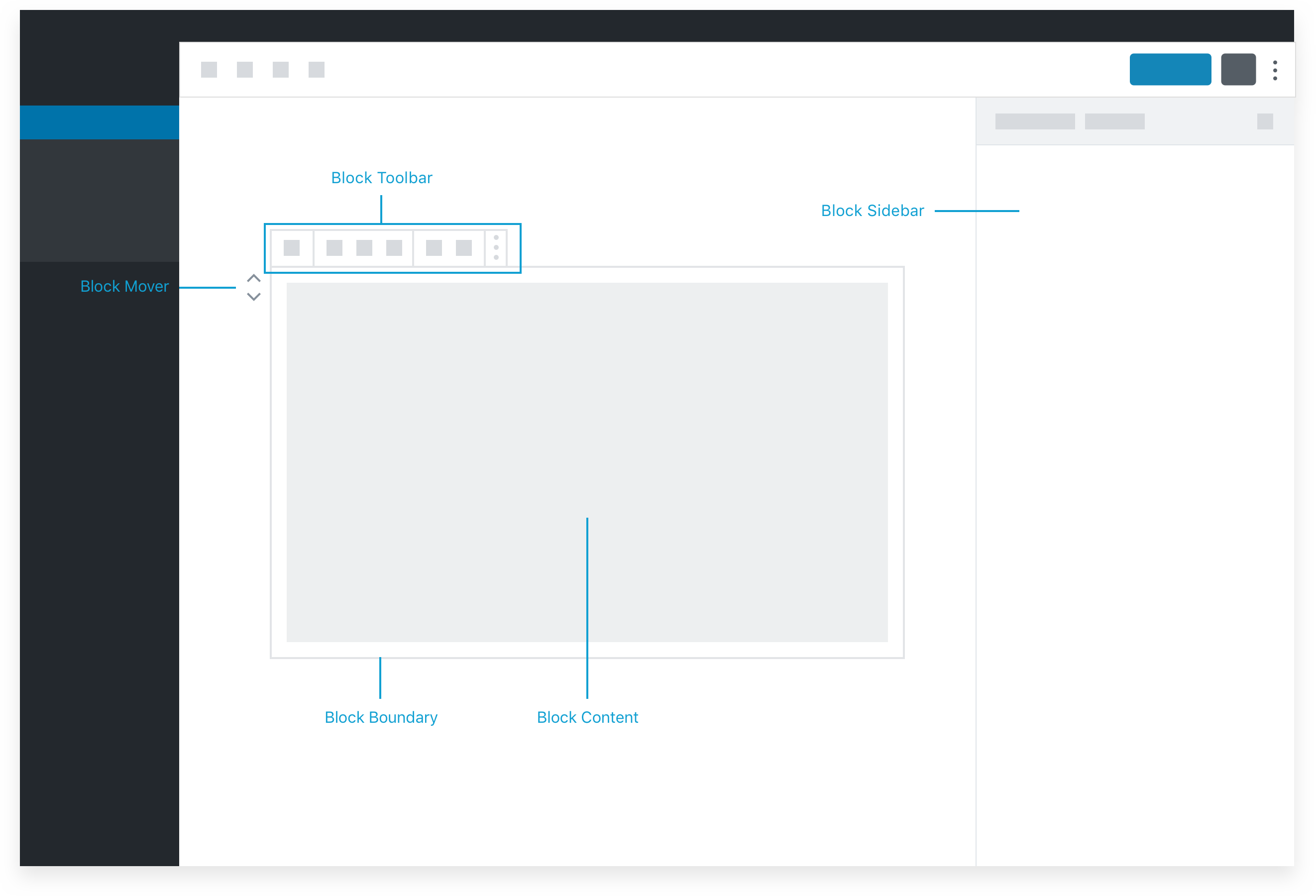
区块的主要界面是其内容区域。
区块内容区域中的占位符内容可视为用户遵循一组指令或"填空"的指南或界面(关于占位符的更多内容将在后文详述)。由于内容区域代表实际将在网站上显示的内容,此处的交互最贴近直接操作原则,对用户而言也最为直观。这应被视为添加和操作内容以及调整其显示方式的主要界面。
区块工具栏是存放无法融入占位符界面的关键选项之处。
基础区块设置在占位符/内容界面的上下文中并非总是适用。作为次要选择,对区块功能至关重要的选项可置于区块工具栏中。区块工具栏虽不直接操作内容,但仍高度贴合上下文且在所有屏幕尺寸下均可见,因此是极佳的次要选项。
设置侧边栏应仅用于高级、三级控件。
设置侧边栏在小型/移动屏幕上默认不可见,即使在桌面视图中也可能被折叠。因此,不应依赖它来放置区块基本操作所必需的任何功能。请选择良好的默认值,将重要操作置于区块工具栏中,并将侧边栏视为仅高级用户可能发现的功能区域。
文案撰写指南
长文本
适用于多行/多步骤说明,或页面/功能叙述性介绍与引导的撰写指南。
具体内容会因情境差异而有较大变化,但以下是一些通用建议:
一:善用缩略形式!
缩略形式更具对话感,是让文本听起来更友好、更随意的简单方法。(还能节省一点空间:一举两得。)
二:删减那些增加字数却无实际意义的短语。
这在两种特定情况下尤为常见。首先,使用被动语态时:
此区块可用于显示单张图片。
每当看到“可用于”或“被用于”这类短语时:请停笔。你正在使用被动语态。尝试改用主动语态,让句子更简洁有力:
此区块显示单张图片。
其次,当我们含糊其辞而非明确陈述时:
画廊区块可帮助您以优雅布局展示多张图片。
它到底能不能?这是我们开发的软件:我们有权利明确说明它的功能和用途:
画廊区块以优雅布局展示多张图片。
我们还经常使用“允许您”这个短语:
预格式化文本允许您保留制表符和换行符。
功能并非“允许”任何人做任何事;它们只是实现特定目标的工具。直接说明其作用即可:
预格式化文本会保留制表符和换行符。
更直接的句子几乎总是更清晰。检查你的文案中是否出现“可以”、“被”、“可能”、“允许您”和“帮助”这些词——它们是最常见的冗余表达,有针对性地查找这些词能帮你定位需要精简的句式。
三:警惕“简单”、“容易”和“只需”。
我们无权决定什么是简单:这应由用户来判断。如果我们声称某事很容易,而用户并未获得轻松的体验,这会削弱他们对我们及我们所构建产品的信任。“只需”一词也是如此——我们许多人知道要避免使用“简单”,却仍频繁使用“只需”。“只需点击这里。”“只需输入用户名。”这本质相同:它暗示某事轻而易举,但我们无法预知用户会认为什么是困难重重。
具体说明往往更稳妥且更有帮助。“容易”和“简单”是我们未详细解释的简略表达;每当看到这些词,不妨花点时间思考它们所替代的具体含义。也许“按‘回车键’即可轻松添加区块”实际意味着“您无需将手离开键盘即可为页面添加更多内容”。太棒了!请直接说明具体内容,而非依赖“容易”这类词汇。
这并非要求您将这些词从词汇表中彻底删除。您可能需要编写提示说明封面图片区块现在需要更少的配置,或发送邮件介绍我们正在构建快速创建自定义区块的工具,此时您完全可以合理地说封面图片区块已简化,或我们正努力让自定义区块创建更容易——在这些情况下,这些术语是描述性且相对的。但请留意您可能正在使用(或过度使用)它们来绝对化地宣称某事容易或简单,并借此机会使表达更具体、更清晰。
四:警惕“我们”的使用
当文本或说明中频繁出现“我们”时,意味着内容的焦点在于软件背后的人,而非软件使用者。有时这确实是你的本意——但通常并非如此。重点通常应放在用户身上:他们的需求以及他们如何受益,而非“我们做了什么”或“我们想要什么”。
只有我们自己才关心我们做了什么或想要什么;用户只想要能正常工作的软件。如果你看到大量“我们”,请思考是否应该重构你的写作,将焦点转向用户的获益与成功。
项目符号列表
(没错)撰写项目符号列表的指南。
第一条:保持所有项目符号的句子结构平行。
平行结构使列表更易于快速阅读——其可预测性减轻了读者的认知负担。
好的示例:
你可以用这个区块做什么?很多事情!
- 添加引用。
- 高亮你喜欢的链接。
- 展示多张图片。
- 创建项目符号列表。
每个项目符号都是一个完整的句子,并以句号结尾。(如果你的列表是一堆一两个词的条目,通常可以合并成一个常规句子——更易读且节省空间。)每行都以一个动词开头,告诉用户这个区块能做什么。句子的主语始终是用户。
用户可以快速理解这个列表,因为一旦他们读完第一项,就明白了如何阅读其余部分,并知道会找到什么信息。
较差的示例:
你可以用这个区块做什么?很多事情!
- 你可以添加引用。
- 高亮你喜欢的链接。
- 它可以展示多张图片。对画廊很有用!
- 项目符号列表
这里,每行的措辞都不同(有些以动词开头,有些以名词开头),句子的主语也在变化(有时是“你”,有时是“区块”)。有些行有附加描述,有些没有。有一个不完整的句子,标点符号也不一致。
阅读这个列表需要更多精力,因为读者必须重新解析每个项目符号。他们无法假设每个项目符号都包含类似的信息。
注意: 这并不意味着每个项目符号都必须非常简短并以动作动词开头!“可预测”不一定意味着“简单”。它只是意味着每个项目符号应该具有相同的句子结构。下面这个列表也是可以的:
你可以用这个区块做什么?很多事情!
- 尝试添加引用。有时别人说得最好!
- 用它来高亮你喜欢的链接——分享链接是互联网的通用货币。
- 创建一个展示多张图片的画廊,展示你最好的照片。
这里,每个项目符号都以一个更以用户为中心的动词开头,并包含一条补充信息以增加趣味性。标点符号略有变化,避免了行文过于公式化,但由于每个项目的基本结构相同,它们仍然易于阅读。
二:犹豫不决时,以动词开头。(但不必总是同一个动词。)
必须用动词开头吗?不一定。但如果你毫无头绪,用动词开头通常不会错(尤其是因为项目列表通常描述一系列动作或可能的动作)。
在纯粹说明性的简单列表中(例如,在只需用户做出决定的界面文案中),每个项目都用同一个动词开头可能没问题:
要继续,请选择一个操作:
- 添加一个简单文本块。
- 添加一个引用块。
- 添加一个图片块。
如果你的列表更具说服力(例如,通过列出功能优势来说服某人使用它)或包含多步骤说明,你应该变换动词,用更生动的语言吸引读者,如上例所示:
这个块能做什么?很多事情!
- 尝试添加一条引用。有时别人的话最精辟!
- 用它来突出你喜欢的链接——分享链接是互联网的硬通货。
- 创建一个展示多张图片的画廊,秀出你的最佳照片。
这些并非铁律——例如,在说服性列表中,你可能会选择使用同一个动词,以更聚焦、更有力。但它们是构建优质列表的良好起点。
三:当内容明显是列表时,无需特意说明
推荐示例:
这个区块能做什么?功能丰富!
- 添加引用。
- 高亮你喜欢的链接。
- 展示多张图片。
欠佳示例:
这个区块能做什么?功能丰富!以下是一些使用方式的示例。
- 你可以添加引用。
- 高亮你喜欢的链接。
- 它可以展示多张图片。很适合做画廊!
在力求清晰与信任用户之间找到平衡。一方面,我们知道用户并不总是阅读说明;另一方面,冗余信息会让用户觉得我们认为他们很笨。
四:粗体有时是你的朋友。
用它来引导读者关注要点列表中的关键信息。当你的要点包含一些补充性但最终次要的信息时,这尤其有用。
“关键信息”是关键所在:粗体吸引眼球,因此应坚持在给定要点中突出最重要的信息:
你可以用这个区块做什么?很多事情!
- 尝试添加引用。有时别人说得最好!
- 用它来突出你喜欢的链接——分享链接是互联网的通用货币。
- 创建一个显示多张图片的画廊,展示你最好的照片。
反之,加粗太多内容会造成视觉混乱:
你可以用这个区块做什么? 很多事情!
- 尝试添加引用。有时别人说得最好!
- 用它来突出你喜欢的链接——分享链接是互联网的通用货币。
- 创建一个显示多张图片的画廊,并展示你最好的照片。
当列表简短且基础时,不必费心——加粗只会增加杂乱感。
你可以用这个区块做什么?很多事情!
- 添加引用。
- 突出链接。
- 显示多张图片。
文字的缺失本身就形成了焦点;你无需再添加任何强调。
UI 描述
撰写单行功能描述或用于阐明选项的简短描述指南。
第一:清晰至上!
如果用户不理解使用特定选项会产生什么结果,那么你的双关语再巧妙也无济于事。文字游戏和习语常常不清晰,且容易被误解。如果一定要使用,它们应作为补充信息——绝不能用来解释主要概念——并且应确保能被相当广泛的人群理解。
二:回顾第一部分,注意那些冗长的表达方式。
主动语态通常是更好的选择,当空间有限且需要用户能够快速决策和行动时,精简冗长的表达尤为重要。通常你可以将用户界面提示语缩短,使其更简洁明了:
当你点击 X 时,Y 会发生。
对比:
点击 X 以执行 Y。
虽然添加额外词语可能让人觉得是在引导用户使用产品,但这些额外词语反而会模糊要传达的重点:
当你点击“设置”按钮时,弹出窗口将显示可用的高级设置。
对比:
点击“设置”以访问高级设置。
类似的表达还有“一旦你执行 X…”或“如果你想执行 X…”。有时在决策点,“如果你想执行 X…”是完全合适的,因为用户可以根据目标选择不同的路径。但我们经常用它来表示“这是你可以做的事情”,你可以更简单地表达为:“要执行 X…”
三、明确具体
当某个操作需要用户完成前置步骤时,请清晰说明所需条件及后续结果。我们常习惯性使用"当您准备好时"这类表述。
但"准备好"具体指什么?必须明确说明所有前提条件。
"当您准备好时"可能意味着:
- 当您想添加另一个区块时
- 当您对文章内容满意时
- 当您完成文章校对后
- 当您需要添加特色图片时
- 当您配置完所有设置后
若某个表述能指代所有情况,实则毫无意义。指引越具体实用,用户对产品的信任度就越高。
四:这依然是写作。它应具备个性与趣味性。
清晰至上,没错,且此处空间往往有限——但界面文本依然可以读来有趣。
单行描述依然可以是完整的句子。
列表。编号或项目符号。
对比
添加列表,可选择编号或项目符号。
你依然可以使用缩略形式。
添加列表。我们将提供格式选项。
对比
添加项目符号列表——我们会给你一些格式选项。
你依然可以使用标点——破折号、冒号、分号——来控制语句的节奏,连接想法,并创造停顿。
列表。编号或项目符号。
对比
添加列表——编号或项目符号。任你选择!
你依然可以尝试避免术语,使用平实的语言。
添加无序或有序列表。
对比
添加列表,可选择编号或项目符号。
(因为值得重申:请勿使用文字游戏!“个性”可以——在界面说明中,也应该——是微妙的。我们讨论的是听起来像人说的话,而非强求的俏皮。)
五:注意大小写规范
对于标题和副标题,有两种大小写处理方式:
标题式大小写:几乎每个单词的首字母都大写
句子式大小写:仅句首字母大写
功能名称和仪表板分区通常采用标题式大小写(例如“站点统计”或“最近发布”),而功能标签通常采用句子式大小写(例如“显示按钮于”或“评论点赞功能已启用”——其中“点赞”因是功能名称而大写,但整体标签仍遵循句子式大小写)。
当您审视整页界面文案时,请确保所有同类文案(标题、工具提示、按钮等)保持大小写风格的一致性。
错误信息
撰写易于理解且实用的错误信息指南。
一:不要忽视错误信息中的语气/语调——它们传达了大量信息。
语气和语调本身传达的信息可能与具体词汇一样多。错误信息必须传达大量信息,且通常需要相当简短,但尽量不要牺牲语调,也不要走向过于负面或过于积极的方向。
假设某人试图发布帖子,但其用户角色不允许这样做。以下是一些我们可能(但不应)采用的传达方式:
您的用户角色不正确。
这里,我们听起来疏远且漠不关心。
停!您没有执行此操作的权限。
这里,我们听起来不必要地危言耸听且严厉。
哎呀,我们不能让您这样做!
这里,我们听起来过于卖萌。
即使在错误信息中,我们也可以保持直接、积极和友好的态度。如何做到?请看第二到第四条建议!
二、尽可能提供解决方案路径
一条好的错误信息不应仅仅告知用户出现了问题。
您的用户角色不正确。
好吧,但为什么这很重要?我该怎么办?这条信息如何帮助我?我需要知道用户角色的重要性,以及如何获得所需角色来完成我想执行的操作。不提供任何指导的错误信息会让用户无路可走;如果我们不立即告知,他们将无法避免重复导致错误的行为。
三:空间紧张时,不要依赖术语来减少字数。
您的用户角色不正确。请联系站点管理员。
也许我们有所进展:现在我知道可以采取行动了,这很好。
但也许我们仍在原地:我仍然不知道自己的角色是什么,或者它为何重要。而且,我现在不确定站点管理员是什么、我的管理员是谁,或者如何联系他们。
这条错误消息中的所有信息在技术上完全正确,但这并不意味着它传达了任何有用的信息。如果目标是理解和解决问题,技术准确性并不总能让我们达到目的。
“您的账户没有发布文章的权限”没有使用用户角色界面的语言,但它确实解释了问题所在,即使我不知道用户角色是什么也能理解。既然我理解了,我也更有可能理解解决方案,即使消息到此为止:我能看到我需要获得权限。
与现有界面语言保持一致是好事,但不应以牺牲理解为代价。
第四:不要假设用户理解错误来源
您的用户角色不正确。
对我们来说,用户尝试发布内容或更改没有权限的设置时收到此消息可能显而易见。但对用户而言可能并非如此:人们会频繁点击,尤其是在不确定如何操作时,而且我们并不总能记住刚才查看的页面或设置(或原因!)。
好的错误消息还应包含一些引导用户的上下文信息。“您的账户没有发布文章的权限”会提醒用户他们正尝试发布文章,而这正是导致错误的具体障碍。
How to guide template
Overview
A how to guide walks through a series of steps focused on completing a single task. The guide's goal is not on teaching concepts, but to answer the question "how do I ... ".
The overview section summarizes the problem and can include context on how and where you might use the solution properly.
Before you start
Include a section on assumptions and prerequisites:
- Pre-requisite one: WordPress development environment
- Pre-requisite two: familiarity with JavaScript and Gutenberg
- Pre-requisite three: custom block or theme
Include other important information here, such as known issues or bugs.
Step-by-step guide
The guide should include step-by-step directions. Use code snippets, images, or screenshots to help illustrate each step. Include as many (or as few) steps as needed, try to keep each step short and easy to follow.
Step 1: Optional: title
Brief instructions explaining the first step.
Step 2: Optional: title
Lead-in sentence for an ordered list:
- Sub-step A
- Sub-step B
- Sub-step C
Step 3: Optional: title
Lead-in sentence explaining the code snippet. For example:
npm install
npm run build
Troubleshooting
- What can go wrong?
- What are potential error messages and what to do?
Conclusion
Provide a summary of the steps completed and explain what the user has achieved. You can include links to related articles, more complex examples, or how to learn more on the topic.
历史
一系列链接和资源,涵盖古腾堡项目的历史、启动过程、灵感来源以及初步构想。
灵感来源
2017年初进行了一项社区编辑器体验调查,该调查强化了WordPress需要全新编辑体验的需求。
以下是对古腾堡项目及区块编辑器创建产生影响的过往文章和产品列表。
- Parrot:一个为WordPress设计的集成化网站构建器与编辑器概念
- LivingDocs
- Apple Keynote
- Slack
- Google Sites v2
Gutenberg updates and feature overviews
- Themes of the Future, Eileen Violini (January 2021)
- Status Check: Site Editing & Customization, Matías Ventura Bausero (December 2020)
- State of the Word 2020 FSE Demo, Matt Mullenweg (December 2020)
- Embrace the Modularity, Riad Benguella (January 2020)
- State of the Word 2019 Gutenberg Demo, Matt Mullenweg (December 2019)
- Growing JavaScript Skills with WordPress at JavaScript for WordPress conference (July 2019)
- Beyond Gutenberg, Matías Ventura Bausero (July 2018)
- Anatomy of a block: Gutenberg design patterns, Tammie Lister (July 2018)
- The Language of Gutenberg, Miguel Fonseca (April 2018)
- State of the Word 2017 Gutenberg Demo, Matt Mullenweg with demo by Matías Ventura Bausero (December 2017)
- Gutenberg, or the Ship of Theseus, Matías Ventura Bausero (October 2017)
- We Called It Gutenberg for a Reason, Matt Mullenweg (August 2017)
- How Gutenberg is Changing WordPress Development, Riad Benguella (October 2017)
- Revised suggested roadmap for Gutenberg and Customization, Tammie Lister (August 2017)
- Discovering Gutenberg and next steps, Tammie Lister (August 2017)
- How Gutenberg Will Shape the Future of WordPress, Morten Rand-Henrikson (August 2017)
You can also view this Index of Gutenberg related posts for more resources.
自动化测试
为何选择 Playwright 作为端到端测试工具?
针对基于网页的端到端自动化测试,存在丰富的工具生态系统。Gutenberg 使用 Playwright 作为其端到端测试框架。该项目曾使用 Puppeteer,但现已完全迁移至 Playwright。以下是选择 Playwright 的原因:
- 多浏览器支持。Playwright 开箱即用地支持 Chromium、Firefox 和 WebKit,相比 Puppeteer 仅支持 Chrome 的方式,提供了更广泛的浏览器覆盖。
- 内置测试运行器。
@playwright/test提供了功能强大的测试运行器,支持并行执行、夹具和自动等待,减少了测试的不稳定性并改善了开发者体验。 - 自动等待和网页优先断言。Playwright 在执行操作前会自动等待元素变为可操作状态,减少了手动调用
waitFor*的需求,同时仍能暴露影响用户的真实性能问题。 - 更优的调试工具。Playwright 提供了追踪查看器、UI 模式和内置的检查器用于逐步调试。
- 夹具优于全局变量。Playwright 的夹具模型将
page、browser和其他参数注入测试,使得处理多个页面或标签页以及并行运行测试更加容易。 - 页面对象模型。Playwright 鼓励使用页面对象模型模式来创建可复用的工具函数,从而提高了测试的可读性和可维护性。
有关编写端到端测试的更多详细信息,请参阅端到端测试指南。
数据流与数据格式
格式说明
区块编辑器文章是文章在区块感知层面的规范表示形式:它是一系列语义一致的描述集合,用于说明每个区块是什么及其核心数据。这种表示形式仅存在于内存中。它如同排版车间的追版过程——随着铅字的嵌入和重新定位而持续变化。
区块编辑器文章并非其最终产物(即post_content)。后者如同印刷成品页,虽为读者体验而优化,但仍保留着供后续编辑使用的隐形标记。
区块编辑器的输入与输出均为采用当前格式的区块对象树:
const value = [ block1, block2, block3 ];
The block object
Each block object has an id, a set of attributes and potentially a list of child blocks.
const block = {
	clientId, // unique string identifier.
	type, // The block type (paragraph, image...)
	attributes, // (key, value) set of attributes representing the direct properties/content of the current block.
	innerBlocks, // An array of child blocks or inner blocks.
};
Note the attributes keys and types, the allowed inner blocks are defined by the block type. For example, the core quote block has a cite string attribute representing the cite content while a heading block has a numeric level attribute, representing the level of the heading (1 to 6).
During the lifecycle of the block in the editor, the block object can receive extra metadata:
isValid: A boolean representing whether the block is valid or not;originalContent: The original HTML serialization of the block.
Examples
// A simple paragraph block.
const paragraphBlock1 = {
	clientId: '51828be1-5f0d-4a6b-8099-f4c6f897e0a3',
	type: 'core/paragraph',
	attributes: {
		content: 'This is the <strong>content</strong> of the paragraph block',
		dropCap: true,
	},
};

// A separator block.
const separatorBlock = {
	clientId: '51828be1-5f0d-4a6b-8099-f4c6f897e0a4',
	type: 'core/separator',
	attributes: {},
};

// A columns block with a paragraph block on each column.
const columnsBlock = {
	clientId: '51828be1-5f0d-4a6b-8099-f4c6f897e0a7',
	type: 'core/columns',
	attributes: {},
	innerBlocks: [
		{
			clientId: '51828be1-5f0d-4a6b-8099-f4c6f897e0a5',
			type: 'core/column',
			attributes: {},
			innerBlocks: [ paragraphBlock1 ],
		},
		{
			clientId: '51828be1-5f0d-4a6b-8099-f4c6f897e0a6',
			type: 'core/column',
			attributes: {},
			innerBlocks: [ paragraphBlock2 ],
		},
	],
};
序列化与解析
然而,这种数据模型仅存在于编辑文章时的内存中。页面渲染后,浏览者无法看到它,就像印刷页面上不会留下印刷机中字母结构的痕迹。
由于整个 WordPress 生态系统在渲染或编辑文章时都期望接收 HTML,区块编辑器通过序列化将其数据转换为可保存到 post_content 中的形式。这确保了内容的单一真实来源,并且该来源在当前与 WordPress 内容交互的所有工具中保持可读性和兼容性。如果我们将对象树单独存储,将面临 post_content 与对象树不同步的风险,以及数据在两地重复的问题。
因此,序列化过程使用 HTML 注释作为显式的区块分隔符,将区块树转换为 HTML——这些注释可以包含非 HTML 格式的属性。这就像在印刷页面上留下不可见的标记,以追溯原始的结构化意图。
这是流程的一端。另一端则是每当需要再次编辑文章时,如何重建区块集合。形式化语法定义了区块编辑器文章的序列化表示应如何加载,正如一些基本规则定义了如何将树转换为类 HTML 字符串。区块编辑器文章并非设计为手动编辑;它们本质上不是 HTML 文档,因此也不设计为以 HTML 文档形式编辑。
它们只是碰巧以某种方式存储在 post_content 中,这种方式使得任何旧系统无需转换即可查看。诚然,在没有相应机制的情况下将存储的 HTML 加载到浏览器中可能会降低体验,如果包含动态内容区块,动态元素可能无法加载,服务器生成的内容可能不会显示,交互式内容可能保持静态。然而,这至少确保了在未感知区块的主题和安装上仍能查看区块编辑器文章,并提供了最易访问的内容方式。换句话说,即使保存的 HTML 按原样渲染,文章内容也基本保持完整。
Delimiters and parsing expression grammar
We chose instead to try to find a way to keep the formality, explicitness, and unambiguity in the existing HTML syntax. Within the HTML there were a number of options.
Of these options, a novel approach was suggested: by storing data in HTML comments, we would know that we wouldn't break the rest of the HTML in the document, that browsers should ignore it, and that we could simplify our approach to parsing the document.
Unique to HTML comments is the fact that they cannot legitimately exist in ambiguous places, such as inside of HTML attributes like <img alt='data-id="14"'>. Comments are also quite permissive. Whereas HTML attributes are complicated to parse properly, comments are quite easily described by a leading <!-- followed by anything except -- until the first -->. This simplicity and permissiveness means that the parser can be implemented in several ways without needing to understand HTML properly, and we have the liberty to use more convenient syntax inside of the comment—we only need to escape double-hyphen sequences. We take advantage of this in how we store block attributes: as JSON literals inside the comment.
After running this through the parser, we're left with a simple object we can manipulate idiomatically, and we don't have to worry about escaping or unescaping the data. It's handled for us through the serialization process. Because the comments are so different from other HTML tags and because we can perform a first-pass to extract the top-level blocks, we don't actually depend on having fully valid HTML!
This has dramatic implications for how simple and performant we can make our parser. These explicit boundaries also protect damage in a single block from bleeding into other blocks or tarnishing the entire document. It also allows the system to identify unrecognized blocks before rendering them.
N.B.: The defining aspects of blocks are their semantics and the isolation mechanism they provide: in other words, their identity. On the other hand, where their data is stored is a more liberal aspect. Blocks support more than just static local data (via JSON literals inside the HTML comment or within the block's HTML), and more mechanisms (e.g., global blocks or otherwise resorting to storage in complementary WP_Post objects) are expected. See attributes for details.
序列化区块的结构解析
当区块在编辑会话后被保存到内容中时,其属性——取决于区块的性质——会被序列化到这些显式的注释分隔符中。
<!-- wp:image -->
<figure class="wp-block-image"><img src="source.jpg" alt="" /></figure>
<!-- /wp:image -->
一个纯动态区块,在显示前需要由服务器渲染,可能看起来像这样:
<!-- wp:latest-posts {"postsToShow":4,"displayPostDate":true} /-->
数据生命周期
简而言之,区块编辑器工作流将已保存的文档解析为内存中的区块树,并借助标记分隔符。编辑过程中,所有操作都在区块树内进行。最后通过将区块序列化回 post_content 来结束流程。
该工作流依赖序列化/解析器对来持久化文章。理论上,文章数据结构可通过插件存储,或从远程 JSON 文件获取并转换为区块树。
实体与撤销/重做
无论是文章编辑器还是站点编辑器,WordPress 编辑器操作的都是我们称为实体记录的对象。这些对象代表文章、页面、用户、分类项、模板等数据。它们存储在数据库中,并由编辑器进行操作。每个编辑器可以同时获取、编辑和保存多个实体记录。
例如,在站点编辑器中打开页面时:
- 您可以编辑页面本身的属性(标题、内容等)
- 您可以编辑页面模板的属性(模板内容、设计等)
- 您可以编辑模板使用的模板部件属性(页眉、页脚等)
编辑器会跟踪所有这些修改,并协调所有已修改记录的保存操作。这些功能在 @wordpress/core-data 包中实现。
编辑实体
要编辑实体,首先需要获取并将其加载到 core-data 存储中。例如,以下代码将 ID 为 1 的文章加载到存储中。(实体是文章,文章 1 是实体记录)。
wp.data.select( 'core' ).getEntityRecord( 'postType', 'post', 1 );
实体加载后,即可进行编辑。例如,以下代码将文章的标题设置为 "Hello World"。对于每个获取的实体记录,core-data 存储会跟踪以下内容:
- "持久化"记录: 从后端获取时记录的最终状态。
- "编辑"列表: 记录的一个或多个属性的未保存本地修改。
该包还提供了一组操作来操作获取的实体记录。
要编辑实体记录,可以调用 editEntityRecord,它接受实体类型、实体 ID 和新的实体记录作为参数。以下示例将 ID 为 1 的文章标题设置为 "Hello World"。
wp.data.dispatch( 'core' ).editEntityRecord( 'postType', 'post', 1, { title: 'Hello World' } );
编辑实体记录后,可以保存它。以下代码保存 ID 为 1 的文章。
wp.data.dispatch( 'core' ).saveEditedEntityRecord( 'postType', 'post', 1 );
撤销/重做
由于 WordPress 编辑器允许同时编辑多个实体记录,core-data 包会在一个公共的撤销/重做堆栈中跟踪所有已获取和编辑的实体记录。撤销/重做堆栈中的每个步骤都包含一个"编辑"列表,这些编辑在调用 undo 或 redo 操作时应同时被撤销或重做。
为了能够正确执行撤销和重做操作,编辑列表中的每次修改都包含以下信息:
- 实体类型和名称: core-data 中的每个实体由 (kind, name) 对标识。这对应于被修改实体的标识符。
- 实体记录 ID: 被修改记录的 ID。
- 属性: 被修改属性的名称。
- 从: 属性的先前值(用于执行撤销操作)。
- 到: 属性的新值(用于执行重做操作)。
例如,假设用户编辑了一篇文章的标题,然后修改了文章别名,接着修改了与该文章一起使用的可重用块的标题。以下信息将存储在撤销/重做堆栈中:
[ { kind: 'postType', name: 'post', id: 1, property: 'title', from: '', to: 'Hello World' } ][ { kind: 'postType', name: 'post', id: 1, property: 'slug', from: 'Previous slug', to: 'This is the slug of the hello world post' } ][ { kind: 'postType', name: 'wp_block', id: 2, property: 'title', from: 'Reusable Block', to: 'Awesome Reusable Block' } ]
存储库还会跟踪一个指向当前"撤销/重做"步骤的"指针"。默认情况下,指针始终指向堆栈中的最后一项。当用户执行撤销或重做操作时,此指针会更新。
缓存更改
撤销/重做核心行为还支持我们称之为"缓存修改"的功能。这些修改不会立即存储在撤销/重做堆栈中。例如,当用户在文本字段中开始输入时,字段的值会在存储中被修改,但这个修改直到用户移动到下一个单词或经过几毫秒后才会存储在撤销/重做堆栈中。这样做是为了避免为用户输入的每个字符都创建一个新的撤销/重做步骤。
缓存更改被保留在撤销/重做堆栈之外的所谓修改"缓存"中,这些修改只有在我们显式调用 __unstableCreateUndoLevel 或下一个修改不是缓存修改时才会存储在撤销/重做堆栈中。
默认情况下,所有对 editEntityRecord 的调用都被视为"非缓存"的,除非传递了 isCached 选项为 true。示例:
wp.data.dispatch( 'core' ).editEntityRecord( 'postType', 'post', 1, { title: 'Hello World' }, { isCached: true } );
站点编辑模板
模板与模板部件流程
本文档将解释模板和模板部件在前端如何渲染、在后端如何编辑的内部机制。
存储机制
与常规模板类似,区块模板最初以文件形式存在于主题文件夹中,但主要区别在于用户可以通过站点编辑器的界面直接编辑这些模板。
当用户编辑模板(或模板部件)时,初始的主题模板文件将保持原样,而模板的修改版本会以自定义文章类型 wp_template(模板部件对应 wp_template_part)的形式保存。
这意味着在任何时间点,网站前端渲染都会同时使用主题文件中的模板和经过编辑的 CPT 模板。
同步机制
为了简化从两个不同位置编辑和渲染模板的算法,我们执行了一项称为"模板同步"的操作。
同步操作包括将主题模板复制到 wp_template(及 wp_template_part)自定义模板中,并赋予 auto-draft 状态。当用户编辑这些模板时,状态将更新为 publish。
这意味着:
- 模板的渲染/获取只需考虑自定义文章类型模板。无需直接从主题文件夹获取模板文件。同步机制将确保这些模板在 CPT 中被复制。
- 未修改的主题模板保持
auto-draft状态。 - 已编辑的主题模板具有
publish状态。
同步机制对两种不同流程至关重要:
- 当编辑模板和模板部件时,站点编辑器前端通过 REST API 获取已编辑和可用的模板。这意味着所有对
wp-templates和wp-template-parts端点的GETAPI 请求都需要同步。 - 当渲染模板时(有时称为"解析模板"):这是 WordPress 遵循的算法,用于遍历模板层级并为当前加载的页面找到正确的渲染模板。
- 当导出区块主题时,我们需要将所有模板导出为文件。同步机制可简化此操作,仅导出 CPT 模板。
切换主题
由于区块主题利用可相互引用且能保存至自定义文章类型的模板,使得混合使用不同主题的模板和模板部件成为可能。例如:
- 用户可能喜欢主题 A 的"页眉"模板部件,并希望在主题 B 中使用它。
- 用户可能喜欢主题 A 的"联系"模板,并希望在主题 B 中使用它。
实现这些流程需要精心设计的用户界面和体验。在全站编辑的当前阶段,我们首先禁止这些可能性,并使模板和模板部件特定于主题。
尽管如此,记录模板和模板部件最初来源(基于哪个主题)仍然很重要。我们通过为每个模板和模板部件 CPT 条目保存一个包含主题标识符的 theme 文章元数据来实现这一点。
未来,我们可能会考虑允许用户混合使用具有不同 theme 文章元数据值的模板和模板部件。
核心概念
区块
区块是用于构建和交互内容的抽象单元。当它们组合在一起时,就构成了网页的内容。从段落、视频到网站标题,所有内容都以区块的形式呈现。
区块形式多样,但提供一致的接口。它们可以被插入、移动、重新排序、复制、重复、转换、删除、拖拽和组合。区块还可以被重用,允许在不同文章和文章类型之间共享,或在同一文章中多次使用。如果有助于理解,您可以将区块视为更优雅的短代码,为用户提供丰富的格式工具来创作内容。
区块的设置和内容可以在三个主要位置进行自定义:区块画布、区块工具栏和区块检查器。
可组合性
区块设计用于以不同方式组合。区块具有层次结构,一个区块可以嵌套在另一个区块内。嵌套区块及其容器分别称为子区块和父区块。例如,多栏区块可以作为其各栏中多个子区块的父区块。管理子区块使用的 API 名为 InnerBlocks。
数据和属性
区块将内容理解为属性,并可序列化为 HTML。为此,引入了一种新的区块语法。简而言之,区块语法是一种 HTML 注释,可以是自闭合标签,也可以包含开始标签和结束标签。在主标签中,根据区块类型和用户自定义设置,可以包含一个 JSON 对象。区块的这种原始形式被称为序列化。
<!-- wp:paragraph {"key": "value"} -->
<p>欢迎来到区块的世界。</p>
<!-- /wp:paragraph -->
区块可以是静态的或动态的。静态区块包含已渲染的内容和一个属性对象,用于根据变化重新渲染。动态区块在生成(渲染)文章内容时需要服务器端数据和渲染。
每个区块都包含属性或配置设置,这些可以从内容中的原始 HTML 通过元数据或其他可自定义的来源获取。
更多信息请参阅数据格式和数据流。
区块转换
区块具备转换为其他区块类型的能力。这支持基础操作(如将段落转换为标题),也支持复杂转换(如将多张图片转换为画廊)。区块转换适用于单个区块和多区块选区,内部区块变体也可作为转换目标。
区块变体
区块变体是针对特定区块类型预设的初始属性集合。该 API 允许创建单一区块,并支持多种配置方式。变体提供了不同的界面可能性,包括在区块库中显示为全新区块,或在插入新块时作为预设选项。更多详情请参阅 API 文档。
更多区块相关
可重用区块
可重用区块是一个区块实例(或多个区块),可在多处插入和编辑,并保持各处同步。如果在某处编辑可重用区块,这些更改将反映在使用该区块的所有文章和页面中。可重用区块的示例包括:由标题和自定义颜色组成的区块(将出现在网站的多个页面上)以及将出现在每个页面上的侧边栏小部件。
对可重用区块的任何编辑都将出现在该区块的所有其他使用位置,从而节省了在不同文章中重复进行相同编辑的时间。
在内部,可重用区块存储为隐藏的文章类型(wp_block),并且是动态区块,它们“引用”或参考 post_id 并返回该区块的 post_content。
模式
区块模式 是一组组合在一起创建设计模式的区块。这些设计模式为快速构建更高级的页面和布局提供了起点,而无需逐个插入区块。一个区块模式可以小到单个区块,也可以大到一整页内容。与可重用区块不同,模式插入后不会与原始内容保持同步,因为其中包含的区块旨在供用户编辑和自定义。本质上,模式只是组合在一起的常规区块。主题可以注册模式,为用户提供符合该主题美学设计语言的快速起点。
模板
文章编辑器专注于文章内容,而模板编辑器则允许使用区块来声明和编辑整个站点,从页眉到页脚。模板分为模板(描述完整页面)和模板部件(描述模板内可重用的区域,包括页眉、侧边栏和页脚等语义区域)。
这些模板和模板部件可以由主题组合在一起并注册。用户也可以使用区块编辑器完全编辑它们;一组与站点不同属性和设置(如站点标题、描述、徽标、导航等)交互的区块在编辑模板和模板部件时特别有用。自定义模板保存在 wp_template 文章类型中。区块模板包括静态页面和动态页面,如归档、单篇文章、首页、404 页面等。
注意:自定义文章类型也可以用初始的 post_content 模板初始化,不应与上述主题模板系统混淆。
更多关于站点编辑模板。
样式
样式(在代码中仍沿用旧称“全局样式”)既是一个用户通过编辑器访问的界面,也是一个通过 theme.json 文件实现的配置系统。该文件整合了通常分散在各个 add_theme_support 调用中的大部分配置内容,以简化与编辑器的通信。因此,它旨在改进以下内容的声明:应启用哪些设置、主题提供哪些特定工具(如自定义调色板)、可用的设计工具,以及一个协调来自 WordPress、活动主题和用户的样式的基础架构。
了解更多关于全局样式的信息。
模块化
WordPress 区块编辑器基于这样的理念:你可以将独立的区块组合在一起来撰写文章或构建页面。区块之间也可以相互使用和交互。这使得它非常模块化和灵活。
但区块编辑器不仅在行为和输出上采用模块化。Gutenberg 代码库本身也是由多个可复用且独立的模块(或称包)构建而成,这些模块组合在一起,形成了我们所熟知的应用和界面。这些模块被称为 WordPress 包,并在 npm 包仓库中定期发布和更新。
这些包不仅用于驱动区块编辑器,也可用于驱动 WordPress 后台或外部的任何页面。
为何采用模块化架构?
采用模块化架构对所有参与者都有多重益处:
- 每个包都是独立单元,拥有明确定义的公共 API,用于与其他包和第三方代码交互。这有助于核心贡献者更好地理解代码库。他们可以专注于单个包,理解其逻辑并进行更新,同时清楚知晓这些变更如何影响依赖该包的其他部分。
- 模块化方法对最终用户同样有益。它允许在不同 WordPress 管理页面选择性加载脚本,同时控制打包体积。例如,若使用组件包驱动插件设置页面,则无需在该页面加载区块编辑器包。
- 此架构还使第三方开发者能够通过 npm 或 WordPress 脚本依赖的形式,在 WordPress 内外环境中复用这些包。
包的类型
Gutenberg 仓库中的几乎所有内容都被构建成包。我们可以将这些包分为两种不同类型:
生产包
这些是随 WordPress 本身作为 JavaScript 脚本发布的包。它们构成了在浏览器中运行的实际生产代码。例如,有一个 components 包,作为可复用的 React 组件集,用于快速原型设计和构建界面。还有一个 api-fetch 包,可用于调用 WordPress Rest API。
第三方开发者可以通过两种不同的方式使用这些生产包:
- 如果你正在构建一个在 WordPress 上下文之外运行的 JavaScript 应用程序、网站或页面,你可以像使用 npm 注册表中的任何其他 JavaScript 包一样使用这些包。
npm install @wordpress/components
import { Button } from '@wordpress/components';

function MyApp() {
	return <Button>Nice looking button</Button>;
}
- 如果你正在构建一个在 WordPress 上运行的插件,你可能更倾向于使用 WordPress 本身附带的包。这允许多个插件复用相同的包,避免代码重复。在 WordPress 中,这些包以 WordPress 脚本的形式提供,其句柄遵循
wp-package-name格式(例如wp-components)。一旦你将脚本添加到自己的 WordPress 插件脚本依赖项中,该包将在全局变量wp上可用。
// myplugin.php
// 依赖于 "components" 和 "element" 包的脚本注册示例。
wp_register_script( 'myscript', 'pathtomyscript.js', array ('wp-components', "react" ) );
// 在你的脚本中使用包
const { Button } = wp.components;

function MyApp() {
	return <Button>Nice looking button</Button>;
}
对于开发者来说,定义脚本依赖项可能是一项繁琐的任务。错误和疏忽很容易发生。如果你想了解如何自动化此任务,请查看 @wordpress/scripts 和 @wordpress/dependency-extraction-webpack-plugin 文档。
包含样式表的软件包
某些生产环境软件包需要样式表才能正常运行。
- 若将软件包作为 npm 依赖项使用,样式表将位于软件包的
build-style文件夹中。请确保在应用程序中加载此样式文件。 - 若在 WordPress 环境中工作,需要将这些样式表加入队列或添加至样式表依赖项。样式表句柄与脚本句柄相同。
在现有 WordPress 页面环境中,若未正确定义脚本或样式依赖项,当这些脚本和样式已由 WordPress 或其他插件加载时,您的插件可能仍能正常工作。但强烈建议详尽定义所有依赖项,以避免未来版本可能出现的故障。
包含数据存储的软件包
部分 WordPress 生产软件包定义了用于处理状态的数据存储。这些存储也可被第三方插件和主题用于检索和操作数据。这些数据存储的名称同样遵循 core/软件包名称 的格式进行规范化(例如,@wordpress/block-editor 软件包定义并使用了 core/block-editor 数据存储)。
若您在插件中使用这些存储来访问和操作 WordPress 数据,请务必将对应的 WordPress 脚本添加至您插件的脚本依赖中,以确保插件正常运行。(例如,若您从 core/block-editor 存储中检索数据,则应如上文所示,将 wp-block-editor 软件包添加至您的脚本依赖中)。
开发包
这些是在开发模式下使用的包,旨在帮助开发者完成日常任务,包括开发、构建和发布 JavaScript 应用、WordPress 插件和主题。它们包含用于代码库检查、构建和测试的工具。
编辑器包
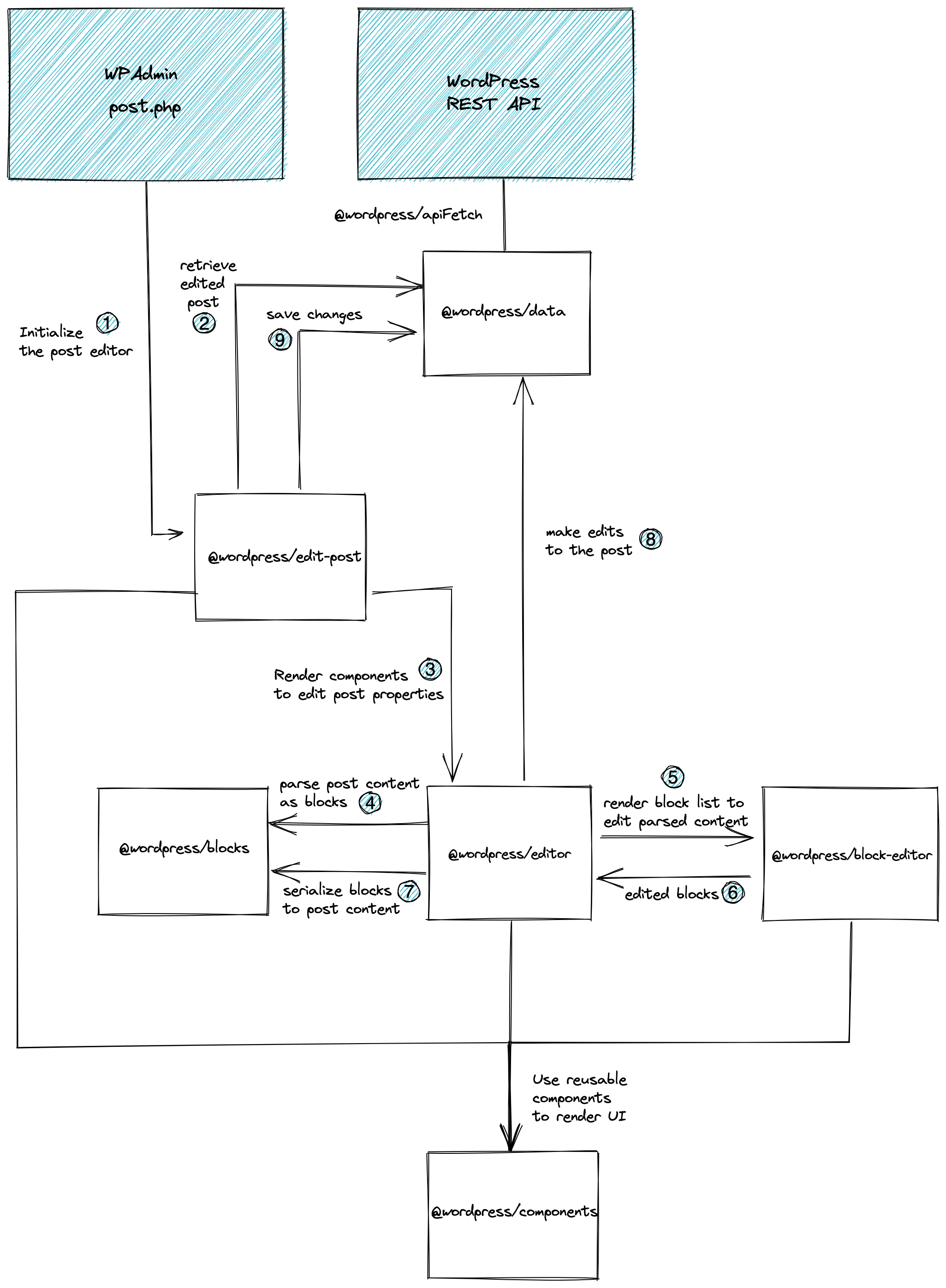
不同编辑器包之间有什么区别?每个包的用途是什么?
新贡献者常常惊讶地发现,文章编辑器是由三个独立包 @wordpress/edit-post、@wordpress/editor 和 @wordpress/block-editor 的分层抽象构建而成。
上面的为什么?部分应该解释了各个包如何旨在满足特定需求。这也适用于这些包:
@wordpress/block-editor提供了用于实现块编辑器的组件,操作块对象数组的原始值。它不假设此值如何保存,并且不了解(也不需要)WordPress 站点。@wordpress/editor是 WordPress 文章的增强版块编辑器。它使用@wordpress/block-editor包中的组件。由于了解 WordPress 文章的概念,它将表示块值的加载和保存机制与文章及其内容关联起来。它还提供了在编辑器上下文中处理文章对象的各种相关组件(例如,文章标题输入组件)。此包支持编辑任何文章类型的文章,并且不假设渲染发生在任何特定的 WordPress 屏幕或布局安排中。@wordpress/edit-post是 WordPress 管理后台中“新建文章”(“编辑文章”)屏幕的实现。它负责@wordpress/editor和@wordpress/block-editor提供的各种组件的布局,完全了解其在 WordPress 管理仪表板特定屏幕中的呈现方式。
通过这种结构,这些包可以在“新建文章”屏幕用例之外的各种组合中使用:
@wordpress/edit-site或@wordpress/edit-widgets包可以作为“站点编辑器”或“小部件编辑器”的类似实现,方式与@wordpress/edit-post非常相似。@wordpress/editor可以用于“可重用块”块的实现,因为它本质上是一个与文章类型wp_block关联的嵌套块编辑器。@wordpress/block-editor可以独立于 WordPress 使用,或者使用完全不同的保存机制。例如,它可以用于站点文章的评论编辑器。
深入探索
性能
性能是编辑器应用的关键特性,区块编辑器也不例外。
指标
为确保区块编辑器在版本迭代和开发过程中保持高性能,我们通过性能基准测试任务监控若干关键指标。
部分核心重要指标包括:
- 加载时间: 加载编辑器页面所需时长。包含服务器响应时间、首次绘制时间、首次内容绘制时间、DOM内容加载完成时间、页面完全加载时间以及首个区块渲染时间(文章与站点场景均涵盖)。
- 输入响应时间: 在编辑器中输入时浏览器的响应时长。
- 区块选择时间: 用户选择区块后浏览器的响应时长(插入区块等同于选择区块,监控选择时间即可覆盖这两项指标)。
关键性能决策与解决方案
数据模块异步模式
WordPress 包和区块编辑器的数据模块基于 Redux 构建。这意味着状态被全局保存,每当状态发生变化时,依赖该状态的组件(UI)可能会更新。
随着渲染组件数量的增加(例如在长篇文章中),由于全局状态充当所有组件的事件分发器,性能会受到影响。这是 Redux 应用中的常见陷阱,Gutenberg 通过数据模块的异步模式解决了这个问题。
异步模式的核心思想是:您可以决定是同步还是异步地刷新/重新渲染 React 组件树的一部分。
在此上下文中,异步渲染意味着:如果全局状态中触发了变更,订阅者(组件)不会被同步调用;相反,我们会等待浏览器空闲时再执行对 React 树的更新。
基于 编辑特定区块时,对该区块的更新很少影响内容其他部分 这一理念,区块编辑器画布仅以同步模式渲染选中的区块,所有其余区块均采用异步渲染。这确保了随着文章内容增长,编辑器仍能保持响应性。
性能基准测试任务
我们提供了一个工具,用于比较多个分支/标签/提交之间的性能。你可以像这样在本地运行它:./bin/plugin/cli.js perf [branches],例如:
./bin/plugin/cli.js perf trunk v8.1.0 v8.0.0
为了获得最准确的结果,在运行测试时使用完全相同的测试版本和环境(主题等)非常重要,各分支之间唯一需要不同的就是 Gutenberg 插件版本(或用于构建插件的分支)。
为了实现这一点,该命令首先准备以下文件夹结构:
│
├── tests/packages/e2e-tests/specs/performance/*
|   要运行的实际性能测试
│
├── tests/test/emptytheme
|   用于测试环境的主题。(站点编辑器)
│
│── envs/branch1/.wp-env.json
│   branch1 的 wp-env 配置文件(除了插件文件夹外,与其他所有分支类似)。
│── envs/branch1/plugin
│   branch1 的 Gutenberg 插件的构建克隆(git checkout branch1)
│
└── envs/branchX
    perf-envs/branch1 的结构会为所有其他分支复制。
一旦上述目录准备就绪,性能命令会遍历性能测试套件(文章编辑器和站点编辑器)并执行以下操作:
- 为
branch1启动环境 - 运行当前套件的性能测试
- 为
branch1停止环境 - 对所有其他分支重复前 3 个步骤
- 计算当前套件所有性能指标的中位数。
所有测试套件执行完毕后,会打印一份摘要报告。
使用 CodeVitals 追踪性能表现。
每次提交的性能结果都会推送到 codevitals,并可在 Gutenberg 仪表板 上查看。图表使我们能够追踪特定指标随时间的变化趋势。
因此,确保计算的指标稳定至关重要。这意味着,如果在相同代码和环境下运行同一测试两次,你将获得相近的结果。
我们的性能任务运行在 GitHub CI 上,这意味着我们不能信任两次类似任务运行之间所得数据的一致性。例如,GitHub CI 可能随时间为我们分配不同的 CPU 和内存资源。为了缓解此问题,每次在主干分支上运行性能任务时,我们会将当前提交的性能与固定的参考提交哈希值进行比较,这使我们能够一致地追踪当前提交与参考提交之间的相对差异,而不受环境变化的影响。
更新基准提交
Gutenberg 仅支持两个 WordPress 版本,这从两方面影响性能测试任务:
-
当 Gutenberg 支持的最低版本变更时,用于运行性能测试任务的基准 WordPress 版本需要更新。为此,我们依赖插件
readme.txt文件中的Tested up to标志。因此,每次该标志变更时,性能测试任务使用的版本也会随之改变。 -
更新性能测试任务使用的 WordPress 版本意味着,用于性能测试稳定性的基准提交很可能与使用的 WordPress 版本不兼容。因此,每次
readme.txt中的Tested up to标志更新时,我们也必须更新.github/workflows/performance.yml中使用的基准提交。
选择的新基准提交哈希值需满足以下要求:
- 与 "Tested up to" 标志中使用的新 WordPress 版本兼容。
- 已在 "codevitals.run" 上追踪所有现有指标。
当发布包含最低 WordPress 版本要求变更的插件更新时,对于任何失去支持的分支,Core SVN 中的端到端测试 GitHub Action 工作流都需要更新。否则,发布后该分支上该工作流的首次运行将失败。
可以通过在测试矩阵中添加 gutenberg-version 输入来固定工作流中使用的插件版本。Core-59221 是针对 6.4 分支进行此更改的示例。
注意: 始终使用包含错误修复的最终版本(例如 x.y.2 或 x.y.3)。如果最终版本尚未确定,请创建一个 Trac 工单 以免遗忘。
选择提交的一个简单方法是挑选主干上一个非常近期且性能测试任务通过的提交。
深入探索
编辑器中的样式
它为读者提供了相关参考指南和教程链接,以便深入理解每个概念。本文档主要面向区块开发者和区块编辑器项目工作者。
HTML 与 CSS
用户通过区块编辑器创建文章时,会生成多种产物:一份 HTML 文档以及若干 CSS 样式表,这些样式表可能内嵌于文档中,也可能是外部文件。
最终的 HTML 文档由以下几部分构成:
- 主题提供的 WordPress 模板,可通过 PHP(经典主题)或 HTML 模板(区块主题)实现(详细了解 两者差异)
- 使用的区块和模式,它们带有预定义的结构(HTML 标记)
- 用户对内容的修改:添加内容、转换现有内容(将段落转换为标题)或修改内容(为区块添加类或内联样式)
前端加载的样式表包括:
- 区块样式:区块自带的样式表。在前端,您可能会看到包含 WordPress 定义的所有区块样式的单一样式表(
wp-block-library-*),也可能看到每个使用中区块的独立样式表(如wp-block-group-*、wp-block-columns-*等)。完整细节请参阅此说明。 - 全局样式:这些样式通过 theme.json 文件的数据动态生成:请参阅说明、参考文档和操作指南。具体而言,它会合并来自 WordPress 的 theme.json、主题的 theme.json(如果存在)以及用户通过站点编辑器的全局样式侧边栏提供的数据。处理这些数据的结果是一个内嵌样式表,其 ID 为
global-styles-inline-css。 - 主题样式:传统上,主题会加载自己的样式表,其 ID 基于主题名称,例如
twentytwentytwo-style-css。除了拥有自己的样式表外,主题现在还可以声明一个 theme.json 文件,其中包含的样式将成为全局样式生成的样式表的一部分。 - 用户样式:用户在编辑器中的某些操作会生成样式内容,例如双色调、布局或链接颜色等功能。
- 其他样式:WordPress 和插件也可以加载样式表。
区块样式
自 WordPress 5.0 引入区块编辑器以来,一直为用户提供为特定区块"添加样式"的工具。通过使用这些工具,用户可以为区块附加新的类或内联样式,从而修改其视觉外观。
默认情况下,区块具有给定的 HTML 标记。以段落区块为例:
<p></p>
在最简单的形式中,任何针对 p 选择器的样式规则都会应用于此区块,无论这些规则来自区块、主题等。
用户可以通过应用不同的样式来更改此区块的状态:文本对齐方式、颜色、字体大小、行高等。这些状态通过 HTML 属性(主要是 class 或 style 属性,也可以是区块作者认为合适的任何其他属性)反映在区块的 HTML 标记中。
用户对区块进行一些修改后,初始标记可能会变成这样:
<p class="has-color has-green-color has-font-size has-small-font-size my-custom-class"
	style="line-height: 1em"></p>
这就是我们所说的"用户提供的区块样式",也称为"局部样式"或"序列化样式"。本质上,每个工具(字体大小、颜色等)最终都会向区块标记添加一些类和/或内联样式。这些类的 CSS 样式是区块、全局或主题样式表的一部分。
修改区块状态的能力,加上区块可以存在于任何其他区块内(例如组内的段落),创造了大量潜在的状态和样式可能性。
从 UI 控件到 HTML 标记
如果您遵循区块教程,可以详细了解区块 API的各个部分,并构建自己的区块。本文介绍区块如何让用户编辑其状态的基本概念。
要构建上述体验,区块作者需要以下几个部分:
- UI 控件。它向用户呈现一些选择,例如能够更改区块的字体大小。控件负责从区块读取数据(此区块是否已分配字体大小?)及其所需的其他数据(用户在此区块中可以使用哪些字体大小?)。请参阅可用的组件库。
- 区块属性。区块需要保存数据以了解对其应用了哪些修改:例如是否已为其指定字体大小。请参阅区块如何定义属性。
- 访问样式数据。控件可能需要有关给定区块可用样式的外部信息:例如颜色列表或字体大小列表。这些被称为“样式预设”,因为它们通常是主题定义的样式预选,尽管 WordPress 提供了一些默认值。请查看主题可以提供给编辑器的数据列表,以及区块作者如何通过 useSetting 访问它。
- 将用户样式序列化为 HTML 标记。在用户操作后,区块 HTML 标记需要相应更新(应用适当的类或内联样式)。此过程称为序列化,它是 edit、save 和 render_callback 函数的职责:这些函数获取区块数据并将其转换为 HTML。
本质上,这些是区块作者需要关心的基本机制,以便用户能够对其区块进行样式设置。虽然这可以完全手动完成,但有一个 API 可以自动化常见样式需求的过程:区块支持。
区块支持 API
区块支持 是一个允许区块声明其支持哪些功能的 API。通过在 block.json 文件 中添加一些信息,区块可以告知系统用户能对其执行哪些操作。
例如:
{
	"name": "core/paragraph",
	"...": "...",
	"supports": {
		"typography": {
			"fontSize": true
		}
	}
}
段落区块在其 block.json 中声明支持字体大小。这意味着该区块将显示一个 UI 控件供用户调整其字体大小,除非主题禁用了此功能(有关主题如何禁用 UI 控件的更多信息,请参阅 theme.json 参考文档)。系统还将负责设置 UI 控件数据(例如,如果区块已分配了字体大小,则显示该字体大小;显示可用字体大小列表),并在用户更改时将区块数据序列化为 HTML 标记(适当地附加类和内联样式)。
通过使用 block.json 中的区块支持机制,区块作者只需编写几行代码就能创建与以往相同的体验。请查看 区块支持 API 以了解如何为静态或动态区块添加区块支持。
除了用更少的工作量实现相同结果的好处外,还有其他一些优势:
- 区块的样式信息可供原生移动应用程序和服务器使用
- 区块将使用其他区块用于相同样式的 UI 控件,从而创建更一致的用户体验
- 区块使用的 UI 控件将随着其改进而自动更新,区块作者无需执行任何操作
区块支持 API 的当前限制
虽然区块支持 API 提供了价值,但也存在一些区块作者需要注意的限制。为了更好地理解这些限制,让我们以表格区块为例:
<table>
	<thead>
		<tr>
			<th>Header</th>
		</tr>
	</thead>
	<tbody>
		<tr>
			<th>First</th>
		</tr>
		<tr>
			<th>Second</th>
		</tr>
	</tbody>
	<tfoot>
		<tr>
			<th>Footer</th>
		</tr>
	</tfoot>
</table>
- 每个区块只能使用一种样式类型。
其中一个限制是,在所有可用样式中,区块只能使用其中任何一种的一个实例。以上述示例为例,表格区块只能有一个字体大小。如果区块作者希望拥有三种不同的字体大小(表头、主体和页脚),则无法使用当前的区块支持 API 实现。有关更详细的信息和前进方向,请参阅此问题。
- 样式被序列化到区块最外层的 HTML 节点,即包装器。
区块支持 API 仅将字体大小值序列化到包装器,导致生成以下 HTML:<table class="has-small-font-size">。当前的区块支持 API 不会将此值序列化到其他节点,例如 <tbody>。
这是一个正在进行的工作领域,您可以在跟踪问题中关注。链接的提案正在探索一种不同的方式来序列化用户更改:不是每个区块支持序列化自己的数据(例如,像 has-small-font-size、has-green-color 这样的类),而是区块将获得一个单独的类(例如,wp-style-UUID),并且该类对应的 CSS 样式将由 WordPress 在服务器端生成。
虽然该提案的工作仍在继续,但有一个逃生舱口,区块作者可以使用一个实验性选项。任何区块支持都可以通过使用 __experimentalSkipSerialization 来跳过序列化到 HTML 标记。例如:
{
	"name": "core/paragraph",
	"...": "...",
	"supports": {
		"typography": {
			"fontSize": true,
			"__experimentalSkipSerialization": true
		}
	}
}
这意味着排版区块支持将执行所有操作(创建 UI 控件、将区块属性绑定到控件等),但不将用户值序列化到 HTML 标记中。类和内联样式将不会自动应用到包装器,区块作者有责任在 edit、save 和 render_callback 函数中实现这一点。有关如何为 WordPress 提供的一些区块完成此操作的示例,请参阅此问题。
请注意,如果为某个组(排版、颜色、间距)启用了 __experimentalSkipSerialization,它将影响该组内的 所有 区块支持。在上面的示例中,typography 组内的 所有 属性都将受到影响(例如 fontSize、lineHeight、fontFamily 等)。
若仅针对 单个 属性启用,可以使用数组来声明要跳过的属性。在下面的示例中,只有 fontSize 会跳过序列化,而 typography 组内的其他项目(例如 lineHeight、fontFamily 等)将不受影响。
{
	"name": "core/paragraph",
	"...": "...",
	"supports": {
		"typography": {
			"fontSize": true,
			"lineHeight": true,
			"__experimentalSkipSerialization": [ "fontSize" ]
		}
	}
}
此功能的支持已在 此 PR 中添加。
全局样式
全局样式是指生成全站样式的一种机制。与上一节描述的区块样式不同,这些样式不会被序列化到文章内容中,也不会附加到区块 HTML 上。相反,该系统的输出是一个新的样式表,其 ID 为 global-styles-inline-css。
该机制于 WordPress 5.8 中引入。当时,它仅从 WordPress 和当前主题获取数据。WordPress 5.9 扩展了该系统,使其也能从用户处获取样式数据。
以下是基本的数据流程:
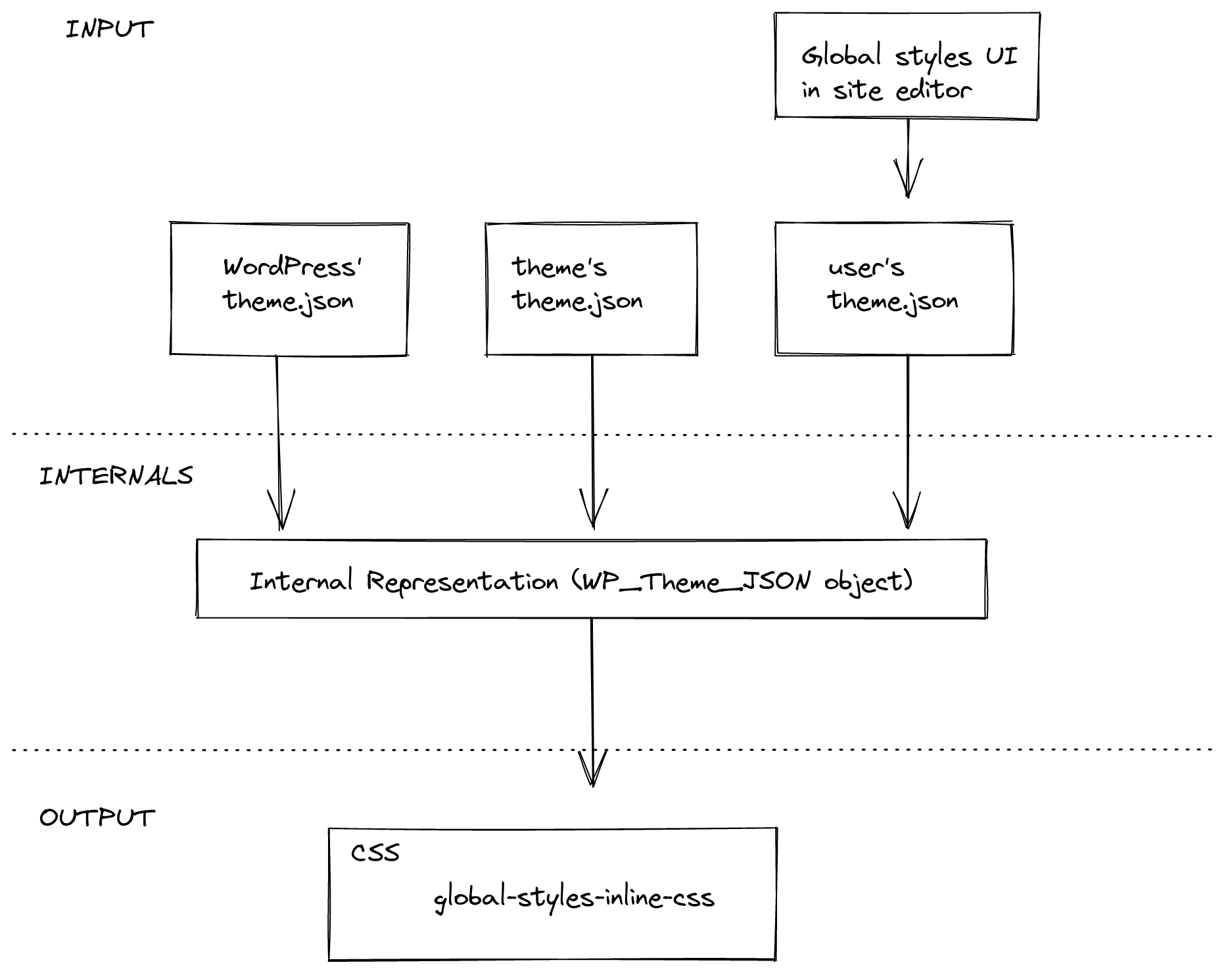
生成样式表的过程本质上包含三个步骤:
- 收集数据:WordPress 内置的
theme.json文件、当前主题的theme.json文件(如果存在),以及用户通过站点编辑器中的全局样式界面提供的样式。 - 整合数据:将来自不同来源(WordPress 默认值、主题和用户)的结构化信息进行规范化并合并为一个单一结构。
- 将数据转换为样式表:将内部表示转换为 CSS 样式规则,并将其作为样式表加入队列。
收集数据
数据可来自三个不同来源:WordPress 默认设置、当前激活主题或用户。这三者均采用相同的 theme.json 格式。
来自 WordPress 和当前激活主题的数据从对应的 theme.json 文件中获取。用户数据则从数据库中提取,这些数据在用户通过站点编辑器的全局样式侧边栏保存更改后存储。
整合数据
此阶段的目标是构建一个统一的结构。
此阶段包含两个重要流程。首先,系统需要规范化所有输入数据,因为不同来源可能使用不同版本的 theme.json 格式。例如,某个主题可能使用 v1 版本,而 WordPress 核心则使用 最新版本。其次,系统需要确定如何将输入数据合并为单一结构。这将是后续章节的重点内容。
Styles
Different parts of the incoming theme.json structure are treated differently. The data present in the styles section is blended together following this logic: user data overrides theme data, and theme data overrides WordPress data.
For example, if we had the following three theme.json structures coming from WordPress, the theme, and the user respectively:
{
	"styles": {
		"color": {
			"background": "<WordPress value>"
		},
		"typography": {
			"fontSize": "<WordPress value>"
		}
	}
}
{
	"styles": {
		"typography": {
			"fontSize": "<theme value>",
			"lineHeight": "<theme value>"
		}
	}
}
{
	"styles": {
		"typography": {
			"lineHeight": "<user value>"
		}
	}
}
The result after the consolidation would be:
{
	"styles": {
		"color": {
			"background": "<WordPress value>"
		},
		"typography": {
			"fontSize": "<theme value>",
			"lineHeight": "<user value>"
		}
	}
}
Settings
The settings section works differently than styles. Most of the settings are only used to configure the editor and have no effect on the global styles. Only a few of them are part of the resulting stylesheet: the presets.
Presets are the predefined styles that are shown to the user in different parts of the UI: the color palette or the font sizes, for example. They comprise the following settings: color.duotone, color.gradients, color.palette, typography.fontFamilies, typography.fontSizes. Unlike styles, presets from an origin don't override values from other origins. Instead, all of them are stored in the consolidated structure.
For example, if we have the following theme.json structures coming from WordPress, the theme, and the user respectively:
{
	"settings": {
		"color": {
			"palette": [ "<WordPress values>" ],
			"gradients": [ "<WordPress values>" ]
		}
	}
}
{
	"settings": {
		"color": {
			"palette": [ "<theme values>" ]
		},
		"typography": {
			"fontFamilies": [ "<theme values>" ]
		}
	}
}
{
	"settings": {
		"color": {
			"palette": [ "<user values>" ]
		}
	}
}
The result after the consolidation would be:
{
	"settings": {
		"color": {
			"palette": {
				"default": [ "<WordPress values>" ],
				"theme": [ "<theme values>" ],
				"user": [ "<user values>" ]
			},
			"gradients": {
				"default": [ "<WordPress values>" ]
			}
		},
		"typography": {
			"fontFamilies": {
				"theme": [ "<theme values>" ]
			}
		}
	}
}
From data to styles
The last phase of generating the stylesheet is converting the consolidated data into CSS style rules.
Styles to CSS rules
The styles section can be thought of as a structured representation of CSS rules, each chunk representing a CSS rule:
- A key/value in theme.json maps to a CSS declaration (
property: value). - The CSS selector for a given chunk is generated based on its semantics:
- The top-level section uses the
bodyselector. - The top-level elements use an ID selector matching the HTML element they represent (for example,
h1ora). - Blocks use the default class name they generate (
core/groupbecomes.wp-block-group) unless they explicitly set a different one using theirblock.json(core/paragraphbecomesp). See the "Current limits" section for more about this. - Elements within a block use the concatenation of the block and element selector.
- The top-level section uses the
For example, the following theme.json structure:
{
	"styles": {
		"typography": {
			"fontSize": "<top-level value>"
		},
		"elements": {
			"h1": {
				"typography": {
					"fontSize": "<h1 value>"
				}
			}
		},
		"blocks": {
			"core/paragraph": {
				"color": {
					"text": "<paragraph value>"
				}
			},
			"core/group": {
				"color": {
					"text": "<group value>"
				},
				"elements": {
					"h1": {
						"color": {
							"text": "<h1 within group value>"
						}
					}
				}
			}
		}
	}
}
is converted to the following CSS:
body {
	font-size: <top-level value>;
}
h1 {
	font-size: <h1 value>;
}
p {
	color: <paragraph value>;
}
.wp-block-group {
	color: <group value>;
}
.wp-block-group h1 {
	color: <h1 within group value>;
}
设置项到 CSS 规则
在 settings 部分中,任何预设的所有值都将转换为遵循此命名结构的 CSS 自定义属性:--wp--preset--<category>-<slug>。选择器遵循上述样式部分描述的相同规则。
例如,以下 theme.json
{
	"settings": {
		"color": {
			"palette": {
				"default": [
					{
						"slug": "vivid-red",
						"value": "#cf2e2e",
						"name": "Vivid Red"
					}
				],
				"theme": [
					{
						"slug": "foreground",
						"value": "#000",
						"name": "Foreground"
					}
				]
			}
		},
		"blocks": {
			"core/site-title": {
				"color": {
					"palette": {
						"theme": [
							{
								"slug": "foreground",
								"value": "#1a4548",
								"name": "Foreground"
							}
						]
					}
				}
			}
		}
	}
}
将被转换为以下 CSS 样式规则:
body {
  --wp--preset--color--vivid-red: #cf2e2e;
  --wp--preset--color--foreground: #000;
}

.wp-block-site-title {
  --wp--preset--color--foreground: #1a4548;
}
除了 CSS 自定义属性外,除双色调外的所有预设都会为每个值生成 CSS 类。上面的示例还将生成以下 CSS 类:
/* vivid-red */
.has-vivid-red-color { color: var(--wp--preset--color--vivid-red) !important; }
.has-vivid-red-background-color { background-color: var(--wp--preset--color--vivid-red) !important; }
.has-vivid-red-border-color { border-color: var(--wp--preset--color--vivid-red) !important; }

/* foreground */
.has-foreground-color { color: var(--wp--preset--color--foreground) !important; }
.has-foreground-background-color { background-color: var(--wp--preset--color--foreground) !important; }
.has-foreground-border-color { border-color: var(--wp--preset--color--foreground) !important; }

/* 站点标题内的 foreground */
.wp-block-site-title .has-foreground-color { color: var(--wp--preset--color--foreground) !important; }
.wp-block-site-title .has-foreground-background-color { background-color: var(--wp--preset--color--foreground) !important; }
.wp-block-site-title .has-foreground-border-color { border-color: var(--wp--preset--color--foreground) !important; }
Global Styles API 的当前限制
1. 为区块设置不同的 CSS 选择器需要服务器端注册
默认情况下,分配给区块的选择器是 .wp-block-<block-name>。然而,区块可以根据需要更改此设置。它们可以通过其 block.json 中的 __experimentalSelector 属性提供一个 CSS 选择器。
如果区块这样做,则需要在服务器端使用 block.json 进行注册,否则全局样式代码将无法访问该信息,并将使用区块的默认 CSS 选择器。
2. 无法为不同样式定位不同的 HTML 节点
每个样式块只能使用单个选择器。
如果区块使用 __experimentalSkipSerialization 将不同样式属性序列化到包装器之外的其他节点,这一点尤其重要。更多信息请参阅“区块支持的当前限制”。
3. 每个区块仅支持单一属性
与区块支持类似,任何样式在区块中只能有一个实例。例如,一个区块只能有一种字体大小。请参阅相关的“区块支持的当前限制”。
4. 仅使用区块支持的区块会显示在全局样式界面中
站点编辑器的全局样式界面有一个用于设置每个区块样式的屏幕。区块列表是使用区块 block.json 中的区块支持动态生成的。如果一个区块希望被列出,它需要使用区块支持机制。
布局样式
除了单个区块级别和全局样式外,还存在布局样式的概念,这些样式会同时输出给基于区块的主题和经典主题。
布局区块支持输出用于创建布局的区块之间共享的通用布局样式。布局样式对于为任何作为其他区块容器的区块提供通用样式非常有用。依赖这些布局样式的区块示例包括分组、行、列、按钮和社交图标。该功能通过区块 block.json 文件中 supports 下的 layout 设置在核心区块中启用。
布局样式主要在以下两个位置输出:
基础布局样式
基础布局样式是指所有选择特定布局类型的区块所共有的样式。常见的基础布局样式示例包括:为使用弹性布局类型的区块(如按钮和社交图标)设置 display: flex,以及为受限布局提供默认的最大宽度。
基础布局样式由处理全局样式的主要 PHP 类输出,并构成全局样式表的一部分。为了在经典主题中支持核心区块,无论主题是否提供自己的 theme.json 文件,这些样式始终会被输出。
常见的布局定义存储在核心布局区块支持文件中。
独立布局样式
当启用了布局支持的区块被渲染时,会通过 layout.php 处理并添加两项内容到输出中:
- 语义化类名被添加到区块标记中,以指示正在使用的布局设置。例如,
is-layout-flow用于使用默认/流式布局的区块(如群组),而is-content-justification-right则会在用户将区块设置为右对齐时添加。 - 为正在渲染的单个区块上设置的非默认布局值生成独立样式。这些样式通过容器类名附加到区块上,类名格式为
wp-container-$id,其中$id是一个唯一数字。
可用的布局类型
目前有四种布局类型在使用:
- 默认/流式:项目垂直堆叠。父容器块的显示值未指定,因此可以使用该 HTML 元素的默认值。对于大多数元素,这通常是
block。子元素之间的间距通过垂直边距处理。 - 约束式:项目垂直堆叠,使用与流式布局相同的间距逻辑。为子内容提供约束宽度,输出标准内容尺寸和宽尺寸的宽度。默认使用在
theme.json的settings.layout中设置的全局contentSize和wideSize值。 - 弹性:项目使用弹性盒布局显示。默认为水平方向。子元素之间的间距通过
gapCSS 属性处理。 - 网格:项目使用网格布局显示。默认为
auto-fill方式生成列,但也可以设置为固定列数。子元素之间的间距通过gapCSS 属性处理。
关于控制块之间的间距以及启用块间距控制,请参阅:什么是 blockGap 以及如何使用它?。
从主题中定位布局或容器区块
布局区块支持旨在通过区块编辑器和站点编辑器控制布局功能。在可能的情况下,尽量使用区块的功能来确定特定的布局需求,而不是依赖额外的样式表。
对于希望定位容器区块以添加或调整特定样式的主题,区块的类名通常是最佳选择。诸如 wp-block-group 或 wp-block-columns 等类名通常是定位特定区块的可靠选择。除了区块和布局类名外,还有一个由区块和布局组合而成的类名:例如,对于具有约束布局的群组区块,它将为 wp-block-group-is-layout-constrained。
对于定位使用特定布局类型的区块,请避免定位 wp-container-,因为容器类可能不会始终出现在渲染的标记中。
语义化类名
目前正在扩展布局块支持输出的稳定语义化类名。相关工作正在此议题中讨论。
当前可通过布局块支持输出的语义化类名包括:
is-layout-flow:使用默认/流式布局类型的块。is-layout-constrained:使用约束布局类型的块。is-layout-flex:使用弹性布局类型的块。is-layout-grid:使用网格布局类型的块。wp-container-$id:其中$id为半随机数。仅当块包含非默认布局值时存在的容器类。此类不应直接用于任何 CSS 目标选择,因为它可能存在也可能不存在。is-horizontal:当块显式将orientation设置为horizontal时。is-vertical:当块显式将orientation设置为vertical时。is-content-justification-left:当块显式将justifyContent设置为left时。is-content-justification-center:当块显式将justifyContent设置为center时。is-content-justification-right:当块显式将justifyContent设置为right时。is-content-justification-space-between:当块显式将justifyContent设置为space-between时。is-nowrap:当块显式将flexWrap设置为nowrap时。
选择退出生成的布局样式
默认情况下会输出布局样式,因为核心结构块需要这些样式。但主题可以通过使用 disable-layout-styles 块支持来退出生成的块布局样式,同时保留语义类名输出。此类主题将负责提供自己的所有布局样式。请参阅主题支持下的条目。
动画
动画能够强化层级感和空间方位感。本文档将阐述添加动画时应遵循的原则。
基本原则
起始点
- 动画有助于锚定界面元素。例如,菜单可以从触发按钮的位置缩放展开。
- 动画有助于营造空间感;例如,侧边栏可以从侧面滑入,暗示其始终隐藏在屏幕之外。
- 设计动画时,应假设你在处理真实世界的材料。想象你的界面元素由真实材料制成——当它们不在屏幕上时,它们在哪里?利用动画来表达这一点。
速度
- 动画绝不应阻碍用户交互。它们应该快速,几乎总是在 0.2 秒内完成。
- 用户不应为了交互而等待动画结束。
- 动画应具备高性能。尽可能使用 CSS 的
transform属性,这些属性在 GPU 上渲染元素,使其更流畅。 - 如果某个动画无法做到快速且高性能,则应舍弃。
简洁
- 如果材料不是橡胶制成的,就不要让它弹跳。
- 不要旋转、折叠或沿曲线路径运动。保持简洁。
一致性
为了创建一致的动画,我们必须为元素在动画中的行为建立物理规则。当所有动画都遵循这些规则时,它们会感觉一致、相关且可预测。动画应符合用户的期望,否则可能不适合当前场景。
如果已有适用于你任务的动画,请复用它们。
无障碍性考量
- 动画应保持微妙。注意那些可能因运动而引发前庭功能障碍的用户。
- 不要对当前正在向辅助技术报告内容的元素进行动画处理(例如,正在接收更新的
aria-live区域)。这可能导致辅助技术尝试解析正在动态变化的区域,从而引发混淆。 - 避免非由用户行为直接触发的动画。
- 尽可能确保动画遵循操作系统级别的“减少动画”设置。这可以通过使用
prefers-reduced-motion媒体查询来实现。Gutenberg 为此包含了一个@reduce-motion混合宏,应与包含 CSSanimate属性的规则一起使用。
复用动画清单
通用的 Animate 组件用于对界面的不同部分进行动画处理。有关可用动画的更多详细信息,请参阅组件文档。
区块设计
以下是设计新区块的最佳实践,包含建议和现有区块的详细描述,以说明我们创建区块的方法。
最佳实践
区块的主要界面是其内容区域
由于区块本身代表网站上实际显示的内容,此处的交互最贴近直接操作原则,对用户而言也最为直观。这应被视为添加和操作内容、调整显示方式的主要界面。此处有两种交互方式:
- 区块内容区域中的占位内容可视为引导用户遵循一组指令或“填空”的指南或界面。例如,嵌入第三方服务内容的区块可能在占位符中包含登录该服务的控件。
- 用户添加内容后,选中区块可显示调整或编辑该内容的额外控件。例如,注册区块可能显示隐藏/显示订阅者数量的控件。但此类操作应尽量精简,避免用户选中区块时其尺寸和显示发生剧烈变化(这可能导致用户困惑或反感)。
区块工具栏是放置必要选项与控件的次要位置
基础区块设置在占位符/内容界面的情境中并非总是适用。作为次要选择,对区块功能至关重要的选项可置于区块工具栏中。区块工具栏仍保持高度情境感知,并在所有屏幕尺寸下清晰可见。区块工具栏的一个显著限制是其基于图标的界面,因此任何置于区块工具栏内的控件都需能够通过图标或图标组有效传达其功能。
将区块工具栏控件按相关项目分组
区块工具栏采用分层方式将控件分组显示。第一组包含区块类型控件,例如区块切换器、拖动手柄和移动控件。第二组包含影响整个区块的通用和特定工具,随后是内联格式设置和"更多"菜单。可选地,"元数据"或"其他"组可以将某些工具单独分组显示。

设置侧边栏应仅用于高级、三级控制
设置侧边栏默认在小屏幕/移动设备上不可见,在桌面视图中也可能被折叠。因此,不应依赖它来承载区块基本操作所必需的任何功能。请选择良好的默认设置,将重要操作置于区块工具栏中,并将设置侧边栏视为大多数用户无需打开的部分。
此外,如果选项较多,请在设置侧边栏中使用分区和标题,以便用户轻松浏览和理解可用选项。
每个设置侧边栏默认带有一个“高级”分区。该区域包含“附加 CSS 类”字段,应用于放置其他高级用户控制项。
设置状态与实时预览状态
设置状态(有时称为"占位符")可用于在显示区块的实时预览状态之前引导用户完成初始流程。设置过程会收集渲染区块所需的用户信息。区块的设置状态以灰色背景显示,为用户提供清晰区分。并非所有区块都有设置状态——例如段落区块。

在以下情况下不需要设置状态:
- 您可以在区块中提供满足大多数人需求的良好默认内容。
- 该默认内容易于编辑和自定义。
在以下情况下使用设置状态:
- 没有适用于大多数用户的明确默认状态。
- 您需要收集与区块实时预览没有一一对应关系的用户输入(例如,需要用户输入 API 密钥来渲染内容)。
- 您需要从用户那里获取更多信息才能渲染有用的默认内容。
对于确实具有设置状态的区块,一旦用户完成设置过程,占位符将被该区块的实时预览状态替换。

当选中区块时,可能会显示额外的控件来自定义区块内容。例如,选中图像库时会显示添加或删除图像的控件。

在大多数情况下,区块的设置状态仅显示一次,后续自定义通过实时预览状态完成。但在某些情况下,可能需要允许用户返回设置状态——例如,当所有区块内容已被删除时,或通过区块工具栏或侧边栏的链接。
注意事项
区块工具栏
将工具栏控件按逻辑分组。切勿为每个控件单独创建分组。

区块标识
区块应具有简洁明了的名称,以便用户能在区块库中轻松找到。名为“YouTube”的区块易于查找和理解。而同一个区块若命名为“嵌入式视频(YouTube)”,则不够清晰且在区块库中更难找到。
在文档或用户界面中提及区块时,区块标题应采用首字母大写形式,而“区块”描述符使用小写。例如:
- 段落区块
- 最新文章区块
- 媒体与文本区块
区块应具有标识性图标,最好使用单一颜色。尽量避免使用现有区块已使用的图标。核心区块图标基于 Material Design Icons。可参考该图标集或 Dashicons 以获取风格灵感。
 正确做法:
使用简洁的区块名称。
正确做法:
使用简洁的区块名称。
 错误做法:
避免使用冗长、多行的区块名称。
错误做法:
避免使用冗长、多行的区块名称。
区块描述
每个区块都应包含清晰说明其功能的描述。该描述将显示在设置侧边栏中。
您可以通过在 registerBlockType 函数 中使用 description 属性来添加描述。
坚持使用单一祈使句,采用"动作+主语"的格式。例如:
- 从所有叙事的基本构建块开始。
- 引入新章节并组织内容,以帮助访问者(和搜索引擎)理解您内容的结构。
- 创建项目符号列表或编号列表。
 正确做法:
使用简短、简单的区块描述。
正确做法:
使用简短、简单的区块描述。
 错误做法:
避免冗长的描述和品牌信息。
错误做法:
避免冗长的描述和品牌信息。
占位符
如果您的区块需要用户配置某些选项才能显示,您应当提供具有指导意义的占位符状态。
 正确做法:
提供具有指导意义的占位符状态。
正确做法:
提供具有指导意义的占位符状态。
 错误做法:
避免使用品牌标识,且不应仅依赖标题来传达操作说明。
错误做法:
避免使用品牌标识,且不应仅依赖标题来传达操作说明。
选中与未选中状态
当未选中时,您的区块应尽可能接近前端输出的效果来预览其内容。
当选中时,您的区块可以显示额外的选项,如输入字段或按钮,以便直接配置区块,特别是当这些选项对基本操作必不可少时。
 正确做法:
对于区块运行所必需的控制项,请直接在区块编辑视图中提供。
正确做法:
对于区块运行所必需的控制项,请直接在区块编辑视图中提供。
 错误做法:
不要将区块所必需的控制项放在侧边栏中,否则对于移动端用户或已关闭侧边栏的桌面端用户,区块将显得无法使用。
错误做法:
不要将区块所必需的控制项放在侧边栏中,否则对于移动端用户或已关闭侧边栏的桌面端用户,区块将显得无法使用。
高级区块设置
设置侧边栏的“区块”选项卡可包含额外的区块选项与配置。请注意,用户可能关闭侧边栏且永不使用。不应将关键选项置于侧边栏中。
 正确做法:
由于首字下沉功能并非区块基础运行所必需,可将其作为可选配置置于区块选项卡中。
正确做法:
由于首字下沉功能并非区块基础运行所必需,可将其作为可选配置置于区块选项卡中。
考虑移动端适配
尽可能在多种设备和屏幕尺寸上检查您的区块外观、触感及功能表现。
支持 Gutenberg 深色背景编辑器方案
在编辑器中检查您的区块在深色背景下的显示效果。
示例
为展示部分实践方法,以下提供几个默认古腾堡区块的注释示例:
段落
编辑器最基本的构成单元。段落区块是一个简单的输入字段。
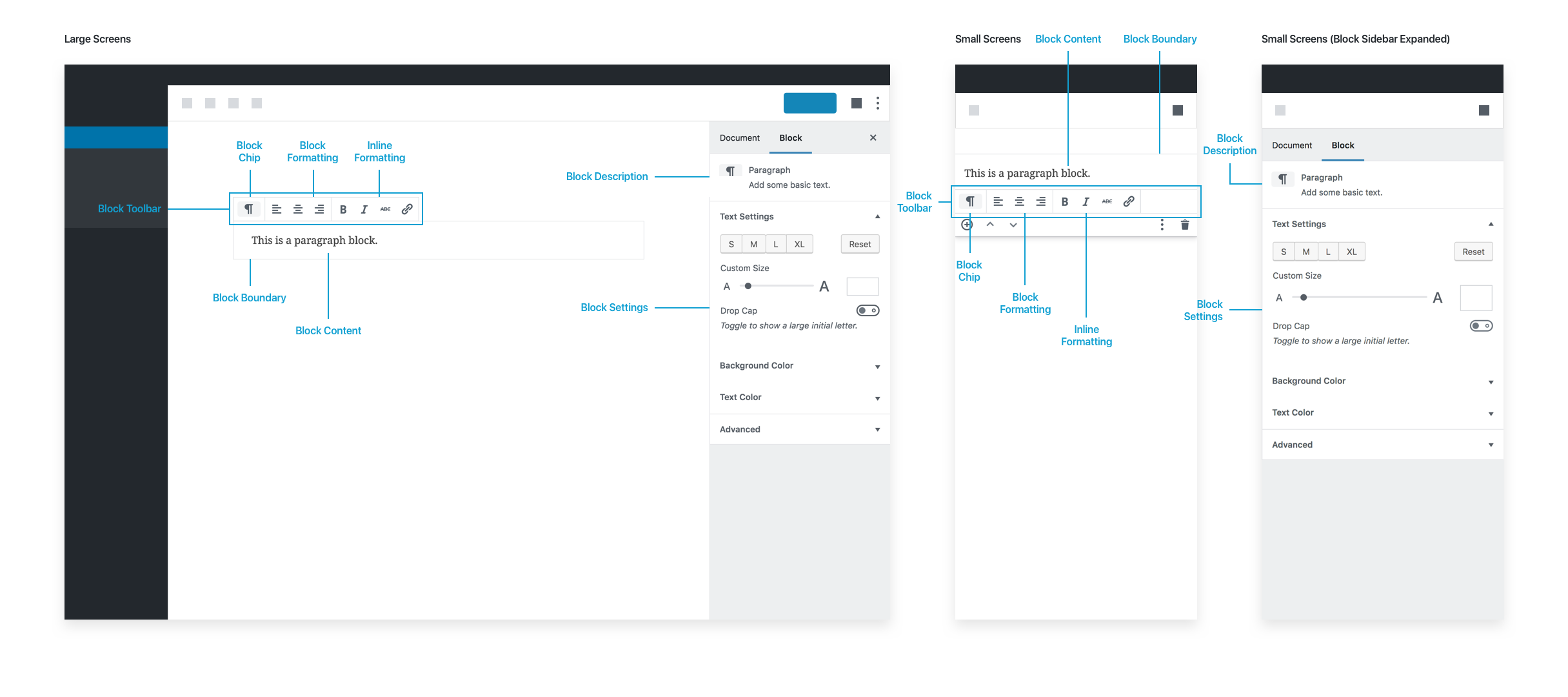
占位符
- 简单的占位文本,显示“输入 / 以选择区块”。当区块被选中时,占位符会消失。
选中状态
- 区块工具栏:包含切换器,可执行转换为标题等操作。
- 区块工具栏:包含基本的文本对齐选项。
- 区块工具栏:包含内联格式选项,如粗体、斜体、删除线和链接。
图片
基础图片块。
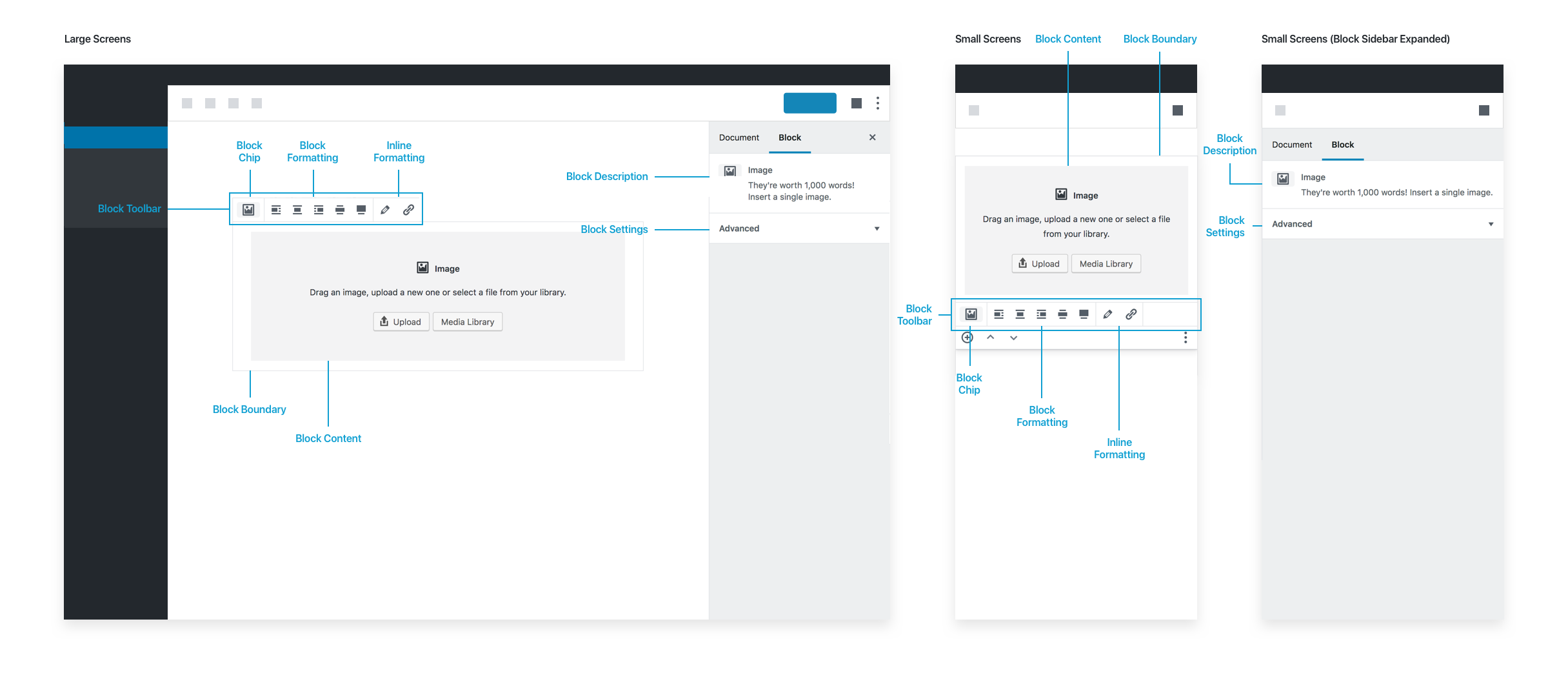
占位符
- 一个通用的灰色占位符块,提供上传图片、直接拖放图片或从媒体库选择图片的选项。
选中状态
- 区块工具栏:对齐方式(若主题支持则包含宽幅与全宽对齐)
- 区块工具栏:编辑图像(用于打开媒体库)
- 区块工具栏:链接按钮
- 图像上传后,下方将显示带“输入说明文字…”占位符的标题输入框:
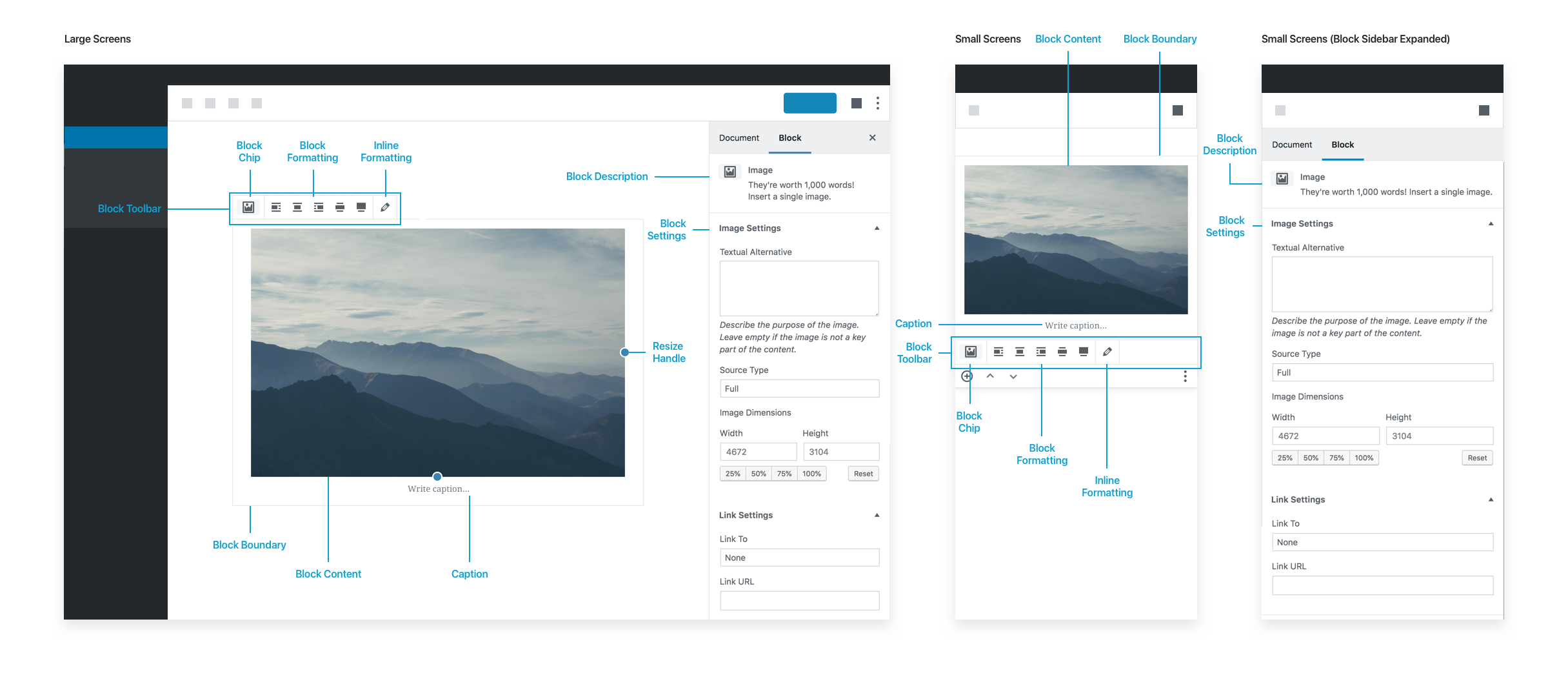
Block settings
- Has description: “They're worth 1,000 words! Insert a single image.”
- Has options for changing or adding alt text and adding additional custom CSS classes.
Future improvements to the Image block could include getting rid of the media modal in place of letting users select images directly from the placeholder itself. In general, try to avoid modals.
最新文章
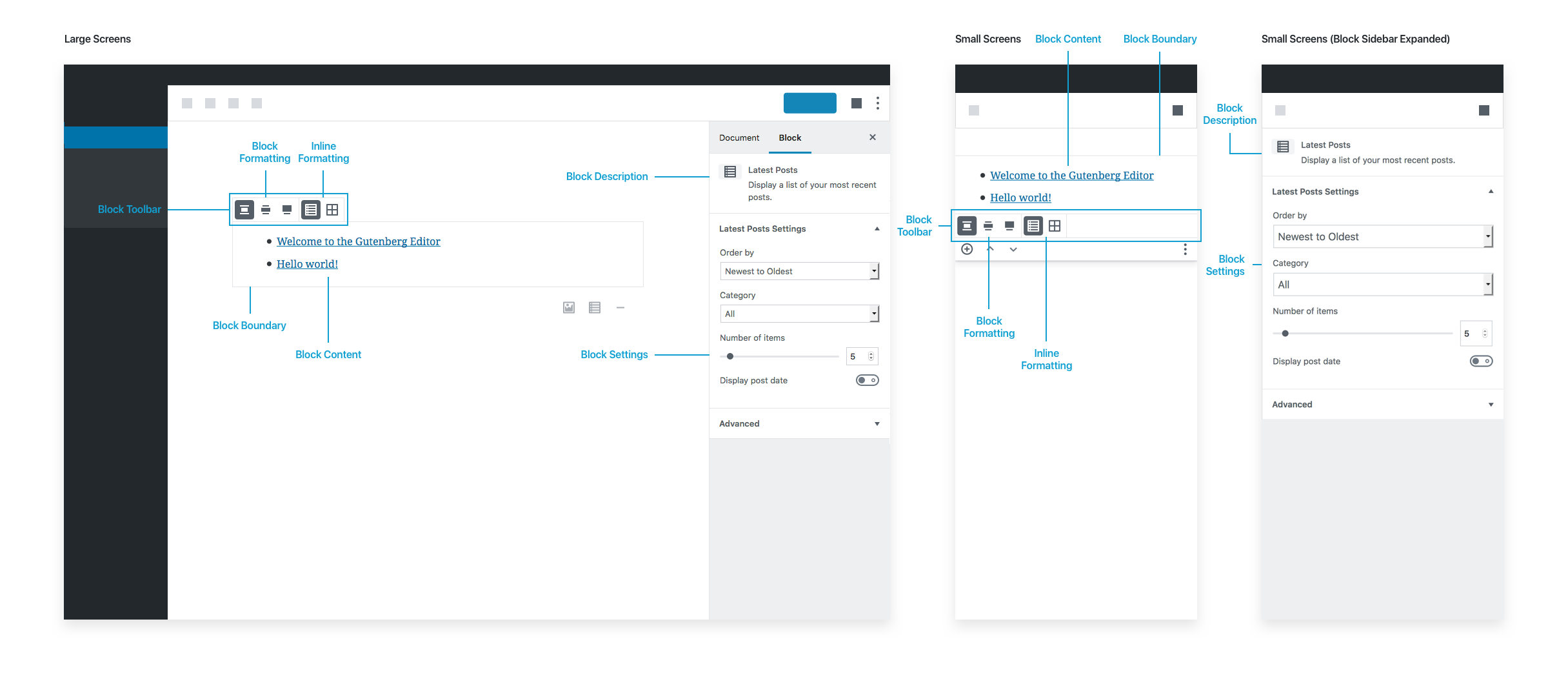
占位符
插入后立即生效,无需占位符。默认插入状态显示最近 5 篇文章。
选中状态
- 区块工具栏:对齐方式
- 区块工具栏:选择列表视图或网格视图的选项
请注意,在这种情况下区块工具栏不包含区块芯片,因为没有可切换的相似区块。
Block settings
- Has description: “Display a list of your most recent posts.”
- Has options for post order, narrowing the list by category, changing the default number of posts to show, and showing the post date.
Latest Posts is fully functional as soon as it’s inserted because it comes with good defaults.
资源
Figma
WordPress 设计团队 使用 Figma 进行协作和分享工作。如果您想参与贡献,可以使用 WordPress Figma 设计库 来制作模型。您也可以加入 Slack 中的 #design 频道 来寻求建议或进行其他交流。Figma 账户是免费的,拥有账户后,您可以使用共享库中的组件,或者如果需要编辑,可以将文件复制到您的草稿中。对 WordPress 库的完全编辑权限是付费的,并且仅限设计团队使用。
如何贡献
学习使用 Figma 的资源
学习如何使用文件和项目
学习如何使用组件
学习如何使用 WordPress Figma 库
如何在 Figma 中启用 WordPress 组件库

- 点击 资源 面板中的 团队库 图标:

- 库 模态框将打开,允许您查看可用库的列表。切换以 启用 或 禁用 特定库:

如何改进或贡献给 WordPress 组件 React 库 (即将推出)
Figma 中的 WordPress 组件与实际的 React 组件相对应。关于如何改进或贡献给 React 中的 WordPress 组件的文档即将推出。
如果您有任何问题,请随时在 WordPress 社区 Slack 的 #design 频道中提问。
常见问题解答
以下整理了古腾堡开发近几年来遇到的一系列问题。如果您有任何希望得到解答并收录于此的问题,只需在 GitHub 上提交问题。我们很乐意解答那些可能未曾考虑过的问题,并提供清晰说明。如需回顾历史,请参阅 Matt 于 2018 年 11 月发布的文章 WordPress 5.0:古腾堡常见问题解答。
古腾堡项目
什么是古腾堡?
“古腾堡”是为 WordPress 创建全新编辑器体验的项目名称——贡献者们自 2017 年 1 月以来一直在为此努力,这是多年来 WordPress 最重大的变革之一。它基于使用“区块”来撰写和设计文章与页面的理念。这将作为未来改进 WordPress 的基础,包括将区块不仅用于设计文章和页面,还用于设计整个网站。总体目标是简化 WordPress 的首次用户体验——针对那些撰写、编辑、发布和设计网页的用户。编辑体验旨在让用户更直观地了解其文章或页面在发布时的最终效果。最初,这是项目的启动目标:
编辑器将致力于创造一种全新的页面和文章构建体验,使撰写富内容文章变得轻松,并通过“区块”简化当前可能需要短代码、自定义 HTML 或“神秘肉”式嵌入发现才能实现的操作。
关键要点包括以下几点:
- 创作布局丰富的文章是 WordPress 的核心优势。
- 通过采用区块作为交互范式,我们可以将多个不同的界面统一为一个。用户无需学习如何编写短代码和自定义 HTML,或粘贴 URL 来嵌入媒体,而是通过一种通用、可靠的流程来插入任何类型的内容。
- “神秘肉”指的是软件中隐藏的、需要用户去发现的功能。WordPress 已经支持大量区块和 30 多种嵌入内容,因此我们需要将它们呈现出来。
古腾堡在 WordPress 组织下的 GitHub 上进行开发。区块编辑器自 5.0 版本起已集成到 WordPress 核心中。如果你想测试古腾堡项目的即将推出的功能,可以在插件仓库中获取。
长期路线图包含哪些内容?
古腾堡项目分为四个阶段,您可以在WordPress官方路线图上查看。截至本文撰写时,我们正处于第二阶段:
- 更便捷的编辑 —— 自WordPress 5.0起已可用,并持续改进中。
- 定制化 —— 全站编辑、区块模式、区块目录、区块主题。
- 协作 —— 更直观的内容共同创作方式。
- 多语言 —— 多语言网站的核心实现。
Gutenberg 项目何时启动?
编辑器的核心开发始于 2017 年初,前三个月用于设计、规划、原型制作和测试,以帮助我们确定如何推进该项目。首个插件于 2017 年 6 月在欧洲 WordCamp 大会上发布。
Gutenberg 是何时被合并到 WordPress 中的?
Gutenberg 最初于 2018 年 12 月被合并到 WordPress 5.0 中。查看 WordPress 中的版本页面 以获取已合并到 WordPress 核心版本中的 Gutenberg 插件版本的完整列表。
WordPress 已是全球最受欢迎的发布平台,为何还要彻底改造编辑器?
编辑器是 WordPress 日常使用中最核心的操作界面,也是我们在可控环境中打磨和完善区块体验的关键场所。作为开源项目,我们坚信 WordPress 必须持续创新,不断优化核心体验,让所有用户都能享受直观愉悦的操作过程。Gutenberg 作为社区项目正承载着这一使命,我们期待与您共同推进这一目标。若您希望参与测试、贡献代码或提供反馈,欢迎在 GitHub 上分享您的发现。
编辑体验
什么是“区块”?为何要使用它们?
经典的 WordPress 编辑器是一个开放的文本窗口——它始终是绝佳的写作空白画布,但在构建包含图像、多媒体、社交媒体嵌入内容、投票和其他元素的文章和页面时,它需要混合使用多种并不总是直观的方法:
- 图像、多媒体和已批准文件使用媒体库/HTML。
- 嵌入内容使用粘贴链接。
- 插件专用资源使用短代码。
- 文章或页面顶部的图像使用特色图像。
- 副标题使用摘要。
- 页面侧边内容使用小工具。
当我们思考这些用途以及如何使其变得直观且一致时,我们开始接受“区块”的概念。以上所有项目都可以是区块:易于搜索和理解,并能在页面上动态移动。区块概念非常强大,经过深思熟虑的设计后,可以提供出色的编辑和发布体验。最终,区块的理念是在 WordPress 中创建一种新的通用语言,一种将用户与插件连接起来的新方式,并取代一些旧的内容类型——如短代码和小工具——这些通常需要精通 WordPress 的特性才能理解。
写作体验如何?
Gutenberg 的目标不仅是打造无缝的文章和页面构建体验,我们还致力于确保它提供流畅的写作体验。要亲自体验,请前往此演示并尝试一下!
Gutenberg 是基于 TinyMCE 构建的吗?
不是。TinyMCE 仅用于“经典”区块。
Gutenberg 有键盘快捷键吗?
是的。有很多!有一个帮助模态窗口显示所有可用的键盘快捷键。
您可以通过前往新编辑器右上角菜单并点击“键盘快捷键”(或在 Linux/Windows 上使用快捷键 Shift+Alt+H,在 macOS 上使用 ⌃⌥H)来查看完整列表。
以下是一个简短的动画,演示如何查找和使用键盘快捷键:

Gutenberg 支持分栏吗?
是的,Gutenberg 提供了分栏区块。
Gutenberg 支持嵌套区块吗?
是的,它支持嵌套。您可以实现多级嵌套——区块内嵌套区块再嵌套区块。更多信息请参阅嵌套区块教程。
拖放功能能否用于重新排列区块?
是的,您可以通过拖放区块来重新排列它们的顺序。
开发体验
如何创建自定义区块?
最佳起点是查阅区块创建教程。
Gutenberg 是否涉及前端文章/页面编辑?
并非如此,我们设计 Gutenberg 主要是为了替代传统的文章和页面编辑界面。不过,前端编辑常被误解为编辑器必须与前端外观完全一致。实际上,Gutenberg 允许主题通过自定义独立区块并将样式注入编辑器来实现类似效果。由于内容需要适配多种场景——从桌面端、移动端到全文订阅和聚合平台——我们认为仅基于单一前端体验来创建或设计文章并非理想方案。
鉴于古腾堡编辑器基于 JavaScript 构建,旧的元框(PHP)如何运作?
关于如何在新版区块编辑器中使用元框,请参阅元框使用教程获取更多信息。
插件如何扩展古腾堡界面?
我们想要强调的主要扩展点是创建新块。通过插件可以将块添加到区块编辑器中,请参阅构建你的第一个区块教程开始使用。
自定义文章类型是否仍受支持?
是的。自定义文章类型可通过多种方式利用古腾堡编辑器。计划允许它们指定支持的区块,并为文章类型定义默认区块。目前尚未实现,但如果文章类型禁用内容字段,底部的“高级”部分将填充页面。
样式
主题能否为区块设置样式?
可以。区块可以提供自己的样式,主题可以在此基础上添加或覆盖;或者区块也可以完全不提供样式,完全依赖主题提供的样式。
区块样式在前端和后端如何工作?
区块能够提供基础的结构化 CSS 样式,主题可以在此基础上添加样式。有些区块,如分隔符(<hr/>),可能不需要任何前端样式,而其他区块,如图库,则需要一些。
其他功能,如新的宽和全宽对齐选项,只是应用于提供此对齐功能的区块的 CSS 类。我们正在研究主题如何选择加入此功能,例如使用 add_theme_support。
这目前仍在开发中,我们建议查阅基于区块的主题文档以了解更多信息。
什么是区块变体?它们与区块样式相同吗?
不,区块变体是单个基础区块的不同版本,它们共享相似的功能,但在实现或设置(属性、InnerBlocks 等)上略有不同。区块变体对用户是透明的,一旦注册了区块变体,它就会作为一个新区块出现。例如,embed 区块注册了不同的区块变体,以嵌入来自特定提供者的内容。
同时,区块样式允许您为现有区块提供替代样式,它们通过向区块包装器添加 className 来工作。一旦区块注册了区块样式,其侧边栏中就会出现一个区块样式选择器,以便用户可以在不同的注册样式之间进行选择。
编辑器样式如何工作?
常规编辑器样式采用选择加入机制,在大多数情况下可直接使用。主题也可以通过以下钩子加载额外的样式表:
function gutenbergtheme_editor_styles() {
    wp_enqueue_style( 'gutenbergtheme-blocks-style', get_template_directory_uri() . '/blocks.css');
}
add_action( 'enqueue_block_editor_assets', 'gutenbergtheme_editor_styles' );
参见: 编辑器样式
兼容性
Gutenberg 支持哪些浏览器?
Gutenberg 可在现代浏览器中运行。
支持的浏览器列表可在 Make WordPress 手册中找到。术语“现代浏览器”通常指每个主流浏览器的当前版本及前两个版本。
自 WordPress 5.8 起,Gutenberg 不再支持任何版本的 Internet Explorer。
我是否应该担心古腾堡会让我的插件过时?
古腾堡的目标并非让任何人失业,而是推动 WordPress 发展,以便未来为所有人创造更多商业机会。
除了提供丰富的文章和页面构建体验外,其深层目标是推动 WordPress 作为一个平台向前发展。这不仅包括用户界面的现代化,还包括底层基础的现代化。
我们意识到这是一个巨大的变革。同时,我们也认为这将为插件带来许多新机遇。WordPress 可能会自带一系列基础区块,但高度定制化的高级插件仍有充足空间来增强现有区块或添加新功能。
我的网站能否选择不使用古腾堡编辑器?
有一个“经典”区块,其功能与当前编辑器几乎相同,只是以区块形式呈现。
此外还有经典编辑器插件,它可以恢复旧版编辑器,详情请参阅插件说明。WordPress 核心团队已承诺在 2021 年 12 月之前持续支持经典编辑器插件。
Gutenberg 中自定义 TinyMCE 按钮如何工作?
自定义 TinyMCE 按钮在“经典”区块中仍然有效,该区块是当前经典编辑器的区块版本。
Gutenberg 配备了一个全新的通用插入工具,可让您访问所有可用区块,支持搜索、按最近使用和分类排序。此插入工具为每个向编辑器添加内容的插件提供了公平的竞争环境,并提供了单一界面供学习使用。
Gutenberg 中短代码如何运作?
短代码目前仍按原有方式工作。
但我们认为区块是 [shortcode] 的演进形态。您无需手动输入代码,只需通过通用插入器托盘选择区块,即可获得更丰富的配置界面和预览效果。我们建议用户最终将短代码升级为区块。
是否应将短代码迁移至内容区块?
我们认为应该迁移,原因多样且不限于以下几点:
- 区块内置可视化编辑功能,能为网站构建提供更丰富、动态的体验。
- 区块本质上是 HTML,不会在前端保留浏览器无法识别的内容。相比之下,若停用支持短代码的插件,前端会出现异常显示(通常直接以纯文本形式展示短代码)。
- 随着区块目录的推出,区块将比短代码更易被发现,让更多人获得更丰富的功能。
最终,区块旨在直观呈现最终视觉效果,并且随着 5.5 版本中区块目录的推出,它们将成为用户在 WordPress 中发现和插入内容的预期方式。
杂项
Gutenberg 是否具备良好的可访问性?
可访问性并非事后考虑。目前 Gutenberg 并非所有方面都具备可访问性。您可以在此处查看已记录的问题。我们理解 WordPress 是为所有人服务的,可访问性关乎包容性。这对我们来说是一个核心价值。
如果您想为 Gutenberg 的可访问性做出贡献,我们始终欢迎更多人参与测试和贡献。
数据如何存储?我看到了 HTML 注释,它们的作用是什么?
我们的方法——正如技术概览介绍中所述——是在不破坏 WordPress 十五年来提供的内容结构的前提下,扩展现有的数据格式。换言之,这种方式优先考虑人类可读性(网页的 HTML 文档)和随处易于渲染,而非主要利于编辑环境的机器便利文件(文章元数据中的 JSON)。
这也赋予我们灵活性,将那些本质上独立于内容流的区块(如小工具或小型文章类型元素等可复用部分)存储在其他位置,并仅保留其位置的标记引用。
建议您查看 Gutenberg 关键概念 以了解更多关于项目这方面的工作原理。
如何在 PHP 或 JS 中将文章内容解析回区块?
在 JS 中:
var blocks = wp.blocks.parse( postContent );
在 PHP 中:
$blocks = parse_blocks( $post_content );
术语表
属性来源
描述区块属性结构的对象。其键名可根据区块类型的状态进行最合适的命名。每个键对应的值是一个函数,用于描述从已保存文章内容中提取属性值的策略。处理时,系统会创建一个新对象,其结构遵循属性来源中定义的键名,每个值则是属性来源函数的执行结果。
属性
表示文章内容中区块当前状态的对象。加载已保存的文章时,这由区块类型的属性源决定。这些值在用户编辑区块时会随时间变化,并在确定如何序列化区块时使用。
区块
用于描述标记单元的抽象术语,这些单元组合在一起构成网页的内容或布局。这一概念将当前 WordPress 中通过短代码、自定义 HTML 和嵌入发现实现的功能整合为统一一致的 API 和用户体验。
区块样式
通过样式表或区块标记本身附加到区块的 CSS 样式。例如,附加到区块标记的类被视为区块样式。
对比 全局样式。与全局样式相对,区块样式有时被称为 局部样式。
了解更多关于 区块样式 的信息。
区块支持
一个供区块声明其支持功能的 API。通过声明对某个功能的支持,该 API 会为区块添加额外的 属性,并为大多数现有的区块支持功能提供匹配的 UI 控件。
深入了解该 API,请参阅 区块支持参考文档。
区块主题
一种采用区块优先方式构建的主题,支持全站编辑功能。区块主题的核心是其区块模板和区块模板部件。迄今为止,区块主题模板一直是区块标记的 HTML 文件,这些文件映射到标准 WordPress 模板层级结构中的模板。
区块分类
这些并非 WordPress 的分类法,而是内部用于在区块库中对区块进行排序。
区块库
选择可用区块的主要界面,通过区块上的加号图标按钮或编辑器界面左上角的按钮触发。
区块名称
区块类型的唯一标识符,由插件专属命名空间和描述区块用途的简短标签组成。例如:core/image
区块模板
模板是预先定义的区块排列方式,可能包含预定义属性或占位内容。您可以为文章类型提供模板,以便用户在创建新内容时获得起点,或在自定义区块内通过 InnerBlocks 组件使用。本质上,模板只是区块标记的 HTML 文件,对应标准 WordPress 模板层次结构中的模板,例如索引页、单页或归档页。这有助于控制未通过页面编辑器或文章编辑器修改的网站前端默认设置。更多信息请参阅模板文档。
区块模板部件
基于区块模板构建,这些部件有助于为可复用项目(如 WordPress 站点中常见的页脚或页眉)设置结构。它们主要用于站点结构,绝不能与文章内容编辑器混用。通过全站编辑和基于区块的主题,用户可以创建自定义模板部件,将其保存在站点数据库中,并在整个站点中重复使用。模板部件在区块中相当于主题模板部件,通常由主题首先定义,具有特定语义含义(可在主题间互换,如页眉),且只能在站点编辑器环境("模板"内)中插入。
区块类型
与构成特定文章的区块不同,区块类型描述了该类型所有区块应遵循的行为蓝图。因此,一篇文章中可能包含多个图像区块,但每个区块的行为都遵循统一的图像区块类型定义。
经典区块
该区块将 TinyMCE 编辑器作为区块嵌入,TinyMCE 是先前核心编辑器的基础。在区块编辑器之前创建的旧内容将被加载到单个经典区块中。
动态区块
一种内容可能发生变化且无法在保存文章时确定的区块类型,其内容会在文章显示于网站前端时实时计算。这类区块在其 JavaScript 实现中可能仅保存备用内容或不保存任何内容,转而依赖 PHP 区块实现在运行时进行渲染。
全站编辑
这指的是允许用户以区块为起点编辑整个网站的一系列功能集合。该功能集涵盖从区块模式到全局样式、模板以及区块设计工具等各个方面。首次发布于 WordPress 5.9。
全局样式
由 WordPress 生成并作为嵌入式样式表在前端排队的 CSS 样式。该样式表的 ID 为 global-styles-inline-css。其内容来源于 WordPress 默认的 theme.json、主题的 theme.json,以及用户通过站点编辑器的全局样式侧边栏提供的样式。
请参阅 theme.json 参考文档、操作指南,以及块编辑器样式介绍。
对比 块样式。
检查器
已弃用术语。请参阅设置侧边栏。
本地样式
请参阅块样式。
导航区块
一个允许您编辑网站导航菜单的区块,包括结构和设计方面。
图案
图案是区块的预定义布局,可以作为起始内容插入,旨在每次由用户更改。插入后,它们作为本地保存存在,而非全局。
文章设置
一个侧边栏区域,包含文章的元数据字段,包括排期、可见性、分类和特色图片。
查询区块
一个复制经典 WP_Query 的区块,允许通过附加功能进行进一步自定义。
可重用区块
一种被保存后可作为可重用、可重复内容片段进行共享的区块。
富文本
支持富内容编辑的通用组件,包括加粗、斜体、超链接等功能。
序列化
将区块属性对象转换为 HTML 标记的过程,每次编辑区块时都会发生。
设置侧边栏
右侧包含文档和区块设置的面板。可通过设置齿轮图标切换侧边栏。选中区块时显示区块设置,否则显示文档设置。
站点编辑器
一个统一的体验,允许您直接编辑并在各种模板、模板部件、样式选项等之间导航。
静态区块
一种区块类型,其内容在保存文章时即已确定。静态区块将直接以 HTML 标记的形式保存在文章内容中。
模板编辑模式
提供精简的直接编辑体验,允许您编辑/更改/创建文章/页面所使用的模板。
主题区块
这些区块使用模板标签实现了传统模板中的所有功能(例如:文章作者区块)。完整列表可在此处找到。
TinyMCE
TinyMCE 是一款基于网页的 JavaScript 所见即所得编辑器。
工具栏
一组按钮控件。在区块的上下文中,通常指所选区块上方显示的区块控制工具栏。
快速入门指南
本指南旨在通过实践方法演示 WordPress 区块开发的基本原理。按照以下步骤,您将在几分钟内创建一个使用现代 JavaScript(ESNext 和 JSX)的自定义区块插件。该示例区块将显示版权符号(©)和当前年份,是任何网站页脚的完美补充。您可以通过以下短视频演示观看这些步骤的实际操作。
搭建区块插件脚手架
首先确保您的计算机已安装 Node.js 和 npm。如果尚未安装,请查阅 Node.js 开发环境指南。
接下来,使用 @wordpress/create-block 包和 @wordpress/create-block-tutorial-template 模板来搭建完整的“版权日期区块”插件脚手架。
您可以使用 create-block 在几乎任何位置搭建区块脚手架,然后在生成的插件文件夹内使用 wp-env。这将创建一个本地 WordPress 开发环境,并安装和激活您的新区块插件。
如果您已有自己的 本地 WordPress 开发环境,请通过终端导航到 plugins/ 文件夹。
选择您要创建插件的文件夹,然后在该文件夹内的终端中执行以下命令:
npx @wordpress/create-block copyright-date-block --template @wordpress/create-block-tutorial-template
提供的 slug(copyright-date-block)定义了脚手架插件的文件夹名称和内部区块名称。
导航到本地 WordPress 安装的插件页面,激活“版权日期区块”插件。示例区块随后将在编辑器中可用。
基本用法
插件激活后,您可以探索该区块的工作原理。使用以下命令进入新创建的插件文件夹并开始开发过程。
cd copyright-date-block && npm start
当 create-block 搭建区块时,它会安装 wp-scripts 并将最常用的脚本添加到区块的 package.json 文件中。有关此包的介绍,请参阅 wp-scripts 入门 文章。
npm start 命令将启动开发服务器并监视区块代码的更改,每当进行修改时都会重新构建区块。
完成更改后,运行 npm run build 命令。这将优化区块代码并使其可用于生产环境。
查看区块实际效果
您可以使用任何本地 WordPress 开发环境来测试新创建的区块,但脚手架插件已包含 wp-env 的配置。您的计算机上必须已安装并运行 Docker,如果满足条件,请运行 npx wp-env start 命令。
脚本运行完成后,您可以通过以下地址访问本地环境:http://localhost:8888。使用用户名 admin 和密码 password 登录 WordPress 仪表盘。插件将已自动安装并激活。打开编辑器或站点编辑器,像插入其他任何区块一样插入版权日期区块。
访问 入门指南 以了解更多关于 wp-env 的信息。
Additional resources
教程:构建你的第一个区块
在本教程中,你将构建一个"版权日期区块"——一个基础但实用的区块,用于显示版权符号(©)、当前年份以及可选的起始年份。这类内容通常用于网站页脚。
本教程将引导你完成完整流程,从使用 create-block 包搭建区块插件,到修改每个文件。虽然具备 WordPress 开发经验会有所帮助,但本教程并不要求此前提。
完成本指南后,你将清晰理解区块开发的基础知识,并掌握创建自定义 WordPress 区块的必要技能。
你将构建什么
快速预览你将构建的内容。

你也可以在 WordPress Playground 中体验完成的项目,或使用 快速入门指南 将完整的区块插件安装到本地 WordPress 环境中。
前提条件
要完成本教程,您需要:
- 代码编辑器
- Node.js 开发工具
- 本地 WordPress 环境
如果您缺少其中一项或多项,区块开发环境文档将帮助您开始。请在所有设置完成后返回此处。
wp-env 来创建本地 WordPress 开发环境。不过,您也可以自由使用任何满足上述前提条件的开发环境。
搭建区块脚手架
创建版权日期区块的第一步是使用 @wordpress/create-block 包搭建初始区块结构。
你可以在计算机上的几乎任何目录(文件夹)中使用 create-block,然后使用 wp-env 创建一个本地 WordPress 开发环境,并安装和激活你的新区块插件。
因此,选择一个目录来放置区块插件,或者可选地创建一个名为 "Block Tutorial" 的新文件夹。打开终端并 cd 到此目录。然后运行以下命令。
wp-env,请改为使用终端导航到本地 WordPress 安装中的 plugins/ 文件夹,然后运行以下命令。
npx @wordpress/create-block@latest copyright-date-block --variant=dynamic
cd copyright-date-block
执行此命令后,你将在插件文件夹中找到一个名为 copyright-date-block 的新目录。此目录包含开始自定义区块所需的所有初始文件。
此命令还设置了区块的基本结构,copyright-date-block 作为其别名。此别名在 WordPress 内唯一标识你的区块。
--variant=dynamic 标志。这告诉 create-block 你想要搭建一个动态渲染的区块。在本教程后面,你将了解动态和静态渲染,并为此区块添加静态渲染。
导航到 WordPress 管理后台的插件页面,确认插件已激活。然后,创建一个新页面或文章,并确保可以插入版权日期区块。插入后应如下图所示。

查看文件
在开始修改脚手架生成的区块之前,先了解插件的文件结构很重要。请在代码编辑器中打开插件文件夹。

接下来,请查阅区块的文件结构文档,详细了解每个文件的作用。如果现在觉得内容太多,请不要担心。本教程将逐步讲解如何使用每个文件。
save.js 文件。在本教程后续部分,您将把这个文件添加到插件中以启用静态渲染,敬请关注。
初始设置
让我们从创建最简单的版权日期区块开始,这将是一个动态渲染的区块,仅显示版权符号(©)和当前年份。我们还将添加一些控件,允许用户修改字体大小和文本颜色。
在继续后续步骤之前,请在插件目录的终端中运行 npm run start。此命令将监视 /src 文件夹中每个文件的更改。每次保存文件时,区块的构建文件都将更新。
查看 块编辑器 JavaScript 开发指南 文档以了解更多信息。
更新 block.json
打开 /src 文件夹中的 block.json 文件。
{
	"$schema": "https://schemas.wp.org/trunk/block.json",
	"apiVersion": 3,
	"name": "create-block/copyright-date-block",
	"version": "0.1.0",
	"title": "Copyright Date Block",
	"category": "widgets",
	"icon": "smiley",
	"description": "Example block scaffolded with Create Block tool.",
	"example": {},
	"supports": {
		"html": false
	},
	"textdomain": "copyright-date-block",
	"editorScript": "file:./index.js",
	"editorStyle": "file:./index.css",
	"style": "file:./style-index.css",
	"render": "file:./render.php",
	"viewScript": "file:./view.js"
}
由于此脚手架过程创建了此文件,因此需要对其进行一些更新以满足 Copyright Date Block 的需求。
修改区块标识
首先移除图标并添加更合适的描述。稍后您将添加自定义图标。
- 删除
icon所在行 - 将描述更新为“显示您网站的版权日期”
- 保存文件
刷新编辑器后,您会看到区块不再显示笑脸图标,且描述已更新完成。

添加区块支持
接下来,让我们添加一些区块支持,以便用户可以控制区块的字体大小和文本颜色。
更新 block.json 文件中的 supports 部分,使其如下所示。
"supports": {
	"color": {
		"background": false,
		"text": true
	},
	"html": false,
	"typography": {
		"fontSize": true
	}
},
请注意,当你通过 "text": true 启用文本颜色支持时,默认也会启用背景颜色。你可以选择保持启用,但本教程不需要它,因此可以手动设置为 "background": false。
保存文件并在编辑器中选中该区块。现在你将在设置面板中看到颜色和排版面板。尝试修改设置并观察效果。

移除不必要的代码
为简化起见,版权日期区块的样式将完全由颜色和排版区块支持控制。此区块也没有任何前端 JavaScript。因此,您无需在 block.json 文件中指定样式表或 viewScript。
- 移除
editorStyle所在行 - 移除
style所在行 - 移除
viewScript所在行 - 保存文件
刷新编辑器,您将看到区块样式现在与当前主题相匹配。

整合所有内容
你最终的 block.json 文件应如下所示:
{
	"$schema": "https://schemas.wp.org/trunk/block.json",
	"apiVersion": 3,
	"name": "create-block/copyright-date-block",
	"version": "0.1.0",
	"title": "Copyright Date Block",
	"category": "widgets",
	"description": "Display your site's copyright date.",
	"example": {},
	"supports": {
		"color": {
			"background": false,
			"text": true
		},
		"html": false,
		"typography": {
			"fontSize": true
		}
	},
	"textdomain": "copyright-date-block",
	"editorScript": "file:./index.js",
	"render": "file:./render.php"
}
更新 index.js
在开始构建区块功能之前,让我们先进行一些清理工作,并为区块添加自定义图标。
打开 index.js 文件。这是区块的主要 JavaScript 文件,用于在客户端注册区块。你可以在区块注册文档中了解更多关于客户端和服务器端注册的信息。
首先查看 registerBlockType 函数。该函数接受区块名称(我们从导入的 block.json 文件中获取)和区块配置对象。
import Edit from './edit';
import metadata from './block.json';

registerBlockType( metadata.name, {
	edit: Edit,
} );
默认情况下,该对象仅包含 edit 属性,但你可以添加更多属性,包括 icon。虽然大多数属性已在 block.json 中定义,但你需要在此处指定图标才能使用自定义 SVG。
添加自定义图标
使用来自 Gutenberg Storybook 的日历图标,将 SVG 添加到函数中,如下所示:
const calendarIcon = (
	<svg
		viewBox="0 0 24 24"
		xmlns="http://www.w3.org/2000/svg"
		aria-hidden="true"
		focusable="false"
	>
		<path d="M19 3H5c-1.1 0-2 .9-2 2v14c0 1.1.9 2 2 2h14c1.1 0 2-.9 2-2V5c0-1.1-.9-2-2-2zm.5 16c0 .3-.2.5-.5.5H5c-.3 0-.5-.2-.5-.5V7h15v12zM9 10H7v2h2v-2zm0 4H7v2h2v-2zm4-4h-2v2h2v-2zm4 0h-2v2h2v-2zm-4 4h-2v2h2v-2zm4 0h-2v2h2v-2z"></path>
	</svg>
);

registerBlockType( metadata.name, {
	icon: calendarIcon,
	edit: Edit
} );
viewBox 参数。
保存 index.js 文件并刷新编辑器。现在你将看到日历图标,而不是默认图标。

至此,区块的图标和描述已正确设置,区块支持允许你更改字体大小和文本颜色。现在,是时候继续实现区块的实际功能了。
更新 edit.js 文件
edit.js 文件控制着区块在编辑器中的功能和显示方式。目前,用户看到的是消息 "Copyright Date Block – hello from the editor!"。让我们来修改它。
打开文件,你会看到 Edit() 函数返回一个包含默认消息的段落标签。
export default function Edit() {
	return (
		<p { ...useBlockProps() }>
			{ __(
				'Copyright Date Block – hello from the editor!',
				'copyright-date-block-demo'
			) }
		</p>
	);
}
它看起来比实际要复杂一些。
useBlockProps()会输出编辑器所需的、包含在区块包装器中的所有必要 CSS 类和样式,这包括你之前添加的区块支持所提供的样式__()用于文本字符串的国际化
提醒一下,这个区块的主要目的是显示版权符号 (©) 和当前年份。因此,你首先需要以字符串形式获取当前年份,这可以通过以下代码实现。
const currentYear = new Date().getFullYear().toString();
接下来,更新函数以显示正确的信息。
export default function Edit() {
	const currentYear = new Date().getFullYear().toString();

	return (
		<p { ...useBlockProps() }>© { currentYear }</p>
	);
}
保存 edit.js 文件并刷新编辑器。你现在将看到版权符号 (©) 后面跟着当前年份。

更新 render.php
虽然区块在编辑器中运行正常,但前端仍显示默认的区块消息。要解决此问题,请打开 render.php 文件,您将看到以下内容。
<?php
...
?>
<p <?php echo get_block_wrapper_attributes(); ?>>
	<?php esc_html_e( 'Copyright Date Block – hello from a dynamic block!', 'copyright-date-block' ); ?>
</p>
类似于编辑器中的 useBlockProps() 函数,get_block_wrapper_attributes() 会在区块包装器中输出所有必要的 CSS 类和样式。只需更新内容部分即可。
您可以使用 date( "Y" ) 在 PHP 中获取当前年份,更新后的 render.php 应如下所示。
<?php
...
?>
<p <?php echo get_block_wrapper_attributes(); ?>>© <?php echo date( "Y" ); ?></p>
保存文件并确认区块在编辑器和前端均正确显示。
清理工作
使用 create-block 包搭建区块时,可能会包含不需要的文件。在本教程中,该区块不使用样式表或前端 JavaScript。请通过以下操作清理插件的 src/ 文件夹。
- 在
edit.js文件中,移除导入editor.scss的代码行 - 在
index.js文件中,移除导入style.scss的代码行 - 删除 editor.scss、style.scss 和 view.js 文件
最后,确保没有未保存的更改,然后终止 npm run start 命令。运行 npm run build 以优化代码并使其可用于生产环境。
您已经构建了一个功能完整的 WordPress 区块,但不要就此止步。在接下来的章节中,我们将添加功能并启用静态渲染。
添加区块属性
您构建的版权日期区块显示当前年份,但如果还想展示起始年份呢?
此功能需要用户在区块的某个位置输入起始年份,同时还应具备启用/禁用该功能的开关。
您可以通过多种方式实现此功能,但都需要使用区块属性。属性允许您为区块存储自定义数据,这些数据可用于修改区块的标记。
为实现起始年份功能,您需要一个属性来存储起始年份,另一个属性则用于告知 WordPress 是否应显示起始年份。
更新 block.json
区块属性通常在 block.json 文件中定义。因此,请打开该文件,并在 example 属性后添加以下部分。
"example": {},
"attributes": {
	"showStartingYear": {
		"type": "boolean"
	},
	"startingYear": {
		"type": "string"
	}
},
定义属性时必须指明 type。在本例中,showStartingYear 应为 true 或 false,因此其类型设为 boolean。而 startingYear 只是一个字符串。
保存文件后,您现在可以继续处理编辑器部分。
更新 edit.js 文件
打开 edit.js 文件。你需要完成两项任务。
- 添加一个用户界面,允许用户输入起始年份、切换功能开关,并将这些设置存储为属性。
- 更新区块,使其能根据定义的属性显示正确的内容。
添加用户界面
在本教程的前面部分,您添加了区块支持,这些支持会在区块的设置侧边栏中自动创建颜色和排版面板。您可以使用 InspectorControls 组件创建自己的自定义面板。
检查器控件
InspectorControls 属于 @wordpress/block-editor 包,因此你可以通过在第 14 行添加组件名称将其导入到 edit.js 文件中。结果应如下所示。
import { InspectorControls, useBlockProps } from '@wordpress/block-editor';
接下来,更新 Edit 函数,使其返回当前块内容和一个包含文本 "Testing" 的 InspectorControls 组件。你可以将所有内容包裹在一个 Fragment (<></>) 中,以确保正确的 JSX 语法。结果应如下所示。
export default function Edit() {
	const currentYear = new Date().getFullYear().toString();

	return (
		<>
			<InspectorControls>
				Testing
			</InspectorControls>
			<p { ...useBlockProps() }>© { currentYear }</p>
		</>
	);
}
保存文件并刷新编辑器。选择块时,你应该会在设置侧边栏中看到 "Testing" 消息。

组件与面板
现在,让我们使用更多核心组件来添加自定义面板和起始年份功能的用户界面。你需要从 @wordpress/components 包中导入 PanelBody、TextControl 和 ToggleControl。
在 edit.js 文件的其他导入语句下方添加以下行。
import { PanelBody, TextControl, ToggleControl } from '@wordpress/components';
然后将 "Testing" 消息包裹在 PanelBody 组件中,并将 title 参数设置为 "Settings"。更多参数选项请参考组件文档。
export default function Edit() {
	const currentYear = new Date().getFullYear().toString();

	return (
		<>
			<InspectorControls>
				<PanelBody title={ __( 'Settings', 'copyright-date-block' ) }>
					Testing
				</PanelBody>
			</InspectorControls>
			<p { ...useBlockProps() }>© { currentYear }</p>
		</>
	);
}
保存文件并刷新编辑器。你现在应该能看到新的设置面板。

文本控件
下一步是将“Testing”消息替换为允许用户设置 startingYear 属性的 TextControl 组件。但在执行此操作之前,必须在 Edit() 函数中包含两个参数。
attributes是一个包含区块所有属性的对象setAttributes是一个允许更新属性值的函数
包含这些参数后,你就可以获取 showStartingYear 和 startingYear 属性。
将 Edit() 函数的顶部更新为如下所示。
export default function Edit( { attributes, setAttributes } ) {
	const { showStartingYear, startingYear } = attributes;
	...
Edit() 函数顶部添加 console.log( attributes );。这在构建和测试自定义区块时非常有用。
现在,你可以移除“Testing”消息并添加 TextControl。它应包含:
- 设置为“Starting year”的
label属性 - 设置为属性
startingYear的value属性 - 一个在值更改时更新
startingYear属性的onChange属性
将所有内容整合后,Edit() 函数应如下所示。
export default function Edit( { attributes, setAttributes } ) {
	const { showStartingYear, startingYear } = attributes;
	const currentYear = new Date().getFullYear().toString();

	return (
		<>
			<InspectorControls>
				<PanelBody title={ __( 'Settings', 'copyright-date-block' ) }>
					<TextControl
						__next40pxDefaultSize
						label={ __(
							'Starting year',
							'copyright-date-block'
						) }
						value={ startingYear || '' }
						onChange={ ( value ) =>
							setAttributes( { startingYear: value } )
						}
					/>
				</PanelBody>
			</InspectorControls>
			<p { ...useBlockProps() }>© { currentYear }</p>
		</>
	);
}
value 属性的值为 startingYear || ''。符号 || 被称为 逻辑或(逻辑析取)运算符。这可以防止当 startingYear 为空时在 React 中出现警告。详情请参阅 受控与非受控组件。
保存文件并刷新编辑器。确认设置面板中现在存在一个文本字段。添加起始年份并确认在更新页面时该值已保存。

切换控制
接下来,让我们添加一个切换开关,用于开启或关闭起始年份功能。你可以使用 ToggleControl 组件来设置 showStartingYear 属性。它应该包含:
- 一个
label属性,设置为 "显示起始年份" - 一个
checked属性,设置为属性showStartingYear - 一个
onChange属性,用于在切换开关被选中或取消选中时更新showStartingYear属性
你还可以更新"起始年份"文本输入框,使其仅在 showStartingYear 为 true 时显示,这可以通过使用 && 逻辑运算符来实现。
Edit() 函数应如下所示。
export default function Edit( { attributes, setAttributes } ) {
	const { showStartingYear, startingYear } = attributes;
	const currentYear = new Date().getFullYear().toString();

	return (
		<>
			<InspectorControls>
				<PanelBody title={ __( 'Settings', 'copyright-date-block' ) }>
					<ToggleControl
						checked={ !! showStartingYear }
						label={ __(
							'Show starting year',
							'copyright-date-block'
						) }
						onChange={ () =>
							setAttributes( {
								showStartingYear: ! showStartingYear,
							} )
						}
					/>
					{ showStartingYear && (
						<TextControl
							__next40pxDefaultSize
							label={ __(
								'Starting year',
								'copyright-date-block'
							) }
							value={ startingYear || '' }
							onChange={ ( value ) =>
								setAttributes( { startingYear: value } )
							}
						/>
					) }
				</PanelBody>
			</InspectorControls>
			<p { ...useBlockProps() }>© { currentYear }</p>
		</>
	);
}
保存文件并刷新编辑器。确认点击切换开关会显示文本输入框,并且当你更新页面时,切换开关保持激活状态。

更新区块内容
到目前为止,你已经创建了用于添加起始年份和更新相关区块属性的用户界面。现在你需要实际更新编辑器中的区块内容。
让我们创建一个名为 displayDate 的新变量。当 showStartingYear 为 true 且用户提供了 startingYear 时,displayDate 应包含 startingYear 和 currentYear,两者之间用破折号分隔。否则,只显示 currentYear。
代码应大致如下所示。
let displayDate;

if ( showStartingYear && startingYear ) {
	displayDate = startingYear + '–' + currentYear;
} else {
	displayDate = currentYear;
}
let 声明变量时,意味着该变量后续可能会被重新赋值。使用 const 声明变量则意味着该变量永远不会改变。你可以使用 const 重写这段代码。这只是个人偏好的问题。
接下来,你只需要更新区块内容,使用 displayDate 而不是 currentYear 变量。
Edit() 函数应如下所示。
export default function Edit( { attributes, setAttributes } ) {
	const { showStartingYear, startingYear } = attributes;
	const currentYear = new Date().getFullYear().toString();

	let displayDate;

	if ( showStartingYear && startingYear ) {
			displayDate = startingYear + '–' + currentYear;
	} else {
		displayDate = currentYear;
	}

	return (
		<>
			<InspectorControls>
				<PanelBody title={ __( 'Settings', 'copyright-date-block' ) }>
					<ToggleControl
						checked={ !! showStartingYear }
						label={ __(
							'Show starting year',
							'copyright-date-block'
						) }
						onChange={ () =>
							setAttributes( {
								showStartingYear: ! showStartingYear,
							} )
						}
					/>
					{ showStartingYear && (
						<TextControl
							label={ __(
								'Starting year',
								'copyright-date-block'
							) }
							value={ startingYear || '' }
							onChange={ ( value ) =>
								setAttributes( { startingYear: value } )
							}
						/>
					) }
				</PanelBody>
			</InspectorControls>
			<p { ...useBlockProps() }>© { displayDate }</p>
		</>
	);
}
保存文件并刷新编辑器。确认当你在设置面板中进行更改时,区块内容能正确更新。

更新 render.php
虽然编辑器看起来很棒,但起始年份功能尚未添加到前端。让我们通过更新 render.php 文件来解决这个问题。
首先添加一个名为 $display_date 的变量,并复制你在上面 Edit() 函数中所做的操作。
这个变量应该显示 startingYear 属性和 $current_year 变量的值,用破折号分隔;如果 showStartingYear 属性为 false,则只显示 $current_year。
在 render.php 中暴露了三个变量,你可以使用它们来自定义块的输出:
$attributes(数组):块属性。$content(字符串):块的默认内容。$block(WP_Block):块实例。
代码应该类似于这样。
if ( ! empty( $attributes['startingYear'] ) && ! empty( $attributes['showStartingYear'] ) ) {
	$display_date = $attributes['startingYear'] . '–' . $current_year;
} else {
	$display_date = $current_year;
}
接下来,你只需要更新块内容,使用 $display_date 而不是 $current_year 变量。
你最终的 render.php 文件应该如下所示。
<?php
$current_year = date( "Y" );

if ( ! empty( $attributes['startingYear'] ) && ! empty( $attributes['showStartingYear'] ) ) {
	$display_date = $attributes['startingYear'] . '–' . $current_year;
} else {
	$display_date = $current_year;
}
?>
<p <?php echo get_block_wrapper_attributes(); ?>>
    © <?php echo esc_html( $display_date ); ?>
</p>
保存文件,并确认正确的块内容现在出现在你网站的前端。
你现在已经成功构建了一个动态渲染的自定义块,它利用了块支持、核心 WordPress 组件和自定义属性。在许多情况下,对于一个显示版权日期并具有一些额外功能的块来说,这已经足够了。
然而,在下一节中,你将向该块添加静态渲染。这个练习将说明块数据是如何存储在 WordPress 中的,并提供一个后备方案,以防此插件被意外禁用。
添加静态渲染
区块可以采用动态渲染、静态渲染或两者结合的方式。目前构建的区块采用动态渲染,其区块标记和关联属性存储在数据库中,但 HTML 输出结果不存储。
静态渲染区块始终将区块标记、属性和输出结果存储在数据库中。区块也可以在数据库中存储静态输出,同时在前端通过动态方式进行增强,实现两种方法的结合。
如果在编辑器中切换到代码编辑器,会看到以下内容:
<!-- wp:create-block/copyright-date-block {"showStartingYear":true,"startingYear":"2017"} /-->
将此与静态渲染区块(如段落区块)进行比较:
<!-- wp:paragraph -->
<p>This is a test.</p>
<!-- /wp:paragraph -->
段落的 HTML 存储在文章内容中并保存到数据库。
您可以在基础文档中了解更多关于动态和静态渲染的信息。虽然大多数区块采用动态或静态渲染,但您可以构建同时使用两种方法的区块。
为何要添加静态渲染?
当您为动态渲染区块添加静态渲染时,render.php 文件仍将控制前端的输出,但区块的 HTML 内容将被保存到数据库中。这意味着即使插件从网站中移除,内容也将得以保留。以这个版权日期区块为例,内容将恢复为一个自定义 HTML 区块,您可以轻松地将其转换为段落区块。

虽然并非所有情况都需要,但为动态渲染区块添加静态渲染可以在插件意外禁用时提供有用的回退方案。
此外,考虑一种情况:区块标记包含在区块模式或主题模板中。如果用户安装该主题或使用该模式时未安装版权日期区块,他们将收到区块不可用的通知,但内容仍会显示。
添加静态渲染也是探索区块内容在 WordPress 中如何存储和渲染的良好方式。
添加保存函数
首先在 src/ 文件夹中添加一个名为 save.js 的新文件。在此文件中添加以下内容。
import { useBlockProps } from '@wordpress/block-editor';

export default function save() {
	return (
		<p { ...useBlockProps.save() }>
			{ 'Copyright Date Block – hello from the saved content!' }
		</p>
	);
}
这应该看起来与原始的 edit.js 文件类似,你可以参考块包装器文档获取更多信息。
接下来,在 index.js 文件中导入这个 save() 函数,并在 registerBlockType() 函数中添加一个 save 属性。以下是更新后文件的简化视图。
import save from './save';

...

registerBlockType( metadata.name, {
	icon: calendarIcon,
	edit: Edit,
	save
} );
save 而不是 save: save。
保存 save.js 和 index.js 两个文件并刷新编辑器。它应该看起来像这样。

别担心,这个错误是预期的。如果你在浏览器中打开检查器,应该会看到以下消息。

出现这个块验证错误是因为 save() 函数返回了块内容,但由于之前保存的块是动态的,所以块标记中没有存储任何 HTML。请记住,当前的标记看起来是这样的。
<!-- wp:create-block/copyright-date-block {"showStartingYear":true,"startingYear":"2017"} /-->
在后续步骤中更新 save() 函数时,你会看到更多此类错误。只需点击“尝试块恢复”并更新页面即可。
执行块恢复后,打开代码编辑器,你会看到标记现在看起来像这样。
<!-- wp:create-block/copyright-date-block {"showStartingYear":true,"startingYear":"2017"} -->
<p class="wp-block-create-block-copyright-date-block">Copyright Date Block – hello from the saved content!</p>
<!-- /wp:create-block/copyright-date-block -->
在使用静态渲染构建块时,经常会遇到块验证错误,这没关系。save() 函数的输出必须与文章内容中的 HTML 完全匹配,这可能会在你添加功能时变得不同步。只要在完全完成块构建后没有验证错误,一切就都准备好了。
更新 save.js
接下来,让我们更新 save() 函数的输出以显示正确的内容。首先复制 edit.js 中使用的方法。
- 向函数添加
attributes参数 - 定义
showStartingYear和startingYear变量 - 定义一个
currentYear变量 - 根据
currentYear、showStartingYear和startingYear的值定义一个displayDate变量
结果应如下所示。
export default function save( { attributes } ) {
	const { showStartingYear, startingYear } = attributes;
	const currentYear = new Date().getFullYear().toString();

	let displayDate;

	if ( showStartingYear && startingYear ) {
		displayDate = startingYear + '–' + currentYear;
	} else {
		displayDate = currentYear;
	}

	return (
		<p { ...useBlockProps.save() }>© { displayDate }</p>
	);
}
保存文件并刷新编辑器。点击“尝试恢复块”并更新页面。检查代码编辑器,块标记现在应如下所示。
<!-- wp:create-block/copyright-date-block {"showStartingYear":true,"startingYear":"2017"} -->
<p class="wp-block-create-block-copyright-date-block">© 2017–2023</p>
<!-- /wp:create-block/copyright-date-block -->
此时,您可能认为已经完成了。块内容现在已作为 HTML 保存在数据库中,并且前端输出是动态渲染的。然而,仍有一些问题需要解决。
考虑这样一种情况:用户在 2023 年将块添加到页面,然后在 2024 年返回编辑该页面。前端将按预期更新,但在编辑器中会出现块验证错误。save() 函数知道现在是 2024 年,但数据库中保存的块内容仍然显示 2023 年。
让我们在下一节中解决这个问题。
处理静态渲染区块中的动态内容
通常,您应避免在静态渲染区块中使用动态内容。这也是为什么在提及动态渲染时会使用“动态”一词的部分原因。
尽管如此,在本教程中,您将结合使用两种渲染方法,并且只需添加少量代码,即可在年份变化时避免任何区块验证错误。
问题的根源在于 currentYear 变量是在 save() 函数中动态设置的。相反,这应是一个函数内的静态变量,可以通过添加一个属性来解决。
添加新属性
打开 block.json 文件,添加一个名为 fallbackCurrentYear 的新属性,类型为 string。此时文件的 attributes 部分应如下所示。
"attributes": {
    "fallbackCurrentYear": {
		"type": "string"
    },
    "showStartingYear": {
		"type": "boolean"
    },
    "startingYear": {
		"type": "string"
	}
},
接下来,打开 save.js 文件,使用新的 fallbackCurrentYear 属性替代 currentYear。更新后的 save() 函数应如下所示。
export default function save( { attributes } ) {
	const { fallbackCurrentYear, showStartingYear, startingYear } = attributes;

	let displayDate;

	if ( showStartingYear && startingYear ) {
		displayDate = startingYear + '–' + fallbackCurrentYear;
	} else {
		displayDate = fallbackCurrentYear;
	}

	return (
		<p { ...useBlockProps.save() }>© { displayDate }</p>
	);
}
现在,如果 fallbackCurrentYear 未定义会发生什么?
之前 currentYear 是在函数内部定义的,因此即使 showStartingYear 和 startingYear 未定义,save() 函数也始终有内容可返回。
与其只返回版权符号,不如添加一个条件:如果 fallbackCurrentYear 未设置,则返回 null。通常,在数据库中不保存 HTML 比保存不完整的数据更好。
最终的 save() 函数应如下所示。
export default function save( { attributes } ) {
	const { fallbackCurrentYear, showStartingYear, startingYear } = attributes;

	if ( ! fallbackCurrentYear ) {
		return null;
	}

	let displayDate;

	if ( showStartingYear && startingYear ) {
		displayDate = startingYear + '–' + fallbackCurrentYear;
	} else {
		displayDate = fallbackCurrentYear;
	}

	return (
		<p { ...useBlockProps.save() }>© { displayDate }</p>
	);
}
保存 block.json 和 save.js 这两个文件;您无需再进行任何更改。
在 edit.js 中设置属性
save() 函数现在使用了新的 fallbackCurrentYear,因此需要在某个地方设置它。让我们使用 Edit() 函数。
打开 edit.js 文件,首先在 Edit() 函数顶部与其他属性一起定义 fallbackCurrentYear 变量。接下来,查看函数中发生了什么。
当区块在编辑器中加载时,会定义 currentYear 变量。然后函数使用这个变量来设置区块的内容。
现在,如果 fallbackCurrentYear 属性尚未设置,让我们在区块加载时将其设置为 currentYear。
if ( currentYear !== fallbackCurrentYear ) {
	setAttributes( { fallbackCurrentYear: currentYear } );
}
这可以工作,但可以通过确保此代码仅在区块初始化时运行一次来改进。为此,你可以使用 useEffect React 钩子。有关如何使用此钩子的更多信息,请参阅 React 文档。
首先,使用以下代码导入 useEffect。
import { useEffect } from 'react';
然后将上面的 setAttribute() 代码包装在 useEffect 中,并将此代码放在 Edit() 函数中的 currentYear 定义之后。结果应如下所示。
export default function Edit( { attributes, setAttributes } ) {
	const { fallbackCurrentYear, showStartingYear, startingYear } = attributes;

	// 获取当前年份并确保它是字符串。
	const currentYear = new Date().getFullYear().toString();

	// 当区块加载时,如果 fallbackCurrentYear 属性尚未设置,
	// 则将其设置为当前年份。
	useEffect( () => {
		if ( currentYear !== fallbackCurrentYear ) {
			setAttributes( { fallbackCurrentYear: currentYear } );
		}
	}, [ currentYear, fallbackCurrentYear, setAttributes ] );

	...
当区块在编辑器中初始化时,fallbackCurrentYear 属性将立即被设置。然后这个值将可供 save() 函数使用,并且将显示正确的区块内容而不会出现区块验证错误。
唯一需要注意的是年份变化的情况。如果一个版权日期区块在 2023 年添加到页面,然后在 2024 年编辑,fallbackCurrentYear 属性将不再等于 currentYear,并且该属性将自动更新为 2024。这将更新 save() 函数返回的 HTML。
你不会得到任何区块验证错误,但编辑器会检测到页面已发生更改,并提示你进行更新。
Optimizing render.php
The final step is to optimize the render.php file. If the currentYear and the fallbackCurrentYear attribute are the same, then there is no need to dynamically create the block content. It is already saved in the database and is available in the render.php file via the $content variable.
Therefore, update the file to render the generated content if currentYear and fallbackCurrentYear do not match.
$current_year = date( "Y" );

// Determine which content to display.
if ( isset( $attributes['fallbackCurrentYear'] ) && $attributes['fallbackCurrentYear'] === $current_year ) {

	// The current year is the same as the fallback, so use the block content saved in the database (by the save.js function).
	$block_content = $content;
} else {

	// The current year is different from the fallback, so render the updated block content.
	if ( ! empty( $attributes['startingYear'] ) && ! empty( $attributes['showStartingYear'] ) ) {
		$display_date = $attributes['startingYear'] . '–' . $current_year;
	} else {
		$display_date = $current_year;
	}

	$block_content = '<p ' . get_block_wrapper_attributes() . '>© ' . esc_html( $display_date ) . '</p>';
}

echo wp_kses_post( $block_content );
That's it! You now have a block that utilizes both dynamic and static rendering.
总结
恭喜你完成本教程并构建了自己的版权日期区块。通过这段学习旅程,你已经掌握了 WordPress 区块开发的基础知识,现在可以开始构建自己的区块了。
作为最终参考,本教程的完整代码可在 GitHub 上的 Block Development Examples 仓库中找到。
现在,无论你是想精进技能、挑战更高级的项目,还是希望紧跟 WordPress 的最新趋势,以下资源都将帮助你提升区块开发能力:
- 区块开发环境
- 区块开发基础
- WordPress 开发者博客
- 区块开发示例 | GitHub 仓库
请记住,每位专家都曾是初学者。持续学习、不断尝试,最重要的是,享受使用 WordPress 构建的乐趣。
开始使用 create-block
WordPress 区块编辑器中的自定义区块通常通过插件注册,并由一组特定文件定义。@wordpress/create-block 包是一个官方支持的工具,用于搭建创建和注册区块所需的文件结构。它能生成启动项目所需的所有代码,并集成现代化的 JavaScript 构建设置(使用 wp-scripts),无需任何配置。
该工具包旨在帮助开发者遵循 WordPress 最佳实践,快速建立区块开发环境。
快速开始
安装
首先确保您的计算机已安装 Node.js 和 npm。如果尚未安装,请查阅 Node.js 开发环境指南。
您可以使用 create-block 在几乎任何地方搭建区块,然后在生成的插件文件夹内使用 wp-env。这将创建一个本地 WordPress 开发环境,并安装和激活您的新区块插件。
如果您已经设置了自己的本地 WordPress 开发环境,请使用终端导航到 plugins/ 文件夹。
运行以下命令来搭建一个示例区块插件:
npx @wordpress/create-block@latest todo-list
cd todo-list
提供的 slug(todo-list)定义了搭建的插件文件夹名称和内部区块名称。
导航到本地 WordPress 安装的插件页面,激活 "Todo List" 插件。示例区块随后将在编辑器中可用。
Basic usage
The create-block assumes you will use modern JavaScript (ESNext and JSX) to build your block. This requires a build step to compile the code into a format that browsers can understand. Luckily, the wp-scripts package handles this process for you. Refer to the Get started with wp-scripts for an introduction to this package.
When create-block scaffolds the block, it installs wp-scripts and adds the most common scripts to the block's package.json file. By default, those include:
{
    "scripts": {
		"build": "wp-scripts build",
		"format": "wp-scripts format",
		"lint:css": "wp-scripts lint-style",
		"lint:js": "wp-scripts lint-js",
		"packages-update": "wp-scripts packages-update",
		"plugin-zip": "wp-scripts plugin-zip",
		"start": "wp-scripts start"
	}
}
These scripts can then be run using the command npm run {script name}. The two scripts you will use most often are start and build since they handle the build step.
When working on your block, use the npm run start command. This will start a development server and automatically rebuild the block whenever any code change is detected.
When you are ready to deploy your block, use the npm run build command. This optimizes your code and makes it production-ready.
See the wp-scripts package documentation for more details about each available script.
替代实现方案
交互模式
对于偏好引导式体验的开发者,create-block 包提供了交互模式。与上述示例中预先手动指定所有选项(如 slug)不同,此模式将逐步提示您输入信息。
要使用此模式,请运行以下命令:
npx @wordpress/create-block@latest
按照提示交互式地配置您的区块设置。
使用选项的快速启动模式
如果您已熟悉 create-block 的选项并希望获得更简化的设置,可以使用快速启动模式。这允许您直接在命令行中传递特定选项,无需交互式提示。
例如,要快速创建一个命名空间为 "my-plugin"、别名为 "my-block" 的动态区块,请使用以下命令:
npx @wordpress/create-block@latest --namespace="my-plugin" --slug="my-block" --variant="dynamic"
使用模板
create-block 包还支持使用模板,允许您基于预定义的配置和结构创建区块。当您有偏好的区块结构或需要构建多个配置相似的区块时,这尤其有用。
要使用模板,请指定 --template 选项,后跟模板名称或路径:
npx @wordpress/create-block --template="my-custom-template"
模板必须提前设置好,以便 create-block 包知道在哪里找到它们。在 create-block 文档 中了解更多信息,并查看 外部项目模板 指南。
Additional resources
- Using the create-block tool (Learn WordPress tutorial)
- @wordpress/create-block (Official documentation)
- @wordpress/scripts (Official documentation)
开始使用 wp-env
@wordpress/env 包(wp-env)让你能够为构建和测试插件及主题,设置一个本地 WordPress 环境(站点),无需任何额外配置。
在遵循本指南之前,如果你尚未安装 Node.js 开发工具,请先进行安装。

快速开始
- 根据操作系统指引下载、安装并启动 Docker Desktop。
- 在终端中运行
npm -g install @wordpress/env以全局安装wp-env。 - 在终端中进入现有的插件目录、主题目录或新的工作目录。
- 在终端中运行
wp-env start以启动本地 WordPress 环境。 - 脚本运行后,访问
http://localhost:8888/wp-admin,使用用户名admin和密码password登录 WordPress 管理后台。
设置 Docker Desktop
wp-env 工具使用 Docker 来创建运行本地 WordPress 站点的虚拟机。Docker Desktop 应用程序对小型企业、个人使用、教育和非商业开源项目免费。更多信息请参阅其 FAQ。
使用以下链接为您的操作系统下载并安装 Docker Desktop。
如果您使用的是早于 20.04.1 版本的 Ubuntu,请参阅下方额外的 故障排除说明。
成功安装后,启动 Docker Desktop 应用程序并按照提示进行设置。通常应使用推荐(默认)设置,创建 Docker 帐户是可选的。
安装并运行 wp-env
wp-env 工具用于通过 Docker 创建本地 WordPress 环境。因此,在设置好 Docker Desktop 后,请打开终端并通过运行以下命令安装 wp-env:
npm -g install @wordpress/env
这将全局安装 wp-env,允许从任何目录运行该工具。要确认其已安装且可用,请运行 wp-env --version,版本号应会显示。
接下来,在终端中导航到现有的插件目录、主题目录或新的工作目录,并运行:
wp-env start
脚本完成后,您可以通过以下地址访问本地环境:http://localhost:8888。使用用户名 admin 和密码 password 登录 WordPress 仪表板。
wp-env 配置,其文档可能会提示您运行 npm run wp-env start 命令。
有关控制 Docker 环境的更多信息,请参阅 @wordpress/env 包 的自述文件。
在何处运行 wp-env
wp-env 工具几乎可以在任何地方运行。在开发单个插件时使用此脚本,从包含插件的目录运行 wp-env start 可以自动挂载并激活该插件。对于主题开发,从开发主题的目录运行同样有效。
如果在非插件或主题的目录中运行 wp-env start,将创建一个通用的 WordPress 环境。脚本会显示以下警告,但如果这是你的意图,可以忽略它。
!! 警告:未找到 .wp-env.json 配置文件,且无法确定 'DIR' 是否为 WordPress 安装、插件或主题。
你也可以使用 .wp-env.json 配置文件来创建适用于多个插件和/或主题的环境。更多配置详情请参阅 @wordpress/env 包 的说明文档。
卸载或重置 wp-env
如果你需要重新开始或想要移除已安装的内容,这里有一些说明。
- 如果只想重置并清理 WordPress 数据库,请运行
wp-env clean all - 要完全移除特定项目的本地环境,请运行
wp-env destroy - 要全局卸载
wp-env工具,请运行npm -g uninstall @wordpress/env
故障排除
常见错误
使用 wp-env 时,常见错误:运行 docker-compose 命令时出错
- 检查 Docker Desktop 是否已启动并正在运行。
- 检查 Docker Desktop 仪表板中的日志,重启或移除现有虚拟机。
- 然后尝试重新运行
wp-env start。
如果看到错误:主机已被另一个容器占用
- 您尝试启动的容器已在运行,或另一个容器正在运行。您可以通过在启动它的目录中运行
wp-env stop来停止现有容器。 - 如果不记得启动
wp-env的目录,可以通过运行docker stop $(docker ps -q)停止所有容器。这将停止所有 Docker 容器,请谨慎使用。 - 然后尝试重新运行
wp-env start。
Ubuntu Docker 设置
如果您使用的 Ubuntu 版本早于 20.04.1,在使用 wp-env 设置本地 WordPress 环境时可能会遇到错误。
要解决此问题,请首先按照 Docker 的安装指南进行操作。同时还需要 docker-compose,您可能需要单独安装它。请参阅 Docker compose 文档。
安装好 Docker 和 wp-env 后,假设 wp-env 已全局配置,尝试在某个目录中运行 wp-env start。如果遇到此错误:
ERROR: Couldn't connect to Docker daemon at http+docker://localhost - is it running?

If it's at a non-standard location, specify the URL with the DOCKER_HOST environment variable.
首先,请确保 Docker 正在运行。您可以通过运行 ps -ef | grep docker 来检查,它应该返回类似以下的内容:
/usr/bin/dockerd -H fd:// --containerd=/run/containerd/containerd.sock
如果 Docker 没有运行,请尝试通过运行 sudo systemctl start docker.service 来启动服务。
如果 Docker 正在运行,那么它没有监听 WordPress 环境尝试通信的方式。尝试添加以下服务覆盖文件以包含监听 tcp。请参阅此 Docker 文档了解如何配置 Docker 守护进程的远程访问。
# /etc/systemd/system/docker.service.d/override.conf
[Service]
ExecStart=
ExecStart=/usr/bin/dockerd -H fd:// -H tcp://0.0.0.0:2376
从命令行重启服务:
sudo systemctl daemon-reload
sudo systemctl restart docker.service
重启服务后,设置环境变量 DOCKER_HOST 并尝试使用以下命令启动 wp-env:
export DOCKER_HOST=tcp://127.0.0.1:2376
wp-env start
现在您的环境应该已在 http://localhost:8888 设置完成。
Additional resources
- @wordpress/env (Official documentation)
- Docker Desktop (Official documentation)
- Quick and easy local WordPress development with wp-env (WordPress Developer Blog)
- wp-env: Simple Local Environments for WordPress (Make WordPress Core Blog)
wp-envBasics diagram (Excalidraw)
开始使用 wp-scripts
@wordpress/scripts 包,通常被称为 wp-scripts,是一组配置文件和脚本,主要旨在标准化和简化需要 JavaScript 构建步骤的 WordPress 项目的开发流程。
JavaScript 构建步骤指的是将 JavaScript 源代码和相关资源转换、打包和优化为适合生产环境格式的过程。这些构建步骤通常将现代 JavaScript(ESNext 和 JSX)转换为与大多数浏览器兼容的版本。它们还可以将多个文件打包成一个,压缩代码以减少文件大小,并执行各种其他任务来优化代码。
在为区块编辑器开发时,您通常会使用 ESNext 和 JSX,区块编辑器手册中的所有示例都使用这些语法编写。学习如何设置构建步骤至关重要。然而,配置必要的工具如 webpack、Babel 和 ESLint 可能会变得复杂。这正是 wp-scripts 发挥作用的地方。
以下是 wp-scripts 可以完成的一些任务:
- 编译: 使用 Babel 将现代 JavaScript(ESNext 和 JSX)转换为与大多数浏览器兼容的代码。
- 打包: 使用 webpack 将多个 JavaScript 文件合并为单个包,以获得更好的性能。
- 代码检查: 提供 ESLint 配置,帮助确保代码质量并符合编码标准。
- 代码格式化: 集成 Prettier 进行自动代码样式调整,以保持项目间一致的代码格式。
- Sass 编译: 将 Sass(.scss 或 .sass)文件转换为标准 CSS。
- 代码压缩: 为生产环境减小 JavaScript 代码的大小,确保更快的页面加载速度。
该包抽象了现代 WordPress JavaScript 开发中许多初始设置、配置和样板代码。这样您就可以专注于构建区块和区块编辑器扩展。
快速开始
@wordpress/create-block 包来搭建创建和注册区块所需的文件结构,你将同时获得一个无需配置的现代 JavaScript 构建环境(使用 wp-scripts),因此无需担心安装 wp-scripts 或加载资源。更多详情请参阅 开始使用 create-block。
安装
确保您的计算机已安装 Node.js 和 npm。如果尚未安装,请查阅 Node.js 开发环境指南。
然后,创建一个项目文件夹,并确保其中包含 package.json 文件、build 文件夹和 src 文件夹。src 文件夹还应包含一个 index.js 文件。
如果您之前没有创建过 package.json 文件,请在终端中导航到项目文件夹并运行 npm init 命令。交互式提示将引导您完成步骤。您可以按需配置,但当询问 "entry point" 时,请输入 build/index.js。
当然,使用 wp-scripts 设置项目的方式有很多种,但这是整个区块编辑器手册中推荐的方案。
最后,通过运行以下命令将 wp-scripts 包安装为开发依赖项:
npm install @wordpress/scripts --save-dev
安装完成后,您的项目文件夹应如下所示:
example-project-folder/
├── build/
├── node_modules/ (自动生成)
├── src/
│   └── index.js
├── package-lock.json (自动生成)
└── package.json
Basic usage
Once installed, you can run the predefined scripts provided with wp-scripts by referencing them in the scripts section of your package.json file. Here’s an example:
{
    "scripts": {
        "start": "wp-scripts start",
        "build": "wp-scripts build"
    }
}
These scripts can then be run using the command npm run {script name}.
使用 wp-scripts 的构建流程
你最常使用的两个脚本是 start 和 build,因为它们负责处理构建步骤。所有选项请参阅 package 文档。
在项目开发时,请使用 npm run start 命令。这将启动一个开发服务器,并在检测到任何更改时自动重新构建项目。请注意,build/index.js 中的编译代码不会被优化。
当你准备部署项目时,请使用 npm run build 命令。这会优化你的代码,使其可用于生产环境。
构建完成后,你将在 build/index.js 处看到创建的已编译 JavaScript 文件。
构建过程中还会创建一个 build/index.asset.php 文件,其中包含一个依赖项数组和一个版本号(用于缓存清除)。请注意,如果没有这个 wp-scripts 构建流程来注册区块,你将需要手动创建 *.asset.php 依赖文件(参见 示例)。
资源入队
如果通过 register_block_type 注册区块,block.json 中定义的脚本将自动入队(参见示例)
要在编辑器或其他任何上下文中手动入队文件,可以参考在编辑器中入队资源指南获取更多信息,但这里是一个典型的实现。
/**
 * 入队编辑器资源。
 */
function example_project_enqueue_editor_assets() {
    $asset_file = include( plugin_dir_path( __FILE__ ) . 'build/index.asset.php');

    wp_enqueue_script(
        'example-editor-scripts',
        plugins_url( 'build/index.js', __FILE__ ),
        $asset_file['dependencies'],
        $asset_file['version']
    );
}
add_action( 'enqueue_block_editor_assets', 'example_project_enqueue_editor_assets' );
后续步骤
虽然 start 和 build 是两个最常用的脚本,但 wp-scripts 还附带了一些其他有用的工具,值得探索。以下是一些介绍。
保持代码质量
为了帮助开发者提高代码质量,wp-scripts 预配置了 ESLint 和 Prettier 等工具。ESLint 确保你的 JavaScript 遵循最佳实践和 WordPress 编码标准,而 Prettier 会自动格式化你的代码。可用的脚本包括:
{
    "scripts": {
        "format": "wp-scripts format",
        "lint:css": "wp-scripts lint-style",
        "lint:js": "wp-scripts lint-js",
    }
}
定期对代码进行代码检查和格式化,可以确保代码功能正常、清晰且易于维护,无论是对你自己还是其他开发者而言。
运行测试
除了编写代码,验证其功能也至关重要。wp-scripts 包含了 JavaScript 测试框架 Jest,以及端到端和单元测试脚本:
{
    "scripts": {
        "test:e2e": "wp-scripts test-e2e",
        "test:unit": "wp-scripts test-unit-js"
    }
}
单元测试验证独立的代码单元(如函数),确保它们按预期工作;而端到端测试则通过模拟真实用户场景来评估整个项目,以确保系统的所有部分无缝协作。
高级配置
虽然 wp-scripts 提供了可靠的默认配置,但有时您可能需要更专业的设置。好消息是 wp-scripts 具有高度适应性。例如,您可以扩展和覆盖默认的 webpack 配置,从而添加加载器和插件,或修改构建过程的几乎所有环节。这种灵活性确保了随着项目发展或需求变化,wp-scripts 能够适应您不断演进的需求。
有关所有配置选项,请参阅 wp-scripts 软件包文档。
额外资源
- @wordpress/scripts(官方文档)
- webpack 与 WordPress 包如何交互(WordPress 开发者博客)
Node.js 开发环境
为区块编辑器进行开发时,你将需要 Node.js 开发工具,以及一个代码编辑器和本地 WordPress 环境(参见区块开发环境)。Node.js (node) 是一个开源运行时环境,允许你从终端(也称为命令行界面、CLI 或 shell)执行 JavaScript 代码。
安装 node 将自动包含 Node 包管理器 (npm) 和 Node 包执行器 (npx),这是你在区块和插件开发中经常使用的两个工具。
Node 包管理器 (npm) 用途多样,包括依赖管理和脚本执行。它是推荐的包管理器,并在所有文档中被广泛提及。
Node 包执行器 (npx) 工具用于运行来自包的命令而无需全局安装,通常在通过 create-block 包搭建区块时使用。
在 Mac 和 Linux 上安装 Node.js(使用 nvm)
建议使用 Node Version Manager (nvm) 来安装 Node.js。这允许你安装和管理特定版本的 node,这些版本会安装在你的主目录中,从而避免任何全局权限问题。
以下是使用 nvm 安装 node 并为区块开发设置推荐 Node.js 版本的快速指南。更多详情请参阅完整安装指南。
- 打开终端并运行以下命令来安装
nvm。在 macOS 上,默认不安装所需的开发者工具。如果提示,请安装它们。
curl -o- https://raw.githubusercontent.com/nvm-sh/nvm/v0.39.5/install.sh | bash
- 退出并重新启动终端。
- 在终端中运行
nvm install --lts以安装最新的 LTS(长期支持)版本的 Node.js。 - 在终端中运行
node -v和npm -v以验证已安装的node和npm版本。
如果需要,你也可以安装特定版本的 node。例如,运行 nvm install 18 安装版本 18,并通过运行 nvm use [版本号] 在不同版本之间切换。更多详情请参阅 nvm 的使用指南。
一些项目,如 Gutenberg,包含一个 .nvmrc 文件,该文件指定了应使用的 node 版本。在这种情况下,运行 nvm use 将自动选择正确的版本。如果该版本尚未安装,你将收到一个错误,提示需要添加哪个版本。运行 nvm install [版本号],然后运行 nvm use。
在 Windows 及其他系统上安装 Node.js
你可以直接从 Node.js 官网下载安装程序。建议安装最新版本。提供适用于 Windows 和 Mac 的安装程序,以及适用于 Linux 的二进制文件。
微软也提供了关于如何在 Windows 和 WSL 上安装 nvm 和 Node.js 的详细指南。
故障排除
如果在尝试安装 node 时遇到错误 zsh: command not found: nvm,您可能需要创建默认的配置文件。
在 macOS 上,默认的 shell 是 zsh,因此请在终端中运行 touch ~/.zshrc 来创建配置文件。如果文件已存在,运行此命令也无妨。对于 Ubuntu(包括 WSL),默认的配置文件是 bash,因此请改用 touch ~/.bashrc。然后重复步骤 2-4。
最新的 node 版本应适用于大多数开发项目,但请注意,某些软件包和工具有特定的要求。如果遇到问题,您可能需要安装并使用较早的 node 版本。同时,请务必检查项目是否有 .nvmrc 文件,并使用其中指定的 node 版本。
Additional resources
- Node.js (Official documentation)
- Node Version Manager (Official documentation)
- Installing Node.js and npm for local WordPress development (Learn WordPress tutorial)
编辑器中的区块
区块编辑器是一个 React 单页应用程序(SPA)。编辑器中的每个区块都是通过一个 React 组件显示的,该组件定义在用于在客户端注册区块的设置对象的 edit 属性中。
区块的 Edit React 组件接收到的 props 对象包括:
attributes: 包含区块所有属性的对象。setAttributes: 用于更新属性对象的方法。isSelected: 一个布尔值,表示区块当前是否被选中。
WordPress 提供了许多内置的标准组件,可用于在编辑器中定义区块界面。这些内置组件可通过 @wordpress/components 和 @wordpress/block-editor 等包获取。
区块工具栏或设置侧边栏中的自定义设置控件也可以通过这个 Edit React 组件使用内置组件来定义,例如:
内置组件
@wordpress/components 包包含一个通用的 WordPress 组件库,用于为区块编辑器和 WordPress 仪表盘创建常见的 UI 元素。该包中最常用的一些组件包括:
@wordpress/block-editor 包包含一个用于区块编辑器的组件和钩子库,包括用于为区块定义自定义设置控件的组件。该包中最常用的一些组件包括:
@wordpress/block-editor 包还提供了创建和使用独立区块编辑器的工具。
在区块编辑器中使用组件时,一个良好的工作流程是:
- 从 WordPress 包中导入组件。
- 以 JSX 格式将组件的对应代码添加到你的项目中。
- 大多数内置组件将用于设置区块属性,因此在
block.json中定义任何必要的属性,并在你的组件中创建事件处理程序,使用setAttributes来更新这些属性。 - 如果需要,调整代码以进行序列化并存储在数据库中。
区块控件:区块工具栏与设置侧边栏
为简化区块定制并确保一致的用户体验,内置了多种 UI 模式来辅助生成区块的编辑器预览。
下图详细展示了选中段落区块时的区块工具栏与设置侧边栏。

区块工具栏
当用户选中某个区块时,工具栏会出现在该区块上方并显示若干控制按钮。部分区块级控件会自动包含在内,但您也可以自定义工具栏,添加针对特定区块类型的控件。如果区块类型 Edit 函数的返回值包含 BlockControls 元素,这些控件将显示在选中区块的工具栏中。
export default function Edit( { className, attributes: attr, setAttributes } ) {

	const onChangeContent = ( newContent ) => {
		setAttributes( { content: newContent } );
	};

	const onChangeAlignment = ( newAlignment ) => {
		setAttributes( {
			alignment: newAlignment === undefined ? 'none' : newAlignment,
		} );
	};

	return (
		<div { ...useBlockProps() }>
			<BlockControls>
				<ToolbarGroup>
					<AlignmentToolbar
						value={ attr.alignment }
						onChange={ onChangeAlignment }
					/>
				</ToolbarGroup>
			</BlockControls>

			<RichText
				className={ className }
				style={ { textAlign: attr.alignment } }
				tagName="p"
				onChange={ onChangeContent }
				value={ attr.content }
			/>
		</div>
	);
}
请注意:BlockControls 仅在区块被选中且处于可视化编辑模式时可见。在 HTML 编辑模式下编辑区块时不会显示 BlockControls。
Settings Sidebar
If a setting only affects selected content inside a block, such as "bolding" text, do not place the setting inside the Settings Sidebar. Use a toolbar instead. The Settings Sidebar is displayed even when editing a block in HTML mode, so it should only contain block-level settings.
Similar to rendering a toolbar, if you include an InspectorControls component in the return value of your block type's Edit function, those controls will be shown in the Settings Sidebar region.
export default function Edit( { attributes, setAttributes } ) {
	const onChangeBGColor = ( hexColor ) => {
		setAttributes( { bg_color: hexColor } );
	};

	const onChangeTextColor = ( hexColor ) => {
		setAttributes( { text_color: hexColor } );
	};

	return (
		<div { ...useBlockProps() }>
			<InspectorControls key="setting">
				<div>
					<fieldset>
						<legend className="blocks-base-control__label">
							{ __( 'Background color', 'block-development-examples' ) }
						</legend>
						<ColorPalette // Element Tag for Gutenberg standard color selector
							onChange={ onChangeBGColor } // onChange event callback
						/>
					</fieldset>
					<fieldset>
						<legend className="blocks-base-control__label">
							{ __( 'Text color', 'block-development-examples' ) }
						</legend>
						<ColorPalette
							onChange={ onChangeTextColor }
						/>
					</fieldset>
				</div>
			</InspectorControls>
			<TextControl
				__next40pxDefaultSize
				value={ attributes.message }
				onChange={ ( val ) => setAttributes( { message: val } ) }
				style={ {
					backgroundColor: attributes.bg_color,
					color: attributes.text_color,
				} }
			/>
		</div>
	);
}
See the full block example of the code above.
Block controls rendered in both the toolbar and sidebar will also be available when multiple blocks of the same type are selected.
Additional resources
- Storybook for WordPress components
- @wordpress/block-editor
- @wordpress/components
InspectorControlsBlockControls
block.json
block.json 文件通过使用相同的 JSON 格式块定义,在服务器端和客户端(区块编辑器)注册区块,从而简化了定义和注册区块的过程。
下图详细说明了 block.json 文件的基本结构。

block.json 文件,请访问 区块开发示例 GitHub 仓库。
除了简化区块注册外,使用 block.json 还有诸多好处,包括提升性能。
block.json 中的元数据文档提供了关于可在 block.json 文件中使用的所有属性的完整指南。本文将介绍最常见的选项,它们允许您指定:
- 区块的基本元数据。
- 决定区块功能、外观和输出的文件。
- 数据在区块内的存储方式。
- 区块在用户界面中的设置面板。
区块的基本元数据
通过 block.json 属性,您可以定义区块的唯一标识方式以及在区块编辑器中显示的信息。这些属性包括:
apiVersion: 指定区块使用的 API 版本。除非有特定要求,否则请使用最新版本。name: 区块的唯一名称,包含命名空间(例如my-plugin/my-custom-block)。title: 区块的显示标题,显示在插入器中。category: 区块在插入器中出现的类别。常见类别包括text、media、design、widgets和theme。icon: 在插入器中代表区块的图标。可以是 Dashicon 标识符或自定义 SVG 图标。description: 区块的简短描述,提供比标题更详细的信息。keywords: 帮助用户在搜索时找到区块的关键词数组。textdomain: 区块的文本域,用于国际化。
用于区块行为、输出或样式的文件
block.json 文件还允许您指定区块功能所需的关键文件:
editorScript: 一个或多个仅用于区块编辑器的 JavaScript 文件。editorStyle: 一个或多个用于在区块编辑器内设置样式的 CSS 文件。script: 一个或多个在区块编辑器和前端都会加载的 JavaScript 文件。style: 一个或多个在区块编辑器和前端都会应用的 CSS 文件。viewScript: 一个或多个仅用于前端的 JavaScript 文件。
对于所有这些属性,您可以提供一个文件路径(以 file: 开头)、一个已使用 wp_register_script 或 wp_register_style 注册的句柄,或者一个结合了这两种选项的数组。
此外,render 属性(在 WordPress 6.1 中引入)指定了一个 PHP 模板文件的路径,该文件负责生成动态渲染区块的前端标记。如果未向 register_block_type() 函数提供 $render_callback 函数,则使用此方法。
使用区块 attributes 存储数据
区块 attributes 是分配给区块的设置或数据。它们可以决定区块的各个方面,例如其内容、布局、样式以及需要与区块结构一起存储的任何其他特定信息。如果用户更改了区块(例如修改字体大小),您需要一种方法来持久化这些更改。Attributes 就是解决方案。
注册新的区块类型时,block.json 的 attributes 属性描述了区块所需的自定义数据以及它们如何存储在数据库中。这使得区块编辑器能够正确解析这些值,并将 attributes 传递给区块的 Edit 组件和 save 函数。
以下是 block.json 中定义的三个 attributes 示例:
"attributes": {
	"fallbackCurrentYear": {
		"type": "string"
	},
	"showStartingYear": {
		"type": "boolean"
	},
	"startingYear": {
		"type": "string"
	}
},
区块使用包含特定 JSON 类属性的 HTML 样式注释标签进行“界定”。这些界定符使得在渲染文章内容或在区块编辑器中编辑文章时,能够识别区块边界并解析区块属性。
下面的代码示例演示了区块界定符中定义的 attributes。
<!-- wp:block-development-examples/copyright-date-block-09aac3 {"fallbackCurrentYear":"2023","showStartingYear":true,"startingYear":"2020"} -->
<p class="wp-block-block-development-examples-copyright-date-block-09aac3">© 2020–2023</p>
<!-- /wp:block-development-examples/copyright-date-block-09aac3 -->
默认情况下,所有 attributes 都会被序列化并存储在区块的界定符中,但这可以根据您的需求进行配置。查看 理解区块属性 文章以了解更多信息。
读取和更新属性
这些属性会被传递给块的 Edit React 组件以在区块编辑器中显示,传递给 save 函数以生成存储在数据库中的标记,并传递给块的任何服务器端渲染定义。
Edit 组件独特地拥有通过 setAttributes 函数修改这些属性的能力。
下图详细说明了在典型块中属性是如何存储、读取和更新的。

在此完整区块示例中,查看属性如何传递给 Edit 组件、save 函数和 render.php。
有关属性以及如何在自定义块中使用它们的更多信息,请访问属性 API 参考页面。
使用区块支持功能启用设置与样式
许多区块(包括核心区块)都提供类似的定制选项,例如背景色、文字颜色和内边距调整。
block.json 中的 supports 属性允许区块声明支持一系列此类常见定制选项。启用后,区块用户便可以直接在设置侧边栏中调整颜色或内边距等设置。
利用这些预定义的区块支持功能有助于确保您的区块行为与核心区块保持一致,无需从头开始重新创建类似功能。
以下是在 block.json 中定义颜色支持的示例:
"supports": {
	"color": {
		"text": true,
		"link": true,
		"background": true
	}
}
使用区块支持功能会生成一组属性,需要手动添加到区块的包装元素中。这确保了它们能作为区块数据的一部分被正确存储,并在生成将交付给前端的区块标记时被考虑进去。
以下代码演示了启用区块支持功能后生成的属性和 CSS 类是如何存储在区块的标记表示中的。
<!-- wp:block-development-examples/block-supports-6aa4dd {"backgroundColor":"contrast","textColor":"accent-4"} -->
<p class="wp-block-block-development-examples-block-supports-6aa4dd has-accent-4-color has-contrast-background-color has-text-color has-background">Hello World</p>
<!-- /wp:block-development-examples/block-supports-6aa4dd -->
有关支持功能及其在自定义区块中使用的更多信息,请访问支持功能 API 参考页面。
其他资源
区块包装器
区块编辑器中的每个区块都包含在一个 HTML 包装器内,该包装器必须具备特定属性才能在编辑器和前端正常运行。作为开发者,我们可以直接操作此标记,WordPress 提供了诸如 useBlockProps() 等工具来修改添加到区块包装器的属性。
在使用自定义样式或区块支持等功能时,确保区块包装器具有正确的属性尤为重要。
WordPress 中的区块可以通过三种不同类型的标记来定义,每种标记都扮演着独特的角色:
- 编辑器标记: 这是区块在区块编辑器中的视觉呈现。当区块通过
registerBlockType在客户端注册时,使用EditReact 组件定义。 - 保存标记: 此标记是在保存区块内容时存入数据库的内容。它通过
save函数指定,该函数同样在区块注册时提供给registerBlockType。如果区块不使用动态渲染,则此保存的标记将用于前端显示。 - 动态渲染标记: 当区块内容需要动态生成时,此标记发挥作用。它在服务器端定义,可以通过
register_block_type中的render_callback函数,或block.json中指定的render.php文件来定义。如果存在,此标记将覆盖任何已保存的标记,并用于区块的前端显示。
对于 Edit 组件和 save 函数,重要的是使用标准 DOM 元素(如 <div>)或将所有附加属性传递给原生 DOM 元素的 React 组件作为包装器元素。使用 React Fragments (<Fragment>) 或 <ServerSideRender> 组件作为这些包装器是无效的。
Editor markup
The useBlockProps() hook, provided by the @wordpress/block-editor package, is used to define the outer markup of a block in the Edit component.
This hook simplifies several tasks, including:
- Assigning a unique
idto the block's HTML structure. - Adding various accessibility and
data-attributes for enhanced functionality and information. - Incorporating classes and inline styles that reflect the block's custom settings. By default, this includes:
- The
wp-blockclass for general block styling. - A block-specific class that combines the block's namespace and name, ensuring unique and targeted styling capabilities.
- The
In the following example, the Editor markup of the block is defined in the Edit component using the useBlockProps() hook.
const Edit = () => <p { ...useBlockProps() }>Hello World - Block Editor</p>;

registerBlockType( ..., {
	edit: Edit
} );
See the full block example of the code above.
The markup of the block in the Block Editor could look like this, where the classes and attributes are applied automatically:
<p
    tabindex="0"
    id="block-4462939a-b918-44bb-9b7c-35a0db5ab8fe"
    role="document"
    aria-label="Block: Minimal Gutenberg Block ca6eda"
    data-block="4462939a-b918-44bb-9b7c-35a0db5ab8fe"
    data-type="block-development-examples/minimal-block-ca6eda"
    data-title="Minimal Gutenberg Block ca6eda"
    class="
        block-editor-block-list__block
        wp-block
        is-selected
        wp-block-block-development-examples-minimal-block-ca6eda
    "
>Hello World - Block Editor</p>
In a block's Edit component, use the useBlockProps() hook to include additional classes and attributes by passing them as arguments. (See example)
When you enable features using the supports property, any corresponding classes or attributes are included in the object returned by useBlockProps automatically.
保存标记
将标记保存到数据库时,务必将 useBlockProps.save() 返回的属性添加到区块的包装元素上。useBlockProps.save() 不仅能确保区块类名正确渲染,还能包含由区块支持 API 注入的任何 HTML 属性。
请看以下在客户端注册区块的代码。注意它如何定义编辑区块时和将区块保存到数据库时应使用的标记。
const Edit = () => <p { ...useBlockProps() }>Hello World - Block Editor</p>;
const save = () => <p { ...useBlockProps.save() }>Hello World - Frontend</p>;

registerBlockType( ..., {
	edit: Edit,
	save,
} );
前端区块的标记可能如下所示,其中类名会自动应用:
<p class="wp-block-block-development-examples-minimal-block-ca6eda">Hello World – Frontend</p>
如果要在区块的 save 函数中添加任何额外的类或属性,应将其作为 useBlockProps.save() 的参数传递。(参见示例)
当为任何功能添加 supports 时,相应的类会被添加到 useBlockProps.save() 钩子返回的对象中。在下面的示例中,段落区块已添加了文本和背景颜色类。
<p class="
    wp-block-block-development-examples-block-supports-6aa4dd
    has-accent-4-color
    has-contrast-background-color
    has-text-color
    has-background
">Hello World</p>
动态渲染标记
在动态区块中,前端标记是通过服务器端渲染的,你可以使用 get_block_wrapper_attributes() 函数来输出必要的类和属性,就像在 save 函数中使用 useBlockProps.save() 一样。(参见示例)
<p <?php echo get_block_wrapper_attributes(); ?>>
	<?php esc_html_e( 'Block with Dynamic Rendering – hello!!!', 'block-development-examples' ); ?>
</p>
区块的文件结构
为 WordPress 开发自定义区块时,最佳实践是在插件中注册它们,而非主题中。此策略确保即使用户切换主题,您的区块仍可访问。虽然在某些情况下将区块直接嵌入主题可能合适,但本指南重点介绍插件中的区块。具体而言,它详细说明了由 create-block 工具生成的文件结构。
遵循 create-block 工具的结构并非强制要求,但它是一个可靠的参考。它生成的文件包含了区块定义和注册所需的一切。遵循此结构有助于保持一致性,并确保您的区块组织良好且易于维护。

<plugin-file>.php
在 WordPress 插件中创建区块时,需要在插件的主 PHP 文件中于服务器端注册该区块。对于使用 wp-scripts 构建的插件(WordPress 6.8+),推荐的方法是使用 wp_register_block_types_from_metadata_collection(),它通过一次调用即可注册生成的 blocks-manifest.php 文件中的所有区块。对于较简单的设置或较旧的 WordPress 版本,可以使用 register_block_type() 来注册单个区块。有关所有可用注册方法的完整详细信息,请参阅区块注册。
package.json
package.json 文件用于配置 Node.js 项目,从技术上讲,区块插件就是这样的项目。在此文件中,您可以定义区块的 npm 依赖项以及用于本地开发的脚本。
src 文件夹
在标准项目中,src(源代码)文件夹包含原始的、未编译的代码,包括开发区块所需的 JavaScript、CSS 和其他资源。这是您编写和编辑区块源代码的地方,可以利用现代 JavaScript 功能和 JSX 来编写 React 组件。
随后,wp-scripts 提供的构建过程将从此文件夹中获取文件,并在项目的 build 文件夹中生成可用于生产环境的文件。
block.json
block.json 文件包含区块的元数据,用于简化其在客户端和服务器端环境中的定义和注册。
该文件包含区块名称、描述、属性、支持特性等,以及负责区块功能、外观和样式的重要文件的位置。
当应用构建过程时,block.json 文件和其他生成的文件会被移动到一个指定文件夹(通常是 build 文件夹)。因此,block.json 中指定的文件路径指向这些经过处理、打包后的文件版本。
可以在 block.json 中定义的一些最重要的属性包括:
editorScript: 通常设置为从src/index.js构建的打包index.js文件的路径。style: 通常设置为从src/style.(css|scss|sass)构建的打包style-index.css文件的路径。editorStyle: 通常设置为从src/editor.(css|scss|sass)构建的打包index.css文件的路径。render: 通常设置为从src/render.php复制而来的打包render.php文件的路径。viewScript: 通常设置为从src/view.js构建的打包view.js文件的路径。

index.js
index.js 文件(或 block.json 中 editorScript 属性定义的任何其他文件)是仅应在区块编辑器中加载的 JavaScript 入口文件。它负责调用 registerBlockType 函数在客户端注册区块,并通常导入 edit.js 和 save.js 文件以获取区块注册所需的函数。
edit.js
edit.js 文件包含负责渲染区块编辑用户界面的 React 组件,允许用户在区块编辑器中与区块内容和设置进行交互及自定义。该组件会被传递给 index.js 文件中 registerBlockType 函数的 edit 属性。
save.js
save.js 导出的函数会返回静态 HTML 标记,这些标记将被保存到 WordPress 数据库中。该函数会传递给 index.js 文件中 registerBlockType 函数的 save 属性。
style.(css|scss|sass)
A style file with extensions .css, .scss, or .sass contains the styles of the block that will be loaded in both the Block Editor and on the front end. In the build process, this file is converted into style-index.css, which is usually defined using the style property in block.json
wp-scripts includes a css-loader chained with postcss-loader and sass-loader that allows it to process CSS, SASS or SCSS files. Check Default webpack config for more info
editor.(css|scss|sass)
扩展名为 .css、.scss 或 .sass 的 editor 文件包含应用于块编辑器(Block Editor)中块的附加样式。此文件通常用于定义块用户界面的特定样式。在构建过程中,该文件会被转换为 index.css,通常在 block.json 中通过 editorStyle 属性定义。
render.php
render.php 文件(或在 block.json 的 render 属性中定义的任何其他文件)定义了服务器端处理流程,当从前端收到请求时,该流程会返回区块的标记。如果定义了此文件,它将优先于其他在前端渲染区块标记的方式。
view.js
当区块在前端显示时,view.js 文件(或 block.json 中 viewScript 属性定义的任何其他文件)将被加载。
build 文件夹
build 文件夹包含来自 src 文件夹的代码经过编译和优化的版本。这些文件由 构建过程 生成,该过程由 wp-scripts 的 build 或 start 命令触发。
此转换过程包括代码压缩、将现代 JavaScript 转译为兼容更广泛浏览器的版本,以及资源捆绑以实现高效加载。WordPress 最终会加载并使用 build 文件夹中的内容,以在区块编辑器和前端渲染区块。
其他资源
为区块编辑器使用 JavaScript
为区块编辑器开发区块通常涉及使用现代 JavaScript(ESNext 和 JSX),区块编辑器手册中的大多数示例都采用这些语法编写。
然而,这种形式的 JavaScript 必须转换为浏览器兼容的格式,因此需要构建步骤。这个过程会将 JavaScript 源代码和相关资源转换、打包并优化为适合生产环境的格式。
使用构建流程的 JavaScript
为区块开发使用构建流程能够释放现代 JavaScript 的全部潜力,便于使用 ESNext 和 JSX。
ESNext 指的是 JavaScript 最新的语法和特性。JSX 是由 React 项目开发的语法扩展,它让你可以编写类似 HTML 的 JavaScript。
由于浏览器无法直接执行 ESNext 和 JSX,这些语法必须被转换成浏览器兼容的 JavaScript。
webpack 是一个可插拔的工具,用于处理和打包 JavaScript 以实现浏览器兼容性。Babel 是 webpack 的一个插件,可将 ESNext 和 JSX 转换为标准的 JavaScript。
配置 webpack 和 Babel 可能具有挑战性,因此建议你使用 @wordpress/scripts 包。该工具预先配置了这两者,从而简化了开发,因此你很少需要编写自定义的 webpack 或 Babel 配置。
入门介绍,请参阅 wp-scripts 入门指南。
wp-scripts 概览
下图概述了使用 wp-scripts 包时的构建流程。它旨在开箱即用地适用于开发和生产环境的标准配置。

-
生产模式 (
npm run build): 在此模式下,wp-scripts会编译你的 JavaScript,压缩输出以减少文件大小并提升浏览器加载速度。这非常适合将代码部署到线上站点。 -
开发模式 (
npm start): 此模式专为活跃开发而设计。它跳过压缩以便于调试,生成源映射以更好地追踪错误,并监视你的源文件变化。当检测到更改时,它会自动重新构建受影响的文件,让你能够实时看到更新。
wp-scripts 包还支持使用 JavaScript 模块,允许将代码分布在多个文件中,并在构建过程后生成精简的捆绑包。block-development-example GitHub 仓库提供了一些很好的示例。
webpack.config.js 文件,在使用 wp-scripts 时修改构建流程以满足你的需求。
JavaScript without a build process
Integrating JavaScript into your WordPress projects without a build process can be the most straightforward approach in specific scenarios. This is particularly true for projects that don't leverage JSX or other advanced JavaScript features requiring compilation.
When you opt out of a build process, you interact directly with WordPress's JavaScript APIs through the global wp object. This means that all the methods and packages provided by WordPress are readily available, but with one caveat: you must manually manage script dependencies. This is done by adding the handle of each corresponding package to the dependency array of your enqueued JavaScript file.
For example, suppose you're creating a script that registers a new block variation using the registerBlockVariation function from the blocks package. You must include wp-blocks in your script's dependency array. This guarantees that the wp.blocks.registerBlockVariation method is available and defined by the time your script executes.
In the following example, the wp-blocks dependency is defined when enqueuing the variations.js file.
function example_enqueue_block_variations() {
	wp_enqueue_script(
		'example-enqueue-block-variations',
		get_template_directory_uri() . '/assets/js/variations.js',
		array( 'wp-blocks' ),
		wp_get_theme()->get( 'Version' ),
		false
	);
}
add_action( 'enqueue_block_editor_assets', 'example_enqueue_block_variations' );
Then in the variations.js file, you can register a new variation for the Media & Text block like so:
wp.blocks.registerBlockVariation(
	'core/media-text',
	{
		name: 'media-text-custom',
		title: 'Media & Text Custom',
		attributes: {
			align: 'wide',
			backgroundColor: 'tertiary'
		},
	}
);
For scripts that need to run in the Block Editor, make sure you use the enqueue_block_editor_assets hook coupled with the standard wp_enqueue_script function.
Refer to Enqueueing assets in the Editor for more information.
wp.data.select('core/editor').getBlocks() in the console when editing a post or when using the Site Editor. This command will return all available blocks.
Additional resources
- Package reference
- Get started with wp-scripts
- Enqueueing assets in the Editor
- WordPress package handles
- JavaScript reference | MDN Web Docs
- block-development-examples | GitHub repository
- block-theme-examples | GitHub repository
- How webpack and WordPress packages interact | Developer Blog
- Build process diagram
区块的标记表示
区块在数据库或 HTML 模板中使用一种独特的基于 HTML 的语法存储,通过作为清晰区块分隔符的 HTML 注释来区分。这确保了区块标记在技术上是有效的 HTML。
以下是定义区块标记的一些准则:
- 核心区块以
wp:前缀开头,后跟区块名称(例如wp:image)。值得注意的是,省略了core命名空间。 - 自定义区块以
wp:前缀开头,后跟区块命名空间和名称(例如wp:namespace/name)。 - 注释可以是单行、自闭合的,也可以是 HTML 内容的包装器。
- 区块设置和属性以 JSON 对象的形式存储在区块注释内部。
以下是图像区块的简化标记表示:
<!-- wp:image {"sizeSlug":"large"} -->
<figure class="wp-block-image size-large">
    <img src="source.jpg" alt="" />
</figure>
<!-- /wp:image -->
区块的标记在区块编辑器和前端显示区块时都至关重要:
- WordPress 在编辑器内分析区块的标记以提取其数据,并向用户呈现可编辑版本。
- 在前端,WordPress 再次解析标记以提取数据并渲染最终的 HTML 输出。
当区块被保存时,会执行 save 函数——该函数在区块在客户端注册时定义——以生成存储在数据库中的标记,并包裹在区块分隔符注释中。对于动态渲染的区块(通常将 save 设置为 null),只保存带有区块属性的占位符注释。
以下是动态渲染区块(save = null)的标记表示。请注意,除了注释外没有 HTML 标记。
<!-- wp:latest-posts {"postsToShow":4,"displayPostDate":true} /-->
当区块具有 save 函数时,区块编辑器会检查 save 函数创建的标记是否与保存到数据库的区块标记相同:
如上例所示,动态渲染区块的存储标记非常精简。通常,这只是一个包含区块属性的分隔注释,不受区块编辑器验证约束。这种方法体现了这些区块的动态特性,其实际 HTML 由服务器端生成,并不存储在数据库中。
Additional resources
- Data Flow and Data Format
- Static vs. dynamic blocks: What’s the difference? | Developer Blog
- Block deprecation – a tutorial | Developer Blog
- Introduction to Templates > Block markup | Theme Handbook
区块注册
WordPress 中的区块通常以插件形式打包,并使用 block.json 元数据在服务器端和客户端进行注册。
虽然可以仅在客户端注册区块,但最佳实践强烈建议同时在服务器端和客户端进行注册。这种双重注册对于启用服务器端功能至关重要,例如动态渲染、区块支持、区块钩子和样式变体。若缺少服务器端注册,这些功能将无法正常运行。
例如,若希望区块通过 theme.json 进行样式设置,则必须在服务器端注册该区块。否则,区块将无法识别或应用 theme.json 中为其分配的任何样式。
下图详细说明了区块的注册流程。

使用 PHP 注册区块(服务器端)
在服务器端注册区块发生在主插件 PHP 文件中,并挂载到 init 钩子上。WordPress 为此提供了多个函数,具体取决于你的需求以及目标 WordPress 的最低版本。
通过元数据集合一次性注册所有区块(推荐方式)
自 WordPress 6.8 起,推荐的区块注册方式是使用 wp_register_block_types_from_metadata_collection()。此函数通过单次调用,注册 blocks-manifest.php 文件中定义的所有区块类型,从而无需再逐个调用 register_block_type()。
blocks-manifest.php 文件由 wp-scripts build-blocks-manifest 命令(或向 build 和 start 命令传递 --blocks-manifest 标志)自动生成。它会将项目中所有 block.json 文件的元数据编译到一个单独的 PHP 文件中。
function my_plugin_register_blocks() {
	wp_register_block_types_from_metadata_collection(
		__DIR__ . '/build',
		__DIR__ . '/build/blocks-manifest.php'
	);
}
add_action( 'init', 'my_plugin_register_blocks' );
这是 create-block 脚手架工具所采用的方法。它通过避免从磁盘读取多个 block.json 文件来提高性能,并简化了插件的注册代码——特别是对于包含多个区块的插件。
wp_register_block_types_from_metadata_collection() 需要 WordPress 6.8 或更高版本。更多详情请参阅 WordPress 6.8 开发说明。
单独注册元数据集合(WordPress 6.7+)
如果你需要对单个区块的注册方式进行更多控制(例如,为每个区块传递不同的 $args),可以先使用 wp_register_block_metadata_collection() 注册清单,然后为每个区块单独调用 register_block_type()。WordPress 将从已加载的清单中读取每个区块的元数据,而不是从磁盘读取。
function my_plugin_register_blocks() {
	wp_register_block_metadata_collection(
		__DIR__ . '/build',
		__DIR__ . '/build/blocks-manifest.php'
	);

	register_block_type( __DIR__ . '/build/block-one' );
	register_block_type( __DIR__ . '/build/block-two', array(
		'render_callback' => 'my_plugin_render_block_two',
	) );
}
add_action( 'init', 'my_plugin_register_blocks' );
wp_register_block_metadata_collection() 需要 WordPress 6.7 或更高版本。更多详情请参阅 WordPress 6.7 开发说明。
使用 register_block_type() 注册单个区块
register_block_type() 函数通过读取 block.json 文件中的元数据来注册单个区块类型。这仍然是一种有效的方法,特别是对于具有单个区块的插件或针对 WordPress 6.7 之前版本的情况。
此函数主要使用两个参数:
-
$block_type(string): 包含block.json文件的目录路径,或者如果元数据文件名称不同,则为其完整路径。 -
$args(array): 区块类型的可选附加参数数组。这可以包含一个render_callback,作为block.json中render属性的替代方案。
在开发过程中,block.json 文件通常作为代码编译的一部分,从 src(源代码)目录移动到 build 目录。因此,在注册区块时,请确保 $block_type 路径指向 build 目录内的 block.json 文件。
register_block_type() 函数在成功时返回注册的区块类型 (WP_Block_Type),失败时返回 false。以下是一个使用 render_callback 的简单示例。
register_block_type(
	__DIR__ . '/build',
	array(
		'render_callback' => 'render_block_core_notice',
	)
);
以下是一个更完整的示例,包含了 init 钩子。
function minimal_block_ca6eda___register_block() {
	register_block_type( __DIR__ . '/build' );
}
add_action( 'init', 'minimal_block_ca6eda___register_block' );
PHP-only blocks with auto-registration
For blocks that only need server-side rendering, you can register them exclusively in PHP using the autoRegister flag and a render_callback. These blocks automatically appear in the editor without requiring any JavaScript registration or client-side code and use dynamic rendering.
register_block_type( 'my-plugin/server-block', array(
	'render_callback' => function( $attributes ) {
		$wrapper_attributes = get_block_wrapper_attributes();

		return sprintf(
			'<div %1$s>Server content</div>',
			$wrapper_attributes
		);
	},
	'supports' => array(
		'autoRegister' => true,
		'color' => array(
			'background' => true,
		),
	),
) );
Registering a block with JavaScript (client-side)
When the block has already been registered on the server and unless using PHP-only auto-registered blocks, you only need to register the client-side settings in JavaScript using the registerBlockType method from the @wordpress/blocks package. You just need to make sure you use the same block name as defined in the block's block.json file. Here's an example:
import { registerBlockType } from '@wordpress/blocks';

registerBlockType( 'my-plugin/notice', {
	edit: Edit,
	// ...other client-side settings
} );
While it's generally advised to register blocks on the server using PHP for the benefits outlined in the "Benefits using the metadata file" section, you can opt to register a block solely on the client-side. The registerBlockType method allows you to register a block type using metadata.
The function accepts two parameters:
blockNameOrMetadata(string|Object): This can either be the block type's name as a string or an object containing the block's metadata, which is typically loaded from theblock.jsonfile.settings(Object): This is an object containing the block's client-side settings.
block.json file (or any other .json file) directly into your JavaScript files if you're using a build process, such as the one provided by wp-scripts.
The settings object passed as the second parameter includes many properties, but these are the two most important ones:
edit: The React component that gets used in the Editor for our block.save: The function that returns the static HTML markup that gets saved to the database.
The registerBlockType() function returns the registered block type (WPBlock) on success or undefined on failure. Here's an example:
import { registerBlockType } from '@wordpress/blocks';
import { useBlockProps } from '@wordpress/block-editor';
import metadata from './block.json';

const Edit = () => <p { ...useBlockProps() }>Hello World - Block Editor</p>;
const save = () => <p { ...useBlockProps.save() }>Hello World - Frontend</p>;

registerBlockType( metadata.name, {
	edit: Edit,
	save,
} );
See the full block example of the code above
Additional resources
wp_register_block_types_from_metadata_collectionPHP function (WordPress 6.8+)wp_register_block_metadata_collectionPHP function (WordPress 6.7+)register_block_typePHP functionregisterBlockTypeJS function- More efficient block type registration in 6.8 | WordPress Core dev note
- New block type registration APIs in 6.7 | WordPress Core dev note
- Why a block needs to be registered in both the server and the client? | GitHub Discussion
- Block Registration diagram
区块的静态或动态渲染
区块的前端标记可以在请求时由服务器端动态生成(动态区块),也可以在区块编辑器的保存过程中静态生成(静态区块)。本文将探讨这两种方法。
静态渲染
采用"静态渲染"的区块在保存时会生成固定的前端输出并存储在数据库中。这些区块完全依赖其 save 函数来定义其 HTML 标记,除非在区块编辑器中手动编辑,否则这些标记保持不变。
如果一个区块不使用动态渲染方法——即页面加载时不通过 PHP 实时生成内容——它就被视为"静态区块"。
下图展示了静态区块内容如何保存在数据库中,然后在前端检索并渲染为 HTML。

如何为区块定义静态渲染
在客户端注册区块时可以定义的 save 函数,用于指定在编辑器中保存区块时存入数据库的区块 HTML 结构。随后,保存的 HTML 将用于在前端显示该区块。
WordPress 中的区块被封装在特殊的注释标签内,这些标签作为唯一的区块分隔符。然而,只有静态区块 save 函数中定义的 HTML(不包括这些分隔符)会被渲染。
查看预格式化区块中的静态渲染示例
以下是预格式化核心区块的
save 函数:
import { RichText, useBlockProps } from '@wordpress/block-editor';

export default function save( { attributes } ) {
	const { content } = attributes;

	return (
		<pre { ...useBlockProps.save() }>
			<RichText.Content value={ content } />
		</pre>
	);
}
当 attributes.content 的值为 "这是一些预格式化文本" 时,该函数会生成以下区块的标记表示:
<!-- wp:preformatted -->
<pre class="wp-block-preformatted">这是一些预格式化文本</pre>
<!-- /wp:preformatted -->
在前端,该区块将返回以下标记。请注意分隔符已不再出现。
<pre class="wp-block-preformatted">这是一些预格式化文本</pre>
动态区块(我们将在下一节探讨)可以通过 save 函数指定初始 HTML 结构,类似于静态区块。然而,动态区块主要依赖服务器端渲染来生成其内容。如果由于任何原因(例如区块插件被停用)导致动态渲染不可用,系统将回退到使用数据库中保存的 HTML 结构来在前端显示区块。
要了解其工作原理的实际演示,请参阅构建你的第一个区块教程。特别是添加静态渲染部分,它说明了区块如何同时具备保存的 HTML 结构和动态渲染能力。
render_block 和 render_callback 函数等机制,用于在区块保存的 HTML 显示在前端之前对其进行修改。这些工具使开发者能够动态定制区块输出,以满足复杂和交互式的用户体验需求。
其他使用静态渲染的 WordPress 区块示例(即其输出在保存时即已固定,不依赖于服务器端处理)包括:
动态渲染
具有"动态渲染"功能的区块旨在前端请求时实时生成其内容和结构。与静态区块(在数据库中保存固定 HTML 结构)不同,"动态区块"依赖服务器端处理来动态构建输出,使其具有高度灵活性,适合需要频繁更新或依赖外部数据的内容。
下图展示了动态区块的表示形式如何保存在数据库中,然后在前端检索并动态渲染为 HTML。

动态区块有一些常见的应用场景:
- 内容应变化而文章未更新的区块: 例如最新文章区块,每当有新文章发布时它会自动更新。
- 标记更新应立即在前端显示的区块: 如果您通过添加新类、添加 HTML 元素或以任何其他方式更改布局来更新区块结构,使用动态区块可确保这些更改立即应用于站点上该区块的所有实例。如果没有动态区块,类似的更新可能会在区块编辑器中触发验证错误。
如何为区块定义动态渲染
区块可以通过两种主要方式定义动态渲染:
- 使用可传递给
register_block_type()函数的render_callback参数。这对于纯 PHP 区块是必需的。 - 使用通常名为
render.php的独立 PHP 文件。该文件的路径应在block.json文件中使用render属性定义。
这两种方法都接收以下数据:
查看站点标题区块中的动态渲染示例
站点标题 区块使用以下 render_callback:
function render_block_core_site_title( $attributes ) {
$site_title = get_bloginfo( 'name' );
if ( ! $site_title ) {
return;
}
$tag_name = 'h1';
$classes = empty( $attributes['textAlign'] ) ? '' : "has-text-align-{$attributes['textAlign']}";
if ( isset( $attributes['style']['elements']['link']['color']['text'] ) ) {
$classes .= ' has-link-color';
}
if ( isset( $attributes['level'] ) ) {
$tag_name = 0 === $attributes['level'] ? 'p' : 'h' . (int) $attributes['level'];
}
if ( $attributes['isLink'] ) {
$aria_current = is_home() || ( is_front_page() && 'page' === get_option( 'show_on_front' ) ) ? ' aria-current="page"' : '';
$link_target = ! empty( $attributes['linkTarget'] ) ? $attributes['linkTarget'] : '_self';
$site_title = sprintf(
'<a href="%1$s" target="%2$s" rel="home"%3$s>%4$s</a>',
esc_url( home_url() ),
esc_attr( $link_target ),
$aria_current,
esc_html( $site_title )
);
}
$wrapper_attributes = get_block_wrapper_attributes( array( 'class' => trim( $classes ) ) );
return sprintf(
'<%1$s %2$s>%3$s</%1$s>',
$tag_name,
$wrapper_attributes,
// 如果是链接,则已预先转义。
$attributes['isLink'] ? $site_title : esc_html( $site_title )
);
}
然而,该区块并未定义 save 函数,从其 index.js 文件中可见,这意味着区块在数据库中的标记表示如下:
<!-- wp:site-title /-->
在前端,render_callback 用于根据请求区块时服务器上的具体值动态渲染区块标记。这些值包括当前站点标题、URL、链接目标等。
<h1 class="wp-block-site-title"><a href="https://www.wp.org" target="_self" rel="home">我的 WordPress 网站</a></h1>
数据库中动态块的 HTML 表示(save)
对于动态块,save 回调函数可以只返回 null,这会告知编辑器仅将块分隔符注释(以及任何现有的块属性)保存到数据库。然后这些属性会被传递给服务器端渲染回调,由它决定如何在前端显示该块。
当 save 为 null 时,块编辑器将跳过块标记验证过程,避免因频繁变化的标记而产生问题。
具有动态渲染功能的块也可以保存块的 HTML 表示作为备份。如果你提供了服务器端渲染回调,数据库中代表该块的 HTML 将被回调的输出替换,但如果你的块被停用(注册该块的插件被卸载)或你的渲染回调被移除,则会渲染此 HTML。
在某些情况下,块会保存其 HTML 表示,并在满足某些条件时使用动态渲染来微调此标记。核心块中使用此方法的一些示例包括:
- 封面块在数据库中保存块的完整 HTML 表示。此标记通过
render_callback处理,如果启用了“使用特色图片”设置,它会动态注入特色图片。 - 图片块同样在数据库中保存其 HTML 表示。此标记通过
render_callback处理,如果满足特定条件,它会向标记添加额外属性。
如果你在动态块中使用 InnerBlocks,则需要在 save 回调函数中使用 <InnerBlocks.Content/> 来保存 InnerBlocks。
其他资源
- 静态与动态区块:有何区别? | 开发者博客
- 区块弃用教程 | 开发者博客
无障碍访问
为 Gutenberg 项目开发者提供的无障碍访问文档。
有关无障碍访问和 WordPress 的更多信息,请参阅 Make WordPress 无障碍访问手册 和 无障碍访问团队部分。
地标区域
最佳实践是将页面上的所有内容都包含在地标区域中,这样依赖地标区域在区块间导航的屏幕阅读器用户就不会丢失对内容的追踪。
关于设置不同区域之间的导航,请参阅 navigateRegions 包 以获取更多文档。
从 W3C 了解更多关于地标设计的信息:
在编辑器中加载资源
本指南旨在成为在编辑器中加载资源(脚本和样式)的权威参考。此处概述的方法代表了推荐实践,但请注意,随着 WordPress 的发展,本资源也会不断更新。我们鼓励您持续关注更新。
自 WordPress 6.3 起,如果所有已注册区块都具备 Block API 版本 3 或更高版本,且未注册传统元框,则文章编辑器将采用 iframe 嵌入。站点编辑器始终采用 iframe 嵌入。本指南假设您希望为 iframe 嵌入的编辑器加载资源,但请参考下方的向后兼容性部分以获取更多注意事项。
有关编辑器为何采用 iframe 嵌入的更多信息,请重新阅读文章 iframe 嵌入(模板)编辑器中的区块。
编辑器与编辑器内容
在编辑器中加载资源前,首先需要明确目标对象。
您是想为用户在编辑器中生成的内容(区块)添加样式或 JavaScript?还是希望修改编辑器用户界面(UI)组件或与编辑器 API 交互?这可能涵盖从创建自定义区块控件到注册区块变体等所有操作。
根据这些问题的答案,需要使用不同的钩子。如果您正在构建区块或主题,还需考虑其他方法。请参考以下对应章节。
资源入队场景
编辑器脚本与样式
当您需要为编辑器本身(即非用户生成内容)入队资源时,应使用 enqueue_block_editor_assets 钩子,并结合标准的 wp_enqueue_script 和 wp_enqueue_style 函数。
典型应用场景包括:添加自定义检查器或工具栏控件、在 JavaScript 中注册区块样式和变体、注册编辑器插件等。
/**
* 入队编辑器资源。
*/
function example_enqueue_editor_assets() {
wp_enqueue_script(
'example-editor-scripts',
plugins_url( 'editor-scripts.js', __FILE__ )
);
wp_enqueue_style(
'example-editor-styles',
plugins_url( 'editor-styles.css', __FILE__ )
);
}
add_action( 'enqueue_block_editor_assets', 'example_enqueue_editor_assets' );
虽然并非推荐方案,但需注意:出于向后兼容性考虑,enqueue_block_editor_assets 可用于设置编辑器内容的样式。详见下文说明。
编辑器内容脚本与样式
自 WordPress 6.3 起,所有通过 enqueue_block_assets PHP 操作添加的资源也会在 iframe 编辑器中入队。更多详情请参阅 #48286。
这是为(区块的)用户生成内容入队资源的主要方法,此钩子会在编辑器中和网站前端同时触发。它不应被用于添加面向编辑器界面或与编辑器 API 交互的资源。向后兼容性说明请见下文。
在某些情况下,您可能只想在编辑器中添加资源,而不在前端添加。您可以通过使用 is_admin() 检查来实现这一点。
/**
* 仅在编辑器中入队内容资源。
*/
function example_enqueue_editor_content_assets() {
if ( is_admin() ) {
wp_enqueue_script(
'example-editor-content-scripts',
plugins_url( 'content-scripts.js', __FILE__ )
);
wp_enqueue_style(
'example-editor-content-styles',
plugins_url( 'content-styles.css', __FILE__ )
);
}
}
add_action( 'enqueue_block_assets', 'example_enqueue_editor_content_assets' );
您也可以使用 block_editor_settings_all 钩子直接修改编辑器设置。此方法实现起来稍复杂,但提供了更大的灵活性。仅当 enqueue_block_assets 无法满足您的需求时才应使用它。
以下示例将所有段落的默认文本颜色设置为 green。
/**
* 通过添加自定义样式来修改编辑器设置。
*
* @param array $editor_settings 包含当前编辑器设置的数组。
* @param string $editor_context 编辑器的上下文。
*
* @return array 添加了自定义 CSS 样式后的修改版编辑器设置。
*/
function example_modify_editor_settings( $editor_settings, $editor_context ) {
$editor_settings["styles"][] = array(
"css" => 'p { color: green }'
);
return $editor_settings;
}
add_filter( 'block_editor_settings_all', 'example_modify_editor_settings', 10,2 );
这些样式会以内联方式添加到 iframe 编辑器的 body 中,并带有 .editor-styles-wrapper 前缀。最终生成的标记将如下所示:
<style>.editor-styles-wrapper p { color: green; }</style>
从 WordPress 6.3 开始,您也可以使用这种修改编辑器设置的方法,通过 JavaScript 动态更改样式。更多详情请参阅 #52767。
阻止脚本和样式
在构建区块时,block.json 是推荐用于入队区块本身所需所有脚本和样式的方式。您可以针对编辑器、前端或两者同时入队资源。更多详情请参阅 区块元数据 文章。
主题脚本与样式
若需在主题中加载编辑器 JavaScript,可使用上文所述的 enqueue_block_assets 或 enqueue_block_editor_assets。编辑器专用样式表通常应通过 add_editor_style() 或 wp_enqueue_block_style() 添加。
wp_enqueue_block_style() 函数支持在编辑器及前端加载按区块划分的样式表。结合 theme.json 使用,这是区块样式化的最佳方案之一。详见 WordPress 开发者博客文章《运用 theme.json 与按区块样式打造更高性能主题》。
向后兼容性与已知问题
通常情况下,当您在 iframe 编辑器中排队加载资源时,只要您使用的是 WordPress 6.3+ 版本,这些资源在非 iframe 编辑器环境中也会被加载。但反之则不一定成立。
假设您正在开发一个需要向后兼容到 6.2 或更低版本,同时又要保持与 WordPress 6.3 兼容的插件或主题。在这种情况下,您将无法使用 enqueue_block_assets 钩子,因为在 6.3 版本之前,此钩子不会在 iframe 编辑器内容中加载资源。
作为替代方案,您可以使用 enqueue_block_editor_assets 钩子,只要排队的样式表至少包含以下选择器之一:.editor-styles-wrapper、.wp-block 或 .wp-block-*。控制台会记录一条警告信息,但该钩子仍会将样式应用到编辑器内容中。
同样需要注意的是,从 WordPress 6.3 开始,为了向后兼容,通过 enqueue_block_assets 排队的资源会在编辑器 iframe 内外同时加载。根据您尝试加载的脚本库,这可能会引发问题。关于此方法的讨论正在 Gutenberg 的 GitHub 仓库中进行。
如果您在使用本指南中概述的任何方法时遇到尚未报告的问题,请在 GitHub 上提交问题。
功能开关
"功能开关"是变量,允许您阻止 Gutenberg 项目中的特定代码发布到 WordPress 核心,并仅在插件中运行某些实验性功能。
介绍 globalThis.IS_GUTENBERG_PLUGIN
globalThis.IS_GUTENBERG_PLUGIN 是一个环境变量,其值用于“标记”代码是否在 Gutenberg 插件内运行。
当代码库为插件构建时,此变量将被设置为 true。当为 WordPress 核心构建时,它将被设置为 false 或 undefined。
Basic usage
Exporting features
A plugin-only function or constant should be exported using the following ternary syntax:
function myPluginOnlyFeature() {
// implementation
}
export const pluginOnlyFeature = globalThis.IS_GUTENBERG_PLUGIN
? myPluginOnlyFeature
: undefined;
In the above example, the pluginOnlyFeature export will be undefined in non-plugin environments such as WordPress core.
导入功能特性
若需导入并调用仅限插件使用的功能特性,请务必将函数调用包裹在 if 语句中以避免错误:
import { pluginOnlyFeature } from '@wordpress/foo';
if ( globalThis.IS_GUTENBERG_PLUGIN ) {
pluginOnlyFeature();
}
How it works
During the webpack build, instances of globalThis.IS_GUTENBERG_PLUGIN will be replaced using webpack's define plugin.
For example, in the following code –
if ( globalThis.IS_GUTENBERG_PLUGIN ) {
pluginOnlyFeature();
}
– the variable globalThis.IS_GUTENBERG_PLUGIN will be replaced with the boolean true during the plugin-only build:
if ( true ) {
// Webpack has replaced `globalThis.IS_GUTENBERG_PLUGIN` with `true`
pluginOnlyFeature();
}
This ensures that code within the body of the if statement will always be executed.
In WordPress core, the globalThis.IS_GUTENBERG_PLUGIN variable is replaced with undefined. The built code looks like this:
if ( undefined ) {
// Webpack has replaced `globalThis.IS_GUTENBERG_PLUGIN` with `undefined`
pluginOnlyFeature();
}
undefined evaluates to false so the plugin-only feature will not be executed.
死代码消除
对于生产环境构建,webpack 会对代码进行'压缩',尽可能移除不必要的 JavaScript。
其中一个步骤涉及所谓的"死代码消除"。例如,当遇到以下代码时,webpack 会判定周围的 if 语句是不必要的:
if ( true ) {
pluginOnlyFeature();
}
该条件将始终求值为 true,因此 webpack 会移除它,只保留原函数体内的代码:
pluginOnlyFeature(); // `if` 条件块已被移除,仅保留函数体。
类似地,在为 WordPress 核心构建时,以下 if 语句中的条件始终解析为 false:
if ( undefined ) {
pluginOnlyFeature();
}
在这种情况下,压缩过程将移除整个 if 语句(包括函数体),确保插件专用代码不会包含在 WordPress 核心构建中。
常见问题
为什么不应将涉及 IS_GUTENBERG_PLUGIN 的表达式结果赋值给变量,例如 const isMyFeatureActive = ! Object.is( undefined, globalThis.IS_GUTENBERG_PLUGIN )?
引入复杂性可能会阻止 webpack 的压缩工具识别并因此消除死代码。因此,建议使用本文档中的示例,以确保您的功能标志按预期工作。更多详细信息,请参阅死代码消除部分。
格式工具栏 API
概述
格式 API 使开发者能够向格式工具栏添加自定义按钮,并让这些按钮对文本选区应用_格式_。加粗就是格式工具栏中标准按钮的一个例子。

在 WordPress 术语中,_格式_是一种具有文本级语义的 HTML 标签,用于为文本选区赋予特殊含义。例如,在本教程中,要挂接到格式工具栏的按钮将使用 <samp> HTML 标签包裹特定的文本选区。
开始之前
本指南假设您已熟悉 WordPress 插件及其加载 JavaScript 的方式,如需复习请参阅插件手册或JavaScript 教程。
您需要准备:
- WordPress 开发环境
- 已激活并配置就绪的最小化插件
- 用于构建和入队的 JavaScript 设置
您可参考完整的 format-api 示例来配置您的环境。
分步指南
本指南将引用 src/index.js 作为进行修改的 JavaScript 文件。完成每个步骤后,运行 npm run build 会生成 build/index.js,该文件随后会加载到文章编辑器界面。
步骤 1:注册新格式
第一步是注册新格式,添加 src/index.js 文件并包含以下内容:
import { registerFormatType } from '@wordpress/rich-text';
registerFormatType( 'my-custom-format/sample-output', {
title: 'Sample output',
tagName: 'samp',
className: null,
} );
可用格式类型的列表保存在 core/rich-text 存储中。您可以查询该存储以确认您的自定义格式现已可用。
在浏览器控制台中运行以下代码进行确认:
wp.data.select( 'core/rich-text' ).getFormatTypes();
它将返回一个包含格式类型的数组,其中也包括您自己的格式。
Step 2: Add a button to the toolbar
With the format available, the next step is to add a button to the UI by registering a component for the edit property.
Using the RichTextToolbarButton component, update src/index.js:
import { registerFormatType } from '@wordpress/rich-text';
import { RichTextToolbarButton } from '@wordpress/block-editor';
const MyCustomButton = ( props ) => {
return (
<RichTextToolbarButton
icon="editor-code"
title="Sample output"
onClick={ () => {
console.log( 'toggle format' );
} }
/>
);
};
registerFormatType( 'my-custom-format/sample-output', {
title: 'Sample output',
tagName: 'samp',
className: null,
edit: MyCustomButton,
} );
Let's check that everything is working as expected. Build and reload and then select any block containing text like for example the paragraph block. Confirm the new button was added to the format toolbar.

If you do not see the button or message, double check you are building and loading the JavaScript properly; and check the console.log for any errors.
Step 3: Apply a format when clicked
Next is to update the button to apply a format when clicked.
For our example, the <samp> tag format is binary - either a text selection has the tag or not, so we can use the toggleFormat method from the RichText package.
Update src/index.js changing the onClick action:
import { registerFormatType, toggleFormat } from '@wordpress/rich-text';
import { RichTextToolbarButton } from '@wordpress/block-editor';
const MyCustomButton = ( { isActive, onChange, value } ) => {
return (
<RichTextToolbarButton
icon="editor-code"
title="Sample output"
onClick={ () => {
onChange(
toggleFormat( value, {
type: 'my-custom-format/sample-output',
} )
);
} }
isActive={ isActive }
/>
);
};
registerFormatType( 'my-custom-format/sample-output', {
title: 'Sample output',
tagName: 'samp',
className: null,
edit: MyCustomButton,
} );
Confirm it is working: first build and reload, then make a text selection and click the button. Your browser will likely display that selection differently than the surrounding text.
You can also confirm by switching to HTML view (Code editor Ctrl+Shift+Alt+M) and see the text selection wrapped with <samp> HTML tags.
Use the className option when registering to add your own custom class to the tag. You can use that class and custom CSS to target that element and style as you wish.
Step 4: Show the button only for specific blocks (Optional)
By default, the button is rendered on every rich text toolbar (image captions, buttons, paragraphs, etc). You can render the button only on blocks of a certain type by using the data API.
Here is an example that only shows the button for Paragraph blocks:
import { registerFormatType, toggleFormat } from '@wordpress/rich-text';
import { RichTextToolbarButton } from '@wordpress/block-editor';
import { useSelect } from '@wordpress/data';
function ConditionalButton( { isActive, onChange, value } ) {
const selectedBlock = useSelect( ( select ) => {
return select( 'core/block-editor' ).getSelectedBlock();
}, [] );
if ( selectedBlock && selectedBlock.name !== 'core/paragraph' ) {
return null;
}
return (
<RichTextToolbarButton
icon="editor-code"
title="Sample output"
onClick={ () => {
onChange(
toggleFormat( value, {
type: 'my-custom-format/sample-output',
} )
);
} }
isActive={ isActive }
/>
);
}
registerFormatType( 'my-custom-format/sample-output', {
title: 'Sample output',
tagName: 'samp',
className: null,
edit: ConditionalButton,
} );
Step 5: Add a button outside of the dropdown (Optional)
Using the RichTextToolbarButton component, the button is added to the default dropdown menu. You can add the button directly to the toolbar by using the BlockControls component.
import { registerFormatType, toggleFormat } from '@wordpress/rich-text';
import { BlockControls } from '@wordpress/block-editor';
import { ToolbarGroup, ToolbarButton } from '@wordpress/components';
const MyCustomButton = ( { isActive, onChange, value } ) => {
return (
<BlockControls>
<ToolbarGroup>
<ToolbarButton
icon="editor-code"
title="Sample output"
onClick={ () => {
onChange(
toggleFormat( value, {
type: 'my-custom-format/sample-output',
} )
);
} }
isActive={ isActive }
/>
</ToolbarGroup>
</BlockControls>
);
};
registerFormatType( 'my-custom-format/sample-output', {
title: 'Sample output',
tagName: 'samp',
className: null,
edit: MyCustomButton,
} );
故障排除
如果遇到错误:
- 请再次确认是否已先运行
npm run build。 - 确认构建过程中没有语法错误或其他问题。
- 确认 JavaScript 已在编辑器中加载。
- 检查控制台是否有任何错误信息。
其他资源
本指南使用的参考文档:
- RichText:
registerFormatType - Components:
RichTextToolbarButton - RichText:
applyFormat - RichText:
removeFormat - RichText:
toggleFormat
总结
本指南展示了如何向工具栏添加按钮,并使其对选定文本应用格式。请尝试使用,看看您能在下一个插件中用它构建什么功能。
从 block-development-examples 仓库下载 format-api 示例。
国际化
什么是国际化?
国际化是为软件提供多语言支持的过程,在本文语境中特指 WordPress。国际化常被缩写为 i18n,其中 18 代表首字母 i 与末字母 n 之间的字符数。
为您的插件和主题提供 i18n 支持能让其触达最广泛的用户群体,甚至无需您亲自提供额外的语言翻译。当您将软件上传至 WordPress.org 时,所有 JS 和 PHP 文件都将被自动解析。检测到的翻译字符串会被添加至 translate.wordpress.org,供社区成员进行翻译,从而确保 WordPress 插件和主题能覆盖尽可能多的语言。
对于 PHP,WordPress 已建立长期成熟的流程,详见如何为插件实现国际化。随着 WordPress 5.0 的发布,JavaScript 代码的翻译流程也实现了类似机制。
如何在 JavaScript 中使用 i18n
WordPress 5.0 引入了 wp-i18n JavaScript 包,它提供了添加可翻译字符串所需的功能,就像在 PHP 中一样。
首先,在注册脚本时将 wp-i18n 添加为依赖项:
<?php
/**
* Plugin Name: Myguten Plugin
* Text Domain: myguten
*/
function myguten_block_init() {
wp_register_script(
'myguten-script',
plugins_url( 'block.js', __FILE__ ),
array( 'wp-blocks', 'react', 'wp-i18n', 'wp-block-editor' )
);
register_block_type( 'myguten/simple', array(
'api_version' => 3,
'editor_script' => 'myguten-script',
) );
}
add_action( 'init', 'myguten_block_init' );
在你的代码中,可以引入 i18n 函数。最常用的函数是 __(双下划线),它用于翻译简单字符串。以下是一个基本区块示例:
import { __ } from '@wordpress/i18n';
import { registerBlockType } from '@wordpress/blocks';
import { useBlockProps } from '@wordpress/block-editor';
registerBlockType( 'myguten/simple', {
apiVersion: 3,
title: __( 'Simple Block', 'myguten' ),
category: 'widgets',
edit: () => {
const blockProps = useBlockProps( { style: { color: 'red' } } );
return <p { ...blockProps }>{ __( 'Hello World', 'myguten' ) }</p>;
},
save: () => {
const blockProps = useBlockProps.save( { style: { color: 'red' } } );
return <p { ...blockProps }>{ __( 'Hello World', 'myguten' ) }</p>;
},
} );
在上面的例子中,该函数将使用第一个参数作为要翻译的字符串。第二个参数是文本域,它必须与你的插件指定的文本域别名匹配。
可用的常用函数(这些函数与其 PHP 对应函数功能一致):
__( 'Hello World', 'my-text-domain' )- 翻译特定字符串。_n( '%s Comment', '%s Comments', numberOfComments, 'my-text-domain' )- 根据提供的数字翻译并获取单数或复数形式。_x( 'Default', 'block style', 'my-text-domain' )- 在特定上下文中翻译字符串。
在代码中的所有字符串都被包裹后,最后一步是使用 wp_set_script_translations() 函数告诉 WordPress 你的 JavaScript 包含翻译。
<?php
function myguten_set_script_translations() {
wp_set_script_translations( 'myguten-script', 'myguten' );
}
add_action( 'init', 'myguten_set_script_translations' );
这就是使你的插件 JavaScript 代码可翻译所需的全部步骤。
当你为句柄设置脚本翻译时,WordPress 会自动判断 translate.wordpress.org 上是否存在翻译文件,如果存在,则确保在你的脚本运行前将其加载到 wp.i18n 中。通过 translate.wordpress.org,插件作者也无需担心建立自己的翻译基础设施,可以依赖拥有数十个活跃语言环境的全球社区。了解更多关于 WordPress 翻译的信息。
提供您自己的翻译
如果您具备足够的语言知识,可以随插件创建并发布自己的翻译,确保翻译内容可用。
创建翻译文件
翻译文件必须采用 JED 1.x JSON 格式。
要创建 JED 翻译文件,首先需要从文本中提取字符串。通常,语言文件都存放在插件的 languages 目录中。使用 WP-CLI,在插件目录中运行以下命令创建 .pot 文件:
mkdir languages
wp i18n make-pot ./ languages/myguten.pot
这将创建 myguten.pot 文件,其中包含项目中所有可翻译的字符串。
msgid ""
msgstr ""
"Project-Id-Version: Scratch Plugin\n"
"Report-Msgid-Bugs-To: https://wordpress.org/support/plugin/scratch\n"
"Last-Translator: FULL NAME <EMAIL@ADDRESS>\n"
"Language-Team: LANGUAGE <LL@li.org>\n"
"MIME-Version: 1.0\n"
"Content-Type: text/plain; charset=UTF-8\n"
"Content-Transfer-Encoding: 8bit\n"
"POT-Creation-Date: 2019-03-08T11:26:56-08:00\n"
"PO-Revision-Date: YEAR-MO-DA HO:MI+ZONE\n"
"X-Generator: WP-CLI 2.1.0\n"
"X-Domain: myguten\n"
#. Plugin Name of the plugin
msgid "Scratch Plugin"
msgstr ""
#: block.js:6
msgid "Simple Block"
msgstr ""
#: block.js:13
#: block.js:21
msgid "Hello World"
msgstr ""
这里,msgid 是需要翻译的字符串,msgstr 是实际的翻译内容。在 POT 文件中,msgstr 始终为空。
然后,这个 POT 文件可以用作新翻译的模板。您应该复制文件并使用要翻译的语言代码,本例将使用世界语(eo):
cp myguten.pot myguten-eo.po
对于这个简单的示例,您可以直接在编辑器中编辑 .po 文件,并为所有 msgstr 集添加翻译。对于更庞大、更复杂的翻译集,可以使用 GlotPress 和 Poedit 工具来协助。
您还需要添加 Language: eo 参数。以下是完整的已翻译 myguten-eo.po 文件:
# Copyright (C) 2019
# This file is distributed under the same license as the Scratch Plugin plugin.
msgid ""
msgstr ""
"Project-Id-Version: Scratch Plugin\n"
"Report-Msgid-Bugs-To: https://wordpress.org/support/plugin/scratch\n"
"Last-Translator: Marcus Kazmierczak <marcus@mkaz.com>\n"
"Language-Team: Esperanto <marcus@mkaz.com>\n"
"Language: eo\n"
"MIME-Version: 1.0\n"
"Content-Type: text/plain; charset=UTF-8\n"
"Content-Transfer-Encoding: 8bit\n"
"POT-Creation-Date: 2019-02-18T07:20:46-08:00\n"
"PO-Revision-Date: 2019-02-18 08:16-0800\n"
"X-Generator: Poedit 2.2.1\n"
"X-Domain: myguten\n"
#. Plugin Name of the plugin
msgid "Scratch Plugin"
msgstr "Scratch kromprogrameto"
#: block.js:6
msgid "Simple Block"
msgstr "Simpla bloko"
#: block.js:13 block.js:21
msgid "Hello World"
msgstr "Saltuon mundo"
创建翻译文件的最后一步是将 myguten-eo.po 转换为所需的 JSON 格式。为此,你可以使用 WP-CLI 的 wp i18n make-json 命令,该命令需要 WP-CLI v2.2.0 或更高版本。
wp i18n make-json myguten-eo.po --no-purge
这将生成 JSON 文件 myguten-eo-[md5].json,其内容如下:
{
"translation-revision-date": "2019-04-26T13:30:11-07:00",
"generator": "WP-CLI/2.2.0",
"source": "block.js",
"domain": "messages",
"locale_data": {
"messages": {
"": {
"domain": "messages",
"lang": "eo",
"plural-forms": "nplurals=2; plural=(n != 1);"
},
"Simple Block": [ "Simpla Bloko" ],
"Hello World": [ "Salunton mondo" ]
}
}
}
加载翻译文件
最后一步是告诉 WordPress 在哪里可以找到翻译文件。wp_set_script_translations 函数接受一个可选的第三个参数,用于指定优先检查翻译文件的路径。例如:
<?php
function myguten_set_script_translations() {
wp_set_script_translations( 'myguten-script', 'myguten', plugin_dir_path( __FILE__ ) . 'languages' );
}
add_action( 'init', 'myguten_set_script_translations' );
WordPress 将检查该路径下格式为 ${domain}-${locale}-${handle}.json 的文件作为翻译源。或者,你也可以使用文件相对路径的 md5 哈希值代替注册的句柄,格式为 ${domain}-${locale}-${md5}.json。
使用 make-json 会自动以 md5 哈希值命名文件,因此可以直接使用。你也可以将文件重命名为使用句柄,这样文件名就会是 myguten-eo-myguten-script.json。
测试翻译
您需要将 WordPress 安装设置为世界语。前往设置 > 常规,将站点语言更改为世界语。
设置好语言后,创建一篇新文章,添加区块,您将看到所使用的翻译。
翻译过滤
翻译函数(__()、_x()、_n() 和 _nx())的输出是可过滤的,完整信息请参阅 国际化过滤器。
元数据框
概述
在区块编辑器出现之前,自定义元数据框被用于扩展编辑器功能。如今已有新的扩展方式,为开发者提供更强大的能力,并为内容创作者带来更优体验。建议将旧版自定义元数据框迁移至这些新方法之一,从而为编辑器使用者创造更统一、更一致的体验。
区块编辑器确实支持大多数现有元数据框,详见下文向后兼容性章节。
若您有意在编辑器外部处理文章元数据,请参阅侧边栏教程。
使用区块存储元数据
通常,区块将属性值存储在序列化的区块 HTML 中。但您也可以创建一个区块,将其属性值保存为文章元数据,以便在模板的任何位置通过编程方式访问。
本指南展示了如何创建一个提示用户输入单个值,并将其保存到文章元数据的区块。
开始之前
本指南假设您已熟悉 WordPress 插件、文章元数据和基础 JavaScript。建议先阅读 JavaScript 入门教程 了解基础知识。
本指南将引导您创建一个基础区块,但建议您先学习 创建区块教程 以更深入地理解自定义区块的开发。
您需要准备:
- WordPress 开发环境
- 已激活并可供编辑的最小化插件
- 用于构建和入队的 JavaScript 配置
您可参考 完整的元数据区块示例 来配置您的开发环境。
分步指南
Step 1: Register meta field
A post meta field is a WordPress object used to store extra data about a post. You need to first register a new meta field prior to use. See Managing Post Metadata to learn more about post meta.
When registering the field, note the show_in_rest parameter. This ensures the data will be included in the REST API, which the block editor uses to load and save meta data. See the register_post_meta function definition for extra information.
Additionally, your post type needs to support custom-fields for register_post_meta function to work
To register the field, add the following to your PHP plugin:
<?php
// register custom meta tag field
function myguten_register_post_meta() {
register_post_meta( 'post', 'myguten_meta_block_field', array(
'show_in_rest' => true,
'single' => true,
'type' => 'string',
) );
}
add_action( 'init', 'myguten_register_post_meta' );
步骤 2:添加元数据块
通过上一步注册的元字段,接下来创建一个新块来向用户显示字段值。
块可以使用 useEntityProp 钩子来获取或更改元值。
将此代码添加到 JavaScript src/index.js 文件中:
import { registerBlockType } from '@wordpress/blocks';
import { TextControl } from '@wordpress/components';
import { useSelect } from '@wordpress/data';
import { useEntityProp } from '@wordpress/core-data';
import { useBlockProps } from '@wordpress/block-editor';
registerBlockType( 'myguten/meta-block', {
edit: ( { setAttributes, attributes } ) => {
const blockProps = useBlockProps();
const postType = useSelect(
( select ) => select( 'core/editor' ).getCurrentPostType(),
[]
);
const [ meta, setMeta ] = useEntityProp( 'postType', postType, 'meta' );
const metaFieldValue = meta[ 'myguten_meta_block_field' ];
const updateMetaValue = ( newValue ) => {
setMeta( { ...meta, myguten_meta_block_field: newValue } );
};
return (
<div { ...blockProps }>
<TextControl
__next40pxDefaultSize
label="Meta Block Field"
value={ metaFieldValue }
onChange={ updateMetaValue }
/>
</div>
);
},
// 没有信息保存到块中。
// 数据通过钩子保存到文章元数据。
save: () => {
return null;
},
} );
通过创建一篇文章并添加元数据块来确认其正常工作。您将看到可以输入值的字段。当您保存文章(无论是草稿还是已发布)时,文章元值也会被保存。您可以通过保存并重新加载草稿来验证,重新加载后表单仍将保留填写的内容。
您还可以通过检查数据库表 wp_postmeta 来确认数据已保存,并确认新文章 ID 包含新字段数据。
故障排除:请确保在更改之间构建代码,您已更新了步骤 1 中的 PHP 代码,并且 JavaScript 文件已正确入队。检查构建输出和开发者控制台是否有错误。
第三步:使用文章元数据
您可以通过多种方式使用上一步存储的文章元数据。
在 PHP 中使用文章元数据
第一个示例使用文章元字段的值,并将其包装在 H4 标签中附加到文章内容的末尾。
function myguten_content_filter( $content ) {
$value = get_post_meta( get_the_ID(), 'myguten_meta_block_field', true );
if ( $value ) {
return sprintf( "%s <h4> %s </h4>", $content, esc_html( $value ) );
} else {
return $content;
}
}
add_filter( 'the_content', 'myguten_content_filter' );
Use post meta in a block
You can also use the post meta data in other blocks. For this example the data is loaded at the end of every Paragraph block when it is rendered, ie. shown to the user. You can replace this for any core or custom block types as needed.
In PHP, use the register_block_type function to set a callback when the block is rendered to include the meta value.
function myguten_render_paragraph( $block_attributes, $content ) {
$value = get_post_meta( get_the_ID(), 'myguten_meta_block_field', true );
// check value is set before outputting
if ( $value ) {
return sprintf( "%s (%s)", $content, esc_html( $value ) );
} else {
return $content;
}
}
register_block_type( 'core/paragraph', array(
'api_version' => 3,
'render_callback' => 'myguten_render_paragraph',
) );
步骤 4:使用区块模板(可选)
使用元区块的一个问题是作者很容易忘记添加它,因为它需要被添加到每篇文章中。您可以通过使用区块模板来解决这个问题。区块模板是每种文章类型的预定义区块列表。模板允许您为文章类型指定默认的初始状态。
在此示例中,您将使用模板在文章顶部自动插入元区块。
将以下代码添加到 myguten-meta-block.php 文件中:
function myguten_register_template() {
$post_type_object = get_post_type_object( 'post' );
$post_type_object->template = array(
array( 'myguten/meta-block' ),
);
}
add_action( 'init', 'myguten_register_template' );
您还可以在数组中添加其他区块类型,包括占位符,甚至可以将文章锁定为一组特定的区块。模板是控制编辑体验的强大工具,更多信息请参阅上面链接的文档。
结论
本指南展示了如何使用区块读写文章元数据。关于与现有元框的向后兼容性,请参阅以下章节。
向后兼容性
测试、转换和维护现有的元框
在将元框转换为区块之前,先测试元框是否能在区块编辑器中正常工作,并明确标记其兼容性,可能会更容易。
如果某个元框无法在区块编辑器中工作,且无法更新以使其正常工作,下一步是在元框声明中添加 __block_editor_compatible_meta_box 参数:
add_meta_box( 'my-meta-box', 'My Meta Box', 'my_meta_box_callback',
null, 'normal', 'high',
array(
'__block_editor_compatible_meta_box' => false,
)
);
WordPress 将不会显示该元框,而是显示一条消息,说明它与区块编辑器不兼容,并包含一个指向经典编辑器插件的链接。默认情况下,__block_editor_compatible_meta_box 为 true。
将元框转换为区块后,可以将其声明为向后兼容的现有元框:
add_meta_box( 'my-meta-box', 'My Meta Box', 'my_meta_box_callback',
null, 'normal', 'high',
array(
'__back_compat_meta_box' => true,
)
);
当使用区块编辑器时,此元框将不再显示在元框区域,因为它现在仅用于向后兼容的目的。在经典编辑器中,它将像以前一样显示。
元框数据收集
在每次区块编辑器页面加载时,我们会注册一个用于收集元框数据的操作,以判断某个区域是否为空。收集元框数据后,原始全局状态将被重置。
参见 register_and_do_post_meta_boxes。
该操作会遍历 post.php 用于注册元框的函数和钩子,即 add_meta_boxes、add_meta_boxes_{$post->post_type} 和 do_meta_boxes。
元框会经过过滤,移除所有核心元框、标准自定义分类法元框,以及任何声明仅出于向后兼容目的而存在的元框。
然后检查此类特定元框的每个位置是否处于活动状态。若非空,则存储值 true;若为空,则存储值 false。此元框位置数据随后由编辑器 Redux 存储通过 INITIALIZE_META_BOX_STATE 进行分发。
理想情况下,这可以在编辑器实例化时完成,从而简化此流程。然而,在 admin_enqueue_scripts(我们在此调用 initializeEditor())之前无法获知元框状态。除非我们将 initializeEditor() 移至页脚或 admin_head 之后的某个时间点触发,否则目前只能如此处理。随着编辑器引导机制的最新变更,这可能现已可行。请使用 ACF 进行测试以确保无误。
Redux 与 React 元框管理
渲染区块编辑器时,元框会被渲染到隐藏的 #metaboxes 容器中。
默认情况下,Redux 存储会将所有元框标记为非活动状态。当接收到 INITIALIZE_META_BOX_STATE 时,存储会通过将 isActive 标志设为 true 来更新所有活动元框区域。随后 React 将检查 Redux 传递给 MetaBox 组件的新属性。如果该 MetaBox 已激活,则会渲染 MetaBoxArea 组件而非空值。MetaBox 组件是连接 MetaBoxArea 与 Redux 存储的容器组件。若无活动元框,则不执行任何操作。由于所有核心元框已被移除,这将成为默认行为。
MetaBoxArea 组件
组件渲染时会存储 metabox 容器的引用,并从预取位置获取 metabox 的 HTML 代码。
文章更新时,仅提交处于激活状态的 metabox 区域,避免不必要的请求。metabox 提交不会创建额外修订版本。任何激活的 metabox 都会在 REQUEST_POST_UPDATE 时触发 Redux 动作(参见 editor/effects.js)。REQUEST_META_BOX_UPDATES 动作会将对应 metabox 状态设为 isUpdating,该属性将传入 MetaBoxArea 并触发表单提交。
当 metabox 区域保存时,会显示更新覆盖层,防止用户在保存过程中修改表单值。
示例保存 URL 格式如下:
example.org/wp-admin/post.php?post=1&action=edit&meta-box-loader=1
该 URL 通过全局变量 _wpMetaBoxUrl 自动传入 React。
此页面模拟 post.php 文章表单,提交时将触发所有常规钩子和动作,并具备正确的全局状态以正常执行 PHP metabox 相关逻辑,无需修改现有代码。提交成功后,React 会触发 handleMetaBoxReload 来移除更新覆盖层。
常见兼容性问题
大多数 PHP 元框在区块编辑器中应能继续工作,但某些包含高级功能的元框可能会失效。以下是元框在区块编辑器中可能无法正常工作的常见原因:
- 依赖旧编辑器文章标题、文章内容字段及其他元框选择器的插件
- 依赖 TinyMCE API 的插件(因为区块编辑器中不再有单一的 TinyMCE 实例)
- 在“提交”或“保存”时更新自身 DOM 的插件
请注意:如果您的插件触发 PHP 警告或通知输出到页面,将导致 HTML 文档类型(<!DOCTYPE html>)输出错误。这将使浏览器启用“怪异模式”进行渲染——当浏览器无法识别文档类型时会激活此兼容层。区块编辑器并非设计在此模式下运行,但表面可能看似正常。若遇到元框覆盖编辑器或其他布局问题,请检查文档的原始页面源代码,确保文档类型定义是页面最先输出的内容。JavaScript 控制台也会显示相关警告提示此问题。
其他资源
插件侧边栏
概述
如何为您的插件添加侧边栏。侧边栏是编辑器最右侧的区域。您的插件可以在 InspectorControls(齿轮图标)旁添加一个额外的图标,该图标可展开显示。
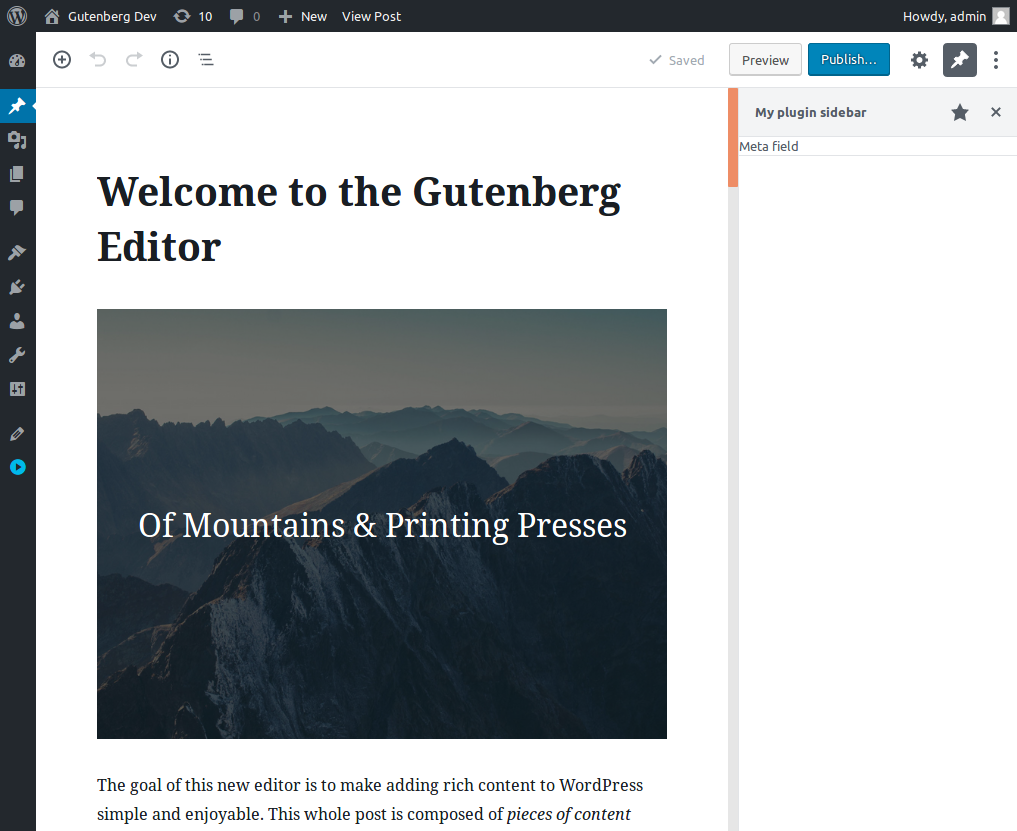
注意:本教程介绍自定义侧边栏,如需在侧边栏添加控件,请参阅区块工具栏与设置侧边栏
开始之前
本教程假设您已具备插件设置基础,并准备添加 PHP 和 JavaScript 代码。如需了解 WordPress 插件基础及如何通过 JavaScript 扩展区块编辑器,请参阅 JavaScript 入门指南。
逐步指南
步骤 1:创建并运行侧边栏
第一步是告诉编辑器有一个新的插件,该插件将拥有自己的侧边栏。分别使用 @wordpress/plugins、@wordpress/editor 和 react 包提供的 registerPlugin、PluginSidebar 和 createElement 工具。
将以下代码添加到名为 plugin-sidebar.js 的 JavaScript 文件中,并将其保存在你的插件目录中:
( function ( wp, React ) {
var el = React.createElement;
var registerPlugin = wp.plugins.registerPlugin;
var PluginSidebar = wp.editor.PluginSidebar;
registerPlugin( 'my-plugin-sidebar', {
render: function () {
return el(
PluginSidebar,
{
name: 'my-plugin-sidebar',
icon: 'admin-post',
title: 'My plugin sidebar',
},
'Meta field'
);
},
} );
} )( window.wp, window.React );
为了使此代码正常工作,这些工具需要在浏览器中可用,因此你必须将 wp-plugins、wp-editor 和 react 指定为脚本的依赖项。
以下是注册脚本并指定依赖项的 PHP 代码:
<?php
/*
Plugin Name: Sidebar plugin
*/
function sidebar_plugin_register() {
wp_register_script(
'plugin-sidebar-js',
plugins_url( 'plugin-sidebar.js', __FILE__ ),
array( 'wp-plugins', 'wp-editor', 'react' )
);
}
add_action( 'init', 'sidebar_plugin_register' );
function sidebar_plugin_script_enqueue() {
wp_enqueue_script( 'plugin-sidebar-js' );
}
add_action( 'enqueue_block_editor_assets', 'sidebar_plugin_script_enqueue' );
安装并激活此插件后,编辑器右上角会出现一个类似图钉的新图标。点击它,插件的侧边栏将会打开:
步骤 2:调整侧边栏样式并添加控件
侧边栏启动并运行后,下一步是填充必要的组件和基本样式。
为了可视化和编辑元字段值,您将使用一个输入组件。@wordpress/components 包包含许多可供您重用的组件,特别是 TextControl 组件,旨在创建输入字段:
( function ( wp ) {
var el = React.createElement;
var registerPlugin = wp.plugins.registerPlugin;
var PluginSidebar = wp.editor.PluginSidebar;
var TextControl = wp.components.TextControl;
registerPlugin( 'my-plugin-sidebar', {
render: function () {
return el(
PluginSidebar,
{
name: 'my-plugin-sidebar',
icon: 'admin-post',
title: 'My plugin sidebar',
},
el(
'div',
{ className: 'plugin-sidebar-content' },
el( TextControl, {
label: 'Meta Block Field',
value: 'Initial value',
onChange: function ( content ) {
console.log( 'content changed to ', content );
},
} )
)
);
},
} );
} )( window.wp );
使用此新代码更新 plugin-sidebar.js。请注意,它使用了来自 @wordpress/components 包的一个名为 wp.components 的新工具。请确保在 PHP 文件中的 wp_register_script 函数的依赖项中添加 wp-components。
此代码引入了:
- 一个 CSS 类
plugin-sidebar-content到div元素,以便应用样式, - 一个
TextControl组件,而不是纯文本'Meta field'。
有了可用的新 CSS 类,您可以添加一些样式。在您的插件目录中创建一个名为 plugin-sidebar.css 的新文件,并添加以下内容以提供一些内边距:
.plugin-sidebar-content {
padding: 16px;
}
注册该脚本并将其与 JavaScript 文件一起通过 enqueue_block_editor_assets 加载。
完成这些更改后,PHP 代码将如下所示:
<?php
/*
Plugin Name: Sidebar example
*/
function sidebar_plugin_register() {
wp_register_script(
'plugin-sidebar-js',
plugins_url( 'plugin-sidebar.js', __FILE__ ),
array(
'react',
'wp-plugins',
'wp-editor',
'wp-components'
)
);
wp_register_style(
'plugin-sidebar-css',
plugins_url( 'plugin-sidebar.css', __FILE__ )
);
}
add_action( 'init', 'sidebar_plugin_register' );
function sidebar_plugin_script_enqueue() {
wp_enqueue_script( 'plugin-sidebar-js' );
wp_enqueue_style( 'plugin-sidebar-css' );
}
add_action( 'enqueue_block_editor_assets', 'sidebar_plugin_script_enqueue' );
重新加载编辑器并打开侧边栏:
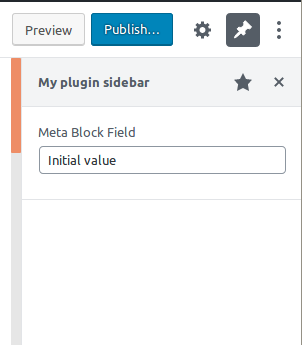
此代码尚不允许用户存储或检索数据,因此接下来的步骤将重点介绍如何将其连接到元块字段。
步骤 3:注册元字段
要使用 post_meta 表中的字段,请使用 register_post_meta 函数创建一个名为 sidebar_plugin_meta_block_field 的新字段。
注意:此字段需要能被 REST API 访问,因为区块编辑器是通过这种方式访问数据的。
将以下 PHP 代码添加到你的插件 init 回调函数中:
register_post_meta( 'post', 'sidebar_plugin_meta_block_field', array(
'show_in_rest' => true,
'single' => true,
'type' => 'string',
) );
为了确认,可以查询区块编辑器存储以查看字段是否已加载。实现后,重新加载编辑器页面并打开浏览器的开发者控制台。在控制台中使用以下 JavaScript 代码片段进行确认:
wp.data.select( 'core/editor' ).getCurrentPost().meta;
该函数将返回一个包含你注册的元字段的对象。
如果代码返回 undefined,请确保你的文章类型支持 custom-fields。可以在注册文章类型时或使用 add_post_type_support 函数时进行设置。
步骤 4:初始化输入控件
现在编辑器存储中已有该字段,可以将其显示到用户界面。我们将输入控件提取到一个函数中,以便在添加功能时保持代码整洁。
( function ( wp ) {
var el = React.createElement;
var registerPlugin = wp.plugins.registerPlugin;
var PluginSidebar = wp.editor.PluginSidebar;
var TextControl = wp.components.TextControl;
var MetaBlockField = function () {
return el( TextControl, {
label: 'Meta Block Field',
value: 'Initial value',
onChange: function ( content ) {
console.log( 'content changed to ', content );
},
} );
};
registerPlugin( 'my-plugin-sidebar', {
render: function () {
return el(
PluginSidebar,
{
name: 'my-plugin-sidebar',
icon: 'admin-post',
title: 'My plugin sidebar',
},
el(
'div',
{ className: 'plugin-sidebar-content' },
el( MetaBlockField )
)
);
},
} );
} )( window.wp );
useSelect 函数用于在组件加载时获取数据,并在数据变化时更新。以下是使用 useSelect 的代码更新:
( function ( wp ) {
var el = React.createElement;
var registerPlugin = wp.plugins.registerPlugin;
var PluginSidebar = wp.editor.PluginSidebar;
var Text = wp.components.TextControl;
var useSelect = wp.data.useSelect;
var MetaBlockField = function () {
var metaFieldValue = useSelect( function ( select ) {
return select( 'core/editor' ).getEditedPostAttribute(
'meta'
)[ 'sidebar_plugin_meta_block_field' ];
}, [] );
return el( Text, {
label: 'Meta Block Field',
value: metaFieldValue,
onChange: function ( content ) {
console.log( 'content has changed to ', content );
},
} );
};
registerPlugin( 'my-plugin-sidebar', {
render: function () {
return el(
PluginSidebar,
{
name: 'my-plugin-sidebar',
icon: 'admin-post',
title: 'My plugin sidebar',
},
el(
'div',
{ className: 'plugin-sidebar-content' },
el( MetaBlockField )
)
);
},
} );
} )( window.wp );
wp.data.useSelect 函数来自 @wordpress/data 包,因此需要在 PHP 的 wp_register_script 函数中将 wp-data 添加为依赖项。
注意:getEditedPostAttribute 调用用于检索文章的最新值,包括用户尚未保存的编辑内容。
通过更新代码、重新加载并打开侧边栏来确认其是否正常工作。输入框的内容不再是 Initial value,而是一个空字符串。用户尚无法输入值,但您可以检查如果存储中的值发生变化,组件是否会更新。打开浏览器的控制台,执行:
wp.data
.dispatch( 'core/editor' )
.editPost( { meta: { sidebar_plugin_meta_block_field: 'hello world!' } } );
您可以在输入组件中观察到内容的变化。
步骤 5:在输入内容变化时更新元字段
最后一步是在输入内容变化时更新元字段。
useDispatch 函数接收一个存储名称作为其唯一参数,并返回可用于更新存储的方法,在本例中我们将使用 editPost
( function ( wp ) {
var el = React.createElement;
var registerPlugin = wp.plugins.registerPlugin;
var PluginSidebar = wp.editor.PluginSidebar;
var TextControl = wp.components.TextControl;
var useSelect = wp.data.useSelect;
var useDispatch = wp.data.useDispatch;
var MetaBlockField = function ( props ) {
var metaFieldValue = useSelect( function ( select ) {
return select( 'core/editor' ).getEditedPostAttribute(
'meta'
)[ 'sidebar_plugin_meta_block_field' ];
}, [] );
var editPost = useDispatch( 'core/editor' ).editPost;
return el( TextControl, {
label: 'Meta Block Field',
value: metaFieldValue,
onChange: function ( content ) {
editPost( {
meta: { sidebar_plugin_meta_block_field: content },
} );
},
} );
};
registerPlugin( 'my-plugin-sidebar', {
render: function () {
return el(
PluginSidebar,
{
name: 'my-plugin-sidebar',
icon: 'admin-post',
title: 'My plugin sidebar',
},
el(
'div',
{ className: 'plugin-sidebar-content' },
el( MetaBlockField )
)
);
},
} );
} )( window.wp );
更新后,当用户输入时,输入控件会调用 editPost 并在每次按键时更新编辑器存储。
更新 JavaScript,加载侧边栏,并在输入字段中键入内容。您可以通过在输入控件中输入内容并在浏览器的开发控制台中执行以下 JavaScript 代码片段来确认其已保存:
wp.data.select( 'core/editor' ).getEditedPostAttribute( 'meta' )[
'sidebar_plugin_meta_block_field'
];
显示的消息应该是您在输入框中键入的内容。
保存文章时,您可以通过在保存后重新加载并确认输入控件已初始化为您最后键入的值,来确认其已正确存储在数据库中。
额外资源
有关使用 @wordpress/data 包 的文档。
本指南中使用的函数:
结论
现在您已拥有一个可用于更新 post_meta 内容的自定义侧边栏。
完整示例已提供,请从 block-development-examples 仓库下载 plugin-sidebar 示例。
注意
如果您已在编辑器“偏好设置”的“面板”页面(通过右上角三个点)启用了自定义字段,那么一个与 TextControl 同名的字段(本例中为 sidebar_plugin_meta_block_field)也会出现在编辑器窗口底部的自定义字段面板中。这两个字段访问的是相同的元属性。
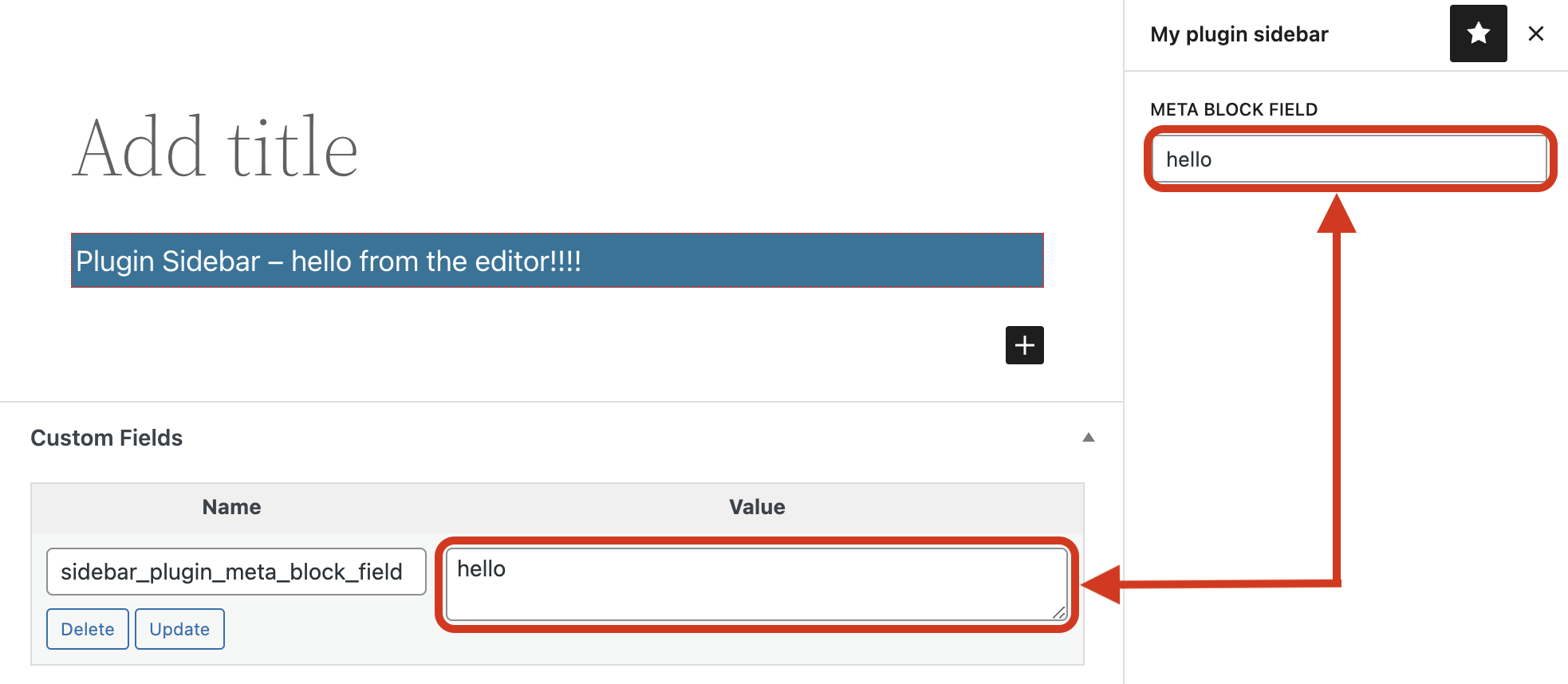
保存文章时,TextControl 中的值会先保存,自定义字段中的值会后保存,因此最终持久化到数据库的是后者。所以,即使您更改了 TextControl 中的值,最终保存的仍是自定义字段中的值。
如果未启用自定义字段,则不存在此问题。
如果您需要同时启用自定义字段并在侧边栏中使用文章元数据,有两种可能的解决方案:
- 在元字段名称前添加下划线,因此上例中的名称应为
_sidebar_plugin_meta_block_field。这表示该文章元数据应被视为私有,不会在文章的自定义字段部分显示。采用此方案时,保存文章会生成错误,除非您在传递给register_post_meta的args数组中添加auth_callback属性,并提供一个最终返回true的函数。更多信息请参阅 post_meta 页面的args文档。 - 在 TextControl 的
onChange函数中,定位值字段的文本区域,并将其值设置为与 TextControl 元字段的值相同。这样两个位置的值将保持一致,从而确保即使更改了 TextControl 中的值,它仍会被保存到数据库。
return el( TextControl, {
label: 'Meta Block Field',
value: metaFieldValue,
onChange: function ( content ) {
editPost( {
meta: { sidebar_plugin_meta_block_field: content }
})
document.querySelector( {the-value-textarea} ).innerHTML = content;
},
} );
区块类型的更新传播
本资源旨在为需要在主题模板、模式或整个站点的区块中更新内容的人员提供指导。由于每种内容类型允许或禁止特定类型的同步,因此在创建前了解可能的情况对于简化未来的维护工作至关重要。
更新管理建议
尽早明确需要更新的内容
从宏观层面来看,重要的是要认识到并非所有内容都能在整个网站上进行更新,且创建方法会极大地影响更新的可能性。因此,在创建前花时间确定哪些内容可能需要更新,并将其置于合适的格式中,这一点至关重要。这将对未来的维护工作产生巨大影响。
在区块层面拥抱主题设计
区块主题设计需要思维模式的转变,从以往设计主题大区块并通过更新控制的方式转向更精细的层面。虽然在创建自定义主题项目时,设计的整体视角仍然重要,但区块要求主题设计师以更原子化的方式进行设计。这意味着从区块本身出发,通常通过 theme.json 进行定制。目标是每个独立的"原子"(即区块)都可以被移动、编辑、删除和重新组合,而不会导致整个设计崩溃。
越是在区块层面进行设计,就越不需要在整个网站中传播对模式和模板等内容的更新。如果原子化的组件已经就位,它们的布局就不应该成为问题。
内容类型(以及如何正确更新它们)
区块
如何管理区块更新取决于区块本身的性质。如果区块依赖外部数据,那么从一开始就使用 render_callback 函数使其动态化通常是更好的选择,因为它能提供更多控制。如果区块的结构预计会随时间变化,那么建议从使用 save() 方法定义默认输出的静态区块开始。随着时间的推移,可以采取混合方式,同时包含 render_callback,该回调在处理替代输出时可以使用 save 的输出作为后备。请记住,这种灵活性和控制是以渲染期间额外处理为代价的。另一种选择是使用依赖区块弃用来管理更新的静态区块。这将需要您手动更新现有区块。根据您的需求和舒适度,两种方法都可行。要开始创建区块并节省时间,您可以使用 Create Block 工具。
Patterns
For content that you want updated later on, do not use patterns and instead rely on reusable blocks or template parts. Patterns cannot be updated after you insert one into your site. For context, you can think of Patterns as more like sample/example/starter content. While Patterns exposed in the Inserter might evolve over time, those changes won't be automatically applied to any current usage of the pattern. Once inserted, patterns become completely detached from the original pattern unlike Reusable block or Template Part block.
If needed, one potential workaround for patterns with custom styles is to add a class name to the wrapping block for a pattern. For example, the following adds a themeslug-special class to a Group block:
<!-- wp:group {"className":"themeslug-special"} -->
<div class="wp-block-group themeslug-special">
<!-- Nested pattern blocks -->
</div>
<!-- /wp:group -->
It is not fool-proof because users can modify the class via the editor UI. However, because this setting is under the "Advanced" panel it is likely to stay intact in most instances. This gives theme authors some CSS control for some pattern types, allowing them to update existing uses. However, it does not prevent users from making massive alterations that cannot be updated.
同步模式
顾名思义,这些模式本质上会在您的网站中保持同步。请注意,目前依赖同步模式处理某些更新存在限制,因为更新发生时内容、HTML 结构和样式都将保持同步。如果您需要更精细的控制,这是需要考虑的关键因素,动态区块可能是更好的选择。
模板部件与模板
由于区块主题允许用户直接编辑模板和模板部件,因此需要根据用户获得的更大访问权限来调整变更管理方式。具体来说,当用户修改模板或模板部件后,主题更新中的新模板将不会对已编辑过的用户显示。只有主题的新用户或尚未编辑过模板的用户才会体验到更新后的模板。如果用户未修改文件,则您在文件系统上所做的更改将反映在用户的站点上——您只需更新文件,用户就会获得变更。但如果用户已对其模板进行修改,则更新其模板的唯一方法是:
- 还原所有用户修改
- 更新数据库中的模板和模板部件
一般而言,如果用户已修改模板,建议保持模板现状,除非与用户达成协议(例如在代理机构环境中)。
更新模板时需注意的一点是插入对新模板部件或不同模板部件的引用。例如,templates/page.html 模板在 1.0 版本中可能引用 parts/header.html 部件,而在 2.0 版本中将引用更改为 parts/header-alt.html。某些开发者可能将此视为用户修改原始 header.html 时的“变通方案”。但这很可能会破坏用户的自定义设计,因为 page.html 模板将不再引用正确的部件,除非用户也修改并保存了页面模板。
同样地,在主题更新中删除模板部件通常是不良实践。在这种情况下,用户可能创建了引用该部件的自定义顶层模板,并期望该部件持续存在。
Resources
Thunks in Core-Data
Gutenberg 11.6 added support for thunks. You can think of thunks as functions that can be dispatched:
// actions.js
export const myThunkAction = () => ( { select, dispatch } ) => {
return "I'm a thunk! I can be dispatched, use selectors, and even dispatch other actions.";
};
Thunk 为何有用?
Thunk 扩展了 Redux action 的含义。在 Thunk 出现之前,action 是纯功能性的,只能返回和产出数据。诸如与 store 交互或从 action 请求 API 数据等常见用例,需要使用单独的 control。你经常会看到这样的代码:
export function* saveRecordAction( id ) {
const record = yield controls.select( 'current-store', 'getRecord', id );
yield { type: 'BEFORE_SAVE', id, record };
const results = yield controls.fetch({ url: 'https://...', method: 'POST', data: record });
yield { type: 'AFTER_SAVE', id, results };
return results;
}
const controls = {
select: // ...,
fetch: // ...,
};
像 store 操作和 fetch 函数这样的副作用需要在 action 外部实现。Thunk 为这种方法提供了替代方案。它允许你内联使用副作用,像这样:
export const saveRecordAction = ( id ) => async ({ select, dispatch }) => {
const record = select( 'current-store', 'getRecord', id );
dispatch({ type: 'BEFORE_SAVE', id, record });
const response = await fetch({ url: 'https://...', method: 'POST', data: record });
const results = await response.json();
dispatch({ type: 'AFTER_SAVE', id, results });
return results;
}
这消除了实现单独 controls 的需要。
Thunks 可以访问 store 辅助函数
让我们来看一个来自 Gutenberg 核心的例子。在 thunks 出现之前,@wordpress/interface 包中的 toggleFeature 动作是这样实现的:
export function* toggleFeature( scope, featureName ) {
const currentValue = yield controls.select(
interfaceStoreName,
'isFeatureActive',
scope,
featureName
);
yield controls.dispatch(
interfaceStoreName,
'setFeatureValue',
scope,
featureName,
! currentValue
);
}
Controls 曾经是 dispatch 动作和从 store select 数据的唯一方式。
有了 thunks,就有了更简洁的方法。这是 toggleFeature 现在的实现方式:
export function toggleFeature( scope, featureName ) {
return function ( { select, dispatch } ) {
const currentValue = select.isFeatureActive( scope, featureName );
dispatch.setFeatureValue( scope, featureName, ! currentValue );
};
}
得益于 select 和 dispatch 参数,thunks 可以直接使用 store,而无需生成器和 controls。
Thunk 可以是异步的
想象一个简单的 React 应用,允许你设置恒温器的温度。它只有一个输入框和一个按钮。点击按钮会分发一个 saveTemperatureToAPI 动作,并携带输入框中的值。
如果我们使用 controls 来保存温度,store 的定义会如下所示:
const store = wp.data.createReduxStore( 'my-store', {
actions: {
saveTemperatureToAPI: function*( temperature ) {
const result = yield { type: 'FETCH_JSON', url: 'https://...', method: 'POST', data: { temperature } };
return result;
}
},
controls: {
async FETCH_JSON( action ) {
const response = await window.fetch( action.url, {
method: action.method,
body: JSON.stringify( action.data ),
} );
return response.json();
}
},
// reducers, selectors, ...
} );
虽然这段代码相当直观,但存在一层间接性。saveTemperatureToAPI 动作并不直接与 API 通信,而是必须通过 FETCH_JSON 控制。
让我们看看如何使用 thunk 来消除这种间接性:
const store = wp.data.createReduxStore( 'my-store', {
actions: {
saveTemperatureToAPI: ( temperature ) => async () => {
const response = await window.fetch( 'https://...', {
method: 'POST',
body: JSON.stringify( { temperature } ),
} );
return await response.json();
}
},
// reducers, selectors, ...
} );
这非常棒!更棒的是,resolvers 也同样支持:
const store = wp.data.createReduxStore( 'my-store', {
// ...
selectors: {
getTemperature: ( state ) => state.temperature
},
resolvers: {
getTemperature: () => async ( { dispatch } ) => {
const response = await window.fetch( 'https://...' );
const result = await response.json();
dispatch.receiveCurrentTemperature( result.temperature );
}
},
// ...
} );
对 thunk 的支持默认包含在每个数据 store 中,就像(现已过时的)对生成器和 controls 的支持一样。
Thunks API
A thunk receives a single object argument with the following keys:
select
An object containing the store’s selectors pre-bound to state, which means you don't need to provide the state, only the additional arguments. select triggers the related resolvers, if any, but does not wait for them to finish. It just returns the current value even if it's null.
If a selector is part of the public API, it's available as a method on the select object:
const thunk = () => ( { select } ) => {
// select is an object of the store’s selectors, pre-bound to current state:
const temperature = select.getTemperature();
}
Since not all selectors are exposed on the store, select doubles as a function that supports passing a selector as an argument:
const thunk = () => ( { select } ) => {
// select supports private selectors:
const doubleTemperature = select( ( temperature ) => temperature * 2 );
}
resolveSelect
resolveSelect 与 select 相同,区别在于它返回一个 Promise,该 Promise 会解析为相关解析器提供的值。
const thunk = () => ( { resolveSelect } ) => {
const temperature = await resolveSelect.getTemperature();
}
dispatch
An object containing the store’s actions
If an action is part of the public API, it's available as a method on the dispatch object:
const thunk = () => ( { dispatch } ) => {
// dispatch is an object of the store’s actions:
const temperature = await dispatch.retrieveTemperature();
}
Since not all actions are exposed on the store, dispatch doubles as a function that supports passing a Redux action as an argument:
const thunk = () => async ( { dispatch } ) => {
// dispatch is also a function accepting inline actions:
dispatch({ type: 'SET_TEMPERATURE', temperature: result.value });
// thunks are interchangeable with actions
dispatch( updateTemperature( 100 ) );
// Thunks may be async, too. When they are, dispatch returns a promise
await dispatch( ( ) => window.fetch( /* ... */ ) );
}
registry
注册表通过其 dispatch、select 和 resolveSelect 方法提供对其他存储的访问。
这些方法与上述方法非常相似,但略有不同。调用 registry.select( storeName ) 会返回一个函数,该函数返回来自 storeName 的选择器对象。这在需要与另一个存储交互时非常方便。例如:
const thunk = () => ( { registry } ) => {
const error = registry.select( 'core' ).getLastEntitySaveError( 'root', 'menu', menuId );
/* ... */
}
使用样式与样式表
概述
区块通常会将标记(HTML)插入到文章内容中,您可能希望以某种方式对其进行样式设计。本指南将介绍几种在区块编辑器中使用 CSS 的不同方法,以及如何处理样式和样式表。
开始之前
您需要一个基础区块和 WordPress 开发环境来实现本指南中的示例。请参阅快速入门指南或区块教程进行设置。
添加样式的方法
以下是您可以在编辑器或保存时用于为区块添加样式的不同方法。
方法一:内联样式
第一种方法展示如何内联添加样式。这会将定义的样式转换为插入元素上的属性。
useBlockProps React 钩子用于设置并应用在区块包装元素上的属性。以下示例展示了具体做法:
import { registerBlockType } from '@wordpress/blocks';
import { useBlockProps } from '@wordpress/block-editor';
registerBlockType( 'gutenberg-examples/example-02-stylesheets', {
edit() {
const greenBackground = {
backgroundColor: '#090',
color: '#fff',
padding: '20px',
};
const blockProps = useBlockProps( { style: greenBackground } );
return (
<p { ...blockProps }>Hello World (from the editor, in green).</p>
);
},
save() {
const redBackground = {
backgroundColor: '#900',
color: '#fff',
padding: '20px',
};
const blockProps = useBlockProps.save( { style: redBackground } );
return (
<p { ...blockProps }>Hello World (from the frontend, in red).</p>
);
},
} );
方法二:区块类名
内联样式适用于少量 CSS 应用。如果样式内容远超上述示例,您可能会发现将其放在单独的样式表文件中更易于管理。
useBlockProps 钩子会自动包含区块的类名,它会为每个区块生成一个名称,该名称以 wp-block- 为前缀,并将命名空间分隔符 / 替换为单个 -。
例如,区块名称 gutenberg-examples/example-02-stylesheets 将获得类名:wp-block-gutenberg-examples-example-02-stylesheets。这可能有点长,但最好避免与其他区块发生冲突。
import { registerBlockType } from '@wordpress/blocks';
import { useBlockProps } from '@wordpress/block-editor';
registerBlockType( 'gutenberg-examples/example-02-stylesheets', {
edit() {
const blockProps = useBlockProps();
return (
<p { ...blockProps }>Hello World (from the editor, in green).</p>
);
},
save() {
const blockProps = useBlockProps.save();
return (
<p { ...blockProps }>Hello World (from the frontend, in red).</p>
);
},
} );
构建或添加依赖项
如需将 blockEditor 作为依赖项引入,请确保执行构建步骤或更新资源 PHP 文件。
构建脚本并更新用于跟踪依赖项和构建版本的资源文件。
npm run build
排入样式表
与脚本类似,您可以使用 block.json 文件来排入区块的样式。
使用 editorStyle 属性指定仅在编辑器视图中加载的 CSS 文件,使用 style 属性指定在编辑器视图和前端(当区块被使用时)都加载的 CSS 文件,使用 viewStyle 属性指定仅在前端(当区块被使用时)加载的 CSS 文件。
值得注意的是,如果编辑器内容被嵌入在 iframe 中,style 和 editorStyle 都会在 iframe 内加载。editorStyle 也会在 iframe 外部加载,因此它可以用于编辑器内容以及用户界面。
例如:
{
"apiVersion": 3,
"name": "gutenberg-examples/example-02-stylesheets",
"title": "Example: Stylesheets",
"icon": "universal-access-alt",
"category": "layout",
"editorScript": "file:./block.js",
"editorStyle": "file:./editor.css",
"style": "file:./style.css"
}
因此,在您的插件目录中,创建一个 editor.css 文件以在编辑器视图中加载:
/* 绿色背景 */
.wp-block-gutenberg-examples-example-02-stylesheets {
background: #090;
color: white;
padding: 20px;
}
以及一个 style.css 文件以在前端加载:
/* 红色背景 */
.wp-block-gutenberg-examples-example-02-stylesheets {
background: #900;
color: white;
padding: 20px;
}
当在 block.json 中指定时,这些文件将自动被排入。
如果您使用 @wordpress/scripts,您需要在相应的 JavaScript 文件中导入您的样式表,以便 @wordpress/scripts 能够处理该样式表。
例如:
- 在
edit.js中,您需要放置import './editor.scss'; - 在
index.js中,您需要放置import './style.scss'; - 在
view.js中,您需要放置import './view.scss';(交互式区块模板)
注意: 如果您有多个文件需要包含,可以像其他插件或主题一样使用标准的 wp_enqueue_style 函数。对于区块编辑器,您需要使用以下钩子:
enqueue_block_editor_assets- 仅在编辑器视图中加载enqueue_block_assets- 在前端和编辑器视图中都加载
结论
本指南展示了两种为区块应用样式的不同方法:内联样式或独立样式表。这两种方法都使用了 useBlockProps 钩子,更多详情请参阅区块包装器参考文档。
完整的 stylesheets-79a4c3 代码可在区块开发示例仓库中查看。
创建动态区块
动态区块是在前端渲染时实时构建其结构和内容的区块。
动态区块主要有两种用途:
- 即使文章未更新,内容也应发生变化的区块。WordPress 自身的"最新文章"区块就是一个例子。当有新文章发布时,该区块在所有使用它的地方都会更新。
- 代码(HTML、CSS、JS)的更新应立即在网站前端显示的区块。例如,如果您通过添加新类、添加 HTML 元素或以任何其他方式更改布局来更新区块结构,使用动态区块可确保这些更改立即应用于整个网站中该区块的所有实例。(如果不使用动态区块,当区块代码更新时,通常会应用 Gutenberg 的验证过程,导致用户看到验证消息"此区块似乎已被外部修改")。
对于许多动态区块,save 回调函数应返回 null,这告诉编辑器仅将区块属性保存到数据库。然后这些属性会传递到服务器端渲染回调中,因此您可以决定如何在网站前端显示该区块。当您返回 null 时,编辑器将跳过区块标记验证过程,避免因频繁更改标记而产生问题。
如果您在动态区块中使用 InnerBlocks,则需要在 save 回调函数中使用 <InnerBlocks.Content/> 保存 InnerBlocks。
您也可以保存区块的 HTML 表示形式。如果您提供了服务器端渲染回调,此 HTML 将被回调的输出替换,但如果您的区块被停用或渲染回调被移除,则会渲染此 HTML。
区块属性可用于您想要为该区块保存的任何内容或设置。在上面的第一个示例中,对于最新文章区块,您想要显示的最新文章数量可以保存为属性。或者在第二个示例中,属性可用于您想要在前端显示的每个内容片段——例如标题文本、段落文本、图像、URL 等。
以下代码示例展示了如何创建一个仅显示最新文章链接的动态区块。
import { registerBlockType } from '@wordpress/blocks';
import { useSelect } from '@wordpress/data';
import { useBlockProps } from '@wordpress/block-editor';
registerBlockType( 'gutenberg-examples/example-dynamic', {
apiVersion: 3,
title: '示例:最新文章',
icon: 'megaphone',
category: 'widgets',
edit: () => { const blockProps = useBlockProps(); const posts = useSelect( ( select ) => { return select( 'core' ).getEntityRecords( 'postType', 'post' ); }, [] );
return (
<div { ...blockProps }>
{ ! posts && 'Loading' }
{ posts && posts.length === 0 && 'No Posts' }
{ posts && posts.length > 0 && (
<a href={ posts[ 0 ].link }>
{ posts[ 0 ].title.rendered }
</a>
) }
</div>
);
},
} );
Because it is a dynamic block it doesn't need to override the default `save` implementation on the client. Instead, it needs a server component. The contents in the front of your site depend on the function called by the `render_callback` property of `register_block_type`.
```php
<?php
/**
* Plugin Name: Gutenberg examples dynamic
*/
function gutenberg_examples_dynamic_render_callback( $block_attributes, $content ) {
$recent_posts = wp_get_recent_posts( array(
'numberposts' => 1,
'post_status' => 'publish',
) );
if ( count( $recent_posts ) === 0 ) {
return 'No posts';
}
$post = $recent_posts[ 0 ];
$post_id = $post['ID'];
return sprintf(
'<a class="wp-block-my-plugin-latest-post" href="%1$s">%2$s</a>',
esc_url( get_permalink( $post_id ) ),
esc_html( get_the_title( $post_id ) )
);
}
function gutenberg_examples_dynamic() {
// automatically load dependencies and version
$asset_file = include( plugin_dir_path( __FILE__ ) . 'build/index.asset.php');
wp_register_script(
'gutenberg-examples-dynamic',
plugins_url( 'build/block.js', __FILE__ ),
$asset_file['dependencies'],
$asset_file['version']
);
register_block_type( 'gutenberg-examples/example-dynamic', array(
'api_version' => 3,
'editor_script' => 'gutenberg-examples-dynamic',
'render_callback' => 'gutenberg_examples_dynamic_render_callback'
) );
}
add_action( 'init', 'gutenberg_examples_dynamic' );
There are a few things to notice:
- The
editfunction still shows a representation of the block in the editor's context (this could be very different from the rendered version, it's up to the block's author) - The built-in
savefunction just returnsnullbecause the rendering is performed server-side. - The server-side rendering is a function taking the block and the block inner content as arguments, and returning the markup (quite similar to shortcodes)
Note : For common customization settings including color, border, spacing customization and more, we will see on the next chapter how you can rely on block supports to provide such functionality in an efficient way.
Live rendering in the block editor
Gutenberg 2.8 added the <ServerSideRender> block which enables rendering to take place on the server using PHP rather than in JavaScript.
Server-side render is meant as a fallback; client-side rendering in JavaScript is always preferred (client rendering is faster and allows better editor manipulation).
import { registerBlockType } from '@wordpress/blocks';
import ServerSideRender from '@wordpress/server-side-render';
import { useBlockProps } from '@wordpress/block-editor';
registerBlockType( 'gutenberg-examples/example-dynamic', {
apiVersion: 3,
title: 'Example: last post',
icon: 'megaphone',
category: 'widgets',
edit: function ( props ) {
const blockProps = useBlockProps();
return (
<div { ...blockProps }>
<ServerSideRender
block="gutenberg-examples/example-dynamic"
attributes={ props.attributes }
/>
</div>
);
},
} );
Note that this code uses the wp-server-side-render package but not wp-data. Make sure to update the dependencies in the PHP code. You can use wp-scripts to automatically build dependencies (see the block-development-examples repo for PHP code setup).
扩展查询循环区块
查询循环区块是一个强大的工具,允许用户循环遍历指定的文章列表,并显示一组将继承列表中每篇文章上下文的区块。例如,可以将其设置为循环遍历特定类别的所有文章,并为每篇文章显示其特色图片。当然,功能远不止于此!
但正是因为查询循环区块功能如此强大且允许高度自定义,它也可能令人望而生畏。大多数用户不希望面对查询循环区块的全部功能,因为他们可能不熟悉“查询”概念及其相关技术术语。相反,大多数用户可能更喜欢预设版本的区块,具有更少的设置项和更清晰的命名。默认提供的文章列表变体就是这种做法的良好示例:用户将在不接触技术细节的情况下使用查询循环区块,并且更有可能发现和理解该区块的用途。
同样,许多扩展开发者可能需要一种方式来呈现定制版本的区块,这些版本具有自己的预设、附加设置,并且不包含与其用例无关的自定义选项(例如,通常针对其自定义文章类型)。查询循环区块提供了非常强大的方式来创建此类变体。
扩展区块变体
通过注册具有特定查询循环区块设置的自定义区块变体,您可以更精细地控制其呈现方式,同时仍能充分利用查询循环区块的全部功能。如果您不熟悉区块变体,请在此处了解更多信息。
利用区块变体 API,您可以为特定用例提供最合理的默认设置。
为了使查询循环变体正常工作,我们需要:
- 为
core/query区块注册具有某些默认值的区块变体 - 为区块变体定义布局
- 在
isActive区块变体属性中使用namespace属性
让我们以注册 book 自定义文章类型的插件为例,逐步设置变体。
1. Offer sensible defaults
Your first step would be to create a variation which will be set up in such a way to provide a block variation which will display by default a list of books instead of blog posts. The full variation code will look something like this:
const MY_VARIATION_NAME = 'my-plugin/books-list';
registerBlockVariation( 'core/query', {
name: MY_VARIATION_NAME,
title: 'Books List',
description: 'Displays a list of books',
isActive: ( { namespace, query } ) => {
return (
namespace === MY_VARIATION_NAME
&& query.postType === 'book'
);
},
icon: /** An SVG icon can go here*/,
attributes: {
namespace: MY_VARIATION_NAME,
query: {
perPage: 6,
pages: 0,
offset: 0,
postType: 'book',
order: 'desc',
orderBy: 'date',
author: '',
search: '',
exclude: [],
sticky: '',
inherit: false,
},
},
scope: [ 'inserter' ],
}
);
If that sounds like a lot, don't fret, let's go through each of the properties here and see why they are there and what they are doing.
Essentially, you would start with something like this:
registerBlockVariation( 'core/query', {
name: 'my-plugin/books-list',
attributes: {
query: {
/** ...more query settings if needed */
postType: 'book',
},
},
} );
In this way, the users won't have to choose the custom postType from the dropdown, and be already presented with the correct configuration. However, you might ask, how is a user going to find and insert this variation? Good question! To enable this, you should add:
{
/** ...variation properties */
scope: [ 'inserter' ],
}
In this way, your block will show up just like any other block while the user is in the editor and searching for it. At this point you might also want to add a custom icon, title and description to your variation, just like so:
{
/** ...variation properties */
title: 'Books List',
description: 'Displays a list of books',
icon: /* Your svg icon here */,
}
At this point, your custom variation will be virtually indistinguishable from a stand-alone block. Completely branded to your plugin, easy to discover and directly available to the user as a drop in.
However, your query loop variation won't work just yet — we still need to define a layout so that it can render properly.
2. 自定义您的变体布局
请注意,查询循环区块支持在 scope 属性中使用字符串 'block'。理论上,这是为了让变体在插入区块本身后能被识别。更多关于区块变体选择器的信息,请参阅此处。
然而,不建议当前使用此方法,这是因为查询循环与模式和 scope: [ 'block' ] 变体的设置方式:除了 postType 和 inherit 查询属性外,所选模式的所有属性都将被使用,这很可能导致冲突和变体功能失效。
要规避此问题,有两种途径。第一种是添加您的默认 innerBlocks,如下所示:
innerBlocks: [
[
'core/post-template',
{},
[ [ 'core/post-title' ], [ 'core/post-excerpt' ] ],
],
[ 'core/query-pagination' ],
[ 'core/query-no-results' ],
],
通过在您的变体中包含 innerBlocks,您实质上跳过了查询循环区块的建议模式设置阶段,区块将插入这些内部区块作为其起始内容。
另一种方法是为您的变体注册特定模式,这些模式将在设置阶段被建议,并替换区块的流程。
查询循环区块会判断自身是否存在活动变体,以及是否有为此变体可用的特定模式。如果有,这些模式将是唯一建议给用户的模式,不包括原始查询循环区块的默认模式。否则,如果没有此类模式,则将建议默认模式。
要使模式与查询循环变体“关联”,您应将您的变体名称(前缀为查询循环名称,例如 core/query/$variation_name)添加到模式的 blockTypes 属性中。有关注册模式的更多详细信息,请参阅此处。
如果您未在变体中提供 innerBlocks,还有一种方法可以在用户于设置阶段选择 Start blank 时建议“关联”变体。这与“关联”模式的处理方式类似,通过检查查询循环是否存在活动变体以及是否有任何关联变体可建议。
要使一个变体与另一个查询循环变体关联,我们需要将 scope 属性定义为值 ['block'],并将 namespace 属性定义为一个数组。该数组应包含它们希望关联的任何变体的名称(name 属性)。
例如,如果我们有一个名为 products 的查询循环变体暴露给插入器(scope: ['inserter']),我们可以通过将其 namespace 属性设置为 ['products'] 来连接一个作用域 block 变体。如果用户在点击 Start blank 后选择了此变体,命名空间属性将被主插入器变体覆盖。
3. Making Gutenberg recognize your variation
There is one slight problem you might have realized after implementing this variation: while it is transparent to the user as they are inserting it, Gutenberg will still recognize the variation as a Query Loop block at its core and so, after its insertion, it will show up as a Query Loop block in the tree view of the editor, for instance.
We need a way to tell the editor that this block is indeed your specific variation. This is what the isActive property is made for: it's a way to determine whether a certain variation is active based on the block's attributes. You could use it like this:
{
/** ...variation properties */
isActive: ( { namespace, query } ) => {
return (
namespace === MY_VARIATION_NAME
&& query.postType === 'book'
);
},
}
You might be tempted to only compare the postType so that Gutenberg will recognize the block as your variation any time the postType matches book. This casts a net too wide, however, as other plugins might want to publish variations based on the book post type too, or we might just not want the variation to be recognized every time the user sets the type to book manually through the editor settings.
That's why the Query Loop block exposes a special attribute called namespace. It really doesn't do anything inside the block implementation, and it's used as an easy and consistent way for extenders to recognize and scope their own variation. In addition, isActive also accepts just an array of strings with the attributes to compare. Often, namespace would be sufficient, so you would use it like so:
{
/** ...variation properties */
attributes: {
/** ...variation attributes */
namespace: 'my-plugin/books-list',
},
isActive: [ 'namespace' ],
}
Like so, Gutenberg will know that it is your specific variation only in the case it matches your custom namespace! So convenient!
扩展查询功能
即使具备上述所有功能,您的自定义文章类型仍可能有独特需求:它可能支持某些需要筛选查询的自定义属性,或者某些查询参数可能无关紧要甚至完全不支持!我们设计查询循环区块时已考虑到此类用例,现在来看看如何解决这个问题。
Disabling irrelevant or unsupported query controls
Let's say you don't use at all the sticky attribute in your books, so that would be totally irrelevant to the customization of your block. In order to not confuse the users as to what a setting might do, and only exposing a clear UX to them, we want this control to be unavailable. Furthermore, let's say that you don't use the author field at all, which generally indicates the person who has added that post to the database, instead you use a custom bookAuthor field. As such, not only keeping the author filter would be confusing, it would outright “break” your query.
For this reason, the Query Loop block variations support a property called allowedControls, which accepts an array of keys of the controls we want to display on the inspector sidebar. By default, we accept all the controls, but as soon as we provide an array to this property, we want to specify only the controls which are going to be relevant for us!
As of Gutenberg version 14.2, the following controls are available:
inherit- Shows the toggle switch for allowing the query to be inherited directly from the template.postType- Shows a dropdown of available post types.order- Shows a dropdown to select the order of the query.sticky- Shows a dropdown to select how to handle sticky posts.taxQuery- Shows available taxonomies filters for the currently selected post type, including both inclusion and exclusion controls for each taxonomy.author- Shows an input field to filter the query by author.search- Shows an input field to filter the query by keywords.format- Shows an input field to filter the query by array/collection of formats.parents- Shows an input field to filter the query using parent(s) entity.
In our case, the property would look like this:
{
/** ...variation properties */
allowedControls: [ 'inherit', 'order', 'taxQuery', 'search' ],
}
If you want to hide all the above available controls, you can set an empty array as a value of allowedControls.
Notice that we have also disabled the postType control. When the user selects our variation, why show them a confusing dropdown to change the post type? On top of that it might break the block as we can implement custom controls, as we'll see shortly.
Understanding the taxQuery structure
The taxQuery attribute supports both inclusion and exclusion of taxonomy terms. The structure looks like this:
{
query: {
taxQuery: {
include: {
category: [1, 2, 3], // Include posts with these category IDs.
post_tag: [10, 20] // Include posts with these tag IDs.
},
exclude: {
category: [5, 6], // Exclude posts with these category IDs.
post_tag: [15] // Exclude posts with these tag IDs.
}
}
}
}
When you use the taxQuery control in your variation, users will see both "[Taxonomy]" (inclusion) and "Exclude: [Taxonomy]" controls for each applicable taxonomy. The inclusion and exclusion are mutually exclusive in the UI - terms selected in one won't appear as suggestions in the other.
Adding additional controls
Because our plugin uses custom attributes that we need to query, we want to add our own controls to allow the users to select those instead of the ones we have just disabled from the core inspector controls. We can do this via a React HOC hooked into a block filter, like so:
import { InspectorControls } from '@wordpress/block-editor';
export const withBookQueryControls = ( BlockEdit ) => ( props ) => {
// We only want to add these controls if it is our variation,
// so here we can implement a custom logic to check for that, similar
// to the `isActive` function described above.
// The following assumes that you wrote a custom `isMyBooksVariation`
// function to handle that.
return isMyBooksVariation( props ) ? (
<>
<BlockEdit key="edit" { ...props } />
<InspectorControls>
<BookAuthorSelector /> { /** Our custom component */ }
</InspectorControls>
</>
) : (
<BlockEdit key="edit" { ...props } />
);
};
addFilter( 'editor.BlockEdit', 'core/query', withBookQueryControls );
Of course, you'll be responsible for implementing the logic of your control (you might want to take a look at @wordpress/components to make your controls fit seamlessly within the Gutenberg UI). Any extra parameter you assign within the query object inside the blocks attributes can be used to create a custom query according to your needs, with a little extra effort.
Currently, you'll likely have to implement slightly different paths to make the query behave correctly both on the front-end side (i.e. on the end user's side) and to show the correct preview on the editor side.
{
/** ...variation properties */
attributes: {
/** ...variation attributes */
query: {
/** ...more query settings if needed */
postType: 'book',
/** Our custom query parameter */
bookAuthor: 'J. R. R. Tolkien'
}
}
}
Making your custom query work on the front-end side
The Query Loop block functions mainly through the Post Template block which receives the attributes and builds the query from there. Other first-class children of the Query Loop block (such as the Pagination block) behave in the same way. They build their query and then expose the result via the filter query_loop_block_query_vars.
You can hook into that filter and modify your query accordingly. Just make sure you don't cause side-effects to other Query Loop blocks by at least checking that you apply the filter only to your variation!
if( 'my-plugin/books-list' === $block[ 'attrs' ][ 'namespace' ] ) {
add_filter(
'query_loop_block_query_vars',
function( $query ) {
/** You can read your block custom query parameters here and build your query */
},
);
}
(In the code above, we assume you have some way to access the block, for example within a pre_render_block filter, but the specific solution can be different depending on the use-case, so this is not a firm recommendation).
Making your custom query work on the editor side
To finish up our custom variation, we might want the editor to react to changes in our custom query and display an appropriate preview accordingly. This is not required for a functioning block, but it enables a fully integrated user experience for the consumers of your block.
The Query Loop block fetches its posts to show the preview using the WordPress REST API. Any extra parameter added to the query object will be passed as a query argument to the API. This means that these extra parameters should be either supported by the REST API, or be handled by custom filters such as the rest_{$this->post_type}_query filter which allows you to hook into any API request for your custom post type. Like so:
add_filter(
'rest_book_query',
function( $args, $request ) {
/** We can access our custom parameters from here */
$book_author = $request->get_param( 'bookAuthor' );
/** ...your custom query logic */
}
);
And, just like that, you'll have created a fully functional variation of the Query Loop block!
嵌套区块:使用 InnerBlocks
您可以使用 InnerBlocks 组件创建一个可以嵌套其他区块的单一区块。这在 Columns 区块、Social Links 区块或任何您希望包含其他区块的区块中使用。
注意:一个区块只能包含一个 InnerBlocks 组件。
以下是 InnerBlocks 的基本用法。
import { registerBlockType } from '@wordpress/blocks';
import { InnerBlocks, useBlockProps } from '@wordpress/block-editor';
registerBlockType( 'gutenberg-examples/example-06', {
// ...
edit: () => {
const blockProps = useBlockProps();
return (
<div { ...blockProps }>
<InnerBlocks />
</div>
);
},
save: () => {
const blockProps = useBlockProps.save();
return (
<div { ...blockProps }>
<InnerBlocks.Content />
</div>
);
},
} );
允许的区块
使用 allowedBlocks 属性,除了 block.json 中的 allowedBlocks 字段外,你可以进一步限制哪些区块可以作为此区块的直接子级插入。这对于动态确定每个区块允许的区块列表非常有用,例如,根据区块属性确定:
const { allowedBlocks } = attributes;
//...
<InnerBlocks allowedBlocks={ allowedBlocks } />;
如果允许的区块列表始终相同,建议改用 allowedBlocks 区块设置。
方向
默认情况下,InnerBlocks 期望其内部块以垂直列表形式显示。一个有效的使用场景是将内部块样式设置为水平排列,例如通过为内部块包装器添加 CSS flex 或 grid 属性。当块以这种方式进行样式设置时,可以设置 orientation 属性来指示正在使用水平布局:
<InnerBlocks orientation="horizontal" />
指定此属性不会影响内部块的布局,但会导致子块中的块移动图标水平显示,同时确保拖放功能正常工作。
默认区块
默认情况下,当点击区块添加器时,InnerBlocks 会通过 allowedBlocks 打开允许的区块列表。您可以使用 defaultBlock 属性来修改点击初始区块添加器时插入的默认区块及其属性。例如:
<InnerBlocks
defaultBlock={
{ name: 'core/paragraph', attributes: { content: 'Lorem ipsum...' } }
}
directInsert
/>
此行为在 directInsert 属性设置为 true 之前处于禁用状态。这允许您指定何时应插入或不应插入默认区块的条件。
模板
使用 template 属性定义一组区块,当 InnerBlocks 组件没有现有内容时,这些区块将作为预填充内容。您可以在区块上设置属性来定义其用途。以下示例展示了使用 InnerBlocks 组件并设置占位符值来展示区块用法的书评模板。
const MY_TEMPLATE = [
[ 'core/image', {} ],
[ 'core/heading', { placeholder: 'Book Title' } ],
[ 'core/paragraph', { placeholder: 'Summary' } ],
];
//...
edit: () => {
return (
<InnerBlocks
template={ MY_TEMPLATE }
templateLock="all"
/>
);
},
使用 templateLock 属性来锁定模板。使用 all 会完全锁定模板,无法进行任何更改。使用 insert 可以防止插入额外的区块,但可以重新排序现有区块。更多信息请参阅 templateLock 文档。
文章模板
虽然与 InnerBlocks 无关,但值得在此提及:你可以按文章类型创建文章模板,该模板会预加载一组区块到区块编辑器中。
InnerBlocks 模板用于你创建的单个区块组件,而文章的其余部分可以包含用户喜欢的任何区块。使用文章模板,则可以将整篇文章锁定为你定义的模板。
add_action( 'init', function() {
$post_type_object = get_post_type_object( 'post' );
$post_type_object->template = array(
array( 'core/image' ),
array( 'core/heading' )
);
} );
在区块中使用父级、祖先和子级关系
使用 InnerBlocks 的常见模式是创建一个自定义区块,该区块仅在其父级区块被插入时才可用。这允许构建者建立区块之间的关系,同时限制嵌套区块的可发现性。构建者可以使用三种关系:parent、ancestor 和 allowedBlocks。它们的区别如下:
- 如果指定
parent,则表示嵌套区块只能作为父级的直接后代被使用和插入。 - 如果指定
ancestor,则表示嵌套区块只能作为父级的后代被使用和插入。 - 如果指定
allowedBlocks,则表示相反方向的关系,即哪些区块可以作为此区块的直接后代被使用和插入。
parent 和 ancestor 的关键区别在于,parent 具有更精细的特定性,而 ancestor 在其嵌套层次结构中具有更大的灵活性。
定义父级区块关系
以 Column 区块为例,它被赋予了 parent 区块设置。这使得 Column 区块仅能作为其父级 Columns 区块的嵌套直接子级使用。否则,Column 区块将不会在区块插入器中作为可选选项出现。请参阅 Column 代码作为参考。
当定义一个直接子级区块时,使用 parent 区块设置来指定哪个区块是父级。这可以防止嵌套区块在其定义的 InnerBlock 之外显示在插入器中。
{
"title": "Column",
"name": "core/column",
"parent": [ "core/columns" ],
// ...
}
定义祖先块关系
以评论作者姓名块为例,该块被分配了 ancestor 块设置。这使得评论作者姓名块仅能作为其祖先评论模板块的嵌套后代使用。否则,评论作者姓名块将不会作为选项出现在区块插入器中。请参阅评论作者姓名代码作为参考。
ancestor 关系允许评论作者姓名块位于层级树中的任何位置,而不仅仅是父评论模板块的直接子块,同时仍限制其在区块插入器中的可用性,即仅当评论模板块可用时才显示为可插入选项。
定义后代块时,请使用 ancestor 块设置。这可以防止嵌套块在其定义的 InnerBlock 之外显示在插入器中。
{
"title": "Comment Author Name",
"name": "core/comment-author-name",
"ancestor": [ "core/comment-template" ],
// ...
}
定义子区块关系
以导航区块为例,它被分配了 allowedBlocks 区块设置。这使得只有特定的区块类型子集可以作为导航区块的直接子级使用。请参考导航代码。
自定义区块的构建者可以扩展 allowedBlocks 设置。自定义区块可以挂载到 blocks.registerBlockType 过滤器,并将自身添加到导航区块的可用子级列表中。
当定义一组可能的子级区块时,请使用 allowedBlocks 区块设置。这会限制在插入新的子区块时,插入器中显示的区块类型。
{
"title": "Navigation",
"name": "core/navigation",
"allowedBlocks": [ "core/navigation-link", "core/search", "core/social-links", "core/page-list", "core/spacer" ],
// ...
}
Using a React hook
You can use a react hook called useInnerBlocksProps instead of the InnerBlocks component. This hook allows you to take more control over the markup of inner blocks areas.
The useInnerBlocksProps is exported from the @wordpress/block-editor package same as the InnerBlocks component itself and supports everything the component does. It also works like the useBlockProps hook.
It is important to note that useBlockProps hook must be called before useInnerBlocksProps, otherwise useBlockProps will return empty object.
Here is the basic useInnerBlocksProps hook usage.
import { registerBlockType } from '@wordpress/blocks';
import { useBlockProps, useInnerBlocksProps } from '@wordpress/block-editor';
registerBlockType( 'gutenberg-examples/example-06', {
// ...
edit: () => {
const blockProps = useBlockProps();
const innerBlocksProps = useInnerBlocksProps();
return (
<div { ...blockProps }>
<div {...innerBlocksProps} />
</div>
);
},
save: () => {
const blockProps = useBlockProps.save();
const innerBlocksProps = useInnerBlocksProps.save();
return (
<div { ...blockProps }>
<div {...innerBlocksProps} />
</div>
);
},
} );
This hook can also pass objects returned from the useBlockProps hook to the useInnerBlocksProps hook. This reduces the number of elements we need to create.
import { registerBlockType } from '@wordpress/blocks';
import { useBlockProps, useInnerBlocksProps } from '@wordpress/block-editor';
registerBlockType( 'gutenberg-examples/example-06', {
// ...
edit: () => {
const blockProps = useBlockProps();
const innerBlocksProps = useInnerBlocksProps( blockProps );
return (
<div {...innerBlocksProps} />
);
},
save: () => {
const blockProps = useBlockProps.save();
const innerBlocksProps = useInnerBlocksProps.save( blockProps );
return (
<div {...innerBlocksProps} />
);
},
} );
The above code will render to the following markup in the editor:
<div>
<!-- Inner Blocks get inserted here -->
</div>
Another benefit to using the hook approach is using the returned value, which is just an object, and deconstruct to get the react children from the object. This property contains the actual child inner blocks thus we can place elements on the same level as our inner blocks.
import { registerBlockType } from '@wordpress/blocks';
import { useBlockProps, useInnerBlocksProps } from '@wordpress/block-editor';
registerBlockType( 'gutenberg-examples/example-06', {
// ...
edit: () => {
const blockProps = useBlockProps();
const { children, ...innerBlocksProps } = useInnerBlocksProps( blockProps );
return (
<div {...innerBlocksProps}>
{ children }
<!-- Insert any arbitrary html here at the same level as the children -->
</div>
);
},
// ...
} );
<div>
<!-- Inner Blocks get inserted here -->
<!-- The custom html gets rendered on the same level -->
</div>
区块锁定 API
区块锁定 API 允许您在编辑器中限制对特定区块的操作。此 API 可用于防止用户移动、删除或编辑某些区块,从而确保布局一致性和内容完整性。
锁定移动或移除特定区块的能力
用户可通过编辑器锁定和解锁区块。锁定界面提供选项,防止区块在内容画布内被移动或移除:
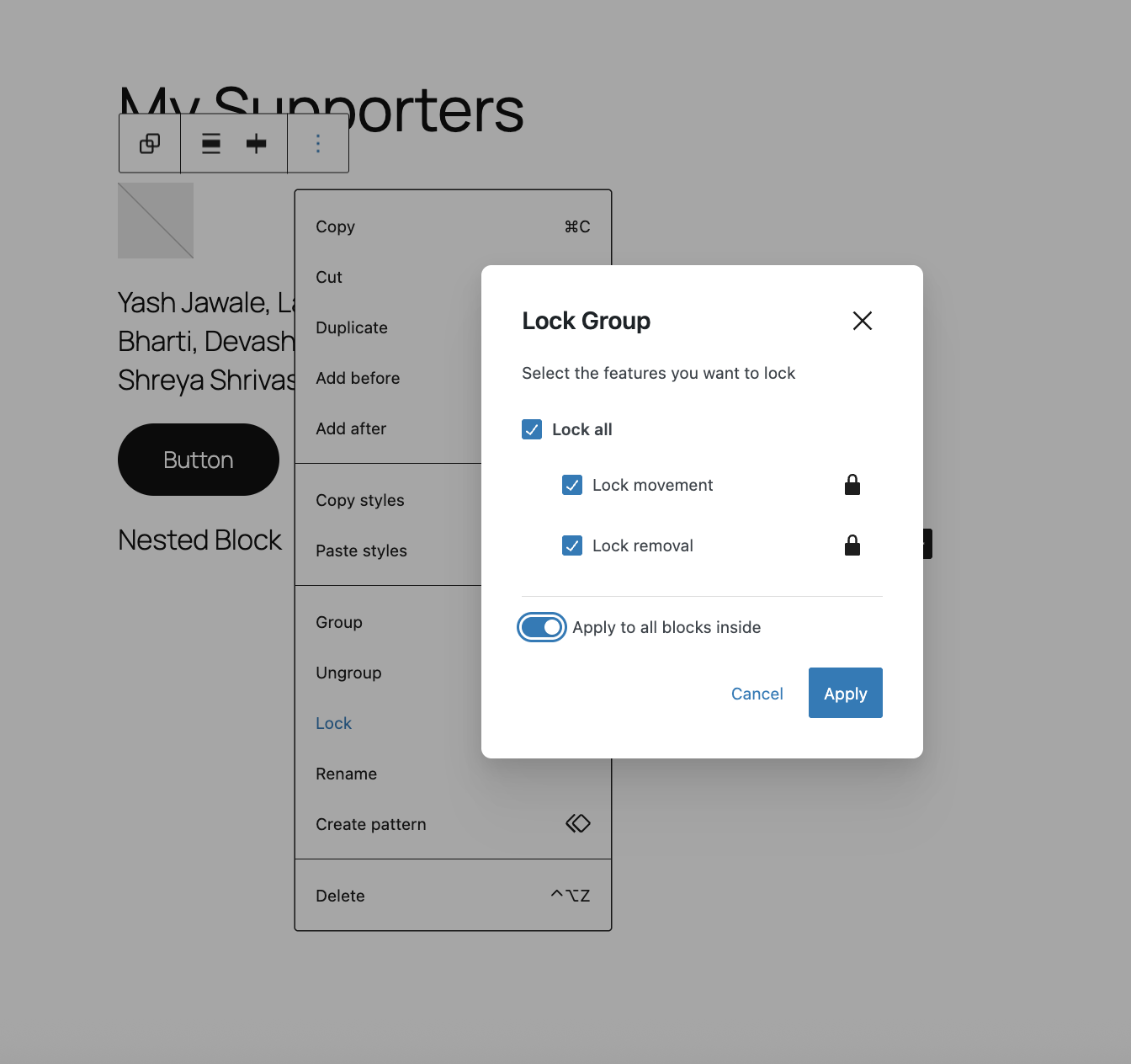
请注意,通过启用“应用于内部所有区块”选项,您可以将锁定设置应用于容器区块内的嵌套区块。但除此之外,您无法批量锁定区块。
锁定特定区块的编辑功能
除了锁定移动或移除区块的功能外,导航区块和可重用区块还具备一项额外能力:锁定编辑区块内容的权限。这将阻止对这两种区块类型内部任何区块进行修改。
对区块模式或模板应用锁定功能
在构建区块模式或模板时,主题作者可以使用相同的界面工具来设置区块的默认锁定状态。例如,主题作者可以锁定页眉的各个部分。请注意,默认情况下,拥有编辑权限的用户可以解锁这些区块。这里有一个示例模式,其中包含以不同方式锁定的多个区块,以及关于创建包含锁定区块的模板的更多背景信息。您可以在编辑器中直接构建这些模式,包括添加锁定选项,然后按照文档进行注册。
在区块模式或模板中应用仅内容编辑
此功能于 WordPress 6.1 引入。与阻止移动或移除区块的区块锁定不同,仅内容编辑专为在区块模式或模板级别使用而设计,它会隐藏所有设计工具,同时仍允许编辑区块内容。这为简化用户界面和保持设计提供了一种很好的方式。添加此选项后,会发生以下变化:
- 非内容子区块(容器、间距、列等)在列表视图中隐藏,在画布上不可点击,且完全不可编辑。
- 检查器将显示所有“内容”子区块的列表。点击列表中的区块会显示其设置面板。
- 主列表视图仅显示内容区块,无论实际嵌套如何,所有区块都显示在同一层级。
- 整体内容锁定容器内的子区块会自动应用移动/移除锁定。
- 无法插入额外的子区块,进一步保护设计和布局。
- 区块工具栏中有一个“修改”链接,用户可以切换它以访问更广泛的设计工具。目前,无法通过编程方式移除此选项。
此选项可应用于列、封面和群组区块,以及在其 block.json 中具有 templateLock 属性的第三方区块。要采用此功能,您需要使用 "templateLock":"contentOnly"。这是一个包含此功能的区块模式示例。更多信息,请查阅相关文档。
注意:目前没有用于管理内容锁定的用户界面,必须在代码级别进行管理。
更改权限以控制锁定能力
机构和插件作者可以通过限制哪些用户拥有锁定和解锁区块的权限,提供更精细的体验。默认情况下,任何管理员都将有权锁定和解锁区块。
开发者可以向 block_editor_settings_all 钩子添加过滤器,以配置围绕区块锁定的权限。该钩子向回调函数传递两个参数:
$settings- 编辑器可配置设置的数组。$context- WP_Block_Editor_Context 的实例,这是一个包含当前编辑器信息的对象。
具体来说,开发者可以通过将 $settings['canLockBlocks'] 的值设置为 true 或 false 来更改它,通常通过运行一个或多个条件检查来实现。
以下示例在编辑页面时为所有用户禁用区块锁定权限:
add_filter( 'block_editor_settings_all', function( $settings, $context ) {
if ( $context->post && 'page' === $context->post->post_type ) {
$settings['canLockBlocks'] = false;
}
return $settings;
}, 10, 2 );
另一个常见用例可能是只允许能够编辑网站视觉设计(主题编辑)的用户锁定或解锁区块。现在,最好的选择是根据 edit_theme_options 能力进行测试,如下面的代码片段所示:
add_filter( 'block_editor_settings_all', function( $settings ) {
$settings['canLockBlocks'] = current_user_can( 'edit_theme_options' );
return $settings;
} );
开发者可以使用任何类型的条件检查来确定谁可以锁定/解锁区块。这仅仅是通过过滤器钩子可以实现功能的一小部分示例。
禁用编辑器功能
本页面专门介绍在文章编辑器和站点编辑器中禁用特定功能的各种方法,这些内容未包含在管理文档的其他部分。
限制区块选项
有时您可能希望完全禁止用户访问某个区块。要控制插入器中可用的内容,您有两种方法:允许列表(禁用列表外的所有区块)或拒绝列表(取消注册特定区块)。
管理标题层级
具有标题层级下拉菜单的核心 WordPress 区块支持 levelOptions 属性。这适用于标题、站点标题、站点标语、查询标题、文章标题和评论标题区块。levelOptions 属性接受一个数字数组,对应标题层级,其中 1 代表 H1,2 代表 H2,依此类推。
此属性允许您指定哪些标题层级应出现在下拉菜单 UI 中,提供了一种轻量级的管理方法,无需弃用区块。任何现有的标题层级都会保留在标记中,而 levelOptions 仅影响 UI 显示。
您可以直接在区块标记中应用此属性,这种技术通常用于区块模板、模板部件和模式。例如,以下标记通过设置 "levelOptions":[3,4,5] 在标题块中禁用 H1、H2 和 H6。
<!-- wp:heading {"level":3,"levelOptions":[3,4,5],"className":"wp-block-heading"} -->
<h3 class="wp-block-heading">标记示例</h3>
<!-- /wp:heading -->
您也可以使用区块过滤器来全局或为特定区块设置此属性的默认值。以下示例为所有标题块禁用 H1、H2 和 H6。您可以根据用户权限等条件进一步自定义,限制某些标题层级。
function example_modify_heading_levels_globally( $args, $block_type ) {
if ( 'core/heading' !== $block_type ) {
return $args;
}
// 移除 H1、H2 和 H6。
$args['attributes']['levelOptions']['default'] = [ 3, 4, 5 ];
return $args;
}
add_filter( 'register_block_type_args', 'example_modify_heading_levels_globally', 10, 2 );
禁用模式目录
要从插入器中完全移除 WordPress 核心捆绑的模式,可将以下代码添加到你的 functions.php 文件中:
function example_theme_support() {
remove_theme_support( 'core-block-patterns' );
}
add_action( 'after_setup_theme', 'example_theme_support' );
禁用区块变体
某些核心区块实际上是区块变体。一个很好的例子是行(Row)和堆栈(Stack)区块,它们实际上是群组(Group)区块的变体。如果你想禁用这些"区块",实际上需要禁用相应的变体。
区块变体是使用 JavaScript 注册的,也需要用 JavaScript 来禁用。下面的代码将禁用行(Row)变体。
wp.domReady( () => {
wp.blocks.unregisterBlockVariation( 'core/group', 'group-row' );
});
假设这段代码被放置在你主题文件夹根目录下的 disable-variations.js 文件中,你可以使用下面的代码在主题的 functions.php 文件中将其加入队列。
function example_disable_variations_script() {
wp_enqueue_script(
'example-disable-variations-script',
get_template_directory_uri() . '/disable-variations.js',
array( 'wp-dom-ready' ),
wp_get_theme()->get( 'Version' ),
true
);
}
add_action( 'enqueue_block_editor_assets', 'example_disable_variations_script' );
禁用区块样式
有几个核心区块包含它们自己的区块样式。例如,图像区块包含一个名为“圆角”的区块样式,用于创建圆形图像。您可能不希望用户将图像设为圆形,或者您可能更倾向于使用边框半径控件而不是区块样式。无论哪种情况,禁用任何不需要的区块样式都很容易。
与区块变体不同,您可以在 JavaScript 或 PHP 中注册样式。如果样式是在 JavaScript 中注册的,则必须使用 JavaScript 来禁用它。如果使用 PHP 注册,则可以使用任意一种方式禁用该样式。所有核心区块样式都是在 JavaScript 中注册的。
因此,您可以使用以下代码来禁用图像区块的“圆角”区块样式。
wp.domReady( () => {
wp.blocks.unregisterBlockStyle( 'core/image', 'rounded' );
});
此 JavaScript 的入队方式应与上述区块变体示例类似。有关如何使用 PHP 注册和注销样式,请参阅区块样式文档。
禁用代码编辑器访问权限
代码编辑器允许您查看页面或文章的底层区块标记。虽然此视图对有经验的用户很方便,但编辑内容时可能会无意中破坏区块标记。将以下代码添加到您的 functions.php 文件中以限制访问。
function example_restrict_code_editor_access( $settings, $context ) {
$settings[ 'codeEditingEnabled' ] = false;
return $settings;
}
add_filter( 'block_editor_settings_all', 'example_restrict_code_editor_access', 10, 2 );
此代码将阻止所有用户访问代码编辑器。您也可以添加权限检查来禁用特定用户的访问权限。
禁用 RichText 区块的格式化选项
支持 RichText 的区块默认带有 WordPress 提供的格式化选项。
需要使用 JavaScript 的 unregisterFormatType 来禁用格式化选项。以下代码将全局禁用内联图像、语言、键盘输入、下标和上标选项。
wp.domReady( () => {
wp.richText.unregisterFormatType( 'core/image' );
wp.richText.unregisterFormatType( 'core/language' );
wp.richText.unregisterFormatType( 'core/keyboard' );
wp.richText.unregisterFormatType( 'core/subscript' );
wp.richText.unregisterFormatType( 'core/superscript' );
});
此 JavaScript 应像上面的区块变体示例一样进行入队。
Filters and hooks
The Editor provides numerous filters and hooks that allow you to modify the editing experience. Here are a few.
Editor settings
One of the most common ways to modify the Editor is through the block_editor_settings_all PHP filter, which is applied before settings are sent to the initialized Editor.
The block_editor_settings_all hook passes two parameters to the callback function:
$settings– An array of configurable settings for the Editor.$context– An instance ofWP_Block_Editor_Context, an object that contains information about the current Editor.
The following example disables the Code Editor for users who cannot activate plugins (Administrators). Add this to a plugin or your theme's functions.php file to test it.
add_filter( 'block_editor_settings_all', 'example_restrict_code_editor' );
function example_restrict_code_editor( $settings ) {
$can_active_plugins = current_user_can( 'activate_plugins' );
// Disable the Code Editor for users that cannot activate plugins (Administrators).
if ( ! $can_active_plugins ) {
$settings[ 'codeEditingEnabled' ] = false;
}
return $settings;
}
For more examples, check out the Editor Hooks documentation that includes the following use cases:
服务端 theme.json 过滤器
theme.json 文件是控制界面选项的强大工具,但它仅支持全局或区块级别的修改,在某些场景下可能显得局限。
例如,在前一节中,我们使用 theme.json 全局禁用了颜色和排版控件。但假设您希望为管理员用户启用颜色设置。
为了提供更大的灵活性,WordPress 6.1 引入了服务端过滤器,允许您在四个不同的数据层自定义 theme.json 数据。
wp_theme_json_data_default- 挂钩到 WordPress 提供的默认数据wp_theme_json_data_blocks- 挂钩到区块提供的数据wp_theme_json_data_theme- 挂钩到当前主题提供的数据wp_theme_json_data_user- 挂钩到用户提供的数据
在以下示例中,使用 wp_theme_json_data_theme 过滤器更新了当前主题 theme.json 文件的数据。如果当前用户是管理员,则恢复颜色控件。
// 为除管理员外的所有用户禁用颜色控件。
function example_filter_theme_json_data_theme( $theme_json ){
$is_administrator = current_user_can( 'edit_theme_options' );
if ( $is_administrator ) {
$new_data = array(
'version' => 2,
'settings' => array(
'color' => array(
'background' => true,
'custom' => true,
'customDuotone' => true,
'customGradient' => true,
'defaultGradients' => true,
'defaultPalette' => true,
'text' => true,
),
),
);
}
return $theme_json->update_with( $new_data );
}
add_filter( 'wp_theme_json_data_theme', 'example_filter_theme_json_data_theme' );
该过滤器接收一个包含相应层数据的 WP_Theme_JSON_Data 类实例。然后,您将符合 theme.json 结构的新数据传递给 update_with( $new_data ) 方法。$new_data 中必须包含 theme.json 版本号。
客户端(编辑器)过滤器
WordPress 6.2 引入了一个新的客户端过滤器,允许你在编辑器渲染之前修改区块级别的 theme.json 设置。
该过滤器名为 blockEditor.useSetting.before,可以在 JavaScript 代码中按如下方式使用:
import { addFilter } from '@wordpress/hooks';
/**
* 将 Column 区块的间距选项限制为像素单位。
*/
addFilter(
'blockEditor.useSetting.before',
'example/useSetting.before',
( settingValue, settingName, clientId, blockName ) => {
if ( blockName === 'core/column' && settingName === 'spacing.units' ) {
return [ 'px' ];
}
return settingValue;
}
);
此示例将把 Column 区块可用的间距单位限制为仅像素。如上所述,可以使用 theme.json 过滤器或在主题的 theme.json 文件中直接使用区块级别设置来应用类似的限制。
然而,blockEditor.useSetting.before 过滤器是独特的,因为它允许你根据区块的位置、相邻区块、当前用户的角色等进行设置修改。自定义的可能性非常广泛。
在以下示例中,当 Heading 区块被放置在 Media & Text 区块内时,将禁用其文本颜色控件。
import { select } from '@wordpress/data';
import { addFilter } from '@wordpress/hooks';
/**
* 当 Heading 区块放置在 Media & Text 区块内时,禁用其文本颜色控件。
*/
addFilter(
'blockEditor.useSetting.before',
'example/useSetting.before',
( settingValue, settingName, clientId, blockName ) => {
if ( blockName === 'core/heading' ) {
const { getBlockParents, getBlockName } = select( 'core/block-editor' );
const blockParents = getBlockParents( clientId, true );
const inMediaText = blockParents.some( ( ancestorId ) => getBlockName( ancestorId ) === 'core/media-text' );
if ( inMediaText && settingName === 'color.text' ) {
return false;
}
}
return settingValue;
}
);
Block Filters
Beyond curating the Editor itself, there are many ways that you can modify individual blocks. Perhaps you want to disable particular block supports like background color or define which settings should be displayed by default on specific blocks.
One of the most commonly used filters is block_type_metadata. It allows you to filter the raw metadata loaded from a block's block.json file when a block type is registered on the server with PHP.
The filter takes one parameter:
$metadata(array) – metadata loaded fromblock.jsonfor registering a block type.
The $metadata array contains everything you might want to know about a block, from its description and attributes to block supports.
In the following example, background color and gradient support are disabled for Heading blocks.
function example_disable_heading_background_color_and_gradients( $metadata ) {
// Only apply the filter to Heading blocks.
if ( ! isset( $metadata['name'] ) || 'core/heading' !== $metadata['name'] ) {
return $metadata;
}
// Check if 'supports' key exists.
if ( isset( $metadata['supports'] ) && isset( $metadata['supports']['color'] ) ) {
// Remove Background color and Gradients support.
$metadata['supports']['color']['background'] = false;
$metadata['supports']['color']['gradients'] = false;
}
return $metadata;
}
add_filter( 'block_type_metadata', 'example_disable_heading_background_color_and_gradients' );
You can learn more about the available block filters in the Block Filters documentation.
其他资源
- 如何使用服务器端过滤器修改 theme.json 数据 (WordPress 开发者博客)
- 使用客户端过滤器定制编辑器体验 (WordPress 开发者博客)
模式
区块模式是为用户提供独特且精心策划的编辑体验的最佳方式之一。
Prioritize starter patterns for any post type
When a user creates new content, regardless of post type, they are met with an empty canvas. However, that experience can be improved thanks to the option to have patterns from a specific type prioritized upon creation of a new piece of content. The modal appears each time the user creates a new item when there are patterns on their website that declare support for the core/post-content block types. By default, WordPress does not include any of these patterns, so the modal will not appear without at least two of these post content patterns being added.
To opt into this, include core/post-content in the Block Types for your pattern. From there, you can control which post types the pattern should show up for via the Post Types option. Here's an example of a pattern that would appear when creating a new post.
<?php
/**
* Title: New Event Announcement
* Slug: twentytwentytwo/new-event-announcement
* Block Types: core/post-content
* Post Types: post
* Categories: featured, text
*/
?>
<!-- wp:heading {"lock":{"move":false,"remove":true}} -->
<h2>Details</h2>
<!-- /wp:heading -->
<!-- wp:heading {"lock":{"move":false,"remove":true}} -->
<h2>Directions</h2>
<!-- /wp:heading -->
<!-- wp:heading {"lock":{"move":false,"remove":true}} -->
<h2>RSVP</h2>
<!-- /wp:heading -->
<!-- wp:paragraph {"lock":{"move":true,"remove":true}} -->
<p>To RSVP, please join the #fse-outreach-experiment in Make Slack. </p>
<!-- /wp:paragraph -->
<!-- wp:buttons -->
<div class="wp-block-buttons"><!-- wp:button {"lock":{"move":true,"remove":false}} -->
<div class="wp-block-button"><a class="wp-block-button__link wp-element-button">Learn more</a></div>
<!-- /wp:button --></div>
<!-- /wp:buttons -->
<!-- wp:cover {"useFeaturedImage":true,"dimRatio":80,"overlayColor":"primary","contentPosition":"center center","align":"full"} -->
<div class="wp-block-cover alignfull"><span aria-hidden="true" class="wp-block-cover__background has-primary-background-color has-background-dim-80 has-background-dim"></span><div class="wp-block-cover__inner-container"><!-- wp:paragraph {"align":"center","placeholder":"Write titleā¦","fontSize":"large"} -->
<p class="has-text-align-center has-large-font-size">We hope to see you there!</p>
<!-- /wp:paragraph --></div></div>
<!-- /wp:cover -->
Read more about this functionality in the Page creation patterns in WordPress 6.0 dev note and note that WordPress 6.1 brought this functionality to all post types.
优先展示模板创建起始模式
正如可以为新文章或页面优先展示模式,同样的体验也可应用于模板创建流程。当模式声明支持 templateTypes 属性时,创建匹配指定类型的模板时,这些模式将自动显示,同时提供从空白状态开始或使用当前模板回退选项。默认情况下,WordPress 不包含任何此类模式。
要启用此功能,模式需指定名为 templateTypes 的属性,这是一个包含可使用该模式作为完整内容的模板数组。以下示例展示了创建 404 模板时出现的模式:
register_block_pattern(
'wp-my-theme/404-template-pattern',
array(
'title' => __( '404 专用模板模式', 'wp-my-theme' ),
'templateTypes' => array( '404' ),
'content' => '<!-- wp:paragraph {"align":"center","fontSize":"x-large"} --><p class="has-text-align-center has-x-large-font-size">404 模式</p><!-- /wp:paragraph -->',
)
);
了解更多关于此功能的信息,请参阅 WordPress 6.3 开发说明中关于新建模板模态窗口的模式。
锁定模式
正如前文关于锁定 API 的章节所述,模式本身的各个方面可以被锁定,以保护设计的重要特性。这里有一个模式示例,其中不同的区块以不同方式被锁定。您可以在编辑器中构建这些模式,包括添加锁定选项,然后按照文档进行注册。
优先使用模式目录中的特定模式
自 WordPress 6.0 起,主题可通过 theme.json 注册来自模式目录的模式。为此,主题应使用 theme.json 中新增的顶级键 patterns。在此字段中,主题可列出要从模式目录注册的模式。patterns 字段是一个数组,包含模式目录中的模式别名。模式别名可从模式目录中单个模式视图页面的 URL 中提取。例如:URL https://wordpress.org/patterns/pattern/partner-logos 对应的别名是 partner-logos。
{
"patterns": [ "short-text-surrounded-by-round-images", "partner-logos" ]
}
内容创建者随后将在插入器的“模式”选项卡中,在匹配模式目录分类的类别下找到相应的模式。
其他资源
- 使用模板模式构建多种首页设计(WordPress 开发者博客)
theme.json
A theme's theme.json file is one of the best ways to curate the Editor experience and will likely be the first tool you use before reaching for more sophisticated solutions.
Providing default controls/options
Since theme.json acts as a configuration tool, there are numerous ways to define at a granular level what options are available. This section will use duotone as an example since it showcases a feature that cuts across a few blocks and allows for varying levels of access.
Duotone with Core options and customization available for each image related block:
{
"version": 3,
"settings": {
"color": {
"customDuotone": true,
"duotone": [
]
}
}
}
Duotone with theme defined color options, Core options, and customization available for each image related block:
{
"version": 3,
"settings": {
"color": {
"duotone": [
{
"colors": [ "#000000", "#ffffff" ],
"slug": "foreground-and-background",
"name": "Foreground and background"
},
{
"colors": [ "#000000", "#ff0200" ],
"slug": "foreground-and-secondary",
"name": "Foreground and secondary"
},
{
"colors": [ "#000000", "#7f5dee" ],
"slug": "foreground-and-tertiary",
"name": "Foreground and tertiary"
},
]
}
}
}
Duotone with defined default options and all customization available for the Post Featured Image block:
{
"version": 3,
"settings": {
"color": {
"custom": true,
"customDuotone": true
},
"blocks": {
"core/post-featured-image": {
"color": {
"duotone": [
{
"colors": [ "#282828", "#ff5837" ],
"slug": "black-and-orange",
"name": "Black and Orange"
},
{
"colors": [ "#282828", "#0288d1" ],
"slug": "black-and-blue",
"name": "Black and Blue"
}
],
"customDuotone": true,
"custom": true
}
}
}
}
}
Duotone with only defined default options and core options available for the Post Featured Image block (no customization):
{
"version": 3,
"settings": {
"color": {
"custom": true,
"customDuotone": true
},
"blocks": {
"core/post-featured-image": {
"color": {
"duotone": [
{
"colors": [ "#282828", "#ff5837" ],
"slug": "black-and-orange",
"name": "Black and Orange"
},
{
"colors": [ "#282828", "#0288d1" ],
"slug": "black-and-blue",
"name": "Black and Blue"
}
],
"customDuotone": false,
"custom": false
}
}
}
}
}
通过 theme.json 限制界面选项
按区块限制选项
除了定义默认值外,使用 theme.json 还可以让你完全移除某些选项,转而依赖主题已设置的内容。下图展示了同一段落块的两种极端情况:
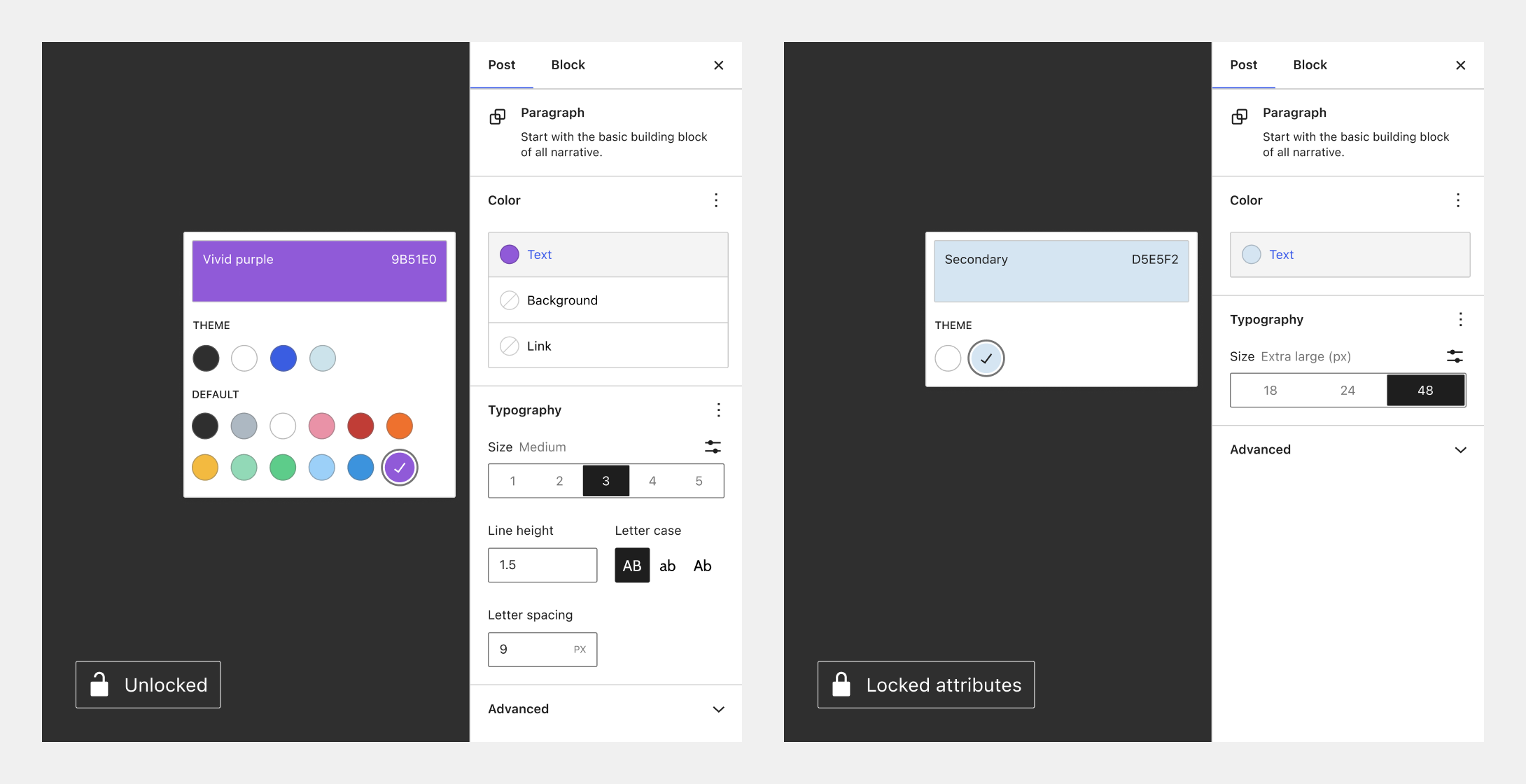
继续以双色调为例,这意味着你可以允许图像块完全访问所有双色调功能,而仅限制文章特色图像块,如下所示:
{
"version": 3,
"settings": {
"color": {
"custom": true,
"customDuotone": true
},
"blocks": {
"core/image": {
"color": {
"duotone": [],
"customDuotone": true,
"custom": true
}
},
"core/post-featured-image": {
"color": {
"duotone": [],
"customDuotone": false,
"custom": false
}
}
}
}
}
你可以在此处阅读更多关于如何通过 theme.json 最佳地开启/关闭选项。
禁用继承默认布局
要禁用容器块(如群组块)的“继承默认布局”设置,请移除以下部分:
"layout": {
"contentSize": null,
"wideSize": null
},
全局限制选项
在区块主题或经典主题中使用 theme.json 时,以下设置将阻止默认的颜色和排版控件在全局范围内启用,从而极大地限制可用功能:
{
"version": 3,
"settings": {
"layout": {
"contentSize": "750px"
},
"color": {
"background": false,
"custom": false,
"customDuotone": false,
"customGradient": false,
"defaultGradients": false,
"defaultPalette": false,
"text": false
},
"typography": {
"customFontSize": false,
"dropCap": false,
"fontStyle": false,
"fontWeight": false,
"letterSpacing": false,
"lineHeight": false,
"textDecoration": false,
"textTransform": false
}
}
}
若要启用上述某项功能,只需将你想要更改的值设置为 true 即可实现更精细的控制。
安装
我们将以 WordPress 插件的形式构建应用程序,这意味着您需要先安装 WordPress 本身。一种方法是按照入门指南页面的说明进行操作。完成安装后,您可以继续学习本教程的其余部分。
此外,本教程将大量涉及 Redux 概念,如状态、操作和选择器。如果您不熟悉这些概念,建议先阅读Redux 入门指南。
Creating a plugin
We'll do all the development inside of a WordPress plugin. Let's start by creating a wp-content/plugins/my-first-gutenberg-app directory in your local WordPress environment. We will need to create four files inside that directory:
- my-first-gutenberg-app.php – to create a new admin page
- src/index.js – for our JavaScript application
- src/style.css – for the minimal stylesheet
- package.json – for the build process
Go ahead and create these files using the following snippets:
src/index.js:
import { createRoot } from 'react-dom';
import './style.css';
function MyFirstApp() {
return <span>Hello from JavaScript!</span>;
}
const root = createRoot( document.getElementById( 'my-first-gutenberg-app' ) );
window.addEventListener(
'load',
function () {
root.render(
<MyFirstApp />,
);
},
false
);
src/style.css:
.toplevel_page_my-first-gutenberg-app #wpcontent {
background: #fff;
height: 1000px;
}
button .components-spinner {
width: 15px;
height: 15px;
margin-top: 0;
margin-bottom: 0;
margin-left: 0;
}
.form-buttons {
display: flex;
}
.my-gutenberg-form .form-buttons {
margin-top: 20px;
margin-left: 1px;
}
.form-error {
color: #cc1818;
}
.form-buttons button {
margin-right: 4px;
}
.form-buttons .components-spinner {
margin-top: 0;
}
#my-first-gutenberg-app {
max-width: 500px;
}
#my-first-gutenberg-app ul,
#my-first-gutenberg-app ul li {
list-style-type: disc;
}
#my-first-gutenberg-app ul {
padding-left: 20px;
}
#my-first-gutenberg-app .components-search-control__input {
height: 36px;
margin-left: 0;
}
#my-first-gutenberg-app .list-controls {
display: flex;
width: 100%;
}
#my-first-gutenberg-app .list-controls .components-search-control {
flex-grow: 1;
margin-right: 8px;
}
my-first-gutenberg-app.php:
<?php
/**
* Plugin Name: My first Gutenberg App
*
*/
function my_admin_menu() {
// Create a new admin page for our app.
add_menu_page(
__( 'My first Gutenberg app', 'gutenberg' ),
__( 'My first Gutenberg app', 'gutenberg' ),
'manage_options',
'my-first-gutenberg-app',
function () {
echo '
<h2>Pages</h2>
<div id="my-first-gutenberg-app"></div>
';
},
'dashicons-schedule',
3
);
}
add_action( 'admin_menu', 'my_admin_menu' );
function load_custom_wp_admin_scripts( $hook ) {
// Load only on ?page=my-first-gutenberg-app.
if ( 'toplevel_page_my-first-gutenberg-app' !== $hook ) {
return;
}
// Load the required WordPress packages.
// Automatically load imported dependencies and assets version.
$asset_file = include plugin_dir_path( __FILE__ ) . 'build/index.asset.php';
// Enqueue CSS dependencies.
foreach ( $asset_file['dependencies'] as $style ) {
wp_enqueue_style( $style );
}
// Load our app.js.
wp_register_script(
'my-first-gutenberg-app',
plugins_url( 'build/index.js', __FILE__ ),
$asset_file['dependencies'],
$asset_file['version']
);
wp_enqueue_script( 'my-first-gutenberg-app' );
// Load our style.css.
wp_register_style(
'my-first-gutenberg-app',
plugins_url( 'build/style-index.css', __FILE__ ),
array(),
$asset_file['version']
);
wp_enqueue_style( 'my-first-gutenberg-app' );
}
add_action( 'admin_enqueue_scripts', 'load_custom_wp_admin_scripts' );
package.json:
{
"name": "09-code-data-basics-esnext",
"version": "1.1.0",
"private": true,
"description": "My first Gutenberg App",
"author": "The WordPress Contributors",
"license": "GPL-2.0-or-later",
"keywords": [
"WordPress",
"block"
],
"homepage": "https://github.com/WordPress/gutenberg-examples/",
"repository": "git+https://github.com/WordPress/gutenberg-examples.git",
"bugs": {
"url": "https://github.com/WordPress/gutenberg-examples/issues"
},
"main": "build/index.js",
"devDependencies": {
"@wordpress/scripts": "^24.0.0"
},
"scripts": {
"build": "wp-scripts build",
"format": "wp-scripts format",
"lint:js": "wp-scripts lint-js",
"packages-update": "wp-scripts packages-update",
"start": "wp-scripts start"
}
}
设置构建流水线
本教程假设读者熟悉 ESNext 语法和构建工具(如 webpack)的概念。如果这听起来令人困惑,建议先阅读 JavaScript 构建设置入门指南。
要安装构建工具,请使用终端进入插件目录并运行 npm install。
所有依赖项就位后,只需运行 npm start 即可!终端中将启动一个监听进程。之后您可以在文本编辑器中随意修改;每次保存后,系统都会自动重新构建。
测试是否成功
现在前往插件页面,您应该能看到一个名为 My first Gutenberg App 的插件。请激活它。随后会出现一个标记为 My first Gutenberg app 的新菜单项。点击后,您将看到一个显示 Hello from JavaScript! 的页面:

恭喜!您现在可以开始构建应用了!
下一步做什么?
构建页面列表
在这一部分,我们将构建一个可筛选的 WordPress 页面列表。这是本节结束时应用的外观:
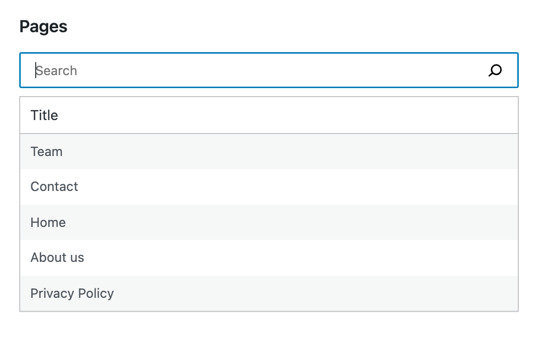
让我们一步步了解如何实现。
步骤 1:构建 PagesList 组件
让我们从构建一个最小的 React 组件开始,用于显示页面列表:
function MyFirstApp() {
const pages = [{ id: 'mock', title: 'Sample page' }]
return <PagesList pages={ pages }/>;
}
function PagesList( { pages } ) {
return (
<ul>
{ pages?.map( page => (
<li key={ page.id }>
{ page.title }
</li>
) ) }
</ul>
);
}
请注意,此组件尚未获取任何数据,仅呈现硬编码的页面列表。刷新页面时,您应该看到以下内容:
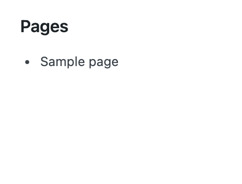
步骤 2:获取数据
硬编码的示例页面没什么用。我们想要显示您实际的 WordPress 页面,所以让我们从 WordPress REST API 获取实际的页面列表。
开始之前,先确认我们确实有一些页面可以获取。在 WPAdmin 中,使用侧边栏菜单导航到“页面”,确保它至少显示四到五个页面:
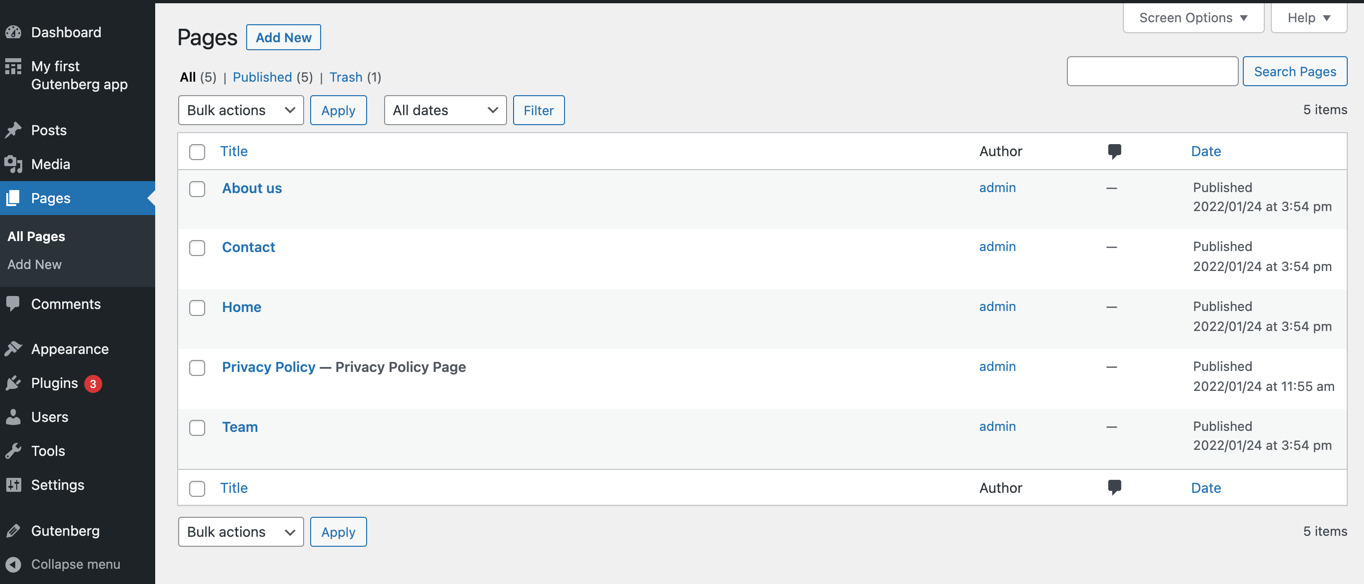
如果没有,请创建几个页面——您可以使用上图中相同的标题。请确保发布它们,而不仅仅是保存。
现在我们有了可用的数据,让我们深入代码。我们将利用 @wordpress/core-data 包,它提供了与 WordPress 核心 API 交互的解析器、选择器和操作。@wordpress/core-data 建立在 @wordpress/data 包之上。
要获取页面列表,我们将使用 getEntityRecords 选择器。简而言之,它将发出正确的 API 请求,缓存结果,并返回我们需要的记录列表。使用方法如下:
wp.data.select( 'core' ).getEntityRecords( 'postType', 'page' )
如果您在浏览器的开发者工具中运行这段代码,会发现它返回 null。为什么?因为页面只有在首次运行选择器后,才会由 getEntityRecords 解析器请求。如果您稍等片刻再重新运行,它就会返回所有页面的列表。
注意:要直接运行此类命令,请确保您的浏览器正在显示块编辑器实例(任何页面都可以)。否则 select( 'core' ) 函数将不可用,您会收到错误。
同样,MyFirstApp 组件也需要在数据可用后重新运行选择器。这正是 useSelect 钩子的作用:
import { useSelect } from '@wordpress/data';
import { store as coreDataStore } from '@wordpress/core-data';
function MyFirstApp() {
const pages = useSelect(
select =>
select( coreDataStore ).getEntityRecords( 'postType', 'page' ),
[]
);
// ...
}
function PagesList({ pages }) {
// ...
<li key={page.id}>
{page.title.rendered}
</li>
// ...
}
请注意,我们在 index.js 中使用了 import 语句。这使得插件能够使用 wp_enqueue_script 自动加载依赖项。所有对 coreDataStore 的引用都会被编译成我们在浏览器开发者工具中使用的相同 wp.data 引用。
useSelect 接收两个参数:一个回调函数和依赖项。简而言之,每当依赖项或底层数据存储发生变化时,它都会重新运行回调函数。你可以在数据模块文档中了解更多关于 useSelect 的信息。
综合起来,我们得到以下代码:
import { useSelect } from '@wordpress/data';
import { store as coreDataStore } from '@wordpress/core-data';
import { decodeEntities } from '@wordpress/html-entities';
function MyFirstApp() {
const pages = useSelect(
select =>
select( coreDataStore ).getEntityRecords( 'postType', 'page' ),
[]
);
return <PagesList pages={ pages }/>;
}
function PagesList( { pages } ) {
return (
<ul>
{ pages?.map( page => (
<li key={ page.id }>
{ decodeEntities( page.title.rendered ) }
</li>
) ) }
</ul>
)
}
请注意,文章标题可能包含 HTML 实体,如 á,因此我们需要使用 decodeEntities 函数将它们替换为它们所代表的符号,如 á。
刷新页面应显示类似以下的列表:
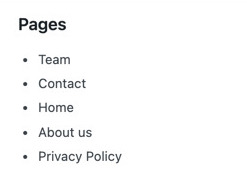
Step 3: Turn it into a table
function PagesList( { pages } ) {
return (
<table className="wp-list-table widefat fixed striped table-view-list">
<thead>
<tr>
<th>Title</th>
</tr>
</thead>
<tbody>
{ pages?.map( page => (
<tr key={ page.id }>
<td>{ decodeEntities( page.title.rendered ) }</td>
</tr>
) ) }
</tbody>
</table>
);
}
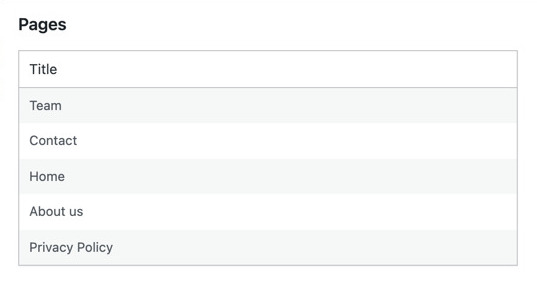
步骤 4:添加搜索框
目前的页面列表还比较短;然而,随着列表越来越长,操作起来会越来越困难。WordPress 管理员通常通过搜索框来解决这个问题——我们也来实现一个吧!
让我们从添加一个搜索字段开始:
import { useState } from 'react';
import { SearchControl } from '@wordpress/components';
function MyFirstApp() {
const [searchTerm, setSearchTerm] = useState( '' );
// ...
return (
<div>
<SearchControl
onChange={ setSearchTerm }
value={ searchTerm }
/>
{/* ... */ }
</div>
)
}
请注意,我们没有使用 input 标签,而是利用了 SearchControl 组件。它的外观如下:
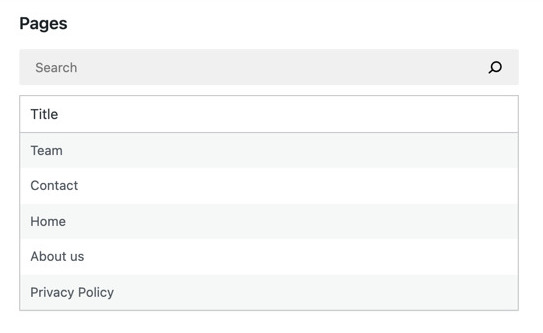
该字段初始为空,其内容存储在 searchTerm 状态值中。如果你不熟悉 useState 钩子,可以在 React 的文档 中了解更多信息。
现在我们可以只请求与 searchTerm 匹配的页面。
查阅 WordPress API 文档 后,我们发现 /wp/v2/pages 端点接受一个 search 查询参数,并利用它来 将结果限制为匹配字符串的页面。但我们该如何使用它呢?我们可以将自定义查询参数作为第三个参数传递给 getEntityRecords,如下所示:
wp.data.select( 'core' ).getEntityRecords( 'postType', 'page', { search: 'home' } )
在浏览器的开发者工具中运行这段代码,将触发一个对 /wp/v2/pages?search=home 的请求,而不仅仅是 /wp/v2/pages。
让我们在 useSelect 调用中镜像这个逻辑,如下所示:
import { useSelect } from '@wordpress/data';
import { store as coreDataStore } from '@wordpress/core-data';
function MyFirstApp() {
// ...
const { pages } = useSelect( select => {
const query = {};
if ( searchTerm ) {
query.search = searchTerm;
}
return {
pages: select( coreDataStore ).getEntityRecords( 'postType', 'page', query )
}
}, [searchTerm] );
// ...
}
现在,当提供了 searchTerm 时,它将被用作 search 查询参数。请注意,searchTerm 也被指定在 useSelect 的依赖项列表中,以确保当 searchTerm 改变时重新运行 getEntityRecords。
最后,当我们把所有部分连接起来后,MyFirstApp 看起来是这样的:
import { useState } from 'react';
import { createRoot } from 'react-dom';
import { SearchControl } from '@wordpress/components';
import { useSelect } from '@wordpress/data';
import { store as coreDataStore } from '@wordpress/core-data';
function MyFirstApp() { const [searchTerm, setSearchTerm] = useState( '' ); const pages = useSelect( select => { const query = {}; if ( searchTerm ) { query.search = searchTerm; } return select( coreDataStore ).getEntityRecords( 'postType', 'page', query ); }, [searchTerm] );
return (
<div>
<SearchControl
onChange={ setSearchTerm }
value={ searchTerm }
/>
<PagesList pages={ pages }/>
</div>
)
}
搞定!现在我们可以筛选结果了:
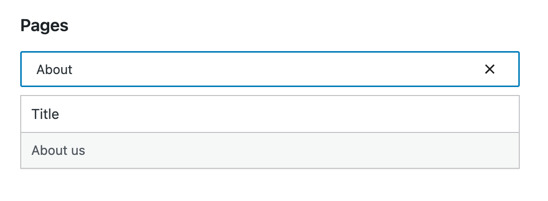
### 使用 core-data 替代直接调用 API
让我们稍作停顿,思考一下另一种可能采用的方法——直接操作 API——的缺点。想象一下我们直接发送 API 请求:
```js
import apiFetch from '@wordpress/api-fetch';
function MyFirstApp() {
// ...
const [pages, setPages] = useState( [] );
useEffect( () => {
const url = '/wp-json/wp/v2/pages?search=' + searchTerm;
apiFetch( { url } )
.then( setPages )
}, [searchTerm] );
// ...
}
在 core-data 之外工作,我们需要解决两个问题。
首先,乱序更新。搜索 "About" 会触发五个 API 请求,分别过滤 A、Ab、Abo、Abou 和 About。这些请求可能以不同于启动的顺序完成。有可能 search=A 在 search=About 之后才解析完成,从而导致我们显示错误的数据。
Gutenberg 数据通过在后台处理异步部分来提供帮助。useSelect 会记住最近的调用,并只返回我们期望的数据。
其次,每次按键都会触发一个 API 请求。如果你输入 About,删除它,然后重新输入,总共会发出 10 个请求,即使我们可以重用数据。
Gutenberg 数据通过缓存由 getEntityRecords() 触发的 API 请求的响应,并在后续调用中重用它们来提供帮助。当其他组件依赖相同的实体记录时,这一点尤其重要。
总而言之,core-data 内置的工具旨在解决典型问题,以便你可以专注于应用程序本身。
步骤 5:加载指示器
我们的搜索功能存在一个问题。我们不太确定它是否仍在搜索,或者只是没有显示结果:
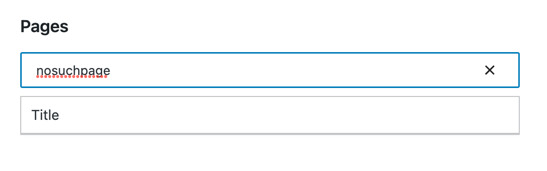
像“正在加载…”或“无结果”这样的提示信息可以澄清这一点。让我们来实现它们!首先,PagesList 需要知道当前状态:
import { SearchControl, Spinner } from '@wordpress/components';
function PagesList( { hasResolved, pages } ) {
if ( !hasResolved ) {
return <Spinner/>
}
if ( !pages?.length ) {
return <div>No results</div>
}
// ...
}
function MyFirstApp() {
// ...
return (
<div>
// ...
<PagesList hasResolved={ hasResolved } pages={ pages }/>
</div>
)
}
请注意,我们没有构建自定义的加载指示器,而是利用了 Spinner 组件。
我们仍然需要知道页面选择器是否已经 hasResolved(解析完成)。我们可以使用 hasFinishedResolution 选择器来查明:
wp.data.select('core').hasFinishedResolution( 'getEntityRecords', [ 'postType', 'page', { search: 'home' } ] )
它接收选择器的名称和传递给该选择器的完全相同的参数,如果数据已加载则返回 true,如果我们仍在等待则返回 false。让我们将其添加到 useSelect 中:
import { useSelect } from '@wordpress/data';
import { store as coreDataStore } from '@wordpress/core-data';
function MyFirstApp() {
// ...
const { pages, hasResolved } = useSelect( select => {
// ...
return {
pages: select( coreDataStore ).getEntityRecords( 'postType', 'page', query ),
hasResolved:
select( coreDataStore ).hasFinishedResolution( 'getEntityRecords', ['postType', 'page', query] ),
}
}, [searchTerm] );
// ...
}
还有最后一个问题。很容易出现拼写错误,导致传递给 getEntityRecords 和 hasFinishedResolution 的参数不同。确保它们完全相同至关重要。我们可以通过将参数存储在变量中来消除这种风险:
import { useSelect } from '@wordpress/data';
import { store as coreDataStore } from '@wordpress/core-data';
function MyFirstApp() {
// ...
const { pages, hasResolved } = useSelect( select => {
// ...
const selectorArgs = [ 'postType', 'page', query ];
return {
pages: select( coreDataStore ).getEntityRecords( ...selectorArgs ),
hasResolved:
select( coreDataStore ).hasFinishedResolution( 'getEntityRecords', selectorArgs ),
}
}, [searchTerm] );
// ...
}
瞧!就是这样。
整合所有部分
所有组件都已就位,太棒了!以下是我们应用的完整 JavaScript 代码:
import { useState } from 'react';
import { createRoot } from 'react-dom';
import { SearchControl, Spinner } from '@wordpress/components';
import { useSelect } from '@wordpress/data';
import { store as coreDataStore } from '@wordpress/core-data';
import { decodeEntities } from '@wordpress/html-entities';
import './style.css';
function MyFirstApp() {
const [ searchTerm, setSearchTerm ] = useState( '' );
const { pages, hasResolved } = useSelect(
( select ) => {
const query = {};
if ( searchTerm ) {
query.search = searchTerm;
}
const selectorArgs = [ 'postType', 'page', query ];
return {
pages: select( coreDataStore ).getEntityRecords(
...selectorArgs
),
hasResolved: select( coreDataStore ).hasFinishedResolution(
'getEntityRecords',
selectorArgs
),
};
},
[ searchTerm ]
);
return (
<div>
<SearchControl onChange={ setSearchTerm } value={ searchTerm } />
<PagesList hasResolved={ hasResolved } pages={ pages } />
</div>
);
}
function PagesList( { hasResolved, pages } ) {
if ( ! hasResolved ) {
return <Spinner />;
}
if ( ! pages?.length ) {
return <div>No results</div>;
}
return (
<table className="wp-list-table widefat fixed striped table-view-list">
<thead>
<tr>
<td>Title</td>
</tr>
</thead>
<tbody>
{ pages?.map( ( page ) => (
<tr key={ page.id }>
<td>{ decodeEntities( page.title.rendered ) }</td>
</tr>
) ) }
</tbody>
</table>
);
}
const root = createRoot(
document.querySelector( '#my-first-gutenberg-app' )
);
window.addEventListener(
'load',
function () {
root.render(
<MyFirstApp />
);
},
false
);
现在只需刷新页面,即可体验全新的状态指示器:
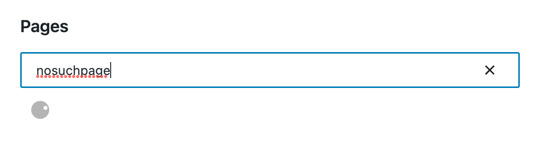
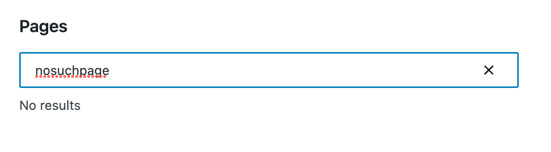
接下来做什么?
构建编辑表单
这一部分是关于为我们的应用添加编辑功能。以下是我们将要构建内容的预览:
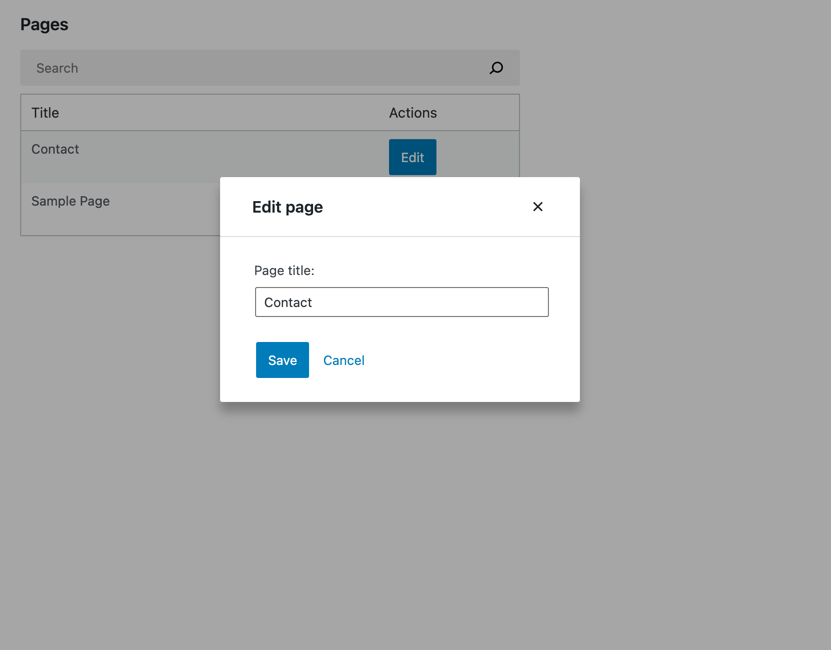
步骤 1:添加“编辑”按钮
没有“编辑”按钮就无法使用编辑表单,因此让我们从在 PagesList 组件中添加一个开始:
import { Button } from '@wordpress/components';
import { decodeEntities } from '@wordpress/html-entities';
const PageEditButton = () => (
<Button variant="primary">
Edit
</Button>
)
function PagesList( { hasResolved, pages } ) {
if ( ! hasResolved ) {
return <Spinner />;
}
if ( ! pages?.length ) {
return <div>No results</div>;
}
return (
<table className="wp-list-table widefat fixed striped table-view-list">
<thead>
<tr>
<td>Title</td>
<td style={{width: 120}}>Actions</td>
</tr>
</thead>
<tbody>
{ pages?.map( ( page ) => (
<tr key={page.id}>
<td>{ decodeEntities( page.title.rendered ) }</td>
<td>
<PageEditButton pageId={ page.id } />
</td>
</tr>
) ) }
</tbody>
</table>
);
}
PagesList 中唯一的更改是添加了标记为 Actions 的列:
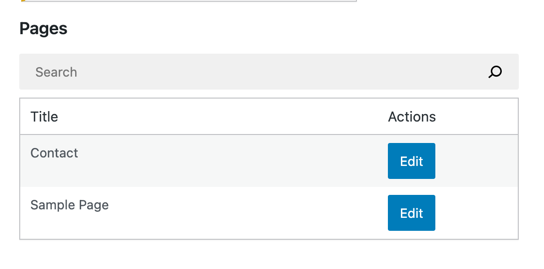
步骤 2:显示 编辑 表单
我们的按钮看起来不错,但还没有任何功能。要显示编辑表单,我们首先需要一个表单——让我们来创建它:
import { Button, TextControl } from '@wordpress/components';
function EditPageForm( { pageId, onCancel, onSaveFinished } ) {
return (
<div className="my-gutenberg-form">
<TextControl
__next40pxDefaultSize
value=''
label='Page title:'
/>
<div className="form-buttons">
<Button onClick={ onSaveFinished } variant="primary">
Save
</Button>
<Button onClick={ onCancel } variant="tertiary">
Cancel
</Button>
</div>
</div>
);
}
现在,让我们让按钮显示我们刚刚创建的表单。由于本教程不侧重于网页设计,我们将使用一个需要最少代码量的组件将两者连接起来:Modal。让我们相应地更新 PageEditButton:
import { Button, Modal, TextControl } from '@wordpress/components';
function PageEditButton({ pageId }) {
const [ isOpen, setOpen ] = useState( false );
const openModal = () => setOpen( true );
const closeModal = () => setOpen( false );
return (
<>
<Button
onClick={ openModal }
variant="primary"
>
Edit
</Button>
{ isOpen && (
<Modal onRequestClose={ closeModal } title="Edit page">
<EditPageForm
pageId={pageId}
onCancel={closeModal}
onSaveFinished={closeModal}
/>
</Modal>
) }
</>
)
}
现在当你点击 Edit 按钮时,应该会看到以下模态框:
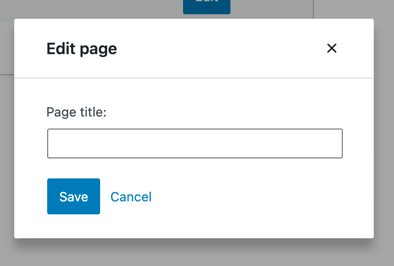
很好!我们现在有了一个基本的用户界面可以操作。
Step 3: Populate the form with page details
We want the EditPageForm to display the title of the currently edited page. You may have noticed that it doesn't receive a page prop, only pageId. That's okay. Gutenberg Data allows us to easily access entity records from any component.
In this case, we need to use the getEntityRecord selector. The list of records is already available thanks to the getEntityRecords call in MyFirstApp, so there won't even be any additional HTTP requests involved – we'll get the cached record right away.
Here's how you can try it in your browser's dev tools:
wp.data.select( 'core' ).getEntityRecord( 'postType', 'page', 9 ); // Replace 9 with an actual page ID
Let's update EditPageForm accordingly:
function EditPageForm( { pageId, onCancel, onSaveFinished } ) {
const page = useSelect(
select => select( coreDataStore ).getEntityRecord( 'postType', 'page', pageId ),
[pageId]
);
return (
<div className="my-gutenberg-form">
<TextControl
__next40pxDefaultSize
label='Page title:'
value={ page.title.rendered }
/>
{ /* ... */ }
</div>
);
}
Now it should look like this:
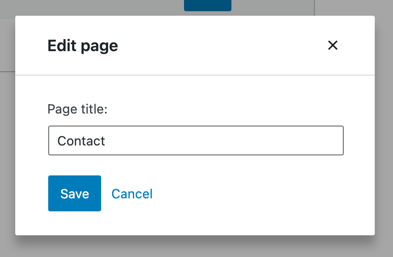
步骤 4:使页面标题字段可编辑
我们的 页面标题 字段存在一个问题:你无法编辑它。它接收一个固定的 value,但在输入时不会更新它。我们需要一个 onChange 处理函数。
你可能在其他 React 应用中见过类似的模式。它被称为 "受控组件":
function VanillaReactForm({ initialTitle }) {
const [title, setTitle] = useState( initialTitle );
return (
<TextControl
__next40pxDefaultSize
value={ title }
onChange={ setTitle }
/>
);
}
在 Gutenberg Data 中更新实体记录与此类似,但不是使用 setTitle 存储在本地(组件级别)状态,而是使用 editEntityRecord 操作,该操作将更新存储在 Redux 状态中。以下是如何在浏览器的开发者工具中尝试它:
// 我们需要一个有效的页面 ID 来调用 editEntityRecord,所以让我们使用 getEntityRecords 获取第一个可用的 ID。
const pageId = wp.data.select( 'core' ).getEntityRecords( 'postType', 'page' )[0].id;
// 更新标题
wp.data.dispatch( 'core' ).editEntityRecord( 'postType', 'page', pageId, { title: 'updated title' } );
此时,你可能会问 editEntityRecord 比 useState 好在哪里?答案是它提供了一些你无法通过其他方式获得的功能。
首先,我们可以像检索数据一样轻松地保存更改,并确保所有缓存都将正确更新。
其次,通过 editEntityRecord 应用的更改可以通过 undo 和 redo 操作轻松撤销。
最后,因为更改存在于 Redux 状态中,它们是“全局的”,可以被其他组件访问。例如,我们可以让 PagesList 显示当前正在编辑的标题。
关于最后一点,让我们看看当我们使用 getEntityRecord 访问刚刚更新的实体记录时会发生什么:
wp.data.select( 'core' ).getEntityRecord( 'postType', 'page', pageId ).title
它没有反映编辑内容。这是怎么回事?
嗯,<PagesList /> 渲染的是 getEntityRecord() 返回的数据。如果 getEntityRecord() 反映了更新后的标题,那么用户在 TextControl 中键入的任何内容也会立即显示在 <PagesList /> 中。这不是我们想要的。在用户决定保存之前,编辑内容不应泄漏到表单外部。
Gutenberg Data 通过区分 实体记录 和 已编辑的实体记录 来解决这个问题。实体记录 反映来自 API 的数据,忽略任何本地编辑,而 已编辑的实体记录 则在此基础上应用了所有本地编辑。两者同时存在于 Redux 状态中。
让我们看看如果调用 getEditedEntityRecord 会发生什么:
wp.data.select( 'core' ).getEditedEntityRecord( 'postType', 'page', pageId ).title
// "updated title"
wp.data.select( 'core' ).getEntityRecord( 'postType', 'page', pageId ).title // { "rendered": "<original, unchanged title>", "raw": "..." }
As you can see, the `title` of an Entity Record is an object, but the `title` of an Edited Entity record is a string.
This is no accident. Fields like `title`, `excerpt`, and `content` may contain [shortcodes](https://developer.wordpress.org/apis/handbook/shortcode/) or [dynamic blocks](/docs/how-to-guides/block-tutorial/creating-dynamic-blocks), which means they can only be rendered on the server. For such fields, the REST API exposes both the `raw` markup _and_ the `rendered` string. For example, in the block editor, `content.rendered` could used as a visual preview, and `content.raw` could be used to populate the code editor.
So why is the `content` of an Edited Entity Record a string? Since JavaScript is not be able to properly render arbitrary block markup, it stores only the `raw` markup without the `rendered` part. And since that's a string, the entire field becomes a string.
We can now update `EditPageForm` accordingly. We can access the actions using the [`useDispatch`](/packages/data/README#usedispatch) hook similarly to how we use `useSelect` to access selectors:
```js
import { useDispatch } from '@wordpress/data';
function EditPageForm( { pageId, onCancel, onSaveFinished } ) {
const page = useSelect(
select => select( coreDataStore ).getEditedEntityRecord( 'postType', 'page', pageId ),
[ pageId ]
);
const { editEntityRecord } = useDispatch( coreDataStore );
const handleChange = ( title ) => editEntityRecord( 'postType', 'page', pageId, { title } );
return (
<div className="my-gutenberg-form">
<TextControl
__next40pxDefaultSize
label="Page title:"
value={ page.title }
onChange={ handleChange }
/>
<div className="form-buttons">
<Button onClick={ onSaveFinished } variant="primary">
Save
</Button>
<Button onClick={ onCancel } variant="tertiary">
Cancel
</Button>
</div>
</div>
);
}
We added an onChange handler to keep track of edits via the editEntityRecord action and then changed the selector to getEditedEntityRecord so that page.title always reflects the changes.
This is what it looks like now:
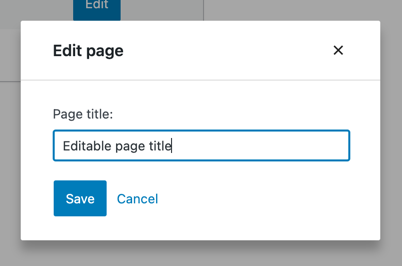
步骤 5:保存表单数据
现在我们已经可以编辑页面标题,接下来还需要确保能够保存它。在 Gutenberg 数据系统中,我们使用 saveEditedEntityRecord 操作将更改保存到 WordPress REST API。它会发送请求、处理结果,并更新 Redux 状态中的缓存数据。
你可以在浏览器的开发者工具中尝试以下示例:
// 将 9 替换为实际的页面 ID
wp.data.dispatch( 'core' ).editEntityRecord( 'postType', 'page', 9, { title: 'updated title' } );
wp.data.dispatch( 'core' ).saveEditedEntityRecord( 'postType', 'page', 9 );
以上代码片段保存了一个新标题。与之前不同,现在 getEntityRecord 会反映出更新后的标题:
// 将 9 替换为实际的页面 ID
wp.data.select( 'core' ).getEntityRecord( 'postType', 'page', 9 ).title.rendered
// "updated title"
实体记录会在 REST API 请求完成后立即更新,以反映所有已保存的更改。
这是带有可用保存按钮的 EditPageForm 组件:
function EditPageForm( { pageId, onCancel, onSaveFinished } ) {
// ...
const { saveEditedEntityRecord } = useDispatch( coreDataStore );
const handleSave = () => saveEditedEntityRecord( 'postType', 'page', pageId );
return (
<div className="my-gutenberg-form">
{/* ... */}
<div className="form-buttons">
<Button onClick={ handleSave } variant="primary">
Save
</Button>
{/* ... */}
</div>
</div>
);
}
它已经可以工作,但还有一个问题需要修复:表单模态框不会自动关闭,因为我们从未调用 onSaveFinished。幸运的是,saveEditedEntityRecord 返回一个 Promise,该 Promise 会在保存操作完成后解析。让我们在 EditPageForm 中利用这一点:
function EditPageForm( { pageId, onCancel, onSaveFinished } ) {
// ...
const handleSave = async () => {
await saveEditedEntityRecord( 'postType', 'page', pageId );
onSaveFinished();
};
// ...
}
Step 6: Handle errors
We optimistically assumed that a save operation would always succeed. Unfortunately, it may fail in many ways:
- The website can be down
- The update may be invalid
- The page could have been deleted by someone else in the meantime
To tell the user when any of these happens, we have to make two adjustments. We don't want to close the form modal when the update fails. The promise returned by saveEditedEntityRecord is resolved with an updated record only if the update actually worked. When something goes wrong, it resolves with an empty value. Let's use it to keep the modal open:
function EditPageForm( { pageId, onSaveFinished } ) {
// ...
const handleSave = async () => {
const updatedRecord = await saveEditedEntityRecord( 'postType', 'page', pageId );
if ( updatedRecord ) {
onSaveFinished();
}
};
// ...
}
Great! Now, let's display an error message. The failure details can be grabbed using the getLastEntitySaveError selector:
// Replace 9 with an actual page ID
wp.data.select( 'core' ).getLastEntitySaveError( 'postType', 'page', 9 )
Here's how we can use it in EditPageForm:
function EditPageForm( { pageId, onSaveFinished } ) {
// ...
const { lastError, page } = useSelect(
select => ({
page: select( coreDataStore ).getEditedEntityRecord( 'postType', 'page', pageId ),
lastError: select( coreDataStore ).getLastEntitySaveError( 'postType', 'page', pageId )
}),
[ pageId ]
)
// ...
return (
<div className="my-gutenberg-form">
{/* ... */}
{ lastError ? (
<div className="form-error">
Error: { lastError.message }
</div>
) : false }
{/* ... */}
</div>
);
}
Great! EditPageForm is now fully aware of errors.
Let's see that error message in action. We'll trigger an invalid update and let it fail. The post title is hard to break, so let's set a date property to -1 instead – that's a guaranteed validation error:
function EditPageForm( { pageId, onCancel, onSaveFinished } ) {
// ...
const handleChange = ( title ) => editEntityRecord( 'postType', 'page', pageId, { title, date: -1 } );
// ...
}
Once you refresh the page, open the form, change the title, and hit save, you should see the following error message:
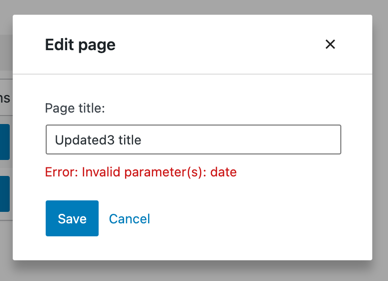
Fantastic! We can now restore the previous version of handleChange and move on to the next step.
步骤 7:状态指示器
我们的表单还存在最后一个问题:缺乏视觉反馈。在表单消失或显示错误消息之前,我们无法完全确定保存按钮是否生效。
我们将解决这个问题,并向用户传达两种状态:保存中_和_未检测到更改。相关的选择器是 isSavingEntityRecord 和 hasEditsForEntityRecord。与 getEntityRecord 不同,它们从不发出任何 HTTP 请求,只返回当前实体记录的状态。
让我们在 EditPageForm 中使用它们:
function EditPageForm( { pageId, onSaveFinished } ) {
// ...
const { isSaving, hasEdits, /* ... */ } = useSelect(
select => ({
isSaving: select( coreDataStore ).isSavingEntityRecord( 'postType', 'page', pageId ),
hasEdits: select( coreDataStore ).hasEditsForEntityRecord( 'postType', 'page', pageId ),
// ...
}),
[ pageId ]
)
}
现在我们可以使用 isSaving 和 hasEdits 在保存进行时显示加载动画,并在没有编辑时使保存按钮变灰:
function EditPageForm( { pageId, onSaveFinished } ) {
// ...
return (
// ...
<div className="form-buttons">
<Button onClick={ handleSave } variant="primary" disabled={ ! hasEdits || isSaving }>
{ isSaving ? (
<>
<Spinner/>
Saving
</>
) : 'Save' }
</Button>
<Button
onClick={ onCancel }
variant="tertiary"
disabled={ isSaving }
>
Cancel
</Button>
</div>
// ...
);
}
请注意,当没有编辑或页面当前正在保存时,我们会禁用保存按钮。这是为了防止用户意外地多次按下按钮。
此外,@wordpress/data 不支持中断正在进行的保存操作,因此我们也根据条件禁用了取消按钮。
以下是实际效果:
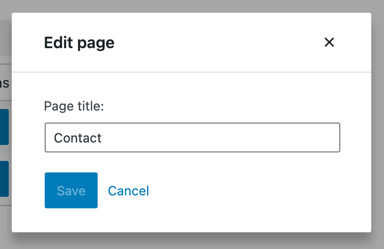
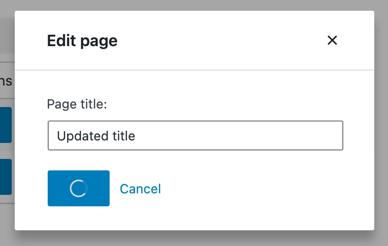
Wiring it all together
All the pieces are in place, great! Here’s everything we built in this chapter in one place:
import { useDispatch } from '@wordpress/data';
import { Button, Modal, TextControl } from '@wordpress/components';
function PageEditButton( { pageId } ) {
const [ isOpen, setOpen ] = useState( false );
const openModal = () => setOpen( true );
const closeModal = () => setOpen( false );
return (
<>
<Button onClick={ openModal } variant="primary">
Edit
</Button>
{ isOpen && (
<Modal onRequestClose={ closeModal } title="Edit page">
<EditPageForm
pageId={ pageId }
onCancel={ closeModal }
onSaveFinished={ closeModal }
/>
</Modal>
) }
</>
);
}
function EditPageForm( { pageId, onCancel, onSaveFinished } ) {
const { page, lastError, isSaving, hasEdits } = useSelect(
( select ) => ( {
page: select( coreDataStore ).getEditedEntityRecord( 'postType', 'page', pageId ),
lastError: select( coreDataStore ).getLastEntitySaveError( 'postType', 'page', pageId ),
isSaving: select( coreDataStore ).isSavingEntityRecord( 'postType', 'page', pageId ),
hasEdits: select( coreDataStore ).hasEditsForEntityRecord( 'postType', 'page', pageId ),
} ),
[ pageId ]
);
const { saveEditedEntityRecord, editEntityRecord } = useDispatch( coreDataStore );
const handleSave = async () => {
const savedRecord = await saveEditedEntityRecord( 'postType', 'page', pageId );
if ( savedRecord ) {
onSaveFinished();
}
};
const handleChange = ( title ) => editEntityRecord( 'postType', 'page', page.id, { title } );
return (
<div className="my-gutenberg-form">
<TextControl
__next40pxDefaultSize
label="Page title:"
value={ page.title }
onChange={ handleChange }
/>
{ lastError ? (
<div className="form-error">Error: { lastError.message }</div>
) : (
false
) }
<div className="form-buttons">
<Button
onClick={ handleSave }
variant="primary"
disabled={ ! hasEdits || isSaving }
>
{ isSaving ? (
<>
<Spinner/>
Saving
</>
) : 'Save' }
</Button>
<Button
onClick={ onCancel }
variant="tertiary"
disabled={ isSaving }
>
Cancel
</Button>
</div>
</div>
);
}
接下来做什么?
构建创建页面表单
在上一章节中我们创建了编辑页面功能,本章节我们将添加创建页面功能。以下是我们即将构建内容的预览:
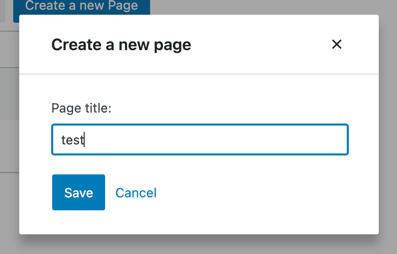
Step 1: Add a Create a new page button
Let’s start by building a button to display the create page form. It’s similar to an Edit button we have built in the part 3:
import { useDispatch } from '@wordpress/data';
import { Button, Modal, TextControl } from '@wordpress/components';
function CreatePageButton() {
const [isOpen, setOpen] = useState( false );
const openModal = () => setOpen( true );
const closeModal = () => setOpen( false );
return (
<>
<Button onClick={ openModal } variant="primary">
Create a new Page
</Button>
{ isOpen && (
<Modal onRequestClose={ closeModal } title="Create a new page">
<CreatePageForm
onCancel={ closeModal }
onSaveFinished={ closeModal }
/>
</Modal>
) }
</>
);
}
function CreatePageForm() {
// Empty for now
return <div/>;
}
Great! Now let’s make MyFirstApp display our shiny new button:
function MyFirstApp() {
// ...
return (
<div>
<div className="list-controls">
<SearchControl onChange={ setSearchTerm } value={ searchTerm }/>
<CreatePageButton/>
</div>
<PagesList hasResolved={ hasResolved } pages={ pages }/>
</div>
);
}
The final result should look as follows:
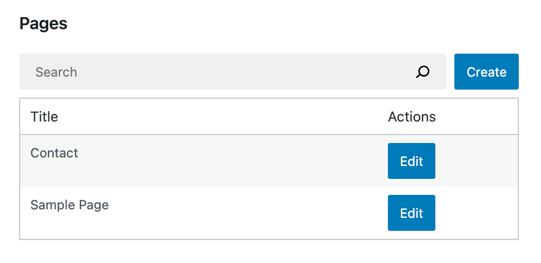
Step 2: Extract a controlled PageForm
Luckily, the EditPageForm we built in part three already takes us 80% of the way there. The bulk of the user interface is already available, and we will reuse it in the CreatePageForm. Let’s start by extracting the form UI into a separate component:
function EditPageForm( { pageId, onCancel, onSaveFinished } ) {
// ...
return (
<PageForm
title={ page.title }
onChangeTitle={ handleChange }
hasEdits={ hasEdits }
lastError={ lastError }
isSaving={ isSaving }
onCancel={ onCancel }
onSave={ handleSave }
/>
);
}
function PageForm( { title, onChangeTitle, hasEdits, lastError, isSaving, onCancel, onSave } ) {
return (
<div className="my-gutenberg-form">
<TextControl
__next40pxDefaultSize
label="Page title:"
value={ title }
onChange={ onChangeTitle }
/>
{ lastError ? (
<div className="form-error">Error: { lastError.message }</div>
) : (
false
) }
<div className="form-buttons">
<Button
onClick={ onSave }
variant="primary"
disabled={ !hasEdits || isSaving }
>
{ isSaving ? (
<>
<Spinner/>
Saving
</>
) : 'Save' }
</Button>
<Button
onClick={ onCancel }
variant="tertiary"
disabled={ isSaving }
>
Cancel
</Button>
</div>
</div>
);
}
This code quality change should not alter anything about how the application works. Let’s try to edit a page just to be sure:
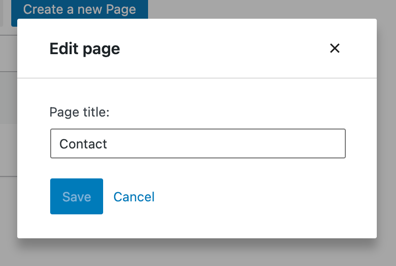
Great! The edit form is still there, and now we have a building block to power the new CreatePageForm.
步骤 3:构建 CreatePageForm 组件
CreatePageForm 组件只需提供渲染 PageForm 组件所需的以下七个属性:
- title
- onChangeTitle
- hasEdits
- lastError
- isSaving
- onCancel
- onSave
接下来我们看看如何实现:
Title、onChangeTitle、hasEdits
EditPageForm 更新并保存了存在于 Redux 状态中的现有实体记录。因此,我们依赖 editedEntityRecords 选择器。
然而,对于 CreatePageForm 来说,不存在预先存在的实体记录。只有一个空表单。用户输入的任何内容都仅属于该表单本地,这意味着我们可以使用 React 的 useState 钩子来跟踪它:
function CreatePageForm( { onCancel, onSaveFinished } ) {
const [title, setTitle] = useState();
const handleChange = ( title ) => setTitle( title );
return (
<PageForm
title={ title }
onChangeTitle={ setTitle }
hasEdits={ !!title }
{ /* ... */ }
/>
);
}
onSave, onCancel
在 EditPageForm 中,我们调用了 saveEditedEntityRecord('postType', 'page', pageId ) 操作来保存 Redux 状态中的编辑内容。
然而,在 CreatePageForm 中,Redux 状态中没有任何编辑内容,我们也没有 pageId。在这种情况下,我们需要调用的操作名为 saveEntityRecord(名称中没有 Edited 这个词),它接受一个代表新实体记录的对象,而不是 pageId。
传递给 saveEntityRecord 的数据会通过 POST 请求发送到相应的 REST API 端点。例如,调度以下操作:
saveEntityRecord( 'postType', 'page', { title: "Test" } );
会触发一个 POST 请求到 /wp/v2/pages WordPress REST API 端点,请求体中只有一个字段:title=Test。
现在我们对 saveEntityRecord 有了更多了解,让我们在 CreatePageForm 中使用它。
function CreatePageForm( { onSaveFinished, onCancel } ) {
// ...
const { saveEntityRecord } = useDispatch( coreDataStore );
const handleSave = async () => {
const savedRecord = await saveEntityRecord(
'postType',
'page',
{ title }
);
if ( savedRecord ) {
onSaveFinished();
}
};
return (
<PageForm
{ /* ... */ }
onSave={ handleSave }
onCancel={ onCancel }
/>
);
}
还有一个细节需要处理:我们新创建的页面尚未被 PagesList 获取。根据 REST API 文档,/wp/v2/pages 端点默认创建(POST 请求)状态为 status=draft 的页面,但返回(GET 请求)状态为 status=publish 的页面。解决方案是显式传递 status 参数:
function CreatePageForm( { onSaveFinished, onCancel } ) {
// ...
const { saveEntityRecord } = useDispatch( coreDataStore );
const handleSave = async () => {
const savedRecord = await saveEntityRecord(
'postType',
'page',
{ title, status: 'publish' }
);
if ( savedRecord ) {
onSaveFinished();
}
};
return (
<PageForm
{ /* ... */ }
onSave={ handleSave }
onCancel={ onCancel }
/>
);
}
请继续将此更改应用到本地的 CreatePageForm 组件中,接下来我们来处理剩下的两个属性。
lastError, isSaving
The EditPageForm retrieved the error and progress information via the getLastEntitySaveError and isSavingEntityRecord selectors. In both cases, it passed the following three arguments: ( 'postType', 'page', pageId ).
In CreatePageForm however, we do not have a pageId. What now? We can skip the pageId argument to retrieve the information about the entity record without any id – this will be the newly created one. The useSelect call is thus very similar to the one from EditPageForm:
function CreatePageForm( { onCancel, onSaveFinished } ) {
// ...
const { lastError, isSaving } = useSelect(
( select ) => ( {
// Notice the missing pageId argument:
lastError: select( coreDataStore )
.getLastEntitySaveError( 'postType', 'page' ),
// Notice the missing pageId argument
isSaving: select( coreDataStore )
.isSavingEntityRecord( 'postType', 'page' ),
} ),
[]
);
// ...
return (
<PageForm
{ /* ... */ }
lastError={ lastError }
isSaving={ isSaving }
/>
);
}
And that’s it! Here's what our new form looks like in action:
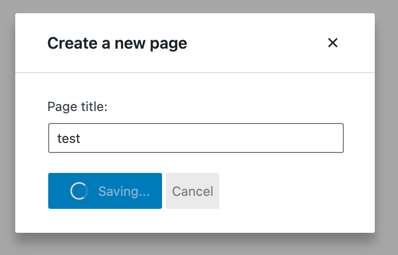
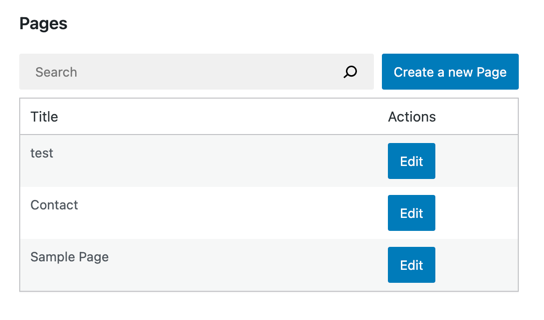
Wiring it all together
Here’s everything we built in this chapter in one place:
function CreatePageForm( { onCancel, onSaveFinished } ) {
const [title, setTitle] = useState();
const { lastError, isSaving } = useSelect(
( select ) => ( {
lastError: select( coreDataStore )
.getLastEntitySaveError( 'postType', 'page' ),
isSaving: select( coreDataStore )
.isSavingEntityRecord( 'postType', 'page' ),
} ),
[]
);
const { saveEntityRecord } = useDispatch( coreDataStore );
const handleSave = async () => {
const savedRecord = await saveEntityRecord(
'postType',
'page',
{ title, status: 'publish' }
);
if ( savedRecord ) {
onSaveFinished();
}
};
return (
<PageForm
title={ title }
onChangeTitle={ setTitle }
hasEdits={ !!title }
onSave={ handleSave }
lastError={ lastError }
onCancel={ onCancel }
isSaving={ isSaving }
/>
);
}
function EditPageForm( { pageId, onCancel, onSaveFinished } ) {
const { page, lastError, isSaving, hasEdits } = useSelect(
( select ) => ( {
page: select( coreDataStore ).getEditedEntityRecord( 'postType', 'page', pageId ),
lastError: select( coreDataStore ).getLastEntitySaveError( 'postType', 'page', pageId ),
isSaving: select( coreDataStore ).isSavingEntityRecord( 'postType', 'page', pageId ),
hasEdits: select( coreDataStore ).hasEditsForEntityRecord( 'postType', 'page', pageId ),
} ),
[pageId]
);
const { saveEditedEntityRecord, editEntityRecord } = useDispatch( coreDataStore );
const handleSave = async () => {
const savedRecord = await saveEditedEntityRecord( 'postType', 'page', pageId );
if ( savedRecord ) {
onSaveFinished();
}
};
const handleChange = ( title ) => editEntityRecord( 'postType', 'page', page.id, { title } );
return (
<PageForm
title={ page.title }
onChangeTitle={ handleChange }
hasEdits={ hasEdits }
lastError={ lastError }
isSaving={ isSaving }
onCancel={ onCancel }
onSave={ handleSave }
/>
);
}
function PageForm( { title, onChangeTitle, hasEdits, lastError, isSaving, onCancel, onSave } ) {
return (
<div className="my-gutenberg-form">
<TextControl
__next40pxDefaultSize
label="Page title:"
value={ title }
onChange={ onChangeTitle }
/>
{ lastError ? (
<div className="form-error">Error: { lastError.message }</div>
) : (
false
) }
<div className="form-buttons">
<Button
onClick={ onSave }
variant="primary"
disabled={ !hasEdits || isSaving }
>
{ isSaving ? (
<>
<Spinner/>
Saving
</>
) : 'Save' }
</Button>
<Button
onClick={ onCancel }
variant="tertiary"
disabled={ isSaving }
>
Cancel
</Button>
</div>
</div>
);
}
All that’s left is to refresh the page and enjoy the form:
下一步做什么?
添加删除按钮
在上一章节中,我们实现了创建新页面的功能, 现在我们将为应用添加删除功能。
以下是我们即将实现的效果预览:
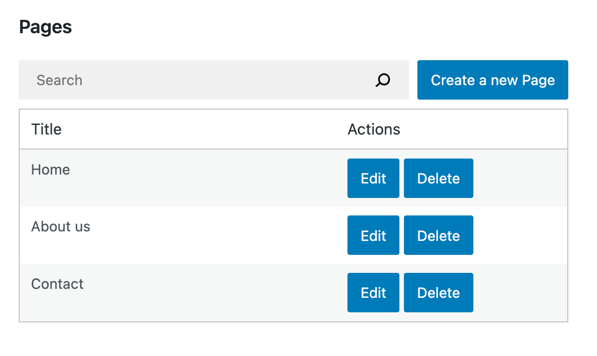
Step 1: Add a Delete button
Let's start by creating the DeletePageButton component and updating the user interface of our PagesList component:
import { Button } from '@wordpress/components';
import { decodeEntities } from '@wordpress/html-entities';
const DeletePageButton = () => (
<Button variant="primary">
Delete
</Button>
)
function PagesList( { hasResolved, pages } ) {
if ( ! hasResolved ) {
return <Spinner />;
}
if ( ! pages?.length ) {
return <div>No results</div>;
}
return (
<table className="wp-list-table widefat fixed striped table-view-list">
<thead>
<tr>
<td>Title</td>
<td style={{width: 190}}>Actions</td>
</tr>
</thead>
<tbody>
{ pages?.map( ( page ) => (
<tr key={page.id}>
<td>{ decodeEntities( page.title.rendered ) }</td>
<td>
<div className="form-buttons">
<PageEditButton pageId={ page.id } />
{/* ↓ This is the only change in the PagesList component */}
<DeletePageButton pageId={ page.id }/>
</div>
</td>
</tr>
) ) }
</tbody>
</table>
);
}
This is what the PagesList should look like now:
步骤 2:将按钮连接到删除操作
在 Gutenberg 数据系统中,我们使用 deleteEntityRecord 操作从 WordPress REST API 中删除实体记录。该操作会发送请求、处理结果,并更新 Redux 状态中的缓存数据。
以下是如何在浏览器开发者工具中尝试删除实体记录的方法:
// 我们需要一个有效的页面 ID 来调用 deleteEntityRecord,所以先使用 getEntityRecords 获取第一个可用的页面 ID。
const pageId = wp.data.select( 'core' ).getEntityRecords( 'postType', 'page' )[0].id;
// 现在删除该页面:
const promise = wp.data.dispatch( 'core' ).deleteEntityRecord( 'postType', 'page', pageId );
// 当 API 请求成功或失败时,promise 会被 resolve 或 reject。
REST API 请求完成后,你会注意到列表中有一个页面消失了。这是因为该列表是由 useSelect() 钩子和 select( coreDataStore ).getEntityRecords( 'postType', 'page' ) 选择器填充的。每当底层数据发生变化时,列表都会用新数据重新渲染。这非常方便!
让我们在点击 DeletePageButton 时派发该操作:
const DeletePageButton = ({ pageId }) => {
const { deleteEntityRecord } = useDispatch( coreDataStore );
const handleDelete = () => deleteEntityRecord( 'postType', 'page', pageId );
return (
<Button variant="primary" onClick={ handleDelete }>
Delete
</Button>
);
}
Step 3: Add visual feedback
It may take a few moments for the REST API request to finish after clicking the Delete button. Let's communicate that with a <Spinner /> component similarly to what we did in the previous parts of this tutorial.
We'll need the isDeletingEntityRecord selector for that. It is similar to the isSavingEntityRecord selector we've already seen in part 3: it returns true or false and never issues any HTTP requests:
const DeletePageButton = ({ pageId }) => {
// ...
const { isDeleting } = useSelect(
select => ({
isDeleting: select( coreDataStore ).isDeletingEntityRecord( 'postType', 'page', pageId ),
}),
[ pageId ]
)
return (
<Button variant="primary" onClick={ handleDelete } disabled={ isDeleting }>
{ isDeleting ? (
<>
<Spinner />
Deleting...
</>
) : 'Delete' }
</Button>
);
}
Here's what it looks like in action:
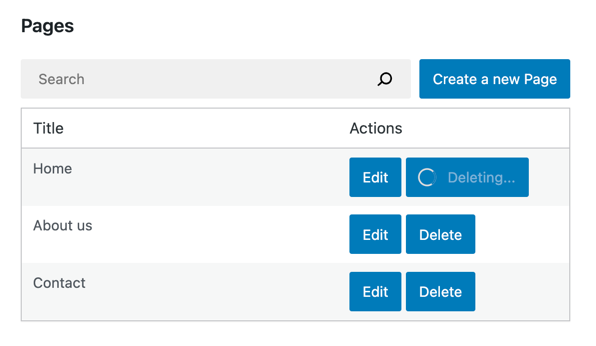
Step 4: Handle errors
We optimistically assumed that a delete operation would always succeed. Unfortunately, under the hood, it is a REST API request that can fail in many ways:
- The website can be down.
- The delete request may be invalid.
- The page could have been deleted by someone else in the meantime.
To tell the user when any of these errors happen, we need to extract the error information using the getLastEntityDeleteError selector:
// Replace 9 with an actual page ID
wp.data.select( 'core' ).getLastEntityDeleteError( 'postType', 'page', 9 )
Here's how we can apply it in DeletePageButton:
import { useEffect } from 'react';
const DeletePageButton = ({ pageId }) => {
// ...
const { error, /* ... */ } = useSelect(
select => ( {
error: select( coreDataStore ).getLastEntityDeleteError( 'postType', 'page', pageId ),
// ...
} ),
[pageId]
);
useEffect( () => {
if ( error ) {
// Display the error
}
}, [error] )
// ...
}
The error object comes from the @wordpress/api-fetch and contains information about the error. It has the following properties:
message– a human-readable error message such asInvalid post ID.code– a string-based error code such asrest_post_invalid_id. To learn about all possible error codes you'd need to refer to the/v2/pagesendpoint's source code.data(optional) – error details, contains thecodeproperty containing the HTTP response code for the failed request.
There are many ways to turn that object into an error message, but in this tutorial, we will display the error.message.
WordPress has an established pattern of displaying status information using the Snackbar component. Here's what it looks like in the Widgets editor:
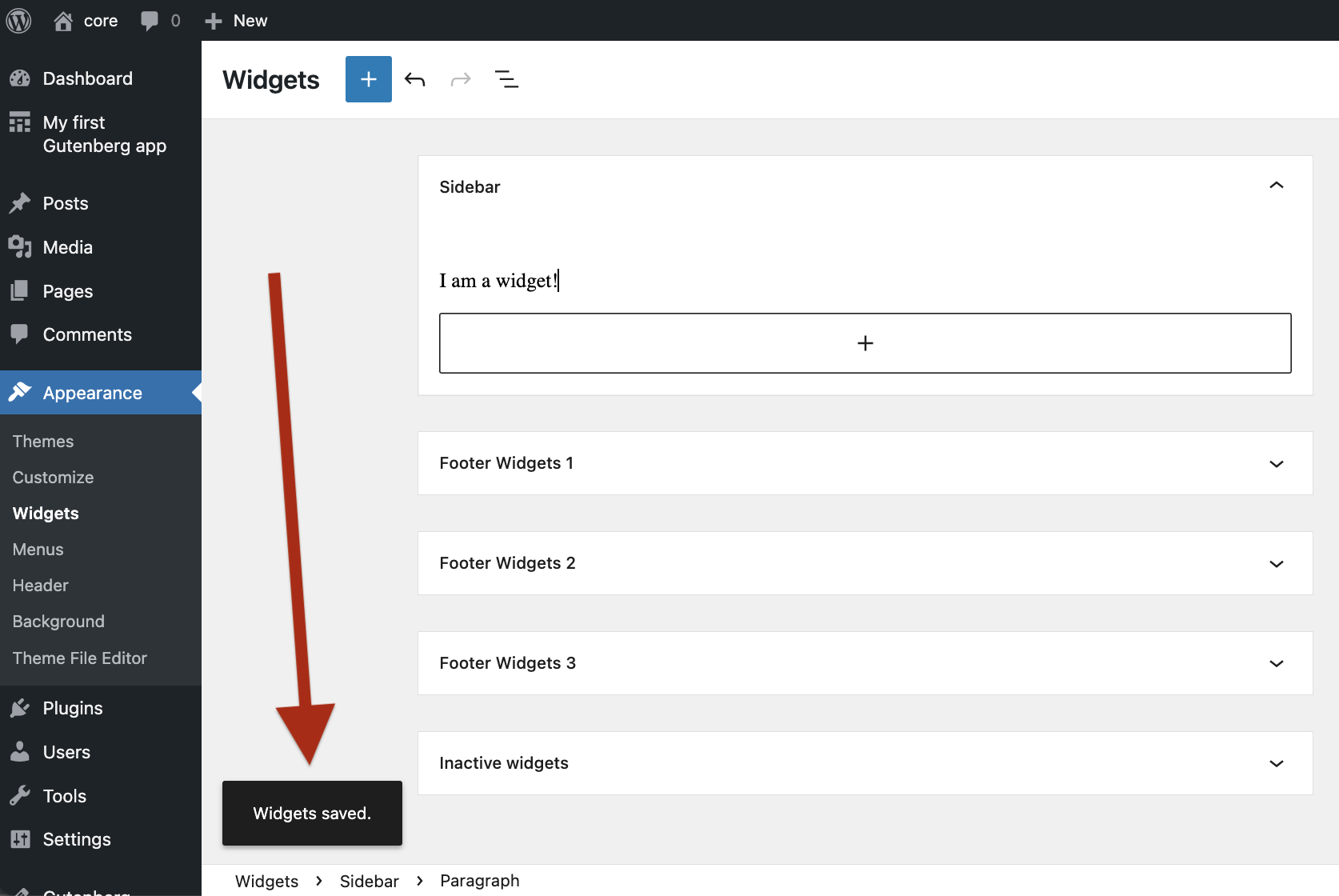
Let's use the same type of notifications in our plugin! There are two parts to this:
- Displaying notifications
- Dispatching notifications
显示通知
我们的应用目前只知道如何显示页面,但还不懂如何显示通知。让我们来教它!
WordPress 很贴心地为我们提供了渲染通知所需的所有 React 组件。其中有一个名为 Snackbar 的组件,它代表单个通知:

不过,我们不会直接使用 Snackbar。我们将使用 @wordpress/notices 中的 SnackbarNotices,它能够通过流畅的动画显示多个通知,并在几秒钟后自动隐藏它们。事实上,WordPress 在小工具编辑器和其他 wp-admin 页面中使用的也是同一个组件!
让我们创建自己的 Notifications 组件:
import { SnackbarNotices } from '@wordpress/notices';
function Notifications() {
return <SnackbarNotices className="notifications__snackbar" />;
}
基本结构已经就位。SnackbarNotices 会自动从通知存储中读取数据,所以你只需要在应用中渲染它一次:
function MyFirstApp() {
// ...
return (
<div>
{/* ... */}
<Notifications />
</div>
);
}
本教程主要关注页面管理,不会详细讨论上述代码片段。如果你对 @wordpress/notices 的细节感兴趣,手册页面是一个很好的起点。
现在我们已经准备好告知用户可能发生的任何错误了。
Dispatching notifications
With the SnackbarNotices component in place, we're ready to dispatch some notifications! Here's how:
import { useEffect } from 'react';
import { store as noticesStore } from '@wordpress/notices';
function DeletePageButton( { pageId } ) {
const { createSuccessNotice, createErrorNotice } = useDispatch( noticesStore );
// useSelect returns a list of selectors if you pass the store handle
// instead of a callback:
const { getLastEntityDeleteError } = useSelect( coreDataStore )
const handleDelete = async () => {
const success = await deleteEntityRecord( 'postType', 'page', pageId);
if ( success ) {
// Tell the user the operation succeeded:
createSuccessNotice( "The page was deleted!", {
type: 'snackbar',
} );
} else {
// We use the selector directly to get the fresh error *after* the deleteEntityRecord
// have failed.
const lastError = getLastEntityDeleteError( 'postType', 'page', pageId );
const message = ( lastError?.message || 'There was an error.' ) + ' Please refresh the page and try again.'
// Tell the user how exactly the operation has failed:
createErrorNotice( message, {
type: 'snackbar',
} );
}
}
// ...
}
Great! DeletePageButton is now fully aware of errors. Let's see that error message in action. We'll trigger an invalid delete and let it fail. One way to do this is to multiply the pageId by a large number:
function DeletePageButton( { pageId, onCancel, onSaveFinished } ) {
pageId = pageId * 1000;
// ...
}
Once you refresh the page and click any Delete button, you should see the following error message:
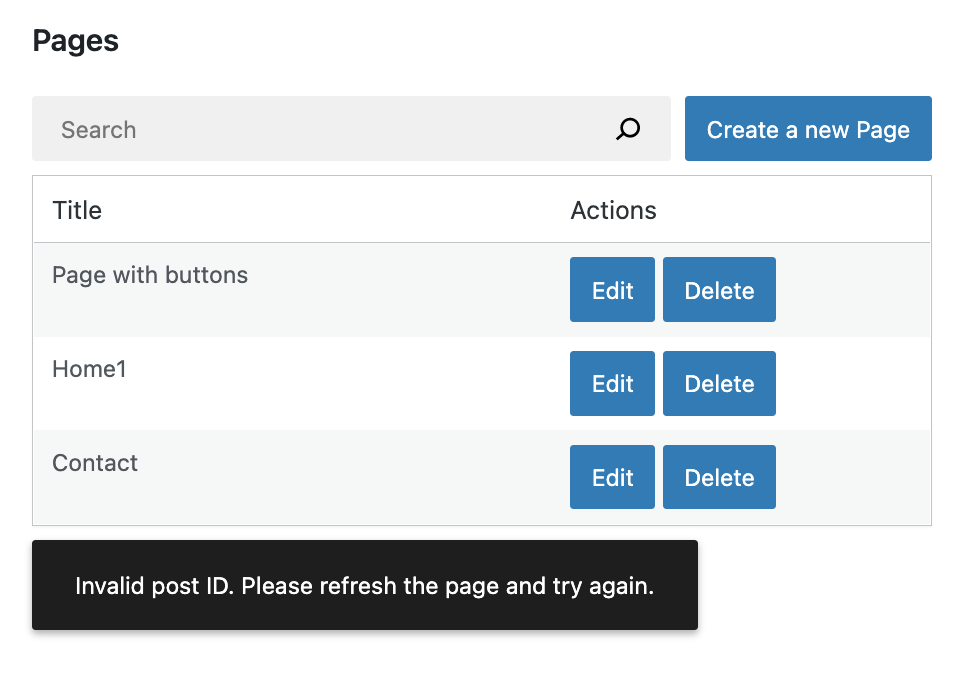
Fantastic! We can now remove the pageId = pageId * 1000; line.
Let's now try actually deleting a page. Here's what you should see after refreshing your browser and clicking the Delete button:
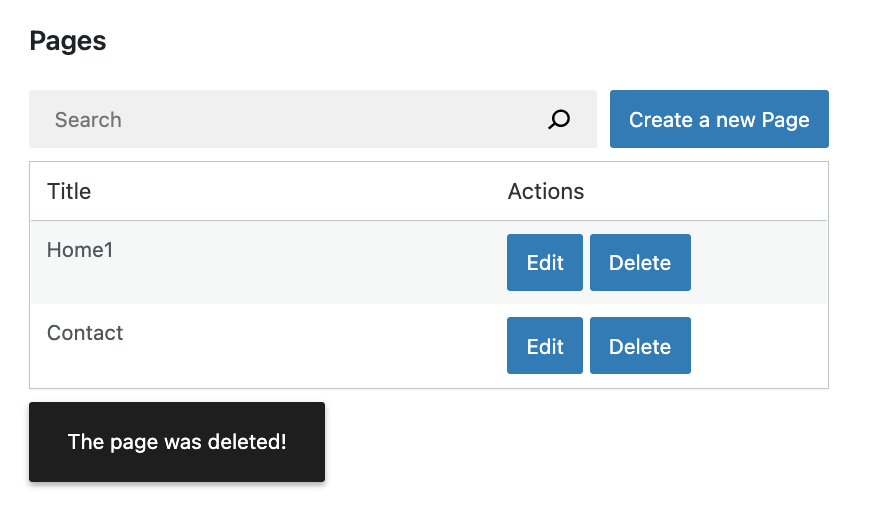
And that's it!
整合所有组件
所有组件都已就位,太棒了!以下是我们在本章中做出的所有更改:
import { useState, useEffect } from 'react';
import { useSelect, useDispatch } from '@wordpress/data';
import { Button, Modal, TextControl } from '@wordpress/components';
function MyFirstApp() {
const [searchTerm, setSearchTerm] = useState( '' );
const { pages, hasResolved } = useSelect(
( select ) => {
const query = {};
if ( searchTerm ) {
query.search = searchTerm;
}
const selectorArgs = ['postType', 'page', query];
const pages = select( coreDataStore ).getEntityRecords( ...selectorArgs );
return {
pages,
hasResolved: select( coreDataStore ).hasFinishedResolution(
'getEntityRecords',
selectorArgs,
),
};
},
[searchTerm],
);
return (
<div>
<div className="list-controls">
<SearchControl onChange={ setSearchTerm } value={ searchTerm }/>
<PageCreateButton/>
</div>
<PagesList hasResolved={ hasResolved } pages={ pages }/>
<Notifications />
</div>
);
}
function Notifications() {
return <SnackbarNotices className="notifications__snackbar" />;
}
function PagesList( { hasResolved, pages } ) {
if ( !hasResolved ) {
return <Spinner/>;
}
if ( !pages?.length ) {
return <div>No results</div>;
}
return (
<table className="wp-list-table widefat fixed striped table-view-list">
<thead>
<tr>
<td>Title</td>
<td style={ { width: 190 } }>Actions</td>
</tr>
</thead>
<tbody>
{ pages?.map( ( page ) => (
<tr key={ page.id }>
<td>{ page.title.rendered }</td>
<td>
<div className="form-buttons">
<PageEditButton pageId={ page.id }/>
<DeletePageButton pageId={ page.id }/>
</div>
</td>
</tr>
) ) }
</tbody>
</table>
);
}
function DeletePageButton( { pageId } ) { const { createSuccessNotice, createErrorNotice } = useDispatch( noticesStore ); // useSelect returns a list of selectors if you pass the store handle // instead of a callback: const { getLastEntityDeleteError } = useSelect( coreDataStore ) const handleDelete = async () => { const success = await deleteEntityRecord( 'postType', 'page', pageId); if ( success ) { // Tell the user the operation succeeded: createSuccessNotice( "The page was deleted!", { type: 'snackbar', } ); } else { // We use the selector directly to get the error at this point in time. // Imagine we fetched the error like this: // const { lastError } = useSelect( function() { /* ... */ } ); // Then, lastError would be null inside of handleDelete. // Why? Because we'd refer to the version of it that was computed // before the handleDelete was even called. const lastError = getLastEntityDeleteError( 'postType', 'page', pageId ); const message = ( lastError?.message || 'There was an error.' ) + ' Please refresh the page and try again.' // Tell the user how exactly the operation have failed: createErrorNotice( message, { type: 'snackbar', } ); } }
const { deleteEntityRecord } = useDispatch( coreDataStore );
const { isDeleting } = useSelect(
select => ( {
isDeleting: select( coreDataStore ).isDeletingEntityRecord( 'postType', 'page', pageId ),
} ),
[ pageId ]
);
return (
<Button variant="primary" onClick={ handleDelete } disabled={ isDeleting }>
{ isDeleting ? (
<>
<Spinner />
Deleting...
</>
) : 'Delete' }
</Button>
);
}
## 接下来做什么?
* **上一部分:** [构建*创建页面表单*](/docs/how-to-guides/data-basics/4-building-a-create-page-form)
* (可选)在 block-development-examples 仓库中查看[已完成的应用](https://github.com/WordPress/block-development-examples/tree/trunk/plugins/data-basics-59c8f8)
构建自定义区块编辑器
WordPress 区块编辑器是一款强大的工具,允许您以多种方式创建和格式化内容。它部分由 @wordpress/block-editor 包驱动,这是一个提供编辑器核心功能的 JavaScript 库。
该包也可用于为几乎任何其他 Web 应用程序创建自定义区块编辑器。这意味着您可以在 WordPress 之外使用相同的区块和区块编辑体验。

这种灵活性和互操作性使区块成为跨多个应用程序构建和管理内容的强大工具。它也使开发人员能够更轻松地创建最适合其用户的内容编辑器。
简介
Gutenberg 代码库包含众多包和组件,初看可能令人望而生畏。但其核心始终围绕着管理和编辑区块。因此,若想在编辑器上开展工作,从基础层面理解区块编辑的工作原理至关重要。
本指南将引导您在 WordPress 内构建一个功能完整的自定义区块编辑器“实例”。在此过程中,我们将向您介绍关键的包和组件,以便您了解区块编辑器在底层是如何运作的。
阅读完本文后,您将对区块编辑器的内部机制有扎实的理解,并能顺利创建自己的区块编辑器实例。
代码语法
本指南中的代码片段使用 JSX 语法。当然,您也可以选择使用原生 JavaScript。不过,许多开发者在熟悉 JSX 后,会发现其更易于阅读和编写,因此区块编辑器手册中的所有代码示例均采用此语法。
你将构建什么
在本指南中,你将创建一个(几乎)功能完整的区块编辑器实例。最终效果将类似于:
虽然看起来相似,但这个编辑器并非你在 WordPress 中创建文章和页面时熟悉的区块编辑器。相反,它将是一个完全自定义的实例,位于名为“区块编辑器”的自定义 WordPress 管理页面中。
该编辑器将具备以下功能:
- 能够添加和编辑所有核心区块。
- 熟悉的视觉样式和主界面/侧边栏布局。
- 页面重新加载时区块的基本持久化保存。
Plugin setup and organization
The custom editor is going to be built as a WordPress plugin. To keep things simple, the plugin will be named Standalone Block Editor Demo because that is what it does.
The plugin file structure will look like this:

Here is a brief summary of what's going on:
plugin.php– Standard plugin "entry" file with comment meta data, which requiresinit.php.init.php- Handles the initialization of the main plugin logic.src/(directory) - This is where the JavaScript and CSS source files will live. These files are not directly enqueued by the plugin.webpack.config.js- A custom Webpack config extending the defaults provided by the@wordpress/scriptsnpm package to allow for custom CSS styles (via Sass).
The only item not shown above is the build/ directory, which is where the compiled JS and CSS files are outputted by @wordpress/scripts. These files are enqueued by the plugin separately.
With the basic file structure in place, let's look at what packages will be needed.
编辑器的“核心”
虽然 WordPress 编辑器由许多活动部件组成,但其核心是 @wordpress/block-editor 包,其自述文件对此做了最佳总结:
此模块允许您创建和使用独立的块编辑器。
很好,这是您将用来创建自定义块编辑器实例的主要包。但首先,您需要为编辑器创建一个“家”。
创建自定义“区块编辑器”页面
让我们从在 WordPress 后台创建一个自定义页面开始,该页面将承载自定义区块编辑器实例。
注册页面
为此,你需要使用标准的 WordPress add_menu_page() 辅助函数来注册一个自定义管理页面:
// 文件:init.php
add_menu_page(
'Standalone Block Editor', // 可见的页面名称
'Block Editor', // 菜单标签
'edit_posts', // 所需权限
'getdavesbe', // 页面钩子/别名
'getdave_sbe_render_block_editor', // 用于渲染页面的函数
'dashicons-welcome-widgets-menus' // 自定义图标
);
getdave_sbe_render_block_editor 函数将用于渲染管理页面的内容。提醒一下,每个步骤的源代码都可以在配套插件中找到。
Adding the target HTML
Since the block editor is a React-powered application, you need to output some HTML into the custom page where JavaScript can render the block editor.
Let's use the getdave_sbe_render_block_editor function referenced in the step above.
// File: init.php
function getdave_sbe_render_block_editor() {
?>
<div
id="getdave-sbe-block-editor"
class="getdave-sbe-block-editor"
>
Loading Editor...
</div>
<?php
}
The function outputs some basic placeholder HTML. Note the id attribute getdave-sbe-block-editor, which will be used shortly.
Enqueuing JavaScript and CSS
With the target HTML in place, you can now enqueue some JavaScript and CSS so that they will run on the custom admin page.
To do this, let's hook into admin_enqueue_scripts.
First, you must ensure the custom code is only run on the custom admin page. So, at the top of the callback function, exit early if the page doesn't match the page's identifier:
// File: init.php
function getdave_sbe_block_editor_init( $hook ) {
// Exit if not the correct page.
if ( 'toplevel_page_getdavesbe' !== $hook ) {
return;
}
}
add_action( 'admin_enqueue_scripts', 'getdave_sbe_block_editor_init' );
With this in place, you can then safely register the main JavaScript file using the standard WordPress wp_enqueue_script() function:
// File: init.php
wp_enqueue_script( $script_handle, $script_url, $script_asset['dependencies'], $script_asset['version'] );
To save time and space, the $script_ variables assignment has been omitted. You can review these here.
Note the third argument for script dependencies, $script_asset['dependencies']. These dependencies are
dynamically generated using @wordpress/dependency-extraction-webpack-plugin which will
ensure that WordPress provided scripts are not included in the built
bundle.
You also need to register both your custom CSS styles and the WordPress default formatting library to take advantage of some nice default styling:
// File: init.php
// Enqueue default editor styles.
wp_enqueue_style( 'wp-format-library' );
// Enqueue custom styles.
wp_enqueue_style(
'getdave-sbe-styles', // Handle
plugins_url( 'build/index.css', __FILE__ ), // Block editor CSS
array( 'wp-edit-blocks' ), // Dependency to include the CSS after it
filemtime( __DIR__ . '/build/index.css' )
);
内联编辑器设置
查看 @wordpress/block-editor 包时,你会发现它接受一个设置对象来配置编辑器的默认设置。这些设置在服务器端可用,因此你需要将它们暴露出来以便在 JavaScript 中使用。
为此,让我们将设置对象内联为 JSON,并赋值给全局的 window.getdaveSbeSettings 对象:
// 文件:init.php
// 获取自定义编辑器设置。
$settings = getdave_sbe_get_block_editor_settings();
// 内联所有设置。
wp_add_inline_script( $script_handle, 'window.getdaveSbeSettings = ' . wp_json_encode( $settings ) . ';' );
注册和渲染自定义区块编辑器
完成上述创建管理页面的 PHP 代码后,现在终于可以使用 JavaScript 将区块编辑器渲染到页面的 HTML 中。
首先打开主文件 src/index.js。然后引入所需的 JavaScript 包并导入 CSS 样式。请注意,使用 Sass 需要扩展默认的 @wordpress/scripts Webpack 配置。
// 文件: src/index.js
// 外部依赖。
import { createRoot } from 'react-dom';
// WordPress 依赖。
import domReady from '@wordpress/dom-ready';
import { registerCoreBlocks } from '@wordpress/block-library';
// 内部依赖。
import Editor from './editor';
import './styles.scss';
接下来,一旦 DOM 准备就绪,你需要运行一个函数来执行以下操作:
- 从
window.getdaveSbeSettings(之前由 PHP 内联提供)获取编辑器设置。 - 使用
registerCoreBlocks注册所有 WordPress 核心区块。 - 将
<Editor>组件渲染到自定义管理页面上等待的<div>中。
domReady( function () {
const root = createRoot( document.getElementById( 'getdave-sbe-block-editor' ) );
const settings = window.getdaveSbeSettings || {};
registerCoreBlocks();
root.render(
<Editor settings={ settings } />
);
} );
审查 <Editor> 组件
让我们仔细看看上面代码中使用的 <Editor> 组件,它位于配套插件的 src/editor.js 文件中。
尽管名为编辑器,但这并非区块编辑器的实际核心。相反,它是一个包装器组件,用于容纳构成自定义编辑器主体的各个组件。
依赖项
在 <Editor> 内部首先要做的是引入一些依赖项。
// 文件:src/editor.js
import Notices from 'components/notices';
import Header from 'components/header';
import Sidebar from 'components/sidebar';
import BlockEditor from 'components/block-editor';
其中最重要的是内部组件 BlockEditor 和 Sidebar,稍后将详细介绍。
其余组件主要包括构成编辑器布局和周边用户界面(UI)的静态元素。这些元素包括页头和通知区域等。
编辑器渲染
有了这些可用组件后,你可以定义 <Editor> 组件。
// 文件:src/editor.js
function Editor( { settings } ) {
return (
<DropZoneProvider>
<div className="getdavesbe-block-editor-layout">
<Notices />
<Header />
<Sidebar />
<BlockEditor settings={ settings } />
</div>
</DropZoneProvider>
);
}
在这个过程中,编辑器布局的核心结构被搭建起来,同时包含了一些专门的上下文提供者,这些提供者使得特定功能能够在整个组件层次结构中可用。
让我们更详细地检查这些组件:
<DropZoneProvider>– 启用用于拖放功能的放置区域<Notices>– 提供一个“消息条”通知,如果有任何消息被分发到core/notices存储,该通知将被渲染<Header>– 在编辑器界面的顶部渲染静态标题“独立区块编辑器”<BlockEditor>– 自定义的区块编辑器组件
键盘导航
完成这个基础组件结构后,唯一剩下的工作就是将一切包裹在 navigateRegions 高阶组件 中,以便在布局的不同“区域”之间提供键盘导航。
// 文件:src/editor.js
export default navigateRegions( Editor );
自定义 <BlockEditor>
现在核心布局和组件都已就位。是时候探索区块编辑器本身的自定义实现了。
这个组件名为 <BlockEditor>,魔法就在这里发生。
打开 src/components/block-editor/index.js 会发现,这是目前遇到的最复杂的组件。内容很多,所以先从关注 <BlockEditor> 组件渲染的内容开始:
// 文件: src/components/block-editor/index.js
return (
<div className="getdavesbe-block-editor">
<BlockEditorProvider
value={ blocks }
onInput={ updateBlocks }
onChange={ persistBlocks }
settings={ settings }
>
<Sidebar.InspectorFill>
<BlockInspector />
</Sidebar.InspectorFill>
<BlockCanvas height="400px" />
</BlockEditorProvider>
</div>
);
关键组件是 <BlockEditorProvider> 和 <BlockList>。我们来仔细看看它们。
Understanding the <BlockEditorProvider> component
<BlockEditorProvider> is one of the most important components in the hierarchy. It establishes a new block editing context for a new block editor.
As a result, it is fundamental to the entire goal of this project.
The children of <BlockEditorProvider> comprise the UI for the block editor. These components then have access to data (via Context), enabling them to render and manage the blocks and their behaviors within the editor.
// File: src/components/block-editor/index.js
<BlockEditorProvider
value={ blocks } // Array of block objects
onInput={ updateBlocks } // Handler to manage Block updates
onChange={ persistBlocks } // Handler to manage Block updates/persistence
settings={ settings } // Editor "settings" object
/>
BlockEditor 属性
可以看到 <BlockEditorProvider> 接受一个(已解析的)区块对象数组作为其 value 属性,并在检测到编辑器内部发生更改时,调用 onChange 和/或 onInput 处理函数属性(将新的区块作为参数传递)。
其内部实现是通过订阅提供的 registry(通过 withRegistryProvider 高阶组件),监听区块变更事件,判断区块变更是否持久,然后相应地调用适当的 onChange|Input 处理函数。
对于这个简单项目而言,这些功能允许你:
- 将当前区块数组作为
blocks存储在状态中。 - 在
onInput时通过调用钩子设置器updateBlocks(blocks)来更新内存中的blocks状态。 - 使用
onChange将区块基本持久化到localStorage中。这会在区块更新被视为“已提交”时触发。
同样值得回顾的是,该组件接受一个 settings 属性。你可以在此处添加之前在 init.php 中以内联 JSON 形式添加的编辑器设置。这些设置可用于配置自定义颜色、可用图像尺寸等特性,以及更多功能。
理解 <BlockList> 组件
除了 <BlockEditorProvider> 之外,下一个最有趣的组件是 <BlockList>。
这是最重要的组件之一,因为它的作用是将区块列表渲染到编辑器中。
它能够实现这一功能,部分原因在于它被放置为 <BlockEditorProvider> 的子组件,这使其能够完全访问编辑器中当前区块状态的所有信息。
BlockList 如何工作?
在底层,<BlockList> 依赖于其他几个较低层级的组件来渲染区块列表。
这些组件的层级结构可以近似表示如下:
// 仅为示例目的的伪代码。
<BlockList>
/* 从 rootClientId 渲染区块列表。 */
<BlockListBlock>
/* 从 BlockList 渲染单个区块。 */
<BlockEdit>
/* 渲染区块的标准可编辑区域。 */
<Component /> /* 根据其 `edit()` 实现渲染区块 UI。
*/
</BlockEdit>
</BlockListBlock>
</BlockList>
以下是这些组件如何协同工作以渲染区块列表的大致过程:
<BlockList>遍历所有区块的clientIds,并通过<BlockListBlock />渲染每个区块。<BlockListBlock />接着使用其自身的子组件<BlockEdit>渲染单个区块。- 最后,使用
Component占位符组件渲染区块本身。
@wordpress/block-editor 包中的组件是最复杂且涉及面最广的组件之一。如果你想从根本上理解编辑器的工作原理,理解这些组件至关重要。强烈建议深入研究这些组件。
Reviewing the sidebar
Also within the render of the <BlockEditor>, is the <Sidebar> component.
// File: src/components/block-editor/index.js
return (
<div className="getdavesbe-block-editor">
<BlockEditorProvider>
<Sidebar.InspectorFill> /* <-- SIDEBAR */
<BlockInspector />
</Sidebar.InspectorFill>
<BlockCanvas height="400px" />
</BlockEditorProvider>
</div>
);
This is used, in part, to display advanced block settings via the <BlockInspector> component.
<Sidebar.InspectorFill>
<BlockInspector />
</Sidebar.InspectorFill>
However, the keen-eyed readers amongst you will have already noted the presence of a <Sidebar> component within the <Editor> (src/editor.js) component's
layout:
// File: src/editor.js
<Notices />
<Header />
<Sidebar /> // <-- What's this?
<BlockEditor settings={ settings } />
Opening the src/components/sidebar/index.js file, you can see that this is, in fact, the component rendered within <Editor> above. However, the implementation utilises
Slot/Fill to expose a Fill (<Sidebar.InspectorFill>), which is subsequently imported and rendered inside of the <BlockEditor> component (see above).
With this in place, you then can render <BlockInspector /> as a child of the Sidebar.InspectorFill. This has the result of allowing you to keep <BlockInspector> within the React context of <BlockEditorProvider> whilst allowing it to be rendered into the DOM in a separate location (i.e. in the <Sidebar>).
This might seem overly complex, but it is required in order for <BlockInspector> to have access to information about the current block. Without Slot/Fill, this setup would be extremely difficult to achieve.
And with that you have covered the render of you custom <BlockEditor>.
<BlockInspector>
itself actually renders a Slot for <InspectorControls>. This is what allows you render a <InspectorControls>> component inside
the edit() definition for your block and have
it display within the editor's sidebar. Exploring this component in more detail is recommended.
区块持久化
在创建自定义区块编辑器的旅程中,你已经取得了长足的进步。但还有一个重要领域尚未涉及——区块持久化。换句话说,就是让你的区块在页面刷新之间能够被保存并可用。

由于这只是一个实验,本指南选择使用浏览器的 localStorage API 来处理区块数据的保存。在实际场景中,你可能会选择更可靠、更健壮的系统(例如数据库)。
话虽如此,让我们更深入地了解一下如何处理区块的保存。
在状态中存储区块
查看 src/components/block-editor/index.js 文件,你会注意到已创建一些状态来将区块存储为数组:
// 文件:src/components/block-editor/index.js
const [ blocks, updateBlocks ] = useState( [] );
如前所述,blocks 作为 value 属性传递给“受控”组件 <BlockEditorProvider>。这为其“注入”了一组初始区块。同样,updateBlocks 设置器被连接到 <BlockEditorProvider> 的 onInput 回调上,这确保了区块状态与编辑器内对区块所做的更改保持同步。
保存区块数据
现在如果你将注意力转向 onChange 处理程序,会注意到它连接到一个名为 persistBlocks() 的函数,该函数定义如下:
// 文件:src/components/block-editor/index.js
function persistBlocks( newBlocks ) {
updateBlocks( newBlocks );
window.localStorage.setItem( 'getdavesbeBlocks', serialize( newBlocks ) );
}
此函数接收一个"已提交"的区块变更数组,并调用状态设置器 updateBlocks。同时,它还将区块数据以 getdavesbeBlocks 为键存储在 LocalStorage 中。为了实现这一点,区块数据被序列化为 Gutenberg "区块语法" 格式,这意味着它可以安全地以字符串形式存储。
如果你打开开发者工具并检查 LocalStorage,会看到序列化的区块数据随着编辑器中的变更而存储和更新。以下是该格式的示例:
<!-- wp:heading -->
<h2>An experiment with a standalone Block Editor in the WordPress admin</h2>
<!-- /wp:heading -->
<!-- wp:paragraph -->
<p>This is an experiment to discover how easy (or otherwise) it is to create a standalone instance of the Block Editor in the WordPress admin.</p>
<!-- /wp:paragraph -->
Retrieving previous block data
Having persistence in place is all well and good, but it's only useful if that data is retrieved and restored within the editor upon each full page reload.
Accessing data is a side effect, so you must use the useEffect hook to handle this.
// File: src/components/block-editor/index.js
useEffect( () => {
const storedBlocks = window.localStorage.getItem( 'getdavesbeBlocks' );
if ( storedBlocks && storedBlocks.length ) {
updateBlocks( () => parse( storedBlocks ) );
createInfoNotice( 'Blocks loaded', {
type: 'snackbar',
isDismissible: true,
} );
}
}, [] );
This handler:
- Grabs the serialized block data from local storage.
- Converts the serialized blocks back to JavaScript objects using the
parse()utility. - Calls the state setter
updateBlockscausing theblocksvalue to be updated in state to reflect the blocks retrieved from LocalStorage.
As a result of these operations, the controlled <BlockEditorProvider> component is updated with the blocks restored from LocalStorage, causing the editor to show these blocks.
Finally, you will want to generate a notice - which will display in the <Notice> component as a "snackbar" notice - to indicate that the blocks have been restored.
总结
恭喜你完成本指南。现在你应该对区块编辑器的工作原理有了更深入的理解。
你刚刚构建的自定义区块编辑器的完整代码已发布于 GitHub。下载并亲自尝试,不断实验探索,进一步拓展功能。
全局设置与样式 (theme.json)
WordPress 5.8 引入了一种新机制来配置编辑器,它实现了更精细的控制,并为未来 WordPress 版本管理样式迈出了第一步:即 theme.json 文件。
设计理念
区块编辑器 API 的发展速度不一,存在一些成长中的阵痛,特别是在影响主题的领域。例如:以编程方式控制编辑器的能力,或一个便于用户、主题和核心样式偏好的区块样式系统。
区块编辑器设置
相较于主题支持标志的泛滥或替代方案,theme.json 文件提供了一种规范方式来定义区块编辑器的设置。这些设置包括:
- 应向用户提供或隐藏哪些自定义选项。
- 用户可用的默认颜色、字体大小等。
- 定义编辑器的默认布局(宽度和可用对齐方式)。
可按区块单独控制设置
为实现更精细的控制,这些设置也可在 theme.json 中针对区块级别生效。
可实现的效果示例如下:
- 为特定区块(例如:表格)使用专用预设,而其他区块使用通用预设。
- 为除标题区块外的所有区块启用字体大小 UI 控件。
- 等等。
样式统一管理
通过使用 theme.json 文件以结构化方式设置样式属性,区块编辑器能够"管理"来自不同来源(用户、主题和核心 CSS)的 CSS。例如,如果主题和用户同时为段落设置了字体大小,系统将仅加载用户设置的样式,而忽略主题的样式。
主要优势包括:
- 减少加载的 CSS 数量
- 避免样式优先级冲突
CSS 自定义属性:预设与自定义
某些样式领域会受益于拥有可在整个网站中变化的共享值。
为满足这一需求,我们已开始在某些地方尝试使用 CSS 自定义属性(即 CSS 变量):
{% codetabs %} {% Input %}
{
"version": 3,
"settings": {
"color": {
"palette": [
{
"name": "Black",
"slug": "black",
"color": "#000000"
},
{
"name": "White",
"slug": "white",
"color": "#ffffff"
}
]
}
}
}
{% Output %}
body {
--wp--preset--color--black: #000000;
--wp--preset--color--white: #ffffff;
}
{% end %}
- 自定义属性:还存在一种机制用于创建您自己的 CSS 自定义属性。
{% codetabs %} {% Input %}
{
"version": 3,
"settings": {
"custom": {
"line-height": {
"body": 1.7,
"heading": 1.3
}
}
}
}
{% Output %}
body {
--wp--custom--line-height--body: 1.7;
--wp--custom--line-height--heading: 1.3;
}
{% end %}
规范
此规范适用于使用此格式的三种不同来源:核心、主题和用户。主题可以通过创建名为 theme.json 的文件来覆盖核心的默认设置。用户通过站点编辑器,也将能够通过正在开发中的用户界面来覆盖主题或核心的偏好设置。
{
"version": 3,
"settings": {},
"styles": {},
"customTemplates": {},
"templateParts": {}
}
版本
此字段描述 theme.json 文件的格式。最新版本是 WordPress 6.6 中引入的版本 3。
当需要进行破坏性变更时,会引入新版本。这允许主题作者选择何时选择接受这些破坏性变更,并将其 theme.json 文件迁移到新格式。
旧版本的 theme.json 具有向后兼容性,将继续适用于较新版本的 WordPress 和 Gutenberg 插件。但新功能将在最新版本上开发。
有关更新到最新版本的详细信息,请遵循迁移到新版本中的说明。
设置
下面的选项卡显示了 WordPress 5.8 支持的设置以及 Gutenberg 插件支持的设置。
设置部分具有以下结构:
{% codetabs %} {% WordPress %}
{
"version": 3,
"settings": {
"border": {
"radius": false,
"color": false,
"style": false,
"width": false
},
"color": {
"custom": true,
"customDuotone": true,
"customGradient": true,
"duotone": [],
"gradients": [],
"link": false,
"palette": [],
"text": true,
"background": true,
"defaultGradients": true,
"defaultPalette": true
},
"custom": {},
"layout": {
"contentSize": "800px",
"wideSize": "1000px"
},
"spacing": {
"margin": false,
"padding": false,
"blockGap": null,
"units": [ "px", "em", "rem", "vh", "vw" ]
},
"typography": {
"customFontSize": true,
"lineHeight": false,
"dropCap": true,
"fluid": false,
"fontStyle": true,
"fontWeight": true,
"letterSpacing": true,
"textDecoration": true,
"textTransform": true,
"fontSizes": [],
"fontFamilies": []
},
"blocks": {
"core/paragraph": {
"color": {},
"custom": {},
"layout": {},
"spacing": {},
"typography": {}
},
"core/heading": {},
"etc": {}
}
}
}
{% Gutenberg %}
{
"version": 3,
"settings": {
"appearanceTools": false,
"border": {
"color": false,
"radius": false,
"style": false,
"width": false
},
"color": {
"background": true,
"custom": true,
"customDuotone": true,
"customGradient": true,
"defaultGradients": true,
"defaultPalette": true,
"duotone": [],
"gradients": [],
"link": false,
"palette": [],
"text": true
},
"custom": {},
"dimensions": {
"aspectRatio": false,
"height": false,
"minHeight": false,
"width": false,
},
"layout": {
"contentSize": "800px",
"wideSize": "1000px"
},
"spacing": {
"blockGap": null,
"margin": false,
"padding": false,
"customSpacingSize": true,
"units": [ "px", "em", "rem", "vh", "vw" ],
"spacingScale": {
"operator": "*",
"increment": 1.5,
"steps": 7,
"mediumStep": 1.5,
"unit": "rem"
},
"spacingSizes": []
},
"typography": {
"customFontSize": true,
"dropCap": true,
"fluid": false,
"fontFamilies": [],
"fontSizes": [],
"fontStyle": true,
"fontWeight": true,
"letterSpacing": true,
"lineHeight": false,
"textAlign": true,
"textColumns": false,
"textDecoration": true,
"textIndent": true,
"textTransform": true
},
"blocks": {
"core/paragraph": {
"border": {},
"color": {},
"custom": {},
"layout": {},
"spacing": {},
"typography": {}
},
"core/heading": {},
"etc": {}
}
}
}
{% end %}
Each block can configure any of these settings separately, providing a more fine-grained control over what exists via add_theme_support. The settings declared at the top-level affect to all blocks, unless a particular block overwrites it. It's a way to provide inheritance and configure all blocks at once.
Note, however, that not all settings are relevant for all blocks. The settings section provides an opt-in/opt-out mechanism for themes, but it's the block's responsibility to add support for the features that are relevant to it. For example, if a block doesn't implement the dropCap feature, a theme can't enable it for such a block through theme.json.
启用 UI 控件
有一个特殊的设置属性 appearanceTools,它是一个布尔值,默认值为 false。主题可以使用此设置来启用以下控件:
- 背景:backgroundImage、backgroundSize
- 边框:color、radius、style、width
- 颜色:link
- 尺寸:aspectRatio、height、minHeight、width
- 定位:sticky
- 间距:blockGap、margin、padding
- 排版:lineHeight
Backward compatibility with add_theme_support
To retain backward compatibility, the existing add_theme_support declarations that configure the block editor are retrofit in the proper categories for the top-level section. For example, if a theme uses add_theme_support('disable-custom-colors'), it'll be the same as setting settings.color.custom to false. If the theme.json contains any settings, these will take precedence over the values declared via add_theme_support. This is the complete list of equivalences:
| add_theme_support | theme.json setting |
|---|---|
custom-line-height |
Set typography.lineHeight to true. |
custom-spacing |
Set spacing.padding to true. |
custom-units |
Provide the list of units via spacing.units. |
disable-custom-colors |
Set color.custom to false. |
disable-custom-font-sizes |
Set typography.customFontSize to false. |
disable-custom-gradients |
Set color.customGradient to false. |
editor-color-palette |
Provide the list of colors via color.palette. |
editor-font-sizes |
Provide the list of font size via typography.fontSizes. |
editor-gradient-presets |
Provide the list of gradients via color.gradients. |
editor-spacing-sizes |
Provide the list of spacing sizes via spacing.spacingSizes. |
appearance-tools |
Set appearanceTools to true. |
border |
Set border: color, radius, style, width to true. |
link-color |
Set color.link to true. |
预设
预设是设置部分的一部分。它们是通过某些 UI 控件向用户显示的值。通过 theme.json 定义它们,引擎可以为主题做更多事情,例如自动翻译预设名称或加载相应的 CSS 类和自定义属性。
可以通过 theme.json 定义以下预设:
color.duotone:不生成类或自定义属性。color.gradients:每个预设值生成一个类和一个自定义属性。color.palette:- 每个预设值生成 3 个类:color、background-color 和 border-color。
- 每个预设值生成一个自定义属性。
spacing.spacingSizes/spacing.spacingScale:每个预设值生成一个自定义属性。typography.fontSizes:每个预设值生成一个类和一个自定义属性。typography.fontFamilies:每个预设值生成一个自定义属性。
类和自定义属性的命名规则如下:
- 自定义属性:
--wp--preset--{preset-category}--{preset-slug},例如--wp--preset--color--black - 类:
.has-{preset-slug}-{preset-category},例如.has-black-color。
{% codetabs %} {% Input %}
{
"version": 3,
"settings": {
"color": {
"duotone": [
{
"colors": [ "#000", "#FFF" ],
"slug": "black-and-white",
"name": "Black and White"
}
],
"gradients": [
{
"slug": "blush-bordeaux",
"gradient": "linear-gradient(135deg,rgb(254,205,165) 0%,rgb(254,45,45) 50%,rgb(107,0,62) 100%)",
"name": "Blush bordeaux"
},
{
"slug": "blush-light-purple",
"gradient": "linear-gradient(135deg,rgb(255,206,236) 0%,rgb(152,150,240) 100%)",
"name": "Blush light purple"
}
],
"palette": [
{
"slug": "strong-magenta",
"color": "#a156b4",
"name": "Strong magenta"
},
{
"slug": "very-dark-grey",
"color": "rgb(131, 12, 8)",
"name": "Very dark grey"
}
]
},
"typography": {
"fontFamilies": [
{
"fontFamily": "-apple-system,BlinkMacSystemFont,\"Segoe UI\",Roboto,Oxygen-Sans,Ubuntu,Cantarell, \"Helvetica Neue\",sans-serif",
"slug": "system-font",
"name": "System Font"
},
{
"fontFamily": "Helvetica Neue, Helvetica, Arial, sans-serif",
"slug": "helvetica-arial",
"name": "Helvetica or Arial"
}
],
"fontSizes": [
{
"slug": "big",
"size": 32,
"name": "Big"
},
{
"slug": "x-large",
"size": 46,
"name": "Large"
}
]
},
"spacing": {
"spacingScale": {
"operator": "*",
"increment": 1.5,
"steps": 7,
"mediumStep": 1.5,
"unit": "rem"
},
"spacingSizes": [
{
"slug": "40",
"size": "1rem",
"name": "Small"
},
{
"slug": "50",
"size": "1.5rem",
"name": "Medium"
},
{
"slug": "60",
"size": "2rem",
"name": "Large"
}
]
},
"blocks": {
"core/group": {
"color": {
"palette": [
{
"slug": "black",
"color": "#000000",
"name": "Black"
},
{
"slug": "white",
"color": "#ffffff",
"name": "White"
}
]
}
}
}
}
}
{% Output %}
/* Top-level custom properties */
body {
--wp--preset--color--strong-magenta: #a156b4;
--wp--preset--color--very-dark-grey: #444;
--wp--preset--gradient--blush-bordeaux: linear-gradient( 135deg, rgb( 254, 205, 165 ) 0%, rgb( 254, 45, 45 ) 50%, rgb( 107, 0, 62 ) 100% );
--wp--preset--gradient--blush-light-purple: linear-gradient( 135deg, rgb( 255, 206, 236 ) 0%, rgb( 152, 150, 240 ) 100% );
--wp--preset--font-size--x-large: 46;
--wp--preset--font-size--big: 32;
--wp--preset--font-family--helvetica-arial: Helvetica Neue, Helvetica, Arial, sans-serif;
--wp--preset--font-family--system: -apple-system,BlinkMacSystemFont,\"Segoe UI\",Roboto,Oxygen-Sans,Ubuntu,Cantarell, \"Helvetica Neue\",sans-serif;
--wp--preset--spacing--20: 0.44rem;
--wp--preset--spacing--30: 0.67rem;
--wp--preset--spacing--40: 1rem;
--wp--preset--spacing--50: 1.5rem;
--wp--preset--spacing--60: 2.25rem;
--wp--preset--spacing--70: 3.38rem;
--wp--preset--spacing--80: 5.06rem;
}
/* Block-level custom properties (bounded to the group block) */
.wp-block-group {
--wp--preset--color--black: #000000;
--wp--preset--color--white: #ffffff;
}
/* Top-level classes */
.has-strong-magenta-color { color: #a156b4 !important; }
.has-strong-magenta-background-color { background-color: #a156b4 !important; }
.has-strong-magenta-border-color { border-color: #a156b4 !important; }
.has-very-dark-grey-color { color: #444 !important; }
.has-very-dark-grey-background-color { background-color: #444 !important; }
.has-very-dark-grey-border-color { border-color: #444 !important; }
.has-blush-bordeaux-background { background: linear-gradient( 135deg, rgb( 254, 205, 165 ) 0%, rgb( 254, 45, 45 ) 50%, rgb( 107, 0, 62 ) 100% ) !important; }
.has-blush-light-purple-background { background: linear-gradient( 135deg, rgb( 255, 206, 236 ) 0%, rgb( 152, 150, 240 ) 100% ) !important; }
.has-big-font-size { font-size: 32; }
.has-normal-font-size { font-size: 16; }
/* Block-level classes (bounded to the group block) */
.wp-block-group.has-black-color { color: #a156b4 !important; }
.wp-block-group.has-black-background-color { background-color: #a156b4 !important; }
.wp-block-group.has-black-border-color { border-color: #a156b4 !important; }
.wp-block-group.has-white-color { color: #444 !important; }
.wp-block-group.has-white-background-color { background-color: #444 !important; }
.wp-block-group.has-white-border-color { border-color: #444 !important; }
{% end %}
To maintain backward compatibility, the presets declared via add_theme_support will also generate the CSS Custom Properties. If the theme.json contains any presets, these will take precedence over the ones declared via add_theme_support.
Preset classes are attached to the content of a post by some user action. That's why the engine will add !important to these, because user styles should take precedence over theme styles.
Custom
In addition to create CSS Custom Properties for the presets, the theme.json also allows for themes to create their own, so they don't have to be enqueued separately. Any values declared within the custom field will be transformed to CSS Custom Properties following this naming schema: --wp--custom--<variable-name>.
For example:
{% codetabs %} {% Input %}
{
"version": 3,
"settings": {
"custom": {
"baseFont": 16,
"lineHeight": {
"small": 1.2,
"medium": 1.4,
"large": 1.8
}
},
"blocks": {
"core/group": {
"custom": {
"baseFont": 32
}
}
}
}
}
{% Output %}
body {
--wp--custom--base-font: 16;
--wp--custom--line-height--small: 1.2;
--wp--custom--line-height--medium: 1.4;
--wp--custom--line-height--large: 1.8;
}
.wp-block-group {
--wp--custom--base-font: 32;
}
{% end %}
Note that the name of the variable is created by adding -- in between each nesting level and camelCase fields are transformed to kebab-case.
设置示例
- 仅为段落块启用自定义颜色:
{
"version": 3,
"settings": {
"color": {
"custom": false
},
"blocks": {
"core/paragraph": {
"color": {
"custom": true
}
}
}
}
}
- 禁用按钮块的边框圆角:
{
"version": 3,
"settings": {
"blocks": {
"core/button": {
"border": {
"radius": false
}
}
}
}
}
- 为群组块提供与其他块不同的调色板:
{
"version": 3,
"settings": {
"color": {
"palette": [
{
"slug": "black",
"color": "#000000",
"name": "Black"
},
{
"slug": "white",
"color": "#FFFFFF",
"name": "White"
},
{
"slug": "red",
"color": "#FF0000",
"name": "Red"
},
{
"slug": "green",
"color": "#00FF00",
"name": "Green"
},
{
"slug": "blue",
"color": "#0000FF",
"name": "Blue"
}
]
},
"blocks": {
"core/group": {
"color": {
"palette": [
{
"slug": "black",
"color": "#000000",
"name": "Black"
},
{
"slug": "white",
"color": "#FFF",
"name": "White"
}
]
}
}
}
}
}
样式
下面的选项卡显示了 WordPress 5.8 支持的样式以及 Gutenberg 插件支持的样式。
每个区块都通过区块支持机制声明其公开哪些样式属性。这些支持声明用于在编辑器中自动生成该区块的 UI 控件。主题可以通过 theme.json 为任何区块使用任何样式属性——主题有责任根据区块标记等验证其是否正常工作。
{% codetabs %} {% WordPress %}
{
"version": 3,
"styles": {
"border": {
"radius": "value",
"color": "value",
"style": "value",
"width": "value"
},
"filter": {
"duotone": "value"
},
"color": {
"background": "value",
"gradient": "value",
"text": "value"
},
"spacing": {
"blockGap": "value",
"margin": {
"top": "value",
"right": "value",
"bottom": "value",
"left": "value",
},
"padding": {
"top": "value",
"right": "value",
"bottom": "value",
"left": "value"
}
},
"typography": {
"fontSize": "value",
"fontStyle": "value",
"fontWeight": "value",
"letterSpacing": "value",
"lineHeight": "value",
"textDecoration": "value",
"textTransform": "value"
},
"elements": {
"link": {
"border": {},
"color": {},
"spacing": {},
"typography": {}
},
"h1": {},
"h2": {},
"h3": {},
"h4": {},
"h5": {},
"h6": {}
},
"blocks": {
"core/group": {
"border": {},
"color": {},
"spacing": {},
"typography": {},
"elements": {
"link": {},
"h1": {},
"h2": {},
"h3": {},
"h4": {},
"h5": {},
"h6": {}
}
},
"etc": {}
}
}
}
{% Gutenberg %}
{
"version": 3,
"styles": {
"border": {
"color": "value",
"radius": "value",
"style": "value",
"width": "value"
},
"color": {
"background": "value",
"gradient": "value",
"text": "value"
},
"dimensions": {
"aspectRatio": "value",
"height": "value"
"minHeight": "value"
"width": "value"
},
"filter": {
"duotone": "value"
},
"spacing": {
"blockGap": "value",
"margin": {
"top": "value",
"right": "value",
"bottom": "value",
"left": "value"
},
"padding": {
"top": "value",
"right": "value",
"bottom": "value",
"left": "value"
}
},
"typography": {
"fontFamily": "value",
"fontSize": "value",
"fontStyle": "value",
"fontWeight": "value",
"letterSpacing": "value",
"lineHeight": "value",
"textColumns": "value",
"textDecoration": "value",
"textTransform": "value"
},
"elements": {
"link": {
"border": {},
"color": {},
"spacing": {},
"typography": {}
},
"h1": {},
"h2": {},
"h3": {},
"h4": {},
"h5": {},
"h6": {},
"heading": {},
"button": {},
"caption": {}
},
"blocks": {
"core/group": {
"border": {},
"color": {},
"dimensions": {},
"spacing": {},
"typography": {},
"elements": {
"link": {},
"h1": {},
"h2": {},
"h3": {},
"h4": {},
"h5": {},
"h6": {}
}
},
"etc": {}
}
}
}
{% end %}
顶层样式
位于顶层的样式将使用 body 选择器进行入队。
{% codetabs %} {% Input %}
{
"version": 3,
"styles": {
"color": {
"text": "var(--wp--preset--color--primary)"
}
}
}
{% Output %}
body {
color: var( --wp--preset--color--primary );
}
{% end %}
Block styles
Styles found within a block will be enqueued using the block selector.
By default, the block selector is generated based on its name such as .wp-block-<blockname-without-namespace>. For example, .wp-block-group for the core/group block. There are some blocks that want to opt-out from this default behavior. They can do so by explicitly telling the system which selector to use for them via the __experimentalSelector key within the supports section of its block.json file. Note that the block needs to be registered server-side for the __experimentalSelector field to be available to the style engine.
{% codetabs %} {% Input %}
{
"version": 3,
"styles": {
"color": {
"text": "var(--wp--preset--color--primary)"
},
"blocks": {
"core/paragraph": {
"color": {
"text": "var(--wp--preset--color--secondary)"
}
},
"core/group": {
"color": {
"text": "var(--wp--preset--color--tertiary)"
}
}
}
}
}
{% Output %}
body {
color: var( --wp--preset--color--primary );
}
p { /* The core/paragraph opts out from the default behaviour and uses p as a selector. */
color: var( --wp--preset--color--secondary );
}
.wp-block-group {
color: var( --wp--preset--color--tertiary );
}
{% end %}
引用样式
区块可以通过引用根层级样式进行样式设置。此功能由 Gutenberg 支持。
如果您使用 styles.color.background 为根层级注册背景颜色:
"styles": {
"color": {
"background": "var(--wp--preset--color--primary)"
}
}
您可以使用 ref: "styles.color.background" 来为区块复用该样式:
{
"color": {
"text": { "ref": "styles.color.background" }
}
}
Element styles
In addition to top-level and block-level styles, there's the concept of elements that can be used in both places. There's a closed set of them:
Supported by Gutenberg:
Supported by WordPress:
h1: maps to theh1CSS selector.h2: maps to theh2CSS selector.h3: maps to theh3CSS selector.h4: maps to theh4CSS selector.h5: maps to theh5CSS selector.h6: maps to theh6CSS selector.link: maps to theaCSS selector.
If they're found in the top-level the element selector will be used. If they're found within a block, the selector to be used will be the element's appended to the corresponding block.
{% codetabs %} {% Input %}
{
"version": 3,
"styles": {
"typography": {
"fontSize": "var(--wp--preset--font-size--normal)"
},
"elements": {
"h1": {
"typography": {
"fontSize": "var(--wp--preset--font-size--huge)"
}
},
"h2": {
"typography": {
"fontSize": "var(--wp--preset--font-size--big)"
}
},
"h3": {
"typography": {
"fontSize": "var(--wp--preset--font-size--medium)"
}
}
},
"blocks": {
"core/group": {
"elements": {
"h2": {
"typography": {
"fontSize": "var(--wp--preset--font-size--small)"
}
},
"h3": {
"typography": {
"fontSize": "var(--wp--preset--font-size--smaller)"
}
}
}
}
}
}
}
{% Output %}
body {
font-size: var( --wp--preset--font-size--normal );
}
h1 {
font-size: var( --wp--preset--font-size--huge );
}
h2 {
font-size: var( --wp--preset--font-size--big );
}
h3 {
font-size: var( --wp--preset--font-size--medium );
}
.wp-block-group h2 {
font-size: var( --wp--preset--font-size--small );
}
.wp-block-group h3 {
font-size: var( --wp--preset--font-size--smaller );
}
{% end %}
元素伪选择器
Gutenberg 支持伪选择器 :hover、:focus、:focus-visible、:visited、:active、:link、:any-link。
"elements": {
"link": {
"color": {
"text": "green"
},
":hover": {
"color": {
"text": "hotpink"
}
}
}
}
变体
区块可以拥有"样式变体",其定义遵循 block.json 规范。主题作者可以使用 theme.json 文件为现有样式变体定义样式属性。未注册样式变体的样式将被忽略。
请注意,变体是一个"区块概念"——它们仅在绑定到区块时才存在。theme.json 规范尊重这一区别,只允许在区块层级定义 variations,而非顶层。同样值得强调的是,只有定义在区块的 block.json 文件中或通过服务器端的 register_block_style 注册的变体,才会被 theme.json 视为"已注册"的样式变体。
例如,以下是如何为 core/quote 区块现有的 plain 变体提供样式:
{
"version": 3,
"styles": {
"blocks": {
"core/quote": {
"variations": {
"plain": {
"color": {
"background": "red"
}
}
}
}
}
}
}
生成的 CSS 输出为:
.wp-block-quote.is-style-plain {
background-color: red;
}
多个区块类型也可以共享相同的变体样式。有两种推荐的方法来定义此类共享样式:
theme.json部分文件- 通过编程方式,使用
register_block_style
区块样式变体的 theme.json 片段
与主题样式变体片段类似,区块样式变体的片段也位于主题的 /styles 目录中。然而,它们通过引入一个名为 blockTypes 的顶级属性来与主题样式变体区分开来。blockTypes 属性是一个数组,包含了已注册该区块样式变体的区块类型。
此外,还提供了一个 slug 属性,以确保定义区块样式变体的不同来源之间的一致性,并将 slug 与可翻译的 title 属性解耦。
以下是一个 theme.json 片段的示例,它为 Group、Columns 和 Media & Text 区块类型定义了 "Variation A" 区块样式的样式:
{
"$schema": "https://schemas.wp.org/trunk/theme.json",
"version": 3,
"title": "Variation A",
"slug": "variation-a",
"blockTypes": [ "core/group", "core/columns", "core/media-text" ],
"styles": {
"color": {
"background": "#eed8d3",
"text": "#201819"
},
"elements": {
"heading": {
"color": {
"text": "#201819"
}
}
},
"blocks": {
"core/group": {
"color": {
"background": "#825f58",
"text": "#eed8d3"
},
"elements": {
"heading": {
"color": {
"text": "#eed8d3"
}
}
}
}
}
}
}
以编程方式注册变体样式
除了使用 theme.json 片段外,你还可以在通过 register_block_style 注册变体本身的同时注册变体样式。这是通过为一系列区块类型注册区块样式,同时在 style_data 选项中传递一个"样式对象"来实现的。
下面的示例为"群组"和"栏目"区块注册了一个"绿色"变体。请注意,通过 style_data 传递的样式对象遵循与 theme.json 片段中 styles 属性相同的结构。
register_block_style(
array( 'core/group', 'core/columns' ),
array(
'name' => 'green',
'label' => __( 'Green' ),
'style_data' => array(
'color' => array(
'background' => '#4f6f52',
'text' => '#d2e3c8',
),
'blocks' => array(
'core/group' => array(
'color' => array(
'background' => '#739072',
'text' => '#e3eedd',
),
),
),
'elements' => array(
'link' => array(
'color' => array(
'text' => '#ead196',
),
':hover' => array(
'color' => array(
'text' => '#ebd9b4',
),
),
),
),
),
)
);
customTemplates
在此字段中,主题可以列出 templates 文件夹中存在的自定义模板。例如,对于一个名为 my-custom-template.html 的自定义模板,theme.json 可以声明哪些文章类型可以使用它以及向用户显示的标题:
- name:必填。
- title:必填,可翻译。
- postTypes:可选,默认仅适用于
page。
{
"version": 3,
"customTemplates": [
{
"name": "my-custom-template",
"title": "The template title",
"postTypes": [
"page",
"post",
"my-cpt"
]
}
]
}
templateParts
在此字段中,主题可以列出 parts 文件夹中存在的模板部件。例如,对于一个名为 my-template-part.html 的模板部件,theme.json 可以声明该模板部件实体的区域术语,该实体负责在编辑器中渲染相应的区块变体(页眉区块、页脚区块等)。在 json 中定义此区域术语将使该设置在该模板部件实体的所有使用中保持一致,这与仅影响单个区块的区块属性不同。不建议将区域定义为区块属性,因为这仅在“幕后”用于弥合占位符流程与实体创建之间的差距。
目前,区块变体仅针对区域术语的 "header" 和 "footer" 值存在,任何其他值以及未在 json 中定义的模板部件将默认为通用模板部件区块。变体将在编辑器界面中通过特定图标表示,包装器将默认使用相应的语义 HTML 元素(这也可以通过模板部件区块上设置的 tagName 属性覆盖),并将使模板部件情境化,以便在未来的编辑器改进中实现更自定义的流程。
- name:必需。
- title:可选,可翻译。
- area:可选,默认设置为
uncategorized且不会触发区块变体。
{
"version": 3,
"templateParts": [
{
"name": "my-template-part",
"title": "Header",
"area": "header"
}
]
}
模式
在此字段中,主题可以列出要从模式目录注册的模式。patterns 字段是一个包含模式目录中模式 slugs 的数组。模式 slug 可以通过模式目录中单个模式视图的 url 提取。例如,在 URL https://wordpress.org/patterns/pattern/partner-logos 中,slug 是 partner-logos。
{
"version": 3,
"patterns": [ "short-text-surrounded-by-round-images", "partner-logos" ]
}
使用 theme.json 进行开发
在开发过程中,很难记住 theme.json 的设置、属性以及不同 WordPress 版本支持哪些设置,因此使用提供的 JSON 模式会很有帮助。
许多代码编辑器都支持 JSON 模式,并能在编辑器中直接提供工具提示、自动完成或模式验证等帮助。
每个 WordPress 版本的 theme.json 模式都可在 https://schemas.wp.org/wp/{{version}}/theme.json 获取。例如,WordPress 5.8 的模式位于 https://schemas.wp.org/wp/5.8/theme.json。为确保仅使用对用户可用的功能,最好使用主题支持的最旧版本。
包含 Gutenberg 插件所有最新更改的最新模式可在 https://schemas.wp.org/trunk/theme.json 获取。
请查阅编辑器的文档以了解 JSON 模式支持情况。例如,在 Visual Studio Code 中,您需要在 theme.json 文件的顶层属性中添加 "$schema": "https://schemas.wp.org/wp/x.x/theme.json",但其他编辑器的配置方式可能不同。

常见问题
CSS 自定义属性的命名模式
您可能已经注意到系统创建的 CSS 自定义属性所使用的命名模式,包括使用双连字符 -- 来分隔不同的"概念"。请看以下示例。
预设 如 --wp--preset--color--black 可以分解为以下几个部分:
--wp:命名空间 CSS 变量的前缀。preset:表示这是一个属于预设的 CSS 变量。color:表示该变量属于哪个预设类别。可以是color、font-size、gradients。black:特定预设值的slug。
自定义 属性如 --wp--custom--line-height--body,可以分解为以下几个部分:
--wp:命名空间 CSS 变量的前缀。custom:表示这是由主题创建的"自由格式" CSS 变量。line-height--body:将"custom"对象键转换为字符串的结果。
-- 作为分隔符有两个作用:
- 可读性,便于人类理解。可以将其视为类似于 BEM 命名模式,它分隔了"类别"。
- 可解析性,便于机器理解。使用定义好的结构允许机器理解属性
--wp--preset--color--black的含义:它是一个绑定到 slug 为 "black" 的颜色预设的值,这为我们提供了更多处理它们的空间。
为何使用 -- 作为分隔符?
我们本可以选择其他分隔符,例如单个 -。
但这会带来问题,因为除非强制主题作者不在变量名中使用 -,否则无法确定如何将 --wp-custom-line-height-template-header 转换回对象。
通过保留 -- 作为类别分隔符,并允许主题作者使用 - 作为单词边界,命名更加清晰:--wp--custom--line-height--template-header。
How settings under "custom" create new CSS Custom Properties
The algorithm to create CSS Variables out of the settings under the "custom" key works this way:
This is for clarity, but also because we want a mechanism to parse back a variable name such --wp--custom--line-height--body to its object form in theme.json. We use the same separation for presets.
For example:
{% codetabs %} {% Input %}
{
"version": 3,
"settings": {
"custom": {
"lineHeight": {
"body": 1.7
},
"font-primary": "-apple-system, BlinkMacSystemFont, 'Segoe UI', Roboto, Oxygen-Sans, Ubuntu, Cantarell, 'Helvetica Neue', sans-serif"
}
}
}
{% Output %}
body {
--wp--custom--line-height--body: 1.7;
--wp--custom--font-primary: "-apple-system, BlinkMacSystemFont, 'Segoe UI', Roboto, Oxygen-Sans, Ubuntu, Cantarell, 'Helvetica Neue', sans-serif";
}
{% end %}
A few notes about this process:
camelCasedkeys are transformed into itskebab-caseform, as to follow the CSS property naming schema. Example:lineHeightis transformed intoline-height.- Keys at different depth levels are separated by
--. That's whyline-heightandbodyare separated by--. - You shouldn't use
--in the names of the keys within thecustomobject. Example, don't do this:
{
"version": 3,
"settings": {
"custom": {
"line--height": { // DO NOT DO THIS
"body": 1.7
}
}
}
}
Global Stylesheet
In WordPress 5.8, the CSS for some of the presets defined by WordPress (font sizes, colors, and gradients) was loaded twice for most themes: in the block-library stylesheet plus in the global stylesheet. Additionally, there were slight differences in the CSS in both places.
In WordPress 5.9 release, CSS of presets are consolidated into the global stylesheet, that is now loaded for all themes. Each preset value generates a single CSS Custom Property and a class, as in:
/* CSS Custom Properties for the preset values */
body {
--wp--preset--<PRESET_TYPE>--<PRESET_SLUG>: <DEFAULT_VALUE>;
--wp--preset--color--pale-pink: #f78da7;
--wp--preset--font-size--large: 36px;
/* etc. */
}
/* CSS classes for the preset values */
.has-<PRESET_SLUG>-<PRESET_TYPE> { ... }
.has-pale-pink-color { color: var(--wp--preset--color--pale-pink) !important; }
.has-large-font-size { font-size: var(--wp--preset--font-size--large) !important; }
For themes to override the default values they can use the theme.json and provide the same slug. Themes that do not use a theme.json can still override the default values by enqueuing some CSS that sets the corresponding CSS Custom Property.
Example (sets a new value for the default large font size):
body {
--wp--preset--font-size--large: <NEW_VALUE>;
}
用户提供的链接颜色特异性
在 WordPress 5.8 中,当用户为特定区块选择链接颜色时,我们以 .wp-element-<ID> 的形式为该区块附加一个类,然后排队加载以下样式:
.wp-element-<ID> a { color: <USER_COLOR_VALUE> !important; }
虽然这始终保留了用户偏好,但特异性过强,并与某些区块中合法使用不应被视为链接的 HTML 元素发生冲突。为了解决此问题,在 WordPress 5.9 版本中,移除了 !important 并更新了相应区块,以使用高于用户链接颜色的特异性来设置 a 元素的样式,现在样式为:
.wp-element-<ID> a { color: <USER_COLOR_VALUE>; }
由于此更改,现在区块作者和主题作者有责任确保始终尊重用户选择,并且用户提供的链接颜色(特异性 011)不会被覆盖。
什么是 blockGap 以及如何使用它?
对于包含内部区块的区块(如 Group、Columns、Buttons 和 Social Icons),blockGap 控制内部区块之间的间距。要使 blockGap 生效,该区块还必须启用 layout 区块支持,该支持提供了可通过区块间距控件调整的布局样式。根据区块的布局,blockGap 值将作为垂直边距或 gap 值输出。在编辑器中,blockGap 值的控件称为 区块间距,位于尺寸面板中。
{
"version": 3,
"settings": {
"spacing": {
"blockGap": true,
}
},
"styles": {
"spacing": {
"blockGap": "1.5rem"
}
}
}
blockGap 的设置可以是布尔值或 null 值,默认为 null。这允许对样式输出进行额外级别的控制。theme.json 文件中的 settings.spacing.blockGap 设置接受以下值:
true:选择在编辑器 UI 中显示 区块间距 控件并输出blockGap样式。false:选择不在编辑器 UI 中显示 区块间距 控件,但存储在theme.json中的blockGap样式仍会被渲染。这允许主题使用blockGap值,同时不允许用户在编辑器内进行更改。null(默认):选择不在编辑器 UI 中显示 区块间距 控件,并且 阻止输出blockGap样式。
为根 styles.spacing.blockGap 样式定义的值也会作为一个 CSS 属性输出,名为 --wp--style--block-gap。
为什么浏览器中样式更新需要这么长时间?
当您使用 theme.json 进行开发时,可能会注意到更改需要 30 秒以上才能在浏览器中显示,这是因为 theme.json 被缓存了。要解决此缓存问题,请在 wp-config.php 中将 WP_DEBUG 或 SCRIPT_DEBUG 设置为 'true'。这会告诉 WordPress 跳过缓存并始终使用最新数据。
主题支持
新的区块在所有主题中都包含基线支持,提供可选的增强功能,并具备扩展和自定义的能力。
构建主题时需要考虑几个新概念:
- 编辑器调色板 - 提供一组默认颜色,但主题可以注册自己的颜色,并可选地限制用户只能从定义的调色板中选择。
- 编辑器文字大小调色板 - 提供一组默认尺寸,但主题可以注册自己的尺寸,并可选地限制用户只能从预设尺寸中选择。
- 响应式嵌入 - 主题必须选择启用响应式嵌入。
- 前端与编辑器样式 - 为了充分利用区块,主题作者需要确保核心样式看起来良好并选择启用,或者编写自己的样式以最适合其主题。
- 区块工具 - 主题可以选择启用多种区块工具,如行高、自定义单位。
- 核心区块模式 - 主题可以选择退出默认区块模式。
默认情况下,区块提供其样式,以便在主题中无需任何更改即可实现对区块的基本支持。它们还提供可选的预设样式。主题可以添加/覆盖这些样式,或者完全不提供样式,完全依赖区块提供的样式。
一些高级区块功能需要主题本身选择启用支持,因为区块很难提供这些样式,它们可能需要主题本身进行一些架构设计,才能良好工作。
要选择启用这些功能之一,请在主题的 functions.php 文件中调用 add_theme_support。例如:
function mytheme_setup_theme_supported_features() {
add_theme_support( 'editor-color-palette', array(
array(
'name' => esc_attr__( 'strong magenta', 'themeLangDomain' ),
'slug' => 'strong-magenta',
'color' => '#a156b4',
),
array(
'name' => esc_attr__( 'light grayish magenta', 'themeLangDomain' ),
'slug' => 'light-grayish-magenta',
'color' => '#d0a5db',
),
array(
'name' => esc_attr__( 'very light gray', 'themeLangDomain' ),
'slug' => 'very-light-gray',
'color' => '#eee',
),
array(
'name' => esc_attr__( 'very dark gray', 'themeLangDomain' ),
'slug' => 'very-dark-gray',
'color' => '#444',
),
) );
}
add_action( 'after_setup_theme', 'mytheme_setup_theme_supported_features' );
可选功能
默认区块样式
核心区块包含默认的结构样式。这些样式默认在编辑器和前端同时加载。例如,控制分栏区块的 CSS 就是这类样式。若缺少这些规则,区块将呈现为完全不分栏的破碎布局。
主观性区块样式
区块编辑器允许主题在前端采用更具主观性的样式。这些样式的一个例子是引用区块左侧的默认彩色条。如果您希望在经典主题中使用这些主观性样式,请为主题添加对 wp-block-styles 的支持:
add_theme_support( 'wp-block-styles' );
您可以在区块库主题文件中查看将包含的 CSS。
对于区块主题或提供 theme.json 文件的主题,不建议使用此主题支持。相反,为确保全局样式规则与区块样式之间没有样式冲突,请将所需的区块样式添加到主题的 theme.json 文件中。
宽对齐:
某些区块(例如图像区块)可以通过向区块包装器添加相应的类名(alignwide 或 alignfull)来定义“宽”或“全宽”对齐。主题可以通过调用以下函数选择启用此功能:
add_theme_support( 'align-wide' );
有关此函数的更多信息,请参阅 关于 add_theme_support() 的开发者文档。
宽幅对齐与浮动元素
要创建一个既能容纳宽幅图像、侧边栏、居中列,又能让浮动元素保持在居中列内的响应式布局,可能会比较困难。
区块编辑器为浮动图像添加了额外的标记,以便更轻松地进行样式设置。
以下是带标题的 Image 标记:
<figure class="wp-block-image">
<img src="..." alt="" width="200px" />
<figcaption>Short image caption.</figcaption>
</figure>
以下是左浮动图像的标记:
<div class="wp-block-image">
<figure class="alignleft">
<img src="..." alt="" width="200px" />
<figcaption>Short image caption.</figcaption>
</figure>
</div>
这里有一个 codepen 示例,使用上述标记实现了一个响应式布局,该布局包含侧边栏、宽幅图像以及带有限定标题的浮动元素。
区块调色板
不同区块可以自定义颜色。区块编辑器提供了默认调色板,但主题可以覆盖它并提供自己的调色板:
add_theme_support( 'editor-color-palette', array(
array(
'name' => esc_attr__( 'strong magenta', 'themeLangDomain' ),
'slug' => 'strong-magenta',
'color' => '#a156b4',
),
array(
'name' => esc_attr__( 'light grayish magenta', 'themeLangDomain' ),
'slug' => 'light-grayish-magenta',
'color' => '#d0a5db',
),
array(
'name' => esc_attr__( 'very light gray', 'themeLangDomain' ),
'slug' => 'very-light-gray',
'color' => '#eee',
),
array(
'name' => esc_attr__( 'very dark gray', 'themeLangDomain' ),
'slug' => 'very-dark-gray',
'color' => '#444',
),
) );
name 是一个人类可读的标签(如上所示),它出现在工具提示中,并为用户提供颜色的有意义的描述。这对于依赖屏幕阅读器或难以感知颜色的人来说尤其重要。slug 是颜色的唯一标识符,用于生成区块编辑器调色板使用的 CSS 类。color 是指定颜色的十六进制代码。
有些颜色会动态变化——例如“主色”和“次色”——比如在 Twenty Nineteen 主题中,无法通过编程方式描述。尽管如此,仍然建议在适用时为至少默认值提供有意义的 name。
颜色将按顺序显示在调色板上,并且可以指定的颜色数量没有限制。
主题负责创建在不同上下文中应用颜色的类。核心区块使用“color”、“background-color”和“border-color”上下文。因此,要将“strong magenta”正确应用到核心区块的所有上下文,主题应自行实现这些类。类名的构建方式是:附加 'has-',后跟使用短横线命名法的类名,并以上下文名称结尾。
.has-strong-magenta-color {
color: #a156b4;
}
.has-strong-magenta-background-color {
background-color: #a156b4;
}
.has-strong-magenta-border-color {
border-color: #a156b4;
}
从 WordPress 5.9 开始,要覆盖核心定义的颜色值,没有 theme.json 的主题必须通过 CSS 自定义属性来设置它们的值,而不是提供类。CSS 自定义属性使用以下命名 --wp--preset--color--<slug>。更多信息请参见此开发说明。例如:
:root {
--wp--preset--color--cyan-bluish-gray: <new_value>;
--wp--preset--color--pale-pink: <new_value>;
}
区块渐变预设
不同区块可以从预定义的渐变列表中进行选择。区块编辑器提供默认的渐变预设,但主题可以覆盖它们并提供自己的预设:
add_theme_support(
'editor-gradient-presets',
array(
array(
'name' => esc_attr__( '鲜艳的青蓝色到鲜艳的紫色', 'themeLangDomain' ),
'gradient' => 'linear-gradient(135deg,rgba(6,147,227,1) 0%,rgb(155,81,224) 100%)',
'slug' => 'vivid-cyan-blue-to-vivid-purple'
),
array(
'name' => esc_attr__( '鲜艳的绿青色到鲜艳的青蓝色', 'themeLangDomain' ),
'gradient' => 'linear-gradient(135deg,rgba(0,208,132,1) 0%,rgba(6,147,227,1) 100%)',
'slug' => 'vivid-green-cyan-to-vivid-cyan-blue',
),
array(
'name' => esc_attr__( '浅绿青色到鲜艳的绿青色', 'themeLangDomain' ),
'gradient' => 'linear-gradient(135deg,rgb(122,220,180) 0%,rgb(0,208,130) 100%)',
'slug' => 'light-green-cyan-to-vivid-green-cyan',
),
array(
'name' => esc_attr__( '明亮的鲜艳琥珀色到明亮的鲜艳橙色', 'themeLangDomain' ),
'gradient' => 'linear-gradient(135deg,rgba(252,185,0,1) 0%,rgba(255,105,0,1) 100%)',
'slug' => 'luminous-vivid-amber-to-luminous-vivid-orange',
),
array(
'name' => esc_attr__( '明亮的鲜艳橙色到鲜艳的红色', 'themeLangDomain' ),
'gradient' => 'linear-gradient(135deg,rgba(255,105,0,1) 0%,rgb(207,46,46) 100%)',
'slug' => 'luminous-vivid-orange-to-vivid-red',
),
)
);
name 是一个人类可读的标签(如上所示),它出现在工具提示中,并为用户提供渐变的含义描述。这对于依赖屏幕阅读器或在感知颜色方面有困难的用户尤其重要。gradient 是应用于区块背景图像的渐变 CSS 值。有效渐变类型的详细信息可以在 mozilla 文档 中找到。slug 是渐变的唯一标识符,用于生成区块编辑器使用的 CSS 类。
主题负责创建应用渐变的类。因此,要正确应用“鲜艳的青蓝色到鲜艳的紫色”,主题应实现以下类:
.has-vivid-cyan-blue-to-vivid-purple-gradient-background {
background: linear-gradient(
135deg,
rgba( 6, 147, 227, 1 ) 0%,
rgb( 155, 81, 224 ) 100%
);
}
从 WordPress 5.9 开始,要覆盖核心定义的渐变值,没有 theme.json 的主题必须通过 CSS 自定义属性来设置它们的值,而不是提供类。CSS 自定义属性使用以下命名 --wp--preset--gradient--<slug>。更多信息请参阅 此开发说明。例如:
:root {
--wp--preset--gradient--vivid-cyan-blue-to-vivid-purple: <new_value>;
--wp--preset--gradient--light-green-cyan-to-vivid-green-cyan: <new_value>;
}
区块字体大小
区块可能允许用户配置所使用的字体大小,例如段落区块。区块提供一组默认的字体大小,但主题可以覆盖它并提供自己的设置:
add_theme_support( 'editor-font-sizes', array(
array(
'name' => esc_attr__( 'Small', 'themeLangDomain' ),
'size' => 12,
'slug' => 'small'
),
array(
'name' => esc_attr__( 'Regular', 'themeLangDomain' ),
'size' => 16,
'slug' => 'regular'
),
array(
'name' => esc_attr__( 'Large', 'themeLangDomain' ),
'size' => 36,
'slug' => 'large'
),
array(
'name' => esc_attr__( 'Huge', 'themeLangDomain' ),
'size' => 50,
'slug' => 'huge'
)
) );
字体大小会按照主题提供的顺序在字体大小选择器中渲染。
主题负责创建应用正确字体大小样式的类。
类名的构建方式是:添加 'has-' 前缀,后接使用短横线命名法的字体大小名称,并以 -font-size 结尾。
以常规字体大小为例,主题可以提供以下类。
.has-regular-font-size {
font-size: 16px;
}
从 WordPress 5.9 开始,要覆盖核心定义的字体大小值,没有 theme.json 的主题必须通过 CSS 自定义属性来设置其值,而不是提供类。CSS 自定义属性使用以下命名方式 --wp--preset--font-size--<slug>。更多信息请参阅此开发说明。例如:
:root {
--wp--preset--font-size--small: <new_value>;
--wp--preset--font-size--large: <new_value>;
}
禁用自定义字体大小
主题可以通过以下代码禁用设置自定义字体大小的功能:
add_theme_support( 'disable-custom-font-sizes' );
设置后,用户将被限制使用区块编辑器提供的默认字体大小,或通过 editor-font-sizes 主题支持设置提供的字体大小。
在区块调色板中禁用自定义颜色
默认情况下,区块提供的调色板允许用户选择与编辑器或主题默认颜色不同的自定义颜色。
主题可以通过以下方式禁用此功能:
add_theme_support( 'disable-custom-colors' );
此标志将确保用户只能从主题提供的 editor-color-palette 中选择颜色,如果主题未提供调色板,则只能从编辑器默认颜色中选择。
禁用自定义渐变
主题可以通过以下代码禁用设置自定义渐变的功能:
add_theme_support( 'disable-custom-gradients' );
设置后,用户将被限制使用区块编辑器提供的默认渐变或通过 editor-gradient-presets 主题支持设置提供的渐变。
禁用基础布局样式
注意: 自 WordPress 6.1 起。
主题可以选择退出生成的区块布局样式,这些样式为核心区块(包括群组、列、按钮和社交图标)提供默认的结构样式。通过使用以下代码,这些主题承诺提供自己的结构样式,因为使用此功能将导致核心区块在编辑器和网站前端显示不正确:
add_theme_support( 'disable-layout-styles' );
对于希望自定义 blockGap 样式或区块间距的主题,请参阅关于全局设置与样式的开发者文档。
支持自定义行高
某些区块(如段落和标题)支持自定义行高。主题可通过以下代码启用此功能支持:
add_theme_support( 'custom-line-height' );
支持自定义单位
除了像素外,用户还可以使用其他单位来定义尺寸、内边距等。可用的单位包括:px、em、rem、vh、vw。主题可以通过以下代码禁用此功能:
add_theme_support( 'custom-units', array() );
主题也可以筛选可用的自定义单位。
add_theme_support( 'custom-units', 'rem', 'em' );
禁用默认区块模式。
WordPress 内置了多种区块模式,主题可以通过以下代码选择不使用捆绑的模式,并提供自己的模式集:
remove_theme_support( 'core-block-patterns' );
编辑器样式
区块编辑器支持主题的编辑器样式,但其工作方式与经典编辑器略有不同。
在经典编辑器中,编辑器样式表会直接加载到所见即所得编辑器的 iframe 中,不做任何更改。然而,区块编辑器不使用 iframe。为确保您的样式仅应用于编辑器内容,我们会通过选择性重写或调整某些 CSS 选择器来自动转换您的编辑器样式。这也使得区块编辑器能够在区块变体预览中利用您的编辑器样式。
例如,如果您在编辑器样式中编写 body { ... },这将被重写为 .editor-styles-wrapper { ... }。这也意味着您不应直接针对任何编辑器类名。
由于其工作方式略有不同,除了使用 add_editor_style 函数外,您还需要在主题中添加额外代码片段来启用此功能:
add_theme_support( 'editor-styles' );
您无需过多更改编辑器样式;大多数主题只需添加上面的代码片段,即可在经典编辑器和区块编辑器中获得类似效果。
加入编辑器样式
使用 add_editor_style 函数在编辑器屏幕上加入并加载 CSS。对于经典编辑器,这是为编辑器添加样式所需的唯一函数。对于新的区块编辑器,您首先需要如上所述的 add_theme_support( 'editor-styles');。
add_editor_style( 'style-editor.css' );
将此代码添加到您的 functions.php 文件中,会将样式表 style-editor.css 加入编辑器待加载的样式表队列。
基础颜色
你可以像设置其他网页一样自定义编辑器样式。以下是如何将背景色和字体颜色改为蓝色:
/* 将此代码添加到你的 `style-editor.css` 文件中 */
body {
background-color: #d3ebf3;
color: #00005d;
}
调整编辑器宽度
要更改编辑器的主列宽度,请将以下 CSS 代码添加到 style-editor.css 文件中:
/* 主列宽度 */
.wp-block {
max-width: 720px;
}
/* "宽"区块的宽度 */
.wp-block[data-align='wide'] {
max-width: 1080px;
}
/* "全宽"区块的宽度 */
.wp-block[data-align='full'] {
max-width: none;
}
您可以使用这些编辑器宽度值来匹配主题中的设置。可以使用任何 CSS 宽度单位,包括 % 或 px。
扩展阅读:使用样式表应用样式。
响应式嵌入内容
嵌入区块会自动为嵌入内容应用样式,以反映在 iFrame 中嵌入内容的长宽比。应用了长宽比响应式样式的区块示例如下:
<figure class="wp-embed-aspect-16-9 wp-has-aspect-ratio">...</figure>
为使内容能够调整大小并保持其长宽比,<body> 元素需要添加 wp-embed-responsive 类。此设置默认未启用,需要主题选择启用 responsive-embeds 功能:
add_theme_support( 'responsive-embeds' );
间距控制
某些区块可以拥有内边距控制功能。此功能默认关闭,需要主题通过声明支持来启用:
add_theme_support( 'custom-spacing' );
链接颜色控制
链接支持功能已在 WordPress 5.8 中稳定发布。默认值为 false,主题可以通过 theme.json 文件 启用:
{
"settings": {
"color": {
"link": true
}
}
}
或者,在启用 Gutenberg 插件的情况下,旧的遗留支持
add_theme_support( 'experimental-link-color' )也有效。当 Gutenberg 插件要求 WordPress 5.9 作为最低版本时,此回退方案将被移除。
当用户设置区块的链接颜色时,将添加以下形式的新样式:
.wp-elements-<uuid> a {
color: <link-color> !important;
}
其中:
<uuid>是一个随机数<link-color>是var(--wp--preset--color--slug)(如果用户选择了预设值)或原始颜色值(如果用户选择了自定义值)
该区块将附加 .wp-elements-<uuid> 类。
外观工具
使用此设置可启用以下全局样式设置:
- 边框:颜色、半径、样式、宽度
- 颜色:链接
- 间距:块间距、外边距、内边距
- 排版:行高
- 尺寸:宽高比、高度、最小高度、宽度
- 位置:粘性定位
add_theme_support( 'appearance-tools' );
边框
使用此功能启用所有边框设置:
add_theme_support( 'border' );
链接颜色
使用此功能启用链接颜色设置:
add_theme_support( 'link-color' );
区块化模板部件
区块化模板部件允许管理员使用区块编辑网站的特定部分。此功能默认关闭,需要主题通过声明支持来启用:
add_theme_support( 'block-template-parts' );
此功能仅对非区块化主题有意义,因为区块化主题已通过站点编辑器支持区块化模板部件。
独立的模板部件编辑器不允许编辑者创建新的或删除现有的模板部件。这是因为主题需要在 PHP 模板中手动包含模板部件。
您可以在主题手册的区块模板和模板部件章节中了解更多关于区块化模板部件的信息。
关于传统小工具区块
传统小工具区块允许用户添加、编辑和预览由插件注册的第三方小工具,以及使用经典小工具编辑器添加的小工具。
可通过区块插入器添加传统小工具区块,并从区块下拉菜单中选择小工具来添加第三方小工具。
也可通过在区块插入器中搜索小工具名称并选择小工具来添加第三方小工具。系统将插入一个传统小工具区块的变体。
与传统小工具区块的兼容性
widget-added 事件
传统小工具区块将以类似于自定义工具的方式显示小工具表单,因此与大多数第三方小工具兼容。
如果小工具在其表单中使用 JavaScript,则必须在 document 上触发 'widget-added' jQuery 事件后,再将事件添加到 DOM 中。
例如,当选中“更改密码”复选框时,小工具可能希望显示“密码”字段。
( function ( $ ) {
$( document ).on( 'widget-added', function ( $event, $control ) {
$control.find( '.change-password' ).on( 'change', function () {
var isChecked = $( this ).prop( 'checked' );
$control.find( '.password' ).toggleClass( 'hidden', ! isChecked );
} );
} );
} )( jQuery );
请注意,小工具的所有事件处理程序都在 widget-added 回调中添加。
Displaying "No preview available."
The Legacy Widget block will display a preview of the widget when the Legacy Widget block is not selected.
A "No preview available." message is automatically shown by the Legacy Widget block when the widget's widget() function does not render anything or only renders empty HTML elements.
Widgets may take advantage of this by returning early from widget() when a preview should not be displayed.
class ExampleWidget extends WP_Widget {
...
public function widget( $instance ) {
if ( ! isset( $instance['name'] ) ) {
// Name is required, so display nothing if we don't have it.
return;
}
?>
<h3>Name: <?php echo esc_html( $instance['name'] ); ?></h3>
...
<?php
}
...
}
允许迁移至区块
您可以允许用户轻松地将包含特定小工具的旧版小工具区块迁移至一个或多个区块。这使得插件作者能够逐步淘汰其小工具,转而采用更直观且可在更多位置使用的区块。
以下步骤展示了如何实现此操作。
1) Display the widget's instance in the REST API
First, we need to tell WordPress that it is OK to display your widget's instance array in the REST API.
This can be safely done if:
- You know that all of the values stored by your widget in
$instancecan be represented as JSON; and - You know that your widget does not store any private data in
$instancethat should be kept hidden from users that have permission to customize the site.
If it is safe to do so, then include a widget option named show_instance_in_rest with its value set to true when registering your widget.
class ExampleWidget extends WP_Widget {
...
/**
* Sets up the widget
*/
public function __construct() {
$widget_ops = array(
// ...other options here
'show_instance_in_rest' => true,
// ...other options here
);
parent::__construct( 'example_widget', 'ExampleWidget', $widget_ops );
}
...
}
This allows the block editor and other REST API clients to see your widget's instance array by accessing instance.raw in the REST API response.
Note that versions of WordPress prior to 5.8.0 allowed you to enable this feature by setting $show_instance_in_rest to true in the class that extends WP_Widget.
class ExampleWidget extends WP_Widget {
...
public $show_instance_in_rest = true;
...
}
This is now deprecated in favour of the widget option method.
2) Add a block transform
Now, we can define a block transform which tells the block editor what to replace the Legacy Widget block containing your widget with.
This is done by adding JavaScript code to your block's definition. In this example, we define a transform that turns a widget with ID 'example_widget' into a block with name 'example/block'.
transforms: {
from: [
{
type: 'block',
blocks: [ 'core/legacy-widget' ],
isMatch: ( { idBase, instance } ) => {
if ( ! instance?.raw ) {
// Can't transform if raw instance is not shown in REST API.
return false;
}
return idBase === 'example_widget';
},
transform: ( { instance } ) => {
return createBlock( 'example/block', {
name: instance.raw.name,
} );
},
},
]
},
3) 从旧版小工具区块中隐藏小工具
最后,我们可以让旧版小工具区块在“选择小工具”下拉列表和区块插入器中隐藏你的小工具。这有助于引导用户使用替代你小工具的新区块。
可以通过 widget_types_to_hide_from_legacy_widget_block 过滤器来实现。
function hide_example_widget( $widget_types ) {
$widget_types[] = 'example_widget';
return $widget_types;
}
add_filter( 'widget_types_to_hide_from_legacy_widget_block', 'hide_example_widget' );
在其他区块编辑器中使用传统小工具区块(高级)
您可以选择性地允许在其他区块编辑器(例如 WordPress 文章编辑器)中使用传统小工具区块。默认情况下此功能未启用。
首先,确保页面已加载传统小工具所需的所有样式和脚本。一种便捷的方法是手动执行用户访问小工具 WP 管理界面时通常运行的所有钩子。
add_action( 'admin_print_styles', function() {
if ( get_current_screen()->is_block_editor() ) {
do_action( 'admin_print_styles-widgets.php' );
}
} );
add_action( 'admin_print_scripts', function() {
if ( get_current_screen()->is_block_editor() ) {
do_action( 'load-widgets.php' );
do_action( 'widgets.php' );
do_action( 'sidebar_admin_setup' );
do_action( 'admin_print_scripts-widgets.php' );
}
} );
add_action( 'admin_print_footer_scripts', function() {
if ( get_current_screen()->is_block_editor() ) {
do_action( 'admin_print_footer_scripts-widgets.php' );
}
} );
add_action( 'admin_footer', function() {
if ( get_current_screen()->is_block_editor() ) {
do_action( 'admin_footer-widgets.php' );
}
} );
然后,使用 @wordpress/widgets 包中定义的 registerLegacyWidgetBlock 注册传统小工具区块。
add_action( 'enqueue_block_editor_assets', function() {
wp_enqueue_script( 'wp-widgets' );
wp_add_inline_script( 'wp-widgets', 'wp.widgets.registerLegacyWidgetBlock()' );
} );
恢复经典小工具编辑器
有多种方法可以禁用新的小工具区块编辑器。
使用 remove_theme_support
主题可以通过调用 remove_theme_support( 'widgets-block-editor' ) 来禁用小工具区块编辑器。
例如,主题可以在 functions.php 文件中添加以下 PHP 代码。
function example_theme_support() {
remove_theme_support( 'widgets-block-editor' );
}
add_action( 'after_setup_theme', 'example_theme_support' );
使用经典小工具插件
最终用户可以通过安装并激活经典小工具插件来禁用小工具区块编辑器。
安装此插件后,可以通过停用和激活插件来切换小工具区块编辑器的开关。
使用过滤器
use_widgets_block_editor 过滤器控制是否启用小工具区块编辑器。
例如,站点管理员可以在 mu-plugin 中包含以下 PHP 代码以禁用小工具区块编辑器。
add_filter( 'use_widgets_block_editor', '__return_false' );
对于更高级的用法,您可以提供自定义函数。在此示例中,为特定用户禁用了小工具区块编辑器。
function example_use_widgets_block_editor( $use_widgets_block_editor ) {
if ( 123 === get_current_user_id() ) {
return false;
}
return $use_widgets_block_editor;
}
add_filter( 'use_widgets_block_editor', 'example_use_widgets_block_editor' );
小工具区块编辑器概述
小工具区块编辑器
新的小工具编辑器是 WordPress 的一项功能,它升级了小工具区域,允许在小工具旁边使用区块。它提供了一个使用熟悉的 WordPress 区块编辑器构建的全新小工具管理体验。
您可以通过导航到外观 → 小工具或外观 → 自定义 → 小工具并选择一个小工具区域来访问新的小工具编辑器。
小工具区块编辑器允许您通过独立编辑器或自定义工具,将区块和小工具插入到网站当前活动主题定义的任何小工具区域或侧边栏中。
自定义工具小工具区块编辑器
新的小工具编辑器还使用新的基于区块的编辑器替换了自定义工具中的小工具部分。
您可以通过导航到外观 → 自定义,选择小工具,然后选择一个小工具区域来访问自定义工具小工具区块编辑器。
通过自定义工具使用新的小工具编辑器,不仅仅是向选定的小工具区域插入区块和小工具,它还利用了编辑器右侧的实时预览功能,以及所有其他自定义工具特定功能,如计划安排和共享更改。
兼容性
在新的小工具编辑器之前添加到小工具区域的小工具将继续工作——通过传统小工具区块。
传统小工具区块是兼容性机制,允许我们在新的基于区块的小工具编辑器内编辑和预览对经典小工具的更改。
插件注册的任何第三方小工具仍然可以通过添加并通过传统小工具区块进行设置来插入到小工具区域中。
小工具编辑器使用一个对用户不可见的底层“区块”小工具来存储区块。这意味着插件和主题将继续正常工作,并且小工具区块编辑器可以在不丢失任何数据的情况下被禁用。
主题可以使用 remove_theme_support( 'widgets-block-editor' ) 来禁用小工具区块编辑器。
用户可以通过安装经典小工具插件来禁用小工具区块编辑器。
核心区块参考
本页面列出了 block-library 包中包含的区块。
- 标有删除线(
删除线)的项目已被明确禁用。 - 标记为 Experimental: true 的区块仅在 Gutenberg 激活时可用。
- 标记为 Experimental: fse 的区块仅在站点编辑器中可用。
手风琴
显示可折叠布局,将内容分组到可收起部分中。(源代码)
- 名称: core/accordion
- 分类: 设计
- 允许的区块: core/accordion-item
- 支持: 对齐(全宽、宽幅)、锚点、ariaLabel、背景(背景图片、背景尺寸)、颜色(背景、渐变、文本)、内容角色、交互性、布局、列表视图、阴影、间距(区块间隙、边距、内边距)、排版(字体大小、行高)、
html - 属性: 自动关闭、标题级别、图标位置、级别选项、显示图标
手风琴标题
显示用于切换手风琴面板的标题。(源代码)
- 名称: core/accordion-heading
- 分类: 设计
- 父级: core/accordion-item
- 支持: 锚点、颜色(背景、渐变、文本)、交互性、阴影、间距(内边距)、排版(字体大小)、
对齐、锁定、可见性 - 属性: iconPosition, level, openByDefault, showIcon, title
手风琴项目
将标题和面板封装为一个单元。(源代码)
- 名称: core/accordion-item
- 分类: 设计
- 父级: core/accordion
- 允许的区块: core/accordion-heading, core/accordion-panel
- 支持: 颜色(背景、渐变、文本)、内容角色、交互性、布局(
允许编辑)、阴影、间距(区块间隙、边距)、排版(字体大小、行高)、html - 属性: 默认展开
手风琴面板
包含标题下方隐藏或显示的内容。(来源)
- 名称: core/accordion-panel
- 分类: 设计
- 父级: core/accordion-item
- 支持: allowedBlocks, color (background, gradients, text), contentRole, interactivity, layout (
allowEditing), shadow, spacing (blockGap, padding), typography (fontSize, lineHeight),html,lock,visibility - 属性: templateLock
归档
显示您文章的日期归档。(源代码)
- 名称: core/archives
- 分类: 小工具
- 支持: 对齐方式、锚点、颜色(背景、渐变、链接、文本)、交互性(客户端导航)、间距(边距、内边距)、排版(字体大小、行高)、
html - 属性: displayAsDropdown, showLabel, showPostCounts, type
音频
嵌入一个简单的音频播放器。(源码)
- 名称: core/audio
- 分类: 媒体
- 支持: 对齐方式、锚点、交互性(客户端导航)、间距(外边距、内边距)
- 属性: 自动播放、二进制数据、说明文字、ID、循环、预加载、源地址
头像
添加用户的头像。(源代码)
- 名称: core/avatar
- 分类: 主题
- 支持: 对齐、锚点、颜色(
背景、文本)、滤镜(双色调)、交互性(客户端导航)、间距(边距、内边距)、宽对齐、HTML - 属性: isLink、linkTarget、size、userId
模式
在您的网站中复用此设计。(来源)
- 名称: core/block
- 分类: 可复用
- 支持: 交互性 (clientNavigation),
customCSS,customClassName,html,inserter,renaming - 属性: content, ref
面包屑导航
显示指向当前页面的路径导航轨迹。(源码)
按钮
通过按钮样式的链接提示访客采取行动。(源码)
按钮
通过一组按钮式链接引导访客执行操作。(源码)
日历
显示您网站文章的日历。(源代码)
- 名称: core/calendar
- 分类: 小工具
- 支持: 对齐方式、锚点、颜色(背景、链接、文本)、交互性(客户端导航)、排版(字体大小、行高)、
html - 属性: 月份、年份
术语列表
显示指定分类法下的所有术语列表。(源码)
- 名称: core/categories
- 分类: widgets
- 支持: align, anchor, color (background, gradients, link, text), interactivity (clientNavigation), spacing (margin, padding), typography (fontSize, lineHeight),
html - 属性: displayAsDropdown, label, showEmpty, showHierarchy, showLabel, showOnlyTopLevel, showPostCounts, taxonomy
代码
显示尊重空格和制表符的代码片段。(来源)
- 名称: core/code
- 分类: 文本
- 支持: 对齐(宽对齐)、锚点、颜色(背景、渐变、文本)、交互性(客户端导航)、间距(边距、内边距)、排版(字体大小、行高)
- 属性: content
列
列块中的单个列。(来源)
- 名称: core/column
- 分类: 设计
- 父级: core/columns
- 支持: allowedBlocks, anchor, color (background, button, gradients, heading, link, text), interactivity (clientNavigation), layout, shadow, spacing (blockGap, padding), typography (fontSize, lineHeight),
html,reusable - 属性: templateLock, verticalAlignment, width
列
在多列中显示内容,每个列可添加区块。(源代码)
- 名称: core/columns
- 分类: 设计
- 允许的区块: core/column
- 支持: 对齐(全宽、宽),锚点,颜色(背景、按钮、渐变、标题、链接、文本),交互性(客户端导航),布局(默认,
允许编辑,允许继承,允许切换),阴影,间距(区块间隙、边距、内边距),排版(字体大小、行高),html - 属性: isStackedOnMobile, templateLock, verticalAlignment
评论作者头像(已弃用)
此区块已弃用。请改用头像区块。(来源)
- 名称: core/comment-author-avatar
- 实验性: fse
- 分类: 主题
- 祖先区块: core/comment-template
- 支持: 颜色(背景,
文本),交互性(客户端导航),间距(边距,内边距),html,插入器 - 属性: 高度,宽度
评论作者姓名
显示评论作者的姓名。(来源)
- 名称: core/comment-author-name
- 分类: 主题
- 上级区块: core/comment-template
- 支持: 锚点、颜色(背景、渐变、链接、文本)、交互性(客户端导航)、间距(边距、内边距)、排版(字体大小、行高、文本对齐)、
html - 属性: isLink, linkTarget
评论内容
显示评论的内容。(来源)
- 名称: core/comment-content
- 分类: 主题
- 上级区块: core/comment-template
- 支持: 锚点、颜色(背景、渐变、链接、文本)、间距(内边距)、排版(字体大小、行高、文本对齐)、
html
评论日期
显示评论发布的日期。(来源)
- 名称: core/comment-date
- 分类: 主题
- 父级: core/comment-template
- 支持: 锚点、颜色(背景、渐变、链接、文本)、交互性(客户端导航)、间距(边距、内边距)、排版(字体大小、行高、文本对齐)、
html - 属性: 格式、是否为链接
评论编辑链接
显示指向 WordPress 仪表盘中编辑评论的链接。此链接仅对具备编辑评论权限的用户可见。(来源)
- 名称: core/comment-edit-link
- 分类: 主题
- 祖先块: core/comment-template
- 支持: 锚点、颜色(背景、渐变、链接、
文本)、交互性(客户端导航)、间距(边距、内边距)、排版(字体大小、行高、文本对齐)、HTML - 属性: linkTarget
评论回复链接
显示用于回复评论的链接。(源码)
- 名称: core/comment-reply-link
- 分类: 主题
- 祖先块: core/comment-template
- 支持: 锚点、颜色(背景、渐变、链接、
文本)、间距(外边距、内边距)、排版(字体大小、行高、文本对齐)、HTML
评论模板
包含用于显示评论的块元素,如标题、日期、作者、头像等。(源码)
- 名称: core/comment-template
- 分类: 设计
- 父级: core/comments
- 支持: 对齐、锚点、交互性(客户端导航)、间距(边距、内边距)、排版(字体大小、行高)、
HTML、可重用
评论
一个高级区块,允许使用不同的视觉配置显示文章评论。(源代码)
- 名称: core/comments
- 分类: 主题
- 支持: 对齐(全宽,宽),锚点,颜色(背景,渐变,标题,链接,文本),间距(外边距,内边距),排版(字体大小,行高),
html - 属性: legacy, tagName
评论分页
在适用时显示分页导航,用于浏览上一组/下一组评论。(源代码)
- 名称: core/comments-pagination
- 分类: 主题
- 父级: core/comments
- 允许的区块: core/comments-pagination-previous, core/comments-pagination-numbers, core/comments-pagination-next
- 支持: 对齐方式, 锚点, 颜色 (背景, 渐变, 链接, 文本), 交互性 (客户端导航), 布局 (默认,
allowInheriting,allowSwitching), 排版 (字体大小, 行高),html,可重用 - 属性: paginationArrow
评论下一页
显示下一页评论的链接。(源码)
- 名称: core/comments-pagination-next
- 分类: 主题
- 父级: core/comments-pagination
- 支持: 锚点、颜色(背景、渐变、
文本)、交互性(客户端导航)、排版(字体大小、行高)、HTML、可重用 - 属性: 标签
评论分页页码
显示用于评论分页的页码列表。(源码)
- 名称: core/comments-pagination-numbers
- 分类: 主题
- 父级: core/comments-pagination
- 支持: 锚点、颜色(背景、渐变、
文本)、交互性(客户端导航)、间距(边距、内边距)、排版(字体大小、行高)、HTML、可重用
评论上一页
显示上一页评论的链接。(源码)
- 名称: core/comments-pagination-previous
- 分类: 主题
- 父级: core/comments-pagination
- 支持: 锚点、颜色(背景、渐变、
文本)、交互性(客户端导航)、排版(字体大小、行高)、HTML、可重用 - 属性: 标签
评论标题
显示带有评论数量的标题。(源码)
- 名称: core/comments-title
- 分类: 主题
- 父级: core/comments
- 支持: 对齐、锚点、颜色(背景、渐变、文本)、交互性(客户端导航)、间距(边距、内边距)、排版(字体大小、行高、文本对齐)、
html - 属性: 级别、级别选项、显示评论数量、显示文章标题
封面
添加带有文字叠加的图像或视频。(来源)
- 名称: core/cover
- 分类: 媒体
- 支持: align, allowedBlocks, anchor, color (heading, text,
background,enableContrastChecker), dimensions (aspectRatio), filter (duotone), interactivity (clientNavigation), layout (allowJustification), shadow, spacing (blockGap, margin, padding), typography (fontSize, lineHeight),html - 属性: alt, backgroundType, contentPosition, customGradient, customOverlayColor, dimRatio, focalPoint, gradient, hasParallax, id, isDark, isRepeated, isUserOverlayColor, minHeight, minHeightUnit, overlayColor, poster, sizeSlug, tagName, templateLock, url, useFeaturedImage
详情
隐藏和显示额外内容。(来源)
- 名称: core/details
- 分类: 文本
- 支持: 对齐(全宽,宽),允许的区块,锚点,颜色(背景,渐变,链接,文本),交互性(客户端导航),布局(
允许编辑),间距(区块间隙,外边距,内边距),排版(字体大小,行高),html - 属性: 名称,占位符,显示内容,摘要
嵌入
添加一个显示从其他网站(如 Twitter 或 YouTube)拉取内容的区块。(源代码)
- 名称: core/embed
- 分类: embed
- 支持: align, anchor, interactivity (clientNavigation), spacing (margin)
- 属性: allowResponsive, caption, previewable, providerNameSlug, responsive, type, url
文件
添加指向可下载文件的链接。(源码)
- 名称: core/file
- 分类: 媒体
- 支持: 对齐方式、锚点、颜色(背景、渐变、链接、
文本)、交互性、间距(外边距、内边距) - 属性: blob、displayPreview、downloadButtonText、fileId、fileName、href、id、previewHeight、showDownloadButton、textLinkHref、textLinkTarget
脚注
显示添加到页面的脚注。(来源)
- 名称: core/footnotes
- 分类: 文本
- 支持: 锚点、颜色(背景、链接、文本)、交互性(客户端导航)、间距(边距、内边距)、排版(字体大小、行高)、
html、插入器、多个、可重用
表单
一个表单组件。(源码)
- 名称: core/form
- 实验性: 是
- 分类: 常用
- 允许的子块: core/paragraph, core/heading, core/form-input, core/form-submit-button, core/form-submission-notification, core/group, core/columns
- 支持的功能: 锚点、颜色(背景、渐变、链接、文本)、间距(外边距、内边距)、排版(字体大小、行高)
- 属性: action, email, method, submissionMethod
输入字段
表单的基础构建块。(来源)
- 名称: core/form-input
- 实验性: 是
- 分类: 常用
- 祖先块: core/form
- 支持: 锚点、间距(外边距)、
可重用 - 属性: inlineLabel、label、name、placeholder、required、type、value、visibilityPermissions
表单提交通知
在表单提交后提供通知消息。(来源)
- 名称: core/form-submission-notification
- 实验性: 是
- 分类: 常用
- 祖先块: core/form
- 属性: type
表单提交按钮
用于表单的提交按钮。(源代码)
- 名称: core/form-submit-button
- 实验性: 是
- 分类: 常用
- 父级块: core/form
- 允许的子块: core/buttons, core/button
经典编辑器
使用经典的 WordPress 编辑器。(源代码)
- 名称: core/freeform
- 分类: 文本
- 支持:
className,customCSS,customClassName,lock,renaming,reusable,visibility - 属性: content
画廊
在丰富的画廊中展示多张图片。(源码)
- 名称: core/gallery
- 分类: 媒体
- 允许的区块: core/image
- 支持: 对齐方式、锚点、颜色(背景、渐变、
文本)、交互性(客户端导航)、布局(默认、允许编辑、允许继承、允许切换)、列表视图、间距(区块间隙、外边距、内边距)、单位(em、px、rem、vh、vw)、html - 属性: allowResize, aspectRatio, caption, columns, fixedHeight, ids, imageCrop, images, linkTarget, linkTo, navigationButtonType, randomOrder, shortCodeTransforms, sizeSlug
群组
将区块收集到布局容器中。(源代码)
- 名称: core/group
- 分类: 设计
- 支持: 对齐(全宽,宽),允许的区块,锚点,ariaLabel,背景(背景图片,背景尺寸),颜色(背景,按钮,渐变,标题,链接,文本),尺寸(最小高度),交互性(客户端导航),布局(允许调整子元素大小),定位(粘性),阴影,间距(区块间隙,外边距,内边距),排版(字体大小,行高),
html - 属性: tagName, templateLock
标题
引入新章节并组织内容,帮助访客(及搜索引擎)理解内容结构。(来源)
- 名称: core/heading
- 分类: 文本
- 支持: __unstablePasteTextInline, align (full, wide), anchor, className, color (background, gradients, link, text), interactivity (clientNavigation), spacing (margin, padding), splitting, typography (fitText, fontSize, lineHeight, textAlign)
- 属性: content, level, levelOptions, placeholder
首页链接
创建一个始终指向网站首页的链接。如果页眉中已存在网站标题链接,则通常无需使用此功能。(来源)
- 名称: core/home-link
- 分类: 设计
- 父级: core/navigation
- 支持: 锚点、交互性(客户端导航)、排版(字体大小、行高)、
html、可重用 - 属性: 标签
自定义 HTML
添加自定义 HTML 代码并在编辑时预览。(源码)
- 名称: core/html
- 分类: 小工具
- 支持: 交互性 (clientNavigation),
className,customCSS,customClassName,html,visibility - 属性: content
图标
插入一个 SVG 图标。(源码)
- 名称: core/icon
- 分类: 媒体
- 支持: 对齐(居中、左、右)、锚点、ariaLabel、颜色(背景、文本)、尺寸(宽度)、交互性(客户端导航)、间距(边距、内边距)、
html - 属性: icon
图片
插入图片以进行视觉表达。(来源)
- 名称: core/image
- 分类: 媒体
- 支持: 对齐(居中、全宽、左、右、宽幅)、锚点、颜色(
背景、文本)、滤镜(双色调)、交互性、阴影、间距(外边距) - 属性: alt、aspectRatio、blob、caption、focalPoint、height、href、id、lightbox、linkClass、linkDestination、linkTarget、rel、scale、sizeSlug、title、url、width
最新评论
显示您最近评论的列表。(源码)
- 名称: core/latest-comments
- 分类: 小工具
- 支持: 对齐、锚点、颜色(背景、渐变、链接、文本)、交互性(客户端导航)、间距(边距、内边距)、排版(字体大小、行高)、
html - 属性: commentsToShow, displayAvatar, displayContent, displayDate
最新文章
显示您最新文章的列表。(源代码)
- 名称: core/latest-posts
- 分类: 小工具
- 支持: 对齐方式、锚点、颜色(背景、渐变、链接、文本)、交互性(客户端导航)、间距(边距、内边距)、排版(字体大小、行高)、
html - 属性: addLinkToFeaturedImage, categories, columns, displayAuthor, displayFeaturedImage, displayPostContent, displayPostContentRadio, displayPostDate, excerptLength, featuredImageAlign, featuredImageSizeHeight, featuredImageSizeSlug, featuredImageSizeWidth, order, orderBy, postLayout, postsToShow, selectedAuthor
列表
按特定顺序显示的有序项目集合。(来源)
- 名称: core/list
- 分类: 文本
- 允许的区块: core/list-item
- 支持: __unstablePasteTextInline, anchor, color (background, gradients, link, text), interactivity (clientNavigation), listView, spacing (margin, padding), typography (fontSize, lineHeight),
html - 属性: ordered, placeholder, reversed, start, type, values
列表项
列表中的单个项目。(来源)
- 名称: core/list-item
- 分类: 文本
- 父级: core/list
- 允许的区块: core/list
- 支持: 锚点、颜色(背景、渐变、链接、文本)、交互性(客户端导航)、间距(外边距、内边距)、拆分、排版(字体大小、行高)、
className - 属性: content, placeholder
登录/登出
显示登录与登出链接。(源码)
- 名称: core/loginout
- 分类: 主题
- 支持: 锚点、类名、颜色(背景、渐变、链接、
文本)、交互性(客户端导航)、间距(边距、内边距)、排版(字体大小、行高) - 属性: displayLoginAsForm, redirectToCurrent
数学
使用 LaTeX 显示数学符号。(来源)
- 名称: core/math
- 分类: 文本
- 支持: 锚点、颜色(背景、渐变、文本)、间距(边距、内边距)、排版(字体大小)、
html - 属性: latex、mathML
媒体与文本
将媒体和文字并排放置,实现更丰富的布局。(来源)
- 名称: core/media-text
- 分类: media
- 支持: align (full, wide), allowedBlocks, anchor, color (background, gradients, heading, link, text), interactivity (clientNavigation), spacing (margin, padding), typography (fontSize, lineHeight),
html - 属性: align, focalPoint, href, imageFill, isStackedOnMobile, linkClass, linkDestination, linkTarget, mediaAlt, mediaId, mediaLink, mediaPosition, mediaSizeSlug, mediaType, mediaUrl, mediaWidth, rel, useFeaturedImage, verticalAlignment
不支持
您的站点不支持此区块。(来源)
- 名称: core/missing
- 分类: text
- 支持: 交互性 (clientNavigation),
className,customCSS,customClassName,html,inserter,lock,renaming,reusable,visibility - 属性: originalContent, originalName, originalUndelimitedContent
更多信息
此区块前的内容将在归档页面的摘要中显示。(来源)
- 名称: core/more
- 分类: 设计
- 支持: 交互性 (clientNavigation),
className,customCSS,customClassName,html,multiple,visibility - 属性: customText, noTeaser
导航
一组允许访客浏览您网站的区块。(来源)
自定义链接
向导航菜单添加页面、链接或其他项目。(源码)
导航浮层关闭按钮
用于关闭浮层的可自定义按钮。(源码)
子菜单
为您的导航添加子菜单。(源代码)
分页符
将您的内容分隔为多页体验。(来源)
- 名称: core/nextpage
- 分类: 设计
- 父级: core/post-content
- 支持: 交互性 (clientNavigation),
className,customCSS,customClassName,html,visibility
页面列表
显示所有页面的列表。(源代码)
- 名称: core/page-list
- 分类: widgets
- 允许的区块: core/page-list-item
- 支持: anchor, color (background, gradients, link, text), contentRole, interactivity (clientNavigation), spacing (margin, padding), typography (fontSize, lineHeight),
html,reusable - 属性: isNested, parentPageID
页面列表项
在全部页面的列表中显示单个页面。(源码)
- 名称: core/page-list-item
- 分类: 小工具
- 父级: core/page-list
- 支持: 锚点、交互性(客户端导航)、
html、插入器、锁定、可复用 - 属性: hasChildren、id、label、link、title
段落
从所有叙事的基本构建块开始。(来源)
- 名称: core/paragraph
- 分类: 文本
- 支持: __unstablePasteTextInline, align (full, wide), anchor, color (background, gradients, link, text), interactivity (clientNavigation), spacing (margin, padding), splitting, typography (fitText, fontSize, lineHeight, textAlign, textColumns, textIndent),
className - 属性: content, direction, dropCap, placeholder
图案占位符
显示一个区块图案。(来源)
- 名称: core/pattern
- 分类: 主题
- 支持: 交互性 (clientNavigation),
html,插入器,重命名,可见性 - 属性: slug
播放列表
嵌入一个简单的播放列表。(源代码)
- 名称: core/playlist
- 实验性: 是
- 分类: 媒体
- 允许的区块: core/playlist-track
- 支持: 对齐方式、锚点、颜色(背景、渐变、链接、文本)、交互性、间距(外边距、内边距)
- 属性: 说明文字、当前曲目、顺序、显示艺术家、显示图像、显示编号、显示曲目列表、类型
播放列表曲目
播放列表曲目。(来源)
- 名称: core/playlist-track
- 实验性: 是
- 分类: 媒体
- 父级: core/playlist
- 支持: 交互性 (clientNavigation),
html,可重用 - 属性: album, artist, blob, id, image, length, src, title, type, uniqueId
作者(已弃用)
此区块已弃用。请改用头像区块、作者姓名区块和作者简介区块。(来源)
作者简介
作者的个人简介。(来源)
作者姓名
作者姓名。(来源)
评论(已弃用)
此区块已弃用。请改用评论区块。(来源)
- 名称: core/post-comment
- 实验性: fse
- 分类: 主题
- 允许的区块: core/avatar, core/comment-author-name, core/comment-content, core/comment-date, core/comment-edit-link, core/comment-reply-link
- 支持: 交互性 (clientNavigation),
html,插入器 - 属性: commentId
评论数量
显示文章的评论数量。(源码)
- 名称: core/post-comments-count
- 分类: 主题
- 支持: 锚点、颜色(背景、渐变、文本)、交互性(客户端导航)、间距(边距、内边距)、排版(字体大小、行高、文本对齐)、
html
评论表单
显示文章的评论表单。(源代码)
- 名称: core/post-comments-form
- 分类: 主题
- 支持: 锚点、颜色(背景、渐变、标题、链接、文本)、间距(边距、内边距)、排版(字体大小、行高、文本对齐)、
html
评论链接
显示当前文章评论的链接。(源码)
- 名称: core/post-comments-link
- 分类: 主题
- 支持: 锚点、颜色(背景、链接、
文本)、交互性(客户端导航)、间距(边距、内边距)、排版(字体大小、行高、文本对齐)、HTML
内容
显示文章或页面的内容。(源码)
- 名称: core/post-content
- 分类: 主题
- 支持: 对齐(全宽,宽),锚点,背景(背景图片,背景尺寸),颜色(背景,渐变,标题,链接,文本),尺寸(最小高度),交互性(客户端导航),布局,间距(块间距,外边距,内边距),排版(字体大小,行高),
html - 属性: tagName
日期
显示自定义日期。(源码)
- 名称: core/post-date
- 分类: 主题
- 支持: 锚点、颜色(背景、渐变、链接、文本)、交互性(客户端导航)、间距(边距、内边距)、排版(字体大小、行高、文本对齐)、
html - 属性: datetime, format, isLink
摘要
显示文章摘要。(源码)
- 名称: core/post-excerpt
- 分类: 主题
- 支持: 锚点、颜色(背景、渐变、链接、文本)、交互性(客户端导航)、间距(边距、内边距)、排版(字体大小、行高、文本对齐、文本分栏)、
html - 属性: excerptLength, moreText, showMoreOnNewLine
特色图片
显示文章的精选图片。(源码)
- 名称: core/post-featured-image
- 分类: 主题
- 支持: 对齐(居中、全宽、左、右、宽),锚点,颜色(
背景,文本),滤镜(双色调),交互性(客户端导航),阴影,间距(外边距,内边距),html - 属性: 宽高比,自定义渐变,自定义覆盖颜色,暗化比例,渐变,高度,是否为链接,链接目标,覆盖颜色,rel 属性,缩放,尺寸别名,使用文章首张图片,宽度
文章导航链接
显示与当前文章相邻的上一篇或下一篇文章链接。(源码)
文章模板
包含用于渲染文章的块元素,如标题、日期、特色图片、内容或摘要等。(源码)
- 名称: core/post-template
- 分类: 主题
- 父级块: core/query
- 支持: 对齐(全宽、宽幅)、锚点、颜色(背景、渐变、链接、文本)、交互性(客户端导航)、布局、间距(块间距、外边距、内边距)、排版(字体大小、行高)、
html、可重用
文章术语
文章术语。(来源)
- 名称: core/post-terms
- 分类: 主题
- 支持: 锚点、颜色(背景、渐变、链接、文本)、交互性(客户端导航)、间距(边距、内边距)、排版(字体大小、行高、文本对齐)、
html - 属性: 前缀、分隔符、后缀、术语
阅读时长
显示完成阅读文章所需的分钟数。也可显示字数统计。(来源)
- 名称: core/post-time-to-read
- 分类: 主题
- 支持: 锚点、颜色(背景、渐变、文本)、交互性(客户端导航)、间距(边距、内边距)、排版(字体大小、行高、文本对齐)、
html - 属性: averageReadingSpeed, displayAsRange, displayMode
标题
显示文章、页面或任何其他内容类型的标题。(源码)
- 名称: core/post-title
- 分类: 主题
- 支持: 对齐(全宽,宽),锚点,颜色(背景,渐变,链接,文本),交互性(客户端导航),间距(边距,内边距),排版(字体大小,行高,文本对齐),
html - 属性: isLink, level, levelOptions, linkTarget, placeholder, rel
预格式化文本
添加尊重间距和制表符并允许样式设置的文本。(来源)
- 名称: core/preformatted
- 分类: 文本
- 支持: 锚点、颜色(背景、渐变、文本)、交互性(客户端导航)、间距(边距、内边距)、排版(字体大小、行高)
- 属性: content
引用块
为文本中的引述内容赋予特殊的视觉强调效果。(来源)
- 名称: core/pullquote
- 分类: 文本
- 支持: 对齐(全宽、左、右、宽),锚点,背景(背景图片、背景尺寸),颜色(背景、渐变、链接、文本),尺寸(最小高度),交互性(客户端导航),间距(边距、内边距),排版(字体大小、行高)
- 属性: 引文来源,文本对齐,值
查询循环
这是一个高级区块,允许根据不同的查询参数和可视化配置来显示文章类型。(源代码)
- 名称: core/query
- 分类: 主题
- 支持: 对齐(全宽,宽),锚点,交互性,布局,
html - 属性: enhancedPagination, namespace, query, queryId, tagName
无结果
包含在未找到查询结果时用于渲染内容的区块元素。(来源)
- 名称: core/query-no-results
- 分类: 主题
- 父级: core/query
- 支持: 对齐方式、锚点、颜色(背景、渐变、链接、文本)、交互性(客户端导航)、排版(字体大小、行高)、
HTML、可复用
分页
在适用时显示分页导航,用于跳转到上一组/下一组文章。(源代码)
- 名称: core/query-pagination
- 分类: 主题
- 父级: core/query
- 允许的子块: core/query-pagination-previous, core/query-pagination-numbers, core/query-pagination-next
- 支持: 对齐方式, 锚点, 颜色 (背景, 渐变, 链接, 文本), 交互性 (客户端导航), 布局 (默认,
allowInheriting,allowSwitching), 排版 (字体大小, 行高),html,可复用 - 属性: paginationArrow, showLabel
下一页
显示下一篇文章页面的链接。(源码)
- 名称: core/query-pagination-next
- 分类: 主题
- 父级: core/query-pagination
- 支持: 锚点、颜色(背景、渐变、
文本)、交互性(客户端导航)、排版(字体大小、行高)、HTML、可重用 - 属性: 标签
页码
显示用于分页的页码列表。(源代码)
- 名称: core/query-pagination-numbers
- 分类: 主题
- 父级: core/query-pagination
- 支持: 锚点、颜色(背景、渐变、
文本)、交互性(客户端导航)、排版(字体大小、行高)、HTML、可重用 - 属性: midSize
上一页
显示上一篇文章页面的链接。(源代码)
- 名称: core/query-pagination-previous
- 分类: 主题
- 父级: core/query-pagination
- 支持: 锚点、颜色(背景、渐变、
文本)、交互性(客户端导航)、排版(字体大小、行高)、HTML、可重用 - 属性: 标签
查询标题
显示查询标题。(来源)
- 名称: core/query-title
- 分类: 主题
- 支持: 对齐(全宽、宽),锚点,颜色(背景、渐变、文本),交互性(客户端导航),间距(边距、内边距),排版(字体大小、行高、文本对齐),
html - 属性: 级别,级别选项,显示前缀,显示搜索词,类型
查询总数
显示查询结果的总数。(来源)
- 名称: core/query-total
- 分类: 主题
- 父级: core/query
- 支持: 对齐(全宽、宽),锚点,颜色(背景、渐变、文本),交互性(客户端导航),间距(边距、内边距),排版(字体大小、行高),
html - 属性: displayType
引用
为引述文本提供视觉强调。"在引用他人时,我们也在引用自己。" — 胡里奥·科塔萨尔 (来源)
- 名称: core/quote
- 分类: 文本
- 支持: 对齐(全宽、左、右、宽),允许的区块,锚点,背景(背景图片、背景尺寸),颜色(背景、渐变、标题、链接、文本),尺寸(最小高度),交互性(客户端导航),布局(
允许编辑),间距(区块间距、边距、内边距),排版(字体大小、行高),html - 属性: 引文来源,文本对齐,值
阅读更多
显示文章、页面或任何其他内容类型的链接。(来源)
- 名称: core/read-more
- 分类: 主题
- 支持: 锚点、颜色(背景、渐变、文本)、交互性(客户端导航)、间距(边距、内边距)、排版(字体大小、行高)、
html - 属性: 内容、链接目标
RSS
显示来自任何 RSS 或 Atom 订阅源的内容。(源代码)
- 名称: core/rss
- 分类: 小工具
- 支持: 对齐方式、锚点、颜色(背景、渐变、链接、文本)、交互性(客户端导航)、间距(边距、内边距)、
html - 属性: blockLayout, columns, displayAuthor, displayDate, displayExcerpt, excerptLength, feedURL, itemsToShow, openInNewTab, rel
搜索
帮助访客查找您的内容。(来源)
- 名称: core/search
- 类别: widgets
- 支持: align (center, left, right), anchor, color (background, gradients, text), interactivity, spacing (margin), typography (fontSize, lineHeight),
html - 属性: buttonPosition, buttonText, buttonUseIcon, isSearchFieldHidden, label, placeholder, query, showLabel, width, widthUnit
分隔线
使用水平分隔线在内容或区块之间创建视觉间隔。(来源)
- 名称: core/separator
- 分类: 设计
- 支持: 对齐(居中、全宽、宽幅)、锚点、颜色(背景、渐变、
启用对比度检查器、文本)、交互性(客户端导航)、间距(边距) - 属性: 不透明度、标签名称
短代码
通过 WordPress 短代码插入额外的自定义元素。(来源)
- 名称: core/shortcode
- 分类: 小工具
- 支持:
className,customCSS,customClassName,html,visibility - 属性: text
站点标志
显示代表此站点的图像。更新此区块,更改将应用于所有位置。(源代码)
- 名称: core/site-logo
- 分类: 主题
- 支持: 对齐方式、锚点、颜色(
背景、文本)、滤镜(双色调)、交互性(客户端导航)、间距(边距、内边距)、宽对齐、HTML - 属性: isLink、linkTarget、shouldSyncIcon、width
网站标语
用几句话描述本网站的主题。这对于搜索结果、社交媒体分享以及向访客提供整体清晰度非常重要。(来源)
- 名称: core/site-tagline
- 分类: 主题
- 支持: 对齐(全宽、宽幅)、锚点、颜色(背景、渐变、文本)、内容角色、交互性(客户端导航)、间距(边距、内边距)、排版(字体大小、行高、文本对齐)、
html - 属性: 标题级别、标题级别选项
站点标题
显示此站点的名称。更新此区块,更改将应用于所有使用它的地方。这也会出现在浏览器标题栏和搜索结果中。(来源)
- 名称: core/site-title
- 分类: 主题
- 支持: 对齐(全宽,宽),锚点,颜色(背景,渐变,链接,文本),交互性(客户端导航),间距(边距,内边距),排版(字体大小,行高,文本对齐),
html - 属性: isLink, level, levelOptions, linkTarget
社交图标
显示链接至社交资料或网站的图标。(源码)
社交图标
显示链接到您的社交资料或网站的图标。(来源)
间距块
在区块之间添加空白区域并自定义其高度。(源代码)
- 名称: core/spacer
- 分类: 设计
- 支持: 锚点、交互性(客户端导航)、间距(外边距)
- 属性: 高度、宽度
Tab
选项卡界面中单个选项卡的内容。(来源)
- 名称: core/tab
- 实验性: 是
- 分类: 设计
- 父级: core/tab-panel
- 支持: 锚点、颜色(背景、文本)、布局、重命名、间距(块间距、内边距、
外边距)、排版(字体大小)、html、可重用 - 属性: label
标签面板
标签式界面中用于容纳标签面板内容的容器。(来源)
- 名称: core/tab-panel
- 实验性: 是
- 分类: 设计
- 父级: core/tabs
- 允许的区块: core/tab
- 支持: 颜色(背景、标题、链接、文本),尺寸(
宽高比、高度、最小高度、宽度),布局(允许对齐、默认、允许方向、允许子项调整大小、允许切换、允许垂直对齐),间距(边距、内边距、区块间隙),排版(字体大小),锚点、HTML、锁定、可重用
表格
在行和列中创建结构化内容以展示信息。(来源)
- 名称: core/table
- 分类: 文本
- 支持: 对齐方式、锚点、颜色(背景、渐变、文本)、交互性(客户端导航)、间距(边距、内边距)、排版(字体大小、行高)
- 属性: body, caption, foot, hasFixedLayout, head
目录
使用标题列表总结您的文章。为标题块添加 HTML 锚点以在此处链接它们。(来源)
- 名称: core/table-of-contents
- 实验性: true
- 分类: design
- 支持: anchor, ariaLabel, color (background, gradients, link, text), interactivity (clientNavigation), spacing (margin, padding), typography (fontSize, lineHeight),
html - 属性: headings, maxLevel, onlyIncludeCurrentPage, ordered
选项卡
在选项卡式界面中显示内容,帮助用户轻松浏览详细信息。(来源)
- 名称: core/tabs
- 实验性: 是
- 分类: 设计
- 允许的区块: core/tabs-menu, core/tab-panel
- 支持: 对齐方式、锚点、颜色(背景、文本)、交互性、布局(允许两端对齐、允许方向、允许子项调整大小、允许垂直对齐、默认、
允许切换)、重命名、间距(区块间隙、外边距、内边距)、排版(字体大小)、html - 属性: activeTabIndex, editorActiveTabIndex
标签页菜单
显示标签页界面的标签按钮。(源码)
选项卡菜单项
选项卡菜单中的单个选项卡按钮。(源代码)
标签云
一个热门关键词的云图,每个关键词的大小根据其出现频率而定。(源码)
- 名称: core/tag-cloud
- 分类: 小工具
- 支持: 对齐方式、锚点、交互性(客户端导航)、间距(外边距、内边距)、排版(行高)、
html - 属性: largestFontSize, numberOfTags, showTagCounts, smallestFontSize, taxonomy
模板部件
编辑网站的不同全局区域,例如页眉、页脚、侧边栏,或创建您自己的区域。(来源)
- 名称: core/template-part
- 分类: 主题
- 支持: 对齐、交互性(客户端导航)、
HTML、重命名、可重用 - 属性: 区域、别名、标签名、主题
词条计数
显示分类法词条的文章数量。(源码)
- 名称: core/term-count
- 分类: 主题
- 支持: 锚点、颜色(背景、渐变、文本)、交互性(客户端导航)、间距(内边距)、排版(字体大小、行高)、
html - 属性: bracketType
术语描述
在查看归档时显示分类、标签和自定义分类法的描述。(来源)
- 名称: core/term-description
- 分类: 主题
- 支持: 对齐(全宽、宽),锚点,颜色(背景、链接、文本),交互性(客户端导航),间距(边距、内边距),排版(字体大小、行高、文本对齐),
html
术语名称
显示分类法术语的名称。(来源)
- 名称: core/term-name
- 分类: 主题
- 支持: 对齐(全宽、宽幅)、锚点、颜色(背景、渐变、链接、文本)、交互性(客户端导航)、间距(内边距)、排版(字体大小、行高)、
html - 属性: isLink, level, levelOptions, textAlign
术语模板
包含用于渲染分类法术语的块元素,如名称、描述等。(来源)
- 名称: core/term-template
- 分类: 主题
- 祖先块: core/terms-query
- 支持: 对齐(全宽,宽),锚点,颜色(背景,渐变,链接,文本),交互性(客户端导航),布局,间距(块间距,外边距,内边距),排版(字体大小,行高),
html,可重用
术语查询区块
一个高级区块,允许根据不同的查询参数和视觉配置显示分类法术语。(源码)
- 名称: core/terms-query
- 分类: 主题
- 支持: 对齐(全宽、宽幅)、锚点、交互性、布局、
html - 属性: tagName, termQuery
文本列(已弃用)
此区块已弃用。请改用列区块。(来源)
- 名称: core/text-columns
- 分类: 设计
- 支持: 交互性 (clientNavigation),
插入器 - 属性: columns, content, width
诗歌
插入诗歌。使用特殊的间距格式。或引用歌词。(来源)
- 名称: core/verse
- 分类: 文本
- 支持: 锚点、背景(backgroundImage、backgroundSize)、颜色(背景、渐变、链接、文本)、尺寸(minHeight)、交互性(clientNavigation)、间距(margin、padding)、排版(fontSize、lineHeight、textAlign)
- 属性: content
视频
从媒体库嵌入视频或上传新视频。(来源)
- 名称: core/video
- 分类: media
- 支持: align, anchor, interactivity (clientNavigation), spacing (margin, padding)
- 属性: autoplay, blob, caption, controls, id, loop, muted, playsInline, poster, preload, src, tracks
包参考文档
WordPress 提供了一系列用于 WordPress 开发的 JavaScript 包和工具。
关于在 Gutenberg 中创建和管理包的详细信息,请参阅 包 README。关于构建系统和包配置的详细信息,请参阅 @wordpress/build README。
包开发指南
包是 Gutenberg 架构的第一层。每个包应具有单一、明确的目的,包含 README 文档,记录先决条件和公共 API,并避免实用工具/大杂烩模式。除非需要全局变量或模块,否则默认使用捆绑包。
完整指南请参阅包 README 中的 包开发指南。
通过 WordPress 全局变量使用包
JavaScript 包在 WordPress 中作为已注册的脚本提供,可以通过 wp 全局变量访问。
如果你想使用块编辑器模块中的 PlainText 组件,首先需要在注册脚本时将 wp-block-editor 指定为依赖项:
wp_enqueue_script(
'my-custom-block',
plugins_url( $block_path, __FILE__ ),
array( 'react', 'wp-blocks', 'wp-block-editor', 'wp-i18n' )
);
声明依赖项后,你可以在 JavaScript 代码中通过全局 wp 变量访问该模块:
const { PlainText } = wp.blockEditor;
通过 npm 使用包
所有包也可以在 npm 上获取,以便你将它们捆绑到代码中。
使用相同的 PlainText 示例,你可以通过 npm 安装块编辑器模块:
npm install @wordpress/block-editor --save
安装完成后,你可以在代码中通过以下方式访问该组件:
import { PlainText } from '@wordpress/block-editor';
测试特定 WordPress 主版本的 JavaScript 代码
有一种方法可以快速安装与给定 WordPress 主版本一起使用的单个 WordPress 包版本,使用 npm 分发标签(以 WordPress 5.8.x 为例):
npm install @wordpress/block-editor@wp-5.8
还可以使用单个命令更新项目中所有现有的 WordPress 包:
npx @wordpress/scripts packages-update --dist-tag=wp-5.8
支持从 5.7.x 开始的所有 WordPress 主版本(例如 wp-5.7 或 wp-6.0)。每个分发标签始终指向该主版本线的最新错误修复版本。
RichText 参考
RichText 是一个允许开发者渲染 contenteditable 输入框的组件,为用户提供格式化块级内容的选项,例如加粗、斜体、添加链接或其他格式。
RichText 组件功能极其强大,因为它提供了其他组件不具备的内置功能:
- 管理界面与前端样式一致: 可编辑容器可以设置为任何块级元素,如
div、h2或p标签。这使得您在 style.css 中应用的样式能更轻松地同时应用于前端和管理界面,无需在 editor.css 中重写。 - 统一的占位符文本: 在用户输入内容前,可以轻松添加已预先设置好样式的占位符文本,以匹配区块编辑器的整体风格。
- 对格式化选项的控制: 您可以精确指定允许在 RichText 字段中使用哪些格式化选项。例如,可以决定是否允许用户将文本设置为加粗、斜体或两者兼用。
与组件参考部分中的其他组件不同,RichText 单独存在,因为它仅在区块编辑器中有意义,而不适用于 WordPress 的其他区域。
属性参考
如需了解可传递给 RichText 组件的属性列表,请查看 GitHub 上的组件文档。
使用 RichText 组件的核心区块
有许多核心区块使用了 RichText 组件。下面为每个区块链接的 JavaScript 编辑函数,可作为创建自定义区块时的最佳实践参考。
- 按钮: RichText 用于输入按钮文本。
- 标题: RichText 用于输入标题文本。
- 引用: RichText 用于两个地方,分别用于引文和出处文本。
- 搜索: RichText 用于两个地方,分别用于搜索字段上方的标签和提交按钮文本。
Example
import { registerBlockType } from '@wordpress/blocks';
import { useBlockProps, RichText } from '@wordpress/block-editor';
registerBlockType( /* ... */, {
// ...
attributes: {
content: {
type: 'string',
source: 'html',
selector: 'h2',
},
},
edit( { attributes, setAttributes } ) {
const blockProps = useBlockProps();
return (
<RichText
{ ...blockProps }
tagName="h2" // The tag here is the element output and editable in the admin
value={ attributes.content } // Any existing content, either from the database or an attribute default
allowedFormats={ [ 'core/bold', 'core/italic' ] } // Allow the content to be made bold or italic, but do not allow other formatting options
onChange={ ( content ) => setAttributes( { content } ) } // Store updated content as a block attribute
placeholder={ __( 'Heading...' ) } // Display this text before any content has been added by the user
/>
);
},
save( { attributes } ) {
const blockProps = useBlockProps.save();
return <RichText.Content { ...blockProps } tagName="h2" value={ attributes.content } />; // Saves <h2>Content added in the editor...</h2> to the database for frontend display
}
} );
常见问题与解决方案
使用 RichText 组件时,常会出现一些典型问题。
HTML 格式标签在内容中显示
如果文本格式化所用的 HTML 标签(如 <strong> 或 <em>)被转义并在网站前端显示,这很可能是保存函数的问题。请确保在保存函数中使用类似 <RichText.Content tagName="h2" value={ heading } />(JSX)的代码,而不是简单地用 <h2>{ heading }</h2> 输出值。
不需要的格式选项仍然显示
在继续之前,请考虑使用 RichText 组件是否完全合理。使用基本的 input 或 textarea 元素是否更好?如果您认为不应允许任何格式,这些 HTML 标签可能更合适。
如果您仍想使用 RichText,可以通过指定 withoutInteractiveFormatting 属性来消除所有格式选项。
如果您想限制允许的格式,可以在代码中指定 allowedFormats 属性,详情请参见上面的示例或组件文档。
在编辑器中禁用特定格式类型
RichText 组件使用格式来显示内联元素,例如段落块内的图像。如果您只想在编辑器中禁用某种格式,可以使用 unregisterFormatType 函数。例如,要禁用内联图像,请使用:
wp.richText.unregisterFormatType( 'core/image' );
要应用此更改,您需要在插件或主题中排队加载上述脚本。有关如何在 WordPress 中加载 JavaScript,请参阅 JavaScript 教程:如何在 WordPress 中加载 JavaScript。
注解
注解是一种高亮区块编辑器所创建文章中特定片段的方式。例如对文本片段进行评论和拼写检查。两者都可以使用注解 API 来标记文本片段。
API
要亲自查看 API,最简单的方法是准备一个至少 200 个字符长且无格式的文本块,然后在控制台中输入以下代码:
wp.data.dispatch( 'core/annotations' ).addAnnotation( {
source: 'my-annotations-plugin',
blockClientId: wp.data.select( 'core/block-editor' ).getBlockOrder()[ 0 ],
richTextIdentifier: 'content',
range: {
start: 50,
end: 100,
},
} );
范围的起始和结束位置应仅基于相关 RichText 的文本内容计算。例如,在以下 HTML 中,位置 0 将指大写字母 S 之前的位置:
<strong>Strong text</strong>
为了帮助确定正确的位置,可以使用 wp.richText.create 方法。该方法会将一段 HTML 分割为文本和格式。
所有可用的属性都可以在 addAnnotation 操作的 API 文档中找到。
属性 richTextIdentifier 是批注所应用的 RichText 实例的标识符。这是必需的,因为区块可能包含多个富文本实例,用于管理不同属性的数据,因此您需要传入此标识符,以便在正确的实例中高亮显示文本。
例如,段落区块只有一个 RichText 实例,其标识符为 content。引用区块类型有 2 个 RichText 实例,因此如果您希望高亮显示引文中的文本,在添加批注时需要将 citation 作为 richTextIdentifier 传入。要定位引用内容,则需要使用标识符 value。请参考区块类型的源代码以找到正确的标识符。
区块标注
也可以对整个区块进行标注。这种情况下只需提供 selector 属性并将其设置为 block。默认的 selector 是 range,可用于文本标注。
wp.data.dispatch( 'core/annotations' ).addAnnotation( {
source: 'my-annotations-plugin',
blockClientId: wp.data.select( 'core/block-editor' ).getBlockOrder()[ 0 ],
selector: 'block',
} );
此功能默认不提供任何样式,因此您需要提供一些 CSS 来确保标注能够显示:
.is-annotated-by-my-annotations-plugin {
outline: 1px solid black;
}
文本标注
文本标注由 start 和 end 属性控制。简单的 start 和 end 属性不适用于 HTML,因此这些属性被视为 rich-text 内部结构中的偏移量。为简化理解,您可以将其视为先去除所有 HTML 标记,再计算标注的 start 和 end 位置。
Attributes
Block attributes provide information about the data stored by a block. For example, rich content, a list of image URLs, a background color, or a button title.
A block can contain any number of attributes, and these are specified by the attributes field - an object where each key is the name of the attribute, and the value is the attribute definition.
The attribute definition will contain, at a minimum, either a type or an enum. There may be additional fields.
Example: Attributes object defining three attributes - url, title, and size.
{
url: {
type: 'string',
source: 'attribute',
selector: 'img',
attribute: 'src',
},
title: {
type: 'string',
},
size: {
enum: [ 'large', 'small' ],
},
}
When a block is parsed this definition will be used to extract data from the block content. Anything that matches will be available to your block through the attributes prop.
This parsing process can be summarized as:
- Extract value from the
source. - Check value matches the
type, or is one of theenumvalues.
Example: Attributes available in the edit and function, using the above attributes definition.
function YourBlockEdit( { attributes } ) {
return (
<p>URL is { attributes.url }, title is { attributes.title }, and size is { attributes.size }.</p>
)
}
The block is responsible for using the save function to ensure that all attributes with a source field are saved according to the attributes definition. This is not automatic.
Attributes without a source will be automatically saved in the block comment delimiter.
For example, using the above attributes definition you would need to ensure that your save function has a corresponding img tag for the url attribute. The title and size attributes will be saved in the comment delimiter.
Example: Example save function that contains the url attribute.
function YourBlockSave( { attributes } ) {
return (
<img src={ attributes.url } />
)
}
The saved HTML will contain the title and size in the comment delimiter, and the url in the img node.
<!-- block:your-block {"title":"hello world","size":"large"} -->
<img src="/image.jpg" />
<!-- /block:your-block -->
If an attribute changes over time then a block deprecation can help migrate from an older attribute, or remove it entirely.
类型验证
type 表示属性存储的数据类型。它不表示数据存储的位置,该信息由 source 字段定义。
除非提供了 enum,否则 type 是必需的。type 可以与 enum 一起使用。
type 字段必须是以下之一:
nullbooleanobjectarraystringintegernumber(与integer相同)
请注意,object 的有效性由您的 source 决定。有关示例,请参阅下面的 query 详细信息。
枚举验证
属性可以被定义为固定值集合中的一个值。这通过 enum 来指定,它包含一个允许值的数组:
示例:enum 示例。
{
size: {
enum: [ 'large', 'small', 'tiny' ]
}
}
值来源
属性来源用于定义如何从已保存的文章内容中提取属性值。它们提供了一种机制,将已保存的标记映射到块的 JavaScript 表示形式。
可用的 source 值包括:
(无值)- 当未指定source时,数据存储在块的注释分隔符中。attribute- 数据存储在 HTML 元素属性中。text- 数据存储在 HTML 文本中。html- 数据存储在 HTML 中。这通常由RichText使用。query- 数据存储为对象数组。meta- 数据存储在文章元数据中(已弃用)。
source 字段通常与 selector 字段结合使用。如果未指定选择器参数,则源定义针对块的根节点运行。如果指定了选择器参数,它将针对块内匹配的元素运行。
selector 可以是 HTML 标签,或任何可通过 querySelector 查询的内容,例如类或 id 属性。下面给出了示例。
例如,img 的 selector 将匹配 img 元素,而 img.class 将匹配具有 class 类的 img 元素。
在底层,属性来源是 hpq 提供的功能的超集,这是一个用于将 HTML 标记解析和查询为对象形状的小型库。
总结来说,source 决定了数据在内容中的存储位置,而 type 决定了该数据是什么。为了减少存储的数据量,通常最好将尽可能多的数据存储在 HTML 中,而不是作为注释分隔符内的属性。
attribute 来源
使用 attribute 来源可从标记中的属性提取值。该属性由 attribute 字段指定,且必须提供。
示例:从块标记中的图像提取 src 属性。
保存的内容:
<div>
块内容
<img src="https://lorempixel.com/1200/800/" />
</div>
属性定义:
{
url: {
type: 'string',
source: 'attribute',
selector: 'img',
attribute: 'src',
}
}
块中可用的属性:
{ "url": "https://lorempixel.com/1200/800/" }
大多数来自标记的属性都是 string 类型。HTML 中的数字属性仍以字符串形式存储,不会自动转换。
示例:从块标记中的图像提取 width 属性。
保存的内容:
<div>
块内容
<img src="https://lorempixel.com/1200/800/" width="50" />
</div>
属性定义:
{
width: {
type: 'string',
source: 'attribute',
selector: 'img',
attribute: 'width',
}
}
块中可用的属性:
{ "width": "50" }
唯一的例外是检查属性是否存在时(例如,button 上的 disabled 属性)。在这种情况下,可以使用 boolean 类型,存储的值将是布尔值。
示例:从块标记中的按钮提取 disabled 属性。
保存的内容:
<div>
块内容
<button type="button" disabled>按钮</button>
</div>
属性定义:
{
disabled: {
type: 'boolean',
source: 'attribute',
selector: 'button',
attribute: 'disabled',
}
}
块中可用的属性:
{ "disabled": true }
text source
Use text to extract the inner text from markup. Note that HTML is returned according to the rules of textContent.
Example: Extract the content attribute from a figcaption element found in the block's markup.
Saved content:
<figure>
<img src="/image.jpg" />
<figcaption>The inner text of the figcaption element</figcaption>
</figure>
Attribute definition:
{
content: {
type: 'string',
source: 'text',
selector: 'figcaption',
}
}
Attribute available in the block:
{ "content": "The inner text of the figcaption element" }
Another example, using text as the source, and using .my-content class as the selector to extract text:
Example: Extract the content attribute from an element with .my-content class found in the block's markup.
Saved content:
<div>
<img src="/image.jpg" />
<p class="my-content">The inner text of .my-content class</p>
</div>
Attribute definition:
{
content: {
type: 'string',
source: 'text',
selector: '.my-content',
}
}
Attribute available in the block:
{ "content": "The inner text of .my-content class" }
html 源
使用 html 从标记中提取内部 HTML。请注意,文本的返回遵循 innerHTML 的规则。
示例:从块标记中找到的 figcaption 元素中提取 content 属性。
保存的内容:
<figure>
<img src="/image.jpg" />
<figcaption>The inner text of the <strong>figcaption</strong> element</figcaption>
</figure>
属性定义:
{
content: {
type: 'string',
source: 'html',
selector: 'figcaption',
}
}
块中可用的属性:
{ "content": "The inner text of the <strong>figcaption</strong> element" }
query 来源
使用 query 从标记中提取值数组。数组的条目由 selector 参数决定,块内每个匹配的元素都将对应一个条目,其结构由第二个参数(属性来源对象)定义。
query 字段本质上是一个嵌套的块属性定义。可以(尽管不一定推荐)进一步嵌套。
示例:从块标记中的每个图像元素提取 src 和 alt。
保存的内容:
<div>
<img src="https://lorempixel.com/1200/800/" alt="large image" />
<img src="https://lorempixel.com/50/50/" alt="small image" />
</div>
属性定义:
{
images: {
type: 'array',
source: 'query',
selector: 'img',
query: {
url: {
type: 'string',
source: 'attribute',
attribute: 'src',
},
alt: {
type: 'string',
source: 'attribute',
attribute: 'alt',
},
}
}
}
块中可用的属性:
{
"images": [
{ "url": "https://lorempixel.com/1200/800/", "alt": "large image" },
{ "url": "https://lorempixel.com/50/50/", "alt": "small image" }
]
}
元数据源(已弃用)
属性可以从文章的元数据中获取,而不是从已保存文章内容中的块表示中获取。为此,需要在 meta 键下指定其对应元数据键的属性。
属性定义:
{
author: {
type: 'string',
source: 'meta',
meta: 'author'
},
},
此后,块可以使用与任何属性相同的接口来读取和写入元数据属性:
edit( { attributes, setAttributes } ) {
function onChange( event ) {
setAttributes( { author: event.target.value } );
}
return <input value={ attributes.author } onChange={ onChange } type="text" />;
},
注意事项
默认情况下,元字段会被排除在文章对象的元数据之外。可以通过显式设置字段可见性来规避此限制:
function gutenberg_my_block_init() {
register_post_meta( 'post', 'author', array(
'show_in_rest' => true,
) );
}
add_action( 'init', 'gutenberg_my_block_init' );
此外,请注意 WordPress 默认行为是:
- 不将元数据视为唯一值,而是返回值的数组;
- 将该数据视为字符串。
若需改变上述任一行为,可在同一 register_post_meta 调用中补充 single 和/或 type 参数:
function gutenberg_my_block_init() {
register_post_meta( 'post', 'author_count', array(
'show_in_rest' => true,
'single' => true,
'type' => 'integer',
) );
}
add_action( 'init', 'gutenberg_my_block_init' );
若要在属性中使用对象或数组,可注册 string 类型的属性,并使用 JSON 作为中间格式。在保存前将结构化数据序列化为 JSON,然后在服务端反序列化 JSON 字符串。请注意您需对数据完整性负责;务必进行适当的数据清理、处理缺失数据等操作。
最后,请确保在设置属性时遵循数据类型,因为框架不会自动执行元数据的类型转换。块属性中的类型错误将导致文章在保存后仍被标记为未保存状态(参见 isEditedPostDirty、hasEditedAttributes)。例如,若 authorCount 是整数类型,请注意事件处理器可能传递不同类型的数据,因此应显式转换值:
function onChange( event ) {
props.setAttributes( { authorCount: Number( event.target.value ) } );
}
默认值
块属性可以包含一个默认值,当 type 和 source 与块内容中的任何内容都不匹配时,将使用此默认值。
该值由 default 字段提供,并且该值应符合属性的预期格式。
示例:default 值的示例。
{
type: 'string',
default: 'hello world'
}
{
type: 'array',
default: [
{ "url": "https://lorempixel.com/1200/800/", "alt": "large image" },
{ "url": "https://lorempixel.com/50/50/", "alt": "small image" }
]
}
{
type: 'object',
default: {
width: 100,
title: 'title'
}
}
角色
role 属性用于将属性指定为特定的概念类型。此属性可应用于任何属性,以提供关于应如何处理该属性的语义含义。
使用 content 将属性指定为用户可编辑的内容。在特殊情况下(例如仅内容锁定),标记为 content 属性的区块可能被启用特权编辑。
使用 local 将属性标记为临时且不可持久化。标记为 local 的属性会被区块序列化器忽略,并且永远不会保存到文章内容中。
示例:段落块使用的 content 角色。
{
content: {
type: 'string',
source: 'html',
selector: 'p',
role: 'content',
}
}
示例:用于临时数据的 local 角色。
{
blob: {
type: 'string',
role: 'local',
}
}
了解更多信息,请参阅 WordPress 6.7 开发说明。
绑定
区块绑定 API 允许你将动态数据“绑定”到区块的属性上,这些数据随后会反映在最终输出到前端浏览器的 HTML 标记中。
例如,可以将图像区块的 url 属性连接到一个函数,该函数从外部 API 返回随机图像。
<!-- wp:image {
"metadata":{
"bindings":{
"url":{
"source":"my-plugin/get-random-images"
}
}
}
} -->
Compatible blocks and their attributes
Right now, not all block attributes are compatible with block bindings. There is some ongoing effort to increase this compatibility, but for now, this is the default list:
| Supported Blocks | Supported Attributes |
|---|---|
| core/image | id, url, title, alt, caption |
| core/heading | content |
| core/paragraph | content |
| core/button | url, text, linkTarget, rel |
| core/navigation-link | url |
| core/navigation-submenu | url |
| core/post-date | datetime |
核心数据源
WordPress 内置了多个区块绑定数据源,无需自定义注册即可使用:
core/post-metacore/post-datacore/term-datacore/pattern-overrides
core/post-meta
core/post-meta 源允许你将区块属性绑定到文章元字段。
要求:
- 文章元必须通过
show_in_rest => true注册 - 文章元键名不能以下划线开头(受保护的键名不可访问)
使用示例:
首先,注册你的文章元:
register_meta(
'post',
'my_custom_field',
array(
'show_in_rest' => true,
'single' => true,
'type' => 'string',
)
);
然后将其绑定到区块属性:
<!-- wp:paragraph {
"metadata":{
"bindings":{
"content":{
"source":"core/post-meta",
"args":{"key":"my_custom_field"}
}
}
}
} -->
<p>回退内容</p>
<!-- /wp:paragraph -->
core/post-data
注意: 自 WordPress 6.9 起。
core/post-data 数据源提供对文章数据字段的访问。
可用字段:
date- 文章发布日期modified- 文章最后修改日期link- 文章固定链接
使用示例:
<!-- wp:paragraph {
"metadata":{
"bindings":{
"content":{
"source":"core/post-data",
"args":{"field":"date"}
}
}
}
} -->
<p>回退内容</p>
<!-- /wp:paragraph -->
core/term-data
注意: 自 WordPress 6.9 起。
当存在分类术语上下文时,core/term-data 数据源提供对分类术语数据字段的访问。它需要从区块上下文中获取 termId 和 taxonomy 才能正常工作。
Available Fields
| Field | Description | Example Output |
|---|---|---|
id |
Term ID | 123 |
name |
Term name | Category Name |
link |
URL to term archive | https://example.com/category/news |
slug |
URL-friendly slug | category-slug |
description |
Term description | A description of the category |
parent |
Parent term ID (hierarchical taxonomies) | 0 |
count |
Number of posts in this term | 5 |
示例用法
在列表中显示分类名称:
<!-- wp:terms-query {"termQuery":{"taxonomy":"category","perPage":5}} -->
<div class="wp-block-terms-query">
<!-- wp:term-template {"layout":{"type":"default"}} -->
<!-- wp:paragraph {"metadata":{"bindings":{"content":{"source":"core/term-data","args":{"field":"name"}}}}} -->
<p>分类名称</p>
<!-- /wp:paragraph -->
<!-- /wp:term-template -->
</div>
<!-- /wp:terms-query -->
创建带链接的分类归档页面:
<!-- wp:terms-query {"termQuery":{"taxonomy":"post_tag","perPage":10}} -->
<div class="wp-block-terms-query">
<!-- wp:term-template {"layout":{"type":"default"}} -->
<!-- wp:paragraph {"metadata":{"bindings":{"content":{"source":"core/term-data","args":{"field":"name"}}}}} -->
<p><a href="#">标签名称</a></p>
<!-- /wp:paragraph -->
<!-- /wp:term-template -->
</div>
<!-- /wp:terms-query -->
上下文要求
core/term-data 源文件在以下上下文中工作:
- 任何提供术语上下文的区块 - 内置区块如
core/term-template,或通过区块上下文提供termId和taxonomy的自定义区块 - 导航区块 - 为
core/navigation-link和core/navigation-submenu提供特殊的向后兼容处理(这些区块从区块属性而非上下文中读取数据)
core/pattern-overrides
The core/pattern-overrides source enables pattern instances to have their content overridden on a per-instance basis. This is particularly useful for synced patterns where you want to allow specific blocks to be customized while keeping the rest of the pattern synchronized .
How it works:
- Pattern blocks can define which attributes are overridable using
metadata.bindings - Each pattern instance stores its override values in the
contentattribute - The binding connects the block attribute to the override value using the block's
metadata.nameas a key - The context structure follows:
pattern/overrides → {block_name} → {attribute_name}
Example usage:
In the pattern definition, mark blocks as overridable:
<!-- wp:paragraph {
"metadata":{
"bindings":{
"content":{
"source":"core/pattern-overrides"
}
},
"name":"custom-heading"
}
} -->
<p>Default heading text</p>
<!-- /wp:paragraph -->
When the pattern is instantiated, users can override the content for that specific instance:
<!-- wp:block {"ref":123,"content":{"custom-heading":{"content":"My custom heading text"}}} / -->
In this example:
custom-headingis a unique identifier for thecore/paragraphblock within thecore/pattern-overridessystem.- It acts as a key in the overrides context structure:
pattern/overrides → custom-heading → content. - This identifier allows multiple blocks of the same type (e.g.,
core/paragraph) within a pattern to have distinct, per-instance attribute overrides usingmetadata.name.
For instance, "custom-heading" links the specific paragraph block's content attribute to its override value ("My custom heading text") for a particular pattern instance.
扩展支持的属性
注意: 自 WordPress 6.9 起。
开发者可以使用 block_bindings_supported_attributes 过滤器来扩展支持的属性列表。此过滤器允许为额外的块属性添加支持。
有两个可用的过滤器:
block_bindings_supported_attributes:一个通用过滤器,接收支持的属性数组和块类型名称。block_bindings_supported_attributes_{$block_type}:一个针对特定块类型的动态过滤器(例如,block_bindings_supported_attributes_core/image)。
为 Image 块添加 caption 属性支持的示例:
add_filter(
'block_bindings_supported_attributes_core/image',
function ( $supported_attributes ) {
$supported_attributes[] = 'caption';
return $supported_attributes;
}
);
为自定义块添加支持的示例:
add_filter(
'block_bindings_supported_attributes_my-plugin/my-block',
function ( $supported_attributes ) {
$supported_attributes[] = 'title';
$supported_attributes[] = 'description';
return $supported_attributes;
}
);
此过滤器也会影响哪些块和属性可用于模式覆盖,因为这两个功能共享相同的基础支持属性配置。
注册自定义数据源
注册数据源需要至少定义 name、label 以及一个 callback 函数,该函数从数据源获取值并传递给区块属性。
数据源注册后,任何支持区块的 metadata.bindings 属性均可配置为从该数据源读取值。
注册可通过 PHP 在服务器端完成,或通过 JavaScript 在编辑器内完成,两种方式可共存。
服务器端注册定义的标签将被编辑器内定义的标签覆盖。
Server registration
Server registration allows applying a callback that will be executed on the frontend for the bound attribute.
The function to register a custom source is register_block_bindings_source($name, $args):
name:stringthat sets the unique ID for the custom source.args:arraythat contains:label:stringwith the human-readable name of the custom source.uses_context:arraywith the block context that is passed to the callback (optional).get_value_callback:functionthat will run on the bound block's render function. It accepts three arguments:source_args,block_instanceandattribute_name. This value can be overridden with the filterblock_bindings_source_value.
Note that register_block_bindings_source() should be called from a handler attached to the init hook.
Here is an example:
add_action(
'init',
function () {
register_block_bindings_source(
'wpmovies/visualization-date',
array(
'label' => __( 'Visualization Date', 'custom-bindings' ),
'get_value_callback' => function ( array $source_args, $block_instance ) {
$post_id = $block_instance->context['postId'];
if ( isset( $source_args['key'] ) ) {
return get_post_meta( $post_id, $source_args['key'], true );
}
},
'uses_context' => array( 'postId' ),
)
);
}
);
This example needs a post_meta registered, and, also, a filter can be used to return a default $visualization_date value, which will be shown in the next heading.
add_action(
'init',
function () {
register_meta(
'post',
'wp_movies_visualization_date',
array(
'show_in_rest' => true,
'single' => true,
'type' => 'string',
'label' => __( 'Movie visualization date', 'custom-bindings' ),
)
);
}
);
Block bindings source value filter
Note: Since WordPress 6.7.
The value returned by get_value_callback can be modified with the block_bindings_source_value filter.
The filter has the following parameters:
value: The value to be filtered.name: The name of the source.source_args:arraycontaining source arguments.block_instance: The block instance object.attribute_name: The name of the attribute.
Example:
function wpmovies_format_visualization_date( $value, $name ) {
// Prevent the filter to be applied to other sources.
if ( $name !== 'wpmovies/visualization-date' ) {
return $value;
}
if ( ! $value ) {
return date( 'm/d/Y' );
}
return date( 'm/d/Y', strtotime( $value ) );
}
add_filter( 'block_bindings_source_value', 'wpmovies_format_visualization_date', 10, 2 );
服务器注册核心示例
Core 中有几个示例可供参考。
Editor registration
Note: Since WordPress 6.7.
Editor registration on the client allows defining what the bound block will do when the value is retrieved or when the value is edited.
The function to register a custom source is registerBlockBindingsSource( args ):
args:objectwith the following structure:name:stringwith the unique and machine-readable name.label:stringwith the human readable name of the custom source. In case it was defined already on the server, the server label will be overridden by this one, in that case, it is not recommended to be defined here. (optional)usesContext:arraywith the block context that the custom source may need. In case it was defined already on the server, it should not be defined here. (optional)getValues:functionthat retrieves the values from the source. (optional)setValues:functionthat allows updating the values connected to the source. (optional)canUserEditValue:functionto determine if the user can edit the value. The user won't be able to edit by default. (optional)getFieldsList:functionthat returns available fields for the UI dropdown selector. (Since WordPress 6.9) (optional)
This example will show a custom post meta date in the editor and, if it doesn't exist, it will show today's date. The user can edit the value of the date. (Caution: This example does not format the user input as a date—it's only for educational purposes.)
import { registerBlockBindingsSource } from '@wordpress/blocks';
import { __ } from '@wordpress/i18n';
import { store as coreDataStore } from '@wordpress/core-data';
registerBlockBindingsSource( {
name: 'wpmovies/visualization-date',
label: __( 'Visualization Date', 'custom-bindings' ), // We can skip the label, as it was already defined in the server in the previous example.
usesContext: [ 'postType' ], // We can skip postId, as it was already defined in the server in the previous example.
getValues( { select, context } ) {
let wpMoviesVisualizationDate;
const { getEditedEntityRecord } = select( coreDataStore );
if ( context?.postType && context?.postId ) {
wpMoviesVisualizationDate = getEditedEntityRecord(
'postType',
context?.postType,
context?.postId
).meta?.wp_movies_visualization_date;
}
if ( wpMoviesVisualizationDate ) {
return {
content: wpMoviesVisualizationDate,
};
}
return {
content: new Date().toLocaleDateString( 'en-US' ),
};
},
setValues( { select, dispatch, context, bindings } ) {
dispatch( coreDataStore ).editEntityRecord(
'postType',
context?.postType,
context?.postId,
{
meta: {
wp_movies_visualization_date: bindings?.content?.newValue,
},
}
);
},
canUserEditValue( { select, context } ) {
return true;
},
} );
getValues
The getValues function retrieves the value from the source on block loading. It receives an object as an argument with the following properties:
bindingsreturns the bindings object of the specific source. It must have the attributes as a key, and the value can be astringor anobjectwith arguments.clientIdreturns astringwith the current block client ID.contextreturns anobjectof the current block context, defined in theusesContextproperty. More about block context..selectreturns anobjectof a given store's selectors. More info in their docs..
The function must return an object with this structure:
{ 'block attribute' : value }
setValues
setValues 函数用于更新绑定区块源的所有值。它接收一个包含以下属性的 object 作为参数:
bindings返回特定源的绑定对象。它必须以属性作为键,值可以是string或包含参数的object。此对象包含一个带有用户输入的newValue属性。clientId返回一个包含当前区块客户端 ID 的string。context返回当前区块上下文的object,在usesContext属性中定义。更多关于区块上下文的信息。dispatch返回存储操作创建者的object。更多关于 dispatch 的信息。select返回给定存储选择器的object。更多信息请参阅其文档。
getFieldsList
Note: Since WordPress 6.9.
The getFieldsList function enables custom sources to appear in the Block Bindings UI dropdown selector. When a user selects an option from the dropdown, the source is automatically bound to the block attribute with the corresponding args from the selected field. This function must return an array of field objects that define the available binding options.
Each field object in the array should have the following properties:
label:stringthat defines the label shown in the dropdown selector. Defaults to the source label if not provided.type:stringthat defines the attribute value type. It must match the attribute type it binds to; otherwise, it won't appear in the UI. For example, anidattribute that accepts only numbers should only display fields that return numeric values.args:objectthat defines the source arguments that are applied when a user selects the field from the dropdown.
Example:
registerBlockBindingsSource( {
name: 'my-plugin/custom-fields',
label: 'Custom Fields',
getFieldsList() {
return [
{
label: 'Author Name',
type: 'string',
args: {
field: 'author_name',
},
},
{
label: 'Publication Year',
type: 'string',
args: {
field: 'publication_year',
},
},
{
label: 'Page Count',
type: 'number',
args: {
field: 'page_count',
},
},
];
},
getValues( { bindings } ) {
// Implementation to retrieve values based on args.field
},
} );
With this implementation, users will see "Author Name", "Publication Year", and "Page Count" as options in the Block Bindings UI dropdown when binding block attributes to your custom source.
编辑器注册核心示例
核心中有几个示例可供参考。
注销数据源
注意: 自 WordPress 6.7 起。
unregisterBlockBindingsSource 通过提供名称来注销一个区块绑定数据源。
import { unregisterBlockBindingsSource } from '@wordpress/blocks';
unregisterBlockBindingsSource( 'plugin/my-custom-source' );
获取所有数据源
注意: 自 WordPress 6.7 起。
getBlockBindingsSources 返回所有已注册的区块绑定数据源。
import { getBlockBindingsSources } from '@wordpress/blocks';
const registeredSources = getBlockBindingsSources();
获取特定绑定源
注意: 自 WordPress 6.7 起。
getBlockBindingsSource 通过名称返回特定的区块绑定源。
import { getBlockBindingsSource } from '@wordpress/blocks';
const blockBindingsSource = getBlockBindingsSource( 'plugin/my-custom-source' );
区块绑定工具
注意: 自 WordPress 6.7 起。
UseBlockBindingUtils 是一个包含两个辅助函数的钩子,允许开发者轻松编辑 metadata.bindings 属性。
它接受一个 clientId 字符串作为参数,如果未设置,函数将使用上下文中的当前区块客户端 ID。
示例:
import { useBlockBindingsUtils } from '@wordpress/block-editor';
const { updateBlockBindings } = useBlockBindingsUtils('my-block-client-id-12345');
...
updateBlockBindings
updateBlockBindings 的工作方式与 updateBlockAttributes 类似,可用于创建、更新或移除特定的连接。
import { useBlockBindingsUtils } from '@wordpress/block-editor';
const { updateBlockBindings } = useBlockBindingsUtils();
function updateBlockBindingsURLSource( url ) {
updateBlockBindings( {
url: {
source: 'myplugin/new-source',
},
} );
}
// 从 url 属性中移除绑定。
function removeBlockBindingsURLSource() {
updateBlockBindings( { url: undefined } );
}
removeAllBlockBindings
removeAllBlockBindings 将通过移除 metadata.bindings 属性来删除区块中的所有现有连接。
import { useBlockBindingsUtils } from '@wordpress/block-editor';
const { removeAllBlockBindings } = useBlockBindingsUtils();
function clearBlockBindings() {
removeAllBlockBindings();
}
上下文
区块上下文是一项功能,它允许祖先区块提供值,供其自身层级结构内的后代区块使用。这些后代区块可以继承这些值,而无需依赖硬编码值,也无需明确知晓提供这些值的区块。
这在全站编辑中尤其有用,例如,区块的内容可能取决于显示它的文章上下文。一个博客滚动模板可能显示许多不同文章的摘要。通过使用区块上下文,仍然可以有一个单一的“文章摘要”区块,根据继承的文章 ID 显示文章内容。
如果您熟悉 React Context,区块上下文采用了许多相同的理念。实际上,客户端区块编辑器对区块上下文的实现是 React Context 的一个非常简单的应用。区块上下文在服务器端的 render_callback 实现中也得到支持,如下面的示例所示。
定义区块上下文
区块上下文在区块的注册设置中定义。一个区块可以提供上下文值,或者继承它寻求使用的值。
提供区块上下文
区块可以通过在其注册设置中分配 providesContext 属性来提供上下文值。这是一个将上下文名称映射到区块自身属性的对象。与该属性值对应的值对后代区块可用,并且可以通过相同的上下文名称引用。目前,区块上下文仅支持从区块自身属性派生的值。未来可能会增强以支持其他上下文值来源。
attributes: {
recordId: {
type: 'number',
},
},
providesContext: {
'my-plugin/recordId': 'recordId',
},
完整示例请参考下文。
包含命名空间
如上例所示,建议将命名空间作为上下文键名的一部分,以避免与其他插件或 WordPress 默认上下文值产生潜在冲突。上下文命名空间应特定于您的插件,在大多数情况下可与区块本身的命名保持一致。
使用区块上下文
区块可以通过在其注册设置中指定 usesContext 属性,从祖先提供者继承上下文值。该属性应设置为区块希望继承的上下文名称数组。
registerBlockType('my-plugin/record-title', {
title: '记录标题',
category: 'widgets',
usesContext: ['my-plugin/recordId'],
使用区块上下文
当区块定义了要继承的上下文后,便可在 edit(JavaScript)和 render_callback(PHP)的实现中访问该上下文。它会以对象(JavaScript)或关联数组(PHP)的形式提供,包含已为该区块定义的上下文值。请注意,仅当区块明确声明需要继承某个值时,该上下文值才会被提供。
注意:区块上下文不适用于 save。
JavaScript
registerBlockType('my-plugin/record-title', {
edit({ context }) {
return 'The record ID: ' + context['my-plugin/recordId'];
},
PHP
A block's context values are available from the context property of the $block argument passed as the third argument to the render_callback function.
register_block_type( 'my-plugin/record-title', array(
'render_callback' => function( $attributes, $content, $block ) {
return 'The current record ID is: ' . $block->context['my-plugin/recordId'];
},
) );
Example
- Create a
recordblock.
npm init @wordpress/block --namespace my-plugin record
cd record
- Edit
src/index.js. Insert therecordIdattribute andprovidesContextproperty in theregisterBlockTypefunction and add the registration of therecord-titleblock at the bottom:
registerBlockType( 'my-plugin/record', {
// ... cut ...
attributes: {
recordId: {
type: 'number',
},
},
providesContext: {
'my-plugin/recordId': 'recordId',
},
/**
* @see ./edit.js
*/
edit: Edit,
/**
* @see ./save.js
*/
save,
} );
registerBlockType( 'my-plugin/record-title', {
title: 'Record Title',
category: 'widgets',
usesContext: [ 'my-plugin/recordId' ],
edit( { context } ) {
return 'The record ID: ' + context[ 'my-plugin/recordId' ];
},
save() {
return null;
},
} );
- Edit
src/edit.jsfor therecordblock. Replace theEditfunction with the following code:
import { TextControl } from '@wordpress/components';
import { InnerBlocks } from '@wordpress/block-editor';
export default function Edit( props ) {
const MY_TEMPLATE = [ [ 'my-plugin/record-title', {} ] ];
const {
attributes: { recordId },
setAttributes,
} = props;
return (
<div>
<TextControl
__next40pxDefaultSize
label={ __( 'Record ID' ) }
value={ recordId }
onChange={ ( val ) =>
setAttributes( { recordId: Number( val ) } )
}
/>
<InnerBlocks template={ MY_TEMPLATE } templateLock="all" />
</div>
);
}
- Edit
src/save.jsfor therecordblock. Replace thesavefunction with the following code:
export default function save( props ) {
return <p>The record ID: { props.attributes.recordId }</p>;
}
- Create a new post and add the
recordblock. If you type a number in the text box, you'll see the same number is shown in therecord-titleblock below it.

弃用
更新静态区块标记和属性时,区块作者需要考虑使用旧版本区块的现有文章。为了提供良好的升级路径,您可以选择以下策略之一:
- 不弃用区块,而是创建一个新区块(使用不同的名称)
- 提供区块的"弃用"版本,允许用户在区块编辑器中打开这些区块时使用更新后的区块进行编辑。
一个区块可以有多个弃用版本。当解析后的区块当前状态无效,或者弃用定义了返回 true 的 isEligible 函数时,将尝试使用弃用版本。
弃用操作不像其他软件数据更新(如数据库迁移)那样以更新链的方式运行。乍一看,很容易认为每个弃用都会对数据进行必要的更改,然后将这种新形式的区块传递给下一个弃用以进行其更改。但实际上发生的是:
- 如果当前的
save方法无法生成有效区块,弃用数组中的第一个弃用将接收原始保存内容。 - 如果其
save方法生成有效内容,则使用此弃用来解析区块属性。如果它有migrate方法,也将使用弃用解析的属性运行。 - 如果第一个弃用的
save方法无法生成有效区块,则尝试数组中的后续弃用,直到找到能生成有效区块的弃用。 - 从第一个生成有效区块的弃用中获取属性和任何内部区块,然后传递回当前的
save方法,为区块生成新的有效内容。 - 此时当前区块应处于有效状态,弃用工作流程停止。
需要注意的是,如果弃用的 save 方法无法生成有效区块,则完全跳过该弃用,包括其 migrate 方法,即使 isEligible 对给定属性会返回 true。这意味着如果您为区块设置了多个弃用并希望执行新的迁移(如将内容移动到 InnerBlocks),可能需要更新多个弃用中的 migrate 方法,以便将所需更改应用到区块的所有先前版本。
同样需要注意的是,如果某个废弃版本的 save 方法从其他文件导入了额外函数,对这些文件的修改可能会意外改变该废弃版本的行为。为避免无意中破坏废弃功能,建议将这些函数的快照副本添加到废弃文件中,而不是直接导入。
对于包含多个废弃版本的区块,更简便的做法是将每个废弃版本保存为常量,并注明其适用的区块版本,然后将这些常量添加到区块的 deprecated 数组中。数组中的废弃版本应按时间倒序排列。这样区块编辑器就能优先尝试应用最新且最可能的废弃版本,避免不必要的高开销处理。
示例
const v1 = {};
const v2 = {};
const v3 = {};
const deprecated = [ v3, v2, v1 ];
同时建议保留包含不同版本区块内容的测试固件,以便轻松测试新的废弃版本和迁移功能是否在所有历史版本中正常工作。
废弃版本在区块类型中通过 deprecated 属性定义,该属性是一个废弃对象数组,每个对象采用以下形式:
attributes(Object): The attributes definition of the deprecated form of the block.supports(Object): The supports definition of the deprecated form of the block.save(Function): The save implementation of the deprecated form of the block.migrate: (Function, Optional). A function which, given the old attributes and inner blocks is expected to return either the new attributes or a tuple array of attributes and inner blocks compatible with the block. As mentioned above, a deprecation'smigratewill not be run if itssavefunction does not return a valid block so you will need to make sure your migrations are available in all the deprecations where they are relevant.- Parameters
attributes: The block's old attributes.innerBlocks: The block's old inner blocks.
- Return
Object | Array: Either the updated block attributes or tuple array[attributes, innerBlocks].
- Parameters
isEligible: (Function, Optional). A function which returnstrueif the deprecation can handle the block migration even if the block is valid. It is particularly useful in cases where a block is technically valid even once deprecated, but still requires updates to its attributes or inner blocks. This function is not called when the results of all previous deprecations' save functions were invalid.- Parameters
attributes: The raw block attributes as parsed from the serialized HTML, and before the block type code is applied.innerBlocks: The block's current inner blocks.data: An object containing properties representing the block node and its resulting block object.data.blockNode: The raw form of the block as a result of parsing the serialized HTML.data.block: The block object, which is the result of applying the block type to theblockNode.
- Return
boolean: Whether or not this otherwise valid block is eligible to be migrated by this deprecation.
- Parameters
attributes, supports, and save are not automatically inherited from the current version, since they can impact parsing and serialization of a block, so they must be defined on the deprecated object in order to be processed during a migration.
Example
const { registerBlockType } = wp.blocks;
const attributes = {
text: {
type: 'string',
default: 'some random value',
},
};
const supports = {
className: false,
};
registerBlockType( 'gutenberg/block-with-deprecated-version', {
// ... other block properties go here
attributes,
supports,
save( props ) {
return <div>{ props.attributes.text }</div>;
},
deprecated: [
{
attributes,
supports,
save( props ) {
return <p>{ props.attributes.text }</p>;
},
},
],
} );
在上面的示例中,我们将块的标记更新为使用 div 而非 p。
Changing the attributes set
Sometimes, you need to update the attributes set to rename or modify old attributes.
Example
const { registerBlockType } = wp.blocks;
registerBlockType( 'gutenberg/block-with-deprecated-version', {
// ... other block properties go here
attributes: {
content: {
type: 'string',
default: 'some random value',
},
},
save( props ) {
return <div>{ props.attributes.content }</div>;
},
deprecated: [
{
attributes: {
text: {
type: 'string',
default: 'some random value',
},
},
migrate( { text } ) {
return {
content: text,
};
},
save( props ) {
return <p>{ props.attributes.text }</p>;
},
},
],
} );
In the example above we updated the markup of the block to use a div instead of p and rename the text attribute to content.
Changing the innerBlocks
Situations may exist where when migrating the block we may need to add or remove innerBlocks. E.g: a block wants to migrate a title attribute to a paragraph innerBlock.
Example
const { registerBlockType } = wp.blocks;
registerBlockType( 'gutenberg/block-with-deprecated-version', {
// ... block properties go here
save( props ) {
return <p>{ props.attributes.title }</p>;
},
deprecated: [
{
attributes: {
title: {
type: 'string',
source: 'html',
selector: 'p',
},
},
migrate( attributes, innerBlocks ) {
const { title, ...restAttributes } = attributes;
return [
restAttributes,
[
createBlock( 'core/paragraph', {
content: attributes.title,
fontSize: 'large',
} ),
...innerBlocks,
],
];
},
save( props ) {
return <p>{ props.attributes.title }</p>;
},
},
],
} );
In the example above we updated the block to use an inner Paragraph block with a title instead of a title attribute.
Above are example cases of block deprecation. For more, real-world examples, check for deprecations in the core block library. Core blocks have been updated across releases and contain simple and complex deprecations.
编辑与保存
在客户端使用 JavaScript 注册区块时,edit 和 save 函数定义了区块在编辑器中的渲染方式、操作逻辑以及保存机制。
编辑
edit 函数描述了你的区块在编辑器环境中的结构。这代表了当区块被使用时,编辑器将渲染的内容。
import { useBlockProps } from '@wordpress/block-editor';
// ...
const blockSettings = {
apiVersion: 3,
// ...
edit: () => {
const blockProps = useBlockProps();
return <div { ...blockProps }>你的区块。</div>;
},
};
区块包装器属性
首先需要注意的是区块包装元素上使用的 useBlockProps React 钩子。在上面的示例中,区块包装器在编辑器中渲染了一个 "div",但为了让古腾堡编辑器知道如何操作区块、添加区块所需的任何额外类名……区块包装元素应当应用从 useBlockProps React 钩子调用中获取的属性。区块包装元素应当是一个原生 DOM 元素,例如 <div> 和 <table>,或者是一个将任何额外属性传递给原生 DOM 元素的 React 组件。例如,使用 <Fragment> 或 <ServerSideRender> 组件将是无效的。
如果元素包装器需要任何额外的自定义 HTML 属性,这些属性需要作为参数传递给 useBlockProps 钩子。例如,要向包装器添加 my-random-classname 类名,可以使用以下代码:
import { useBlockProps } from '@wordpress/block-editor';
// ...
const blockSettings = {
apiVersion: 3,
// ...
edit: () => {
const blockProps = useBlockProps( {
className: 'my-random-classname',
} );
return <div { ...blockProps }>你的区块。</div>;
},
};
属性
edit 函数还会通过一个对象参数接收若干属性。您可以使用这些属性来调整区块的行为。
attributes 属性会展示所有可用的属性及其对应的值,这些属性在区块类型注册时通过 attributes 属性定义。关于如何指定属性来源,请参阅 属性文档。
在此示例中,假设我们在区块注册时定义了一个 content 属性,我们将在编辑函数中接收并使用该值:
edit: ( { attributes } ) => {
const blockProps = useBlockProps();
return <div { ...blockProps }>{ attributes.content }</div>;
};
当在编辑器中插入区块时,attributes.content 的值将显示在 div 内部。
isSelected
The isSelected property is a boolean that communicates whether the block is currently selected.
edit: ( { attributes, isSelected } ) => {
const blockProps = useBlockProps();
return (
<div { ...blockProps }>
Your block.
{ isSelected && (
<span>Shows only when the block is selected.</span>
) }
</div>
);
};
setAttributes
This function allows the block to update individual attributes based on user interactions.
edit: ( { attributes, setAttributes, isSelected } ) => {
const blockProps = useBlockProps();
// Simplify access to attributes
const { content, mySetting } = attributes;
// Toggle a setting when the user clicks the button
const toggleSetting = () => setAttributes( { mySetting: ! mySetting } );
return (
<div { ...blockProps }>
{ content }
{ isSelected && (
<button onClick={ toggleSetting }>Toggle setting</button>
) }
</div>
);
};
When using attributes that are objects or arrays it's a good idea to copy or clone the attribute prior to updating it:
// Good - a new array is created from the old list attribute and a new list item:
const { list } = attributes;
const addListItem = ( newListItem ) =>
setAttributes( { list: [ ...list, newListItem ] } );
// Bad - the list from the existing attribute is modified directly to add the new list item:
const { list } = attributes;
const addListItem = ( newListItem ) => {
list.push( newListItem );
setAttributes( { list } );
};
Why do this? In JavaScript, arrays and objects are passed by reference, so this practice ensures changes won't affect other code that might hold references to the same data. Furthermore, the Gutenberg project follows the philosophy of the Redux library that state should be immutable—data should not be changed directly, but instead a new version of the data created containing the changes.
The setAttribute also supports an updater function as an argument. It must be a pure function, which takes current attributes as its only argument and returns updated attributes. This method is helpful when you want to update an value based on a previous state or when working with objects and arrays.
Note: Since WordPress 6.9.
// Toggle a setting when the user clicks the button.
const toggleSetting = () =>
setAttributes( ( currentAttr ) => ( {
mySetting: ! currentAttr.mySetting,
} ) );
// Add item to the list.
const addListItem = ( newListItem ) =>
setAttributes( ( currentAttr ) => ( {
list: [ ...currentAttr.list, newListItem ],
} ) );
Save
save 函数定义了如何将不同属性组合成最终标记,然后序列化到 post_content 中。
save: () => {
const blockProps = useBlockProps.save();
return <div { ...blockProps }> 你的区块内容 </div>;
};
对于大多数区块,save 的返回值应该是一个 WordPress 元素实例,代表区块在前端网站上的显示方式。
注意: 虽然可以从 save 返回字符串值,但它 会被转义。如果字符串包含 HTML 标记,标记将在网站前端按字面显示,而不是作为等效的 HTML 节点内容。如果必须从 save 返回原始 HTML,请使用 wp.element.RawHTML。顾名思义,这容易导致 跨站脚本攻击,因此应尽可能使用 WordPress 元素层次结构。
注意: save 函数应该是一个纯函数且无状态,仅依赖于调用时使用的属性。它不应使用任何 API,如 useState 或 useEffect,也不应从其他来源检索信息;例如,不能在内部使用数据模块 - select( store ).selector( ... )。
这是因为如果外部信息发生变化,在后续编辑文章时,区块可能会被标记为无效(了解更多关于验证的信息)。
如果需要将其他信息作为保存的一部分,开发者可以考虑以下两种替代方案之一:
- 使用 动态区块 并在服务器上动态检索所需信息。
- 将外部值存储为属性,并在区块的
edit函数中随着变化动态更新。
对于 动态区块,save 的返回值可以表示区块内容的缓存副本,仅在实现区块的插件被禁用时显示。
如果未指定,默认实现将不会在文章内容中保存动态区块的标记,而是始终在区块显示在网站前端时进行计算。
区块包装器属性
与 edit 函数类似,在渲染静态区块时,务必将 useBlockProps.save() 返回的区块属性添加到区块的包装元素上。这不仅能确保区块类名正确渲染,还能包含区块支持 API 注入的任何 HTML 属性。
属性
与 edit 类似,save 函数也会接收一个包含属性的对象参数,这些属性可被插入到标记中。
save: ( { attributes } ) => {
const blockProps = useBlockProps.save();
return <div { ...blockProps }>{ attributes.content }</div>;
};
保存区块时,需要按照属性源定义指定的相同格式保存属性。如果未指定属性源,属性将被保存到区块的注释分隔符中。更多详情请参阅区块属性文档。
innerBlocks
传递给 save 函数的 props 中还有第二个属性 innerBlocks。该属性通常用于内部操作,需要用到它的场景非常少。
innerBlocks 在初始化时是一个包含嵌套块对象表示的数组。在那些极少数可能使用此属性的情况下,它可以帮助你调整块的渲染方式。例如,你可以根据嵌套块的数量或是否存在特定块类型来以不同方式渲染块。
save: ( { attributes, innerBlocks } ) => {
const { className, ...rest } = useBlockProps.save();
// innerBlocks 在初始化时也可能是对象 - React 元素
const numberOfInnerBlocks = innerBlocks?.length;
if ( numberOfInnerBlocks > 1 ) {
className = className + ( className ? ' ' : '' ) + 'more-than-one';
};
const blockProps = { ...rest, className };
return <div { ...blockProps }>{ attributes.content }</div>;
};
这里,如果内部块的数量大于一,就会向块添加一个额外的类,从而允许对块应用不同的样式。
Examples
Here are a couple examples of using attributes, edit, and save all together.
Saving Attributes to Child Elements
attributes: {
content: {
type: 'string',
source: 'html',
selector: 'div'
}
},
edit: ( { attributes, setAttributes } ) => {
const blockProps = useBlockProps();
const updateFieldValue = ( val ) => {
setAttributes( { content: val } );
}
return (
<div { ...blockProps }>
<TextControl
__next40pxDefaultSize
label='My Text Field'
value={ attributes.content }
onChange={ updateFieldValue }
/>
</div>
);
},
save: ( { attributes } ) => {
const blockProps = useBlockProps.save();
return <div { ...blockProps }> { attributes.content } </div>;
},
通过序列化保存属性
理想情况下,应保存的属性应包含在标记中。然而,有时这并不实际,因此如果未指定属性源,属性将被序列化并保存到块的注释分隔符中。
此示例可能适用于动态块,例如最新文章块,它在服务器端渲染标记。尽管如此,保存函数仍然是必需的,但在这种情况下,它仅返回 null,因为该块不保存来自编辑器的内容。
attributes: {
postsToShow: {
type: 'number',
}
},
edit: ( { attributes, setAttributes } ) => {
const blockProps = useBlockProps();
return (
<div { ...blockProps }>
<TextControl
__next40pxDefaultSize
label='Number Posts to Show'
value={ attributes.postsToShow }
onChange={ ( val ) => {
setAttributes( { postsToShow: parseInt( val ) } );
}}
/>
</div>
);
},
save: () => {
return null;
}
验证
编辑器加载时,会对文章内容中的所有区块进行验证以确定其准确性,从而防止内容丢失。这与区块的保存实现密切相关,因为如果编辑器无法正确恢复区块,用户可能会无意中删除或修改其内容。在编辑器初始化期间,会使用从文章内容解析出的属性重新生成每个区块的已保存标记。如果新生成的标记与文章内容中已存储的标记不匹配,则该区块将被标记为无效。这是因为我们假设除非用户进行编辑,否则标记应与已保存内容保持一致。
如果检测到区块无效,系统将提示用户选择如何处理无效情况:

点击 尝试恢复区块 按钮将尽可能尝试恢复操作。
点击区块侧面的“三点”菜单会显示三个选项:
- 解决:打开解决区块对话框,其中包含两个按钮:
- 转换为 HTML:保留已保存文章内容中的原始标记,并将区块从其原始类型转换为 HTML 区块类型,使用户能够直接修改 HTML 标记。
- 转换为区块:保留已保存文章内容中的原始标记,并将区块从其原始类型转换为已验证的区块类型。
- 转换为 HTML:保留已保存文章内容中的原始标记,并将区块从其原始类型转换为 HTML 区块类型,使用户能够直接修改 HTML 标记。
- 转换为经典区块:将已保存文章内容中的原始标记视为正确。由于区块将从其原始类型转换为经典区块类型,因此将无法再使用原始区块类型的可用控件来编辑内容。
验证常见问题
区块如何变为无效?
区块失效最常见的两个原因是:
- 区块代码存在缺陷,导致内容被意外修改。插件开发者请参阅下文关于如何调试区块失效的问题。
- 您或外部编辑器修改了区块的 HTML 标记,导致其不再被视为正确格式。
我是插件开发者。如何调试区块被标记为无效的问题?
开始调试前,请务必熟悉上文描述的验证步骤,该步骤记录了检测区块是否无效的流程。如果区块重新生成的标记与文章内容中保存的不匹配,则该区块无效,这通常是由于区块属性从保存内容中解析不正确导致的。
如果您使用属性来源,请确保从标记中提取的属性完全按预期保存,且类型正确(通常为 'string' 或 'number')。
当检测到区块无效时,浏览器开发者工具控制台会记录警告信息。该警告将包含标记差异发生具体位置的详细信息。请仔细查看预期标记与实际标记之间的差异,以定位问题所在。
我更改了区块的 save 行为,现在旧内容包含无效区块。如何修复此问题?
请参阅已弃用区块指南,了解如何在有意的标记变更中兼容旧版内容。
Metadata in block.json
Starting with the WordPress 5.8 release, we recommend using the block.json metadata file as the canonical way to register block types with both PHP (server-side) and JavaScript (client-side). Here is an example block.json file that would define the metadata for a plugin create a notice block.
Example:
{
"$schema": "https://schemas.wp.org/trunk/block.json",
"apiVersion": 3,
"name": "my-plugin/notice",
"title": "Notice",
"category": "text",
"parent": [ "core/group" ],
"icon": "star",
"description": "Shows warning, error or success notices...",
"keywords": [ "alert", "message" ],
"version": "1.0.3",
"textdomain": "my-plugin",
"attributes": {
"message": {
"type": "string",
"source": "html",
"selector": ".message"
}
},
"providesContext": {
"my-plugin/message": "message"
},
"usesContext": [ "groupId" ],
"selectors": {
"root": ".wp-block-my-plugin-notice"
},
"supports": {
"align": true
},
"styles": [
{ "name": "default", "label": "Default", "isDefault": true },
{ "name": "other", "label": "Other" }
],
"example": {
"attributes": {
"message": "This is a notice!"
}
},
"variations": [
{
"name": "example",
"title": "Example",
"attributes": {
"message": "This is an example!"
}
}
],
"editorScript": "file:./index.js",
"script": "file:./script.js",
"viewScript": [ "file:./view.js", "example-shared-view-script" ],
"editorStyle": "file:./index.css",
"style": [ "file:./style.css", "example-shared-style" ],
"viewStyle": [ "file:./view.css", "example-view-style" ],
"render": "file:./render.php"
}
使用元数据文件的优势
区块定义允许在 JavaScript、PHP 和其他语言之间共享处理存储为 JSON 的区块类型的代码,而使用 block.json 元数据文件注册区块在此基础上还提供了多重优势。
从性能角度来看,当主题支持资源懒加载时,通过 block.json 注册的区块将自动获得优化的资源入队机制。在 style 或 script 属性中列出的前端 CSS 和 JavaScript 资源仅在页面上存在该区块时才会入队,从而有效减小页面体积。
此外,由于区块类型 REST API 端点仅能列出在服务器端注册的区块,因此建议在服务器端注册区块;使用 block.json 文件可以简化这一注册流程。
WordPress 插件目录能够检测 block.json 文件,高亮显示插件中包含的区块,并提取其元数据。若希望将区块提交至区块目录,插件中包含的所有区块都必须具备 block.json 文件,以便区块目录识别它们。
通过使用已定义的架构定义文件可改善开发体验。支持的编辑器能够提供工具提示、自动补全和架构验证等辅助功能。要使用此架构,请在 block.json 文件顶部添加以下内容:
"$schema": "https://schemas.wp.org/trunk/block.json"
区块 API
本节描述所有可添加到 block.json 文件中的属性,用于定义区块类型的行为和元数据。
API 版本
- 类型:
number - 可选
- 可本地化:否
- 属性:
apiVersion - 默认值:
1
{ "apiVersion": 3 }
区块所使用的 Block API 版本。最新版本为 3,于 WordPress 6.3 中引入。
更多详情请参阅 API 版本文档。
名称
- 类型:
string - 必需
- 是否本地化:否
- 属性:
name
{ "name": "core/heading" }
区块名称是标识区块的唯一字符串。名称必须遵循 命名空间/区块名称 的结构,其中命名空间是您的插件或主题的名称。
注意: 区块名称只能包含小写字母数字字符、连字符,并且最多只能有一个正斜杠用于指定插件唯一的命名空间前缀。它必须以字母开头。
注意: 此名称在注释分隔符中使用,格式为 <!-- wp:my-plugin/book -->。core 命名空间中的区块类型在序列化时不包含命名空间。
Title
- Type:
string - Required
- Localized: Yes
- Property:
title
{ "title": "Heading" }
This is the display title for your block, which can be translated with our translation functions. The title will display in the Inserter and in other areas of the editor.
Note: To keep your block titles readable and accessible in the UI, try to avoid very long titles.
分类
- 类型:
string - 可选
- 是否本地化:否
- 属性:
category
{ "category": "text" }
区块被分组到不同类别中,以帮助用户浏览和发现它们。
核心提供的类别有:
- text
- media
- design
- widgets
- theme
- embed
插件和主题也可以注册自定义区块类别。
实现时应预期并容忍未知的类别,并提供一些合理的回退行为(例如,归入 "text" 类别)。
父级
- 类型:
string[] - 可选
- 本地化:否
- 属性:
parent
{ "parent": [ "my-block/product" ] }
设置 parent 可以让一个区块要求其仅在嵌套于指定区块内时才可用。例如,您可能希望只允许“加入购物车”区块在“产品”区块内可用。
祖先
- 类型:
string[] - 可选
- 本地化:否
- 属性:
ancestor - 始于:
WordPress 6.0.0
{ "ancestor": [ "my-block/product" ] }
ancestor 属性使一个块可以在指定块类型的祖先块子树中的任何位置使用。例如,只要 'Column' 块位于 'Comment Template' 块内的某处,就允许将 'Comment Content' 块放置在 'Column' 块内。与 parent 属性相比,指定了 ancestor 的块可以放置在子树中的任何位置,而指定了 parent 的块必须是直接子级。
允许的区块
- 类型:
string[] - 可选
- 是否本地化:否
- 属性:
allowedBlocks - 自版本:
WordPress 6.5.0
{ "allowedBlocks": [ "my-block/product" ] }
allowedBlocks 指定了哪些区块类型可以作为该区块的直接子级。例如,一个‘列表’区块可以只允许‘列表项’区块作为其子级。
图标
- 类型:
string - 可选
- 是否本地化:否
- 属性:
icon
{ "icon": "smile" }
应指定一个图标属性,以便更轻松地识别区块。这些图标可以是 WordPress 的 Dashicons 中的任意一个(其 slug 在非 JS 环境中也可作为备用方案)。
注意: 也可以在客户端使用 SVG 元素的源来覆盖此属性。此外,此属性可以通过 JavaScript 定义为一个包含背景色和前景色的对象。这些颜色在适用时会与图标一起显示,例如:在插入器中。自定义 SVG 图标会自动包装在 wp.primitives.SVG 组件中,以添加可访问性属性(aria-hidden、role 和 focusable)。
Description
- Type:
string - Optional
- Localized: Yes
- Property:
description
{
"description": "Introduce new sections and organize content to help visitors"
}
This is a short description for your block, which can be translated with our translation functions. This will be shown in the block inspector.
关键词
- 类型:
string[] - 可选
- 支持本地化:是
- 属性:
keywords - 默认值:
[]
{ "keywords": [ "keyword1", "keyword2" ] }
有时,一个区块可以拥有别名,以帮助用户在搜索时发现它。例如,一个图片区块可能也希望用户通过搜索“照片”找到它。您可以通过提供一个不限长度的术语数组(这些术语会被翻译)来实现此目的。
版本
- 类型:
string - 可选
- 本地化:否
- 属性:
version - 自:
WordPress 5.8.0
{ "version": "1.0.3" }
区块的当前版本号,例如 1.0 或 1.0.3。其版本控制方式类似于插件。此字段可能与区块资源一起使用以控制缓存失效,当区块作者省略此字段时,则使用已安装的 WordPress 版本。
文本域
- 类型:
string - 可选
- 是否本地化:否
- 属性:
textdomain - 自:
WordPress 5.7.0
{ "textdomain": "my-plugin" }
插件/区块的 gettext 文本域。更多信息可在 如何国际化你的插件 页面的 文本域 部分找到。
属性
- 类型:
object - 可选
- 可本地化:否
- 属性名:
attributes - 默认值:
{}
{
"attributes": {
"cover": {
"type": "string",
"source": "attribute",
"selector": "img",
"attribute": "src"
},
"author": {
"type": "string",
"source": "html",
"selector": ".book-author"
}
}
}
属性提供了区块所需的结构化数据。它们在序列化时可能以不同形式存在,但都在一个公共接口下声明。
更多详情请参阅属性文档。
提供上下文
- 类型:
object - 可选
- 本地化:否
- 属性:
providesContext - 默认值:
{}
以对象形式提供上下文,供此类型块的后代块访问。该对象将上下文名称映射到块自身的某个属性。
更多详情请参阅 块上下文文档。
{
"providesContext": {
"my-plugin/recordId": "recordId"
}
}
上下文
- 类型:
string[] - 可选
- 本地化:否
- 属性:
usesContext - 默认值:
[]
要从祖先提供者继承的上下文值名称数组。
更多详情请参阅 区块上下文文档。
{
"usesContext": [ "message" ]
}
选择器
- 类型:
object - 可选
- 本地化:否
- 属性:
selectors - 默认值:
{} - 自版本:
WordPress 6.3.0
用于在为主题.json(全局样式)样式表生成块样式时使用的任何自定义 CSS 选择器,以 root、特性或子特性为键。提供自定义选择器可以更精细地控制哪些样式应用于哪些块元素,例如,仅将排版样式应用于内部标题,而颜色仍应用于外部块包装器等。
更多详情请参阅选择器文档。
{
"selectors": {
"root": ".my-custom-block-selector",
"color": {
"text": ".my-custom-block-selector p"
},
"typography": {
"root": ".my-custom-block-selector > h2",
"text-decoration": ".my-custom-block-selector > h2 span"
}
}
}
支持功能
- 类型:
object - 可选:是
- 可本地化:否
- 属性名:
supports - 默认值:
{}
它包含一组用于控制编辑器中功能的选项。更多详情请参阅支持功能文档。
Block Styles
- Type:
array - Optional
- Localized: Yes (
labelonly) - Property:
styles - Default:
[]
{
"styles": [
{ "name": "default", "label": "Default", "isDefault": true },
{ "name": "other", "label": "Other" }
]
}
Block styles can be used to provide alternative styles to block. It works by adding a class name to the block's wrapper. Using CSS, a theme developer can target the class name for the block style if it is selected.
Plugins and Themes can also register custom block styles for existing blocks.
示例
- 类型:
object - 可选
- 本地化:否
- 属性:
example
{
"example": {
"attributes": {
"message": "This is a notice!"
}
}
}
它为区块提供结构化的示例数据。此数据用于构建区块预览,当用户将鼠标悬停在区块上时,该预览会显示在检查器帮助面板中。
更多详情请参阅 示例文档。
Variations
- Type:
object[]|WPDefinedPath(learn more) - Optional
- Localized: Yes (
title,description, andkeywordsof each variation only) - Property:
variations - Since:
WordPress 5.9.0
{
"variations": [
{
"name": "example",
"title": "Example",
"attributes": {
"level": 2,
"message": "This is an example!"
},
"scope": [ "block" ],
"isActive": [ "level" ]
}
]
}
Block Variations is the API that allows a block to have similar versions of it, but all these versions share some common functionality. Each block variation is differentiated from the others by setting some initial attributes or inner blocks. Then at the time when a block is inserted these attributes and/or inner blocks are applied.
Note: In JavaScript you can provide a function for the isActive property, and a React element for the icon. In the block.json file both only support strings
Starting with version 6.7, it is possible to specify a PHP file in block.json that generates the list of block variations on the server side:
{ "variations": "file:./variations.php" }
That PHP file is expected to return an array that contains the block variations. Strings found in the variations returned from the PHP file will not be localized automatically; instead, use the __() function as usual.
For example:
<?php
// Generate variations for a Social Icon kind of block.
return array(
array(
'isDefault' => true,
'name' => 'wordpress',
'title' => 'WordPress',
'icon' => 'wordpress',
'attributes' => array(
'service' => 'wordpress',
),
'isActive' => array( 'service' )
),
array(
'name' => 'mail',
'title' => __( 'Mail' ),
'keywords' => array(
__( 'email' ),
__( 'e-mail' )
),
'icon' => 'mail',
'attributes' => array(
'service' => 'mail',
),
'isActive' => array( 'mail' )
),
);
See the variations documentation for more details.
区块钩子
- 类型:
object - 可选
- 属性:
blockHooks - 自:
WordPress 6.4.0
{
"blockHooks": {
"my-plugin/banner": "after"
}
}
区块钩子是一个 API,它允许一个区块根据“被钩入”区块指定的相对位置,自动插入到给定区块类型的所有实例旁边。也就是说,一个区块可以选择插入到给定区块类型之前或之后,或者作为其第一个或最后一个子元素(即分别添加到其子区块列表的开头或末尾)。被钩入的区块将同时出现在前端和编辑器中(以允许用户进行自定义)。
键是要钩入的区块名称(string),值是要钩入的位置(string)。请查看区块钩子文档以获取有关可用配置的更多信息。
编辑器脚本
- 类型:
WPDefinedAsset|WPDefinedAsset[](了解更多) - 可选
- 是否本地化:否
- 属性:
editorScript
{ "editorScript": "file:./index.js" }
区块类型的编辑器脚本定义。这些脚本仅在编辑器上下文中被加入队列。
可以传递一个通过 wp_register_script 函数注册的脚本句柄、一个相对于 block.json 文件的 JavaScript 文件路径,或者一个包含两者混合的列表 (了解更多)。
注意:从 WordPress 6.1.0 版本开始,也支持传递一个编辑器脚本数组。
脚本
- 类型:
WPDefinedAsset|WPDefinedAsset[](了解更多) - 可选
- 是否本地化:否
- 属性:
script
{ "script": "file:./script.js" }
定义区块类型的前端和编辑器脚本。这些脚本将在编辑器中和在网站前端查看内容时同时入队。
可以传递一个通过 wp_register_script 函数注册的脚本句柄、一个相对于 block.json 文件的 JavaScript 文件路径,或者一个包含两者混合的列表 (了解更多)。
注意:从 WordPress 6.1.0 版本开始,也支持传递脚本数组。
视图脚本
- 类型:
WPDefinedAsset|WPDefinedAsset[](了解更多) - 可选
- 已本地化:否
- 属性:
viewScript - 自版本:
WordPress 5.9.0
{ "viewScript": [ "file:./view.js", "example-shared-view-script" ] }
区块类型前端脚本定义。这些脚本仅在网站前端查看内容时才会入队。
可以传递一个通过 wp_register_script 函数注册的脚本句柄、一个相对于 block.json 文件的 JavaScript 文件路径,或者一个包含两者混合的列表 (了解更多)。
注意:自 WordPress 6.1.0 起,也支持传递一个视图脚本数组。
视图脚本模块
- 类型:
WPDefinedAsset|WPDefinedAsset[](了解更多) - 可选
- 是否本地化:否
- 属性:
viewScriptModule - 自版本:
WordPress 6.5.0
{ "viewScriptModule": [ "file:./view.js", "example-shared-script-module-id" ] }
区块类型的前端脚本模块定义。它们仅在网站前端查看内容时才会被加入队列。
可以传递使用 wp_register_script_module 函数注册的脚本模块 ID、相对于 block.json 文件的 JavaScript 模块路径,或两者混合的列表 (了解更多)。
WordPress 脚本和 WordPress 脚本模块目前不兼容。如果前端视图资源依赖于 WordPress 脚本,则应使用 viewScript。如果它们依赖于 WordPress 脚本模块(目前指交互性 API),则应使用 viewScriptModule。脚本模块将逐渐获得更多功能。
注意:自 WordPress 6.5.0 版本起可用。
编辑器样式
- 类型:
WPDefinedAsset|WPDefinedAsset[](了解更多) - 可选
- 是否本地化:否
- 属性:
editorStyle
{ "editorStyle": "file:./index.css" }
区块类型的编辑器样式定义。这些样式仅在编辑器上下文中被加入队列。
可以传递一个通过 wp_register_style 函数注册的样式句柄、一个相对于 block.json 文件的 CSS 文件路径,或者一个包含两者混合的列表 (了解更多)。
注意:从 WordPress 5.9.0 版本开始,支持传递编辑器样式数组。
样式
- 类型:
WPDefinedAsset|WPDefinedAsset[](了解更多) - 可选
- 是否本地化:否
- 属性:
style
{ "style": [ "file:./style.css", "example-shared-style" ] }
区块类型的前端和编辑器样式定义。这些样式将在编辑器中以及在前端查看内容时被加入队列。
可以传递一个通过 wp_register_style 函数注册的样式句柄、一个相对于 block.json 文件的 CSS 文件路径,或者一个包含两者混合的列表 (了解更多)。
注意:从 WordPress 5.9.0 版本开始,也支持传递一个样式数组。
视图样式
- 类型:
WPDefinedAsset|WPDefinedAsset[](了解更多) - 可选
- 是否本地化:否
- 属性:
viewStyle - 自:
WordPress 6.5.0
{ "viewStyle": [ "file:./view.css", "example-view-style" ] }
区块类型的前端样式定义。这些样式仅在网站前端查看内容时才会入队。
可以传递一个通过 wp_register_style 函数注册的样式句柄、一个相对于 block.json 文件的 CSS 文件路径,或者一个包含两者混合的列表 (了解更多)。
仅前端样式对于交互式区块特别有用,用于样式化仅在用户执行某些操作后才可见的部分,并且这些样式在编辑器中永远不需要。你可以从使用 style 属性开始,将所有公共样式放在一个样式表中。只有当你需要编辑器特定样式或前端特定样式时,才扩展到 editorStyle 和 viewStyle,但仍将样式的公共部分保留在主样式表中。
渲染
- 类型:
WPDefinedPath(了解更多) - 可选
- 是否本地化:否
- 属性:
render - 自版本:
WordPress 6.1.0
{ "render": "file:./render.php" }
在服务器端渲染区块类型以在前端显示时使用的 PHP 文件。该文件可以访问以下变量:
$attributes(array): 区块属性。$content(string): 区块默认内容。$block(WP_Block): 区块实例。
通过 render 定义的 render.php 文件的示例实现可能如下所示:
<div <?php echo get_block_wrapper_attributes(); ?>>
<?php echo esc_html( $attributes['label'] ); ?>
</div>
注意:在服务器上渲染页面 HTML 时,此文件会为区块类型的每个实例加载。在文件中声明函数或类时,必须考虑到这一点。避免错误风险的最简单方法是从另一个文件调用该共享逻辑。
资源文件
WPDefinedPath
WPDefinedPath 类型是字符串的子类型,其值表示相对于 block.json 文件所在位置的 JavaScript、CSS 或 PHP 文件路径。提供的路径必须以 file: 为前缀。此方法基于 npm 处理包的本地路径的方式。
示例:
在 block.json 中:
{
"render": "file:./render.php"
}
WPDefinedAsset
它扩展了 WPDefinedPath,用于 JavaScript 和 CSS 文件。文件路径的替代方案可以是脚本句柄、脚本模块 ID 或样式句柄,这些引用的是使用 WordPress 辅助函数已注册的资源。
示例:
在 block.json 中:
{
"editorScript": "file:./index.js",
"script": "file:./script.js",
"viewScriptModule": [
"file:./view.js",
"example-registered-script-module-id"
],
"editorStyle": "file:./index.css",
"style": [ "file:./style.css", "example-shared-style" ],
"viewStyle": [ "file:./view.css", "example-view-style" ]
}
在 WordPress 上下文中,当使用 PHP 注册一个区块时,它会自动注册在 block.json 文件中找到的所有脚本、脚本模块和样式,这些资源使用的是文件路径而非资源句柄。
这就是为什么 WPDefinedAsset 类型必须提供一种方式来映射使用 wp_register_script、wp_register_script_module 和 wp_register_style 注册脚本、脚本模块和样式所需的参数,然后将这些作为与区块关联的句柄或脚本模块 ID 进行分配。
可以提供一个具有以下结构的对象:
handle(string) - 脚本的名称。如果省略,将自动生成。dependencies(string[]|{ id: string, import?: 'dynamic'|'static' }[]) - 此脚本所依赖的已注册脚本句柄数组。脚本模块可以使用简单的字符串表示静态依赖,或使用对象形式表示动态依赖。动态依赖是可能在运行时使用也可能不使用的依赖,通常与动态import('module-id')语法一起使用。默认值:[]。version(string|false|null) - 指定脚本版本号的字符串(如果有),该版本号会作为查询字符串添加到 URL 中以实现缓存清除。如果版本设置为false,则会自动添加一个等于当前安装的 WordPress 版本的版本号。如果设置为null,则不添加版本号。默认值:false。
该定义存储在一个单独的 PHP 文件中,该文件以 .asset.php 结尾,并位于 block.json 中列出的 JS/CSS 文件旁边。WordPress 将通过模式匹配自动检测此文件。此选项是首选,因为预计它将成为一个使用 @wordpress/scripts 包自动生成这些资源文件的选项。
示例:
build/
├─ block.json
├─ index.js
└─ index.asset.php
在 block.json 中:
{ "editorScript": "file:./index.js" }
在 build/index.asset.php 中:
<?php
return array(
'dependencies' => array(
'react',
'wp-blocks',
'wp-i18n',
),
'version' => '3be55b05081a63d8f9d0ecb466c42cfd',
);
前端资源入队
自 WordPress 5.8 版本起,可以指示 WordPress 仅在块类型于前端渲染时,才将其脚本和样式加入队列。这适用于 block.json 文件中的以下资源字段:
scriptviewScriptstyleviewStyle(于 WordPress 6.5.0 版本添加)
国际化
WordPress 字符串发现系统可以自动翻译本文档中标记为可翻译的字段。首先,你需要在提供区块元数据的 block.json 文件中设置 textdomain 属性。
示例:
{
"title": "My block",
"description": "My block is fantastic",
"keywords": [ "fantastic" ],
"textdomain": "my-plugin"
}
PHP
在 PHP 中,当执行 register_block_type 时,本地化的属性将在 WordPress 后端自动包装在 _x 函数调用中。这些翻译会以内联脚本的形式添加到插件的脚本句柄或 WordPress 核心的 wp-block-library 脚本句柄中。
register_block_type 处理可翻译值的方式大致等同于以下代码片段:
<?php
$metadata = array(
'title' => _x( 'My block', 'block title', 'my-plugin' ),
'description' => _x( 'My block is fantastic!', 'block description', 'my-plugin' ),
'keywords' => array( _x( 'fantastic', 'block keyword', 'my-plugin' ) ),
);
其实现遵循现有的 get_plugin_data 函数,该函数解析插件内容以检索插件的元数据,并动态应用翻译。
JavaScript
In JavaScript, you can use registerBlockType method from @wordpress/blocks package and pass the metadata object loaded from block.json as the first param. All localized properties get automatically wrapped in _x (from @wordpress/i18n package) function calls similar to how it works in PHP.
Example:
import { registerBlockType } from '@wordpress/blocks';
import Edit from './edit';
import metadata from './block.json';
registerBlockType( metadata, {
edit: Edit,
// ...other client-side settings
} );
Backward compatibility
The existing registration mechanism (both server side and frontend) will continue to work, it will serve as low-level implementation detail for the block.json based registration.
Once all details are ready, Core Blocks will be migrated iteratively and third-party blocks will see warnings appearing in the console to encourage them to refactor the block registration API used.
The following properties are going to be supported for backward compatibility reasons on the client-side only. Some of them might be replaced with alternative APIs in the future:
edit- see the Edit and Save documentation for more details.save- see the Edit and Save documentation for more details.transforms- see the Transforms documentation for more details.deprecated- see the Deprecated Blocks documentation for more details.merge- undocumented as of today. Its role is to handle merging multiple blocks into one.getEditWrapperProps- undocumented as well. Its role is to inject additional props to the block edit's component wrapper.
Example:
import { registerBlockType } from '@wordpress/blocks';
registerBlockType( 'my-plugin/block-name', {
edit: function () {
// Edit definition goes here.
},
save: function () {
// Save definition goes here.
},
getEditWrapperProps: function () {
// Implementation goes here.
},
} );
In the case of dynamic blocks supported by WordPress, it should still be possible to register the render_callback property using both register_block_type functions on the server.
模式
区块模式是从区块插入器的模式选项卡中可用的预定义区块布局。一旦插入到内容中,这些区块即可用于添加或修改内容及配置。
区块模式
register_block_pattern
编辑器内置了若干核心区块模式。主题和插件开发者可以使用 register_block_pattern 辅助函数注册额外的自定义区块模式。
register_block_pattern 辅助函数接收两个参数:
title:遵循命名空间/标题命名约定的机器可读标题。properties:描述模式属性的数组。
区块模式可用的属性包括:
title(必需):模式的人类可读标题。content(必需):模式的区块 HTML 标记。description(可选):在插入器中用于描述模式的视觉隐藏文本。描述是可选的,但当标题未能完全描述模式功能时,强烈建议提供。描述将帮助用户在搜索时发现该模式。categories(可选):用于对区块模式进行分组的已注册模式类别数组。区块模式可以显示在多个类别中。类别必须单独注册才能在此处使用。keywords(可选):帮助用户在搜索时发现模式的别名或关键词数组。viewportWidth(可选):指定模式预期宽度的整数,以便在插入器中显示模式的缩放预览。blockTypes(可选):模式预期与之配合使用的区块类型数组。每个值都必须是已声明区块的name。postTypes(可选):模式被限制只能与之配合使用的文章类型数组。该模式仅在编辑数组中传递的任一文章类型时可用。对于所有其他文章类型,该模式完全不可用。templateTypes(可选):模式适用的模板类型数组,例如,如果模式用于 404 页面则为404,如果模式用于显示单篇文章则为single-post。inserter(可选):默认情况下,所有模式都会出现在插入器中。要隐藏某个模式,使其只能通过编程方式插入,请将inserter设置为false。source(可选):表示模式来源的字符串。对于插件注册的模式,传递字符串plugin。对于主题,传递字符串theme。
以下代码示例注册了一个名为 my-plugin/my-awesome-pattern 的区块模式:
register_block_pattern(
'my-plugin/my-awesome-pattern',
array(
'title' => __( 'Two buttons', 'my-plugin' ),
'description' => _x( 'Two horizontal buttons, the left button is filled in, and the right button is outlined.', 'Block pattern description', 'my-plugin' ),
'content' => "<!-- wp:buttons {\"align\":\"center\"} -->\n<div class=\"wp-block-buttons aligncenter\"><!-- wp:button {\"backgroundColor\":\"very-dark-gray\",\"borderRadius\":0} -->\n<div class=\"wp-block-button\"><a class=\"wp-block-button__link has-background has-very-dark-gray-background-color no-border-radius\">" . esc_html__( 'Button One', 'my-plugin' ) . "</a></div>\n<!-- /wp:button -->\n\n<!-- wp:button {\"textColor\":\"very-dark-gray\",\"borderRadius\":0,\"className\":\"is-style-outline\"} -->\n<div class=\"wp-block-button is-style-outline\"><a class=\"wp-block-button__link has-text-color has-very-dark-gray-color no-border-radius\">" . esc_html__( 'Button Two', 'my-plugin' ) . "</a></div>\n<!-- /wp:button --></div>\n<!-- /wp:buttons -->",
)
);
Note that register_block_pattern() should be called from a handler attached to the init hook.
function my_plugin_register_my_patterns() {
register_block_pattern( ... );
}
add_action( 'init', 'my_plugin_register_my_patterns' );
注销区块模式
unregister_block_pattern
unregister_block_pattern 辅助函数允许从主题或插件中注销先前注册的区块模式,它接收一个参数。
title: 要注销的区块模式的名称。
以下代码示例注销了名为 my-plugin/my-awesome-pattern 的区块模式:
unregister_block_pattern( 'my-plugin/my-awesome-pattern' );
注意:
unregister_block_pattern() 应在附加到 init 钩子的处理程序中调用。
function my_plugin_unregister_my_patterns() {
unregister_block_pattern( ... );
}
add_action( 'init', 'my_plugin_unregister_my_patterns' );
区块模式分类
区块模式可通过分类进行分组。区块编辑器自带预设分类,可用于自定义区块模式。您也可以注册自己的区块模式分类。
register_block_pattern_category
register_block_pattern_category 辅助函数接收两个参数。
title:区块模式分类的机器可读标题。properties:描述模式分类属性的数组。
模式分类的属性包括:
label(必需):模式分类的人类可读标签。
以下代码示例注册了名为 hero 的分类:
register_block_pattern_category(
'hero',
array( 'label' => __( 'Hero', 'my-plugin' ) )
);
注意:
register_block_pattern_category() 应从附加到 init 钩子的处理程序中调用。
除非有模式被分配到该分类,否则该分类不会显示在“模式”下。
function my_plugin_register_my_pattern_categories() {
register_block_pattern_category( ... );
}
add_action( 'init', 'my_plugin_register_my_pattern_categories' );
unregister_block_pattern_category
unregister_block_pattern_category 辅助函数允许从主题或插件中注销先前注册的区块模式类别,并接收一个参数。
title: 要注销的区块模式类别的名称。
以下代码示例注销名为 hero 的类别:
unregister_block_pattern_category( 'hero' );
注意:
unregister_block_pattern_category() 应在附加到 init 钩子的处理程序中调用。
function my_plugin_unregister_my_pattern_categories() {
unregister_block_pattern_category( ... );
}
add_action( 'init', 'my_plugin_unregister_my_pattern_categories' );
与区块类型和模式转换相关的区块模式
可以将区块模式附加到一个或多个区块类型上。这会将该区块模式添加为该区块类型的可用转换选项。
目前,这些转换仅适用于简单区块(没有内部区块的区块)。要使模式被建议,每个选中的区块都必须存在于区块模式中。
例如:
register_block_pattern(
'my-plugin/powered-by-wordpress',
array(
'title' => __( 'Powered by WordPress', 'my-plugin' ),
'blockTypes' => array( 'core/paragraph' ),
'content' => '<!-- wp:paragraph {"backgroundColor":"black","textColor":"white"} -->
<p class="has-white-color has-black-background-color has-text-color has-background">Powered by WordPress</p>
<!-- /wp:paragraph -->',
)
);
上面的代码注册了一个名为 my-plugin/powered-by-wordpress 的区块模式,并在段落区块的“转换菜单”中显示该模式。转换结果将保留段落的现有内容,并应用其他属性——在本例中是背景色和文本颜色。
如上所述,如果我们选择了多个区块,并且存在与这些区块匹配的上下文模式,那么简单区块的模式转换也可以工作。让我们看一个附加了两个区块类型的模式示例。
register_block_pattern(
'my-plugin/powered-by-wordpress',
array(
'title' => __( 'Powered by WordPress', 'my-plugin' ),
'blockTypes' => array( 'core/paragraph', 'core/heading' ),
'content' => '<!-- wp:group -->
<div class="wp-block-group">
<!-- wp:heading {"fontSize":"large"} -->
<h2 class="has-large-font-size"><span style="color:#ba0c49" class="has-inline-color">Hi everyone</span></h2>
<!-- /wp:heading -->
<!-- wp:paragraph {"backgroundColor":"black","textColor":"white"} -->
<p class="has-white-color has-black-background-color has-text-color has-background">Powered by WordPress</p>
<!-- /wp:paragraph -->
</div><!-- /wp:group -->',
)
);
在上面的例子中,如果我们选择两个区块类型中的一个,无论是段落还是标题区块,这个模式都会被建议,通过使用其内容转换选中的区块,并添加模式中剩余的区块。另一方面,如果我们多选一个段落和一个标题区块,两个区块都将被转换。
区块也可以在其他地方使用这些上下文区块模式。例如,当插入一个新的查询循环区块时,会向用户提供附加到该区块的所有模式列表。
语义区块模式
在区块主题中,您还可以将区块模式标记为"页眉"或"页脚"模式(模板部件区域)。我们称这些为"语义区块模式"。当插入或替换页眉/页脚模板部件时,这些模式会展示给用户。
示例:
<?php
register_block_pattern(
'my-plugin/my-header',
array(
'title' => __( '我的页眉', 'my-plugin' ),
'categories' => array( 'header' ),
// 为该模式分配"header"区域
'blockTypes' => array( 'core/template-part/header' ),
'content' => '我的区块模式内容',
)
);
注册
区块注册 API 参考。
了解如何为 WordPress 区块编辑器创建您的第一个区块。从设置开发环境、工具到熟悉新的开发模式,本教程涵盖了开始创建区块所需了解的所有内容。
registerBlockType
- 类型:
Function
每个区块都从注册新的区块类型定义开始。要注册,你需要使用 wp-blocks 包 中的 registerBlockType 函数。该函数接受两个参数:一个区块 name 和一个区块配置对象。
区块名称
- 类型:
字符串
区块名称是用于标识区块的唯一字符串。名称必须采用 命名空间/区块名称 的结构,其中命名空间是您的插件或主题的名称。
// 使用唯一名称注册我的区块
registerBlockType( 'my-plugin/book', {} );
注意: 区块名称只能包含小写字母数字字符和短横线,并且必须以字母开头。
注意: 此名称在注释分隔符中用作 <!-- wp:my-plugin/book -->。核心提供的区块在序列化时不包含命名空间。
重要提示:谨慎选择命名空间
区块名称一旦确定,后续更改将带来影响。每个使用该区块的文章都会在内容中存储其名称,因此更改名称需要编辑所有相关文章或运行数据库脚本。
命名空间最佳实践
- 使用实际的插件/主题名称:
my-awesome-plugin/block-name - 避免使用通用名称,如
editorial/、block/或create-block/ - 为插件/主题中的所有区块使用相同的命名空间
- 确保其唯一性,以防止与其他插件冲突
// 良好示例
registerBlockType( 'my-company-blocks/hero', {} );
registerBlockType( 'awesome-gallery-plugin/slideshow', {} );
// 避免这些
registerBlockType( 'create-block/example', {} ); // 过于通用
registerBlockType( 'block/content', {} ); // 过于通用
注意: registerBlockCollection() 仅适用于来自单一命名空间的区块。
区块配置
- 类型:
Object[{ key: value }]
一个区块在成功注册前需要指定一些属性。这些属性通过一个配置对象来定义,该对象包含以下内容:
标题
- 类型:
字符串
这是您区块的显示标题,可使用我们的翻译函数进行翻译。标题将在插入器及编辑器的其他区域显示。
// 我们的数据对象
title: __( 'Book' );
注意: 为保持区块标题在界面中的可读性和可访问性,请尽量避免使用过长的标题。
description(可选)
- 类型:
String
这是您区块的简短描述,可使用我们的翻译函数进行翻译。此描述将显示在设置侧边栏的“区块”选项卡中。
description: __( 'Block showing a Book card.' );
分类
- 类型:
String[ text | media | design | widgets | theme | embed ]
区块被分组到不同类别中,以帮助用户浏览和发现它们。
核心提供的类别包括:
- text
- media
- design
- widgets
- theme
- embed
// 分配到 'widgets' 类别
category: 'widgets',
插件和主题也可以注册自定义区块类别。
icon (optional)
- Type:
String|Object
An icon property should be specified to make it easier to identify a block. These can be any of WordPress' Dashicons, or a custom svg element.
// Specifying a dashicon for the block
icon: 'book-alt',
// Specifying a custom svg for the block
icon: <svg viewBox="0 0 24 24" xmlns="http://www.w3.org/2000/svg"><path fill="none" d="M0 0h24v24H0V0z" /><path d="M19 13H5v-2h14v2z" /></svg>,
Note: Custom SVG icons are automatically wrapped in the wp.primitives.SVG component to add accessibility attributes (aria-hidden, role, and focusable).
An object can also be passed as icon, in this case, icon, as specified above, should be included in the src property.
Besides src the object can contain background and foreground colors, these colors will appear with the icon when they are applicable e.g.: in the inserter.
icon: {
// Specifying a background color to appear with the icon e.g.: in the inserter.
background: '#7e70af',
// Specifying a color for the icon (optional: if not set, a readable color will be automatically defined)
foreground: '#fff',
// Specifying an icon for the block
src: <svg viewBox="0 0 24 24" xmlns="http://www.w3.org/2000/svg"><path fill="none" d="M0 0h24v24H0V0z" /><path d="M19 13H5v-2h14v2z" /></svg>,
} ,
关键词(可选)
- 类型:
Array
有时一个区块可能有别名,帮助用户在搜索时发现它。例如,一个 image 区块可能也想通过 photo 被发现。你可以通过提供一个术语数组(可以翻译)来实现。
// 通过关键词别名让区块更容易被发现。
// 这些可以被本地化,因此你的关键词可以在不同语言环境中生效。
keywords: [ __( 'image' ), __( 'photo' ), __( 'pics' ) ],
styles (optional)
- Type:
Array
Block styles can be used to provide alternative styles to block. It works by adding a class name to the block’s wrapper. Using CSS, a theme developer can target the class name for the block style if it is selected.
// Register block styles.
styles: [
// Mark style as default.
{
name: 'default',
label: __( 'Rounded' ),
isDefault: true
},
{
name: 'outline',
label: __( 'Outline' )
},
{
name: 'squared',
label: __( 'Squared' )
},
],
Plugins and Themes can also register custom block styles for existing blocks.
attributes(可选)
- 类型:
Object
属性(attributes)为区块提供结构化数据需求。它们在序列化时可以以不同形式存在,但都在通用接口下统一声明。
// 指定我的区块属性
attributes: {
cover: {
type: 'string',
source: 'attribute',
selector: 'img',
attribute: 'src',
},
author: {
type: 'string',
source: 'html',
selector: '.book-author',
},
pages: {
type: 'number',
},
},
- 另请参阅:属性。
example(可选)
- 类型:
Object
示例为区块提供结构化的示例数据。这些数据用于构建区块预览,当用户鼠标悬停在区块上时,会在检查器帮助面板中显示;当区块被选中时,会在样式面板中显示。
示例对象中提供的数据应与定义的属性匹配。例如:
example: {
attributes: {
cover: 'https://example.com/image.jpg',
author: 'William Shakespeare',
pages: 500
},
},
如果未定义 example,则不会显示预览。因此,即使没有定义任何属性,设置一个空的示例对象 example: {} 也会触发预览显示。
还可以通过 innerBlocks 使用内部区块来扩展区块预览。例如:
example: {
attributes: {
cover: 'https://example.com/image.jpg',
},
innerBlocks: [
{
name: 'core/paragraph',
attributes: {
/* translators: example text. */
content: __(
'Lorem ipsum dolor sit amet, consectetur adipiscing elit. Praesent et eros eu felis.'
),
},
},
],
},
还可以通过 viewportWidth 以像素为单位定义预览容器的宽度。例如:
example: {
attributes: {
cover: 'https://example.com/image.jpg',
},
viewportWidth: 800
},
变体(可选)
- 类型:
Object[] - 自:
WordPress 5.9.0
类似于声明区块样式的方式,区块类型可以定义用户可选择的区块变体。区别在于,此字段不仅改变视觉外观,还提供了一种在插入区块时应用初始自定义属性和内部区块的方法。更多详情请参阅 区块变体 API。
supports(可选)
- 类型:
Object
Supports 包含一组用于控制编辑器中功能的选项。更多详情请参阅 supports 文档。
transforms(可选)
- 类型:
Object
转换规则定义了区块可以从何种形式转换而来,以及可以转换为何种形式。一个区块可以从另一个区块、短代码、正则表达式、文件或原始 DOM 节点转换而来。查看 Block Transforms API 以获取有关每种可用转换的更多信息。
parent(可选)
- 类型:
Array
区块能够插入到使用 InnerBlocks 的区块中作为嵌套内容。有时,限制一个区块仅作为嵌套块可用是很有用的。例如,你可能希望只允许“加入购物车”区块在“产品”区块内部使用。
设置 parent 可以让一个区块要求自己仅在嵌套于指定区块内时才可用。
// 仅允许此区块嵌套在 Columns 区块中
parent: [ 'core/columns' ],
ancestor(可选)
- 类型:
Array - 始于:
WordPress 6.0.0
ancestor 属性使一个块可以在祖先块子树中的任何位置,在指定的块类型内部使用。例如,只要 'Column' 块位于 'Comment Template' 块内的某处,就允许将 'Comment Content' 块放置在 'Column' 块内。与 parent 属性相比,指定了 ancestor 的块可以放置在子树中的任何位置,而指定了 parent 的块必须是直接子级。
// 仅当此块嵌套在 Columns 块中的任意层级时才允许使用。
ancestor: [ 'core/columns' ],
allowedBlocks(可选)
- 类型:
Array - 始于:
WordPress 6.5.0
设置 allowedBlocks 属性将限制哪些区块类型可以作为该区块的直接子级嵌套。
// 仅允许 Columns 区块作为此区块的直接子级嵌套
allowedBlocks: [ 'core/columns' ],
blockHooks(可选)
- 类型:
Object - 自:
WordPress 6.4.0
区块钩子是一个 API,允许一个区块自动插入到给定区块类型的所有实例旁边,其相对位置也由被“钩入”的区块指定。也就是说,一个区块可以选择插入到给定区块类型之前或之后,或者作为其第一个或最后一个子项(即分别在其子区块列表的开头或末尾添加)。被钩入的区块将同时出现在前端和编辑器中(以允许用户进行自定义)。
键是要钩入的区块名称(string),值是要钩入的位置(string)。允许的目标值有:
before– 在目标区块之前注入。after– 在目标区块之后注入。firstChild– 在目标容器区块的第一个内部区块之前注入。lastChild– 在目标容器区块的最后一个内部区块之后注入。
{
blockHooks: {
'core/verse': 'before',
'core/spacer': 'after',
'core/column': 'firstChild',
'core/group': 'lastChild',
}
}
区块集合
registerBlockCollection
- 类型:
Function
区块可以添加到集合中,将来自同一来源的所有区块分组在一起
registerBlockCollection 接收两个参数:namespace 和一个包含 title 和 icon 的设置对象。
命名空间
- 类型:
String
这应与块名称中声明的命名空间一致;即你的插件或主题的名称。
设置
标题
- 类型:
String
这将在区块插入器部分显示,该部分会列出此集合中的所有区块。
图标
- 类型:
Object
(可选)在区块插入器中与标题一起显示的图标。
// 注册一个区块集合
registerBlockCollection( 'my-plugin', { title: 'My Plugin' } );
选择器
区块选择器是允许区块在生成样式时自定义所用 CSS 选择器的 API。
区块可在三个层级自定义其 CSS 选择器:根层级、功能层级和子功能层级。
根选择器
根选择器是区块的主要 CSS 选择器。
所有区块都需要一个主要 CSS 选择器,以便将其样式声明包含在其下。如果未通过区块选择器 API 提供,则会生成默认选择器,格式为 .wp-block-<name>。
示例
{
...
"selectors": {
"root": ".my-custom-block-selector"
}
}
特性选择器
特性选择器与区块支持的样式相关,例如边框、颜色、排版等。
一个区块可能希望将特定特性的样式应用到区块内的不同元素上。例如,在区块包装器上使用颜色样式,但仅将排版样式应用到内部标题上。
示例
{
...
"selectors": {
"root": ".my-custom-block-selector",
"color": ".my-custom-block-selector",
"typography": ".my-custom-block-selector > h2"
}
}
子功能选择器
这些选择器与区块支持提供的单个样式相关,例如 background-color。
子功能可以在其自身唯一的选择器下生成样式。当一个区块支持子功能无法应用于与支持的其他子功能相同的元素时,这尤其有用。
一个很好的例子是 text-decoration。Web 浏览器对此样式的渲染方式不同,如果将其添加到包装元素,则很难覆盖。通过为 text-decoration 分配自定义选择器,其样式可以仅针对应应用该样式的元素。
Example
{
...
"selectors": {
"root": ".my-custom-block-selector",
"color": ".my-custom-block-selector",
"typography": {
"root": ".my-custom-block-selector > h2",
"text-decoration": ".my-custom-block-selector > h2 span"
}
}
}
自定义 CSS 选择器
css 选择器控制在通过全局样式生成块的自定义 CSS 规则集时使用哪个选择器。这对应 theme.json 中的 styles.blocks.<block-type>.css 属性。
如果未设置,则使用块的根选择器。
示例
作为字符串:
{
...
"selectors": {
"root": ".my-custom-block-selector",
"css": ".my-custom-block-selector > .inner-wrapper"
}
}
作为包含 root 键的对象:
{
...
"selectors": {
"root": ".my-custom-block-selector",
"css": {
"root": ".my-custom-block-selector > .inner-wrapper"
}
}
}
简写方式
您无需为每个子功能指定 CSS 选择器,只需将单个选择器设置为相关功能的字符串值即可。上文示例中展示的 color 功能就采用了这种方法。
回退机制
未针对特定功能配置的选择器将回退到区块的根选择器。同样,如果子功能未设置自定义选择器,它将回退到其父功能的选择器;若父功能选择器也不可用,则进一步回退到区块的根选择器。
为避免为多个子功能重复设置选择器,您可以将通用选择器设为父功能的 root 选择器,并仅为需要区分的子功能定义独特的选择器。
示例
{
...
"selectors": {
"root": ".my-custom-block-selector",
"color": {
"text": ".my-custom-block-selector p"
},
"typography": {
"root": ".my-custom-block-selector > h2",
"text-decoration": ".my-custom-block-selector > h2 span"
}
}
}
在上面的示例中,color.background-color 子特性没有显式设置。由于 color 特性也没有定义 root 选择器,color.background-color 将包含在块的主根选择器 .my-custom-block-selector 下。
对于像 typography.font-size 这样的子特性,如果其父特性存在选择器,它将回退到父特性的选择器,即 .my-custom-block-selector > h2。
样式
块样式允许为现有块应用替代样式。它们通过向块的包装器添加一个 className 来工作。如果选择了块样式,这个 className 可以用来为块提供替代样式。有关如何将样式应用于块的完整示例,请参阅使用样式和样式表。
示例:
wp.blocks.registerBlockStyle( 'core/quote', {
name: 'fancy-quote',
label: 'Fancy Quote',
} );
上面的示例为 core/quote 块注册了一个名为 fancy-quote 的块样式。当用户从样式选择器中选择此块样式时,一个 is-style-fancy-quote 的 className 将被添加到块的包装器上。
通过添加 isDefault: true,您可以将注册的块样式标记为在没有提供自定义类名时被识别为活动的样式。这也意味着对于标记为默认的样式,HTML 输出中将不会添加自定义类名。
要移除块样式,请使用 wp.blocks.unregisterBlockStyle()。
示例:
wp.blocks.unregisterBlockStyle( 'core/quote', 'large' );
上面的代码从 core/quote 块中移除了名为 large 的块样式。
重要提示: 在取消注册块样式时,可能会出现竞态条件,即注册样式和取消注册样式的代码哪个先运行。您希望您的取消注册代码最后运行。实现这一点的方法是,将注册样式的组件指定为依赖项,在本例中是 wp-edit-post。此外,使用 wp.domReady() 可以确保取消注册代码在 DOM 加载完成后运行。
使用以下 PHP 代码将您的 JavaScript 加入队列:
function myguten_enqueue() {
wp_enqueue_script(
'myguten-script',
plugins_url( 'myguten.js', __FILE__ ),
array( 'wp-blocks', 'wp-dom-ready', 'wp-edit-post' ),
filemtime( plugin_dir_path( __FILE__ ) . '/myguten.js' )
);
}
add_action( 'enqueue_block_editor_assets', 'myguten_enqueue' );
myguten.js 中的 JavaScript 代码:
wp.domReady( function () {
wp.blocks.unregisterBlockStyle( 'core/quote', 'large' );
} );
服务器端注册辅助工具
虽然提供的示例允许完全控制区块样式,但它们需要大量代码。
为简化注册和取消注册区块样式的流程,还提供了两个服务器端函数:register_block_style 和 unregister_block_style。
register_block_style
register_block_style 函数接收区块名称作为第一个参数,以及一个描述样式属性的数组作为第二个参数。
样式属性数组必须包含 name 和 label:
name:用于计算 CSS 类的样式标识符。label:样式的可读标签。
除了这两个必需属性外,样式属性数组还应包含 inline_style、style_handle 或 style_data 属性之一:
inline_style:包含注册该样式所需 CSS 类的内联 CSS 代码。style_handle:包含已注册样式的句柄,该样式将在需要区块样式的地方入队。style_data:包含一个类似 theme.json 的样式属性数组表示法。
还可以将 is_default 属性设置为 true,以将其中一个区块样式标记为默认样式(如果缺少默认样式的话)。
以下代码示例为引用区块注册了一个名为“蓝色引用”的样式,并提供了一个内联样式,使具有“蓝色引用”样式的引用区块显示为蓝色:
register_block_style(
'core/quote',
array(
'name' => 'blue-quote',
'label' => __( 'Blue Quote', 'textdomain' ),
'inline_style' => '.wp-block-quote.is-style-blue-quote { color: blue; }',
)
);
或者,如果已经注册了包含区块样式 CSS 的样式表,可以只传递样式表的句柄,register_block_style 函数将确保其被入队。
以下代码示例提供了此用例的示例:
wp_register_style( 'myguten-style', get_template_directory_uri() . '/custom-style.css' );
// ...
register_block_style(
'core/quote',
array(
'name' => 'fancy-quote',
'label' => __( 'Fancy Quote', 'textdomain' ),
'style_handle' => 'myguten-style',
)
);
另一种方式是使用 style_data 属性,如下面的代码示例所示。它为图片区块添加了一个带有橙色边框和轻微圆角的区块样式。
register_block_style(
array( 'core/image' ),
array(
'name' => 'orange-border',
'label' => __( 'Orange Border', 'pauli' ),
'style_data'=> array(
'border' => array(
'color' => '#f5bc42',
'style' => 'solid',
'width' => '4px',
'radius' => '15px'
)
)
)
);
使用 style_data 属性使用户能够通过 编辑器 > 样式 中的全局样式 UI 来更改它。style_data 属性在 WordPress 6.6 版本中添加。
更多信息请参阅 WordPress 6.6 开发说明:区块样式。 另见 WordPress 开发者博客:在 WordPress 6.6 中使用区块样式变体为区块、嵌套元素等添加样式。
unregister_block_style
unregister_block_style 允许取消注册先前在服务器端使用 register_block_style 注册的区块样式。
该函数的第一个参数是区块的注册名称,第二个参数是样式名称。
以下代码示例从引用区块中取消注册名为 'fancy-quote' 的样式:
unregister_block_style( 'core/quote', 'fancy-quote' );
重要提示: unregister_block_style 函数仅取消注册在服务器端使用 register_block_style 注册的样式。该函数不会取消注册使用客户端代码注册的样式。
区块支持
区块支持是一个 API,允许区块声明对特定功能的支持。
选择启用这些功能中的任何一项,都会在区块上注册额外的属性,并提供操作该属性的用户界面。
为了使属性应用到区块上,生成的属性会被添加到区块的包装元素中。它们会被添加到从 useBlockProps 钩子返回的对象中。
BlockEdit 函数:
function BlockEdit() {
const blockProps = useBlockProps();
return <div { ...blockProps }>Hello World!</div>;
}
save 函数:
function BlockEdit() {
const blockProps = useBlockProps.save();
return <div { ...blockProps }>Hello World!</div>;
}
对于通过 PHP 中的 render_callback 渲染的动态区块,你可以使用 get_block_wrapper_attributes() 函数。它返回一个包含所有生成属性的字符串,需要输出在包装区块元素的开始标签中。
render_callback 函数:
function render_block() {
$wrapper_attributes = get_block_wrapper_attributes();
return sprintf(
'<div %1$s>%2$s</div>',
$wrapper_attributes,
'Hello World!'
);
}
allowedBlocks
注意: 自 WordPress 6.9 起可用。
- 类型:
boolean - 默认值:
false
此属性添加了 UI 控件,使用户能够为块容器选择允许的子块。要使用此功能,请将 attributes.allowedBlocks 作为 allowedBlocks 属性传递到 useInnerBlocksProps 的选项对象中。
supports: {
allowedBlocks: true
}
import { useBlockProps, useInnerBlocksProps } from '@wordpress/block-editor';
function Edit( { attributes } ) {
const { allowedBlocks } = attributes;
const blockProps = useBlockProps();
const innerBlocksProps = useInnerBlocksProps( blockProps, {
allowedBlocks
} );
return <div { ...innerBlocksProps } />;
}
anchor
- 类型:
boolean - 默认值:
false
锚点功能允许您直接链接到页面上的特定区块。此属性会添加一个用于定义区块 ID 的字段和一个用于复制直接链接的按钮。
// 声明支持锚点链接。
supports: {
anchor: true
}
autoRegister
- 类型:
boolean - 默认值:
false
启用仅 PHP 区块,使其无需 JavaScript 注册即可自动出现在区块编辑器中。当设置为 true 时,在服务器端通过 render_callback 注册的区块将自动在编辑器中注册并使用 ServerSideRender。这些区块默认使用区块 API 版本 3,如果它们使用的是旧版本,则会自动升级。
register_block_type( 'my-plugin/server-block', array(
'render_callback' => function( $attributes ) {
$wrapper_attributes = get_block_wrapper_attributes();
return sprintf(
'<div %1$s>Server content</div>',
$wrapper_attributes
);
},
'supports' => array(
'autoRegister' => true,
),
) );
align
- Type:
booleanorarray - Default value:
false
This property adds block controls, which enable changes to a block's alignment.
supports: {
// Declare support for block's alignment.
// This adds support for all the options:
// left, center, right, wide, and full.
align: true
}
supports: {
// Declare support for specific alignment options.
align: [ 'left', 'right', 'full' ]
}
When the block declares support for align, the attributes definition is extended to include an align attribute with a string type. By default, no alignment is assigned. The block can apply a default alignment by specifying its own align attribute with a default. For example:
attributes: {
align: {
type: 'string',
default: 'right'
}
}
alignWide
- Type:
boolean - Default value:
true
This property allows to enable wide alignment for your theme. To disable this behavior for a single block, set this flag to false.
supports: {
// Remove the support for wide alignment.
alignWide: false
}
ariaLabel
- Type:
boolean - Default value:
false
ARIA-labels let you define an accessible label for elements. This property allows enabling the definition of an aria-label for the block, without exposing a UI field.
supports: {
// Add support for an aria label.
ariaLabel: true
}
background
Note: Since WordPress 6.5.
- Type:
Object - Default value:
null - Subproperties
backgroundImage: typeboolean, default valuefalsebackgroundSize: typeboolean, default valuefalse
This value signals that a block supports some of the CSS style properties related to background. When it does, the block editor will show UI controls for the user to set their values if the theme declares support.
backgroundImage adds UI controls which allow the user to select a background image.
backgroundSize adds the FocalPointPicker to pick the position of the background image and allow the user to select the background size (cover, contain, fixed).
supports: {
background: {
backgroundImage: true // Enable background image control.
backgroundSize: true // Enable background image + size control.
}
}
When a block declares support for a specific background property, its attributes definition is extended to include the style attribute.
When a background image is selected, the image data is stored in the style.background.backgroundImage.
When a background images is selected and its position or size are changed, the background-position is stored in the style.background.backgroundPosition and its background-size in style.background.backgroundSize attribute.
style: an attribute ofobjecttype with no default assigned. This is added whenbackgroundImageorbackgroundSizesupport is declared. It stores the custom values set by the user.background: an attribute ofobjecttype.backgroundImage: an attribute ofobjecttype, containing information about the selected imageurl: typestring, URL to the imageid: typeint, media attachment IDsource: typestring, at the moment the only value isfiletitle: typestring, title of the media attachment
backgroundPosition: an attribute ofstringtype, defining the background images position, selected by FocalPointPicker and used in CSS as thebackground-positionvalue.backgroundSize: an attribute ofstringtype. defining the CSSbackground-sizevalue.
The block can apply a default background image, position and size by specifying its own attribute with a default. For example:
attributes: {
style: {
background: {
backgroundImage: {
"url":"IMAGE_URL"
}
backgroundPosition:"50% 50%",
backgroundSize: "cover"
}
}
}
className
- Type:
boolean - Default value:
true
By default, the class .wp-block-your-block-name is added to the root element of your saved markup. This helps by providing a consistent mechanism for styling blocks that themes and plugins can rely on. If, for whatever reason, a class is not desired on the markup, this functionality can be disabled.
supports: {
// Remove the support for the generated className.
className: false
}
color
- Type:
Object - Default value: null
- Subproperties:
background: typeboolean, default valuetruebutton: typeboolean, default valuefalseenableContrastChecker: typeboolean, default valuetruegradients: typeboolean, default valuefalseheading: typeboolean, default valuefalselink: typeboolean, default valuefalsetext: typeboolean, default valuetrue
This value signals that a block supports some of the properties related to color. When this value is present, the block editor will show UI controls for the user to set their values.
Note that the background and text keys have a default value of true, so if the color property is present they will also be considered enabled:
supports: {
color: {
// This also enables text and background UI controls.
gradients: true // Enables the gradients UI control.
}
}
It's possible to disable them individually:
supports: {
color: { // Text UI control is enabled.
background: false, // Disables the background UI control.
gradients: true // Enables the gradients UI control.
}
}
color.background
This property adds UI controls which allow the user to apply a solid background color to a block.
When color support is declared, this property is enabled by default (along with text), so simply setting color will enable background color.
supports: {
color: true // Enables background and text color support.
}
To disable background support while keeping other color supports enabled, set to false.
supports: {
color: {
// Disables background support. Text color support is still enabled.
background: false
}
}
When the block declares support for color.background, the attributes definition is extended to include two new attributes: backgroundColor and style:
-
backgroundColor: an attribute ofstringtype with no default assigned.When a user chooses from the list of preset background colors, the preset slug is stored in the
backgroundColorattribute.Background color presets are sourced from the
editor-color-palettetheme support.The block can apply a default preset background color by specifying its own attribute with a default. For example:
attributes: { backgroundColor: { type: 'string', default: 'some-preset-background-slug', } } -
style: attribute ofobjecttype with no default assigned.When a custom background color is selected (i.e. using the custom color picker), the custom color value is stored in the
style.color.backgroundattribute.The block can apply a default custom background color by specifying its own attribute with a default. For example:
attributes: { style: { type: 'object', default: { color: { background: '#aabbcc', } } } }
color.button
注意: 自 WordPress 6.5 起可用。
此属性添加了区块控件,允许用户在区块中设置按钮颜色(文本、背景)。按钮颜色默认是禁用的。
要启用按钮颜色支持,请将 color.button 设置为 true。
supports: {
color: {
button: true
}
}
按钮颜色预设来源于 editor-color-palette 主题支持。
-
style:一个object类型的属性,没有分配默认值。当选择按钮颜色时,颜色值存储在
style.elements.button.color.text和style.elements.button.color.background属性中。区块可以通过指定自己的属性并设置默认值来应用默认按钮颜色。例如:
attributes: { style: { type: 'object', default: { elements: { button: { color: { text: 'var:preset|color|contrast', background: '#000000', } } } } } }
color.enableContrastChecker
注意: 自 WordPress 6.5 起。
决定对比度检查器小部件是否在区块编辑器界面中显示。
仅当区块声明支持颜色时,对比度检查器才会出现。它会测试颜色组合的可读性,并在存在潜在问题时发出警告。此属性默认启用。设置为 false 以显式禁用:
supports: {
color: {
enableContrastChecker: false
}
}
color.__experimentalDuotone
Note: Deprecated since WordPress 6.3.
This property has been replaced by filter.duotone.
color.gradients
This property adds UI controls which allow the user to apply a gradient background to a block.
supports: {
color: {
gradients: true,
// Default values must be disabled if you don't want to use them with gradients.
background: false,
text: false
}
}
Gradient presets are sourced from editor-gradient-presets theme support.
When the block declares support for color.gradient, the attributes definition is extended to include two new attributes: gradient and style:
-
gradient: an attribute ofstringtype with no default assigned.When a user chooses from the list of preset gradients, the preset slug is stored in the
gradientattribute.The block can apply a default preset gradient by specifying its own attribute with a default. For example:
attributes: { gradient: { type: 'string', default: 'some-preset-gradient-slug', } } -
style: an attribute ofobjecttype with no default assigned.When a custom gradient is selected (i.e. using the custom gradient picker), the custom gradient value is stored in the
style.color.gradientattribute.The block can apply a default custom gradient by specifying its own attribute with a default. For example:
attributes: { style: { type: 'object', default: { color: { gradient: 'linear-gradient(135deg,rgb(170,187,204) 0%,rgb(17,34,51) 100%)', } } } }
color.heading
Note: Since WordPress 6.5.
This property adds block controls which allow the user to set heading colors in a block. Heading colors are disabled by default.
To enable heading color support, set color.heading to true.
supports: {
color: {
// Enable heading color support.
heading: true
}
}
Heading color presets are sourced from the editor-color-palette theme support.
When the block declares support for color.heading, the attributes definition is extended to include the style attribute:
-
style: an attribute ofobjecttype with no default assigned.When a heading color is selected, the color value is stored in the
style.elements.heading.color.textandstyle.elements.heading.color.backgroundattribute.The block can apply default heading colors by specifying its own attribute with a default. For example:
attributes: { style: { type: 'object', default: { elements: { heading: { color: { text: 'var:preset|color|contrast', background: '#000000', } } } } } }
color.link
此属性添加块控件,允许用户在块中设置链接颜色。链接颜色默认处于禁用状态。
要启用链接颜色支持,请将 color.link 设置为 true。
supports: {
color: {
link: true
}
}
链接颜色预设来源于 editor-color-palette 主题支持。
当块声明支持 color.link 时,属性定义会扩展以包含 style 属性:
-
style:一个object类型的属性,没有分配默认值。当选择链接颜色时,颜色值存储在
style.elements.link.color.text和style.elements.link.:hover.color.text属性中。块可以通过指定带有默认值的自身属性来应用默认链接颜色。例如:
attributes: { style: { type: 'object', default: { elements: { link: { color: { text: 'var:preset|color|contrast', }, ":hover": { color: { text: "#000000" } } } } } } }
color.text
This property adds block controls which allow the user to set text color in a block.
When color support is declared, this property is enabled by default (along with background), so simply setting color will enable text color.
supports: {
color: true // Enables background and text, but not link.
}
To disable text color support while keeping other color supports enabled, set color.text to false.
supports: {
color: {
// Disable text color support.
text: false
}
}
Text color presets are sourced from the editor-color-palette theme support.
When the block declares support for color.text, the attributes definition is extended to include two new attributes: textColor and style:
-
textColor: an attribute ofstringtype with no default assigned.When a user chooses from the list of preset text colors, the preset slug is stored in the
textColorattribute.The block can apply a default preset text color by specifying its own attribute with a default. For example:
attributes: { textColor: { type: 'string', default: 'some-preset-text-color-slug', } } -
style: an attribute ofobjecttype with no default assigned.When a custom text color is selected (i.e. using the custom color picker), the custom color value is stored in the
style.color.textattribute.The block can apply a default custom text color by specifying its own attribute with a default. For example:
attributes: { style: { type: 'object', default: { color: { text: '#aabbcc', } } } }
contentRole
注意: 自 WordPress 6.9 起。
- 类型:
boolean - 默认值:
false
将区块本身标记为内容。它主要适用于那些未声明 content 属性,或其内容仅通过内部区块表达的区块。启用后,仅内容编辑模式仍可编辑这些区块,并允许添加或移除内部区块。
supports: {
contentRole: true
}
customClassName
- Type:
boolean - Default value:
true
This property adds a field to define a custom className for the block's wrapper.
supports: {
// Remove the support for the custom className.
customClassName: false
}
dimensions
Note: Since WordPress 6.2.
- Type:
Object - Default value: null
- Subproperties:
height: typeboolean, default valuefalseminHeight: typeboolean, default valuefalsewidth: typeboolean, default valuefalse
This value signals that a block supports some of the CSS style properties related to dimensions. When it does, the block editor will show UI controls for the user to set their values if the theme declares support.
supports: {
dimensions: {
aspectRatio: true // Enable aspect ratio control.
height: true // Enable height control.
minHeight: true // Enable min height control.
width: true // Enable width control.
}
}
When a block declares support for a specific dimensions property, its attributes definition is extended to include the style attribute.
style: an attribute ofobjecttype with no default assigned. This is added whenaspectRatio,height,minHeight, orwidthsupport is declared. It stores the custom values set by the user. For example:
attributes: {
style: {
dimensions: {
aspectRatio: "16/9",
height: "40vh",
minHeight: "50vh",
width: "400px",
}
}
}
filter
- 类型:
Object - 默认值:null
- 子属性:
duotone:类型boolean,默认值false
此值表示区块支持与滤镜相关的部分属性。当支持时,区块编辑器将显示 UI 控件供用户设置其值。
filter.duotone
This property adds UI controls which allow the user to apply a duotone filter to a block or part of a block.
supports: {
filter: {
// Enable duotone support
duotone: true
}
},
selectors: {
filter: {
// Apply the filter to img elements inside the image block
duotone: '.wp-block-image img'
}
}
The filter can be applied to an element inside the block by setting the selectors.filter.duotone selector.
Duotone presets are sourced from color.duotone in theme.json.
When the block declares support for filter.duotone, the attributes definition is extended to include the attribute style:
-
style: an attribute ofobjecttype with no default assigned.The block can apply a default duotone color by specifying its own attribute with a default. For example:
attributes: { style: { type: 'object', default: { color: { duotone: [ '#FFF', '#000' ] } } } }
html
- Type:
boolean - Default value:
true
By default, a block's markup can be edited individually. To disable this behavior, set html to false.
supports: {
// Remove support for an HTML mode.
html: false
}
inserter
- Type:
boolean - Default value:
true
By default, all blocks will appear in the inserter, block transforms menu, Style Book, etc. To hide a block from all parts of the user interface so that it can only be inserted programmatically, set inserter to false.
supports: {
// Hide this block from the inserter.
inserter: false
}
交互性
- 类型:
boolean或object - 默认值:
false - 子属性:
clientNavigation:类型boolean,默认值falseinteractive:类型boolean,默认值false
指示区块是否使用交互性 API 功能。
interactive 子属性指示区块是否使用交互性 API 指令。
如果将 supports.interactivity 设置为 true,则等同于同时将 supports.interactivity.clientNavigation 和 supports.interactivity.interactive 也设置为 true。
布局
- 类型:
boolean或Object - 默认值:null
- 子属性:
default:类型Object,默认值 nullallowSwitching:类型boolean,默认值falseallowEditing:类型boolean,默认值trueallowInheriting:类型boolean,默认值trueallowSizingOnChildren:类型boolean,默认值falseallowVerticalAlignment:类型boolean,默认值trueallowJustification:类型boolean,默认值trueallowOrientation:类型boolean,默认值trueallowWrap:类型boolean,默认值trueallowCustomContentAndWideSize:类型boolean,默认值true
此值仅适用于作为内部块容器的块。如果设置为 true,布局类型将为 flow。对于其他布局类型,必须在 default 对象内显式设置 type。
请注意,为使布局正常工作,应用布局的块应具有一个类名作为其选择器。该类名将与布局类型字符串连接以形成布局选择器。
layout.default
- 类型:
Object - 默认值:null
允许设置 type 属性来定义该区块默认的布局类型,以及该布局类型固有属性的默认值。例如,对于 flex 布局,可以为 flexWrap 设置默认值。
layout.allowSwitching
- 类型:
boolean - 默认值:
false
暴露一个切换器控件,允许在所有现有布局类型之间切换。
layout.allowEditing
- 类型:
boolean - 默认值:
true
决定区块侧边栏中布局控件的显示。如果设为 false,布局控件将被隐藏。
layout.allowInheriting
- 类型:
boolean - 默认值:
true
仅适用于 flow 布局类型,决定是否显示“内部块使用内容宽度”切换开关。
layout.allowSizingOnChildren
- 类型:
boolean - 默认值:
false
仅适用于 flex 布局类型,决定是否在弹性块的所有子块上显示尺寸控制选项(适应/填充/固定)。
layout.allowVerticalAlignment
- 类型:
boolean - 默认值:
true
仅适用于 flex 布局类型,决定块工具栏中垂直对齐控件的显示。
layout.allowJustification
- 类型:
boolean - 默认值:
true
对于 flex 布局类型,决定块工具栏和块侧边栏中对齐控件的显示。对于 constrained 布局类型,决定块侧边栏中对齐控件的显示。
layout.allowOrientation
- 类型:
boolean - 默认值:
true
仅适用于 flex 布局类型,决定块工具栏中方向控制按钮的显示。
layout.allowWrap
- 类型:
boolean - 默认值:
true
仅适用于 flex 布局类型,决定块侧边栏中“允许多行换行”切换开关的显示。当设置为 false 时,换行行为由 layout.default 中的 flexWrap 值控制。
layout.allowCustomContentAndWideSize
- 类型:
boolean - 默认值:
true
仅适用于 constrained 布局类型,用于决定区块侧边栏中自定义内容和宽尺寸控件的显示。
listView
注意: 自 WordPress 7.0 起。
- 类型:
boolean - 默认值:
false
在区块检查器中为该区块的内部区块启用列表视图面板。
启用此支持后,检查器会显示一个列表视图树,允许用户从侧边栏检查和管区块的内部区块,而不仅仅是使用全局文档列表视图。
supports: {
listView: true
}
listView 支持仅影响编辑器界面,不会向区块添加任何属性。
lock
- Type:
boolean - Default value:
true
A block may want to disable the ability to toggle the lock state. It can be locked/unlocked by a user from the block "Options" dropdown by default. To disable this behavior, set lock to false.
supports: {
// Remove support for locking UI.
lock: false
}
multiple
- Type:
boolean - Default value:
true
A non-multiple block can be inserted into each post, one time only. For example, the built-in 'More' block cannot be inserted again if it already exists in the post being edited. A non-multiple block's icon is automatically dimmed (unclickable) to prevent multiple instances.
supports: {
// Use the block just once per post
multiple: false
}
position
Note: Since WordPress 6.2.
- Type:
Object - Default value: null
- Subproperties:
sticky: typeboolean, default valuefalse
This value signals that a block supports some of the CSS style properties related to position. When it does, the block editor will show UI controls for the user to set their values if the theme declares support.
Note that sticky position controls are currently only available for blocks set at the root level of the document. Setting a block to the sticky position will stick the block to its most immediate parent when the user scrolls the page.
supports: {
position: {
sticky: true // Enable selecting sticky position.
}
}
When the block declares support for a specific position property, its attributes definition is extended to include the style attribute.
style: an attribute ofobjecttype with no default assigned. This is added whenstickysupport is declared. It stores the custom values set by the user. For example:
attributes: {
style: {
position: {
type: "sticky",
top: "0px"
}
}
}
renaming
Note: Since WordPress 6.5.
- Type:
boolean - Default value:
true
By default, a block can be renamed by a user from the block 'Options' dropdown or the 'Advanced' panel. To disable this behavior, set renaming to false.
supports: {
// Don't allow the block to be renamed in the editor.
renaming: false,
}
reusable
- Type:
boolean - Default value:
true
A block may want to disable the ability of being converted into a reusable block. By default all blocks can be converted to a reusable block. If supports reusable is set to false, the option to convert the block into a reusable block will not appear.
supports: {
// Don't allow the block to be converted into a reusable block.
reusable: false,
}
shadow
Note: Since WordPress 6.5.
- Type:
boolean - Default value:
false
This property adds block controls which allow the user to set a box shadow for a block. Shadows are disabled by default.
supports: {
shadow: true // Enable the box-shadow picker.
}
Shadow presets are sourced from the shadow presets defined in theme.json.
When the block declares support for shadow, the attributes definition is extended to include the style attribute:
-
style: an attribute ofobjecttype with no default assigned.When a shadow is selected, the color value is stored in the
style.shadow.The block can apply a default shadow by specifying its own attribute with a default. For example:
attributes: { style: { type: 'object', default: { shadow: "var:preset|shadow|deep" } } }
spacing
- Type:
Object - Default value: null
- Subproperties:
margin: typebooleanorarray, default valuefalsepadding: typebooleanorarray, default valuefalseblockGap: typebooleanorarray, default valuefalse
This value signals that a block supports some of the CSS style properties related to spacing. When it does, the block editor will show UI controls for the user to set their values if the theme declares support.
supports: {
spacing: {
margin: true, // Enable margin UI control.
padding: true, // Enable padding UI control.
blockGap: true, // Enables block spacing UI control for blocks that also use `layout`.
}
}
When the block declares support for a specific spacing property, its attributes definition is extended to include the style attribute.
style: an attribute ofobjecttype with no default assigned. This is added whenmarginorpaddingsupport is declared. It stores the custom values set by the user. For example:
attributes: {
style: {
margin: 'value',
padding: {
top: 'value',
}
}
}
A spacing property may define an array of allowable sides – 'top', 'right', 'bottom', 'left' – that can be configured. When such arbitrary sides are defined, only UI controls for those sides are displayed.
Axial sides are defined with the vertical and horizontal terms, and display a single UI control for each axial pair (for example, vertical controls both the top and bottom sides). A spacing property may support arbitrary individual sides or axial sides, but not a mix of both.
Note: blockGap accepts vertical and horizontal axial sides, which adjust gap column and row values. blockGap doesn't support arbitrary sides.
supports: {
spacing: {
margin: [ 'top', 'bottom' ], // Enable margin for arbitrary sides.
padding: true, // Enable padding for all sides.
blockGap: [ 'horizontal', 'vertical' ], // Enables axial (column/row) block spacing controls
}
}
typography
- Type:
Object - Default value:
null - Subproperties:
fontSize: typeboolean, default valuefalselineHeight: typeboolean, default valuefalsetextAlign: typebooleanorarray, default valuefalse
The presence of this object signals that a block supports some typography related properties. When it does, the block editor will show a typography UI allowing the user to control their values.
supports: {
typography: {
// Enable support and UI control for font-size.
fontSize: true,
// Enable support and UI control for line-height.
lineHeight: true,
// Enable support and UI control for text alignment.
textAlign: true,
},
}
typography.fontSize
- Type:
boolean - Default value:
false
This value signals that a block supports the font-size CSS style property. When it does, the block editor will show an UI control for the user to set its value.
The values shown in this control are the ones declared by the theme via the editor-font-sizes theme support, or the default ones if none are provided.
supports: {
typography: {
// Enable support and UI control for font-size.
fontSize: true,
},
}
When the block declares support for fontSize, the attributes definition is extended to include two new attributes: fontSize and style:
fontSize: an attribute ofstringtype with no default assigned. It stores any preset value selected by the user. The block can apply a default fontSize by specifying its ownfontSizeattribute with a default. For example:
attributes: {
fontSize: {
type: 'string',
default: 'some-value',
}
}
style: an attribute ofobjecttype with no default assigned. It stores the custom values set by the user and is shared with other block supports such as color. The block can apply a default style by specifying its ownstyleattribute with a default. For example:
attributes: {
style: {
type: 'object',
default: {
typography: {
fontSize: 'value'
}
}
}
}
typography.lineHeight
- Type:
boolean - Default value:
false
This value signals that a block supports the line-height CSS style property. When it does, the block editor will show an UI control for the user to set its value if the theme declares support.
supports: {
typography: {
// Enable support and UI control for line-height.
lineHeight: true,
},
}
When the block declares support for lineHeight, the attributes definition is extended to include a new attribute style of object type with no default assigned. It stores the custom value set by the user. The block can apply a default style by specifying its own style attribute with a default. For example:
attributes: {
style: {
type: 'object',
default: {
typography: {
lineHeight: 'value'
}
}
}
}
typography.textAlign
Note: Since WordPress 6.6.
- Type:
booleanorarray - Default value:
false
This property adds block toolbar controls which allow to change block's text alignment.
supports: {
typography: {
// Declare support for block's text alignment.
// This adds support for all the options:
// left, center, right.
textAlign: true
}
}
supports: {
typography: {
// Declare support for specific text alignment options.
textAlign: [ 'left', 'right' ]
}
}
When the block declares support for textAlign, the attributes definition is extended to include a new attribute style of object type with no default assigned. It stores the custom value set by the user. The block can apply a default style by specifying its own style attribute with a default. For example:
attributes: {
style: {
type: 'object',
default: {
typography: {
textAlign: 'value'
}
}
}
}
拆分
当设置为 true 时,Enter 键会将区块拆分为两个区块。请注意,此功能仅适用于简单的文本区块,例如具有单个 RichText 字段的段落和标题。edit 函数中的 RichText 必须 具有与文本属性键匹配的 identifier 属性,以便正确更新选区并知道拆分位置。
可见性
注意: 自 WordPress 6.9 起。
- 类型:
boolean - 默认值:
true
默认情况下,用户可以从区块的“选项”下拉菜单中隐藏一个区块。要禁用此行为,请将可见性设置为 false。
supports: {
visibility: false,
}
模板
区块模板被定义为一组区块项目的列表。这些区块可以包含预定义的属性、占位符内容,并且可以是静态或动态的。区块模板允许为编辑器会话指定默认的初始状态。
模板的适用范围包括:
- 在客户端动态设置默认状态(例如
defaultBlock) - 注册为特定文章类型的默认模板
计划新增功能:
- 保存并作为"页面模板"分配给页面
- 在
template.php文件中定义,或从站点特定的自定义文章类型(wp_templates)中获取 - 作为主题层级结构的等效方案
API
模板可以在 JS 或 PHP 中声明为 blockTypes 数组(包含区块名称和可选属性)。
第一个 PHP 示例为文章创建了一个以图片区块开头的模板,您可以根据需要向模板添加任意数量的区块。
PHP 示例:
<?php
function myplugin_register_template() {
$post_type_object = get_post_type_object( 'post' );
$post_type_object->template = array(
array( 'core/image' ),
);
}
add_action( 'init', 'myplugin_register_template' );
以下 JavaScript 示例使用 InnerBlocks 和模板创建了一个新区块,插入时会根据模板生成一组区块。
const el = React.createElement;
const { registerBlockType } = wp.blocks;
const { InnerBlocks } = wp.blockEditor;
const BLOCKS_TEMPLATE = [
[ 'core/image', {} ],
[ 'core/paragraph', { placeholder: 'Image Details' } ],
];
registerBlockType( 'myplugin/template', {
title: 'My Template Block',
category: 'widgets',
edit: ( props ) => {
return el( InnerBlocks, {
template: BLOCKS_TEMPLATE,
templateLock: false,
} );
},
save: ( props ) => {
return el( InnerBlocks.Content, {} );
},
} );
查看 Meta Block 教程 获取完整的使用模板示例。
区块属性
要查看可在模板中定义的所有区块属性的完整列表,请查阅区块的 block.json 文件,并查看其中的 attributes 和 supports 值。
例如,packages/block-library/src/heading/block.json 显示该区块具有 level 属性,并支持 anchor 参数。
如果未安装 Gutenberg 插件,可以在 wp-includes/blocks/heading/block.json 中找到 block.json 文件。
Custom post types
A custom post type can register its own template during registration:
function myplugin_register_book_post_type() {
$args = array(
'public' => true,
'label' => 'Books',
'show_in_rest' => true,
'template' => array(
array( 'core/image', array(
'align' => 'left',
) ),
array( 'core/heading', array(
'placeholder' => 'Add Author...',
) ),
array( 'core/paragraph', array(
'placeholder' => 'Add Description...',
) ),
),
);
register_post_type( 'book', $args );
}
add_action( 'init', 'myplugin_register_book_post_type' );
锁定
有时可能需要锁定 UI 上的模板,以防止呈现的区块被操作。这可以通过 template_lock 属性实现。
function myplugin_register_template() {
$post_type_object = get_post_type_object( 'post' );
$post_type_object->template = array(
array( 'core/paragraph', array(
'placeholder' => 'Add Description...',
) ),
);
$post_type_object->template_lock = 'all';
}
add_action( 'init', 'myplugin_register_template' );
选项:
contentOnly— 阻止所有操作。此外,没有内容的区块类型会从列表视图中隐藏,并且无法在区块列表中获得焦点。与其他锁定类型不同,此设置不能被子元素覆盖。all— 阻止所有操作。无法插入新区块、移动现有区块或删除区块。insert— 阻止插入或移除区块,但允许移动现有区块。
锁定设置可以由 InnerBlocks 继承。如果未在 InnerBlocks 区域中设置 templateLock,则使用父级 InnerBlocks 区域的锁定设置。如果区块是顶级区块,则使用当前文章类型的锁定配置。
Individual block locking
Alongside template level locking, you can lock individual blocks; you can do this using a lock attribute on the attributes level. Block-level lock takes priority over the templateLock feature. Currently, you can lock moving and removing blocks.
attributes: {
// Prevent a block from being moved or removed.
lock: {
remove: true,
move: true,
}
}
Options:
remove— Locks the ability of a block from being removed.move— Locks the ability of a block from being moved.
You can use this with templateLock to lock all blocks except a single block by using false in remove or move.
$template = array(
array( 'core/image', array(
'align' => 'left',
) ),
array( 'core/heading', array(
'placeholder' => 'Add Author...',
) ),
// Allow a Paragraph block to be moved or removed.
array( 'core/paragraph', array(
'placeholder' => 'Add Description...',
'lock' => array(
'move' => false,
'remove' => false,
),
) ),
);
嵌套模板
像 columns 块这样的容器块也支持模板。这是通过为块分配嵌套模板来实现的。
$template = array(
array( 'core/paragraph', array(
'placeholder' => '添加一个根级段落',
) ),
array( 'core/columns', array(), array(
array( 'core/column', array(), array(
array( 'core/image', array() ),
) ),
array( 'core/column', array(), array(
array( 'core/paragraph', array(
'placeholder' => '添加一个内部段落'
) ),
) ),
) )
);
转换
区块转换 API 允许区块与其他区块之间进行相互转换,也能从其他实体转换而来。支持此 API 的现有实体包括短代码、文件、正则表达式和原始 DOM 节点。
Transform direction: to and from
A block declares which transformations it supports via the optional transforms key of the block configuration, whose subkeys to and from hold an array of available transforms for every direction. Example:
export const settings = {
title: 'My Block Title',
description: 'My block description',
/* ... */
transforms: {
from: [
/* supported from transforms */
],
to: [
/* supported to transforms */
],
},
};
转换类型
本节介绍现有转换块支持的类型:
- block
- enter
- files
- prefix
- raw
- shortcode
Block 类型
此类转换支持 从 和 到 两个方向,允许将块转换为不同的块。它在块工具栏中有相应的 UI 控件。
block 类型的转换是一个对象,包含以下参数:
- type (字符串): 值为
block。 - blocks (数组): 已知块类型的列表。它也接受通配符值 (
"*"),表示该转换适用于 所有 块类型(例如:所有块都可以转换为core/group)。 - transform (函数): 一个回调函数,接收被处理块的属性和内部块。它应返回一个块对象或块对象数组。
- isMatch (函数,可选): 一个回调函数,第一个参数接收块属性,第二个参数接收块对象,并应返回一个布尔值。从此函数返回
false将阻止该转换可用,并且不会作为选项显示给用户。 - isMultiBlock (布尔值,可选): 当选择多个块时是否可以应用此转换。如果为 true,
transform函数的第一个参数将是一个包含每个选定块属性的数组,第二个参数是每个选定块的内部块数组。默认为 false。 - priority (数字,可选): 控制转换应用的优先级,较低的值将比较高的值优先。这很像 WordPress 钩子。与钩子类似,未设置时默认优先级为
10。
示例:从段落块转换为标题块
要声明此转换,我们将以下代码添加到标题块配置中,该配置使用了 wp-blocks 包 中的 createBlock 函数。
transforms: {
from: [
{
type: 'block',
blocks: [ 'core/paragraph' ],
transform: ( { content } ) => {
return createBlock( 'core/heading', {
content,
} );
},
},
]
},
示例:具有 InnerBlocks 的块
具有 InnerBlocks 的块也可以与另一个具有 InnerBlocks 的块相互转换。
transforms: {
to: [
{
type: 'block',
blocks: [ 'some/block-with-innerblocks' ],
transform: ( attributes, innerBlocks ) => {
return createBlock(
'some/other-block-with-innerblocks',
attributes,
innerBlocks
);
},
},
],
},
输入
此类转换支持 from 方向,允许根据用户输入的内容创建区块。当用户输入某些内容并按下 ENTER 键后,转换将在新的区块行中应用。
enter 类型的转换是一个包含以下参数的对象:
- type (字符串): 值为
enter - regExp (正则表达式): 用作匹配器的正则表达式。若值匹配,则应用该转换
- transform (函数): 接收包含已输入值的
content字段对象的回调函数。应返回一个区块对象或区块对象数组 - priority (数字,可选): 控制转换应用的优先级,数值越低优先级越高。其行为类似于 WordPress 钩子。与钩子类似,未设置时默认优先级为
10
示例:从 --- 到分隔符区块
当用户输入三个连字符后按下 ENTER 键时创建分隔符区块,可使用以下代码:
transforms = {
from: [
{
type: 'enter',
regExp: /^-{3,}$/,
transform: () => createBlock( 'core/separator' ),
},
],
};
Files
This type of transformations support the from direction, allowing blocks to be created from files dropped into the editor.
A transformation of type files is an object that takes the following parameters:
- type (string): the value
files. - transform (function): a callback that receives the array of files being processed. It should return a block object or an array of block objects.
- isMatch (function, optional): a callback that receives the array of files being processed and should return a boolean. Returning
falsefrom this function will prevent the transform from being applied. - priority (number, optional): controls the priority with which a transform is applied, where a lower value will take precedence over higher values. This behaves much like a WordPress hook. Like hooks, the default priority is
10when not otherwise set.
Example: from file to File block
To create a File block when the user drops a file into the editor we can use the following code:
transforms: {
from: [
{
type: 'files',
isMatch: ( files ) => files.length === 1,
// By defining a lower priority than the default of 10,
// we make that the File block to be created as a fallback,
// if no other transform is found.
priority: 15,
transform: ( files ) => {
const file = files[ 0 ];
const blobURL = createBlobURL( file );
// File will be uploaded in componentDidMount()
return createBlock( 'core/file', {
href: blobURL,
fileName: file.name,
textLinkHref: blobURL,
} );
},
},
];
}
前缀转换
此类转换支持 from 方向,允许根据用户输入的文本创建区块。当用户在新行输入文本并添加尾随空格时,将应用这些转换。
prefix 类型的转换是一个包含以下参数的对象:
- type (字符串): 值为
prefix。 - prefix (字符串): 匹配此转换的字符或字符序列。
- transform (函数): 接收输入内容的回调函数。它应返回一个区块对象或区块对象数组。
- priority (数字, 可选): 控制转换应用的优先级,数值越低优先级越高。其行为类似于 WordPress 钩子。与钩子类似,未设置时默认优先级为
10。
示例:从文本到自定义区块
如果我们想在用户输入问号时创建自定义区块,可以使用以下代码:
transforms: {
from: [
{
type: 'prefix',
prefix: '?',
transform( content ) {
return createBlock( 'my-plugin/question', {
content,
} );
},
},
];
}
原始类型
此类转换支持 from 方向,允许从原始 HTML 节点创建区块。当用户从区块设置 UI 菜单中执行"转换为区块"操作,以及某些内容被粘贴或拖放到编辑器中时,这些转换会被应用。
raw 类型的转换是一个对象,包含以下参数:
- type (字符串): 值为
raw。 - transform (函数,可选): 接收正在处理的节点的回调函数。它应返回一个区块对象或区块对象数组。
- schema (对象|函数,可选): 定义一个用于检测和处理粘贴内容的 HTML 内容模型。参见下文。
- selector (字符串,可选): 一个 CSS 选择器字符串,用于根据 element.matches 方法判断元素是否匹配。如果元素不匹配,则不会执行转换。这是使用
isMatch的简写和替代方案,如果同时存在,isMatch将优先。 - isMatch (函数,可选): 接收正在处理的节点的回调函数,应返回一个布尔值。从此函数返回
false将阻止应用转换。 - priority (数字,可选): 控制应用转换的优先级,数值越低优先级越高。其行为类似于 WordPress 钩子。与钩子类似,未设置时默认优先级为
10。
示例:从 URL 到嵌入区块
如果我们想在用户向编辑器中粘贴某个 URL 时创建一个嵌入区块,可以使用以下代码:
transforms: {
from: [
{
type: 'raw',
isMatch: ( node ) =>
node.nodeName === 'P' &&
/^\s*(https?:\/\/\S+)\s*$/i.test( node.textContent ),
transform: ( node ) => {
return createBlock( 'core/embed', {
url: node.textContent.trim(),
} );
},
},
],
}
模式与内容模型
粘贴内容时,可以定义一个用于验证和处理粘贴内容的内容模型。粘贴到编辑器中的 HTML 通常包含 应该 转移的元素和 不应该 转移的元素的混合。例如,考虑将 <span class="time">12:04 pm</span> 粘贴到编辑器中。我们希望复制 12:04 pm 并省略 <span> 及其 class 属性,因为这些元素和属性在复制后不会保留其原有的含义或结构。
在编写 raw 转换器时,你可以通过提供 schema 来控制此行为,该模式描述了允许的内容,并将在尝试与你的区块匹配之前应用于清理粘贴的内容。这些模式会传递给 @wordpress/dom 中的 cleanNodeList;请查看那里以获取模式的完整描述。
schema = { span: { children: { '#text': {} } } };
示例:自定义内容模型
假设我们想要匹配以下 HTML 片段并将其转换为某种自定义文章预览区块。
<div data-post-id="13">
<h2>The Post Title</h2>
<p>Some <em>great</em> content.</p>
</div>
我们想要告诉编辑器允许内部的 h2 和 p 元素。我们通过提供以下模式来实现这一点。在这个例子中,我们使用了函数形式,它接受一个提供 phrasingContentSchema 的参数(以及一个布尔值 isPaste,指示转换操作是否从粘贴文本开始)。phrasingContentSchema 是预定义的,用于匹配 HTML 短语元素,例如 <strong>、<sup> 和 <kbd>。任何我们期望使用 <RichText /> 组件的地方都是允许短语内容的好地方,否则我们将在转换时丢失所有文本格式。
schema = ({ phrasingContentSchema }) => {
div: {
required: true,
attributes: [ 'data-post-id' ],
children: {
h2: { children: phrasingContentSchema },
p: { children: phrasingContentSchema }
}
}
}
当我们成功匹配此内容时,除了 data-post-id 之外的所有 HTML 属性都将被剥离,并且如果我们在给定的 div 内部有其他 HTML 排列,那么它将不会匹配我们的转换器。同样,如果我们在其中找到 <h3> 而不是 <h2>,我们也会匹配失败。
当想要匹配包含非短语内容的 HTML 片段时,例如带有 <summary> 的 <details>,模式最为重要。如果不声明自定义模式,编辑器将在尝试通过任何区块转换器运行这些其他结构之前跳过它们。
短代码
此类转换支持 from 方向,允许从短代码创建区块。它作为 raw 转换过程的一部分应用。
shortcode 类型的转换是一个包含以下参数的对象:
- type (字符串): 值为
shortcode。 - tag (字符串|数组): 此转换可处理的短代码标签或短代码别名列表。
- transform (函数,可选): 一个回调函数,第一个参数接收短代码属性,第二个参数接收 WPShortcodeMatch。它应返回一个区块对象或区块对象数组。定义此参数时,它将优先于
attributes参数。 - attributes (对象,可选): 根据区块配置对象定义的属性结构,表示区块属性应从何处获取的对象。如果某个特定属性包含
shortcode键,它应是一个函数,第一个参数接收短代码属性,第二个参数接收 WPShortcodeMatch,并返回将存储在区块注释中的属性值。 - isMatch (函数,可选): 一个回调函数,接收根据 Shortcode API 获取的短代码属性,并应返回一个布尔值。从此函数返回
false将阻止短代码转换为此区块。 - priority (数字,可选): 控制转换应用的优先级,较低值将优先于较高值。其行为类似于 WordPress 钩子。与钩子类似,未设置时默认优先级为
10。
示例:使用 transform 从短代码到区块
可以使用 transform 方法将现有短代码转换为其对应的区块。
transforms: {
from: [
{
type: 'shortcode',
tag: 'video',
transform( { named: { src } } ) {
return createBlock( 'core/video', { src } );
},
// 当短代码没有正确的 ID 时,
// 阻止其转换为此区块。
isMatch( { named: { id } } ) {
return id === 'my-id';
},
},
],
},
示例:使用 attributes 从短代码到区块
可以使用 attributes 参数将现有短代码转换为其对应的区块。
transforms: {
from: [
{
type: 'shortcode',
tag: 'youtube',
attributes: {
url: {
type: 'string',
source: 'attribute',
attribute: 'src',
selector: 'img',
},
align: {
type: 'string',
// The shortcode function will extract
// the shortcode atts into a value
// to be sourced in the block's comment.
shortcode: ( { named: { align = 'alignnone' } } ) => {
return align.replace( 'align', '' );
},
},
},
// Prevent the shortcode to be converted
// into this block when it doesn't
// have the proper ID.
isMatch( { named: { id } } ) {
return id === 'my-id';
},
},
]
},
ungroup blocks
Via the optional transforms key of the block configuration, blocks can use the ungroup subkey to define the blocks that will replace the block being processed. These new blocks will usually be a subset of the existing inner blocks, but could also include new blocks.
If a block has an ungroup transform, it is eligible for ungrouping, without the requirement of being the default grouping block. The UI used to ungroup a block with this API is the same as the one used for the default grouping block. In order for the Ungroup button to be displayed, we must have a single grouping block selected, which also contains some inner blocks.
ungroup is a callback function that receives the attributes and inner blocks of the block being processed. It should return an array of block objects.
Example:
export const settings = {
title: 'My grouping Block Title',
description: 'My grouping block description',
/* ... */
transforms: {
ungroup: ( attributes, innerBlocks ) =>
innerBlocks.flatMap( ( innerBlock ) => innerBlock.innerBlocks ),
},
};
Variations
The Block Variations API allows you to define multiple versions (variations) of a block. A block variation differs from the original block by a set of initial attributes or inner blocks. When you insert the block variation into the Editor, these attributes and/or inner blocks are applied.
Variations are an excellent way to create iterations of existing blocks without building entirely new blocks from scratch.
To better understand this API, consider the Embed block. This block contains numerous variations for each type of embeddable content (WordPress, Youtube, etc.). Each Embed block variation shares the same underlying functionality for editing, saving, and so on. Besides the name and descriptive information, the main difference is the providerNameSlug attribute. Below is a simplified example of the variations in the Embed block. View the source code for the complete specification.
variations: [
{
name: 'wordpress',
title: 'WordPress',
description: __( 'Embed a WordPress post.' ),
attributes: { providerNameSlug: 'wordpress' },
},
{
name: 'youtube',
title: 'YouTube',
description: __( 'Embed a YouTube video.' ),
attributes: { providerNameSlug: 'youtube' },
},
],
定义区块变体
区块变体由一个可包含以下字段的对象定义:
name(类型string)– 唯一且机器可读的名称。title(可选,类型string)– 人类可读的变体标题。description(可选,类型string)– 人类可读的变体描述。category(可选,类型string)- 用于在搜索界面中按类别排列区块类型的分类。keywords(可选,类型string[])- 帮助用户在搜索时发现该变体的术语数组(可翻译)。icon(可选,类型string|Object)– 帮助可视化变体的图标。其形状可与区块类型相同。attributes(可选,类型Object)– 覆盖区块属性的值。innerBlocks(可选,类型Array[])– 嵌套区块的初始配置。example(可选,类型Object)– 为区块预览提供结构化数据。设置为undefined可禁用预览。详见区块注册 API。scope(可选,类型WPBlockVariationScope[])- 默认为block和inserter。变体适用的范围列表。可用选项包括:block- 被区块用于筛选特定区块变体。Columns和Query区块具有此类变体,它们会传递给实验性 BlockVariationPicker 组件。该组件负责显示变体并允许用户选择其中之一。inserter- 区块变体显示在插入器中。transform- 区块变体显示在变体转换组件中。
isDefault(可选,类型boolean)– 默认为false。指示当前变体是否为默认变体(详见下文)。isActive(可选,类型Function|string[])- 一个函数或区块属性数组,用于确定选中区块时该变体是否处于活动状态。该函数接受blockAttributes和variationAttributes参数(详见下文)。
name 的区块变体,但不推荐这样做。唯一的 name 允许编辑器区分您的变体与其他可能存在的变体。它还允许在需要时注销您的变体,并且对 isDefault 设置有影响(详见下文)。
创建区块变体
区块变体可以在区块注册时通过提供 variations 键并设置正确的变体对象数组来声明,如上例所示。更多详情请参阅区块注册 API。
要为现有区块(如核心区块)创建变体,请使用 wp.blocks.registerBlockVariation()。此函数接受区块名称和定义变体的对象。
wp.blocks.registerBlockVariation( 'core/embed', {
name: 'custom-embed',
attributes: { providerNameSlug: 'custom' },
} );
Registering block variations in PHP
Block variations can also be registered from PHP using the get_block_type_variations filter hook. This approach is particularly useful when you need to dynamically generate variations based on registered post types, taxonomies, or other WordPress data.
Here's an example of how to register a custom variation for the core/image block:
function my_custom_image_variation( $variations, $block_type ) {
// Only modify variations for the image block
if ( 'core/image' !== $block_type->name ) {
return $variations;
}
// Add a custom variation
$variations[] = array(
'name' => 'wide-image',
'title' => __( 'Wide image', 'textdomain' ),
'description' => __( 'A wide image', 'textdomain' ),
'scope' => array( 'inserter' ),
'isDefault' => false,
'attributes' => array(
'align' => 'wide', // Identifies the link type as custom
),
);
return $variations;
}
add_filter( 'get_block_type_variations', 'my_custom_image_variation', 10, 2 );
The get_block_type_variations filter is called when variations are requested for a block type. It receives two parameters:
$variations: An array of currently registered variations for the block type$block_type: The full block type object
Note that variations registered through PHP will be merged with any variations registered through JavaScript using registerBlockVariation().
移除区块变体
区块变体同样可以轻松移除。为此,请使用 wp.blocks.unregisterBlockVariation() 函数。该函数接受区块名称和需要注销的变体 name。
wp.blocks.unregisterBlockVariation( 'core/embed', 'youtube' );
Block variations versus block styles
The main difference between block styles and block variations is that a block style just applies a CSS class to the block, so it can be styled in an alternative way. See the Block Styles API for more details.
If you want to apply initial attributes or inner blocks, this falls into block variation territory. It's also possible to override the default block style using the className attribute when defining a block variation.
variations: [
{
name: 'blue',
title: __( 'Blue Quote' ),
isDefault: true,
attributes: {
color: 'blue',
className: 'is-style-blue-quote'
},
icon: 'format-quote',
isActive: ( blockAttributes, variationAttributes ) =>
blockAttributes.color === variationAttributes.color
},
],
使用 isDefault
默认情况下,除了原始区块类型项外,所有变体都会显示在插入器中。但是,为列出的任何变体设置 isDefault 标志将覆盖插入器中的常规区块类型。这是一个根据特定需求定制编辑器体验的强大工具。
例如,如果你希望媒体与文本区块默认将图像显示在右侧,可以创建如下变体:
wp.blocks.registerBlockVariation( 'core/media-text', {
name: 'media-text-media-right',
title: __( 'Media & Text' ),
isDefault: true,
attributes: {
mediaPosition: 'right',
},
} );
使用 isDefault 的注意事项
虽然 isDefault 在覆盖没有现有变体的区块时效果很好,但当存在其他变体时,您可能会遇到问题。
如果同一区块的另一个变体使用了 isDefault,您的变体不一定会成为默认值。编辑器会尊重第一个注册的带有 isDefault 的变体,这可能不是您的变体。
解决方案是在注册带有 isDefault 的变体之前,先注销其他变体。这一注意事项强化了始终为变体提供唯一 name 的建议。否则,该变体将无法被注销。
使用 isActive
虽然 isActive 属性是可选的,但建议使用。区块编辑器使用此 API 来检查哪个变体处于活动状态,并在编辑器中选择该变体的实例时显示正确的变体标题、图标和描述。
如果未设置 isActive,编辑器将无法区分原始区块实例和您的变体,因此将显示原始区块信息。
该属性可以设置为字符串数组(string[])或函数。建议尽可能使用字符串数组版本。
string[] 版本用于声明应将区块实例的哪些属性与给定变体的属性进行比较。将检查每个属性,如果所有属性都匹配,则该变体将处于活动状态。
例如,在核心 Embed 区块中,providerNameSlug 属性用于确定嵌入提供程序(例如 'youtube' 或 'twitter')。变体可以这样声明:
const variations = [
{
name: 'twitter',
title: 'Twitter',
icon: embedTwitterIcon,
keywords: [ 'tweet', __( 'social' ) ],
description: __( 'Embed a tweet.' ),
patterns: [ /^https?:\/\/(www\.)?twitter\.com\/.+/i ],
attributes: { providerNameSlug: 'twitter', responsive: true },
},
{
name: 'youtube',
title: 'YouTube',
icon: embedYouTubeIcon,
keywords: [ __( 'music' ), __( 'video' ) ],
description: __( 'Embed a YouTube video.' ),
patterns: [
/^https?:\/\/((m|www)\.)?youtube\.com\/.+/i,
/^https?:\/\/youtu\.be\/.+/i,
],
attributes: { providerNameSlug: 'youtube', responsive: true },
},
// ...
];
那么 isActive 属性将如下所示:
isActive: [ 'providerNameSlug' ];
这将导致 providerNameSlug 的区块实例值与变体声明中声明的值(上面代码片段中的值)进行比较,以确定哪个嵌入变体处于活动状态。
自 WordPress 6.6.0 起,也支持嵌套对象路径。例如,考虑一个具有 query 对象作为属性的区块变体。可以仅基于该对象的 postType 属性(同时忽略其所有其他属性)来确定变体是否处于活动状态:
isActive: [ 'query.postType' ];
此属性的函数版本接受区块实例的 blockAttributes 作为第一个参数,以及为变体声明的 variationAttributes 作为第二个参数。可以通过比较这些参数并返回 true 或 false(指示此变体对此区块实例是否处于非活动状态)来确定变体是否处于活动状态。
使用相同的嵌入区块示例,函数版本将如下所示:
isActive: ( blockAttributes, variationAttributes ) =>
blockAttributes.providerNameSlug === variationAttributes.providerNameSlug,
isActive 匹配的特异性
注意:自 WordPress 6.6.0 版本起已改进处理方式。
如果存在多个变体,其 isActive 检查都匹配给定的区块实例,并且它们都是字符串数组,那么将选择具有最高 特异性 的变体。请考虑以下示例:
wp.blocks.registerBlockVariation( 'core/paragraph', {
name: 'paragraph-red',
title: 'Red Paragraph',
attributes: {
textColor: 'vivid-red',
},
isActive: [ 'textColor' ],
} );
wp.blocks.registerBlockVariation( 'core/paragraph', {
name: 'paragraph-red-grey',
title: 'Red/Grey Paragraph',
attributes: {
textColor: 'vivid-red',
backgroundColor: 'cyan-bluish-gray',
},
isActive: [ 'textColor', 'backgroundColor' ],
} );
如果一个区块实例具有属性 textColor: vivid-red 和 backgroundColor: cyan-bluish-gray,那么两个变体的 isActive 条件都将匹配该区块实例。在这种情况下,更 具体 的匹配将被确定为活动变体,其中特异性是根据每个 isActive 数组的长度计算的。这意味着 Red/Grey Paragraph 将显示为活动变体。
请注意,如果匹配变体的 isActive 属性是一个函数而不是 string[],则无法确定其特异性。在这种情况下,第一个匹配的变体将被确定为活动变体。因此,通常建议为 isActive 属性使用 string[] 而不是 function。
迁移区块以实现 iframe 编辑器兼容性
概述
iframe 集成是现代化编辑体验持续努力的一部分。在模板编辑器原始 iframe 迁移的基础上,WordPress 正朝着在 iframe 内运行文章编辑器的方向发展。
本指南鼓励迁移区块至 API 版本 3,为文章编辑器计划的 iframe 集成做准备。它有助于提前验证区块在 iframe 编辑器中的工作状态,并协助更新区块以确保其在 iframe 环境中正常运行。
什么是 iframe 编辑器?
iframe 编辑器的优势
从技术角度来看,iframe 编辑器提供了几个重要优势:
- 样式隔离:管理后台样式不再影响编辑器内容,无需重置管理后台 CSS 规则。内容样式不再影响管理后台界面,因此区块和主题的 CSS 规则不再需要添加前缀。
- 视口相对单位:视口相对 CSS 单位(
vw、vh)能正确工作。编辑器内容的尺寸通常与管理后台页面尺寸不同,因此若无 iframe,像vw这样的单位将相对于管理后台页面计算。 - 媒体查询:媒体查询能原生工作,无需脆弱的变通方案。
- 更易开发:区块和主题开发者受益,因为前端样式几乎无需调整即可直接使用。这也适用于轻量级区块,其编辑器 DOM 结构与前端匹配。
- 选区处理:由于编辑器内容位于独立窗口,编辑器中的选区可以保持可见,同时编辑器 UI(例如 URL 输入字段)中也可以存在(折叠的)选区。
iframe 化的文章编辑器将通过减少样式冲突和提高布局准确性,使区块和主题开发者的工作更加轻松。
文章编辑器何时以 iframe 形式工作?
虽然包括模板编辑器在内的大多数编辑器已采用 iframe 模式,但为了向后兼容,当前文章编辑器仅在满足以下条件时才会以 iframe 形式工作(由 useShouldIframe 钩子 决定):
- 启用 Gutenberg 插件时: 当前主题为区块主题 或 所有已注册区块的
apiVersion均为 3 或更高版本 - 未启用 Gutenberg 插件时: 所有已注册区块的
apiVersion均为 3 或更高版本
简而言之,若您尚未在 iframe 编辑器中完成区块的全面测试,通过保持 apiVersion 为 2,可在多数情况下阻止文章编辑器以 iframe 形式运行。当确认您的区块能在 iframe 编辑器中正常工作后,即可迁移至 apiVersion 3。
文章编辑器何时会以 iframe 方式工作?
在 WordPress 7.0 中,无论已注册区块的 apiVersion 如何,文章编辑器都计划始终以 iframe 方式工作。
在此之前,为了鼓励开发者在 iframe 编辑器中测试,WordPress 6.9 引入了以下开发者警告和模式变更:
- 浏览器控制台警告:当区块以
apiVersion2 或更低版本注册时,WordPress 会在浏览器控制台中显示以下消息:
Block with API version 2 or lower is deprecated since version 6.9. See: https://developer.wordpress.org/block-editor/reference-guides/block-api/block-api-versions/block-migration-for-iframe-editor-compatibility/
Note: The block "my-plugin/my-block" is registered with API version 2. This means that the post editor may work as a non-iframe editor. Since all editors are planned to work as iframes in the future, set the `apiVersion` field to 3 and test the block inside the iframe editor.
- block.json 模式更新:block.json 模式 已更新,仅允许新创建或更新的区块使用
apiVersion: 3。旧版本(1或2)将不再通过模式验证。
如何在 iframe 文章编辑器中测试你的区块
所有核心区块已使用 apiVersion 3,因此只需将你的 apiVersion 更改为 3,即可让你的区块在 iframe 文章编辑器中工作。
但请确保不存在其他注册版本为 2 或更低的第三方区块。如果注册了版本 2 或更低的区块,文章编辑器可能无法作为 iframe 编辑器正常工作。
iframe 编辑器的技术考量
大多数区块无需修改即可在 iframe 编辑器中运行,但以下技术注意事项和需知事项已记录如下。
文档与窗口
iframe 将拥有与当前作为父窗口的管理页面不同的 document 和 window。编辑器脚本加载于管理页面中,因此通过访问 document 或 window 来操作内容将不再有效。
大多数使用 React 编写的区块应能继续正常工作,除非您依赖 document 或 window。修复方法是创建引用以访问相关文档 (ownerDocument) 或窗口 (defaultView)。无论是否使用 iframe,这都是良好的实践,可避免使用全局变量。
Using useRef
import { __ } from '@wordpress/i18n';
import { useBlockProps } from '@wordpress/block-editor';
import { useRef, useEffect } from '@wordpress/element';
export default function Edit() {
const ref = useRef();
useEffect( () => {
const { ownerDocument } = ref.current;
const { defaultView } = ownerDocument;
defaultView.addEventListener( ... );
return () => {
defaultView.removeEventListener( ... );
};
}, [] );
const blockProps = useBlockProps( { ref } );
return (
<div { ...blockProps }>
Hello world!
</div>
);
}
使用 useRefEffect(推荐)
如果附加事件处理程序,请注意当 ref 发生变化时,useEffect 回调不会被调用。因此,建议使用新的 useRefEffect API,该 API 在 ref 发生变化时(除了传递的任何依赖项之外)会调用给定的回调函数。
import { __ } from '@wordpress/i18n';
import { useBlockProps } from '@wordpress/block-editor';
import { useRefEffect } from '@wordpress/element';
export default function Edit() {
const ref = useRefEffect( ( element ) => {
const { ownerDocument } = element;
const { defaultView } = ownerDocument;
defaultView.addEventListener( ... );
return () => {
defaultView.removeEventListener( ... );
};
}, [] );
const blockProps = useBlockProps( { ref } );
return (
<div { ...blockProps }>
Hello world!
</div>
);
}
其他框架和库
对于编辑器,jQuery 等脚本会在父窗口(管理页面)中加载,这没有问题。当使用这些脚本与 iframe 中的区块交互时,您应该传递元素引用。
import { __ } from '@wordpress/i18n';
import { useBlockProps } from '@wordpress/block-editor';
import { useRefEffect } from '@wordpress/element';
import jQuery from 'jquery';
export default function Edit() {
const ref = useRefEffect( ( element ) => {
jQuery( element ).masonry( … );
return () => {
jQuery( element ).masonry( 'destroy' );
}
}, [] );
const blockProps = useBlockProps( { ref } );
return (
<div { ...blockProps }>
Hello world!
</div>
);
}
如果库使用了全局的 window 或 document 且你无法控制怎么办?
向该库提交 issue 或 PR,建议其使用 ownerDocument 和 defaultView 替代全局对象。理想情况下,任何库都应允许以 iframe 内的元素作为目标进行初始化。这并非不可能。欢迎随时联系我们提及此问题。
在此期间,你可以使用在 iframe 内加载的脚本。我们已经将所有前端脚本加载到 iframe 中以解决此类情况,但请注意,理想情况下你根本不应使用在 iframe 中加载的脚本。你可以使用 defaultView 来访问脚本。
import { __ } from '@wordpress/i18n';
import { useBlockProps } from '@wordpress/block-editor';
import { useRefEffect } from '@wordpress/element';
import jQuery from 'jquery';
export default function Edit() {
const ref = useRefEffect( ( element ) => {
const { ownerDocument } = element;
const { defaultView } = ownerDocument;
// 使用在 iframe 中加载的脚本。
// 脚本是异步加载的,因此检查脚本是否已加载。
// 依赖项加载完成后,区块将重新渲染。
if ( ! defaultView.jQuery ) {
return;
}
defaultView.jQuery( element ).masonry( … );
return () => {
defaultView.jQuery( element ).masonry( 'destroy' );
}
} );
const blockProps = useBlockProps( { ref } );
return (
<div { ...blockProps }>
Hello world!
</div>
);
}
注释
命名空间:core/annotations。
选择器
暂无文档内容。
操作
暂无文档内容。
区块目录
命名空间:core/block-directory。
选择器
getDownloadableBlocks
返回可用的未安装区块。
参数
- state
Object: 全局应用状态。 - filterValue
string: 搜索字符串。
返回值
Array: 可下载的区块。
getErrorNoticeForBlock
返回指定区块的错误通知。
参数
- state
Object: 全局应用状态。 - blockId
string: 区块插件的 ID。例如:my-block
返回值
string|boolean: 错误文本,若无错误则返回 false。
getErrorNotices
返回所有区块错误通知。
参数
- state
Object: 全局应用状态。
返回值
Object: 包含错误通知的对象。
getInstalledBlockTypes
返回当前会话中已在服务器上安装的区块类型。
参数
- state
Object: 全局应用状态。
返回值
Array: 区块类型项数组
getNewBlockTypes
返回已在服务器上安装并在当前文章中使用的区块类型。
参数
- state
Object: 全局应用状态。
返回值
Array: 区块类型项数组。
getUnusedBlockTypes
返回已在服务器上安装但未在当前文章中使用的区块类型。
参数
- state
Object: 全局应用程序状态。
返回值
Array: 区块类型项数组。
isInstalling
如果块插件安装正在进行中,则返回 true。
参数
- state
Object: 全局应用程序状态。 - blockId
string: 块的 ID。
返回值
boolean: 此块当前是否正在被安装。
isRequestingDownloadableBlocks
如果应用程序正在请求可下载区块,则返回 true。
参数
- state
Object: 全局应用程序状态。 - filterValue
string: 搜索字符串。
返回值
boolean: 是否正在请求区块列表。
操作
addInstalledBlockType
返回一个操作对象,用于将区块类型添加到“新安装”的跟踪列表中。
参数
- item
Object: 包含区块 ID 和名称的区块项。
返回值
Object: 操作对象。
clearErrorNotice
清除指定区块的错误通知。
参数
- blockId
string: 区块插件的 ID。例如:my-block
返回
Object: 操作对象。
fetchDownloadableBlocks
返回一个操作对象,用于发出信号表示已请求可下载区块且正在加载中。
参数
- filterValue
string: 搜索字符串。
返回
Object: 操作对象。
installBlockType
用于安装区块插件的操作。
参数
- block
Object: 搜索返回的区块项目。
返回值
boolean: 区块是否成功安装并加载。
receiveDownloadableBlocks
返回一个用于表示可下载区块已更新的操作对象。
参数
- downloadableBlocks
Array: 可下载区块。 - filterValue
string: 搜索字符串。
返回值
Object: 操作对象。
removeInstalledBlockType
返回一个用于从“新安装”跟踪列表中移除区块类型的操作对象。
参数
- item
string: 包含区块 ID 和名称的区块项。
返回
Object: 操作对象。
setErrorNotice
为用户设置指定块的错误通知。
参数
- blockId
string: 块插件的 ID。例如:my-block - message
string: 通知中显示的消息。 - isFatal
boolean: 用户是否可以从错误中恢复。
返回值
Object: 操作对象。
setIsInstalling
返回一个用于指示安装正在进行中的操作对象。
参数
- blockId
string: - isInstalling
boolean:
返回值
Object: 操作对象。
uninstallBlockType
触发以卸载区块插件的操作。
参数
- block
Object: blockType 对象。
区块编辑器的数据
命名空间:core/block-editor。
选择器
areInnerBlocksControlled
检查给定区块是否具有受控内部区块。
参数
- state
Object: 全局应用状态。 - clientId
string: 要检查的区块。
返回值
boolean: 如果区块具有受控内部区块,则为 true。
canEditBlock
判断给定区块是否允许被编辑。
参数
- state
Object: 编辑器状态。 - clientId
string: 区块客户端 ID。
返回值
boolean: 给定区块是否允许被编辑。
canInsertBlocks
判断给定的区块是否允许插入到区块列表中。
参数
- state
Object: 编辑器状态。 - clientIds
string[]: 待插入区块的客户端 ID 数组。 - rootClientId
?string: 区块列表的可选根客户端 ID。
返回值
boolean: 给定的区块是否允许被插入。
canInsertBlockType
判断给定的区块类型是否允许插入到区块列表中。
参数
- state
Object: 编辑器状态。 - blockName
string: 区块类型的名称,例如'core/paragraph'。 - rootClientId
?string: 区块列表的可选根客户端 ID。
返回值
boolean: 给定的区块类型是否允许被插入。
canLockBlockType
判断给定区块类型是否可由用户锁定/解锁。
参数
- state
Object: 编辑器状态。 - nameOrType
(string|Object): 区块名称或类型对象。
返回值
boolean: 给定区块类型是否可被锁定/解锁。
canMoveBlock
判断给定区块是否允许被移动。
参数
- state
Object: 编辑器状态。 - clientId
string: 区块客户端 ID。
返回值
boolean: 给定区块是否允许被移动。
canMoveBlocks
判断给定的区块是否允许被移动。
参数
- state
Object: 编辑器状态。 - clientIds
string: 待移动区块的客户端 ID。
返回值
boolean: 给定的区块是否允许被移动。
canRemoveBlock
判断给定区块是否允许被删除。
参数
- state
Object: 编辑器状态。 - clientId
string: 区块客户端 ID。
返回值
boolean: 给定区块是否允许被移除。
canRemoveBlocks
判断给定的区块是否允许被移除。
参数
- state
Object: 编辑器状态。 - clientIds
string: 待移除区块的客户端 ID。
返回值
boolean: 给定的区块是否允许被移除。
didAutomaticChange
如果最后一次更改是自动更改,则返回 true,否则返回 false。
参数
- state
Object: 全局应用程序状态。
返回值
boolean: 最后一次更改是否为自动更改。
getAdjacentBlockClientId
返回在给定的起始客户端ID(startClientId)和方向性修饰符(modifier)方向上相邻的块的客户端ID。默认起始客户端ID为当前选中的块,方向为下一个块。如果没有相邻块,则返回null。
参数
- state
Object: 编辑器状态。 - startClientId
?string: 可选的起始搜索块的客户端ID。 - modifier
?number: 方向性乘数(1表示下一个,-1表示上一个)。
返回值
?string: 返回块的客户端ID,如果不存在则返回null。
getAllowedBlocks
返回内部区块子元素允许使用的插入器区块列表。
参数
- state
Object: 编辑器状态。 - rootClientId
?string: 区块列表的可选根客户端 ID。
返回值
Array?: 允许的区块类型列表。
getBlock
根据客户端 ID 返回一个区块。这是区块的解析副本,包含其 blockName、clientId 和当前 attributes 状态。这不是区块的注册设置,后者必须从区块模块注册存储中获取。
getBlock 会递归遍历其内部区块,直到检索完所有子区块。请注意,getBlock 不会返回内部区块控制器的子内部区块。这是因为内部区块控制器会与自身实体同步,因此不应包含在不同实体的区块中。例如,假设您调用 getBlocks( TP ) 来获取模板部件的区块。如果另一个模板部件是 TP 的子级,则嵌套模板部件的子区块将不会被返回。这样,模板区块本身被视为父级的一部分,但其子级则不是。
参数
- state
Object: 编辑器状态。 - clientId
string: 区块客户端 ID。
返回值
Object: 解析后的区块对象。
getBlockAttributes
根据客户端 ID 返回区块的属性,如果不存在对应客户端 ID 的区块则返回 null。
参数
- state
Object: 编辑器状态。 - clientId
string: 区块客户端 ID。
返回值
?Object: 区块属性。
getBlockCount
返回当前文章中存在的区块数量。
参数
- state
Object: 编辑器状态。 - rootClientId
?string: 区块列表的可选根客户端 ID。
返回值
number: 文章中的区块数量。
getBlockEditingMode
返回指定区块的编辑模式。
该模式可以是以下三种选项之一:
'disabled':完全阻止编辑该区块,即无法被选中。'contentOnly':隐藏所有非内容 UI,例如工具栏中的辅助控件、区块移动器和区块设置。'default':允许正常编辑区块。
区块可以使用 useBlockEditingMode 钩子来设置模式。
该模式会被区块的所有内部区块继承,除非它们有自己的模式。
模板锁定也可以设置模式。如果模板锁定为 'contentOnly',并且区块具有内容角色属性,则区块的模式将被覆盖为 'contentOnly';否则将被覆盖为 'disabled'。
相关
- useBlockEditingMode
参数
- state
Object:全局应用程序状态。 - clientId
string:区块客户端 ID,根容器则为''。
返回值
BlockEditingMode:区块编辑模式。为'disabled'、'contentOnly'或'default'之一。
getBlockHierarchyRootClientId
给定一个区块客户端 ID,返回该区块嵌套所在的层级结构根节点。对于根层级的区块,则返回其自身。
参数
- state
Object: 编辑器状态。 - clientId
string: 用于查找根客户端 ID 的区块。
返回值
string: 根客户端 ID
getBlockIndex
返回指定客户端 ID 对应的区块在区块顺序中的索引位置,如果区块不存在则返回 -1。
参数
- state
Object: 编辑器状态。 - clientId
string: 区块客户端 ID。
返回值
number: 区块在顺序中的索引位置。
getBlockInsertionPoint
返回插入提示的位置。默认为最后一个索引。
参数
- state
Object: 编辑器状态。
返回值
Object: 包含rootClientId和index的插入点对象。
getBlockListSettings
返回区块的块列表设置(如果存在)。
参数
- state
Object: 编辑器状态。 - clientId
?string: 区块客户端 ID。
返回值
?Object: 如果已设置,则返回该区块的块设置。
getBlockMode
返回区块的编辑模式,若未明确指定则默认为"visual"。
参数
- state
Object: 编辑器状态。 - clientId
string: 区块客户端ID。
返回值
Object: 区块编辑模式。
getBlockName
根据客户端 ID 返回区块名称,如果该客户端 ID 对应的区块不存在则返回 null。
参数
- state
Object: 编辑器状态。 - clientId
string: 区块客户端 ID。
返回值
string: 区块名称。
getBlockNamesByClientId
给定一个区块客户端 ID 数组,返回对应的区块名称数组。
参数
- state
Object: 编辑器状态。 - clientIds
string[]: 需要返回区块名称的客户端 ID 数组。
返回值
string[]: 区块名称数组。
getBlockOrder
返回一个数组,包含编辑器中所有区块客户端 ID,按它们在编辑器中出现的顺序排列。可选择性地传入区块列表的根客户端 ID,以返回该列表的顺序,默认为顶级区块顺序。
参数
- state
Object: 编辑器状态。 - rootClientId
?string: 可选的区块列表根客户端 ID。
返回值
Array: 编辑器区块的有序客户端 ID 数组。
getBlockParents
给定一个区块的客户端 ID,返回其所有父级区块的列表,顺序为从上到下。
参数
- state
Object: 编辑器状态。 - clientId
string: 用于查找根客户端 ID 的区块。 - ascending
boolean: 结果排序方式:从下到上 (true) 或从上到下 (false)。
返回值
Array: 父级区块的客户端 ID 数组。
getBlockParentsByBlockName
给定一个区块客户端 ID 和区块名称,返回其所有父级区块的列表(从上到下),并按给定名称进行筛选。例如,如果传入 'core/group' 作为 blockName,则仅返回属于分组区块的父级。如果传入 [ 'core/group', 'core/cover'] 作为 blockName,则返回属于分组区块和封面区块的父级。
参数
- state
Object: 编辑器状态。 - clientId
string: 用于查找根客户端 ID 的区块。 - blockName
string|string[]: 用于筛选的区块名称。 - ascending
boolean: 结果排序方式:从下到上 (true) 或从上到下 (false)。
返回值
Array: 父级区块的客户端 ID 数组。
getBlockRootClientId
给定一个区块客户端 ID,返回该区块嵌套的根区块,顶级区块返回空字符串,若区块不存在则返回 null。
参数
- state
Object: 编辑器状态。 - clientId
string: 需要查找根客户端 ID 的区块。
返回值
?string: 根客户端 ID(如果存在)
getBlocks
返回当前正在编辑的文章的所有区块对象,以它们在文章中出现的顺序作为数组。注意:这将排除嵌套内部区块控制器的子区块。
参数
- state
Object: 编辑器状态。 - rootClientId
?string: 区块列表的可选根客户端 ID。
返回值
Object[]: 文章区块。
getBlocksByClientId
根据给定的区块客户端 ID 数组,返回对应的区块对象数组。
参数
- state
Object: 编辑器状态。 - clientIds
string[]: 需要获取对应区块的客户端 ID 数组。
返回值
WPBlock[]: 区块对象数组。
getBlocksByName
返回所有匹配指定 blockName 的区块。结果包含嵌套区块。
参数
- state
Object: 全局应用状态。 - blockName
string[]: 需要返回 clientIds 的区块名称(可多个)。
返回值
Array: 名称等于 blockName 的区块的 clientIds 数组。
getBlockSelectionEnd
返回当前块选择结束位置。该值可能为空,可能表示单个块选择或多选结束位置。当选择的起始与结束位置匹配时,即为单个选择。
参数
- state
Object: 全局应用状态。
返回值
?string: 块选择结束位置的客户端 ID。
getBlockSelectionStart
返回当前块选择的起始位置。该值可能为空,可能表示单个块选择或多选起始位置。当选择的起始与结束位置匹配时,即为单个选择。
参数
- state
Object: 全局应用状态。
返回值
?string: 块选择起始位置的客户端 ID。
getBlockTransformItems
确定出现在可用块转换列表中的项目。
每个项目对象包含在转换列表中显示菜单项并处理其选择所需的内容。
'frecency' 属性是一种结合了块使用频率和最近使用时间的启发式算法(https://en.wikipedia.org/wiki/Frecency)。
返回的项目按其 'frecency' 值降序排列。
参数
- state
Object: 编辑器状态。 - blocks
Object|Object[]: 块对象或对象数组。 - rootClientId
?string: 块列表的可选根客户端 ID。
返回值
WPEditorTransformItem[]: 出现在插入器中的项目。
类型定义
- WPEditorTransformItem
Object
属性
- id
string: 项目的唯一标识符。 - name
string: 要创建的块的类型。 - title
string: 项目的标题,即其在插入器中显示的名称。 - icon
string: 项目的 Dashicon 图标,即其在插入器中显示的图标。 - isDisabled
boolean: 是否应阻止用户插入此项目。 - frecency
number: 结合频率和最近使用时间的启发式值。
getClientIdsOfDescendants
返回一个数组,包含给定块的所有后代块的 clientId。返回的 id 首先按给定 id 的顺序排序,然后按它们在编辑器中出现的顺序排序。
参数
- state
Object: 全局应用状态。 - rootIds
string|string[]: 要返回后代块的客户端 ID(一个或多个)。
返回值
Array: 后代的客户端 ID。
getClientIdsWithDescendants
返回一个数组,包含顶级区块及其任意深度(针对嵌套区块)的所有后代区块的 clientId。返回的 ID 顺序与它们在编辑器中出现的顺序一致。
参数
- state
Object: 全局应用状态。
返回值
Array: 顶级区块及其后代区块的 ID 列表。
getDirectInsertBlock
返回由区块添加器直接插入的区块。
参数
- state
Object: 编辑器状态。 - rootClientId
?string: 区块列表的可选根客户端 ID。
返回值
WPDirectInsertBlock|undefined: 要直接插入的区块类型。
类型定义
- WPDirectInsertBlock
Object
属性
- name
string: 区块的类型。 - attributes
?Object: 传递给新创建区块的属性。 - attributesToCopy
?Array<string>: 插入时要从相邻区块复制的属性。
getDraggedBlockClientIds
返回任何被直接拖拽的区块的客户端 ID。
这不包括被拖拽父区块的子区块。
参数
- state
Object: 全局应用状态。
返回值
string[]: 被拖拽区块客户端 ID 的数组。
getFirstMultiSelectedBlockClientId
返回多选集合中第一个区块的客户端 ID,若无多选则返回 null。
参数
- state
Object: 编辑器状态。
返回值
?string: 多选集合中首个区块的客户端 ID。
getGlobalBlockCount
返回文章中的总块数,或具有特定名称的块的总数。返回的数量包括嵌套块。
参数
- state
Object: 全局应用状态。 - blockName
?string: 可选的块名称,如果指定,则仅统计该类型的块。
返回值
number: 文章中的块数,或名称等于 blockName 的块的数量。
getHoveredBlockClientId
已弃用
返回当前悬停的区块。
getInserterItems
确定插入器中显示的项目。包括静态项目(例如常规区块类型)和动态项目(例如可重用区块)。
每个项目对象包含在插入器中显示按钮并处理其选择所需的内容。
'frecency' 属性是一种结合区块使用频率和新近度的启发式算法(https://en.wikipedia.org/wiki/Frecency)。
项目按其 'utility' 和 'frecency' 降序返回。
参数
- state
Object: 编辑器状态。 - rootClientId
?string: 区块列表的可选根客户端 ID。
返回值
WPEditorInserterItem[]: 插入器中显示的项目。
类型定义
- WPEditorInserterItem
Object
属性
- id
string: 项目的唯一标识符。 - name
string: 要创建的区块类型。 - initialAttributes
Object: 传递给新创建区块的属性。 - title
string: 项目的标题,显示在插入器中。 - icon
string: 项目的 Dashicon,显示在插入器中。 - category
string: 项目关联的区块类别。 - keywords
string[]: 可搜索到此项目的关键词。 - isDisabled
boolean: 是否应阻止用户插入此项目。 - frecency
number: 结合频率和新近度的启发式值。
getLastMultiSelectedBlockClientId
返回多选集合中最后一个区块的客户端 ID,若无多选则返回 null。
参数
- state
Object: 编辑器状态。
返回值
?string: 多选集合中最后一个区块的客户端 ID。
getLowestCommonAncestorWithSelectedBlock
给定一个区块客户端 ID,返回与所选客户端 ID 的最低公共祖先。
参数
- state
Object: 编辑器状态。 - clientId
string: 用于查找公共祖先客户端 ID 的区块。
返回值
string: 公共祖先客户端 ID 或 undefined
getMultiSelectedBlockClientIds
返回当前多选区块的客户端 ID 集合,若无多选则返回空数组。
参数
- state
Object: 编辑器状态。
返回值
Array: 多选区块的客户端 ID 数组。
getMultiSelectedBlocks
返回当前的多选块集合,若无多选则返回空数组。
参数
- state
Object: 编辑器状态。
返回值
Array: 多选块对象数组。
getMultiSelectedBlocksEndClientId
返回多选集中结束块的客户端 ID,如果不存在多选则返回 null。
这不一定是选择中的最后一个客户端 ID。
相关
- getLastMultiSelectedBlockClientId
参数
- state
Object: 编辑器状态。
返回值
?string: 结束多选的块的客户端 ID。
getMultiSelectedBlocksStartClientId
返回多选集合起始区块的客户端 ID,若无多选则返回 null。
注意:这不一定是选中区块中的首个客户端 ID。
相关函数
- getFirstMultiSelectedBlockClientId
参数
- state
Object: 编辑器状态。
返回值
?string: 多选起始区块的客户端 ID。
getNextBlockClientId
返回给定起始参考 ID 的下一个区块客户端 ID。默认从当前选中区块开始搜索。若无下一个区块则返回 null。
参数
- state
Object: 编辑器状态对象。 - startClientId
?string: 可选参数,指定开始搜索的区块客户端 ID。
返回值
?string: 相邻区块的客户端 ID,若不存在则返回 null。
getPatternsByBlockTypes
根据模式声明的 blockTypes 和区块名称返回模式列表。模式可以使用 blockTypes 集成到工作流中,例如在占位符状态(插入期间)或区块转换中建议合适的模式。
参数
- state
Object: 编辑器状态。 - blockNames
string|string[]: 要查找匹配模式的区块名称或区块名称数组。 - rootClientId
?string: 可选的目标根客户端 ID。
返回
Array: 基于声明的blockTypes和区块名称匹配的区块模式列表。
getPreviousBlockClientId
返回给定起始参考 ID 的前一个区块的客户端 ID。默认起始点为当前选中的区块。若无前一个区块则返回 null。
参数
- state
Object: 编辑器状态。 - startClientId
?string: 可选的起始搜索区块的客户端 ID。
返回值
?string: 相邻区块的客户端 ID,若不存在则返回 null。
getSelectedBlock
Returns the currently selected block, or null if there is no selected block.
Usage
import { select } from '@wordpress/data';
import { store as blockEditorStore } from '@wordpress/block-editor';
// Set initial active block client ID
let activeBlockClientId = null;
const getActiveBlockData = () => {
const activeBlock = select( blockEditorStore ).getSelectedBlock();
if ( activeBlock && activeBlock.clientId !== activeBlockClientId ) {
activeBlockClientId = activeBlock.clientId;
// Get active block name and attributes
const activeBlockName = activeBlock.name;
const activeBlockAttributes = activeBlock.attributes;
// Log active block name and attributes
console.log( activeBlockName, activeBlockAttributes );
}
};
// Subscribe to changes in the editor
// wp.data.subscribe(() => {
// getActiveBlockData()
// })
// Update active block data on click
// onclick="getActiveBlockData()"
Parameters
- state
Object: Global application state.
Returns
?Object: Selected block.
getSelectedBlockClientId
返回当前选中的区块客户端 ID,若无选中区块则返回 null。
参数
- state
Object: 编辑器状态。
返回值
?string: 选中的区块客户端 ID。
getSelectedBlockClientIds
返回当前选中的区块客户端 ID 集合(多选或单选)。
参数
- state
Object: 编辑器状态。
返回值
Array: 多选区块的客户端 ID 数组。
getSelectedBlockCount
返回当前文章中选中的区块数量。
参数
- state
Object: 全局应用状态。
返回值
number: 文章中选中的区块数量。
getSelectedBlocksInitialCaretPosition
返回所选块的初始光标位置。此位置用于在所选块更改时正确定位光标。如果当前块不是 RichText,将初始位置设置为 0 表示“聚焦块”。
参数
- state
Object: 全局应用状态。
返回值
0|-1|null: 初始位置。
getSelectionEnd
返回当前选区结束块的客户端 ID、属性键和文本偏移量。
参数
- state
Object: 区块编辑器状态。
返回值
WPBlockSelection: 选区结束信息。
getSelectionStart
返回当前选区起始块的客户端 ID、属性键和文本偏移量。
参数
- state
Object: 区块编辑器状态。
返回值
WPBlockSelection: 选区起始信息。
getSettings
返回编辑器设置。
参数
- state
Object: 编辑器状态。
返回
Object: 编辑器设置对象。
getTemplate
返回已定义的区块模板。
参数
- state
boolean:
返回
?Array: 区块模板。
getTemplateLock
返回已定义的区块模板锁定。可选择性地接受一个根区块客户端 ID 作为上下文,否则默认为全局上下文。
参数
- state
Object: 编辑器状态。 - rootClientId
?string: 可选的区块根客户端 ID。
返回值
string|false: 区块模板锁定
hasBlockMovingClientId
已弃用
返回是否启用了块移动模式。
hasDraggedInnerBlock
如果块的某个内部块被拖动,则返回 true。
参数
- state
Object: 编辑器状态。 - clientId
string: 块客户端 ID。 - deep
boolean: 执行深度检查。
返回值
boolean: 该块是否有内部块被拖动
hasInserterItems
判断插入器中是否有可显示的项。
参数
- state
Object: 编辑器状态。 - rootClientId
?string: 区块列表的可选根客户端 ID。
返回值
boolean: 出现在插入器中的项。
hasMultiSelection
如果已进行多选,则返回 true,否则返回 false。
参数
- state
Object: 编辑器状态。
返回值
boolean: 是否已进行多选。
hasSelectedBlock
如果存在单个选中的区块则返回 true,否则返回 false。
参数
- state
Object: 编辑器状态。
返回值
boolean: 是否选中了单个区块。
hasSelectedInnerBlock
如果块的某个内部块被选中,则返回 true。
参数
- state
Object: 编辑器状态。 - clientId
string: 块客户端 ID。 - deep
boolean: 执行深度检查。
返回值
boolean: 该块是否有内部块被选中
isAncestorBeingDragged
返回指定块的父级/祖先是否正在被拖拽。
参数
- state
Object: 全局应用状态。 - clientId
string: 要检查的块的客户端 ID。
返回值
boolean: 该块的祖先是否正在被拖拽。
isAncestorMultiSelected
如果块的祖先被多选,则返回 true,否则返回 false。
参数
- state
Object: 编辑器状态。 - clientId
string: 块客户端 ID。
返回值
boolean: 块的祖先是否在多选集合中。
isBlockBeingDragged
返回该区块是否正在被拖动。
仅当区块被直接拖动时才返回 true,如果区块是被拖动的父区块的子区块,则不返回 true。对于子区块,请参见 isAncestorBeingDragged。
参数
- state
Object: 全局应用状态。 - clientId
string: 要检查的区块的客户端 ID。
返回值
boolean: 该区块是否正在被拖动。
isBlockHighlighted
如果当前高亮的区块与指定的区块 clientId 匹配,则返回 true。
参数
- state
Object: 全局应用状态。 - clientId
string: 要检查的区块。
返回值
boolean: 该区块当前是否处于高亮状态。
isBlockInsertionPointVisible
如果块插入点可见,则返回 true。
参数
- state
Object: 全局应用程序状态。
返回
?boolean: 插入点是否可见。
isBlockMultiSelected
如果客户端 ID 出现在块多选范围内则返回 true,否则返回 false。
参数
- state
Object: 编辑器状态。 - clientId
string: 块客户端 ID。
返回值
boolean: 块是否在多选集合中。
isBlockSelected
如果指定客户端 ID 对应的区块当前被选中且不存在多选,则返回 true,否则返回 false。
参数
- state
Object: 编辑器状态。 - clientId
string: 区块客户端 ID。
返回值
boolean: 区块是否被选中且存在多选。
isBlockValid
返回一个区块是否有效。
参数
- state
Object: 编辑器状态。 - clientId
string: 区块客户端 ID。
返回值
boolean: 是否有效。
isBlockVisible
判断区块在画布上是否可见。
参数
- state
Object: 全局应用状态。 - clientId
Object: 区块的客户端 ID。
返回值
boolean: 如果区块可见则为 true。
isBlockWithinSelection
如果指定客户端 ID 对应的区块当前被选中但不是选中区块中的最后一个,则返回 true。此处的"最后一个"指的是文档中的区块顺序,_而非_多重选择的顺序,这就是为什么未使用 state.selectionEnd 的原因。
参数
- state
Object: 编辑器状态。 - clientId
string: 区块客户端 ID。
返回值
boolean: 区块是否被选中且不是选中区块中的最后一个。
isCaretWithinFormattedText
已弃用
如果光标位于格式化文本内则返回 true,否则返回 false。
返回值
boolean: 光标是否位于格式化文本内。
isDraggingBlocks
如果用户正在拖拽区块则返回 true,否则返回 false。
参数
- state
Object: 全局应用状态。
返回值
boolean: 用户是否正在拖拽区块。
isFirstMultiSelectedBlock
如果存在多重选择,并且指定客户端 ID 对应的区块是多选集合中的第一个区块,则返回 true,否则返回 false。
参数
- state
Object: 编辑器状态。 - clientId
string: 区块客户端 ID。
返回值
boolean: 区块是否为多重选择中的第一个。
isGroupable
指示提供的区块(通过客户端 ID)是否可分组。我们需要至少有一个区块,设置了分组区块名称,并且能够移除这些区块。
参数
- state
Object: 全局应用程序状态。 - clientIds
string[]: 区块客户端 ID。如果未传递,将使用选中的区块客户端 ID。
返回值
boolean: 如果区块可分组则为 true。
isLastBlockChangePersistent
如果最近的区块更改被认为是持久性的,则返回 true,否则返回 false。持久性更改是指除了 onInput 之外,由 BlockEditorProvider 通过其 onChange 回调提交的更改。
参数
- state
Object: 区块编辑器状态。
返回值
boolean: 最近的区块更改是否为持久性更改。
isMultiSelecting
是否处于多选过程中。此标志仅在通过鼠标移动进行多选时保持为真,一旦多选操作完成即变为假。
相关项
- hasMultiSelection
参数
- state
Object: 全局应用状态。
返回值
boolean: 若正在多选则为真,否则为假。
isSelectionEnabled
选择器,用于返回是否启用了多选功能。
参数
- state
Object: 全局应用程序状态。
返回值
boolean: 如果可以多选区块则为 true,如果多选功能被禁用则为 false。
isTyping
如果用户正在输入则返回 true,否则返回 false。
参数
- state
Object: 全局应用状态。
返回值
boolean: 用户是否正在输入。
isUngroupable
指示一个区块是否可解组。如果一个区块是包含内部区块的单一分组区块,则该区块可解组。如果一个区块具有 ungroup 转换,则它也可解组,无需满足是默认分组区块的要求。此外,一个区块只有在具有内部区块且可被移除时才能被解组。分区区块不可解组。
参数
- state
Object: 全局应用状态。 - clientId
string: 区块的客户端 ID。如果未传递,将使用所选区块的客户端 ID。
返回值
boolean: 如果区块可解组则为 true。
isValidTemplate
返回区块是否与模板匹配。
参数
- state
boolean:
返回值
?boolean: 模板是否有效。
wasBlockJustInserted
判断具有指定 clientId 的区块是否刚刚被插入。
参数
- state
Object: 全局应用状态。 - clientId
Object: 区块的客户端 ID。 - source
?string: 区块的可选插入来源。
返回值
boolean: 如果该区块与从指定来源最后插入的区块匹配,则返回 true。
操作
clearSelectedBlock
用于清除区块选择的操作。
返回值
Object: 操作对象。
duplicateBlocks
用于复制一组块的操作。
参数
- clientIds
string[]: - updateSelection
boolean:
enterFormattedText
已弃用
返回一个操作对象,用于表示光标已进入格式化文本区域。
返回值
Object: 操作对象。
exitFormattedText
已弃用
返回一个动作对象,用于表示用户光标已退出格式化文本。
返回值
Object: 动作对象。
flashBlock
通过有节奏地高亮显示,对具有给定 clientId 的区块进行“闪烁”的动作。
参数
- clientId
string: 目标区块的客户端 ID。 - timeout
number: 保持高亮的持续时间(毫秒)。默认为 150 毫秒。
hideInsertionPoint
用于隐藏插入点的操作。
hoverBlock
已弃用
返回一个操作对象,用于表示指定客户端 ID 的区块已被悬停。
insertAfterBlock
在指定区块后插入默认区块的操作。
参数
- clientId
string:
insertBeforeBlock
在指定区块前插入默认区块的操作。
参数
- clientId
string:
insertBlock
用于插入单个块的操作,可选择在根块列表的特定索引处插入。
仅允许插入已授权的块。对于未授权的块或块列表上存在模板锁的情况,此操作可能会静默失败。
参数
- block
Object:要插入的块对象。 - index
?number:块应插入的索引位置。 - rootClientId
?string:可选,要插入块的块列表的根客户端 ID。 - updateSelection
?boolean:如果为 true,将更新块选择状态;如果为 false,块选择状态保持不变。默认为 true。 - initialPosition
0|-1|null:初始焦点位置。设置为 null 可防止聚焦到插入的块。 - meta
?Object:可选,传递给操作对象的元数据值。
返回值
Object:操作对象。
insertBlocks
用于插入块数组的操作,可选择在根块列表的特定索引处插入。
仅允许的块会被插入。对于不被允许的块,或块列表上存在模板锁时,此操作可能会静默失败。
参数
- blocks
Object[]: 要插入的块对象数组。 - index
?number: 块应插入的索引位置。 - rootClientId
?string: 可选的目标块列表的根客户端 ID。 - updateSelection
?boolean: 若为 true,将更新块选择状态。若为 false,块选择状态保持不变。默认为 true。 - initialPosition
0|-1|null: 初始焦点位置。设为 null 可防止聚焦到插入的块。 - meta
?Object: 可选的要传递给操作对象的元数据值。
返回值
Object: 操作对象。
insertDefaultBlock
向区块列表添加默认类型新块的操作。
参数
- attributes
?Object: 可选的要分配给块的属性。 - rootClientId
?string: 可选的要追加的区块列表的根客户端 ID。 - index
?number: 可选的要插入默认块的索引位置。
mergeBlocks
用于合并两个区块的操作。
参数
- firstBlockClientId
string: 要合并的第一个区块的客户端 ID。 - secondBlockClientId
string: 要合并的第二个区块的客户端 ID。
moveBlocksDown
未记录的声明。
moveBlocksToPosition
将指定区块移动到新位置的操作。
参数
- clientIds
?string: 区块的客户端 ID。 - fromRootClientId
?string: 源根客户端 ID。 - toRootClientId
?string: 目标根客户端 ID。 - index
number: 移动区块的目标索引位置。
moveBlocksUp
未记录的声明。
moveBlockToPosition
将指定块移动到新位置的操作。
参数
- clientId
?string: 块的客户端 ID。 - fromRootClientId
?string: 源根客户端 ID。 - toRootClientId
?string: 目标根客户端 ID。 - index
number: 要将块移动到的索引位置。
multiSelect
用于更改块多选状态的操作。
参数
- start
string: 多选范围的起始块。 - end
string: 多选范围的结束块。 - __experimentalInitialPosition
number|null: 可选初始位置。传入 null 可跳过编辑器画布内的焦点设置。
receiveBlocks
已弃用
返回一个用于表示已接收块的动作对象。与 resetBlocks 不同,这些块应追加到现有已知集合中,而非替换。
参数
- blocks
Object[]: 块对象数组。
返回值
Object: 动作对象。
registerInserterMediaCategory
Registers a new inserter media category. Once registered, the media category is available in the inserter's media tab.
The following interfaces are used:
Type Definition
- InserterMediaRequest
Object: Interface for inserter media requests.
Properties
- per_page
number: How many items to fetch per page. - search
string: The search term to use for filtering the results.
Type Definition
- InserterMediaItem
Object: Interface for inserter media responses. Any media resource should map their response to this interface, in order to create the core WordPress media blocks (image, video, audio).
Properties
- title
string: The title of the media item. - url `string: The source url of the media item.
- previewUrl
[string]: The preview source url of the media item to display in the media list. - id
[number]: The WordPress id of the media item. - sourceId
[number|string]: The id of the media item from external source. - alt
[string]: The alt text of the media item. - caption
[string]: The caption of the media item.
Usage
wp.data.dispatch( 'core/block-editor' ).registerInserterMediaCategory( {
name: 'openverse',
labels: {
name: 'Openverse',
search_items: 'Search Openverse',
},
mediaType: 'image',
async fetch( query = {} ) {
const defaultArgs = {
mature: false,
excluded_source: 'flickr,inaturalist,wikimedia',
license: 'pdm,cc0',
};
const finalQuery = { ...query, ...defaultArgs };
// Sometimes you might need to map the supported request params according to `InserterMediaRequest`.
// interface. In this example the `search` query param is named `q`.
const mapFromInserterMediaRequest = {
per_page: 'page_size',
search: 'q',
};
const url = new URL( 'https://api.openverse.org/v1/images/' );
Object.entries( finalQuery ).forEach( ( [ key, value ] ) => {
const queryKey = mapFromInserterMediaRequest[ key ] || key;
url.searchParams.set( queryKey, value );
} );
const response = await window.fetch( url, {
headers: {
'User-Agent': 'WordPress/inserter-media-fetch',
},
} );
const jsonResponse = await response.json();
const results = jsonResponse.results;
return results.map( ( result ) => ( {
...result,
// If your response result includes an `id` prop that you want to access later, it should
// be mapped to `InserterMediaItem`'s `sourceId` prop. This can be useful if you provide
// a report URL getter.
// Additionally you should always clear the `id` value of your response results because
// it is used to identify WordPress media items.
sourceId: result.id,
id: undefined,
caption: result.caption,
previewUrl: result.thumbnail,
} ) );
},
getReportUrl: ( { sourceId } ) =>
`https://wordpress.org/openverse/image/${ sourceId }/report/`,
isExternalResource: true,
} );
Parameters
- category
InserterMediaCategory:要注册的插入器媒体类别。
类型定义
- InserterMediaCategory
Object:插入器媒体类别的接口。
属性
- name
string:媒体类别的名称,在所有媒体类别中应保持唯一。 - labels
Object:媒体类别的标签。 - labels.name
string:媒体类别的通用名称。它用于插入器媒体项目列表中。 - labels.search_items
[string]:搜索项目的标签。默认为‘搜索文章’/‘搜索页面’。 - mediaType
('image'|'audio'|'video'):媒体类别的媒体类型。 - fetch
(InserterMediaRequest) => Promise<InserterMediaItem[]>:用于获取该类别媒体项目的函数。 - getReportUrl
[(InserterMediaItem) => string]:如果媒体类别支持报告媒体项目,此函数应返回该媒体项目的报告 URL。它接受InserterMediaItem作为参数。 - isExternalResource
[boolean]:如果媒体类别是外部资源,应将其设置为 true。这用于避免在用户
removeBlock
返回一个用于发出信号的动作对象,表示将移除具有指定客户端 ID 的区块。
参数
- clientId
string: 要移除的区块的客户端 ID。 - selectPrevious
boolean: 如果为 true,则在移除区块时选择前一个区块。
返回值
Object: 动作对象。
removeBlocks
生成用于指示应移除与指定客户端 ID 集合对应的区块的操作对象。
参数
- clientIds
string|string[]: 要移除的区块的客户端 ID。 - selectPrevious
boolean: 如果为 true,则在移除区块时选择前一个区块或直接父级(如果不存在前一个区块)。
replaceBlock
用于将单个区块替换为一个或多个替换区块的操作。
参数
- clientId
(string|string[]): 要替换的区块客户端 ID。 - block
(Object|Object[]): 替换区块(单个或多个)。
返回值
Object: 操作对象。
replaceBlocks
用于将指定区块替换为一个或多个新区块的操作。
参数
- clientIds
(string|string[]): 待替换区块的客户端 ID(单个或多个)。 - blocks
(Object|Object[]): 替换用的新区块(单个或多个)。 - indexToSelect
number: 要选中的新区块的索引。 - initialPosition
0|-1|null: 操作完成后,光标在选中区块内的初始位置。 - meta
?Object: 可选,传递给操作对象的元数据值。
返回值
Object: 操作对象。
replaceInnerBlocks
返回一个用于发出信号的动作对象,表示应替换指定客户端 ID 的内部区块。
参数
- rootClientId
string: 其内部区块将被替换的区块的客户端 ID。 - blocks
Object[]: 作为新内部区块插入的区块对象数组。 - updateSelection
?boolean: 如果为 true,将更新区块选择状态。如果为 false,区块选择状态将保持不变。默认为 false。 - initialPosition
0|-1|null: 初始区块位置。
返回值
Object: 动作对象。
resetBlocks
将区块状态重置为指定区块数组的操作,优先于任何其他在状态中反映为编辑的内容。
参数
- blocks
Array: 区块数组。
resetSelection
返回一个用于指示应将选择状态重置为指定选择的操作对象。
参数
- selectionStart
WPBlockSelection:选择起始位置。 - selectionEnd
WPBlockSelection:选择结束位置。 - initialPosition
0|-1|null:初始块位置。
返回值
Object:操作对象。
selectBlock
返回一个动作对象,用于指示已选择具有指定客户端 ID 的区块,并可选择接受反映其选择方向性的位置值。初始位置为 -1 表示反向选择。
参数
- clientId
string: 区块客户端 ID。 - initialPosition
0|-1|null: 可选的初始位置。传入 -1 表示反向选择,或传入null以防止聚焦该区块。
返回值
Object: 动作对象。
selectionChange
用于更改用户光标位置的操作。
参数
- clientId
string|WPSelection: 所选区块的客户端 ID。 - attributeKey
string: 所选区块的属性键。 - startOffset
number: 起始偏移量。 - endOffset
number: 结束偏移量。
返回值
Object: 操作对象。
selectNextBlock
生成用于指示应选择给定 clientId 之后区块的动作对象。
参数
- clientId
string: 区块客户端 ID。
selectPreviousBlock
生成用于指示应选择给定 clientId 之前区块(或可选地,从下至上其首个父级区块)的动作对象。
参数
- clientId
string: 区块客户端 ID。 - fallbackToParent
boolean: 若为 true,则在无前一个区块时选择首个父级区块。
setBlockEditingMode
为指定区块设置区块编辑模式。
相关
- useBlockEditingMode
参数
- clientId
string: 区块客户端 ID,根容器则为''。 - mode
BlockEditingMode: 区块编辑模式。可选值为'disabled'、'contentOnly'或'default'。
返回值
Object: 操作对象。
setBlockMovingClientId
已弃用
设置正在移动的区块的客户端 ID。
返回值
Object:操作对象。
setBlockVisibility
设置指定区块在画布上是否可见的操作。
参数
- updates
Record<string,boolean>:对于每个区块的 clientId,其新的可见性设置。
setHasControlledInnerBlocks
设置一个区块是否拥有受控内部区块的操作。
参数
- clientId
string: 区块的客户端 ID。 - hasControlledInnerBlocks
boolean: 如果区块的内部区块是受控的,则为 true。
setTemplateValidity
重置模板有效性的操作。
参数
- isValid
boolean: 模板有效性标志。
返回值
Object: 操作对象。
showInsertionPoint
显示插入点的操作。
参数
- rootClientId
?string: 可选的要插入的区块列表的根客户端 ID。 - index
?number: 区块应插入的索引位置。 - __unstableOptions
?Object: 附加选项。
返回值
Object: 操作对象。
属性
- __unstableWithInserter
boolean: 是否显示插入器按钮。 - operation
WPDropOperation: 应用时要执行的操作,目前为 'insert' 或 'replace'。
startDraggingBlocks
返回一个动作对象,用于表示用户已开始拖拽区块。
参数
- clientIds
string[]: 被拖拽区块的客户端 ID 数组
返回值
Object: 动作对象。
startMultiSelect
启动区块多选操作的动作。
返回值
Object: 动作对象。
startTyping
返回一个动作对象,用于表示用户已开始输入。
返回值
Object: 动作对象。
stopDraggingBlocks
返回一个动作对象,用于表示用户已停止拖拽区块。
返回值
Object: 动作对象。
stopMultiSelect
停止区块多选的动作。
返回值
Object: 动作对象。
stopTyping
返回一个动作对象,用于表示用户已停止输入。
返回值
Object: 动作对象。
synchronizeTemplate
将模板与区块列表同步的动作。
返回值
Object: 动作对象。
toggleBlockHighlight
用于切换高亮块状态的操作。
参数
- clientId
string: 块的客户端 ID。 - isHighlighted
boolean: 高亮状态。
toggleBlockMode
返回一个用于在可视化模式和 HTML 模式之间切换块编辑模式的操作对象。
参数
- clientId
string: 块的客户端 ID。
返回值
Object: 操作对象。
toggleSelection
启用或禁用块选择的操作。
参数
- isSelectionEnabled
[boolean]: 是否应启用块选择。
返回
Object: 操作对象。
unsetBlockEditingMode
清除指定区块的区块编辑模式。
相关
- useBlockEditingMode
参数
- clientId
string: 区块客户端 ID,根容器则为''。
返回
Object: 操作对象。
updateBlock
用于更新指定客户端 ID 区块的操作。
参数
- clientId
string: 区块客户端 ID。 - updates
Object: 待合并的区块属性。
返回值
Object: 操作对象。
updateBlockAttributes
用于更新指定客户端 ID 对应多个区块属性的操作。
参数
- clientIds
string|string[]: 区块客户端 ID。 - attributes
Object: 待合并的区块属性。如果options.uniqueByBlock为 true,则应按 clientIds 作为键进行组织。 - options
Object: 更新选项。 - options.uniqueByBlock
[boolean]: 客户端 ID 数组中的每个区块是否具有唯一的属性集。
返回值
Object: 操作对象。
updateBlockListSettings
用于更改指定区块嵌套设置的操作。
参数
- clientId
string | SettingsByClientId: 要获取嵌套设置的区块客户端 ID,或按客户端 ID 分组的设置对象。 - settings
Object: 包含嵌套区块新设置的对象。
返回值
Object: 操作对象
updateSettings
更新区块编辑器设置的操作。
参数
- settings
Object: 更新后的设置
返回值
Object: 操作对象
validateBlocksToTemplate
区块有效性取决于区块状态(在重置时)和模板设置。作为对其分散在不同状态部分的一种折中方案,它在此处被实现为区块重置操作的一个副作用。
参数
- blocks
Array: 区块数组。
区块类型数据
命名空间:core/blocks。
选择器
getActiveBlockVariation
Returns the active block variation for a given block based on its attributes. Variations are determined by their isActive property. Which is either an array of block attribute keys or a function.
In case of an array of block attribute keys, the attributes are compared to the variation's attributes using strict equality check.
In case of function type, the function should accept a block's attributes and the variation's attributes and determines if a variation is active. A function that accepts a block's attributes and the variation's attributes and determines if a variation is active.
Usage
import { __ } from '@wordpress/i18n';
import { store as blocksStore } from '@wordpress/blocks';
import { store as blockEditorStore } from '@wordpress/block-editor';
import { useSelect } from '@wordpress/data';
const ExampleComponent = () => {
// This example assumes that a core/embed block is the first block in the Block Editor.
const activeBlockVariation = useSelect( ( select ) => {
// Retrieve the list of blocks.
const [ firstBlock ] = select( blockEditorStore ).getBlocks();
// Return the active block variation for the first block.
return select( blocksStore ).getActiveBlockVariation(
firstBlock.name,
firstBlock.attributes
);
}, [] );
return activeBlockVariation && activeBlockVariation.name === 'spotify' ? (
<p>{ __( 'Spotify variation' ) }</p>
) : (
<p>{ __( 'Other variation' ) }</p>
);
};
Parameters
- state
Object: Data state. - blockName
string: Name of block (example: “core/columns”). - attributes
Object: Block attributes used to determine active variation. - scope
[WPBlockVariationScope]: Block variation scope name.
Returns
(WPBlockVariation|undefined): Active block variation.
getBlockStyles
根据区块名称返回区块样式。
用法
import { store as blocksStore } from '@wordpress/blocks';
import { useSelect } from '@wordpress/data';
const ExampleComponent = () => {
const buttonBlockStyles = useSelect(
( select ) => select( blocksStore ).getBlockStyles( 'core/button' ),
[]
);
return (
<ul>
{ buttonBlockStyles &&
buttonBlockStyles.map( ( style ) => (
<li key={ style.name }>{ style.label }</li>
) ) }
</ul>
);
};
参数
- state
Object: 数据状态。 - name
string: 区块类型名称。
返回值
Array?: 区块样式数组。
getBlockSupport
返回指定功能的区块支持值(如果已定义)。
用法
import { __, sprintf } from '@wordpress/i18n';
import { store as blocksStore } from '@wordpress/blocks';
import { useSelect } from '@wordpress/data';
const ExampleComponent = () => {
const paragraphBlockSupportValue = useSelect(
( select ) =>
select( blocksStore ).getBlockSupport( 'core/paragraph', 'anchor' ),
[]
);
return (
<p>
{ sprintf(
__( 'core/paragraph supports.anchor value: %s' ),
paragraphBlockSupportValue
) }
</p>
);
};
参数
- state
Object: 数据状态。 - nameOrType
(string|Object): 区块名称或类型对象 - feature
Array|string: 要检索的功能 - defaultSupports
*: 未明确定义时返回的默认值
返回值
?*: 区块支持值
getBlockType
根据名称返回区块类型。
用法
import { store as blocksStore } from '@wordpress/blocks';
import { useSelect } from '@wordpress/data';
const ExampleComponent = () => {
const paragraphBlock = useSelect(
( select ) => ( select ) =>
select( blocksStore ).getBlockType( 'core/paragraph' ),
[]
);
return (
<ul>
{ paragraphBlock &&
Object.entries( paragraphBlock.supports ).map(
( blockSupportsEntry ) => {
const [ propertyName, value ] = blockSupportsEntry;
return (
<li
key={ propertyName }
>{ `${ propertyName } : ${ value }` }</li>
);
}
) }
</ul>
);
};
参数
- state
Object: 数据状态。 - name
string: 区块类型名称。
返回值
?Object: 区块类型。
getBlockTypes
返回所有可用的区块类型。
用法
import { store as blocksStore } from '@wordpress/blocks';
import { useSelect } from '@wordpress/data';
const ExampleComponent = () => {
const blockTypes = useSelect(
( select ) => select( blocksStore ).getBlockTypes(),
[]
);
return (
<ul>
{ blockTypes.map( ( block ) => (
<li key={ block.name }>{ block.title }</li>
) ) }
</ul>
);
};
参数
- state
Object: 数据状态。
返回值
Array: 区块类型数组。
getBlockVariations
根据区块名称返回区块变体。
用法
import { store as blocksStore } from '@wordpress/blocks';
import { useSelect } from '@wordpress/data';
const ExampleComponent = () => {
const socialLinkVariations = useSelect(
( select ) =>
select( blocksStore ).getBlockVariations( 'core/social-link' ),
[]
);
return (
<ul>
{ socialLinkVariations &&
socialLinkVariations.map( ( variation ) => (
<li key={ variation.name }>{ variation.title }</li>
) ) }
</ul>
);
};
参数
- state
Object: 数据状态。 - blockName
string: 区块类型名称。 - scope
[WPBlockVariationScope]: 区块变体作用域名称。
返回值
(WPBlockVariation[]|void): 区块变体。
getCategories
返回所有可用的区块分类。
用法
import { store as blocksStore } from '@wordpress/blocks';
import { useSelect } from '@wordpress/data';
const ExampleComponent = () => {
const blockCategories = useSelect(
( select ) => select( blocksStore ).getCategories(),
[]
);
return (
<ul>
{ blockCategories.map( ( category ) => (
<li key={ category.slug }>{ category.title }</li>
) ) }
</ul>
);
};
参数
- state
Object: 数据状态。
返回值
WPBlockCategory[]: 分类列表。
getChildBlockNames
返回给定区块的子区块名称数组。
用法
import { store as blocksStore } from '@wordpress/blocks';
import { useSelect } from '@wordpress/data';
const ExampleComponent = () => {
const childBlockNames = useSelect(
( select ) =>
select( blocksStore ).getChildBlockNames( 'core/navigation' ),
[]
);
return (
<ul>
{ childBlockNames &&
childBlockNames.map( ( child ) => (
<li key={ child }>{ child }</li>
) ) }
</ul>
);
};
参数
- state
Object: 数据状态。 - blockName
string: 区块类型名称。
返回值
Array: 子区块名称数组。
getCollections
返回所有可用的集合。
用法
import { store as blocksStore } from '@wordpress/blocks';
import { useSelect } from '@wordpress/data';
const ExampleComponent = () => {
const blockCollections = useSelect(
( select ) => select( blocksStore ).getCollections(),
[]
);
return (
<ul>
{ Object.values( blockCollections ).length > 0 &&
Object.values( blockCollections ).map( ( collection ) => (
<li key={ collection.title }>{ collection.title }</li>
) ) }
</ul>
);
};
参数
- state
Object: 数据状态。
返回值
Object: 集合列表。
getDefaultBlockName
Returns the name of the default block name.
Usage
import { __, sprintf } from '@wordpress/i18n';
import { store as blocksStore } from '@wordpress/blocks';
import { useSelect } from '@wordpress/data';
const ExampleComponent = () => {
const defaultBlockName = useSelect(
( select ) => select( blocksStore ).getDefaultBlockName(),
[]
);
return (
defaultBlockName && (
<p>
{ sprintf( __( 'Default block name: %s' ), defaultBlockName ) }
</p>
)
);
};
Parameters
- state
Object: Data state.
Returns
?string: Default block name.
getDefaultBlockVariation
返回给定区块类型的默认区块变体。当存在多个被标记为默认的变体时,将选取最后添加的项。这简化了注册覆盖操作。当未设置默认变体时,返回第一项。
用法
import { __, sprintf } from '@wordpress/i18n';
import { store as blocksStore } from '@wordpress/blocks';
import { useSelect } from '@wordpress/data';
const ExampleComponent = () => {
const defaultEmbedBlockVariation = useSelect(
( select ) =>
select( blocksStore ).getDefaultBlockVariation( 'core/embed' ),
[]
);
return (
defaultEmbedBlockVariation && (
<p>
{ sprintf(
__( 'core/embed default variation: %s' ),
defaultEmbedBlockVariation.title
) }
</p>
)
);
};
参数
- state
Object: 数据状态。 - blockName
string: 区块类型名称。 - scope
[WPBlockVariationScope]: 区块变体作用域名称。
返回值
?WPBlockVariation: 默认区块变体。
getFreeformFallbackBlockName
Returns the name of the block for handling non-block content.
Usage
import { __, sprintf } from '@wordpress/i18n';
import { store as blocksStore } from '@wordpress/blocks';
import { useSelect } from '@wordpress/data';
const ExampleComponent = () => {
const freeformFallbackBlockName = useSelect(
( select ) => select( blocksStore ).getFreeformFallbackBlockName(),
[]
);
return (
freeformFallbackBlockName && (
<p>
{ sprintf(
__( 'Freeform fallback block name: %s' ),
freeformFallbackBlockName
) }
</p>
)
);
};
Parameters
- state
Object: Data state.
Returns
?string: Name of the block for handling non-block content.
getGroupingBlockName
Returns the name of the block for handling the grouping of blocks.
Usage
import { __, sprintf } from '@wordpress/i18n';
import { store as blocksStore } from '@wordpress/blocks';
import { useSelect } from '@wordpress/data';
const ExampleComponent = () => {
const groupingBlockName = useSelect(
( select ) => select( blocksStore ).getGroupingBlockName(),
[]
);
return (
groupingBlockName && (
<p>
{ sprintf(
__( 'Default grouping block name: %s' ),
groupingBlockName
) }
</p>
)
);
};
Parameters
- state
Object: Data state.
Returns
?string: Name of the block for handling the grouping of blocks.
getUnregisteredFallbackBlockName
Returns the name of the block for handling unregistered blocks.
Usage
import { __, sprintf } from '@wordpress/i18n';
import { store as blocksStore } from '@wordpress/blocks';
import { useSelect } from '@wordpress/data';
const ExampleComponent = () => {
const unregisteredFallbackBlockName = useSelect(
( select ) => select( blocksStore ).getUnregisteredFallbackBlockName(),
[]
);
return (
unregisteredFallbackBlockName && (
<p>
{ sprintf(
__( 'Unregistered fallback block name: %s' ),
unregisteredFallbackBlockName
) }
</p>
)
);
};
Parameters
- state
Object: Data state.
Returns
?string: Name of the block for handling unregistered blocks.
hasBlockSupport
Returns true if the block defines support for a feature, or false otherwise.
Usage
import { __, sprintf } from '@wordpress/i18n';
import { store as blocksStore } from '@wordpress/blocks';
import { useSelect } from '@wordpress/data';
const ExampleComponent = () => {
const paragraphBlockSupportClassName = useSelect( ( select ) =>
select( blocksStore ).hasBlockSupport( 'core/paragraph', 'className' ),
[]
);
return (
<p>
{ sprintf(
__( 'core/paragraph supports custom class name?: %s' ),
paragraphBlockSupportClassName
) }
/p>
);
};
Parameters
- state
Object: Data state. - nameOrType
(string|Object): Block name or type object. - feature
string: Feature to test. - defaultSupports
boolean: Whether feature is supported by default if not explicitly defined.
Returns
boolean: Whether block supports feature.
hasChildBlocks
Returns a boolean indicating if a block has child blocks or not.
Usage
import { __, sprintf } from '@wordpress/i18n';
import { store as blocksStore } from '@wordpress/blocks';
import { useSelect } from '@wordpress/data';
const ExampleComponent = () => {
const navigationBlockHasChildBlocks = useSelect(
( select ) => select( blocksStore ).hasChildBlocks( 'core/navigation' ),
[]
);
return (
<p>
{ sprintf(
__( 'core/navigation has child blocks: %s' ),
navigationBlockHasChildBlocks
) }
</p>
);
};
Parameters
- state
Object: Data state. - blockName
string: Block type name.
Returns
boolean: True if a block contains child blocks and false otherwise.
hasChildBlocksWithInserterSupport
返回一个布尔值,指示一个块是否至少有一个支持插入器的子块。
用法
import { __, sprintf } from '@wordpress/i18n';
import { store as blocksStore } from '@wordpress/blocks';
import { useSelect } from '@wordpress/data';
const ExampleComponent = () => {
const navigationBlockHasChildBlocksWithInserterSupport = useSelect(
( select ) =>
select( blocksStore ).hasChildBlocksWithInserterSupport(
'core/navigation'
),
[]
);
return (
<p>
{ sprintf(
__(
'core/navigation has child blocks with inserter support: %s'
),
navigationBlockHasChildBlocksWithInserterSupport
) }
</p>
);
};
参数
- state
Object: 数据状态。 - blockName
string: 块类型名称。
返回值
boolean: 如果块至少包含一个支持插入器的子块则为 true,否则为 false。
isMatchingSearchTerm
Returns true if the block type by the given name or object value matches a search term, or false otherwise.
Usage
import { __, sprintf } from '@wordpress/i18n';
import { store as blocksStore } from '@wordpress/blocks';
import { useSelect } from '@wordpress/data';
const ExampleComponent = () => {
const termFound = useSelect(
( select ) =>
select( blocksStore ).isMatchingSearchTerm(
'core/navigation',
'theme'
),
[]
);
return (
<p>
{ sprintf(
__(
'Search term was found in the title, keywords, category or description in block.json: %s'
),
termFound
) }
</p>
);
};
Parameters
- state
Object: Blocks state. - nameOrType
(string|Object): Block name or type object. - searchTerm
string: Search term by which to filter.
Returns
Object[]: Whether block type matches search term.
操作
此包中的操作不应直接使用。请改用公共 API 中列出的函数,详见此处
reapplyBlockTypeFilters
发出信号,表示应重新计算所有区块类型。它使用存储的未处理区块类型以及所有最新的已注册过滤器列表。
它解决了第三方区块过滤器在第三方区块之后注册的问题。示例序列:1. 过滤器 A。2. 区块 B。3. 区块 C。4. 过滤器 D。5. 过滤器 E。6. 区块 F。7. 过滤器 G。在此场景中,某些过滤器不会应用于所有区块,因为它们注册得太晚。
命令数据
命名空间:core/commands。
选择器
getCommandLoaders
返回已注册的命令加载器。
参数
- state
Object: 状态树。 - contextual
boolean: 是否仅返回上下文相关的命令加载器。
返回值
import('./actions').WPCommandLoaderConfig[]: 已注册的命令加载器列表。
getCommands
返回已注册的静态命令。
参数
- state
Object: 状态树。 - contextual
boolean: 是否仅返回上下文相关的命令。
返回值
import('./actions').WPCommandConfig[]: 已注册的命令列表。
getContext
返回当前活动上下文。
参数
- state
Object: 状态树。
返回值
string: 上下文。
isOpen
返回命令面板是否打开。
参数
- state
Object: 状态树。
返回值
boolean: 返回命令面板是否打开。
操作
close
关闭命令面板。
返回值
Object: 操作对象。
open
打开命令面板。
返回值
Object: 操作对象。
registerCommand
返回用于注册新命令的操作对象。
参数
- config
WPCommandConfig: 命令配置。
返回值
Object: 操作对象。
registerCommandLoader
注册命令加载器。
参数
- config
WPCommandLoaderConfig: 命令加载器配置。
返回值
Object: 操作对象。
unregisterCommand
返回用于注销命令的操作对象。
参数
- name
string: 命令名称。
返回值
Object: 操作对象。
unregisterCommandLoader
注销命令加载器钩子。
参数
- name
string: 命令加载器名称。
返回值
Object: 操作对象。
Customize Widgets
Namespace: core/customize-widgets.
Selectors
isInserterOpened
Returns true if the inserter is opened.
Usage
import { store as customizeWidgetsStore } from '@wordpress/customize-widgets';
import { __ } from '@wordpress/i18n';
import { useSelect } from '@wordpress/data';
const ExampleComponent = () => {
const { isInserterOpened } = useSelect(
( select ) => select( customizeWidgetsStore ),
[]
);
return isInserterOpened()
? __( 'Inserter is open' )
: __( 'Inserter is closed.' );
};
Parameters
- state
Object: Global application state.
Returns
boolean: Whether the inserter is opened.
Actions
setIsInserterOpened
Returns an action object used to open/close the inserter.
Usage
import { useState } from 'react';
import { store as customizeWidgetsStore } from '@wordpress/customize-widgets';
import { __ } from '@wordpress/i18n';
import { useDispatch } from '@wordpress/data';
import { Button } from '@wordpress/components';
const ExampleComponent = () => {
const { setIsInserterOpened } = useDispatch( customizeWidgetsStore );
const [ isOpen, setIsOpen ] = useState( false );
return (
<Button
onClick={ () => {
setIsInserterOpened( ! isOpen );
setIsOpen( ! isOpen );
} }
>
{ __( 'Open/close inserter' ) }
</Button>
);
};
Parameters
- value
boolean|Object: Whether the inserter should be opened (true) or closed (false). To specify an insertion point, use an object. - value.rootClientId
string: The root client ID to insert at. - value.insertionIndex
number: The index to insert at.
Returns
Object: Action object.
编辑器界面数据
命名空间:core/edit-post。
选择器
areMetaBoxesInitialized
返回元框是否已初始化。
参数
- state
Object: 全局应用状态。
返回值
boolean: 元框是否已初始化。
getActiveGeneralSidebarName
返回当前活动的通用侧边栏名称,如果没有活动的通用侧边栏则返回 null。活动的通用侧边栏是一个用于标识编辑器或插件侧边栏的唯一名称。
示例:
edit-post/documentmy-plugin/insert-image-sidebar
参数
- state
Object: 全局应用状态。
返回值
?string: 活动的通用侧边栏名称。
getActiveMetaBoxLocations
返回一个包含活动元框位置的数组。
参数
- state
Object: 文章编辑器状态。
返回值
string[]: 活动元框位置。
getAllMetaBoxes
返回所有可用元框的列表。
参数
- state
Object: 全局应用状态。
返回值
Array: 元框列表。
getEditedPostTemplate
获取当前编辑文章的模板。
返回值
?Object: 文章模板。
getEditorMode
返回当前的编辑模式。
参数
- state
Object: 全局应用状态。
返回值
string: 编辑模式。
getHiddenBlockTypes
返回一个包含所有隐藏区块的数组。
返回值
Array: 隐藏区块类型的列表
getMetaBoxesPerLocation
返回指定位置所有可用元框的列表。
参数
- state
Object: 全局应用状态。 - location
string: 要测试的元框位置。
返回值
?Array: 元框列表。
getPreference
参数
- state
Object: 全局应用状态。 - preferenceKey
string: 偏好设置键。 - defaultValue
*: 默认值。
返回值
*: 偏好设置值。
getPreferences
返回偏好设置(这些偏好设置会在本地持久化保存)。
参数
- state
Object: 全局应用状态。
返回值
Object: 偏好设置对象。
hasMetaBoxes
如果文章正在使用 Meta Boxes,则返回 true。
参数
- state
Object: 全局应用状态。
返回值
boolean: 是否存在元框。
isEditingTemplate
已弃用
如果模板编辑模式已启用,则返回 true。
isEditorPanelEnabled
已弃用
如果给定的面板已启用,则返回 true,否则返回 false。面板默认是启用的。
参数
- state
Object: 全局应用程序状态。 - panelName
string: 标识面板的字符串。
返回值
boolean: 面板是否已启用。
isEditorPanelOpened
已弃用
如果给定面板已打开则返回 true,否则返回 false。面板默认处于关闭状态。
参数
- state
Object: 全局应用程序状态。 - panelName
string: 用于标识面板的字符串。
返回值
boolean: 面板是否处于打开状态。
isEditorPanelRemoved
已弃用
如果给定的面板已被编程方式移除,则返回 true,否则返回 false。默认情况下,所有面板均未被移除。
参数
- state
Object: 全局应用程序状态。 - panelName
string: 标识面板的字符串。
返回值
boolean: 面板是否已被移除。
isEditorSidebarOpened
如果编辑器侧边栏已打开,则返回 true。
参数
- state
Object: 全局应用状态
返回
boolean: 编辑器侧边栏是否已打开。
isFeatureActive
返回给定功能是否已启用。
参数
- state
Object: 全局应用状态。 - feature
string: 功能标识符。
返回
boolean: 是否激活。
isInserterOpened
已弃用
如果插入器已打开,则返回 true。
参数
- state
Object: 全局应用程序状态。
返回值
boolean: 插入器是否已打开。
isListViewOpened
如果列表视图已打开,则返回 true。
参数
- state
Object: 全局应用程序状态。
返回
boolean: 列表视图是否已打开。
isMetaBoxLocationActive
如果给定位置存在活动的元框,则返回 true,否则返回 false。
参数
- state
Object: 文章编辑器状态。 - location
string: 要测试的元框位置。
返回
boolean: 元框位置是否处于活动状态。
isMetaBoxLocationVisible
如果元框位置处于活动状态且可见,则返回 true
参数
- state
Object: 文章编辑器状态。 - location
string: 要测试的元框位置。
返回值
boolean: 元框位置是否处于活动状态且可见。
isModalActive
已弃用 自 WP 6.3 起,请改用
core/interface存储中同名的选择器。
如果模态框处于活动状态则返回 true,否则返回 false。
参数
- state
Object: 全局应用程序状态。 - modalName
string: 唯一标识模态框的字符串。
返回值
boolean: 模态框是否处于活动状态。
isPluginItemPinned
如果插件项已固定到标题栏,则返回 true。未设置值时,默认值为 true。
参数
- state
Object: 全局应用程序状态。 - pluginName
string: 插件项名称。
返回值
boolean: 插件项是否已固定。
isPluginSidebarOpened
如果插件侧边栏已打开,则返回 true。
参数
- state
Object: 全局应用程序状态。
返回值
boolean: 插件侧边栏是否已打开。
isPublishSidebarOpened
已弃用
如果发布侧边栏已打开,则返回 true。
参数
- state
Object: 全局应用程序状态
返回值
boolean: 发布侧边栏是否打开。
isSavingMetaBoxes
如果元框正在保存,则返回 true。
参数
- state
Object: 全局应用状态。
返回值
boolean: 元框是否正在保存。
操作
closeGeneralSidebar
返回一个操作对象,表示用户关闭了侧边栏。
closeModal
已弃用 自 WP 6.3 起,请改用
core/interface存储中同名的操作。
返回一个表示用户关闭模态框的操作对象。
返回值
Object: 操作对象。
closePublishSidebar
已弃用
返回一个用于通知用户已关闭发布侧边栏的动作对象。
返回值
Object: 动作对象。
hideBlockTypes
更新指定的区块类型,使其隐藏。
参数
- blockNames
string[]: 要隐藏的区块类型名称。
initializeMetaBoxes
初始化 WordPress postboxes 脚本及保存元框的逻辑。
metaBoxUpdatesFailure
返回一个用于表示元框更新失败的动作对象。
返回值
Object: 动作对象。
metaBoxUpdatesSuccess
返回一个用于表示元框更新成功的操作对象。
返回值
Object: 操作对象。
openGeneralSidebar
返回一个用于表示用户打开了编辑器侧边栏的操作对象。
参数
- name
?string: 要打开的侧边栏名称。
openModal
已弃用 自 WP 6.3 起,请改用
core/interface存储中同名的操作。
返回一个操作对象,用于发出用户打开模态框的信号。
参数
- name
string: 唯一标识模态框的字符串。
返回值
Object: 操作对象。
openPublishSidebar
已弃用
返回一个动作对象,用于表示用户打开了发布侧边栏。
返回值
Object: 动作对象
removeEditorPanel
已弃用
返回一个动作对象,用于从编辑器中移除一个面板。
参数
- panelName
string: 标识要移除的面板的字符串。
返回值
Object: 动作对象
requestMetaBoxUpdates
更新一个元信息框。
setAvailableMetaBoxesPerLocation
存储关于哪些元信息框在哪些位置可用的信息。
参数
- metaBoxesPerLocation
Object: 每个位置的元信息框。
setIsEditingTemplate
已弃用
返回用于切换到模板编辑模式的操作对象。
setIsInserterOpened
已弃用
返回用于打开/关闭插入器的操作对象。
参数
- value
boolean|Object: 插入器应打开(true)还是关闭(false)。
setIsListViewOpened
已弃用
返回一个用于打开/关闭列表视图的操作对象。
参数
- isOpen
boolean: 一个布尔值,表示是否应打开或关闭列表视图。
showBlockTypes
更新指定区块类型为可见状态。
参数
- blockNames
string[]: 要显示的区块类型名称。
switchEditorMode
已弃用
触发用于切换编辑器模式的操作。
参数
- mode
string: 编辑器模式。
toggleDistractionFree
已弃用
用于切换无干扰模式的操作。无干扰模式下不应存在侧边栏,因为所设置的 z-index 值会导致侧边栏无法关闭。
toggleEditorPanelEnabled
已弃用
返回一个用于启用或禁用编辑器中某个面板的操作对象。
参数
- panelName
string: 标识要启用或禁用的面板的字符串。
返回值
Object: 操作对象。
toggleEditorPanelOpened
已弃用
打开一个关闭的面板,或关闭一个打开的面板。
参数
- panelName
string: 标识要打开或关闭的面板的字符串。
toggleFeature
触发用于切换功能标志的操作。
参数
- feature
string: 功能名称。
toggleFullscreenMode
切换全屏模式视图选项的操作。
togglePinnedPluginItem
触发用于切换插件名称标志的操作对象。
参数
- pluginName
string: 插件名称。
togglePublishSidebar
已弃用
返回一个动作对象,用于表示用户切换了发布侧边栏。
返回值
Object: 动作对象
updatePreferredStyleVariations
已弃用
返回一个动作对象,用于表示在创建区块时应自动应用某个样式。
编辑站点
命名空间:core/edit-site。
选择器
getCanUserCreateMedia
返回当前用户是否可以创建媒体。
参数
- state
Object: 全局应用程序状态。
返回
Object: 当前用户是否可以创建媒体。
getCurrentTemplateNavigationPanelSubMenu
已弃用
getCurrentTemplateTemplateParts
已弃用
返回当前编辑模板的模板部件及其区块。
参数
- state
Object: 全局应用程序状态。
返回值
Array: 包含模板部件及其区块的数组。
getEditedPostContext
已弃用
返回已编辑文章的上下文对象。
参数
- state
Object: 全局应用状态。
返回值
Object: 页面。
getEditedPostId
已弃用
返回当前编辑的模板或模板部件的 ID。
参数
- state
Object: 全局应用状态。
返回值
?string: 文章 ID。
getEditedPostType
已弃用
返回当前正在编辑的文章类型(wp_template 或 wp_template_part)。
参数
- state
Object: 全局应用状态。
返回值
?TemplateType: 模板类型。
getEditorMode
返回当前的编辑模式。
参数
- state
Object: 全局应用状态。
返回值
string: 编辑模式。
getHomeTemplateId
已弃用
getNavigationPanelActiveMenu
已弃用
getPage
已弃用
返回当前页面对象。
参数
- state
Object: 全局应用状态。
返回
Object: 页面。
getReusableBlocks
返回所有可用的可重用区块。
参数
- state
Object: 全局应用程序状态。
返回值
Array: 可用的可重用区块。
getSettings
返回站点编辑器设置。
参数
- state
Object: 全局应用程序状态。
返回值
Object: 设置。
hasPageContentFocus
已弃用
编辑器是否仅允许编辑页面内容。
返回值
boolean: 焦点是否在编辑页面内容上。
isFeatureActive
已弃用
返回给定功能是否启用。
参数
- state
Object: 全局应用程序状态。 - featureName
string: 功能标识符。
返回值
boolean: 是否激活。
isInserterOpened
已弃用
如果插入器已打开,则返回 true。
参数
- state
Object: 全局应用程序状态。
返回值
boolean: 插入器是否已打开。
isListViewOpened
如果列表视图已打开,则返回 true。
参数
- state
Object: 全局应用程序状态。
返回值
boolean: 列表视图是否已打开。
isNavigationOpened
已弃用
isPage
已弃用
判断编辑器是否已加载页面。
相关
- setPage
参数
- state
Object: 全局应用状态。
返回值
boolean: 编辑器是否已加载页面。
isSaveViewOpened
返回保存面板当前的打开/关闭状态。
参数
- state
Object: 全局应用程序状态。
返回值
boolean: 如果保存面板应打开则为 true;如果关闭则为 false。
操作
addTemplate
已弃用
用于添加新模板并将其设置为当前模板的操作。
参数
- template
Object: 模板对象。
返回值
Object: 用于设置当前模板的操作对象。
closeGeneralSidebar
用于关闭侧边栏的操作。
openGeneralSidebar
用于打开编辑器侧边栏的操作。
参数
- name
?string: 要打开的侧边栏名称。
openNavigationPanelToMenu
已弃用
打开导航面板并同时设置其活动菜单。
removeTemplate
移除模板的操作。
参数
- template
Object: 模板对象。
revertTemplate
将模板恢复为其原始主题提供的文件。
参数
- template
Object: 要恢复的模板。 - options
[Object]: - options.allowUndo
[boolean]: 是否允许用户撤销恢复模板的操作。默认为 true。
setEditedEntity
已弃用
设置被编辑实体的操作。
参数
- postType
string: 实体的文章类型。 - postId
string: 实体的 ID。 - context
Object: 实体的上下文。
返回值
Object: 操作对象。
setEditedPostContext
已弃用
设置当前区块编辑器上下文。
参数
- context
Object: 上下文对象。
返回值
Object: 操作对象。
setHasPageContentFocus
设置编辑器是否仅允许编辑页面内容。
参数
- hasPageContentFocus
boolean: 为 true 时仅允许编辑页面内容,为 false 时允许编辑模板。
setHomeTemplateId
已弃用
setIsInserterOpened
已弃用
返回一个用于打开/关闭插入器的操作对象。
参数
- value
boolean|Object: 插入器应打开 (true) 还是关闭 (false)。
setIsListViewOpened
已弃用
返回一个用于打开/关闭列表视图的操作对象。
参数
- isOpen
boolean: 一个布尔值,表示是否应打开或关闭列表视图。
setIsNavigationPanelOpened
已弃用
设置导航面板是否应打开。
setIsSaveViewOpened
设置保存视图面板是否应打开。
参数
- isOpen
boolean:如果为 true,则打开保存视图。如果为 false,则关闭它。此操作不会切换状态,而是直接设置它。
setNavigationMenu
已弃用
用于设置导航菜单的操作。
参数
返回值
Object: 操作对象。
setNavigationPanelActiveMenu
已弃用
用于设置活动导航面板菜单的操作。
返回值
Object: 操作对象。
setPage
已弃用
解析页面模板并同时显示。如果未提供路径,则尝试使用 postId 生成类似 ?p=${ postId } 的路径。
返回值
Object: 操作对象。
setTemplate
设置模板的操作,可选择从 REST API 获取。
返回值
Object: 操作对象。
setTemplatePart
已弃用
设置模板部件的操作。
参数
- templatePartId
string: 模板部件 ID。
返回值
Object: 操作对象。
switchEditorMode
已弃用
触发用于切换编辑器模式的操作。
参数
- mode
string: 编辑器模式。
toggleDistractionFree
已弃用
切换无干扰模式的操作。无干扰模式下不应存在侧边栏,因为设置的 z-index 值会导致无法关闭侧边栏。
toggleFeature
分发一个用于切换功能标志的动作。
参数
- featureName
string: 功能名称。
updateSettings
返回一个用于更新设置的动作对象。
参数
- settings
Object: 新设置。
返回值
Object: 动作对象。
编辑小工具
命名空间:core/edit-widgets。
选择器
canInsertBlockInWidgetArea
如果可以将区块插入到小部件区域,则返回 true。
参数
- state
Array: 小部件区域的打开状态。 - blockName
string: 要插入的区块名称。
返回值
boolean: 如果区块可以插入到小部件区域,则为 true。
getEditedWidgetAreas
返回所有已编辑的小部件区域实体记录。
返回值
Object[]: 已编辑的小部件区域实体记录列表。
getIsWidgetAreaOpen
获取小部件区域是否已打开。
参数
- state
Array: 小部件区域的打开状态。 - clientId
string: 小部件区域的 clientId。
返回值
boolean: 如果小部件区域已打开,则为 true。
getParentWidgetAreaBlock
给定一个子客户端 ID,返回父级小部件区域块。
参数
- clientId
string: 小部件区域中某个块的客户端 ID。
返回值
WPBlock: 小部件区域块。
getReferenceWidgetBlocks
返回所有表示引用小部件的块。
参数
- referenceWidgetName
string:可选。如果提供,则仅返回具有此名称的引用小部件。
返回值
Array:表示引用小部件的所有块的列表
getWidget
返回指定小部件 ID 的 API 小部件数据。
参数
- id
number: 小部件 ID。
返回
Object: 指定小部件 ID 的 API 小部件数据。
getWidgetAreaForWidgetId
返回包含给定 widgetId 所标识区块的 widgetArea。
参数
- widgetId
string: 小部件的 ID。
返回
Object: 包含小部件区域的对象。
getWidgetAreas
返回所有 API 小部件区域。
返回
Object[]: API 小部件区域列表。
getWidgets
返回所有 API 小部件。
返回
Object[]: API 小部件列表。
isInserterOpened
如果插入器已打开,则返回 true。
参数
- state
Object: 全局应用程序状态。
返回值
boolean: 插入器是否已打开。
isListViewOpened
如果列表视图已打开,则返回 true。
参数
- state
Object: 全局应用程序状态。
返回值
boolean: 列表视图是否已打开。
isSavingWidgetAreas
如果当前有任何小工具区域正在保存,则返回 true。
返回值
boolean: 如果当前有任何小工具区域正在保存,则为 true。否则为 false。
isWidgetSavingLocked
返回小工具保存是否被锁定。
用法
import { __ } from '@wordpress/i18n';
import { store as widgetStore } from '@wordpress/edit-widgets';
import { useSelect } from '@wordpress/data';
const ExampleComponent = () => {
const isSavingLocked = useSelect(
( select ) => select( widgetStore ).isWidgetSavingLocked(),
[]
);
return isSavingLocked ? (
<p>{ __( 'Widget saving is locked' ) }</p>
) : (
<p>{ __( 'Widget saving is not locked' ) }</p>
);
};
参数
- state
Object: 全局应用状态。
返回值
boolean: 是否被锁定。
操作
closeGeneralSidebar
返回一个操作对象,表示用户关闭了侧边栏。
返回值
Object: 操作创建器。
lockWidgetSaving
返回一个用于表示小部件保存已锁定的操作对象。
用法
import { store as widgetStore } from '@wordpress/edit-widgets';
import { useDispatch } from '@wordpress/data';
const ExampleComponent = () => {
const { lockWidgetSaving } = useDispatch( widgetStore );
return (
<Button onClick={ () => lockWidgetSaving( 'lockName' ) }>
{ __( 'Lock Widget Saving' ) }
</Button>
);
};
参数
- lockName
string: 锁名称。
返回值
Object: 操作对象
moveBlockToWidgetArea
用于在挂件区域之间移动区块的操作
参数
- clientId
string: 要移动区块的客户端 ID。 - widgetAreaId
string: 要将区块移动到的挂件区域 ID。
persistStubPost
将具有给定 ID 的存根文章持久化到核心数据存储中。该文章仅存在于内存中,不应通过 API 保存。
参数
- id
string: 文章 ID。 - blocks
Array: 文章应包含的区块。
返回值
Object: 文章对象。
saveEditedWidgetAreas
将已编辑的小部件区域中的所有区块转换为小部件,并提交批量请求一次性保存所有内容。
无论成功或失败,都会创建一个 Snackbar 通知。
返回值
Function: 一个动作创建器。
saveWidgetArea
将指定 ID 的小工具区域中的所有区块转换为小工具,并提交批量请求一次性保存所有内容。
参数
- widgetAreaId
string: 要处理的小工具区域的 ID。
返回
Function: 一个动作创建器。
saveWidgetAreas
将指定小部件区域中的所有区块转换为小部件,并提交批量请求以一次性保存所有内容。
参数
- widgetAreas
Object[]: 要保存的小部件区域。
返回值
Function: 一个动作创建器。
setIsInserterOpened
返回一个用于打开/关闭插入器的操作对象。
参数
- value
boolean|Object: 插入器应打开 (true) 还是关闭 (false)。要指定插入点,请使用对象。 - value.rootClientId
string: 要插入的根客户端 ID。 - value.insertionIndex
number: 要插入的索引。
返回值
Object: 操作对象。
setIsListViewOpened
返回一个用于打开/关闭列表视图的操作对象。
参数
- isOpen
boolean: 一个布尔值,表示是否应打开列表视图。
返回值
Object: 操作对象。
setIsWidgetAreaOpen
设置小部件区域的打开状态。
参数
- clientId
string: 小部件区域的 clientId。 - isOpen
boolean: 小部件区域是否应被打开。
返回值
Object: 操作。
setWidgetAreasOpenState
设置所有小部件区域的展开状态。
参数
- widgetAreasOpenState
Object:所有小部件区域的展开状态。
返回值
Object:操作。
setWidgetIdForClientId
设置与特定 widgetId 关联的 clientId。
参数
- clientId
number: 客户端 ID。 - widgetId
number: 组件 ID。
返回值
Object: 操作对象。
unlockWidgetSaving
返回一个用于表示小部件保存已解锁的操作对象。
用法
import { store as widgetStore } from '@wordpress/edit-widgets';
import { useDispatch } from '@wordpress/data';
const ExampleComponent = () => {
const { unlockWidgetSaving } = useDispatch( widgetStore );
return (
<Button onClick={ () => unlockWidgetSaving( 'lockName' ) }>
{ __( 'Unlock Widget Saving' ) }
</Button>
);
};
参数
- lockName
string: 锁名称。
返回值
Object: 操作对象
文章编辑器的数据
命名空间:core/editor。
选择器
canInsertBlockType
相关
- core/block-editor 存储中的 canInsertBlockType。
canUserUseUnfilteredHTML
返回用户是否具有 unfiltered_html 权限。
参数
- state
Object: 编辑器状态。
返回
boolean: 用户是否可以发布未过滤的 HTML。
didPostSaveRequestFail
如果之前尝试过保存文章但失败了,则返回 true,否则返回 false。
参数
- state
Object: 全局应用状态。
返回值
boolean: 文章保存是否失败。
didPostSaveRequestSucceed
如果之前尝试的发布保存操作成功,则返回 true,否则返回 false。
参数
- state
Object: 全局应用程序状态。
返回值
boolean: 发布是否成功保存。
getActivePostLock
返回当前活动的文章锁定。
参数
- state
Object: 全局应用状态。
返回值
Object: 锁定对象。
getAdjacentBlockClientId
相关
- core/block-editor 存储中的 getAdjacentBlockClientId。
getAutosaveAttribute
已弃用 自 5.6 版本起。调用者应使用 '@wordpress/core-data' 包中的
getAutosave( postType, postId, userId )选择器,并通过 getPostRawValue 访问返回的自动保存对象的属性。
返回文章当前自动保存修订版本的属性值,如果文章没有自动保存则返回 null。
参数
- state
Object: 全局应用状态。 - attributeName
string: 自动保存属性名称。
返回值
*: 自动保存属性值。
getBlock
相关
- core/block-editor 存储中的 getBlock。
getBlockAttributes
相关
- core/block-editor 存储中的 getBlockAttributes。
getBlockCount
相关
- core/block-editor 存储中的 getBlockCount。
getBlockHierarchyRootClientId
相关
- core/block-editor 存储中的 getBlockHierarchyRootClientId。
getBlockIndex
相关
- core/block-editor 存储中的 getBlockIndex。
getBlockInsertionPoint
相关
- core/block-editor 存储中的 getBlockInsertionPoint。
getBlockListSettings
相关
- core/block-editor 存储中的 getBlockListSettings。
getBlockMode
相关
- core/block-editor 存储中的 getBlockMode。
getBlockName
相关
- core/block-editor 存储中的 getBlockName。
getBlockOrder
相关
- core/block-editor 存储中的 getBlockOrder。
getBlockRootClientId
相关
- core/block-editor 存储中的 getBlockRootClientId。
getBlocks
相关
- core/block-editor 存储中的 getBlocks。
getBlocksByClientId
相关
- core/block-editor 存储中的 getBlocksByClientId。
getBlockSelectionEnd
相关
- core/block-editor 存储中的 getBlockSelectionEnd。
getBlockSelectionStart
相关
- core/block-editor 存储中的 getBlockSelectionStart。
getClientIdsOfDescendants
相关
- core/block-editor 存储中的 getClientIdsOfDescendants。
getClientIdsWithDescendants
相关
- core/block-editor 存储中的 getClientIdsWithDescendants。
getCurrentPost
返回当前正在编辑的文章在其最后已知的已保存状态,不包括未保存的编辑。如果文章尚未保存,则返回包含相关默认文章值的对象。
参数
- state
Object: 全局应用程序状态。
返回
Object: 文章对象。
getCurrentPostAttribute
返回已保存文章的属性值。
参数
- state
Object: 全局应用状态。 - attributeName
string: 文章属性名称。
返回值
*: 文章属性值。
getCurrentPostId
返回当前正在编辑的文章 ID,如果文章尚未保存则返回 null。
参数
- state
Object: 全局应用状态。
返回值
?(number|string): 当前文章 ID(数字)或模板别名(字符串)。
getCurrentPostLastRevisionId
返回当前正在编辑的文章的最新修订版本 ID,如果文章没有修订版本则返回 null。
参数
- state
Object: 全局应用状态。
返回值
?number: 最新修订版本的 ID。
getCurrentPostRevisionsCount
返回当前正在编辑的文章的修订版本数量。
参数
- state
Object: 全局应用程序状态。
返回值
number: 修订版本数量。
getCurrentPostType
返回当前正在编辑的文章的文章类型。
用法
const currentPostType = wp.data.select( 'core/editor' ).getCurrentPostType();
参数
- state
Object: 全局应用状态。
返回值
string: 文章类型。
getCurrentTemplateId
返回当前正在渲染/编辑的模板 ID
参数
- state
Object: 全局应用程序状态。
返回值
?string: 模板 ID。
getDeviceType
返回当前编辑画布的设备类型。
参数
- state
Object: 全局应用程序状态。
返回值
string: 设备类型。
getEditedPostAttribute
返回正在编辑文章的单个属性,优先使用未保存的编辑内容(如果存在),否则回退到文章最后已知保存状态的属性值。
用法
// 根据特色媒体 ID 获取特定媒体尺寸
// 注意:可将 sizes?.large 替换为任何已注册的尺寸
const getFeaturedMediaUrl = useSelect( ( select ) => {
const getFeaturedMediaId =
select( 'core/editor' ).getEditedPostAttribute( 'featured_media' );
const media = select( 'core' ).getEntityRecord(
'postType',
'attachment',
getFeaturedMediaId
);
return (
media?.media_details?.sizes?.large?.source_url ||
media?.source_url ||
''
);
}, [] );
参数
- state
Object: 全局应用状态。 - attributeName
string: 文章属性名称。
返回值
*: 文章属性值。
getEditedPostContent
返回正在编辑的文章内容。
参数
- state
Object: 全局应用状态。
返回值
string: 文章内容。
getEditedPostPreviewLink
返回文章预览链接
参数
- state
Object: 全局应用状态。
返回值
string | undefined: 预览链接。
getEditedPostSlug
返回正在编辑的文章的别名(slug),优先选择手动编辑的值(如果存在),其次是当前文章标题的清理版本,最后是文章 ID。
参数
- state
Object: 编辑器状态。
返回值
string: 编辑器中显示的当前别名。
getEditedPostVisibility
返回正在编辑文章的当前可见性,如果未保存值与已保存文章不同,则优先使用未保存值。返回值为 "private"、"password" 或 "public" 之一。
参数
- state
Object: 全局应用程序状态。
返回值
string: 文章可见性。
getEditorBlocks
返回当前区块列表。
参数
- state
Object:
返回值
Array: 区块列表。
getEditorMode
返回当前编辑模式。
参数
- state
Object: 全局应用状态。
返回值
string: 编辑模式。
getEditorSelection
返回当前选区。
参数
- state
Object:
返回值
WPBlockSelection: 选区结束位置。
getEditorSelectionEnd
已弃用 自 Gutenberg 10.0.0 版本起。
返回当前选区结束位置。
参数
- state
Object:
返回值
WPBlockSelection: 选区结束位置。
getEditorSelectionStart
已弃用 自 Gutenberg 10.0.0 版本起。
返回当前选区起始位置。
参数
- state
Object:
返回值
WPBlockSelection: 选区起始位置。
getEditorSettings
返回文章编辑器设置。
参数
- state
Object: 编辑器状态。
返回值
Object: 编辑器设置对象。
getFirstMultiSelectedBlockClientId
相关
- core/block-editor 存储中的 getFirstMultiSelectedBlockClientId。
getGlobalBlockCount
相关
- core/block-editor 存储中的 getGlobalBlockCount。
getInserterItems
相关
- core/block-editor 存储中的 getInserterItems。
getLastMultiSelectedBlockClientId
相关
- core/block-editor 存储中的 getLastMultiSelectedBlockClientId。
getMultiSelectedBlockClientIds
相关
- core/block-editor 存储中的 getMultiSelectedBlockClientIds。
getMultiSelectedBlocks
相关
- core/block-editor 存储中的 getMultiSelectedBlocks。
getMultiSelectedBlocksEndClientId
相关
- core/block-editor 存储中的 getMultiSelectedBlocksEndClientId。
getMultiSelectedBlocksStartClientId
相关
- core/block-editor 存储中的 getMultiSelectedBlocksStartClientId。
getNextBlockClientId
相关
- core/block-editor 存储中的 getNextBlockClientId。
getPermalink
返回文章的固定链接。
参数
- state
Object: 编辑器状态。
返回值
?string: 固定链接,如果文章不可查看则返回 null。
getPermalinkParts
返回文章的固定链接,并将其拆分为三个部分:前缀、文章名称和后缀。
参数
- state
Object: 编辑器状态。
返回值
Object: 包含固定链接的前缀、文章名称和后缀的对象,如果文章不可查看则返回 null。
getPostEdits
返回在编辑器中已更改但尚未保存的任何文章值。
参数
- state
Object: 全局应用程序状态。
返回值
Object: 包含未保存编辑的键值对对象。
getPostLockUser
返回关于文章锁定用户的详细信息。
参数
- state
Object: 全局应用程序状态。
返回值
Object: 一个用户对象。
getPostTypeLabel
根据当前文章返回文章类型标签。
参数
- state
Object: 全局应用程序状态。
返回值
string|undefined: 如果可用则返回文章类型标签,否则返回 undefined。
getPreviousBlockClientId
相关
- core/block-editor 存储中的 getPreviousBlockClientId。
getRenderingMode
返回文章编辑器的渲染模式。
参数
- state
Object: 编辑器状态。
返回值
string: 渲染模式。
getSelectedBlock
相关
- core/block-editor 存储中的 getSelectedBlock。
getSelectedBlockClientId
相关
- core/block-editor 存储中的 getSelectedBlockClientId。
getSelectedBlockCount
相关
- core/block-editor 存储中的 getSelectedBlockCount。
getSelectedBlocksInitialCaretPosition
相关
- core/block-editor 存储中的 getSelectedBlocksInitialCaretPosition。
getStateBeforeOptimisticTransaction
已弃用,自 Gutenberg 9.7.0 版本起。
返回指定乐观事务 ID 之前的状态对象,如果找不到与给定 ID 对应的事务,则返回 null。
getSuggestedPostFormat
返回当前文章的推荐文章格式,仅当文章内存在单个区块且该区块类型已知与默认文章格式匹配时才推断得出。若无法确定格式,则返回 null。
返回值
?string: 推荐的文章格式。
getTemplate
相关
- core/block-editor 存储中的 getTemplate。
getTemplateLock
相关
- core/block-editor 存储中的 getTemplateLock。
hasChangedContent
如果内容包含未保存的更改则返回 true,否则返回 false。
参数
- state
Object: 编辑器状态。
返回值
boolean: 内容是否包含未保存的更改。
hasEditorRedo
如果存在任何未来的编辑器历史快照,则返回 true,否则返回 false。
参数
- state
Object: 全局应用程序状态。
返回值
boolean: 是否存在重做历史记录。
hasEditorUndo
如果存在任何过去的编辑器历史快照,则返回 true,否则返回 false。
参数
- state
Object: 全局应用程序状态。
返回值
boolean: 是否存在撤销历史记录。
hasInserterItems
相关
- core/block-editor 存储中的 hasInserterItems。
hasMultiSelection
相关
- core/block-editor 存储中的 hasMultiSelection。
hasNonPostEntityChanges
如果存在除编辑器文章外的其他实体的未保存编辑,则返回 true,否则返回 false。
参数
- state
Object: 全局应用程序状态。
返回值
boolean: 是否存在编辑。
hasSelectedBlock
相关
- core/block-editor 存储中的 hasSelectedBlock。
hasSelectedInnerBlock
相关
- core/block-editor 存储中的 hasSelectedInnerBlock。
inSomeHistory
已弃用 自 Gutenberg 9.7.0 起。
如果存在待提交的乐观事务,且其先前状态满足给定的谓词函数,则返回 true。
isAncestorMultiSelected
相关
- core/block-editor 存储中的 isAncestorMultiSelected。
isAutosavingPost
如果文章正在自动保存则返回 true,否则返回 false。
参数
- state
Object: 全局应用状态。
返回值
boolean: 文章是否正在自动保存。
isBlockInsertionPointVisible
相关
- core/block-editor 存储中的 isBlockInsertionPointVisible。
isBlockMultiSelected
相关
- core/block-editor 存储中的 isBlockMultiSelected。
isBlockSelected
相关
- core/block-editor 存储中的 isBlockSelected。
isBlockValid
相关
- core/block-editor 存储中的 isBlockValid。
isBlockWithinSelection
相关
- core/block-editor 存储中的 isBlockWithinSelection。
isCaretWithinFormattedText
相关
- core/block-editor 存储中的 isCaretWithinFormattedText。
isCleanNewPost
如果当前编辑会话没有未保存的值,并且当前编辑的文章是新的(之前从未保存过),则返回 true。
参数
- state
Object: 全局应用程序状态。
返回值
boolean: 新文章和未保存值是否存在。
isCollaborationEnabledForCurrentPost
返回当前文章是否启用了协作功能。
返回值
boolean: 是否启用了协作。
isCurrentPostPending
如果文章正在等待审核,则返回 true。
参数
- state
Object: 全局应用程序状态。
返回值
boolean: 当前文章是否正在等待审核。
isCurrentPostPublished
如果当前文章已发布则返回 true。
参数
- state
Object: 全局应用状态。 - currentPost
[Object]: 用于绕过注册表选择器的显式当前文章。
返回值
boolean: 文章是否已发布。
isCurrentPostScheduled
如果文章已安排发布,则返回 true。
参数
- state
Object: 全局应用程序状态。
返回值
boolean: 当前文章是否已安排发布。
isDeletingPost
如果文章当前正在被删除,则返回 true,否则返回 false。
参数
- state
Object: 编辑器状态。
返回值
boolean: 文章是否正在被删除。
isEditedPostAutosaveable
如果文章可以自动保存,则返回 true,否则返回 false。
参数
- state
Object: 全局应用程序状态。 - autosave
Object: 来自 REST API 的原始自动保存对象。
返回值
boolean: 文章是否可以自动保存。
isEditedPostBeingScheduled
如果正在编辑的文章正在被安排发布,则返回 true。优先使用未保存的状态值。
参数
- state
Object: 全局应用程序状态。
返回值
boolean: 文章是否已被发布。
isEditedPostDateFloating
返回当前文章是否应被视为具有“浮动”日期(即它将“立即”发布,而非在设定的时间)。
与 PHP 后端不同,REST API 会为数据库中存在 0000-00-00T00:00:00 占位符的文章返回完整的日期字符串。为了推断文章是否设置为“立即”发布,我们会检查日期和修改日期是否相同。
参数
- state
Object: 编辑器状态。
返回
boolean: 被编辑的文章是否具有浮动日期值。
isEditedPostDirty
如果当前编辑会话存在未保存的值,则返回 true;如果编辑状态与已保存或新文章的状态匹配,则返回 false。
参数
- state
Object: 全局应用程序状态。
返回值
boolean: 是否存在未保存的值。
isEditedPostEmpty
如果编辑后的文章有内容则返回 true。当文章至少有一个可保存区块或具有非空内容属性时,即视为有内容。
参数
- state
Object: 全局应用状态。
返回值
boolean: 文章是否有内容。
isEditedPostNew
如果当前编辑的文章尚未保存,则返回 true;如果文章已保存,则返回 false。
参数
- state
Object: 全局应用状态。
返回值
boolean: 文章是否为新建状态。
isEditedPostPublishable
如果正在编辑的文章可以发布,则返回 true。
参数
- state
Object: 全局应用程序状态。
返回值
boolean: 文章是否可以发布。
isEditedPostSaveable
如果文章可以保存则返回 true,否则返回 false。文章必须包含标题、摘要或非空内容才能有效保存。
参数
- state
Object: 全局应用程序状态。
返回值
boolean: 文章是否可以保存。
isEditorPanelEnabled
如果给定面板已启用则返回 true,否则返回 false。面板默认处于启用状态。
参数
- state
Object: 全局应用程序状态。 - panelName
string: 标识面板的字符串。
返回值
boolean: 面板是否已启用。
isEditorPanelOpened
如果给定的面板已打开则返回 true,否则返回 false。面板默认是关闭的。
参数
- state
Object: 全局应用程序状态。 - panelName
string: 用于标识面板的字符串。
返回值
boolean: 面板是否已打开。
isEditorPanelRemoved
如果给定的面板已被编程方式移除,则返回 true,否则返回 false。默认情况下,所有面板均未被移除。
参数
- state
Object: 全局应用程序状态。 - panelName
string: 标识面板的字符串。
返回值
boolean: 面板是否已被移除。
isFirstMultiSelectedBlock
相关
- core/block-editor 存储中的 isFirstMultiSelectedBlock。
isInserterOpened
如果插入器已打开,则返回 true。
参数
- state
Object: 全局应用程序状态。
返回
boolean: 插入器是否已打开。
isListViewOpened
如果列表视图已打开,则返回 true。
参数
- state
Object: 全局应用程序状态。
返回值
boolean: 列表视图是否已打开。
isMultiSelecting
相关
- core/block-editor 存储中的 isMultiSelecting。
isPermalinkEditable
Returns whether the permalink is editable or not.
Parameters
- state
Object: Editor state.
Returns
boolean: Whether or not the permalink is editable.
isPostAutosavingLocked
Returns whether post autosaving is locked.
Usage
import { __ } from '@wordpress/i18n';
import { store as editorStore } from '@wordpress/editor';
import { useSelect } from '@wordpress/data';
const ExampleComponent = () => {
const isAutoSavingLocked = useSelect(
( select ) => select( editorStore ).isPostAutosavingLocked(),
[]
);
return isAutoSavingLocked ? (
<p>{ __( 'Post auto saving is locked' ) }</p>
) : (
<p>{ __( 'Post auto saving is not locked' ) }</p>
);
};
Parameters
- state
Object: Global application state.
Returns
boolean: Is locked.
isPostLocked
返回文章是否被锁定。
参数
- state
Object: 全局应用状态。
返回值
boolean: 是否已锁定。
isPostLockTakeover
返回文章的编辑权是否已被接管。
参数
- state
Object: 全局应用状态。
返回值
boolean: 是否为文章锁定接管状态。
isPostSavingLocked
返回文章保存是否被锁定。
用法
import { __ } from '@wordpress/i18n';
import { store as editorStore } from '@wordpress/editor';
import { useSelect } from '@wordpress/data';
const ExampleComponent = () => {
const isSavingLocked = useSelect(
( select ) => select( editorStore ).isPostSavingLocked(),
[]
);
return isSavingLocked ? (
<p>{ __( 'Post saving is locked' ) }</p>
) : (
<p>{ __( 'Post saving is not locked' ) }</p>
);
};
参数
- state
Object: 全局应用状态。
返回值
boolean: 是否被锁定。
isPreviewingPost
如果文章正在预览中则返回 true,否则返回 false。
参数
- state
Object: 全局应用状态。
返回值
boolean: 文章是否正在预览中。
isPublishingPost
如果文章正在发布中则返回 true,否则返回 false。
参数
- state
Object: 全局应用状态。
返回值
boolean: 文章是否正在发布。
isPublishSidebarEnabled
返回当用户点击“发布”按钮时,是否应显示或跳过预发布面板。
返回值
boolean: 是否应显示预发布面板。
isPublishSidebarOpened
如果发布侧边栏已打开,则返回 true。
参数
- state
Object: 全局应用程序状态
返回值
boolean: 发布侧边栏是否处于打开状态。
isSavingNonPostEntityChanges
如果当前正在保存非文章实体,则返回 true,否则返回 false。
参数
- state
Object: 全局应用程序状态。
返回值
boolean: 是否正在保存非文章实体。
isSavingPost
如果文章当前正在保存中,则返回 true,否则返回 false。
参数
- state
Object: 全局应用程序状态。
返回值
boolean: 文章是否正在保存。
isSelectionEnabled
相关
- core/block-editor 存储中的 isSelectionEnabled。
isTyping
相关
- core/block-editor 存储中的 isTyping。
isValidTemplate
相关
- core/block-editor 存储中的 isValidTemplate。
操作
自动保存
自动保存当前文章的操作。这包括服务器端自动保存(默认)和客户端(即本地)自动保存(例如,在 Web 上,文章可能会提交到会话存储)。
参数
- options
[Object]: 用于标识自动保存的额外标志。 - options.local
[boolean]: 是否执行本地自动保存。
clearSelectedBlock
相关
- core/block-editor 存储中的 clearSelectedBlock。
closePublishSidebar
返回一个用于通知用户已关闭发布侧边栏的动作对象。
返回值
Object: 动作对象。
createUndoLevel
已弃用 自 WordPress 6.0 起
用于创建撤销历史记录的操作。
disablePublishSidebar
禁用发布侧边栏。
editPost
返回一个用于表示文章属性已被编辑的动作对象。
用法
// 更新文章标题
wp.data.dispatch( 'core/editor' ).editPost( { title: `${ newTitle }` } );
参数
- edits
Object: 要编辑的文章属性。 - options
[Object]: 编辑选项。
返回值
Object: 动作对象
enablePublishSidebar
启用发布侧边栏。
enterFormattedText
相关
- core/block-editor 存储中的 enterFormattedText。
exitFormattedText
相关
- core/block-editor 存储中的 exitFormattedText。
hideInsertionPoint
相关
- core/block-editor 存储中的 hideInsertionPoint。
insertBlock
相关
- core/block-editor 存储中的 insertBlock。
insertBlocks
相关
- core/block-editor 存储中的 insertBlocks。
insertDefaultBlock
相关
- core/block-editor 存储中的 insertDefaultBlock。
lockPostAutosaving
锁定文章自动保存的操作。
用法
// 使用锁键 `mylock` 锁定文章自动保存:
wp.data.dispatch( 'core/editor' ).lockPostAutosaving( 'mylock' );
参数
- lockName
string: 锁名称。
返回
Object: 操作对象。
lockPostSaving
Action that locks post saving.
Usage
const { subscribe } = wp.data;
const initialPostStatus = wp.data.select( 'core/editor' ).getEditedPostAttribute( 'status' );
// Only allow publishing posts that are set to a future date.
if ( 'publish' !== initialPostStatus ) {
// Track locking.
let locked = false;
// Watch for the publish event.
let unssubscribe = subscribe( () => {
const currentPostStatus = wp.data.select( 'core/editor' ).getEditedPostAttribute( 'status' );
if ( 'publish' !== currentPostStatus ) {
// Compare the post date to the current date, lock the post if the date isn't in the future.
const postDate = new Date( wp.data.select( 'core/editor' ).getEditedPostAttribute( 'date' ) );
const currentDate = new Date();
if ( postDate.getTime() <= currentDate.getTime() ) {
if ( ! locked ) {
locked = true;
wp.data.dispatch( 'core/editor' ).lockPostSaving( 'futurelock' );
}
} else {
if ( locked ) {
locked = false;
wp.data.dispatch( 'core/editor' ).unlockPostSaving( 'futurelock' );
}
}
}
} );
}
Parameters
- lockName
string: The lock name.
Returns
Object: Action object
mergeBlocks
相关
- core/block-editor 存储中的 mergeBlocks。
moveBlocksDown
相关
- core/block-editor 存储中的 moveBlocksDown。
moveBlocksUp
相关
- core/block-editor 存储中的 moveBlocksUp。
moveBlockToPosition
相关
- core/block-editor 存储中的 moveBlockToPosition。
multiSelect
相关
- core/block-editor 存储中的 multiSelect。
openPublishSidebar
返回一个用于表示用户打开了发布侧边栏的动作对象。
返回值
Object: 动作对象
receiveBlocks
相关
- core/block-editor 存储中的 receiveBlocks。
redo
恢复撤销历史中最近弹出状态的操作。
refreshPost
已弃用 自 WordPress 6.0 起。
用于刷新当前文章的操作。
removeBlock
相关
- core/block-editor 存储中的 removeBlock。
removeBlocks
相关
- core/block-editor 存储中的 removeBlocks。
removeEditorPanel
返回用于从编辑器中移除面板的操作对象。
参数
- panelName
string: 标识要移除的面板的字符串。
返回
Object: 操作对象。
replaceBlock
相关
- core/block-editor 存储中的 replaceBlock。
replaceBlocks
相关
- core/block-editor 存储中的 replaceBlocks。
resetBlocks
相关
- core/block-editor 存储中的 resetBlocks。
resetEditorBlocks
返回一个用于表示区块已更新的操作对象。
参数
- blocks
Array: 区块数组。 - options
[Object]: 可选选项。
resetPost
已弃用 自 WordPress 6.0 起。
返回一个操作对象,用于表示已通过初始化或保存接收到文章的最新版本。
savePost
用于在编辑器中保存当前文章的操作。
参数
- options
[Object]:
selectBlock
相关
- core/block-editor 存储中的 selectBlock。
setDeviceType
更改编辑画布宽度的操作。
参数
- deviceType
string:
返回值
Object: 操作对象。
setEditedPost
返回一个设置当前文章类型和文章 ID 的操作。
参数
- postType
string: 文章类型。 - postId
string: 文章 ID。
返回值
Object: 操作对象。
setIsInserterOpened
返回一个用于打开/关闭插入器的操作对象。
参数
- value
boolean|Object: 插入器应打开(true)还是关闭(false)。要指定插入点,请使用对象。 - value.rootClientId
string: 要插入到的根客户端 ID。 - value.insertionIndex
number: 要插入到的索引。 - value.filterValue
string: 用于过滤插入器结果的查询。 - value.onSelect
Function: 选择项目时的回调函数。 - value.tab
string: 要在插入器中打开的标签页。 - value.category
string: 要在插入器中初始化的类别。
返回值
Object: 操作对象。
setIsListViewOpened
返回一个用于打开/关闭列表视图的操作对象。
参数
- isOpen
boolean: 一个布尔值,表示是否应打开列表视图。
返回值
Object: 操作对象。
setRenderingMode
返回一个用于设置文章编辑器渲染模式的操作。我们支持多种渲染模式:
post-only:此模式从模板中提取文章区块并仅渲染这些区块。其目的是允许用户独立编辑文章/页面,而不受包装模板的影响。template-locked:此模式同时渲染模板和文章区块,但模板区块被锁定且无法编辑。文章区块是可编辑的。
参数
- mode
string:模式('post-only' 或 'template-locked' 之一)。
setTemplateValidity
相关
- core/block-editor 存储中的 setTemplateValidity。
setupEditor
返回一个动作生成器,用于发出信号,表示编辑器已使用指定的文章对象和编辑器设置完成初始化。
参数
- post
Object: 文章对象。 - edits
Object: 初始编辑属性对象。 - template
[Array]: 区块模板。
setupEditorState
已弃用
设置编辑器状态。
参数
- post
Object: 文章对象。
showInsertionPoint
相关
- core/block-editor 存储中的 showInsertionPoint。
startMultiSelect
相关
- core/block-editor 存储中的 startMultiSelect。
startTyping
相关
- core/block-editor 存储中的 startTyping。
stopMultiSelect
相关
- core/block-editor 存储中的 stopMultiSelect。
stopTyping
相关
- core/block-editor 存储中的 stopTyping。
switchEditorMode
触发用于切换编辑器模式的操作。
参数
- mode
string: 编辑器模式。
synchronizeTemplate
相关
- core/block-editor 存储中的 synchronizeTemplate。
toggleBlockMode
相关
- core/block-editor 存储中的 toggleBlockMode。
toggleDistractionFree
切换无干扰模式的操作。无干扰模式期望没有侧边栏,因为设置的 z-index 值会导致无法关闭侧边栏。
参数
- options
[Object]: 可选配置对象 - options.createNotice
[boolean]: 是否创建通知
toggleEditorPanelEnabled
返回一个用于启用或禁用编辑器中某个面板的操作对象。
参数
- panelName
string: 标识要启用或禁用的面板的字符串。
返回值
Object: 操作对象。
toggleEditorPanelOpened
打开一个已关闭的面板,或关闭一个已打开的面板。
参数
- panelName
string: 用于标识要打开或关闭的面板的字符串。
togglePublishSidebar
返回一个动作对象,用于表示用户切换了发布侧边栏。
返回值
Object: 动作对象
toggleSelection
相关
- core/block-editor 存储中的 toggleSelection。
toggleSpotlightMode
此操作用于切换聚光灯模式视图选项。
toggleTopToolbar
用于切换顶部工具栏视图选项的操作。
trashPost
用于在编辑器中删除当前文章的操作。
undo
从撤销历史中弹出记录并撤销编辑的操作。
unlockPostAutosaving
解锁文章自动保存的操作。
用法
// 使用锁键 `mylock` 解锁文章保存:
wp.data.dispatch( 'core/editor' ).unlockPostAutosaving( 'mylock' );
参数
- lockName
string: 锁名称。
返回
Object: 操作对象
unlockPostSaving
用于解锁文章保存的操作。
用法
// 使用锁键 `mylock` 解锁文章保存:
wp.data.dispatch( 'core/editor' ).unlockPostSaving( 'mylock' );
参数
- lockName
string: 锁名称。
返回值
Object: 操作对象。
updateBlock
相关
- core/block-editor 存储中的 updateBlock。
updateBlockAttributes
相关
- core/block-editor 存储中的 updateBlockAttributes。
updateBlockListSettings
相关
- core/block-editor 存储中的 updateBlockListSettings。
updateEditorSettings
未记录的声明。
updatePost
已弃用 自 Gutenberg 9.7.0 版本起。
返回一个动作对象,用于表示已接收到针对文章最新版本的一系列更新补丁。
返回值
Object: 动作对象。
updatePostLock
锁定编辑器的操作。
参数
- lock
Object: 关于文章锁定状态、用户和随机数的详细信息。
返回值
Object: 操作对象。
键盘快捷键数据
命名空间:core/keyboard-shortcuts。
选择器
getAllShortcutKeyCombinations
Returns the shortcuts that include aliases for a given shortcut name.
Usage
import { store as keyboardShortcutsStore } from '@wordpress/keyboard-shortcuts';
import { useSelect } from '@wordpress/data';
import { createInterpolateElement } from '@wordpress/element';
import { sprintf } from '@wordpress/i18n';
const ExampleComponent = () => {
const allShortcutKeyCombinations = useSelect(
( select ) =>
select( keyboardShortcutsStore ).getAllShortcutKeyCombinations(
'core/editor/next-region'
),
[]
);
return (
allShortcutKeyCombinations.length > 0 && (
<ul>
{ allShortcutKeyCombinations.map(
( { character, modifier }, index ) => (
<li key={ index }>
{ createInterpolateElement(
sprintf(
'Character: <code>%s</code> / Modifier: <code>%s</code>',
character,
modifier
),
{
code: <code />,
}
) }
</li>
)
) }
</ul>
)
);
};
Parameters
- state
Object: Global state. - name
string: Shortcut name.
Returns
WPShortcutKeyCombination[]: Key combinations.
getAllShortcutRawKeyCombinations
返回给定快捷键名称的所有键盘组合的原始表示形式。
用法
import { store as keyboardShortcutsStore } from '@wordpress/keyboard-shortcuts';
import { useSelect } from '@wordpress/data';
import { createInterpolateElement } from '@wordpress/element';
import { sprintf } from '@wordpress/i18n';
const ExampleComponent = () => {
const allShortcutRawKeyCombinations = useSelect(
( select ) =>
select( keyboardShortcutsStore ).getAllShortcutRawKeyCombinations(
'core/editor/next-region'
),
[]
);
return (
allShortcutRawKeyCombinations.length > 0 && (
<ul>
{ allShortcutRawKeyCombinations.map(
( shortcutRawKeyCombination, index ) => (
<li key={ index }>
{ createInterpolateElement(
sprintf(
' <code>%s</code>',
shortcutRawKeyCombination
),
{
code: <code />,
}
) }
</li>
)
) }
</ul>
)
);
};
参数
- state
Object: 全局状态。 - name
string: 快捷键名称。
返回值
string[]: 快捷键数组。
getCategoryShortcuts
返回给定分类名称的快捷键名称列表。
用法
import { store as keyboardShortcutsStore } from '@wordpress/keyboard-shortcuts';
import { useSelect } from '@wordpress/data';
const ExampleComponent = () => {
const categoryShortcuts = useSelect(
( select ) =>
select( keyboardShortcutsStore ).getCategoryShortcuts( 'block' ),
[]
);
return (
categoryShortcuts.length > 0 && (
<ul>
{ categoryShortcuts.map( ( categoryShortcut ) => (
<li key={ categoryShortcut }>{ categoryShortcut }</li>
) ) }
</ul>
)
);
};
参数
- state
Object: 全局状态。 - name
string: 分类名称。
返回值
string[]: 快捷键名称。
getShortcutAliases
Returns the aliases for a given shortcut name.
Usage
import { store as keyboardShortcutsStore } from '@wordpress/keyboard-shortcuts';
import { useSelect } from '@wordpress/data';
import { createInterpolateElement } from '@wordpress/element';
import { sprintf } from '@wordpress/i18n';
const ExampleComponent = () => {
const shortcutAliases = useSelect(
( select ) =>
select( keyboardShortcutsStore ).getShortcutAliases(
'core/editor/next-region'
),
[]
);
return (
shortcutAliases.length > 0 && (
<ul>
{ shortcutAliases.map( ( { character, modifier }, index ) => (
<li key={ index }>
{ createInterpolateElement(
sprintf(
'Character: <code>%s</code> / Modifier: <code>%s</code>',
character,
modifier
),
{
code: <code />,
}
) }
</li>
) ) }
</ul>
)
);
};
Parameters
- state
Object: Global state. - name
string: Shortcut name.
Returns
WPShortcutKeyCombination[]: Key combinations.
getShortcutDescription
根据快捷键名称返回其描述。
用法
import { store as keyboardShortcutsStore } from '@wordpress/keyboard-shortcuts';
import { useSelect } from '@wordpress/data';
import { __ } from '@wordpress/i18n';
const ExampleComponent = () => {
const shortcutDescription = useSelect(
( select ) =>
select( keyboardShortcutsStore ).getShortcutDescription(
'core/editor/next-region'
),
[]
);
return shortcutDescription ? (
<div>{ shortcutDescription }</div>
) : (
<div>{ __( 'No description.' ) }</div>
);
};
参数
- state
Object: 全局状态。 - name
string: 快捷键名称。
返回值
?string: 快捷键描述。
getShortcutKeyCombination
Returns the main key combination for a given shortcut name.
Usage
import { store as keyboardShortcutsStore } from '@wordpress/keyboard-shortcuts';
import { useSelect } from '@wordpress/data';
import { createInterpolateElement } from '@wordpress/element';
import { sprintf } from '@wordpress/i18n';
const ExampleComponent = () => {
const { character, modifier } = useSelect(
( select ) =>
select( keyboardShortcutsStore ).getShortcutKeyCombination(
'core/editor/next-region'
),
[]
);
return (
<div>
{ createInterpolateElement(
sprintf(
'Character: <code>%s</code> / Modifier: <code>%s</code>',
character,
modifier
),
{
code: <code />,
}
) }
</div>
);
};
Parameters
- state
Object: Global state. - name
string: Shortcut name.
Returns
WPShortcutKeyCombination?: Key combination.
getShortcutRepresentation
返回一个字符串,表示给定快捷键名称的主要按键组合。
用法
import { store as keyboardShortcutsStore } from '@wordpress/keyboard-shortcuts';
import { useSelect } from '@wordpress/data';
import { sprintf } from '@wordpress/i18n';
const ExampleComponent = () => {
const { display, raw, ariaLabel } = useSelect( ( select ) => {
return {
display: select( keyboardShortcutsStore ).getShortcutRepresentation(
'core/editor/next-region'
),
raw: select( keyboardShortcutsStore ).getShortcutRepresentation(
'core/editor/next-region',
'raw'
),
ariaLabel: select(
keyboardShortcutsStore
).getShortcutRepresentation(
'core/editor/next-region',
'ariaLabel'
),
};
}, [] );
return (
<ul>
<li>{ sprintf( 'display string: %s', display ) }</li>
<li>{ sprintf( 'raw string: %s', raw ) }</li>
<li>{ sprintf( 'ariaLabel string: %s', ariaLabel ) }</li>
</ul>
);
};
参数
- state
Object: 全局状态。 - name
string: 快捷键名称。 - representation
keyof FORMATTING_METHODS: 表示类型(display, raw, ariaLabel)。
返回值
?string: 快捷键表示字符串。
Actions
registerShortcut
Returns an action object used to register a new keyboard shortcut.
Usage
import { useEffect } from 'react';
import { store as keyboardShortcutsStore } from '@wordpress/keyboard-shortcuts';
import { useSelect, useDispatch } from '@wordpress/data';
import { __ } from '@wordpress/i18n';
const ExampleComponent = () => {
const { registerShortcut } = useDispatch( keyboardShortcutsStore );
useEffect( () => {
registerShortcut( {
name: 'custom/my-custom-shortcut',
category: 'my-category',
description: __( 'My custom shortcut' ),
keyCombination: {
modifier: 'primary',
character: 'j',
},
} );
}, [] );
const shortcut = useSelect(
( select ) =>
select( keyboardShortcutsStore ).getShortcutKeyCombination(
'custom/my-custom-shortcut'
),
[]
);
return shortcut ? (
<p>{ __( 'Shortcut is registered.' ) }</p>
) : (
<p>{ __( 'Shortcut is not registered.' ) }</p>
);
};
Parameters
- config
WPShortcutConfig: Shortcut config.
Returns
Object: action.
unregisterShortcut
返回一个用于注销键盘快捷键的操作对象。
用法
import { useEffect } from 'react';
import { store as keyboardShortcutsStore } from '@wordpress/keyboard-shortcuts';
import { useSelect, useDispatch } from '@wordpress/data';
import { __ } from '@wordpress/i18n';
const ExampleComponent = () => {
const { unregisterShortcut } = useDispatch( keyboardShortcutsStore );
useEffect( () => {
unregisterShortcut( 'core/editor/next-region' );
}, [] );
const shortcut = useSelect(
( select ) =>
select( keyboardShortcutsStore ).getShortcutKeyCombination(
'core/editor/next-region'
),
[]
);
return shortcut ? (
<p>{ __( 'Shortcut is not unregistered.' ) }</p>
) : (
<p>{ __( 'Shortcut is unregistered.' ) }</p>
);
};
参数
- name
string: 快捷键名称。
返回值
Object: 操作对象。
通知数据
命名空间:core/notices。
选择器
getNotices
返回所有通知的数组,可选择针对给定的上下文。默认为全局上下文。
用法
import { useSelect } from '@wordpress/data';
import { store as noticesStore } from '@wordpress/notices';
const ExampleComponent = () => {
const notices = useSelect( ( select ) =>
select( noticesStore ).getNotices()
);
return (
<ul>
{ notices.map( ( notice ) => (
<li key={ notice.ID }>{ notice.content }</li>
) ) }
</ul>
);
};
参数
- state
Record< string, Array< Notice > >: 通知状态。 - context
string: 可选的分组上下文。
返回值
- 通知数组。
操作
createErrorNotice
返回一个用于发出信号以创建错误通知的操作对象。有关选项的文档,请参阅 createNotice。
相关
- createNotice
用法
import { __ } from '@wordpress/i18n';
import { useDispatch } from '@wordpress/data';
import { store as noticesStore } from '@wordpress/notices';
import { Button } from '@wordpress/components';
const ExampleComponent = () => {
const { createErrorNotice } = useDispatch( noticesStore );
return (
<Button
onClick={ () =>
createErrorNotice( __( 'An error occurred!' ), {
type: 'snackbar',
explicitDismiss: true,
} )
}
>
{ __(
'Generate a snackbar error notice with explicit dismiss button.'
) }
</Button>
);
};
参数
- content
string: 通知消息。 - options
NoticeOptions: 可选的通知选项。
返回值
- 操作对象。
createInfoNotice
返回一个用于指示创建信息通知的操作对象。选项文档请参阅 createNotice。
相关
- createNotice
用法
import { __ } from '@wordpress/i18n';
import { useDispatch } from '@wordpress/data';
import { store as noticesStore } from '@wordpress/notices';
import { Button } from '@wordpress/components';
const ExampleComponent = () => {
const { createInfoNotice } = useDispatch( noticesStore );
return (
<Button
onClick={ () =>
createInfoNotice( __( 'Something happened!' ), {
isDismissible: false,
} )
}
>
{ __( 'Generate a notice that cannot be dismissed.' ) }
</Button>
);
};
参数
- content
string: 通知消息。 - options
NoticeOptions: 可选的通知选项。
返回值
- 操作对象。
createNotice
返回一个用于发出创建通知信号的动作对象。
用法
import { __ } from '@wordpress/i18n';
import { useDispatch } from '@wordpress/data';
import { store as noticesStore } from '@wordpress/notices';
import { Button } from '@wordpress/components';
const ExampleComponent = () => {
const { createNotice } = useDispatch( noticesStore );
return (
<Button
onClick={ () => createNotice( 'success', __( 'Notice message' ) ) }
>
{ __( 'Generate a success notice!' ) }
</Button>
);
};
参数
- status 通知状态(如果传入
undefined,则为 "info")。 - content
string: 通知消息。 - options
NoticeOptions: 可选的通知选项。
返回值
Extract< ReducerAction, { type: 'CREATE_NOTICE'; } >: 动作对象。
createSuccessNotice
返回一个用于指示需要创建成功通知的操作对象。有关选项文档,请参阅 createNotice。
相关
- createNotice
用法
import { __ } from '@wordpress/i18n';
import { useDispatch } from '@wordpress/data';
import { store as noticesStore } from '@wordpress/notices';
import { Button } from '@wordpress/components';
const ExampleComponent = () => {
const { createSuccessNotice } = useDispatch( noticesStore );
return (
<Button
onClick={ () =>
createSuccessNotice( __( 'Success!' ), {
type: 'snackbar',
icon: '🔥',
} )
}
>
{ __( 'Generate a snackbar success notice!' ) }
</Button>
);
};
参数
- content
string: 通知消息。 - options
NoticeOptions: 可选的通知选项。
返回值
- 操作对象。
createWarningNotice
返回一个用于发出创建警告通知信号的动作对象。有关选项文档,请参阅 createNotice。
相关
- createNotice
用法
import { __ } from '@wordpress/i18n';
import { useDispatch } from '@wordpress/data';
import { store as noticesStore } from '@wordpress/notices';
import { Button } from '@wordpress/components';
const ExampleComponent = () => {
const { createWarningNotice, createInfoNotice } =
useDispatch( noticesStore );
return (
<Button
onClick={ () =>
createWarningNotice( __( 'Warning!' ), {
onDismiss: () => {
createInfoNotice(
__( 'The warning has been dismissed!' )
);
},
} )
}
>
{ __( 'Generates a warning notice with onDismiss callback' ) }
</Button>
);
};
参数
- content
string: 通知消息。 - options
NoticeOptions: 可选的通知选项。
返回值
- 动作对象。
removeAllNotices
移除指定上下文中的所有通知。默认为默认上下文。
用法
import { __ } from '@wordpress/i18n';
import { useDispatch, useSelect } from '@wordpress/data';
import { store as noticesStore } from '@wordpress/notices';
import { Button } from '@wordpress/components';
export const ExampleComponent = () => {
const notices = useSelect( ( select ) =>
select( noticesStore ).getNotices()
);
const { removeAllNotices } = useDispatch( noticesStore );
return (
<>
<ul>
{ notices.map( ( notice ) => (
<li key={ notice.id }>{ notice.content }</li>
) ) }
</ul>
<Button onClick={ () => removeAllNotices() }>
{ __( 'Clear all notices', 'woo-gutenberg-products-block' ) }
</Button>
<Button onClick={ () => removeAllNotices( 'snackbar' ) }>
{ __(
'Clear all snackbar notices',
'woo-gutenberg-products-block'
) }
</Button>
</>
);
};
参数
- noticeType 要移除所有通知的上下文。
- context
string: 可选的上下文,用于移除所有通知。
返回值
Extract< ReducerAction, { type: 'REMOVE_ALL_NOTICES'; } >: 操作对象。
removeNotice
返回一个用于发出移除通知信号的动作对象。
用法
import { __ } from '@wordpress/i18n';
import { useDispatch } from '@wordpress/data';
import { store as noticesStore } from '@wordpress/notices';
import { Button } from '@wordpress/components';
const ExampleComponent = () => {
const notices = useSelect( ( select ) =>
select( noticesStore ).getNotices()
);
const { createWarningNotice, removeNotice } = useDispatch( noticesStore );
return (
<>
<Button
onClick={ () =>
createWarningNotice( __( 'Warning!' ), {
isDismissible: false,
} )
}
>
{ __( 'Generate a notice' ) }
</Button>
{ notices.length > 0 && (
<Button onClick={ () => removeNotice( notices[ 0 ].id ) }>
{ __( 'Remove the notice' ) }
</Button>
) }
</>
);
};
参数
- id
string: 通知的唯一标识符。 - context
string: 可选参数,通知预期出现的上下文(分组)。默认为 'default' 上下文。
返回值
Extract< ReducerAction, { type: 'REMOVE_NOTICE'; } >: 动作对象。
removeNotices
返回一个用于指示需要移除多个通知的动作对象。
用法
import { __ } from '@wordpress/i18n';
import { useDispatch, useSelect } from '@wordpress/data';
import { store as noticesStore } from '@wordpress/notices';
import { Button } from '@wordpress/components';
const ExampleComponent = () => {
const notices = useSelect( ( select ) =>
select( noticesStore ).getNotices()
);
const { removeNotices } = useDispatch( noticesStore );
return (
<>
<ul>
{ notices.map( ( notice ) => (
<li key={ notice.id }>{ notice.content }</li>
) ) }
</ul>
<Button
onClick={ () =>
removeNotices( notices.map( ( { id } ) => id ) )
}
>
{ __( 'Clear all notices' ) }
</Button>
</>
);
};
参数
- ids
Array< string >: 唯一通知标识符的列表。 - context
string: 可选参数,表示通知预期出现的上下文(分组)。默认为 'default' 上下文。
返回值
Extract< ReducerAction, { type: 'REMOVE_NOTICES'; } >: 动作对象。
NUX(新用户体验)数据
命名空间:core/nux
选择器
areTipsEnabled
返回提示是否全局启用。
参数
- state
Object: 全局应用状态。
返回值
boolean: 提示是否全局启用。
getAssociatedGuide
返回描述给定提示所属引导(如果存在)的对象。
参数
- state
Object: 全局应用状态。 - tipId
string: 要查询的提示。
返回值
?NUXGuideInfo: 关联引导的信息。
isTipVisible
判断给定提示是否正在显示。如果提示被禁用、已被关闭或不是其所属任何引导中的当前提示,则会被隐藏。
参数
- state
Object: 全局应用状态。 - tipId
string: 要查询的提示。
返回值
boolean: 给定提示是否正在显示。
操作
disableTips
返回一个操作对象,当派发时,会阻止所有提示再次显示。
返回值
Object: 操作对象。
dismissTip
返回一个操作对象,当派发时,会关闭给定的提示。被关闭的提示将不再显示。
参数
- id
string: 要关闭的提示。
返回值
Object: 操作对象。
enableTips
返回一个操作对象,当派发时,会使所有提示再次显示。
返回值
Object: 操作对象。
triggerGuide
返回一个操作对象,当派发时,会呈现一个引导,逐步引导用户完成一系列提示。
参数
- tipIds
string[]: 要在引导中显示的提示。
返回值
Object: 操作对象。
偏好设置
命名空间:core/preferences。
选择器
get
返回一个布尔值,指示特定作用域中的偏好是否处于活动状态。
参数
- state
StoreState: 存储状态。 - scope
string: 功能的作用域(例如 core/edit-post)。 - name
string: 功能的名称。
返回值
*: 该功能是否启用?
操作
set
返回一个操作对象,用于发出信号,表示应将偏好设置为某个值。
参数
- scope
string: 偏好作用域(例如 core/edit-post)。 - name
string: 偏好名称。 - value
*: 要设置的值。
返回值
SetAction: 操作对象。
setDefaults
返回一个操作对象,用于发出信号,表示应设置偏好默认值。
参数
- scope
string: 偏好作用域(例如 core/edit-post)。 - defaults
ScopedDefaults: 偏好名称到值的键/值映射。
返回值
SetDefaultsAction: 操作对象。
setPersistenceLayer
设置持久化层。
当设置持久化层时,偏好设置存储将:
- 立即调用
get并将存储状态更新为返回的值。 - 每当偏好值发生变化时,调用
set并传入所有偏好。
理想情况下,应在应用程序生命周期的开始、向偏好设置存储分发任何其他操作之前,分发 setPersistenceLayer。
参数
- persistenceLayer
WPPreferencesPersistenceLayer< D >: 持久化层。
返回值
Promise< SetPersistenceLayerAction< D > >: 操作对象。
toggle
返回一个操作对象,用于发出信号,表示应切换某个偏好。
参数
- scope
string: 偏好作用域(例如 core/edit-post)。 - name
string: 偏好名称。
可复用区块
命名空间:core/reusable-blocks。
暂无内容需要记录。
操作
暂无内容需要记录。
富文本
命名空间:core/rich-text。
选择器
getFormatType
根据名称返回格式类型。
用法
import { __, sprintf } from '@wordpress/i18n';
import { store as richTextStore } from '@wordpress/rich-text';
import { useSelect } from '@wordpress/data';
const ExampleComponent = () => {
const { getFormatType } = useSelect(
( select ) => select( richTextStore ),
[]
);
const boldFormat = getFormatType( 'core/bold' );
return boldFormat ? (
<ul>
{ Object.entries( boldFormat )?.map( ( [ key, value ] ) => (
<li>
{ key } : { value }
</li>
) ) }
</ul>
) : (
__( 'Not Found' )
;
};
参数
- state
Object: 数据状态。 - name
string: 格式类型名称。
返回值
?Object: 格式类型。
getFormatTypeForBareElement
Gets the format type, if any, that can handle a bare element (without a data-format-type attribute), given the tag name of this element.
Usage
import { __, sprintf } from '@wordpress/i18n';
import { store as richTextStore } from '@wordpress/rich-text';
import { useSelect } from '@wordpress/data';
const ExampleComponent = () => {
const { getFormatTypeForBareElement } = useSelect(
( select ) => select( richTextStore ),
[]
);
const format = getFormatTypeForBareElement( 'strong' );
return format && <p>{ sprintf( __( 'Format name: %s' ), format.name ) }</p>;
};
Parameters
- state
Object: Data state. - bareElementTagName
string: The tag name of the element to find a format type for.
Returns
?Object: Format type.
getFormatTypeForClassName
Gets the format type, if any, that can handle an element, given its classes.
Usage
import { __, sprintf } from '@wordpress/i18n';
import { store as richTextStore } from '@wordpress/rich-text';
import { useSelect } from '@wordpress/data';
const ExampleComponent = () => {
const { getFormatTypeForClassName } = useSelect(
( select ) => select( richTextStore ),
[]
);
const format = getFormatTypeForClassName( 'has-inline-color' );
return format && <p>{ sprintf( __( 'Format name: %s' ), format.name ) }</p>;
};
Parameters
- state
Object: Data state. - elementClassName
string: The classes of the element to find a format type for.
Returns
?Object: Format type.
getFormatTypes
返回所有可用的格式类型。
用法
import { __, sprintf } from '@wordpress/i18n';
import { store as richTextStore } from '@wordpress/rich-text';
import { useSelect } from '@wordpress/data';
const ExampleComponent = () => {
const { getFormatTypes } = useSelect(
( select ) => select( richTextStore ),
[]
);
const availableFormats = getFormatTypes();
return availableFormats ? (
<ul>
{ availableFormats?.map( ( format ) => (
<li>{ format.name }</li>
) ) }
</ul>
) : (
__( '无可用格式' )
);
};
参数
- state
Object: 数据状态。
返回值
Array: 格式类型。
操作
暂无内容可记录。
视口数据
命名空间:core/viewport。
选择器
isViewportMatch
如果视口匹配给定的查询则返回 true,否则返回 false。
用法
import { store as viewportStore } from '@wordpress/viewport';
import { useSelect } from '@wordpress/data';
import { __ } from '@wordpress/i18n';
const ExampleComponent = () => {
const isMobile = useSelect(
( select ) => select( viewportStore ).isViewportMatch( '< small' ),
[]
);
return isMobile ? (
<div>{ __( 'Mobile' ) }</div>
) : (
<div>{ __( 'Not Mobile' ) }</div>
);
};
参数
- state
Object: 视口状态对象。 - query
string: 查询字符串。包含运算符和断点名称,以空格分隔。运算符默认为 >=。
返回值
boolean: 视口是否匹配查询。
操作
此包中的操作不应直接使用。
暂无内容。
WordPress 核心数据
命名空间:core。
动态生成的选择器
存在一系列用户友好的选择器,它们是对更通用的 getEntityRecord 和 getEntityRecords 的封装,可用于检索各种实体的信息。
getPostType
返回给定文章类型的信息。
用法
import { useSelect } from '@wordpress/data';
import { store as coreDataStore } from '@wordpress/core-data';
const postType = useSelect(
( select ) => select( coreDataStore ).getPostType( 'post' )
// 等价于:select( coreDataStore ).getEntityRecord( 'root', 'postType', 'post' )
);
参数
- postType
string
返回值
EntityRecord | undefined: 记录。
getPostTypes
返回文章类型的信息。
用法
import { useSelect } from '@wordpress/data';
import { store as coreDataStore } from '@wordpress/core-data';
const postTypes = useSelect( ( select ) => {
return select( coreDataStore ).getPostTypes( { per_page: 4 } );
// 等价于:
// select( coreDataStore ).getEntityRecords( 'root', 'postType', { per_page: 4 } );
} );
参数
- query
GetRecordsHttpQuery: 可选的查询条件。如果请求特定字段,字段必须始终包含 ID。关于有效的查询参数,请参阅 REST API 手册中的 参考 并选择实体种类。然后查看“列出 [实体种类]”可用的参数。
返回值
EntityRecord[] | null: 记录。
getTaxonomy
Returns information for a given taxonomy.
Usage
import { useSelect } from '@wordpress/data';
import { store as coreDataStore } from '@wordpress/core-data';
const taxonomy = useSelect( ( select ) => {
return select( coreDataStore ).getTaxonomy( 'category' );
// Equivalent to:
// select( coreDataStore ).getEntityRecord( 'root', 'taxonomy', 'category' );
} );
Parameters
- taxonomy
string
Returns
EntityRecord | undefined: Record.
getTaxonomies
返回分类法的信息。
用法
import { useSelect } from '@wordpress/data';
import { store as coreDataStore } from '@wordpress/core-data';
const taxonomies = useSelect( ( select ) => {
return select( coreDataStore ).getTaxonomies( { type: 'post' } );
// 等价于:
// select( coreDataStore ).getEntityRecords( 'root', 'taxonomy', { type: 'post' } );
} );
参数
- query
GetRecordsHttpQuery: 可选的分类项查询。如果请求特定字段,字段必须始终包含 ID。关于有效的查询参数,请参阅 REST API 手册中的 参考,并选择实体种类。然后查看“列出 [实体种类]”可用的参数。
返回值
EntityRecord[] | null: 记录。
其他选择器
canUser
返回当前用户是否可以对给定的 REST 资源执行指定操作。
调用此函数可能会通过 canUser() 解析器触发对 REST API 的 OPTIONS 请求。
https://developer.wordpress.org/rest-api/reference/
参数
- state
State: 数据状态。 - action
string: 要检查的操作。可选值:'create'、'read'、'update'、'delete'。 - resource
string | EntityResource: 要检查的实体资源。接受实体对象{ kind: 'postType', name: 'attachment', id: 1 }或字符串形式的 REST base -media。 - id
EntityRecordKey: 要检查的 REST 资源的可选 ID。
返回值
boolean | undefined: 用户是否可以执行该操作,如果 OPTIONS 请求仍在进行中,则返回undefined。
canUserEditEntityRecord
返回当前用户是否可以编辑给定的实体。
调用此函数可能会通过 canUser() 解析器触发对 REST API 的 OPTIONS 请求。
https://developer.wordpress.org/rest-api/reference/
参数
- state
State: 数据状态。 - kind
string: 实体类型。 - name
string: 实体名称。 - recordId
EntityRecordKey: 记录的 ID。
返回值
boolean | undefined: 用户是否可以编辑,如果 OPTIONS 请求仍在进行中,则返回undefined。
getAuthors
已弃用 自 11.3 版本起。调用者应改用
select( 'core' ).getUsers({ who: 'authors' })。
返回所有可用的作者。
参数
- state
State: 数据状态。 - query
GetRecordsHttpQuery: 可选的查询参数对象,将随请求一同发送。有效的查询参数请参阅 REST API 手册中的 用户页面,并查看 列出用户 和 检索用户 的参数说明。
返回值
ET.User[]: 作者列表。
getAutosave
返回文章和作者的自动保存内容。
参数
- state
State: 状态树。 - postType
string: 父级文章的类型。 - postId
EntityRecordKey: 父级文章的 ID。 - authorId
EntityRecordKey: 作者的 ID。
返回值
EntityRecord | undefined: 文章和作者的自动保存内容。
getAutosaves
返回该文章的最新自动保存版本。
由于后端会为每篇文章的每位作者存储一个自动保存版本,因此可能返回多个自动保存。
参数
- state
State: 状态树。 - postType
string: 父级文章的类型。 - postId
EntityRecordKey: 父级文章的 ID。
返回值
Array< any > | undefined: 该文章的自动保存数组,如果没有则返回 undefined。
getBlockPatternCategories
获取已注册的区块模式分类列表。
参数
- state
State: 数据状态。
返回值
Array< any >: 区块模式分类列表。
getBlockPatterns
获取已注册的区块模式列表。
参数
- state
State: 数据状态。
返回值
Array< any >: 区块模式列表。
getCurrentTheme
返回当前主题。
参数
- state
State: 数据状态。
返回值
any: 当前主题。
getCurrentThemeGlobalStylesRevisions
已弃用 自 WordPress 6.5.0 起。调用者应改用
select( 'core' ).getRevisions( 'root', 'globalStyles', ${ recordKey } ),其中recordKey是全局样式父文章的 ID。
返回当前全局样式主题的修订版本。
参数
- state
State: 数据状态。
返回值
Array< object > | null: 当前全局样式。
getCurrentUser
返回当前用户。
参数
- state
State: 数据状态。
返回值
ET.User< 'view' >: 当前用户对象。
getDefaultTemplateId
返回用于渲染给定查询的默认模板。
参数
- state
State: 数据状态。 - query
TemplateQuery: 查询。
返回值
string: 给定查询的默认模板 ID。
getEditedEntityRecord
返回指定的实体记录,并与其编辑内容合并。
参数
- state
State: 状态树。 - kind
string: 实体类型。 - name
string: 实体名称。 - recordId
EntityRecordKey: 记录 ID。
返回值
ET.Updatable< EntityRecord > | false: 实体记录,已与其编辑内容合并。
getEmbedPreview
返回给定 URL 的嵌入预览。
参数
- state
State: 数据状态。 - url
string: 嵌入的 URL。
返回值
any: 如果尚未获取预览,则为 undefined;否则,为从嵌入预览 API 获取的预览。
getEntitiesByKind
已弃用 自 WordPress 6.0 起。请改用 getEntitiesConfig
返回给定种类已加载的实体。
参数
- state
State: 数据状态。 - kind
string: 实体种类。
返回值
Array< any >: 配置与种类匹配的实体数组。
getEntitiesConfig
返回指定类型已加载的实体。
参数
- state
State: 数据状态。 - kind
string: 实体类型。
返回值
Array< any >: 配置与类型匹配的实体数组。
getEntity
已弃用 自 WordPress 6.0 起。请改用 getEntityConfig
根据给定的实体种类和名称返回实体配置。
参数
- state
State: 数据状态。 - kind
string: 实体种类。 - name
string: 实体名称。
返回值
any: 实体配置
getEntityConfig
根据实体类型和名称返回其配置。
参数
- state
State: 数据状态。 - kind
string: 实体类型。 - name
string: 实体名称。
返回值
any: 实体配置
getEntityRecord
根据键返回实体的记录对象。如果值尚未接收则返回 null,如果已知该实体不存在则返回 undefined,如果实体存在且已接收则返回实体对象。
参数
- state
State: 状态树 - kind
string: 实体种类 - name
string: 实体名称 - key
EntityRecordKey: 可选的记录键。如果请求全局记录(例如站点设置),可以省略键。如果请求特定项目,则必须始终包含键。 - query
GetRecordsHttpQuery: 可选查询。如果请求特定字段,字段必须始终包含 ID。有关有效查询参数,请参阅 REST API 手册中的参考并选择实体种类。然后查看“检索 [实体种类]”可用的参数。
返回值
EntityRecord | undefined: 记录
getEntityRecordEdits
返回指定实体记录的编辑内容。
参数
- state
State: 状态树。 - kind
string: 实体类型。 - name
string: 实体名称。 - recordId
EntityRecordKey: 记录 ID。
返回值
Optional< any >: 实体记录的编辑内容。
getEntityRecordNonTransientEdits
返回指定实体记录的非临时性编辑。
临时性编辑不会创建撤销层级,并且不会用于变更检测。它们定义在实体的配置中。
参数
- state
State: 状态树。 - kind
string: 实体种类。 - name
string: 实体名称。 - recordId
EntityRecordKey: 记录 ID。
返回值
Optional< any >: 实体记录的非临时性编辑。
getEntityRecords
返回实体的记录。
参数
- state
State: 状态树 - kind
string: 实体种类 - name
string: 实体名称 - query
GetRecordsHttpQuery: 可选的查询条件。如果请求特定字段,字段必须始终包含 ID。关于有效的查询参数,请参阅 REST API 手册中的参考,并选择实体种类。然后查看"列出 [实体种类]"可用的参数。
返回值
EntityRecord[] | null: 记录。
getEntityRecordsTotalItems
返回给定查询下实体的总可用记录数(忽略分页)。
参数
- state
State: 状态树 - kind
string: 实体种类。 - name
string: 实体名称。 - query
GetRecordsHttpQuery: 可选的查询条件。如果请求特定字段,字段必须始终包含 ID。有关有效的查询参数,请参阅 REST API 手册中的参考,并选择实体种类。然后查看"列出 [实体种类]"可用的参数。
返回值
number | null: 数字 | null。
getEntityRecordsTotalPages
返回给定查询的可用页数。
参数
- state
State: 状态树 - kind
string: 实体种类 - name
string: 实体名称 - query
GetRecordsHttpQuery: 可选的查询条件。如果请求特定字段,字段必须始终包含 ID。关于有效的查询参数,请参阅 REST API 手册中的参考,并选择实体种类。然后查看"列出 [实体种类]"可用的参数。
返回值
number | null: 数字 | null
getLastEntityDeleteError
返回指定实体记录的上次删除错误。
参数
- state
State: 状态树。 - kind
string: 实体种类。 - name
string: 实体名称。 - recordId
EntityRecordKey: 记录 ID。
返回值
any: 实体记录的保存错误。
getLastEntitySaveError
返回指定实体记录的上次保存错误。
参数
- state
State: 状态树。 - kind
string: 实体种类。 - name
string: 实体名称。 - recordId
EntityRecordKey: 记录 ID。
返回值
any: 实体记录的保存错误。
getRawEntityRecord
根据键返回实体的记录对象,其属性映射为原始值。
参数
- state
State: 状态树。 - kind
string: 实体种类。 - name
string: 实体名称。 - key
EntityRecordKey: 记录的键。
返回值
EntityRecord | undefined: 包含实体原始属性的对象。
getRedoEdit
已弃用 自 6.3 版本起
返回实体记录编辑历史中,从当前撤销偏移量起的下一个编辑(如果存在)。
参数
- state
State: 状态树。
返回值
Optional< any >: 编辑内容。
getReferenceByDistinctEdits
当编辑值发生变化时返回一个新的引用。这有助于通过严格相等性比较返回值来推断状态之间何处发生了编辑。
用法
const hasEditOccurred = (
getReferenceByDistinctEdits( beforeState ) !==
getReferenceByDistinctEdits( afterState )
);
参数
- state 编辑器状态。
返回值
- 一个仅在编辑发生时其引用才会改变的值。
getRevision
返回父实体的单个特定修订版本。
参数
- state
State: 状态树 - kind
string: 实体类型。 - name
string: 实体名称。 - recordKey
EntityRecordKey: 要获取其修订版本的实体记录的键。 - revisionKey
EntityRecordKey: 修订版本的键。 - query
GetRecordsHttpQuery: 可选查询。如果请求特定字段,字段必须始终包含 ID。有关有效查询参数,请参阅 REST API 手册 中的修订模式。然后查看“检索 [实体类型]”中可用的参数。
返回值
RevisionRecord | Record< PropertyKey, never > | undefined: 记录。
getRevisions
返回一个实体的修订版本。
参数
- state
State: 状态树 - kind
string: 实体类型。 - name
string: 实体名称。 - recordKey
EntityRecordKey: 要获取其修订版本的实体记录的键。 - query
GetRecordsHttpQuery: 可选查询。如果请求特定字段,字段必须始终包含 ID。关于有效的查询参数,请参阅 REST API 手册 中的修订模式。然后查看“检索一个 [实体类型]”中可用的参数。
返回值
RevisionRecord[] | null: 记录。
getSyncConnectionStatus
返回所有实体的当前同步连接状态。优先返回断开连接状态,其次是正在连接,最后是已连接。
参数
- state
State: 数据状态。
返回值
ConnectionStatus | undefined: 按重要性排序的当前同步连接状态。
getThemeSupports
返回索引中的主题支持数据。
参数
- state
State: 数据状态。
返回值
any: 索引数据。
getUndoEdit
已弃用 自 6.3 版本起
从实体记录编辑历史记录的当前撤销偏移量返回先前的编辑(如果存在)。
参数
- state
State: 状态树。
返回值
Optional< any >: 编辑内容。
getUserPatternCategories
获取已注册的用户模式类别。
参数
- state
State: 数据状态。
返回值
Array< UserPatternCategory >: 用户模式类别数组。
getUserQueryResults
返回由查询 ID 返回的所有用户。
参数
- state
State: 数据状态。 - queryID
string: 查询 ID。
返回
ET.User< 'edit' >[]: 用户列表。
hasEditsForEntityRecord
如果指定的实体记录有编辑,则返回 true,否则返回 false。
参数
- state
State: 状态树。 - kind
string: 实体种类。 - name
string: 实体名称。 - recordId
EntityRecordKey: 记录 ID。
返回值
boolean: 实体记录是否有编辑。
hasEntityRecord
如果已收到给定参数集的记录,则返回 true,否则返回 false。
注意:如果本地状态中不存在该实体记录,此操作不会触发从 API 请求该记录。
参数
- state
State: 状态树 - kind
string: 实体类型 - name
string: 实体名称 - key
EntityRecordKey: 记录的键 - query
GetRecordsHttpQuery: 可选查询
返回值
boolean: 是否已收到实体记录
hasEntityRecords
如果已收到给定参数集的记录则返回 true,否则返回 false。
参数
- state
State: 状态树 - kind
string: 实体类型。 - name
string: 实体名称。 - query
GetRecordsHttpQuery: 可选的查询条件。关于有效的查询参数,请参阅 REST API 手册中的参考文档,并选择实体类型。然后查看"列出 [实体类型]"可用的参数。
返回值
boolean: 是否已收到实体记录。
hasFetchedAutosaves
如果自动保存的 REST 请求已完成,则返回 true。
参数
- state
State: 状态树。 - postType
string: 父级文章的类型。 - postId
EntityRecordKey: 父级文章的 ID。
返回值
boolean: 如果 REST 请求已完成,则为 true。否则为 false。
hasRedo
如果实体记录编辑历史中,从当前撤销偏移量起存在下一个编辑,则返回 true;否则返回 false。
参数
- state
State: 状态树。
返回值
boolean: 是否存在下一个编辑。
hasRevision
如果已收到给定参数集的修订版本,则返回 true,否则返回 false。
注意:如果本地状态中不可用,此函数不会触发从 API 请求修订版本。
参数
- state
State: 状态树 - kind
string: 实体类型。 - name
string: 实体名称。 - recordKey
EntityRecordKey: 要检查其修订版本的实体记录的键。 - revisionKey
EntityRecordKey: 修订版本的键。 - query
GetRecordsHttpQuery: 可选查询。
返回值
boolean: 是否已收到修订版本。
hasUndo
如果实体记录编辑历史中,从当前撤销偏移量起存在先前的编辑,则返回 true;否则返回 false。
参数
- state
State: 状态树。
返回值
boolean: 是否存在先前的编辑。
isAutosavingEntityRecord
如果指定的实体记录正在自动保存,则返回 true,否则返回 false。
参数
- state
State: 状态树。 - kind
string: 实体种类。 - name
string: 实体名称。 - recordId
EntityRecordKey: 记录 ID。
返回值
boolean: 实体记录是否正在自动保存。
isDeletingEntityRecord
如果指定的实体记录正在删除,则返回 true,否则返回 false。
参数
- state
State: 状态树。 - kind
string: 实体种类。 - name
string: 实体名称。 - recordId
EntityRecordKey: 记录 ID。
返回值
boolean: 实体记录是否正在删除。
isPreviewEmbedFallback
判断返回的预览是否为 oEmbed 链接回退。
WordPress 可配置为在 URL 不可嵌入时返回一个简单链接。我们需要能够根据从 oEmbed 预览 API 返回的内容来判断 URL 是否可嵌入。
参数
- state
State: 数据状态。 - url
string: 嵌入的 URL。
返回
boolean: 该 URL 的预览是否为 oEmbed 链接回退。
isRequestingEmbedPreview
如果正在请求嵌入预览数据则返回 true,否则返回 false。
参数
- state
State: 数据状态。 - url
string: 预览对应的 URL。
返回值
boolean: 是否正在请求嵌入预览。
isSavingEntityRecord
如果指定的实体记录正在保存,则返回 true,否则返回 false。
参数
- state
State: 状态树。 - kind
string: 实体种类。 - name
string: 实体名称。 - recordId
EntityRecordKey: 记录 ID。
返回值
boolean: 实体记录是否正在保存。
操作
addEntities
返回用于添加新实体的操作对象。
参数
- entities
Array: 接收到的实体。
返回值
Object: 操作对象。
clearEntityRecordEdits
用于清除实体记录所有编辑操作的动作触发器。
参数
- kind
string: 实体类型。 - name
string: 实体名称。 - recordId
number|string: 实体记录的 ID。
返回值
Object: 动作对象。
deleteEntityRecord
用于删除实体记录的操作。
参数
- kind
string: 被删除实体的类型。 - name
string: 被删除实体的名称。 - recordId
number|string: 被删除实体的记录 ID。 - query
?Object: 用于 DELETE API 调用的特殊查询参数。 - options
[Object]: 删除选项。 - options.__unstableFetch
[Function]: 仅限内部使用。用于替代apiFetch()调用的函数。必须返回一个 Promise。 - options.throwOnError
[boolean]: 如果为 false,此操作将抑制所有异常。默认为 false。
editEntityRecord
返回一个触发编辑实体记录的操作对象。
参数
- kind
string: 被编辑实体记录的种类。 - name
string: 被编辑实体记录的名称。 - recordId
number|string: 被编辑实体记录的 ID。 - edits
Object: 编辑内容。 - options
Object: 编辑选项。 - options.undoIgnore
[boolean]: 是否在撤销历史中忽略此编辑。
返回值
Object: 操作对象。
receiveDefaultTemplateId
返回一个用于为给定查询设置模板的操作对象。
参数
- query
Object: 查找查询。 - templateId
string: 解析后的模板 ID。
返回值
Object: 操作对象。
receiveEntityRecords
返回一个用于表示已接收到实体记录的动作对象。
参数
- kind
string: 接收到的实体记录的种类。 - name
string: 接收到的实体记录的名称。 - records
Array|Object: 接收到的记录。 - query
?Object: 查询对象。 - invalidateCache
?boolean: 是否应使查询缓存失效。 - edits
?Object: 要重置的编辑内容。 - meta
?Object: 关于分页的元信息。
返回值
Object: 动作对象。
receiveNavigationFallbackId
返回一个动作对象,表示已接收到备用导航菜单的 ID。
参数
- fallbackId
integer:备用导航菜单的 ID
返回值
Object:动作对象。
receiveRevisions
用于接收修订项的操作。
参数
- kind
string: 接收到的实体记录修订的类型。 - name
string: 接收到的实体记录修订的名称。 - recordKey
number|string: 要获取其修订的实体记录的键。 - records
Array|Object: 接收到的修订。 - query
?Object: 查询对象。 - invalidateCache
?boolean: 是否应使查询缓存失效。 - meta
?Object: 关于分页的元信息。
receiveThemeSupports
已弃用 自 WP 5.9 起,此功能不再有用,请直接使用选择器。
返回一个用于表示索引已接收的动作对象。
返回值
Object: 动作对象。
receiveUploadPermissions
已弃用 自 WP 5.9 起,请改用 receiveUserPermission。
返回一个用于表示已接收到上传权限的操作对象。
参数
- hasUploadPermissions
boolean: 用户是否有上传文件的权限?
返回值
Object: 操作对象。
redo
触发此操作以重做对实体记录的最后一次撤销编辑(如果存在)。
saveEditedEntityRecord
触发此操作以保存实体记录的编辑。
参数
- kind
string: 实体的种类。 - name
string: 实体的名称。 - recordId
Object: 记录的 ID。 - options
Object=: 保存选项。
saveEntityRecord
用于保存实体记录的操作触发器。
参数
- kind
string: 接收实体的种类。 - name
string: 接收实体的名称。 - record
Object: 待保存的记录。 - options
Object: 保存选项。 - options.isAutosave
[boolean]: 是否为自动保存。 - options.__unstableFetch
[Function]: 仅限内部使用。用于替代apiFetch()调用的函数。必须返回一个 Promise。 - options.throwOnError
[boolean]: 若为 false,此操作将抑制所有异常。默认为 false。
setSyncConnectionStatus
返回一个用于设置实体或集合的同步连接状态的动作对象。
参数
- kind
string: 实体的种类。 - name
string: 实体的名称。 - key
number|string|null: 实体键值,对于集合则为 null。 - status
Object|null: 连接状态对象,卸载时为 null。
返回值
Object: 动作对象。
撤销
当需要撤销对实体记录的最后一次编辑(如果存在)时触发的操作。
自动补全
editor.Autocomplete.completers 过滤器用于扩展和覆盖块所使用的自动补全器列表。
@wordpress/block-editor 中的 Autocomplete 组件会应用此过滤器。@wordpress/components 包提供了基础的 Autocomplete 组件,该组件不应用此类过滤器,但块通常应使用 @wordpress/block-editor 提供的组件。
示例
以下示例展示了如何使用 editor.Autocomplete.completers 过滤器添加一个首字母缩写补全器。你可以在 @wordpress/components 包的 Autocomplete 组件文档中找到自动补全器接口的完整说明。
// 我们的补全器
const acronymCompleter = {
name: 'acronyms',
triggerPrefix: '::',
options: [
{ letters: 'FYI', expansion: 'For Your Information' },
{ letters: 'AFAIK', expansion: 'As Far As I Know' },
{ letters: 'IIRC', expansion: 'If I Recall Correctly' },
],
getOptionKeywords( { letters, expansion } ) {
const expansionWords = expansion.split( /\s+/ );
return [ letters, ...expansionWords ];
},
getOptionLabel: acronym => acronym.letters,
getOptionCompletion: ( { letters, expansion } ) => (
<abbr title={ expansion }>{ letters }</abbr>,
),
};
// 我们的过滤器函数
function appendAcronymCompleter( completers, blockName ) {
return blockName === 'my-plugin/foo' ?
[ ...completers, acronymCompleter ] :
completers;
}
// 添加过滤器
wp.hooks.addFilter(
'editor.Autocomplete.completers',
'my-plugin/autocompleters/acronym',
appendAcronymCompleter
);
区块过滤器
WordPress 提供了多个 API,允许您修改现有区块的行为。
注册
WordPress 中的区块通常使用 block.json 元数据在服务器端和客户端进行注册。您可以使用以下过滤器在服务器端(通过 PHP)和客户端(通过 JavaScript)注册期间修改或扩展区块设置。了解更多信息,请参阅区块注册指南。
block_type_metadata
Filters the raw metadata loaded from the block.json file when registering a block type on the server with PHP. It allows modifications to be applied before the metadata gets processed.
The callback function for this filter receives one parameter:
$metadata(array): Metadata loaded fromblock.jsonfor registering a block type.
The following example sets the apiVersion of all blocks to 2.
function example_filter_metadata_registration( $metadata ) {
$metadata['apiVersion'] = 2;
return $metadata;
};
add_filter( 'block_type_metadata', 'example_filter_metadata_registration' );
Here's a more robust example that disables background color and gradient support for Heading blocks. The block_type_metadata filter is excellent for curating the Editor experience.
function example_disable_heading_background_color_and_gradients( $metadata ) {
// Only apply the filter to Heading blocks.
if ( ! isset( $metadata['name'] ) || 'core/heading' !== $metadata['name'] ) {
return $metadata;
}
// Check if 'supports' key exists.
if ( isset( $metadata['supports'] ) && isset( $metadata['supports']['color'] ) ) {
// Remove Background color and Gradients support.
$metadata['supports']['color']['background'] = false;
$metadata['supports']['color']['gradients'] = false;
}
return $metadata;
}
add_filter( 'block_type_metadata', 'example_disable_heading_background_color_and_gradients' );
block_type_metadata_settings
过滤根据已处理的区块类型元数据确定的设置。它使得能够使用默认情况下未处理的区块元数据应用自定义修改。
此过滤器的回调函数接收两个参数:
$settings(array): 用于注册区块类型的已确定设置数组。$metadata(array): 从block.json文件加载的元数据。
以下示例将所有区块的 apiVersion 增加 1。
function example_filter_metadata_registration( $settings, $metadata ) {
$settings['api_version'] = $metadata['apiVersion'] + 1;
return $settings;
};
add_filter( 'block_type_metadata_settings', 'example_filter_metadata_registration', 10, 2 );
register_block_type_args
Filters a block's arguments array ($args) right before the block type is officially registered on the server.
The callback function for this filter receives two parameters:
$args(array): Array of arguments for registering a block type.$block_type(string): Block type name including namespace.
register_block_type_args is the most low-level PHP filter available, and it will work for every block registered on the server. All settings defined on the server are propagated to the client with higher priority than those set in the client.
The following code will disable the color controls for Paragraph, Heading, List, and List Item blocks.
function example_disable_color_for_specific_blocks( $args, $block_type ) {
// List of block types to modify.
$block_types_to_modify = [
'core/paragraph',
'core/heading',
'core/list',
'core/list-item'
];
// Check if the current block type is in the list.
if ( in_array( $block_type, $block_types_to_modify, true ) ) {
// Disable color controls.
$args['supports']['color'] = array(
'text' => false,
'background' => false,
'link' => false,
);
}
return $args;
}
add_filter( 'register_block_type_args', 'example_disable_color_for_specific_blocks', 10, 2 );
blocks.registerBlockType
用于在客户端使用 JavaScript 注册区块时过滤区块设置。它接收区块设置、已注册区块的名称以及 null 或已弃用的区块设置(当应用于已注册的弃用设置时)作为参数。此过滤器也应用于区块的每个弃用设置。
以下示例确保列表区块保存时使用规范的生成类名 (wp-block-list):
function addListBlockClassName( settings, name ) {
if ( name !== 'core/list' ) {
return settings;
}
return {
...settings,
supports: {
...settings.supports,
className: true,
},
};
}
wp.hooks.addFilter(
'blocks.registerBlockType',
'my-plugin/class-names/list-block',
addListBlockClassName
);
Front end
The following PHP filters are available to change the output of a block on the front end.
render_block
Filters the front-end content of any block. This filter has no impact on the behavior of blocks in the Editor.
The callback function for this filter receives three parameters:
$block_content(string): The block content.$block(array): The full block, including name and attributes.$instance(WP_Block): The block instance.
In the following example, the class example-class is added to all Paragraph blocks on the front end. Here the HTML API is used to easily add the class instead of relying on regex.
function example_add_custom_class_to_paragraph_block( $block_content, $block ) {
// Check if the block is a Paragraph block.
if ( 'core/paragraph' === $block['blockName'] ) {
// Add the custom class to the block content using the HTML API.
$processor = new WP_HTML_Tag_Processor( $block_content );
if ( $processor->next_tag( 'p' ) ) {
$processor->add_class( 'example-class' );
}
return $processor->get_updated_html();
}
return $block_content;
}
add_filter( 'render_block', 'example_add_custom_class_to_paragraph_block', 10, 2 );
render_block_{namespace/block}
Filters the front-end content of the defined block. This is just a simpler form of render_block when you only need to modify a specific block type.
The callback function for this filter receives three parameters:
$block_content(string): The block content.$block(array): The full block, including name and attributes.$instance(WP_Block): The block instance.
In the following example, the class example-class is added to all Paragraph blocks on the front end. Notice that compared to the render_block example above, you no longer need to check the block type before modifying the content. Again, the HTML API is used instead of regex.
function example_add_custom_class_to_paragraph_block( $block_content, $block ) {
// Add the custom class to the block content using the HTML API.
$processor = new WP_HTML_Tag_Processor( $block_content );
if ( $processor->next_tag( 'p' ) ) {
$processor->add_class( 'example-class' );
}
return $processor->get_updated_html();
}
add_filter( 'render_block_core/paragraph', 'example_add_custom_class_to_paragraph_block', 10, 2 );
Editor
The following JavaScript filters are available to change the behavior of blocks while editing in the Editor.
blocks.getSaveElement
A filter that applies to the result of a block's save function. This filter is used to replace or extend the element, for example using React.cloneElement to modify the element's props, replace its children, or return an entirely new element.
The callback function for this filter receives three parameters:
element(Object): The element to be modified and returned.blockType(Object): A block-type definition object.attributes(Object): The block's attributes.
The following example wraps a Cover block in an outer container div.
function wrapCoverBlockInContainer( element, blockType, attributes ) {
// Skip if element is undefined.
if ( ! element ) {
return;
}
// Only apply to Cover blocks.
if ( blockType.name !== 'core/cover' ) {
return element;
}
// Return the element wrapped in a div.
return <div className="cover-block-wrapper">{ element }</div>;
}
wp.hooks.addFilter(
'blocks.getSaveElement',
'my-plugin/wrap-cover-block-in-container',
wrapCoverBlockInContainer
);
blocks.getSaveContent.extraProps
一个应用于所有在 save 函数中返回 WP 元素的块的过滤器。此过滤器用于向 save 函数的根元素添加额外的属性。例如,您可以添加一个 className、一个 id 或该元素的任何有效属性。
此过滤器的回调函数接收三个参数:
props(Object): 当前save元素的属性,将被修改并返回。blockType(Object): 块类型定义对象。attributes(Object): 块的属性。
以下示例为所有块默认添加红色背景。
function addBackgroundColorStyle( props ) {
return {
...props,
style: { backgroundColor: 'red' },
};
}
wp.hooks.addFilter(
'blocks.getSaveContent.extraProps',
'my-plugin/add-background-color-style',
addBackgroundColorStyle
);
注意: 如果此过滤器在下次编辑文章时修改了现有内容,将会发生块验证错误。编辑器会验证存储在文章中的内容是否与 save() 函数输出的内容匹配。
为避免此验证错误,请使用服务器端的 render_block 来修改现有文章内容,而不是使用此过滤器。请参阅 render_block 文档。
blocks.getBlockDefaultClassName
为区块生成的 HTML 类遵循 wp-block-{name} 命名规则。此过滤器允许提供替代的类名。
// 我们的过滤器函数。
function setBlockCustomClassName( className, blockName ) {
return blockName === 'core/code' ? 'my-plugin-code' : className;
}
// 添加过滤器。
wp.hooks.addFilter(
'blocks.getBlockDefaultClassName',
'my-plugin/set-block-custom-class-name',
setBlockCustomClassName
);
blocks.switchToBlockType.transformedBlock
用于从区块转换中筛选单个转换结果。由于转换是多对多而非一对一的,因此会传递所有原始区块。
blocks.getBlockAttributes
在默认解析完区块属性之后、验证之前调用,允许插件及时操作属性值,以便进行验证和/或在编辑器中渲染区块的初始值。
此过滤器的回调函数接受 4 个参数:
blockAttributes(Object): 所有区块属性。blockType(Object): 区块类型。innerHTML(string): 原始区块内容。attributes(object): 已知的区块属性(来自分隔符)。
在下面的示例中,我们使用 blocks.getBlockAttributes 过滤器来锁定页面上所有段落块的位置。
// 我们的过滤器函数
function lockParagraphs( blockAttributes, blockType, innerHTML, attributes ) {
if('core/paragraph' === blockType.name) {
blockAttributes['lock'] = {move: true}
}
return blockAttributes;
}
// 添加过滤器
wp.hooks.addFilter(
'blocks.getBlockAttributes',
'my-plugin/lock-paragraphs',
lockParagraphs
);
editor.BlockEdit
Used to modify the block's edit component. It receives the original block BlockEdit component and returns a new wrapped component.
The following example adds a new Inspector panel for all blocks.
const { createHigherOrderComponent } = wp.compose;
const { InspectorControls } = wp.blockEditor;
const { PanelBody } = wp.components;
const withMyPluginControls = createHigherOrderComponent( ( BlockEdit ) => {
return ( props ) => {
return (
<>
<BlockEdit key="edit" { ...props } />
<InspectorControls>
<PanelBody>My custom control</PanelBody>
</InspectorControls>
</>
);
};
}, 'withMyPluginControls' );
wp.hooks.addFilter(
'editor.BlockEdit',
'my-plugin/with-inspector-controls',
withMyPluginControls
);
Note that as this hook is run for all blocks, consuming it has the potential for performance regressions, particularly around block selection metrics.
To mitigate this, consider whether any work you perform can be altered to run only under certain conditions.
For example, suppose you are adding components that only need to render when the block is selected. In that case, you can use the block's "selected" state (props.isSelected) to conditionalize your rendering.
The following example adds a new Inspector panel for all blocks, but only when a block is selected.
const withMyPluginControls = createHigherOrderComponent( ( BlockEdit ) => {
return ( props ) => {
return (
<>
<BlockEdit { ...props } />
{ props.isSelected && (
<InspectorControls>
<PanelBody>My custom control</PanelBody>
</InspectorControls>
) }
</>
);
};
}, 'withMyPluginControls' );
editor.BlockListBlock
用于修改包含区块 edit 组件和所有工具栏的区块包装器组件。它接收原始的 BlockListBlock 组件并返回一个新的包装组件。
以下示例为所有区块添加一个唯一的类名。
const { createHigherOrderComponent } = wp.compose;
const withClientIdClassName = createHigherOrderComponent(
( BlockListBlock ) => {
return ( props ) => {
return (
<BlockListBlock
{ ...props }
className={ 'block-' + props.clientId }
/>
);
};
},
'withClientIdClassName'
);
wp.hooks.addFilter(
'editor.BlockListBlock',
'my-plugin/with-client-id-class-name',
withClientIdClassName
);
您可以使用返回组件的 wrapperProps 属性向区块包装器组件添加新属性,如下例所示。
const { createHigherOrderComponent } = wp.compose;
const withMyWrapperProp = createHigherOrderComponent( ( BlockListBlock ) => {
return ( props ) => {
const wrapperProps = {
...props.wrapperProps,
'data-my-property': 'the-value',
};
return <BlockListBlock { ...props } wrapperProps={ wrapperProps } />;
};
}, 'withMyWrapperProp' );
wp.hooks.addFilter(
'editor.BlockListBlock',
'my-plugin/with-my-wrapper-prop',
withMyWrapperProp
);
editor.postContentBlockTypes
用于修改即使在锁定模板内部使用时也应启用的区块列表。任何将数据保存到文章的区块都应添加至此。例如“文章特色图片”区块。该区块常用于模板中,即使模板被锁定,仍应允许选择图片。
以下示例启用了虚构区块 namespace/example。
const addExampleBlockToPostContentBlockTypes = ( blockTypes ) => {
return [ ...blockTypes, 'namespace/example' ];
};
wp.hooks.addFilter(
'editor.postContentBlockTypes',
'my-plugin/post-content-block-types',
addExampleBlockToPostContentBlockTypes
);
移除区块
使用禁用列表
添加区块很容易,移除它们也同样简单。插件或主题开发者可以通过 JavaScript 中的禁用列表来"取消注册"区块。
将以下代码放入 my-plugin.js 文件中。
// my-plugin.js
import { unregisterBlockType } from '@wordpress/blocks';
import domReady from '@wordpress/dom-ready';
domReady( function () {
unregisterBlockType( 'core/verse' );
} );
然后,使用以下函数在编辑器中加载此脚本。
<?php
// my-plugin.php
function my_plugin_deny_list_blocks() {
wp_enqueue_script(
'my-plugin-deny-list-blocks',
plugins_url( 'my-plugin.js', __FILE__ ),
array( 'wp-blocks', 'wp-dom-ready', 'wp-edit-post' )
);
}
add_action( 'enqueue_block_editor_assets', 'my_plugin_deny_list_blocks' );
wp-edit-post。此外,使用 wp.domReady() 可以确保取消注册的代码在 DOM 加载完成后运行。
使用允许列表
如果您希望仅启用允许列表中的区块并禁用其他所有区块,可以按如下方式调整上述脚本:
// my-plugin.js
var allowedBlocks = [
'core/paragraph',
'core/image',
'core/html',
'core/freeform',
];
wp.blocks.getBlockTypes().forEach( function ( blockType ) {
if ( allowedBlocks.indexOf( blockType.name ) === -1 ) {
wp.blocks.unregisterBlockType( blockType.name );
}
} );
从插入器中隐藏区块
allowed_block_types_all
allowed_block_types,现已弃用。如果您需要支持旧版本的 WordPress,可能需要一种方法来检测应使用哪个过滤器。您可以通过检查 WP_Block_Editor_Context 类是否存在来判断 allowed_block_types 是否安全可用,该类是在 5.8 版本中引入的。
在服务器端,您可以使用 allowed_block_types_all 过滤器来筛选插入器中显示的区块列表。您可以返回 true(支持所有区块类型)、false(不支持任何区块类型)或要允许的区块类型名称数组。您还可以使用第二个提供的参数 $editor_context 根据内容筛选区块类型。
<?php
// my-plugin.php
function example_filter_allowed_block_types_when_post_provided( $allowed_block_types, $editor_context ) {
if ( ! empty( $editor_context->post ) ) {
return array( 'core/paragraph', 'core/heading' );
}
return $allowed_block_types;
}
add_filter( 'allowed_block_types_all', 'example_filter_allowed_block_types_when_post_provided', 10, 2 );
管理区块分类
block_categories_all
block_categories,现已弃用。如果您需要支持旧版本的 WordPress,可能需要一种方法来检测应使用哪个过滤器。您可以通过检查 WP_Block_Editor_Context 类是否存在来判断 block_categories 是否安全可用,该类是在 5.8 版本中引入的。
可以使用 block_categories_all 过滤器来筛选默认区块分类列表。您可以在服务器端通过实现一个返回分类列表的函数来完成此操作。该列表将在区块注册期间使用,并用于在插入器中分组区块。您还可以使用第二个提供的参数 $editor_context 来根据其内容进行筛选。
// my-plugin.php
function example_filter_block_categories_when_post_provided( $block_categories, $editor_context ) {
if ( ! empty( $editor_context->post ) ) {
array_push(
$block_categories,
array(
'slug' => 'custom-category',
'title' => __( 'Custom Category', 'custom-plugin' ),
'icon' => null,
)
);
}
return $block_categories;
}
add_filter( 'block_categories_all', 'example_filter_block_categories_when_post_provided', 10, 2 );
wp.blocks.updateCategory
您还可以通过设置 icon 属性来为您的区块类别显示一个图标。该值可以是 WordPress Dashicon 的别名。
您也可以设置一个 SVG 格式的自定义图标。为此,图标应在前端渲染和设置,以便它能利用 WordPress 的 SVG 功能,确保移动设备兼容性并提高图标的可访问性。
要为上一个示例中显示的类别设置 SVG 图标,请将以下示例 JavaScript 代码添加到调用 wp.blocks.updateCategory 的编辑器中,例如:
( function () {
var el = React.createElement;
var SVG = wp.primitives.SVG;
var circle = el( 'circle', {
cx: 10,
cy: 10,
r: 10,
fill: 'red',
stroke: 'blue',
strokeWidth: '10',
} );
var svgIcon = el(
SVG,
{ width: 20, height: 20, viewBox: '0 0 20 20' },
circle
);
wp.blocks.updateCategory( 'my-category', { icon: svgIcon } );
} )();
编辑器钩子
WordPress 提供了多个 API,允许您修改编辑器体验。
编辑器设置
修改编辑器最常见的方式之一是通过 block_editor_settings_all PHP 过滤器,该过滤器在设置发送到初始化的编辑器之前应用。此过滤器允许插件和主题作者对编辑器的行为进行广泛控制。
block_editor_settings,现已弃用。如果您需要支持旧版本的 WordPress,可能需要一种方法来检测应使用哪个过滤器。您可以通过检查 WP_Block_Editor_Context 类是否存在来判断 block_editor_settings 是否安全使用,该类在 5.8 版本中引入。
block_editor_settings_all 钩子向回调函数传递两个参数:
$settings– 编辑器可配置设置的数组。$context–WP_Block_Editor_Context类的实例,该对象包含有关当前编辑器的信息。
以下示例修改了最大上传文件大小。将此代码添加到插件或主题的 functions.php 文件中进行测试。
add_filter( 'block_editor_settings_all', 'example_filter_block_editor_settings_when_post_provided', 10, 2 );
function example_filter_block_editor_settings_when_post_provided( $editor_settings, $editor_context ) {
if ( ! empty( $editor_context->post ) ) {
$editor_settings['maxUploadFileSize'] = 12345;
}
return $editor_settings;
}
编辑器设置有数十个,无法在此文档文章中一一列出,但以下是使用 block_editor_settings_all 过滤器可以实现的一些示例。
wp.data.select( 'core/block-editor' ).getSettings() 以显示所有编辑器设置的当前值。
Restrict code editor access
The codeEditingEnabled, which defaults to true, controls whether the user can access the code editor in addition to the visual editor. There may be instances where you don't want certain users to be able to access this view.
If this setting is set to false, the user will not be able to switch between visual and code editor. The option in the settings menu will not be available, and the keyboard shortcut for switching editor types will not fire. Here's an example:
add_filter( 'block_editor_settings_all', 'example_restrict_code_editor' );
function example_restrict_code_editor( $settings ) {
$can_active_plugins = current_user_can( 'activate_plugins' );
// Disable the Code Editor for users that cannot activate plugins (Administrators).
if ( ! $can_active_plugins ) {
$settings[ 'codeEditingEnabled' ] = false;
}
return $settings;
}
限制可视化编辑器访问权限
与 codeEditingEnabled 设置类似,richEditingEnabled 允许您控制谁可以访问可视化编辑器。若设为 true,用户即可使用可视化编辑器编辑内容。
该设置默认返回 user_can_richedit 函数的值。该函数会检查用户是否能够访问可视化编辑器,以及用户的浏览器是否支持此功能。
设置默认图片尺寸
在编辑器中,图片默认设置为 large 尺寸。你可以使用 imageDefaultSize 设置来修改此默认值,这在配置了自定义图片尺寸时尤其有用。以下示例将默认图片尺寸更改为 medium。
add_filter( 'block_editor_settings_all', 'example_set_default_image_size' );
function example_set_default_image_size( $settings ) {
$settings['imageDefaultSize'] = 'medium';
return $settings;
}
禁用 Openverse
默认情况下,所有 WordPress 站点都启用了 Openverse 集成,该功能由 enableOpenverseMediaCategory 设置控制。如需禁用 Openverse,请应用以下过滤器:
add_filter( 'block_editor_settings_all', 'example_disable_openverse' );
function example_disable_openverse( $settings ) {
$settings['enableOpenverseMediaCategory'] = false;
return $settings;
}
禁用字体库
字体库允许用户在网站上安装新字体,该功能默认启用,由 fontLibraryEnabled 设置控制。如需禁用字体库,请应用以下过滤器:
add_filter( 'block_editor_settings_all', 'example_disable_font_library' );
function example_disable_font_library( $settings ) {
$settings['fontLibraryEnabled'] = false;
return $settings;
}
禁用区块检查器选项卡
大多数区块在检查器中会显示两个选项卡,一个用于设置,另一个用于样式。你可以使用 blockInspectorTabs 设置来禁用这些选项卡。
add_filter( 'block_editor_settings_all', 'example_disable_inspector_tabs_by_default' );
function example_disable_inspector_tabs_by_default( $settings ) {
$settings['blockInspectorTabs'] = array( 'default' => false );
return $settings;
}
你也可以修改哪些区块拥有检查器选项卡。以下是一个为特定区块禁用选项卡的示例。
add_filter( 'block_editor_settings_all', 'example_disable_tabs_for_my_custom_block' );
function example_disable_tabs_for_my_custom_block( $settings ) {
$current_tab_settings = _wp_array_get( $settings, array( 'blockInspectorTabs' ), array() );
$settings['blockInspectorTabs'] = array_merge(
$current_tab_settings,
array( 'my-plugin/my-custom-block' => false )
);
return $settings;
}
区块目录
区块目录允许用户直接从 WordPress.org 的插件目录在编辑器中安装新的区块插件。您可以通过移除加载该功能的操作来禁用它,该操作是 wp_enqueue_editor_block_directory_assets。为此,请使用 remove_action,如下所示:
remove_action( 'enqueue_block_editor_assets', 'wp_enqueue_editor_block_directory_assets' );
区块模式
默认情况下,远程模式(例如来自 WordPress.org 模式目录 的模式)在编辑器中可供用户使用。此功能由 should_load_remote_block_patterns 控制,其默认值为 true。您可以通过将过滤器设置为 false (__return_false) 来禁用远程模式。
add_filter( 'should_load_remote_block_patterns', '__return_false' );
编辑器功能
以下过滤器可用于扩展编辑器中的功能。
editor.PostFeaturedImage.imageSize
您可以使用此过滤器来修改文章特色图片组件中显示的图片尺寸。默认值为 'post-thumbnail',当媒体对象中不存在指定的图片尺寸时,将回退到 full 尺寸。此过滤器仿照了经典编辑器中的 admin_post_thumbnail_size 过滤器。
import { addFilter } from '@wordpress/hooks';
const withImageSize = function ( size, mediaId, postId ) {
return 'large';
};
addFilter(
'editor.PostFeaturedImage.imageSize',
'my-plugin/with-image-size',
withImageSize
);
editor.PostPreview.interstitialMarkup
You can also filter the interstitial message shown when generating previews. Here's an example:
import { addFilter } from '@wordpress/hooks';
const customPreviewMessage = function () {
return '<b>Post preview is being generated!</b>';
};
addFilter(
'editor.PostPreview.interstitialMarkup',
'my-plugin/custom-preview-message',
customPreviewMessage
);
media.crossOrigin
此过滤器用于为跨域媒体元素(即 <audio>、<img>、<link>、<script>、<video>)设置或修改 crossOrigin 属性。有关 crossOrigin 属性、其取值以及如何应用于各元素的更多信息,请参阅此文章。
一个实际应用示例是在图片块的转换功能中,允许跨域图片在 <canvas> 中使用。示例如下:
import { addFilter } from '@wordpress/hooks';
addFilter(
'media.crossOrigin',
'my-plugin/with-cors-media',
// 回调函数接受第二个参数 `mediaSrc`,它引用
// 实际跨域媒体的 URL,如果您希望基于此 URL
// 决定 crossOrigin 的值,这将非常有用。
( crossOrigin, mediaSrc ) => {
if ( mediaSrc.startsWith( 'https://example.com' ) ) {
return 'use-credentials';
}
return crossOrigin;
}
);
编辑器 REST API 预加载路径
您可以使用 block_editor_rest_api_preload_paths 过滤器来修改用于为区块编辑器预加载常用数据的 REST API 路径数组。以下是一个示例:
add_filter( 'block_editor_rest_api_preload_paths', 'example_filter_block_editor_rest_api_preload_paths_when_post_provided', 10, 2 );
function example_filter_block_editor_rest_api_preload_paths_when_post_provided( $preload_paths, $editor_context ) {
if ( ! empty( $editor_context->post ) ) {
array_push( $preload_paths, array( '/wp/v2/blocks', 'OPTIONS' ) );
}
return $preload_paths;
}
Logging errors
A JavaScript error in a part of the UI shouldn't break the whole app. To solve this problem for users, React library uses the concept of an "error boundary". Error boundaries are React components that catch JavaScript errors anywhere in their child component tree and display a fallback UI instead of the component tree that crashed.
The editor.ErrorBoundary.errorLogged action allows you to hook into the Error Boundaries and gives you access to the error object.
You can use this action to get hold of the error object handled by the boundaries. For example, you may want to send them to an external error-tracking tool. Here's an example:
import { addAction } from '@wordpress/hooks';
addAction(
'editor.ErrorBoundary.errorLogged',
'mu-plugin/error-capture-setup',
( error ) => {
// Error is the exception's error object.
// You can console.log it or send it to an external error-tracking tool.
console.log ( error );
}
);
Global Styles Filters
WordPress 6.1 has introduced some server-side filters to hook into the theme.json data provided at the different data layers:
wp_theme_json_data_default: hooks into the default data provided by WordPresswp_theme_json_data_blocks: hooks into the data provided by the blockswp_theme_json_data_theme: hooks into the data provided by the themewp_theme_json_data_user: hooks into the data provided by the user
Each filter receives an instance of the WP_Theme_JSON_Data class with the data for the respective layer. To provide new data, the filter callback needs to use the update_with( $new_data ) method, where $new_data is a valid theme.json-like structure. As with any theme.json, the new data needs to declare which version of the theme.json is using, so it can correctly be migrated to the runtime one, should it be different.
Example:
This is how to pass a new color palette for the theme and disable the text color UI:
function wpdocs_filter_theme_json_theme( $theme_json ){
$new_data = array(
'version' => 2,
'settings' => array(
'color' => array(
'text' => false,
'palette' => array( /* New palette */
array(
'slug' => 'foreground',
'color' => 'black',
'name' => __( 'Foreground', 'theme-domain' ),
),
array(
'slug' => 'background',
'color' => 'white',
'name' => __( 'Background', 'theme-domain' ),
),
),
),
),
);
return $theme_json->update_with( $new_data );
}
add_filter( 'wp_theme_json_data_theme', 'wpdocs_filter_theme_json_theme' );
i18n 过滤器
i18n 函数(__()、_x()、_n() 和 _nx())为代码中的字符串提供翻译。如果需要覆盖这些函数返回的值,可以使用以下过滤器进行过滤:
i18n.gettexti18n.gettext_with_contexti18n.ngettexti18n.ngettext_with_context
过滤器参数
这些过滤器接收的参数与其 PHP 对应函数保持一致。
i18n.gettext
function i18nGettextCallback( translation, text, domain ) {
return translation;
}
i18n.gettext_with_context
function i18nGettextWithContextCallback( translation, text, context, domain ) {
return translation;
}
i18n.ngettext
function i18nNgettextCallback( translation, single, plural, number, domain ) {
return translation;
}
i18n.ngettext_with_context
function i18nNgettextWithContextCallback(
translation,
single,
plural,
number,
context,
domain
) {
return translation;
}
基础示例
这是一个简单示例,使用 i18n.gettext 过滤器覆盖特定翻译。
// 定义过滤器回调函数
function myPluginGettextFilter( translation, text, domain ) {
if ( text === 'Create Reusable block' ) {
return 'Save to MyOrg block library';
}
return translation;
}
// 添加过滤器
wp.hooks.addFilter(
'i18n.gettext',
'my-plugin/override-add-to-reusable-blocks-label',
myPluginGettextFilter
);
使用“文本域”特定过滤器
出于性能考虑(因为回调函数仅对相关文本域中的字符串执行),通常建议使用针对操作文本域的特定过滤器。
要附加到文本域特定过滤器,请在标准过滤器名称后追加下划线和文本域。例如,如果要过滤文本域为 "woocommerce" 的字符串,可以使用以下过滤器之一:
i18n.gettext_woocommercei18n.gettext_with_context_woocommercei18n.ngettext_woocommercei18n.ngettext_with_context_woocommerce
例如:
// 定义过滤器回调函数
function myPluginGettextFilter( translation, text, domain ) {
if ( text === 'You’ve fulfilled all your orders' ) {
return 'All packed up and ready to go. Good job!';
}
return translation;
}
// 添加过滤器
wp.hooks.addFilter(
'i18n.gettext_woocommerce',
'my-plugin/override-fulfilled-all-orders-text',
myPluginGettextFilter
);
注意:要应用文本域为 undefined 的过滤器(例如 WordPress 核心字符串),请使用名称 "default" 来构建过滤器名称。
i18n.gettext_defaulti18n.gettext_with_context_defaulti18n.ngettext_defaulti18n.ngettext_with_context_default
Parser Filters
When the editor is interacting with blocks, these are stored in memory as data structures comprising a few basic properties and attributes. Upon saving a working post we serialize these data structures into a specific HTML structure and save the resultant string into the post_content property of the post in the WordPress database. When we load that post back into the editor we have to make the reverse transformation to build those data structures from the serialized format in HTML.
The process of loading the serialized HTML into the editor is performed by the block parser. The formal specification for this transformation is encoded in the parsing expression grammar (PEG) inside the @wordpress/block-serialization-spec-parser package. The editor provides a default parser implementation of this grammar but there may be various reasons for replacing that implementation with a custom implementation. We can inject our own custom parser implementation through the appropriate filter.
Server-side parser
Plugins have access to the parser if they want to process posts in their structured form instead of a plain HTML-as-string representation.
Client-side parser
The editor uses the client-side parser while interactively working in a post. The plain HTML-as-string representation is sent to the browser by the backend and then the editor performs the first parse to initialize itself.
Filters
To replace the server-side parser, use the block_parser_class filter. The filter transforms the string class name of a parser class. This class is expected to expose a parse method.
Example:
class EmptyParser {
public function parse( $post_content ) {
// return an empty document
return array();
}
}
function wpdocs_select_empty_parser( $prev_parser_class ) {
return 'EmptyParser';
}
add_filter( 'block_parser_class', 'wpdocs_select_empty_parser', 10, 1 );
Note: At the present time it's not possible to replace the client-side parser.
指令与状态存储
开发者可通过以下方式为区块添加交互功能:
- 指令: 添加到标记中,为区块的 DOM 元素添加特定行为
- 状态存储: 包含行为所需的逻辑与数据(状态、操作、副作用等)
DOM 元素通过指令与存储在状态和上下文中的数据建立连接。当状态或上下文中的数据发生变化时,指令将响应这些变化并相应更新 DOM(参见示意图)。

什么是指令?
指令是添加到区块标记中的自定义属性,用于为其 DOM 元素添加行为。这可以在 render.php 文件(针对动态区块)或 save.js 文件(针对静态区块)中完成。
交互性 API 指令使用 data- 前缀。以下是在 HTML 标记中使用指令的示例。
<div
data-wp-interactive="myPlugin"
data-wp-context='{ "isOpen": false }'
data-wp-watch="callbacks.logIsOpen"
>
<button
data-wp-on--click="actions.toggle"
data-wp-bind--aria-expanded="context.isOpen"
aria-controls="p-1"
>
Toggle
</button>
<p id="p-1" data-wp-bind--hidden="!context.isOpen">
This element is now visible!
</p>
</div>
指令也可以使用 HTML 标签处理器 动态注入。
通过指令,您可以直接管理交互,例如副作用、状态、事件处理器、属性或内容。
List of Directives
wp-interactive
The wp-interactive directive "activates" the interactivity for the DOM element and its children through the Interactivity API (directives and store). The directive includes a namespace to reference a specific store, that can be set as a string or an object.
<!-- Let's make this element and its children interactive and set the namespace -->
<div
data-wp-interactive="myPlugin"
data-wp-context='{ "myColor" : "red", "myBgColor": "yellow" }'
>
<p>
I'm interactive now,
<span data-wp-style--background-color="context.myBgColor"
>and I can use directives!</span
>
</p>
<div>
<p>
I'm also interactive,
<span data-wp-style--color="context.myColor"
>and I can also use directives!</span
>
</p>
</div>
</div>
<!-- This is also valid -->
<div
data-wp-interactive='{ "namespace": "myPlugin" }'
data-wp-context='{ "myColor" : "red", "myBgColor": "yellow" }'
>
<p>
I'm interactive now,
<span data-wp-style--background-color="context.myBgColor"
>and I can use directives!</span
>
</p>
<div>
<p>
I'm also interactive,
<span data-wp-style--color="context.myColor"
>and I can also use directives!</span
>
</p>
</div>
</div>
data-wp-interactive is a requirement for the Interactivity API "engine" to work. In the following examples the data-wp-interactive has not been added for the sake of simplicity. Also, the data-wp-interactive directive will be injected automatically in the future.
wp-context
It provides a local state available to a specific HTML node and its children.
The wp-context directive accepts a stringified JSON as a value.
// render.php
<div data-wp-context='{ "post": { "id": <?php echo $post->ID; ?> } }' >
<button data-wp-on--click="actions.logId" >
Click Me!
</button>
</div>
See store used with the directive above
store( 'myPlugin', {
actions: {
logId: () => {
const { post } = getContext();
console.log( post.id );
},
},
} );
Different contexts can be defined at different levels, and deeper levels will merge their own context with any parent one:
<div data-wp-context='{ "foo": "bar" }'>
<span data-wp-text="context.foo"><!-- Will output: "bar" --></span>
<div data-wp-context='{ "bar": "baz" }'>
<span data-wp-text="context.foo"><!-- Will output: "bar" --></span>
<div data-wp-context='{ "foo": "bob" }'>
<span data-wp-text="context.foo"><!-- Will output: "bob" --></span>
</div>
</div>
</div>
wp-bind
This directive allows setting HTML attributes on elements based on a boolean or string value. It follows the syntax data-wp-bind--attribute.
<li data-wp-context='{ "isMenuOpen": false }'>
<button
data-wp-on--click="actions.toggleMenu"
data-wp-bind--aria-expanded="context.isMenuOpen"
>
Toggle
</button>
<div data-wp-bind--hidden="!context.isMenuOpen">
<span>Title</span>
<ul>
SUBMENU ITEMS
</ul>
</div>
</li>
See store used with the directive above
store( 'myPlugin', {
actions: {
toggleMenu: () => {
const context = getContext();
context.isMenuOpen = ! context.isMenuOpen;
},
},
} );
The wp-bind directive is executed:
- When the element is created
- Each time there's a change on any of the properties of the
stateorcontextinvolved in getting the final value of the directive (inside the callback or the expression passed as reference)
When wp-bind directive references a callback to get its final value:
- The
wp-binddirective will be executed each time there's a change on any of the properties of thestateorcontextused inside this callback. - The returned value in the callback function is used to change the value of the associated attribute.
The wp-bind will do different things when the DOM element is applied, depending on its value:
- If the value is
true, the attribute is added:<div attribute> - If the value is
false, the attribute is removed:<div> - If the value is a string, the attribute is added with its value assigned:
<div attribute="value" - If the attribute name starts with
aria-ordata-and the value is boolean (eithertrueorfalse), the attribute is added to the DOM with the boolean value assigned as a string:<div aria-attribute="true">
wp-class
This directive adds or removes a class to an HTML element, depending on a boolean value. It follows the syntax data-wp-class--classname.
<div>
<li
data-wp-context='{ "isSelected": false }'
data-wp-on--click="actions.toggleSelection"
data-wp-class--selected="context.isSelected"
>
Option 1
</li>
<li
data-wp-context='{ "isSelected": false }'
data-wp-on--click="actions.toggleSelection"
data-wp-class--selected="context.isSelected"
>
Option 2
</li>
</div>
See store used with the directive above
store( 'myPlugin', {
actions: {
toggleSelection: () => {
const context = getContext();
context.isSelected = ! context.isSelected;
},
},
} );
The wp-class directive is executed:
- When the element is created
- Each time there's a change on any of the properties of the
stateorcontextinvolved in getting the final value of the directive (inside the callback or the expression passed as reference)
The boolean value received by the directive is used to toggle (add when true or remove when false) the associated class name from the class attribute.
It's important to note that when using the wp-class directive, it's recommended to use kebab-case for class names instead of camelCase. This is because HTML attributes are not case-sensitive, and HTML will treat data-wp-class--isDark the same as data-wp-class--isdark or DATA-WP-CLASS--ISDARK.
So, for example, use the class name is-dark instead of isDark and data-wp-class--is-dark instead of data-wp-class--isDark:
<!-- Recommended -->
<div data-wp-class--is-dark="context.isDarkMode">
<!-- ... -->
</div>
<!-- Not recommended -->
<div data-wp-class--isDark="context.isDarkMode">
<!-- ... -->
</div>
/* Recommended */
.is-dark {
/* ... */
}
/* Not recommended */
.isDark {
/* ... */
}
wp-style
该指令根据其值向 HTML 元素添加或移除内联样式。它遵循语法 data-wp-style--css-property。
<div data-wp-context='{ "color": "red" }'>
<button data-wp-on--click="actions.toggleContextColor">
Toggle Color Text
</button>
<p data-wp-style--color="context.color">Hello World!</p>
</div>
查看与上述指令配合使用的 store
store( 'myPlugin', {
actions: {
toggleContextColor: () => {
const context = getContext();
context.color = context.color === 'red' ? 'blue' : 'red';
},
},
} );
wp-style 指令在以下情况下执行:
- 当元素被创建时
- 每当在获取指令最终值(在回调函数或作为引用传递的表达式中)所涉及的
state或context的任何属性发生变化时
指令接收到的值用于添加或移除具有关联 CSS 属性的 style 属性:
- 如果值为
false,则移除 style 属性:<div> - 如果值为字符串,则添加该属性并分配其值:
<div style="css-property: value;">
wp-text
该指令用于设置 HTML 元素的内部文本。
<div data-wp-context='{ "text": "Text 1" }'>
<span data-wp-text="context.text"></span>
<button data-wp-on--click="actions.toggleContextText">
Toggle Context Text
</button>
</div>
查看与上述指令配合使用的 store
store( 'myPlugin', {
actions: {
toggleContextText: () => {
const context = getContext();
context.text = context.text === 'Text 1' ? 'Text 2' : 'Text 1';
},
},
} );
wp-text 指令在以下情况下执行:
- 当元素被创建时
- 每当在获取指令最终值(在回调函数或作为引用传递的表达式中)所涉及的
state或context的任何属性发生变化时
返回值用于更改元素的内部内容:<div>value</div>。
wp-on
event 对象,请使用 withSyncEvent() 包装你的操作。对于也需要同步事件访问的异步操作,你可以将 withSyncEvent() 与一个 生成器函数 结合使用,该函数在调用同步 API 后让出主线程。
此指令在派发的 DOM 事件(如 click 或 keyup)上运行代码。语法为 data-wp-on--[event](例如 data-wp-on--click 或 data-wp-on--keyup)。
<button data-wp-on--click="actions.logTime" >
Click Me!
</button>
查看与上述指令一起使用的 store
store( 'myPlugin', {
actions: {
logTime: ( event ) => {
console.log( new Date() );
},
},
} );
每次触发关联事件时,都会执行 wp-on 指令。
作为引用传递的回调接收 事件 (event),并且此回调的返回值会被忽略。
wp-on-window
event 对象,请使用 withSyncEvent() 包装你的操作。对于同时需要同步事件访问的异步操作,你可以将 withSyncEvent() 与一个 生成器函数 结合使用,该函数在调用同步 API 后让出主线程。
此指令允许你附加全局窗口事件,如 resize、copy 和 focus,并在这些事件发生时执行定义的回调函数。
该指令的语法为 data-wp-on-window--[window-event](例如 data-wp-on-window--resize 或 data-wp-on-window--languagechange)。
<div data-wp-on-window--resize="callbacks.logWidth"></div>
查看与上述指令配合使用的 store
store( 'myPlugin', {
callbacks: {
logWidth() {
console.log( 'Window width: ', window.innerWidth );
},
},
} );
作为引用传递的回调函数接收 事件对象 (event),并且此回调的返回值将被忽略。当元素从 DOM 中移除时,事件监听器也会被移除。
wp-on-document
event 对象,请使用 withSyncEvent() 包装您的操作。对于也需要同步事件访问的异步操作,您可以结合使用 withSyncEvent() 和一个 生成器函数,该函数在调用同步 API 后让出主线程。
此指令允许您附加全局文档事件,如 scroll、mousemove 和 keydown,然后在事件发生时执行定义的回调函数。
该指令的语法为 data-wp-on-document--[document-event](例如 data-wp-on-document--keydown 或 data-wp-on-document--selectionchange)。
<div data-wp-on-document--keydown="callbacks.logKeydown"></div>
查看与上述指令一起使用的 store
store( 'myPlugin', {
callbacks: {
logKeydown( event ) {
console.log( 'Key pressed: ', event.key );
},
},
} );
作为引用传递的回调函数接收 事件 (event),并且此回调的返回值将被忽略。当元素从 DOM 中移除时,事件监听器也会被移除。
wp-watch
当节点创建时运行回调函数,并在状态或上下文发生变化时再次运行。
你可以通过 data-wp-watch--[unique-id] 语法为同一个 DOM 元素附加多个副作用。
unique-id 不需要全局唯一,只需与该 DOM 元素的其他 wp-watch 指令的唯一 ID 不同即可。
<div data-wp-context='{ "counter": 0 }' data-wp-watch="callbacks.logCounter">
<p>计数器: <span data-wp-text="context.counter"></span></p>
<button data-wp-on--click="actions.increaseCounter">+</button>
<button data-wp-on--click="actions.decreaseCounter">-</button>
</div>
查看与上述指令一起使用的 store
store( 'myPlugin', {
actions: {
increaseCounter: () => {
const context = getContext();
context.counter++;
},
decreaseCounter: () => {
const context = getContext();
context.counter--;
},
},
callbacks: {
logCounter: () => {
const { counter } = getContext();
console.log( 'Counter is ' + counter + ' at ' + new Date() );
},
},
} );
wp-watch 指令在以下情况下执行:
- 元素创建时
- 回调函数内部使用的
state或context的任何属性发生变化时
wp-watch 指令可以返回一个函数。如果返回了函数,该函数将用作清理逻辑,即在回调函数再次运行之前执行,并且在元素从 DOM 中移除时也会再次执行。
作为参考,该指令的一些用例可能包括:
- 日志记录
- 更改页面标题
- 使用
.focus()将焦点设置到某个元素 - 满足特定条件时更改状态或上下文
如果你需要一个类似的响应式回调,但不绑定到特定的 DOM 元素,而是在 store 级别运行,可以使用 watch() 函数。
wp-init
该指令仅在节点创建时运行回调函数。
你可以通过使用语法 data-wp-init--[unique-id] 在同一 DOM 元素上附加多个 wp-init 指令。
unique-id 不需要全局唯一,只需与该 DOM 元素上其他 wp-init 指令的唯一 ID 不同即可。
<div data-wp-init="callbacks.logTimeInit">
<p>你好!</p>
</div>
以下是同一 DOM 元素上包含多个 wp-init 指令的另一个示例。
<form
data-wp-init--log="callbacks.logTimeInit"
data-wp-init--focus="callbacks.focusFirstElement"
>
<input type="text" />
</form>
查看与上述指令一起使用的 store
import { store, getElement } from '@wordpress/interactivity';
store( "myPlugin", {
callbacks: {
logTimeInit: () => console.log( `Init at ` + new Date() ),
focusFirstElement: () => {
const { ref } = getElement();
ref.querySelector( 'input:first-child' ).focus(),
},
},
} );
wp-init 可以返回一个函数。如果返回了函数,该函数将在元素从 DOM 中移除时执行。
wp-run
该指令会在节点渲染执行期间运行传入的回调函数。
你可以在传入的回调函数中使用和组合诸如 useState、useWatch 或 useEffect 等钩子,并创建自己的逻辑,这比之前的指令提供了更大的灵活性。
你可以通过使用语法 data-wp-run--[unique-id] 将多个 wp-run 附加到同一个 DOM 元素上。
unique-id 不需要全局唯一,只需与该 DOM 元素上其他 wp-run 指令的唯一 ID 不同即可。
<div data-wp-run="callbacks.logInView">
<p>Hi!</p>
</div>
查看与上述指令一起使用的 store
import {
getElement,
store,
useState,
useEffect,
} from '@wordpress/interactivity';
// 与 `data-wp-init` 和 `data-wp-watch` 不同,你可以在 `data-wp-run` 回调中使用任何钩子。
const useInView = () => {
const [ inView, setInView ] = useState( false );
useEffect( () => {
const { ref } = getElement();
const observer = new IntersectionObserver( ( [ entry ] ) => {
setInView( entry.isIntersecting );
} );
observer.observe( ref );
return () => ref && observer.unobserve( ref );
}, [] );
return inView;
};
store( 'myPlugin', {
callbacks: {
logInView: () => {
const isInView = useInView();
useEffect( () => {
if ( isInView ) {
console.log( 'Inside' );
} else {
console.log( 'Outside' );
}
} );
},
},
} );
需要注意的是,与 (P)React 组件类似,在首次渲染期间,getElement() 返回的 ref 为 null。要正确访问 DOM 元素引用,通常需要使用类似效果的钩子,如 useEffect、useInit 或 useWatch。这确保了 getElement() 在组件挂载且 ref 可用后运行。
wp-key
wp-key 指令为元素分配一个唯一键,以帮助 Interactivity API 在遍历元素数组时识别它们。如果数组元素可能移动(例如,由于排序)、被插入或被删除,这一点就变得非常重要。精心选择的键值有助于 Interactivity API 推断数组中具体发生了什么变化,从而使其能够对 DOM 进行正确的更新。
键应该是一个字符串,在其同级元素中唯一标识该元素。通常,它用于重复元素,如列表项。例如:
<ul>
<li data-wp-key="unique-id-1">Item 1</li>
<li data-wp-key="unique-id-2">Item 2</li>
</ul>
但它也可以用于其他元素:
<div>
<a data-wp-key="previous-page" ...>Previous page</a>
<a data-wp-key="next-page" ...>Next page</a>
</div>
当列表重新渲染时,Interactivity API 将通过元素的键来匹配它们,以确定是否添加/删除/重新排序了项目。没有键的元素可能会被不必要地重新创建。
wp-each
wp-each 指令用于渲染元素列表。该指令可在 <template> 标签中使用,其值指向存储在全局状态或上下文中的数组路径。<template> 标签内的内容将作为渲染每个项目的模板。
默认情况下,每个项目会以 item 为名称包含在上下文中,因此模板内的指令可以访问当前项目。
例如,考虑以下 HTML。
<ul data-wp-context='{ "list": [ "hello", "hola", "olá" ] }'>
<template data-wp-each="context.list">
<li data-wp-text="context.item"></li>
</template>
</ul>
它将生成以下输出:
<ul data-wp-context='{ "list": [ "hello", "hola", "olá" ] }'>
<li data-wp-text="context.item">hello</li>
<li data-wp-text="context.item">hola</li>
<li data-wp-text="context.item">olá</li>
</ul>
可以通过在指令名称后添加后缀来更改上下文中存储项目的属性名。在以下示例中,默认属性从 item 更改为 greeting。
<ul data-wp-context='{ "list": [ "hello", "hola", "olá" ] }'>
<template data-wp-each--greeting="context.list">
<li data-wp-text="context.greeting"></li>
</template>
</ul>
默认情况下,它使用每个元素作为渲染节点的键,但必要时也可以指定路径来获取键,例如当列表包含对象时。
为此,必须在 <template> 标签中使用 data-wp-each-key,而不是在模板内容中使用 data-wp-key。这是因为 data-wp-each 会为每个渲染的项目创建一个上下文提供者包装器,而这些包装器需要 key 属性。
<ul
data-wp-context='{
"list": [
{ "id": "en", "value": "hello" },
{ "id": "es", "value": "hola" },
{ "id": "pt", "value": "olá" }
]
}'
>
<template
data-wp-each--greeting="context.list"
data-wp-each-key="context.greeting.id"
>
<li data-wp-text="context.greeting.value"></li>
</template>
</ul>
wp-each-child
对于服务器端渲染的列表,另一个名为 data-wp-each-child 的指令确保水合过程按预期工作。当指令在服务器端处理时,此指令会自动添加。
<ul data-wp-context='{ "list": [ "hello", "hola", "olá" ] }'>
<template data-wp-each--greeting="context.list">
<li data-wp-text="context.greeting"></li>
</template>
<li data-wp-each-child>hello</li>
<li data-wp-each-child>hola</li>
<li data-wp-each-child>olá</li>
</ul>
指令的值是对存储属性的引用
分配给指令的值是一个指向特定状态、动作或副作用的字符串。
在以下示例中,使用 getter 来定义 state.isPlaying 派生值。
const { state } = store( 'myPlugin', {
state: {
currentVideo: '',
get isPlaying() {
return state.currentVideo !== '';
},
},
} );
然后,字符串值 "state.isPlaying" 被用于将此选择器的结果分配给 data-wp-bind--hidden。
<div data-wp-bind--hidden="!state.isPlaying" ...>
<iframe ...></iframe>
</div>
这些分配给指令的值是对存储中特定属性的引用。它们会自动连接到指令,因此每个指令都“知道”引用了哪个存储元素,无需任何额外配置。
请注意,默认情况下,引用指向当前命名空间中的属性,该命名空间由具有 data-wp-interactive 属性的最近祖先指定。如果需要访问来自不同命名空间的属性,可以显式设置所访问属性定义的命名空间。语法是 namespace::reference,将 namespace 替换为适当的值。
以下示例是从 otherPlugin 而非 myPlugin 获取 state.isPlaying:
<div data-wp-interactive="myPlugin">
<div data-wp-bind--hidden="otherPlugin::!state.isPlaying" ...>
<iframe ...></iframe>
</div>
</div>
存储
存储用于创建与指令相关的逻辑(操作、副作用等)以及该逻辑内部使用的数据(状态、派生状态等)。
存储通常在每个区块的 view.js 文件中创建,但状态可以从区块的 render.php 文件初始化。
Elements of the store
State
It defines data available to the HTML nodes of the page. It is important to differentiate between two ways to define the data:
- Global state: It is defined using the
store()function with thestateproperty, and the data is available to all the HTML nodes of the page. - Context/Local State: It is defined using the
data-wp-contextdirective in an HTML node, and the data is available to that HTML node and its children. It can be accessed using thegetContextfunction inside of an action, derived state or side effect.
<div data-wp-context='{ "someText": "Hello World!" }'>
<!-- Access global state -->
<span data-wp-text="state.someText"></span>
<!-- Access local state (context) -->
<span data-wp-text="context.someText"></span>
</div>
const { state } = store( 'myPlugin', {
state: {
someText: 'Hello Universe!',
},
actions: {
someAction: () => {
state.someText; // Access or modify global state - "Hello Universe!"
const context = getContext();
context.someText; // Access or modify local state (context) - "Hello World!"
},
},
} );
Actions
Actions are just regular JavaScript functions. Usually triggered by the data-wp-on directive (using event listeners) or other actions.
const { state, actions } = store( 'myPlugin', {
actions: {
selectItem: ( id ) => {
const context = getContext();
// `id` is optional here, so this action can be used in a directive.
state.selected = id || context.id;
},
otherAction: () => {
// but it can also be called from other actions.
actions.selectItem( 123 ); // it works and type is correct
},
},
} );
Async actions
Async actions should use generators instead of async/await.
In async functions, the control is passed to the function itself. The caller of the function has no way to know if the function is awaiting, and more importantly, if the await is resolved and the function has resumed execution. We need that information to be able to restore the scope.
Imagine a block that has two buttons. One lives inside a context that has isOpen: true and the other isOpen: false:
<div data-wp-context='{ "isOpen": true }'>
<button data-wp-on--click="actions.someAction">Click</button>
</div>
<div data-wp-context='{ "isOpen": false }'>
<button data-wp-on--click="actions.someAction">Click</button>
</div>
If the action is async and needs to await a long delay.
- The user clicks the first button.
- The scope points to the first context, where
isOpen: true. - The first access to
state.isOpenis correct becausegetContextreturns the current scope. - The action starts awaiting a long delay.
- Before the action resumes, the user clicks the second button.
- The scope is changed to the second context, where
isOpen: false. - The first access to
state.isOpenis correct becausegetContextreturns the current scope. - The second action starts awaiting a long delay.
- The first action finishes awaiting and resumes its execution.
- The second access to
state.isOpenof the first action is incorrect, becausegetContextnow returns the wrong scope.
We need to be able to know when async actions start awaiting and resume operations, so we can restore the proper scope, and that's what generators do.
The store will work fine if it is written like this:
const { state } = store( 'myPlugin', {
state: {
get isOpen() {
return getContext().isOpen;
},
},
actions: {
someAction: function* () {
state.isOpen; // This context is correct because it's synchronous.
yield longDelay(); // With generators, the caller controls when to resume this function.
state.isOpen; // This context is correct because we restored the proper scope before we resumed the function.
},
},
} );
You may want to add multiple such yield points in your action if it is doing a lot of work.
如上文提到的 wp-on、wp-on-window 和 wp-on-document 指令,当由于操作需要同步访问 event 对象而无法使用上述指令的 async 版本时,应使用异步操作。当操作需要调用 event.preventDefault()、event.stopPropagation() 或 event.stopImmediatePropagation() 时,就需要同步访问。
为确保操作代码不会导致长任务,你可以在调用同步事件 API 后手动让出主线程。Interactivity API 为此提供了 splitTask() 函数,它以跨浏览器兼容的方式实现了让出。示例如下:
import { splitTask } from '@wordpress/interactivity';
store( 'myPlugin', {
actions: {
handleClick: withSyncEvent( function* ( event ) {
event.preventDefault();
yield splitTask();
doTheWork();
} ),
},
} );
你可能注意到此示例中使用了 withSyncEvent() 工具函数。这是必要的,因为当前正在努力默认将存储操作作为异步处理,除非它们需要同步事件访问(本例中由于调用了 event.preventDefault() 而需要)。否则将触发弃用警告,并且在未来的版本中行为将相应改变。
副作用
自动响应状态变化。通常由 data-wp-watch 或 data-wp-init 指令触发。
派生状态
它们返回一个计算后的状态版本。可以访问 state 和 context。
// view.js
const { state } = store( 'myPlugin', {
state: {
amount: 34,
defaultCurrency: 'EUR',
currencyExchange: {
USD: 1.1,
GBP: 0.85,
},
get amountInUSD() {
return state.currencyExchange[ 'USD' ] * state.amount;
},
get amountInGBP() {
return state.currencyExchange[ 'GBP' ] * state.amount;
},
},
} );
在回调中访问数据
store 包含所有存储属性,如 state、actions 或 callbacks。它们由 store() 调用返回,因此您可以通过解构来访问它们:
const { state, actions } = store( 'myPlugin', {
// ...
} );
store() 函数可以被多次调用,所有存储部分将被合并在一起:
store( 'myPlugin', {
state: {
someValue: 1,
},
} );
const { state } = store( 'myPlugin', {
actions: {
someAction() {
state.someValue; // = 1
},
},
} );
store() 调用都返回相同的引用,即相同的 state、actions 等,其中包含所有传入的存储部分合并后的结果。
- 要在操作、派生状态或副作用中访问上下文,您可以使用
getContext函数。 - 要访问引用,您可以使用
getElement函数。
const { state } = store( 'myPlugin', {
state: {
get someDerivedValue() {
const context = getContext();
const { ref } = getElement();
// ...
},
},
actions: {
someAction() {
const context = getContext();
const { ref } = getElement();
// ...
},
},
callbacks: {
someEffect() {
const context = getContext();
const { ref } = getElement();
// ...
},
},
} );
这种方法实现了一些功能,使指令变得灵活而强大:
- 操作和副作用可以读取和修改状态及上下文。
- 块中的操作和状态可以被其他块访问。
- 操作和副作用可以执行常规 JavaScript 函数能做的任何事情,例如访问 DOM 或发起 API 请求。
- 副作用会自动响应状态变化。
设置存储
在客户端
在每个区块的 view.js 文件中,开发者可以定义状态和存储的元素,引用诸如操作、副作用或派生状态等功能。
用于在 JavaScript 中设置存储的 store 方法可以从 @wordpress/interactivity 导入。
// 存储
import { store, getContext } from '@wordpress/interactivity';
store( 'myPlugin', {
actions: {
toggle: () => {
const context = getContext();
context.isOpen = ! context.isOpen;
},
},
callbacks: {
logIsOpen: () => {
const { isOpen } = getContext();
// 每次 `isOpen` 变化时记录其值。
console.log( `Is open: ${ isOpen }` );
},
},
} );
在服务器端
状态也可以在服务器端使用 wp_interactivity_state() 函数进行初始化。通常,您会在区块的 render.php 文件中执行此操作(render.php 模板是在 WordPress 6.1 中引入的)。
在服务器端使用 wp_interactivity_state() 定义的状态会与 view.js 文件中定义的存储合并。
wp_interactivity_state 函数接收两个参数:一个用作引用的命名空间 string,以及一个包含值的关联数组。
从服务器初始化存储的示例,其中 state = { someValue: 123 }
// render.php
wp_interactivity_state( 'myPlugin', array (
'someValue' => get_some_value()
));
在服务器端初始化状态还允许您使用任何 WordPress API。例如,您可以使用核心翻译 API 来翻译部分状态:
// render.php
wp_interactivity_state( 'favoriteMovies', array(
"1" => array(
"id" => "123-abc",
"movieName" => __("someMovieName", "textdomain")
),
) );
Private stores
A given store namespace can be marked as private, thus preventing its content to be accessed from other namespaces. The mechanism to do so is by adding a lock option to the store() call, as shown in the example below. This way, further executions of store() with the same locked namespace will throw an error, meaning that the namespace can only be accessed where its reference was returned from the first store() call. This is especially useful for developers who want to hide part of their plugin stores so it doesn't become accessible for extenders.
const { state } = store(
'myPlugin/private',
{ state: { messages: [ 'private message' ] } },
{ lock: true }
);
// The following call throws an Error!
store( 'myPlugin/private', {
/* store part */
} );
There is also a way to unlock private stores: instead of passing a boolean, you can use a string as the lock value. Such a string can then be used in subsequent store() calls to the same namespace to unlock its content. Only the code knowing the string lock will be able to unlock the protected store namespaced. This is useful for complex stores defined in multiple JS modules.
const { state } = store(
'myPlugin/private',
{ state: { messages: [ 'private message' ] } },
{ lock: PRIVATE_LOCK }
);
// The following call works as expected.
store(
'myPlugin/private',
{
/* store part */
},
{ lock: PRIVATE_LOCK }
);
客户端存储方法
除了存储函数外,还有一些方法允许开发者在存储函数中访问数据。
getContext()
Retrieves the context inherited by the element evaluating a function from the store. The returned value depends on the element and the namespace where the function calling getContext() exists. It can also take an optional namespace argument to retrieve the context of a specific interactive region.
const context = getContext( 'namespace' );
namespace(optional): A string that matches the namespace of an interactive region. If not provided, it retrieves the context of the current interactive region.
// render.php
<div data-wp-interactive="myPlugin" data-wp-context='{ "isOpen": false }'>
<button data-wp-on--click="actions.log">Log</button>
</div>
// store
import { store, getContext } from '@wordpress/interactivity';
store( 'myPlugin', {
actions: {
log: () => {
const context = getContext();
// Logs "false"
console.log( 'context => ', context.isOpen );
// With namespace argument.
const myPluginContext = getContext( 'myPlugin' );
// Logs "false"
console.log( 'myPlugin isOpen => ', myPluginContext.isOpen );
},
},
} );
getElement()
获取操作绑定或调用的元素的表示形式。该表示形式为只读,包含对 DOM 元素的引用、其属性及本地响应式状态。 返回一个包含两个键的对象:
ref
ref 是对 DOM 元素的引用,类型为 HTMLElement。它等同于 Preact 或 React 中的 useRef,因此在 ref 尚未附加到实际 DOM 元素时(例如水合或挂载期间)可能为 null。
attributes
attributes is an object that contains the attributes of the element. In the button example:
// store
import { store, getElement } from '@wordpress/interactivity';
store( 'myPlugin', {
actions: {
log: () => {
const element = getElement();
// Logs attributes
console.log( 'element attributes => ', element.attributes );
},
},
} );
The code will log:
{
"data-wp-on--click": 'actions.log',
"children": ['Log'],
"onclick": event => { evaluate(entry, event); }
}
getServerContext()
This function is analogous to getContext(), but with 2 key differences:
The server context cannot be directly used in directives, but you can use callbacks to subscribe to its changes.
const serverContext = getServerContext( 'namespace' );
namespace(optional): A string that matches the namespace of an interactive region. If not provided, it retrieves the server context of the current interactive region.
Example usage:
store( 'myPlugin', {
callbacks: {
updateServerContext() {
const context = getContext();
const serverContext = getServerContext();
// Override some property with the new value that came from the server.
context.overridableProp = serverContext.overridableProp;
},
},
} );
getServerState()
Retrieves the server state of an interactive region.
This function serves the same purpose as getServerContext(), but it returns the state instead of the context.
The object returned is read-only, and includes the state defined in PHP with wp_interactivity_state(). When using actions.navigate() from @wordpress/interactivity-router, the object returned by getServerState() is updated to reflect the changes in its properties, without affecting the state returned by store(). Directives can subscribe to those changes to update the state if needed.
const serverState = getServerState( 'namespace' );
namespace(optional): A string that matches the namespace of an interactive region. If not provided, it retrieves the server state of the current interactive region.
Example usage:
const { state } = store( 'myStore', {
callbacks: {
updateServerState() {
const serverState = getServerState();
// Override some property with the new value that came from the server.
state.overridableProp = serverState.overridableProp;
},
},
} );
导航过程中服务器上下文与状态合并机制
在导航过程中,getServerContext() 和 getServerState() 返回的数据会被新页面的值完全替换。与之相对,相关的客户端数据(上下文或状态)会进行"软合并"——保留现有的客户端属性,仅添加来自服务器的新属性。这确保了导航引入的新区块或组件能够用服务器提供的值初始化,同时用户所做的客户端更改得以保留。若需用服务器数据更新现有客户端属性(即覆盖值),请在回调函数内调用 getServerContext() 或 getServerState() 并手动覆盖相关属性。
若在回调函数中订阅了 getServerContext() 或 getServerState() 返回的任何值,该回调将在每次导航事件时被调用——无论该值是否发生变化。这使得在导航发生时能够根据需要可靠地重置或更新客户端数据。
withScope()
当操作被调用时,它们可能依赖于当前的作用域,例如,当你调用 getContext() 或 getElement() 时。
当交互性 API 运行时执行回调时,作用域会自动设置。然而,如果你从不由运行时执行的回调中调用操作,例如在 setInterval() 回调中,你需要确保作用域被正确设置。在这些情况下,使用 withScope() 函数来确保作用域被正确设置。
一个例子,如果没有包装器,actions.nextImage 会触发未定义错误:
store( 'mySliderPlugin', {
callbacks: {
initSlideShow: () => {
setInterval(
withScope( () => {
actions.nextImage();
} ),
3_000
);
},
},
} );
withSyncEvent()
Actions that require synchronous access to the event object need to use the withSyncEvent() function to annotate their handler callback. This is necessary due to an ongoing effort to handle store actions asynchronously by default, unless they require synchronous event access. Therefore, as of Gutenberg 20.4 / WordPress 6.8 all actions that require synchronous event access need to use the withSyncEvent() function. Otherwise a deprecation warning will be triggered, and in a future release the behavior will change accordingly.
Only very specific event methods and properties require synchronous access, so it is advised to only use withSyncEvent() when necessary. The following event methods and properties require synchronous access:
event.currentTargetevent.preventDefault()event.stopImmediatePropagation()event.stopPropagation()
Here is an example, where one action requires synchronous event access while the other actions do not:
// store
import { store, withSyncEvent } from '@wordpress/interactivity';
store( 'myPlugin', {
actions: {
// `event.preventDefault()` requires synchronous event access.
preventNavigation: withSyncEvent( ( event ) => {
event.preventDefault();
} ),
// `event.target` does not require synchronous event access.
logTarget: ( event ) => {
console.log( 'event target => ', event.target );
},
// Not using `event` at all does not require synchronous event access.
logSomething: () => {
console.log( 'something' );
},
},
} );
You can also use withSyncEvent() with generator functions (async actions). This is useful when you need both synchronous event access and asynchronous operations:
import { store, withSyncEvent } from '@wordpress/interactivity';
store( 'myPlugin', {
actions: {
// Combining withSyncEvent with a generator function for async operations.
navigate: withSyncEvent( function* ( event ) {
event.preventDefault();
const { actions } = yield import(
'@wordpress/interactivity-router'
);
yield actions.navigate( event.target.href );
} ),
},
} );
watch()
订阅回调函数内部访问的任何信号的变更,每当这些信号变化时重新运行回调函数。返回一个清理函数用于停止监听。
与 data-wp-watch(这是一个与 DOM 元素生命周期绑定的指令)不同,watch() 函数是一个编程式 API,可以在 JavaScript 代码的任何位置使用,独立于 DOM。
import { store, watch } from '@wordpress/interactivity';
const { state } = store( 'myPlugin', {
state: {
counter: 0,
},
actions: {
increment: () => {
state.counter++;
},
},
} );
// 监听回调函数内部访问的任何状态的变更。
watch( () => {
console.log( 'Counter is ' + state.counter );
} );
// 回调函数立即运行并记录 "Counter is 0"。
// 每次 `state.counter` 变化时,它将重新运行。
watch() 函数返回一个 unwatch 函数,调用该函数将停止监听器并阻止后续重新运行:
const unwatch = watch( () => {
console.log( 'Counter is ' + state.counter );
} );
// 在稍后的某个时间点,当你想停止监听时:
unwatch();
传递给 watch() 的回调函数也可以返回一个清理函数。此清理函数会在回调函数因信号变更而重新执行之前运行,也会在通过 unwatch() 销毁监听器时运行:
const unwatch = watch( () => {
const handler = () => { /* ... */ };
document.addEventListener( 'click', handler );
// 此清理函数在下一次重新执行之前运行,或在
// 调用 `unwatch()` 时运行。
return () => {
document.removeEventListener( 'click', handler );
};
} );
服务器函数
Interactivity API 提供了一系列便捷函数,使您能够在服务器端初始化和引用配置选项。这对于提供初始数据至关重要,服务器指令处理将利用这些数据在 HTML 标记发送到浏览器之前对其进行修改。这也是利用 WordPress 众多 API(如 nonce、AJAX 和翻译功能)的绝佳方式。
wp_interactivity_config
wp_interactivity_config 允许设置或获取一个配置数组,该数组引用到某个存储命名空间。
此配置在客户端也可用,但它是静态信息。
可以将其视为网站交互的全局设置,不会因用户交互而更新。
设置示例:
wp_interactivity_config( 'myPlugin', array( 'showLikeButton' => is_user_logged_in() ) );
获取示例:
wp_interactivity_config( 'myPlugin' );
此配置可在客户端获取:
// view.js
const { showLikeButton } = getConfig();
wp_interactivity_state
wp_interactivity_state allows the initialization of the global state on the server, which will be used to process the directives on the server and then will be merged with any global state defined in the client.
Initializing the global state on the server also allows you to use many critical WordPress APIs, including AJAX, or nonces.
The wp_interactivity_state function receives two arguments, a string with the namespace that will be used as a reference and an associative array containing the values.
Here is an example of passing the WP Admin AJAX endpoint with a nonce.
// render.php
wp_interactivity_state(
'myPlugin',
array(
'ajaxUrl' => admin_url( 'admin-ajax.php' ),
'nonce' => wp_create_nonce( 'myPlugin_nonce' ),
),
);
// view.js
const { state } = store( 'myPlugin', {
actions: {
*doSomething() {
try {
const formData = new FormData();
formData.append( 'action', 'do_something' );
formData.append( '_ajax_nonce', state.nonce );
const data = yield fetch( state.ajaxUrl, {
method: 'POST',
body: formData,
} ).then( ( response ) => response.json() );
console.log( 'Server data!', data );
} catch ( e ) {
// Something went wrong!
}
},
},
} );
wp_interactivity_process_directives
wp_interactivity_process_directives 在处理完指令后返回更新后的 HTML。
它是 Interactivity API 服务器端渲染部分的核心函数,并且是公开的,因此任何 HTML(无论是否是区块)都可以被处理。
这段代码
wp_interactivity_state( 'myPlugin', array( 'greeting' => 'Hello, World!' ) );
$html_content = '<div data-wp-text="myPlugin::state.greeting"></div>';
$processed_html = wp_interactivity_process_directives( $html_content );
echo $processed_html;
将输出:
<div data-wp-text="myPlugin::state.greeting">Hello, World!</div>
wp_interactivity_data_wp_context
wp_interactivity_data_wp_context 返回一个上下文指令的字符串化 JSON。
此函数是在服务器端渲染标记中输出 data-wp-context 属性的推荐方式。
$my_context = array(
'counter' => 0,
'isOpen' => true,
);
?>
<div
<?php echo wp_interactivity_data_wp_context( $my_context ); ?>
>
</div>
将输出:
<div data-wp-context='{"counter":0,"isOpen":true}'></div>
关于交互性 API
交互性 API 是一套基于声明式代码的指令标准系统,用于为区块添加前端交互功能。
指令通过特殊属性扩展 HTML,告知交互性 API 将指定行为附加到 DOM 元素甚至对其进行转换。对于熟悉 Alpine.js 的用户来说,这是类似的方法,但明确设计为与 WordPress 无缝协作。
API 目标
Interactivity API 的主要目标是为 Gutenberg 区块的前端交互提供一种标准且简单的处理方式。
标准化使开发者能够更轻松地创建丰富的交互式用户体验,从简单的计数器或弹窗,到更复杂的功能,如即时页面导航、即时搜索或购物车和结账流程。
目前,即使没有 Interactivity API,所有这些用户体验在技术上都是可以实现的。然而,用户体验越复杂,区块之间的交互越多,开发者构建和维护网站的难度就越大。他们必须自行解决许多挑战。该 API 旨在为支持这类交互提供开箱即用的方法。
为解决这一挑战,Interactivity API 定义了以下要求/目标:
- 区块优先和 PHP 优先:该 API 必须与 PHP 和当前区块系统(包括在 WordPress 中广泛扩展的动态区块)良好协作。它必须支持服务器端渲染。服务器渲染的 HTML 与客户端水合的 HTML 必须完全相同。这对 SEO 和用户体验至关重要。
- 向后兼容:该 API 必须与 WordPress 钩子兼容,例如,这些钩子可能会修改服务器渲染的 HTML。它还必须与国际化和站点上现有的 JS 库(如 jQuery)兼容。
- 可选且可逐步采用:与上一点相关,该 API 必须保持可选。应该能够逐步采用它,这意味着不使用此 API 的交互式区块可以与使用它的区块共存。
- 声明式和响应式:该 API 必须使用声明式代码,监听数据变化,并仅更新依赖于该数据的 DOM 部分。
- 高性能:运行时必须快速且轻量,以确保最佳用户体验。
- 可扩展:与 WordPress 注重可扩展性一样,这个新系统必须提供可扩展模式以覆盖大多数用例。
- 原子化和可组合:需要拥有可重用的微小部分,这些部分可以组合起来创建更复杂的系统,以构建灵活且可扩展的解决方案。
- 与现有区块开发工具兼容:该 API 必须与现有的区块构建工具集成,无需开发者进行额外的工具配置或设置。
除了所有这些要求之外,在任何解决方案之上集成客户端导航都应该简单且高效。客户端导航是在网站页面之间导航而不重新加载整个页面的过程,这是 Web 开发者最需要的令人印象深刻的用户体验之一。因此,此功能应与这个新系统兼容。
为何选择指令?
指令是经过对不同可能性与实现方案的深入研究后得出的成果。我们发现这一设计能最高效地满足各项需求。
区块优先且 PHP 友好
该 API 专为区块世界设计,并秉承 WordPress 紧密遵循 Web 标准的历史传统。
由于指令是 HTML 属性,它们非常适合动态区块和 PHP。
动态区块示例
<div
data-wp-interactive='wpmovies'
<?php echo wp_interactivity_data_wp_context( array( 'isOpen' => false ) ); ?>
data-wp-watch="callbacks.logIsOpen"
>
<button
data-wp-on--click="actions.toggle"
data-wp-bind--aria-expanded="context.isOpen"
aria-controls="p-1"
>
Toggle
</button>
<p id="p-1" data-wp-bind--hidden="!context.isOpen">
This element is now visible!
</p>
</div>
如您所见,像 data-wp-on--click 或 data-wp-bind--hidden 这样的指令是作为自定义 HTML 属性添加的。WordPress 可以在服务器上处理此 HTML,执行指令逻辑并生成相应的标记。
向后兼容
由于交互性 API 与服务器端渲染完美配合,您可以使用所有 WordPress API,包括:
- WordPress 过滤器和操作:您可以继续使用 WordPress 钩子来修改 HTML,甚至修改指令。此外,现有钩子将按预期继续工作。
- 核心翻译 API:例如
__()和_e()。您可以用它来翻译 HTML 中的文本(像往常一样),甚至可以在指令的服务器端使用这些 API。
可选与渐进式采用
Interactivity API 管道基于 WordPress 的坚实基础和模式构建,提倡渐进式增强。
例如,包含指令的区块可以与其他(交互式或非交互式)区块共存。这意味着如果页面上有其他使用 jQuery 等框架的区块,所有功能仍将按预期工作。
Declarative and reactive
The Interactivity API follows an approach similar to other popular JS frameworks by separating state, actions, and callbacks and defining them declaratively. Why declaratively?
Declarative code describes what a program should do, while imperative code describes how the program should do it. Using a declarative approach, the UI automatically updates in response to changes in the underlying data. With an imperative approach, you must manually update the UI whenever the data changes. Compare the two code examples:
Imperative code
<button id="toggle-button">Toggle Element</button>
<p>This element is now visible!</p>
<script>
const button = document.getElementById("toggle-button");
button.addEventListener("click", () => {
const element = document.getElementById("element");
if(element) {
element.remove();
} else {
const newElement = document.createElement("p");
newElement.textContent = "This element is visible";
document.body.appendChild(newElement);
}
});
</script>
Declarative code
This is the same use case shared above but serves as an example of declarative code using this new system. The JavaScript logic is defined in the view.js file of the block, and add the directives to the markup in the render.php.
// view.js file
import { store, getContext } from "@wordpress/interactivity";
store( 'wpmovies', {
actions: {
toggle: () => {
const context = getContext();
context.isOpen = !context.isOpen;
},
},
});
<!-- Render.php file -->
<div
data-wp-interactive='wpmovies'
<?php echo wp_interactivity_data_wp_context( array( 'isOpen' => true ) ); ?>
>
<button
data-wp-on--click="actions.toggle"
data-wp-bind--aria-expanded="context.isOpen"
aria-controls="p-1"
>
Toggle
</button>
<p id="p-1" data-wp-bind--hidden="!context.isOpen">
This element is now visible!
</p>
</div>
Using imperative code may be easier when creating simple user experiences, but it becomes much more difficult as applications become more complex. The Interactivity API must cover all use cases, from the simplest to the most challenging. That’s why a declarative approach using directives better fits the Interactivity API.
高性能
该 API 的设计旨在实现最佳性能:
- 指令所需的运行时代码仅约 10 KB,且所有区块只需加载一次。
- 脚本加载不会阻塞页面渲染。
可扩展性
指令可以直接在 HTML 中添加、移除或修改。例如,用户可以使用 render_block 过滤器 来修改 HTML 及其行为。
原子化与可组合性
每个指令控制 DOM 的一小部分,您可以组合多个指令来创建丰富、交互式的用户体验。
兼容现有区块开发工具链
该 API 可与标准区块构建工具(如 wp-scripts)开箱即用。要让 wp-scripts 正确构建使用交互性 API 的脚本模块,唯一要求是在 build 和 start 脚本中使用 --experimental-modules 标志。
客户端导航
Interactivity API 内置了为网站添加客户端导航的基础功能。此功能完全可选,但它提供了在不脱离 WordPress 渲染系统的前提下创建此类用户体验的可能性。
请访问客户端导航指南,了解更多关于如何使用 Interactivity Router 并在您的区块中实现客户端导航的信息。
Why a standard?
Blocks using the Interactivity API and interactive blocks using other approaches like jQuery can coexist, and everything will work as expected. However, the Interactivity API comes with some benefits for your interactive blocks:
- Blocks can communicate with each other easily. With a standard, this communication is handled by default. When different blocks use different approaches to frontend interactivity, inter-block communication becomes more complex and almost impossible when different developers create blocks.
- Composability and compatibility: You can combine interactive blocks, and nest them in structures with defined behaviors. Thanks to following the same standard, they are fully cross-compatible. If each block used a different approach to interactivity, they would likely break.
- Fewer KBs will be sent to the browser. If each plugin author uses a different JS framework, more code will be loaded in the front end. If all the blocks use the same one, the code is reused.
- If all the blocks on a page use this standard, site-wide features like client-side navigation can be enabled.
Additionally, with a standard, WordPress can absorb the maximum amount of complexity from the developer because it will handle most of what’s needed to create an interactive block.
Complexities absorbed by the standard

With this absorption, less knowledge is required to create interactive blocks, and developers have fewer decisions to worry about.
By adopting a standard, learning from other interactive blocks is simpler, and fosters collaboration and code reusability. As a result, the development process is leanier and friendlier to less experienced developers.
常见问题解答
Interactivity API 底层如何运作?
它的三个主要组件是:
- Preact 结合 Preact Signals 用于水合、客户端逻辑和客户端导航。
- 客户端和服务器都能理解的 HTML 指令。
- 服务器端逻辑,由 HTML_Tag_Processor 处理。
为何选择 Preact 构建指令系统?为何不用 React 或其他 JavaScript 框架?
在前端领域(这也是交互式 API 的关注点),Preact 相较于 React 以及 Vue、Svelte 或 Solid 等其他 JavaScript 框架具有多项优势:
- 体积小巧:仅 8kB,包含 hooks 和 signals。
- 开箱即用的 DOM 差异比对。
- 通过其 Option Hooks 具备极强的可扩展性。他们利用这种可扩展性实现了 hooks(preact/hooks)、与 React 的兼容性(preact/compat)以及 signals(@preact/signals)。基本上,除了 DOM 差异比对算法之外的一切功能。
- 其核心团队非常出色且乐于助人。他们也致力于增强 Preact 的这种“基于岛屿”的使用方式。
Gutenberg 是否会因为交互性 API 使用 Preact 而从 React 迁移到 Preact?
不会。目前没有进行这种迁移的计划。编辑器作为一个完全交互式应用程序,其需求和优势截然不同。Preact 确实提供了 @preact/compat 包,可实现与 React 生态系统的完全兼容,许多大型网络应用程序都在使用它。然而,在区块编辑器中使用 Preact 并不会像在前端的交互性 API中那样带来优势。
除了使用指令,还考虑了哪些方法?
我们考虑了许多替代方案。以下是一些方案的简要总结:
React 和其他 JavaScript 框架
首先考虑了 React,因为 Gutenberg 开发者对它很熟悉。其他流行的 JS 框架如 Svelte、Vue.js 或 Angular 也被考虑过,但它们(包括 React)都不兼容 PHP,也不支持 WordPress 钩子或国际化。
Alpine.js
Alpine.js 是一个优秀的框架,它为交互性 API 的许多功能提供了灵感。然而,它不支持其指令的服务器端渲染,而拥有一个为 WordPress 区块量身定制的类似系统则具有诸多优势。
选择 Preact 而非 Alpine.js 有多重原因,例如其更小的体积、更好的性能(尤其是在引入信号之后)、自定义指令使用 Preact 的声明式语法和工具(钩子、信号)编写、它比 Alpine.js 经过更多实战检验且拥有更大的社区。它还与 React 兼容(便于从编辑器共享客户端渲染的组件),并且为交互性 API 提供了开箱即用的最快 DOM 差异算法,包括 UI 状态保持。
此外,借助 Preact 在后台运行,交互性 API 管理着“最后一层”,因此能更好地适应 WordPress 的要求。例如,指令内部不允许使用 JavaScript 表达式,以避免安全风险并确保符合严格的安全策略,并且所有 WordPress 指令都是符合规范的 HTML 属性。
原生 JavaScript
请查看下方的答案。
模板 DSL
我们也研究了创建一种用于编写交互式模板的 DSL 的可能性。用该模板 DSL 编写的代码随后将被编译成 JavaScript 和 PHP。然而,创建一个生产级的模板编译器非常复杂,需要投入大量且具有风险的工作。这种方法仍在未来的考虑之中,指令集将作为编译目标。
作为区块开发者,我为何应使用交互性 API 而非 React?
在 PHP 服务器渲染环境中,前端使用 React 无法顺畅工作。任何使用 React 渲染区块的方法都必须通过客户端 JavaScript 加载内容。如果仅在客户端渲染区块,通常会导致用户体验不佳,因为用户需要盯着空占位符和加载动画等待内容加载。
在 PHP 扩展(如 v8js)中使用 JavaScript 也是可行的,但遗憾的是 PHP 扩展不具备向后兼容性,且只能在有 PHP 备用方案时使用。
现在,虽然可以在 PHP 中服务器渲染区块,并在前端使用 React 渲染同一区块。但这会导致开发体验不佳,因为逻辑必须在 PHP 和 React 部分重复实现。不仅如此,您还可能因此暴露于 WordPress 钩子引发的隐蔽错误中!
假设安装了一个带有钩子(过滤器)的第三方插件,该钩子会修改服务器渲染的 HTML。例如,这个过滤器为您的区块 HTML 添加了一个 CSS 类。这个 CSS 类将出现在服务器渲染的标记中。但在前端,您的区块会通过 React 重新渲染,此时内容将不包含该 CSS 类,因为无法将 WordPress 钩子应用于 React 渲染的内容!
另一方面,交互性 API 专为与 WordPress 钩子完美协作而设计,因为指令会为服务器渲染的 HTML 增强行为。这也意味着它能与 WordPress 后端 API(如 i18n)开箱即用。
总结来说,使用交互性 API 而非仅使用 React 具有以下优势:
- 如果使用 React,您的交互式区块必须在客户端生成与 PHP 服务器端相同的标记。而使用交互性 API 则无此要求,因为指令是添加到服务器渲染的 HTML 上的。
- 交互性 API 对 PHP 更友好。它能与 WordPress 钩子或其他服务器功能(如国际化)开箱即用。例如,使用 React 时,您无法知道服务器端应用了哪些钩子,且其修改会在水合后被覆盖。
- 享有使用标准的所有优势。
相比直接使用 jQuery 或原生 JavaScript,Interactivity API 有哪些优势?
主要区别在于 Interactivity API 是声明式和响应式的,因此编写和维护复杂的交互体验会变得容易得多。此外,它专门设计用于与区块配合工作,提供了一个标准,并带来了上述优势,如区块间通信、兼容性或客户端导航等全站功能。
最后,与 jQuery 相比,Interactivity API 运行时约为 10kb,更加轻量。实际上,WordPress 生态系统正在努力移除像 jQuery 这样的重型框架,而 Interactivity API 在这方面将有所帮助。
我需要了解 React、PHP 和这个交互性 API 吗?
如果你想使用此 API 为区块添加前端交互性,简短的回答是:需要。如果你的区块不具备交互性,区块创建流程将完全保持不变。
交互性 API 引入了一种新标准方法,旨在简化将交互行为集成到 WordPress 前端的过程。这意味着你仍然需要使用 React 来处理区块的编辑器部分。
另一方面,如果你想创建一个交互式区块,借助交互性 API,你无需处理诸如工具链、与 WordPress 的集成、区块间通信或交互部分的服务器端渲染等复杂主题。
交互性 API 能否在区块之外使用?
当然可以,它并不局限于区块。你会看到很多关于交互性 API 如何为创建交互式区块提供标准的提及,但这只是因为那是最常见的用例。更一般地说,交互性 API 标准可用于为 WordPress 任何部分的前端添加“交互行为”。
有关在区块之外使用任意 HTML 的交互性 API 的详细信息,请参阅 wp_interactivity_process_directives 函数。
这是否意味着我必须将所有交互式区块迁移到此 API?
不是的。不使用交互性 API 的区块可以与使用它的区块共存。然而,如上所述,请注意使用此 API 的区块有一些好处:
- 区块之间可以轻松通信。有了标准,这种通信默认就能处理。当不同区块使用不同的前端交互方法时,区块间通信会变得更复杂,如果由不同的开发者创建区块,几乎不可能实现。
- 可组合性和兼容性:你可以组合交互式区块,将它们嵌套在具有定义行为的结构中,并且由于遵循相同的标准,它们完全交叉兼容。如果每个区块使用不同的交互方法,它们很可能会崩溃。
- 发送到浏览器的 KB 数会更少。如果每个插件作者使用不同的 JS 框架,前端会加载更多代码。如果所有区块都使用同一个框架,代码会被重用。
- 如果页面上的所有区块都使用此标准,则可以启用站点范围的功能,如客户端导航。
使用此 API 对性能有何影响?对于非常简单的用例,是否值得加载交互性 API?
该 API 在设计时已充分考虑性能,因此不应成为问题:
- 指令所需的运行时代码仅约 10 KB,并且所有区块只需加载一次。
- 属于交互性 API 的所有脚本模块(包括
view.js文件)的加载都不会阻塞页面渲染。 - 目前正在探索 在区块进入视口后再延迟加载脚本的可能性。这样既能优化初始加载,又不会影响用户体验。
它是否与核心翻译 API 兼容?
由于交互性 API 与服务器端渲染完美配合,您可以使用所有 WordPress API,包括 __() 和 _e()。您可以用它来翻译 HTML 中的文本(像通常那样),甚至可以在服务器端使用 wp_interactivity_state() 时在 store 内部使用它。看起来可能像这样:
// render.php
wp_interactivity_state( 'favoriteMovies', array(
"1" => array(
"id" => "123-abc",
"movieName" => __("someMovieName", "textdomain")
),
) );
目前正在开发一个与脚本模块(交互性 API 所需)兼容的翻译 API。请查看 #60234 以跟进此工作的进展。
我担心 XSS 攻击;JavaScript 能否被注入到指令中?
不能。Interactivity API 只允许将引用作为值传递给指令。这样就不需要 eval() 完整的 JavaScript 表达式,因此不可能执行 XSS 攻击。
是否支持自定义安全策略?
是的。交互性 API 不使用 eval() 或 Function() 构造函数,因此不会违反 unsafe-eval 内容安全策略。它也被设计为可与任何自定义内容安全策略配合使用。
能否使用指令发起 AJAX/REST-API 请求?
当然可以。指令调用的操作和回调函数能够执行任何 JavaScript 函数的功能,包括发起 API 请求。
快速入门指南
本指南将帮助您构建一个基础区块,展示 WordPress 中的交互性 API。
搭建交互式区块
首先确保您的计算机已安装 Node.js 和 npm。如果尚未安装,请查阅 Node.js 开发环境指南。
接下来,使用 @wordpress/create-block 包和 @wordpress/create-block-interactive-template 模板来搭建完整的“我的第一个交互式区块”插件。
选择您要创建插件的文件夹,然后在该文件夹内的终端中执行以下命令:
npx @wordpress/create-block@latest my-first-interactive-block --template @wordpress/create-block-interactive-template
提供的别名(my-first-interactive-block)定义了搭建插件的文件夹名称和内部区块名称。
基本用法
插件激活后,您可以探索该区块的工作原理。使用以下命令进入新创建的插件文件夹并开始开发过程。
cd my-first-interactive-block && npm start
当 create-block 搭建区块时,它会安装 wp-scripts 并将最常用的脚本添加到区块的 package.json 文件中。有关此包的介绍,请参阅 wp-scripts 入门 文章。
npm start 命令将启动开发服务器并监视区块代码的更改,每当进行修改时都会重新构建区块。
完成更改后,运行 npm run build 命令。这将优化区块代码并使其可用于生产环境。
查看区块实际效果
如果你已安装本地 WordPress 环境,可以在该安装目录的 plugins 文件夹中运行上述命令。如果尚未安装,可以使用 @wp-playground/cli 在插件目录(my-first-interactive-block)中执行以下命令,启动已安装该插件的 WordPress 站点:
npx @wp-playground/cli server --auto-mount
你将能够在任意文章中插入“我的首个交互式区块”,并查看发布后在前端的实际表现。
如需获取使用交互性 API 的更高级示例,可查阅以下资源:
客户端导航
客户端导航是一种无需完全重新加载页面即可在不同页面间跳转的技术。它并非由浏览器从服务器获取全新的 HTML 文档,而是获取新页面的内容,并仅更新 DOM 中发生变化的部分。这使得页面切换更快速、更流畅,带来类似应用程序的用户体验。
Interactivity API 通过 @wordpress/interactivity-router 包提供客户端导航功能。其核心概念是路由区域:这是页面中路由器在导航时知道如何更新的部分。您可以使用 data-wp-router-region 指令标记这些区域,当用户导航到新 URL 时,路由器会获取目标页面并仅替换匹配区域内的内容——页面上的其他所有内容保持不变。
Interactivity API 支持两种导航模式:
- 基于区域的客户端导航——在 WordPress 中实现客户端导航的推荐方法。
- 整页客户端导航(实验性)——将整个
<body>元素视为单个区域,无需传统重新加载即可有效更新整个页面内容。本指南末尾的整页客户端导航(实验性)部分将对此进行介绍。
客户端导航的工作原理
当用户触发导航时(例如点击带有 data-wp-on--click 指令并调用 actions.navigate() 的链接),交互性路由器会:
- 获取新页面:路由器请求目标 URL 的 HTML。
- 解析响应:从获取的 HTML 中提取相关区域、样式、脚本和服务器渲染的数据。
- 更新 DOM:仅替换指定“路由器区域”内的内容为新内容。
- 更新浏览器历史记录:向浏览器的会话历史添加新条目(或在指定时替换当前条目)。
- 加载必要资源:渲染前加载新页面所需的任何新样式或脚本模块。
- 处理可访问性:进行屏幕阅读器播报以指示导航进度。
这种方法具有以下优点:
- 性能提升:仅更新页面中更改的部分,减少了数据传输和 DOM 操作。
- 状态保留:客户端状态(全局状态、本地上下文)在导航过程中得以保留。
- 平滑过渡:页面间无白屏闪烁;过渡感觉即时且类似应用。
- SEO 友好:由于服务器仍渲染完整的 HTML 页面,搜索引擎可以正常抓取您的网站。
Interactivity Router 入门指南
@wordpress/interactivity-router 包自 WordPress 6.5 版本起已捆绑在核心中。如果您要开始一个新项目,最简单的设置方法是使用 @wordpress/create-block-interactive-template 脚手架工具,它会创建一个已配置好 Interactivity API 的区块:
npx @wordpress/create-block@latest my-interactive-block --template @wordpress/create-block-interactive-template
无论您使用的是区块还是经典主题,添加客户端导航都涉及相同的步骤:
- 添加路由依赖:将
@wordpress/interactivity-router添加为脚本模块的依赖项。 - 确保脚本模块在导航期间加载:标记您的脚本模块,以便路由器知道在新页面上加载它。
- 定义路由区域:使用
data-wp-router-region属性标记应在导航期间更新的 HTML 元素。 - 触发导航:使用路由器的
actions.navigate()函数以编程方式进行导航。
步骤 1 和 2 根据您使用的是区块还是经典主题而有所不同,将在下方详细介绍。无论您的设置如何,步骤 3 和 4 都是相同的。
添加路由依赖
@wordpress/interactivity-router 模块应作为动态依赖添加,以便仅在需要时获取。
对于区块,这可以通过在 view.js 文件中动态导入包来实现。区块构建工具(wp-scripts)会检测到动态导入并自动注册 PHP 端的依赖:
const { actions } = yield import( '@wordpress/interactivity-router' );
yield actions.navigate( url );
对于经典主题,无需依赖区块的 block.json,而是手动在 PHP 中注册并加入脚本模块队列,将 @wordpress/interactivity-router 列为动态依赖。同时,直接在主题模板文件中添加交互性 API 指令,并使用 wp_interactivity_process_directives() 处理它们,如服务端渲染指南所述。
// functions.php
add_action( 'wp_enqueue_scripts', function () {
wp_register_script_module(
'my-theme/navigation',
get_template_directory_uri() . '/assets/navigation.js',
array(
'@wordpress/interactivity',
array(
'id' => '@wordpress/interactivity-router',
'import' => 'dynamic',
),
)
);
wp_enqueue_script_module( 'my-theme/navigation' );
} );
确保脚本模块在导航期间加载
在客户端导航期间,路由器需要知道新页面应加载哪些脚本模块。它通过查找 <script> 标签上的 data-wp-router-options 属性来识别它们,该属性需将 loadOnClientNavigation 设置为 true。如果没有此属性,路由器将不会在客户端导航期间加载脚本模块,并且区块的交互性将无法在新页面上工作。
对于区块,当区块在其 block.json 中声明支持交互性时,此属性会自动添加。以下任一配置均可生效:
{
"supports": {
"interactivity": true
}
}
{
"supports": {
"interactivity": {
"clientNavigation": true
}
}
}
如果你的区块 block.json 已包含其中一项,则无需额外设置——WordPress 会处理其余部分。
对于经典主题和 block.json 之外注册的其他脚本模块,该属性不会自动添加。你必须使用 add_client_navigation_support_to_script_module() 显式注册脚本模块以支持客户端导航:
wp_interactivity()->add_client_navigation_support_to_script_module(
'my-theme/navigation'
);
如果没有此操作,当导航到需要该脚本模块的页面时,路由器将不会加载你的脚本模块。
设置路由器区域
路由器区域是页面中在客户端导航期间由路由器更新的部分。您可以通过在同一元素上同时添加 data-wp-router-region 和 data-wp-interactive 来定义一个路由器区域——目前这两个指令都是必需的。
data-wp-router-region 指令接受一个唯一的 ID 作为其值。当导航发生时,路由器会根据 ID 匹配当前页面和目标页面上的区域,并替换其内容——路由器区域之外的所有内容保持不变。每个区域 ID 在页面内必须是唯一的;如果两个区域共享相同的 ID,路由器将不知道更新哪一个。
以下是一个基本的路由器区域示例:
<div
data-wp-interactive="myPlugin"
data-wp-router-region="myPlugin/posts-list"
>
<?php foreach ( $posts as $post ) : ?>
<article>
<h2><?php echo esc_html( $post->post_title ); ?></h2>
<p><?php echo esc_html( $post->post_excerpt ); ?></p>
</article>
<?php endforeach; ?>
</div>
Where to place router regions
Router regions can be placed anywhere on the page. Their behavior depends on where they sit relative to other interactive elements and other router regions:
-
As a standalone element — When a router region is not inside any existing
data-wp-interactiveelement, it serves a dual role: it is the interactive boundary (since it also containsdata-wp-interactive) and its content is updated during navigation:<div data-wp-interactive="myPlugin" data-wp-router-region="myPlugin/content" > <!-- Interactive boundary + navigable region --> <p data-wp-text="state.message">Hello</p> </div> -
Inside an interactive element — When a router region is nested inside an element that already has
data-wp-interactive, the region becomes part of that element's interactivity. The parent interactive element stays untouched during navigation, but the region's content is updated:<div data-wp-interactive="myPlugin"> <h1>This heading is never updated during navigation</h1> <div data-wp-interactive="myPlugin" data-wp-router-region="myPlugin/posts" > <!-- This content is updated during navigation --> </div> </div>Note that the router region still needs its own
data-wp-interactivedirective, even though it is already inside one. -
Inside another router region — When a router region is nested inside another router region, it becomes part of the parent region. The parent region is updated as a single unit during navigation; the nested region is not processed independently:
<div data-wp-interactive="myPlugin" data-wp-router-region="myPlugin/main"> <!-- This inner region is part of "myPlugin/main" --> <div data-wp-interactive="myPlugin" data-wp-router-region="myPlugin/sidebar" > <!-- Updated together with the parent region --> </div> </div>
实现导航
要触发客户端导航,你需要在 store 中定义一个 action,并使用 Interactivity API 指令将其连接到 DOM 事件。Actions 是在 store() 内部定义的函数,用于处理用户交互。当通过像 data-wp-on--click 这样的指令连接到元素时,每当该事件触发,action 就会运行。
以下是如何实现一个在客户端导航的链接。首先,HTML 将链接的点击事件连接到 navigateTo action:
<a data-wp-on--click="actions.navigateTo" href="/page-2/"> 前往页面 2 </a>
// view.js
import { store, withSyncEvent } from '@wordpress/interactivity';
store( 'myPlugin', {
actions: {
navigateTo: withSyncEvent( function* ( event ) {
event.preventDefault();
const { actions } = yield import(
'@wordpress/interactivity-router'
);
yield actions.navigate( event.target.href );
} ),
},
} );
实现预获取功能
路由器还提供了一个 prefetch() 函数,用于获取页面并将其存储在内部内存缓存中,而无需执行导航。通过在用户点击之前预获取页面,后续导航会感觉瞬间完成,因为内容已经可用。
一种常见模式是在用户悬停在链接上时预获取页面,并在点击时进行导航。您可以在同一元素上使用两个指令组合这两种行为——data-wp-on--mouseenter 用于预获取,data-wp-on--click 用于导航:
<a
data-wp-on--mouseenter="actions.prefetchPage"
data-wp-on--click="actions.navigateTo"
href="/page-2/"
>
悬停以预获取,点击以导航
</a>
脚本模块中的相应操作处理每个事件:
// view.js
import { store, withSyncEvent } from '@wordpress/interactivity';
store( 'myPlugin', {
actions: {
prefetchPage: function* ( event ) {
const { actions } = yield import(
'@wordpress/interactivity-router'
);
yield actions.prefetch( event.target.href );
},
navigateTo: withSyncEvent( function* ( event ) {
event.preventDefault();
const { actions } = yield import(
'@wordpress/interactivity-router'
);
yield actions.navigate( event.target.href );
} ),
},
} );
完整示例:分页
此示例结合了路由器区域、导航和预取功能,为文章列表实现客户端分页。
PHP 模板查询当前页面的文章,并在路由器区域内渲染它们。底部的分页链接允许用户在页面间跳转。当用户悬停在"上一页"或"下一页"链接上时,目标页面会被预取。当用户点击链接时,路由器进行客户端导航——仅替换路由器区域内的内容,无需完全重新加载页面。导航完成后,页面会平滑滚动到顶部。
PHP:
<?php
$current_page = isset( $_GET['paged'] ) ? absint( $_GET['paged'] ) : 1;
$query = new WP_Query( array(
'paged' => $current_page,
'posts_per_page' => 5,
) );
?>
<div
data-wp-interactive="myPagination"
data-wp-router-region="myPagination/posts"
>
<ul class="posts-list">
<?php while ( $query->have_posts() ) : $query->the_post(); ?>
<li>
<a href="<?php the_permalink(); ?>"><?php the_title(); ?></a>
</li>
<?php endwhile; wp_reset_postdata(); ?>
</ul>
<nav class="pagination">
<?php if ( $current_page > 1 ) : ?>
<a
data-wp-on--mouseenter="actions.prefetch"
data-wp-on--click="actions.navigate"
href="?paged=<?php echo $current_page - 1; ?>"
>
← 上一页
</a>
<?php endif; ?>
<span>第 <?php echo $current_page; ?> 页</span>
<?php if ( $query->max_num_pages > $current_page ) : ?>
<a
data-wp-on--mouseenter="actions.prefetch"
data-wp-on--click="actions.navigate"
href="?paged=<?php echo $current_page + 1; ?>"
>
下一页 →
</a>
<?php endif; ?>
</nav>
</div>
JavaScript:
import { store, withSyncEvent } from '@wordpress/interactivity';
store( 'myPagination', {
actions: {
prefetch: function* ( event ) {
const { actions } = yield import(
'@wordpress/interactivity-router'
);
yield actions.prefetch( event.target.href );
},
navigate: withSyncEvent( function* ( event ) {
event.preventDefault();
const { actions } = yield import(
'@wordpress/interactivity-router'
);
yield actions.navigate( event.target.href );
// 导航后滚动到顶部。
window.scrollTo( { top: 0, behavior: 'smooth' } );
} ),
},
} );
更高级的用例
处理滚动和焦点
路由器不会在导航后自动管理滚动位置或焦点——这是调用 actions.navigate() 的操作的责任。客户端导航完成后,页面将保持其当前的滚动位置,焦点将停留在触发导航的元素上(如果该元素在区域更新期间被移除,则焦点会丢失)。
您应该在导航操作中显式处理滚动和焦点。例如,要在导航后滚动到顶部:
store( 'myPlugin', {
actions: {
navigateTo: withSyncEvent( function* ( event ) {
event.preventDefault();
const { actions } = yield import(
'@wordpress/interactivity-router'
);
yield actions.navigate( event.target.href );
// 导航后滚动到顶部。
window.scrollTo( { top: 0, behavior: 'smooth' } );
} ),
},
} );
为了可访问性,请考虑在导航后将焦点移动到有意义的元素上,例如主要内容区域或标题,以便键盘和屏幕阅读器用户知道他们在新页面上的位置。
在导航时添加新区域
有时你需要一些仅在特定页面显示的 UI 元素——比如模态框、侧边栏或通知面板。使用常规的路由器区域时,当前页面必须已存在某个区域才能在导航期间更新它。attachTo 选项通过允许你定义动态创建的区域来解决这个问题:当导航到包含这些区域的页面时,即使原始页面中不存在这些区域,它们也会被动态创建并插入到 DOM 中。
使用 attachTo 定义区域:
<div
data-wp-interactive="myPlugin"
data-wp-router-region='{ "id": "myPlugin/modal", "attachTo": "body" }'
>
<div class="modal-overlay">
<div class="modal-content">
<h2>模态框标题</h2>
<p>模态框内容在此...</p>
</div>
</div>
</div>
attachTo 的值是一个 CSS 选择器。当从没有此区域的页面导航到此页面时,该区域将被创建并附加到与选择器匹配的元素上。
示例:导航时显示的模态框
没有模态框的页面 (page-1.php):
<div
data-wp-interactive="myPlugin"
data-wp-router-region="myPlugin/content"
>
<h1>页面 1</h1>
<a
data-wp-on--click="actions.navigate"
href="/page-with-modal/"
>
打开包含模态框的页面
</a>
</div>
包含模态框的页面 (page-2.php):
<div
data-wp-interactive="myPlugin"
data-wp-router-region="myPlugin/content"
>
<h1>页面 2</h1>
<a
data-wp-on--click="actions.navigate"
href="/page-without-modal/"
>
关闭模态框
</a>
</div>
<div
data-wp-interactive="myPlugin"
data-wp-router-region='{ "id": "myPlugin/modal", "attachTo": "body" }'
>
<div class="modal-overlay">
<div class="modal-content">
<h2>我是一个模态框!</h2>
</div>
</div>
</div>
当从页面 1 导航到页面 2 时,模态框区域被创建并附加到 <body> 上。当导航回页面 1 时,模态框会自动被移除。
使用 data-wp-key 保留元素
在客户端导航期间,路由器使用 Preact 的协调算法来更新路由区域内的内容。该算法依赖启发式方法来高效匹配当前页面和目标页面之间的元素。这些启发式方法在大多数情况下效果良好,但在某些条件下可能会失效——例如,当两个元素在不同页面上具有相同类型和位置但使用不同指令时。在这种情况下,算法可能会错误地将它们视为同一元素,导致状态损坏或行为异常。
为了防止这种情况,您可以使用 data-wp-key 指令为元素提供稳定、明确的标识。当协调算法遇到带键元素时,它会通过键来匹配它们,而不是依赖启发式方法。具有匹配键的元素会在原地更新,保留其内部状态:焦点、滚动位置、CSS 动画、表单输入值以及对 DOM 节点的任何 JavaScript 引用。不匹配的元素会根据需要被干净地移除或创建。
键在以下两种场景中尤为重要:
- 跨页面变化的列表 —— 例如分页文章、筛选结果或排序表格。
- 页面间结构不同的区域 —— 例如,一个区域在一个页面上包含侧边栏而在另一个页面上没有,或者在相同区域渲染不同块的页面。
如果没有键,协调启发式方法可能会错误地匹配恰好具有相同类型和位置的不相关元素。在最好的情况下,这会导致不必要的 DOM 重新创建;在最坏的情况下,它可能损坏元素状态或产生错误的标记——例如,将一个元素的指令应用到完全不同的元素上。
使用基于稳定标识符的键,算法可以通过标识来匹配元素,而不是依赖启发式方法。这确保了每个元素在导航过程中都能被正确识别。
PHP:
<div
data-wp-interactive="myPagination"
data-wp-router-region="myPagination/posts"
>
<ul>
<?php while ( $query->have_posts() ) : $query->the_post(); ?>
<li data-wp-key="post-<?php echo get_the_ID(); ?>">
<a href="<?php the_permalink(); ?>">
<?php the_title(); ?>
</a>
</li>
<?php endwhile; wp_reset_postdata(); ?>
</ul>
</div>
每个 <li> 都通过文章 ID 设置键。如果用户从一个结果页面导航到另一个页面,并且一篇文章同时出现在两个页面上,路由器会为该文章重用现有的 DOM 节点,而不是销毁并重新创建它。
键对于非列表元素同样有用。如果一个路由区域在不同页面上渲染结构不同的内容,为顶级部分设置键有助于算法区分它们:
<div
data-wp-interactive="myPlugin"
data-wp-router-region="myPlugin/content"
>
<?php if ( is_product_page() ) : ?>
<section data-wp-key="product-detail">
<!-- Product detail layout -->
</section>
<?php else : ?>
<section data-wp-key="product-list">
<!-- Product list layout -->
</section>
<?php endif; ?>
</div>
Choosing good key values
A key should be:
- Stable: The same item should always produce the same key, regardless of its position in the list.
- Unique among siblings: No two sibling elements should share the same key. Keys only need to be unique within their parent, not globally.
Use data-derived identifiers whenever possible — post IDs, term IDs, or any value that uniquely identifies the item. Avoid using array indices as keys, because indices change when items are reordered, added, or removed, which defeats the purpose of keying.
<!-- Good: stable, data-derived key -->
<li data-wp-key="post-42">...</li>
<!-- Bad: index-based key (changes when items shift) -->
<li data-wp-key="item-0">...</li>
Handling server state updates
During client-side navigation, the client-side state persists while the server provides new state for the target page. In some cases, you may want parts of your client state to stay in sync with what the server provides for each page — for example, updating a product count that changes across pages, or resetting an "expanded" flag based on the new page's context.
Use getServerState() and getServerContext() to react specifically to server-provided values and selectively update the client state in a callback:
import {
store,
getContext,
getServerState,
getServerContext,
} from '@wordpress/interactivity';
const { state } = store( 'myPlugin', {
callbacks: {
syncWithServer() {
const serverState = getServerState();
const serverContext = getServerContext();
const context = getContext();
// Keep the product count in sync with the server across navigations.
if ( serverState.productCount !== undefined ) {
state.productCount = serverState.productCount;
}
// Reset the expanded state based on the new page's context.
if ( serverContext.isExpanded !== undefined ) {
context.isExpanded = serverContext.isExpanded;
}
},
},
} );
For more details, see the Understanding global state, local context, and derived state guide.
Overriding router's internal in-memory cached pages
By default, once a page is stored in the router's internal in-memory cache, subsequent navigations use the cached version without making a new network request. Use the force option to bypass the router's internal in-memory cache and re-fetch the page from the server:
// Force re-fetch with navigate().
yield actions.navigate( '/products/', { force: true } );
// Force re-fetch with prefetch().
yield actions.prefetch( '/products/', { force: true } );
force: true to refresh a page after a mutation (POST, PUT, DELETE request), make sure the mutation has completed before navigating:
store( 'myPlugin', {
actions: {
deleteAndRefresh: function* () {
// Wait for the deletion to complete.
yield fetch( '/wp-json/wp/v2/posts/123', { method: 'DELETE' } );
// Now refresh the page to show updated data.
const { actions } = yield import(
'@wordpress/interactivity-router'
);
yield actions.navigate( window.location.href, { force: true } );
},
},
} );
Using custom HTML
Instead of fetching a page from a URL, you can provide HTML directly using the html option:
// Navigate with custom HTML.
yield actions.navigate( '/custom-page/', {
html: `
<div data-wp-interactive="myPlugin" data-wp-router-region="myPlugin/content">
<h1>Custom Content</h1>
<p>This HTML was provided directly, not fetched.</p>
</div>
`,
} );
// Prefetch with custom HTML.
yield actions.prefetch( '/custom-page/', {
html: customHtmlString,
} );
This is useful when you need to control the fetch request yourself.
管理浏览器历史记录
// 默认行为:添加新的历史记录条目(pushState)。
yield actions.navigate( '/page-2/' );
// 替换当前历史记录条目(replaceState)。
yield actions.navigate( '/page-2/', { replace: true } );
在以下情况下使用 replace: true:
- 更新用于过滤/排序的查询参数,且每次更改不应作为独立的历史记录条目。
- 实现无限滚动时更新 URL,但又不希望每个页面都成为独立的历史记录条目。
修改超时时间
如果导航耗时过长,路由器将回退到传统的整页加载方式。默认超时时间为 10 秒。可通过 timeout 选项进行调整:
// 设置较短超时以实现快速失败
yield actions.navigate( '/page/', { timeout: 5000 } );
// 为慢速连接设置较长超时
yield actions.navigate( '/page/', { timeout: 30000 } );
Handling fetch errors
If you need custom error handling (for example, showing an error message instead of reloading), you can fetch the page manually, handle any errors yourself, and then pass the fetched HTML to navigate() using the html option:
store( 'myPlugin', {
actions: {
navigateWithCustomErrorHandling: withSyncEvent( function* ( event ) {
event.preventDefault();
const url = event.target.href;
try {
// Fetch the page manually.
const response = yield fetch( url );
if ( ! response.ok ) {
// Handle HTTP errors.
state.error = `Error: ${ response.status }`;
return;
}
const html = yield response.text();
// Navigate using the fetched HTML.
const { actions } = yield import(
'@wordpress/interactivity-router'
);
yield actions.navigate( url, { html } );
} catch ( error ) {
state.error = 'Network error. Please check your connection.';
}
} ),
},
} );
Disabling client-side navigation on certain pages
Some pages may require a full page reload instead of client-side navigation. Use wp_interactivity_config() to disable client navigation:
// In your theme's functions.php or a plugin.
add_action( 'wp', function() {
// Disable on specific page templates.
if ( is_page_template( 'template-complex.php' ) ) {
wp_interactivity_config(
'core/router',
array( 'clientNavigationDisabled' => true )
);
}
} );
禁用导航反馈
Interactivity API 路由器包含内置的导航反馈功能:
- 加载动画:导航期间出现在页面顶部的进度条。如果导航尚未完成,该进度条会在短暂延迟(400 毫秒)后出现。引入这 400 毫秒延迟是为了避免在页面已成功预取或连接速度极快时显示动画。
- 屏幕阅读器播报:用于导航进度的无障碍播报。
在某些情况下,您可能需要禁用这些功能:
// 禁用加载动画(用于实现即时感更新)。
yield actions.navigate( '/page/', { loadingAnimation: false } );
// 禁用屏幕阅读器播报(当提供自定义播报时)。
yield actions.navigate( '/page/', { screenReaderAnnouncement: false } );
// 同时禁用两者。
yield actions.navigate( '/page/', {
loadingAnimation: false,
screenReaderAnnouncement: false,
} );
禁用反馈的适用场景:
- 静默更新:不希望引起注意的后台刷新。
- 自定义加载界面:当您正在实现自己的加载指示器时。
- 自定义无障碍功能:当您正在提供自己的屏幕阅读器播报时。
订阅页面变更
core/router 存储库暴露了一个响应式的 state.url 属性,该属性会在每次客户端导航发生时更新。通过在 data-wp-watch 或 watch 回调中读取此值,您可以创建一个响应式订阅,每当 URL 变更时都会重新运行。
// view.js
import { watch, store } from '@wordpress/interactivity';
// 存储库范围的订阅。
watch( () => {
const { state } = store( 'core/router' );
sendAnalyticsPageView( state.url );
} );
// 基于元素的订阅:<div data-wp-watch="callbacks.sendPageView">
store( 'myPlugin', {
callbacks: {
sendPageView() {
const { state } = store( 'core/router' );
sendAnalyticsPageView( state.url );
},
},
} );
深入理解交互式路由
本节详细技术性地解释了客户端导航的内部工作原理。理解这些内部机制可以帮助您调试问题、优化性能,并为如何组织代码结构做出明智的决策。
The internal in-memory page cache
At the heart of the Interactivity API router is an internal in-memory page cache — a simple store that maps URLs to their processed page representations. When you call prefetch() or navigate(), the router first checks this cache to see if the target page has already been fetched and processed.
The cache uses a normalized version of the URL as its key. This normalization strips away the domain and any hash fragments, keeping only the pathname and query parameters. For example, https://example.com/products/?category=shoes#details becomes /products/?category=shoes. This ensures that navigations to the same logical page (regardless of how the URL was constructed) share the same cache entry.
Each entry in the cache stores not just the fetched HTML, but a fully processed page representation containing:
- Virtual DOM trees for each router region found in the page
- Style sheet references needed by the page
- Script module information for JavaScript that should be loaded
- The page title for updating the document title
- Server state that was embedded in the page by WordPress
An important detail is that the cache stores promises rather than resolved values. When a fetch begins, the router immediately stores the pending promise in the cache. This means that if multiple calls to prefetch() or navigate() target the same URL simultaneously (for example, if a user rapidly hovers over multiple links pointing to the same page), only one network request is made. All callers receive the same promise and wait for the same result.
Once a page is in the cache, it remains there for the duration of the browser session. Subsequent navigations to that URL will use the cached version instantly, without any network request. This is why client-side navigation feels so fast after the initial visit — the page is already prepared and ready to render.
If you need to force a fresh fetch (for example, after submitting a form that changes the page's content), you can use the force: true option with navigate() or prefetch(). This bypasses the cache check and fetches the page anew, replacing the existing cache entry with the fresh content.
// Force a fresh fetch after a form submission.
const { actions } = store( 'myPlugin', {
actions: {
*submitForm() {
yield fetch( '/wp-json/my-plugin/v1/submit', {
method: 'POST',
body: JSON.stringify( {
/* form data */
} ),
} );
// Navigate to the same page, bypassing the cache
// to reflect the updated content.
yield navigate( window.location.href, { force: true } );
},
},
} );
Router regions
Router regions are the sections of your page that the router knows how to update during client-side navigation. They act as boundaries that tell the router "this is the content that should change when navigating between pages."
Defining router regions
You define a router region by adding the data-wp-router-region attribute to an element alongside data-wp-interactive (as described in Setting up router regions above).
The attribute value serves as a unique identifier for that region. You can specify it in two ways:
-
As a simple string:
<div data-wp-interactive="myPlugin" data-wp-router-region="myPlugin/main-content" > <!-- Region content --> </div> -
As a JSON object (when you need to pass other options):
<div data-wp-interactive="myPlugin" data-wp-router-region='{ "id": "myPlugin/modal", "attachTo": "body" }' > <!-- Region content --> </div>
The region ID must be unique within a single page and consistent across pages that share the same region. For example, if both your "Products" page and "Product Detail" page have a sidebar, and you want that sidebar to update during navigation, both pages should define a region with the same ID (e.g., "myPlugin/sidebar").
How regions are processed during page fetch
When the router fetches a new page (either through prefetch() or as part of navigate()), it processes the HTML to extract and prepare all router regions. This happens in several steps:
First, the router parses the fetched HTML into a document structure using the browser's built-in HTML parser. This gives it a complete DOM tree to work with, just as if the page had been loaded normally.
Next, the router scans this document for all elements that have both data-wp-interactive and data-wp-router-region attributes. For each region found, it extracts the region ID and checks whether the region is nested inside another region. Only top-level regions are processed directly; nested regions are handled as part of their parent's content.
For each top-level region, the router converts the HTML into a virtual DOM (vDOM) representation. The virtual DOM is a lightweight JavaScript object structure that mirrors the actual DOM but can be compared and manipulated much more efficiently by the Interactivity API. Importantly, the region element itself is included in this conversion — not just its children. This means that attributes on the region element, such as data-wp-context, will also be processed and updated during navigation.
Finally, each region's virtual DOM is stored in the page cache entry, indexed by its region ID. The cache entry now contains a map of region IDs to their corresponding virtual DOM trees.
除了处理区域外,路由器还会在此步骤中提取页面的 CSS 样式表和 JavaScript 脚本模块。尚未加载的新样式表会以禁用状态添加到文档中,以便浏览器可以开始下载它们而不应用它们。同样,新的脚本模块会被识别,其依赖树会被解析并获取。这些资源会提前准备好,这样当导航实际渲染新内容时,所有必要的样式和脚本都已就绪。样式和脚本模块的处理细节在下面的 CSS 处理 和 脚本模块处理 部分中介绍。
导航期间区域的渲染方式
路由器首先检查当前页面和目标页面中存在哪些区域。基于此比较,可能会出现三种不同的情况:
情况 1:两个页面都存在区域(更新)
这是最常见的情况。当具有给定 ID 的区域同时存在于当前页面和目标页面上时,路由器会用新内容更新现有区域。
路由器不是简单地替换整个区域的 HTML(这会破坏任何内部状态并导致突兀的视觉过渡),而是使用虚拟 DOM 差异算法。该算法比较当前区域的虚拟 DOM 与新区域的虚拟 DOM,并计算将一个转换为另一个所需的最小更改集。
例如,如果产品列表区域在当前页面上包含 10 个产品,在新页面上包含 10 个不同的产品,差异算法可能会确定它只需要更新现有列表项元素内的文本内容和图像源——而不是从头开始销毁和重新创建所有 10 个项目。这保留了 DOM 状态(如区域内的滚动位置或焦点状态)并产生更平滑的视觉过渡。
当元素共享相同类型和位置但代表不同事物时,协调算法所依赖的启发式方法可能会失败。您可以使用 data-wp-key 指令为元素提供稳定的标识,确保它们在导航过程中正确匹配。详情请参阅 使用 data-wp-key 保留元素。
情况 2:目标页面上存在带有 attachTo 的区域(创建)
有时页面包含一个在当前页面上不存在的区域——例如,仅在某些页面上出现的模态对话框。如果此区域指定了 attachTo 属性,路由器将动态创建它。
The attachTo property contains a CSS selector that identifies where in the current page the new region should be appended. When the router encounters such a region, it:
- Finds the element matching the
attachToselector in the current page - Creates new DOM elements for the region
- Appends these elements to the matched parent
- Renders the region's virtual DOM into the newly created elements
This allows content that exists on one page but not another to appear smoothly during navigation, without requiring the target element to exist in advance.
Scenario 3: Region exists only on the current page (remove)
When a region exists on the current page but not on the target page, it means that content is no longer needed. The router handles this by setting the region's content to empty, effectively clearing it from the display.
If the region was dynamically created via attachTo during a previous navigation, the entire region element is removed from the DOM. If it was part of the original page structure, the element remains but its content is cleared.
What happens to HTML outside router regions?
An important detail to understand is that HTML outside of router regions remains completely untouched during client-side navigation. The router only modifies the content inside the regions it manages — everything else in the DOM stays exactly as it was.
This means that if you have static elements like a site header, footer, or navigation menu that aren't wrapped in a router region, they won't change when the user navigates between pages. This can be intentional (for elements that truly are the same across all pages) or it can be a source of confusion if you expect those elements to update.
However, there's an important exception: interactive elements outside router regions can still react to global state changes. If you have an interactive element outside any router region, with directives that use getServerState() to read global state, these directives will automatically re-evaluate when navigation brings in new server state.
For example, consider a shopping cart icon in the header that displays the number of items:
<!-- This header is NOT inside a router region -->
<header data-wp-interactive="myShop">
<div class="cart-icon">
<span data-wp-text="state.cartCount"></span> items
</div>
</header>
<!-- This is the router region that updates during navigation -->
<main data-wp-interactive="myShop" data-wp-router-region="myShop/content">
<!-- Page content -->
</main>
If state.cartCount comes from the regular client-side state, the cart icon will not update during navigation — even if the new page has a different cart count in its server state. The header, while being interactive, is outside any router region, so it's not re-rendered.
But if you use getServerState() instead:
const { state } = store( 'myShop', {
state: {
get cartCount() {
// This reacts to server state changes during navigation.
return getServerState().cartCount;
},
},
} );
Now the cart icon will update whenever navigation brings in a new cartCount value from the server, even though the header itself is outside any router region. This is because getServerState() creates a reactive subscription to server-provided state, which is updated during every navigation.
This pattern is useful for global UI elements that need to stay synchronized with server data across navigations, without requiring them to be inside a router region. However, getServerState() can also be used to synchronize the state of interactive elements inside router regions, as described in the Handling server state updates section.
CSS 处理
客户端导航中较为棘手的方面之一是管理 CSS 样式表。不同页面可能需要不同的样式,路由器必须确保每个页面激活正确的样式——同时避免出现无样式内容闪烁或破坏 CSS 层叠顺序。
CSS 层叠顺序的挑战
CSS 规则按特定顺序应用,当两条规则具有相同特异性时,文档中靠后的规则"胜出"。这意味着 HTML 中 <link> 和 <style> 元素的顺序至关重要。如果路由器简单地将新样式表追加到文档末尾,可能会无意中改变规则的优先级,导致视觉错误。
考虑这个例子:页面 A 有样式表 base.css 和 theme.css,页面 B 有 base.css、components.css 和 theme.css。如果用户从 A 导航到 B,路由器需要在 base.css 和 theme.css 之间插入 components.css——而不是在末尾。否则,theme.css 中本应覆盖 components.css 的任何规则将停止工作。
样式提取与准备过程
当路由器获取页面时,它会提取所有与样式相关的元素:包括 <link rel="stylesheet"> 标签和内联 <style> 块。每个样式元素通过其属性组合(对于 <link> 标签主要是 href)或其内容哈希值(对于内联 <style> 块)进行标识。
然后路由器将提取的样式与当前页面文档中已存在的样式进行比较。样式分为三类:
- 已存在:样式表已在当前页面加载。准备阶段无需操作。
- 新增:样式表在当前页面中不存在。需要添加。
- 不再需要:样式表在当前页面中但不在目标页面中。将在导航期间禁用。
预加载新样式但不应用
对于新样式表,路由器面临一个困境:它需要确保在显示新页面内容前样式已完全加载(防止无样式内容闪烁),但又不想立即应用它们(因为用户仍在查看当前页面)。
解决方案是添加新的 <link> 元素,并将其 media 属性设置为阻止应用的值。路由器使用 media="preload",这告诉浏览器"此样式表不适用于任何媒体类型"——在允许浏览器下载和解析的同时有效禁用它。
当以这种方式添加 <link> 元素时,浏览器会立即开始下载 CSS 文件。路由器通过监听 load 事件来跟踪每个样式表何时完成加载。这使得它能够等待所有新样式准备就绪后再继续导航。
使用最短公共超序列算法维护层叠顺序
在插入新样式表时,路由器必须保持正确的层叠顺序。它通过一种基于寻找两个序列的最短公共超序列(SCS)的算法来实现这一目标。
给定当前页面的样式表(序列 X)和目标页面的样式表(序列 Y),SCS 算法会找到包含 X 和 Y 作为子序列的最短序列,同时保持它们内部的顺序。这能明确告知路由器新元素应插入的位置以及哪些现有元素需要保留。
例如:
- 当前页面样式(X):[A, C, D]
- 目标页面样式(Y):[A, B, C, E]
- 最短公共超序列:[A, B, C, D, E]
算法随后确定:保持 A 和 C 在原位,在 A 和 C 之间插入 B,在 C 之后保留 D,并在末尾插入 E。
这种方法确保了:
- 同时出现在两个页面中的样式表保持正确的相对顺序
- 新样式表被插入到适当位置以维持层叠顺序的正确性
- 执行最少数量的 DOM 操作
在导航期间激活和停用样式
-
激活样式:对于属于目标页面的每个样式表,路由器移除
media="preload"覆盖(或恢复原始指定的media属性)。这会使浏览器应用这些样式。 -
停用样式:对于存在于当前页面但不在目标页面中的每个样式表,路由器将其
media属性设置为"preload"。这会在不将元素从 DOM 中移除的情况下禁用样式。
通过将已停用的样式元素保留在 DOM 中(而不是移除它们),路由器可以在用户导航返回时快速重新激活它们。样式已经加载并解析完毕;只需重新启用即可。
脚本模块处理
交互性 API 使用脚本模块来实现交互行为。路由器必须确保在导航到新页面时,所需的脚本模块被加载并执行。
识别客户端导航所需的脚本模块
并非所有脚本模块都应在客户端导航期间加载。有些模块可能用于管理功能,或仅适用于初始页面加载的特性。如入门指南部分所述,WordPress 使用 data-wp-router-options 属性来标记哪些脚本模块应在导航期间加载:
<script
type="module"
src="/wp-content/plugins/my-plugin/view.js"
data-wp-router-options='{"loadOnClientNavigation": true}'
></script>
当路由器获取页面时,它会扫描所有具有此属性且 loadOnClientNavigation 设置为 true 的 <script type="module"> 元素。这些就是它将预加载和执行的模块。
处理导入映射
现代 JavaScript 使用导入映射将裸模块说明符(如 @wordpress/interactivity)解析为实际 URL。WordPress 会生成一个导入映射,告诉浏览器在哪里可以找到每个模块:
<script type="importmap">
{
"imports": {
"@wordpress/interactivity": "/wp-includes/js/dist/interactivity.min.js",
"@wordpress/interactivity-router": "/wp-includes/js/dist/interactivity-router.min.js"
}
}
</script>
当路由器获取新页面时,它会从该页面提取导入映射,并将任何新的映射与当前页面的导入映射合并。这确保了即使在具有不同脚本集的页面之间导航时,脚本模块也能正确解析其依赖关系。
预加载脚本模块及其依赖项
预加载脚本模块需要解析其完整的依赖树,因为单个入口点模块可能依赖于数十个其他脚本模块,而这些模块又可能依赖于更多模块。
为了处理这个问题,路由器执行递归依赖解析:
- 它获取每个入口点脚本模块的源代码
- 它解析源代码以查找所有
import语句 - 对于每个导入,它使用导入映射解析脚本模块说明符
- 它递归地获取并解析每个依赖项
- 此过程持续进行,直到依赖树中的所有脚本模块都被获取
路由器会智能地避免冗余工作。如果一个脚本模块已经被初始页面加载(它出现在初始导入映射中),路由器不会再次获取它——浏览器已经将其缓存。
处理导入时机
一个重要的细节是,脚本模块代码不应在实际导航发生前执行。路由器需要准备好脚本模块代码(以避免导航期间的延迟),但不应在用户仍在查看当前页面时运行该代码。
路由器通过转换获取的脚本模块来实现这一点。它重写源代码以使用 blob URL(直接嵌入 URL 中的数据),并缓存这些转换后的脚本模块。当导航发生时,路由器使用动态 import() 来执行缓存的脚本模块。
由于浏览器的模块系统按 URL 缓存脚本模块,多次导入相同的 blob URL 会返回相同的模块实例。这确保了每个脚本模块只执行一次,即使多个代码路径尝试导入它。
导航期间的脚本模块执行
// 简化的概念视图,展示实际发生的过程。
for ( const moduleInfo of page.scriptModules ) {
await import( moduleInfo.blobUrl );
}
每个脚本模块的顶层代码都会运行,这通常包括调用 store() 来注册操作、回调和状态。由于交互性 API 的存储是全局且可累加的,这些注册会与初始页面加载时已有的存储定义合并。
Server state and context
Interactive elements often need data from the server — configuration values, content from the database, user preferences, and more. The Interactivity API provides three mechanisms for this: global state, local context and config.
During client-side navigation, this server-provided data needs to be extracted from the new page and made available to the client-side code.
How server data is embedded in pages
When WordPress renders a page with interactive elements, it embeds server-provided data in special <script> tags:
<!-- Global state -->
<script
type="application/json"
id="wp-script-module-data-@wordpress/interactivity"
>
{
"state": {
"myPlugin": {
"cartItemCount": 3,
}
}
"config": {
"myPlugin": {
"userLoggedIn": true
}
}
}
</script>
Local context is embedded directly in the data-wp-context attribute of elements:
<div
data-wp-interactive="myPlugin"
data-wp-context='{ "productId": 42, "inStock": true }'
>
<!-- Content -->
</div>
Extracting state, context and config during fetch
When the router fetches a new page, it extracts these types of server data:
-
Global state: The router finds the
<script type="application/json">element with IDwp-script-module-data-@wordpress/interactivityand parses its JSON content to extrat itsstateproperty. This state comes fromwp_interactivity_stateis stored in the internal in-memory page cache entry. -
Local context: Context values are embedded in the virtual DOM representation of each router region. When a region's HTML is converted to vDOM, the
data-wp-contextattributes are preserved and will be processed during rendering. -
Config: The router finds the
<script type="application/json">element with IDwp-script-module-data-@wordpress/interactivityand parses its JSON content to extrat itsconfigproperty. This configuration comes fromwp_interactivity_configand is stored in the internal in-memory page cache entry.
Merging server data during navigation
对于全局状态,合并机制如下:客户端已存在的属性保持不变,仅从服务器数据中添加新属性(即客户端尚未存在的属性)。若需要在导航期间让客户端状态反映服务器变更,请使用 getServerState() 订阅服务器提供的值并自行更新客户端状态。
初始页面的服务器状态:
{ "totalResults": 120, "isFiltersOpen": false }
导航前(用户打开筛选器,修改客户端状态):
getServerState() → { "totalResults": 120, "isFiltersOpen": false }
state → { "totalResults": 120, "isFiltersOpen": true }
新页面的服务器状态:
{ "totalResults": 85, "sortOrder": "date" }
导航后:
getServerState() → { "totalResults": 85, "sortOrder": "date" }
state → { "totalResults": 120, "isFiltersOpen": true, "sortOrder": "date" }
state 中的 totalResults 保持为 120 是因为该属性已存在于客户端。isFiltersOpen 同样被保留。sortOrder 被添加是因为客户端原先不存在该属性。与此同时,getServerState() 始终精确反映服务器为新页面发送的数据。
对于局部上下文,其行为遵循相同原则。交互性 API 会分别追踪服务器上下文和客户端上下文。导航期间,服务器上下文会更新为新页面的值,但客户端上下文保持不变。使用 getServerContext() 读取服务器提供的值,使用 getContext() 读取客户端值,根据具体使用场景选择合适的方法。
初始页面的服务器上下文:
{ "isAvailable": true, "isLiked": false }
导航前(用户已点赞项目,修改客户端上下文):
getServerContext() → { "isAvailable": true, "isLiked": false }
getContext() → { "isAvailable": true, "isLiked": true }
新页面的服务器上下文:
{ "isAvailable": false, "discount": 15 }
导航后:
getServerContext() → { "isAvailable": false, "discount": 15 }
getContext() → { "isAvailable": true, "isLiked": true, "discount": 15 }
getContext() 中的 isAvailable 保持为 true 是因为该属性已存在于客户端。isLiked 同样被保留。discount 被添加是因为客户端原先不存在该属性。与此同时,getServerContext() 始终精确反映服务器为新页面发送的数据。
订阅服务器数据变更
交互性 API 提供两个函数用于访问导航期间更新的服务器数据:
getServerState():返回服务器为当前页面提供的全局状态getServerContext():返回服务器为当前元素提供的局部上下文
这些函数是响应式的。当在回调函数或派生状态获取器内部使用时,它们会自动建立订阅。当导航发生且新的服务器数据到达时,任何使用这些函数的代码都会使用新值重新运行。
这与常规的 state 和 getContext() 不同,后者返回的是客户端状态和上下文。如上所述,现有客户端值在导航期间不会被覆盖,因此 state 和 getContext() 会持续反映客户端在导航之前的状态。当你需要对服务器为新页面发送的值做出响应时,请使用 getServerState() 和 getServerContext()。
更多详细信息,请参阅理解全局状态、本地上下文和派生状态指南。
整合应用:导航流程
现在我们已经了解了各个组件,让我们追踪一次完整的导航过程,看看它们是如何协同工作的。
第一阶段:预获取(可选但推荐)
当调用 prefetch() 时(例如,在链接悬停时):
- 路由器规范化 URL 并检查页面缓存。
- 如果未缓存,则开始获取 HTML。
- 获取到的 HTML 被解析成文档。
- 提取路由器区域并转换为虚拟 DOM。
- 样式表与先前加载的进行比较;新的样式表会以
media="preload"的方式添加。 - 识别脚本模块并与先前加载的进行比较;新的模块会解析其依赖项并获取源代码。
- 提取服务器状态。
- 完全处理后的页面被存储在缓存中。
- 函数返回(页面现在已准备好进行即时导航)。
第二阶段:导航
- 路由器检查客户端导航是否被禁用;如果是,则回退到完整页面加载。
- 如果尚未预取,则立即运行第一阶段中的获取过程。
- 路由器等待页面准备就绪(获取完成,样式加载)。
- 如果等待时间超过阈值(400ms),可能会显示加载指示器。
- 渲染阶段开始(为提高效率而进行批量处理):
- 执行新页面的脚本模块。
- 服务器状态与客户端状态合并。
- 每个路由器区域使用其新的虚拟 DOM 进行更新。
- 创建并附加带有
attachTo但尚不存在的区域。 - 根据需要激活/停用样式。
- 更新文档标题。
- 更新浏览器历史记录(pushState 或 replaceState)。
- 为无障碍访问进行屏幕阅读器播报。
- 如果 URL 包含哈希,页面将滚动到该元素。
- 导航完成。
竞态条件防护
一个微妙但重要的细节:用户并不总是等待导航完成就点击另一个链接。路由器会优雅地处理这种情况。
这确保了快速点击多个链接不会导致视觉故障或渲染过时内容。只有最近的导航会完成。
全页面客户端导航(实验性功能)
全页面客户端导航是一项实验性功能,它扩展了本指南中描述的基于区域的方法。与要求您定义独立的路由器区域不同,全页面导航将整个 <body> 元素视为单个区域——在导航过程中有效地替换所有页面内容。
此功能仅在 Gutenberg 插件中可用,且必须手动启用。要激活它,请前往 WP 管理后台 > Gutenberg > 实验功能,并勾选 "Interactivity API: 全页面客户端导航" 选项。
启用后,此模式会自动拦截页面上的所有链接点击和悬停事件,触发客户端导航和预获取,而无需您编写任何自定义操作处理程序。它通过路由器包中的一个独立入口点提供:
import '@wordpress/interactivity-router/full-page';
全页面客户端导航本质上是基于区域导航的一个特例,其中只有一个覆盖整个页面的区域。由于它会替换所有内容,页面上的每个交互元素都必须使用 Interactivity API(而非 jQuery 或其他库),客户端导航才能正常工作。
服务器端渲染:在服务器上处理指令
WordPress 始终建立在服务器端渲染的基础之上。传统上,当用户请求一个 WordPress 页面时,服务器会处理 PHP 代码、查询数据库,并生成发送给浏览器的 HTML 标记。
近年来,像 Vue、React 或 Svelte 这样的现代 JavaScript 框架彻底改变了我们构建 Web 应用程序的方式。这些框架提供了响应式和声明式的编程模型,使开发者能够轻松创建动态、交互式的用户界面。
然而,在服务器端渲染方面,这些框架需要一个基于 JavaScript 的服务器(如 NodeJS)来执行其代码并生成初始 HTML。这意味着像 WordPress 这样基于 PHP 的服务器,在不牺牲其原生 PHP 渲染能力的情况下,无法直接使用这些框架。这一限制给希望利用响应式和声明式编程能力,同时仍受益于 WordPress 传统服务器端渲染优势的开发者带来了挑战。交互性 API 通过将响应式和声明式编程原则引入 WordPress,弥合了这一差距,且不损害其服务器端渲染基础。
在本指南中,我们将探讨交互性 API 如何在服务器上处理指令,使 WordPress 能够从初始页面加载就交付交互式、状态感知的 HTML,并为无缝的客户端交互奠定基础。
在服务器上处理指令
Interactivity API 的服务器指令处理功能使 WordPress 能够生成具有正确交互状态的初始 HTML,提供更快的初始渲染。在初始服务器端渲染之后,Interactivity API 的客户端 JavaScript 接管,实现动态更新和交互,无需完全重新加载页面。这种方法结合了两者的优点:传统 WordPress 服务器端渲染的 SEO 和性能优势,以及现代 JavaScript 框架提供的动态、响应式用户界面。
要理解服务器指令处理的工作原理,让我们从一个使用 data-wp-each 指令渲染水果列表的示例开始。
以下是确保指令在 WordPress 服务器端渲染期间被 Interactivity API 的服务器指令处理正确处理的必要步骤。
-
1. 将区块标记为交互式
首先,要启用交互式区块指令的服务器处理,必须在
block.json中添加supports.interactivity:{ "supports": { "interactivity": true } } -
2. 初始化全局状态或本地上下文
然后,必须初始化将在页面服务器端渲染期间使用的全局状态或本地上下文。
如果使用全局状态,必须使用
wp_interactivity_state函数:wp_interactivity_state( 'myFruitPlugin', array( 'fruits' => array( 'Apple', 'Banana', 'Cherry' ) ));如果使用本地上下文,初始值通过
data-wp-context指令本身定义,可以通过以下方式之一:-
直接添加到 HTML。
<ul data-wp-context='{ "fruits": ["Apple", "Banana", "Cherry"] }'> ... </ul> -
使用
wp_interactivity_data_wp_context辅助函数。<?php $context = array( 'fruits' => array( 'Apple', 'Banana', 'Cherry' ) ); ?> <ul <?php echo wp_interactivity_data_wp_context( $context ); ?>> ... </ul>
-
-
3. 使用指令定义交互式元素
接下来,需要在 HTML 标记中添加必要的指令。
<ul data-wp-interactive="myFruitPlugin"> <template data-wp-each="state.fruits"> <li data-wp-text="context.item"></li> </template> </ul>在这个示例中:
-
data-wp-interactive指令用于激活 DOM 元素及其子元素的交互性。data-wp-each指令用于渲染元素列表。该指令可在<template>标签中使用,其值为指向全局状态或本地上下文中存储的数组的引用路径。data-wp-text指令设置 HTML 元素的内部文本。此处它指向context.item,这是data-wp-each指令存储数组每个元素的位置。
当使用本地上下文而非全局状态时,也可以使用完全相同的指令。唯一的区别是
data-wp-each指向context.fruits而不是state.fruits:<ul data-wp-interactive="myFruitPlugin" data-wp-context='{ "fruits": [ "Apple", "Banana", "Cherry" ] }' > <template data-wp-each="context.fruits"> <li data-wp-text="context.item"></li> </template> </ul>
就是这样!一旦你通过 supports.interactivity 设置了交互块,初始化了全局状态或本地上下文,并将指令添加到 HTML 标记中,Interactivity API 就会处理其余部分。开发者无需在服务器端编写额外代码来处理这些指令。
在幕后,WordPress 使用 wp_interactivity_process_directives 函数来查找并处理块 HTML 标记中的指令。该函数利用 HTML API 根据找到的指令以及初始的全局状态和/或本地上下文,对标记进行必要的修改。
因此,发送到浏览器的 HTML 标记已经是最终形式,所有指令都已正确处理。这意味着当页面首次在浏览器中加载时,它已经包含了所有交互元素的正确初始状态,无需任何 JavaScript 来修改它。
以下是水果列表示例的最终 HTML 标记(指令已省略):
<ul>
<li>Apple</li>
<li>Banana</li>
<li>Cherry</li>
</ul>
如你所见,data-wp-each 指令为数组中的每种水果生成了一个 <li> 元素,并且 data-wp-text 指令已被处理,用正确的水果名称填充了每个 <li>。
Manipulating the global state and local context in the client
One of the key strengths of the Interactivity API is how it bridges the gap between server-side rendering and client-side interactivity. To do so, the global state and local context initialized on the server are also serialized and made available to the Interactivity API stores in the client, allowing the application to continue functioning and manipulating the DOM dynamically.
Let's extend this example to include a button that the user can click to add a new fruit to the list:
<button data-wp-on--click="actions.addMango">Add Mango</button>
const { state } = store( 'myFruitPlugin', {
actions: {
addMango() {
state.fruits.push( 'Mango' );
},
},
} );
The same example would also work if you were using local context:
store( 'myFruitPlugin', {
actions: {
addMango() {
const context = getContext();
context.fruits.push( 'Mango' );
},
},
} );
Now, when the user clicks the "Add Mango" button:
- The
addMangoaction is triggered. - The
'Mango'item is added to thestate.fruits(orcontext.fruits) array. - The Interactivity API automatically updates the DOM, adding a new
<li>element for the new fruit.
<ul>
<li>Apple</li>
<li>Banana</li>
<li>Cherry</li>
<li>Mango</li>
</ul>
Remember: initializing the state on the client is not necessary when it has already been done on the server.
store( 'myFruitPlugin', {
state: {
fruits: [ 'Apple', 'Banana', 'Cherry' ], // This is not necessary!
},
} );
在服务器中初始化派生状态
派生状态,无论其源自全局状态、本地上下文还是两者,都可以通过服务器指令处理在服务器端进行处理。
请访问理解全局状态、本地上下文、派生状态和配置指南,以了解更多关于派生状态在交互性 API 中如何工作的信息。
可以静态定义的派生状态
假设我们添加一个可以删除所有水果的按钮:
<button data-wp-on--click="actions.deleteFruits">
删除所有水果
</button>
const { state } = store( 'myFruitPlugin', {
actions: {
// ...
deleteFruits() {
state.fruits = [];
},
},
} );
现在,让我们在没有水果时显示一条特殊消息。为此,我们将使用一个引用名为 state.hasFruits 的派生状态的 data-wp-bind--hidden 指令来显示/隐藏消息。
<div data-wp-interactive="myFruitPlugin">
<ul data-wp-bind--hidden="!state.hasFruits">
<template data-wp-each="state.fruits">
<li data-wp-text="context.item"></li>
</template>
</ul>
<div data-wp-bind--hidden="state.hasFruits">抱歉,没有水果!</div>
</div>
派生状态 state.hasFruits 在客户端使用 getter 定义:
const { state } = store( 'myFruitPlugin', {
state: {
get hasFruits() {
return state.fruits.length > 0;
},
},
// ...
} );
到目前为止,客户端一切正常,当我们按下"删除所有水果"按钮时,"抱歉,没有水果!"的消息将会显示。问题在于,由于 state.hasFruits 未在服务器上定义,hidden 属性将不会成为初始 HTML 的一部分,这意味着在 JavaScript 加载之前,消息也会一直显示,这不仅会给访问者带来困惑,还会在 JavaScript 最终加载并隐藏消息时导致布局偏移。
要解决此问题,您必须使用 wp_interactivity_state 在服务器上定义派生状态的初始值。
-
当初始值已知且为静态时,可以直接定义:
wp_interactivity_state( 'myFruitPlugin', array( 'fruits' => array( 'Apple', 'Banana', 'Cherry' ), 'hasFruits' => true )); -
或者可以通过进行必要的计算来定义:
$fruits = array( 'Apple', 'Banana', 'Cherry' ); $hasFruits = count( $fruits ) > 0; wp_interactivity_state( 'myFruitPlugin', array( 'fruits' => $fruits, 'hasFruits' => $hasFruits, ));
无论采用哪种方法,关键点在于 state.hasFruits 的初始值现在已在服务器上定义。这使得服务器指令处理能够处理 data-wp-bind--hidden 指令并修改 HTML 标记,在需要时添加 hidden 属性。
需要动态定义的派生状态
在大多数情况下,初始派生状态可以像前一个示例那样静态定义。但有时,其值取决于服务器中也会变化的动态值,此时需要在 PHP 中复制派生逻辑。
为了查看此示例,让我们继续为每种水果添加购物车表情符号(🛒),具体取决于它是否在购物清单中。
首先,添加一个表示购物清单的数组。请记住,尽管为了简单起见这些数组是静态的,但通常您将处理动态信息,例如来自数据库的信息。
wp_interactivity_state( 'myFruitPlugin', array(
'fruits' => array( 'Apple', 'Banana', 'Cherry' ),
'shoppingList' => array( 'Apple', 'Cherry' ),
));
现在,在客户端添加一个派生状态,用于检查每种水果是否在购物清单中并返回表情符号。
store( 'myFruitPlugin', {
state: {
get onShoppingList() {
const context = getContext();
return state.shoppingList.includes( context.item ) ? '🛒' : '';
},
},
// ...
} );
让我们使用该派生状态为每种水果显示相应的表情符号。
<ul data-wp-interactive="myFruitPlugin">
<template data-wp-each="state.fruits">
<li>
<span data-wp-text="context.item"></span>
<span data-wp-text="state.onShoppingList"></span>
</li>
</template>
</ul>
同样,到目前为止,客户端一切正常,访问者将看到购物清单中水果的正确表情符号。然而,由于 state.onShoppingList 未在服务器上定义,表情符号将不是初始 HTML 的一部分,并且在 JavaScript 加载之前不会显示。
让我们通过使用 wp_interactivity_state 添加初始派生状态来解决此问题。请记住,这次该值取决于来自 data-wp-each 指令的 context.item,这使得派生值成为动态的,因此让我们在 PHP 中复制 JavaScript 逻辑:
wp_interactivity_state( 'myFruitPlugin', array(
// ...
'onShoppingList' => function() {
$state = wp_interactivity_state();
$context = wp_interactivity_get_context();
return in_array( $context['item'], $state['shoppingList'] ) ? '🛒' : '';
}
));
就是这样!现在,我们的服务器可以计算派生状态,并知道哪些水果在购物清单上,哪些不在。这使得服务器指令处理能够用正确的值填充初始 HTML,确保用户即使在 JavaScript 运行时加载之前也能立即看到正确的信息。
Serializing other processed values to be consumed on the client
The wp_interactivity_state function is also valuable for sending processed values from the server to the client so they can be consumed later on. This feature is useful in many situations, such as managing translations.
Let's add translations to our example to see how this would work.
<?php
wp_interactivity_state( 'myFruitPlugin', array(
'fruits' => array( __( 'Apple' ), __( 'Banana' ), __( 'Cherry' ) ),
'shoppingList' => array( __( 'Apple' ), __( 'Cherry' ) ),
// ...
?>
<div data-wp-interactive="myFruitPlugin">
<button data-wp-on--click="actions.deleteFruits">
<?php echo __( 'Delete all fruits' ); ?>
</button>
<button data-wp-on--click="actions.addMango">
<?php echo __( 'Add Mango' ); ?>
</button>
<ul data-wp-bind--hidden="!state.hasFruits">
<template data-wp-each="state.fruits">
<li>
<span data-wp-text="context.item"></span>
<span data-wp-text="state.onShoppingList"></span>
</li>
</template>
</ul>
<div data-wp-bind--hidden="state.hasFruits">
<?php echo __( 'No fruits, sorry!' ); ?>
</div>
</div>
That's it! Since the Interactivity API works in PHP, you can add translations directly to the global state, the local context and the HTML markup.
But wait, what happens with our addMango action? Remember, this action is defined only on JavaScript:
const { state } = store( 'myFruitPlugin', {
actions: {
addMango() {
state.fruits.push( 'Mango' ); // Not translated!
},
},
} );
To fix this issue, you can use the wp_interactivity_state function to serialize the translated mango string and then access that value in your action.
wp_interactivity_state( 'myFruitPlugin', array(
'fruits' => array( __( 'Apple' ), __( 'Banana' ), __( 'Cherry' ) ),
'mango' => __( 'Mango' ),
));
const { state } = store( 'myFruitPlugin', {
actions: {
addMango() {
// `state.mango` contains the 'Mango' string already translated.
state.fruits.push( state.mango );
},
},
} );
Take into account that if your application is more dynamic, you could serialize an array with all the fruit translations and just work with fruit keywords in your actions. For example:
wp_interactivity_state( 'myFruitPlugin', array(
'fruits' => array( 'apple', 'banana', 'cherry' ),
'translatedFruits' => array(
'apple' => __( 'Apple' ),
'banana' => __( 'Banana' ),
'cherry' => __( 'Cherry' ),
'mango' => __( 'Mango' ),
),
'translatedFruit' => function() {
$state = wp_interactivity_state();
$context = wp_interactivity_get_context();
return $state['translatedFruits'][ $context['item'] ];
}
));
const { state } = store( 'myFruitPlugin', {
state: {
get translatedFruit() {
const context = getContext();
return state.translatedFruits[ context.item ];
}
}
actions: {
addMango() {
state.fruits.push( 'mango' );
},
},
} );
<template data-wp-each="state.fruits">
<li data-wp-text="state.translatedFruit"></li>
</template>
从服务器序列化信息在其他场景中也很有用,例如传递 Ajax/REST-API URL 和随机数。
wp_interactivity_state( 'myPlugin', array(
'ajaxUrl' => admin_url( 'admin-ajax.php' ),
'nonce' => wp_create_nonce( 'myPlugin_nonce' ),
));
const { state } = store( 'myPlugin', {
actions: {
*doSomething() {
const formData = new FormData();
formData.append( 'action', 'do_something' );
formData.append( '_ajax_nonce', state.nonce );
const data = yield fetch( state.ajaxUrl, {
method: 'POST',
body: formData,
} ).then( ( response ) => response.json() );
console.log( 'Server data', data );
},
},
} );
经典主题中的指令处理
在交互式区块中,只要在 block.json 文件中添加 supports.interactivity,服务器指令处理就会自动进行。但经典主题呢?
经典主题同样可以使用交互式 API,如果它们希望利用服务器指令处理(这通常是推荐的),可以通过 wp_interactivity_process_directives 函数来实现。该函数接收包含未处理指令的 HTML 标记,并根据全局状态、局部上下文和派生状态的初始值返回修改后的 HTML 标记。
// 初始化全局状态和派生状态…
wp_interactivity_state( '...', /* ... */ );
// 包含指令的交互式 HTML 标记。
$html = '<div data-wp-...>...</div>';
// 处理指令,使其准备好发送到客户端。
$processed_html = wp_interactivity_process_directives( $html );
就是这样!你不需要做其他任何事情。
如果要在模板文件中使用 wp_interactivity_process_directives,可以使用 ob_start 和 ob_get_clean 来捕获 HTML 输出并在渲染前进行处理。
<?php
wp_interactivity_state( 'myClassicTheme', /* ... */ );
ob_start();
?>
<div data-wp-interactive="myClassicTheme">
...
</div>
<?php
$html = ob_get_clean();
echo wp_interactivity_process_directives( $html );
重要提示: 你只需要处理指令一次。如果在另一个模板中包含内部模板文件,请确保仅在最外层的模板文件中调用 wp_interactivity_process_directives,以避免重复处理。
结论
Interactivity API 确保了从服务器渲染内容到客户端交互的无缝透明过渡。您在服务器上定义的指令、初始全局状态或本地上下文以及客户端行为,共同构成了同一生态系统的一部分。这种统一方法简化了开发,提高了可维护性,并在创建交互式 WordPress 区块时提供了更好的开发者体验。
响应式与声明式思维模式
Interactivity API 是一个响应式与声明式框架,类似于 React、Vue、Svelte 或 Alpine 等其他现代框架。在使用 Interactivity API 时,采用正确的思维模式对于充分发挥其潜力至关重要。本指南将解释响应式与声明式的核心概念,为有效使用 Interactivity API 奠定基础。
声明式与命令式
声明式编程描述程序 应该 达成什么目标。它关注期望的结果,而不显式列出实现该结果的命令或步骤。相比之下,命令式编程通过明确说明操作程序状态的每个步骤来指定 如何 完成任务。
命令式方法
在 Web 开发的早期,命令式方法占据主导地位。这种方法涉及使用 JavaScript 手动更新 DOM 以反映变化。
以这个包含两个按钮和一个段落的交互式区块为例:
- 显示/隐藏按钮:切换段落的可见性,并启用/禁用"激活"按钮。
- 激活/停用按钮:在"激活"(绿色)和"停用"(红色)状态之间切换段落的文本和颜色。
<div id="my-interactive-plugin">
<button
id="show-hide-btn"
aria-expanded="false"
aria-controls="status-paragraph"
>
show
</button>
<button id="activate-btn" disabled>activate</button>
<p id="status-paragraph" class="inactive" hidden>this is inactive</p>
</div>
<style>
.active {
color: green;
}
.inactive {
color: red;
}
</style>
<script>
const showHideBtn = document.getElementById( 'show-hide-btn' );
const activateBtn = document.getElementById( 'activate-btn' );
const statusParagraph = document.getElementById( 'status-paragraph' );
showHideBtn.addEventListener( 'click', () => {
if ( statusParagraph.hasAttribute( 'hidden' ) ) {
statusParagraph.removeAttribute( 'hidden' );
showHideBtn.textContent = 'hide';
showHideBtn.setAttribute( 'aria-expanded', 'true' );
activateBtn.removeAttribute( 'disabled' );
} else {
if ( statusParagraph.classList.contains( 'active' ) ) {
statusParagraph.textContent = 'this is inactive';
statusParagraph.classList.remove( 'active' );
activateBtn.textContent = 'activate';
}
statusParagraph.setAttribute( 'hidden', true );
showHideBtn.textContent = 'show';
showHideBtn.setAttribute( 'aria-expanded', 'false' );
activateBtn.setAttribute( 'disabled', true );
}
} );
activateBtn.addEventListener( 'click', () => {
if ( activateBtn.textContent === 'activate' ) {
statusParagraph.textContent = 'this is active';
statusParagraph.classList.remove( 'inactive' );
statusParagraph.classList.add( 'active' );
activateBtn.textContent = 'deactivate';
} else {
statusParagraph.textContent = 'this is inactive';
statusParagraph.classList.remove( 'active' );
statusParagraph.classList.add( 'inactive' );
activateBtn.textContent = 'activate';
}
} );
</script>
如你所见,对于每种情况,你都必须使用 JavaScript 来修改 DOM 中所有已更改的内容,同时还需要考虑之前的状态。
声明式方法
声明式方法通过关注 应该发生什么 来简化流程。UI 会根据状态变化自动更新。以下是使用交互性 API 声明式方法的类似示例:
<div id="my-interactive-plugin" data-wp-interactive="myInteractivePlugin">
<button
data-wp-on--click="actions.toggleVisibility"
data-wp-bind--aria-expanded="state.isVisible"
data-wp-text="state.visibilityText"
aria-controls="status-paragraph"
>
show
</button>
<button
data-wp-on--click="actions.toggleActivation"
data-wp-bind--disabled="!state.isVisible"
data-wp-text="state.activationText"
>
activate
</button>
<p
id="status-paragraph"
data-wp-bind--hidden="!state.isVisible"
data-wp-class--active="state.isActive"
data-wp-class--inactive="!state.isActive"
data-wp-text="state.paragraphText"
>
this is inactive
</p>
</div>
<style>
.active {
color: green;
}
.inactive {
color: red;
}
</style>
import { store } from '@wordpress/interactivity';
const { state } = store( 'myInteractivePlugin', {
state: {
isVisible: false,
isActive: false,
get visibilityText() {
return state.isVisible ? 'hide' : 'show';
},
get activationText() {
return state.isActive ? 'deactivate' : 'activate';
},
get paragraphText() {
return state.isActive ? 'this is active' : 'this is inactive';
},
},
actions: {
toggleVisibility() {
state.isVisible = ! state.isVisible;
if ( ! state.isVisible ) state.isActive = false;
},
toggleActivation() {
state.isActive = ! state.isActive;
},
},
} );
在这个声明式示例中,UI 会根据当前状态自动更新。作为开发者,您只需声明必要的状态、任何派生状态、修改状态的操作,以及 DOM 的哪些部分依赖于状态的哪些部分。框架会负责对 DOM 进行所有必要的更新,使其始终与当前状态保持同步。无论框架控制的元素数量有多少,逻辑都保持简单且易于维护。
你能发现这个 bug 吗?
在命令式示例中,为了教学目的故意引入了一个 bug。你能找到它吗?这并不容易!
查看答案!
如果先按下 Show 按钮,然后按下 Activate 按钮,最后按下 Hide 按钮,它不会使用 statusParagraph.classList.add('inactive'); 添加 inactive 类。因此,当用户下次按下 Show 时,段落将不会显示为红色。
这类 bug 在命令式代码中非常常见,因为你需要手动控制所有条件。另一方面,它们在声明式代码中不存在,因为框架会负责更新 DOM,永远不会遗漏任何东西。
声明式方法的优势
如示例所示,命令式方法需要详细步骤并直接操作 DOM,随着交互复杂度的增加,这种方法会迅速变得复杂且难以维护。可能的状态和元素越多,需要添加的条件逻辑就越多,导致代码复杂度呈指数级增长。相比之下,声明式方法通过管理状态并让框架处理 DOM 更新来简化流程,从而产生更易读、易维护和可扩展的代码。
响应式
交互性 API 是一个声明式框架,这得益于其对响应式特性的运用。在响应式系统中,数据的变化会自动触发用户界面的更新,确保视图始终反映应用程序的当前状态。
响应式系统的工作原理
Interactivity API 采用细粒度的响应式系统。以下是其工作原理:
-
响应式状态:在 Interactivity API 中,全局状态和局部上下文都是响应式的。这意味着当这些数据源发生变化时,依赖于它们的任何 UI 部分都会自动更新。
- 全局状态:这是可以在整个交互块中访问的全局数据。
- 局部上下文:这是特定于某个元素及其子元素的局部数据。
- 派生状态:除了基本状态属性外,您还可以定义计算属性,这些属性会在其依赖项变化时自动更新。
请访问理解全局状态、局部上下文、派生状态和配置指南,了解更多关于如何在 Interactivity API 中使用不同类型的响应式状态。
-
操作:这些是通常由事件处理程序触发的函数,用于改变全局状态或局部上下文。
-
响应式绑定:HTML 元素通过特殊属性(如
data-wp-bind、data-wp-text或data-wp-class)绑定到响应式状态值。 -
自动更新:当操作改变全局状态或局部上下文时,Interactivity API 会自动更新依赖于该状态(直接或通过派生状态)的所有 DOM 部分。
让我们通过回顾前面的示例来分解这些概念:
const { state } = store( 'myInteractivePlugin', {
state: {
isVisible: false,
isActive: false,
get visibilityText() {
return state.isVisible ? 'hide' : 'show';
},
// ... 其他派生状态
},
actions: {
toggleVisibility() {
state.isVisible = ! state.isVisible;
},
// ... 其他操作
},
} );
在这段代码中:
isVisible和isActive是基本状态属性。visibilityText是派生状态,当isVisible变化时会自动更新。toggleVisibility是修改状态的操作。
HTML 绑定如下所示:
<button
data-wp-on--click="actions.toggleVisibility"
data-wp-text="state.visibilityText"
data-wp-bind--aria-expanded="state.isVisible"
>
show
</button>
以下是响应式系统在实际中的工作流程:
- 当按钮被点击时,它会触发
toggleVisibility操作。 - 该操作更新
state.isVisible。 - Interactivity API 检测到此变化并自动:
- 更新按钮的文本内容(因为
data-wp-text="state.visibilityText")。 - 更改
aria-expanded属性(由于data-wp-bind--aria-expanded="state.isVisible")。 - 更新依赖于
isVisible或visibilityText的任何其他 DOM 部分。
- 更新按钮的文本内容(因为
Mutability vs immutability
Unlike many other reactive frameworks, the Interactivity API does not require the use of immutability when updating the global state or the local context. You can directly mutate objects and arrays, and the reactivity system will still work as expected. This can lead to more intuitive and straightforward code in many cases.
For example, you can push a new item to an array like this:
const { state } = store( 'myArrayPlugin', {
state: {
list: [ 'item 1', 'item 2' ],
},
actions: {
addItem() {
// Right:
state.list.push( 'new item' );
// Wrong:
state.list = [ ...state.list, 'new item' ]; // Don't do this!
},
},
} );
There's no need to create a new array or use the spread operator as you might in other frameworks. The Interactivity API will detect this change and update any parts of the UI that depend on state.list.
Reactive side effects
In addition to automatically updating the UI, the Interactivity API allows you to perform side effects when reactive data changes using directives like data-wp-watch. Side effects are useful for tasks like logging, making API calls, or updating other parts of your application that aren't directly tied to the UI.
Here's an example of how you might use data-wp-watch:
<div
data-wp-interactive="myCounterPlugin"
data-wp-context='{ "counter": 0 }'
data-wp-watch="callbacks.logCounter"
>
<p>Counter: <span data-wp-text="context.counter"></span></p>
<button data-wp-on--click="actions.increment">Increment</button>
</div>
store( 'myCounterPlugin', {
actions: {
increment() {
const context = getContext();
context.counter += 1;
},
},
callbacks: {
logCounter: () => {
const context = getContext();
console.log( `The counter is now: ${ context.counter }` );
},
},
} );
In this example:
- The
data-wp-contextdirective adds a local context with a propertycounterwhose value is0. - The
data-wp-watchdirective is set tocallbacks.logCounter. - Every time
context.counterchanges, thelogCountercallback will be executed. - The
logCountercallback logs the current counter to the console.
This allows you to create declarative side effects that automatically run in response to data changes. Some other use cases for data-wp-watch might include:
- Saving data to
localStoragewhen the data changes. - Sending analytics events.
- Changing the focus for accessibility purposes.
- Updating the page title, meta tags, or
<body>attributes. - Triggering animations.
总结
当你继续使用交互性 API 时,请记住从状态、操作和副作用的角度思考。定义你的数据,描述它应如何变化,然后让交互性 API 处理其余部分。这种思维转变可能需要一些时间,特别是如果你习惯了更命令式的编程风格,但通过接受它,你将释放交互性 API 的全部潜力,创造出真正动态且交互式的 WordPress 区块,让你的用户感到愉悦。
理解全局状态、局部上下文、派生状态与配置
Interactivity API 为创建交互式区块提供了强大的框架。为了充分利用其功能,理解何时使用全局状态、局部上下文、派生状态或配置至关重要。本指南将阐明这些概念,并提供实用示例来帮助您决定何时使用每种方式。
Interactivity API 区分了响应式数据(变化时触发 UI 更新)和非响应式数据(在客户端生命周期内保持静态)。让我们从每个概念的简要定义开始。
响应式(状态与上下文):
- 全局状态: 页面上的任何交互式区块均可访问和修改的全局数据,使交互式区块的不同部分保持同步。
- 局部上下文: 在 HTML 结构中特定元素内定义的局部数据,仅该元素及其子元素可访问,为独立区块提供独立状态。
- 派生状态: 基于全局状态或局部上下文计算得出的值,按需动态计算,确保数据表示一致而无需存储冗余数据。
非响应式:
- 配置: 从服务器序列化到客户端的静态配置数据,例如 API 端点、随机数或功能标志。配置值不会触发 UI 更新,在用户交互期间保持恒定。
现在让我们深入探讨这些概念,更详细地研究它们并提供一些示例。
全局状态
全局状态在交互性 API 中指的是页面上任何交互块都能访问和修改的全局数据。它充当共享信息中心,允许块的不同部分进行通信并保持同步。全局状态是交互块之间交换信息的理想机制,无论它们在 DOM 树中的位置如何。
以下情况应使用全局状态:
- 需要在 DOM 层次结构中不直接相关的多个交互块之间共享数据。
- 希望为所有交互块中的某些数据维护单一数据源。
- 处理同时影响 UI 多个部分的数据。
- 想要实现页面级的全局功能。
使用全局状态
-
初始化全局状态
通常,初始全局状态值应使用
wp_interactivity_state函数在服务器端定义:// 填充初始全局状态值。 wp_interactivity_state( 'myPlugin', array( 'isDarkTheme' => true, 'show' => false, 'helloText' => __( 'world' ), ));这些初始全局状态值将在 PHP 渲染页面时使用,用于填充发送到浏览器的 HTML 标记。
-
开发者在 PHP 文件中编写的 HTML 标记:
<div data-wp-interactive="myPlugin" data-wp-class--is-dark-theme="state.isDarkTheme" class="my-plugin" > <div data-wp-bind--hidden="!state.show"> Hello <span data-wp-text="state.helloText"></span> </div> <button data-wp-on--click="actions.toggle">Toggle</button> </div> -
指令处理完成后准备发送到浏览器的 HTML 标记:
<div data-wp-interactive="myPlugin" data-wp-class--is-dark-theme="state.isDarkTheme" class="my-plugin is-dark-theme" > <div hidden data-wp-bind--hidden="!state.show"> Hello <span data-wp-text="state.helloText">world</span> </div> <button data-wp-on--click="actions.toggle">Toggle</button> </div>
请访问服务器端渲染指南以了解更多关于指令在服务器端如何处理的信息。
如果全局状态在 PHP 渲染页面时未使用,也可以直接在客户端定义。
const { state } = store( 'myPlugin', { state: { isLoading: false, }, actions: { *loadSomething() { state.isLoading = true; // ... }, }, } );请注意,虽然这可行,但通常最佳实践是在服务器端定义所有全局状态。
-
-
访问全局状态
在 HTML 标记中,您可以通过在指令属性值中引用
state来直接访问全局状态值:<div data-wp-bind--hidden="!state.show"> <span data-wp-text="state.helloText"></span> </div>在 JavaScript 中,来自
@wordpress/interactivity包的store函数既可作为设置器也可作为获取器,返回所选命名空间的存储。要在您的操作和回调中访问全局状态,可以使用
store函数返回对象的state属性:const myPluginStore = store( 'myPlugin' ); myPluginStore.state; // 这是 'myPlugin' 命名空间的状态。
You can also destructure the object returned by store:
```js
const { state } = store( 'myPlugin' );
```
And you can do the same even if you are defining the store at that moment, which is the most common scenario:
```js
const { state } = store( 'myPlugin', {
state: {
// ...
},
actions: {
toggle() {
state.show = ! state.show;
},
},
} );
```
The global state initialized on the server using the `wp_interactivity_state` function is also included in that object because it is automatically serialized from the server to the client:
```php
wp_interactivity_state( 'myPlugin', array(
'someValue' => 1,
));
```
```js
const { state } = store( 'myPlugin', {
state: {
otherValue: 2,
},
actions: {
readGlobalState() {
state.someValue; // It exists and its initial value is 1.
state.otherValue; // It exists and its initial value is 2.
},
},
} );
```
Lastly, all calls to the `store` function with the same namespace are merged together:
```js
store( 'myPlugin', { state: { someValue: 1 } } );
store( 'myPlugin', { state: { otherValue: 2 } } );
/* All calls to `store` return a stable reference to the same object, so you
* can get a reference to `state` from any of them. */
const { state } = store( 'myPlugin' );
store( 'myPlugin', {
actions: {
readValues() {
state.someValue; // It exists and its initial value is 1.
state.otherValue; // It exists and its initial value is 2.
},
},
} );
```
-
Updating the global state
To update the global state, all you need to do is mutate the
stateobject once you have obtained it from thestorefunction:const { state } = store( 'myPlugin', { actions: { updateValues() { state.someValue = 3; state.otherValue = 4; }, }, } );Changes to the global state will automatically trigger updates in any directives that depend on the modified values.
Please, visit The Reactive and Declarative mindset guide to learn more about how reactivity works in the Interactivity API.
示例:使用全局状态通信的两个交互式区块
在此示例中,有两个独立的交互式区块。一个显示计数器,另一个显示用于递增该计数器的按钮。这些区块可以放置在页面上的任何位置,不受 HTML 结构限制。换句话说,一个区块无需是另一个区块的内部区块。
-
计数器区块
<?php wp_interactivity_state( 'myCounterPlugin', array( 'counter' => 0 )); ?> <div data-wp-interactive="myCounterPlugin" <?php echo get_block_wrapper_attributes(); ?> > 计数器:<span data-wp-text="state.counter"></span> </div> -
递增区块
<div data-wp-interactive="myCounterPlugin" <?php echo get_block_wrapper_attributes(); ?> > <button data-wp-on--click="actions.increment"> 递增 </button> </div>const { state } = store( 'myCounterPlugin', { actions: { increment() { state.counter += 1; }, }, } );
在此示例中:
- 全局状态在服务器端使用
wp_interactivity_state初始化,将counter的初始值设为 0。 - 计数器区块使用
data-wp-text="state.counter"显示当前计数器值,该指令从全局状态读取数据。 - 递增区块包含一个按钮,点击时使用
data-wp-on--click="actions.increment"触发increment操作。 - 在 JavaScript 中,
increment操作通过递增state.counter直接修改全局状态。
两个区块相互独立,可以放置在页面上的任何位置。它们无需在 DOM 结构中嵌套或直接关联。可以在页面上添加这些交互式区块的多个实例,它们都将共享并更新同一个全局计数器值。
局部上下文
Interactivity API 中的局部上下文指的是在 HTML 结构中特定元素内定义的局部数据。与全局状态不同,局部上下文仅对定义它的元素及其子元素可访问。
当您需要为独立的交互块维护独立状态时,局部上下文特别有用,它能确保每个块实例可以维护自己独特的数据,而不会干扰其他实例。
在以下情况下应使用局部上下文:
- 您需要为同一交互块的多个实例维护独立的状态。
- 您希望封装仅与特定交互块及其子元素相关的数据。
- 您需要实现仅限于 UI 特定部分的特性。
Working with local context
-
Initializing the local context
The local context is initialized directly within the HTML structure using the
data-wp-contextdirective. This directive accepts a JSON string that defines the initial values for that piece of context.<div data-wp-context='{ "counter": 0 }'> <!-- Child elements will have access to `context.counter` --> </div>You can also initialize the local context on the server using the
wp_interactivity_data_wp_contextPHP helper, which ensures proper escaping and formatting of the stringified values:<?php $context = array( 'counter' => 0 ); ?> <div <?php echo wp_interactivity_data_wp_context( $context ); ?>> <!-- Child elements will have access to `context.counter` --> </div> -
Accessing the local context
In the HTML markup, you can access the local context values directly by referencing
contextin the directive values:<div data-wp-bind--hidden="!context.isOpen"> <span data-wp-text="context.counter"></span> </div>In JavaScript, you can access the local context values using the
getContextfunction:store( 'myPlugin', { actions: { sendAnalyticsEvent() { const { counter } = getContext(); myAnalyticsLibrary.sendEvent( 'updated counter', counter ); }, }, callbacks: { logCounter() { const { counter } = getContext(); console.log( `Current counter: ${ counter }` ); }, }, } );The
getContextfunction returns the local context of the element that triggered the action/callback execution. -
Updating the local context
To update the local context values in JavaScript, you can modify the object returned by
getContext:store( 'myPlugin', { actions: { increment() { const context = getContext(); context.counter += 1; }, updateName( event ) { const context = getContext(); context.name = event.target.value; }, }, } );Changes to the local context will automatically trigger updates in any directives that depend on the modified values.
Please, visit The Reactive and Declarative mindset guide to learn more about how reactivity works in the Interactivity API.
-
Nesting local contexts
Local contexts can be nested, with child contexts inheriting and potentially overriding values from parent contexts:
<div data-wp-context='{ "theme": "light", "counter": 0 }'> <p>Theme: <span data-wp-text="context.theme"></span></p> <p>Counter: <span data-wp-text="context.counter"></span></p>
主题:
计数器:
在此示例中,内部的 `div` 将拥有 `"dark"` 的 `theme` 值,但会从其父级上下文继承 `counter` 值 `0`。
示例:使用本地上下文实现独立状态的交互块
在此示例中,单个交互块显示一个计数器并可以递增。通过使用本地上下文,即使页面上添加了多个此类块,每个实例都将拥有自己独立的计数器。
<div
data-wp-interactive="myCounterPlugin"
<?php echo get_block_wrapper_attributes(); ?>
data-wp-context='{ "counter": 0 }'
>
<p>计数器:<span data-wp-text="context.counter"></span></p>
<button data-wp-on--click="actions.increment">递增</button>
</div>
store( 'myCounterPlugin', {
actions: {
increment() {
const context = getContext();
context.counter += 1;
},
},
} );
在此示例中:
- 使用
data-wp-context指令定义了一个初始counter值为0的本地上下文。 - 使用
data-wp-text="context.counter"显示计数器,该指令从本地上下文读取值。 - 递增按钮使用
data-wp-on--click="actions.increment"来触发递增操作。 - 在 JavaScript 中,使用
getContext函数访问和修改每个块实例的本地上下文。
用户可以在页面上添加此块的多个实例,每个实例都将维护自己独立的计数器。点击一个块上的“递增”按钮只会影响该特定块的计数器,而不会影响其他块。
派生状态
派生状态在交互性 API 中指的是从全局状态或本地上下文的其他部分计算得出的值。它是按需计算的,而非存储的。这确保了数据一致性,减少了冗余,并增强了代码的声明性。
派生状态是现代状态管理中的一个基本概念,并非交互性 API 所独有。它也被用于其他流行的状态管理系统,例如在 Redux 中被称为 selectors,在 Preact Signals 中被称为 computed 值。
派生状态提供了几个关键优势,使其成为设计良好的应用程序状态的重要组成部分,包括:
-
单一数据源: 派生状态鼓励您只在状态中存储必要的基础数据。任何可以从这些核心数据计算得出的值都成为派生状态。这种方法降低了交互块中出现数据不一致的风险。
-
自动更新: 当您使用派生状态时,只要底层数据发生变化,值就会自动重新计算。这确保了交互块的所有部分始终能访问到最新的信息,无需手动干预。
-
简化状态管理: 通过按需计算值,而不是手动存储和更新它们,您可以降低状态管理逻辑的复杂性。这带来了更清晰、更易于维护的代码。
-
提升性能: 在许多情况下,派生状态可以被优化为仅在必要时重新计算,这可能会提升交互块的性能。
-
便于调试: 使用派生状态,数据的来源和转换方式更加清晰。这可以使追踪交互块中的问题变得更容易。
本质上,派生状态允许您以声明式的方式表达交互块中不同数据片段之间的关系,而不是在每次发生变化时命令式地更新相关值。
请访问反应式和声明式思维指南,了解更多关于如何在交互性 API 中利用声明式编码的信息。
您应该在以下情况下使用派生状态:
- 当您的全局状态或本地上下文的一部分可以从其他状态值计算得出时。
- 为了避免需要手动保持同步的冗余数据。
- 为了通过自动更新派生值来确保交互块之间的一致性。
- 为了简化您的操作,无需更新多个相关的状态属性。
Working with derived state
-
Initializing the derived state
Typically, the derived state should be initialized on the server using the
wp_interactivity_statefunction in the exact same way as the global state.-
When the initial value is known and static, it can be defined directly:
wp_interactivity_state( 'myCounterPlugin', array( 'counter' => 1, // This is global state. 'double' => 2, // This is derived state. )); -
Or it can be defined by doing the necessary computations:
$counter = 1; $double = $counter * 2; wp_interactivity_state( 'myCounterPlugin', array( 'counter' => $counter, // This is global state. 'double' => $double, // This is derived state. ));
Regardless of the approach, the initial derived state values will be used during the rendering of the page in PHP, and the HTML can be populated with the correct values.
Please, visit the Server-side Rendering guide to learn more about how directives are processed on the server.
The same mechanism applies even when the derived state property depends on the local context.
<?php $counter = 1; // This is the local context. $context = array( 'counter' => $counter ); wp_interactivity_state( 'myCounterPlugin', array( 'double' => $counter * 2, // This is derived state. )); ?> <div data-wp-interactive="myCounterPlugin" <?php echo wp_interactivity_data_wp_context( $context ); ?> > <div> Counter: <span data-wp-text="context.counter"></span> </div> <div> Double: <span data-wp-text="state.double"></span> </div> </div>In JavaScript, the derived state is defined using getters:
const { state } = store( 'myCounterPlugin', { state: { get double() { return state.counter * 2; }, }, } );Derived state can depend on local context, or local context and global state at the same time.
const { state } = store( 'myCounterPlugin', { state: { get double() { const { counter } = getContext(); // Depends on local context. return counter * 2; }, get product() { const { counter } = getContext(); // Depends on local context and global state. return counter * state.factor; }, }, } );In some cases, when the derived state depends on the local context and the local context can change dynamically in the server, instead of the initial derived state, you can use a function (Closure) that calculates it dynamically.
-
<?php
wp_interactivity_state( 'myProductPlugin', array(
'list' => array( 1, 2, 3 ),
'factor' => 3,
'product' => function() {
$state = wp_interactivity_state();
$context = wp_interactivity_get_context();
return $context['item'] * $state['factor'];
}
));
?>
<template
data-wp-interactive="myProductPlugin"
data-wp-each="state.list"
>
<span data-wp-text="state.product"></span>
</template>
```
This `data-wp-each` template will render this HTML (directives omitted):
```html
<span>3</span>
<span>6</span>
<span>9</span>
```
- **Accessing the derived state**
In the HTML markup, the syntax for the derived state is the same as the one for the global state, just by referencing `state` in the directive attribute values.
```html
<span data-wp-text="state.double"></span>
```
The same happens in JavaScript. Both global state and derived state can be consumed through the `state` property of the store:
```js
const { state } = store( 'myCounterPlugin', {
// ...
actions: {
readValues() {
state.counter; // Regular state, returns 1.
state.double; // Derived state, returns 2.
},
},
} );
```
This lack of distinction is intentional, allowing developers to consume both derived and global state uniformly, and making them interchangeable in practice.
You can also access the derived state from another derived state and, thus, create multiple levels of computed values.
```js
const { state } = store( 'myPlugin', {
state: {
get double() {
return state.counter * 2;
},
get doublePlusOne() {
return state.double + 1;
},
},
} );
```
- **Updating the derived state**
The derived state cannot be updated directly. To update its values, you need to update the global state or local context on which that derived state depends.
```js
const { state } = store( 'myCounterPlugin', {
// ...
actions: {
updateValues() {
state.counter; // Regular state, returns 1.
state.double; // Derived state, returns 2.
state.counter = 2;
state.counter; // Regular state, returns 2.
state.double; // Derived state, returns 4.
},
},
} );
```
### 示例:不使用派生状态 vs 使用派生状态
让我们考虑一个场景:有一个计数器需要显示其双倍值,并比较两种方法:一种不使用派生状态,另一种使用派生状态。
- **不使用派生状态**
```js
const { state } = store( 'myCounterPlugin', {
state: {
counter: 1,
double: 2,
},
actions: {
increment() {
state.counter += 1;
state.double = state.counter * 2;
},
},
} );
```
在这种方法中,`state.counter` 和 `state.double` 的值都在 `increment` 操作中手动更新。虽然这可行,但有几个缺点:
- 声明性较差。
- 如果 `state.counter` 从多个地方更新,而开发者忘记保持 `state.double` 同步,可能会导致错误。
- 需要更多的认知负担来记住更新相关值。
- **使用派生状态**
```js
const { state } = store( 'myCounterPlugin', {
state: {
counter: 1,
get double() {
return state.counter * 2;
},
},
actions: {
increment() {
state.counter += 1;
},
},
} );
```
在这个改进版本中:
- `state.double` 被定义为一个 getter,自动从 `state.counter` 派生其值。
- `increment` 操作只需要更新 `state.counter`。
- 无论 `state.counter` 如何或在何处更新,`state.double` 都始终保证具有正确的值。
### Example: Using derived state with local context
Let's now consider a scenario where there is a local context that initializes a counter.
```js
store( 'myCounterPlugin', {
state: {
get double() {
const { counter } = getContext();
return counter * 2;
},
},
actions: {
increment() {
const context = getContext();
context.counter += 1;
},
},
} );
<div data-wp-interactive="myCounterPlugin">
<!-- This will render "Double: 2" -->
<div data-wp-context='{ "counter": 1 }'>
Double: <span data-wp-text="state.double"></span>
<!-- This button will increment the local counter. -->
<button data-wp-on--click="actions.increment">Increment</button>
</div>
<!-- This will render "Double: 4" -->
<div data-wp-context='{ "counter": 2 }'>
Double: <span data-wp-text="state.double"></span>
<!-- This button will increment the local counter. -->
<button data-wp-on--click="actions.increment">Increment</button>
</div>
</div>
In this example, the derived state state.double reads from the local context present in each element and returns the correct value for each instance where it is used.
Example: Using derived state with both local context and global state
Let's now consider a scenario where there is a global tax rate and local product prices and calculate the final price, including tax.
<div
data-wp-interactive="myProductPlugin"
data-wp-context='{ "priceWithoutTax": 100 }'
>
<p>Product Price: $<span data-wp-text="context.priceWithoutTax"></span></p>
<p>Tax Rate: <span data-wp-text="state.taxRatePercentage"></span></p>
<p>Price (inc. tax): $<span data-wp-text="state.priceWithTax"></span></p>
</div>
const { state } = store( 'myProductPlugin', {
state: {
taxRate: 0.21,
get taxRatePercentage() {
return `${ state.taxRate * 100 }%`;
},
get priceWithTax() {
const { priceWithoutTax } = getContext();
return priceWithoutTax * ( 1 + state.taxRate );
},
},
actions: {
updateTaxRate( event ) {
// Updates the global tax rate.
state.taxRate = event.target.value;
},
updatePrice( event ) {
// Updates the local product price.
const context = getContext();
context.priceWithoutTax = event.target.value;
},
},
} );
In this example, priceWithTax is derived from both the global taxRate and the local priceWithoutTax. Every time you update the global state or local context through the updateTaxRate or updatePrice actions, the Interactivity API recomputes the derived state and updates the necessary parts of the DOM.
By using derived state, you create a more maintainable and less error-prone codebase. It ensures that related state values are always in sync, reduces the complexity of your actions, and makes your code more declarative and easier to reason about.
订阅服务器状态与上下文
交互性 API 提供了一种基于区域导航的功能,能够动态替换页面部分内容而无需整页重新加载。当禁用“强制页面重新加载”开关时,查询区块原生支持此功能。开发者可通过调用 @wordpress/interactivity-router 脚本模块中的 actions.navigate() 在自定义区块中实现相同功能。
请访问客户端导航指南了解如何使用交互路由器和在区块中实现客户端导航。
使用基于区域导航时,必须确保交互式区块与服务器提供的全局状态和本地上下文保持同步。默认情况下,交互性 API 不会用服务器提供的值覆盖全局状态或本地上下文。该 API 提供了两个函数来帮助管理同步:getServerState() 和 getServerContext()。
getServerState()
getServerState() allows you to subscribe to changes in the global state that occur during client-side navigation. This function is analogous to getServerContext(), but it works with the global state instead of the local context.
The getServerState() function returns a read-only reactive object. This means that any callbacks you have defined that watch the returned object will only trigger when the value returned by the function changes. If the value remains the same, the callback will not re-trigger.
Let's consider a quiz that has multiple questions. Each question is a separate page. When the user navigates to a new question, the server provides the new question and the time left to answer all the questions.
<?php
wp_interactivity_state( 'myPlugin', array(
'question' => get_question_for_page( get_the_ID() ),
'timeLeft' => 5 * 60, // Time to answer all the questions.
) );
?>
<div data-wp-interactive="myPlugin">
import { store, getServerState, withSyncEvent } from '@wordpress/interactivity';
const { state } = store( 'myPlugin', {
actions: {
// This action would be triggered by a directive, like:
// <button data-wp-on--click="actions.nextQuestion">Next Question</button>
nextQuestion: withSyncEvent( function* ( event ) {
event.preventDefault();
const { actions } = yield import(
'@wordpress/interactivity-router'
);
actions.navigate( '/question-2' );
} ),
},
callbacks: {
// This callback would be triggered by a directive, like:
// <div data-wp-watch="callbacks.updateQuestion"></div>
updateQuestion() {
const serverState = getServerState();
// Update with the new value coming from the server.
// We DON'T want to update `timeLeft` because it represents the time left to answer ALL the questions.
state.question = serverState.question;
},
},
} );
Note: Actions that need to call synchronous event methods like event.preventDefault() must wrap the handler with withSyncEvent(). See the withSyncEvent() documentation for details.
getServerContext()
getServerContext() allows you to subscribe to changes in the local context that occur during client-side navigation. This function is analogous to getServerState(), but it works with the local context instead of the global state.
The getServerContext() function returns a read-only reactive object. This means that any callbacks you have defined that watch the returned object will only trigger when the value returned by the function changes. If the value remains the same, the callback will not re-trigger.
Consider a quiz that has multiple questions. Each question is a separate page. When the user navigates to a new question, the server provides the new question and the time left to answer all the questions.
<div <?php echo wp_interactivity_data_wp_context( array(
'currentQuestion' => get_question_for_page( get_the_ID() ),
), ); ?>>
import {
store,
getContext,
getServerContext,
withSyncEvent,
} from '@wordpress/interactivity';
store( 'myPlugin', {
actions: {
// This action would be triggered by a directive, like:
// <button data-wp-on--click="actions.nextQuestion">Next Question</button>
nextQuestion: withSyncEvent( function* ( event ) {
event.preventDefault();
const { actions } = yield import(
'@wordpress/interactivity-router'
);
actions.navigate( '/question-2' );
} ),
},
callbacks: {
// This callback would be triggered by a directive, like:
// <div data-wp-watch="callbacks.updateQuestion"></div>
updateQuestion() {
const serverContext = getServerContext();
const context = getContext();
// Update with the new value coming from the server.
context.currentQuestion = serverContext.currentQuestion;
},
},
} );
何时使用
当您拥有依赖全局状态或本地上下文的交互式区块,且这些状态可能因导航事件而改变时,确保应用程序不同部分的一致性。
使用 getServerState() 和 getServerContext() 的最佳实践
- 只读引用:
getServerState()和getServerContext()均返回只读对象。您可以使用这些对象来更新全局状态或本地上下文。 - 回调集成: 在您的存储回调中集成这些函数,以响应状态和上下文的变化。
getServerState()和getServerContext()都返回响应式对象。这意味着它们的监视回调仅在属性值发生变化时才会触发。如果值保持不变,则回调不会重新触发。
配置
配置在交互性 API 中指的是从服务器序列化到客户端的静态配置数据。与全局状态或本地上下文不同,配置值是非响应式的——它们不会触发 UI 更新,并在整个客户端生命周期中保持不变。
配置非常适合从 PHP 向 JavaScript 发送非响应式数据,例如 API 端点、随机数、功能开关或在用户交互期间不会改变的翻译。
在以下情况下应使用配置:
- 需要将静态配置数据从服务器传递到客户端
- 数据不需要是响应式的(在用户交互期间不会改变)
- 需要发送 API URL、身份验证令牌或功能开关
- 需要提供翻译或其他静态内容
配置使用指南
-
在服务器端设置配置
使用 PHP 中的
wp_interactivity_config()函数来定义配置值:// 设置配置值 wp_interactivity_config( 'myPlugin', array( 'restApiUrl' => get_rest_url( null, 'my-plugin/v1/' ), 'nonce' => wp_create_nonce( 'my_plugin_action' ), 'isUserLoggedIn' => is_user_logged_in(), 'translations' => array( 'loading' => __( '加载中...', 'my-plugin' ), 'error' => __( '发生错误', 'my-plugin' ), ), ) ); -
在客户端访问配置
使用 JavaScript 中的
getConfig()函数来获取配置值:import { store, getConfig } from '@wordpress/interactivity'; const { state } = store( 'myPlugin', { actions: { *fetchData() { const { restApiUrl, nonce } = getConfig(); try { const response = yield fetch( `${ restApiUrl }data`, { method: 'POST', headers: { 'X-WP-Nonce': nonce, }, } ); const data = yield response.json(); state.data = data; } catch ( error ) { const { translations } = getConfig(); state.errorMessage = translations.error; } }, }, } );
结论
请记住,有效状态管理的关键在于保持状态最小化并避免冗余。使用派生状态动态计算值,根据数据的作用域和需求在全局状态与本地上下文之间做出选择,并使用配置处理静态的服务器到客户端数据。这将带来更清晰、更健壮的架构,更易于调试和维护。最后,如果需要将状态或上下文与服务器同步,可以使用 getServerState() 和 getServerContext() 来实现。
使用 TypeScript
Interactivity API 为 TypeScript 提供了强大的支持,使开发者能够构建类型安全的存储,通过静态类型检查、改进的代码补全和简化的重构来提升开发体验。本指南将引导您了解在 Interactivity API 存储中使用 TypeScript 的过程,涵盖从基本类型定义到处理复杂存储结构的高级技术。
以下是 TypeScript 与 Interactivity API 交互的核心原则:
- 推断客户端类型:当您使用
store函数创建存储时,TypeScript 会自动推断存储属性(state、actions等)的类型。这意味着您通常只需编写普通的 JavaScript 对象,TypeScript 会为您推断类型。 - 显式服务器类型:当处理服务器上定义的数据(如本地上下文或全局状态的初始值)时,您可以显式定义其类型,以确保所有内容都正确类型化。
- 多存储部分:即使您的存储被拆分为多个部分,您也可以定义或推断存储每个部分的类型,然后将它们合并为表示整个存储的单一类型。
- 类型化外部存储:您可以从外部命名空间导入类型化的存储,从而以类型安全的方式使用其他插件的功能。
本地安装 @wordpress/interactivity
如果你尚未安装,你需要在本地安装 @wordpress/interactivity 包,以便 TypeScript 能在你的 IDE 中使用其类型。你可以使用以下命令进行安装:
npm install @wordpress/interactivity
保持该包处于最新状态也是一个好习惯。
搭建新的类型化交互式区块
如果你想在本地环境中探索使用 TypeScript 的交互式区块示例,可以使用 @wordpress/create-block-interactive-template。
首先确保你的计算机已安装 Node.js 和 npm。如果尚未安装,请查阅 Node.js 开发环境指南。
接下来,使用 @wordpress/create-block 包和 @wordpress/create-block-interactive-template 模板来搭建区块。
选择要创建插件的文件夹,在该文件夹的终端中执行以下命令,并在询问时选择 typescript 变体。
npx @wordpress/create-block@latest --template @wordpress/create-block-interactive-template
重要提示:不要在终端中提供 slug。否则,create-block 将不会询问你要选择哪个变体,而是默认选择非 TypeScript 变体。
最后,你可以继续按照 快速入门指南 中的说明操作,因为其余步骤保持不变。
类型化存储
根据存储结构和个人偏好,您可以选择以下三种方式生成存储类型:
- 从客户端存储定义推断类型。
- 手动定义服务器状态类型,其余部分从客户端存储定义推断。
- 手动编写所有类型。
1. 从客户端存储定义推断类型
当你使用 store 函数创建存储时,TypeScript 会自动推断存储属性的类型(state、actions、callbacks 等)。这意味着你通常只需编写普通的 JavaScript 对象,TypeScript 会为你推断出正确的类型。
让我们从一个基础的计数器块示例开始。我们将在块的 view.ts 文件中定义存储,该文件包含初始全局状态、一个操作和一个回调。
// view.ts
const myStore = store( 'myCounterPlugin', {
state: {
counter: 0,
},
actions: {
increment() {
myStore.state.counter += 1;
},
},
callbacks: {
log() {
console.log( `counter: ${ myStore.state.counter }` );
},
},
} );
如果你使用 TypeScript 检查 myStore 的类型,你会发现 TypeScript 已经能够正确推断类型。
const myStore: {
state: {
counter: number;
};
actions: {
increment(): void;
};
callbacks: {
log(): void;
};
};
你也可以解构 state、actions 和 callbacks 属性,类型仍然可以正确工作。
const { state } = store( 'myCounterPlugin', {
state: {
counter: 0,
},
actions: {
increment() {
state.counter += 1;
},
},
callbacks: {
log() {
console.log( `counter: ${ state.counter }` );
},
},
} );
总之,当你在对 store 函数的单次调用中定义了一个简单的存储,并且不需要为服务器上初始化的任何状态添加类型时,推断类型非常有用。
2. Manually type the server state, but infer the rest from your client store definition
The global state that is initialized on the server with the wp_interactivity_state function doesn't exist on your client store definition and, therefore, needs to be manually typed. But if you don't want to define all the types of your store, you can infer the types of your client store definition and merge them with the types of your server initialized state.
Please, visit the Server-side Rendering guide to learn more about wp_interactivity_state and how directives are processed on the server.
Following our previous example, let's move our counter state initialization to the server.
wp_interactivity_state( 'myCounterPlugin', array(
'counter' => 1,
));
Now, let's define the server state types and merge it with the types inferred from the client store definition.
// Types the server state.
type ServerState = {
state: {
counter: number;
};
};
// Defines the store in a variable to be able to extract its type later.
const storeDef = {
actions: {
increment() {
state.counter += 1;
},
},
callbacks: {
log() {
console.log( `counter: ${ state.counter }` );
},
},
};
// Merges the types of the server state and the client store definition.
type Store = ServerState & typeof storeDef;
// Injects the final types when calling the `store` function.
const { state } = store< Store >( 'myCounterPlugin', storeDef );
Alternatively, if you don't mind typing the entire state including both the values defined on the server and the values defined on the client, you can cast the state property and let TypeScript infer the rest of the store.
Let's imagine you have an additional property in the client global state called product.
type State = {
counter: number; // The server state.
product: number; // The client state.
};
const { state } = store( 'myCounterPlugin', {
state: {
product: 2,
} as State, // Casts the entire state manually.
actions: {
increment() {
state.counter * state.product;
},
},
} );
That's it. Now, TypeScript will infer the types of the actions and callbacks properties from the store definition, but it will use the type State for the state property so it contains the correct types from both the client and server definitions.
In conclusion, this approach is useful when you have a server state that needs to be manually typed, but you still want to infer the types of the rest of the store.
3. Manually write all the types
If you prefer to define all the types of the store manually instead of letting TypeScript infer them from your client store definition, you can do that too. You simply need to pass them to the store function.
// Defines the store types.
interface Store {
state: {
counter: number; // Initial server state
};
actions: {
increment(): void;
};
callbacks: {
log(): void;
};
}
// Pass the types when calling the `store` function.
const { state } = store< Store >( 'myCounterPlugin', {
actions: {
increment() {
state.counter += 1;
},
},
callbacks: {
log() {
console.log( `counter: ${ state.counter }` );
},
},
} );
That's it! In conclusion, this approach is useful when you want to control all the types of your store and you don't mind writing them by hand.
Typing the local context
The initial local context is defined on the server using the data-wp-context directive.
<div data-wp-context='{ "counter": 0 }'>...</div>
For that reason, you need to define its type manually and pass it to the getContext function to ensure the returned properties are correctly typed.
// Defines the types of your context.
type MyContext = {
counter: number;
};
store( 'myCounterPlugin', {
actions: {
increment() {
// Passes it to the getContext function.
const context = getContext< MyContext >();
// Now `context` is properly typed.
context.counter += 1;
},
},
} );
To avoid having to pass the context types over and over, you can also define a typed function and use that function instead of getContext.
// Defines the types of your context.
type MyContext = {
counter: number;
};
// Defines a typed function. You only have to do this once.
const getMyContext = getContext< MyContext >;
store( 'myCounterPlugin', {
actions: {
increment() {
// Use your typed function.
const context = getMyContext();
// Now `context` is properly typed.
context.counter += 1;
},
},
} );
That's it! Now you can access the context properties with the correct types.
Typing the derived state
The derived state is data that is calculated based on the global state or local context. In the client store definition, it is defined using a getter in the state object.
Please, visit the Understanding global state, local context, derived state and config guide to learn more about how derived state works in the Interactivity API.
Following our previous example, let's create a derived state that is the double of our counter.
type MyContext = {
counter: number;
};
const myStore = store( 'myCounterPlugin', {
state: {
get double() {
const { counter } = getContext< MyContext >();
return counter * 2;
},
},
actions: {
increment() {
state.counter += 1; // This type is number.
},
},
} );
Normally, when the derived state depends on the local context, TypeScript will be able to infer the correct types:
const myStore: {
state: {
readonly double: number;
};
actions: {
increment(): void;
};
};
But when the return value of the derived state depends directly on some part of the global state, TypeScript will not be able to infer the types because it will claim that it has a circular reference.
For example, in this case, TypeScript cannot infer the type of state.double because it depends on state.counter, and the type of state is not completed until the type of state.double is defined, creating a circular reference.
const { state } = store( 'myCounterPlugin', {
state: {
counter: 0,
get double() {
// TypeScript can't infer this return type because it depends on `state`.
return state.counter * 2;
},
},
actions: {
increment() {
state.counter += 1; // This type is now unknown.
},
},
} );
In this case, depending on your TypeScript configuration, TypeScript will either warn you about a circular reference or simply add the any type to the state property.
However, solving this problem is easy; we simply need to manually provide TypeScript with the return type of that getter. Once we do that, the circular reference disappears, and TypeScript can once again infer all the state types.
const { state } = store( 'myCounterPlugin', {
state: {
counter: 1,
get double(): number {
return state.counter * 2;
},
},
actions: {
increment() {
state.counter += 1; // Correctly inferred!
},
},
} );
These are now the correct inferred types for the previous store.
const myStore: {
state: {
counter: number;
readonly double: number;
};
actions: {
increment(): void;
};
};
When using wp_interactivity_state in the server, remember that you also need to define the initial value of your derived state, like this:
wp_interactivity_state( 'myCounterPlugin', array(
'counter' => 1,
'double' => 2,
));
但如果你正在推断类型,就不需要手动定义派生状态的类型,因为它已经存在于你的客户端存储定义中。
// 这里你不需要为 `state.double` 指定类型。
type ServerState = {
state: {
counter: number;
};
};
// `state.double` 的类型是从这里推断出来的。
const storeDef = {
state: {
get double(): number {
return state.counter * 2;
},
},
actions: {
increment() {
state.counter += 1;
},
},
};
// 合并服务器状态和客户端存储定义的类型。
type Store = ServerState & typeof storeDef;
// 调用 `store` 函数时注入最终类型。
const { state } = store< Store >( 'myCounterPlugin', storeDef );
就是这样!现在你可以用正确的类型访问派生状态属性了。
Typing asynchronous actions
Another thing to keep in mind when using TypeScript with the Interactivity API is that asynchronous actions must be defined with generators instead of async functions.
The reason for using generators in the Interactivity API's asynchronous actions is to be able to restore the scope from the initially triggered action once the asynchronous action continues its execution after yielding. But this is a syntax change only, otherwise, these functions operate just like regular async functions, and the inferred types from the store function reflect this.
Following our previous example, let's add an asynchronous action to the store.
const { state } = store( 'myCounterPlugin', {
state: {
counter: 0,
get double(): number {
return state.counter * 2;
},
},
actions: {
increment() {
state.counter += 1;
},
*delayedIncrement() {
yield new Promise( ( r ) => setTimeout( r, 1000 ) );
state.counter += 1;
},
},
} );
The inferred types for this store are:
const myStore: {
state: {
counter: number;
readonly double: number;
};
actions: {
increment(): void;
// This behaves like a regular async function.
delayedIncrement(): Promise< void >;
};
};
This also means that you can use your async actions in external functions, and TypeScript will correctly use the async function types.
const someAsyncFunction = async () => {
// This works fine and it's correctly typed.
await actions.delayedIncrement( 2000 );
};
When you are not inferring types but manually writing the types for your entire store, you can use async function types for your async actions.
type Store = {
state: {
counter: number;
readonly double: number;
};
actions: {
increment(): void;
delayedIncrement(): Promise< void >; // You can use async functions here.
};
};
There's something to keep in mind when using asynchronous actions. Just like with the derived state, if an asynchronous action uses state within a yield expression (for example, by passing state to an async function that is then yielded) or if its return value depends on state, TypeScript might not be able to infer the types correctly due to a potential circular reference.
const { state, actions } = store( 'myCounterPlugin', {
state: {
counter: 0,
},
actions: {
*delayedOperation() {
// Example: state.counter is used as part of the yielded logic.
yield fetchCounterData( state.counter );
// And/or the final return value depends on state.
return state.counter + 1;
},
},
} );
In such cases, TypeScript might issue a warning about a circular reference or default to any. To solve this, you need to manually type the generator function. The Interactivity API provides a helper type, AsyncAction<ReturnType>, for this purpose.
import { store, type AsyncAction } from '@wordpress/interactivity';
const { state, actions } = store( 'myCounterPlugin', {
state: {
counter: 0,
},
actions: {
*delayedOperation(): AsyncAction< number > {
// Now, this doesn't cause a circular reference.
yield fetchCounterData( state.counter );
// Now, this is correctly typed.
return state.counter + 1;
},
},
} );
That's it! The AsyncAction<ReturnType> helper is defined as Generator<any, ReturnType, unknown>. By using any for the type of values yielded by the generator, it helps break the circular reference, allowing TypeScript to correctly infer the types when state is involved in yield expressions or in the final return value. You only need to specify the final ReturnType of your asynchronous action.
Typing yielded values in asynchronous actions
While AsyncAction<ReturnType> types the overall generator and its final return value, the value resolved by an individual yield expression within that generator might still be typed as any.
If you need to ensure the correct type for a value that a yield expression resolves to (e.g., the result of a fetch call or another async operation), you can use the TypeYield<T> helper. This helper takes the type of the asynchronous function/operation being yielded (T) and resolves to the type of the value that the promise fulfills with.
Suppose fetchCounterData returns a promise that resolves to an object:
import {
store,
type AsyncAction,
type TypeYield,
} from '@wordpress/interactivity';
// Assume this function is defined elsewhere and fetches specific data.
const fetchCounterData = async (
counterValue: number
): Promise< { current: number; next: number } > => {
// internal logic...
};
const { state, actions } = store( 'myCounterPlugin', {
state: {
counter: 0,
},
actions: {
*loadCounterData(): AsyncAction< void > {
// Use TypeYield to correctly type the resolved value of the yield.
const data = ( yield fetchCounterData(
state.counter
) ) as TypeYield< typeof fetchCounterData >;
// Now, `data` is correctly typed as { current: number, next: number }.
console.log( data.current, data.next );
// Update state based on the fetched data.
state.counter = data.next;
},
},
} );
In this example, ( yield fetchCounterData( state.counter ) ) as TypeYield< typeof fetchCounterData > ensures that the data constant is correctly typed as { current: number, next: number }, matching the return type of fetchCounterData. This allows you to confidently access properties like data.current and data.next with type safety.
为分拆成多部分的存储区添加类型定义
有时,存储区会被拆分到不同的文件中。当不同区块共享相同命名空间,且每个区块仅加载所需的部分存储时,就可能出现这种情况。
让我们看一个包含两个区块的示例:
todo-list:显示待办事项列表的区块。add-post-to-todo:显示一个按钮的区块,用于将文本为"阅读 {$post_title}"的新待办事项添加到列表中。
首先,在服务器上初始化 todo-list 区块的全局状态和派生状态。
<?php
// todo-list-block/render.php
$todos = array( 'Buy milk', 'Walk the dog' );
wp_interactivity_state( 'myTodoPlugin', array(
'todos' => $todos,
'filter' => 'all',
'filteredTodos' => $todos,
));
?>
<!-- HTML markup... -->
现在,为服务器状态添加类型定义并添加客户端存储定义。请记住,filteredTodos 是派生状态,因此您无需手动为其添加类型。
// todo-list-block/view.ts
type ServerState = {
state: {
todos: string[];
filter: 'all' | 'completed';
};
};
const todoList = {
state: {
get filteredTodos(): string[] {
return state.filter === 'completed'
? state.todos.filter( ( todo ) => todo.includes( '✅' ) )
: state.todos;
},
},
actions: {
addTodo( todo: string ) {
state.todos.push( todo );
},
},
};
// 将推断出的类型与服务器状态类型合并。
export type TodoList = ServerState & typeof todoList;
// 调用 `store` 函数时注入最终类型。
const { state } = store< TodoList >( 'myTodoPlugin', todoList );
到目前为止一切顺利。现在让我们创建 add-post-to-todo 区块。
首先,将当前文章标题添加到服务器状态。
<?php
// add-post-to-todo-block/render.php
wp_interactivity_state( 'myTodoPlugin', array(
'postTitle' => get_the_title(),
));
?>
<!-- HTML markup... -->
现在,为这个服务器状态添加类型定义并添加客户端存储定义。
// add-post-to-todo-block/view.ts
type ServerState = {
state: {
postTitle: string;
};
};
const addPostToTodo = {
actions: {
addPostToTodo() {
const todo = `Read: ${ state.postTitle }`.trim();
if ( ! state.todos.includes( todo ) ) {
actions.addTodo( todo );
}
},
},
};
// 将推断出的类型与服务器状态类型合并。
type Store = ServerState & typeof addPostToTodo;
// 调用 `store` 函数时注入最终类型。
const { state, actions } = store< Store >( 'myTodoPlugin', addPostToTodo );
这在浏览器中可以正常工作,但 TypeScript 会报错,指出在此区块中,state 和 actions 不包含 state.todos 和 actions.addtodo。
要解决此问题,我们需要从 todo-list 区块导入 TodoList 类型,并将其与其他类型合并。
import type { TodoList } from '../todo-list-block/view';
// ...
// 将推断出的类型与服务器状态类型合并。
type Store = TodoList & ServerState & typeof addPostToTodo;
That's it! Now TypeScript will know that state.todos and actions.addTodo are available in the add-post-to-todo block.
This approach allows the add-post-to-todo block to interact with the existing todo list while maintaining type safety and adding its own functionality to the shared store.
If you need to use the add-post-to-todo types in the todo-list block, you simply have to export its types and import them in the other view.ts file.
Finally, if you prefer to define all types manually instead of inferring them, you can define them in a separate file and import that definition into each of your store parts. Here's how you could do that for our todo list example:
// types.ts
interface Store {
state: {
todos: string[];
filter: 'all' | 'completed';
filtered: string[];
postTitle: string;
};
actions: {
addTodo( todo: string ): void;
addPostToTodo(): void;
};
}
export default Store;
// todo-list-block/view.ts
import type Store from '../types';
const { state } = store< Store >( 'myTodoPlugin', {
// Everything is correctly typed here
} );
// add-post-to-todo-block/view.ts
import type Store from '../types';
const { state, actions } = store< Store >( 'myTodoPlugin', {
// Everything is correctly typed here
} );
This approach allows you to have full control over your types and ensures consistency across all parts of your store. It's particularly useful when you have a complex store structure or when you want to enforce a specific interface across multiple blocks or components.
导入和导出类型化存储
在交互性 API 中,可以使用 store 函数访问来自其他命名空间的存储。
让我们回到 todo-list 区块示例,但这次假设 add-post-to-todo 区块属于不同的插件,因此将使用不同的命名空间。
// 导入 `todo-list` 区块的存储。
const myTodoPlugin = store( 'myTodoPlugin' );
store( 'myAddPostToTodoPlugin', {
actions: {
addPostToTodo() {
const todo = `Read: ${ state.postTitle }`.trim();
if ( ! myTodoPlugin.state.todos.includes( todo ) ) {
myTodoPlugin.actions.addTodo( todo );
}
},
},
} );
这在浏览器中可以正常工作,但 TypeScript 会报错,提示 myTodoPlugin.state 和 myTodoPlugin.actions 没有类型定义。
要解决这个问题,myTodoPlugin 插件可以导出调用 store 函数的结果(包含正确的类型),并通过脚本模块使其可用。
// 导出已类型化的 state 和 actions。
export const { state, actions } = store< TodoList >( 'myTodoPlugin', {
// ...
} );
现在,add-post-to-todo 区块可以从 myTodoPlugin 脚本模块导入类型化的存储,这不仅确保存储会被加载,还保证它包含正确的类型。
import { store } from '@wordpress/interactivity';
import {
state as todoState,
actions as todoActions,
} from 'my-todo-plugin-module';
store( 'myAddPostToTodoPlugin', {
actions: {
addPostToTodo() {
const todo = `Read: ${ state.postTitle }`.trim();
if ( ! todoState.todos.includes( todo ) ) {
todoActions.addTodo( todo );
}
},
},
} );
请记住,你需要将 my-todo-plugin-module 脚本模块声明为依赖项。
如果另一个存储是可选的,并且你不想急切地加载它,可以使用动态导入代替静态导入。
import { store } from '@wordpress/interactivity';
store( 'myAddPostToTodoPlugin', {
actions: {
*addPostToTodo() {
const todoPlugin = yield import( 'my-todo-plugin-module' );
const todo = `Read: ${ state.postTitle }`.trim();
if ( ! todoPlugin.state.todos.includes( todo ) ) {
todoPlugin.actions.addTodo( todo );
}
},
},
} );
总结
在本指南中,我们探讨了为 Interactivity API 存储定义类型的多种方法,从自动推断类型到手动定义。我们还介绍了如何处理服务器初始化的状态、本地上下文和派生状态,以及如何为异步操作定义类型。
请记住,选择推断类型还是手动定义取决于您的具体需求和存储的复杂程度。无论选择哪种方法,TypeScript 都将帮助您构建更好、更可靠的交互式模块。
MainDashboardButton
此插槽允许替换文章编辑器中的默认主仪表盘按钮。自 WordPress 6.2 起,站点编辑器中不再提供此功能。 它用于在全屏编辑模式下返回主 wp-admin 仪表盘。
示例
更改图标
这将把标题栏中的 W 图标按钮替换为关闭图标。
import { registerPlugin } from '@wordpress/plugins';
import { __experimentalMainDashboardButton as MainDashboardButton } from '@wordpress/edit-post';
import { close } from '@wordpress/icons';
const MainDashboardButtonTest = () => (
<MainDashboardButton>
<FullscreenModeClose icon={ close } />
</MainDashboardButton>
);
registerPlugin( 'main-dashboard-button-test', {
render: MainDashboardButtonTest,
} );

更改图标和链接
此示例将标题栏中的图标更改为外部链接图标,点击后将跳转至 https://wordpress.org。
import { registerPlugin } from '@wordpress/plugins';
import {
__experimentalFullscreenModeClose as FullscreenModeClose,
__experimentalMainDashboardButton as MainDashboardButton,
} from '@wordpress/edit-post';
import { external } from '@wordpress/icons';
const MainDashboardButtonIconTest = () => (
<MainDashboardButton>
<FullscreenModeClose icon={ external } href="https://wordpress.org" />
</MainDashboardButton>
);
registerPlugin( 'main-dashboard-button-icon-test', {
render: MainDashboardButtonIconTest,
} );

PluginBlockSettingsMenuItem
此插槽允许在“更多选项”区域添加新项目。 根据用户设置,该项目将显示在每个区块的控件中或顶部工具栏中。
示例
import { registerPlugin } from '@wordpress/plugins';
import { PluginBlockSettingsMenuItem } from '@wordpress/editor';
const PluginBlockSettingsMenuGroupTest = () => (
<PluginBlockSettingsMenuItem
allowedBlocks={ [ 'core/paragraph' ] }
icon="smiley"
label="Menu item text"
onClick={ () => {
alert( 'clicked' );
} }
/>
);
registerPlugin( 'block-settings-menu-group-test', {
render: PluginBlockSettingsMenuGroupTest,
} );
位置
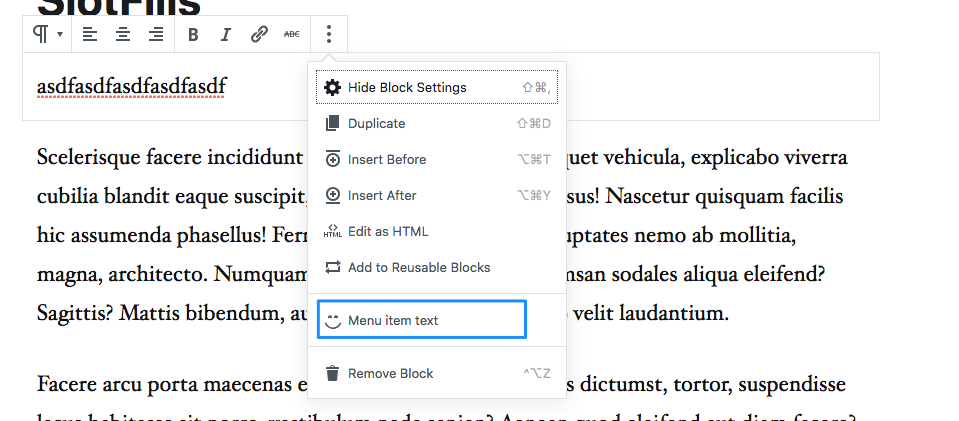
PluginDocumentSettingPanel
This SlotFill allows registering a UI to edit Document settings.
Available Props
- name
string: A string identifying the panel. - className
string: An optional class name added to the sidebar body. - title
string: Title displayed at the top of the sidebar. - icon
(string|Element): The Dashicon icon slug string, or an SVG WP element.
Example
import { registerPlugin } from '@wordpress/plugins';
import { PluginDocumentSettingPanel } from '@wordpress/editor';
const PluginDocumentSettingPanelDemo = () => (
<PluginDocumentSettingPanel
name="custom-panel"
title="Custom Panel"
className="custom-panel"
>
Custom Panel Contents
</PluginDocumentSettingPanel>
);
registerPlugin( 'plugin-document-setting-panel-demo', {
render: PluginDocumentSettingPanelDemo,
icon: 'palmtree',
} );
Accessing a panel programmatically
Core and custom panels can be accessed programmatically using their panel name. The core panel names are:
- Summary Panel:
post-status - Categories Panel:
taxonomy-panel-category - Tags Panel:
taxonomy-panel-post_tag - Featured Image Panel:
featured-image - Excerpt Panel:
post-excerpt - DiscussionPanel:
discussion-panel
Custom panels are namespaced with the plugin name that was passed to registerPlugin.
In order to access the panels using function such as toggleEditorPanelOpened or toggleEditorPanelEnabled be sure to prepend the namespace.
To programmatically toggle panels, use the following:
import { useDispatch } from '@wordpress/data';
import { store as editorStore } from '@wordpress/editor';
const Example = () => {
const { toggleEditorPanelOpened } = useDispatch( editorStore );
return (
<Button
variant="primary"
onClick={ () => {
// Toggle the Summary panel
toggleEditorPanelOpened( 'post-status' );
// Toggle the Custom Panel introduced in the example above.
toggleEditorPanelOpened(
'plugin-document-setting-panel-demo/custom-panel'
);
} }
>
Toggle Panels
</Button>
);
};
It is also possible to remove panels from the admin using the removeEditorPanel function by passing the name of the registered panel.
import { useDispatch } from '@wordpress/data';
import { store as editorStore } from '@wordpress/editor';
const Example = () => {
const { removeEditorPanel } = useDispatch( editorStore );
return (
<Button
variant="primary"
onClick={ () => {
// Remove the Featured Image panel.
removeEditorPanel( 'featured-image' );
// Remove the Custom Panel introduced in the example above.
removeEditorPanel(
'plugin-document-setting-panel-demo/custom-panel'
);
} }
>
Toggle Panels
</Button>
);
};
PluginMoreMenuItem
此插槽将在"更多工具与选项"区域添加一个新项目。
示例
import { registerPlugin } from '@wordpress/plugins';
import { PluginMoreMenuItem } from '@wordpress/editor';
import { image } from '@wordpress/icons';
const MyButtonMoreMenuItemTest = () => (
<PluginMoreMenuItem
icon={ image }
onClick={ () => {
alert( 'Button Clicked' );
} }
>
More Menu Item
</PluginMoreMenuItem>
);
registerPlugin( 'more-menu-item-test', { render: MyButtonMoreMenuItemTest } );
位置
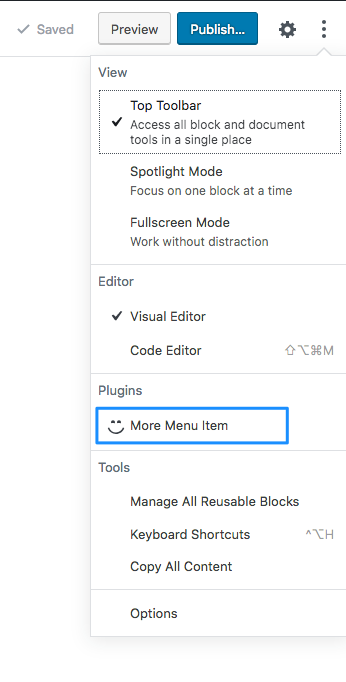
PluginPostPublishPanel
此插槽允许在文章发布后出现的发布后面板底部注入项目。
示例
import { registerPlugin } from '@wordpress/plugins';
import { PluginPostPublishPanel } from '@wordpress/editor';
const PluginPostPublishPanelTest = () => (
<PluginPostPublishPanel>
<p>发布后面板</p>
</PluginPostPublishPanel>
);
registerPlugin( 'post-publish-panel-test', {
render: PluginPostPublishPanelTest,
} );
位置

PluginPostStatusInfo
此插槽允许在文档侧边栏的摘要面板中插入项目。
示例
import { registerPlugin } from '@wordpress/plugins';
import { PluginPostStatusInfo } from '@wordpress/editor';
const PluginPostStatusInfoTest = () => (
<PluginPostStatusInfo>
<p>文章状态信息插槽填充</p>
</PluginPostStatusInfo>
);
registerPlugin( 'post-status-info-test', { render: PluginPostStatusInfoTest } );
位置
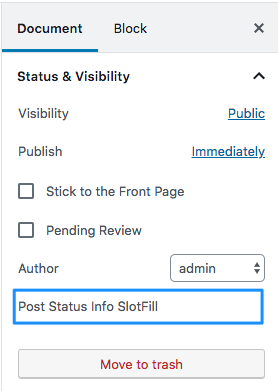
PluginPrePublishPanel
此插槽允许在预发布面板底部注入项目,该面板在用户点击"发布"后出现以确认发布。
示例
import { registerPlugin } from '@wordpress/plugins';
import { PluginPrePublishPanel } from '@wordpress/editor';
const PluginPrePublishPanelTest = () => (
<PluginPrePublishPanel>
<p>预发布面板</p>
</PluginPrePublishPanel>
);
registerPlugin( 'pre-publish-panel-test', {
render: PluginPrePublishPanelTest,
} );
位置
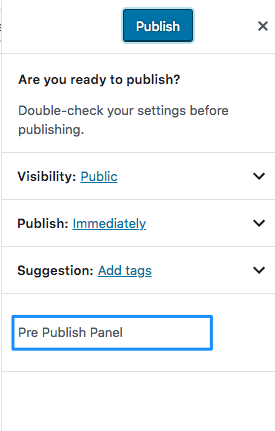
PluginSidebarMoreMenuItem
此插槽用于允许从选项下拉菜单中打开 <PluginSidebar /> 面板。
当注册 <PluginSidebar /> 时,系统会自动使用 <PluginSidebar /> 的 title 属性注册一个 <PluginSidebarMoreMenuItem />,因此无需使用此插槽来创建菜单项。
示例
此示例展示如何自定义菜单项的文本,而不是使用 <PluginSidebar /> 标题提供的默认文本。
import { __ } from '@wordpress/i18n';
import { PluginSidebar, PluginSidebarMoreMenuItem } from '@wordpress/editor';
import {
PanelBody,
Button,
TextControl,
SelectControl,
} from '@wordpress/components';
import { registerPlugin } from '@wordpress/plugins';
import { useState } from '@wordpress/element';
import { image } from '@wordpress/icons';
const PluginSidebarMoreMenuItemTest = () => {
const [ text, setText ] = useState( '' );
const [ select, setSelect ] = useState( 'a' );
return (
<>
<PluginSidebarMoreMenuItem target="sidebar-name" icon={ image }>
{ __( 'Custom Menu Item Text' ) }
</PluginSidebarMoreMenuItem>
<PluginSidebar
name="sidebar-name"
icon={ image }
title="My Sidebar"
>
<PanelBody>
<h2>
{ __(
'This is a heading for the PluginSidebar example.'
) }
</h2>
<p>
{ __(
'This is some example text for the PluginSidebar example.'
) }
</p>
<TextControl
__next40pxDefaultSize
label={ __( 'Text Control' ) }
value={ text }
onChange={ ( newText ) => setText( newText ) }
/>
<SelectControl
label={ __( 'Select Control' ) }
value={ select }
options={ [
{ value: 'a', label: __( 'Option A' ) },
{ value: 'b', label: __( 'Option B' ) },
{ value: 'c', label: __( 'Option C' ) },
] }
onChange={ ( newSelect ) => setSelect( newSelect ) }
/>
<Button variant="primary">
{ __( 'Primary Button' ) }{ ' ' }
</Button>
</PanelBody>
</PluginSidebar>
</>
);
};
registerPlugin( 'plugin-sidebar-more-menu-item-example', {
render: PluginSidebarMoreMenuItemTest,
} );
位置

PluginSidebar
此插槽允许向文章编辑器或站点编辑器屏幕的工具栏添加项目。
使用此插槽将在工具栏中添加一个图标,点击该图标会打开一个面板,其中包含包裹在 <PluginSidebar /> 组件中的项目。
此外,它还会创建一个 <PluginSidebarMoreMenuItem />,点击时可以从选项面板打开该面板。
示例
import { __ } from '@wordpress/i18n';
import { PluginSidebar } from '@wordpress/editor';
import {
PanelBody,
Button,
TextControl,
SelectControl,
} from '@wordpress/components';
import { registerPlugin } from '@wordpress/plugins';
import { useState } from '@wordpress/element';
const PluginSidebarExample = () => {
const [ text, setText ] = useState( '' );
const [ select, setSelect ] = useState( 'a' );
return (
<PluginSidebar
name="plugin-sidebar-example"
title={ __( 'My PluginSidebar' ) }
icon={ 'smiley' }
>
<PanelBody>
<h2>
{ __( 'This is a heading for the PluginSidebar example.' ) }
</h2>
<p>
{ __(
'This is some example text for the PluginSidebar example.'
) }
</p>
<TextControl
__next40pxDefaultSize
label={ __( 'Text Control' ) }
value={ text }
onChange={ ( newText ) => setText( newText ) }
/>
<SelectControl
label={ __( 'Select Control' ) }
value={ select }
options={ [
{ value: 'a', label: 'Option A' },
{ value: 'b', label: 'Option B' },
{ value: 'c', label: 'Option C' },
] }
onChange={ ( newSelect ) => setSelect( newSelect ) }
/>
<Button variant="primary">{ __( 'Primary Button' ) } </Button>
</PanelBody>
</PluginSidebar>
);
};
// 注册插件。
registerPlugin( 'plugin-sidebar-example', { render: PluginSidebarExample } );
位置

Available Styles Options
New styles options are integrated into theme.json on a regular basis. Knowing the style options available through theme.json or the styles editor at any given time can be challenging. To clarify, the table below indicates the WordPress version when each theme.json styles option became available and when a corresponding control was added to the user interface to allow management of the style from the Styles editor.
Styles keys
| Key | theme.json Since | Style Editor Since |
|---|---|---|
color.gradient |
5.8 | 5.9 |
color.background |
5.8 | 5.9 |
color.text |
5.8 | 5.9 |
border.color |
5.9 | 5.9 |
border.width |
5.9 | 5.9 |
border.style |
5.9 | 5.9 |
border.radius |
5.8 | 5.9 |
border.radius.topLeft |
5.9 | 5.9 |
border.radius.topRight |
5.9 | 5.9 |
border.radius.bottomLeft |
5.9 | 5.9 |
border.radius.bottomRight |
5.9 | 5.9 |
border.top.color |
6.1 | 6.1 |
border.top.width |
6.1 | 6.1 |
border.top.style |
6.1 | 6.1 |
border.right.color |
6.1 | 6.1 |
border.right.width |
6.1 | 6.1 |
border.right.style |
6.1 | 6.1 |
border.bottom.color |
6.1 | 6.1 |
border.bottom.width |
6.1 | 6.1 |
border.bottom.style |
6.1 | 6.1 |
border.left.color |
6.1 | 6.1 |
border.left.width |
6.1 | 6.1 |
border.left.style |
6.1 | 6.1 |
typography.fontFamily |
5.9 | 5.9 |
typography.fontSize |
5.8 | 5.9 |
typography.fontStyle |
5.9 | 5.9 |
typography.fontWeight |
5.9 | 5.9 |
typography.letterSpacing |
5.9 | 5.9 |
typography.lineHeight |
5.8 | 5.9 |
typography.textDecoration |
5.9 | 6.2 |
typography.textTransform |
5.9 | 6.0 |
spacing.padding |
5.9 | 5.9 |
spacing.padding.top |
5.8 | 5.9 |
spacing.padding.right |
5.8 | 5.9 |
spacing.padding.left |
5.8 | 5.9 |
spacing.padding.bottom |
5.8 | 5.9 |
spacing.margin |
5.9 | 5.9 |
spacing.margin.top |
5.8 | 5.9 |
spacing.margin.right |
5.8 | 5.9 |
spacing.margin.left |
5.8 | 5.9 |
spacing.margin.bottom |
5.8 | 5.9 |
spacing.blockGap |
5.9 | 5.9 |
dimensions.height |
7.0 | N/A |
dimensions.minHeight |
6.2 | N/A |
dimensions.width |
7.0 | N/A |
outline.color |
6.2 | N/A |
outline.offset |
6.2 | N/A |
outline.style |
6.2 | N/A |
outline.width |
6.2 | N/A |
filter.duotone |
5.9 | N/A |
shadow |
6.1 | 6.2 |
Theme.json 版本 3 参考(最新版)
这是
theme.json版本 3 的现行规范。此版本适用于 WordPress 6.6 或更高版本,以及最新的 Gutenberg 插件。您可能还对以下相关文档感兴趣:
- theme.json v1 规范,
- theme.json v2 规范,以及
- 从旧版 theme.json 迁移的参考指南。
本参考指南列出了 theme.json 架构中定义的设置和样式属性。关于如何在主题中使用 theme.json 文件的示例和指导,请参阅 theme.json 使用指南。
JSON 模式
本文档基于 theme.json 的 JSON 模式生成。
版本 3 的最新模式(包含 Gutenberg 插件的所有最新更改)可在 https://schemas.wp.org/trunk/theme.json 获取。
每个 WordPress 版本的 theme.json 模式可在 https://schemas.wp.org/wp/{{version}}/theme.json 获取。
例如,WordPress 5.8 的模式可在 https://schemas.wp.org/wp/5.8/theme.json 获取。
关于如何在编辑器中应用此 JSON 模式,请参阅使用 theme.json 进行开发。
设置
区块编辑器及单个区块的设置项。这些设置包括:
- 应向用户提供哪些自定义选项
- 用户可用的默认颜色、字体大小等配置
- 样式中使用的 CSS 自定义属性与类名
- 以及编辑器的默认布局(宽度与可用对齐方式)
useRootPaddingAwareAlignments
启用根内边距(来自 styles.spacing.padding 的值)应用于全宽块的内容,而非根块。
请注意,使用此设置时,styles.spacing.padding 应始终设置为一个对象,并分别声明 top、right、bottom、left 值。
注意: 仅顶级属性。在块中不可用。
appearanceTools
启用以下 UI 工具的设置:
- 背景:backgroundImage、backgroundSize
- 边框:color、radius、style、width
- 颜色:link、heading、button、caption
- 尺寸:aspectRatio、height、minHeight、width
- 定位:sticky
- 间距:blockGap、margin、padding
- 排版:lineHeight
背景
与背景相关的设置。
| 属性 | 描述 | 类型 | 默认值 |
|---|---|---|---|
| backgroundImage | 允许用户设置背景图片。 | boolean |
false |
| backgroundSize | 允许用户设置与背景图片大小相关的值,包括尺寸、位置和重复控制。 | boolean |
false |
边框
与边框相关的设置。
| 属性 | 描述 | 类型 | 默认值 |
|---|---|---|---|
| color | 允许用户设置自定义边框颜色。 | boolean |
false |
| radius | 允许用户设置自定义边框圆角。 | boolean |
false |
| style | 允许用户设置自定义边框样式。 | boolean |
false |
| width | 允许用户设置自定义边框宽度。 | boolean |
false |
| radiusSizes | 边框圆角选择器的预设圆角尺寸。 | [ { name, slug, size } ] |
color
| Property | Description | Type | Default |
|---|---|---|---|
| background | Allow users to set background colors. | boolean |
true |
| custom | Allow users to select custom colors. | boolean |
true |
| customDuotone | Allow users to create custom duotone filters. | boolean |
true |
| customGradient | Allow users to create custom gradients. | boolean |
true |
| defaultDuotone | Allow users to choose filters from the default duotone filter presets. | boolean |
true |
| defaultGradients | Allow users to choose colors from the default gradients. | boolean |
true |
| defaultPalette | Allow users to choose colors from the default palette. | boolean |
true |
| duotone | Duotone presets for the duotone picker. | [ { name, slug, colors } ] |
|
| gradients | Gradient presets for the gradient picker. | [ { name, slug, gradient } ] |
|
| link | Allow users to set link colors in a block. | boolean |
false |
| palette | Color palette presets for the color picker. | [ { name, slug, color } ] |
|
| text | Allow users to set text colors in a block. | boolean |
true |
| heading | Allow users to set heading colors in a block. | boolean |
true |
| button | Allow users to set button colors in a block. | boolean |
true |
| caption | Allow users to set caption colors in a block. | boolean |
true |
dimensions
| Property | Description | Type | Default |
|---|---|---|---|
| aspectRatio | Allow users to set an aspect ratio. | boolean |
false |
| defaultAspectRatios | Allow users to choose aspect ratios from the default set of aspect ratios. | boolean |
true |
| aspectRatios | Allow users to define aspect ratios for some blocks. | [ { name, slug, ratio } ] |
|
| height | Allow users to set custom height. | boolean |
false |
| minHeight | Allow users to set custom minimum height. | boolean |
false |
| width | Allow users to set custom width. | boolean |
false |
| dimensionSizes | Dimension size presets for dimension block supports. | [ { name, slug, size } ] |
布局
与布局相关的设置。
| 属性 | 描述 | 类型 | 默认值 |
|---|---|---|---|
| contentSize | 设置内容的最大宽度。 | string |
|
| wideSize | 设置宽内容(.alignwide)的最大宽度。也用作计算流体字体大小时的最大视口。 |
string |
|
| allowEditing | 禁用布局 UI 控件。 | boolean |
true |
| allowCustomContentAndWideSize | 启用或禁用自定义内容和宽尺寸控件。 | boolean |
true |
灯箱
与灯箱相关的设置。
| 属性 | 描述 | 类型 | 默认值 |
|---|---|---|---|
| enabled | 定义灯箱是否启用。 | boolean |
|
| allowEditing | 定义是否在区块编辑器中显示灯箱用户界面。如果设置为 false,用户将无法在区块编辑器中更改灯箱设置。 |
boolean |
position
与位置相关的设置。
| 属性 | 描述 | 类型 | 默认值 |
|---|---|---|---|
| sticky | 允许用户设置粘性定位。 | boolean |
false |
阴影
与阴影相关的设置。
| 属性 | 描述 | 类型 | 默认值 |
|---|---|---|---|
| defaultPresets | 允许用户从默认阴影预设中选择阴影。 | boolean |
true |
| presets | 阴影选择器的阴影预设。 | [ { name, slug, shadow } ] |
spacing
| Property | Description | Type | Default |
|---|---|---|---|
| blockGap | Enables --wp--style--block-gap to be generated from styles.spacing.blockGap. |
boolean, null |
null |
| margin | Allow users to set a custom margin. | boolean |
false |
| padding | Allow users to set a custom padding. | boolean |
false |
| units | List of units the user can use for spacing values. | [ string ] |
["px","em","rem","vh","vw","%"] |
| customSpacingSize | Allow users to set custom space sizes. | boolean |
true |
| defaultSpacingSizes | Allow users to choose space sizes from the default space size presets. | boolean |
true |
| spacingSizes | Space size presets for the space size selector. | [ { name, slug, size } ] |
|
| spacingScale | Settings to auto-generate space size presets for the space size selector. | { operator, increment, steps, mediumStep, unit } |
typography
| Property | Description | Type | Default |
|---|---|---|---|
| defaultFontSizes | Allow users to choose font sizes from the default font size presets. | boolean |
true |
| customFontSize | Allow users to set custom font sizes. | boolean |
true |
| fontStyle | Allow users to set custom font styles. | boolean |
true |
| fontWeight | Allow users to set custom font weights. | boolean |
true |
| fluid | Enables fluid typography and allows users to set global fluid typography parameters. | boolean, { minFontSize, maxViewportWidth, minViewportWidth } |
false |
| letterSpacing | Allow users to set custom letter spacing. | boolean |
true |
| lineHeight | Allow users to set custom line height. | boolean |
false |
| textIndent | Allow users to set custom line indent. | boolean, string |
"subsequent" |
| textAlign | Allow users to set the text align. | boolean |
true |
| textColumns | Allow users to set the number of text columns. | boolean |
false |
| textDecoration | Allow users to set custom text decorations. | boolean |
true |
| writingMode | Allow users to set the writing mode. | boolean |
false |
| textTransform | Allow users to set custom text transforms. | boolean |
true |
| dropCap | Enable drop cap. | boolean |
true |
| fontSizes | Font size presets for the font size selector. | [ { name, slug, size, fluid } ] |
|
| fontFamilies | Font family presets for the font family selector. | [ { name, slug, fontFamily, fontFace } ] |
custom
生成形式为 --wp--custom--{key}--{nested-key}: {value}; 的自定义 CSS 自定义属性。camelCased 格式的键名会转换为 kebab-case 以遵循 CSS 属性命名规范。不同深度的键名之间用 -- 分隔,因此键名中不应包含 --。
样式
设置 CSS 属性的组织化方式。顶层的样式将被添加到 body 选择器中。
背景
背景样式。
| 属性 | 描述 | 类型 |
|---|---|---|
| backgroundImage | 设置 background-image CSS 属性。 |
string, { ref }, { url } |
| backgroundPosition | 设置 background-position CSS 属性。 |
string, { ref } |
| backgroundRepeat | 设置 background-repeat CSS 属性。 |
string, { ref } |
| backgroundSize | 设置 background-size CSS 属性。 |
string, { ref } |
| backgroundAttachment | 设置 background-attachment CSS 属性。 |
string, { ref } |
border
Border styles.
| Property | Description | Type |
|---|---|---|
| color | Sets the border-color CSS property. |
string, { ref } |
| radius | Sets the border-radius CSS property. |
string, { ref }, { topLeft, topRight, bottomLeft, bottomRight } |
| style | Sets the border-style CSS property. |
string, { ref } |
| width | Sets the border-width CSS property. |
string, { ref } |
| top | { color, style, width } |
|
| right | { color, style, width } |
|
| bottom | { color, style, width } |
|
| left | { color, style, width } |
颜色
颜色样式。
| 属性 | 描述 | 类型 |
|---|---|---|
| background | 设置 background-color CSS 属性。 |
string, { ref } |
| gradient | 设置 background CSS 属性。 |
string, { ref } |
| text | 设置 color CSS 属性。 |
string, { ref } |
css
设置自定义 CSS,用于应用其他 theme.json 属性未涵盖的样式。
dimensions
尺寸样式。
| 属性 | 描述 | 类型 |
|---|---|---|
| aspectRatio | 设置 aspect-ratio CSS 属性。 |
string, { ref } |
| height | 设置 height CSS 属性。 |
string, { ref } |
| minHeight | 设置 min-height CSS 属性。 |
string, { ref } |
| width | 设置 width CSS 属性。 |
string, { ref } |
filter
CSS 和 SVG 滤镜样式。
| 属性 | 描述 | 类型 |
|---|---|---|
| duotone | 设置双色调滤镜。 | string, { ref } |
outline
轮廓样式。
| 属性 | 描述 | 类型 |
|---|---|---|
| color | 设置 outline-color CSS 属性。 |
string, { ref } |
| offset | 设置 outline-offset CSS 属性。 |
string, { ref } |
| style | 设置 outline-style CSS 属性。 |
string, { ref } |
| width | 设置 outline-width CSS 属性。 |
string, { ref } |
shadow
阴影样式。
spacing
间距样式。
| 属性 | 描述 | 类型 |
|---|---|---|
| blockGap | 当 settings.spacing.blockGap 为 true 时,设置 --wp--style--block-gap CSS 自定义属性。 |
string, { ref } |
| margin | 外边距样式。 | { top, right, bottom, left } |
| padding | 内边距样式。 | { top, right, bottom, left } |
typography
Typography styles.
| Property | Description | Type |
|---|---|---|
| fontFamily | Sets the font-family CSS property. |
string, { ref } |
| fontSize | Sets the font-size CSS property. |
string, { ref } |
| fontStyle | Sets the font-style CSS property. |
string, { ref } |
| fontWeight | Sets the font-weight CSS property. |
string, { ref } |
| letterSpacing | Sets the letter-spacing CSS property. |
string, { ref } |
| lineHeight | Sets the line-height CSS property. |
string, { ref } |
| textIndent | Sets the text-indent CSS property. |
string, { ref } |
| textAlign | Sets the text-align CSS property. |
string, { ref } |
| textColumns | Sets the column-count CSS property. |
string, { ref } |
| textDecoration | Sets the text-decoration CSS property. |
string, { ref } |
| writingMode | Sets the writing-mode CSS property. |
string, { ref } |
| textTransform | Sets the text-transform CSS property. |
string, { ref } |
customTemplates
Additional metadata for custom templates defined in the templates folder.
| Property | Description | Type |
|---|---|---|
| name | Filename, without extension, of the template in the templates folder. | string |
| title | Title of the template, translatable. | string |
| postTypes | List of post types that can use this custom template. | [ string ] |
templateParts
Additional metadata for template parts defined in the parts folder.
| Property | Description | Type |
|---|---|---|
| name | Filename, without extension, of the template in the parts folder. | string |
| title | Title of the template, translatable. | string |
| area | The area the template part is used for. Block variations for header and footer values exist and will be used when the area is set to one of those. |
string |
patterns
一个从模式目录中注册的模式 slug 数组。
类型:[ string ]。
迁移 Theme.json 至新版本
本指南记录了不同 theme.json 版本间的变更及升级方法。旧版本将继续获得支持,但建议进行升级,因为新功能开发将集中于新版本。
从 v1 迁移到 v2
升级到 v2 版本可启用一些新功能,并调整部分旧功能的命名,使其更加统一。
如何从 v1 迁移到 v2:
- 将
version更新为2。 - 如果你正在使用已更新的属性,请重命名它们(见下文)。
请参考版本发布的开发说明以及 v1 和 v2 版本各自的参考文档。
Renamed properties
| v1 | v2 |
|---|---|
settings.border.customRadius |
settings.border.radius |
settings.spacing.customMargin |
settings.spacing.margin |
settings.spacing.customPadding |
settings.spacing.padding |
settings.typography.customLineHeight |
settings.typography.lineHeight |
新增属性
新增顶级属性:customTemplates、templateParts。
设置部分新增:
settings.appearanceToolssettings.border.colorsettings.border.stylesettings.border.widthsettings.color.backgroundsettings.color.defaultGradientssettings.color.defaultPalettesettings.color.textsettings.spacing.blockGapsettings.typography.fontFamiliessettings.typography.fontStylesettings.typography.fontWeightsettings.typography.letterSpacingsettings.typography.textColumnssettings.typography.textDecorationsettings.typography.textTransform
样式部分新增:
styles.border.colorstyles.border.stylestyles.border.widthstyles.filter.duotonestyles.spacing.blockGapstyles.typography.fontFamilystyles.typography.fontStylestyles.typography.fontWeightstyles.typography.letterSpacingstyles.typography.textColumnsstyles.typography.textDecorationstyles.typography.textTransform
属性值变更
核心提供的默认字体大小 (settings.typography.fontSizes) 已更新。常规和超大尺寸(对应 normal 和 huge 标识)已从列表中移除,并添加了特大尺寸(对应 x-large 标识)。当 UI 控件显示核心提供的默认值时,将不再包含常规和超大尺寸。不过,它们的 CSS 类和 CSS 自定义属性仍会入队,以确保使用它们的现有内容仍能正常工作。
从 v2 迁移到 v3
升级到 v3 版本调整了预设默认值,使其彼此之间更加一致。
如何从 v2 迁移到 v3:
- 将
version更新为3。 - 配置已更改的默认值(见下文)。
默认设置变更
settings.typography.defaultFontSizes
在 theme.json v2 中,默认字体大小仅在未定义主题尺寸时显示。若主题提供的字体大小使用与默认值相同的标识符,则会始终覆盖默认值。
默认的 fontSizes 标识符包括:small、medium、large、x-large 和 xx-large。
新的 defaultFontSizes 选项可控制是否显示默认字体大小,并防止这些默认值被覆盖。
- 设置为
true时,将显示默认字体大小并防止其被主题覆盖。 - 设置为
false时,将隐藏默认字体大小并允许主题使用默认标识符。
切换到 v3 时,此选项默认值为 true。这是为了与其他 default* 选项(如 settings.color.defaultPalette)保持一致,但与 v2 的行为不同。
要在 v3 的 theme.json 中保持类似 v2 的行为:
- 若未定义任何
fontSizes,可省略defaultFontSizes或将其设为true。 - 若已定义部分
fontSizes,请将defaultFontSizes设为false。
settings.spacing.defaultSpacingSizes
在 theme.json v2 中,有两个设置可用于定义主题级别的间距尺寸:settings.spacing.spacingSizes 和 settings.spacing.spacingScale。同时设置 spacingSizes 和 spacingScale 将仅使用 spacingSizes 中的值。设置其中任何一个都将始终替换 WordPress 提供的整套默认间距尺寸。
WordPress 提供的默认 spacingSizes 标识符为:20、30、40、50、60、70 和 80。
新的 defaultSpacingSizes 选项提供了控制是否显示默认间距尺寸以及防止这些默认值被覆盖的能力。
- 设置为
true时,将显示默认间距尺寸并防止它们被主题覆盖。 - 设置为
false时,将隐藏默认间距尺寸并允许主题使用默认标识符。
切换到 v3 时,defaultSpacingSizes 默认为 true。这是为了与其他 default* 选项(如 settings.color.defaultPalette)的工作方式保持一致,但与 v2 中的行为不同。
此外,在 v3 中,可以同时设置 spacingSizes 和 spacingScale。在 spacingSizes 中定义的、标识符与 spacingSizes 生成的预设匹配的预设将覆盖生成的预设。
要在 v3 的 theme.json 中保持与 v2 类似的行为:
- 如果您没有定义任何
spacingSizes预设或spacingScale配置,可以省略defaultSpacingSizes或将其设置为true。 - 如果您曾通过将
spacingScale设置为{ "steps": 0 }来禁用默认间距尺寸,请移除spacingScale配置并将defaultSpacingSizes设置为false。 - 如果您仅为预设定义了
spacingScale或spacingSizes中的一个,请将defaultSpacingSizes设置为false。 - 如果您同时定义了
spacingScale和spacingSizes,请移除spacingSizes配置 并 将defaultSpacingSizes设置为false。
Theme.json 版本 1 参考
这是
theme.json版本 1 的规范。此版本适用于 WordPress 5.8 或更高版本。
Theme.json 版本 2 已随 WordPress 5.9 发布。WordPress 将继续支持 theme.json 版本 1。但新功能将仅添加到新版本。
当您准备升级时,请参阅 theme.json 迁移指南 了解更新到最新版本的详细信息。
本参考指南列出了 theme.json 架构中定义的设置和样式属性。有关如何在主题中使用 theme.json 文件的示例和指导,请参阅 theme.json 使用指南。
JSON 架构
版本 1 的最新架构位于 https://schemas.wp.org/wp/5.8/theme.json。
每个 WordPress 版本的 theme.json 架构均可在 https://schemas.wp.org/wp/{{version}}/theme.json 获取。例如,WordPress 5.8 的架构位于 https://schemas.wp.org/wp/5.8/theme.json。
关于如何在编辑器中应用此 JSON 架构,请参阅使用 theme.json 进行开发。
设置
边框
与边框相关的设置。
| 属性 | 类型 | 默认值 | 属性表 |
|---|---|---|---|
| customRadius | boolean | false |
color
| Property | Type | Default | Props |
|---|---|---|---|
| custom | boolean | true | |
| customDuotone | boolean | true | |
| customGradient | boolean | true | |
| duotone | array | colors, name, slug | |
| gradients | array | gradient, name, slug | |
| link | boolean | false | |
| palette | array | color, name, slug |
布局
与布局相关的设置。
| 属性 | 类型 | 默认值 | 属性说明 |
|---|---|---|---|
| contentSize | string | ||
| wideSize | string |
间距
与间距相关的设置。
| 属性 | 类型 | 默认值 | 属性表 |
|---|---|---|---|
| customMargin | boolean | false | |
| customPadding | boolean | false | |
| units | array | px,em,rem,vh,vw,% |
排版
与排版相关的设置。
| 属性 | 类型 | 默认值 | 参数 |
|---|---|---|---|
| customFontSize | boolean | true | |
| customLineHeight | boolean | false | |
| dropCap | boolean | true | |
| fontSizes | array | name, size, slug |
custom
生成形式为 --wp--custom--{key}--{nested-key}: {value}; 的自定义 CSS 自定义属性。camelCased 格式的键名会转换为 kebab-case 以遵循 CSS 属性命名规范。不同深度的键名之间用 -- 分隔,因此键名中不应包含 --。
样式
边框
边框样式。
| 属性 | 类型 | 参数 |
|---|---|---|
| radius | string |
颜色
颜色样式。
| 属性 | 类型 | 参数 |
|---|---|---|
| background | string | |
| gradient | string | |
| text | string |
间距
间距样式。
| 属性 | 类型 | 参数 |
|---|---|---|
| margin | object | bottom, left, right, top |
| padding | object | bottom, left, right, top |
排版
排版样式。
| 属性 | 类型 | 参数 |
|---|---|---|
| fontSize | string | |
| lineHeight | string |
Theme.json 版本 2 参考文档
这是
theme.json版本 2 的规范说明。此版本适用于 WordPress 5.9 或更高版本。
Theme.json 版本 3 已随 WordPress 6.6 发布。WordPress 将继续支持 theme.json 版本 2。但新功能将仅添加到新版本。
当您准备升级时,请参阅 theme.json 迁移指南 了解更新到最新版本的详细信息。
本参考指南列出了 theme.json 架构中定义的设置和样式属性。有关如何在主题中使用 theme.json 文件的示例和指导,请参阅 theme.json 使用指南。
JSON 模式
本文档由 theme.json 的 JSON 模式生成。
版本 2 的最新模式位于 https://schemas.wp.org/wp/6.5/theme.json。
每个 WordPress 版本的 theme.json 模式均可在 https://schemas.wp.org/wp/{{version}}/theme.json 获取。例如,WordPress 5.9 的模式位于 https://schemas.wp.org/wp/5.9/theme.json。
关于如何在编辑器中应用此 JSON 模式,请参阅使用 theme.json 进行开发。
设置
appearanceTools
启用以下 UI 工具的设置:
- 背景:backgroundImage, backgroundSize
- 边框:color, radius, style, width
- 颜色:link
- 尺寸:aspectRatio, minHeight
- 定位:sticky
- 间距:blockGap, margin, padding
- 排版:lineHeight
useRootPaddingAwareAlignments
启用根内边距(来自 styles.spacing.padding 的值)应用于全宽块的内容,而非根块。
请注意,使用此设置时,styles.spacing.padding 应始终设置为一个对象,并分别声明 top、right、bottom、left 值。
边框
与边框相关的设置。
| 属性 | 类型 | 默认值 | 属性参数 |
|---|---|---|---|
| color | boolean | false | |
| radius | boolean | false | |
| style | boolean | false | |
| width | boolean | false |
阴影
与阴影相关的设置。
| 属性 | 类型 | 默认值 | 参数 |
|---|---|---|---|
| defaultPresets | boolean | true | |
| presets | array | name, shadow, slug |
color
| Property | Type | Default | Props |
|---|---|---|---|
| background | boolean | true | |
| custom | boolean | true | |
| customDuotone | boolean | true | |
| customGradient | boolean | true | |
| defaultDuotone | boolean | true | |
| defaultGradients | boolean | true | |
| defaultPalette | boolean | true | |
| duotone | array | colors, name, slug | |
| gradients | array | gradient, name, slug | |
| link | boolean | false | |
| palette | array | color, name, slug | |
| text | boolean | true | |
| heading | boolean | true | |
| button | boolean | true |
背景
与背景相关的设置。
| 属性 | 类型 | 默认值 | Props |
|---|---|---|---|
| backgroundImage | boolean | false |
尺寸
与尺寸相关的设置。
| 属性 | 类型 | 默认值 | Props |
|---|---|---|---|
| aspectRatio | boolean | false | |
| minHeight | boolean | false |
布局
与布局相关的设置。
| 属性 | 类型 | 默认值 | 属性 |
|---|---|---|---|
| contentSize | string | ||
| wideSize | string | ||
| allowEditing | boolean | true | |
| allowCustomContentAndWideSize | boolean | true |
lightbox
与灯箱相关的设置。
| 属性 | 类型 | 默认值 | Props |
|---|---|---|---|
| enabled | boolean | ||
| allowEditing | boolean |
spacing
| Property | Type | Default | Props |
|---|---|---|---|
| blockGap | boolean, null | null | |
| margin | boolean | false | |
| padding | boolean | false | |
| units | array | px,em,rem,vh,vw,% | |
| customSpacingSize | boolean | true | |
| spacingSizes | array | name, size, slug | |
| spacingScale | object |
typography
| Property | Type | Default | Props |
|---|---|---|---|
| customFontSize | boolean | true | |
| fontStyle | boolean | true | |
| fontWeight | boolean | true | |
| fluid | object, boolean | false | {maxViewportWidth, minFontSize, minViewportWidth} |
| letterSpacing | boolean | true | |
| lineHeight | boolean | false | |
| textColumns | boolean | false | |
| textDecoration | boolean | true | |
| writingMode | boolean | false | |
| textTransform | boolean | true | |
| dropCap | boolean | true | |
| fontSizes | array | fluid, name, size, slug | |
| fontFamilies | array | fontFace, fontFamily, name, slug |
custom
生成形式为 --wp--custom--{key}--{nested-key}: {value}; 的自定义 CSS 自定义属性。camelCased 格式的键名会转换为 kebab-case 以遵循 CSS 属性命名规范。不同深度的键名之间用 -- 分隔,因此键名中不应包含 --。
Styles
border
Border styles.
| Property | Type | Props |
|---|---|---|
| color | string, object | |
| radius | string, object | |
| style | string, object | |
| width | string, object | |
| top | object | color, style, width |
| right | object | color, style, width |
| bottom | object | color, style, width |
| left | object | color, style, width |
颜色
颜色样式。
| 属性 | 类型 | 属性参数 |
|---|---|---|
| background | string, object | |
| gradient | string, object | |
| text | string, object |
间距
间距样式。
| 属性 | 类型 | 参数 |
|---|---|---|
| blockGap | string, object | |
| margin | object | bottom, left, right, top |
| padding | object | bottom, left, right, top |
typography
Typography styles.
| Property | Type | Props |
|---|---|---|
| fontFamily | string, object | |
| fontSize | string, object | |
| fontStyle | string, object | |
| fontWeight | string, object | |
| letterSpacing | string, object | |
| lineHeight | string, object | |
| textColumns | string | |
| textDecoration | string, object | |
| writingMode | string, object | |
| textTransform | string, object |
filter
CSS 和 SVG 滤镜样式。
| 属性 | 类型 | 参数 |
|---|---|---|
| duotone | string, object |
轮廓
轮廓样式。
| 属性 | 类型 | 参数 |
|---|---|---|
| color | string, object | |
| offset | string, object | |
| style | string, object | |
| width | string, object |
css
设置自定义 CSS,用于应用其他 theme.json 属性未涵盖的样式。
customTemplates
为 templates 文件夹中定义的自定义模板提供额外元数据。
类型:object。
| 属性 | 描述 | 类型 |
|---|---|---|
| name | templates 文件夹中模板的文件名(不含扩展名)。 | string |
| title | 模板的标题,可翻译。 | string |
| postTypes | 可使用此自定义模板的文章类型列表。 | array |
templateParts
parts 文件夹中定义的模板部件的附加元数据。
类型:object。
| 属性 | 描述 | 类型 |
|---|---|---|
| name | parts 文件夹中模板的文件名(不含扩展名)。 | string |
| title | 模板的标题,可翻译。 | string |
| area | 模板部件使用的区域。存在针对 header 和 footer 值的区块变体,当区域设置为其中之一时将使用这些变体。 |
string |
模式
一组将从模式目录中注册的模式 slug。
类型:array。