| Module | Permission |
|---|---|
| Contact | Use users' personal contact forms |
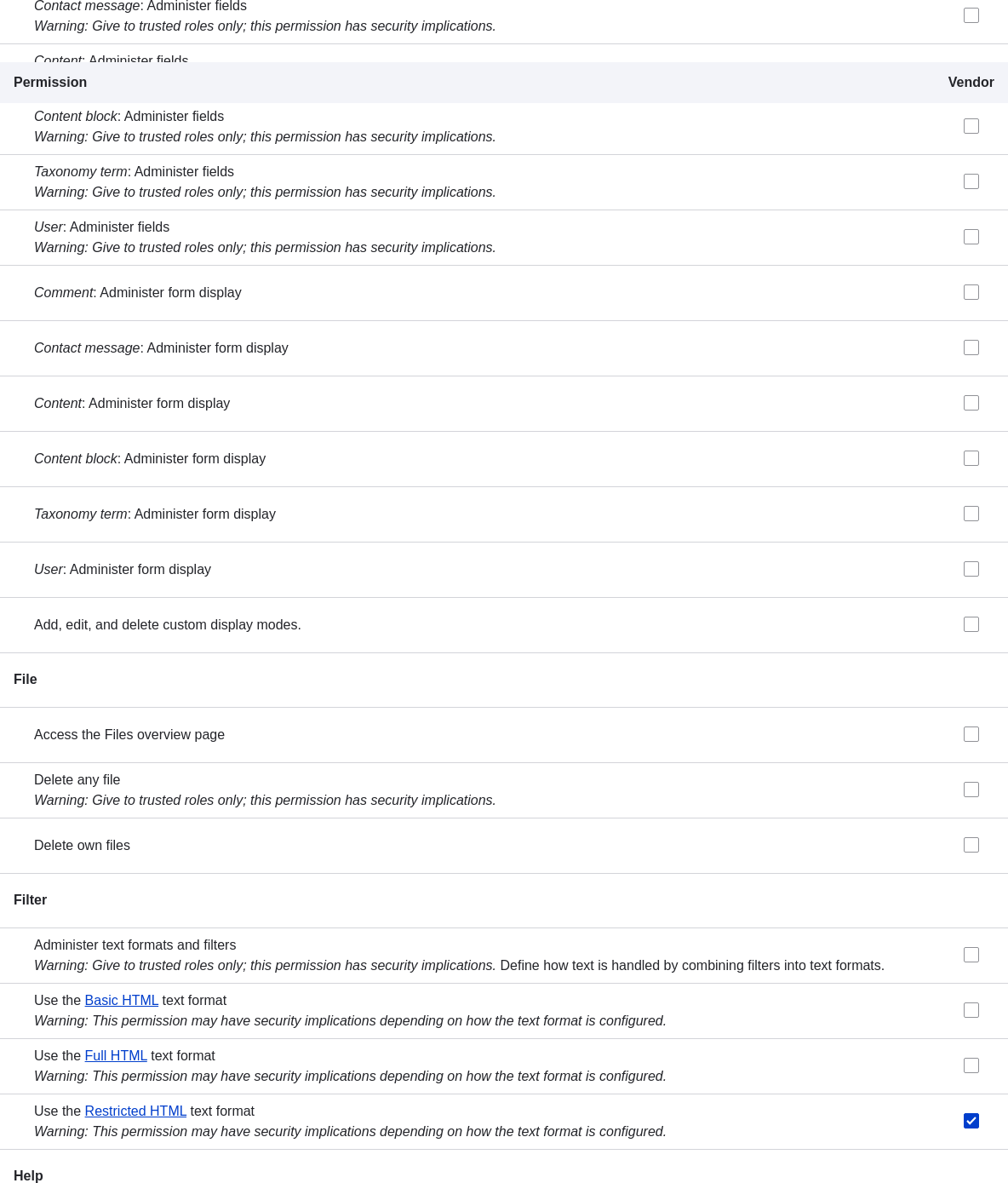
| Filter | Use the Restricted HTML text format |
| Node | Recipe: Create new content |
| Node | Recipe: Edit own content |
| Node | Recipe: Delete own content |
| Node | Vendor: Edit own content |
 1. Click _Save permissions_. You will get a message saying your changes have been
saved.

## Expand your understanding
* Log in as one of the new users you created in [Creating a User Account](/link/740). Verify
whether you have the correct permissions.
* [Changing a User's Roles](/link/742)
## Related concepts
[Concept: The User 1 Account](/link/738)
## Videos
[Assigning Permissions to a Role](https://www.youtube.com/watch?v=IlVh9f4BHVw)
## Additional resources
[_Drupal.org_ community documentation page "Managing Users"](https://www.drupal.org/docs/7/managing-users)
1. Click _Save permissions_. You will get a message saying your changes have been
saved.

## Expand your understanding
* Log in as one of the new users you created in [Creating a User Account](/link/740). Verify
whether you have the correct permissions.
* [Changing a User's Roles](/link/742)
## Related concepts
[Concept: The User 1 Account](/link/738)
## Videos
[Assigning Permissions to a Role](https://www.youtube.com/watch?v=IlVh9f4BHVw)
## Additional resources
[_Drupal.org_ community documentation page "Managing Users"](https://www.drupal.org/docs/7/managing-users)