| Email address |
A valid email address for the vendor. All emails from the system will be sent to this address. The email address is not made public. |
honey@example.com |
| Username |
A username for the vendor that they will use to sign in or author content items. Spaces are allowed; punctuation is not allowed except for periods, hyphens, apostrophes, and underscores. |
Sweet Honey |
| Password |
A password the vendor will use to sign in to the site. You can see how safe the password is on the _Password strength_ gauge. You also get tips on how to make it safer. |
(Make a secure password) |
| Confirm password |
Type the same password to avoid any typing mistakes. |
(Repeat password) |
| Status |
Set the status of the user account. _Blocked_ users will not be able to sign in. |
Active |
| Roles |
Set the role of the user account. |
Vendor |
| Notify user of new account |
Whether or not to send a notification to the vendor's email address. |
Checked |
| Picture |
Click _Browse_ and select a picture to upload. Pay attention to size restrictions. |
Photo of the vendor |
| Contact settings |
Enable or disable the display of a contact form for the account. |
Checked |
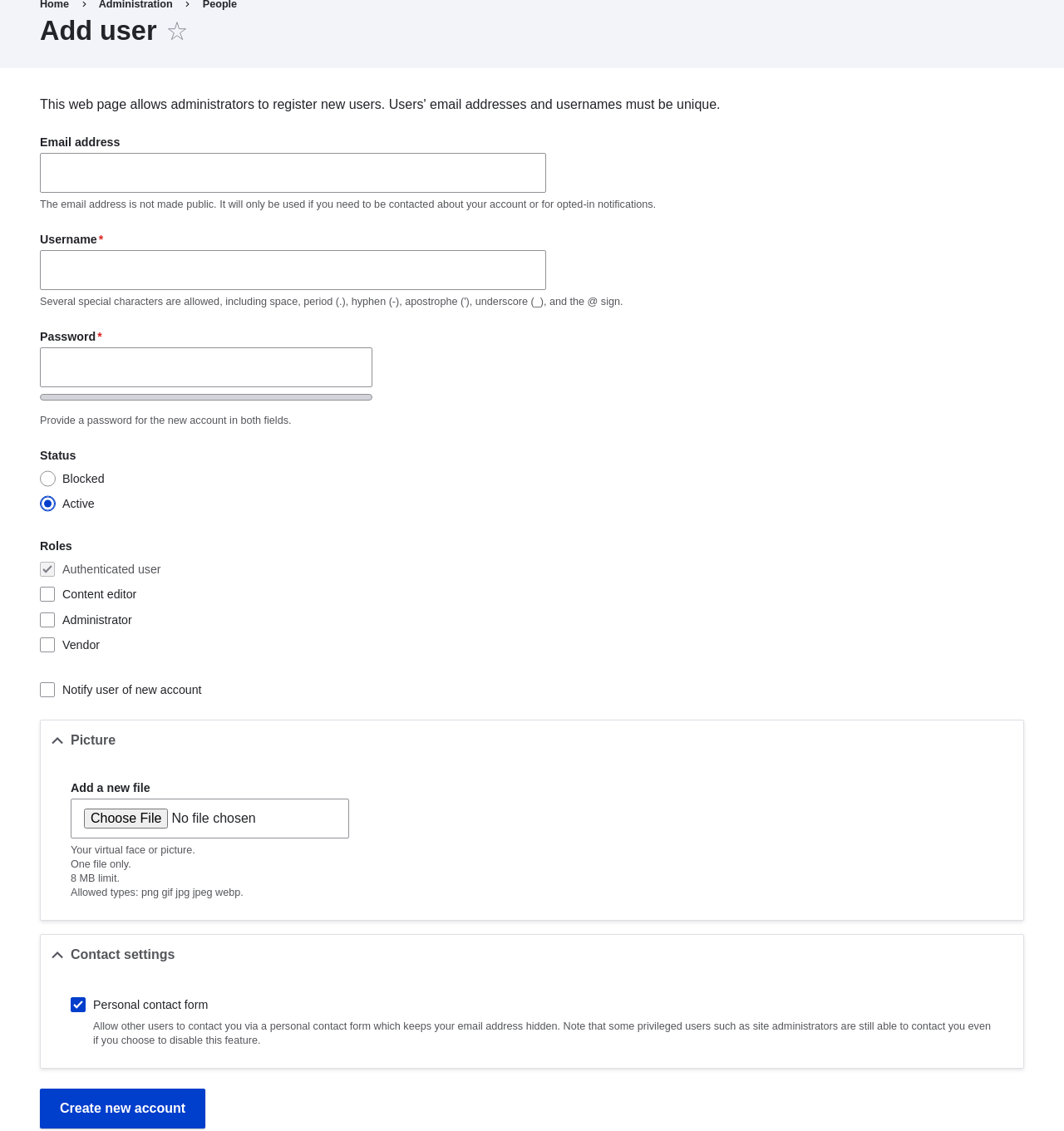 1. Fill in the form fields. See the table below.
 1. Create a second Vendor account for Happy Farm by following the steps above.
## Expand your understanding
Create a user account for yourself.
## Videos
[Creating a User Account](https://www.youtube.com/watch?v=2UtEtY9Cgaw)
1. Create a second Vendor account for Happy Farm by following the steps above.
## Expand your understanding
Create a user account for yourself.
## Videos
[Creating a User Account](https://www.youtube.com/watch?v=2UtEtY9Cgaw)