# Configuring Text Formats and Editors
## Goal
Add a horizontal rule tag to the _Basic HTML_ text format, and a corresponding
button to its editor configuration.
## Prerequisite knowledge
[Concept: Text Formats and Editors](/link/734)
## Site prerequisites
* The core Filter, Editor, and CKEditor modules must be installed. They are
installed on your site when you install with the core Standard installation
profile.
* The _Basic HTML_ text format must exist. This is created on your site when you
install with the core Standard installation profile.
## Steps
1. In the _Manage_ administrative menu, navigate to _Configuration_ > _Content
authoring_ > _Text formats and editors_ (_admin/config/content/formats_). The
_Text formats and editors_ page appears. Note that the names of the text formats
that came with your installation profile are shown in English on this page; see
[Concept: User Interface, Configuration, and Content translation](/link/695) for an explanation.
1. Click _Configure_ for the _Basic HTML_ text format. The _Basic HTML_ page
appears.
1. Note that _CKEditor_ is selected in the _Text editor_ field. This allows you
to configure the editor's toolbar.
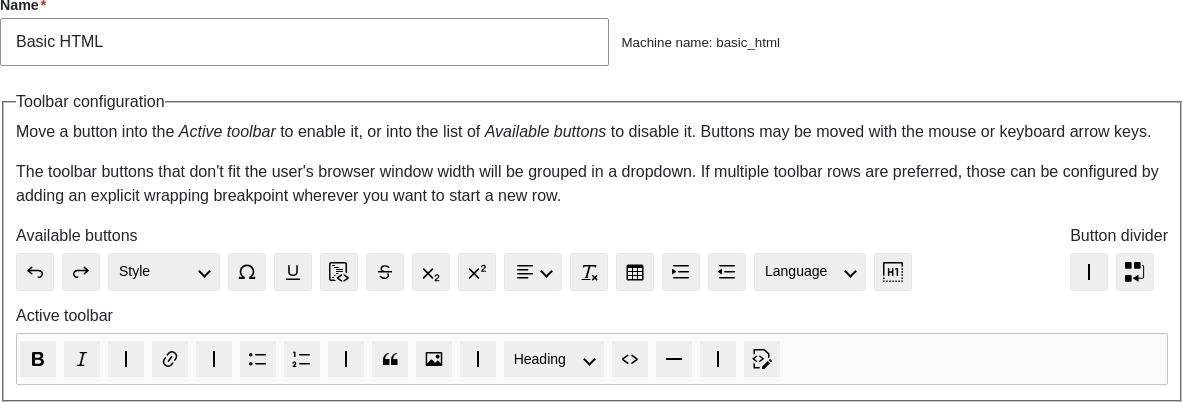
1. Drag the _horizontal line_ button from _Available buttons_ to the
_Active toolbar_. Toolbar items can be visually grouped together using a
vertical divider. As an alternative to dragging, you can tab to select
buttons and then move them using keyboard arrow keys.
 1. Note that you can change the _Filter processing order_.
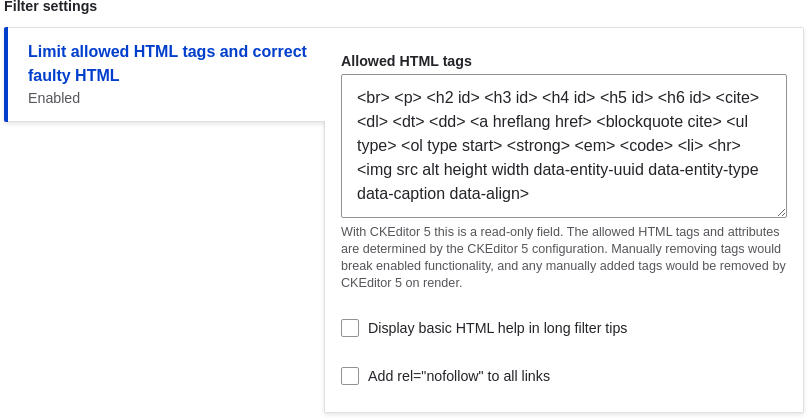
1. Under _Filter settings_ > _Limit allowed HTML tags and correct faulty HTML_,
in the field _Allowed HTML tags_, verify that `<hr>` is present (adding its
editor button will automatically update the allowed tags).
1. Note that you can change the _Filter processing order_.
1. Under _Filter settings_ > _Limit allowed HTML tags and correct faulty HTML_,
in the field _Allowed HTML tags_, verify that `<hr>` is present (adding its
editor button will automatically update the allowed tags).
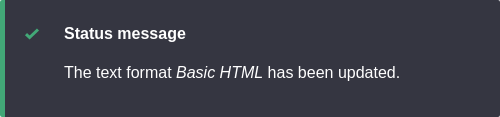
 1. Click _Save configuration_. You will be taken back to the _Text formats and
editors_ page. A message will be displayed saying that the text format has been
updated.
## Expand your understanding
If you do not see the effect of these changes in your site, you might need
to clear the cache. See [Clearing the Cache](/link/773).
## Videos
[Configuring Text Formats and Editors](https://www.youtube.com/watch?v=T9RD6PTxe9U)
1. Click _Save configuration_. You will be taken back to the _Text formats and
editors_ page. A message will be displayed saying that the text format has been
updated.

## Expand your understanding
If you do not see the effect of these changes in your site, you might need
to clear the cache. See [Clearing the Cache](/link/773).
## Videos
[Configuring Text Formats and Editors](https://www.youtube.com/watch?v=T9RD6PTxe9U)