# Setting Up an Image Style

## Goal

Add an image style and use it to display images on Vendor pages.
## Prerequisite knowledge

* [Adding Basic Fields to a Content Type](/link/722)
* [Changing Content Display](/link/730)
* [Concept: Image Styles](/link/731)
## Site prerequisites

* Vendor and Recipe content types must exist. See [Adding a Content Type](/link/720).
* Main image fields must exist for both content types. See [Adding Basic Fields to a Content Type](/link/722).
* Content items must exist for both content types. See
[Adding a Content Type](/link/720), [Adding Basic Fields to a Content Type](/link/722), and [Creating a Content Item](/link/713).
## Steps

1. In the _Manage_ administrative menu, navigate to _Configuration_ > _Media_ >
    _Image styles_ (_admin/config/media/image-styles_).
1. Click _Add image style_.
1. Enter the name _Extra medium (300x200)_
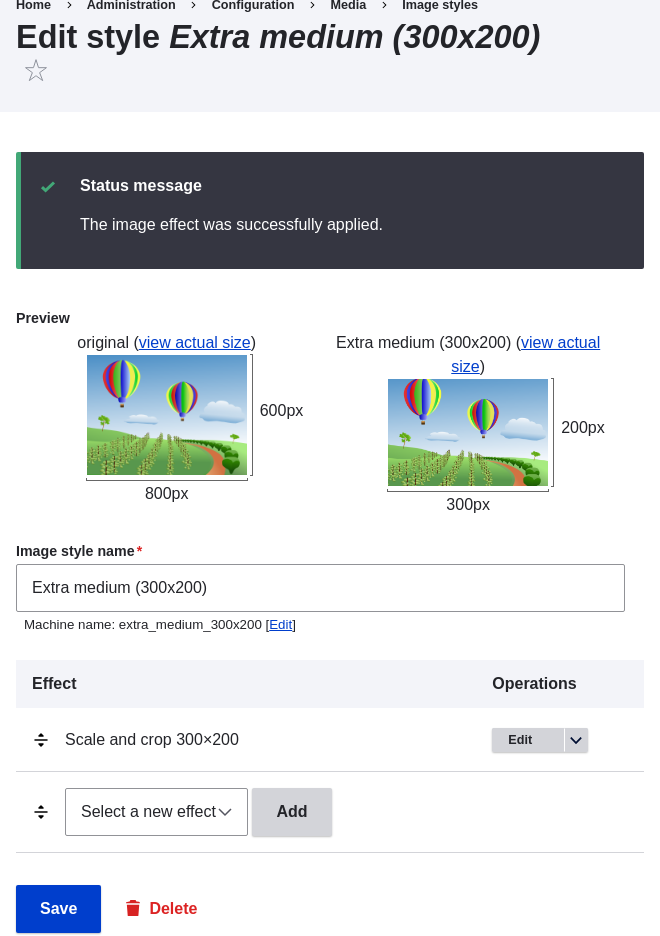
1. Click _Create new style_. The page _Edit style Extra medium
    (300x200)_ appears.
1. In the _Effect_ table, select _Scale and crop_. Click _Add_.
1. Fill in the fields as shown below.
    <table>
      <thead>
        <tr>
          <th>Field name</th>
          <th>Value</th>
        </tr>
      </thead>
      <tbody>
        <tr>
          <td>Width</td>
          <td>300</td>
        </tr>
        <tr>
          <td>Height</td>
          <td>200</td>
        </tr>
      </tbody>
    </table>
1. Click _Add effect_. The image style is saved with the chosen effects.
    <img src="https://docs.cocobook.com/uploads/images/gallery/2026-10/structure-image-style-create-add-style.png" alt="Add an image style" width="100%" />
1. In the _Manage_ administrative menu, navigate to _Structure_ > _Content types_
    (_admin/structure/types_).
1. Click _Manage display_ in the _Operations_ dropdown for the Vendor content
    type. The _Manage display_ page (_admin/structure/types/manage/vendor/display_)
    appears.
1. Ensure that the secondary tab _Default_ is selected.
1. Click the gear wheel for the _Main image_ field, to open the configuration
    options.
1. Fill in the fields as shown below.
    <table>
      <thead>
        <tr>
          <th>Field name</th>
          <th>Explanation</th>
          <th>Example value</th>
        </tr>
      </thead>
      <tbody>
        <tr>
          <td>Image style</td>
          <td>Which image style to use</td>
          <td>Extra medium (300x200)</td>
        </tr>
        <tr>
          <td>Link image to</td>
          <td>Page to visit if image is clicked</td>
          <td>Nothing</td>
        </tr>
      </tbody>
    </table>

    ![Change field formatter settings of image field](https://docs.cocobook.com/uploads/images/gallery/2026-10/structure-image-style-create-manage-display.png)

1. Click _Update_.
1. Click _Save_. The new image style will be used while displaying Vendor
    content.
1. Open a Vendor content item and verify that it now shows up with the
    scaled-down image. See [Editing a Content Item](/link/714) for information on how to locate an
    existing content item.
1. Repeat steps 8-15 for the Recipe content type.

## Related concepts

* [Adding Basic Fields to a Content Type](/link/722)
* [Concept: Image Styles](/link/731)
* [Concept: Responsive Image Styles](/link/733)
## Videos

[Setting up an Image Style](https://www.youtube.com/watch?v=DKIo7j19ulY)

## Additional resources

[_Drupal.org_ community documentation page "Working with images"](https://www.drupal.org/docs/core-modules-and-themes/core-modules/image-module/working-with-images)