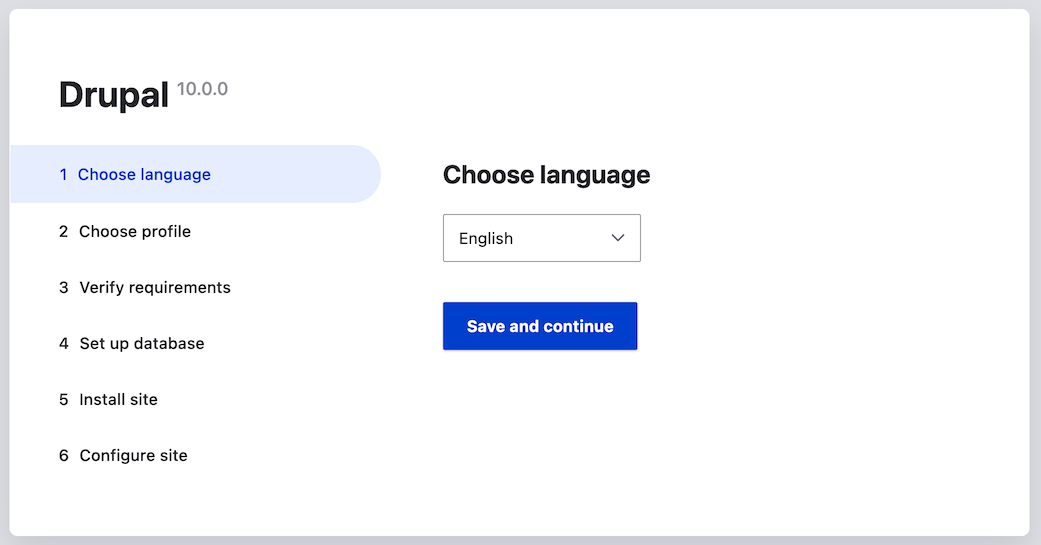
 1. Select an installation profile. Installation profiles provide site features
and functions for a specific type of site as a single download containing
the core software, contributed modules, themes, and pre-defined
configuration. Core contains two installation profiles. Select the core
Standard installation profile. Click _Save and continue_.
1. Select an installation profile. Installation profiles provide site features
and functions for a specific type of site as a single download containing
the core software, contributed modules, themes, and pre-defined
configuration. Core contains two installation profiles. Select the core
Standard installation profile. Click _Save and continue_.
 1. The next step in the installer will verify that your system meets the minimum
requirements. If it does not, you'll be presented with an outline of what
needs to be corrected in order to proceed. If it does, the installer will
automatically advance to the next step.
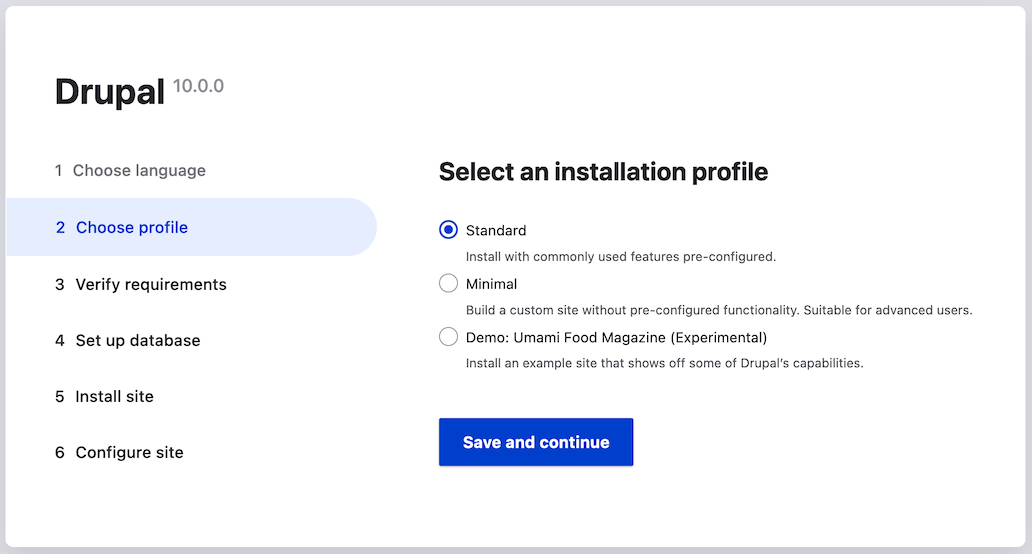
1. Provide details of the database you created in the [Preparing to Install](/link/697)
chapter. Then click _Save and continue_.
1. The next step in the installer will verify that your system meets the minimum
requirements. If it does not, you'll be presented with an outline of what
needs to be corrected in order to proceed. If it does, the installer will
automatically advance to the next step.
1. Provide details of the database you created in the [Preparing to Install](/link/697)
chapter. Then click _Save and continue_.
| Field name | Explanation | Value |
|---|---|---|
| Database name | The custom name given to the database | drupal |
| Database username | Username created | databaseUsername |
| Database password | Password chosen | ************ |
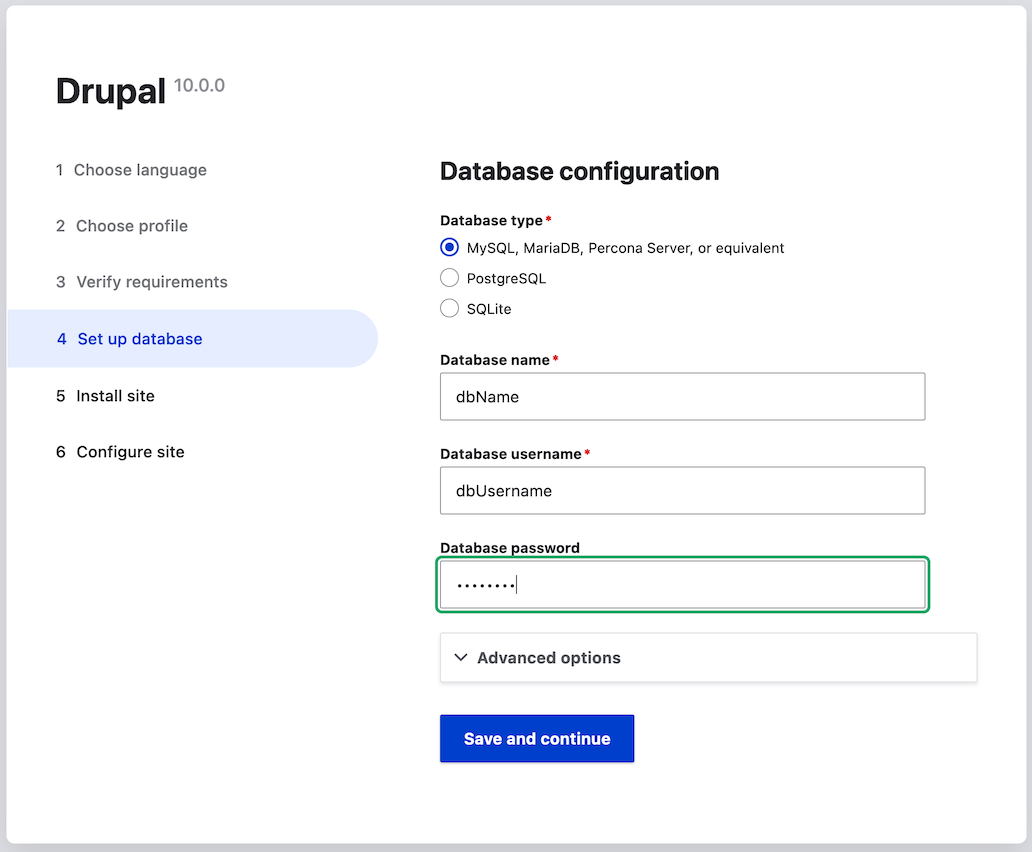 1. The next step will display a progress bar under the heading _Installing
Drupal_. After the installer has completed, it will automatically advance to
the next step.
1. The next step will display a progress bar under the heading _Installing
Drupal_. After the installer has completed, it will automatically advance to
the next step.
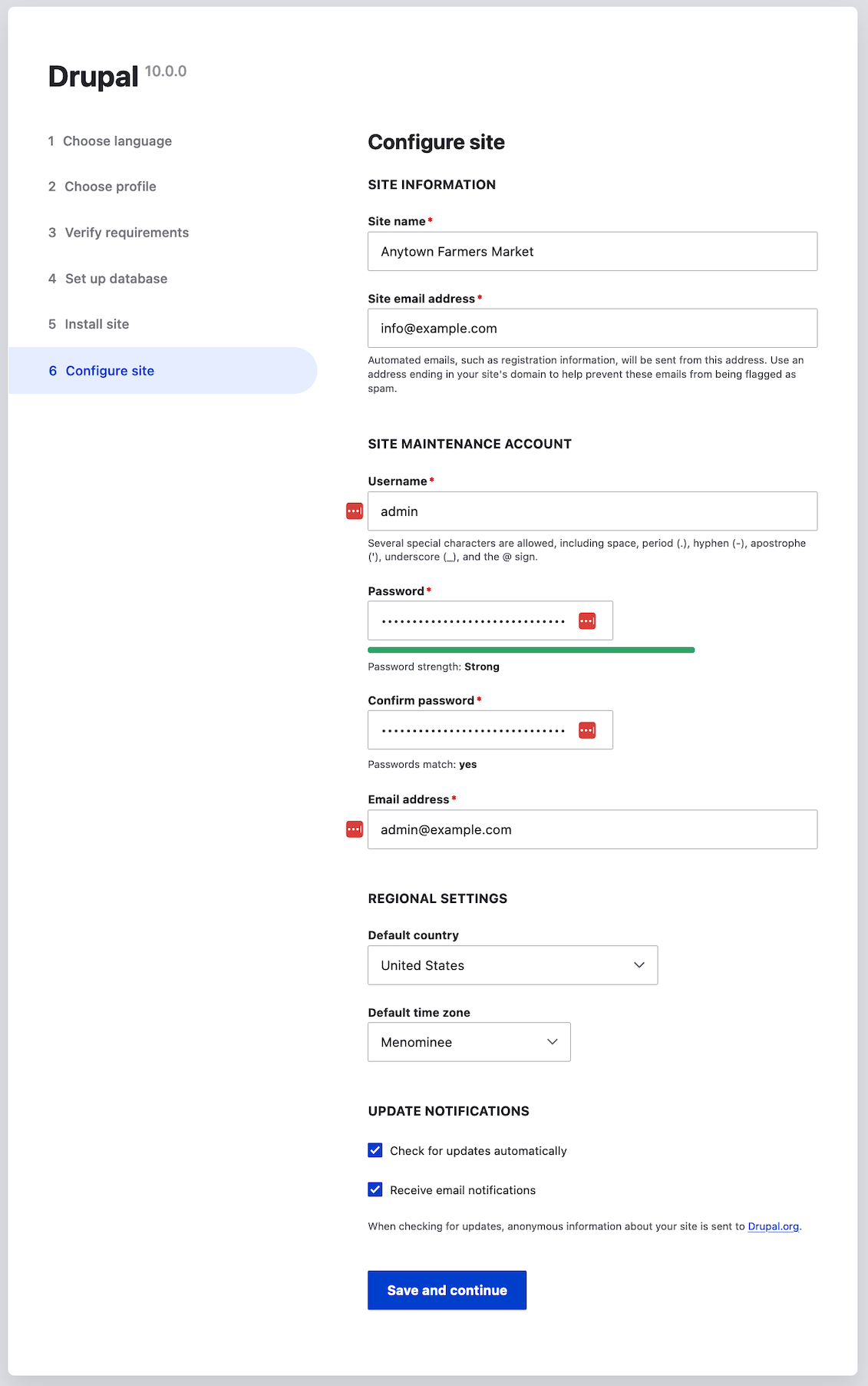
 1. The next step is to configure some basic information about your new site
(also notice if there is a warning about file permissions, for a later step).
Note that the user account you create in this step is the site's admin
account. See [Concept: The User 1 Account](/link/738) for important information about this unique
account. You can safely name this account "admin", and make sure to choose a
secure and unique password.
Fill in the form with the following information:
1. The next step is to configure some basic information about your new site
(also notice if there is a warning about file permissions, for a later step).
Note that the user account you create in this step is the site's admin
account. See [Concept: The User 1 Account](/link/738) for important information about this unique
account. You can safely name this account "admin", and make sure to choose a
secure and unique password.
Fill in the form with the following information:
| Field name | Explanation | Value |
|---|---|---|
| Site name | The name chosen for the site | Anytown Farmers Market |
| Site email address | The email associated with the site | info@example.com |
| Username | The designated user's credentials | admin |
| Password | The password chosen | ************ |
| Confirm password | Repeat the password | ************ |
| Email address | The user's email | admin@example.com |
 1. Click _Save and continue_.
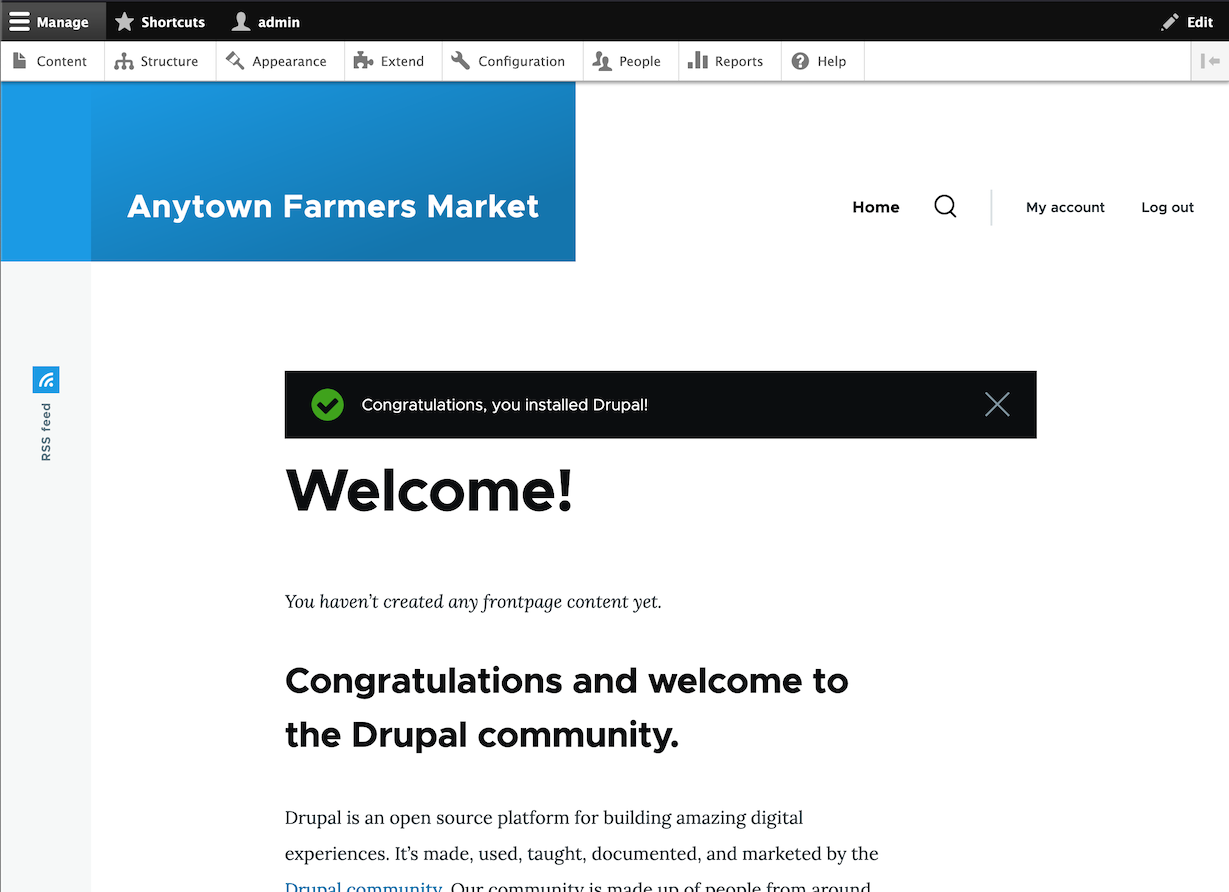
1. You will be redirected to the front page of your new site and you should see
the message _Congratulations, you installed Drupal!_ displayed at the top of
the page.
1. Click _Save and continue_.
1. You will be redirected to the front page of your new site and you should see
the message _Congratulations, you installed Drupal!_ displayed at the top of
the page.
 1. You may have seen a warning in the Configuration step about file permissions,
and you may continue to see this warning until you fix the permissions. To
avoid the warning and make your site more secure, change the permissions on the
_sites/default_ directory and the _sites/default/settings.php_ file so that they
are read-only (you may need to consult your hosting company documentation about
how to do that).
## Expand your understanding
Alternatively, you can install the software using Drush instead of the UI. Use
the following Drush command, from inside the directory that you downloaded the
software to, where _DB_NAME_, _DB_USER_ and _DB_PASS_ are your database's
credentials:
```text
drush site:install standard --db-url='mysql://DB_USER:DB_PASS@localhost/DB_NAME' --site-name=example
```
Check the Status Report to see if there are any problems with the
installation. See [Concept: Status Report](/link/776).
## Related concepts
* [Concept: Development Sites](/link/766)
* [Concept: Additional Tools](/link/699)
## Videos
[Running the Installer](https://www.youtube.com/watch?v=LGfRKKKDjv8)
## Additional resources
* [_Drupal.org_ community documentation page "Create a database"](https://www.drupal.org/docs/installing-drupal/step-3-create-a-database)
* [_Drupal.org_ community documentation section "Webhosting issues"](https://www.drupal.org/server-permissions)
1. You may have seen a warning in the Configuration step about file permissions,
and you may continue to see this warning until you fix the permissions. To
avoid the warning and make your site more secure, change the permissions on the
_sites/default_ directory and the _sites/default/settings.php_ file so that they
are read-only (you may need to consult your hosting company documentation about
how to do that).
## Expand your understanding
Alternatively, you can install the software using Drush instead of the UI. Use
the following Drush command, from inside the directory that you downloaded the
software to, where _DB_NAME_, _DB_USER_ and _DB_PASS_ are your database's
credentials:
```text
drush site:install standard --db-url='mysql://DB_USER:DB_PASS@localhost/DB_NAME' --site-name=example
```
Check the Status Report to see if there are any problems with the
installation. See [Concept: Status Report](/link/776).
## Related concepts
* [Concept: Development Sites](/link/766)
* [Concept: Additional Tools](/link/699)
## Videos
[Running the Installer](https://www.youtube.com/watch?v=LGfRKKKDjv8)
## Additional resources
* [_Drupal.org_ community documentation page "Create a database"](https://www.drupal.org/docs/installing-drupal/step-3-create-a-database)
* [_Drupal.org_ community documentation section "Webhosting issues"](https://www.drupal.org/server-permissions)