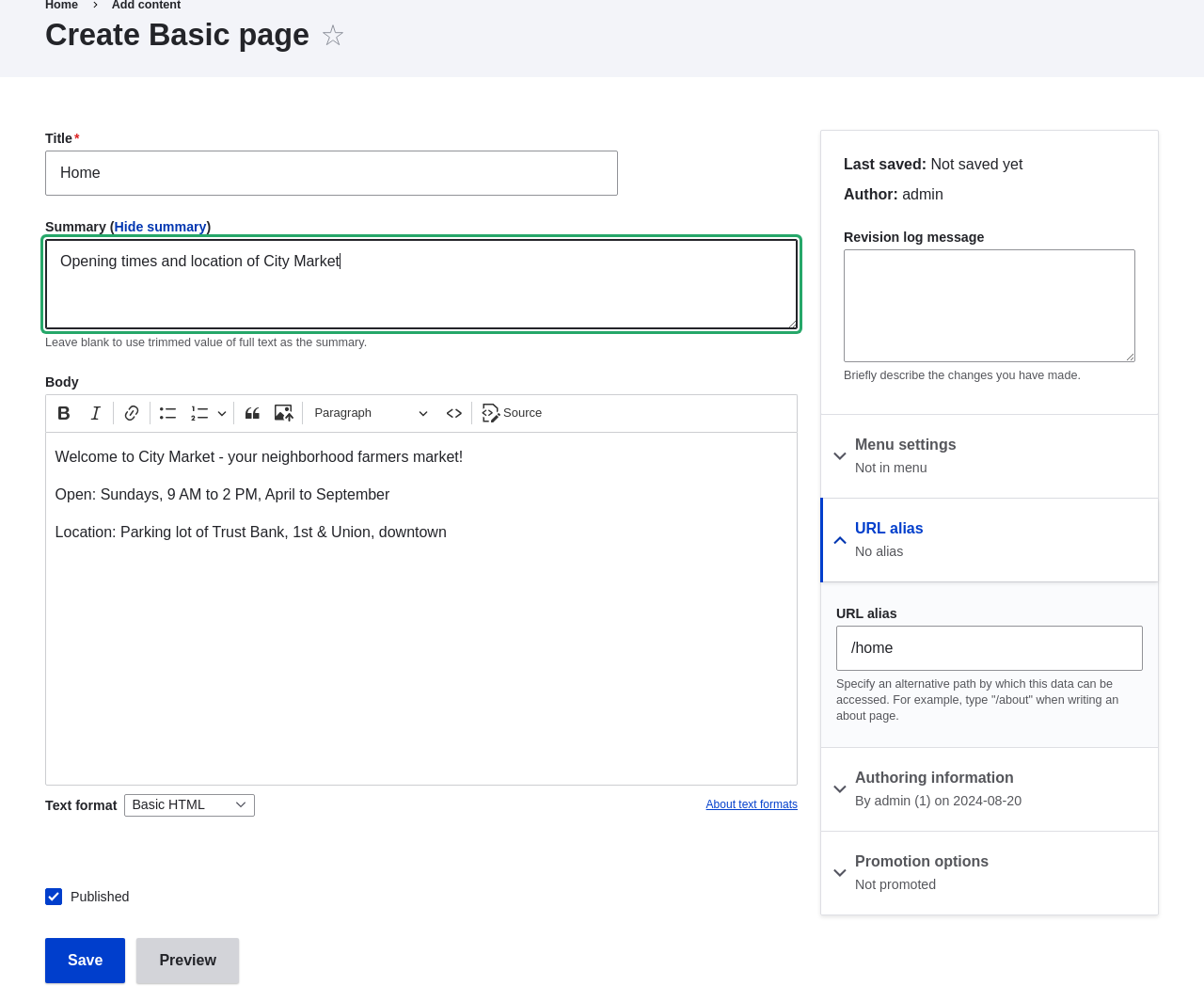
| Field name | Explanation | Value | ||
|---|---|---|---|---|
| Title | Title of the page. Will also be used as a meta tag in the source code, URL alias, and as label of the content item in administration screens | Home | Summary | Summary of the value of the body field. Can be used as teaser |
| Body | Full content of the page | Welcome to City Market - your neighborhood | ||
| Published | Whether the content is published for public view or not | Checked | ||
| URL alias > URL alias | Alternate relative path for the content | /home |
 1. Click _Preview_ to ensure everything looks like expected.
1. Click _Back to content editing_.
1. Click _Save_. The content is saved and can be found on the
_Content_ page.
1. Follow the same steps to create an About page, with title "About", and a body
telling about the history of the farmer's market.
## Expand your understanding
* [Designating a Front Page for your Site](/link/715)
* [Adding a Page to the Navigation](/link/717)
* [Translating Content](/link/757)
## Related concepts
* [Concept: User Interface, Configuration, and Content translation](/link/695)
* [Concept: Paths, Aliases, and URLs](/link/712)
* [Editing a Content Item](/link/714)
## Videos
[Creating a Content Item](https://www.youtube.com/watch?v=h312fekiSNE)
## Additional resources
[_Drupal.org_ community documentation page "About nodes"](https://www.drupal.org/docs/core-modules-and-themes/core-modules/node-module/about-nodes)
1. Click _Preview_ to ensure everything looks like expected.
1. Click _Back to content editing_.
1. Click _Save_. The content is saved and can be found on the
_Content_ page.
1. Follow the same steps to create an About page, with title "About", and a body
telling about the history of the farmer's market.
## Expand your understanding
* [Designating a Front Page for your Site](/link/715)
* [Adding a Page to the Navigation](/link/717)
* [Translating Content](/link/757)
## Related concepts
* [Concept: User Interface, Configuration, and Content translation](/link/695)
* [Concept: Paths, Aliases, and URLs](/link/712)
* [Editing a Content Item](/link/714)
## Videos
[Creating a Content Item](https://www.youtube.com/watch?v=h312fekiSNE)
## Additional resources
[_Drupal.org_ community documentation page "About nodes"](https://www.drupal.org/docs/core-modules-and-themes/core-modules/node-module/about-nodes)