# Configuring the Theme
## Goal
Edit the settings of the default core Olivero theme to change the color scheme
and to add a logo.
## Prerequisite knowledge
[Concept: Themes](/link/683)
## Steps
1. In the _Manage_ administrative menu, navigate to _Appearance_
(_admin/appearance_).
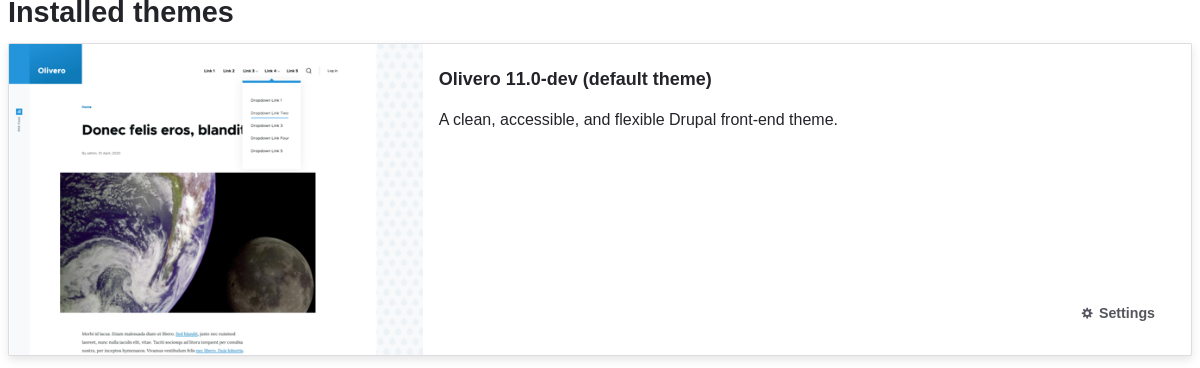
1. Under _Installed themes_, you will find Olivero listed as your default
theme. Under _Olivero (default theme)_, click _Settings_.
 1. Under _Logo image_, uncheck _Use the logo supplied by the
theme_.
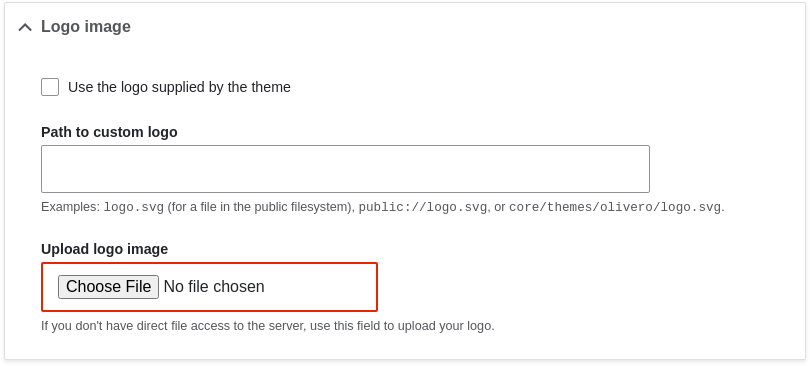
1. Under _Upload logo image_, locate a logo file and upload it to your
site. Note: You can also set a universal logo for all themes under
_Appearance_ > _Settings_ (_admin/appearance/settings_). A custom logo for your
theme will override the universal logo.
Once you have selected the file you would like to upload, you will see its
filename next to the _Choose File_ or _Browse_ button in your browser.
1. Under _Olivero Utilities_, you can choose to use a different color scheme for
the theme. You can choose from a list of existing color scheme's, or enter a
color and the core software will generate a new scheme based on that color.
For example, use the following custom color:
1. Under _Logo image_, uncheck _Use the logo supplied by the
theme_.

1. Under _Upload logo image_, locate a logo file and upload it to your
site. Note: You can also set a universal logo for all themes under
_Appearance_ > _Settings_ (_admin/appearance/settings_). A custom logo for your
theme will override the universal logo.
Once you have selected the file you would like to upload, you will see its
filename next to the _Choose File_ or _Browse_ button in your browser.
1. Under _Olivero Utilities_, you can choose to use a different color scheme for
the theme. You can choose from a list of existing color scheme's, or enter a
color and the core software will generate a new scheme based on that color.
For example, use the following custom color:
| Field |
Color |
| Primary base color |
#7db84a (green) |
Note: You can also use a color picker by pressing the colored square on the
right to select a color of your choice. The web color codes will be added for
you.
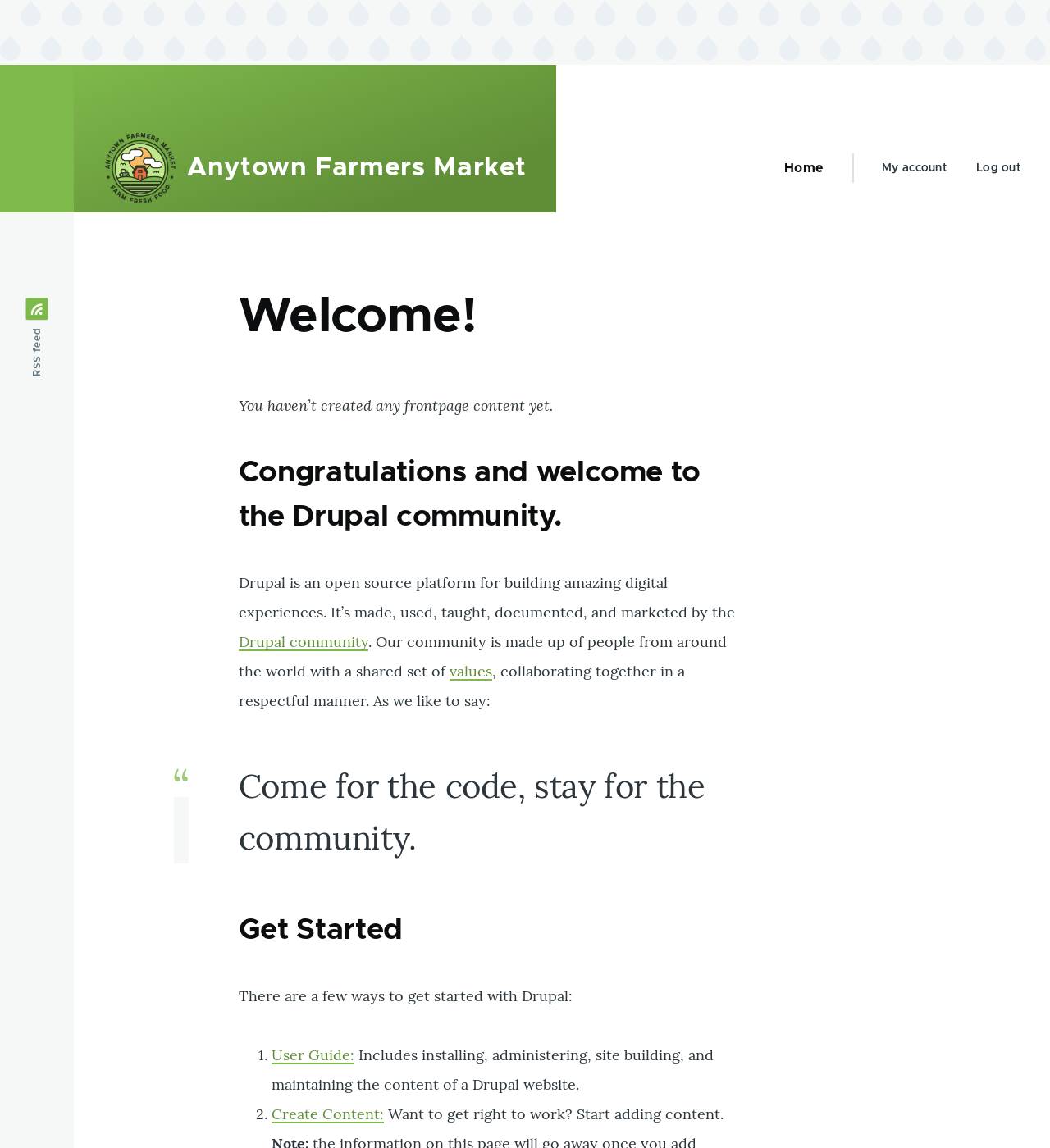
1. In order to save your changes and see the updated colors and logo on your
site, click _Save configuration_ at the bottom of the page.
1. Click _Return to site_ or _Home_ in the toolbar to verify that you have
updated the core Olivero theme settings for your website.
 ## Expand your understanding
* [Finding Themes](/link/763)
* [Downloading and Installing a Theme from _Drupal.org_](/link/764)
* If you do not see the effect of these changes in your site, you might need
to clear the cache. See [Clearing the Cache](/link/773).
## Videos
[Configuring the Theme](https://www.youtube.com/watch?v=CEi3i1YGOs0)
## Expand your understanding
* [Finding Themes](/link/763)
* [Downloading and Installing a Theme from _Drupal.org_](/link/764)
* If you do not see the effect of these changes in your site, you might need
to clear the cache. See [Clearing the Cache](/link/773).
## Videos
[Configuring the Theme](https://www.youtube.com/watch?v=CEi3i1YGOs0)