# Concept: Administrative Overview
## Prerequisite knowledge
* [Concept: Themes](/link/683)
* [Concept: Modules](/link/682)
## What is the administrative menu?
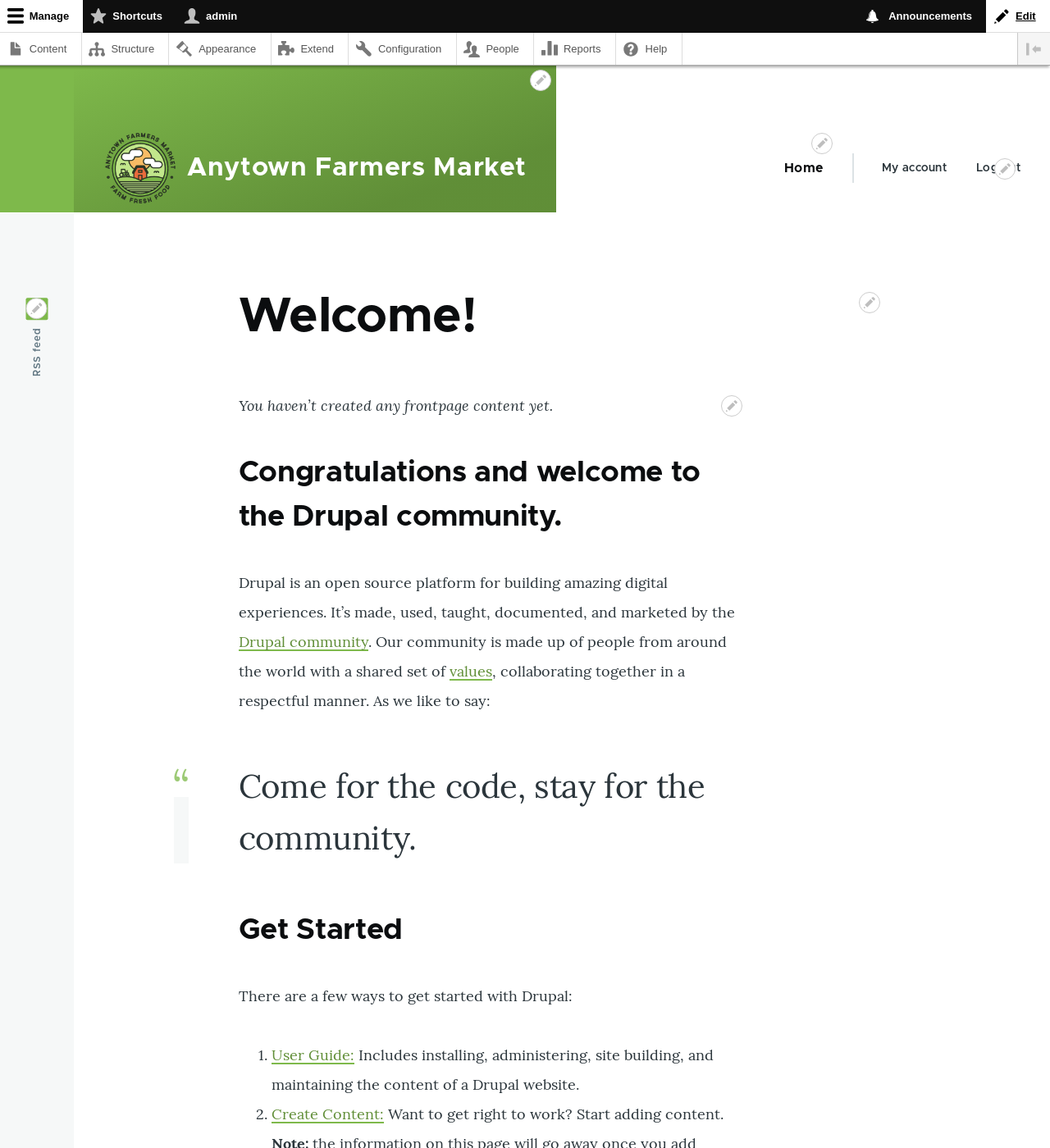
The toolbar provided by the core Toolbar module displays the _Manage_
administrative menu at the top or left side of the site, for users with
permission to see it. This menu provides access to all of the administrative
areas of the site. The menu links will vary depending on which modules are
active on your site and the permissions of the person viewing the menu; if you
install using the core Standard installation profile and have full
administrative permissions, the top-level links are as follows:
 - **Content:** Lists and manages existing content, and allows creation of new content.
- **Structure:** Contains a list of links for managing structural elements of the site, such as blocks, content types, menus, and taxonomy.
- **Appearance:** Manages themes and appearance-related settings.
- **Extend:** Manages the installation and uninstallation of modules.
- **Configuration:** Contains links to settings pages for various site features.
- **People:** Manages users, roles, and permissions.
- **Reports:** Contains links to logs, update information, search information, and other information about the site's status.
- **Help:** Lists help topics for installed modules that provide them.
The arrow button on the far right side of the second line of the toolbar (or far
left side, if the site is being viewed using a right-to-left-reading language
like Arabic) can be used to switch the menu from appearing horizontally at the
top of the page, to a vertical format on the left side (or right side, in
right-to-left languages). When viewed vertically, the menu becomes an
interactive tree.
- **Content:** Lists and manages existing content, and allows creation of new content.
- **Structure:** Contains a list of links for managing structural elements of the site, such as blocks, content types, menus, and taxonomy.
- **Appearance:** Manages themes and appearance-related settings.
- **Extend:** Manages the installation and uninstallation of modules.
- **Configuration:** Contains links to settings pages for various site features.
- **People:** Manages users, roles, and permissions.
- **Reports:** Contains links to logs, update information, search information, and other information about the site's status.
- **Help:** Lists help topics for installed modules that provide them.
The arrow button on the far right side of the second line of the toolbar (or far
left side, if the site is being viewed using a right-to-left-reading language
like Arabic) can be used to switch the menu from appearing horizontally at the
top of the page, to a vertical format on the left side (or right side, in
right-to-left languages). When viewed vertically, the menu becomes an
interactive tree.
 This guide has a standard way to describe navigation to administrative pages
using the administrative toolbar. See [Conventions of the Guide](/link/678) for more
information.
## What are contextual links?
Some administrative and editing functionality on the site can be accessed
through the _contextual links_ displayed by the core Contextual Links module.
Contextual links take you to some of the same pages that you can access through
the administrative menu, but instead of having to navigate through the menu
hierarchy, these links are provided near where the related content is displayed
on your site.
Contextual links have to be activated to be visible. If your site's theme uses
the default styling for contextual links, a pencil icon is used to indicate that
contextual links are present and activated, and if you click the icon, you will
see the contextual links. There are two ways to activate the pencil icons that
provide access to the contextual links:
* If you are using a mouse in a browser, the icon will temporarily appear when
you hover over an area that has related contextual links.
* You can click the master pencil icon (or its _Edit_ link) at the right end of
the top bar in the toolbar, which will activate all of the contextual links on
the current page. This icon is only visible on pages with contextual links.
This guide has a standard way to describe navigation to administrative pages
using the administrative toolbar. See [Conventions of the Guide](/link/678) for more
information.
## What are contextual links?
Some administrative and editing functionality on the site can be accessed
through the _contextual links_ displayed by the core Contextual Links module.
Contextual links take you to some of the same pages that you can access through
the administrative menu, but instead of having to navigate through the menu
hierarchy, these links are provided near where the related content is displayed
on your site.
Contextual links have to be activated to be visible. If your site's theme uses
the default styling for contextual links, a pencil icon is used to indicate that
contextual links are present and activated, and if you click the icon, you will
see the contextual links. There are two ways to activate the pencil icons that
provide access to the contextual links:
* If you are using a mouse in a browser, the icon will temporarily appear when
you hover over an area that has related contextual links.
* You can click the master pencil icon (or its _Edit_ link) at the right end of
the top bar in the toolbar, which will activate all of the contextual links on
the current page. This icon is only visible on pages with contextual links.