| Field name | Explanation | Example value |
|---|---|---|
| Title | Short summary of the problem you found | Instructions in "Adding |
| Category | Type of issue being reported | Bug report |
| Version | Version of the guide you found the problem in | 9.1.x-dev |
| Issue summary | Details of the problem you found | In the "Adding a Content |
 Here's another example:
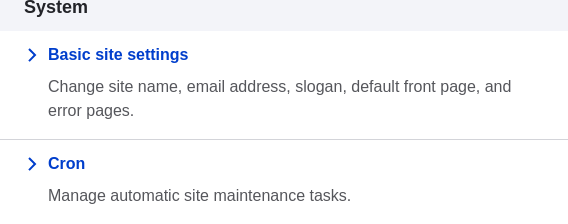
> In the _Manage_ administrative menu, navigate to
> _Configuration_ > _System_ > _Basic site settings_
> (_admin/config/system/site-information_).
In this example, after clicking on _Manage_ and _Configuration_, you would need
to find the _System_ section of the page, and within that, click _Basic
site settings_. After that, you'd end up on
_http://example.com/admin/config/system/site-information_.
One other note: if you are using the standard administrative core Seven theme,
many "Add" buttons in the administrative interface are displayed with + signs on
them. For instance, on admin/content, the Add new content button appears as
_+ Add new content_. However, this is theme-dependent and is not really part of
the text on the button (for instance, it would not necessarily be read by a
screen reader), so in this guide, the convention is to not mention the + sign
on the buttons.
## Filling in forms
Many of the task topics in this guide include steps where you will fill out a
web form. In most cases, a screen capture image of the form will be included,
along with a table of the values you will need to enter into each form
field. For example, you might see a table that starts out like this, explaining
the site information form you would see if you navigated to _Configuration_ >
_System_ > _Site information_ (_admin/config/system/site-information_):
| Field name | Explanation | Example value |
| --- | --- | --- |
| Site details > Site name | Name of your site | Anytown Farmers Market |
To use this table, find the field labeled _Site name_ in the section that is
under _Site details_ in the form, and enter the name of your site in this
field. An example site name of "Anytown Farmers Market" is suggested in the
table, which relates to the scenario of building a website for a farmers market
that you'll find all through this guide (see [Guiding Scenario](/link/679) for
details). Also note that on some forms, you might have to click a section title
(like _Site details_ in this example) to expand the section and find the field
it contains.
# Guiding Scenario
When reading this guide, it is helpful to have a website building project in
mind. The following project scenario provides context and links together
the examples in this guide:
You are making a website for a farmers market. The site needs to display
information about the location and hours of the market, and an About page with
the history of the market. It also needs to list the vendors. Vendors should be
able to edit their listings (including a logo or photo), and post recipes. Site
visitors should be able to browse recipes, or locate recipes using ingredients
that they purchased at the market. Some visitors to your site speak another
language, so the main pages and vendor pages need to be translated.
As you read through the guide and try out the tasks it describes, you may choose
to follow the scenario exactly; you could also modify the tasks to suit your
purposes. If you do want to follow the scenario exactly, you'll find that you
need some image files, which are located in the _assets_ directory of the _.zip_
or _.tgz_ file download available on the
[User Guide project page](https://www.drupal.org/project/user_guide).
# Chapter 1: Understanding Drupal
# Concept: Drupal as a Content Management System
## What is a Content Management System?
A content management system (CMS) is a software tool that lets users add,
publish, edit, or remove content from a website, using a web browser on a
smartphone, tablet, or desktop computer. Typically, the CMS software is written
in a scripting language, and its scripts run on a computer where a database and
a web server are installed. The content and settings for the website are usually
stored in a database, and for each page request that comes to the web server,
the scripts combine information from the database and _assets_ (JavaScript
files, CSS files, image files, etc. that are part of the CMS or have been
uploaded) to build the pages of the website.
The combination of the operating system that the CMS runs on, the scripting
language it is written in, the database it stores its information in, and the
web server that runs the scripts to retrieve information and return it to the
site visitor's web browser is known as the _stack_ that the CMS runs on; the
commonly used combination of the Linux operating system, Apache web server,
MySQL database, and PHP scripting language is known as the _LAMP stack_.
## What is Drupal?
Drupal is a flexible CMS based on the LAMP stack, with a modular design allowing
features to be added and removed by installing and uninstalling _modules_, and
allowing the entire look and feel of the website to be changed by installing and
uninstalling _themes_. The base Drupal download, known as Drupal Core, contains
the PHP scripts needed to run the basic CMS functionality, several optional
modules and themes, and many JavaScript, CSS, and image assets. Many additional
modules and themes can be downloaded from the [_Drupal.org_](https://www.drupal.org)
website.
Drupal can also run on other technology stacks:
* The operating system can be Windows or Mac OS instead of Linux.
* The web server can be Nginx or IIS instead of Apache.
* The database can be PostgreSQL or SQLite instead of MySQL, or a
MySQL-compatible replacement such as MariaDB or Percona.
Other operating systems, web servers, and databases can also be made to work;
however, the scripts that the software uses are written in PHP, so that cannot
be changed.
## What are the reasons for using Drupal?
When building a website, you have your choice of using one of the many existing
CMS packages and hosted services, developing your own CMS, or building the site
without using a CMS. Here are some of the reasons you might choose to use
Drupal:
* Building a small, simple site with static HTML pages is not difficult, and you
can get a simple site up very quickly. Setting up a site in a CMS generally
requires more time initially, but brings you the benefits of on-line editing
(easier for less experienced content maintainers), uniformity (harder to
maintain using static HTML for larger sites), and the possibility of more
complex features requiring a database.
* Some CMS software is special-purpose; for instance, there are packages and
hosted services that you can use to build a blog or a club membership
website. Drupal, in contrast, is a general-purpose CMS. If you are building a
special-purpose site, you might choose to use a special-purpose CMS; however, if
your site falls even slightly outside the intended purpose, you will probably be
better off using a general-purpose CMS rather than trying to adapt a
special-purpose CMS.
* Building your own CMS-type software can seem attractive. However, using a
general-purpose CMS like Drupal as a starting point is usually a better idea,
because the basic CMS functionality (such as user accounts and content
management) has thousands of developer hours behind it, including many years of
user testing, bug fixing, and security hardening.
* Some CMS software packages are expensive to purchase a license for. Some are
free or have a free version, but have restrictive licenses that do not allow you
to make modifications and extensions. You might prefer to use a package (like
Drupal) that has a less restrictive software license, and is developed by a
world-wide community. See [Concept: The Drupal Project](/link/686) for more on this topic.
## Related topics
* [Concept: Modules](/link/682)
* [Concept: Themes](/link/683)
* [Concept: Distributions](/link/684)
* [Concept: The Drupal Project](/link/686)
## Additional resources
* [_Drupal.org_ community documentation page "Understanding Drupal: Overview"](https://www.drupal.org/docs/understanding-drupal/overview)
* [_Drupal.org_ page "FAQ" (Frequently Asked Questions)](https://www.drupal.org/about/faq)
* [_Drupal.org_ page "Case Studies"](https://www.drupal.org/case-studies)
* [Wikipedia page "Content management systems"](https://en.wikipedia.org/wiki/Content_management_system)
* [Wikipedia page "Modular design"](https://en.wikipedia.org/wiki/Modular_design)
# Concept: Modules
## Prerequisite knowledge
[Concept: Drupal as a Content Management System](/link/681)
## What is a module?
A module is a package of files that extends Drupal's core functionality. Modules
typically contain PHP code, configuration (YAML), and may include JavaScript,
CSS, and Twig template files.
You can turn the features and functionality on by _installing_ the module, and
you can turn it off by _uninstalling_ the module; before uninstalling, you may
need to remove data and configuration related to the feature or functionality.
Each module that is installed adds to the time needed to generate pages on your
site, so it is a good idea to uninstall modules that are not needed.
The core download provides modules for functionality such as:
* Managing user accounts (the core User module)
* Managing basic content (the core Node module) and fields (the core Field and
Field UI modules; there are also core modules providing field types)
* Managing navigation menus (the core Menu UI module)
* Making lists, grids, and blocks from existing content (the core Views and
Views UI modules)
You can download additional _contributed modules_ from the
[_Drupal.org_ Module Downloads](https://www.drupal.org/project/project_module), or
create your own _custom modules_.
## Related topics
* [Concept: Themes](/link/683)
* [Concept: Distributions](/link/684)
* [Uninstalling Unused Modules](/link/708)
* [Finding Modules](/link/760)
* [Downloading and Installing a Module from _Drupal.org_](/link/762)
* [Concept: Security and Regular Updates](/link/780)
* [Updating a Module](/link/783)
## Additional resources
[_Drupal.org_ community documentation page "Module developer's guide"](https://www.drupal.org/developing/modules)
# Concept: Themes
## Prerequisite knowledge
[Concept: Drupal as a Content Management System](/link/681)
## What is a Theme?
A theme is a set of files that define the visual look and feel of your site.
The core software and modules that run on your site determine which
_content_ (including HTML text and other data stored in the database, uploaded
images, and any other asset files) is displayed on the pages of your site. The
theme determines the HTML markup and CSS styling that wraps the content.
The core software provides several basic themes with the core distribution.
These themes have largely been designed and built by the community over the last
several years and will all be good choices for building your first sites and
becoming more familiar with how the core software works.
Drupal is a well-established CMS so the market for 3rd party themes - both free
and paid - is very robust.
If none of the 3rd party options suit your needs, you'll need to create a custom
theme. A custom theme can be as simple as a single CSS file that adds styling to
the markup provided by the core software. Guidance for creating custom themes in
Drupal can be found in the
[_Drupal.org_ community documentation page "Theming Drupal"](https://www.drupal.org/docs/theming-drupal).
## Related topics
* [Finding Themes](/link/763)
* [Downloading and Installing a Theme from _Drupal.org_](/link/764)
* [Concept: Modules](/link/682)
## Additional resources
[_Drupal.org_ community documentation page "Theming Drupal"](https://www.drupal.org/docs/theming-drupal)
# Concept: Distributions
## Prerequisite knowledge
* [Concept: Drupal as a Content Management System](/link/681)
* [Concept: Modules](/link/682)
* [Concept: Themes](/link/683)
## What are Distributions?
_Distributions_ provide site features and functions for a specific type of site
as a single download containing the core software, contributed modules, themes,
and pre-defined configuration. A distribution makes it possible to set up a
complex site for a specific purpose, in fewer steps than installing and
configuring elements individually.
There are two main types of distributions:
- **Full-featured Distributions:** A full-featured distribution is a project that provides a complete solution to set up a site for a specialized purpose, such as academic, business, government, nonprofit, publishing, social, etc. For example, you could use an existing distribution for farmers markets to build your own website, or you could share your set-up for the farmers market site as a distribution for others to use.
- **Other Distributions:** Distributions can also be quick-start tools that developers and site builders can use as a starting point.
## Related topics
[Connecting with the Community](/link/786)
## Additional resources
[_Drupal.org_ Drupal Distribution Downloads](https://www.drupal.org/project/project_distribution)
# Concept: Types of Data
## What are the types of data?
The data and information on your site is divided up into four types, which are
edited, translated, and stored differently. These four types are:
- **Content:** Information (text, images, etc.) meant to be displayed to site visitors. This type of information tends to be relatively permanent, but can normally be edited.
- **Configuration:** Information about your site that is not content, but is also relatively permanent, and is used to define how your site behaves or is displayed. It is sometimes also displayed to site visitors, but tends to be smaller pieces of text (like field labels, the name of your site, etc.) rather than larger chunks that you'd normally think of as Content.
- **State:** Information of a temporary nature about the current state of your site, such as the time when cron jobs were last run.
- **Session:** Information about individual site visitors' interactions with the site, such as whether they are logged in and their cookies. This is technically a subtype of State information, since it is also temporary.
## Related topics
* [Concept: Content Entities and Fields](/link/691)
* [Concept: Cron](/link/778)
* [Concept: Users, Roles, and Permissions](/link/737)
* [Concept: User Interface, Configuration, and Content translation](/link/695)
# Concept: The Drupal Project
## Prerequisite knowledge
[Concept: Drupal as a Content Management System](/link/681)
## What is Free and Open Source Software?
Free and Open Source Software (FOSS) is software that is developed by a
community of people, released under a non-commercial license, and whose _source
code_ (the program files that make up the software) is freely available. For
more information on the non-commercial license used by Drupal, see
[Concept: Drupal Licensing](/link/687).
## What is the Drupal project?
The Drupal project is a FOSS project whose purpose is to develop the core
content management system software, as well as add-on modules, additional
themes, translations, documentation, and special-purpose distributions. The
people who contribute their time and money to the Drupal project come from all
over the world, and are a diverse community that comes together for this common
purpose.
The community encompasses many smaller groups who perform many different tasks
such as developing a particular piece of Drupal-related software, writing
documentation, maintaining the security of Drupal software, translating Drupal
software into a particular language, using Drupal for some specific purpose,
and coming together to meet in person within a particular geographical area.
For more on how you can connect to and communicate with the world-wide
community, see [Connecting with the Community](/link/786) and [Getting Support](/link/787).
## What is the Drupal Association?
The [Drupal Association](https://www.drupal.org/association) is a non-profit organization
dedicated to supporting the Drupal project and community. Its main functions
are:
* Putting on large conventions around the world
* Maintaining the _Drupal.org_ websites and the servers that they run on
* Promoting Drupal as a web platform
* Supporting Drupal education and training
* Providing grants to the Drupal community in support of its mission
* Raising funds for these purposes
## Related topics
* [Concept: Drupal Licensing](/link/687)
* [Concept: Security and Regular Updates](/link/780)
* [Connecting with the Community](/link/786)
* [Getting Support](/link/787)
## Additional resources
* [Drupal project governance](https://www.drupal.org/governance)
* [Drupal Code of Conduct](https://www.drupal.org/dcoc)
# Concept: Drupal Licensing
## Prerequisite knowledge
[Concept: Drupal as a Content Management System](/link/681)
## What is Drupal Licensing?
Drupal and all contributed files hosted on _Drupal.org_ are licensed under the
GNU General Public License (GPL), version 2 or later. That means you are free to
download, reuse, modify, and distribute any files that are part of a project on
_Drupal.org_ under the terms of GPL version 2 or 3. You can also run the core
software in combination with any code with any license that is compatible with
version 2 or 3.
Drupal contributors should follow these guidelines:
* All files (PHP, JavaScript, images, Flash, etc.) that are part of a project
on _Drupal.org_ have to be under GPL version 2 or later.
* All Drupal contributors retain copyright on their code, but agree to release
it under the same license as Drupal.
* Drupal modules and themes are a derivative work of Drupal. If you distribute
them, you must do so under the terms of GPL version 2 or later.
* All content on _Drupal.org_ itself is copyrighted by its original
contributors, and is licensed under the Creative Commons Attribution-ShareAlike
license 2.0.
* Sample code on _Drupal.org_ is also available under GPL version 2 or later.
## Related topics
[Connecting with the Community](/link/786)
## Additional resources
* [_Drupal.org_ page on "Licensing"](https://www.drupal.org/about/licensing)
* ["Drupal LICENSE.txt" page on _api.drupal.org_](https://api.drupal.org/api/drupal/core!LICENSE.txt/9.0.x)
* [GNU General Public License, version 2](http://www.gnu.org/licenses/old-licenses/gpl-2.0.html)
* [GNU General Public License, version 3](http://www.gnu.org/licenses/gpl-3.0.en.html)
* [Creative Commons Attribution-ShareAlike license 2.0.](https://creativecommons.org/licenses/by-sa/2.0/)
* ["Legal Group" on _groups.drupal.org_](https://groups.drupal.org/legal)
# Chapter 2: Planning Your Site
# Concept: Regions in a Theme
## Prerequisite knowledge
[Concept: Themes](/link/683)
## What is a region?
Besides its primary content, a web page contains other content such as site
branding (site name, slogan, and logo), navigation aids (menus, links, and
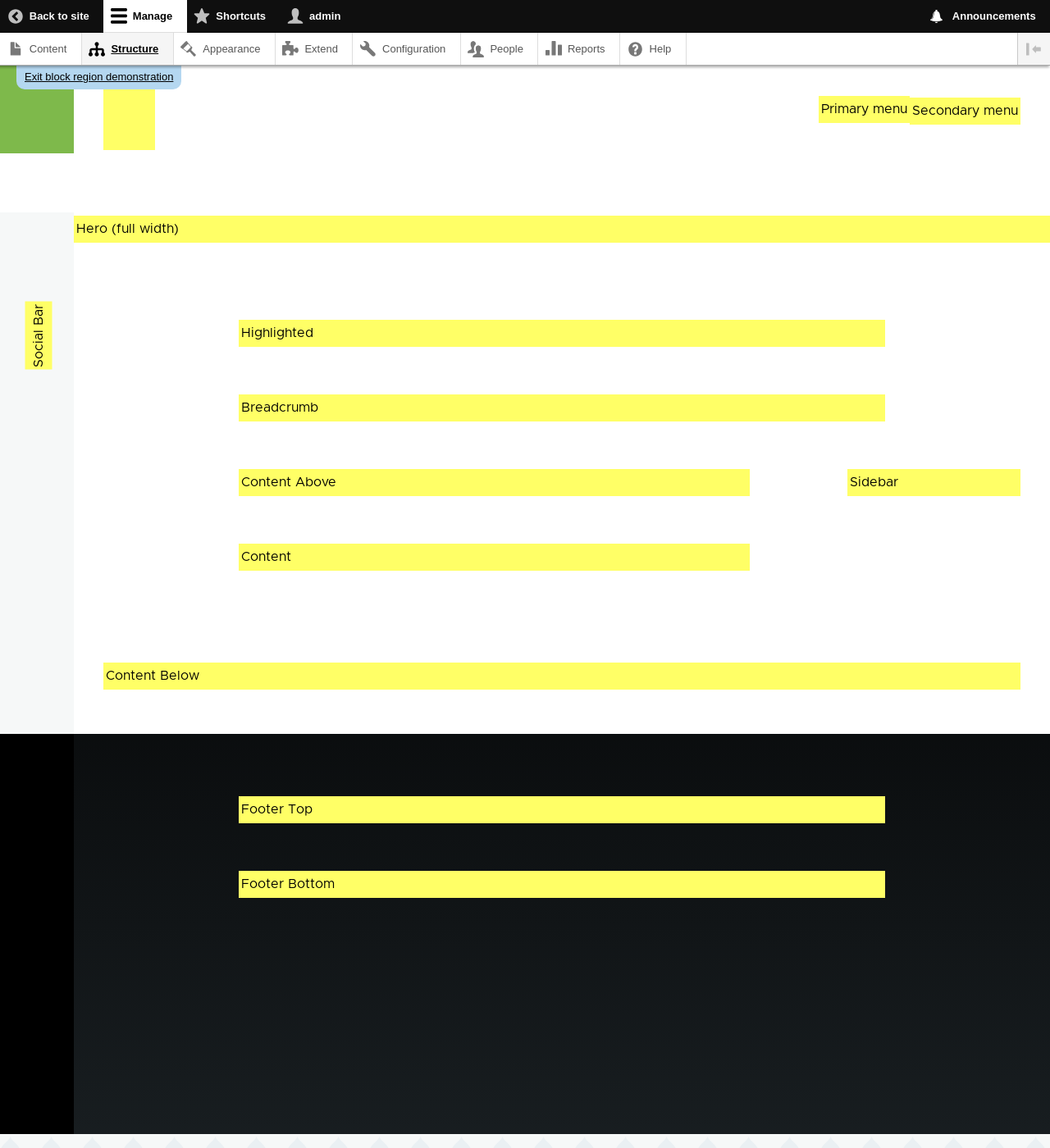
icons), formatted text, and images. Each theme provides a set of named regions,
such as _Header_, _Content_, and _Sidebar_, where site builders may choose to
place their content.
The available regions depend on the theme design. Only the Content region,
which contains the primary content, is required; others are optional. The
core Olivero theme provides the regions highlighted in the following image.
Here's another example:
> In the _Manage_ administrative menu, navigate to
> _Configuration_ > _System_ > _Basic site settings_
> (_admin/config/system/site-information_).
In this example, after clicking on _Manage_ and _Configuration_, you would need
to find the _System_ section of the page, and within that, click _Basic
site settings_. After that, you'd end up on
_http://example.com/admin/config/system/site-information_.

One other note: if you are using the standard administrative core Seven theme,
many "Add" buttons in the administrative interface are displayed with + signs on
them. For instance, on admin/content, the Add new content button appears as
_+ Add new content_. However, this is theme-dependent and is not really part of
the text on the button (for instance, it would not necessarily be read by a
screen reader), so in this guide, the convention is to not mention the + sign
on the buttons.
## Filling in forms
Many of the task topics in this guide include steps where you will fill out a
web form. In most cases, a screen capture image of the form will be included,
along with a table of the values you will need to enter into each form
field. For example, you might see a table that starts out like this, explaining
the site information form you would see if you navigated to _Configuration_ >
_System_ > _Site information_ (_admin/config/system/site-information_):
| Field name | Explanation | Example value |
| --- | --- | --- |
| Site details > Site name | Name of your site | Anytown Farmers Market |
To use this table, find the field labeled _Site name_ in the section that is
under _Site details_ in the form, and enter the name of your site in this
field. An example site name of "Anytown Farmers Market" is suggested in the
table, which relates to the scenario of building a website for a farmers market
that you'll find all through this guide (see [Guiding Scenario](/link/679) for
details). Also note that on some forms, you might have to click a section title
(like _Site details_ in this example) to expand the section and find the field
it contains.
# Guiding Scenario
When reading this guide, it is helpful to have a website building project in
mind. The following project scenario provides context and links together
the examples in this guide:
You are making a website for a farmers market. The site needs to display
information about the location and hours of the market, and an About page with
the history of the market. It also needs to list the vendors. Vendors should be
able to edit their listings (including a logo or photo), and post recipes. Site
visitors should be able to browse recipes, or locate recipes using ingredients
that they purchased at the market. Some visitors to your site speak another
language, so the main pages and vendor pages need to be translated.
As you read through the guide and try out the tasks it describes, you may choose
to follow the scenario exactly; you could also modify the tasks to suit your
purposes. If you do want to follow the scenario exactly, you'll find that you
need some image files, which are located in the _assets_ directory of the _.zip_
or _.tgz_ file download available on the
[User Guide project page](https://www.drupal.org/project/user_guide).
# Chapter 1: Understanding Drupal
# Concept: Drupal as a Content Management System
## What is a Content Management System?
A content management system (CMS) is a software tool that lets users add,
publish, edit, or remove content from a website, using a web browser on a
smartphone, tablet, or desktop computer. Typically, the CMS software is written
in a scripting language, and its scripts run on a computer where a database and
a web server are installed. The content and settings for the website are usually
stored in a database, and for each page request that comes to the web server,
the scripts combine information from the database and _assets_ (JavaScript
files, CSS files, image files, etc. that are part of the CMS or have been
uploaded) to build the pages of the website.
The combination of the operating system that the CMS runs on, the scripting
language it is written in, the database it stores its information in, and the
web server that runs the scripts to retrieve information and return it to the
site visitor's web browser is known as the _stack_ that the CMS runs on; the
commonly used combination of the Linux operating system, Apache web server,
MySQL database, and PHP scripting language is known as the _LAMP stack_.
## What is Drupal?
Drupal is a flexible CMS based on the LAMP stack, with a modular design allowing
features to be added and removed by installing and uninstalling _modules_, and
allowing the entire look and feel of the website to be changed by installing and
uninstalling _themes_. The base Drupal download, known as Drupal Core, contains
the PHP scripts needed to run the basic CMS functionality, several optional
modules and themes, and many JavaScript, CSS, and image assets. Many additional
modules and themes can be downloaded from the [_Drupal.org_](https://www.drupal.org)
website.
Drupal can also run on other technology stacks:
* The operating system can be Windows or Mac OS instead of Linux.
* The web server can be Nginx or IIS instead of Apache.
* The database can be PostgreSQL or SQLite instead of MySQL, or a
MySQL-compatible replacement such as MariaDB or Percona.
Other operating systems, web servers, and databases can also be made to work;
however, the scripts that the software uses are written in PHP, so that cannot
be changed.
## What are the reasons for using Drupal?
When building a website, you have your choice of using one of the many existing
CMS packages and hosted services, developing your own CMS, or building the site
without using a CMS. Here are some of the reasons you might choose to use
Drupal:
* Building a small, simple site with static HTML pages is not difficult, and you
can get a simple site up very quickly. Setting up a site in a CMS generally
requires more time initially, but brings you the benefits of on-line editing
(easier for less experienced content maintainers), uniformity (harder to
maintain using static HTML for larger sites), and the possibility of more
complex features requiring a database.
* Some CMS software is special-purpose; for instance, there are packages and
hosted services that you can use to build a blog or a club membership
website. Drupal, in contrast, is a general-purpose CMS. If you are building a
special-purpose site, you might choose to use a special-purpose CMS; however, if
your site falls even slightly outside the intended purpose, you will probably be
better off using a general-purpose CMS rather than trying to adapt a
special-purpose CMS.
* Building your own CMS-type software can seem attractive. However, using a
general-purpose CMS like Drupal as a starting point is usually a better idea,
because the basic CMS functionality (such as user accounts and content
management) has thousands of developer hours behind it, including many years of
user testing, bug fixing, and security hardening.
* Some CMS software packages are expensive to purchase a license for. Some are
free or have a free version, but have restrictive licenses that do not allow you
to make modifications and extensions. You might prefer to use a package (like
Drupal) that has a less restrictive software license, and is developed by a
world-wide community. See [Concept: The Drupal Project](/link/686) for more on this topic.
## Related topics
* [Concept: Modules](/link/682)
* [Concept: Themes](/link/683)
* [Concept: Distributions](/link/684)
* [Concept: The Drupal Project](/link/686)
## Additional resources
* [_Drupal.org_ community documentation page "Understanding Drupal: Overview"](https://www.drupal.org/docs/understanding-drupal/overview)
* [_Drupal.org_ page "FAQ" (Frequently Asked Questions)](https://www.drupal.org/about/faq)
* [_Drupal.org_ page "Case Studies"](https://www.drupal.org/case-studies)
* [Wikipedia page "Content management systems"](https://en.wikipedia.org/wiki/Content_management_system)
* [Wikipedia page "Modular design"](https://en.wikipedia.org/wiki/Modular_design)
# Concept: Modules
## Prerequisite knowledge
[Concept: Drupal as a Content Management System](/link/681)
## What is a module?
A module is a package of files that extends Drupal's core functionality. Modules
typically contain PHP code, configuration (YAML), and may include JavaScript,
CSS, and Twig template files.
You can turn the features and functionality on by _installing_ the module, and
you can turn it off by _uninstalling_ the module; before uninstalling, you may
need to remove data and configuration related to the feature or functionality.
Each module that is installed adds to the time needed to generate pages on your
site, so it is a good idea to uninstall modules that are not needed.
The core download provides modules for functionality such as:
* Managing user accounts (the core User module)
* Managing basic content (the core Node module) and fields (the core Field and
Field UI modules; there are also core modules providing field types)
* Managing navigation menus (the core Menu UI module)
* Making lists, grids, and blocks from existing content (the core Views and
Views UI modules)
You can download additional _contributed modules_ from the
[_Drupal.org_ Module Downloads](https://www.drupal.org/project/project_module), or
create your own _custom modules_.
## Related topics
* [Concept: Themes](/link/683)
* [Concept: Distributions](/link/684)
* [Uninstalling Unused Modules](/link/708)
* [Finding Modules](/link/760)
* [Downloading and Installing a Module from _Drupal.org_](/link/762)
* [Concept: Security and Regular Updates](/link/780)
* [Updating a Module](/link/783)
## Additional resources
[_Drupal.org_ community documentation page "Module developer's guide"](https://www.drupal.org/developing/modules)
# Concept: Themes
## Prerequisite knowledge
[Concept: Drupal as a Content Management System](/link/681)
## What is a Theme?
A theme is a set of files that define the visual look and feel of your site.
The core software and modules that run on your site determine which
_content_ (including HTML text and other data stored in the database, uploaded
images, and any other asset files) is displayed on the pages of your site. The
theme determines the HTML markup and CSS styling that wraps the content.
The core software provides several basic themes with the core distribution.
These themes have largely been designed and built by the community over the last
several years and will all be good choices for building your first sites and
becoming more familiar with how the core software works.
Drupal is a well-established CMS so the market for 3rd party themes - both free
and paid - is very robust.
If none of the 3rd party options suit your needs, you'll need to create a custom
theme. A custom theme can be as simple as a single CSS file that adds styling to
the markup provided by the core software. Guidance for creating custom themes in
Drupal can be found in the
[_Drupal.org_ community documentation page "Theming Drupal"](https://www.drupal.org/docs/theming-drupal).
## Related topics
* [Finding Themes](/link/763)
* [Downloading and Installing a Theme from _Drupal.org_](/link/764)
* [Concept: Modules](/link/682)
## Additional resources
[_Drupal.org_ community documentation page "Theming Drupal"](https://www.drupal.org/docs/theming-drupal)
# Concept: Distributions
## Prerequisite knowledge
* [Concept: Drupal as a Content Management System](/link/681)
* [Concept: Modules](/link/682)
* [Concept: Themes](/link/683)
## What are Distributions?
_Distributions_ provide site features and functions for a specific type of site
as a single download containing the core software, contributed modules, themes,
and pre-defined configuration. A distribution makes it possible to set up a
complex site for a specific purpose, in fewer steps than installing and
configuring elements individually.
There are two main types of distributions:
- **Full-featured Distributions:** A full-featured distribution is a project that provides a complete solution to set up a site for a specialized purpose, such as academic, business, government, nonprofit, publishing, social, etc. For example, you could use an existing distribution for farmers markets to build your own website, or you could share your set-up for the farmers market site as a distribution for others to use.
- **Other Distributions:** Distributions can also be quick-start tools that developers and site builders can use as a starting point.
## Related topics
[Connecting with the Community](/link/786)
## Additional resources
[_Drupal.org_ Drupal Distribution Downloads](https://www.drupal.org/project/project_distribution)
# Concept: Types of Data
## What are the types of data?
The data and information on your site is divided up into four types, which are
edited, translated, and stored differently. These four types are:
- **Content:** Information (text, images, etc.) meant to be displayed to site visitors. This type of information tends to be relatively permanent, but can normally be edited.
- **Configuration:** Information about your site that is not content, but is also relatively permanent, and is used to define how your site behaves or is displayed. It is sometimes also displayed to site visitors, but tends to be smaller pieces of text (like field labels, the name of your site, etc.) rather than larger chunks that you'd normally think of as Content.
- **State:** Information of a temporary nature about the current state of your site, such as the time when cron jobs were last run.
- **Session:** Information about individual site visitors' interactions with the site, such as whether they are logged in and their cookies. This is technically a subtype of State information, since it is also temporary.
## Related topics
* [Concept: Content Entities and Fields](/link/691)
* [Concept: Cron](/link/778)
* [Concept: Users, Roles, and Permissions](/link/737)
* [Concept: User Interface, Configuration, and Content translation](/link/695)
# Concept: The Drupal Project
## Prerequisite knowledge
[Concept: Drupal as a Content Management System](/link/681)
## What is Free and Open Source Software?
Free and Open Source Software (FOSS) is software that is developed by a
community of people, released under a non-commercial license, and whose _source
code_ (the program files that make up the software) is freely available. For
more information on the non-commercial license used by Drupal, see
[Concept: Drupal Licensing](/link/687).
## What is the Drupal project?
The Drupal project is a FOSS project whose purpose is to develop the core
content management system software, as well as add-on modules, additional
themes, translations, documentation, and special-purpose distributions. The
people who contribute their time and money to the Drupal project come from all
over the world, and are a diverse community that comes together for this common
purpose.
The community encompasses many smaller groups who perform many different tasks
such as developing a particular piece of Drupal-related software, writing
documentation, maintaining the security of Drupal software, translating Drupal
software into a particular language, using Drupal for some specific purpose,
and coming together to meet in person within a particular geographical area.
For more on how you can connect to and communicate with the world-wide
community, see [Connecting with the Community](/link/786) and [Getting Support](/link/787).
## What is the Drupal Association?
The [Drupal Association](https://www.drupal.org/association) is a non-profit organization
dedicated to supporting the Drupal project and community. Its main functions
are:
* Putting on large conventions around the world
* Maintaining the _Drupal.org_ websites and the servers that they run on
* Promoting Drupal as a web platform
* Supporting Drupal education and training
* Providing grants to the Drupal community in support of its mission
* Raising funds for these purposes
## Related topics
* [Concept: Drupal Licensing](/link/687)
* [Concept: Security and Regular Updates](/link/780)
* [Connecting with the Community](/link/786)
* [Getting Support](/link/787)
## Additional resources
* [Drupal project governance](https://www.drupal.org/governance)
* [Drupal Code of Conduct](https://www.drupal.org/dcoc)
# Concept: Drupal Licensing
## Prerequisite knowledge
[Concept: Drupal as a Content Management System](/link/681)
## What is Drupal Licensing?
Drupal and all contributed files hosted on _Drupal.org_ are licensed under the
GNU General Public License (GPL), version 2 or later. That means you are free to
download, reuse, modify, and distribute any files that are part of a project on
_Drupal.org_ under the terms of GPL version 2 or 3. You can also run the core
software in combination with any code with any license that is compatible with
version 2 or 3.
Drupal contributors should follow these guidelines:
* All files (PHP, JavaScript, images, Flash, etc.) that are part of a project
on _Drupal.org_ have to be under GPL version 2 or later.
* All Drupal contributors retain copyright on their code, but agree to release
it under the same license as Drupal.
* Drupal modules and themes are a derivative work of Drupal. If you distribute
them, you must do so under the terms of GPL version 2 or later.
* All content on _Drupal.org_ itself is copyrighted by its original
contributors, and is licensed under the Creative Commons Attribution-ShareAlike
license 2.0.
* Sample code on _Drupal.org_ is also available under GPL version 2 or later.
## Related topics
[Connecting with the Community](/link/786)
## Additional resources
* [_Drupal.org_ page on "Licensing"](https://www.drupal.org/about/licensing)
* ["Drupal LICENSE.txt" page on _api.drupal.org_](https://api.drupal.org/api/drupal/core!LICENSE.txt/9.0.x)
* [GNU General Public License, version 2](http://www.gnu.org/licenses/old-licenses/gpl-2.0.html)
* [GNU General Public License, version 3](http://www.gnu.org/licenses/gpl-3.0.en.html)
* [Creative Commons Attribution-ShareAlike license 2.0.](https://creativecommons.org/licenses/by-sa/2.0/)
* ["Legal Group" on _groups.drupal.org_](https://groups.drupal.org/legal)
# Chapter 2: Planning Your Site
# Concept: Regions in a Theme
## Prerequisite knowledge
[Concept: Themes](/link/683)
## What is a region?
Besides its primary content, a web page contains other content such as site
branding (site name, slogan, and logo), navigation aids (menus, links, and
icons), formatted text, and images. Each theme provides a set of named regions,
such as _Header_, _Content_, and _Sidebar_, where site builders may choose to
place their content.
The available regions depend on the theme design. Only the Content region,
which contains the primary content, is required; others are optional. The
core Olivero theme provides the regions highlighted in the following image.
 ## Related topics
* [Concept: Blocks](/link/745)
* [Concept: Content Entities and Fields](/link/691)
* [Placing a Block in a Region](/link/747)
# Planning Your Site Layout
## Goal
Plan the navigation and layout of the site, for both mobile and desktop
browsers.
## Prerequisite knowledge
* [Concept: Themes](/link/683)
* [Concept: Regions in a Theme](/link/689)
* [Guiding Scenario](/link/679)
## Steps
It is a good idea to plan the site layout before you start building
the site and writing content; however, your plan may need to be revised either
before you start implementing it or after you have some of the site built with
draft content in place, based on budgetary concerns or stakeholder feedback.
1. Make a list of the information that your site should present to visitors. In
the farmers market scenario, this might include:
* Location of the market, with directions and a map
* Hours and days the market is open
* History of the market
* List of vendors
* Details about each vendor
* Searchable list of recipes
* Details about each recipe
* List of the most recently added recipes
1. Decide which information should be on which pages or types of pages on the
site:
- **Information that should be on all pages:** Address, hours, and recently-added recipes list
- **Vendor details pages:** Information about each vendor on its own page
- **Recipe details pages:** Details of each recipe on its own page
- **Home page:** Location, map, directions, and hours
- **About page:** History of the market
- **Vendors list page:** List of vendors, with links to vendor detail pages
- **Recipe list page:** Searchable list of recipes, with links to recipe detail pages
1. Decide which information is the most important on each page. Site visitors
using mobile phones or other small browsers will often only see the content that
is presented first, and they may not scroll down to see all of the information.
1. Decide which of these pages should appear in the main site navigation. For
instance, the main navigation might consist of the Home, About, Vendors, and
Recipes pages.
1. Make a rough design sketch for each page, showing how it would look when
viewed on a small screen such as a phone, as well as on a larger screen such as
a desktop browser. Considering that most site visitors will be using smaller
browsers, it is a good idea to start with the phone-size layout, to make sure
that these visitors will be able to find the information they need without too
much scrolling.
In making these page layout plans, you might find that you need to revise your
plan for which information should be on which pages. For example, you might
decide that the address, hours, and recently-added recipes list would all fit
well in the right sidebar area of all pages, when the site is viewed on
desktop-sized browsers. On the other hand, you might decide that for mobile
browsers, you would instead put the address and hours in a short format at the
top of each page, but only display the recent recipe list at the bottom of the
home page.
## Expand your understanding
[Planning your Content Structure](/link/693)
## Videos
[Planning Your Site Layout](https://www.youtube.com/watch?v=35e16QDFE7k)
# Concept: Content Entities and Fields
## Prerequisite knowledge
* [Concept: Types of Data](/link/685)
* [Concept: Modules](/link/682)
## What is a content entity?
A _content entity_ (or more commonly, _entity_) is an item of content data,
which can consist of text, HTML markup, images, attached files, and other data
that is intended to be displayed to site visitors. Content entities can be
defined by the core software or by modules.
Content entities are grouped into _entity types_, which have different purposes
and are displayed in very different ways on the site. Most entity
types are also divided into _entity subtypes_, which are divisions within an
entity type to allow for smaller variations in how the entities are used and
displayed. Here is a table of some common content entity types:
| Entity type | Entity subtype | Defining Module | Main uses |
| --- | --- | --- | --- |
| Content item | Content type | Node module | Content intended to be the main page area for pages on the site
## Related topics
* [Concept: Blocks](/link/745)
* [Concept: Content Entities and Fields](/link/691)
* [Placing a Block in a Region](/link/747)
# Planning Your Site Layout
## Goal
Plan the navigation and layout of the site, for both mobile and desktop
browsers.
## Prerequisite knowledge
* [Concept: Themes](/link/683)
* [Concept: Regions in a Theme](/link/689)
* [Guiding Scenario](/link/679)
## Steps
It is a good idea to plan the site layout before you start building
the site and writing content; however, your plan may need to be revised either
before you start implementing it or after you have some of the site built with
draft content in place, based on budgetary concerns or stakeholder feedback.
1. Make a list of the information that your site should present to visitors. In
the farmers market scenario, this might include:
* Location of the market, with directions and a map
* Hours and days the market is open
* History of the market
* List of vendors
* Details about each vendor
* Searchable list of recipes
* Details about each recipe
* List of the most recently added recipes
1. Decide which information should be on which pages or types of pages on the
site:
- **Information that should be on all pages:** Address, hours, and recently-added recipes list
- **Vendor details pages:** Information about each vendor on its own page
- **Recipe details pages:** Details of each recipe on its own page
- **Home page:** Location, map, directions, and hours
- **About page:** History of the market
- **Vendors list page:** List of vendors, with links to vendor detail pages
- **Recipe list page:** Searchable list of recipes, with links to recipe detail pages
1. Decide which information is the most important on each page. Site visitors
using mobile phones or other small browsers will often only see the content that
is presented first, and they may not scroll down to see all of the information.
1. Decide which of these pages should appear in the main site navigation. For
instance, the main navigation might consist of the Home, About, Vendors, and
Recipes pages.
1. Make a rough design sketch for each page, showing how it would look when
viewed on a small screen such as a phone, as well as on a larger screen such as
a desktop browser. Considering that most site visitors will be using smaller
browsers, it is a good idea to start with the phone-size layout, to make sure
that these visitors will be able to find the information they need without too
much scrolling.
In making these page layout plans, you might find that you need to revise your
plan for which information should be on which pages. For example, you might
decide that the address, hours, and recently-added recipes list would all fit
well in the right sidebar area of all pages, when the site is viewed on
desktop-sized browsers. On the other hand, you might decide that for mobile
browsers, you would instead put the address and hours in a short format at the
top of each page, but only display the recent recipe list at the bottom of the
home page.
## Expand your understanding
[Planning your Content Structure](/link/693)
## Videos
[Planning Your Site Layout](https://www.youtube.com/watch?v=35e16QDFE7k)
# Concept: Content Entities and Fields
## Prerequisite knowledge
* [Concept: Types of Data](/link/685)
* [Concept: Modules](/link/682)
## What is a content entity?
A _content entity_ (or more commonly, _entity_) is an item of content data,
which can consist of text, HTML markup, images, attached files, and other data
that is intended to be displayed to site visitors. Content entities can be
defined by the core software or by modules.
Content entities are grouped into _entity types_, which have different purposes
and are displayed in very different ways on the site. Most entity
types are also divided into _entity subtypes_, which are divisions within an
entity type to allow for smaller variations in how the entities are used and
displayed. Here is a table of some common content entity types:
| Entity type | Entity subtype | Defining Module | Main uses |
| --- | --- | --- | --- |
| Content item | Content type | Node module | Content intended to be the main page area for pages on the site| Entity type | Entity subtype | Examples | Fields | |
|---|---|---|---|---|
| Content item | Basic page | Home page, about page | Title, page body | |
| Content item | Vendor | A page for each vendor at the market | ||
| Content item | Recipe | A page for each submitted recipe | ||
| Custom block | (generic) | Copyright notice for footer, Hours and location for sidebar | No special fields | |
| Taxonomy term | Ingredients | Carrots, tomatoes, and other recipe ingredients | ||
| Contact form | (generic) | Generic contact form | Name, email, subject, message | |
| User profile | (none) | Will not be displayed on site | No special fields |
| Page or page area | Entity type and subtype | Filter/sort/pagination | ||
|---|---|---|---|---|
| Vendors page | Vendor content items | All vendors, alphabetical, paged | ||
| Recipes page | Recipe content items | Filter by ingredients, alphabetical, paged | Image, recipe name | |
| Recent recipes sidebar | Recipe content items | List 5 most recent |
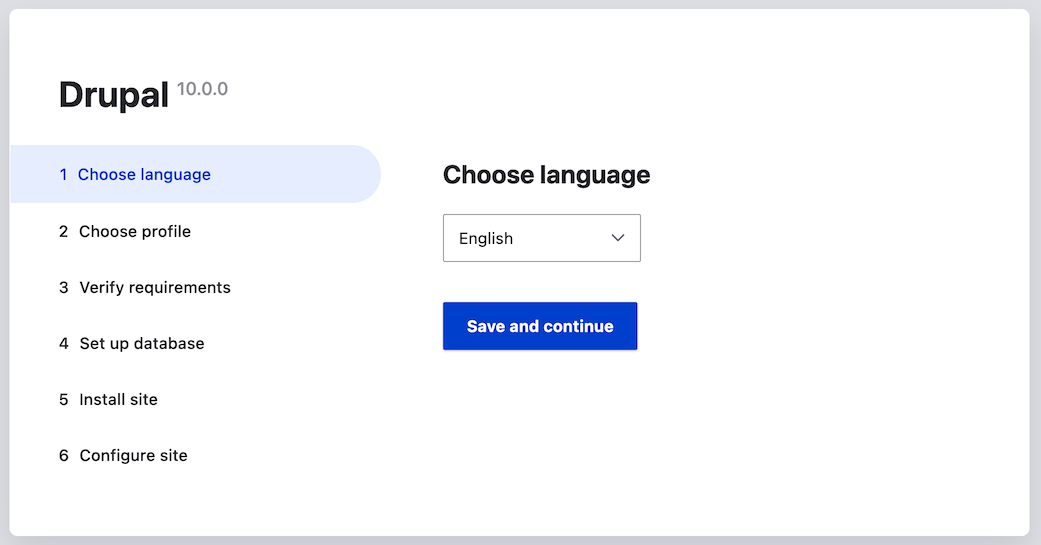 1. Select an installation profile. Installation profiles provide site features
and functions for a specific type of site as a single download containing
the core software, contributed modules, themes, and pre-defined
configuration. Core contains two installation profiles. Select the core
Standard installation profile. Click _Save and continue_.
1. Select an installation profile. Installation profiles provide site features
and functions for a specific type of site as a single download containing
the core software, contributed modules, themes, and pre-defined
configuration. Core contains two installation profiles. Select the core
Standard installation profile. Click _Save and continue_.
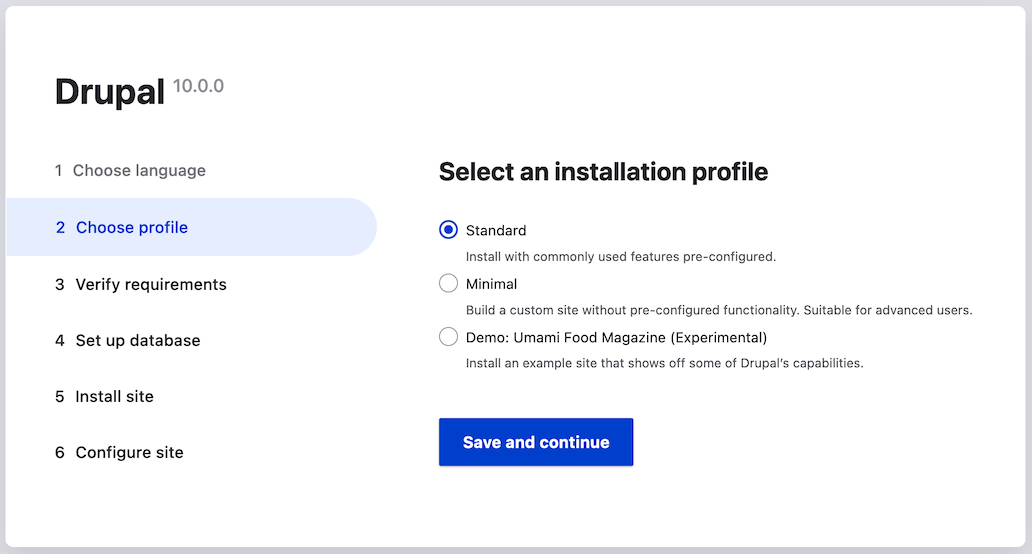 1. The next step in the installer will verify that your system meets the minimum
requirements. If it does not, you'll be presented with an outline of what
needs to be corrected in order to proceed. If it does, the installer will
automatically advance to the next step.
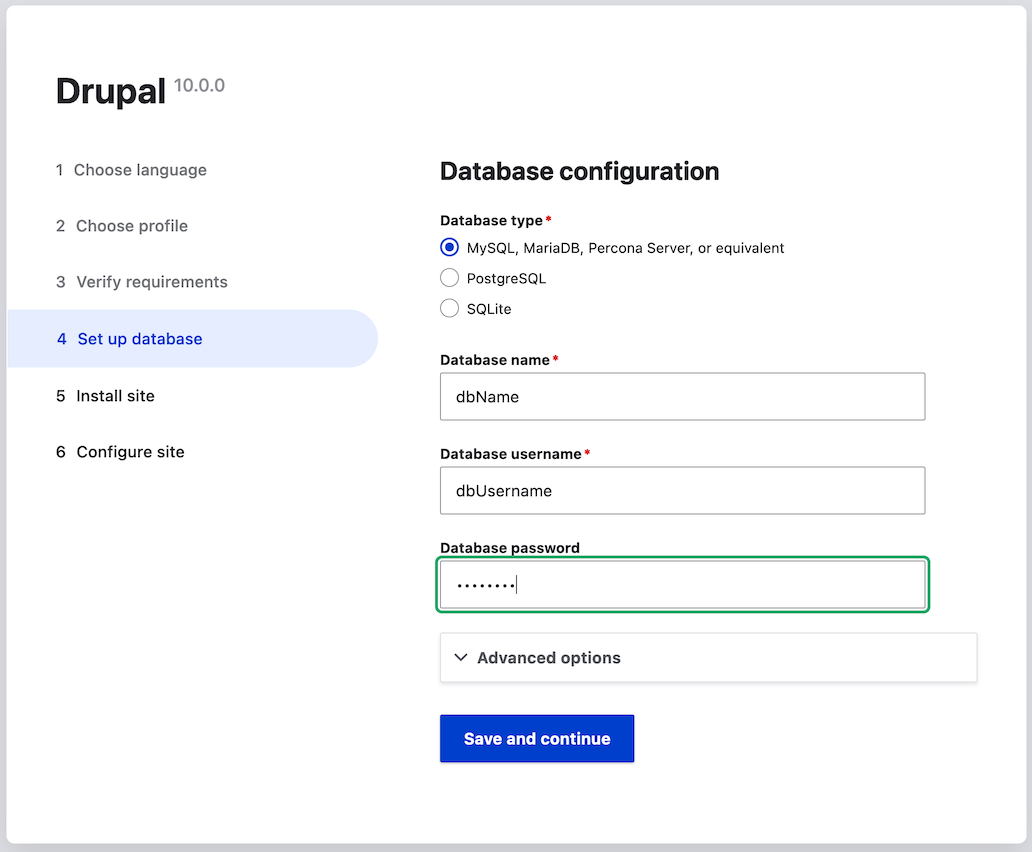
1. Provide details of the database you created in the [Preparing to Install](/link/697)
chapter. Then click _Save and continue_.
1. The next step in the installer will verify that your system meets the minimum
requirements. If it does not, you'll be presented with an outline of what
needs to be corrected in order to proceed. If it does, the installer will
automatically advance to the next step.
1. Provide details of the database you created in the [Preparing to Install](/link/697)
chapter. Then click _Save and continue_.
| Field name | Explanation | Value |
|---|---|---|
| Database name | The custom name given to the database | drupal |
| Database username | Username created | databaseUsername |
| Database password | Password chosen | ************ |
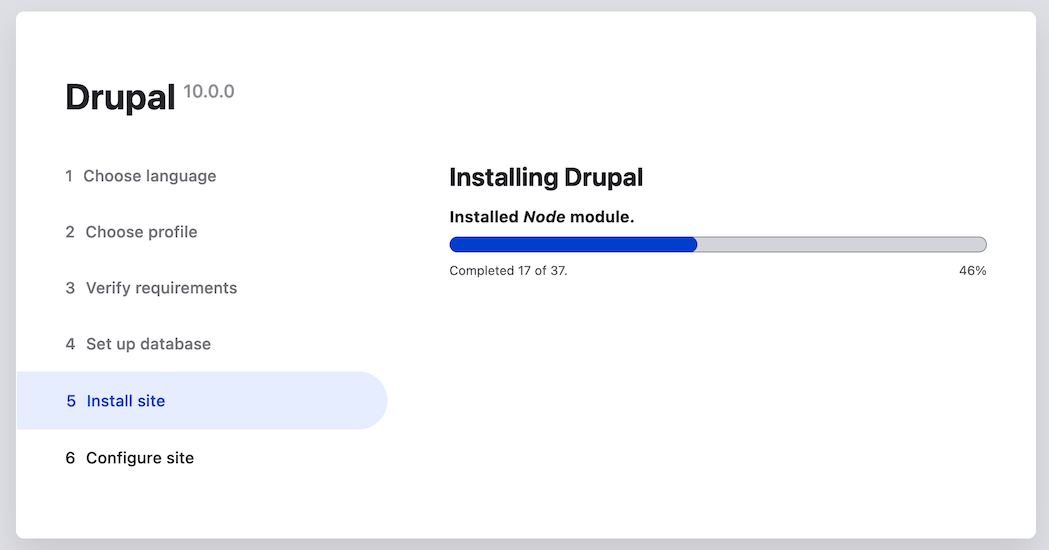
 1. The next step will display a progress bar under the heading _Installing
Drupal_. After the installer has completed, it will automatically advance to
the next step.
1. The next step will display a progress bar under the heading _Installing
Drupal_. After the installer has completed, it will automatically advance to
the next step.
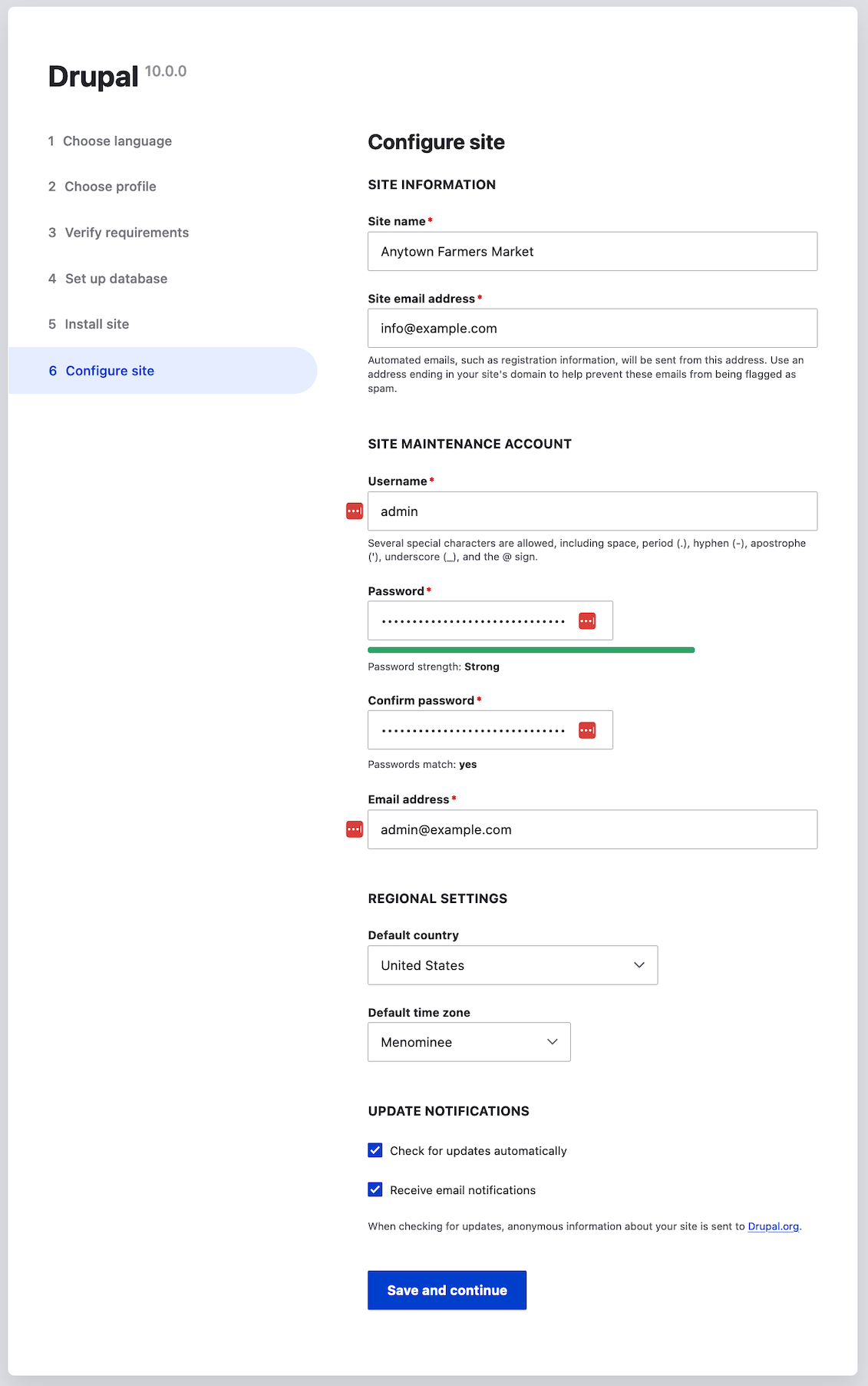
 1. The next step is to configure some basic information about your new site
(also notice if there is a warning about file permissions, for a later step).
Note that the user account you create in this step is the site's admin
account. See [Concept: The User 1 Account](/link/738) for important information about this unique
account. You can safely name this account "admin", and make sure to choose a
secure and unique password.
Fill in the form with the following information:
1. The next step is to configure some basic information about your new site
(also notice if there is a warning about file permissions, for a later step).
Note that the user account you create in this step is the site's admin
account. See [Concept: The User 1 Account](/link/738) for important information about this unique
account. You can safely name this account "admin", and make sure to choose a
secure and unique password.
Fill in the form with the following information:
| Field name | Explanation | Value |
|---|---|---|
| Site name | The name chosen for the site | Anytown Farmers Market |
| Site email address | The email associated with the site | info@example.com |
| Username | The designated user's credentials | admin |
| Password | The password chosen | ************ |
| Confirm password | Repeat the password | ************ |
| Email address | The user's email | admin@example.com |
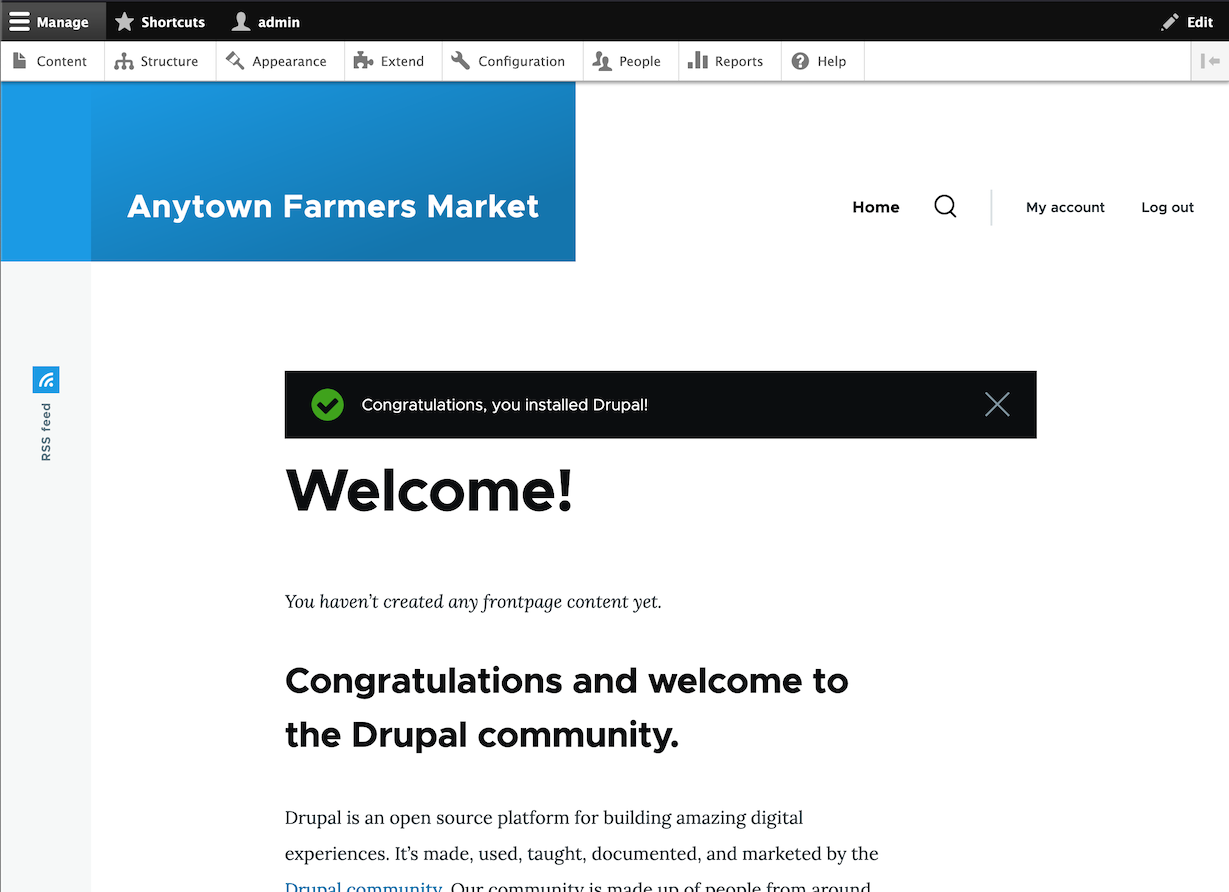
 1. Click _Save and continue_.
1. You will be redirected to the front page of your new site and you should see
the message _Congratulations, you installed Drupal!_ displayed at the top of
the page.
1. Click _Save and continue_.
1. You will be redirected to the front page of your new site and you should see
the message _Congratulations, you installed Drupal!_ displayed at the top of
the page.
 1. You may have seen a warning in the Configuration step about file permissions,
and you may continue to see this warning until you fix the permissions. To
avoid the warning and make your site more secure, change the permissions on the
_sites/default_ directory and the _sites/default/settings.php_ file so that they
are read-only (you may need to consult your hosting company documentation about
how to do that).
## Expand your understanding
Alternatively, you can install the software using Drush instead of the UI. Use
the following Drush command, from inside the directory that you downloaded the
software to, where _DB_NAME_, _DB_USER_ and _DB_PASS_ are your database's
credentials:
```text
drush site:install standard --db-url='mysql://DB_USER:DB_PASS@localhost/DB_NAME' --site-name=example
```
Check the Status Report to see if there are any problems with the
installation. See [Concept: Status Report](/link/776).
## Related concepts
* [Concept: Development Sites](/link/766)
* [Concept: Additional Tools](/link/699)
## Videos
[Running the Installer](https://www.youtube.com/watch?v=LGfRKKKDjv8)
## Additional resources
* [_Drupal.org_ community documentation page "Create a database"](https://www.drupal.org/docs/installing-drupal/step-3-create-a-database)
* [_Drupal.org_ community documentation section "Webhosting issues"](https://www.drupal.org/server-permissions)
# Chapter 4: Basic Site Configuration
# Concept: Administrative Overview
## Prerequisite knowledge
* [Concept: Themes](/link/683)
* [Concept: Modules](/link/682)
## What is the administrative menu?
The toolbar provided by the core Toolbar module displays the _Manage_
administrative menu at the top or left side of the site, for users with
permission to see it. This menu provides access to all of the administrative
areas of the site. The menu links will vary depending on which modules are
active on your site and the permissions of the person viewing the menu; if you
install using the core Standard installation profile and have full
administrative permissions, the top-level links are as follows:
1. You may have seen a warning in the Configuration step about file permissions,
and you may continue to see this warning until you fix the permissions. To
avoid the warning and make your site more secure, change the permissions on the
_sites/default_ directory and the _sites/default/settings.php_ file so that they
are read-only (you may need to consult your hosting company documentation about
how to do that).
## Expand your understanding
Alternatively, you can install the software using Drush instead of the UI. Use
the following Drush command, from inside the directory that you downloaded the
software to, where _DB_NAME_, _DB_USER_ and _DB_PASS_ are your database's
credentials:
```text
drush site:install standard --db-url='mysql://DB_USER:DB_PASS@localhost/DB_NAME' --site-name=example
```
Check the Status Report to see if there are any problems with the
installation. See [Concept: Status Report](/link/776).
## Related concepts
* [Concept: Development Sites](/link/766)
* [Concept: Additional Tools](/link/699)
## Videos
[Running the Installer](https://www.youtube.com/watch?v=LGfRKKKDjv8)
## Additional resources
* [_Drupal.org_ community documentation page "Create a database"](https://www.drupal.org/docs/installing-drupal/step-3-create-a-database)
* [_Drupal.org_ community documentation section "Webhosting issues"](https://www.drupal.org/server-permissions)
# Chapter 4: Basic Site Configuration
# Concept: Administrative Overview
## Prerequisite knowledge
* [Concept: Themes](/link/683)
* [Concept: Modules](/link/682)
## What is the administrative menu?
The toolbar provided by the core Toolbar module displays the _Manage_
administrative menu at the top or left side of the site, for users with
permission to see it. This menu provides access to all of the administrative
areas of the site. The menu links will vary depending on which modules are
active on your site and the permissions of the person viewing the menu; if you
install using the core Standard installation profile and have full
administrative permissions, the top-level links are as follows:
 - **Content:** Lists and manages existing content, and allows creation of new content.
- **Structure:** Contains a list of links for managing structural elements of the site, such as blocks, content types, menus, and taxonomy.
- **Appearance:** Manages themes and appearance-related settings.
- **Extend:** Manages the installation and uninstallation of modules.
- **Configuration:** Contains links to settings pages for various site features.
- **People:** Manages users, roles, and permissions.
- **Reports:** Contains links to logs, update information, search information, and other information about the site's status.
- **Help:** Lists help topics for installed modules that provide them.
The arrow button on the far right side of the second line of the toolbar (or far
left side, if the site is being viewed using a right-to-left-reading language
like Arabic) can be used to switch the menu from appearing horizontally at the
top of the page, to a vertical format on the left side (or right side, in
right-to-left languages). When viewed vertically, the menu becomes an
interactive tree.
- **Content:** Lists and manages existing content, and allows creation of new content.
- **Structure:** Contains a list of links for managing structural elements of the site, such as blocks, content types, menus, and taxonomy.
- **Appearance:** Manages themes and appearance-related settings.
- **Extend:** Manages the installation and uninstallation of modules.
- **Configuration:** Contains links to settings pages for various site features.
- **People:** Manages users, roles, and permissions.
- **Reports:** Contains links to logs, update information, search information, and other information about the site's status.
- **Help:** Lists help topics for installed modules that provide them.
The arrow button on the far right side of the second line of the toolbar (or far
left side, if the site is being viewed using a right-to-left-reading language
like Arabic) can be used to switch the menu from appearing horizontally at the
top of the page, to a vertical format on the left side (or right side, in
right-to-left languages). When viewed vertically, the menu becomes an
interactive tree.
 This guide has a standard way to describe navigation to administrative pages
using the administrative toolbar. See [Conventions of the Guide](/link/678) for more
information.
## What are contextual links?
Some administrative and editing functionality on the site can be accessed
through the _contextual links_ displayed by the core Contextual Links module.
Contextual links take you to some of the same pages that you can access through
the administrative menu, but instead of having to navigate through the menu
hierarchy, these links are provided near where the related content is displayed
on your site.
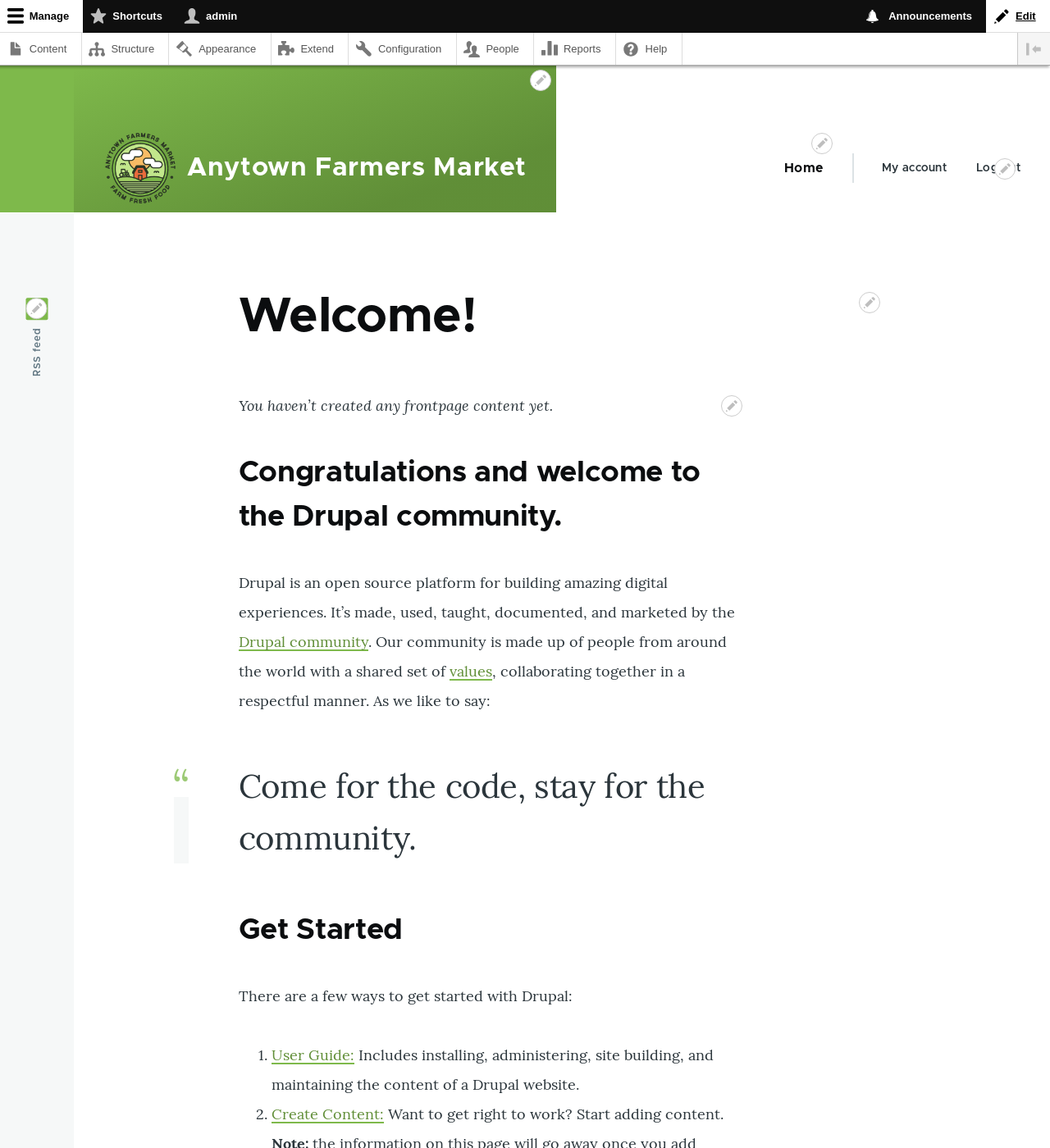
Contextual links have to be activated to be visible. If your site's theme uses
the default styling for contextual links, a pencil icon is used to indicate that
contextual links are present and activated, and if you click the icon, you will
see the contextual links. There are two ways to activate the pencil icons that
provide access to the contextual links:
* If you are using a mouse in a browser, the icon will temporarily appear when
you hover over an area that has related contextual links.
* You can click the master pencil icon (or its _Edit_ link) at the right end of
the top bar in the toolbar, which will activate all of the contextual links on
the current page. This icon is only visible on pages with contextual links.
This guide has a standard way to describe navigation to administrative pages
using the administrative toolbar. See [Conventions of the Guide](/link/678) for more
information.
## What are contextual links?
Some administrative and editing functionality on the site can be accessed
through the _contextual links_ displayed by the core Contextual Links module.
Contextual links take you to some of the same pages that you can access through
the administrative menu, but instead of having to navigate through the menu
hierarchy, these links are provided near where the related content is displayed
on your site.
Contextual links have to be activated to be visible. If your site's theme uses
the default styling for contextual links, a pencil icon is used to indicate that
contextual links are present and activated, and if you click the icon, you will
see the contextual links. There are two ways to activate the pencil icons that
provide access to the contextual links:
* If you are using a mouse in a browser, the icon will temporarily appear when
you hover over an area that has related contextual links.
* You can click the master pencil icon (or its _Edit_ link) at the right end of
the top bar in the toolbar, which will activate all of the contextual links on
the current page. This icon is only visible on pages with contextual links.
 # Editing Basic Site Information
## Goal
Change basic site information such as _Site name_, _Slogan_,
_Default time zone_.
## Prerequisite knowledge
[Concept: Administrative Overview](/link/705)
## Steps
### Configuring the basic site information
1. In the _Manage_ administrative menu, navigate to _Configuration_ > _System_ >
_Basic site settings_ (_admin/config/system/site-information_) to change the
_Site name_, _Slogan_, administrative _Email address_, or the _Default front
page_ path.
1. Fill in the available fields as appropriate for your site.
# Editing Basic Site Information
## Goal
Change basic site information such as _Site name_, _Slogan_,
_Default time zone_.
## Prerequisite knowledge
[Concept: Administrative Overview](/link/705)
## Steps
### Configuring the basic site information
1. In the _Manage_ administrative menu, navigate to _Configuration_ > _System_ >
_Basic site settings_ (_admin/config/system/site-information_) to change the
_Site name_, _Slogan_, administrative _Email address_, or the _Default front
page_ path.
1. Fill in the available fields as appropriate for your site.
| Field name | Explanation | Example value |
|---|---|---|
| Site details > Site name | Used to identify the site and displayed in browsers | Anytown Farmers Market |
| Site details > Slogan | How this is used depends on your site's theme. Not displayed by default when using the Olivero theme. | Farm Fresh Food |
| Site details > Email address | Used as _From_ address in automated email messages (registrations, password resets, etc) | info@example.com |
| Field name | Explanation | Example value |
|---|---|---|
| Locale > Default country | The primary country for your site | United States |
| Locale > First day of week | The day when the week starts on calendars | Sunday |
| Time zones > Default time zone | The primary time zone for your site | America > Los Angeles |
| Time zones > Users may set their own time zone | Whether logged-in users can choose a different time zone for display of dates and times on the site | Unchecked |
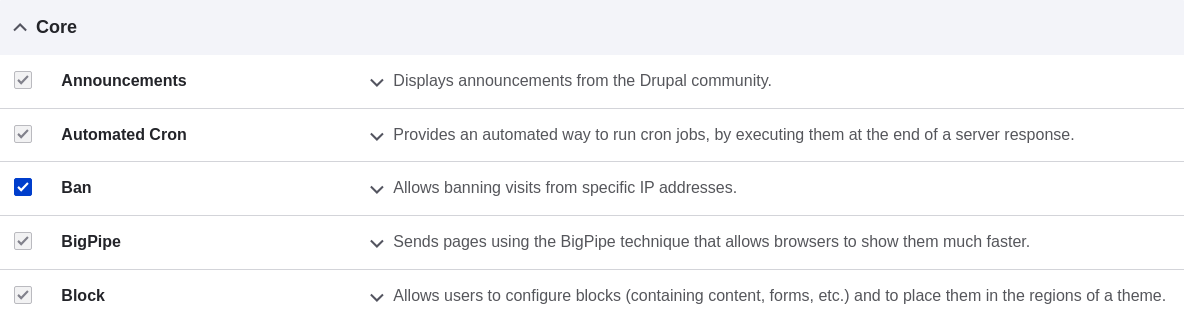 1. Click _Install_. The checked modules will be installed.
### Using Drush
1. In the _Manage_ administrative menu, navigate to _Extend_
(_admin/modules_). The _Extend_ page appears showing all the available modules
in your site.
1. Find the machine name of the module you want to install, by expanding the
information area for the module. For instance, the core Ban
module's machine name is _ban_.
1. Run the following Drush command to install the module:
```text
drush pm:enable ban
```
## Expand your understanding
If you do not see the effect of these changes in your site, you might need
to clear the cache. See [Clearing the Cache](/link/773).
## Videos
[Installing a Module](https://www.youtube.com/watch?v=HymQsDOcT3E)
## Additional resources
[Drush](http://www.drush.org)
# Uninstalling Unused Modules
## Goal
Uninstall the core Search and History modules, as well as the core Ban module if you installed it in [Installing a Module](/link/707), to reduce overhead.
## Prerequisite knowledge
[Concept: Modules](/link/682)
## Site prerequisites
* You must have at least one unused module on your site that you want to
uninstall, such as the core Search module.
* If you want to use Drush to uninstall modules, Drush must be installed. See
[Concept: Additional Tools](/link/699).
## Steps
You can use the administrative interface or Drush to uninstall modules.
### Using the administrative interface
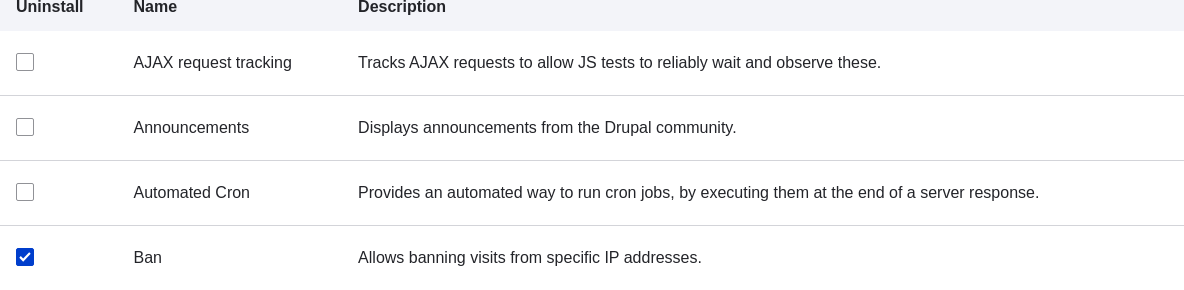
1. In the _Manage_ administrative menu, navigate to _Extend_ > _Uninstall_
(_admin/modules/uninstall_) where you will find the list of modules that are
ready to be uninstalled.
1. Check the boxes for the modules you are uninstalling (_Ban_, _History_, and _Search_). Click _Uninstall_ at the bottom of the page.
1. Click _Install_. The checked modules will be installed.
### Using Drush
1. In the _Manage_ administrative menu, navigate to _Extend_
(_admin/modules_). The _Extend_ page appears showing all the available modules
in your site.
1. Find the machine name of the module you want to install, by expanding the
information area for the module. For instance, the core Ban
module's machine name is _ban_.
1. Run the following Drush command to install the module:
```text
drush pm:enable ban
```
## Expand your understanding
If you do not see the effect of these changes in your site, you might need
to clear the cache. See [Clearing the Cache](/link/773).
## Videos
[Installing a Module](https://www.youtube.com/watch?v=HymQsDOcT3E)
## Additional resources
[Drush](http://www.drush.org)
# Uninstalling Unused Modules
## Goal
Uninstall the core Search and History modules, as well as the core Ban module if you installed it in [Installing a Module](/link/707), to reduce overhead.
## Prerequisite knowledge
[Concept: Modules](/link/682)
## Site prerequisites
* You must have at least one unused module on your site that you want to
uninstall, such as the core Search module.
* If you want to use Drush to uninstall modules, Drush must be installed. See
[Concept: Additional Tools](/link/699).
## Steps
You can use the administrative interface or Drush to uninstall modules.
### Using the administrative interface
1. In the _Manage_ administrative menu, navigate to _Extend_ > _Uninstall_
(_admin/modules/uninstall_) where you will find the list of modules that are
ready to be uninstalled.
1. Check the boxes for the modules you are uninstalling (_Ban_, _History_, and _Search_). Click _Uninstall_ at the bottom of the page.
 # Configuring User Account Settings
## Goal
Turn off the ability for people to register user accounts on the site. Also,
review and/or edit the email messages generated by the site for events related
to user accounts.
## Prerequisite knowledge
[Concept: Administrative Overview](/link/705)
## Steps
1. In the _Manage_ administrative menu, navigate to _Configuration_ > _People_ >
_Account settings_ (_admin/config/people/accounts_).
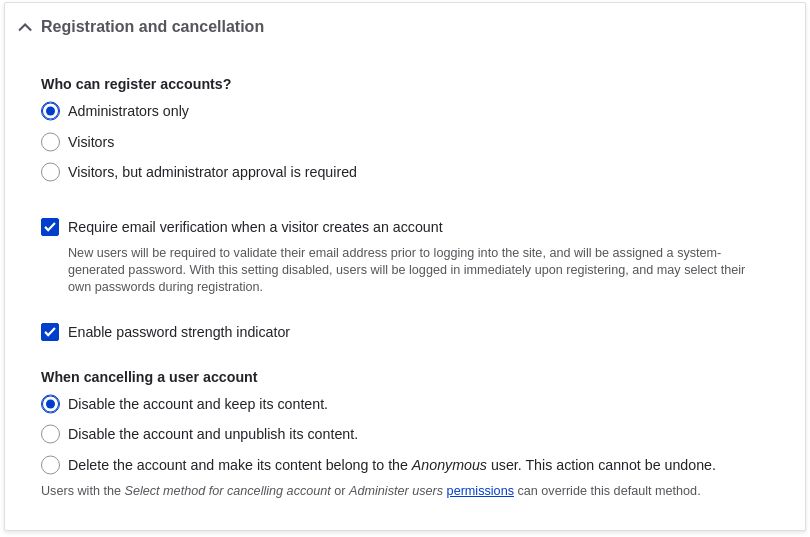
1. Under _Registration and cancellation_, select _Administrators only_ as the
people with permissions to register user accounts. You can check _Require email
verification when a visitor creates an account_ in case you want to change the
settings for account registration later on.
1. Optionally, change the default email address from which user account
notifications from the farmers market website will be sent. This will help you
maintain a separate email address from the one used for the website in
general. For example, this email address for user account notifications will be
useful for a staff member(s) communicating with vendors.

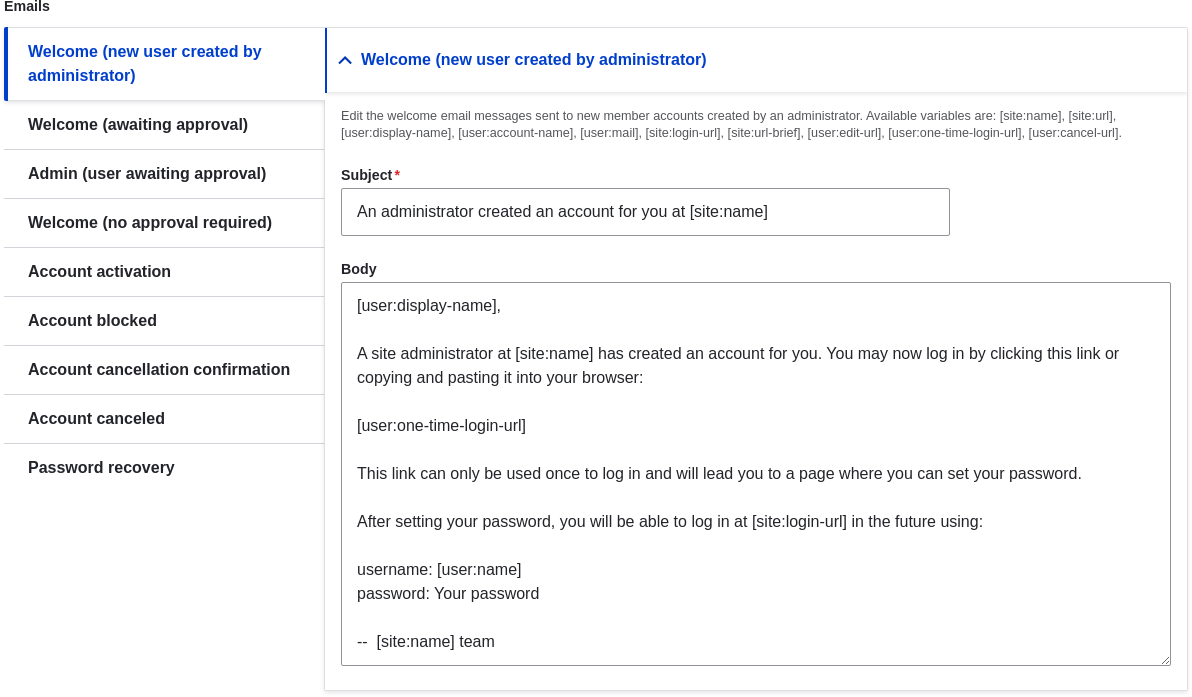
1. Optionally, edit the email templates under _Emails_ to customize
automated emails. There are several email templates provided by the core
software. They are meant for different user-specific occasions. All of them can
be personalized and three can be disabled via checkboxes: activation, blocking,
and cancellation.
You can send out your own text (for example, welcoming the new vendors for whom
accounts were just created) by editing the _Welcome (new user created by
administrator)_ template.
# Configuring User Account Settings
## Goal
Turn off the ability for people to register user accounts on the site. Also,
review and/or edit the email messages generated by the site for events related
to user accounts.
## Prerequisite knowledge
[Concept: Administrative Overview](/link/705)
## Steps
1. In the _Manage_ administrative menu, navigate to _Configuration_ > _People_ >
_Account settings_ (_admin/config/people/accounts_).
1. Under _Registration and cancellation_, select _Administrators only_ as the
people with permissions to register user accounts. You can check _Require email
verification when a visitor creates an account_ in case you want to change the
settings for account registration later on.

1. Optionally, change the default email address from which user account
notifications from the farmers market website will be sent. This will help you
maintain a separate email address from the one used for the website in
general. For example, this email address for user account notifications will be
useful for a staff member(s) communicating with vendors.

1. Optionally, edit the email templates under _Emails_ to customize
automated emails. There are several email templates provided by the core
software. They are meant for different user-specific occasions. All of them can
be personalized and three can be disabled via checkboxes: activation, blocking,
and cancellation.
You can send out your own text (for example, welcoming the new vendors for whom
accounts were just created) by editing the _Welcome (new user created by
administrator)_ template.
 1. Click _Save configuration_ to save the changes.
## Expand your understanding
* [Clearing the Cache](/link/773)
* [Creating a User Account](/link/740)
## Related concepts
See [Drupal User Guide](/link/673#bkmrk-managing-user-accoun) for more information about user accounts and permissions.
## Videos
[Configuring User Account Settings](https://www.youtube.com/watch?v=POhQTAX93R8)
## Additional resources
[Securing your site](https://www.drupal.org/security/secure-configuration) can
help you with a more safety-focused approach to configuration.
# Configuring the Theme
## Goal
Edit the settings of the default core Olivero theme to change the color scheme
and to add a logo.
## Prerequisite knowledge
[Concept: Themes](/link/683)
## Steps
1. In the _Manage_ administrative menu, navigate to _Appearance_
(_admin/appearance_).
1. Under _Installed themes_, you will find Olivero listed as your default
theme. Under _Olivero (default theme)_, click _Settings_.
1. Click _Save configuration_ to save the changes.
## Expand your understanding
* [Clearing the Cache](/link/773)
* [Creating a User Account](/link/740)
## Related concepts
See [Drupal User Guide](/link/673#bkmrk-managing-user-accoun) for more information about user accounts and permissions.
## Videos
[Configuring User Account Settings](https://www.youtube.com/watch?v=POhQTAX93R8)
## Additional resources
[Securing your site](https://www.drupal.org/security/secure-configuration) can
help you with a more safety-focused approach to configuration.
# Configuring the Theme
## Goal
Edit the settings of the default core Olivero theme to change the color scheme
and to add a logo.
## Prerequisite knowledge
[Concept: Themes](/link/683)
## Steps
1. In the _Manage_ administrative menu, navigate to _Appearance_
(_admin/appearance_).
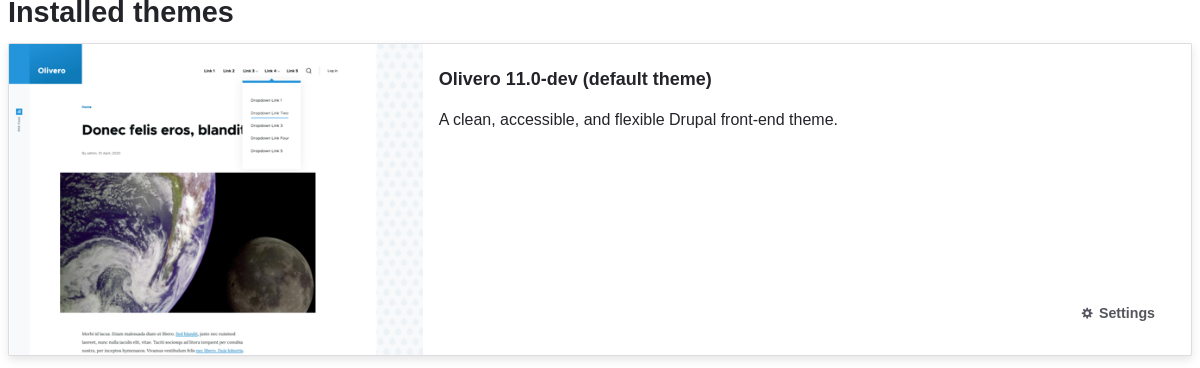
1. Under _Installed themes_, you will find Olivero listed as your default
theme. Under _Olivero (default theme)_, click _Settings_.
 1. Under _Logo image_, uncheck _Use the logo supplied by the
theme_.
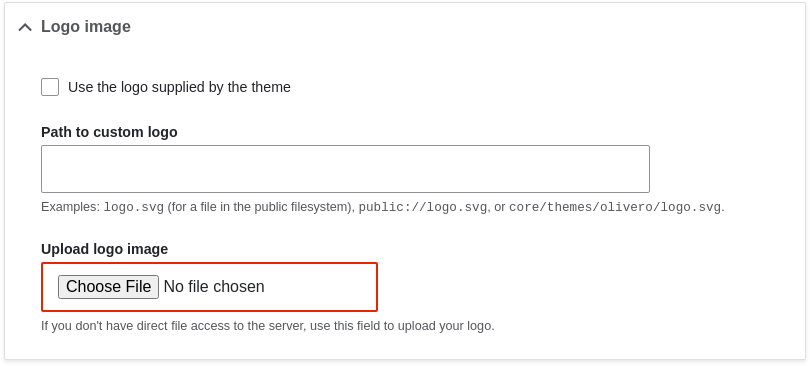
1. Under _Upload logo image_, locate a logo file and upload it to your
site. Note: You can also set a universal logo for all themes under
_Appearance_ > _Settings_ (_admin/appearance/settings_). A custom logo for your
theme will override the universal logo.
Once you have selected the file you would like to upload, you will see its
filename next to the _Choose File_ or _Browse_ button in your browser.
1. Under _Olivero Utilities_, you can choose to use a different color scheme for
the theme. You can choose from a list of existing color scheme's, or enter a
color and the core software will generate a new scheme based on that color.
For example, use the following custom color:
1. Under _Logo image_, uncheck _Use the logo supplied by the
theme_.

1. Under _Upload logo image_, locate a logo file and upload it to your
site. Note: You can also set a universal logo for all themes under
_Appearance_ > _Settings_ (_admin/appearance/settings_). A custom logo for your
theme will override the universal logo.
Once you have selected the file you would like to upload, you will see its
filename next to the _Choose File_ or _Browse_ button in your browser.
1. Under _Olivero Utilities_, you can choose to use a different color scheme for
the theme. You can choose from a list of existing color scheme's, or enter a
color and the core software will generate a new scheme based on that color.
For example, use the following custom color:
| Field | Color |
|---|---|
| Primary base color | #7db84a (green) |
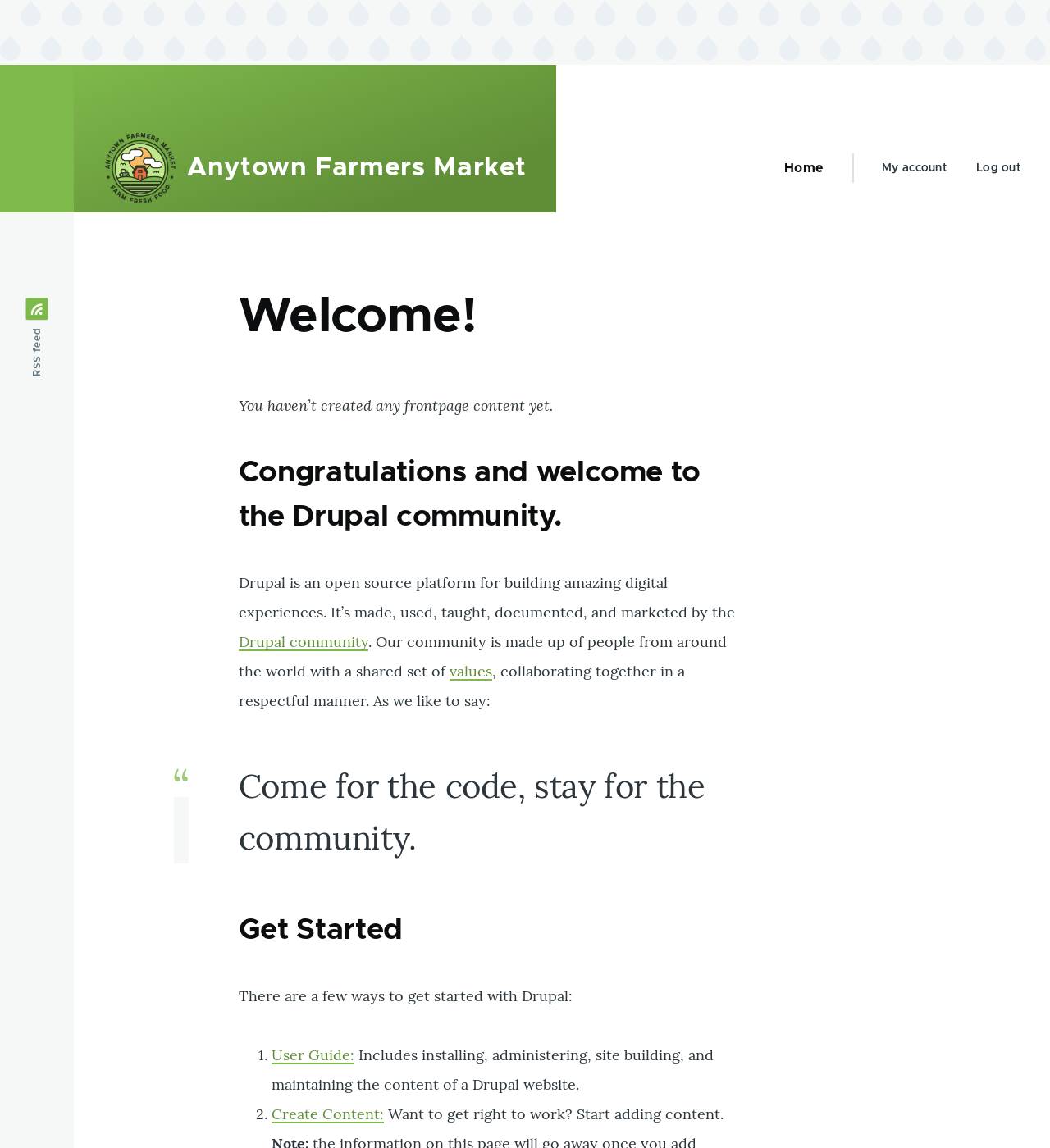 ## Expand your understanding
* [Finding Themes](/link/763)
* [Downloading and Installing a Theme from _Drupal.org_](/link/764)
* If you do not see the effect of these changes in your site, you might need
to clear the cache. See [Clearing the Cache](/link/773).
## Videos
[Configuring the Theme](https://www.youtube.com/watch?v=CEi3i1YGOs0)
# Chapter 5: Basic Page Management
# Concept: Paths, Aliases, and URLs
## What is a URL?
URL is the abbreviation for "Uniform Resource Locator", which is the page's
address on the web. It is the "name" by which a browser identifies a page to
display. In the example "Visit us at _example.com_.", _example.com_ is the URL
for the home page of your website. Users use URLs to locate content on the web.
## What is a Path?
A path is the unique, last part of the URL for a specific function or piece of
content. For example, for a page whose full URL is _http://example.com/node/7_,
the path is _node/7_.
Here are some examples of paths you might find in your site:
* _node/7_
* _taxonomy/term/6_
* _admin/content/comment_
* _user/login_
* _user/3_
## What is an Alias?
The core software has a feature called "URL Alias" that allows you to provide a
more understandable name to the content. So, if you have an "About Us" page with
the path _node/7_, you can set up an alias so that your visitors will see it as
_http://www.example.com/AboutUs_. The core Path module, which supports URL
aliasing, provides this functionality.
## Related topics
* [Creating a Content Item](/link/713)
* [Editing a Content Item](/link/714)
# Creating a Content Item
## Goal
Create and publish a content item that will be used as the home page of the
site.
## Prerequisite knowledge
* [Concept: Paths, Aliases, and URLs](/link/712)
* [Concept: Content Entities and Fields](/link/691)
## Site prerequisites
The _Basic page_ content type must exist. This is created on your site when you
install with the core Standard installation profile.
## Steps
1. In the _Manage_ administrative menu, navigate to _Content_ > _Add content_ >
_Basic page_ (_node/add/page_). The _Create Basic page_ form appears.
1. Click _Edit summary_.
1. Fill in the fields as shown below.
## Expand your understanding
* [Finding Themes](/link/763)
* [Downloading and Installing a Theme from _Drupal.org_](/link/764)
* If you do not see the effect of these changes in your site, you might need
to clear the cache. See [Clearing the Cache](/link/773).
## Videos
[Configuring the Theme](https://www.youtube.com/watch?v=CEi3i1YGOs0)
# Chapter 5: Basic Page Management
# Concept: Paths, Aliases, and URLs
## What is a URL?
URL is the abbreviation for "Uniform Resource Locator", which is the page's
address on the web. It is the "name" by which a browser identifies a page to
display. In the example "Visit us at _example.com_.", _example.com_ is the URL
for the home page of your website. Users use URLs to locate content on the web.
## What is a Path?
A path is the unique, last part of the URL for a specific function or piece of
content. For example, for a page whose full URL is _http://example.com/node/7_,
the path is _node/7_.
Here are some examples of paths you might find in your site:
* _node/7_
* _taxonomy/term/6_
* _admin/content/comment_
* _user/login_
* _user/3_
## What is an Alias?
The core software has a feature called "URL Alias" that allows you to provide a
more understandable name to the content. So, if you have an "About Us" page with
the path _node/7_, you can set up an alias so that your visitors will see it as
_http://www.example.com/AboutUs_. The core Path module, which supports URL
aliasing, provides this functionality.
## Related topics
* [Creating a Content Item](/link/713)
* [Editing a Content Item](/link/714)
# Creating a Content Item
## Goal
Create and publish a content item that will be used as the home page of the
site.
## Prerequisite knowledge
* [Concept: Paths, Aliases, and URLs](/link/712)
* [Concept: Content Entities and Fields](/link/691)
## Site prerequisites
The _Basic page_ content type must exist. This is created on your site when you
install with the core Standard installation profile.
## Steps
1. In the _Manage_ administrative menu, navigate to _Content_ > _Add content_ >
_Basic page_ (_node/add/page_). The _Create Basic page_ form appears.
1. Click _Edit summary_.
1. Fill in the fields as shown below.
| Field name | Explanation | Value | ||
|---|---|---|---|---|
| Title | Title of the page. Will also be used as a meta tag in the source code, URL alias, and as label of the content item in administration screens | Home | Summary | Summary of the value of the body field. Can be used as teaser |
| Body | Full content of the page | Welcome to City Market - your neighborhood | ||
| Published | Whether the content is published for public view or not | Checked | ||
| URL alias > URL alias | Alternate relative path for the content | /home |
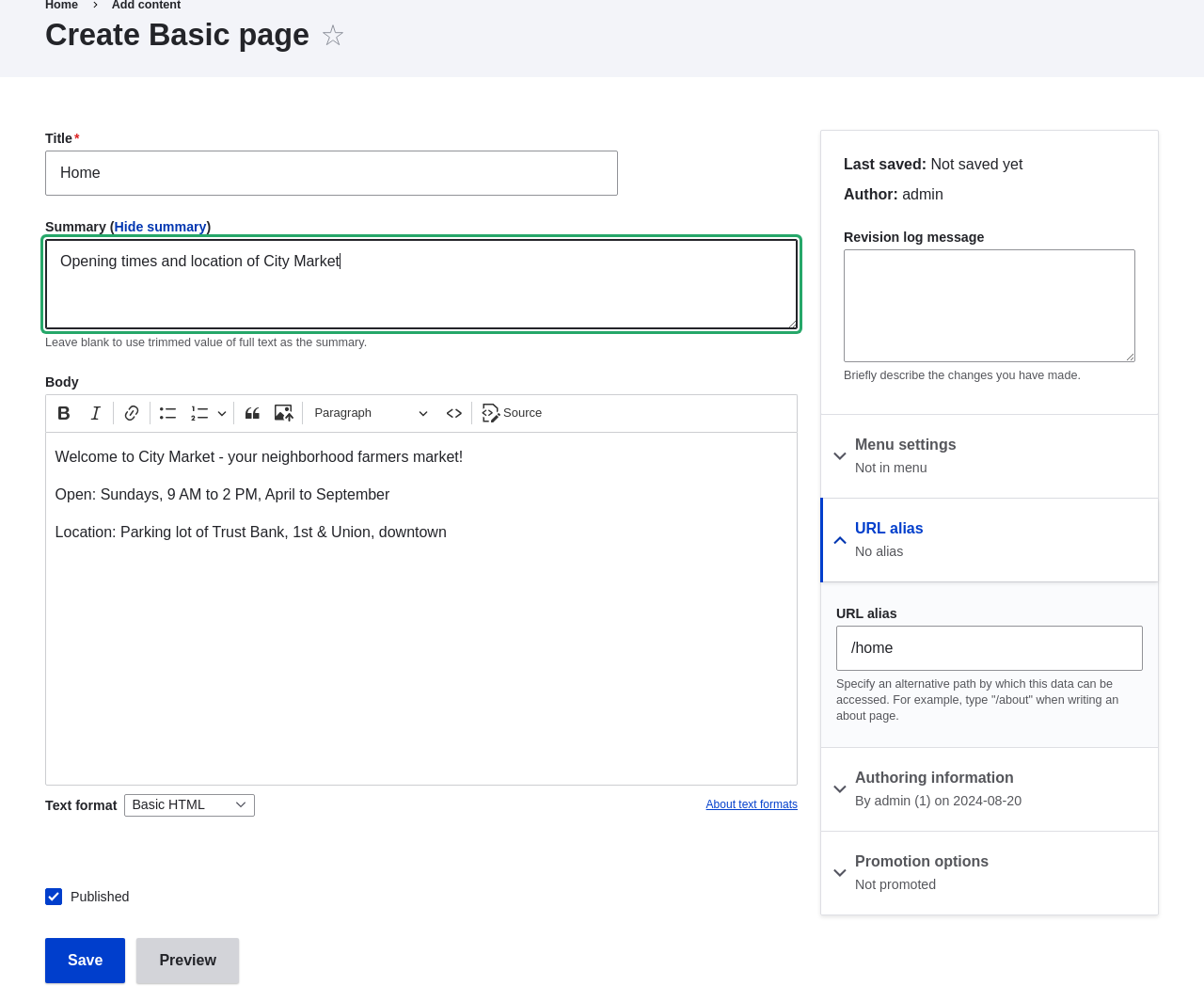 1. Click _Preview_ to ensure everything looks like expected.
1. Click _Back to content editing_.
1. Click _Save_. The content is saved and can be found on the
_Content_ page.
1. Follow the same steps to create an About page, with title "About", and a body
telling about the history of the farmer's market.
## Expand your understanding
* [Designating a Front Page for your Site](/link/715)
* [Adding a Page to the Navigation](/link/717)
* [Translating Content](/link/757)
## Related concepts
* [Concept: User Interface, Configuration, and Content translation](/link/695)
* [Concept: Paths, Aliases, and URLs](/link/712)
* [Editing a Content Item](/link/714)
## Videos
[Creating a Content Item](https://www.youtube.com/watch?v=h312fekiSNE)
## Additional resources
[_Drupal.org_ community documentation page "About nodes"](https://www.drupal.org/docs/core-modules-and-themes/core-modules/node-module/about-nodes)
# Editing a Content Item
## Goal
Update the hours on the Home page content item.
## Prerequisite knowledge
[Creating a Content Item](/link/713)
## Site prerequisites
A content item for the Home page must exist. See [Creating a Content Item](/link/713).
## Steps
1. In the _Manage_ administrative menu, navigate to _Content_ (_admin/content_).
1. If the content item you want to edit was updated or created recently, it
should appear near the top of the content list on that page. If not, you can
use the _Content type_, _Title_, or other filters to locate the content item.
1. Click _Preview_ to ensure everything looks like expected.
1. Click _Back to content editing_.
1. Click _Save_. The content is saved and can be found on the
_Content_ page.
1. Follow the same steps to create an About page, with title "About", and a body
telling about the history of the farmer's market.
## Expand your understanding
* [Designating a Front Page for your Site](/link/715)
* [Adding a Page to the Navigation](/link/717)
* [Translating Content](/link/757)
## Related concepts
* [Concept: User Interface, Configuration, and Content translation](/link/695)
* [Concept: Paths, Aliases, and URLs](/link/712)
* [Editing a Content Item](/link/714)
## Videos
[Creating a Content Item](https://www.youtube.com/watch?v=h312fekiSNE)
## Additional resources
[_Drupal.org_ community documentation page "About nodes"](https://www.drupal.org/docs/core-modules-and-themes/core-modules/node-module/about-nodes)
# Editing a Content Item
## Goal
Update the hours on the Home page content item.
## Prerequisite knowledge
[Creating a Content Item](/link/713)
## Site prerequisites
A content item for the Home page must exist. See [Creating a Content Item](/link/713).
## Steps
1. In the _Manage_ administrative menu, navigate to _Content_ (_admin/content_).
1. If the content item you want to edit was updated or created recently, it
should appear near the top of the content list on that page. If not, you can
use the _Content type_, _Title_, or other filters to locate the content item.
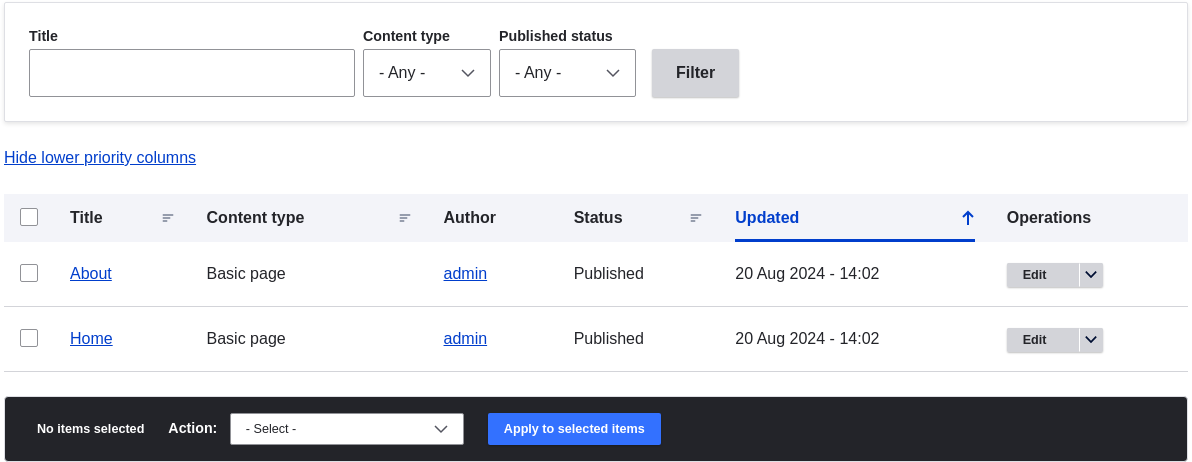 1. Click _Edit_ in the row of the content item you want to edit (Home), to
open the content editing form. Update the opening hours in the _Body_ field. See
[Creating a Content Item](/link/713) for an explanation of the fields and a screenshot.
1. Check _Create new revision_ under _Published_, if it is not already
checked, and enter a _Revision log message_ explaining what changes you are
making (for example, you might enter "Updated opening hours"). This text
will appear in the revision log for the page.
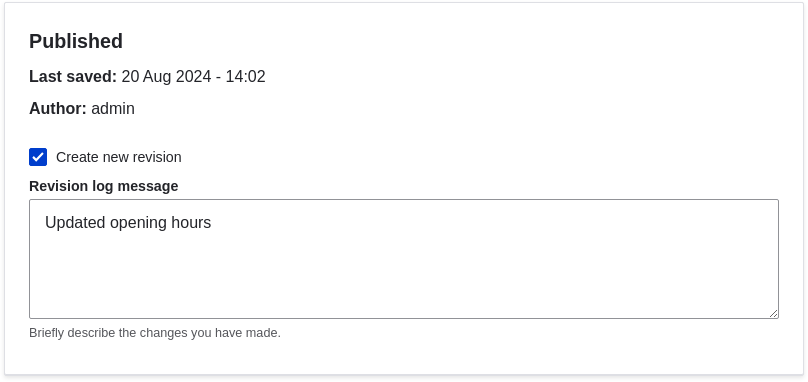
1. Click _Save_ to save your changes.
1. You will be redirected back to the _Content_ administrative page, and there
should be a message showing that the content item was updated.

## Expand your understanding
As an alternative to the first two steps above, you can also reach the
content edit form as follows:
1. Starting from your site's home page, use the site's navigation menus to locate
the page where the content you want to edit is displayed to visitors.
1. Most themes will display an _Edit_ link or tab near the top of that page to
people with permission to edit the page; clicking the link will take you to
the full content edit form.
## Videos
[Editing a Content Item](https://www.youtube.com/watch?v=TAFZMcuOqG0)
# Designating a Front Page for your Site
## Goal
Configure which content item is displayed as the front page of your website.
## Site prerequisites
The content item that you want to designate as the front page of your site must
exist. See [Creating a Content Item](/link/713).
## Steps
1. In the _Manage_ administrative menu, navigate to _Configuration_ > _System_ >
_Basic site settings_ (_admin/config/system/site-information_).
1. Under _Front page_, replace _/node_ with the name of the page you
would like to make the home page. To use the home page that was previously
created, provide its path _/home_. Click _Save configuration_.
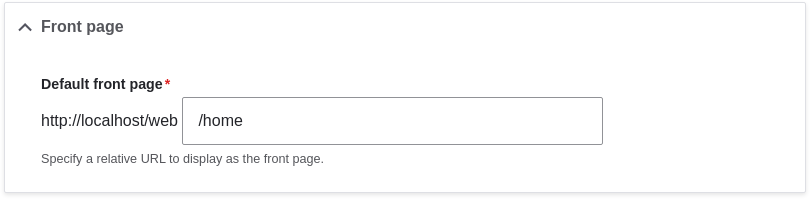
1. Navigate to the home page to verify that it displays content as configured by
you.
1. Click _Edit_ in the row of the content item you want to edit (Home), to
open the content editing form. Update the opening hours in the _Body_ field. See
[Creating a Content Item](/link/713) for an explanation of the fields and a screenshot.
1. Check _Create new revision_ under _Published_, if it is not already
checked, and enter a _Revision log message_ explaining what changes you are
making (for example, you might enter "Updated opening hours"). This text
will appear in the revision log for the page.

1. Click _Save_ to save your changes.
1. You will be redirected back to the _Content_ administrative page, and there
should be a message showing that the content item was updated.

## Expand your understanding
As an alternative to the first two steps above, you can also reach the
content edit form as follows:
1. Starting from your site's home page, use the site's navigation menus to locate
the page where the content you want to edit is displayed to visitors.
1. Most themes will display an _Edit_ link or tab near the top of that page to
people with permission to edit the page; clicking the link will take you to
the full content edit form.
## Videos
[Editing a Content Item](https://www.youtube.com/watch?v=TAFZMcuOqG0)
# Designating a Front Page for your Site
## Goal
Configure which content item is displayed as the front page of your website.
## Site prerequisites
The content item that you want to designate as the front page of your site must
exist. See [Creating a Content Item](/link/713).
## Steps
1. In the _Manage_ administrative menu, navigate to _Configuration_ > _System_ >
_Basic site settings_ (_admin/config/system/site-information_).
1. Under _Front page_, replace _/node_ with the name of the page you
would like to make the home page. To use the home page that was previously
created, provide its path _/home_. Click _Save configuration_.

1. Navigate to the home page to verify that it displays content as configured by
you.
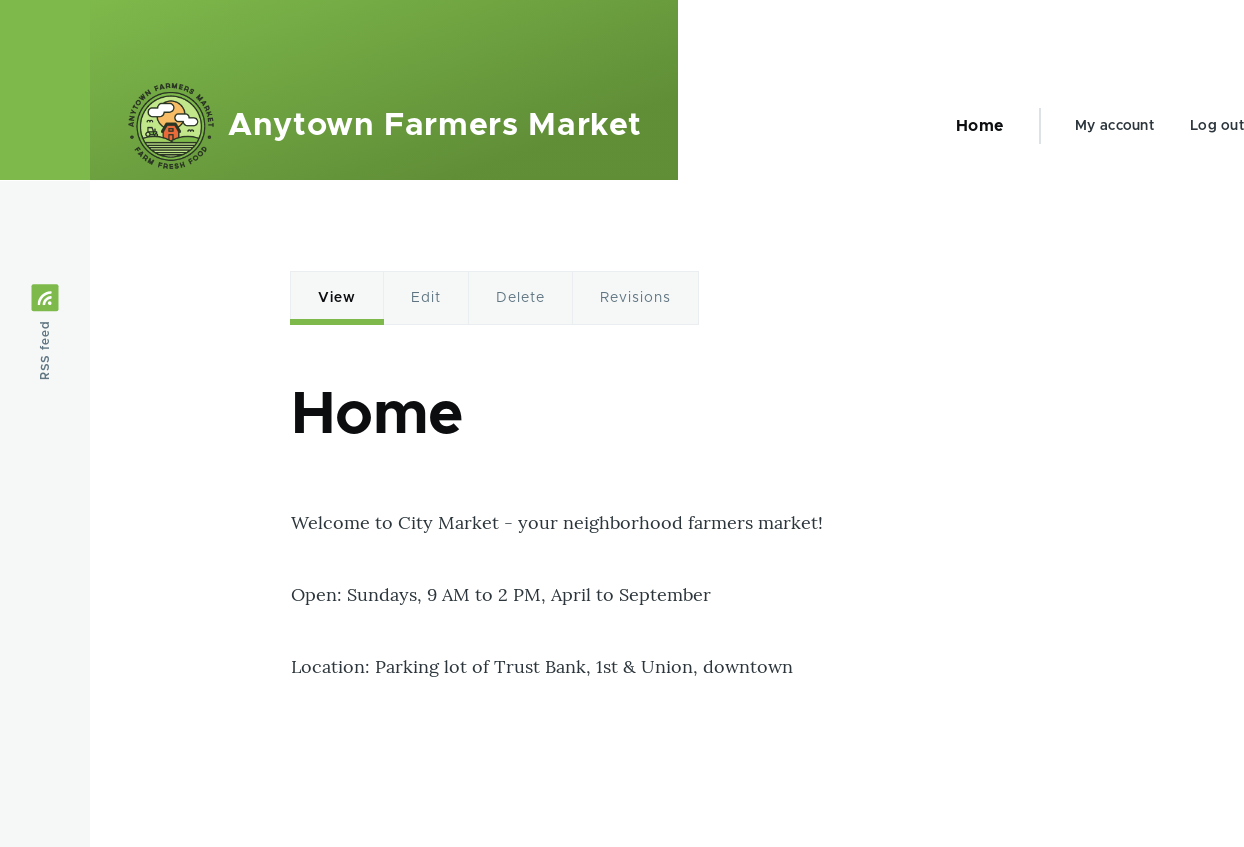 ## Expand your understanding
* [Adding a Page to the Navigation](/link/717)
* Follow [Creating a Content Item](/link/713) to create an error page to be used as a 404 (page
not found) or 403 (not authorized) response on your site. Then following the
steps here, you can designate it as the error response, in the _Error pages_
section of the configuration.
## Related concepts
[Concept: Menu](/link/716)
## Videos
[Designating a Front Page for Your Site](https://www.youtube.com/watch?v=qOL8arBYpJ4)
# Concept: Menu
## What is a menu?
Menus are a collection of links used to navigate a website. The
core Menu UI module provides an interface to control and customize the menu
system. Menus are primarily displayed as a hierarchical list of links. By
default, new menu links are placed inside a built-in menu labeled _Main
navigation_, but administrators can also create custom menus.
The core Standard installation profile contains five menus:
- **Main navigation:** Links to sections intended for site visitors. They are usually created by site administrators.
- **Administration:** Links to administrative tasks. This menu mainly contains links supplied by modules on your site.
- **User account menu:** Links to tasks associated with the user account such as _My account_ and _Log out_.
- **Footer:** Links to important pages within the site intended for the footer. They are usually created by site administrators.
- **Tools:** Links to tasks necessary for site visitors. Some modules feature their links here.
You can customize menus in the following ways, using the menu administration
functionality:
* Creating new custom menus.
* Adding new menu links.
* Reordering menu links by setting their "weight" or by dragging them into
place.
* Renaming menu links (link title).
* Changing the link description (the tooltip that appears when you mouse over a menu
link).
* Moving a menu link into a different menu by editing its _Parent link_
property.
A menu link will only be shown to a visitor if they have the rights to view the
page it links to. For example, the admin menu link is not shown to visitors who
are not logged in.
## Related topics
* [Adding a Page to the Navigation](/link/717)
* [Changing the Order of Navigation](/link/718)
* To display a menu, you will need to place the block that corresponds to the
menu in a region of your theme; see [Concept: Blocks](/link/745), [Concept: Regions in a Theme](/link/689), and
[Placing a Block in a Region](/link/747). The core Standard installation profile places all of the menus
it defines except Administration in regions of the core Bartik theme. The core
Toolbar module, which is installed by the core Standard installation profile,
displays the Administration menu; it is also displayed by the contributed Admin
Toolbar module.
# Adding a Page to the Navigation
## Goal
Add a page to the navigation. For example, the About page.
## Prerequisite knowledge
* [Concept: Menu](/link/716)
* [Editing a Content Item](/link/714)
## Site prerequisites
The About page content item must exist. See [Creating a Content Item](/link/713).
## Steps
1. In the _Manage_ administrative menu, navigate to _Content_ (_admin/content_).
1. Find the About page, and click _Edit_ in that row. The content editing form
appears.
## Expand your understanding
* [Adding a Page to the Navigation](/link/717)
* Follow [Creating a Content Item](/link/713) to create an error page to be used as a 404 (page
not found) or 403 (not authorized) response on your site. Then following the
steps here, you can designate it as the error response, in the _Error pages_
section of the configuration.
## Related concepts
[Concept: Menu](/link/716)
## Videos
[Designating a Front Page for Your Site](https://www.youtube.com/watch?v=qOL8arBYpJ4)
# Concept: Menu
## What is a menu?
Menus are a collection of links used to navigate a website. The
core Menu UI module provides an interface to control and customize the menu
system. Menus are primarily displayed as a hierarchical list of links. By
default, new menu links are placed inside a built-in menu labeled _Main
navigation_, but administrators can also create custom menus.
The core Standard installation profile contains five menus:
- **Main navigation:** Links to sections intended for site visitors. They are usually created by site administrators.
- **Administration:** Links to administrative tasks. This menu mainly contains links supplied by modules on your site.
- **User account menu:** Links to tasks associated with the user account such as _My account_ and _Log out_.
- **Footer:** Links to important pages within the site intended for the footer. They are usually created by site administrators.
- **Tools:** Links to tasks necessary for site visitors. Some modules feature their links here.
You can customize menus in the following ways, using the menu administration
functionality:
* Creating new custom menus.
* Adding new menu links.
* Reordering menu links by setting their "weight" or by dragging them into
place.
* Renaming menu links (link title).
* Changing the link description (the tooltip that appears when you mouse over a menu
link).
* Moving a menu link into a different menu by editing its _Parent link_
property.
A menu link will only be shown to a visitor if they have the rights to view the
page it links to. For example, the admin menu link is not shown to visitors who
are not logged in.
## Related topics
* [Adding a Page to the Navigation](/link/717)
* [Changing the Order of Navigation](/link/718)
* To display a menu, you will need to place the block that corresponds to the
menu in a region of your theme; see [Concept: Blocks](/link/745), [Concept: Regions in a Theme](/link/689), and
[Placing a Block in a Region](/link/747). The core Standard installation profile places all of the menus
it defines except Administration in regions of the core Bartik theme. The core
Toolbar module, which is installed by the core Standard installation profile,
displays the Administration menu; it is also displayed by the contributed Admin
Toolbar module.
# Adding a Page to the Navigation
## Goal
Add a page to the navigation. For example, the About page.
## Prerequisite knowledge
* [Concept: Menu](/link/716)
* [Editing a Content Item](/link/714)
## Site prerequisites
The About page content item must exist. See [Creating a Content Item](/link/713).
## Steps
1. In the _Manage_ administrative menu, navigate to _Content_ (_admin/content_).
1. Find the About page, and click _Edit_ in that row. The content editing form
appears.
 1. Click _Menu settings_ on the right to expand it.
1. Check _Provide a menu link_ for the menu options to appear.
1. Enter values from the table below:
1. Click _Menu settings_ on the right to expand it.
1. Check _Provide a menu link_ for the menu options to appear.
1. Enter values from the table below:
| Field name | Explanation | Example value | ||
|---|---|---|---|---|
| Menu link title | Title that will be displayed in the menu | About | ||
| Description | Text that will be displayed when a visitor hovers over the link | History of the market | ||
| Parent link | Location of the page in the menu hierarchy. For example, if you choose _<Main navigation>_, the page will appear in the highest level of the navigation. By choosing another menu link as parent, you can create a menu hierarchy of multiple levels. | <Main navigation> | Weight | The order in which the page should appear in the menu (lower-weighted |
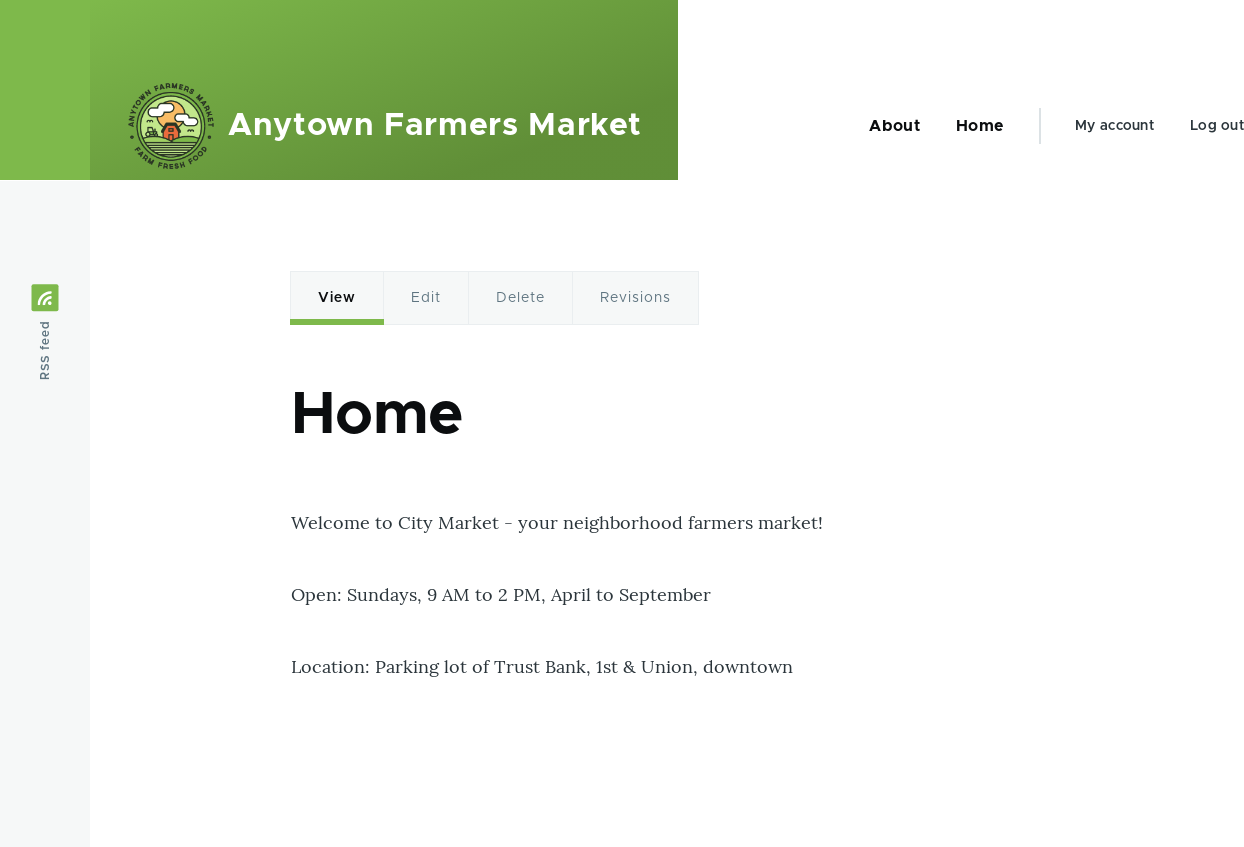 ## Expand your understanding
[Changing the Order of Navigation](/link/718)
## Videos
[Adding a Page to the Navigation](https://www.youtube.com/watch?v=JE_3INtBcTw)
## Additional resources
[_Drupal.org_ community documentation page "Adding a link to a menu"](https://www.drupal.org/docs/core-modules-and-themes/core-modules/menu-ui-module/adding-a-link-to-a-menu)
# Changing the Order of Navigation
## Goal
Reorder the links in a menu.
## Prerequisite knowledge
* [Concept: Menu](/link/716)
* [Adding a Page to the Navigation](/link/717)
## Site prerequisites
Home and About pages must exist in the main navigation menu. See
[Adding a Page to the Navigation](/link/717).
## Steps
1. In the _Manage_ administrative menu, navigate to _Structure_ > _Menus_
(_admin/structure/menu_) where all menus on your site are listed. Click _Edit
Menu_ from the _Operations_ dropdown for _Main navigation_. You can also reach
this page using contextual links (refer to [Concept: Administrative Overview](/link/705)) for the
menu. Note that the names and descriptions of the menus that were provided by
your installation profile are shown in English on this page; see
[Concept: User Interface, Configuration, and Content translation](/link/695) for an explanation.
## Expand your understanding
[Changing the Order of Navigation](/link/718)
## Videos
[Adding a Page to the Navigation](https://www.youtube.com/watch?v=JE_3INtBcTw)
## Additional resources
[_Drupal.org_ community documentation page "Adding a link to a menu"](https://www.drupal.org/docs/core-modules-and-themes/core-modules/menu-ui-module/adding-a-link-to-a-menu)
# Changing the Order of Navigation
## Goal
Reorder the links in a menu.
## Prerequisite knowledge
* [Concept: Menu](/link/716)
* [Adding a Page to the Navigation](/link/717)
## Site prerequisites
Home and About pages must exist in the main navigation menu. See
[Adding a Page to the Navigation](/link/717).
## Steps
1. In the _Manage_ administrative menu, navigate to _Structure_ > _Menus_
(_admin/structure/menu_) where all menus on your site are listed. Click _Edit
Menu_ from the _Operations_ dropdown for _Main navigation_. You can also reach
this page using contextual links (refer to [Concept: Administrative Overview](/link/705)) for the
menu. Note that the names and descriptions of the menus that were provided by
your installation profile are shown in English on this page; see
[Concept: User Interface, Configuration, and Content translation](/link/695) for an explanation.
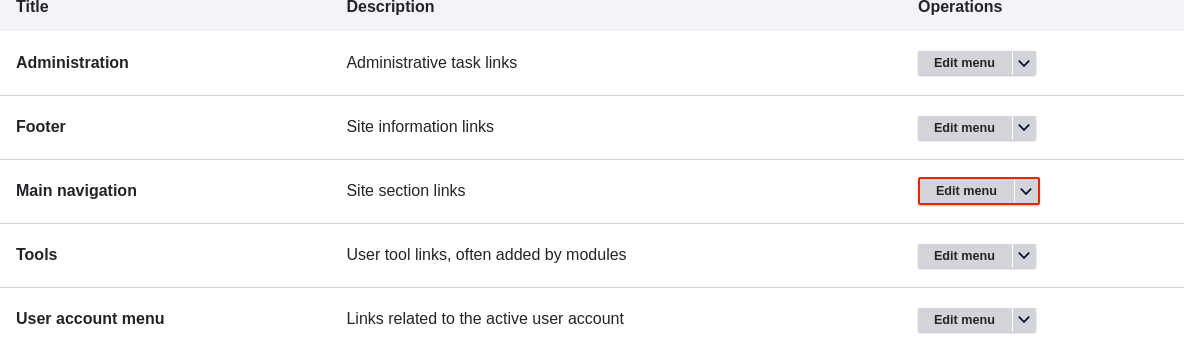 1. The _Edit menu_ page will display a list of each link in the menu you
chose (_Main navigation_).
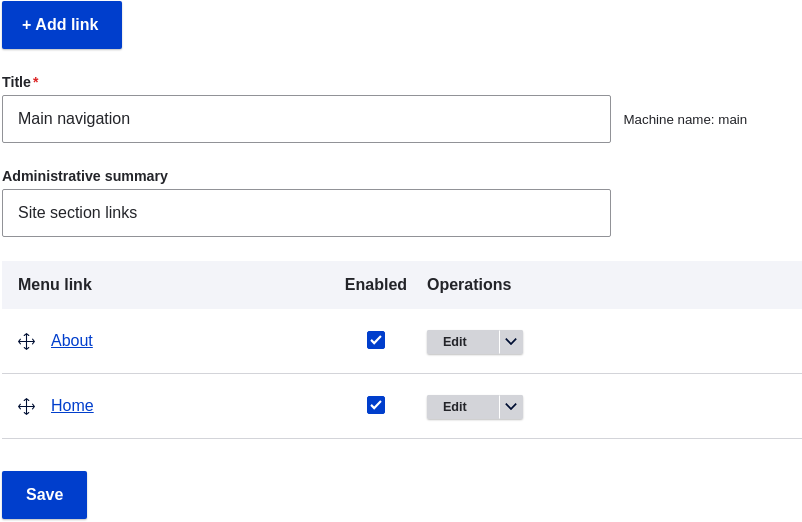
1. Drag the cross bar handles of menu links to change their order: Home, then
About. As an alternative to dragging, you can click the _Show row weights_ link
at the top of the table and select numerical weights (menu links with lower or
more negative weights will be shown first).
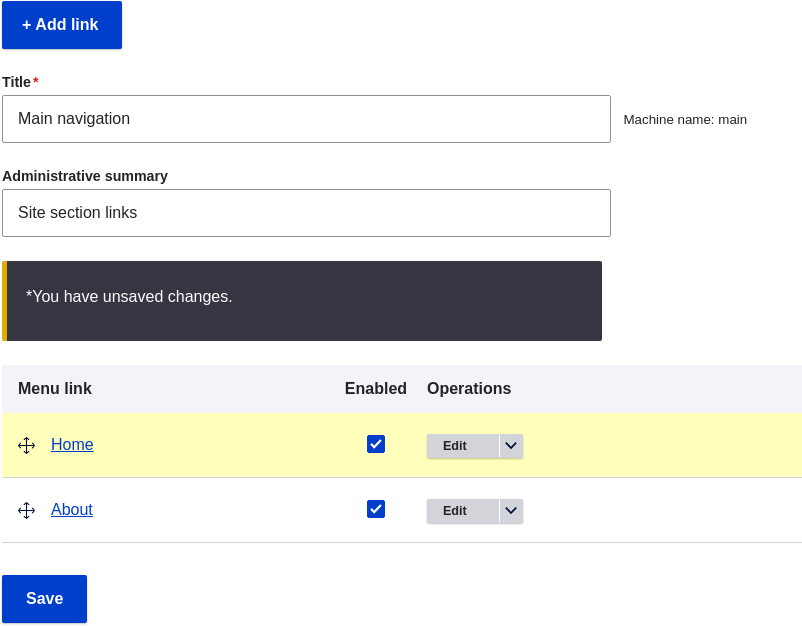
1. Click _Save_.
1. The home page now displays the main navigation with the Home menu
link displayed first.

## Expand your understanding
Add a menu link called _Contact_, leading to the _/contact_ page, to your Main
navigation menu. The contact page is provided by the core Contact module; you
may want to edit its layout and fields (see [Changing Content Entry Forms](/link/728)).
## Related concepts
[Concept: Menu](/link/716)
## Videos
[Changing the Order of Navigation](https://www.youtube.com/watch?v=OtT8e8lLx5E)
# Chapter 6: Setting Up Content Structure
# Adding a Content Type
## Goal
Add and configure a new content type Vendor.
## Prerequisite knowledge
[Concept: Content Entities and Fields](/link/691)
## Site prerequisites
You need to have a plan in place for your content structure. See
[Planning your Content Structure](/link/693).
## Steps
1. In the _Manage_ administrative menu, navigate to _Structure_ > _Content types_
(_admin/structure/types_). The _Content types_ page appears showing all the
available types of content. Note that the names and descriptions of the
content types that were provided by your installation profile are shown in
English on this page; see [Concept: User Interface, Configuration, and Content translation](/link/695) for an explanation.
1. Click _Add content type_. The _Add content type_ page appears. Fill
in the fields as shown below.
1. The _Edit menu_ page will display a list of each link in the menu you
chose (_Main navigation_).

1. Drag the cross bar handles of menu links to change their order: Home, then
About. As an alternative to dragging, you can click the _Show row weights_ link
at the top of the table and select numerical weights (menu links with lower or
more negative weights will be shown first).

1. Click _Save_.
1. The home page now displays the main navigation with the Home menu
link displayed first.

## Expand your understanding
Add a menu link called _Contact_, leading to the _/contact_ page, to your Main
navigation menu. The contact page is provided by the core Contact module; you
may want to edit its layout and fields (see [Changing Content Entry Forms](/link/728)).
## Related concepts
[Concept: Menu](/link/716)
## Videos
[Changing the Order of Navigation](https://www.youtube.com/watch?v=OtT8e8lLx5E)
# Chapter 6: Setting Up Content Structure
# Adding a Content Type
## Goal
Add and configure a new content type Vendor.
## Prerequisite knowledge
[Concept: Content Entities and Fields](/link/691)
## Site prerequisites
You need to have a plan in place for your content structure. See
[Planning your Content Structure](/link/693).
## Steps
1. In the _Manage_ administrative menu, navigate to _Structure_ > _Content types_
(_admin/structure/types_). The _Content types_ page appears showing all the
available types of content. Note that the names and descriptions of the
content types that were provided by your installation profile are shown in
English on this page; see [Concept: User Interface, Configuration, and Content translation](/link/695) for an explanation.
1. Click _Add content type_. The _Add content type_ page appears. Fill
in the fields as shown below.
| Field name | Explanation | Example value |
|---|---|---|
| Name | Name of the content type | Vendor |
| Description | Explain the use of the content type | Information about a vendor |
| Field name | Explanation | Example value |
|---|---|---|
| Title field label | Label of the Title field that is shown when editing or creating content of this type. | Vendor name |
| Preview before submitting | Option to choose whether you should preview the content before submitting. | Optional |
| Explanation or submission guidelines | Instructions for creating or editing content. | (Leave blank) |
| Field name | Explanation | Example value |
|---|---|---|
| Published | Make the content item published by default. | Checked |
| Promoted to front page | In a default website, this setting can be used to show content on the homepage. | Unchecked |
| Sticky at top of lists | In a default website, this setting can be used to keep content on top of a list. | Unchecked |
| Create new revision | Create a new revision each time the vendor is being edited. | Checked |
| Field name | Explanation | Example value |
|---|---|---|
| Display author and date information | Display the author username and publication date on each vendor page. | Unchecked |
| Field name | Explanation | Example value |
|---|---|---|
| Available menus | Menus that this type of content can be added to. Vendors do not need to appear in menus, so uncheck all menu options. | Unchecked |
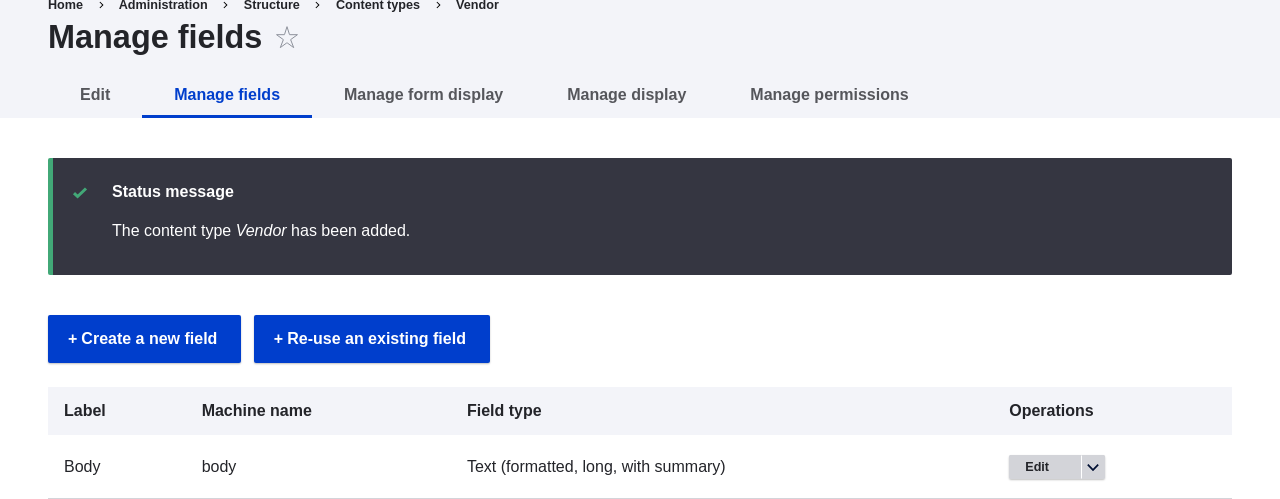 1. Follow the same steps to create a content type for recipes. Example values
for the fields in the forms, where they are different from the steps above:
1. Follow the same steps to create a content type for recipes. Example values
for the fields in the forms, where they are different from the steps above:
| Field name | Example value |
|---|---|
| Name | Recipe |
| Description | A recipe submitted by a vendor |
| Submission form settings - Title | Recipe name |
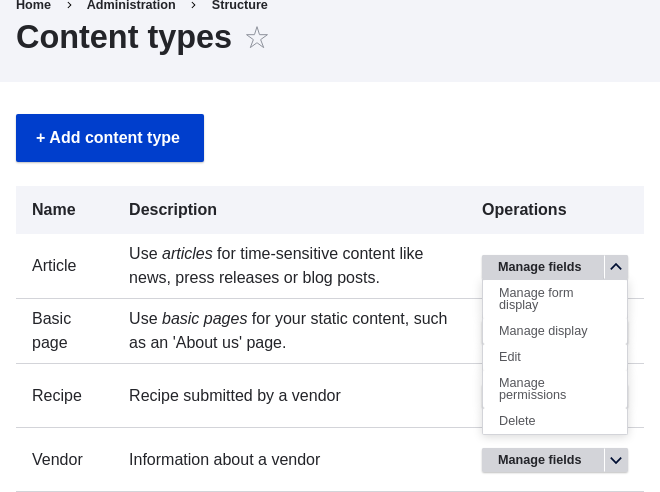 1. A confirmation page is displayed. Click _Delete_.
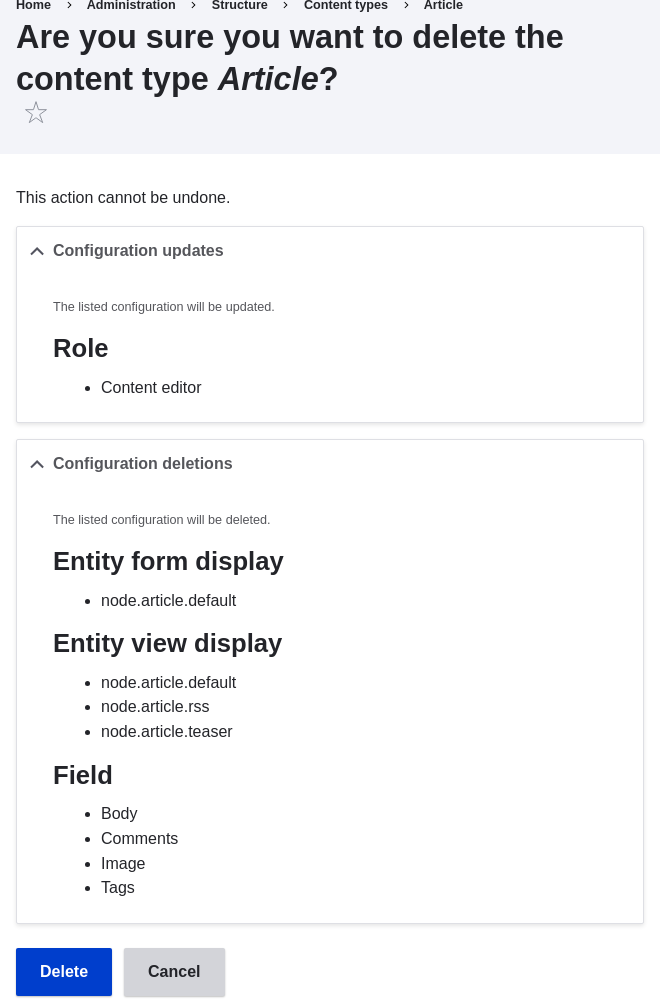 1. The _Content types_ page appears with a confirmation message saying that the
content type has been deleted:

## Videos
[Deleting a Content Type](https://www.youtube.com/watch?v=1627xZFcJCY)
# Adding Basic Fields to a Content Type
## Goal
Add a link field and an image field to the Vendor content type.
## Prerequisite knowledge
[Concept: Content Entities and Fields](/link/691)
## Site prerequisites
The Vendor content type must exist. See [Adding a Content Type](/link/720).
## Steps
Add the fields Vendor URL and Main image to the Vendor content type.
1. In the _Manage_ administrative menu, navigate to _Structure_ > _Content
types_ (_admin/structure/types_). Then click _Manage fields_ in the dropdown
button for the Vendor content type. The _Manage fields_ page appears. From here
you can either create a new field for the content type or re-use an existing
field. Note that the names and descriptions of the content types and fields that
were provided by your installation profile are shown in English on these pages;
see [Concept: User Interface, Configuration, and Content translation](/link/695) for an explanation.
1. Click _Create a new field_. The _Add field_ page appears.
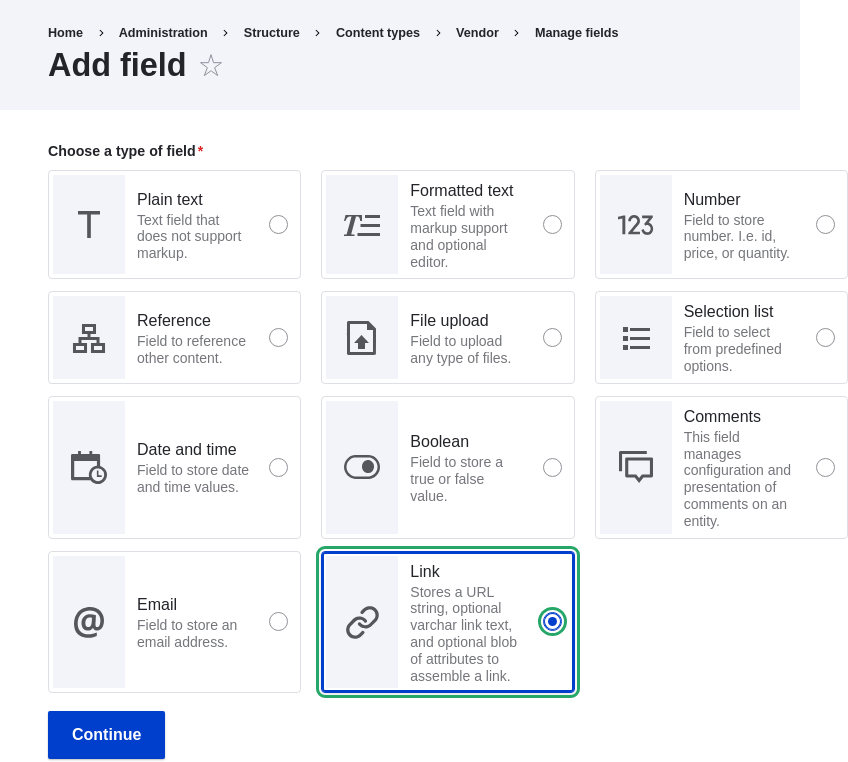
1. Choose the _Link_ field type from the _Choose a field type_ options. Click _Continue_. The _Add field_ page appears with a form to configure the field label.
1. Fill in the fields as shown below.
1. The _Content types_ page appears with a confirmation message saying that the
content type has been deleted:

## Videos
[Deleting a Content Type](https://www.youtube.com/watch?v=1627xZFcJCY)
# Adding Basic Fields to a Content Type
## Goal
Add a link field and an image field to the Vendor content type.
## Prerequisite knowledge
[Concept: Content Entities and Fields](/link/691)
## Site prerequisites
The Vendor content type must exist. See [Adding a Content Type](/link/720).
## Steps
Add the fields Vendor URL and Main image to the Vendor content type.
1. In the _Manage_ administrative menu, navigate to _Structure_ > _Content
types_ (_admin/structure/types_). Then click _Manage fields_ in the dropdown
button for the Vendor content type. The _Manage fields_ page appears. From here
you can either create a new field for the content type or re-use an existing
field. Note that the names and descriptions of the content types and fields that
were provided by your installation profile are shown in English on these pages;
see [Concept: User Interface, Configuration, and Content translation](/link/695) for an explanation.
1. Click _Create a new field_. The _Add field_ page appears.

1. Choose the _Link_ field type from the _Choose a field type_ options. Click _Continue_. The _Add field_ page appears with a form to configure the field label.
1. Fill in the fields as shown below.
| Field name | Explanation | Value |
|---|---|---|
| Label | Label that is visible in administration pages | Vendor URL |
| Choose a type of field | Field type | Link |
| Field name | Explanation | Value |
|---|---|---|
| Label | Label that is visible in the content form | Vendor URL |
| Allowed number of values | The number of values that can be entered | Limited, 1 |
| Help text | The instruction that is shown below the field | (leave blank) |
| Required field | Whether the field is required or not | Unchecked |
| Allowed link type | The kind of links that can be entered | External links only |
| Allow link text | Whether a link text can be entered | Disabled |
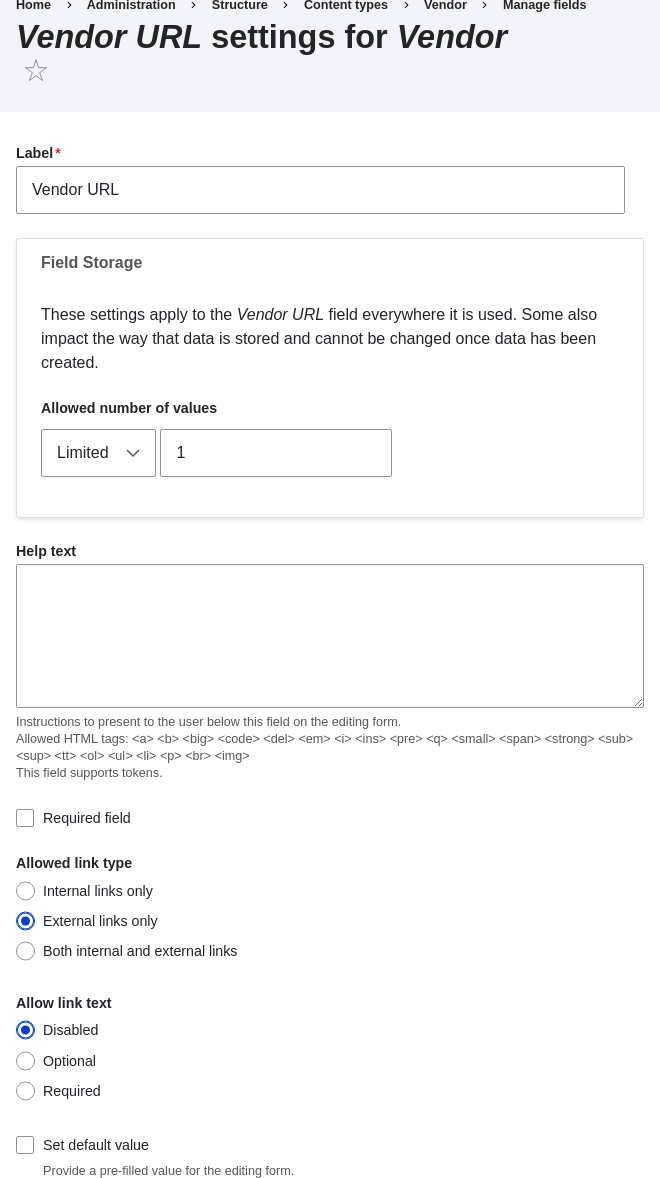 1. Click _Save settings_. The Vendor URL has been added to the content
type. Continue creating the Main image field.
1. Click _Create a new field_. The _Add field_ page appears.
1. Choose the _File upload_ field type from the _Choose a field type_ options. Click _Continue_. The _Add field_ page appears with a form to configure the field label.
1. Some field types require the selection of a sub-type. Fill in the fields as shown below.
1. Click _Save settings_. The Vendor URL has been added to the content
type. Continue creating the Main image field.
1. Click _Create a new field_. The _Add field_ page appears.
1. Choose the _File upload_ field type from the _Choose a field type_ options. Click _Continue_. The _Add field_ page appears with a form to configure the field label.
1. Some field types require the selection of a sub-type. Fill in the fields as shown below.
| Field name | Explanation | Value |
|---|---|---|
| Label | Label that is visible in administration pages | Main image |
| Choose an option below | Field sub-type | Image |
| Field name | Explanation | Value | |||
|---|---|---|---|---|---|
| Label | Label that is visible in the content form | Main image | |||
| Allowed number of values | The number of values that can be entered | Limited, 1 | |||
| Default image | You can set a default image here. This will be used when you do not provide an image when creating a Vendor content item. | (leave blank) | Help text | The instruction that is shown below the field | (leave blank) |
| Required field | Whether the field is required or not | Checked | |||
| Allowed file extensions | The type of images that can be uploaded | png, gif, jpg, jpeg | |||
| File directory | The directory where the files will be stored. By providing a file directory value, you ensure that all images uploaded via the Main image field will be located in the same directory. | vendors | |||
| Minimum image dimensions | The minimum dimensions of the uploaded image | 600 x 600 | |||
| Maximum upload size | The maximum file size of the uploaded image | 5 MB | |||
| Enable Alt field | Whether an alternative text can be entered | Checked | |||
| Alt field required | Whether an alternative text is required | Checked |
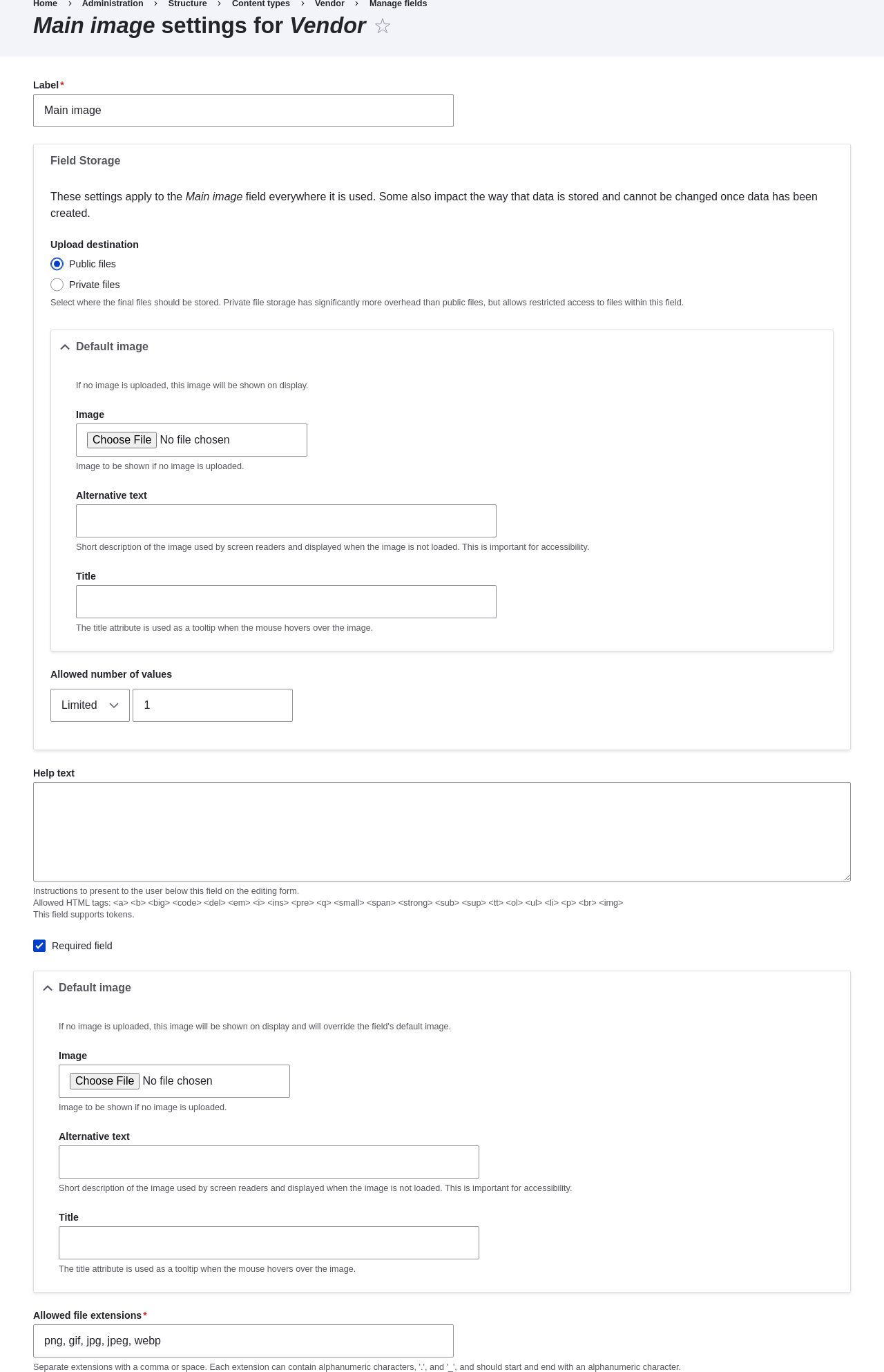 1. Click _Save settings_. Main image has been added to the content type.
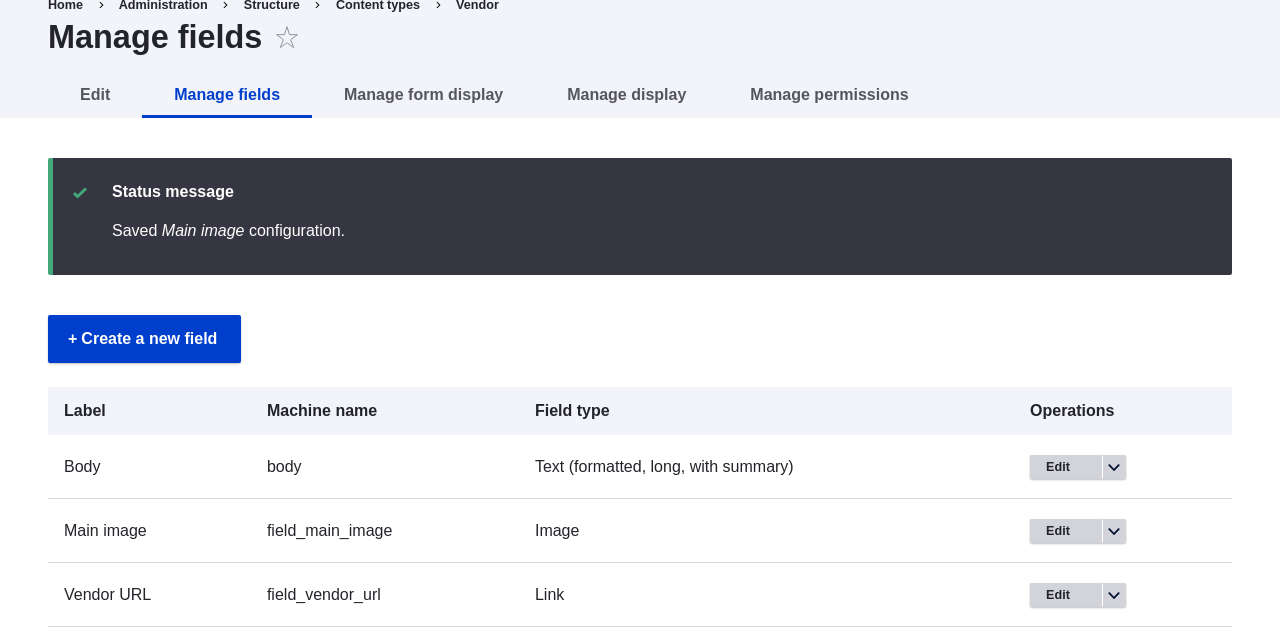 1. Add a Main image field to the Recipe content type, using similar steps. Start
by navigating to the Recipe content type's _Manage Fields_ page. Then use the _Re-use an existing field_ button to open the modal dialog and press the _Re-use_ button that corresponds with the Main image field in the table. Then skip to step 7 and follow the remaining steps.
1. Add a Main image field to the Recipe content type, using similar steps. Start
by navigating to the Recipe content type's _Manage Fields_ page. Then use the _Re-use an existing field_ button to open the modal dialog and press the _Re-use_ button that corresponds with the Main image field in the table. Then skip to step 7 and follow the remaining steps.
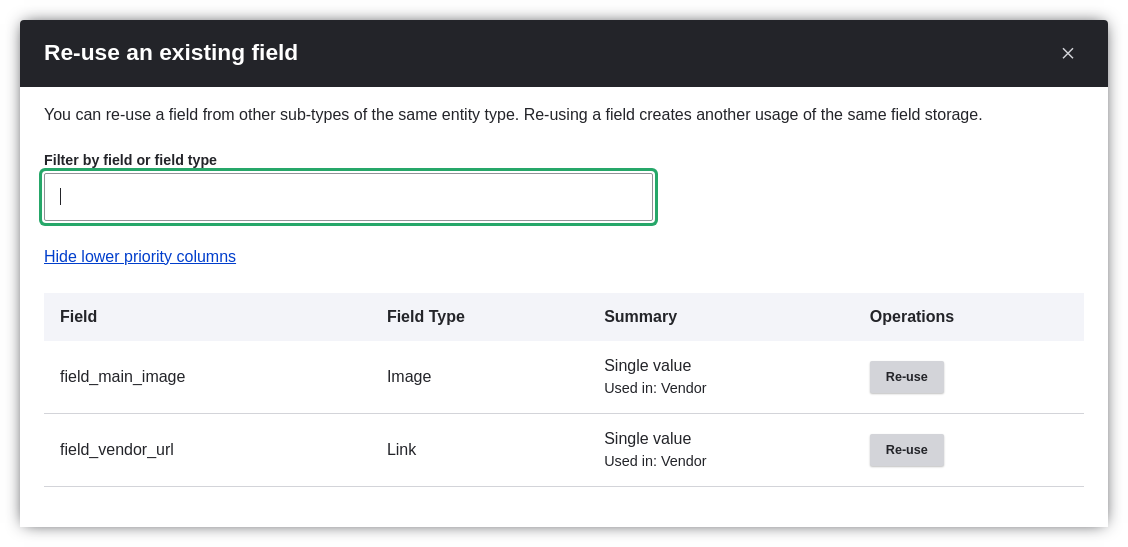 1. Create two Vendor content items (see [Creating a Content Item](/link/713)) called "Happy Farm"
and "Sweet Honey". Make sure that they include images and URLs.
## Expand your understanding
* [Concept: Image Styles](/link/731)
* [Changing Content Display](/link/730)
* [Changing Content Entry Forms](/link/728)
## Videos
[Adding Basic Fields to a Content Type](https://www.youtube.com/watch?v=CZpfR9WbVcQ)
## Additional resources
[_Drupal.org_ community documentation page "Add a field to a content type"](https://www.drupal.org/docs/7/nodes-content-types-and-fields/add-a-field-to-a-content-type)
# Concept: Reference Fields
## Prerequisite knowledge
[Concept: Content Entities and Fields](/link/691)
## What is a reference field?
A _reference field_ is a field that represents a relationship between an entity
and one or more other entities, which may belong to the same or different entity
type. The three most commonly-used reference fields are:
- **Content reference:** A reference to a content item. For example, you might want to connect recipes to the vendors who submitted them. You would set up a content reference field called Submitted by referencing Vendor content items on the Recipe content type.
- **Taxonomy term reference:** A reference to a taxonomy term. For example, you might want to connect recipes to their ingredients. You would set up a taxonomy term reference field called Ingredients on the Recipe content type. This reference field will point to the vocabulary Ingredients.
- **User reference:** A reference to a user account. For example, you might want to connect recipes with their chefs. You would set up a user reference field called Chefs on the Recipe content type.
## Related topics
[Concept: Taxonomy](/link/724)
# Concept: Taxonomy
## Prerequisite knowledge
* [Concept: Content Entities and Fields](/link/691)
* [Concept: Reference Fields](/link/723)
## What is Taxonomy?
_Taxonomy_ is used to classify website content. One common example of taxonomy
is the tags used to classify or categorize posts in a blog website; the farmers
market website could use an ingredients taxonomy to classify recipes.
Individual taxonomy entities are known as _terms_ (the blog tags or recipe
ingredients in these examples); and a set of terms is known as a _vocabulary_
(the set of all blog post tags, or the set of all recipe ingredients in these
examples). Technically, taxonomy terms are an entity type and the entity
subtypes are the vocabularies. Like other entities, taxonomy terms can have
fields attached; for instance, you could set up an image field to contain an
icon for each term.
An individual vocabulary can organize its terms in a hierarchy, or it could be
flat. For example, blog tags normally have a flat structure, while a recipe
ingredients vocabulary could be hierarchical (for example, tomatoes could be a
sub-term of vegetables, and under tomatoes, you could have green and red
tomatoes).
Taxonomy terms are normally attached as reference fields to other content
entities, which is how you can use them to classify content. When you set up a
taxonomy reference field, you can let users enter terms in two ways:
- **Free tagging:** New terms can be created right on the content editing form.
- **Fixed list of terms:** The list of terms is curated and managed outside the content editing form, and users can only choose from the existing list when editing content.
Taxonomy reference fields can be added to any entity, such as user accounts,
custom blocks, or regular content items. If you use them to classify regular
content items, your site will automatically be set up with
taxonomy listing pages for each term; each of these pages lists all of the
content items that are classified with that term. For example, if you created
several recipes that all had carrots as an ingredient, you might see something
like this on the Carrots taxonomy listing page:
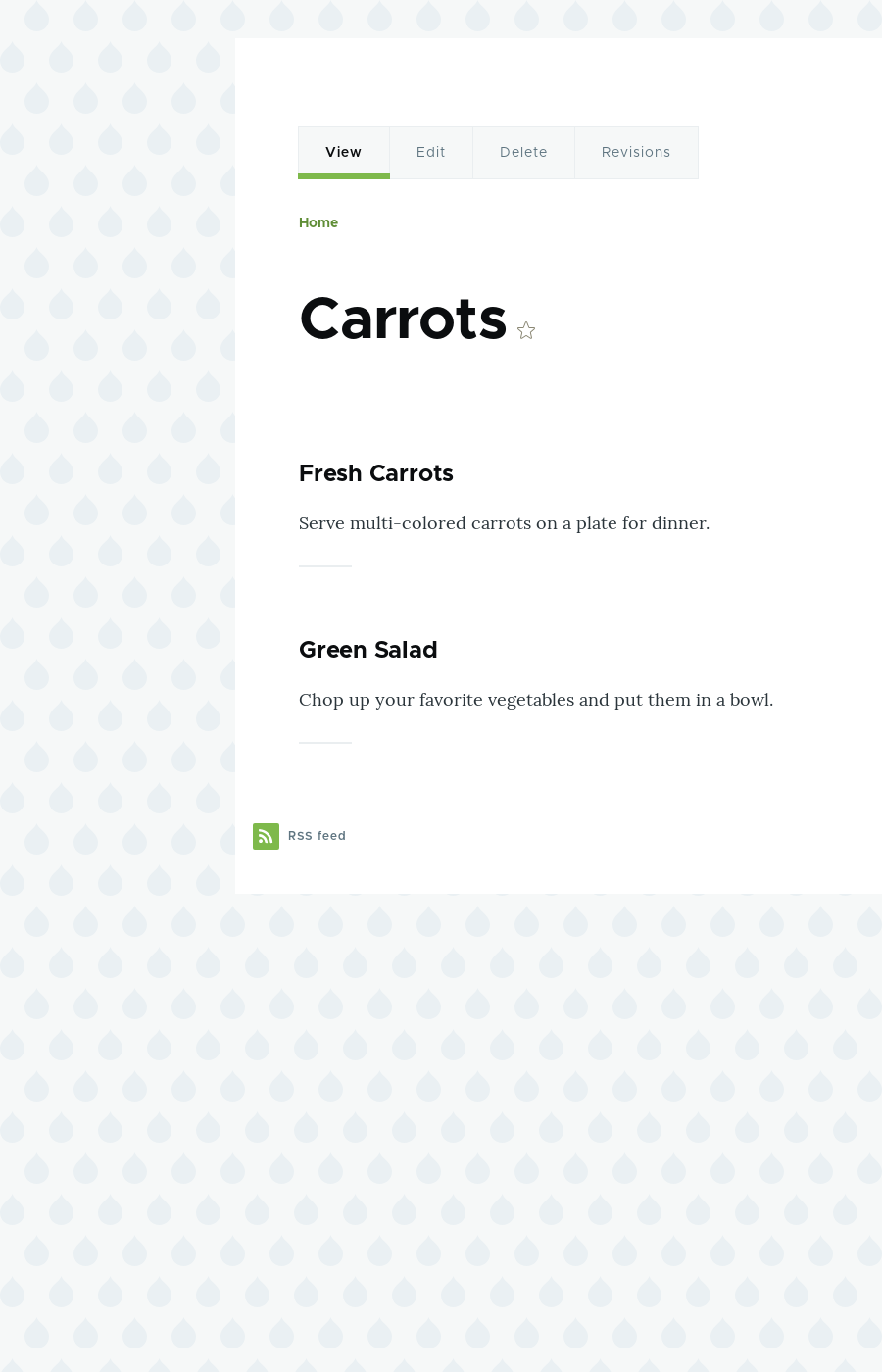
## Related topics
* [Setting Up a Taxonomy](/link/725).
* The listing pages are views, which are covered in [Drupal User Guide](/link/673#bkmrk-creating-listings-wi).
# Setting Up a Taxonomy
## Goal
Create an Ingredients vocabulary and add it to the Recipe content type as
a field that can contain an unlimited number of values and that allows adding
new terms to the vocabulary.
## Prerequisite knowledge
* [Concept: Content Entities and Fields](/link/691)
* [Concept: Taxonomy](/link/724)
* [Adding Basic Fields to a Content Type](/link/722)
## Site prerequisites
The Recipe content type must exist. See [Adding a Content Type](/link/720).
## Steps
1. In the _Manage_ administrative menu, navigate to _Structure_ > _Taxonomy_
(_admin/structure/taxonomy_). You will see the _Tags_ vocabulary that was
created with the core Standard installation profile. (Note that the name and
description of this vocabulary are shown in English on this page; see
[Concept: User Interface, Configuration, and Content translation](/link/695) for an explanation.)
1. Create two Vendor content items (see [Creating a Content Item](/link/713)) called "Happy Farm"
and "Sweet Honey". Make sure that they include images and URLs.
## Expand your understanding
* [Concept: Image Styles](/link/731)
* [Changing Content Display](/link/730)
* [Changing Content Entry Forms](/link/728)
## Videos
[Adding Basic Fields to a Content Type](https://www.youtube.com/watch?v=CZpfR9WbVcQ)
## Additional resources
[_Drupal.org_ community documentation page "Add a field to a content type"](https://www.drupal.org/docs/7/nodes-content-types-and-fields/add-a-field-to-a-content-type)
# Concept: Reference Fields
## Prerequisite knowledge
[Concept: Content Entities and Fields](/link/691)
## What is a reference field?
A _reference field_ is a field that represents a relationship between an entity
and one or more other entities, which may belong to the same or different entity
type. The three most commonly-used reference fields are:
- **Content reference:** A reference to a content item. For example, you might want to connect recipes to the vendors who submitted them. You would set up a content reference field called Submitted by referencing Vendor content items on the Recipe content type.
- **Taxonomy term reference:** A reference to a taxonomy term. For example, you might want to connect recipes to their ingredients. You would set up a taxonomy term reference field called Ingredients on the Recipe content type. This reference field will point to the vocabulary Ingredients.
- **User reference:** A reference to a user account. For example, you might want to connect recipes with their chefs. You would set up a user reference field called Chefs on the Recipe content type.
## Related topics
[Concept: Taxonomy](/link/724)
# Concept: Taxonomy
## Prerequisite knowledge
* [Concept: Content Entities and Fields](/link/691)
* [Concept: Reference Fields](/link/723)
## What is Taxonomy?
_Taxonomy_ is used to classify website content. One common example of taxonomy
is the tags used to classify or categorize posts in a blog website; the farmers
market website could use an ingredients taxonomy to classify recipes.
Individual taxonomy entities are known as _terms_ (the blog tags or recipe
ingredients in these examples); and a set of terms is known as a _vocabulary_
(the set of all blog post tags, or the set of all recipe ingredients in these
examples). Technically, taxonomy terms are an entity type and the entity
subtypes are the vocabularies. Like other entities, taxonomy terms can have
fields attached; for instance, you could set up an image field to contain an
icon for each term.
An individual vocabulary can organize its terms in a hierarchy, or it could be
flat. For example, blog tags normally have a flat structure, while a recipe
ingredients vocabulary could be hierarchical (for example, tomatoes could be a
sub-term of vegetables, and under tomatoes, you could have green and red
tomatoes).
Taxonomy terms are normally attached as reference fields to other content
entities, which is how you can use them to classify content. When you set up a
taxonomy reference field, you can let users enter terms in two ways:
- **Free tagging:** New terms can be created right on the content editing form.
- **Fixed list of terms:** The list of terms is curated and managed outside the content editing form, and users can only choose from the existing list when editing content.
Taxonomy reference fields can be added to any entity, such as user accounts,
custom blocks, or regular content items. If you use them to classify regular
content items, your site will automatically be set up with
taxonomy listing pages for each term; each of these pages lists all of the
content items that are classified with that term. For example, if you created
several recipes that all had carrots as an ingredient, you might see something
like this on the Carrots taxonomy listing page:

## Related topics
* [Setting Up a Taxonomy](/link/725).
* The listing pages are views, which are covered in [Drupal User Guide](/link/673#bkmrk-creating-listings-wi).
# Setting Up a Taxonomy
## Goal
Create an Ingredients vocabulary and add it to the Recipe content type as
a field that can contain an unlimited number of values and that allows adding
new terms to the vocabulary.
## Prerequisite knowledge
* [Concept: Content Entities and Fields](/link/691)
* [Concept: Taxonomy](/link/724)
* [Adding Basic Fields to a Content Type](/link/722)
## Site prerequisites
The Recipe content type must exist. See [Adding a Content Type](/link/720).
## Steps
1. In the _Manage_ administrative menu, navigate to _Structure_ > _Taxonomy_
(_admin/structure/taxonomy_). You will see the _Tags_ vocabulary that was
created with the core Standard installation profile. (Note that the name and
description of this vocabulary are shown in English on this page; see
[Concept: User Interface, Configuration, and Content translation](/link/695) for an explanation.)
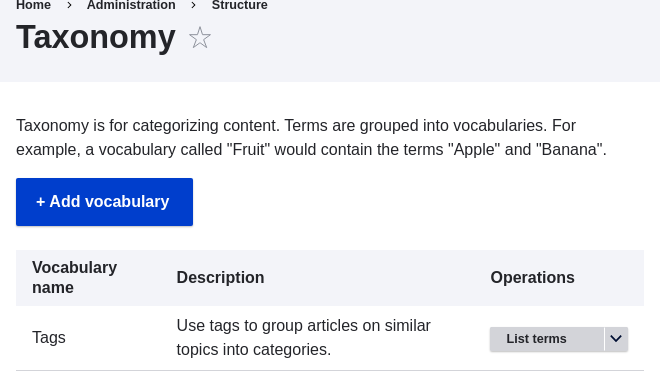 1. Click _Add vocabulary_, and fill in the values below.
| Field name | Explanation | Example value |
|---|---|---|
| Name | The name of the vocabulary | Ingredients |
| Description | A brief note about the vocabulary | (Leave blank) |
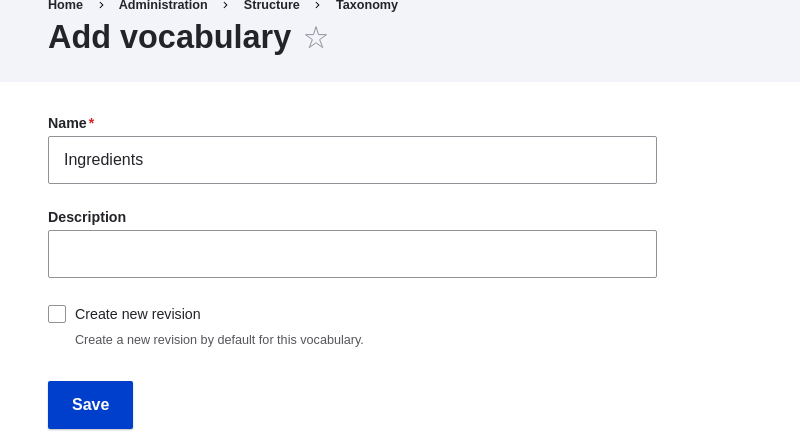 1. Click _Save_. You will be taken to the Ingredients page, which shows a list
of all the terms in this vocabulary.
1. Click _Save_. You will be taken to the Ingredients page, which shows a list
of all the terms in this vocabulary.
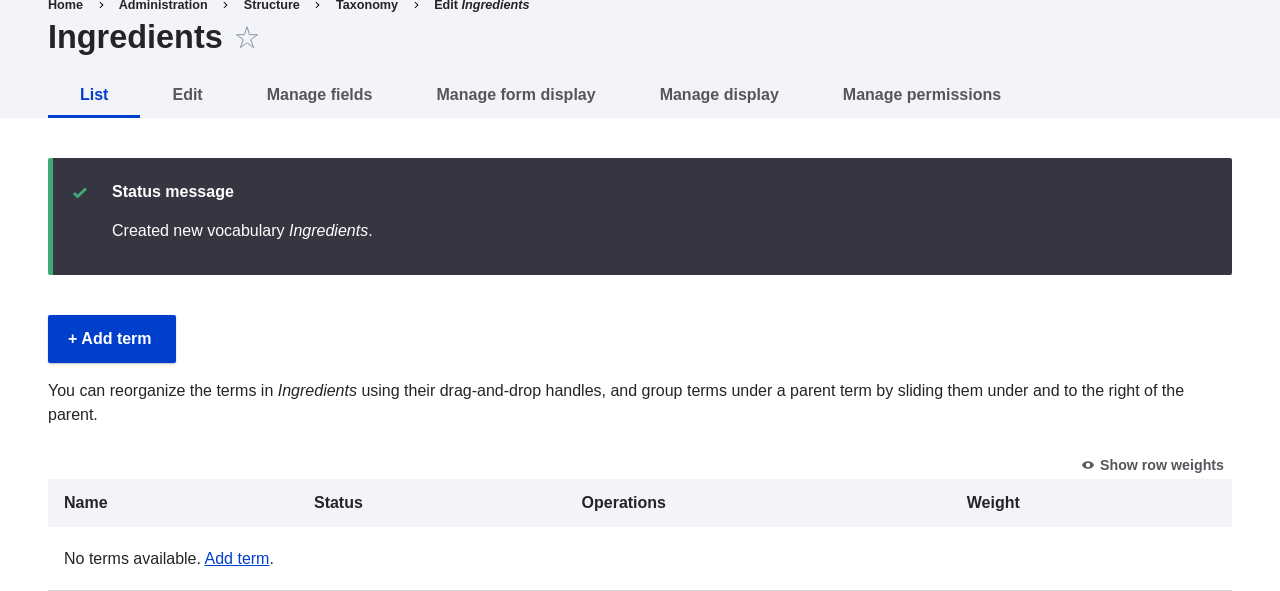 1. Click _Add term_. Enter "Butter" in the _Name_ field. Click _Save_.
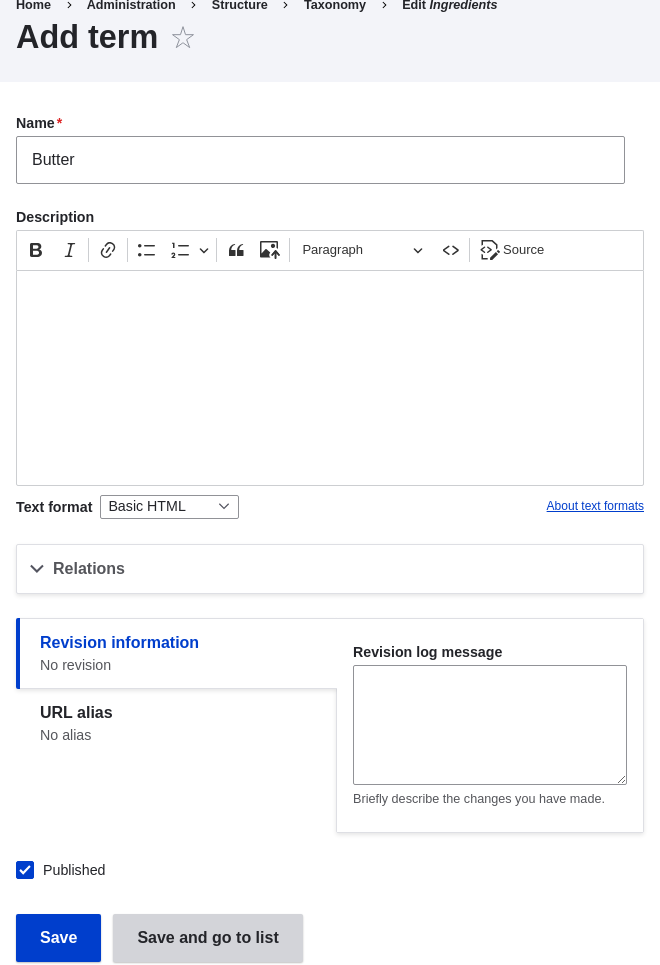 1. You will receive a confirmation about the term you created. Add more
terms. For example, "Eggs" and "Milk".
1. In the _Manage_ administrative menu, navigate to _Structure_ > _Content Types_
(_admin/structure/types_). Click _Manage fields_ for your Recipe content type.
1. Click _Create a new field_. The _Add field_ page appears. Choose the _Reference_ field type from the _Choose a field type_ options. Click _Continue_. The _Add field_ page appears with a form to configure the field.
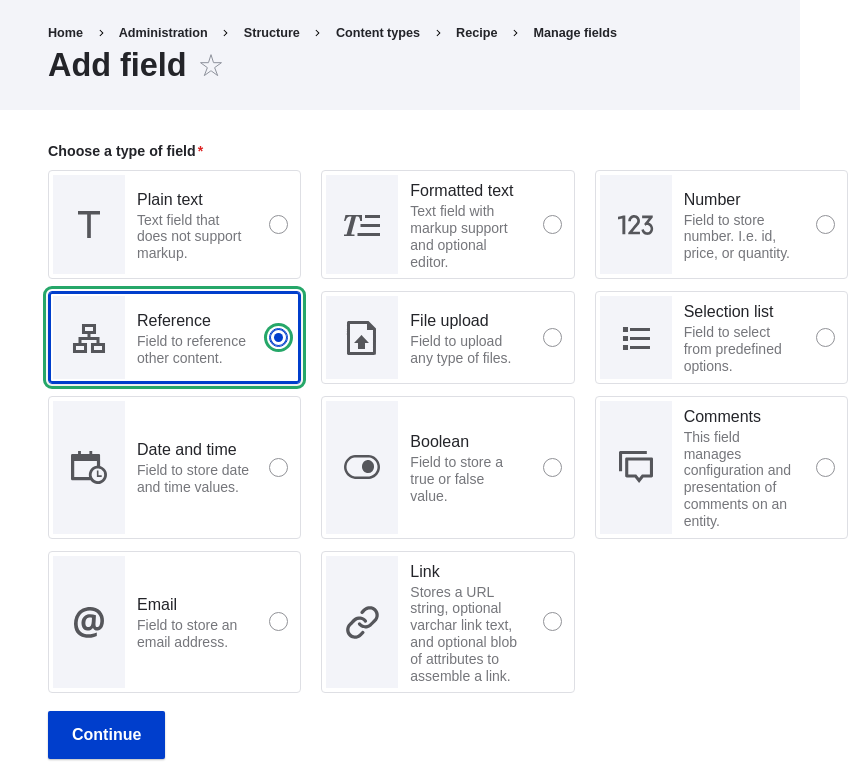
1. Enter values from the table below. Click _Continue_.
1. You will receive a confirmation about the term you created. Add more
terms. For example, "Eggs" and "Milk".
1. In the _Manage_ administrative menu, navigate to _Structure_ > _Content Types_
(_admin/structure/types_). Click _Manage fields_ for your Recipe content type.
1. Click _Create a new field_. The _Add field_ page appears. Choose the _Reference_ field type from the _Choose a field type_ options. Click _Continue_. The _Add field_ page appears with a form to configure the field.

1. Enter values from the table below. Click _Continue_.
| Field name | Explanation | Value |
|---|---|---|
| Label | The title to give the field | Ingredients |
| Choose an option below: | Type of content to reference | Taxonomy term |
| Field name | Explanation | Value |
|---|---|---|
| Help text | Help shown to users creating content | Enter ingredients that site visitors might want to search for |
| Type of item to reference | The type of entity that is referenced by the field | Taxonomy term |
| Allowed number of values | The number of values a user can enter | Unlimited |
| Reference type > Reference method | Select the method used to choose allowed values | Default |
| Reference type > Vocabulary | Select the vocabulary to choose allowed values from | Ingredients |
| Reference type > Create referenced entities if they don't already exist | Whether new ingredient terms can be created from the content editing form | Checked |
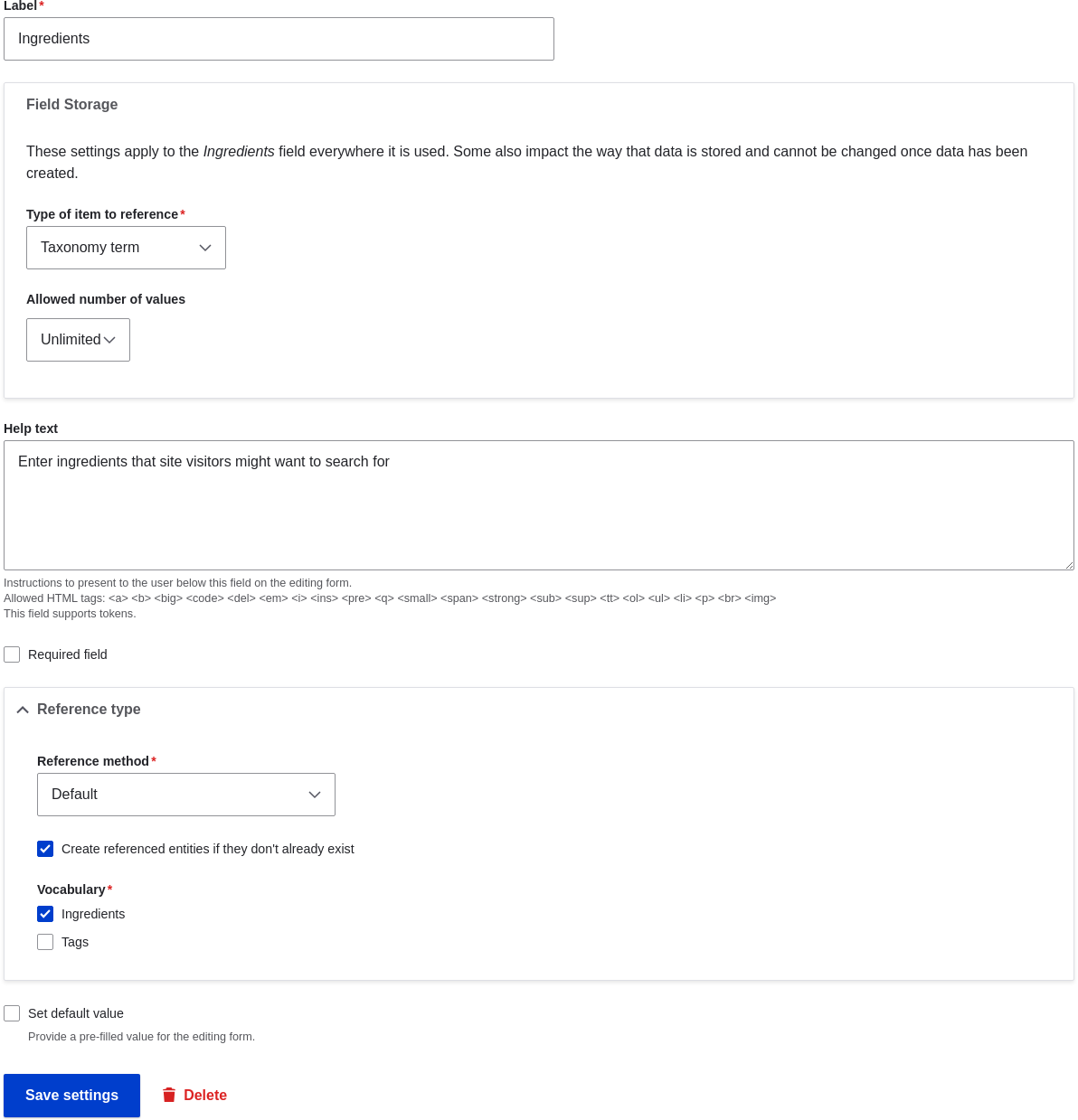 1. Click _Save settings_. You will be taken back to the _Manage Fields_ page. A
message will be displayed saying that the configuration for Ingredients is
complete.
1. Click _Save settings_. You will be taken back to the _Manage Fields_ page. A
message will be displayed saying that the configuration for Ingredients is
complete.
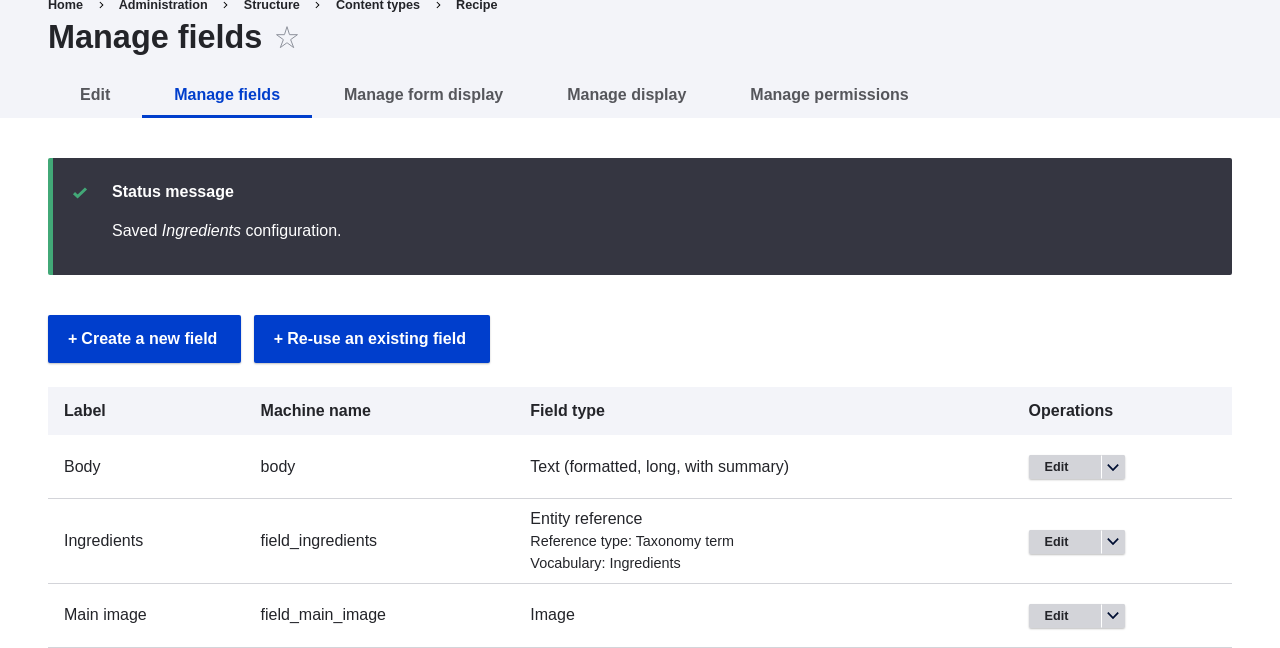 ## Videos
[Setting up a Taxonomy](https://www.youtube.com/watch?v=EbsXffnjsjc)
# Adding a Reference Field
## Goal
Add a reference field so that recipes can be linked to the vendor that has
submitted it.
## Prerequisite knowledge
* [Adding Basic Fields to a Content Type](/link/722)
* [Concept: Reference Fields](/link/723)
* [Adding a Content Type](/link/720)
## Site prerequisites
The Recipe and Vendor content types must exist. See [Adding a Content Type](/link/720).
## Steps
1. In the _Manage_ administrative menu, navigate to _Structure_ > _Content
types_ (_admin/structure/types_). Then click _Manage fields_ in the
dropdown button for the Recipe content type. The _Manage fields_ page appears.
1. Click _Create a new field_. The _Add field_ page appears. Choose the
_Reference_ field type from the _Choose a field type_ options. Click _Continue_.
The _Add field_ page appears with a form to configure the field label.
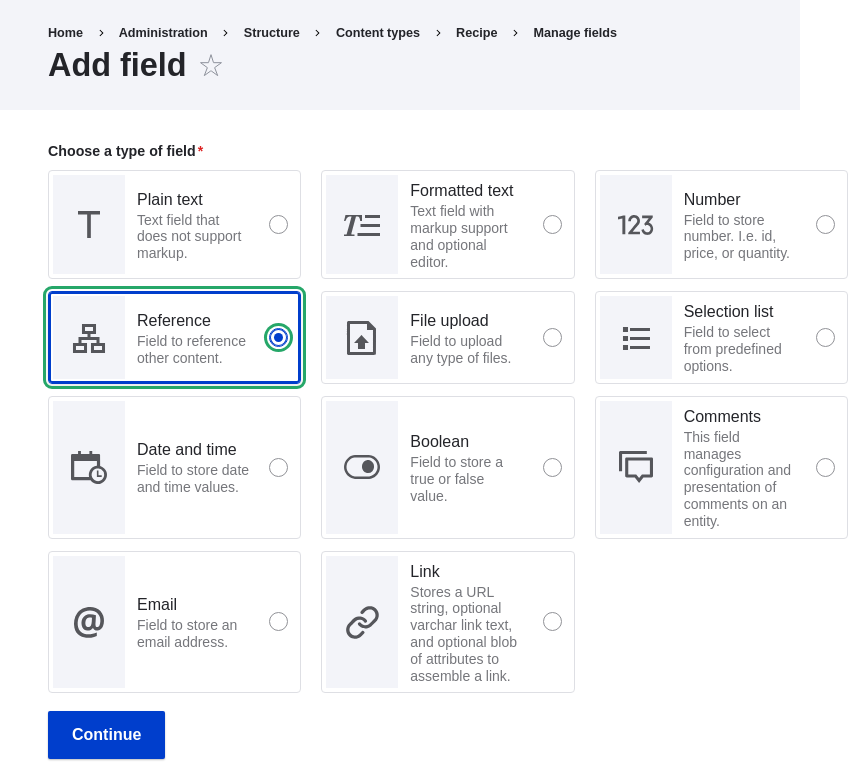
1. Fill in the fields as shown below. Click _Save and continue_.
## Videos
[Setting up a Taxonomy](https://www.youtube.com/watch?v=EbsXffnjsjc)
# Adding a Reference Field
## Goal
Add a reference field so that recipes can be linked to the vendor that has
submitted it.
## Prerequisite knowledge
* [Adding Basic Fields to a Content Type](/link/722)
* [Concept: Reference Fields](/link/723)
* [Adding a Content Type](/link/720)
## Site prerequisites
The Recipe and Vendor content types must exist. See [Adding a Content Type](/link/720).
## Steps
1. In the _Manage_ administrative menu, navigate to _Structure_ > _Content
types_ (_admin/structure/types_). Then click _Manage fields_ in the
dropdown button for the Recipe content type. The _Manage fields_ page appears.
1. Click _Create a new field_. The _Add field_ page appears. Choose the
_Reference_ field type from the _Choose a field type_ options. Click _Continue_.
The _Add field_ page appears with a form to configure the field label.

1. Fill in the fields as shown below. Click _Save and continue_.
| Field name | Explanation | Value |
|---|---|---|
| Label | The title you want to give the field | Submitted by |
| Choose an option below: | Type of content to reference | Content |
| Field name | Explanation | Value |
|---|---|---|
| Type of item to reference | Option to select the type of referenced entity | Content |
| Allowed number of values | Specify the count of values associated with the field | Limited, 1 |
| Field name | Explanation | Value |
|---|---|---|
| Label | Title shown for this field on the page | Submitted by |
| Help text | Brief text aiding the person creating content | Choose the vendor that submitted this recipe |
| Required field | Whether a value has to be provided or not | Checked |
| Reference type > Reference method | Option to select reference method | Default |
| Reference type > Content type | Specify the content type | Vendor |
| Reference type > Sort by | Sorting field | Vendor name |
| Reference type > Sort direction | Sorting order | Ascending |
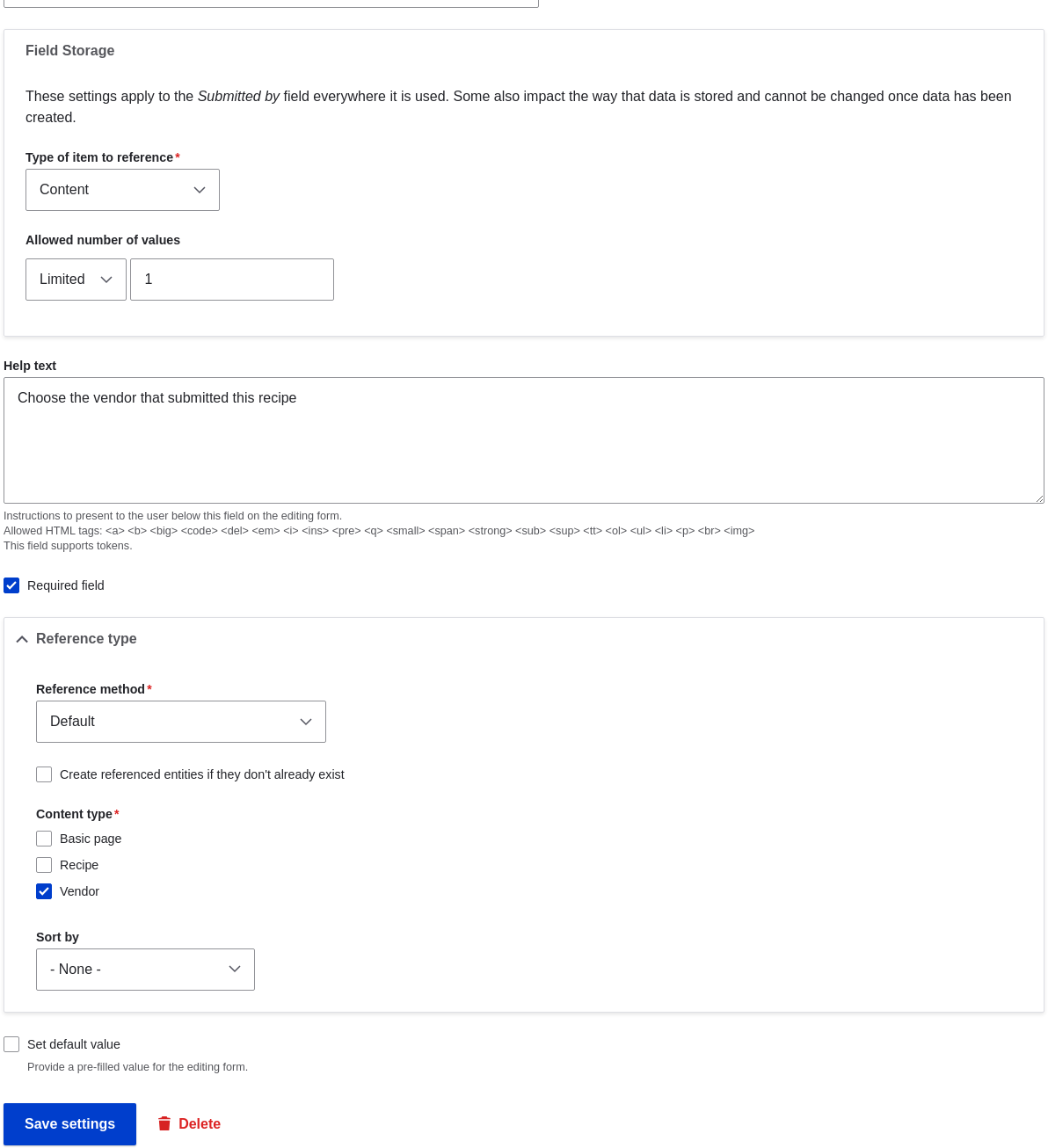 1. The Submitted by field has been added to the content type.
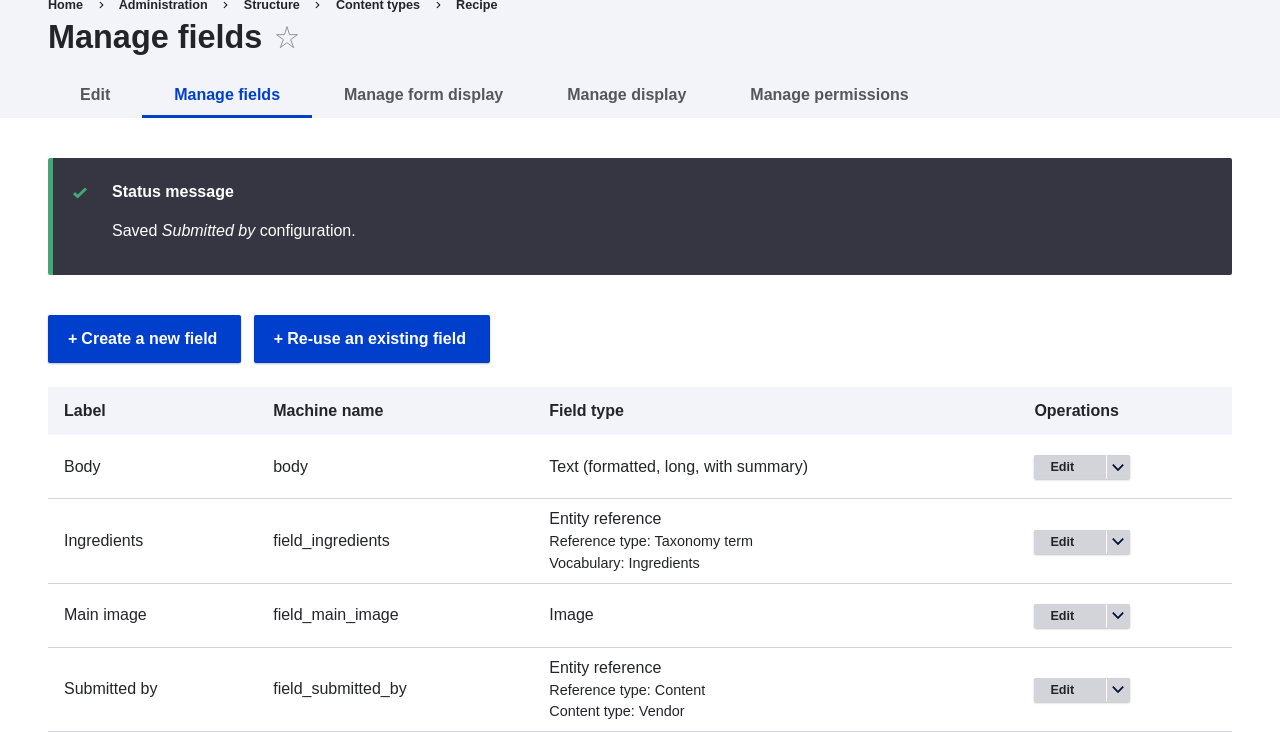 ## Videos
[Adding a Reference Field](https://www.youtube.com/watch?v=hAhWiqPlKh0)
# Concept: Forms and Widgets
## Prerequisite knowledge
[Concept: Content Entities and Fields](/link/691)
## What are forms and widgets?
The content management system software that your site is running allows
administrators to edit content and configure settings online, using various web
_forms_. In particular, _content editing forms_ are used to edit your site's
content entities, and they are configurable by administrators; settings
configuration forms are provided by modules and cannot themselves be configured.
The data in your site's content entities is stored in one or more fields that
are attached to the entity type and/or subtype. When you configure the content
editing form for each entity subtype, you can:
* Select a _widget_ for each field. A widget defines the method used to enter
the data for the field. For example, a taxonomy term can be chosen using
an autocomplete field, a select list, or a tags-style field that lets editors
add new tags automatically.
* Configure widget settings. For example, you can choose the size of a
plain-text entry field.
* Hide one or more fields from the editing form.
* Reorder the fields.
In principle, you can also have multiple content editing forms available for
each entity subtype. This feature is rarely used, however; the only exception
in common use is for the user profile fields: you can use different forms for
user registration and user editing. For example, you might have a limited set of
fields shown when users first register on the site, and more fields shown later
on when they edit their profiles.
## Related topics
* [Changing Content Entry Forms](/link/728)
* [Concept: View Modes and Formatters](/link/729)
# Changing Content Entry Forms
## Goal
Change the Recipe form to use a different widget to enter terms in the
Ingredients field.
## Prerequisite knowledge
* [Adding a Content Type](/link/720)
* [Adding Basic Fields to a Content Type](/link/722)
* [Concept: Taxonomy](/link/724)
* [Concept: Forms and Widgets](/link/727)
## Site prerequisites
The Recipe content type must exist, and it must have an Ingredients taxonomy
term reference field. At least one Vendor content item must exist. See
[Adding a Content Type](/link/720) and [Setting Up a Taxonomy](/link/725).
## Steps
1. In the _Manage_ administrative menu, navigate to _Content_ > _Add content_ >
_Recipe_ (_node/add/recipe_) to look at the content entry form that is set up by
default. Notice how you have to enter ingredients one by one, instead of having
a more compact format.
1. In the _Manage_ administrative menu, navigate to _Structure_ > _Content
types_ (_admin/structure/types_). Then click _Manage form display_ on the
dropdown button for the Recipe content type. The _Manage form display_ page
appears.
1. For the Ingredients field, select _Autocomplete (Tags style)_ in the _Widget_
column.
## Videos
[Adding a Reference Field](https://www.youtube.com/watch?v=hAhWiqPlKh0)
# Concept: Forms and Widgets
## Prerequisite knowledge
[Concept: Content Entities and Fields](/link/691)
## What are forms and widgets?
The content management system software that your site is running allows
administrators to edit content and configure settings online, using various web
_forms_. In particular, _content editing forms_ are used to edit your site's
content entities, and they are configurable by administrators; settings
configuration forms are provided by modules and cannot themselves be configured.
The data in your site's content entities is stored in one or more fields that
are attached to the entity type and/or subtype. When you configure the content
editing form for each entity subtype, you can:
* Select a _widget_ for each field. A widget defines the method used to enter
the data for the field. For example, a taxonomy term can be chosen using
an autocomplete field, a select list, or a tags-style field that lets editors
add new tags automatically.
* Configure widget settings. For example, you can choose the size of a
plain-text entry field.
* Hide one or more fields from the editing form.
* Reorder the fields.
In principle, you can also have multiple content editing forms available for
each entity subtype. This feature is rarely used, however; the only exception
in common use is for the user profile fields: you can use different forms for
user registration and user editing. For example, you might have a limited set of
fields shown when users first register on the site, and more fields shown later
on when they edit their profiles.
## Related topics
* [Changing Content Entry Forms](/link/728)
* [Concept: View Modes and Formatters](/link/729)
# Changing Content Entry Forms
## Goal
Change the Recipe form to use a different widget to enter terms in the
Ingredients field.
## Prerequisite knowledge
* [Adding a Content Type](/link/720)
* [Adding Basic Fields to a Content Type](/link/722)
* [Concept: Taxonomy](/link/724)
* [Concept: Forms and Widgets](/link/727)
## Site prerequisites
The Recipe content type must exist, and it must have an Ingredients taxonomy
term reference field. At least one Vendor content item must exist. See
[Adding a Content Type](/link/720) and [Setting Up a Taxonomy](/link/725).
## Steps
1. In the _Manage_ administrative menu, navigate to _Content_ > _Add content_ >
_Recipe_ (_node/add/recipe_) to look at the content entry form that is set up by
default. Notice how you have to enter ingredients one by one, instead of having
a more compact format.
1. In the _Manage_ administrative menu, navigate to _Structure_ > _Content
types_ (_admin/structure/types_). Then click _Manage form display_ on the
dropdown button for the Recipe content type. The _Manage form display_ page
appears.
1. For the Ingredients field, select _Autocomplete (Tags style)_ in the _Widget_
column.
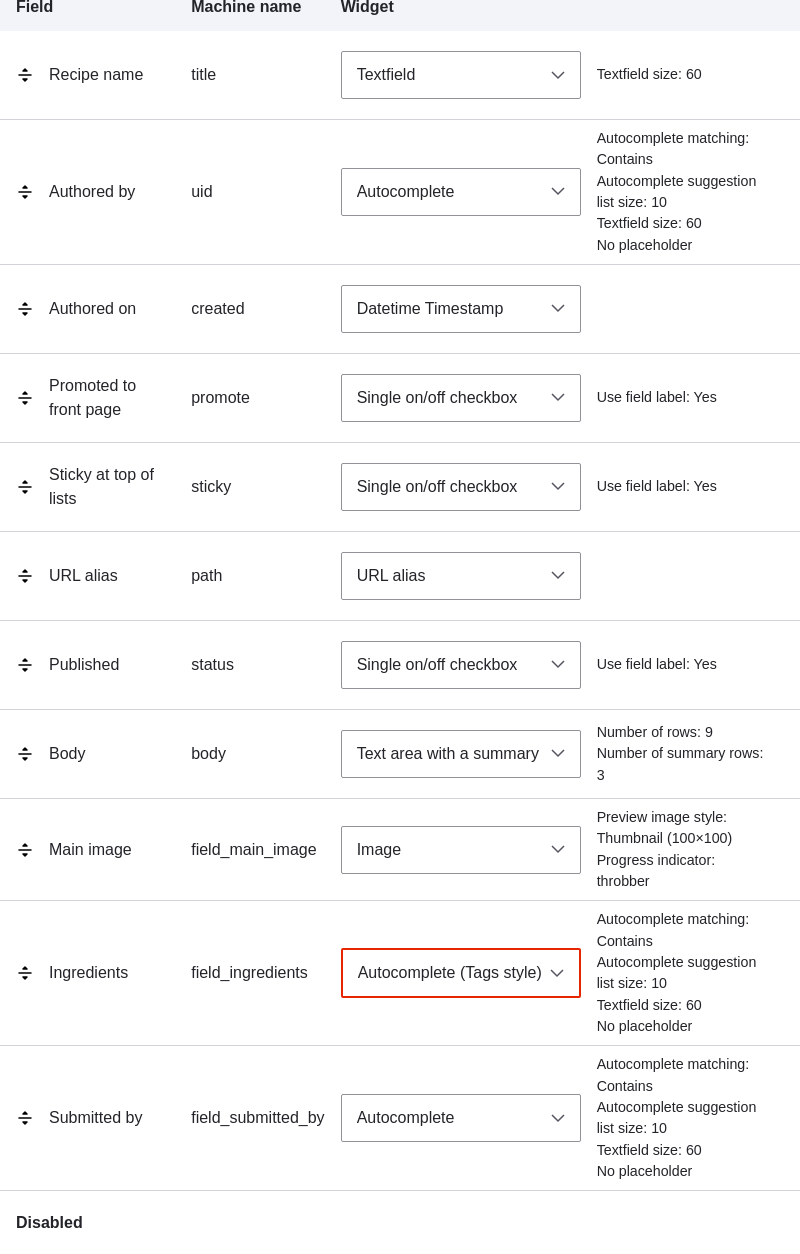 1. Click _Save_.
1. In the _Manage_ administrative menu, navigate to _Content_ > _Add content_ >
Recipe (_node/add/recipe_) to verify the changed behavior of the content
form. The Ingredients field is now a single text field that accepts multiple
values.
1. Click _Save_.
1. In the _Manage_ administrative menu, navigate to _Content_ > _Add content_ >
Recipe (_node/add/recipe_) to verify the changed behavior of the content
form. The Ingredients field is now a single text field that accepts multiple
values.
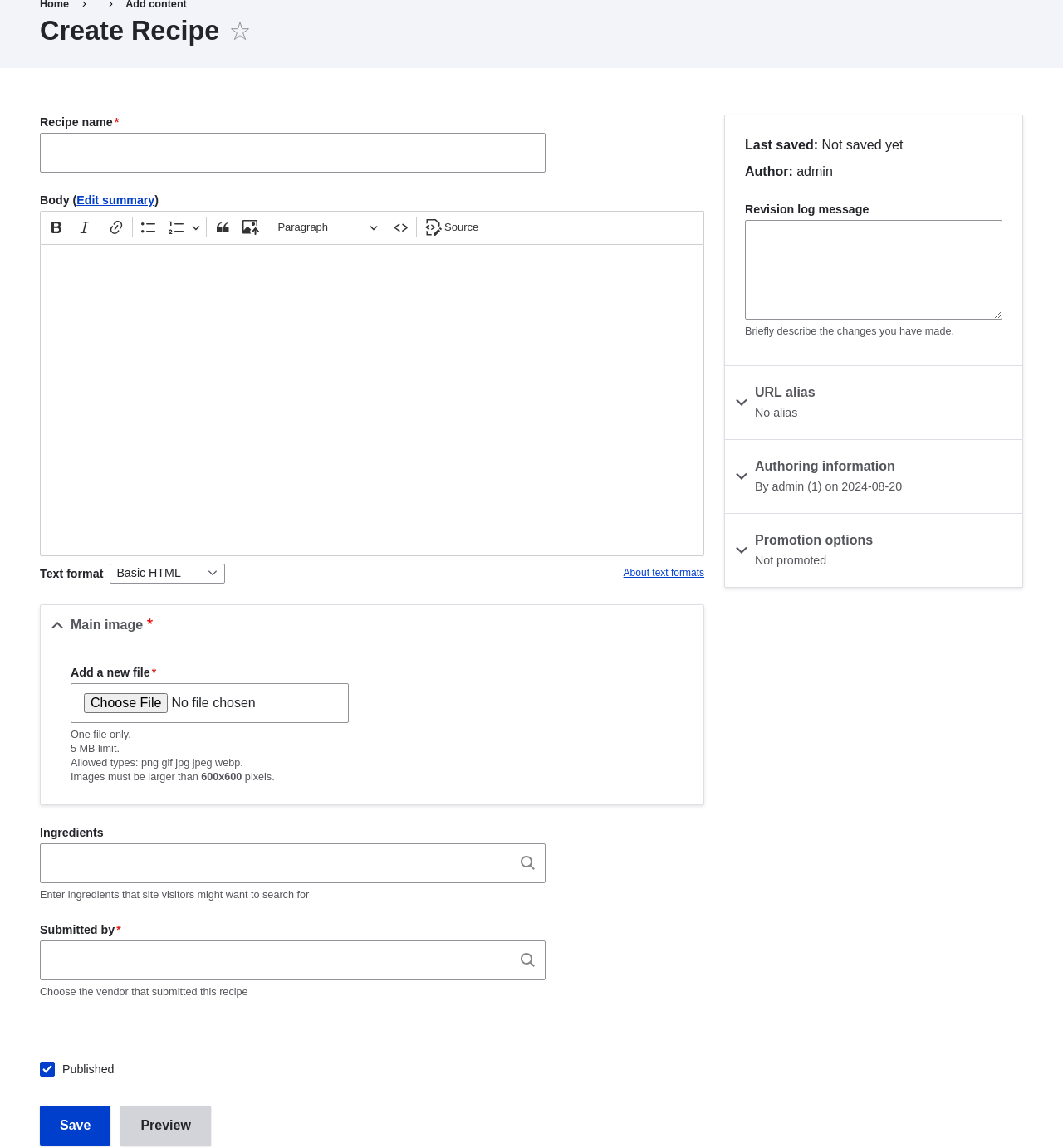 1. Create two Recipe content items (see [Creating a Content Item](/link/713)), such as recipes for
"Green Salad" and "Fresh Carrots". Make sure all the fields have values,
including images, ingredients, and submitted by (set this to one of the Vendor
content items you created in [Adding Basic Fields to a Content Type](/link/722)).
## Expand your understanding
Change the main site Contact form by navigating in the _Manage_ administrative
menu to _Structure_ > _Contact forms_. For instance, you may want to hide the
_Send yourself a copy_ or _Language_ fields.
## Videos
[Changing Content Entry Forms](https://www.youtube.com/watch?v=CELMGX93fjE)
# Concept: View Modes and Formatters
## Prerequisite knowledge
[Adding a Content Type](/link/720)
## What is a View mode?
How an entity (such as content, a user or a comment) is displayed, depends on
the context in which it is shown. This context is known as a _view
mode_. Examples of view modes are:
* a full page of the content with all the field values
* a teaser of the content with a thumbnail image and a _Read more_ link
* a full user profile with a zoomable portrait photo
* a user avatar with username and a link to the profile
Every view mode can be configured through the administration pages. To see the
configuration options for the view modes of the Recipe content type, navigate
in the _Manage_ administrative menu to _Structure_ > _Content types_
(_admin/structure/types_) and click _Manage display_ from the dropdown
button. In each view mode, all fields can be hidden or displayed, and if they
are displayed, you can choose and configure the field formatter.
## What is a field formatter?
A field formatter is a setting for displaying the field values. For example,
long text fields can be displayed trimmed or full-length, and taxonomy term
reference fields can be displayed in plain text or linked to the taxonomy term
page. Consult the _Manage display_ page to see the field formatters for the
fields of the Recipe content type.
## Related topics
* [Adding a Content Type](/link/720)
* [Changing Content Display](/link/730)
## Additional resources
[_Drupal.org_ community documentation page "View modes"](https://www.drupal.org/node/1577752)
# Changing Content Display
## Goal
Make the content items more readable, accessible, and visibly attractive by
reordering the fields, hiding labels, and tuning the output of the fields.
## Prerequisite knowledge
* [Concept: Content Entities and Fields](/link/691)
* [Concept: View Modes and Formatters](/link/729)
## Site prerequisites
The Vendor content type must exist, it must have Main Image and Vendor URL
fields, and your site must have at least one Vendor content item. See
[Adding a Content Type](/link/720), [Adding Basic Fields to a Content Type](/link/722), and [Creating a Content Item](/link/713).
## Steps
1. Find and view a Vendor content item you created in [Adding Basic Fields to a Content Type](/link/722).
Notice that there are several things that could be done to improve how the page
looks:
* The Main Image and Vendor URL fields should not have labels.
* The order of the fields should be changed so that the image comes first.
* The image should be smaller.
1. To fix the first two problems, and update some additional settings, in the
_Manage_ administrative menu, navigate to _Structure_ > _Content types_
(_admin/structure/types_). Then click _Manage display_ in the dropdown button
for the Vendor content type.
1. Create two Recipe content items (see [Creating a Content Item](/link/713)), such as recipes for
"Green Salad" and "Fresh Carrots". Make sure all the fields have values,
including images, ingredients, and submitted by (set this to one of the Vendor
content items you created in [Adding Basic Fields to a Content Type](/link/722)).
## Expand your understanding
Change the main site Contact form by navigating in the _Manage_ administrative
menu to _Structure_ > _Contact forms_. For instance, you may want to hide the
_Send yourself a copy_ or _Language_ fields.
## Videos
[Changing Content Entry Forms](https://www.youtube.com/watch?v=CELMGX93fjE)
# Concept: View Modes and Formatters
## Prerequisite knowledge
[Adding a Content Type](/link/720)
## What is a View mode?
How an entity (such as content, a user or a comment) is displayed, depends on
the context in which it is shown. This context is known as a _view
mode_. Examples of view modes are:
* a full page of the content with all the field values
* a teaser of the content with a thumbnail image and a _Read more_ link
* a full user profile with a zoomable portrait photo
* a user avatar with username and a link to the profile
Every view mode can be configured through the administration pages. To see the
configuration options for the view modes of the Recipe content type, navigate
in the _Manage_ administrative menu to _Structure_ > _Content types_
(_admin/structure/types_) and click _Manage display_ from the dropdown
button. In each view mode, all fields can be hidden or displayed, and if they
are displayed, you can choose and configure the field formatter.
## What is a field formatter?
A field formatter is a setting for displaying the field values. For example,
long text fields can be displayed trimmed or full-length, and taxonomy term
reference fields can be displayed in plain text or linked to the taxonomy term
page. Consult the _Manage display_ page to see the field formatters for the
fields of the Recipe content type.
## Related topics
* [Adding a Content Type](/link/720)
* [Changing Content Display](/link/730)
## Additional resources
[_Drupal.org_ community documentation page "View modes"](https://www.drupal.org/node/1577752)
# Changing Content Display
## Goal
Make the content items more readable, accessible, and visibly attractive by
reordering the fields, hiding labels, and tuning the output of the fields.
## Prerequisite knowledge
* [Concept: Content Entities and Fields](/link/691)
* [Concept: View Modes and Formatters](/link/729)
## Site prerequisites
The Vendor content type must exist, it must have Main Image and Vendor URL
fields, and your site must have at least one Vendor content item. See
[Adding a Content Type](/link/720), [Adding Basic Fields to a Content Type](/link/722), and [Creating a Content Item](/link/713).
## Steps
1. Find and view a Vendor content item you created in [Adding Basic Fields to a Content Type](/link/722).
Notice that there are several things that could be done to improve how the page
looks:
* The Main Image and Vendor URL fields should not have labels.
* The order of the fields should be changed so that the image comes first.
* The image should be smaller.
1. To fix the first two problems, and update some additional settings, in the
_Manage_ administrative menu, navigate to _Structure_ > _Content types_
(_admin/structure/types_). Then click _Manage display_ in the dropdown button
for the Vendor content type.
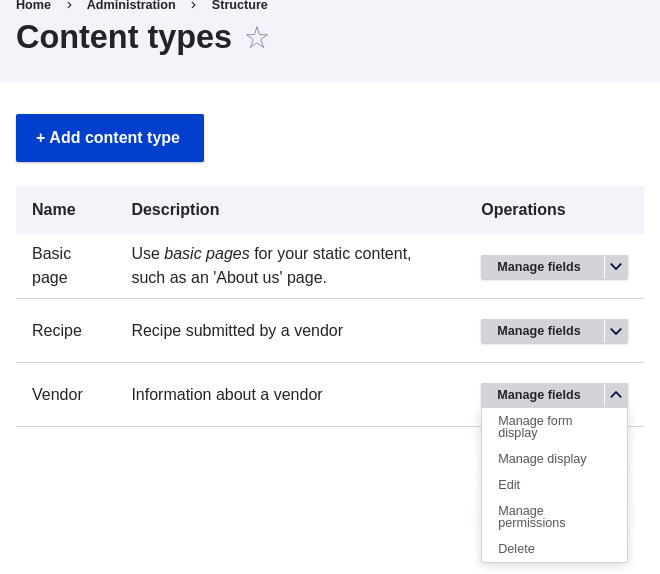 1. Under the _Label_ column, select _Hidden_ for Main image. Do the same
for Vendor URL.
1. Under the _Label_ column, select _Hidden_ for Main image. Do the same
for Vendor URL.
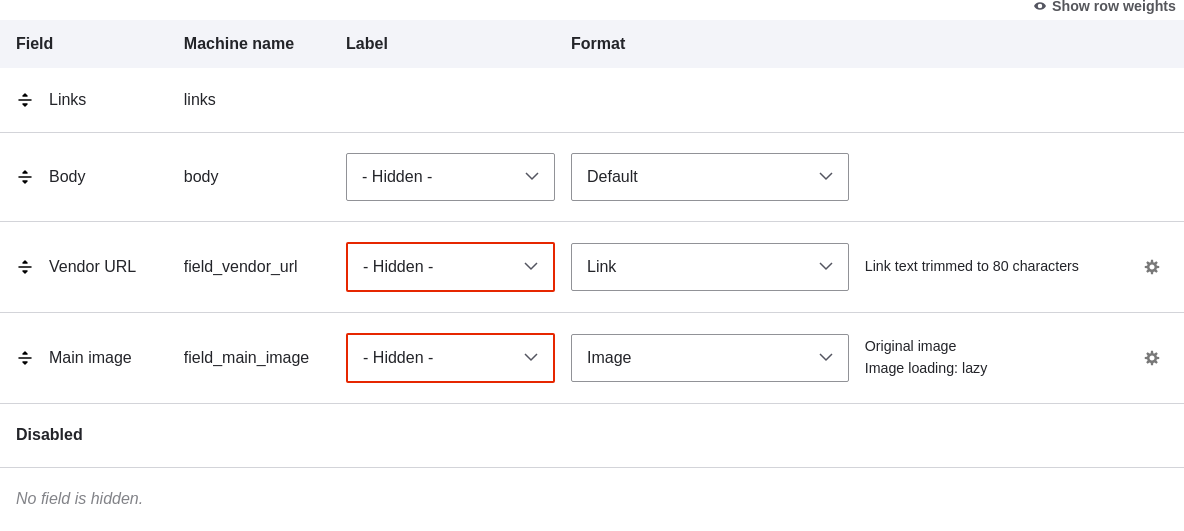 1. Click the gear wheel for the Vendor URL field, to open the configuration
options.
1. Fill in the fields as shown below.
1. Click the gear wheel for the Vendor URL field, to open the configuration
options.
1. Fill in the fields as shown below.
| Field name | Explanation | Example value |
|---|---|---|
| Trim link text length | Maximum displayed length for link text | Blank (no trimming) |
| Open link in new window | Whether links should open in a new window or the same window | Checked |
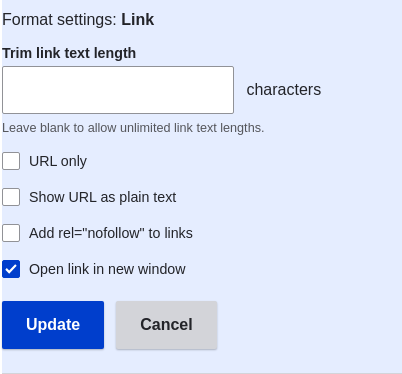 1. Click _Update_.
1. Drag the cross bar handles of the fields to reorder as Main image, _Body_,
Vendor URL, and _Links_. As an alternative to dragging, you can click the _Show
row weights_ link at the top of the table and enter numerical weights (fields
with lower or more negative weights will be shown first).
1. Click _Update_.
1. Drag the cross bar handles of the fields to reorder as Main image, _Body_,
Vendor URL, and _Links_. As an alternative to dragging, you can click the _Show
row weights_ link at the top of the table and enter numerical weights (fields
with lower or more negative weights will be shown first).
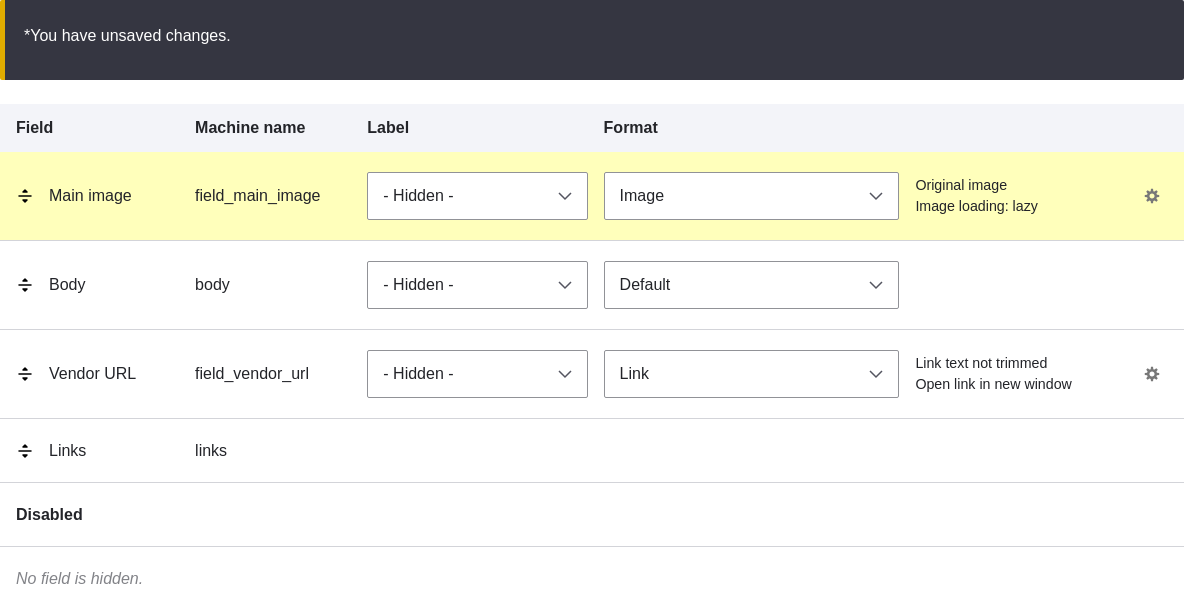 1. Click _Save_.
1. Find the Vendor content item from step 1 again, and verify that the updates
have been made.
1. Repeat similar steps to manage the display of the Recipe content type
fields.
## Expand your understanding
* Make the main image smaller. See [Setting Up an Image Style](/link/732).
* If you do not see the effect of these changes in your site, you might need
to clear the cache. See [Clearing the Cache](/link/773).
## Related concepts
[Concept: Image Styles](/link/731)
## Videos
[Changing Content Display](https://www.youtube.com/watch?v=myYI9rhF_4o)
## Additional resources
* [_Drupal.org_ community documentation page "Specify how fields are displayed"](https://www.drupal.org/docs/7/nodes-content-types-and-fields/specify-how-fields-are-displayed)
* [_Drupal.org_ community documentation page "Rearrange the order of fields"](https://www.drupal.org/docs/7/nodes-content-types-and-fields/rearrange-the-order-of-fields)
* [_Drupal.org_ community documentation page "View modes"](https://www.drupal.org/node/1577752)
# Concept: Image Styles
## Prerequisite knowledge
[Adding Basic Fields to a Content Type](/link/722)
## What are image styles?
Image styles allow you to upload a single image but display it in several ways;
each display variation, or _image style_, is the result of applying one or more
_effects_ to the original image.
As an example, you might upload a high-resolution image with a 4:3 aspect ratio,
and display it scaled down, square cropped, or black-and-white (or any
combination of these effects). The core software provides a way to do this
efficiently:
1. Configure an image style with the desired effects on the _Image styles_ page
(_admin/config/media/image-styles_).
1. The effects will be applied the first time a particular image is requested in
that style.
1. The resulting image is saved.
1. The next time that same style is requested, the saved image is retrieved
without the need to recalculate the effects.
The core software provides several effects that you can use to define styles;
others may be provided by contributed modules.
Visit the _Image styles_ page via the _Manage_ administrative menu, navigate to
_Configuration_ > _Media_ > _Image styles_ (_admin/config/media/image-styles_)
to see the image styles that are defined by default.
## Related topics
* [Setting Up an Image Style](/link/732)
* [Concept: Responsive Image Styles](/link/733)
* [Adding Basic Fields to a Content Type](/link/722)
## Additional resources
[_Drupal.org_ community documentation page "Working with images"](https://www.drupal.org/docs/core-modules-and-themes/core-modules/image-module/working-with-images)
# Setting Up an Image Style
## Goal
Add an image style and use it to display images on Vendor pages.
## Prerequisite knowledge
* [Adding Basic Fields to a Content Type](/link/722)
* [Changing Content Display](/link/730)
* [Concept: Image Styles](/link/731)
## Site prerequisites
* Vendor and Recipe content types must exist. See [Adding a Content Type](/link/720).
* Main image fields must exist for both content types. See [Adding Basic Fields to a Content Type](/link/722).
* Content items must exist for both content types. See
[Adding a Content Type](/link/720), [Adding Basic Fields to a Content Type](/link/722), and [Creating a Content Item](/link/713).
## Steps
1. In the _Manage_ administrative menu, navigate to _Configuration_ > _Media_ >
_Image styles_ (_admin/config/media/image-styles_).
1. Click _Add image style_.
1. Enter the name _Extra medium (300x200)_
1. Click _Create new style_. The page _Edit style Extra medium
(300x200)_ appears.
1. In the _Effect_ table, select _Scale and crop_. Click _Add_.
1. Fill in the fields as shown below.
1. Click _Save_.
1. Find the Vendor content item from step 1 again, and verify that the updates
have been made.
1. Repeat similar steps to manage the display of the Recipe content type
fields.
## Expand your understanding
* Make the main image smaller. See [Setting Up an Image Style](/link/732).
* If you do not see the effect of these changes in your site, you might need
to clear the cache. See [Clearing the Cache](/link/773).
## Related concepts
[Concept: Image Styles](/link/731)
## Videos
[Changing Content Display](https://www.youtube.com/watch?v=myYI9rhF_4o)
## Additional resources
* [_Drupal.org_ community documentation page "Specify how fields are displayed"](https://www.drupal.org/docs/7/nodes-content-types-and-fields/specify-how-fields-are-displayed)
* [_Drupal.org_ community documentation page "Rearrange the order of fields"](https://www.drupal.org/docs/7/nodes-content-types-and-fields/rearrange-the-order-of-fields)
* [_Drupal.org_ community documentation page "View modes"](https://www.drupal.org/node/1577752)
# Concept: Image Styles
## Prerequisite knowledge
[Adding Basic Fields to a Content Type](/link/722)
## What are image styles?
Image styles allow you to upload a single image but display it in several ways;
each display variation, or _image style_, is the result of applying one or more
_effects_ to the original image.
As an example, you might upload a high-resolution image with a 4:3 aspect ratio,
and display it scaled down, square cropped, or black-and-white (or any
combination of these effects). The core software provides a way to do this
efficiently:
1. Configure an image style with the desired effects on the _Image styles_ page
(_admin/config/media/image-styles_).
1. The effects will be applied the first time a particular image is requested in
that style.
1. The resulting image is saved.
1. The next time that same style is requested, the saved image is retrieved
without the need to recalculate the effects.
The core software provides several effects that you can use to define styles;
others may be provided by contributed modules.
Visit the _Image styles_ page via the _Manage_ administrative menu, navigate to
_Configuration_ > _Media_ > _Image styles_ (_admin/config/media/image-styles_)
to see the image styles that are defined by default.
## Related topics
* [Setting Up an Image Style](/link/732)
* [Concept: Responsive Image Styles](/link/733)
* [Adding Basic Fields to a Content Type](/link/722)
## Additional resources
[_Drupal.org_ community documentation page "Working with images"](https://www.drupal.org/docs/core-modules-and-themes/core-modules/image-module/working-with-images)
# Setting Up an Image Style
## Goal
Add an image style and use it to display images on Vendor pages.
## Prerequisite knowledge
* [Adding Basic Fields to a Content Type](/link/722)
* [Changing Content Display](/link/730)
* [Concept: Image Styles](/link/731)
## Site prerequisites
* Vendor and Recipe content types must exist. See [Adding a Content Type](/link/720).
* Main image fields must exist for both content types. See [Adding Basic Fields to a Content Type](/link/722).
* Content items must exist for both content types. See
[Adding a Content Type](/link/720), [Adding Basic Fields to a Content Type](/link/722), and [Creating a Content Item](/link/713).
## Steps
1. In the _Manage_ administrative menu, navigate to _Configuration_ > _Media_ >
_Image styles_ (_admin/config/media/image-styles_).
1. Click _Add image style_.
1. Enter the name _Extra medium (300x200)_
1. Click _Create new style_. The page _Edit style Extra medium
(300x200)_ appears.
1. In the _Effect_ table, select _Scale and crop_. Click _Add_.
1. Fill in the fields as shown below.
| Field name | Value |
|---|---|
| Width | 300 |
| Height | 200 |
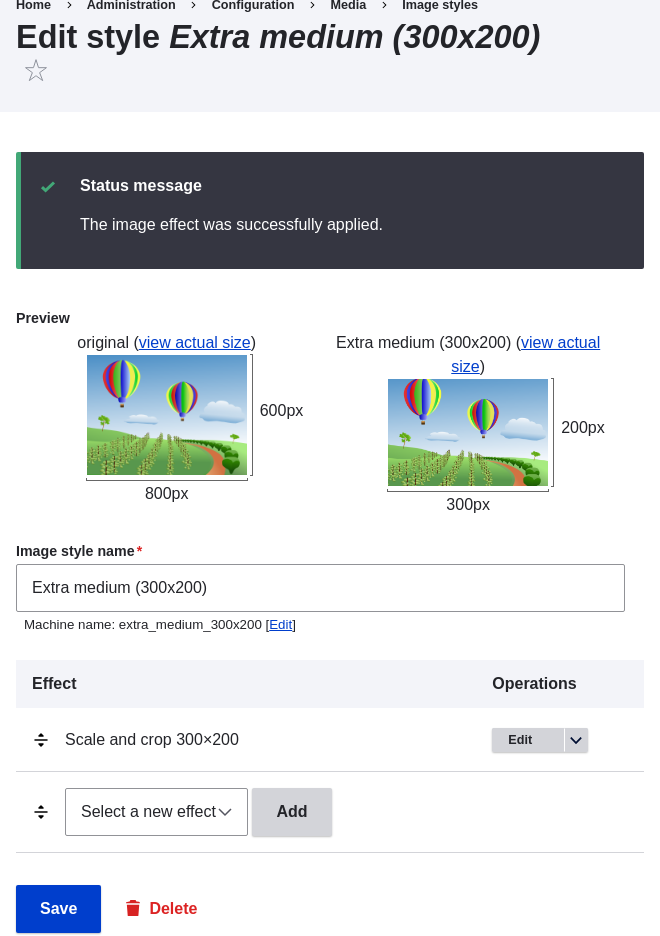 1. In the _Manage_ administrative menu, navigate to _Structure_ > _Content types_
(_admin/structure/types_).
1. Click _Manage display_ in the _Operations_ dropdown for the Vendor content
type. The _Manage display_ page (_admin/structure/types/manage/vendor/display_)
appears.
1. Ensure that the secondary tab _Default_ is selected.
1. Click the gear wheel for the _Main image_ field, to open the configuration
options.
1. Fill in the fields as shown below.
1. In the _Manage_ administrative menu, navigate to _Structure_ > _Content types_
(_admin/structure/types_).
1. Click _Manage display_ in the _Operations_ dropdown for the Vendor content
type. The _Manage display_ page (_admin/structure/types/manage/vendor/display_)
appears.
1. Ensure that the secondary tab _Default_ is selected.
1. Click the gear wheel for the _Main image_ field, to open the configuration
options.
1. Fill in the fields as shown below.
| Field name | Explanation | Example value |
|---|---|---|
| Image style | Which image style to use | Extra medium (300x200) |
| Link image to | Page to visit if image is clicked | Nothing |
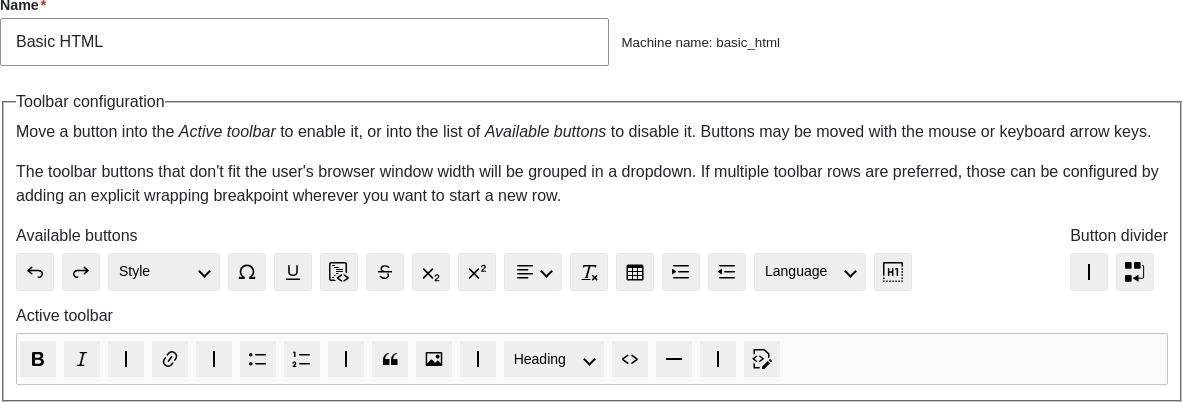 1. Note that you can change the _Filter processing order_.
1. Under _Filter settings_ > _Limit allowed HTML tags and correct faulty HTML_,
in the field _Allowed HTML tags_, verify that `<hr>` is present (adding its
editor button will automatically update the allowed tags).
1. Note that you can change the _Filter processing order_.
1. Under _Filter settings_ > _Limit allowed HTML tags and correct faulty HTML_,
in the field _Allowed HTML tags_, verify that `<hr>` is present (adding its
editor button will automatically update the allowed tags).
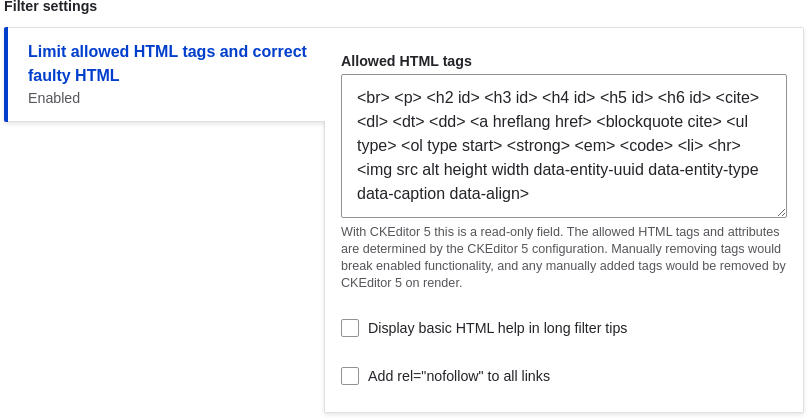 1. Click _Save configuration_. You will be taken back to the _Text formats and
editors_ page. A message will be displayed saying that the text format has been
updated.
## Expand your understanding
If you do not see the effect of these changes in your site, you might need
to clear the cache. See [Clearing the Cache](/link/773).
## Videos
[Configuring Text Formats and Editors](https://www.youtube.com/watch?v=T9RD6PTxe9U)
# Chapter 7: Managing User Accounts
# Concept: Users, Roles, and Permissions
## What are Users?
Anyone who visits your website is a _user_, including you. There are three
groups of users:
* Users who are not logged in, or _anonymous users_
* Users who are logged in, or _authenticated users_
* The administrative user account that was automatically created when you
installed your site, or User 1. See [Concept: The User 1 Account](/link/738).
## What are Permissions?
The ability to do actions on your site (including viewing content, editing
content, and changing configuration) is governed by _permissions_. Each
permission has a name (such as _View published content_) and covers one action
or a small subset of actions. A user must be granted a permission in order to do
the corresponding action on the site; permissions are defined by the modules
that provide the actions.
## What are Roles?
Rather than assigning individual permissions directly to each user, permissions
are grouped into _roles_. You can define one or more roles on your site, and
then grant permissions to each role. The permissions granted to authenticated
and anonymous users are contained in the _Authenticated user_ and _Anonymous
user_ roles, and depending on the installation profile you used when you
installed your site, there may also be an _Administrator_ role that is
automatically assigned all permissions on your site.
Each user account on your site is automatically given the _Authenticated user_
role, and may optionally be assigned one or more additional roles. When you
assign a role to a user account, the user will have all the permissions of the
role when logged in.
It is a good practice to make several roles on your site. In the farmers market
site example, you might want the following roles:
* A Vendor role that allows vendors to edit their own vendor listing page
* A Content editor role for editing the general farmers market pages
* A User manager role for managing the vendor accounts
* The _Administrator_ role that was installed with your site, for expert users
to manage the site configuration
## Related topics
* [Creating a Role](/link/739)
* [Assigning Permissions to a Role](/link/741)
* [Changing a User's Roles](/link/742)
* [Creating a User Account](/link/740)
* [Concept: The User 1 Account](/link/738)
* [Assigning Authors to Content](/link/743)
## Additional resources
* [_Drupal.org_ community documentation page "Managing Users"](https://www.drupal.org/docs/7/managing-users)
* [_Drupal.org_ community documentation page "User Roles"](https://www.drupal.org/docs/7/managing-users/user-roles)
# Concept: The User 1 Account
## Prerequisite knowledge
[Concept: Users, Roles, and Permissions](/link/737)
## What is the user 1 account?
During the installation of your site, you created the first user account. Each
user account internally has a numeric user ID, and since the ID of this user is
one, it is commonly referred to as the _user 1_ account. This user account is
special, because independent of what roles it is assigned, someone logged in as
user 1 has permission to do all actions on the site, including viewing and
editing all content, editing any user account, changing site configuration,
installing and uninstalling modules, and running the update script.
Because of this level of permission, some people refer to this account as the
_root user_, similar to the "root" user account that has full administrative
permissions in Linux and other operating systems.
It is usually better to make separate accounts for each administrative user,
giving them the _Administrator_ role, rather than having all administrative
users log in using the user 1 account. There are several reasons for this:
* Some actions and updates on the site are logged, and if everyone uses the same
account, it is difficult to know who did them if you have questions.
* The _Administrator_ role permissions can be modified to be safer than the
full permissions of the user 1 account, so that people do not inadvertently
change site features that shouldn't be changed.
* People's responsibilities on a site may change over time. With ordinary user
accounts, this can be mirrored in permissions by assigning or unassigning
roles to their user accounts. If they are all using the user 1 account,
this is more difficult.
* On some sites, the author of content or comments is displayed or tracked, and
if everyone uses the same account to create content, it is difficult to know
who created the content.
It is not possible to delete the user 1 account from the administrative user
interface. It would be possible to do with a database query, but it could cause
problems in your site and is not advisable.
## Additional resources
[_Drupal.org_ community documentation page "Accounts and roles"](https://www.drupal.org/node/22284)
# Creating a Role
## Goal
Create a Vendor role to allow some - but not all - users to perform specific
tasks.
## Prerequisite knowledge
[Concept: Users, Roles, and Permissions](/link/737)
## Steps
1. In the _Manage_ administrative menu, navigate to _People_ > _Roles_
(_admin/people/roles_).
1. You will find default roles _Anonymous user_,
_Authenticated user_, and _Administrator_ already present.
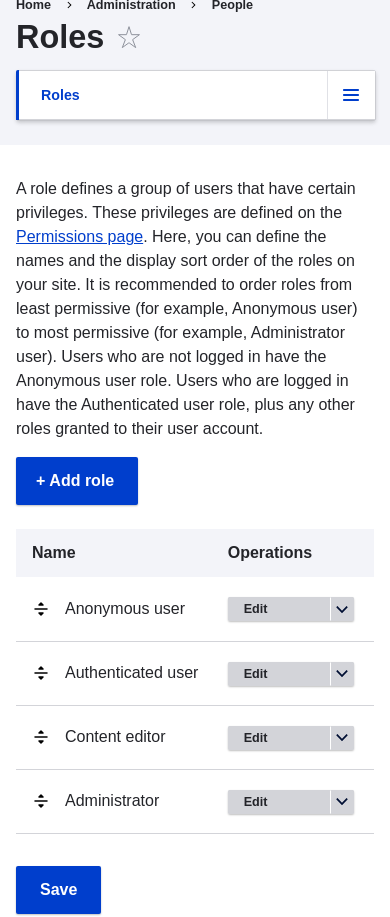
1. Click _Add Role_ to add a custom role.
1. Type Vendor in the _Role name_ field. Click _Save_.
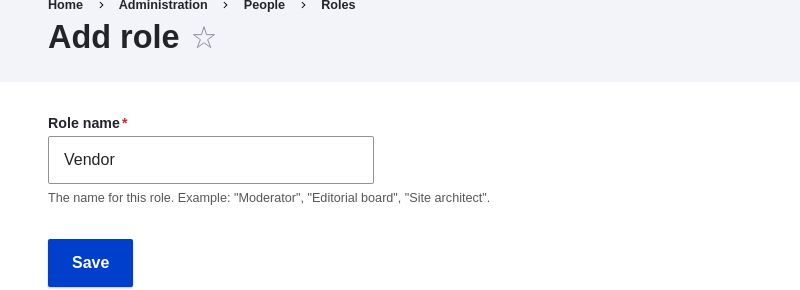
1. You will see the message "Role Vendor has been added." displayed at the top
of the page.

## Expand your understanding
* [Assigning Permissions to a Role](/link/741)
* [Changing a User's Roles](/link/742)
## Videos
[Creating a Role](https://www.youtube.com/watch?v=JdNxJKWAi8Q)
## Additional resources
[_Drupal.org_ community documentation page "User Roles"](https://www.drupal.org/docs/7/managing-users/user-roles)
# Creating a User Account
## Goal
Create Vendor user accounts for Sweet Honey and Happy Farm vendors.
## Prerequisite knowledge
* [Concept: Users, Roles, and Permissions](/link/737)
* [Concept: The User 1 Account](/link/738)
* [Creating a Role](/link/739)
## Site prerequisites
The Vendor role must exist on your site. See [Creating a Role](/link/739).
## Steps
1. In the _Manage_ administrative menu, navigate to _People_ (_admin/people_).
1. Click _Add user_.
1. Click _Save configuration_. You will be taken back to the _Text formats and
editors_ page. A message will be displayed saying that the text format has been
updated.

## Expand your understanding
If you do not see the effect of these changes in your site, you might need
to clear the cache. See [Clearing the Cache](/link/773).
## Videos
[Configuring Text Formats and Editors](https://www.youtube.com/watch?v=T9RD6PTxe9U)
# Chapter 7: Managing User Accounts
# Concept: Users, Roles, and Permissions
## What are Users?
Anyone who visits your website is a _user_, including you. There are three
groups of users:
* Users who are not logged in, or _anonymous users_
* Users who are logged in, or _authenticated users_
* The administrative user account that was automatically created when you
installed your site, or User 1. See [Concept: The User 1 Account](/link/738).
## What are Permissions?
The ability to do actions on your site (including viewing content, editing
content, and changing configuration) is governed by _permissions_. Each
permission has a name (such as _View published content_) and covers one action
or a small subset of actions. A user must be granted a permission in order to do
the corresponding action on the site; permissions are defined by the modules
that provide the actions.
## What are Roles?
Rather than assigning individual permissions directly to each user, permissions
are grouped into _roles_. You can define one or more roles on your site, and
then grant permissions to each role. The permissions granted to authenticated
and anonymous users are contained in the _Authenticated user_ and _Anonymous
user_ roles, and depending on the installation profile you used when you
installed your site, there may also be an _Administrator_ role that is
automatically assigned all permissions on your site.
Each user account on your site is automatically given the _Authenticated user_
role, and may optionally be assigned one or more additional roles. When you
assign a role to a user account, the user will have all the permissions of the
role when logged in.
It is a good practice to make several roles on your site. In the farmers market
site example, you might want the following roles:
* A Vendor role that allows vendors to edit their own vendor listing page
* A Content editor role for editing the general farmers market pages
* A User manager role for managing the vendor accounts
* The _Administrator_ role that was installed with your site, for expert users
to manage the site configuration
## Related topics
* [Creating a Role](/link/739)
* [Assigning Permissions to a Role](/link/741)
* [Changing a User's Roles](/link/742)
* [Creating a User Account](/link/740)
* [Concept: The User 1 Account](/link/738)
* [Assigning Authors to Content](/link/743)
## Additional resources
* [_Drupal.org_ community documentation page "Managing Users"](https://www.drupal.org/docs/7/managing-users)
* [_Drupal.org_ community documentation page "User Roles"](https://www.drupal.org/docs/7/managing-users/user-roles)
# Concept: The User 1 Account
## Prerequisite knowledge
[Concept: Users, Roles, and Permissions](/link/737)
## What is the user 1 account?
During the installation of your site, you created the first user account. Each
user account internally has a numeric user ID, and since the ID of this user is
one, it is commonly referred to as the _user 1_ account. This user account is
special, because independent of what roles it is assigned, someone logged in as
user 1 has permission to do all actions on the site, including viewing and
editing all content, editing any user account, changing site configuration,
installing and uninstalling modules, and running the update script.
Because of this level of permission, some people refer to this account as the
_root user_, similar to the "root" user account that has full administrative
permissions in Linux and other operating systems.
It is usually better to make separate accounts for each administrative user,
giving them the _Administrator_ role, rather than having all administrative
users log in using the user 1 account. There are several reasons for this:
* Some actions and updates on the site are logged, and if everyone uses the same
account, it is difficult to know who did them if you have questions.
* The _Administrator_ role permissions can be modified to be safer than the
full permissions of the user 1 account, so that people do not inadvertently
change site features that shouldn't be changed.
* People's responsibilities on a site may change over time. With ordinary user
accounts, this can be mirrored in permissions by assigning or unassigning
roles to their user accounts. If they are all using the user 1 account,
this is more difficult.
* On some sites, the author of content or comments is displayed or tracked, and
if everyone uses the same account to create content, it is difficult to know
who created the content.
It is not possible to delete the user 1 account from the administrative user
interface. It would be possible to do with a database query, but it could cause
problems in your site and is not advisable.
## Additional resources
[_Drupal.org_ community documentation page "Accounts and roles"](https://www.drupal.org/node/22284)
# Creating a Role
## Goal
Create a Vendor role to allow some - but not all - users to perform specific
tasks.
## Prerequisite knowledge
[Concept: Users, Roles, and Permissions](/link/737)
## Steps
1. In the _Manage_ administrative menu, navigate to _People_ > _Roles_
(_admin/people/roles_).
1. You will find default roles _Anonymous user_,
_Authenticated user_, and _Administrator_ already present.

1. Click _Add Role_ to add a custom role.
1. Type Vendor in the _Role name_ field. Click _Save_.

1. You will see the message "Role Vendor has been added." displayed at the top
of the page.

## Expand your understanding
* [Assigning Permissions to a Role](/link/741)
* [Changing a User's Roles](/link/742)
## Videos
[Creating a Role](https://www.youtube.com/watch?v=JdNxJKWAi8Q)
## Additional resources
[_Drupal.org_ community documentation page "User Roles"](https://www.drupal.org/docs/7/managing-users/user-roles)
# Creating a User Account
## Goal
Create Vendor user accounts for Sweet Honey and Happy Farm vendors.
## Prerequisite knowledge
* [Concept: Users, Roles, and Permissions](/link/737)
* [Concept: The User 1 Account](/link/738)
* [Creating a Role](/link/739)
## Site prerequisites
The Vendor role must exist on your site. See [Creating a Role](/link/739).
## Steps
1. In the _Manage_ administrative menu, navigate to _People_ (_admin/people_).
1. Click _Add user_.
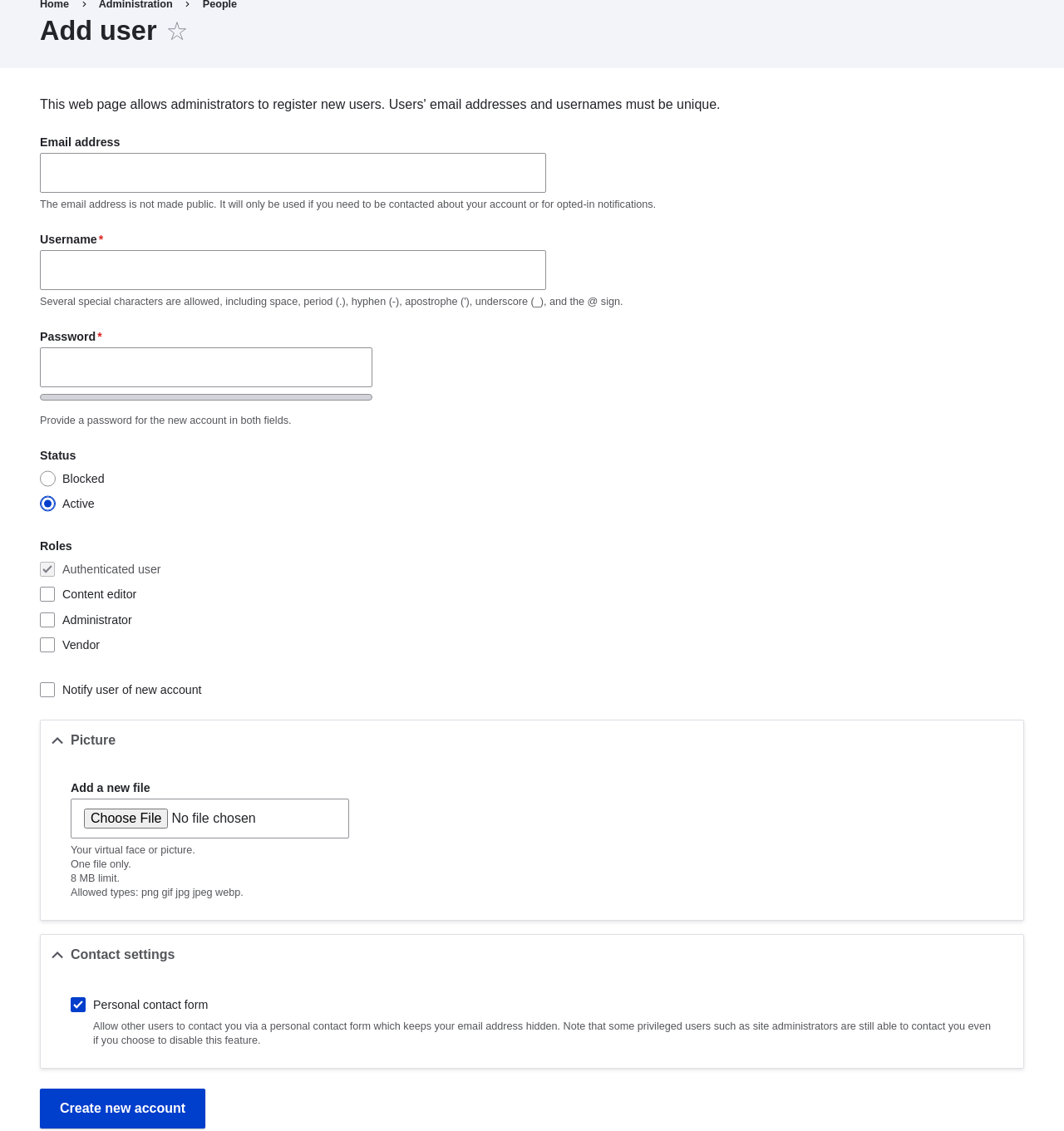 1. Fill in the form fields. See the table below.
| Field name | Explanation | Example value |
|---|---|---|
| Email address | A valid email address for the vendor. All emails from the system will be sent to this address. The email address is not made public. | honey@example.com |
| Username | A username for the vendor that they will use to sign in or author content items. Spaces are allowed; punctuation is not allowed except for periods, hyphens, apostrophes, and underscores. | Sweet Honey |
| Password | A password the vendor will use to sign in to the site. You can see how safe the password is on the _Password strength_ gauge. You also get tips on how to make it safer. | (Make a secure password) |
| Confirm password | Type the same password to avoid any typing mistakes. | (Repeat password) |
| Status | Set the status of the user account. _Blocked_ users will not be able to sign in. | Active |
| Roles | Set the role of the user account. | Vendor |
| Notify user of new account | Whether or not to send a notification to the vendor's email address. | Checked |
| Picture | Click _Browse_ and select a picture to upload. Pay attention to size restrictions. | Photo of the vendor |
| Contact settings | Enable or disable the display of a contact form for the account. | Checked |
 1. Create a second Vendor account for Happy Farm by following the steps above.
## Expand your understanding
Create a user account for yourself.
## Videos
[Creating a User Account](https://www.youtube.com/watch?v=2UtEtY9Cgaw)
# Assigning Permissions to a Role
## Goal
Change the permissions for the Vendor role so that users can create, edit,
and delete Recipe and Vendor content, format the content, and contact each
other.
## Prerequisite knowledge
* [Concept: Users, Roles, and Permissions](/link/737)
## Site prerequisites
The Vendor role must exist on your site. See [Creating a Role](/link/739).
## Steps
1. In the _Manage_ administrative menu, navigate to _People_ > _Roles_
(_admin/people/roles_). The _Roles_ page appears.
1. Click _Edit permissions_ in the dropdown for the Vendor
role. The _Edit role_ page appears where you can see all the available
actions for the website such as, for example, _Post comments_ or _Administer
blocks_. The available permissions depend on the modules that are installed in
the site. Note: Some permissions may have security implications. Be cautious
while assigning permissions to roles.
1. Check the boxes for the following permissions, listed by module:
1. Create a second Vendor account for Happy Farm by following the steps above.
## Expand your understanding
Create a user account for yourself.
## Videos
[Creating a User Account](https://www.youtube.com/watch?v=2UtEtY9Cgaw)
# Assigning Permissions to a Role
## Goal
Change the permissions for the Vendor role so that users can create, edit,
and delete Recipe and Vendor content, format the content, and contact each
other.
## Prerequisite knowledge
* [Concept: Users, Roles, and Permissions](/link/737)
## Site prerequisites
The Vendor role must exist on your site. See [Creating a Role](/link/739).
## Steps
1. In the _Manage_ administrative menu, navigate to _People_ > _Roles_
(_admin/people/roles_). The _Roles_ page appears.
1. Click _Edit permissions_ in the dropdown for the Vendor
role. The _Edit role_ page appears where you can see all the available
actions for the website such as, for example, _Post comments_ or _Administer
blocks_. The available permissions depend on the modules that are installed in
the site. Note: Some permissions may have security implications. Be cautious
while assigning permissions to roles.
1. Check the boxes for the following permissions, listed by module:
| Module | Permission |
|---|---|
| Contact | Use users' personal contact forms |
| Filter | Use the Restricted HTML text format |
| Node | Recipe: Create new content |
| Node | Recipe: Edit own content |
| Node | Recipe: Delete own content |
| Node | Vendor: Edit own content |
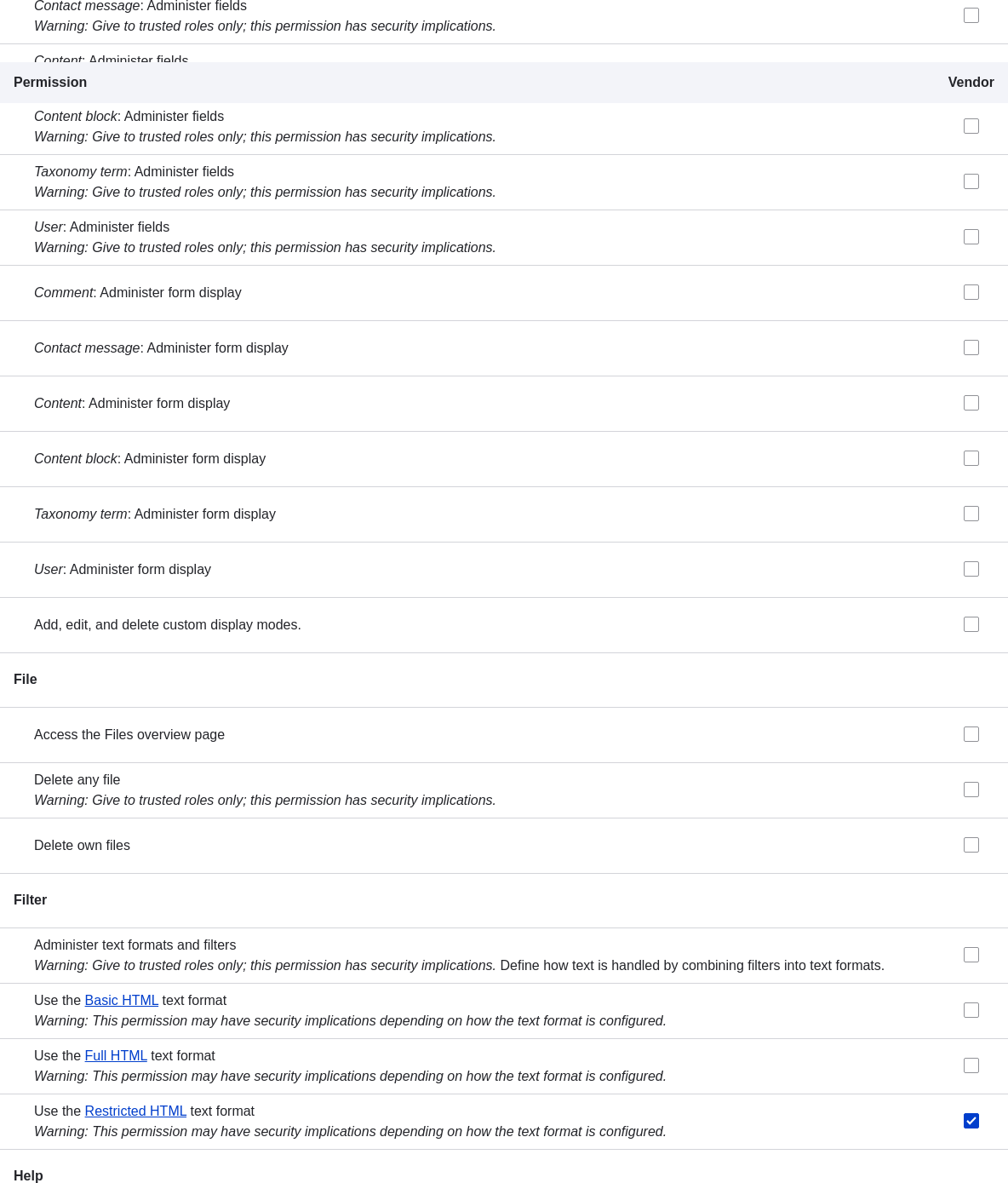 1. Click _Save permissions_. You will get a message saying your changes have been
saved.

## Expand your understanding
* Log in as one of the new users you created in [Creating a User Account](/link/740). Verify
whether you have the correct permissions.
* [Changing a User's Roles](/link/742)
## Related concepts
[Concept: The User 1 Account](/link/738)
## Videos
[Assigning Permissions to a Role](https://www.youtube.com/watch?v=IlVh9f4BHVw)
## Additional resources
[_Drupal.org_ community documentation page "Managing Users"](https://www.drupal.org/docs/7/managing-users)
# Changing a User's Roles
## Goal
Change or add roles to a given user, either by editing a single-user or by
applying a bulk operation.
## Prerequisite knowledge
[Concept: Users, Roles, and Permissions](/link/737)
## Site prerequisites
The user account that you want to update, and the role you want it to have, must
already exist. See [Creating a User Account](/link/740), [Creating a Role](/link/739), and
[Assigning Permissions to a Role](/link/741).
## Steps
### Updating the roles using single-user editing method
1. In the _Manage_ administrative menu, navigate to _People_
(_admin/people_).
1. Locate the user 1 account (named "admin") to assign it the _Administrator_
role. If it is not immediately visible, use the _Name or email contains_ filter,
or other filters, to narrow down the list.
1. Click _Edit_ to update the user account.
1. Click _Save permissions_. You will get a message saying your changes have been
saved.

## Expand your understanding
* Log in as one of the new users you created in [Creating a User Account](/link/740). Verify
whether you have the correct permissions.
* [Changing a User's Roles](/link/742)
## Related concepts
[Concept: The User 1 Account](/link/738)
## Videos
[Assigning Permissions to a Role](https://www.youtube.com/watch?v=IlVh9f4BHVw)
## Additional resources
[_Drupal.org_ community documentation page "Managing Users"](https://www.drupal.org/docs/7/managing-users)
# Changing a User's Roles
## Goal
Change or add roles to a given user, either by editing a single-user or by
applying a bulk operation.
## Prerequisite knowledge
[Concept: Users, Roles, and Permissions](/link/737)
## Site prerequisites
The user account that you want to update, and the role you want it to have, must
already exist. See [Creating a User Account](/link/740), [Creating a Role](/link/739), and
[Assigning Permissions to a Role](/link/741).
## Steps
### Updating the roles using single-user editing method
1. In the _Manage_ administrative menu, navigate to _People_
(_admin/people_).
1. Locate the user 1 account (named "admin") to assign it the _Administrator_
role. If it is not immediately visible, use the _Name or email contains_ filter,
or other filters, to narrow down the list.
1. Click _Edit_ to update the user account.
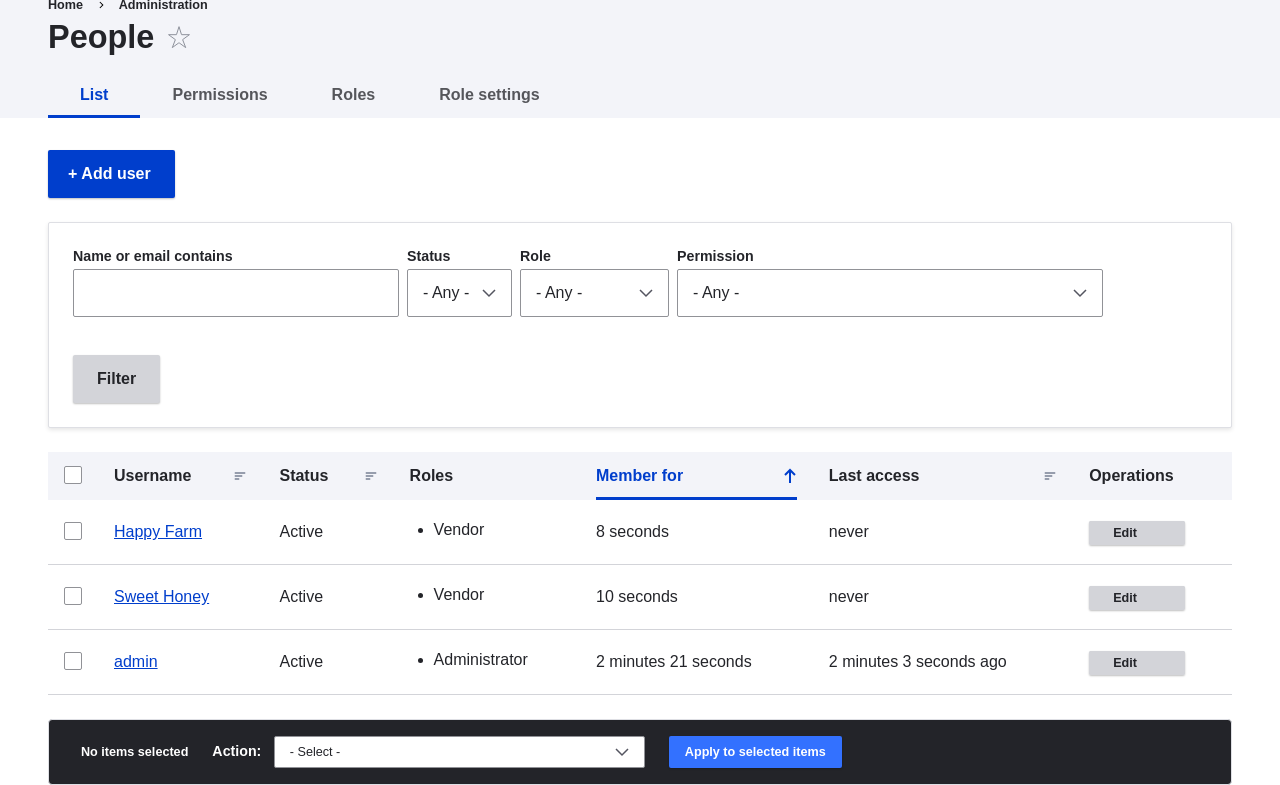 1. On the _Edit_ page, scroll down to _Roles_ section. Check the _Administrator_
role for the user account.
1. On the _Edit_ page, scroll down to _Roles_ section. Check the _Administrator_
role for the user account.
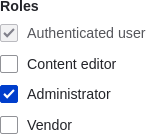 1. Click _Save_ to update the user account. You should be returned to the
_People_ page and see a message saying that the changes have been saved.

### Updating the roles using bulk editing method
1. If the users Happy Farm and Sweet Honey did not already have the Vendor role,
here is how you would add it. In the _Manage_ administrative menu, navigate to
_People_ (_admin/people_).
1. Locate Vendor user accounts _Sweet Honey_ and _Happy Farm_ and check them. If
they are not immediately visible, use the _Name or email contains_ filter, or
other filters, to narrow down the list.
1. Select _Add the Vendor role to the selected user(s)_ from the _Action_
select list.
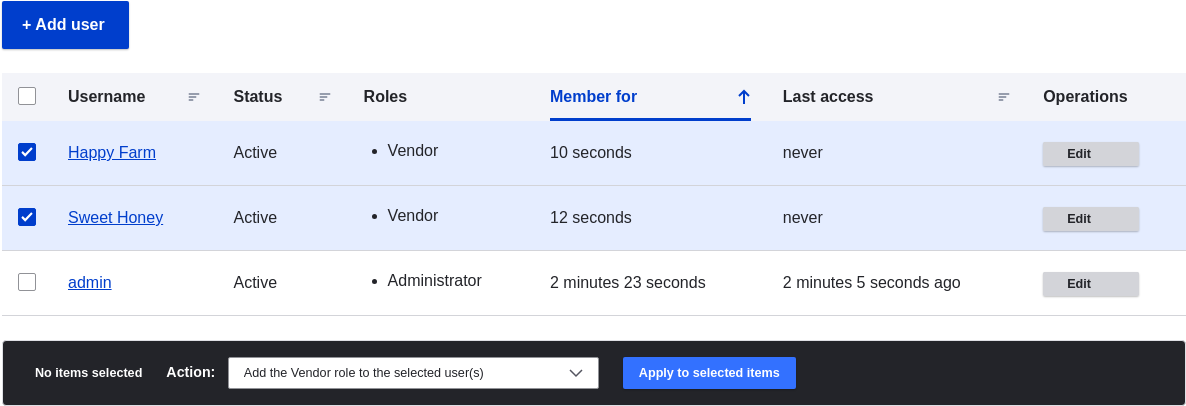
1. Click _Apply to selected items_. You should see a message indicating that the
desired changes were made.

## Videos
[Changing a User](https://www.youtube.com/watch?v=hd7Sr3-n9ME)
# Assigning Authors to Content
## Goal
Assign Vendor content items Happy Farm and Sweet Honey to the corresponding
Vendor user accounts, so they can edit their own Vendor profiles on the site.
## Prerequisite knowledge
* [Concept: Users, Roles, and Permissions](/link/737)
## Site prerequisites
* The Vendor content type must exist, and your site must have at least two
Vendor content items. See [Adding a Content Type](/link/720), [Adding Basic Fields to a Content Type](/link/722), and
[Creating a Content Item](/link/713).
* User accounts for at least two vendors must exist. See [Creating a User Account](/link/740).
## Steps
1. In the _Manage_ administrative menu, navigate to _Content_ (_admin/content_).
1. Find Vendor content item Happy Farm in the list. If it is not immediately
visible, you can filter the list by _Published status_, _Content type_ (Vendor),
_Title_, or _Language_. Click _Edit_ for the Vendor content item you would like
to assign an author to.
1. Under _Authoring information_, start typing the Vendor's user
name Happy Farm in the _Authored by_ field. The field lists matching user
names. Select the Vendor's user name from the list.
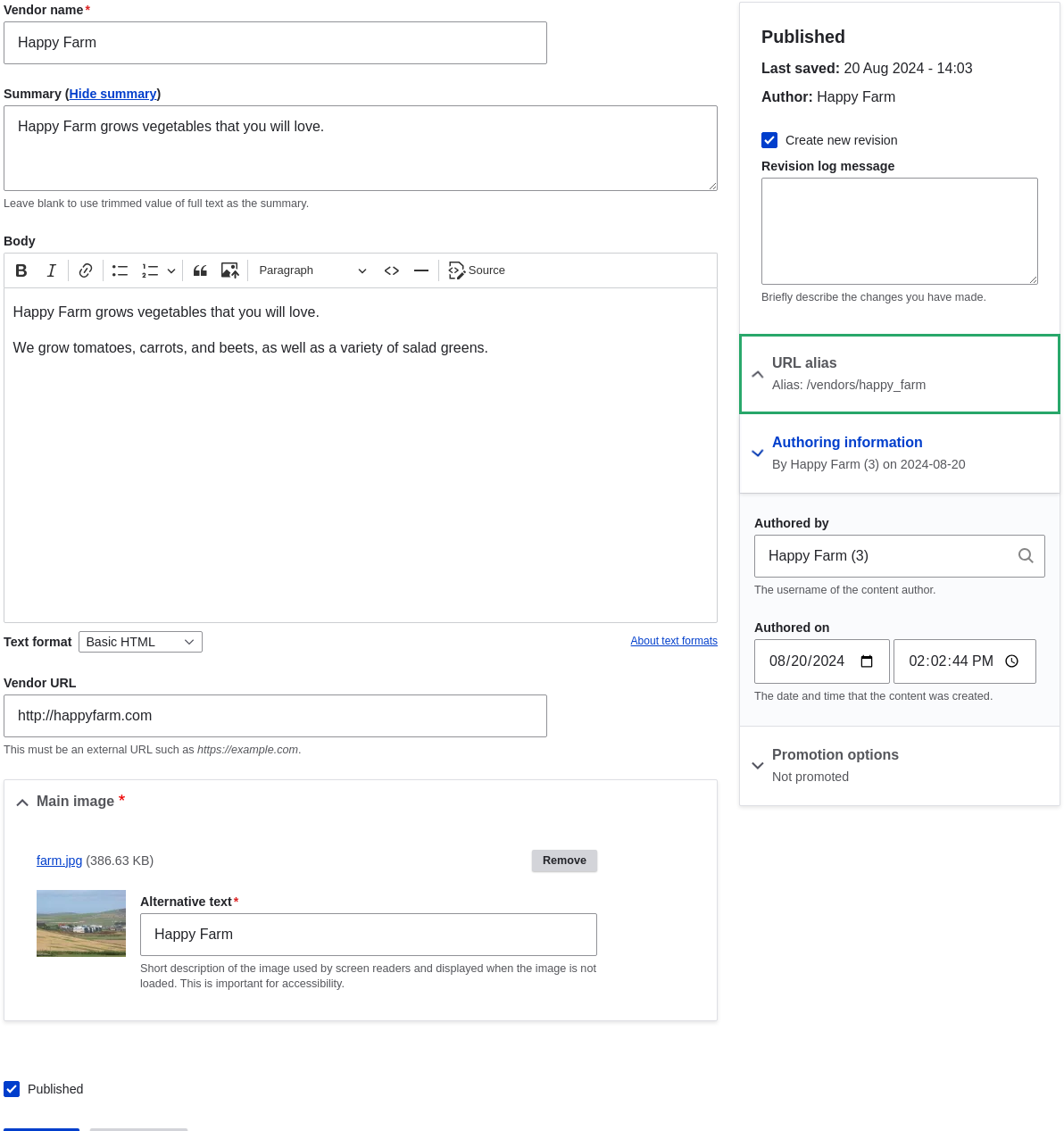
1. Click _Save_.
1. You will get a notification that the Vendor content item has been updated.

1. Follow these steps again to assign Vendor content item Sweet Honey to the
Vendor user account Sweet Honey.
## Videos
[Assigning Authors to Content](https://www.youtube.com/watch?v=yx9u2SCgono)
# Chapter 8: Blocks
# Concept: Blocks
## What is a block?
_Blocks_ are individual pieces of your site's web page layout. They are placed
inside the regions (see [Concept: Regions in a Theme](/link/689)) of your theme, and can be created,
removed, and rearranged in the _Block layout_ (_admin/structure/block_)
administration page. Examples of blocks include the _Who's online_ listing, the
main navigation menu, and the breadcrumb trail. The main page content is also a
block.
Some modules make new blocks available for placement on your site. For example,
when the core Search module is installed and configured, it provides a block
that contains a search form. You may also create and place your own custom
blocks.
Each block has its own configuration settings, which allow you to select
which pages of your site will display the block. It is even possible to place
multiple copies of a block, each with its own separate configuration and
visibility rules.
## Related topics
* [Concept: Regions in a Theme](/link/689)
* [Creating A Custom Block](/link/746)
* [Placing a Block in a Region](/link/747)
# Creating A Custom Block
## Goal
Create a block showing the hours and location of the farmers market.
## Prerequisite knowledge
* [Concept: Blocks](/link/745)
* [Concept: Regions in a Theme](/link/689)
## Steps
1. In the _Manage_ administrative menu, navigate to Content_ > _Blocks_ (_admin/content/block_).
1. Click _Add content block_. The _Add content block_ page appears.
1. Fill in the fields as shown below.
1. Click _Save_ to update the user account. You should be returned to the
_People_ page and see a message saying that the changes have been saved.

### Updating the roles using bulk editing method
1. If the users Happy Farm and Sweet Honey did not already have the Vendor role,
here is how you would add it. In the _Manage_ administrative menu, navigate to
_People_ (_admin/people_).
1. Locate Vendor user accounts _Sweet Honey_ and _Happy Farm_ and check them. If
they are not immediately visible, use the _Name or email contains_ filter, or
other filters, to narrow down the list.
1. Select _Add the Vendor role to the selected user(s)_ from the _Action_
select list.

1. Click _Apply to selected items_. You should see a message indicating that the
desired changes were made.

## Videos
[Changing a User](https://www.youtube.com/watch?v=hd7Sr3-n9ME)
# Assigning Authors to Content
## Goal
Assign Vendor content items Happy Farm and Sweet Honey to the corresponding
Vendor user accounts, so they can edit their own Vendor profiles on the site.
## Prerequisite knowledge
* [Concept: Users, Roles, and Permissions](/link/737)
## Site prerequisites
* The Vendor content type must exist, and your site must have at least two
Vendor content items. See [Adding a Content Type](/link/720), [Adding Basic Fields to a Content Type](/link/722), and
[Creating a Content Item](/link/713).
* User accounts for at least two vendors must exist. See [Creating a User Account](/link/740).
## Steps
1. In the _Manage_ administrative menu, navigate to _Content_ (_admin/content_).
1. Find Vendor content item Happy Farm in the list. If it is not immediately
visible, you can filter the list by _Published status_, _Content type_ (Vendor),
_Title_, or _Language_. Click _Edit_ for the Vendor content item you would like
to assign an author to.
1. Under _Authoring information_, start typing the Vendor's user
name Happy Farm in the _Authored by_ field. The field lists matching user
names. Select the Vendor's user name from the list.

1. Click _Save_.
1. You will get a notification that the Vendor content item has been updated.

1. Follow these steps again to assign Vendor content item Sweet Honey to the
Vendor user account Sweet Honey.
## Videos
[Assigning Authors to Content](https://www.youtube.com/watch?v=yx9u2SCgono)
# Chapter 8: Blocks
# Concept: Blocks
## What is a block?
_Blocks_ are individual pieces of your site's web page layout. They are placed
inside the regions (see [Concept: Regions in a Theme](/link/689)) of your theme, and can be created,
removed, and rearranged in the _Block layout_ (_admin/structure/block_)
administration page. Examples of blocks include the _Who's online_ listing, the
main navigation menu, and the breadcrumb trail. The main page content is also a
block.
Some modules make new blocks available for placement on your site. For example,
when the core Search module is installed and configured, it provides a block
that contains a search form. You may also create and place your own custom
blocks.
Each block has its own configuration settings, which allow you to select
which pages of your site will display the block. It is even possible to place
multiple copies of a block, each with its own separate configuration and
visibility rules.
## Related topics
* [Concept: Regions in a Theme](/link/689)
* [Creating A Custom Block](/link/746)
* [Placing a Block in a Region](/link/747)
# Creating A Custom Block
## Goal
Create a block showing the hours and location of the farmers market.
## Prerequisite knowledge
* [Concept: Blocks](/link/745)
* [Concept: Regions in a Theme](/link/689)
## Steps
1. In the _Manage_ administrative menu, navigate to Content_ > _Blocks_ (_admin/content/block_).
1. Click _Add content block_. The _Add content block_ page appears.
1. Fill in the fields as shown below.
| Field name | Explanation | Example value |
|---|---|---|
| Block description | Name of the block shown to administrators | Hours and location block |
| Body | Content of the block when it is displayed | Open: Sundays, 9 AM to |
| Field name | Explanation | Example value |
|---|---|---|
| Title | Title to be displayed for the block | Hours and location |
| Display title | Whether or not to display the title with the block | Checked |
| Region | Which theme region to display it in | Sidebar |
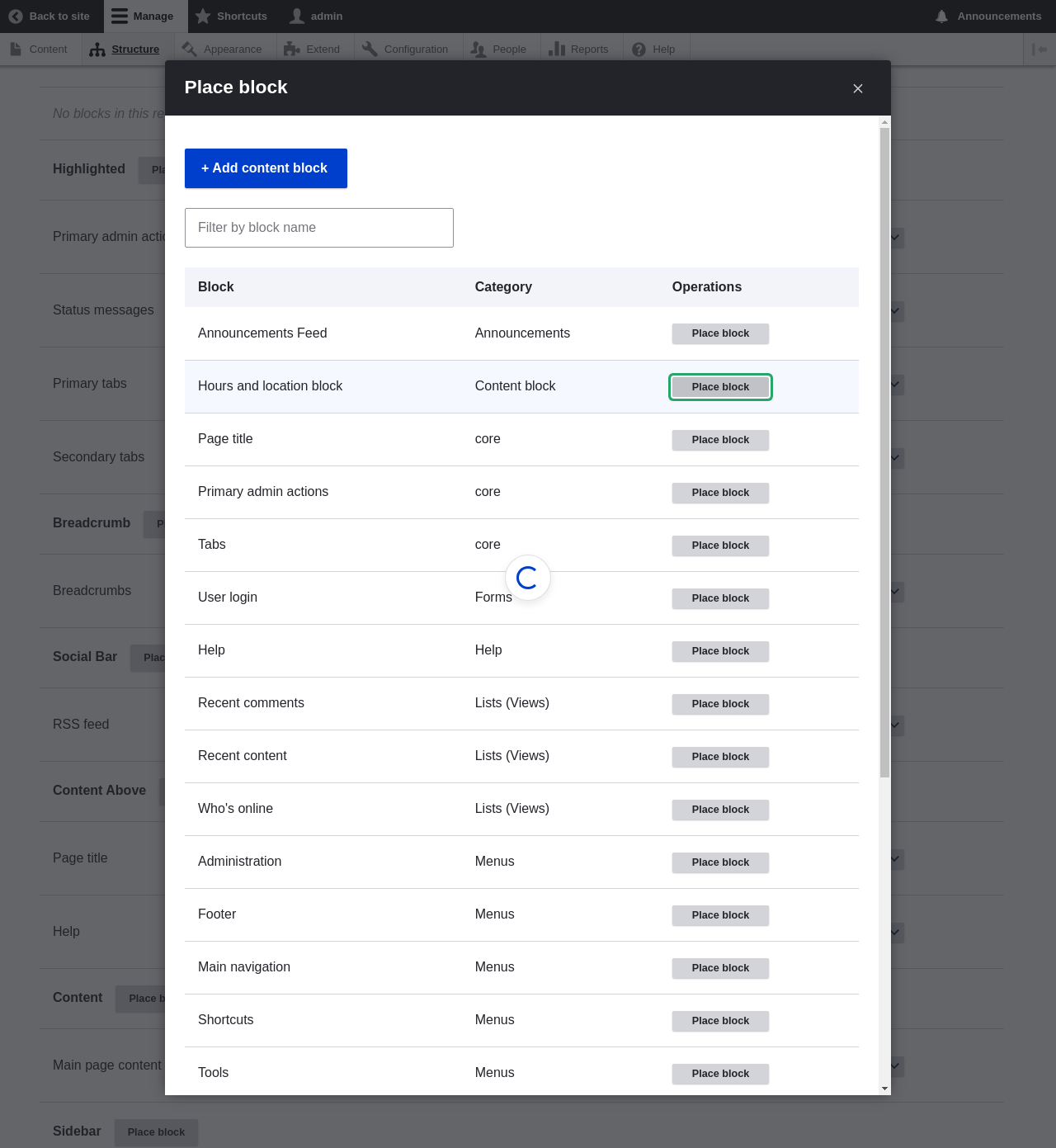 1. Click _Save block_. The _Block layout_ page appears. You can drag the cross
bar handles of blocks to change their order within each region. As an
alternative to dragging, you can click the _Show row weights_ link at the top of
the table and select numerical weights (blocks with lower or more negative
weights will be shown first).
1. Verify that the Hours and location block is listed in the _Sidebar_ region,
and click _Save blocks_.
The block has been placed on the sidebar of all pages that use the core Bartik
theme.
1. Click _Save block_. The _Block layout_ page appears. You can drag the cross
bar handles of blocks to change their order within each region. As an
alternative to dragging, you can click the _Show row weights_ link at the top of
the table and select numerical weights (blocks with lower or more negative
weights will be shown first).
1. Verify that the Hours and location block is listed in the _Sidebar_ region,
and click _Save blocks_.
The block has been placed on the sidebar of all pages that use the core Bartik
theme.
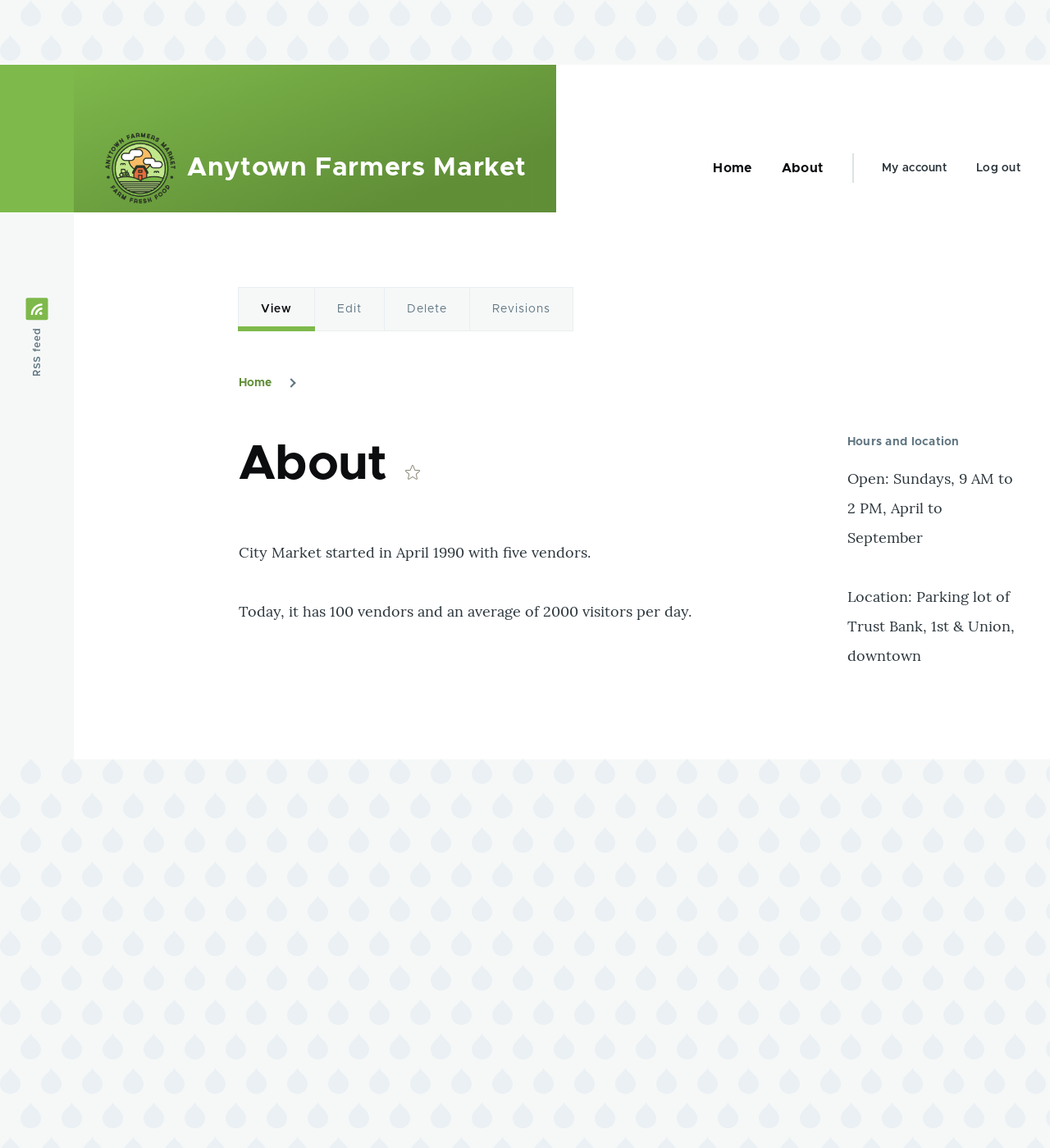 ## Expand your understanding
* Remove the _Powered by Drupal_ block from the _Footer Bottom_ region by
clicking _Disable_ or _Remove_ in the _Operations_ dropdown button. Clicking
_Disable_ will let you enable the block easily later with the same
configuration; if you click _Remove_ and you want the block back, you would
need to go through the steps in this topic to place it in a region again. Note
that the names of the blocks that are provided by the core software, such as
_Powered by Drupal_ and _User login_, are shown in English on this page; see
[Concept: User Interface, Configuration, and Content translation](/link/695) for an explanation.
* Place the _User login_ block in a region.
* If you do not see the effect of these changes in your site, you might need
to clear the cache. See [Clearing the Cache](/link/773).
## Videos
[Placing a Block in a Region](https://www.youtube.com/watch?v=iWW7Ja5p0hA)
# Chapter 9: Creating Listings with Views
# Concept: Uses of Views
## Prerequisite knowledge
* [Concept: Modular Content](/link/692)
* [Concept: Content Entities and Fields](/link/691)
## What is a view?
A _view_ is a listing of content on a website. The core Views module handles the
display of views, and the core Views UI module allows you to create and edit
them in the administrative interface. When you define views, you are interested
in taking data from your website and displaying it to the user.
## What types of data can be displayed using views?
You can create views to output practically any content entity that is stored in
the system. For example, you can create the following lists for the farmers
market site:
* Lists of vendors
* Lists of recipes
* Lists of the most recent content on the site
* Lists of users on the site
## What are the ways data can be output using views?
A listing created by a view can be in any of the following forms:
* Table with sortable fields
* Grid layouts
* Teasers or pictures that link to articles
* Blocks
* JSON output
* RSS feeds
* Calendars
* On-screen slideshows
## Related topics
* [Concept: The Parts of a View](/link/750)
* [Creating a Content List View](/link/751)
# Concept: The Parts of a View
## Prerequisite knowledge
* [Concept: Content Entities and Fields](/link/691)
* [Concept: Modular Content](/link/692)
* [Concept: Uses of Views](/link/749)
* [Concept: Paths, Aliases, and URLs](/link/712)
* [Concept: Blocks](/link/745)
## What are the parts of a view?
When you are editing a view in the administrative interface, you will see the
following parts (or sections), which allow you to specify what data to output,
in what order, and in what format:
- **Display:** Each view can have one or more displays, each of which produces one type of output. Options for display types include: Page;; Makes output at a particular URL, for the main page content at that URL. Block;; Makes output in a block, which can be placed on pages. Feed;; Makes an RSS or another type of feed. Attachment;; Makes output that you can attach to another display.
- **Format:** Depending on the display type, you can choose to output your data in a table, grid, HTML list, or another format. Some formats also give you a second choice that lets you output either rendered entities or fields; other formats do not give you this choice (for example, if you use a table format, you must always use fields).
- **Fields:** Depending on the format choice, you may be able to choose which content fields are output. For example, if you were making a view of recipe content items, in a block display you might show only the recipe names, while in a full page display you might also show an image field because you have more space.
- **Filter criteria:** Filters limit the data to be output, based on criteria such as whether the content has been published or not, the type of content, or a field value. For instance, to make a view of recipe content items, you would need to filter to the Recipe content type, and to published recipes. Filters can also be _exposed_, which means that users will have a form where they can choose their own filter values. You might use this on a Recipe page to let users filter for recipes with certain ingredients.
- **Sort criteria:** Defines the order to present the output, which can be based on any content field.
- **Contextual filters:** Contextual filters are like regular filters, except that the values come from the _context_ of the view display, such as the full URL of the page being displayed, the current date or time, or some other value that can be detected by the view calculation.
- **Relationships:** Relationships allow you to expand what is displayed in your view, by relating the base content being displayed to other content entities. Relationships are created using fields on the base content that relate it to the other content; one example is that all regular content items have an author field, which references the user account of the person who authored the content. Once you have created a relationship, you can display fields from the referenced entity in the view.
## Related topics
[Creating a Content List View](/link/751)
# Creating a Content List View
## Goal
Create a page listing vendors that will be automatically updated whenever a
vendor is added, deleted, or updated on the site.
## Prerequisite knowledge
* [Concept: Uses of Views](/link/749)
* [Concept: The Parts of a View](/link/750)
## Site prerequisites
* The core Views and Views UI modules must be installed. These are installed for
you when you install with the core Standard installation profile.
* The Vendor content type must exist, with URL and Main image fields. Your
site must have a couple of Vendor content items. See [Adding a Content Type](/link/720),
[Adding Basic Fields to a Content Type](/link/722), and [Creating a Content Item](/link/713).
* The _Medium (220x220)_ image style must be defined. This is created on your
site when you install the core Image module (installed with the core Standard
installation profile) but can be recreated if deleted. See
[Setting Up an Image Style](/link/732).
## Steps
1. In the _Manage_ administrative menu, navigate to _Structure_ > _Views_ > _Add
view_ (_admin/structure/views/add_). The _Add view_ wizard appears.
1. Fill in the fields as shown below.
## Expand your understanding
* Remove the _Powered by Drupal_ block from the _Footer Bottom_ region by
clicking _Disable_ or _Remove_ in the _Operations_ dropdown button. Clicking
_Disable_ will let you enable the block easily later with the same
configuration; if you click _Remove_ and you want the block back, you would
need to go through the steps in this topic to place it in a region again. Note
that the names of the blocks that are provided by the core software, such as
_Powered by Drupal_ and _User login_, are shown in English on this page; see
[Concept: User Interface, Configuration, and Content translation](/link/695) for an explanation.
* Place the _User login_ block in a region.
* If you do not see the effect of these changes in your site, you might need
to clear the cache. See [Clearing the Cache](/link/773).
## Videos
[Placing a Block in a Region](https://www.youtube.com/watch?v=iWW7Ja5p0hA)
# Chapter 9: Creating Listings with Views
# Concept: Uses of Views
## Prerequisite knowledge
* [Concept: Modular Content](/link/692)
* [Concept: Content Entities and Fields](/link/691)
## What is a view?
A _view_ is a listing of content on a website. The core Views module handles the
display of views, and the core Views UI module allows you to create and edit
them in the administrative interface. When you define views, you are interested
in taking data from your website and displaying it to the user.
## What types of data can be displayed using views?
You can create views to output practically any content entity that is stored in
the system. For example, you can create the following lists for the farmers
market site:
* Lists of vendors
* Lists of recipes
* Lists of the most recent content on the site
* Lists of users on the site
## What are the ways data can be output using views?
A listing created by a view can be in any of the following forms:
* Table with sortable fields
* Grid layouts
* Teasers or pictures that link to articles
* Blocks
* JSON output
* RSS feeds
* Calendars
* On-screen slideshows
## Related topics
* [Concept: The Parts of a View](/link/750)
* [Creating a Content List View](/link/751)
# Concept: The Parts of a View
## Prerequisite knowledge
* [Concept: Content Entities and Fields](/link/691)
* [Concept: Modular Content](/link/692)
* [Concept: Uses of Views](/link/749)
* [Concept: Paths, Aliases, and URLs](/link/712)
* [Concept: Blocks](/link/745)
## What are the parts of a view?
When you are editing a view in the administrative interface, you will see the
following parts (or sections), which allow you to specify what data to output,
in what order, and in what format:
- **Display:** Each view can have one or more displays, each of which produces one type of output. Options for display types include: Page;; Makes output at a particular URL, for the main page content at that URL. Block;; Makes output in a block, which can be placed on pages. Feed;; Makes an RSS or another type of feed. Attachment;; Makes output that you can attach to another display.
- **Format:** Depending on the display type, you can choose to output your data in a table, grid, HTML list, or another format. Some formats also give you a second choice that lets you output either rendered entities or fields; other formats do not give you this choice (for example, if you use a table format, you must always use fields).
- **Fields:** Depending on the format choice, you may be able to choose which content fields are output. For example, if you were making a view of recipe content items, in a block display you might show only the recipe names, while in a full page display you might also show an image field because you have more space.
- **Filter criteria:** Filters limit the data to be output, based on criteria such as whether the content has been published or not, the type of content, or a field value. For instance, to make a view of recipe content items, you would need to filter to the Recipe content type, and to published recipes. Filters can also be _exposed_, which means that users will have a form where they can choose their own filter values. You might use this on a Recipe page to let users filter for recipes with certain ingredients.
- **Sort criteria:** Defines the order to present the output, which can be based on any content field.
- **Contextual filters:** Contextual filters are like regular filters, except that the values come from the _context_ of the view display, such as the full URL of the page being displayed, the current date or time, or some other value that can be detected by the view calculation.
- **Relationships:** Relationships allow you to expand what is displayed in your view, by relating the base content being displayed to other content entities. Relationships are created using fields on the base content that relate it to the other content; one example is that all regular content items have an author field, which references the user account of the person who authored the content. Once you have created a relationship, you can display fields from the referenced entity in the view.
## Related topics
[Creating a Content List View](/link/751)
# Creating a Content List View
## Goal
Create a page listing vendors that will be automatically updated whenever a
vendor is added, deleted, or updated on the site.
## Prerequisite knowledge
* [Concept: Uses of Views](/link/749)
* [Concept: The Parts of a View](/link/750)
## Site prerequisites
* The core Views and Views UI modules must be installed. These are installed for
you when you install with the core Standard installation profile.
* The Vendor content type must exist, with URL and Main image fields. Your
site must have a couple of Vendor content items. See [Adding a Content Type](/link/720),
[Adding Basic Fields to a Content Type](/link/722), and [Creating a Content Item](/link/713).
* The _Medium (220x220)_ image style must be defined. This is created on your
site when you install the core Image module (installed with the core Standard
installation profile) but can be recreated if deleted. See
[Setting Up an Image Style](/link/732).
## Steps
1. In the _Manage_ administrative menu, navigate to _Structure_ > _Views_ > _Add
view_ (_admin/structure/views/add_). The _Add view_ wizard appears.
1. Fill in the fields as shown below.
| Field name | Explanation | Example value |
|---|---|---|
| View basic information > View name | Name of the view that will be visible in the administration pages | Vendors |
| View settings > Show | Type of information listed in the view | Content |
| View settings > of type | Specify content type | Vendor |
| View settings > sorted by | List order | Title |
| Page settings > Create a page | Create a page that displays the view | Checked |
| Page settings > Page title | Title show above the view | Vendors |
| Page settings > Path | Address of the page | vendors |
| Page settings > Page display settings > Display format | Type of list | Table |
| Page settings > Items to display | Number of items visible on the page | 10 |
| Page settings > Use a pager | Split up the list in several pages if there are more items | Checked |
| Page settings > Create a menu link | Add the view page to the menu | Checked |
| Page settings > Menu > Type | Type of menu item to create | Normal menu entry |
| Page settings > Menu > Menu link title | Label of the link in the menu | Vendors |
| Page settings > Menu > Parent | Menu in which to add the link | Main navigation |
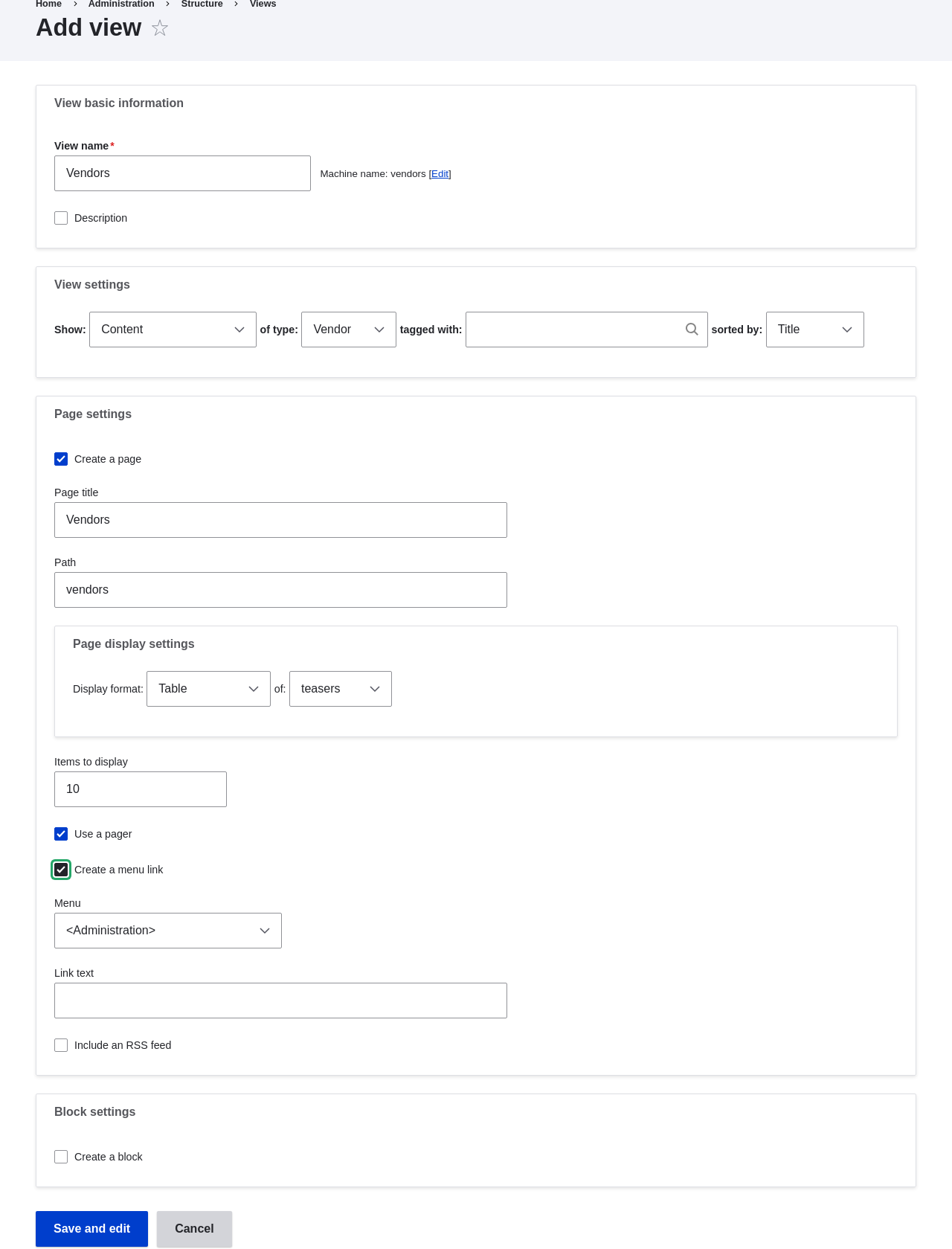 1. Click _Save and edit_. The view configuration page appears.
1. Under _Fields_, click _Add_ from the dropdown button. The _Add fields_ pop-up
appears.
1. Enter the word "image" in the search field.
1. Check Main image in the table.
1. Click _Apply_. The _Configure field: Content: Main Image_
pop-up appears.
1. Fill in the fields as shown below.
1. Click _Save and edit_. The view configuration page appears.
1. Under _Fields_, click _Add_ from the dropdown button. The _Add fields_ pop-up
appears.
1. Enter the word "image" in the search field.
1. Check Main image in the table.
1. Click _Apply_. The _Configure field: Content: Main Image_
pop-up appears.
1. Fill in the fields as shown below.
| Field name | Explanation | Example value |
|---|---|---|
| Create a label | Add a label before the field value | Unchecked |
| Image style | The format of the image | Medium (220x220) |
| Link image to | Add a link to the content item | Content |
| Field name | Explanation | Example value |
|---|---|---|
| Create a label | Add a label before the field value | Unchecked |
| Formatter | The presentation of the field value | Summary or trimmed |
| Trimmed limit: | The number of maximum characters shown | 120 |
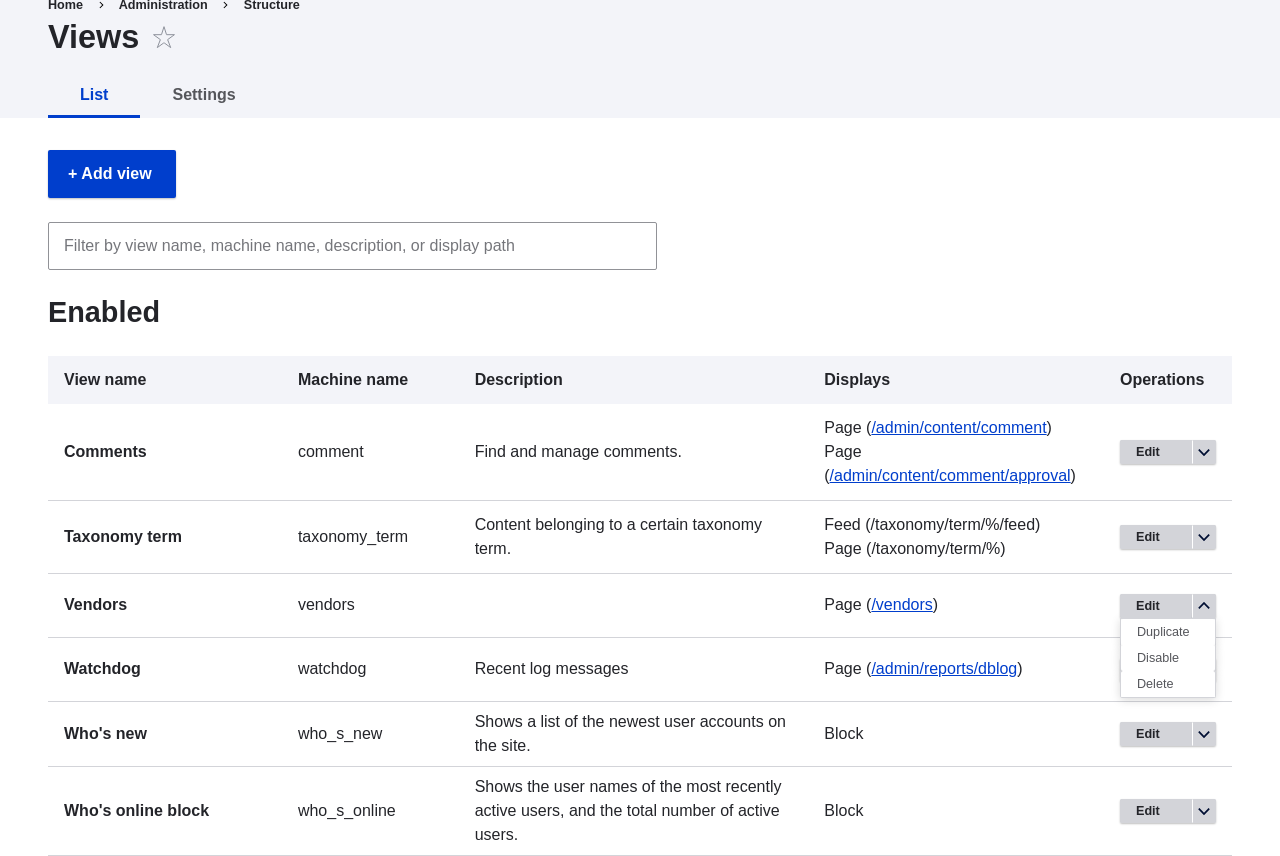 1. Name the duplicate "Recipes" and click _Duplicate_. The view configuration
page appears.
1. To change the title of the view page to "Recipes", click Vendors in the
_Title_ field under _Title_. The _Page: The title of this view_ pop-up
appears. Enter "Recipes". Click _Apply_.
1. Name the duplicate "Recipes" and click _Duplicate_. The view configuration
page appears.
1. To change the title of the view page to "Recipes", click Vendors in the
_Title_ field under _Title_. The _Page: The title of this view_ pop-up
appears. Enter "Recipes". Click _Apply_.
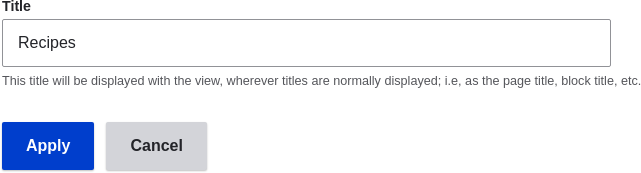 1. To change from a table to a grid format, click _Table_ in the _Format_ field
under _Format_. The _Page: How should this view be styled_ pop-up
appears. Check _Grid_ and click _Apply_. The _Page: Style options_ pop-up
appears. Retain the default values and click _Apply_.
1. To retain only the title and image fields for the Recipes view, click
_Content: Body_ under _Fields_. Click _Remove_ in the pop-up that appears.
1. To change the content type filter to use the Recipe content type, click
_Content: Type (=Vendor)_ under _Filter criteria_. In the _Configure
filter criterion: Content: Type_ pop-up, check Recipe and uncheck Vendor. Click
_Apply_.
1. To add a further filter that is exposed to visitors, click _Add_ in the
dropdown button under _Filter criteria_. Search for "ingredients" and check
"Ingredients (field_ingredients)". Click _Add and configure filter criteria_.
1. The appearing pop-up offers extra settings on vocabulary and selection
type. Click _Apply and continue_. The next pop-up allows you to expose this
filter to visitors. Fill in the fields as shown below, and click _Apply_.
1. To change from a table to a grid format, click _Table_ in the _Format_ field
under _Format_. The _Page: How should this view be styled_ pop-up
appears. Check _Grid_ and click _Apply_. The _Page: Style options_ pop-up
appears. Retain the default values and click _Apply_.
1. To retain only the title and image fields for the Recipes view, click
_Content: Body_ under _Fields_. Click _Remove_ in the pop-up that appears.
1. To change the content type filter to use the Recipe content type, click
_Content: Type (=Vendor)_ under _Filter criteria_. In the _Configure
filter criterion: Content: Type_ pop-up, check Recipe and uncheck Vendor. Click
_Apply_.
1. To add a further filter that is exposed to visitors, click _Add_ in the
dropdown button under _Filter criteria_. Search for "ingredients" and check
"Ingredients (field_ingredients)". Click _Add and configure filter criteria_.
1. The appearing pop-up offers extra settings on vocabulary and selection
type. Click _Apply and continue_. The next pop-up allows you to expose this
filter to visitors. Fill in the fields as shown below, and click _Apply_.
| Field name | Explanation | Example value |
|---|---|---|
| Expose this filter to visitors, to allow them to change it | Allow visitors to filter and search | Checked |
| Required | Whether a value has to be provided or not | Unchecked |
| Label | Label shown for this filter on the view page | Find recipes using... |
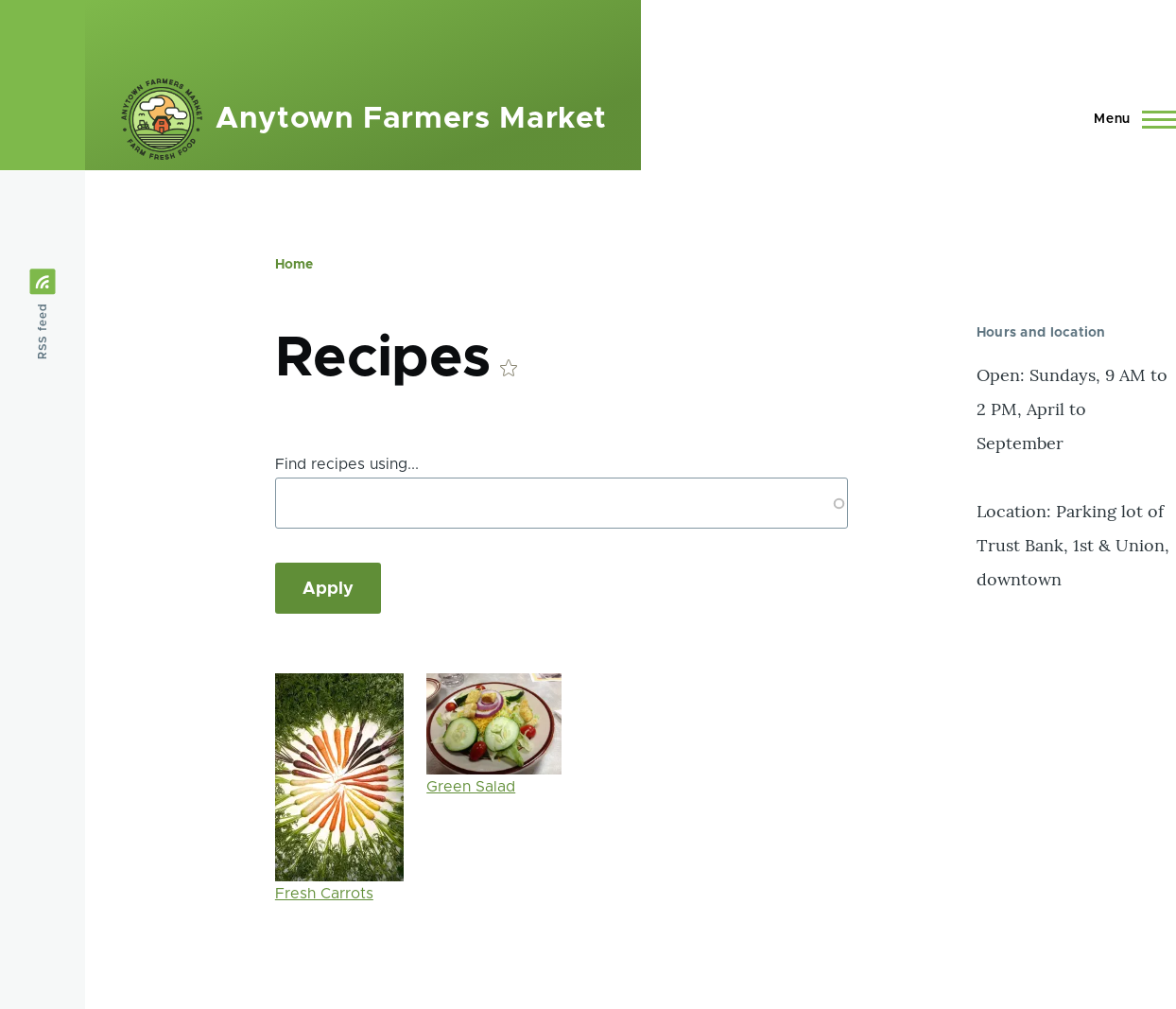 ## Expand your understanding
The link to the view in the main navigation will probably not be in the right
place. Change the order of the menu links in the main navigation. See
[Changing the Order of Navigation](/link/718).
## Related concepts
* [Planning your Content Structure](/link/693)
* [Ajax entry in the Glossary](/link/789#bkmrk-ajax)
## Videos
[Duplicating a View](https://www.youtube.com/watch?v=N0mkt8Q1Yv4)
# Adding a Block Display to a View
## Goal
Add a block display to the Recipes view to display the most recent recipes
in a sidebar, and change its configuration without changing the existing
Recipes page view.
## Prerequisite knowledge
* [Concept: Uses of Views](/link/749)
* [Concept: The Parts of a View](/link/750)
* [Creating a Content List View](/link/751)
## Site prerequisites
* The Recipe content type must exist, it must have a Main image field, and your
site must have a couple of Recipe content items. See [Adding a Content Type](/link/720),
[Adding Basic Fields to a Content Type](/link/722), [Changing Content Entry Forms](/link/728), and [Creating a Content Item](/link/713).
* The _Thumbnail (100x100)_ image style must be defined. This is created on your
site when you install the core Image module (installed with the core Standard
installation profile) but can be recreated if deleted. See
[Setting Up an Image Style](/link/732).
* The Recipes view must exist. See [Creating a Content List View](/link/751) and [Duplicating a View](/link/752).
## Steps
1. In the _Manage_ administrative menu, navigate to _Structure_ > _Views_
(_admin/structure/views_). Find the view "Recipes" and click _Edit_ from its
dropdown button. Alternatively, navigate to the Recipes page in the main site
navigation, and click the _Edit view_ contextual link in the main area of the
page. See [Concept: Administrative Overview](/link/705) for information about contextual links.
1. Create a new block display by clicking _Add_ under _Displays_. Click
_Block_ from the list of links that appears. The new display is created, and the
focus is automatically switched to its configuration.
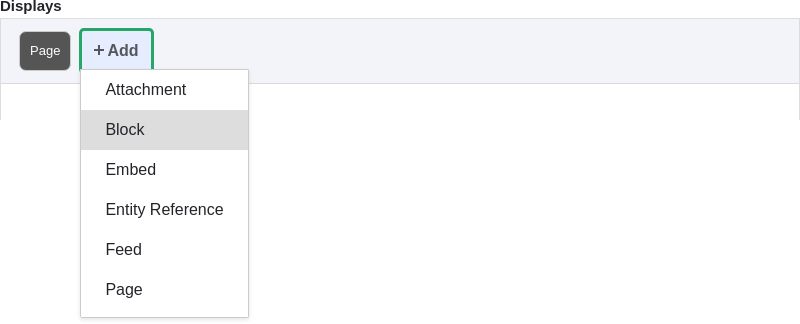
1. To change the title of this display, click _Block_ in the _Display
name_ field. The _Block: The name and the description of this display_ pop-up
appears. Change the _Administrative name_ to "Recent recipes". Click _Apply_.
1. To change the title of the block, click Recipes in the _Title_ field
under _Title_. In the pop-up that appears, select _This block (override)_ from
the _For_ select list. Change the _Title_ field to "New recipes" and click
_Apply (this display)_.
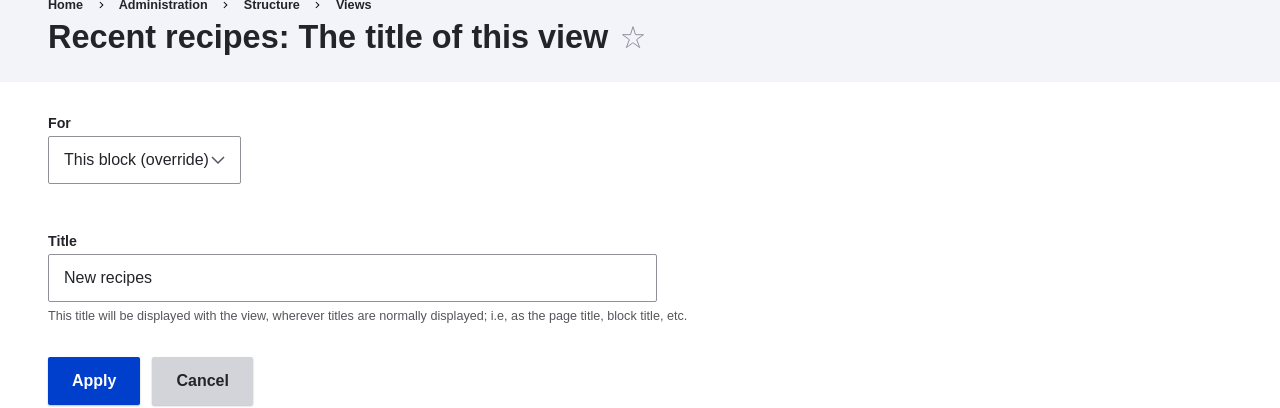
1. To change the block's style, click _Grid_ in the _Format_ field under
_Format_. In the pop-up that appears, select _This block (override)_ from the
_For_ select list. Select _Unformatted list_ and Click _Apply (this
display)_. You can further configure the style options in the next pop-up that
appears. Then click _Apply_.
1. To configure the image field, click _Content: Main image_ under _Fields_.
In the pop-up that appears, select _This block (override)_ from the
_For_ select list. Select _Image style Thumbnail (100x100)_. Click _Apply
(this display)_.
## Expand your understanding
The link to the view in the main navigation will probably not be in the right
place. Change the order of the menu links in the main navigation. See
[Changing the Order of Navigation](/link/718).
## Related concepts
* [Planning your Content Structure](/link/693)
* [Ajax entry in the Glossary](/link/789#bkmrk-ajax)
## Videos
[Duplicating a View](https://www.youtube.com/watch?v=N0mkt8Q1Yv4)
# Adding a Block Display to a View
## Goal
Add a block display to the Recipes view to display the most recent recipes
in a sidebar, and change its configuration without changing the existing
Recipes page view.
## Prerequisite knowledge
* [Concept: Uses of Views](/link/749)
* [Concept: The Parts of a View](/link/750)
* [Creating a Content List View](/link/751)
## Site prerequisites
* The Recipe content type must exist, it must have a Main image field, and your
site must have a couple of Recipe content items. See [Adding a Content Type](/link/720),
[Adding Basic Fields to a Content Type](/link/722), [Changing Content Entry Forms](/link/728), and [Creating a Content Item](/link/713).
* The _Thumbnail (100x100)_ image style must be defined. This is created on your
site when you install the core Image module (installed with the core Standard
installation profile) but can be recreated if deleted. See
[Setting Up an Image Style](/link/732).
* The Recipes view must exist. See [Creating a Content List View](/link/751) and [Duplicating a View](/link/752).
## Steps
1. In the _Manage_ administrative menu, navigate to _Structure_ > _Views_
(_admin/structure/views_). Find the view "Recipes" and click _Edit_ from its
dropdown button. Alternatively, navigate to the Recipes page in the main site
navigation, and click the _Edit view_ contextual link in the main area of the
page. See [Concept: Administrative Overview](/link/705) for information about contextual links.
1. Create a new block display by clicking _Add_ under _Displays_. Click
_Block_ from the list of links that appears. The new display is created, and the
focus is automatically switched to its configuration.

1. To change the title of this display, click _Block_ in the _Display
name_ field. The _Block: The name and the description of this display_ pop-up
appears. Change the _Administrative name_ to "Recent recipes". Click _Apply_.
1. To change the title of the block, click Recipes in the _Title_ field
under _Title_. In the pop-up that appears, select _This block (override)_ from
the _For_ select list. Change the _Title_ field to "New recipes" and click
_Apply (this display)_.

1. To change the block's style, click _Grid_ in the _Format_ field under
_Format_. In the pop-up that appears, select _This block (override)_ from the
_For_ select list. Select _Unformatted list_ and Click _Apply (this
display)_. You can further configure the style options in the next pop-up that
appears. Then click _Apply_.
1. To configure the image field, click _Content: Main image_ under _Fields_.
In the pop-up that appears, select _This block (override)_ from the
_For_ select list. Select _Image style Thumbnail (100x100)_. Click _Apply
(this display)_.
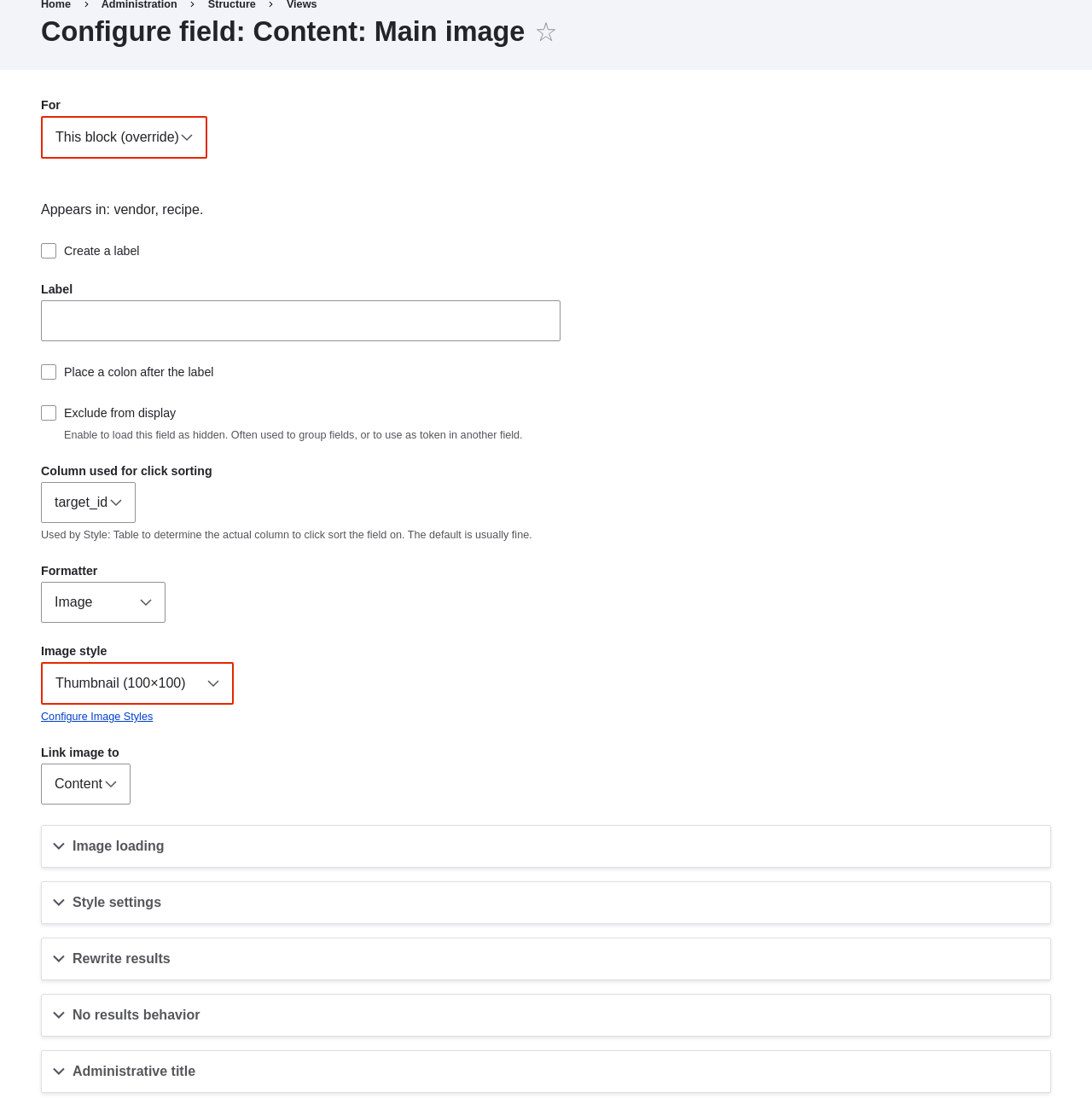 1. To remove ingredients as a filter, click _Content: Ingredients (exposed)_
under _Filter criteria_. In the pop-up that appears, select _This
block (override)_ from the _For_ select list. Click _Remove_ at the bottom.
1. To configure how you want the content to be sorted in the view, click _Add_
from the dropdown button under _Sort criteria_. In the pop-up that appears,
select _This block (override)_ from the _For_ select list. Check
_Authored on_ (in the _Content_ category), and then click _Add and configure
sort criteria_.
1. In the appearing configuration pop-up, select _Sort descending_ to have the
most recent recipes appear first. Click _Apply_.
1. To specify the number of items to be displayed, click _Mini_ in the _Use
pager_ field under _Pager_. In the pop-up that appears, select _This block
(override)_ from the _For_ select list. Under _Pager_, select _Display a
specified number of items_. Click _Apply (this display)_. In the _Block: Pager
options_ pop-up, provide "5" as the value for _Items to display_. Click _Apply_.
1. Click _Save_. You will either see the view editing page again, or the Recipes
page, depending on what you did in step 1. You should also see a message saying
that the view has been saved.
1. To remove ingredients as a filter, click _Content: Ingredients (exposed)_
under _Filter criteria_. In the pop-up that appears, select _This
block (override)_ from the _For_ select list. Click _Remove_ at the bottom.
1. To configure how you want the content to be sorted in the view, click _Add_
from the dropdown button under _Sort criteria_. In the pop-up that appears,
select _This block (override)_ from the _For_ select list. Check
_Authored on_ (in the _Content_ category), and then click _Add and configure
sort criteria_.
1. In the appearing configuration pop-up, select _Sort descending_ to have the
most recent recipes appear first. Click _Apply_.
1. To specify the number of items to be displayed, click _Mini_ in the _Use
pager_ field under _Pager_. In the pop-up that appears, select _This block
(override)_ from the _For_ select list. Under _Pager_, select _Display a
specified number of items_. Click _Apply (this display)_. In the _Block: Pager
options_ pop-up, provide "5" as the value for _Items to display_. Click _Apply_.
1. Click _Save_. You will either see the view editing page again, or the Recipes
page, depending on what you did in step 1. You should also see a message saying
that the view has been saved.
 1. Place the "Recipes: Recent Recipes" block in the _Sidebar second_ region. See
[Placing a Block in a Region](/link/747). Navigate to the site's home page to see the block.
1. Place the "Recipes: Recent Recipes" block in the _Sidebar second_ region. See
[Placing a Block in a Region](/link/747). Navigate to the site's home page to see the block.
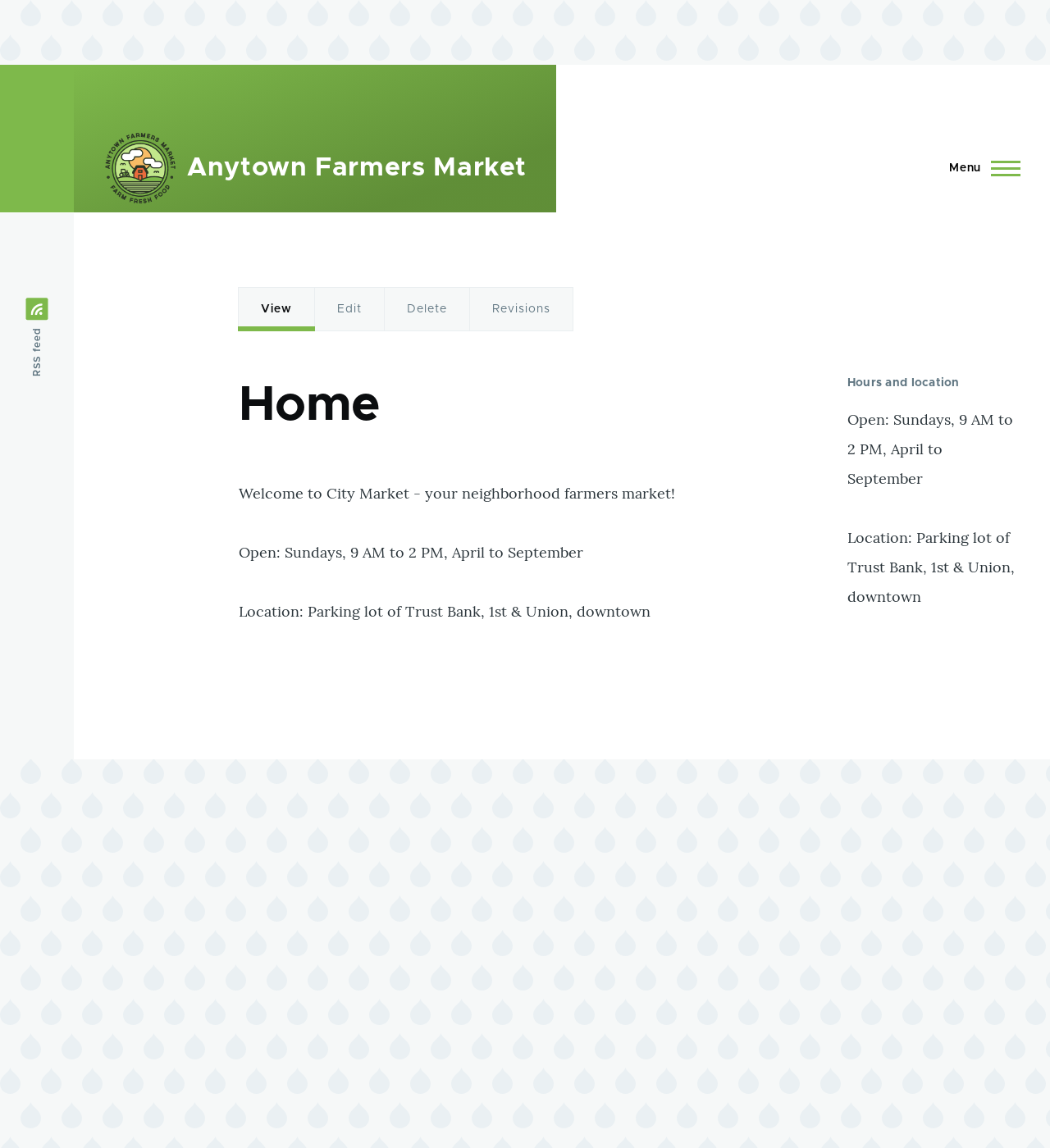 ## Videos
[Adding a Block Display to a View](https://www.youtube.com/watch?v=xrnuekARwYc)
# Chapter 10: Making Your Site Multilingual
# Adding a Language
## Goal
Add one or more languages to your site and define which one is used by default.
## Prerequisite knowledge
[Concept: User Interface, Configuration, and Content translation](/link/695)
## Steps
1. Install the four core multilingual modules (Language, Interface Translation,
Content Translation, and Configuration Translation), by following the steps in
[Installing a Module](/link/707).
1. In the _Manage_ administrative menu, navigate to _Configuration_ >
_Region and language_ > _Languages_ (_admin/config/regional/language_).
1. Click _Add language_.
1. Select _Spanish_ (or your preferred language) from the _Language name_ select
list. Click _Add language_. After waiting for translations to finish
downloading, you will be returned to the _Languages_ page, with a confirmation
message and the new language shown.
## Videos
[Adding a Block Display to a View](https://www.youtube.com/watch?v=xrnuekARwYc)
# Chapter 10: Making Your Site Multilingual
# Adding a Language
## Goal
Add one or more languages to your site and define which one is used by default.
## Prerequisite knowledge
[Concept: User Interface, Configuration, and Content translation](/link/695)
## Steps
1. Install the four core multilingual modules (Language, Interface Translation,
Content Translation, and Configuration Translation), by following the steps in
[Installing a Module](/link/707).
1. In the _Manage_ administrative menu, navigate to _Configuration_ >
_Region and language_ > _Languages_ (_admin/config/regional/language_).
1. Click _Add language_.
1. Select _Spanish_ (or your preferred language) from the _Language name_ select
list. Click _Add language_. After waiting for translations to finish
downloading, you will be returned to the _Languages_ page, with a confirmation
message and the new language shown.
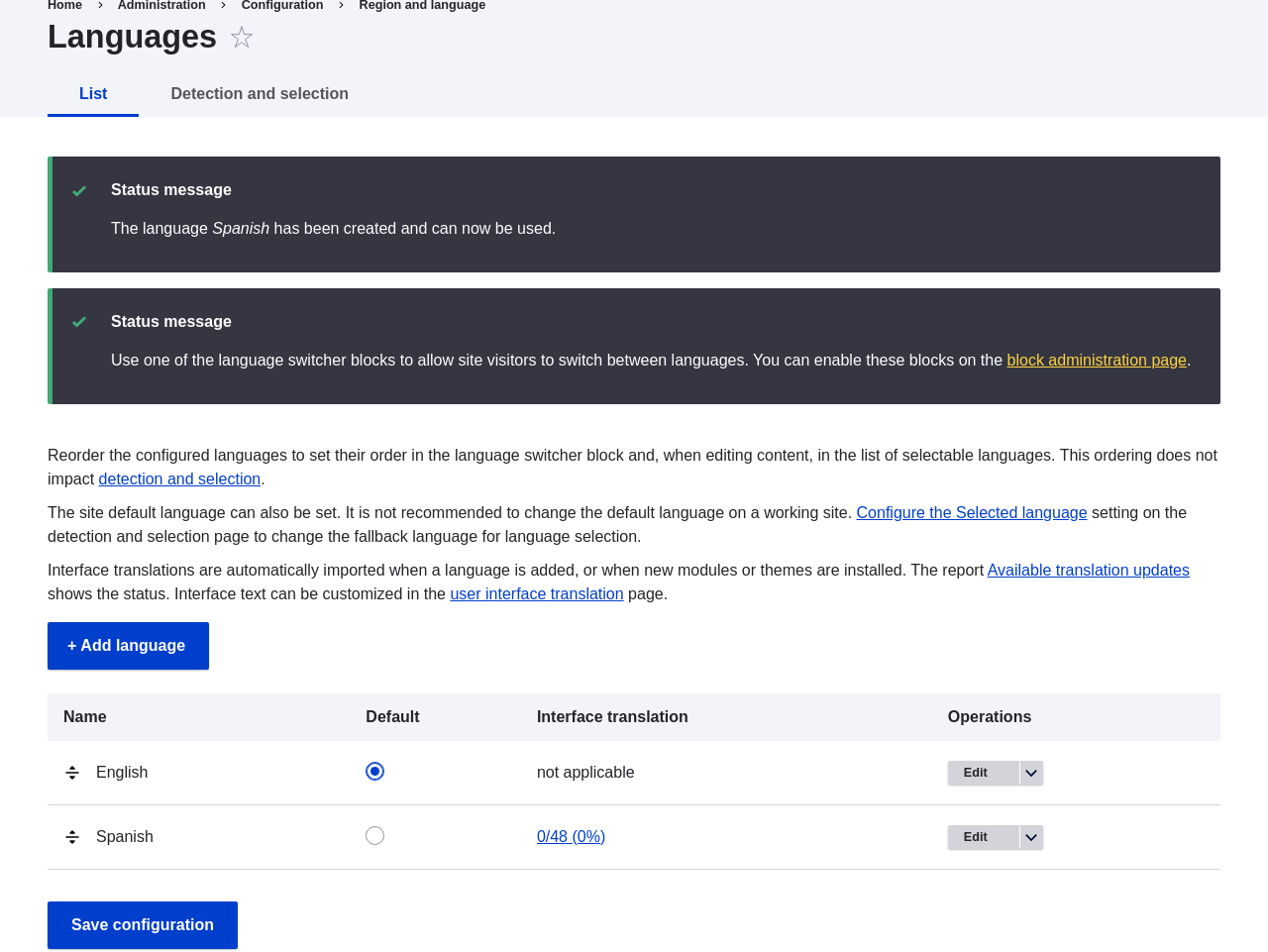 1. Follow the steps in [Placing a Block in a Region](/link/747) to place the _Language switcher_ block in
the _Sidebar second_ region. This will enable site visitors to switch between
languages, once the site has been translated.
## Expand your understanding
* [Configuring Content Translation](/link/756)
* [Translating Content](/link/757)
## Videos
[Adding a Language](https://www.youtube.com/watch?v=8Yu0G4gJ0f4)
## Additional resources
[_Drupal.org_ community documentation page "Multilingual guide"](https://www.drupal.org/docs/multilingual-guide)
# Configuring Content Translation
## Goal
Make _Custom block_, _Custom menu link_, and _Content_ entity types
translatable. Select specific subtypes and set which fields of these can be
translated.
## Prerequisite knowledge
* [Concept: Content Entities and Fields](/link/691)
* [Concept: User Interface, Configuration, and Content translation](/link/695)
## Site prerequisites
The core Content Translation module must be installed, and your site must
have at least two languages. See [Adding a Language](/link/755).
## Steps
1. In the _Manage_ administrative menu, navigate to _Configuration_ > _Regional
and language_ > _Content language and translation_
(_admin/config/regional/content-language_).
1. Under _Custom language settings_, check _Content_,
_Content block_ and _Custom menu link_ to make these entity types translatable.
1. Follow the steps in [Placing a Block in a Region](/link/747) to place the _Language switcher_ block in
the _Sidebar second_ region. This will enable site visitors to switch between
languages, once the site has been translated.
## Expand your understanding
* [Configuring Content Translation](/link/756)
* [Translating Content](/link/757)
## Videos
[Adding a Language](https://www.youtube.com/watch?v=8Yu0G4gJ0f4)
## Additional resources
[_Drupal.org_ community documentation page "Multilingual guide"](https://www.drupal.org/docs/multilingual-guide)
# Configuring Content Translation
## Goal
Make _Custom block_, _Custom menu link_, and _Content_ entity types
translatable. Select specific subtypes and set which fields of these can be
translated.
## Prerequisite knowledge
* [Concept: Content Entities and Fields](/link/691)
* [Concept: User Interface, Configuration, and Content translation](/link/695)
## Site prerequisites
The core Content Translation module must be installed, and your site must
have at least two languages. See [Adding a Language](/link/755).
## Steps
1. In the _Manage_ administrative menu, navigate to _Configuration_ > _Regional
and language_ > _Content language and translation_
(_admin/config/regional/content-language_).
1. Under _Custom language settings_, check _Content_,
_Content block_ and _Custom menu link_ to make these entity types translatable.
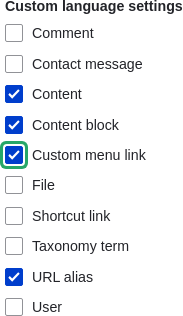 1. Configuration options appear for _Content_, _Content block_ and _Custom menu
link_. Choose the subtypes you want to translate for each entity
type. Check _Basic page_ for _Content_, _Basic block_ for _Content block_ and
_Custom menu link_ for _Custom menu link_.
1. Verify the settings for the entity types as shown below:
1. Configuration options appear for _Content_, _Content block_ and _Custom menu
link_. Choose the subtypes you want to translate for each entity
type. Check _Basic page_ for _Content_, _Basic block_ for _Content block_ and
_Custom menu link_ for _Custom menu link_.
1. Verify the settings for the entity types as shown below:
| Field name | Explanation | Example value |
|---|---|---|
| Default language | The default language for the entity subtype | Site's default language (English) |
| Show language selector on create and edit pages | Whether or not the language selector should be shown while editing and creating content | Checked |
| Field name | Explanation | Example value |
|---|---|---|
| Title | The title of the content | Checked |
| Authored by | The author | Unchecked |
| Published | Whether the content has been published or not | Checked |
| Authored on | Date of publishing | Unchecked |
| Changed | Date of last update | Unchecked |
| Promoted to front page | Whether the content will be included in some content views | Unchecked |
| Sticky at top of lists | Whether the content will be displayed first in some content views | Unchecked |
| URL alias | Nicer URL for the content | Checked |
| Body | The main content of the page | Checked |
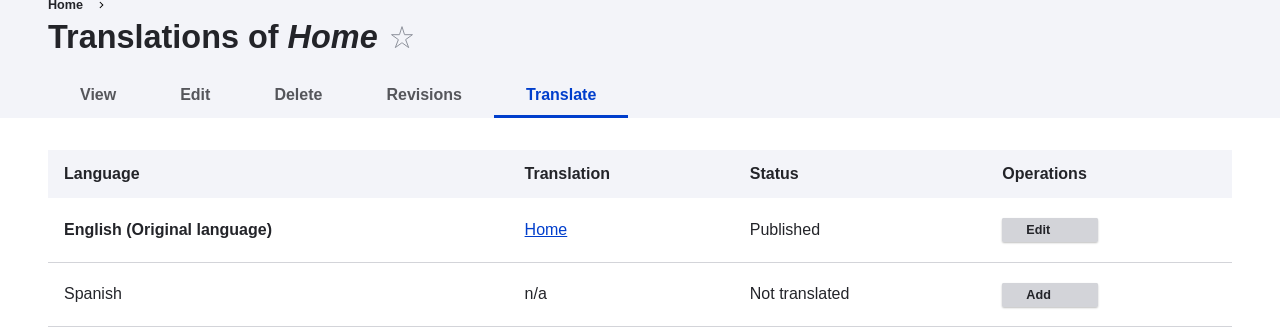 1. Note that the user interface has switched to Spanish. To switch it back to
English, remove the first instance of _es_ in the browser's URL. For
example, if your URL looks like _example.com/es/node/5/translations/add/en/es_,
remove the _es_ that comes immediately after _example.com_.
1. Fill in the fields as shown below.
1. Note that the user interface has switched to Spanish. To switch it back to
English, remove the first instance of _es_ in the browser's URL. For
example, if your URL looks like _example.com/es/node/5/translations/add/en/es_,
remove the _es_ that comes immediately after _example.com_.
1. Fill in the fields as shown below.
| Field name | Explanation | Value |
|---|---|---|
| Title | Translated title of the page | Página principal |
| Body | Translated body of the page | |
| URL alias > URL alias | Translated address of the webpage | pagina-principal |
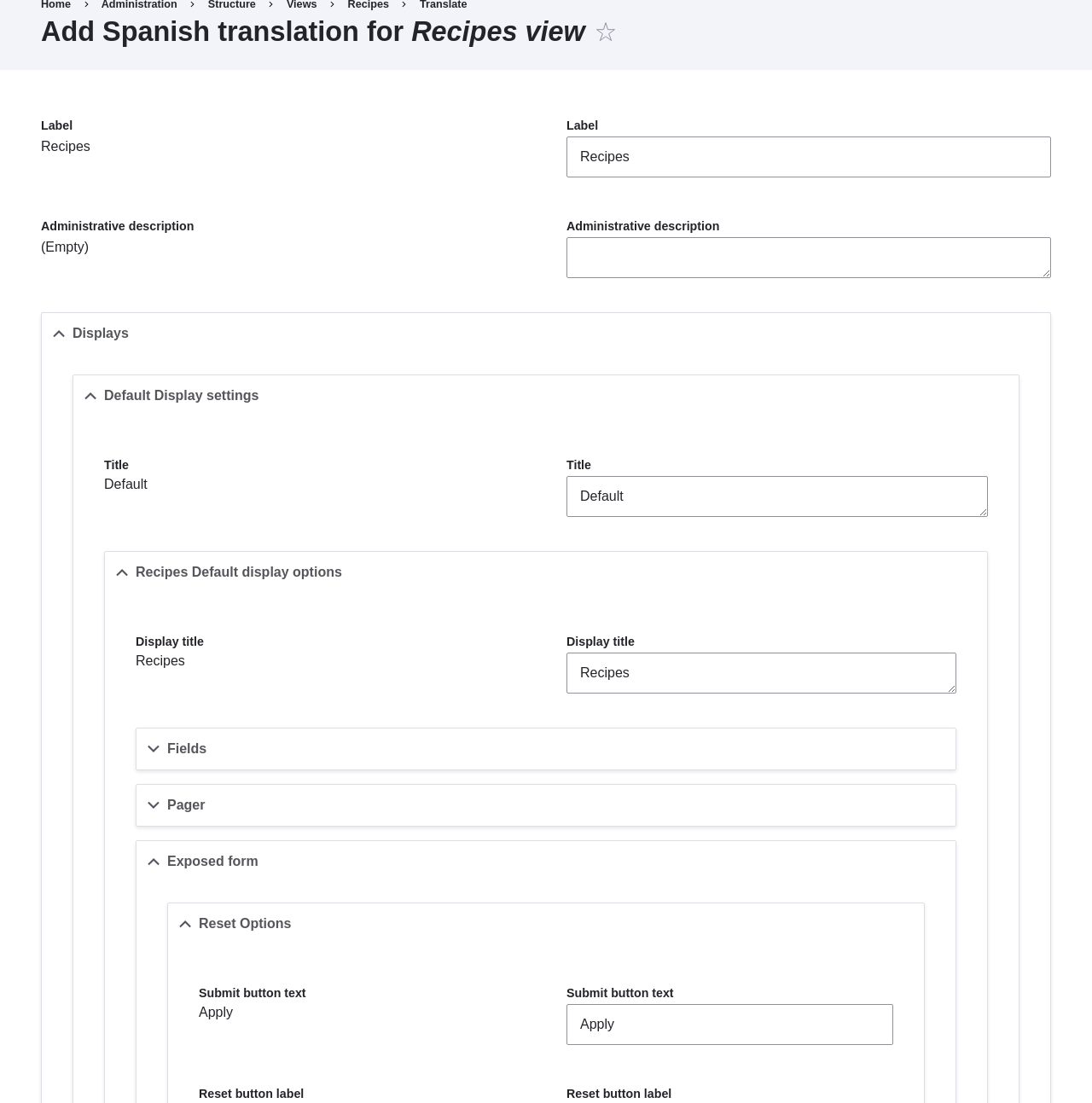 1. Under _Displays_ > _Default display settings_ > _Recipes default display
options_ > _Filters_ > _(Empty) taxonomy term ID_ > _Find recipes
using... Expose_, translate _Label_ from "Find recipes using..." to "Encontrar
recetas usando...".
1. Click _Save translation_.
1. Navigate to the Recipes page and switch to Spanish using the Language switcher
block. Verify that the labels have been translated.
## Expand your understanding
* Translate the block display title in the Recent recipes
display settings section of the Recipes view.
* Translate the page title in the Vendors view.
* Translate other configuration. Some examples of where to find the translation
pages:
** To translate the site name, navigate in the _Manage_ administrative menu to
_Configuration_ > _System_ > _Basic site settings_ > _Translate system
information_ (_admin/config/system/site-information/translate_).
** To translate the contact form, navigate in the _Manage_ administrative menu
to _Structure_ > _Contact forms_ (_admin/structure/contact_). Click _Translate_
in the dropdown button in the _Website feedback_ row.
** To translate the name of a menu, navigate in the _Manage_ administrative menu
to _Structure_ > _Menus_ (_admin/structure/menu_). Click _Translate_ in the
dropdown button for the menu whose name you want to translate.
** Menu links within a menu are considered to be content (not configuration);
see [Configuring Content Translation](/link/756) to enable translation. Once translation is
enabled, navigate in the _Manage_ administrative menu to _Structure_ > _Menus_
(_admin/structure/menu_). Click _Edit menu_ in the dropdown button for the menu
whose links you want to translate. Click _Translate_ in the dropdown button for
the link you want to translate.
** To translate field labels on a content type, navigate in the _Manage_
administrative menu to _Structure_ > _Content types_
(_admin/structure/types_). Click _Manage fields_ in the dropdown button for the
content type whose field labels you want to edit. Click _Translate_ in the
dropdown button for the field whose label you want to edit.
* Translate content. See [Translating Content](/link/757).
## Videos
[Translating Configuration](https://www.youtube.com/watch?v=j2GZdJIOo_I)
# Chapter 11: Extending and Customizing Your Site
# Finding Modules
## Goal
Find and evaluate modules on _Drupal.org_.
## Prerequisite knowledge
* [Concept: Drupal as a Content Management System](/link/681)
* [Concept: Modules](/link/682)
## Steps
1. Go to [_Drupal.org_](https://www.drupal.org), and navigate to _Download &
Extend_ > _Modules_ (https://www.drupal.org/project/project_module).
1. Filter your search using the categories on the module search page.
Fill in the fields as shown below.
1. Under _Displays_ > _Default display settings_ > _Recipes default display
options_ > _Filters_ > _(Empty) taxonomy term ID_ > _Find recipes
using... Expose_, translate _Label_ from "Find recipes using..." to "Encontrar
recetas usando...".
1. Click _Save translation_.
1. Navigate to the Recipes page and switch to Spanish using the Language switcher
block. Verify that the labels have been translated.
## Expand your understanding
* Translate the block display title in the Recent recipes
display settings section of the Recipes view.
* Translate the page title in the Vendors view.
* Translate other configuration. Some examples of where to find the translation
pages:
** To translate the site name, navigate in the _Manage_ administrative menu to
_Configuration_ > _System_ > _Basic site settings_ > _Translate system
information_ (_admin/config/system/site-information/translate_).
** To translate the contact form, navigate in the _Manage_ administrative menu
to _Structure_ > _Contact forms_ (_admin/structure/contact_). Click _Translate_
in the dropdown button in the _Website feedback_ row.
** To translate the name of a menu, navigate in the _Manage_ administrative menu
to _Structure_ > _Menus_ (_admin/structure/menu_). Click _Translate_ in the
dropdown button for the menu whose name you want to translate.
** Menu links within a menu are considered to be content (not configuration);
see [Configuring Content Translation](/link/756) to enable translation. Once translation is
enabled, navigate in the _Manage_ administrative menu to _Structure_ > _Menus_
(_admin/structure/menu_). Click _Edit menu_ in the dropdown button for the menu
whose links you want to translate. Click _Translate_ in the dropdown button for
the link you want to translate.
** To translate field labels on a content type, navigate in the _Manage_
administrative menu to _Structure_ > _Content types_
(_admin/structure/types_). Click _Manage fields_ in the dropdown button for the
content type whose field labels you want to edit. Click _Translate_ in the
dropdown button for the field whose label you want to edit.
* Translate content. See [Translating Content](/link/757).
## Videos
[Translating Configuration](https://www.youtube.com/watch?v=j2GZdJIOo_I)
# Chapter 11: Extending and Customizing Your Site
# Finding Modules
## Goal
Find and evaluate modules on _Drupal.org_.
## Prerequisite knowledge
* [Concept: Drupal as a Content Management System](/link/681)
* [Concept: Modules](/link/682)
## Steps
1. Go to [_Drupal.org_](https://www.drupal.org), and navigate to _Download &
Extend_ > _Modules_ (https://www.drupal.org/project/project_module).
1. Filter your search using the categories on the module search page.
Fill in the fields as shown below.
| Field name | Explanation | Example value | ||
|---|---|---|---|---|
| Maintenance status | How actively should the module be maintained? | Actively maintained | ||
| Development status | What kind of development should the module undergo? | Any | ||
| Module categories | The module's topic area. | Administration | ||
| Core compatibility | The version of the core software the module is compatible with. | 9.x | ||
| Status | Project status: _Sandbox projects_ are experimental projects. _Full projects_ have already gone through an approval process, but they can still be in development. | Full projects | Stability | Whether or not the project maintainer has created a production-ready version. |
| Has a supported stable release | Security advisory coverage | Whether or not the project maintainer has agreed to follow Drupal | ||
| Search modules | Search for _Admin Toolbar_, a module that will be covered in detail later. Alternatively, you can also leave the field blank if you are not sure which module to search for. | Admin Toolbar | ||
| Sort by | Order your search results by criteria like _Most installed_ (popular modules that many sites use) or _Last release_ (date of latest version released). | Most installed |
| Field name | Explanation | Value | |
|---|---|---|---|
| Put site into maintenance mode | Enable the maintenance mode | ||
| Message to display when in maintenance mode | The information that is shown to website visitors when the mode is enabled. Variables such as @site can be used in the message | @site is currently under maintenance but should be back shortly. Thank you for your patience. |
 ### Disabling maintenance mode using the administrative interface
1. In the _Manage_ administrative menu, navigate to _Configuration_ >
_Development_ > _Maintenance mode_ (_admin/config/development/maintenance_). The
_Maintenance mode_ page appears.
1. Fill in the fields as shown below.
### Disabling maintenance mode using the administrative interface
1. In the _Manage_ administrative menu, navigate to _Configuration_ >
_Development_ > _Maintenance mode_ (_admin/config/development/maintenance_). The
_Maintenance mode_ page appears.
1. Fill in the fields as shown below.
| Field name | Explanation | Value |
|---|---|---|
| Put site into maintenance mode | Disable the maintenance mode | |
| Message to display when in maintenance mode | No message required while disabling. You can leave the field blank. |
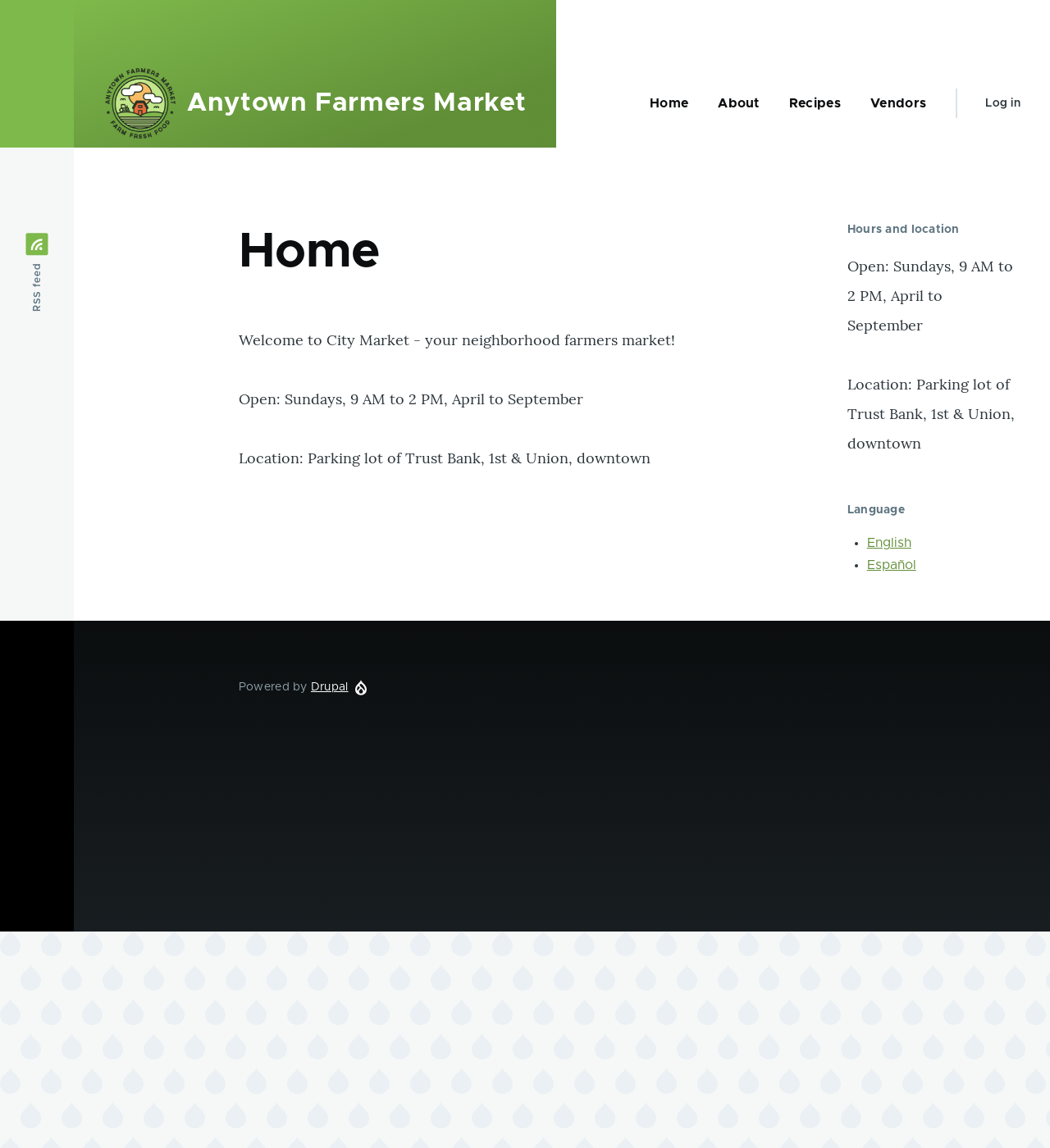 ### Enabling or disabling maintenance mode using Drush
1. Follow the user interface steps above to edit the site maintenance message, if
desired.
1. Run the following Drush commands to enable maintenance mode and clear the
cache:
```text
drush config:set system.maintenance message "Optional message" -y
drush state:set system.maintenance_mode 1 --input-format=integer
drush cache:rebuild
```
1. Run the following Drush commands to disable maintenance mode and clear the
cache:
```text
drush state:set system.maintenance_mode 0 --input-format=integer
drush cache:rebuild
```
1. After running either set of commands, verify that your site is either in or
out of maintenance mode by visiting the site in a browser where you are not
logged in.
## Expand your understanding
* [Updating the Core Software](/link/782)
* [Updating a Theme](/link/784)
* [Updating a Module](/link/783)
## Videos
[Enabling and Disabling Maintenance Mode](https://www.youtube.com/watch?v=IQbqQs5h03Q)
# Downloading and Installing a Module from _Drupal.org_
## Goal
Download and install the
[contributed Admin Toolbar module](https://www.drupal.org/project/admin_toolbar),
which allows you to easily browse through the administration section of the
website.
## Prerequisite knowledge
* [Concept: Modules](/link/682)
* [Finding Modules](/link/760)
* [Concept: Additional Tools](/link/699)
## Site prerequisites
Composer must be installed to download modules. If you want to use Drush, Drush
must be installed. See [Concept: Additional Tools](/link/699).
## Steps
To install a contributed module, first download the module with Composer. Then
install it using either the administrative interface or Drush. If you are
installing a custom module rather than a contributed module that is not
available via Composer, skip the steps for downloading the module, and refer to
[Manually Installing Module or Theme Files](/link/765). Then return here and follow the steps for installing
the module using either the administrative interface or Drush.
### Download the contributed module with Composer
1. On the _Admin toolbar_ project page on drupal.org
(_https://www.drupal.org/project/admin_toolbar_), scroll to the _Releases_
section at the bottom of the page.
1. Copy the provided Composer command for the version of the module you want to
install.
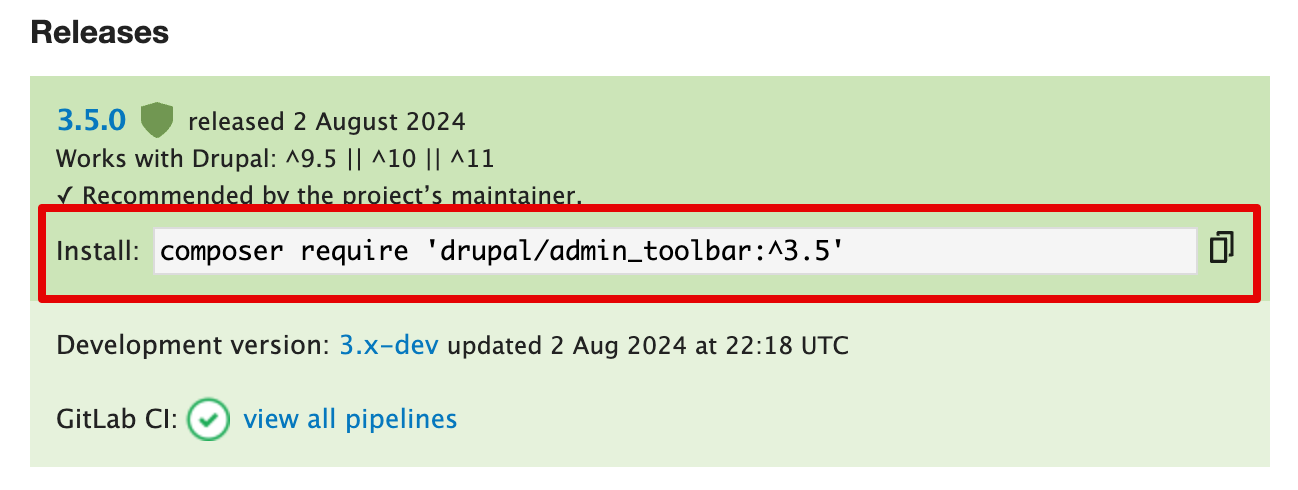
1. Alternatively, type the following command (substituting
the short name of the module and desired version for `admin_toolbar:^3.5`):
```text
composer require 'drupal/admin_toolbar:^3.5'
```
1. At the command line, change to the root directory of your project. Paste the
Composer command and execute it.
1. You should see a message about the module being successfully downloaded.
### Install the module using the administrative interface
1. In the _Manage_ administrative menu, navigate to _Extend_
(_admin/modules_). The _Extend_ page appears.
1. Locate the _Admin toolbar_ module and check it.
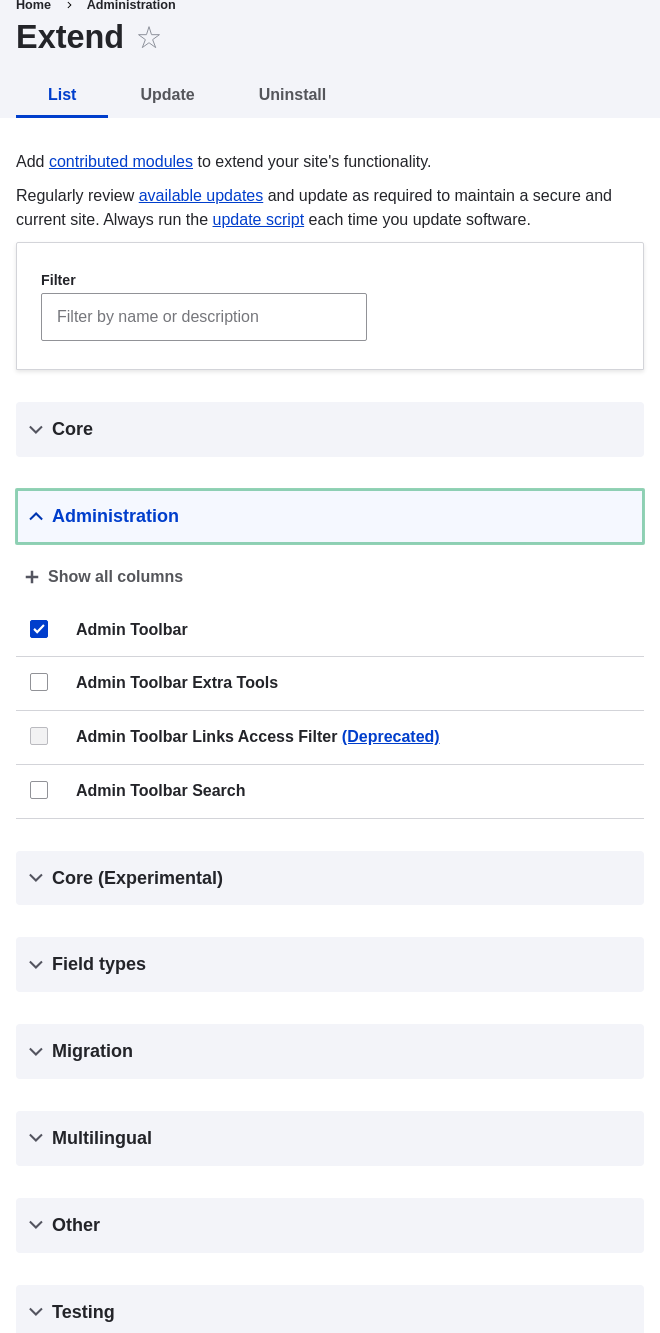
1. Click _Install_ to turn on the new module.
### Install the module using Drush
1. Run the following Drush command, giving the project name (for example,
`admin_toolbar`) as a parameter:
```text
drush pm:enable admin_toolbar
```
1. Follow the instructions on the screen.
## Expand your understanding
* Verify that the
[contributed Admin Toolbar module](https://www.drupal.org/project/admin_toolbar)
is working by browsing through the menu in the administration section.
* Install and configure the
[contributed Pathauto module](https://www.drupal.org/project/pathauto)
so that content pages in your site get nice URLs by default. See
[Concept: Paths, Aliases, and URLs](/link/712) for more on URLs.
* If you do not see the effect of these changes in your site, you might need
to clear the cache. See [Clearing the Cache](/link/773).
## Videos
[Downloading and Installing a Module from Drupal.org](https://www.youtube.com/watch?v=vx9nWJE1Kbk)
## Additional resources
* [_Drupal.org_ community documentation page "Installing Drupal modules"](https://www.drupal.org/docs/extending-drupal/installing-drupal-modules)
* ["Download and Extend" page on _Drupal.org_](https://www.drupal.org/download)
* [Admin Toolbar module on _Drupal.org_](https://www.drupal.org/project/admin_toolbar)
# Finding Themes
## Goal
Find and evaluate themes on _Drupal.org_.
## Prerequisite knowledge
* [Concept: Drupal as a Content Management System](/link/681)
* [Concept: Themes](/link/683)
## Steps
1. Go to https://www.drupal.org, and navigate to _Download & Extend > Themes_
(https://www.drupal.org/project/project_theme).
1. Filter your search using the categories on the theme search page.
For example, you might use these filters:
### Enabling or disabling maintenance mode using Drush
1. Follow the user interface steps above to edit the site maintenance message, if
desired.
1. Run the following Drush commands to enable maintenance mode and clear the
cache:
```text
drush config:set system.maintenance message "Optional message" -y
drush state:set system.maintenance_mode 1 --input-format=integer
drush cache:rebuild
```
1. Run the following Drush commands to disable maintenance mode and clear the
cache:
```text
drush state:set system.maintenance_mode 0 --input-format=integer
drush cache:rebuild
```
1. After running either set of commands, verify that your site is either in or
out of maintenance mode by visiting the site in a browser where you are not
logged in.
## Expand your understanding
* [Updating the Core Software](/link/782)
* [Updating a Theme](/link/784)
* [Updating a Module](/link/783)
## Videos
[Enabling and Disabling Maintenance Mode](https://www.youtube.com/watch?v=IQbqQs5h03Q)
# Downloading and Installing a Module from _Drupal.org_
## Goal
Download and install the
[contributed Admin Toolbar module](https://www.drupal.org/project/admin_toolbar),
which allows you to easily browse through the administration section of the
website.
## Prerequisite knowledge
* [Concept: Modules](/link/682)
* [Finding Modules](/link/760)
* [Concept: Additional Tools](/link/699)
## Site prerequisites
Composer must be installed to download modules. If you want to use Drush, Drush
must be installed. See [Concept: Additional Tools](/link/699).
## Steps
To install a contributed module, first download the module with Composer. Then
install it using either the administrative interface or Drush. If you are
installing a custom module rather than a contributed module that is not
available via Composer, skip the steps for downloading the module, and refer to
[Manually Installing Module or Theme Files](/link/765). Then return here and follow the steps for installing
the module using either the administrative interface or Drush.
### Download the contributed module with Composer
1. On the _Admin toolbar_ project page on drupal.org
(_https://www.drupal.org/project/admin_toolbar_), scroll to the _Releases_
section at the bottom of the page.
1. Copy the provided Composer command for the version of the module you want to
install.

1. Alternatively, type the following command (substituting
the short name of the module and desired version for `admin_toolbar:^3.5`):
```text
composer require 'drupal/admin_toolbar:^3.5'
```
1. At the command line, change to the root directory of your project. Paste the
Composer command and execute it.
1. You should see a message about the module being successfully downloaded.
### Install the module using the administrative interface
1. In the _Manage_ administrative menu, navigate to _Extend_
(_admin/modules_). The _Extend_ page appears.
1. Locate the _Admin toolbar_ module and check it.

1. Click _Install_ to turn on the new module.
### Install the module using Drush
1. Run the following Drush command, giving the project name (for example,
`admin_toolbar`) as a parameter:
```text
drush pm:enable admin_toolbar
```
1. Follow the instructions on the screen.
## Expand your understanding
* Verify that the
[contributed Admin Toolbar module](https://www.drupal.org/project/admin_toolbar)
is working by browsing through the menu in the administration section.
* Install and configure the
[contributed Pathauto module](https://www.drupal.org/project/pathauto)
so that content pages in your site get nice URLs by default. See
[Concept: Paths, Aliases, and URLs](/link/712) for more on URLs.
* If you do not see the effect of these changes in your site, you might need
to clear the cache. See [Clearing the Cache](/link/773).
## Videos
[Downloading and Installing a Module from Drupal.org](https://www.youtube.com/watch?v=vx9nWJE1Kbk)
## Additional resources
* [_Drupal.org_ community documentation page "Installing Drupal modules"](https://www.drupal.org/docs/extending-drupal/installing-drupal-modules)
* ["Download and Extend" page on _Drupal.org_](https://www.drupal.org/download)
* [Admin Toolbar module on _Drupal.org_](https://www.drupal.org/project/admin_toolbar)
# Finding Themes
## Goal
Find and evaluate themes on _Drupal.org_.
## Prerequisite knowledge
* [Concept: Drupal as a Content Management System](/link/681)
* [Concept: Themes](/link/683)
## Steps
1. Go to https://www.drupal.org, and navigate to _Download & Extend > Themes_
(https://www.drupal.org/project/project_theme).
1. Filter your search using the categories on the theme search page.
For example, you might use these filters:
| Field name | Explanation | Example value | |||
|---|---|---|---|---|---|
| Maintenance status | How actively is the theme maintained? If a theme is actively maintained, you can expect bug fixes and improvements on a regular basis. | Actively maintained | |||
| Development status | What kind of development is the theme undergoing? If you select _Under active development_, you can expect new features to be added, and some aspects may still change. If you select _Maintenance fixes only_, it means that the theme is considered complete. | Any | Core compatibility | The Drupal version the theme is compatible with. | 9.x |
| Status | _Sandbox projects_ are experimental projects. _Full projects_ have already gone through an approval process, but they can still be in development. | Full projects | Stability | Whether or not the project maintainer has created a production-ready | |
| Security advisory coverage | Whether or not the project maintainer has agreed to follow Drupal Security Team procedures. | Has security advisory coverage | Search themes | Search by search term in the theme's description. | - |
| Sort by | Order your search results by criteria like _Most installed_ (popular themes that many sites use) or _Last release_ (date of latest version released). | Most installed |
 ### Install the theme using Drush
1. To install the theme, and set it as the default, run the following Drush\
commands, giving the project name (for example, _honey_) as a parameter:
```text
drush theme:enable honey
drush config:set system.theme default honey
```
1. Follow the instructions on the screen.
## Expand your understanding
* In the _Manage_ administrative menu, navigate to _Appearance_
(_admin/appearance_) and uninstall any themes that you are not using.
* [Finding Modules](/link/760)
* [Downloading and Installing a Module from _Drupal.org_](/link/762)
* If you do not see the effect of these changes in your site, you might need
to clear the cache. See [Clearing the Cache](/link/773).
## Videos
[Downloading and Installing a Theme from Drupal.org](https://www.youtube.com/watch?v=UFgddj0F_bU)
# Manually Installing Module or Theme Files
## Goal
Custom modules and themes may not be available via Composer and their files will
need to be manually installed.
## Prerequisite knowledge
* [Concept: Modules](/link/682)
* [Finding Modules](/link/760)
* [Concept: Themes](/link/683)
* [Finding Themes](/link/763)
## Site prerequisites
Use this approach if you created a custom module/theme or received its files
from someone.
When installing or updating the core software, contributed modules, and
contributed themes you should use Composer. See [Using Composer to Download and Update Files](/link/702),
[Downloading and Installing a Module from _Drupal.org_](/link/762), and [Downloading and Installing a Theme from _Drupal.org_](/link/764) instead of this topic.
## Steps
If you are installing a module or theme from _Drupal.org_, follow the
downloading instructions, and then the uploading/unpacking instructions. If
you created the module or theme, skip the downloading step. Instead, create
an archive file (that you know how to extract on the server) and proceed with
the steps in uploading/unpacking, using whatever method is appropriate for the
way you initially created the archive file.
### Uploading the files to your site and unpacking them
1. If you are adding a new module or theme, create subdirectories in your
top-level _modules_ and _themes_ directories (if they don't already
exist). Typically, people make a _contrib_ subdirectory for contributed modules
and themes that are downloaded from _Drupal.org_, and a _custom_ subdirectory
for modules and themes that they created. Your _modules_ directory might look
like this:
### Install the theme using Drush
1. To install the theme, and set it as the default, run the following Drush\
commands, giving the project name (for example, _honey_) as a parameter:
```text
drush theme:enable honey
drush config:set system.theme default honey
```
1. Follow the instructions on the screen.
## Expand your understanding
* In the _Manage_ administrative menu, navigate to _Appearance_
(_admin/appearance_) and uninstall any themes that you are not using.
* [Finding Modules](/link/760)
* [Downloading and Installing a Module from _Drupal.org_](/link/762)
* If you do not see the effect of these changes in your site, you might need
to clear the cache. See [Clearing the Cache](/link/773).
## Videos
[Downloading and Installing a Theme from Drupal.org](https://www.youtube.com/watch?v=UFgddj0F_bU)
# Manually Installing Module or Theme Files
## Goal
Custom modules and themes may not be available via Composer and their files will
need to be manually installed.
## Prerequisite knowledge
* [Concept: Modules](/link/682)
* [Finding Modules](/link/760)
* [Concept: Themes](/link/683)
* [Finding Themes](/link/763)
## Site prerequisites
Use this approach if you created a custom module/theme or received its files
from someone.
When installing or updating the core software, contributed modules, and
contributed themes you should use Composer. See [Using Composer to Download and Update Files](/link/702),
[Downloading and Installing a Module from _Drupal.org_](/link/762), and [Downloading and Installing a Theme from _Drupal.org_](/link/764) instead of this topic.
## Steps
If you are installing a module or theme from _Drupal.org_, follow the
downloading instructions, and then the uploading/unpacking instructions. If
you created the module or theme, skip the downloading step. Instead, create
an archive file (that you know how to extract on the server) and proceed with
the steps in uploading/unpacking, using whatever method is appropriate for the
way you initially created the archive file.
### Uploading the files to your site and unpacking them
1. If you are adding a new module or theme, create subdirectories in your
top-level _modules_ and _themes_ directories (if they don't already
exist). Typically, people make a _contrib_ subdirectory for contributed modules
and themes that are downloaded from _Drupal.org_, and a _custom_ subdirectory
for modules and themes that they created. Your _modules_ directory might look
like this:
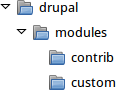 1. If you are replacing an existing module or theme with an updated version, put
the site into maintenance mode. See [Enabling and Disabling Maintenance Mode](/link/761).
1. If you are replacing an existing module or theme with an updated version, find
and delete all the existing files and directories for the existing module
or theme. Modules are normally located in directories under the top-level
_modules_ directory, and themes are normally located in directories under the
top-level _themes_ directory.
1. Upload the _.tar.gz_ file (or whatever archive you created) to your site.
Place it in either the same location from which you deleted the directory
(if replacing an existing module or theme) or the appropriate subdirectory
of _modules_ or _themes_ (if adding a new module or theme).
1. Extract the files from the _.tar.gz_ archive (or whatever archive you
created), making a subdirectory in the same location as the archive file.
If you do not have terminal access, or your hosting server is not running
Linux, your hosting control panel's file manager should provide a way to
extract the files. If you have terminal access to your hosting server
(running Linux) and you are using a tar.gz file, you can use a command like:
```text
tar -xzf custom_toolbar-2.4.0.tar.gz
```
1. Delete the compressed file from the server, unless your unpacking method
already deleted it.
1. Refer to [Downloading and Installing a Module from _Drupal.org_](/link/762), [Downloading and Installing a Theme from _Drupal.org_](/link/764),
[Updating a Module](/link/783), or [Updating a Theme](/link/784) to complete the
installation or update of the module or theme. Start at the step after the
automatic download has been completed.
## Expand your understanding
* If you work with multiple environments (for example, a local development site
and a production site) you will have to repeat the steps on each environment, or
re-clone the environment. See [Making a Development Site](/link/767).
* If you added a new theme, navigate in the _Manage_ administrative menu to
_Appearance_ (_admin/appearance_) and uninstall the old theme.
## Videos
[Manually Downloading Module or Theme Files](https://www.youtube.com/watch?v=kOzQz9q3Kf8)
## Additional resources
* [_Drupal.org_ community documentation page "Updating modules"](https://www.drupal.org/docs/extending-drupal/updating-modules)
* [_Drupal.org_ community documentation page "Installing Drupal modules"](https://www.drupal.org/docs/extending-drupal/installing-drupal-modules)
* [_Drupal.org_ community documentation page "Installing themes"](https://www.drupal.org/docs/extending-drupal/installing-themes)
# Concept: Development Sites
## What are Development Sites?
Development Sites are different copies of the same site used for developing,
updating, and testing a site without risking the integrity of the live site.
An example deployment workflow for site building will usually include the sites
mentioned below:
- **Local environment:** The development process starts with developers working on new features, bug fixes, theming, and configuration in their local environment. The recommended tool for setting up a local environment is DDEV. See [Setting Up an Environment with DDEV](/link/701).
- **Development site:** Developers push the changes they've been working on to the development site. For a team of more than one developer, version control is usually used. Git is a version control system that tracks your files for any changes. You can then commit those changes to a repository. Using Git allows team members to work on the same site without overriding each other's work. It also makes it possible to easily roll back to previous stages of the development.
- **Staging site:** The staging site can be used for testing, or presenting the changes to the client for approval. QA (Quality Assurance) and UAT (User Acceptance Testing) are most often carried out on the staging site. It is recommended to have live content on both the development and staging sites, so that you can test how the new features will work with the existing content.
- **Production site:** The live site on the web available to visitors. It contains new features that have been proven safe to go live.
Based on the project's size, scope, requirements, or stakeholders, stages from
the above workflow can be removed, or additional stages can be added. For
example, a testing site before staging can be added to separate testing and user
acceptance processes.
## Related topics
* [Making a Development Site](/link/767)
* [Setting Up an Environment with DDEV](/link/701)
* [Concept: Editorial Workflow](/link/694)
* [Managing File and Configuration Revisions with Git](/link/770)
# Making a Development Site
## Goal
Make a copy of a site that you can use to develop new features and test updates
on.
## Prerequisite knowledge
[Concept: Development Sites](/link/766)
## Site prerequisites
* You have a live, developed site that you would like to make a copy of for
development purposes.
* If you want to use Drush for some of the steps in this task, Drush must be
installed. See [Concept: Additional Tools](/link/699).
* If you want to use DDEV for your local environment follow the steps in
[Setting Up an Environment with DDEV](/link/701). Then, follow the instructions in the DDEV-specific section
below.
## Generic steps for making a development site
1. Follow the steps in [Preparing to Install](/link/697), so that you have hosting set up for
your development site, you know where the web root is for your development site,
and you have an empty database and database user for your development site to
use.
1. The next step is to make a database dump file, containing the contents of your
site's database. This file can be quite large, but there are two things you can
do to reduce the size:
* Compress the file, using gzip or another compression utility.
* Exclude the contents of the database tables for the internal caching system,
by truncating these tables. Their data is temporary, and you need only the
table structure and not the table contents in order to make a copy of the
site.
To make the database dump, try one of the following methods:
* If you use Drush, use this command, which will include only the structure
and not the contents of the cache tables, and gzip-compress the output:
```text
drush sql:dump --gzip --structure-tables-list="cache,cache_*" \
--result-file='PATH/TO/BACKUPFILE.sql'
```
* If you are using MySQL and have access to the command line, use this
command after truncating the cache tables (substituting in your site's
database name, user name, and password):
```text
mysqldump -u'USERNAME' -p'PASSWORD' DATABASENAME | \
gzip > PATH/TO/BACKUPFILE.sql.gz
```
* If you are using MySQL as your database, and your live site's server has
phpMyAdmin installed (it is available from many hosting control panels),
you can truncate the cache tables by selecting them in the phpMyAdmin table
structure list and choosing the _Empty_ operation at the bottom of the page.
Then use the _Export_ tab in phpMyAdmin to export in _SQL_ format, with
_gzip_ compression to reduce the file size.
* Use the [contributed Backup and Migrate module](https://www.drupal.org/project/backup_migrate)
from within your live site. See [Downloading and Installing a Module from _Drupal.org_](/link/762) for instructions on
installing contributed modules.
You now have a database dump stored in the file _BACKUPFILE.sql.gz_. For
security reasons, avoid storing this file on your hosting server anywhere under
the Drupal site root. This will prevent others from getting a copy of your
database.
1. Copy all of the files from the web root of your live site to the web root of
your development site. You may wish to use Git to do this; if so, see
[Managing File and Configuration Revisions with Git](/link/770).
1. Edit the _sites/default/settings.php_ file under your development site's
top-level directory in a plain-text editor. Find the lines near the end that
contain the database name, database username, and database password, and update
them to the information about the development site database you set up. The
lines look something like this (before editing):
```text
$databases['default']['default'] = [
'database' => 'live_site_database_name',
'username' => 'live_site_database_username',
'password' => 'live_site_database_password',
…
```
1. Check whether your _settings.php_ file has the following setting; if yes, then
you will need to edit this to point to your development site URL instead of your
production site URL:
```text
$settings['trusted_host_patterns']
```
1. Check whether your _settings.php_ file has the following setting, and has it
set to a random string value. If it does not, then you will need to add or edit
it in order to prevent fatal errors:
```text
$settings['hash_salt'] = 'any_string_value';
```
One way to produce a random string for the hash salt is the following Drush
command:
```text
drush php-eval 'echo
\Drupal\Component\Utility\Crypt::randomBytesBase64(55) . "\n";'
```
If you don't use Drush, there are numerous web sites and applications that
provide random string generators; you'll want to generate a string that is about
74 characters long.
1. Import the database dump file you created, into the development site's
database. Try one of the following methods:
* If you are using MySQL as your database, and your live site's server has
phpMyAdmin installed (it is available from many hosting control panels),
use the _Import_ tab in phpMyAdmin. You may find that you have to restart the
import a few times, if your database was large.
* If you are using MySQL and have access to the command line, use this
command (substituting in your site's database name, user name, and password;
if you made a gzip-compressed backup file, you will also need to uncompress it
first):
```text
gunzip < PATH/TO/BACKUPFILE.sql.gz | \
mysql -u'USERNAME' -p'PASSWORD' DATABASENAME
```
* If you prefer to use Drush, use this command:
```text
drush sql:query --file='PATH/TO/BACKUPFILE.sql.gz'
```
1. If your development and live sites need to have different configuration, then
you have to use configuration overrides in the _settings.php_ file. The
_$config_ variable will help you maintain override values separately from the
standard configuration data. For instance, you might want the site name to be
"Anytown Farmers Market" on the production site, but "Development Site for
Anytown Farmers Market" on the development site. To do that, you could have the
production value in the site configuration (in the database), and on the
development site, in the settings.php file, you would need to have:
```text
$config['system.site']['name'] =
"Development Site for Anytown Farmers Market";
```
## DDEV-specific steps for making a development site
1. In the directory where you copied all of the files from your live site, run the
following command to configure, and start, the DDEV environment:
```text
ddev config --project-type=drupal11 --docroot=web
ddev start
```
This assumes that you are using the recommended directory structure where the
web root is in a subdirectory called _web_. If you are using a different
directory structure, you will need to adjust the _--docroot_ option accordingly.
1. Use the following command to import the database dump file you created:
```text
ddev import-db --file=PATH/TO/BACKUPFILE.sql.gz
```
## Expand your understanding
* Verify that the development site is working correctly.
* Log in to the development site as an administrator, and clear the cache. See
[Clearing the Cache](/link/773).
* [Deploying New Site Features](/link/768)
* [Managing File and Configuration Revisions with Git](/link/770)
## Videos
[Making a Development Site](https://www.youtube.com/watch?v=FSBNm4oAkaA)
## Additional resources
* [Installing a new Drupal application on your local machine](https://www.drupal.org/docs/official_docs/en/_local_development_guide.html)
* [Creating a Drupal demo application for evaluation purposes](https://www.drupal.org/docs/official_docs/en/_evaluator_guide.html)
# Deploying New Site Features
## Goal
Copy a view that you have created in a local development site to the production
site.
## Prerequisite knowledge
* [Making a Development Site](/link/767)
* [Synchronizing Configuration Versions](/link/769)
* [Concept: Development Sites](/link/766)
## Site prerequisites
* The core Configuration Manager module must be installed in both the
development and production sites. See [Installing a Module](/link/707) for
instructions on installing core modules.
* The Vendor content type must exist in both the development and production
sites, with the same fields. See [Adding a Content Type](/link/720).
* The Vendors view must exist in the development site but not the production
site. See [Creating a Content List View](/link/751).
## Steps
1. Open the local development site.
1. In the _Manage_ administrative menu, navigate to _Configuration_ >
_Development_ > _Configuration synchronization_ > _Export_ > _Single item_
(_admin/config/development/configuration/single/export_).
The _Single export_ page appears.
1. Select _View_ from the _Configuration type_ list.
1. Select Vendors from the _Configuration name_ list. The configuration
appears in the textarea.
1. Copy the configuration from the textarea.
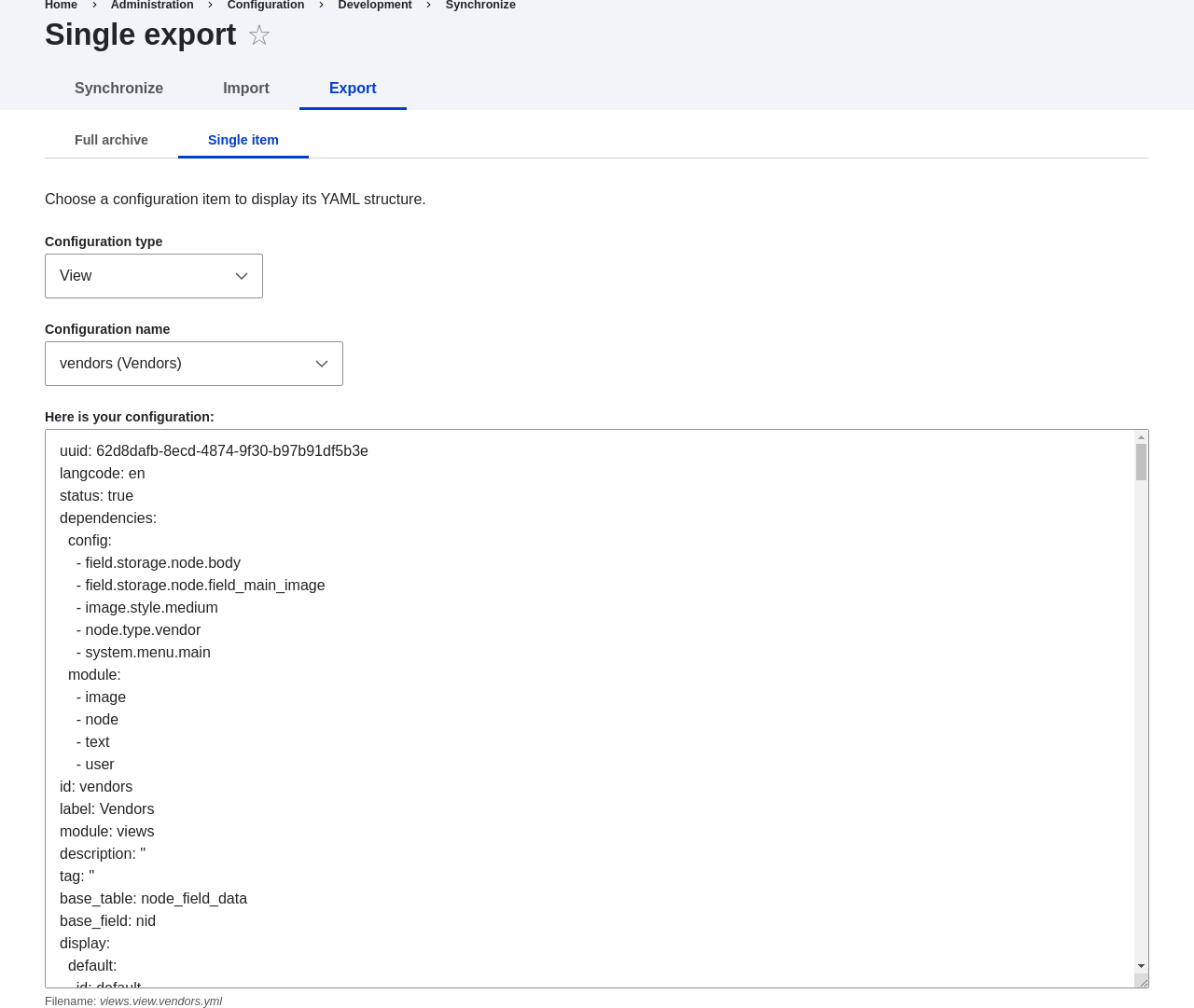
1. Open the production site.
1. In the _Manage_ administrative menu, navigate to _Configuration_ >
_Development_ > _Configuration synchronization_ > _Import_ > _Single item_
(_admin/config/development/configuration_). The _Import_ page appears.
1. Select _View_ from the _Configuration type_ list.
1. Paste the configuration in the textarea.
1. Click _Import_. The confirmation page appears.
1. Click _Confirm_.
1. Verify that the view was imported by navigating in the _Manage_
administrative menu to _Structure_ > _Views_.
## Expand your understanding
The steps in this topic show how to export and import a single configuration
item. However, often if you develop functionality on a development website
and want to transfer it to your production site, you will need to transfer
multiple configuration items. For instance, if you developed a new content
type with fields, you would need to transfer several configuration items for
each field, one for the content type itself, and possibly multiple view mode
and form mode items, and they would have to be transferred in the right order.
Getting this right can be both tedious and difficult.
As an alternative, you can export and import the complete configuration of the
site. For this, you would need a local development site that is a clone
of the production site (see [Making a Development Site](/link/767)), and then you can follow the
steps in [Synchronizing Configuration Versions](/link/769) to synchronize configuration between
development and production sites.
Another alternative is to use the
[contributed Features module](https://www.drupal.org/project/features), which
allows exporting and importing bundled functionality (for example, all the
configuration for a photo gallery).
Finally, if you do not see the effect of these changes in your site, you might
need to clear the cache. See [Clearing the Cache](/link/773).
## Related concepts
* [Concept: Development Sites](/link/766)
* [Concept: Editorial Workflow](/link/694)
## Videos
[Deploying New Site Features](https://www.youtube.com/watch?v=hysqVDIfLTA)
# Synchronizing Configuration Versions
## Goal
Synchronize the configuration between a development and live site.
## Prerequisite knowledge
* [Concept: Types of Data](/link/685)
* [Preparing to Install](/link/697)
* [Concept: Development Sites](/link/766)
* [Making a Development Site](/link/767)
## Site prerequisites
* You must have a development copy of your production site. See
[Making a Development Site](/link/767).
* The core Configuration Manager module must be installed on both the
development and production sites. See [Installing a Module](/link/707) for instructions on how
to install core modules.
* You must have changed configuration on either the production or development
site (the _source site_), and want to synchronize the changes to the other site
(the _destination site_). As an example, you can develop a new content type,
fields, and views on your development site, and when it is all working
correctly, deploy the changes to the live site.
* All configuration that should not be synchronized between the source and
destination sites must be stored in configuration overrides in the
_settings.php_ file rather than in the database. See [Making a Development Site](/link/767).
## Steps
1. In the source site, in the _Manage_ administrative menu, navigate to
_Configuration_ > _Development_ > _Configuration synchronization_ > _Export_
(_admin/config/development/configuration/full/export_).
1. Click _Export_. Your site will generate an archive of the full site
configuration. Save the file on your local computer.
1. In the destination site, in the _Manage_ administrative menu, navigate to
_Configuration_ > _Development_ > _Configuration synchronization_ > _Import_
(_admin/config/development/configuration/full/import_).
1. Browse to find the downloaded configuration archive, and click _Upload_. Your
configuration archive will be uploaded to the destination site, and you will be
redirected to the configuration _Synchronize_ page
(_admin/config/development/configuration_) with a message saying your files were
uploaded.
1. Verify that the differences shown on the page are what you expect. You may see
configuration items that have been added, deleted, or changed; for changed
items, you can click _View differences_ to see what the changes are.
1. When you are satisfied, click _Import all_ to import the configuration
changes.
## Expand your understanding
* If the changes you have made involve only one configuration item (such as one
view), you can use the single configuration export/import feature to deploy
the change between sites. See [Deploying New Site Features](/link/768).
* After the step where you export the full configuration from the source site,
you might also want to unpack the archive and commit it to a version control
system, such as Git, to track changes in your site configuration. See
[Managing File and Configuration Revisions with Git](/link/770).
## Videos
[Synchronizing Configuration Versions](https://www.youtube.com/watch?v=dLUGQk8GKa0)
# Managing File and Configuration Revisions with Git
## Goal
Use the Git revision control tool to manage revisions to files and configuration
on your site.
## Prerequisite knowledge
* [Concept: Additional Tools](/link/699)
* [Concept: Methods for Downloading and Installing the Core Software](/link/700)
* [Concept: Development Sites](/link/766)
* How to set up a Git repository and find its _clone_ URL. For example, if
you want to use GitLab to host your repository, see
[GitLab "Create a project" page](https://docs.gitlab.com/ee/gitlab-basics/create-project.html)
and
[GitLab "Command Line basic commands" page](https://docs.gitlab.com/ee/gitlab-basics/command-line-commands.html).
And if you want to use GitHub to host your repository, see
[GitHub "Create a repo" page](https://help.github.com/en/articles/create-a-repo)
and
[GitHub "Which remote URL should I use" page](https://help.github.com/en/articles/which-remote-url-should-i-use).
* How to open and use a command terminal window and a plain-text editor.
* To manage configuration, how to unpack and pack archive files (such as _.zip_
and _.tar.gz_).
## Site prerequisites
* You must have downloaded the software for your site, using one of the methods
in [Concept: Methods for Downloading and Installing the Core Software](/link/700). If you want to manage configuration, you must have
installed the software and have a running site.
* Git client software must be installed on your site's server. See
[Git](https://git-scm.com/) for instructions.
* You must have a new repository created and know its Git clone URL.
## Steps
### Initializing the repository
Do these steps once, after creating a Git repository, to connect your local
directory to the repository and add the initial files to it.
1. Open a command terminal window, and change to the directory where your site's
files are located. This is your "top" directory.
1. Determine where your web root is. If the _core_, _modules_, and _themes_
directories are located directly in this directory, then you are in your web
root. If you have used Composer to download the software, then these files are
located inside the _web_ subdirectory (which is your web root).
1. In a plain text editor, create a new file called _.gitignore_ in the top
directory (or edit it if it already exists). This file contains a list of files
and directories that Git should ignore (not add to the repository). For example,
the _settings.php_ file for your site should not be added to Git, because it
contains your database account information, and the media files uploaded to
your site (usually in _sites/default/files_) should not be in Git either -- the
objective is to have the software in the repository, not the site content.
1. Make sure the following lines are in the _.gitignore_ file. If your web root
is not your top directory, check each of these to see if they need a prefix. For
example, _sites_ may need to be replaced with _web/sites_.
```text
sites/*/settings*.php
sites/*/files
config
```
1. Enter the following commands:
```text
git init
git add -A
```
1. Optionally, verify the list of files you will be adding to your Git repository
by entering this command and scrolling through the (very long) list:
```text
git status
```
1. Enter the following commands. You can substitute your own _commit message_ for
"Initial file add" if you wish, and you will need to substitute your own Git
clone URL for the URL in the second command:
```text
git commit -m "Initial file add"
git remote add origin https://gitlab.com/example-name/example-repo.git
git push -u origin main
```
1. If you are using GitLab, GitHub, or another host with online access, you can
now go to your repository page and see that the files are there.
### Updating files in the repository
Use these steps when you have updated, added, or deleted one or more files in
your site, in order to send the changes (_push_) to your repository.
1. Open a command terminal window, and change to the directory where your site's
files are located.
1. Check the list of files that have been added, changed, or deleted:
```text
git status
```
1. Optionally, for text files that have been changed (not images), look at the
differences between the new and old versions of the file:
```text
git diff path/to/file.txt
```
1. Stage all the changes for the next commit, and verify that they are staged:
```text
git add -A
git status
```
1. You can omit a particular file from the commit that you have already staged,
or add another file to the ones you have already staged. If a particular file
or directory keeps getting added by mistake, consider adding it to the
_.gitignore_ file so that it will be ignored by Git. Omit/add commands:
```text
git reset HEAD path/to/file.txt
git add path/to/file.txt
```
1. Commit and push your changes. Substitute something meaningful for the commit
message:
```text
git commit -m "commit message here"
git push
```
1. If you have other copies of your repository, update them by opening a command
window in the directory of each copy and running the following command:
```text
git pull
```
### Making a copy of the files in your repository
Follow these steps if you want to copy all the files in your repository to a
new location. For example, you might have both a local development copy of your
site and a production site, or several team members might all have local
copies of the site.
1. Open a command window in the location where you want the files to be.
1. Enter the following command, substituting your repository clone URL for the
URL, and the name of the subdirectory you want them in for _dirname_:
```text
git clone https://gitlab.com/example-name/example-repo.git dirname
```
### Managing configuration in the repository
1. Follow the instructions on [Synchronizing Configuration Versions](/link/769) to export a complete
archive of your site's configuration.
1. If you have not already initialized configuration in the repository, unpack
the configuration archive into a new directory, preferably above the web root
directory, and follow the instructions above to add these files to your
repository.
1. After initializing, whenever your site configuration changes, export and
unpack the configuration archive in the same location. Follow the instructions
above to update these files in your repository.
1. To import updated configuration to another site, make an archive of the
configuration directory from your repository. Then follow the instructions on
[Synchronizing Configuration Versions](/link/769) to upload and import this archive into the site.
## Related concepts
[Concept: Development Sites](/link/766)
# Chapter 12: Preventing and Fixing Problems
# Concept: Cache
## Prerequisite knowledge
[Concept: Drupal as a Content Management System](/link/681)
## What is the page cache?
The software that runs your site, on each page request, must perform
calculations and retrieve data from the database, in order to compose the page
that is sent to the web browser or other application that is accessing the
site. These calculations take time, which can mean that your page load time is
longer than would be desirable.
There are several ways that page load time can be sped up, including installing
software on the server. The system includes the core Internal Page Cache and
Dynamic Page Cache modules, which do not require any additional server
software; they use a _database cache_ mechanism to speed up your site. The way
these modules work is that during page calculations, intermediate results and
the final page output are stored in a special database area (known as the
_cache_). Then the next time a compatible request is made, intermediate or final
results, as appropriate, can be retrieved and used rather than redoing the
entire calculation. In addition, when content or data that affects a particular
calculation is updated, the affected cached data is removed from the cache,
forcing that part of the calculation to be redone the next time it is needed.
These caching modules normally work reasonably well, and offer at least some
speed-up for most sites. However, sometimes the page cache can have problems,
such as:
* Corrupted data in the cache, leading to garbled or incorrect page output
* Old data remaining in the cache too long, leading to outdated page output
* Insufficient caching, leading to slow page loads
## What other data is cached?
Independent of whether the two page cache modules are installed on your site,
the software that your site runs will still cache the output of many internal
calculations. The core systems that cache data include:
* The theme system caches information in the database cache about which template
files are used to render various types of data. If you are developing a new
theme and add a new template file, you'll need to clear this cache to have
your theme file recognized.
* CSS and JavaScript files can optionally be optimized and compressed (depending
on your site settings). If so, the compressed versions are stored in the file
system so that they don't have to be re-optimized too often. If you are
developing a module or theme, you may need to either turn off or clear this
file cache to have changes to CSS or JavaScript files be recognized.
* The system locates certain low-level PHP functions and classes, such as
_hook implementations_ and _plugin classes_, from your installed modules and
stores information about which module has which functionality. If you are
developing a new module or adding features to an existing module, you may need
to clear this cache to have your new features be recognized.
## Related topics
If you have problems with your site, the first thing to try to fix it is
usually to clear the cache. See [Clearing the Cache](/link/773) for more information.
## Additional resources
Learn about additional caching and performance optimization methods in the
[_Drupal.org_ community documentation page "Caching overview"](https://www.drupal.org/docs/7/managing-site-performance-and-scalability/caching-to-improve-performance/caching-overview).
# Clearing the Cache
## Goal
Clear or rebuild your site's internal caches to ensure they are up-to-date with
the most recent data, using the user interface or Drush.
## Prerequisite knowledge
* [Concept: Cache](/link/772)
* [Concept: Additional Tools](/link/699)
## Site prerequisites
If you want to use Drush to clear the cache, Drush must be installed. See
[Concept: Additional Tools](/link/699).
## Steps
You can use the administrative interface or Drush to clear the cache. You can
also use the rebuild script or Drush to do a more complete cache rebuild.
### Using the administrative interface to clear the cache
1. In the _Manage_ administrative menu, navigate to _Configuration_ >
_Development_ > _Performance_ (_admin/config/development/performance_). If you
cannot access this page in the administrative interface, use one of the other
methods to clear or rebuild the cache.
1. Click _Clear all caches_.
1. A message saying the cache has been cleared appears at the top of
the page.
1. If this doesn't resolve the problem that caused you to want to clear the
cache, try a rebuild instead.
### Using the rebuild script
1. Open _settings.php_ (_/sites/default/settings.php_) in any plain text
editor. Add this line to the end of the file and save it:
```text
$settings['rebuild_access'] = TRUE;
```
1. Visit _http://www.example.com/core/rebuild.php_ in your browser (where
_www.example.com_ is your site's URL). After a short pause, you should be
redirected to the home page of your site, and the cache should be rebuilt.
1. Open _settings.php_ (_/sites/default/settings.php_) in a text editor. Find the
line you added with _$settings['rebuild_access']_, remove this line, and save
the file.
### Using Drush to rebuild or clear the cache
You can use one of two commands:
* Use the command `drush cache:rebuild` to clear and rebuild all cached data
for a site. After running this command, you will see the output message "Cache
rebuild complete."
* Use the command `drush cache:clear` to see a list of individual caches and
then choose the specific cache you would like to clear. Running this command
should produce output like the following:
```text
> drush cache:clear
Enter a number to choose which cache to clear.
[0] : Cancel
[1] : drush
[2] : theme-registry
[3] : menu
[4] : css-js
[5] : block
[6] : module-list
[7] : theme-list
[8] : render
[9] : views
```
Choose a cache to clear by entering the number associated with that cache. Press
"Enter" to continue.
To clear a specific cache type, you can specify it in the cache:clear command.
For example to clear the render cache:
```text
drush cache:clear render
```
## Videos
[Clearing the Cache](https://www.youtube.com/watch?v=-evRieC6Y3U)
## Additional resources
[_Drupal.org_ community documentation page "Clearing or rebuilding Drupal's cache"](https://www.drupal.org/docs/7/administering-drupal-7-site/clearing-or-rebuilding-drupals-cache)
# Concept: Data Backups
## Prerequisite knowledge
* [Concept: Drupal as a Content Management System](/link/681)
* [Preparing to Install](/link/697)
## What is a site backup?
If something happens to the computer (or computers) that your site and its
database are running on, or if you lose access to this computer, you could lose
some or all of your site's data. You could also lose data if your site is
hacked, or if someone with administrative privileges on your site deletes or
alters data mistakenly from the administrative interface. In order to prevent
scenarios like this from being permanent, expensive data losses, it is important
to make regular backups of your site's data, and to store them in a location
that is separate from the computer where your site is running.
The frequency with which you should make data backups, and how many backups you
should keep, depends on how frequently your site is changing. If you have a very
large amount of content on your site that is being added to or updated many
times per day, you would want to make more frequent backups than you would for a
site that changes rarely. Also consider that some time could pass between when a
data problem occurs and when you notice that it is a problem, so storing a
sequence of backups (so that you can go back to the last known good data and
retrieve that), rather than overwriting a single backup repeatedly, is a
good practice.
Another consideration is that whatever format you store your backups in, it is a
good idea to verify that you can actually retrieve lost data from your
backups. You might want to test several possible data loss scenarios, and make
sure that your data can be restored to the site in all cases.
In order to make a complete backup of your site, you will need to make copies of
the following:
* The data in the _sites_ directory, including the _sites/default/settings.php_
file.
* The data in your site's database. A few tables can be truncated, such as those
storing the temporary data cache and user login session information, but it is
always safe to back up the entire database.
* Uploaded files, such as images and other attachments. The location of these
files is configurable; the standard location is the _sites/default/files_
directory under your site root. In the _Manage_ administrative menu, navigate
to _Configuration_ > _Media_ > _File system_ (_admin/config/media/file-system_)
to check the file upload locations; to change them, you'll need to edit your
_settings.php_ file.
* Modules, themes and any other software files you have customized. You can find
customized modules and themes in the _modules_ and _themes_ directories
respectively. Some people prefer to back up all software files, including core
files and contributed modules and themes (which you could recover by downloading
them again from the source), rather than trying to pick out specific files that
definitely need to be backed up.
You can perform a test to confirm whether your backup has been done right by
making a development copy of the site (see [Making a Development Site](/link/767)).
## Related topics
* [Updating the Core Software](/link/782)
* [Making a Development Site](/link/767)
* [Concept: Cache](/link/772)
## Additional resources
* [_Drupal.org_ community documentation page "Backing up a site"](https://www.drupal.org/docs/7/backing-up-and-migrating-a-site/backing-up-a-site)
* The [contributed Backup and Migrate module](https://www.drupal.org/project/backup_migrate),
which can be used to set up automatic backups of the database and uploaded
files.
# Concept: Log
## What is a Log?
Your site captures system events in a log to be reviewed by an authorized
individual at a later time. The log is a list of recorded events
containing usage data, performance data, errors, warnings, and operational
information. It is vital to check the log on a regular basis as it is often the
only way to tell what is going on.
You can find your site's recent log messages in the _Manage_ administrative menu
by navigating to _Reports_ > _Recent log messages_ (_admin/reports/dblog_).
These logs may be cleared by administrators and automated cron tasks, so they
should not be used for [forensic logging](https://en.wikipedia.org/wiki/Audit_trail). For forensic purposes, use the Syslog module.
1. If you are replacing an existing module or theme with an updated version, put
the site into maintenance mode. See [Enabling and Disabling Maintenance Mode](/link/761).
1. If you are replacing an existing module or theme with an updated version, find
and delete all the existing files and directories for the existing module
or theme. Modules are normally located in directories under the top-level
_modules_ directory, and themes are normally located in directories under the
top-level _themes_ directory.
1. Upload the _.tar.gz_ file (or whatever archive you created) to your site.
Place it in either the same location from which you deleted the directory
(if replacing an existing module or theme) or the appropriate subdirectory
of _modules_ or _themes_ (if adding a new module or theme).
1. Extract the files from the _.tar.gz_ archive (or whatever archive you
created), making a subdirectory in the same location as the archive file.
If you do not have terminal access, or your hosting server is not running
Linux, your hosting control panel's file manager should provide a way to
extract the files. If you have terminal access to your hosting server
(running Linux) and you are using a tar.gz file, you can use a command like:
```text
tar -xzf custom_toolbar-2.4.0.tar.gz
```
1. Delete the compressed file from the server, unless your unpacking method
already deleted it.
1. Refer to [Downloading and Installing a Module from _Drupal.org_](/link/762), [Downloading and Installing a Theme from _Drupal.org_](/link/764),
[Updating a Module](/link/783), or [Updating a Theme](/link/784) to complete the
installation or update of the module or theme. Start at the step after the
automatic download has been completed.
## Expand your understanding
* If you work with multiple environments (for example, a local development site
and a production site) you will have to repeat the steps on each environment, or
re-clone the environment. See [Making a Development Site](/link/767).
* If you added a new theme, navigate in the _Manage_ administrative menu to
_Appearance_ (_admin/appearance_) and uninstall the old theme.
## Videos
[Manually Downloading Module or Theme Files](https://www.youtube.com/watch?v=kOzQz9q3Kf8)
## Additional resources
* [_Drupal.org_ community documentation page "Updating modules"](https://www.drupal.org/docs/extending-drupal/updating-modules)
* [_Drupal.org_ community documentation page "Installing Drupal modules"](https://www.drupal.org/docs/extending-drupal/installing-drupal-modules)
* [_Drupal.org_ community documentation page "Installing themes"](https://www.drupal.org/docs/extending-drupal/installing-themes)
# Concept: Development Sites
## What are Development Sites?
Development Sites are different copies of the same site used for developing,
updating, and testing a site without risking the integrity of the live site.
An example deployment workflow for site building will usually include the sites
mentioned below:
- **Local environment:** The development process starts with developers working on new features, bug fixes, theming, and configuration in their local environment. The recommended tool for setting up a local environment is DDEV. See [Setting Up an Environment with DDEV](/link/701).
- **Development site:** Developers push the changes they've been working on to the development site. For a team of more than one developer, version control is usually used. Git is a version control system that tracks your files for any changes. You can then commit those changes to a repository. Using Git allows team members to work on the same site without overriding each other's work. It also makes it possible to easily roll back to previous stages of the development.
- **Staging site:** The staging site can be used for testing, or presenting the changes to the client for approval. QA (Quality Assurance) and UAT (User Acceptance Testing) are most often carried out on the staging site. It is recommended to have live content on both the development and staging sites, so that you can test how the new features will work with the existing content.
- **Production site:** The live site on the web available to visitors. It contains new features that have been proven safe to go live.
Based on the project's size, scope, requirements, or stakeholders, stages from
the above workflow can be removed, or additional stages can be added. For
example, a testing site before staging can be added to separate testing and user
acceptance processes.
## Related topics
* [Making a Development Site](/link/767)
* [Setting Up an Environment with DDEV](/link/701)
* [Concept: Editorial Workflow](/link/694)
* [Managing File and Configuration Revisions with Git](/link/770)
# Making a Development Site
## Goal
Make a copy of a site that you can use to develop new features and test updates
on.
## Prerequisite knowledge
[Concept: Development Sites](/link/766)
## Site prerequisites
* You have a live, developed site that you would like to make a copy of for
development purposes.
* If you want to use Drush for some of the steps in this task, Drush must be
installed. See [Concept: Additional Tools](/link/699).
* If you want to use DDEV for your local environment follow the steps in
[Setting Up an Environment with DDEV](/link/701). Then, follow the instructions in the DDEV-specific section
below.
## Generic steps for making a development site
1. Follow the steps in [Preparing to Install](/link/697), so that you have hosting set up for
your development site, you know where the web root is for your development site,
and you have an empty database and database user for your development site to
use.
1. The next step is to make a database dump file, containing the contents of your
site's database. This file can be quite large, but there are two things you can
do to reduce the size:
* Compress the file, using gzip or another compression utility.
* Exclude the contents of the database tables for the internal caching system,
by truncating these tables. Their data is temporary, and you need only the
table structure and not the table contents in order to make a copy of the
site.
To make the database dump, try one of the following methods:
* If you use Drush, use this command, which will include only the structure
and not the contents of the cache tables, and gzip-compress the output:
```text
drush sql:dump --gzip --structure-tables-list="cache,cache_*" \
--result-file='PATH/TO/BACKUPFILE.sql'
```
* If you are using MySQL and have access to the command line, use this
command after truncating the cache tables (substituting in your site's
database name, user name, and password):
```text
mysqldump -u'USERNAME' -p'PASSWORD' DATABASENAME | \
gzip > PATH/TO/BACKUPFILE.sql.gz
```
* If you are using MySQL as your database, and your live site's server has
phpMyAdmin installed (it is available from many hosting control panels),
you can truncate the cache tables by selecting them in the phpMyAdmin table
structure list and choosing the _Empty_ operation at the bottom of the page.
Then use the _Export_ tab in phpMyAdmin to export in _SQL_ format, with
_gzip_ compression to reduce the file size.
* Use the [contributed Backup and Migrate module](https://www.drupal.org/project/backup_migrate)
from within your live site. See [Downloading and Installing a Module from _Drupal.org_](/link/762) for instructions on
installing contributed modules.
You now have a database dump stored in the file _BACKUPFILE.sql.gz_. For
security reasons, avoid storing this file on your hosting server anywhere under
the Drupal site root. This will prevent others from getting a copy of your
database.
1. Copy all of the files from the web root of your live site to the web root of
your development site. You may wish to use Git to do this; if so, see
[Managing File and Configuration Revisions with Git](/link/770).
1. Edit the _sites/default/settings.php_ file under your development site's
top-level directory in a plain-text editor. Find the lines near the end that
contain the database name, database username, and database password, and update
them to the information about the development site database you set up. The
lines look something like this (before editing):
```text
$databases['default']['default'] = [
'database' => 'live_site_database_name',
'username' => 'live_site_database_username',
'password' => 'live_site_database_password',
…
```
1. Check whether your _settings.php_ file has the following setting; if yes, then
you will need to edit this to point to your development site URL instead of your
production site URL:
```text
$settings['trusted_host_patterns']
```
1. Check whether your _settings.php_ file has the following setting, and has it
set to a random string value. If it does not, then you will need to add or edit
it in order to prevent fatal errors:
```text
$settings['hash_salt'] = 'any_string_value';
```
One way to produce a random string for the hash salt is the following Drush
command:
```text
drush php-eval 'echo
\Drupal\Component\Utility\Crypt::randomBytesBase64(55) . "\n";'
```
If you don't use Drush, there are numerous web sites and applications that
provide random string generators; you'll want to generate a string that is about
74 characters long.
1. Import the database dump file you created, into the development site's
database. Try one of the following methods:
* If you are using MySQL as your database, and your live site's server has
phpMyAdmin installed (it is available from many hosting control panels),
use the _Import_ tab in phpMyAdmin. You may find that you have to restart the
import a few times, if your database was large.
* If you are using MySQL and have access to the command line, use this
command (substituting in your site's database name, user name, and password;
if you made a gzip-compressed backup file, you will also need to uncompress it
first):
```text
gunzip < PATH/TO/BACKUPFILE.sql.gz | \
mysql -u'USERNAME' -p'PASSWORD' DATABASENAME
```
* If you prefer to use Drush, use this command:
```text
drush sql:query --file='PATH/TO/BACKUPFILE.sql.gz'
```
1. If your development and live sites need to have different configuration, then
you have to use configuration overrides in the _settings.php_ file. The
_$config_ variable will help you maintain override values separately from the
standard configuration data. For instance, you might want the site name to be
"Anytown Farmers Market" on the production site, but "Development Site for
Anytown Farmers Market" on the development site. To do that, you could have the
production value in the site configuration (in the database), and on the
development site, in the settings.php file, you would need to have:
```text
$config['system.site']['name'] =
"Development Site for Anytown Farmers Market";
```
## DDEV-specific steps for making a development site
1. In the directory where you copied all of the files from your live site, run the
following command to configure, and start, the DDEV environment:
```text
ddev config --project-type=drupal11 --docroot=web
ddev start
```
This assumes that you are using the recommended directory structure where the
web root is in a subdirectory called _web_. If you are using a different
directory structure, you will need to adjust the _--docroot_ option accordingly.
1. Use the following command to import the database dump file you created:
```text
ddev import-db --file=PATH/TO/BACKUPFILE.sql.gz
```
## Expand your understanding
* Verify that the development site is working correctly.
* Log in to the development site as an administrator, and clear the cache. See
[Clearing the Cache](/link/773).
* [Deploying New Site Features](/link/768)
* [Managing File and Configuration Revisions with Git](/link/770)
## Videos
[Making a Development Site](https://www.youtube.com/watch?v=FSBNm4oAkaA)
## Additional resources
* [Installing a new Drupal application on your local machine](https://www.drupal.org/docs/official_docs/en/_local_development_guide.html)
* [Creating a Drupal demo application for evaluation purposes](https://www.drupal.org/docs/official_docs/en/_evaluator_guide.html)
# Deploying New Site Features
## Goal
Copy a view that you have created in a local development site to the production
site.
## Prerequisite knowledge
* [Making a Development Site](/link/767)
* [Synchronizing Configuration Versions](/link/769)
* [Concept: Development Sites](/link/766)
## Site prerequisites
* The core Configuration Manager module must be installed in both the
development and production sites. See [Installing a Module](/link/707) for
instructions on installing core modules.
* The Vendor content type must exist in both the development and production
sites, with the same fields. See [Adding a Content Type](/link/720).
* The Vendors view must exist in the development site but not the production
site. See [Creating a Content List View](/link/751).
## Steps
1. Open the local development site.
1. In the _Manage_ administrative menu, navigate to _Configuration_ >
_Development_ > _Configuration synchronization_ > _Export_ > _Single item_
(_admin/config/development/configuration/single/export_).
The _Single export_ page appears.
1. Select _View_ from the _Configuration type_ list.
1. Select Vendors from the _Configuration name_ list. The configuration
appears in the textarea.
1. Copy the configuration from the textarea.

1. Open the production site.
1. In the _Manage_ administrative menu, navigate to _Configuration_ >
_Development_ > _Configuration synchronization_ > _Import_ > _Single item_
(_admin/config/development/configuration_). The _Import_ page appears.
1. Select _View_ from the _Configuration type_ list.
1. Paste the configuration in the textarea.
1. Click _Import_. The confirmation page appears.
1. Click _Confirm_.
1. Verify that the view was imported by navigating in the _Manage_
administrative menu to _Structure_ > _Views_.
## Expand your understanding
The steps in this topic show how to export and import a single configuration
item. However, often if you develop functionality on a development website
and want to transfer it to your production site, you will need to transfer
multiple configuration items. For instance, if you developed a new content
type with fields, you would need to transfer several configuration items for
each field, one for the content type itself, and possibly multiple view mode
and form mode items, and they would have to be transferred in the right order.
Getting this right can be both tedious and difficult.
As an alternative, you can export and import the complete configuration of the
site. For this, you would need a local development site that is a clone
of the production site (see [Making a Development Site](/link/767)), and then you can follow the
steps in [Synchronizing Configuration Versions](/link/769) to synchronize configuration between
development and production sites.
Another alternative is to use the
[contributed Features module](https://www.drupal.org/project/features), which
allows exporting and importing bundled functionality (for example, all the
configuration for a photo gallery).
Finally, if you do not see the effect of these changes in your site, you might
need to clear the cache. See [Clearing the Cache](/link/773).
## Related concepts
* [Concept: Development Sites](/link/766)
* [Concept: Editorial Workflow](/link/694)
## Videos
[Deploying New Site Features](https://www.youtube.com/watch?v=hysqVDIfLTA)
# Synchronizing Configuration Versions
## Goal
Synchronize the configuration between a development and live site.
## Prerequisite knowledge
* [Concept: Types of Data](/link/685)
* [Preparing to Install](/link/697)
* [Concept: Development Sites](/link/766)
* [Making a Development Site](/link/767)
## Site prerequisites
* You must have a development copy of your production site. See
[Making a Development Site](/link/767).
* The core Configuration Manager module must be installed on both the
development and production sites. See [Installing a Module](/link/707) for instructions on how
to install core modules.
* You must have changed configuration on either the production or development
site (the _source site_), and want to synchronize the changes to the other site
(the _destination site_). As an example, you can develop a new content type,
fields, and views on your development site, and when it is all working
correctly, deploy the changes to the live site.
* All configuration that should not be synchronized between the source and
destination sites must be stored in configuration overrides in the
_settings.php_ file rather than in the database. See [Making a Development Site](/link/767).
## Steps
1. In the source site, in the _Manage_ administrative menu, navigate to
_Configuration_ > _Development_ > _Configuration synchronization_ > _Export_
(_admin/config/development/configuration/full/export_).
1. Click _Export_. Your site will generate an archive of the full site
configuration. Save the file on your local computer.
1. In the destination site, in the _Manage_ administrative menu, navigate to
_Configuration_ > _Development_ > _Configuration synchronization_ > _Import_
(_admin/config/development/configuration/full/import_).
1. Browse to find the downloaded configuration archive, and click _Upload_. Your
configuration archive will be uploaded to the destination site, and you will be
redirected to the configuration _Synchronize_ page
(_admin/config/development/configuration_) with a message saying your files were
uploaded.
1. Verify that the differences shown on the page are what you expect. You may see
configuration items that have been added, deleted, or changed; for changed
items, you can click _View differences_ to see what the changes are.
1. When you are satisfied, click _Import all_ to import the configuration
changes.
## Expand your understanding
* If the changes you have made involve only one configuration item (such as one
view), you can use the single configuration export/import feature to deploy
the change between sites. See [Deploying New Site Features](/link/768).
* After the step where you export the full configuration from the source site,
you might also want to unpack the archive and commit it to a version control
system, such as Git, to track changes in your site configuration. See
[Managing File and Configuration Revisions with Git](/link/770).
## Videos
[Synchronizing Configuration Versions](https://www.youtube.com/watch?v=dLUGQk8GKa0)
# Managing File and Configuration Revisions with Git
## Goal
Use the Git revision control tool to manage revisions to files and configuration
on your site.
## Prerequisite knowledge
* [Concept: Additional Tools](/link/699)
* [Concept: Methods for Downloading and Installing the Core Software](/link/700)
* [Concept: Development Sites](/link/766)
* How to set up a Git repository and find its _clone_ URL. For example, if
you want to use GitLab to host your repository, see
[GitLab "Create a project" page](https://docs.gitlab.com/ee/gitlab-basics/create-project.html)
and
[GitLab "Command Line basic commands" page](https://docs.gitlab.com/ee/gitlab-basics/command-line-commands.html).
And if you want to use GitHub to host your repository, see
[GitHub "Create a repo" page](https://help.github.com/en/articles/create-a-repo)
and
[GitHub "Which remote URL should I use" page](https://help.github.com/en/articles/which-remote-url-should-i-use).
* How to open and use a command terminal window and a plain-text editor.
* To manage configuration, how to unpack and pack archive files (such as _.zip_
and _.tar.gz_).
## Site prerequisites
* You must have downloaded the software for your site, using one of the methods
in [Concept: Methods for Downloading and Installing the Core Software](/link/700). If you want to manage configuration, you must have
installed the software and have a running site.
* Git client software must be installed on your site's server. See
[Git](https://git-scm.com/) for instructions.
* You must have a new repository created and know its Git clone URL.
## Steps
### Initializing the repository
Do these steps once, after creating a Git repository, to connect your local
directory to the repository and add the initial files to it.
1. Open a command terminal window, and change to the directory where your site's
files are located. This is your "top" directory.
1. Determine where your web root is. If the _core_, _modules_, and _themes_
directories are located directly in this directory, then you are in your web
root. If you have used Composer to download the software, then these files are
located inside the _web_ subdirectory (which is your web root).
1. In a plain text editor, create a new file called _.gitignore_ in the top
directory (or edit it if it already exists). This file contains a list of files
and directories that Git should ignore (not add to the repository). For example,
the _settings.php_ file for your site should not be added to Git, because it
contains your database account information, and the media files uploaded to
your site (usually in _sites/default/files_) should not be in Git either -- the
objective is to have the software in the repository, not the site content.
1. Make sure the following lines are in the _.gitignore_ file. If your web root
is not your top directory, check each of these to see if they need a prefix. For
example, _sites_ may need to be replaced with _web/sites_.
```text
sites/*/settings*.php
sites/*/files
config
```
1. Enter the following commands:
```text
git init
git add -A
```
1. Optionally, verify the list of files you will be adding to your Git repository
by entering this command and scrolling through the (very long) list:
```text
git status
```
1. Enter the following commands. You can substitute your own _commit message_ for
"Initial file add" if you wish, and you will need to substitute your own Git
clone URL for the URL in the second command:
```text
git commit -m "Initial file add"
git remote add origin https://gitlab.com/example-name/example-repo.git
git push -u origin main
```
1. If you are using GitLab, GitHub, or another host with online access, you can
now go to your repository page and see that the files are there.
### Updating files in the repository
Use these steps when you have updated, added, or deleted one or more files in
your site, in order to send the changes (_push_) to your repository.
1. Open a command terminal window, and change to the directory where your site's
files are located.
1. Check the list of files that have been added, changed, or deleted:
```text
git status
```
1. Optionally, for text files that have been changed (not images), look at the
differences between the new and old versions of the file:
```text
git diff path/to/file.txt
```
1. Stage all the changes for the next commit, and verify that they are staged:
```text
git add -A
git status
```
1. You can omit a particular file from the commit that you have already staged,
or add another file to the ones you have already staged. If a particular file
or directory keeps getting added by mistake, consider adding it to the
_.gitignore_ file so that it will be ignored by Git. Omit/add commands:
```text
git reset HEAD path/to/file.txt
git add path/to/file.txt
```
1. Commit and push your changes. Substitute something meaningful for the commit
message:
```text
git commit -m "commit message here"
git push
```
1. If you have other copies of your repository, update them by opening a command
window in the directory of each copy and running the following command:
```text
git pull
```
### Making a copy of the files in your repository
Follow these steps if you want to copy all the files in your repository to a
new location. For example, you might have both a local development copy of your
site and a production site, or several team members might all have local
copies of the site.
1. Open a command window in the location where you want the files to be.
1. Enter the following command, substituting your repository clone URL for the
URL, and the name of the subdirectory you want them in for _dirname_:
```text
git clone https://gitlab.com/example-name/example-repo.git dirname
```
### Managing configuration in the repository
1. Follow the instructions on [Synchronizing Configuration Versions](/link/769) to export a complete
archive of your site's configuration.
1. If you have not already initialized configuration in the repository, unpack
the configuration archive into a new directory, preferably above the web root
directory, and follow the instructions above to add these files to your
repository.
1. After initializing, whenever your site configuration changes, export and
unpack the configuration archive in the same location. Follow the instructions
above to update these files in your repository.
1. To import updated configuration to another site, make an archive of the
configuration directory from your repository. Then follow the instructions on
[Synchronizing Configuration Versions](/link/769) to upload and import this archive into the site.
## Related concepts
[Concept: Development Sites](/link/766)
# Chapter 12: Preventing and Fixing Problems
# Concept: Cache
## Prerequisite knowledge
[Concept: Drupal as a Content Management System](/link/681)
## What is the page cache?
The software that runs your site, on each page request, must perform
calculations and retrieve data from the database, in order to compose the page
that is sent to the web browser or other application that is accessing the
site. These calculations take time, which can mean that your page load time is
longer than would be desirable.
There are several ways that page load time can be sped up, including installing
software on the server. The system includes the core Internal Page Cache and
Dynamic Page Cache modules, which do not require any additional server
software; they use a _database cache_ mechanism to speed up your site. The way
these modules work is that during page calculations, intermediate results and
the final page output are stored in a special database area (known as the
_cache_). Then the next time a compatible request is made, intermediate or final
results, as appropriate, can be retrieved and used rather than redoing the
entire calculation. In addition, when content or data that affects a particular
calculation is updated, the affected cached data is removed from the cache,
forcing that part of the calculation to be redone the next time it is needed.
These caching modules normally work reasonably well, and offer at least some
speed-up for most sites. However, sometimes the page cache can have problems,
such as:
* Corrupted data in the cache, leading to garbled or incorrect page output
* Old data remaining in the cache too long, leading to outdated page output
* Insufficient caching, leading to slow page loads
## What other data is cached?
Independent of whether the two page cache modules are installed on your site,
the software that your site runs will still cache the output of many internal
calculations. The core systems that cache data include:
* The theme system caches information in the database cache about which template
files are used to render various types of data. If you are developing a new
theme and add a new template file, you'll need to clear this cache to have
your theme file recognized.
* CSS and JavaScript files can optionally be optimized and compressed (depending
on your site settings). If so, the compressed versions are stored in the file
system so that they don't have to be re-optimized too often. If you are
developing a module or theme, you may need to either turn off or clear this
file cache to have changes to CSS or JavaScript files be recognized.
* The system locates certain low-level PHP functions and classes, such as
_hook implementations_ and _plugin classes_, from your installed modules and
stores information about which module has which functionality. If you are
developing a new module or adding features to an existing module, you may need
to clear this cache to have your new features be recognized.
## Related topics
If you have problems with your site, the first thing to try to fix it is
usually to clear the cache. See [Clearing the Cache](/link/773) for more information.
## Additional resources
Learn about additional caching and performance optimization methods in the
[_Drupal.org_ community documentation page "Caching overview"](https://www.drupal.org/docs/7/managing-site-performance-and-scalability/caching-to-improve-performance/caching-overview).
# Clearing the Cache
## Goal
Clear or rebuild your site's internal caches to ensure they are up-to-date with
the most recent data, using the user interface or Drush.
## Prerequisite knowledge
* [Concept: Cache](/link/772)
* [Concept: Additional Tools](/link/699)
## Site prerequisites
If you want to use Drush to clear the cache, Drush must be installed. See
[Concept: Additional Tools](/link/699).
## Steps
You can use the administrative interface or Drush to clear the cache. You can
also use the rebuild script or Drush to do a more complete cache rebuild.
### Using the administrative interface to clear the cache
1. In the _Manage_ administrative menu, navigate to _Configuration_ >
_Development_ > _Performance_ (_admin/config/development/performance_). If you
cannot access this page in the administrative interface, use one of the other
methods to clear or rebuild the cache.
1. Click _Clear all caches_.
1. A message saying the cache has been cleared appears at the top of
the page.
1. If this doesn't resolve the problem that caused you to want to clear the
cache, try a rebuild instead.
### Using the rebuild script
1. Open _settings.php_ (_/sites/default/settings.php_) in any plain text
editor. Add this line to the end of the file and save it:
```text
$settings['rebuild_access'] = TRUE;
```
1. Visit _http://www.example.com/core/rebuild.php_ in your browser (where
_www.example.com_ is your site's URL). After a short pause, you should be
redirected to the home page of your site, and the cache should be rebuilt.
1. Open _settings.php_ (_/sites/default/settings.php_) in a text editor. Find the
line you added with _$settings['rebuild_access']_, remove this line, and save
the file.
### Using Drush to rebuild or clear the cache
You can use one of two commands:
* Use the command `drush cache:rebuild` to clear and rebuild all cached data
for a site. After running this command, you will see the output message "Cache
rebuild complete."
* Use the command `drush cache:clear` to see a list of individual caches and
then choose the specific cache you would like to clear. Running this command
should produce output like the following:
```text
> drush cache:clear
Enter a number to choose which cache to clear.
[0] : Cancel
[1] : drush
[2] : theme-registry
[3] : menu
[4] : css-js
[5] : block
[6] : module-list
[7] : theme-list
[8] : render
[9] : views
```
Choose a cache to clear by entering the number associated with that cache. Press
"Enter" to continue.
To clear a specific cache type, you can specify it in the cache:clear command.
For example to clear the render cache:
```text
drush cache:clear render
```
## Videos
[Clearing the Cache](https://www.youtube.com/watch?v=-evRieC6Y3U)
## Additional resources
[_Drupal.org_ community documentation page "Clearing or rebuilding Drupal's cache"](https://www.drupal.org/docs/7/administering-drupal-7-site/clearing-or-rebuilding-drupals-cache)
# Concept: Data Backups
## Prerequisite knowledge
* [Concept: Drupal as a Content Management System](/link/681)
* [Preparing to Install](/link/697)
## What is a site backup?
If something happens to the computer (or computers) that your site and its
database are running on, or if you lose access to this computer, you could lose
some or all of your site's data. You could also lose data if your site is
hacked, or if someone with administrative privileges on your site deletes or
alters data mistakenly from the administrative interface. In order to prevent
scenarios like this from being permanent, expensive data losses, it is important
to make regular backups of your site's data, and to store them in a location
that is separate from the computer where your site is running.
The frequency with which you should make data backups, and how many backups you
should keep, depends on how frequently your site is changing. If you have a very
large amount of content on your site that is being added to or updated many
times per day, you would want to make more frequent backups than you would for a
site that changes rarely. Also consider that some time could pass between when a
data problem occurs and when you notice that it is a problem, so storing a
sequence of backups (so that you can go back to the last known good data and
retrieve that), rather than overwriting a single backup repeatedly, is a
good practice.
Another consideration is that whatever format you store your backups in, it is a
good idea to verify that you can actually retrieve lost data from your
backups. You might want to test several possible data loss scenarios, and make
sure that your data can be restored to the site in all cases.
In order to make a complete backup of your site, you will need to make copies of
the following:
* The data in the _sites_ directory, including the _sites/default/settings.php_
file.
* The data in your site's database. A few tables can be truncated, such as those
storing the temporary data cache and user login session information, but it is
always safe to back up the entire database.
* Uploaded files, such as images and other attachments. The location of these
files is configurable; the standard location is the _sites/default/files_
directory under your site root. In the _Manage_ administrative menu, navigate
to _Configuration_ > _Media_ > _File system_ (_admin/config/media/file-system_)
to check the file upload locations; to change them, you'll need to edit your
_settings.php_ file.
* Modules, themes and any other software files you have customized. You can find
customized modules and themes in the _modules_ and _themes_ directories
respectively. Some people prefer to back up all software files, including core
files and contributed modules and themes (which you could recover by downloading
them again from the source), rather than trying to pick out specific files that
definitely need to be backed up.
You can perform a test to confirm whether your backup has been done right by
making a development copy of the site (see [Making a Development Site](/link/767)).
## Related topics
* [Updating the Core Software](/link/782)
* [Making a Development Site](/link/767)
* [Concept: Cache](/link/772)
## Additional resources
* [_Drupal.org_ community documentation page "Backing up a site"](https://www.drupal.org/docs/7/backing-up-and-migrating-a-site/backing-up-a-site)
* The [contributed Backup and Migrate module](https://www.drupal.org/project/backup_migrate),
which can be used to set up automatic backups of the database and uploaded
files.
# Concept: Log
## What is a Log?
Your site captures system events in a log to be reviewed by an authorized
individual at a later time. The log is a list of recorded events
containing usage data, performance data, errors, warnings, and operational
information. It is vital to check the log on a regular basis as it is often the
only way to tell what is going on.
You can find your site's recent log messages in the _Manage_ administrative menu
by navigating to _Reports_ > _Recent log messages_ (_admin/reports/dblog_).
These logs may be cleared by administrators and automated cron tasks, so they
should not be used for [forensic logging](https://en.wikipedia.org/wiki/Audit_trail). For forensic purposes, use the Syslog module.
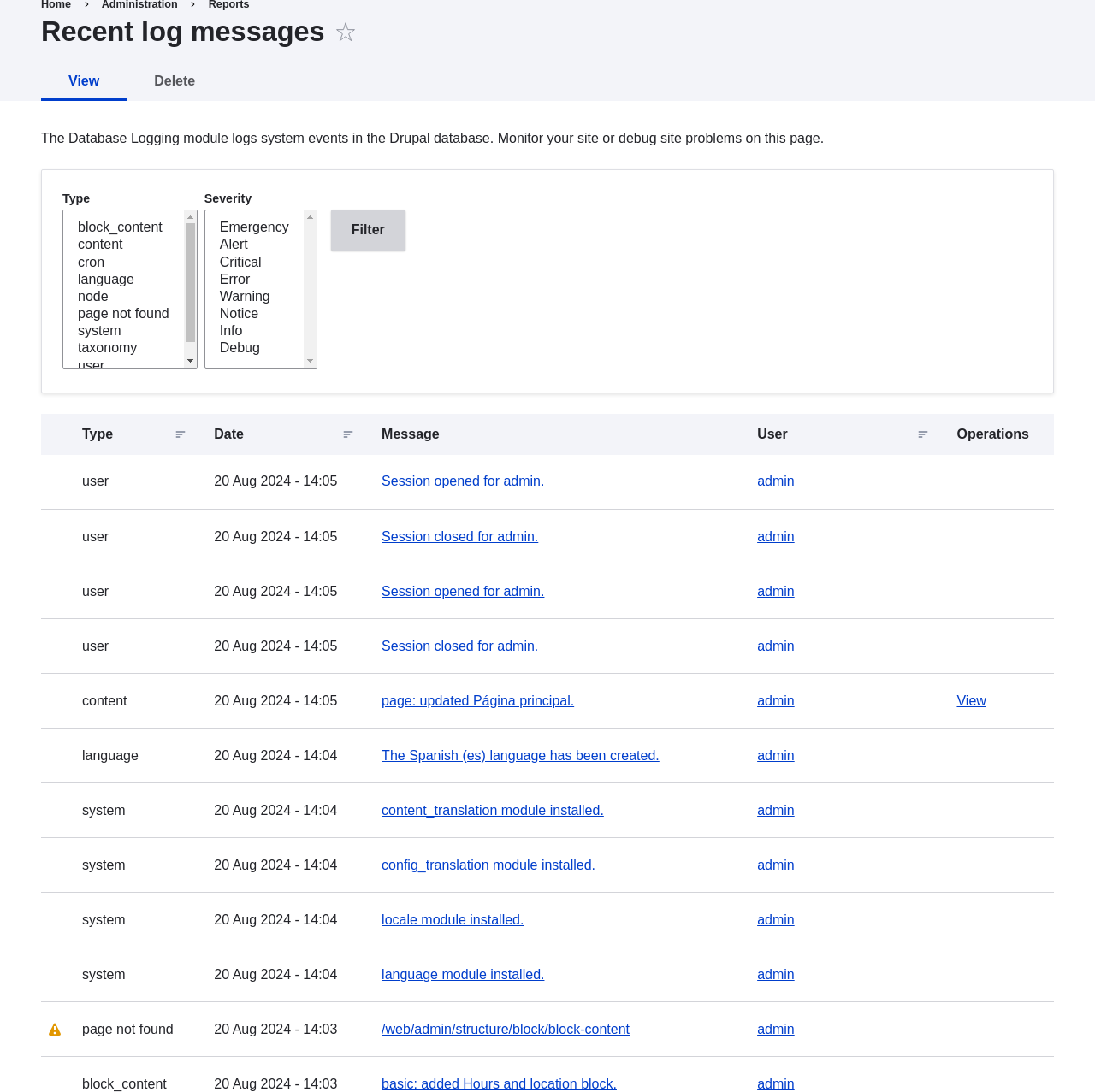 # Concept: Status Report
## What is a Status Report?
The status report is a short overview of your site's parameters as well as any
problems detected with your installation. It may be useful to copy and paste
this information into support requests filed on _Drupal.org's_ support forums
and project issue queues or when asking for help on other channels.
You can find the status report in the _Manage_ administrative menu by
navigating to _Reports_ > _Status report_ (_admin/reports/status_).
# Concept: Status Report
## What is a Status Report?
The status report is a short overview of your site's parameters as well as any
problems detected with your installation. It may be useful to copy and paste
this information into support requests filed on _Drupal.org's_ support forums
and project issue queues or when asking for help on other channels.
You can find the status report in the _Manage_ administrative menu by
navigating to _Reports_ > _Status report_ (_admin/reports/status_).
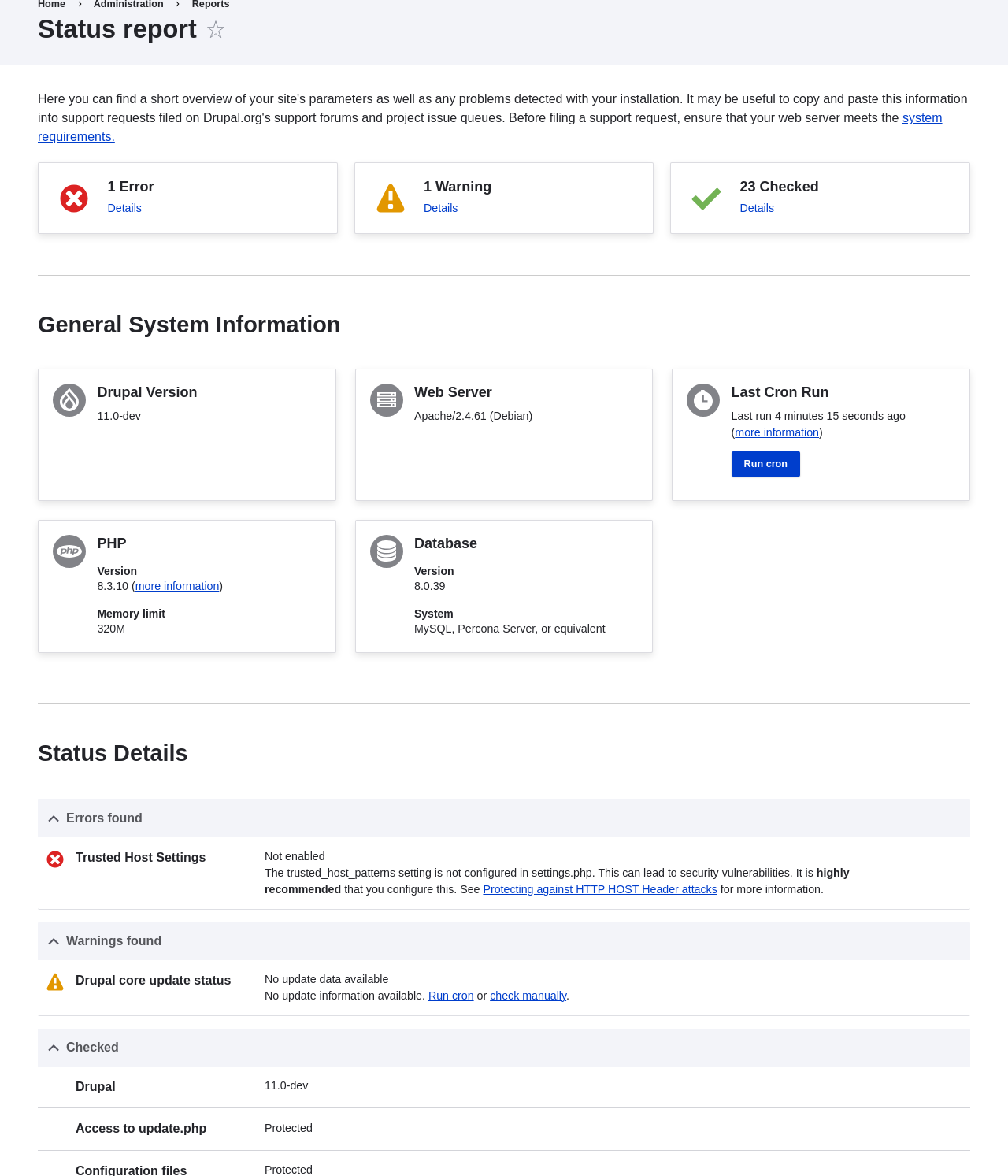 ## Related topics
[Getting Support](/link/787)
## Additional resources
If you have an error about trusted host settings in your status report, see
[_Drupal.org_ community documentation page "Trusted Host settings"](https://www.drupal.org/docs/installing-drupal/trusted-host-settings).
# Chapter 13: Security and Maintenance
# Concept: Cron
## What are cron tasks?
To ensure that your site and its modules continue to function well, a group
of administrative operations should be run periodically. These operations are
called _cron_ tasks. Examples of cron tasks are: checking for module and theme
updates, indexing content for search, or cleaning up temporary files.
## What is the relationship between the site's cron tasks and Unix cron?
Linux/Unix-based operating systems have a cron scheduler that can be used to run
periodic tasks. You can use the server’s cron scheduler to schedule runs of the
site’s cron tasks. Alternatively, you can use the core Automated Cron module to
run tasks. You can check the site’s cron tasks' status in the status report.
## Related topics
* [Configuring Cron Maintenance Tasks](/link/779)
* [Concept: Status Report](/link/776)
## Additional resources
[_Drupal.org_ community documentation page "Setting up cron"](https://www.drupal.org/docs/7/setting-up-cron/overview)
# Configuring Cron Maintenance Tasks
## Goal
Check whether cron maintenance tasks are run regularly, and if not, either
install the core Automated Cron module or run cron maintenance tasks from
outside the website.
## Prerequisite knowledge
[Concept: Cron](/link/778)
## Steps
1. Review the _Status report_ (see [Concept: Status Report](/link/776)) to see when cron
maintenance tasks were last run.
If you installed the website using the core Standard installation profile (or
similar), then cron maintenance tasks might already be running via the
core Automated Cron module. By default, these tasks are run about every three
hours.
1. Choose whether to run cron maintenance tasks using the core Automated Cron
module, or by other means. The core Automated Cron module might not be suitable
for some websites because:
* Each time someone accesses a page on the site, the module checks how long it
has been since cron maintenance tasks have last run, and then runs them if
necessary. If no one visits the website for a long time, cron maintenance
tasks will not be run.
* Cron maintenance tasks are run after the page has been generated. This means
there is less time for the tasks to be run before various server timeouts are
reached (for example, PHP execution timeout). If this happens, the logs (see
[Concept: Log](/link/775)) will show error messages that cron is unable to complete.
* There is a small [scalability](https://en.wikipedia.org/wiki/Scalability) cost
associated with the core Automated Cron module. This is because one of the web
server's processes is occupied (and can't serve other web pages) until the
cron maintenance tasks are complete.
1. If you want to use the core Automated Cron module, first make sure it is
installed (it is installed with the core Standard install profile; see
[Installing a Module](/link/707) if it is not installed).
Next, configure the module to control how frequently cron maintenance tasks are
run. In the _Manage_ administrative menu, navigate to _Configuration_ >
_System_ > _Cron_ (_admin/config/system/cron_). Select the desired interval from
the _Run cron every_ field under _Cron settings_, and click _Save
configuration_.
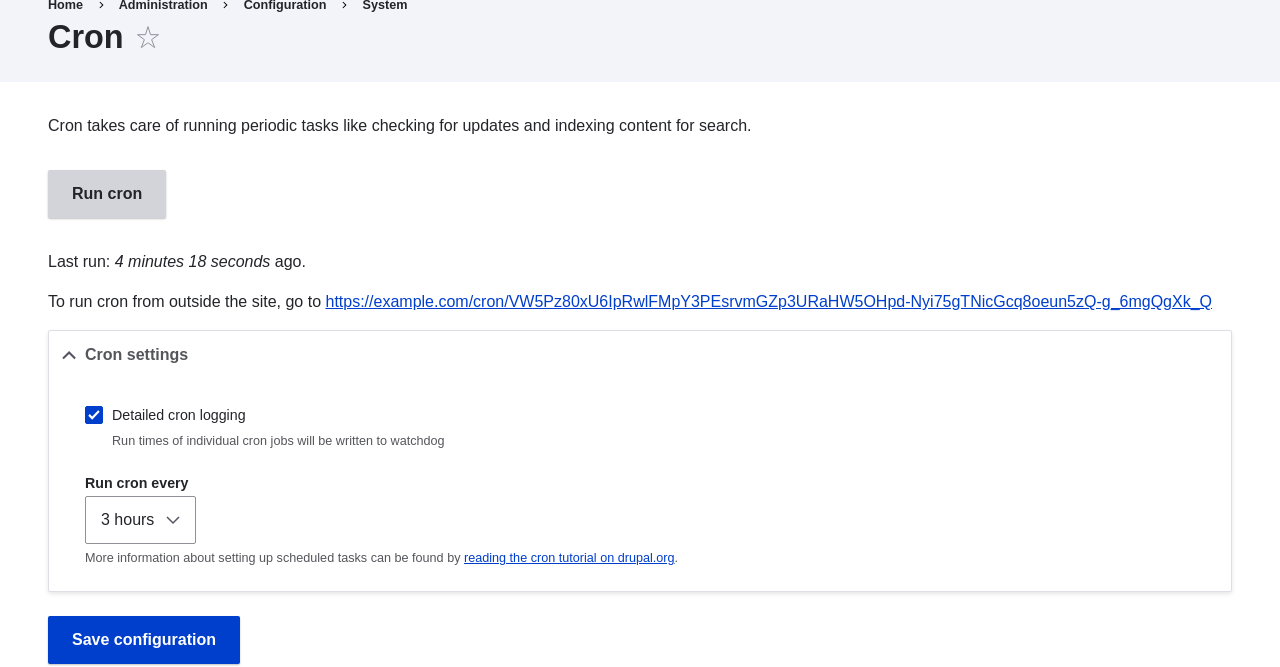
1. If you want to run cron maintenance tasks from outside the website, uninstall
the core Automated Cron module (see [Uninstalling Unused Modules](/link/708)). Next, find the
cron URL. This URL is shown in the _Status report_ (see [Concept: Status Report](/link/776)), and
in the _Cron_ administration page (see previous step). The URL looks
like this:
_http://www.example.com/cron/0MgWtfB33FYbbQ5UAC3L0LL3RC0PT3RNUBZILLA0Nf1Re_
Whenever this URL is visited, cron maintenance tasks will run. Set up one of
the following schedulers to access this URL regularly:
* [The Cron daemon](https://www.drupal.org/docs/7/setting-up-cron/configuring-cron-jobs-using-the-cron-command) (Linux, OS X, Solaris, BSD)
* [Scheduled Tasks](https://www.drupal.org/docs/7/setting-up-cron-for-drupal/configuring-cron-jobs-with-windows) (Windows)
* A cron SASS provider (software as a service)
* A cron manager provided by your web hosting provider (see the documentation
provided by your provider)
## Related concepts
[Concept: Security and Regular Updates](/link/780)
## Videos
[Configuring Cron Maintenance Tasks](https://www.youtube.com/watch?v=ts4g1jTEAt4)
## Additional resources
* [Drush page "Running Drupal cron tasks from Drush"](https://www.drush.org/latest/cron/)
* [_Drupal.org_ community documentation page "Setting up cron"](https://www.drupal.org/docs/7/setting-up-cron/overview)
# Concept: Security and Regular Updates
## Prerequisite knowledge
* [Concept: Drupal as a Content Management System](/link/681)
* [Concept: Modules](/link/682)
* [Concept: Themes](/link/683)
* [Concept: The Drupal Project](/link/686)
## What are security updates?
Any software occasionally has bugs, and sometimes these bugs have security
implications. When security bugs are fixed in the core software, modules, or
themes that your site uses, they are released in a _security update_. When
critical security updates are announced, they will be shown in the
administration pages of your website. You will need to apply security updates in
order to keep your site secure. See [Keeping Track of Updates](/link/781) to learn how to be
notified of security updates by email, and [Updating the Core Software](/link/782),
[Updating a Module](/link/783), and [Updating a Theme](/link/784) to learn how to make
updates.
## What is the security team?
The Drupal open-source project has a team of volunteers who track
security-related bugs and release security updates. They also help other
developers fix bugs, and maintain information for users on how to keep their
websites secure. You can learn more about the security team and their practices
and processes at the
[_Drupal.org_ Security Team](https://www.drupal.org/drupal-security-team/general-information) page.
## How are security bugs reported?
It is important that security problems be kept confidential until they are
fixed, so that sites are less likely to be compromised before they can be
secured. If you find a potential security problem in any of the software you
downloaded from the _Drupal.org_ website, follow the procedures on the
[_Drupal.org_ Security Team](https://www.drupal.org/drupal-security-team/general-information) page to report
it.
## What are regular (non-security) updates?
The core software, modules, and themes also periodically have regular updates to
add new features and fix bugs. These updates are less critical than security
updates. As a general best practice, updates should be applied as long as they
do not cause problems with your site. Testing on a development copy of your site
is always a good idea before applying updates on a live site. This is because
some updates may include changes that are not compatible with the modules or
themes on your site, or that will break a particular functionality on your site.
## Related topics
* [Keeping Track of Updates](/link/781)
* [Updating the Core Software](/link/782)
* [Updating a Module](/link/783)
* [Updating a Theme](/link/784)
* [Making a Development Site](/link/767)
## Additional resources
* [_Drupal.org_ community documentation page "Securing your site"](https://www.drupal.org/security/secure-configuration)
* ["Security advisories" on Drupal.org](https://www.drupal.org/security)
* [_Drupal.org_ Security team](https://www.drupal.org/drupal-security-team/general-information)
# Keeping Track of Updates
## Goal
Keep your site safe and up-to-date by keeping up with the latest security
updates.
## Prerequisite knowledge
[Concept: Security and Regular Updates](/link/780)
## Steps
There are a few different ways to receive notifications of security releases:
* Highly critical security announcements will be displayed on the administration
pages of your website. A link will be shown to the announcement on Drupal.org
which explains when and how you can update your website.
* In the _Manage_ administrative menu, navigate to _Reports_ > _Available
updates_ > _Settings_. Enter the email addresses to be notified when updates are
available. You can also specify whether you want daily or weekly updates. Click
_Save configuration_.
* Subscribe to the security announcements email list. To subscribe, log in to
_Drupal.org_, go to your user profile page and subscribe to the security
newsletter on the _Edit_ > _My newsletters_ tab.
* Follow @drupalsecurity on X.
* Subscribe to RSS feeds for
[core security updates](https://www.drupal.org/security/rss.xml),
[contributed project updates](https://www.drupal.org/security/contrib/rss.xml) and
[public service announcements](https://www.drupal.org/security/psa/rss.xml).
## Related concepts
* [Concept: Security and Regular Updates](/link/780)
* [Updating the Core Software](/link/782)
* [Updating a Module](/link/783)
* [Updating a Theme](/link/784)
## Videos
[Keeping Track of Updates](https://www.youtube.com/watch?v=GcamYLNeGAs)
## Additional resources
* ["Security advisories" on _Drupal.org_](https://www.drupal.org/security)
* [_Drupal.org_ Security Team](https://www.drupal.org/drupal-security-team/general-information)
* [@drupalsecurity on X](https://x.com/drupalsecurity)
# Updating the Core Software
## Goal
Update the core software, either through the administrative interface or by
using Drush.
## Site prerequisites
* If you want to use Drush, Drush must be installed. See [Concept: Additional Tools](/link/699).
* If your site is live, you should test this process in a development
environment before running it on your production site. See
[Making a Development Site](/link/767).
## Steps
1. Make a complete backup of your site. Refer to [Concept: Data Backups](/link/774).
1. Open _settings.php_ (_/sites/default/settings.php_) in any plain text
editor. Find the line with the _$settings['update_free_access']_ variable. By
default, it is set to "FALSE" due to security reasons. Change the setting to
"TRUE":
```text
$settings['update_free_access'] = TRUE;
```
1. Disable any caching technique (memcache, varnish, and so on) your application
might be using.
1. Put your site in maintenance mode. See [Enabling and Disabling Maintenance Mode](/link/761).
1. If you are using Composer to manage dependencies, skip the next six steps, and
instead see [Using Composer to Download and Update Files](/link/702) for instructions on downloading updated
files. Continue with the _update.php_ step.
1. Download the tar.gz or zip file archive for the latest version of Drupal core
for the branch you are currently using (such as 8.x or 9.x) from
[_Drupal.org_ Drupal Core Downloads](https://www.drupal.org/project/drupal).
See [Preparing to Install](/link/697) for more details on how to find the latest version.
1. Upload the archive file to your web hosting server.
1. Extract the archive file to a temporary directory on your server (should be
outside the directory where the site is hosted). Your hosting control panel's
file manager should provide a way to extract the files. Or, if you have
terminal access to your hosting server (running Linux), you can use a command
like:
```text
tar -xzf drupal-8.3.2.tar.gz
```
1. In your site hosting directory, delete the _core_ and _vendor_ directories,
and all files that are not in a subdirectory, including _.htaccess_,
_composer.json_, and _autoload.php_. Don't delete custom and customized files
because you may end up losing the custom functionality stored in them.
1. Copy the _core_ and _vendor_ directories and the non-custom/non-customized
files that you deleted in the preceding step from the temporary directory to
your site directory.
1. Run the _update.php_ script using either of the following:
* Visit _http://www.example.com/update.php_ in your browser (where
_www.example.com_ is your site's URL). Click _Continue_ in the first screen
to run the updates and successfully complete the script.
* Run the following Drush command: `drush updatedb`
1. If you get any error or warning, re-run the _update.php_ script
again till all the updates have been completed successfully.
1. Open _settings.php_ (_/sites/default/settings.php_) in a text editor. Find the
line with the _$settings['update_free_access']_ variable and update it to
"FALSE":
```text
$settings['update_free_access'] = FALSE;
```
1. Click _Administration pages_ to return to the administration section of your
site.
1. Take your site out of maintenance mode. See [Enabling and Disabling Maintenance Mode](/link/761).
1. Clear the cache. See [Clearing the Cache](/link/773).
1. Re-enable any caching technique you disabled at Step 3.
1. You should have the updated version running. You can verify the current
version of your software by checking the _Status report_ (see
[Concept: Status Report](/link/776)).
## Expand your understanding
* [Concept: Additional Tools](/link/699)
* [Making a Development Site](/link/767)
* [Concept: Data Backups](/link/774)
## Related concepts
[Concept: Status Report](/link/776)
## Videos
[Updating the Core Software](https://www.youtube.com/watch?v=DqYqxp4xByk)
## Additional resources
* ["Drupal Core Downloads" page on _Drupal.org_](https://www.drupal.org/project/drupal)
* ["Registry Rebuild" page on _Drupal.org_](https://www.drupal.org/project/registry_rebuild)
* The file _/core/UPDATE.txt_ within your installation.
# Updating a Module
## Goal
Update a contributed module and run the _Database updates_ script.
## Prerequisite knowledge
* [Concept: Security and Regular Updates](/link/780)
* [Concept: Cron](/link/778)
## Site prerequisites
* A contributed module has been installed and there is an update available for
it. See [Downloading and Installing a Module from _Drupal.org_](/link/762) and [Keeping Track of Updates](/link/781).
* If your site is live, you should test this process in a development
environment before running it on your production site. See
[Making a Development Site](/link/767).
* You have created a full-site backup. See [Concept: Data Backups](/link/774).
* If you want to use the user interface to check for updates, the core Update
Manager module must be installed. See [Installing a Module](/link/707) for instructions on
installing core modules.
## Steps
Before you start, check for module-specific update instructions. Read and
understand all module-specific requirements before proceeding with the updates.
To find instructions, check the module's project page _Read Documentation_ link.
To view further instructions, after downloading the updated files, look for
_README.txt_, _INSTALL.txt_, and _UPGRADE.txt_ that come with the module. Also,
review the release notes on the project page by clicking the version number
you're downloading.
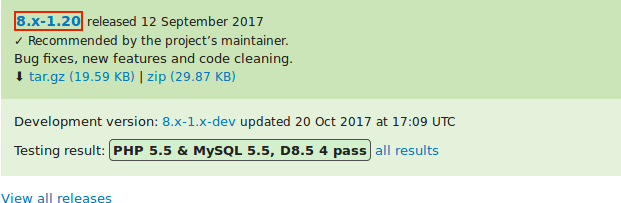
Updating a module requires first putting your site into maintenance mode, then
obtaining the new code files and applying any required database updates, then
finally taking the site out of maintenance mode.
You can update the code for a contributed module using Composer. If you are
updating a custom module rather than a contributed module, obtain the new module
files, then continue with instructions for running the database updates via the
administrative interface below.
This assumes that you are using Composer to manage the files in your site; see
[Using Composer to Download and Update Files](/link/702).
### Update a contributed module with Composer
1. Put your site in maintenance mode. See [Enabling and Disabling Maintenance Mode](/link/761).
1. In the _Manage_ administrative menu, navigate to _Reports_ >
_Available updates_ > _Update_ (_admin/reports/updates_).
1. Find and check the module in the list. Click _Download these updates_ for the
module.
## Related topics
[Getting Support](/link/787)
## Additional resources
If you have an error about trusted host settings in your status report, see
[_Drupal.org_ community documentation page "Trusted Host settings"](https://www.drupal.org/docs/installing-drupal/trusted-host-settings).
# Chapter 13: Security and Maintenance
# Concept: Cron
## What are cron tasks?
To ensure that your site and its modules continue to function well, a group
of administrative operations should be run periodically. These operations are
called _cron_ tasks. Examples of cron tasks are: checking for module and theme
updates, indexing content for search, or cleaning up temporary files.
## What is the relationship between the site's cron tasks and Unix cron?
Linux/Unix-based operating systems have a cron scheduler that can be used to run
periodic tasks. You can use the server’s cron scheduler to schedule runs of the
site’s cron tasks. Alternatively, you can use the core Automated Cron module to
run tasks. You can check the site’s cron tasks' status in the status report.
## Related topics
* [Configuring Cron Maintenance Tasks](/link/779)
* [Concept: Status Report](/link/776)
## Additional resources
[_Drupal.org_ community documentation page "Setting up cron"](https://www.drupal.org/docs/7/setting-up-cron/overview)
# Configuring Cron Maintenance Tasks
## Goal
Check whether cron maintenance tasks are run regularly, and if not, either
install the core Automated Cron module or run cron maintenance tasks from
outside the website.
## Prerequisite knowledge
[Concept: Cron](/link/778)
## Steps
1. Review the _Status report_ (see [Concept: Status Report](/link/776)) to see when cron
maintenance tasks were last run.
If you installed the website using the core Standard installation profile (or
similar), then cron maintenance tasks might already be running via the
core Automated Cron module. By default, these tasks are run about every three
hours.
1. Choose whether to run cron maintenance tasks using the core Automated Cron
module, or by other means. The core Automated Cron module might not be suitable
for some websites because:
* Each time someone accesses a page on the site, the module checks how long it
has been since cron maintenance tasks have last run, and then runs them if
necessary. If no one visits the website for a long time, cron maintenance
tasks will not be run.
* Cron maintenance tasks are run after the page has been generated. This means
there is less time for the tasks to be run before various server timeouts are
reached (for example, PHP execution timeout). If this happens, the logs (see
[Concept: Log](/link/775)) will show error messages that cron is unable to complete.
* There is a small [scalability](https://en.wikipedia.org/wiki/Scalability) cost
associated with the core Automated Cron module. This is because one of the web
server's processes is occupied (and can't serve other web pages) until the
cron maintenance tasks are complete.
1. If you want to use the core Automated Cron module, first make sure it is
installed (it is installed with the core Standard install profile; see
[Installing a Module](/link/707) if it is not installed).
Next, configure the module to control how frequently cron maintenance tasks are
run. In the _Manage_ administrative menu, navigate to _Configuration_ >
_System_ > _Cron_ (_admin/config/system/cron_). Select the desired interval from
the _Run cron every_ field under _Cron settings_, and click _Save
configuration_.

1. If you want to run cron maintenance tasks from outside the website, uninstall
the core Automated Cron module (see [Uninstalling Unused Modules](/link/708)). Next, find the
cron URL. This URL is shown in the _Status report_ (see [Concept: Status Report](/link/776)), and
in the _Cron_ administration page (see previous step). The URL looks
like this:
_http://www.example.com/cron/0MgWtfB33FYbbQ5UAC3L0LL3RC0PT3RNUBZILLA0Nf1Re_
Whenever this URL is visited, cron maintenance tasks will run. Set up one of
the following schedulers to access this URL regularly:
* [The Cron daemon](https://www.drupal.org/docs/7/setting-up-cron/configuring-cron-jobs-using-the-cron-command) (Linux, OS X, Solaris, BSD)
* [Scheduled Tasks](https://www.drupal.org/docs/7/setting-up-cron-for-drupal/configuring-cron-jobs-with-windows) (Windows)
* A cron SASS provider (software as a service)
* A cron manager provided by your web hosting provider (see the documentation
provided by your provider)
## Related concepts
[Concept: Security and Regular Updates](/link/780)
## Videos
[Configuring Cron Maintenance Tasks](https://www.youtube.com/watch?v=ts4g1jTEAt4)
## Additional resources
* [Drush page "Running Drupal cron tasks from Drush"](https://www.drush.org/latest/cron/)
* [_Drupal.org_ community documentation page "Setting up cron"](https://www.drupal.org/docs/7/setting-up-cron/overview)
# Concept: Security and Regular Updates
## Prerequisite knowledge
* [Concept: Drupal as a Content Management System](/link/681)
* [Concept: Modules](/link/682)
* [Concept: Themes](/link/683)
* [Concept: The Drupal Project](/link/686)
## What are security updates?
Any software occasionally has bugs, and sometimes these bugs have security
implications. When security bugs are fixed in the core software, modules, or
themes that your site uses, they are released in a _security update_. When
critical security updates are announced, they will be shown in the
administration pages of your website. You will need to apply security updates in
order to keep your site secure. See [Keeping Track of Updates](/link/781) to learn how to be
notified of security updates by email, and [Updating the Core Software](/link/782),
[Updating a Module](/link/783), and [Updating a Theme](/link/784) to learn how to make
updates.
## What is the security team?
The Drupal open-source project has a team of volunteers who track
security-related bugs and release security updates. They also help other
developers fix bugs, and maintain information for users on how to keep their
websites secure. You can learn more about the security team and their practices
and processes at the
[_Drupal.org_ Security Team](https://www.drupal.org/drupal-security-team/general-information) page.
## How are security bugs reported?
It is important that security problems be kept confidential until they are
fixed, so that sites are less likely to be compromised before they can be
secured. If you find a potential security problem in any of the software you
downloaded from the _Drupal.org_ website, follow the procedures on the
[_Drupal.org_ Security Team](https://www.drupal.org/drupal-security-team/general-information) page to report
it.
## What are regular (non-security) updates?
The core software, modules, and themes also periodically have regular updates to
add new features and fix bugs. These updates are less critical than security
updates. As a general best practice, updates should be applied as long as they
do not cause problems with your site. Testing on a development copy of your site
is always a good idea before applying updates on a live site. This is because
some updates may include changes that are not compatible with the modules or
themes on your site, or that will break a particular functionality on your site.
## Related topics
* [Keeping Track of Updates](/link/781)
* [Updating the Core Software](/link/782)
* [Updating a Module](/link/783)
* [Updating a Theme](/link/784)
* [Making a Development Site](/link/767)
## Additional resources
* [_Drupal.org_ community documentation page "Securing your site"](https://www.drupal.org/security/secure-configuration)
* ["Security advisories" on Drupal.org](https://www.drupal.org/security)
* [_Drupal.org_ Security team](https://www.drupal.org/drupal-security-team/general-information)
# Keeping Track of Updates
## Goal
Keep your site safe and up-to-date by keeping up with the latest security
updates.
## Prerequisite knowledge
[Concept: Security and Regular Updates](/link/780)
## Steps
There are a few different ways to receive notifications of security releases:
* Highly critical security announcements will be displayed on the administration
pages of your website. A link will be shown to the announcement on Drupal.org
which explains when and how you can update your website.
* In the _Manage_ administrative menu, navigate to _Reports_ > _Available
updates_ > _Settings_. Enter the email addresses to be notified when updates are
available. You can also specify whether you want daily or weekly updates. Click
_Save configuration_.
* Subscribe to the security announcements email list. To subscribe, log in to
_Drupal.org_, go to your user profile page and subscribe to the security
newsletter on the _Edit_ > _My newsletters_ tab.
* Follow @drupalsecurity on X.
* Subscribe to RSS feeds for
[core security updates](https://www.drupal.org/security/rss.xml),
[contributed project updates](https://www.drupal.org/security/contrib/rss.xml) and
[public service announcements](https://www.drupal.org/security/psa/rss.xml).
## Related concepts
* [Concept: Security and Regular Updates](/link/780)
* [Updating the Core Software](/link/782)
* [Updating a Module](/link/783)
* [Updating a Theme](/link/784)
## Videos
[Keeping Track of Updates](https://www.youtube.com/watch?v=GcamYLNeGAs)
## Additional resources
* ["Security advisories" on _Drupal.org_](https://www.drupal.org/security)
* [_Drupal.org_ Security Team](https://www.drupal.org/drupal-security-team/general-information)
* [@drupalsecurity on X](https://x.com/drupalsecurity)
# Updating the Core Software
## Goal
Update the core software, either through the administrative interface or by
using Drush.
## Site prerequisites
* If you want to use Drush, Drush must be installed. See [Concept: Additional Tools](/link/699).
* If your site is live, you should test this process in a development
environment before running it on your production site. See
[Making a Development Site](/link/767).
## Steps
1. Make a complete backup of your site. Refer to [Concept: Data Backups](/link/774).
1. Open _settings.php_ (_/sites/default/settings.php_) in any plain text
editor. Find the line with the _$settings['update_free_access']_ variable. By
default, it is set to "FALSE" due to security reasons. Change the setting to
"TRUE":
```text
$settings['update_free_access'] = TRUE;
```
1. Disable any caching technique (memcache, varnish, and so on) your application
might be using.
1. Put your site in maintenance mode. See [Enabling and Disabling Maintenance Mode](/link/761).
1. If you are using Composer to manage dependencies, skip the next six steps, and
instead see [Using Composer to Download and Update Files](/link/702) for instructions on downloading updated
files. Continue with the _update.php_ step.
1. Download the tar.gz or zip file archive for the latest version of Drupal core
for the branch you are currently using (such as 8.x or 9.x) from
[_Drupal.org_ Drupal Core Downloads](https://www.drupal.org/project/drupal).
See [Preparing to Install](/link/697) for more details on how to find the latest version.
1. Upload the archive file to your web hosting server.
1. Extract the archive file to a temporary directory on your server (should be
outside the directory where the site is hosted). Your hosting control panel's
file manager should provide a way to extract the files. Or, if you have
terminal access to your hosting server (running Linux), you can use a command
like:
```text
tar -xzf drupal-8.3.2.tar.gz
```
1. In your site hosting directory, delete the _core_ and _vendor_ directories,
and all files that are not in a subdirectory, including _.htaccess_,
_composer.json_, and _autoload.php_. Don't delete custom and customized files
because you may end up losing the custom functionality stored in them.
1. Copy the _core_ and _vendor_ directories and the non-custom/non-customized
files that you deleted in the preceding step from the temporary directory to
your site directory.
1. Run the _update.php_ script using either of the following:
* Visit _http://www.example.com/update.php_ in your browser (where
_www.example.com_ is your site's URL). Click _Continue_ in the first screen
to run the updates and successfully complete the script.
* Run the following Drush command: `drush updatedb`
1. If you get any error or warning, re-run the _update.php_ script
again till all the updates have been completed successfully.
1. Open _settings.php_ (_/sites/default/settings.php_) in a text editor. Find the
line with the _$settings['update_free_access']_ variable and update it to
"FALSE":
```text
$settings['update_free_access'] = FALSE;
```
1. Click _Administration pages_ to return to the administration section of your
site.
1. Take your site out of maintenance mode. See [Enabling and Disabling Maintenance Mode](/link/761).
1. Clear the cache. See [Clearing the Cache](/link/773).
1. Re-enable any caching technique you disabled at Step 3.
1. You should have the updated version running. You can verify the current
version of your software by checking the _Status report_ (see
[Concept: Status Report](/link/776)).
## Expand your understanding
* [Concept: Additional Tools](/link/699)
* [Making a Development Site](/link/767)
* [Concept: Data Backups](/link/774)
## Related concepts
[Concept: Status Report](/link/776)
## Videos
[Updating the Core Software](https://www.youtube.com/watch?v=DqYqxp4xByk)
## Additional resources
* ["Drupal Core Downloads" page on _Drupal.org_](https://www.drupal.org/project/drupal)
* ["Registry Rebuild" page on _Drupal.org_](https://www.drupal.org/project/registry_rebuild)
* The file _/core/UPDATE.txt_ within your installation.
# Updating a Module
## Goal
Update a contributed module and run the _Database updates_ script.
## Prerequisite knowledge
* [Concept: Security and Regular Updates](/link/780)
* [Concept: Cron](/link/778)
## Site prerequisites
* A contributed module has been installed and there is an update available for
it. See [Downloading and Installing a Module from _Drupal.org_](/link/762) and [Keeping Track of Updates](/link/781).
* If your site is live, you should test this process in a development
environment before running it on your production site. See
[Making a Development Site](/link/767).
* You have created a full-site backup. See [Concept: Data Backups](/link/774).
* If you want to use the user interface to check for updates, the core Update
Manager module must be installed. See [Installing a Module](/link/707) for instructions on
installing core modules.
## Steps
Before you start, check for module-specific update instructions. Read and
understand all module-specific requirements before proceeding with the updates.
To find instructions, check the module's project page _Read Documentation_ link.
To view further instructions, after downloading the updated files, look for
_README.txt_, _INSTALL.txt_, and _UPGRADE.txt_ that come with the module. Also,
review the release notes on the project page by clicking the version number
you're downloading.

Updating a module requires first putting your site into maintenance mode, then
obtaining the new code files and applying any required database updates, then
finally taking the site out of maintenance mode.
You can update the code for a contributed module using Composer. If you are
updating a custom module rather than a contributed module, obtain the new module
files, then continue with instructions for running the database updates via the
administrative interface below.
This assumes that you are using Composer to manage the files in your site; see
[Using Composer to Download and Update Files](/link/702).
### Update a contributed module with Composer
1. Put your site in maintenance mode. See [Enabling and Disabling Maintenance Mode](/link/761).
1. In the _Manage_ administrative menu, navigate to _Reports_ >
_Available updates_ > _Update_ (_admin/reports/updates_).
1. Find and check the module in the list. Click _Download these updates_ for the
module.
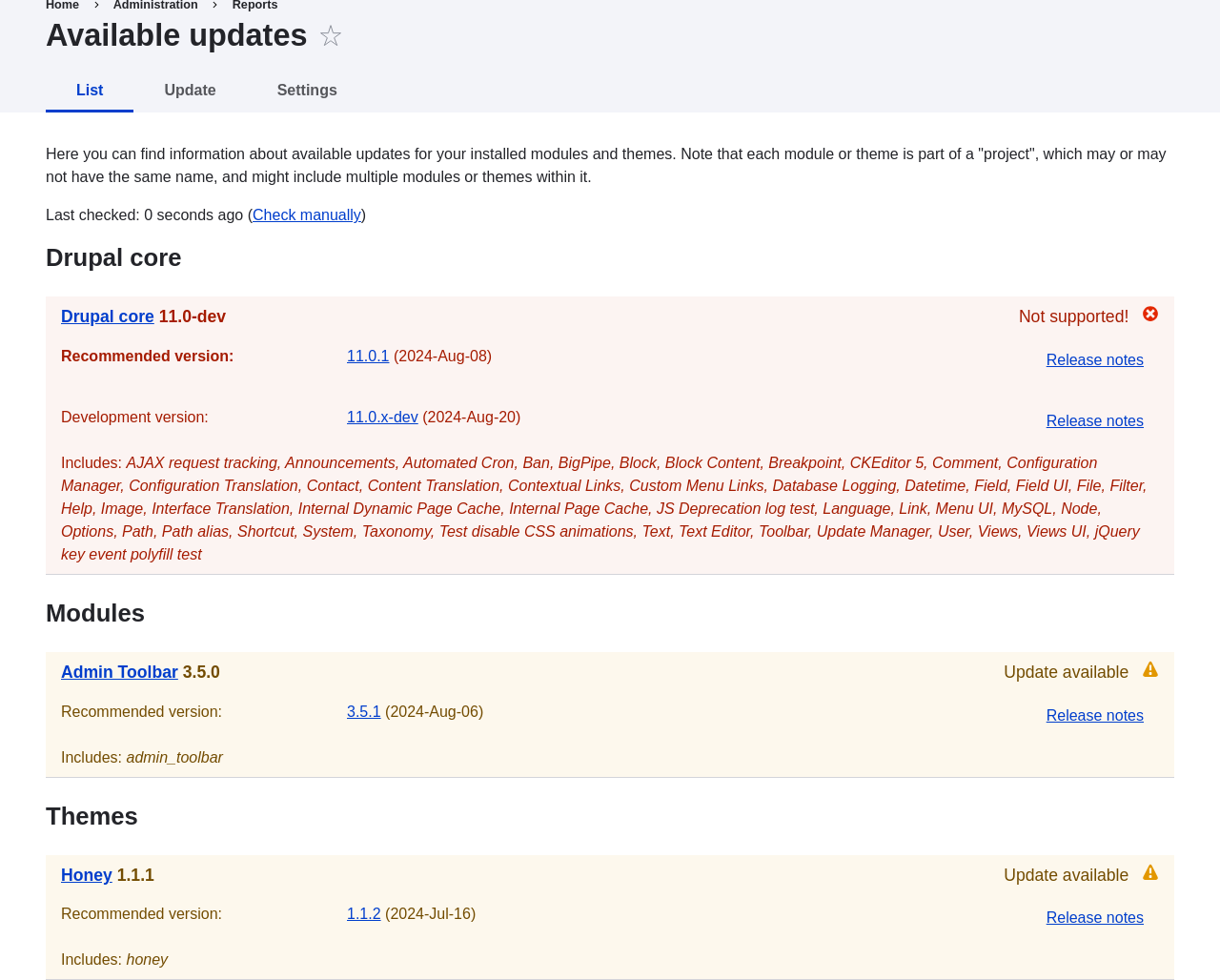 1. Determine the short name of the project you want to update. For contributed
modules and themes, it is the last part of the URL of the project page; for
example, the Geofield module, at https://www.drupal.org/project/geofield, has
short name `geofield`.
1. If you want to update to the latest stable release, use the following
command, substituting the short name of the project to be updated for
`geofield`:
```text
composer update drupal/geofield --with-dependencies
```
To learn how to download specific versions see [Using Composer to Download and Update Files](/link/702).
1. After obtaining the new module files run any database updates page by typing
the URL _example.com/update.php_ in your browser.
1. Click _Continue_ to run the updates. The database update scripts will be
executed.
1. Click _Administration pages_ to return to the administration section of your
site.
1. Take your site out of maintenance mode. See [Enabling and Disabling Maintenance Mode](/link/761).
1. Clear the Drupal cache (refer to [Clearing the Cache](/link/773)).
## Expand your understanding
* Review the site log (refer to [Concept: Log](/link/775)) once the updates are complete
to check for errors.
* [Updating a Theme](/link/784)
## Videos
[Updating a Module](https://www.youtube.com/watch?v=wxWW-lPQ_Pc)
# Updating a Theme
## Goal
Update a contributed theme on your site and run the _Database Updates_ script.
## Prerequisite knowledge
* [Concept: Security and Regular Updates](/link/780)
* [Concept: Cron](/link/778)
## Site prerequisites
* A contributed theme has been installed and there is an update available for
it. See [Downloading and Installing a Theme from _Drupal.org_](/link/764) and [Keeping Track of Updates](/link/781).
* If your site is live, you should test this process in a development
environment before running it on your production site. See
[Making a Development Site](/link/767).
* You have created a full site backup. See [Concept: Data Backups](/link/774).
* If you want to use the user interface to check for updates, the core Update
Manager module must be installed. See [Installing a Module](/link/707) for instructions on
installing core modules.
## Steps
Updating a contributed theme requires first putting your site into maintenance
mode, then obtaining the new code files and applying any required database
updates, then finally taking the site out of maintenance mode.
You can update the code for a contributed theme using Composer. If you are
updating a custom theme rather than a contributed theme, obtain the new theme
files, then continue with instructions for running the database updates via the
administrative interface below.
This assumes that you are using Composer to manage the files in your site; see
[Using Composer to Download and Update Files](/link/702).
### Update a contributed theme with Composer
1. Put your site in maintenance mode. See [Enabling and Disabling Maintenance Mode](/link/761).
1. In the _Manage_ administrative menu, navigate to _Reports_ >
_Available updates_ > _Update_ (_admin/reports/updates_).
1. Find any themes in the list that need updating.
1. Determine the short name of the project you want to update. For contributed
modules and themes, it is the last part of the URL of the project page; for
example, the Geofield module, at https://www.drupal.org/project/geofield, has
short name `geofield`.
1. If you want to update to the latest stable release, use the following
command, substituting the short name of the project to be updated for
`geofield`:
```text
composer update drupal/geofield --with-dependencies
```
To learn how to download specific versions see [Using Composer to Download and Update Files](/link/702).
1. After obtaining the new module files run any database updates page by typing
the URL _example.com/update.php_ in your browser.
1. Click _Continue_ to run the updates. The database update scripts will be
executed.
1. Click _Administration pages_ to return to the administration section of your
site.
1. Take your site out of maintenance mode. See [Enabling and Disabling Maintenance Mode](/link/761).
1. Clear the Drupal cache (refer to [Clearing the Cache](/link/773)).
## Expand your understanding
* Review the site log (refer to [Concept: Log](/link/775)) once the updates are complete
to check for errors.
* [Updating a Theme](/link/784)
## Videos
[Updating a Module](https://www.youtube.com/watch?v=wxWW-lPQ_Pc)
# Updating a Theme
## Goal
Update a contributed theme on your site and run the _Database Updates_ script.
## Prerequisite knowledge
* [Concept: Security and Regular Updates](/link/780)
* [Concept: Cron](/link/778)
## Site prerequisites
* A contributed theme has been installed and there is an update available for
it. See [Downloading and Installing a Theme from _Drupal.org_](/link/764) and [Keeping Track of Updates](/link/781).
* If your site is live, you should test this process in a development
environment before running it on your production site. See
[Making a Development Site](/link/767).
* You have created a full site backup. See [Concept: Data Backups](/link/774).
* If you want to use the user interface to check for updates, the core Update
Manager module must be installed. See [Installing a Module](/link/707) for instructions on
installing core modules.
## Steps
Updating a contributed theme requires first putting your site into maintenance
mode, then obtaining the new code files and applying any required database
updates, then finally taking the site out of maintenance mode.
You can update the code for a contributed theme using Composer. If you are
updating a custom theme rather than a contributed theme, obtain the new theme
files, then continue with instructions for running the database updates via the
administrative interface below.
This assumes that you are using Composer to manage the files in your site; see
[Using Composer to Download and Update Files](/link/702).
### Update a contributed theme with Composer
1. Put your site in maintenance mode. See [Enabling and Disabling Maintenance Mode](/link/761).
1. In the _Manage_ administrative menu, navigate to _Reports_ >
_Available updates_ > _Update_ (_admin/reports/updates_).
1. Find any themes in the list that need updating.
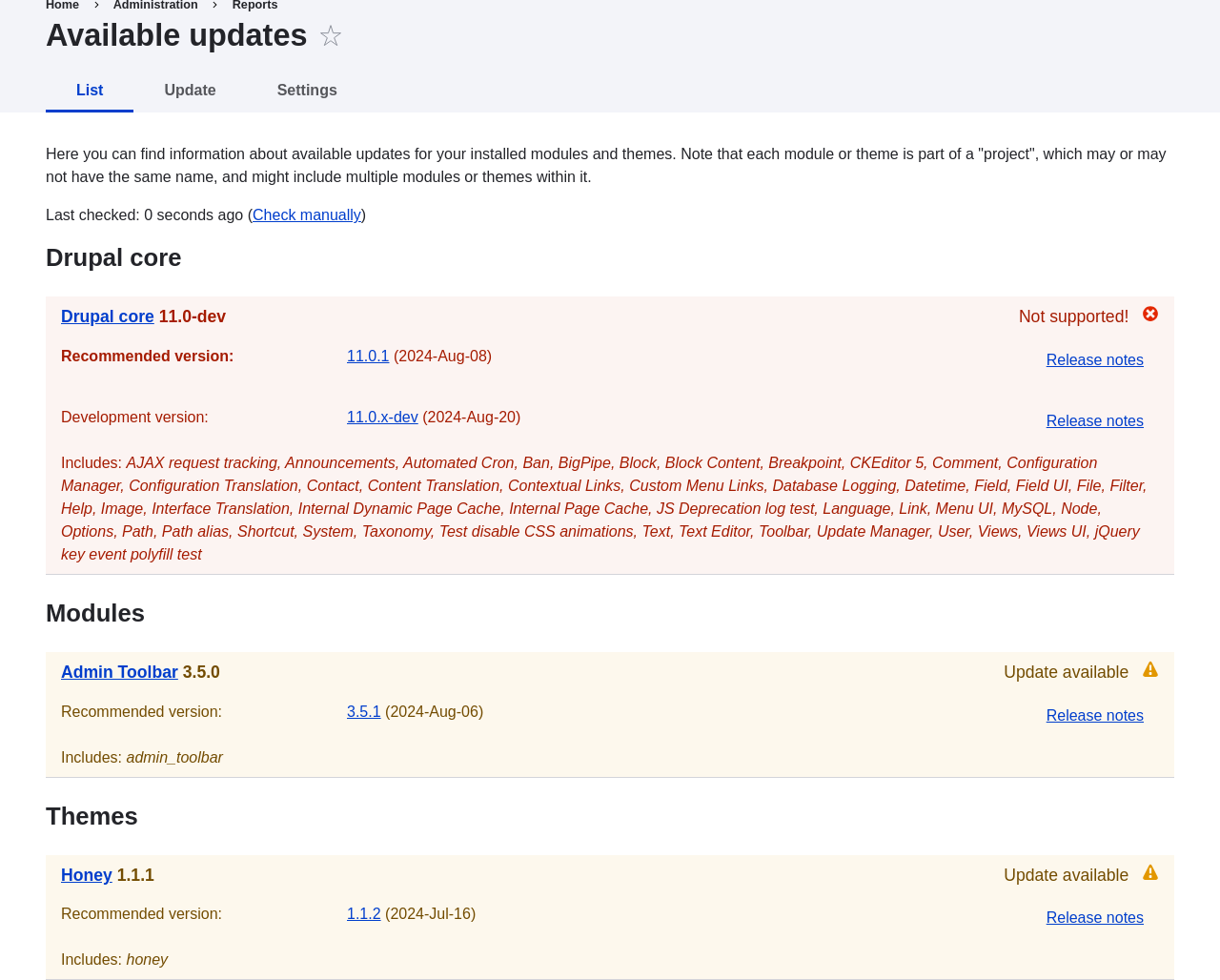 1. Determine the short name of the project you want to update. For contributed
modules and themes, it is the last part of the URL of the project page; for
example, the Honey theme, at https://www.drupal.org/project/honey, has
short name `honey`.
1. If you want to update to the latest stable release, use the following
command, substituting the short name of the project to be updated for
`honey`:
```text
composer update drupal/honey --with-dependencies
```
To learn how to download specific versions see [Using Composer to Download and Update Files](/link/702).
1. After obtaining the new theme files run any database updates page by typing
the URL _example.com/update.php_ in your browser.
1. Click _Continue_ to run the updates. The database update scripts will be
executed.
1. Click _Administration pages_ to return to the administration section of your
site.
1. Take your site out of maintenance mode. See [Enabling and Disabling Maintenance Mode](/link/761).
1. Clear the Drupal cache (refer to [Clearing the Cache](/link/773)).
## Expand your understanding
* Review the site log, see [Concept: Log](/link/775), once the updates are complete to
check for errors.
* [Updating a Module](/link/783)
## Videos
[Updating a Theme](https://www.youtube.com/watch?v=elVnWoaQMkk)
# Chapter 14: Final Thoughts
# Connecting with the Community
## Prerequisite knowledge
[Concept: The Drupal Project](/link/686)
## How can you connect with the community?
The Drupal project has a world-wide community of developers and users. One of
the best ways to improve your knowledge of the platform is to connect with
others that are using it, and get involved in the open-source community. There
are many ways that you can get started:
- **Attend an event:** There are both regional and international Drupal events held around the world. See the ["DrupalCon" page on _Drupal.org_](https://events.drupal.org) to find international events, and the ["Event Calendar" on _groups.drupal.org_](https://groups.drupal.org/events) or [_drupical.com_](https://www.drupical.com/) to find regional events.
- **Join a local group:** There are Drupal user groups all around the world. Many of them have regular meetings, which you can attend to learn more about Drupal and connect to other Drupal users. Find local user groups on [_groups.drupal.org_](https://groups.drupal.org/).
- **Participate in a topical or language group:** There are also interest groups for a wide range of topics, which have on-line discussion forums. Find topical groups on [_groups.drupal.org_](https://groups.drupal.org/). Many languages have their own websites too; you can find them on the ["Language-specific communities" page on _Drupal.org_](https://www.drupal.org/language-specific-communities).
- **Chat online:** The Drupal project uses Slack and DrupalChat for on-line chatting. There are regional, topical, and general-purpose chat groups available. Find out more on the ["Slack" page on _Drupal.org_](https://www.drupal.org/slack) and ["DrupalChat" page on _Drupal.org_](https://www.drupal.org/drupalchat).
- **Report a problem:** See below.
- **Contribute:** You can contribute your time and expertise to the community in many ways, such as: * Developing modules or themes. See the ["Contribute to Development" page on _Drupal.org_](https://www.drupal.org/contribute/development), or improving them (using the issue queues for existing projects). * Translating the user interface. See [_localize.drupal.org_](https://localize.drupal.org). * Writing documentation. See ["Contribute to Documentation" on _Drupal.org_](https://www.drupal.org/contribute/documentation). * Answer Support questions. See [Getting Support](/link/787).
## How can you report a problem or suggest a feature?
Each project within the community (such as the Drupal Core project for the base
software, and projects for each contributed theme and module) uses _issues_ to
keep track of software bugs and plans for new features. You can participate by
creating a bug report when you find a problem, creating a feature request, or
commenting on existing issues. Search before creating an issue, to
make sure that the problem or feature has not already been reported or
requested. See the
[_Drupal.org_ page "Use the issue queue"](https://www.drupal.org/issue-queue) and the
[_Drupal.org_ page "Reporting a problem"](https://www.drupal.org/node/314185) for
more information.
If you find a problem that you believe is related to security, such as a
cross-site scripting vulnerability, do not report it in the standard issue
queue. Instead, report it to the security team. See the
[_Drupal.org_ page "How to report a security issue"](https://www.drupal.org/node/101494) for details.
## Related topics
[Getting Support](/link/787)
## Additional resources
* ["Code of Conduct" on _Drupal.org_](https://www.drupal.org/dcoc)
* ["Event Calendar" on _groups.drupal.org_](https://groups.drupal.org/events) or
[_drupical.com_](https://www.drupical.com/)
* ["Community page on _Drupal.org_](https://www.drupal.org/community)
* [_groups.drupal.org_](https://groups.drupal.org/)
* ["Slack" page on _Drupal.org_](https://www.drupal.org/slack)
* ["DrupalChat" page on _Drupal.org_](https://www.drupal.org/drupalchat)
* ["Ways to get involved" page on _Drupal.org_](https://www.drupal.org/contribute)
* [_Drupal.org_ page "Why get involved?"](https://www.drupal.org/node/2486391)
* [_Drupal.org_ page "Contributor tasks"](https://www.drupal.org/contributor-tasks)
* [_Drupal.org_ page "Use the issue queue"](https://www.drupal.org/issue-queue)
* [_Drupal.org_ page "Reporting a problem"](https://www.drupal.org/node/314185)
* [_Drupal.org_ page "How to report a security issue"](https://www.drupal.org/node/101494)
# Getting Support
## Prerequisite knowledge
* [Concept: The Drupal Project](/link/686)
* [Connecting with the Community](/link/786)
## Where can you find support?
The Drupal project is open-source, so if you have questions about or problems
with the software, your options for finding answers and fixes are somewhat
different from what they would be for commercial software.
There are several options for free support provided by community
volunteers. First, some Slack channels, DrupalChat channels, local groups, and
language communities encourage support questions, through on-line chat,
in-person meetings, or websites (find out more about these on
[Connecting with the Community](/link/786)).
Second, some (but not all) contributed module, distribution, and theme projects
encourage you to post support requests in issues. Generally, projects that have
a very large number of users do not allow support requests in their issues
(Drupal Core is in that category), while projects with a smaller number of users
welcome the occasional support question. Be respectful of developer time and
read the documentation for the project before posting a question in an issue. On
the other hand, all projects encourage you to use issues to report problems and
bugs; see [Connecting with the Community](/link/786) to learn more about that.
In addition to those resources, the following sites provide free forums where
volunteers answer support questions about Drupal:
* The [_Drupal.org_ Forums](https://www.drupal.org/forum)
* ["Drupal Answers" on StackExchange](https://drupal.stackexchange.com/)
If you prefer to pay for support (presumably in exchange for more extensive
service or better availability), you can find service providers in the
["Drupal Marketplace" on _Drupal.org_](https://www.drupal.org/drupal-services).
## Related topics
* [Learning More](/link/788)
* [Connecting with the Community](/link/786)
## Additional resources
* ["Support" page on _Drupal.org_](https://www.drupal.org/support)
* ["Drupal Marketplace" on _Drupal.org_](https://www.drupal.org/drupal-services)
* The [_Drupal.org_ Forums](https://www.drupal.org/forum)
* ["Drupal Answers" on StackExchange](https://drupal.stackexchange.com/)
# Learning More
## Prerequisite knowledge
* [Concept: The Drupal Project](/link/686)
* [Connecting with the Community](/link/786)
## Where can you go to learn more?
The following resources should prove useful to you, as you continue to advance
your skills:
- [Drupal Community Documentation](https://www.drupal.org/documentation): Wiki-like documentation contributed by the Drupal community, ranging from basic to advanced, about all aspects of Drupal (site building and administration, theming, development, and contributed modules).
- [_api.drupal.org_](https://api.drupal.org): Reference documentation for programmers about the Drupal API.
- ["Drupal Planet" page on _Drupal.org_](https://www.drupal.org/planet): An aggregation of blog posts about Drupal from around the web, posted by blogging members of the Drupal community who have applied for inclusion. Topics range from programming to site building to Drupal news.
- **Groups, events, and meetups:** See [Connecting with the Community](/link/786) for more about topical, regional, and language groups, as well as local, regional, and international events.
- ["Training Marketplace" page on _Drupal.org_](https://www.drupal.org/training): The Marketplace lists paid training providers. For free training, check whether events include training sessions; there are also free or very low-cost training events listed on the ["Global Training Days" page on _Drupal.org_](https://groups.drupal.org/global-training-days).
- **Support sites:** See [Getting Support](/link/787) to locate support forums; searching them can be useful for learning about specific topics.
# Glossary
## Ajax
A web technology used to exchange data with a server to dynamically update parts of a web page (for example, forms) without needing entire page reloads.
## Alias
A user-friendly name to replace the internal [path](/link/789#bkmrk-path) that the system assigns to a [URL](/link/789#bkmrk-url) on the site. For example, you might assign an alias of _/about_ to the About page on your site, to replace the internal path _/node/5_. This would give the page a URL of _http://example.com/about_ instead of _http://example.com/node/5_. See [Concept: Paths, Aliases, and URLs](/link/712) for more information.
## Anonymous
A person ([user](/link/789#bkmrk-user)) interacting with the site who is not logged in. See [Concept: Users, Roles, and Permissions](/link/737) for more information.
## Authenticated
A person ([user](/link/789#bkmrk-user)) interacting with the site who is logged in. See [Concept: Users, Roles, and Permissions](/link/737) for more information.
## Block
A chunk of [content](/link/789#bkmrk-content) (text, images, links, etc.) that can be displayed on a page of a site. Blocks are displayed in [regions](/link/789#bkmrk-region). See [Concept: Blocks](/link/745) for more information.
## Breakpoint
Breakpoints are used to separate the height or width of browser screens, printers, and other media output types into steps. A [responsive](/link/789#bkmrk-responsive) site adjusts its presentation at these breakpoints. See [Concept: Responsive Image Styles](/link/733) for more information.
## Bundle
Synonym for [Entity subtype](/link/789#bkmrk-entity-subtype).
## Cache
The site's internal cache stores the output of time-consuming calculations, such as computing output for an HTML page request, and then retrieves them instead of recalculating the next time they are needed. External caching systems can also be used on the web server to speed up a site's response. See [Concept: Cache](/link/772) for more information on the internal cache.
## Coding standards
Coding standards are the rules for programmers that define best practices, formatting, and various other rules, so that everyone uses the same conventions and has the same expectations when they see code. See [Concept: Additional Tools](/link/699) for more information.
## Composer
The PHP dependency manager used by Drupal, [Drush](/link/789#bkmrk-drush), the Symfony framework and others. It is the preferred means of installing Drupal projects. See [Using Composer to Download and Update Files](/link/702) for more information.
## CMS
Acronym for [Content Management System](/link/789#bkmrk-content-management-s).
## Configuration
Information about your site that is not [content](/link/789#bkmrk-content), and is meant to be more permanent than [state](/link/789#bkmrk-state) information, such as the name of your site, the [content types](/link/789#bkmrk-content-type) and [views](/link/789#bkmrk-view) you have defined, etc. See [Concept: Types of Data](/link/685) for more information.
## Content
Information meant to be displayed on your site, such as text, images, downloads, etc. See also [Configuration](/link/789#bkmrk-configuration) and [State](/link/789#bkmrk-state). See [Concept: Types of Data](/link/685) for more information.
## Content item
An item of [content](/link/789#bkmrk-content) that is typically meant to be displayed as the main content of a page on your site. This is an [entity type](/link/789#bkmrk-entity-type). See [Concept: Content Entities and Fields](/link/691) for more information.
## Content Management System (CMS)
A collection of tools designed to allow the creation, modification, organization, search, retrieval and removal of information on a website. See [Concept: Drupal as a Content Management System](/link/681) for more information.
## Content type
An [entity subtype](/link/789#bkmrk-entity-subtype) for the [content item](/link/789#bkmrk-content-item) [entity type](/link/789#bkmrk-entity-type). Each content type is used for some particular purpose on the site, and each has its own fields. For example, a site for a farmers market might have a content type for simple pages, and another for a vendor listing page. See [Concept: Content Entities and Fields](/link/691) for more information.
## Contextual Filter (in a View)
Limits the data to be output in a [view](/link/789#bkmrk-view), based on the context of the view [display](/link/789#bkmrk-display-%28in-a-view%29), such as the full URL of the page. See [Concept: The Parts of a View](/link/750) for more information.
## Contextual link
A link to an administrative page for editing or configuring a feature of the site, shown in the context where that feature is displayed. Example: a link to configure a [menu](/link/789#bkmrk-menu) that is shown when you hover your mouse over the menu. See [Concept: Administrative Overview](/link/705) for more information.
## Contributed
[Modules](/link/789#bkmrk-module), [themes](/link/789#bkmrk-theme), and [distributions](/link/789#bkmrk-distribution) that are not part of the [Drupal core](/link/789#bkmrk-drupal-core) download, and that can be downloaded separately from the [_Drupal.org_](https://www.drupal.org) website.
## Cron
On some operating systems, _cron_ is a command scheduler application that executes commands or scripts periodically. Your site defines periodic tasks, also known as cron tasks, that need to be triggered either by an operating system cron scheduler, or internally. See [Concept: Cron](/link/778) for more information.
## Cross Site Scripting
Security vulnerability typically found in websites. In a site that is not well protected, malicious users can enter script into web pages that are viewed by other users. See [Concept: Text Formats and Editors](/link/734) for more information.
## Devel
Module that helps with development tasks such as debugging and inspecting code, analyzing database queries, and generating dummy content. See [Concept: Additional Tools](/link/699) for more information.
## Development site
Copy of the live website that is used for developing, updating, and testing the website. See [Concept: Development Sites](/link/766) for more information.
## Display (in a View)
Type of output of a [view](/link/789#bkmrk-view), for example a page, a [block](/link/789#bkmrk-block) or a feed. See [Concept: The Parts of a View](/link/750) for more information.
## Distribution
A single download that provides a shortcut for setting up a specific type of site, such as a website for a club or for e-commerce. A distribution contains [Drupal core](/link/789#bkmrk-drupal-core), along with [contributed](/link/789#bkmrk-contributed) [modules](/link/789#bkmrk-module) and/or [themes](/link/789#bkmrk-theme); many distributions also pre-configure the site or even create sample content upon [installation](/link/789#bkmrk-installing). See [Concept: Distributions](/link/684) for more information.
## Drupal Association
Non-profit organization dedicated to supporting the Drupal project and community. See [Concept: The Drupal Project](/link/686) for more information.
## Drupal core
The files, themes, profiles, and modules included with the standard project software download. See [Concept: Drupal as a Content Management System](/link/681) for more information.
## Drush
Command line shell and scripting interface for Drupal. See [Concept: Additional Tools](/link/699) for more information.
## Editorial Workflow
Process to create, review, edit, and publish content. Multiple people in different roles (for example content creators and editors) can be part of the process. See [Concept: Editorial Workflow](/link/694) for more information.
## Entity
An item of either [content](/link/789#bkmrk-content) or [configuration](/link/789#bkmrk-configuration) data, although in common usage, the term often refers to content entities. Examples include [content items](/link/789#bkmrk-content-item), custom [blocks](/link/789#bkmrk-block), [taxonomy terms](/link/789#bkmrk-taxonomy-term), and definitions of [content types](/link/789#bkmrk-content-type); the first three are content entities, and the last is a configuration entity. See also [Entity type](/link/789#bkmrk-entity-type), [Entity subtype](/link/789#bkmrk-entity-subtype), and [Field](/link/789#bkmrk-field). See [Concept: Content Entities and Fields](/link/691) for more information.
## Entity subtype
Within a [content](/link/789#bkmrk-content) [entity type](/link/789#bkmrk-entity-type), a grouping of entities that share the same [fields](/link/789#bkmrk-field). For example, within the [content item](/link/789#bkmrk-content-item) entity type, a farmers market site might have subtypes (known as [content types](/link/789#bkmrk-content-type)) for static pages and vendor pages, each with its own group of fields. You may also see the term _bundle_ used (especially in programmer documentation) as a synonym of entity subtype. See [Concept: Content Entities and Fields](/link/691) for more information.
## Entity type
The overall type of an [entity](/link/789#bkmrk-entity); in common usage, it is only applied to a [content](/link/789#bkmrk-content) entity. Examples include [content types](/link/789#bkmrk-content-type), [taxonomy terms](/link/789#bkmrk-taxonomy-term), and custom [blocks](/link/789#bkmrk-block). See [Concept: Content Entities and Fields](/link/691) for more information.
## Field
Data of a certain type that is attached to a [content](/link/789#bkmrk-content) [entity](/link/789#bkmrk-entity). For instance, on a farmers market site's vendor content type, you might have fields for an image, the vendor description, and a [taxonomy term](/link/789#bkmrk-taxonomy-term). See [Concept: Content Entities and Fields](/link/691) for more information.
## Field bundle
Synonym for [Entity subtype](/link/789#bkmrk-entity-subtype).
## Field formatter
[Configuration](/link/789#bkmrk-configuration) that defines how the data in a [field](/link/789#bkmrk-field) is displayed. For example, a text field could be displayed with a prefix and/or suffix, and it could have its HTML tags stripped out or limited. See also [View mode](/link/789#bkmrk-view-mode) and [Field widget](/link/789#bkmrk-field-widget). See [Concept: View Modes and Formatters](/link/729) for more information.
## Field widget
[Configuration](/link/789#bkmrk-configuration) that defines how someone can enter or edit data for a [field](/link/789#bkmrk-field) on a data entry form. For example, a text field could use a single-line or multi-line entry box, and there could be a setting for the size of the box. See also [Field formatter](/link/789#bkmrk-field-formatter). See [Concept: Forms and Widgets](/link/727) for more information.
## Filter (in a View)
Limits the data to be output in a [view](/link/789#bkmrk-view), based on criteria such as publication status, type of content, or field value. See [Concept: The Parts of a View](/link/750) for more information.
## Formatter
See [Field formatter](/link/789#bkmrk-field-formatter).
## FOSS
Acronym for _Free and Open Source Software_, meaning software that is developed by a community of people and released under a non-commercial license. See also [GPL](/link/789#bkmrk-gpl). See [Concept: The Drupal Project](/link/686) for more information.
## Git
[Version control system](/link/789#bkmrk-version-control-syst-1) used by Drupal developers to coordinate their individual code changes. Git records everyone’s changes to a given project in a directory tree called a git [repository](/link/789#bkmrk-repository). See [Concept: Additional Tools](/link/699) for more information.
## GPL
Acronym for the _GNU General Public License_, a non-commercial software license. All software downloaded from the [_Drupal.org_](https://www.drupal.org) website is licensed under the ["GNU General Public License, version 2"](http://www.gnu.org/licenses/old-licenses/gpl-2.0.html). See also [FOSS](/link/789#bkmrk-foss). See [Concept: Drupal Licensing](/link/687) for more information.
## Image style
A set of processing steps that transform a base image into a new image; typical processing includes scaling and cropping. See [Concept: Image Styles](/link/731) for more information.
## Installing
Preparing Drupal core or any contributed theme or module for usage. In the case of Drupal core this means downloading the necessary files, creating the database, configuring and running the installation script. See [Concept: Methods for Downloading and Installing the Core Software](/link/700) for more information.
## LAMP
Acronym for _Linux, Apache, MySQL, and PHP_: the software on the web server that the scripts commonly run on (although it can use other operating systems, web servers, and databases). See [Concept: Server Requirements](/link/698) for more information.
## Log
A list of recorded events on the site, such as usage data, performance data, errors, warnings, and operational information. See [Concept: Log](/link/775) for more information.
## Menu
A set of links used for navigation on a site, which may be arranged in a hierarchy. See [Concept: Menu](/link/716) for more information.
## Module
Software (usually PHP, JavaScript, and/or CSS) that extends site features and adds functionality. The Drupal project distinguishes between _[core](/link/789#bkmrk-drupal-core)_ and _[contributed](/link/789#bkmrk-contributed)_ modules. See [Concept: Modules](/link/682) for more information.
## Path
The unique, last part of the internal [URL](/link/789#bkmrk-url) that the system assigns to a page on the site, which can be a visitor-facing page or an administrative page. For example, the internal URL for the About page on your site might be _http://example.com/node/5_, and in this case, the path is _node/5_. See also [Alias](/link/789#bkmrk-alias). See [Concept: Paths, Aliases, and URLs](/link/712) for more information.
## Permission
The ability to perform some action on the site, such as editing a particular type of [content](/link/789#bkmrk-content), or viewing user profiles. See also [Role](/link/789#bkmrk-role). See [Concept: Users, Roles, and Permissions](/link/737) for more information.
## Reference field
A [field](/link/789#bkmrk-field) that represents a relationship between an [entity](/link/789#bkmrk-entity) and one or more other entities, which may be the same [entity type](/link/789#bkmrk-entity-type) or a different type. For example, on a farmers market site, a recipe content item might have a reference field to the vendor (also a content item) that posted the recipe. [Taxonomy term](/link/789#bkmrk-taxonomy-term) fields are also reference fields. See [Concept: Reference Fields](/link/723) for more information.
## Region
A defined area of a page where [content](/link/789#bkmrk-content) can be placed, such as the header, footer, main content area, left sidebar, etc. Regions are defined by [themes](/link/789#bkmrk-theme), and the content displayed in each region is contained in [blocks](/link/789#bkmrk-block). See [Concept: Regions in a Theme](/link/689) for more information.
## Relationship (in a View)
Expansion of the data that is displayed in a view, by relating the base content to other content entities. See [Concept: The Parts of a View](/link/750) for more information.
## Repository
Location where a version control system stores all the files and directories for a project. See [Concept: Additional Tools](/link/699) for more information.
## Responsive
A site or [theme](/link/789#bkmrk-theme) is said to be responsive if it adjusts its presentation in response to the size of the browser screen, printer, or other media output type. See also [Breakpoint](/link/789#bkmrk-breakpoint). See [Concept: Responsive Image Styles](/link/733) for more information.
## Revision
A record of the past or present state of a [content](/link/789#bkmrk-content) [entity](/link/789#bkmrk-entity), as it is edited over time. See [Concept: Editorial Workflow](/link/694) for more information.
## Role
A named set of [permissions](/link/789#bkmrk-permission) that can be applied to a [user account](/link/789#bkmrk-user). See [Concept: Users, Roles, and Permissions](/link/737) for more information.
## Security update
An [update](/link/789#bkmrk-update) that fixes a security-related bug, such as a hacking vulnerability. See [Concept: Security and Regular Updates](/link/780) for more information.
## Session
Information about individual site visitors' interactions with the site, such as whether they are logged in and their cookies. See [Concept: Types of Data](/link/685) for more information.
## Staging site
Copy of the live website that can be used for testing, or presenting the changes to the client for approval. See [Concept: Development Sites](/link/766) for more information.
## State
Information of a temporary nature about the current state of your site, such as the time when [cron](/link/789#bkmrk-cron) was last run, etc. See also [Content](/link/789#bkmrk-content) and [Configuration](/link/789#bkmrk-configuration). See [Concept: Types of Data](/link/685) for more information.
## Taxonomy
The process of classifying [content](/link/789#bkmrk-content). See [Concept: Taxonomy](/link/724) for more information.
## Taxonomy term
A term used to classify [content](/link/789#bkmrk-content), such as a tag or a category. See also [Vocabulary](/link/789#bkmrk-vocabulary). See [Concept: Taxonomy](/link/724) for more information.
## Text format
[Configuration](/link/789#bkmrk-configuration) that defines the processing that happens to user-entered text before it is shown in the browser. This might include stripping or limiting HTML tags, or turning [URLs](/link/789#bkmrk-url) into links. See [Concept: Text Formats and Editors](/link/734) for more information.
## Theme
Software and asset files (images, CSS, PHP code, and/or templates) that determine the style and layout of the site. The Drupal project distinguishes between _[core](/link/789#bkmrk-drupal-core)_ and _[contributed](/link/789#bkmrk-contributed)_ themes. See [Concept: Themes](/link/683) for more information.
## UI
Acronym for [_User Interface_](/link/789#bkmrk-user-interface).
## Update
A newer version of your site's software, either [Drupal core](/link/789#bkmrk-drupal-core) or a [module](/link/789#bkmrk-module) or [theme](/link/789#bkmrk-theme). See also [Security update](/link/789#bkmrk-security-update). See [Concept: Security and Regular Updates](/link/780) for more information.
## URL
A web page's unique address on the web. For example https://example.com/node/7. See [Concept: Paths, Aliases, and URLs](/link/712) for more information.
## User
A person interacting with the site, either logged-in or [anonymous](/link/789#bkmrk-anonymous). See [Concept: Users, Roles, and Permissions](/link/737) for more information.
## User interface
The text, styles, and images that are visible on a site, separated logically into the user interface for site visitors and the administrative user interface.
## User one (User 1)
The initial [user](/link/789#bkmrk-user) account that is created when you [install](/link/789#bkmrk-installing) the site (whose ID number is 1). It automatically has all [permissions](/link/789#bkmrk-permission), even if it is not assigned an administrative [role](/link/789#bkmrk-role). See [Concept: The User 1 Account](/link/738) for more information.
## Version Control System
Software that keeps copies of files and revision history in a [repository](/link/789#bkmrk-repository), and allows you to add, delete, and update files. See [Concept: Additional Tools](/link/699) for more information.
## View
A formatted listing of data; typically, the data comes from [content](/link/789#bkmrk-content) [entities](/link/789#bkmrk-entity). For example, on a farmers market site, you might create a [content item](/link/789#bkmrk-content-item) for each vendor. You could then make view that generates a listing page that shows a thumbnail image and short description of each vendor, linking to the full-page content item. Using the same data, you could also make a view that generates a new vendors block, which would show information from the most recently added vendors. See [Concept: Modular Content](/link/692) for more information.
## View mode
A set of [field formatter](/link/789#bkmrk-field-formatter) [configuration](/link/789#bkmrk-configuration) for all of the [fields](/link/789#bkmrk-field) of a [content](/link/789#bkmrk-content) [entity](/link/789#bkmrk-entity), some of which may be hidden. Each [entity subtype](/link/789#bkmrk-entity-subtype) can have one or more view modes defined; for example, [content types](/link/789#bkmrk-content-type) typically have _Full_ and _Teaser_ view modes, where the _Teaser_ view mode displays fewer or trimmed-down fields. See [Concept: View Modes and Formatters](/link/729) for more information.
## Vocabulary
A group of [taxonomy terms](/link/789#bkmrk-taxonomy-term) to choose from when classifying [content](/link/789#bkmrk-content) in a particular way, such as the list of all of the vendor categories on a farmers market site. Technically, vocabularies are the [entity subtype](/link/789#bkmrk-entity-subtype) for the taxonomy term [entity type](/link/789#bkmrk-entity-type). See [Concept: Taxonomy](/link/724) for more information.
## Widget
See [Field widget](/link/789#bkmrk-field-widget).
## Wizard
A web form that allows you to fill in a few values, and creates something with sensible defaults based on the values you chose. For example, there are wizards for creating [views](/link/789#bkmrk-view) of different types. See [Creating a Content List View](/link/751) for more information.
## WYSIWYG
Acronym for _What You See is What You Get_, meaning a method for editing [content](/link/789#bkmrk-content) where what you see on the editing screen closely resembles the final product. See [Configuring Text Formats and Editors](/link/735) for more information.
## Workflow
See [Editorial Workflow](/link/789#bkmrk-editorial-workflow).
## XSS
Acronym for [Cross Site Scripting](/link/789#bkmrk-cross-site-scripting).
1. Determine the short name of the project you want to update. For contributed
modules and themes, it is the last part of the URL of the project page; for
example, the Honey theme, at https://www.drupal.org/project/honey, has
short name `honey`.
1. If you want to update to the latest stable release, use the following
command, substituting the short name of the project to be updated for
`honey`:
```text
composer update drupal/honey --with-dependencies
```
To learn how to download specific versions see [Using Composer to Download and Update Files](/link/702).
1. After obtaining the new theme files run any database updates page by typing
the URL _example.com/update.php_ in your browser.
1. Click _Continue_ to run the updates. The database update scripts will be
executed.
1. Click _Administration pages_ to return to the administration section of your
site.
1. Take your site out of maintenance mode. See [Enabling and Disabling Maintenance Mode](/link/761).
1. Clear the Drupal cache (refer to [Clearing the Cache](/link/773)).
## Expand your understanding
* Review the site log, see [Concept: Log](/link/775), once the updates are complete to
check for errors.
* [Updating a Module](/link/783)
## Videos
[Updating a Theme](https://www.youtube.com/watch?v=elVnWoaQMkk)
# Chapter 14: Final Thoughts
# Connecting with the Community
## Prerequisite knowledge
[Concept: The Drupal Project](/link/686)
## How can you connect with the community?
The Drupal project has a world-wide community of developers and users. One of
the best ways to improve your knowledge of the platform is to connect with
others that are using it, and get involved in the open-source community. There
are many ways that you can get started:
- **Attend an event:** There are both regional and international Drupal events held around the world. See the ["DrupalCon" page on _Drupal.org_](https://events.drupal.org) to find international events, and the ["Event Calendar" on _groups.drupal.org_](https://groups.drupal.org/events) or [_drupical.com_](https://www.drupical.com/) to find regional events.
- **Join a local group:** There are Drupal user groups all around the world. Many of them have regular meetings, which you can attend to learn more about Drupal and connect to other Drupal users. Find local user groups on [_groups.drupal.org_](https://groups.drupal.org/).
- **Participate in a topical or language group:** There are also interest groups for a wide range of topics, which have on-line discussion forums. Find topical groups on [_groups.drupal.org_](https://groups.drupal.org/). Many languages have their own websites too; you can find them on the ["Language-specific communities" page on _Drupal.org_](https://www.drupal.org/language-specific-communities).
- **Chat online:** The Drupal project uses Slack and DrupalChat for on-line chatting. There are regional, topical, and general-purpose chat groups available. Find out more on the ["Slack" page on _Drupal.org_](https://www.drupal.org/slack) and ["DrupalChat" page on _Drupal.org_](https://www.drupal.org/drupalchat).
- **Report a problem:** See below.
- **Contribute:** You can contribute your time and expertise to the community in many ways, such as: * Developing modules or themes. See the ["Contribute to Development" page on _Drupal.org_](https://www.drupal.org/contribute/development), or improving them (using the issue queues for existing projects). * Translating the user interface. See [_localize.drupal.org_](https://localize.drupal.org). * Writing documentation. See ["Contribute to Documentation" on _Drupal.org_](https://www.drupal.org/contribute/documentation). * Answer Support questions. See [Getting Support](/link/787).
## How can you report a problem or suggest a feature?
Each project within the community (such as the Drupal Core project for the base
software, and projects for each contributed theme and module) uses _issues_ to
keep track of software bugs and plans for new features. You can participate by
creating a bug report when you find a problem, creating a feature request, or
commenting on existing issues. Search before creating an issue, to
make sure that the problem or feature has not already been reported or
requested. See the
[_Drupal.org_ page "Use the issue queue"](https://www.drupal.org/issue-queue) and the
[_Drupal.org_ page "Reporting a problem"](https://www.drupal.org/node/314185) for
more information.
If you find a problem that you believe is related to security, such as a
cross-site scripting vulnerability, do not report it in the standard issue
queue. Instead, report it to the security team. See the
[_Drupal.org_ page "How to report a security issue"](https://www.drupal.org/node/101494) for details.
## Related topics
[Getting Support](/link/787)
## Additional resources
* ["Code of Conduct" on _Drupal.org_](https://www.drupal.org/dcoc)
* ["Event Calendar" on _groups.drupal.org_](https://groups.drupal.org/events) or
[_drupical.com_](https://www.drupical.com/)
* ["Community page on _Drupal.org_](https://www.drupal.org/community)
* [_groups.drupal.org_](https://groups.drupal.org/)
* ["Slack" page on _Drupal.org_](https://www.drupal.org/slack)
* ["DrupalChat" page on _Drupal.org_](https://www.drupal.org/drupalchat)
* ["Ways to get involved" page on _Drupal.org_](https://www.drupal.org/contribute)
* [_Drupal.org_ page "Why get involved?"](https://www.drupal.org/node/2486391)
* [_Drupal.org_ page "Contributor tasks"](https://www.drupal.org/contributor-tasks)
* [_Drupal.org_ page "Use the issue queue"](https://www.drupal.org/issue-queue)
* [_Drupal.org_ page "Reporting a problem"](https://www.drupal.org/node/314185)
* [_Drupal.org_ page "How to report a security issue"](https://www.drupal.org/node/101494)
# Getting Support
## Prerequisite knowledge
* [Concept: The Drupal Project](/link/686)
* [Connecting with the Community](/link/786)
## Where can you find support?
The Drupal project is open-source, so if you have questions about or problems
with the software, your options for finding answers and fixes are somewhat
different from what they would be for commercial software.
There are several options for free support provided by community
volunteers. First, some Slack channels, DrupalChat channels, local groups, and
language communities encourage support questions, through on-line chat,
in-person meetings, or websites (find out more about these on
[Connecting with the Community](/link/786)).
Second, some (but not all) contributed module, distribution, and theme projects
encourage you to post support requests in issues. Generally, projects that have
a very large number of users do not allow support requests in their issues
(Drupal Core is in that category), while projects with a smaller number of users
welcome the occasional support question. Be respectful of developer time and
read the documentation for the project before posting a question in an issue. On
the other hand, all projects encourage you to use issues to report problems and
bugs; see [Connecting with the Community](/link/786) to learn more about that.
In addition to those resources, the following sites provide free forums where
volunteers answer support questions about Drupal:
* The [_Drupal.org_ Forums](https://www.drupal.org/forum)
* ["Drupal Answers" on StackExchange](https://drupal.stackexchange.com/)
If you prefer to pay for support (presumably in exchange for more extensive
service or better availability), you can find service providers in the
["Drupal Marketplace" on _Drupal.org_](https://www.drupal.org/drupal-services).
## Related topics
* [Learning More](/link/788)
* [Connecting with the Community](/link/786)
## Additional resources
* ["Support" page on _Drupal.org_](https://www.drupal.org/support)
* ["Drupal Marketplace" on _Drupal.org_](https://www.drupal.org/drupal-services)
* The [_Drupal.org_ Forums](https://www.drupal.org/forum)
* ["Drupal Answers" on StackExchange](https://drupal.stackexchange.com/)
# Learning More
## Prerequisite knowledge
* [Concept: The Drupal Project](/link/686)
* [Connecting with the Community](/link/786)
## Where can you go to learn more?
The following resources should prove useful to you, as you continue to advance
your skills:
- [Drupal Community Documentation](https://www.drupal.org/documentation): Wiki-like documentation contributed by the Drupal community, ranging from basic to advanced, about all aspects of Drupal (site building and administration, theming, development, and contributed modules).
- [_api.drupal.org_](https://api.drupal.org): Reference documentation for programmers about the Drupal API.
- ["Drupal Planet" page on _Drupal.org_](https://www.drupal.org/planet): An aggregation of blog posts about Drupal from around the web, posted by blogging members of the Drupal community who have applied for inclusion. Topics range from programming to site building to Drupal news.
- **Groups, events, and meetups:** See [Connecting with the Community](/link/786) for more about topical, regional, and language groups, as well as local, regional, and international events.
- ["Training Marketplace" page on _Drupal.org_](https://www.drupal.org/training): The Marketplace lists paid training providers. For free training, check whether events include training sessions; there are also free or very low-cost training events listed on the ["Global Training Days" page on _Drupal.org_](https://groups.drupal.org/global-training-days).
- **Support sites:** See [Getting Support](/link/787) to locate support forums; searching them can be useful for learning about specific topics.
# Glossary
## Ajax
A web technology used to exchange data with a server to dynamically update parts of a web page (for example, forms) without needing entire page reloads.
## Alias
A user-friendly name to replace the internal [path](/link/789#bkmrk-path) that the system assigns to a [URL](/link/789#bkmrk-url) on the site. For example, you might assign an alias of _/about_ to the About page on your site, to replace the internal path _/node/5_. This would give the page a URL of _http://example.com/about_ instead of _http://example.com/node/5_. See [Concept: Paths, Aliases, and URLs](/link/712) for more information.
## Anonymous
A person ([user](/link/789#bkmrk-user)) interacting with the site who is not logged in. See [Concept: Users, Roles, and Permissions](/link/737) for more information.
## Authenticated
A person ([user](/link/789#bkmrk-user)) interacting with the site who is logged in. See [Concept: Users, Roles, and Permissions](/link/737) for more information.
## Block
A chunk of [content](/link/789#bkmrk-content) (text, images, links, etc.) that can be displayed on a page of a site. Blocks are displayed in [regions](/link/789#bkmrk-region). See [Concept: Blocks](/link/745) for more information.
## Breakpoint
Breakpoints are used to separate the height or width of browser screens, printers, and other media output types into steps. A [responsive](/link/789#bkmrk-responsive) site adjusts its presentation at these breakpoints. See [Concept: Responsive Image Styles](/link/733) for more information.
## Bundle
Synonym for [Entity subtype](/link/789#bkmrk-entity-subtype).
## Cache
The site's internal cache stores the output of time-consuming calculations, such as computing output for an HTML page request, and then retrieves them instead of recalculating the next time they are needed. External caching systems can also be used on the web server to speed up a site's response. See [Concept: Cache](/link/772) for more information on the internal cache.
## Coding standards
Coding standards are the rules for programmers that define best practices, formatting, and various other rules, so that everyone uses the same conventions and has the same expectations when they see code. See [Concept: Additional Tools](/link/699) for more information.
## Composer
The PHP dependency manager used by Drupal, [Drush](/link/789#bkmrk-drush), the Symfony framework and others. It is the preferred means of installing Drupal projects. See [Using Composer to Download and Update Files](/link/702) for more information.
## CMS
Acronym for [Content Management System](/link/789#bkmrk-content-management-s).
## Configuration
Information about your site that is not [content](/link/789#bkmrk-content), and is meant to be more permanent than [state](/link/789#bkmrk-state) information, such as the name of your site, the [content types](/link/789#bkmrk-content-type) and [views](/link/789#bkmrk-view) you have defined, etc. See [Concept: Types of Data](/link/685) for more information.
## Content
Information meant to be displayed on your site, such as text, images, downloads, etc. See also [Configuration](/link/789#bkmrk-configuration) and [State](/link/789#bkmrk-state). See [Concept: Types of Data](/link/685) for more information.
## Content item
An item of [content](/link/789#bkmrk-content) that is typically meant to be displayed as the main content of a page on your site. This is an [entity type](/link/789#bkmrk-entity-type). See [Concept: Content Entities and Fields](/link/691) for more information.
## Content Management System (CMS)
A collection of tools designed to allow the creation, modification, organization, search, retrieval and removal of information on a website. See [Concept: Drupal as a Content Management System](/link/681) for more information.
## Content type
An [entity subtype](/link/789#bkmrk-entity-subtype) for the [content item](/link/789#bkmrk-content-item) [entity type](/link/789#bkmrk-entity-type). Each content type is used for some particular purpose on the site, and each has its own fields. For example, a site for a farmers market might have a content type for simple pages, and another for a vendor listing page. See [Concept: Content Entities and Fields](/link/691) for more information.
## Contextual Filter (in a View)
Limits the data to be output in a [view](/link/789#bkmrk-view), based on the context of the view [display](/link/789#bkmrk-display-%28in-a-view%29), such as the full URL of the page. See [Concept: The Parts of a View](/link/750) for more information.
## Contextual link
A link to an administrative page for editing or configuring a feature of the site, shown in the context where that feature is displayed. Example: a link to configure a [menu](/link/789#bkmrk-menu) that is shown when you hover your mouse over the menu. See [Concept: Administrative Overview](/link/705) for more information.
## Contributed
[Modules](/link/789#bkmrk-module), [themes](/link/789#bkmrk-theme), and [distributions](/link/789#bkmrk-distribution) that are not part of the [Drupal core](/link/789#bkmrk-drupal-core) download, and that can be downloaded separately from the [_Drupal.org_](https://www.drupal.org) website.
## Cron
On some operating systems, _cron_ is a command scheduler application that executes commands or scripts periodically. Your site defines periodic tasks, also known as cron tasks, that need to be triggered either by an operating system cron scheduler, or internally. See [Concept: Cron](/link/778) for more information.
## Cross Site Scripting
Security vulnerability typically found in websites. In a site that is not well protected, malicious users can enter script into web pages that are viewed by other users. See [Concept: Text Formats and Editors](/link/734) for more information.
## Devel
Module that helps with development tasks such as debugging and inspecting code, analyzing database queries, and generating dummy content. See [Concept: Additional Tools](/link/699) for more information.
## Development site
Copy of the live website that is used for developing, updating, and testing the website. See [Concept: Development Sites](/link/766) for more information.
## Display (in a View)
Type of output of a [view](/link/789#bkmrk-view), for example a page, a [block](/link/789#bkmrk-block) or a feed. See [Concept: The Parts of a View](/link/750) for more information.
## Distribution
A single download that provides a shortcut for setting up a specific type of site, such as a website for a club or for e-commerce. A distribution contains [Drupal core](/link/789#bkmrk-drupal-core), along with [contributed](/link/789#bkmrk-contributed) [modules](/link/789#bkmrk-module) and/or [themes](/link/789#bkmrk-theme); many distributions also pre-configure the site or even create sample content upon [installation](/link/789#bkmrk-installing). See [Concept: Distributions](/link/684) for more information.
## Drupal Association
Non-profit organization dedicated to supporting the Drupal project and community. See [Concept: The Drupal Project](/link/686) for more information.
## Drupal core
The files, themes, profiles, and modules included with the standard project software download. See [Concept: Drupal as a Content Management System](/link/681) for more information.
## Drush
Command line shell and scripting interface for Drupal. See [Concept: Additional Tools](/link/699) for more information.
## Editorial Workflow
Process to create, review, edit, and publish content. Multiple people in different roles (for example content creators and editors) can be part of the process. See [Concept: Editorial Workflow](/link/694) for more information.
## Entity
An item of either [content](/link/789#bkmrk-content) or [configuration](/link/789#bkmrk-configuration) data, although in common usage, the term often refers to content entities. Examples include [content items](/link/789#bkmrk-content-item), custom [blocks](/link/789#bkmrk-block), [taxonomy terms](/link/789#bkmrk-taxonomy-term), and definitions of [content types](/link/789#bkmrk-content-type); the first three are content entities, and the last is a configuration entity. See also [Entity type](/link/789#bkmrk-entity-type), [Entity subtype](/link/789#bkmrk-entity-subtype), and [Field](/link/789#bkmrk-field). See [Concept: Content Entities and Fields](/link/691) for more information.
## Entity subtype
Within a [content](/link/789#bkmrk-content) [entity type](/link/789#bkmrk-entity-type), a grouping of entities that share the same [fields](/link/789#bkmrk-field). For example, within the [content item](/link/789#bkmrk-content-item) entity type, a farmers market site might have subtypes (known as [content types](/link/789#bkmrk-content-type)) for static pages and vendor pages, each with its own group of fields. You may also see the term _bundle_ used (especially in programmer documentation) as a synonym of entity subtype. See [Concept: Content Entities and Fields](/link/691) for more information.
## Entity type
The overall type of an [entity](/link/789#bkmrk-entity); in common usage, it is only applied to a [content](/link/789#bkmrk-content) entity. Examples include [content types](/link/789#bkmrk-content-type), [taxonomy terms](/link/789#bkmrk-taxonomy-term), and custom [blocks](/link/789#bkmrk-block). See [Concept: Content Entities and Fields](/link/691) for more information.
## Field
Data of a certain type that is attached to a [content](/link/789#bkmrk-content) [entity](/link/789#bkmrk-entity). For instance, on a farmers market site's vendor content type, you might have fields for an image, the vendor description, and a [taxonomy term](/link/789#bkmrk-taxonomy-term). See [Concept: Content Entities and Fields](/link/691) for more information.
## Field bundle
Synonym for [Entity subtype](/link/789#bkmrk-entity-subtype).
## Field formatter
[Configuration](/link/789#bkmrk-configuration) that defines how the data in a [field](/link/789#bkmrk-field) is displayed. For example, a text field could be displayed with a prefix and/or suffix, and it could have its HTML tags stripped out or limited. See also [View mode](/link/789#bkmrk-view-mode) and [Field widget](/link/789#bkmrk-field-widget). See [Concept: View Modes and Formatters](/link/729) for more information.
## Field widget
[Configuration](/link/789#bkmrk-configuration) that defines how someone can enter or edit data for a [field](/link/789#bkmrk-field) on a data entry form. For example, a text field could use a single-line or multi-line entry box, and there could be a setting for the size of the box. See also [Field formatter](/link/789#bkmrk-field-formatter). See [Concept: Forms and Widgets](/link/727) for more information.
## Filter (in a View)
Limits the data to be output in a [view](/link/789#bkmrk-view), based on criteria such as publication status, type of content, or field value. See [Concept: The Parts of a View](/link/750) for more information.
## Formatter
See [Field formatter](/link/789#bkmrk-field-formatter).
## FOSS
Acronym for _Free and Open Source Software_, meaning software that is developed by a community of people and released under a non-commercial license. See also [GPL](/link/789#bkmrk-gpl). See [Concept: The Drupal Project](/link/686) for more information.
## Git
[Version control system](/link/789#bkmrk-version-control-syst-1) used by Drupal developers to coordinate their individual code changes. Git records everyone’s changes to a given project in a directory tree called a git [repository](/link/789#bkmrk-repository). See [Concept: Additional Tools](/link/699) for more information.
## GPL
Acronym for the _GNU General Public License_, a non-commercial software license. All software downloaded from the [_Drupal.org_](https://www.drupal.org) website is licensed under the ["GNU General Public License, version 2"](http://www.gnu.org/licenses/old-licenses/gpl-2.0.html). See also [FOSS](/link/789#bkmrk-foss). See [Concept: Drupal Licensing](/link/687) for more information.
## Image style
A set of processing steps that transform a base image into a new image; typical processing includes scaling and cropping. See [Concept: Image Styles](/link/731) for more information.
## Installing
Preparing Drupal core or any contributed theme or module for usage. In the case of Drupal core this means downloading the necessary files, creating the database, configuring and running the installation script. See [Concept: Methods for Downloading and Installing the Core Software](/link/700) for more information.
## LAMP
Acronym for _Linux, Apache, MySQL, and PHP_: the software on the web server that the scripts commonly run on (although it can use other operating systems, web servers, and databases). See [Concept: Server Requirements](/link/698) for more information.
## Log
A list of recorded events on the site, such as usage data, performance data, errors, warnings, and operational information. See [Concept: Log](/link/775) for more information.
## Menu
A set of links used for navigation on a site, which may be arranged in a hierarchy. See [Concept: Menu](/link/716) for more information.
## Module
Software (usually PHP, JavaScript, and/or CSS) that extends site features and adds functionality. The Drupal project distinguishes between _[core](/link/789#bkmrk-drupal-core)_ and _[contributed](/link/789#bkmrk-contributed)_ modules. See [Concept: Modules](/link/682) for more information.
## Path
The unique, last part of the internal [URL](/link/789#bkmrk-url) that the system assigns to a page on the site, which can be a visitor-facing page or an administrative page. For example, the internal URL for the About page on your site might be _http://example.com/node/5_, and in this case, the path is _node/5_. See also [Alias](/link/789#bkmrk-alias). See [Concept: Paths, Aliases, and URLs](/link/712) for more information.
## Permission
The ability to perform some action on the site, such as editing a particular type of [content](/link/789#bkmrk-content), or viewing user profiles. See also [Role](/link/789#bkmrk-role). See [Concept: Users, Roles, and Permissions](/link/737) for more information.
## Reference field
A [field](/link/789#bkmrk-field) that represents a relationship between an [entity](/link/789#bkmrk-entity) and one or more other entities, which may be the same [entity type](/link/789#bkmrk-entity-type) or a different type. For example, on a farmers market site, a recipe content item might have a reference field to the vendor (also a content item) that posted the recipe. [Taxonomy term](/link/789#bkmrk-taxonomy-term) fields are also reference fields. See [Concept: Reference Fields](/link/723) for more information.
## Region
A defined area of a page where [content](/link/789#bkmrk-content) can be placed, such as the header, footer, main content area, left sidebar, etc. Regions are defined by [themes](/link/789#bkmrk-theme), and the content displayed in each region is contained in [blocks](/link/789#bkmrk-block). See [Concept: Regions in a Theme](/link/689) for more information.
## Relationship (in a View)
Expansion of the data that is displayed in a view, by relating the base content to other content entities. See [Concept: The Parts of a View](/link/750) for more information.
## Repository
Location where a version control system stores all the files and directories for a project. See [Concept: Additional Tools](/link/699) for more information.
## Responsive
A site or [theme](/link/789#bkmrk-theme) is said to be responsive if it adjusts its presentation in response to the size of the browser screen, printer, or other media output type. See also [Breakpoint](/link/789#bkmrk-breakpoint). See [Concept: Responsive Image Styles](/link/733) for more information.
## Revision
A record of the past or present state of a [content](/link/789#bkmrk-content) [entity](/link/789#bkmrk-entity), as it is edited over time. See [Concept: Editorial Workflow](/link/694) for more information.
## Role
A named set of [permissions](/link/789#bkmrk-permission) that can be applied to a [user account](/link/789#bkmrk-user). See [Concept: Users, Roles, and Permissions](/link/737) for more information.
## Security update
An [update](/link/789#bkmrk-update) that fixes a security-related bug, such as a hacking vulnerability. See [Concept: Security and Regular Updates](/link/780) for more information.
## Session
Information about individual site visitors' interactions with the site, such as whether they are logged in and their cookies. See [Concept: Types of Data](/link/685) for more information.
## Staging site
Copy of the live website that can be used for testing, or presenting the changes to the client for approval. See [Concept: Development Sites](/link/766) for more information.
## State
Information of a temporary nature about the current state of your site, such as the time when [cron](/link/789#bkmrk-cron) was last run, etc. See also [Content](/link/789#bkmrk-content) and [Configuration](/link/789#bkmrk-configuration). See [Concept: Types of Data](/link/685) for more information.
## Taxonomy
The process of classifying [content](/link/789#bkmrk-content). See [Concept: Taxonomy](/link/724) for more information.
## Taxonomy term
A term used to classify [content](/link/789#bkmrk-content), such as a tag or a category. See also [Vocabulary](/link/789#bkmrk-vocabulary). See [Concept: Taxonomy](/link/724) for more information.
## Text format
[Configuration](/link/789#bkmrk-configuration) that defines the processing that happens to user-entered text before it is shown in the browser. This might include stripping or limiting HTML tags, or turning [URLs](/link/789#bkmrk-url) into links. See [Concept: Text Formats and Editors](/link/734) for more information.
## Theme
Software and asset files (images, CSS, PHP code, and/or templates) that determine the style and layout of the site. The Drupal project distinguishes between _[core](/link/789#bkmrk-drupal-core)_ and _[contributed](/link/789#bkmrk-contributed)_ themes. See [Concept: Themes](/link/683) for more information.
## UI
Acronym for [_User Interface_](/link/789#bkmrk-user-interface).
## Update
A newer version of your site's software, either [Drupal core](/link/789#bkmrk-drupal-core) or a [module](/link/789#bkmrk-module) or [theme](/link/789#bkmrk-theme). See also [Security update](/link/789#bkmrk-security-update). See [Concept: Security and Regular Updates](/link/780) for more information.
## URL
A web page's unique address on the web. For example https://example.com/node/7. See [Concept: Paths, Aliases, and URLs](/link/712) for more information.
## User
A person interacting with the site, either logged-in or [anonymous](/link/789#bkmrk-anonymous). See [Concept: Users, Roles, and Permissions](/link/737) for more information.
## User interface
The text, styles, and images that are visible on a site, separated logically into the user interface for site visitors and the administrative user interface.
## User one (User 1)
The initial [user](/link/789#bkmrk-user) account that is created when you [install](/link/789#bkmrk-installing) the site (whose ID number is 1). It automatically has all [permissions](/link/789#bkmrk-permission), even if it is not assigned an administrative [role](/link/789#bkmrk-role). See [Concept: The User 1 Account](/link/738) for more information.
## Version Control System
Software that keeps copies of files and revision history in a [repository](/link/789#bkmrk-repository), and allows you to add, delete, and update files. See [Concept: Additional Tools](/link/699) for more information.
## View
A formatted listing of data; typically, the data comes from [content](/link/789#bkmrk-content) [entities](/link/789#bkmrk-entity). For example, on a farmers market site, you might create a [content item](/link/789#bkmrk-content-item) for each vendor. You could then make view that generates a listing page that shows a thumbnail image and short description of each vendor, linking to the full-page content item. Using the same data, you could also make a view that generates a new vendors block, which would show information from the most recently added vendors. See [Concept: Modular Content](/link/692) for more information.
## View mode
A set of [field formatter](/link/789#bkmrk-field-formatter) [configuration](/link/789#bkmrk-configuration) for all of the [fields](/link/789#bkmrk-field) of a [content](/link/789#bkmrk-content) [entity](/link/789#bkmrk-entity), some of which may be hidden. Each [entity subtype](/link/789#bkmrk-entity-subtype) can have one or more view modes defined; for example, [content types](/link/789#bkmrk-content-type) typically have _Full_ and _Teaser_ view modes, where the _Teaser_ view mode displays fewer or trimmed-down fields. See [Concept: View Modes and Formatters](/link/729) for more information.
## Vocabulary
A group of [taxonomy terms](/link/789#bkmrk-taxonomy-term) to choose from when classifying [content](/link/789#bkmrk-content) in a particular way, such as the list of all of the vendor categories on a farmers market site. Technically, vocabularies are the [entity subtype](/link/789#bkmrk-entity-subtype) for the taxonomy term [entity type](/link/789#bkmrk-entity-type). See [Concept: Taxonomy](/link/724) for more information.
## Widget
See [Field widget](/link/789#bkmrk-field-widget).
## Wizard
A web form that allows you to fill in a few values, and creates something with sensible defaults based on the values you chose. For example, there are wizards for creating [views](/link/789#bkmrk-view) of different types. See [Creating a Content List View](/link/751) for more information.
## WYSIWYG
Acronym for _What You See is What You Get_, meaning a method for editing [content](/link/789#bkmrk-content) where what you see on the editing screen closely resembles the final product. See [Configuring Text Formats and Editors](/link/735) for more information.
## Workflow
See [Editorial Workflow](/link/789#bkmrk-editorial-workflow).
## XSS
Acronym for [Cross Site Scripting](/link/789#bkmrk-cross-site-scripting).