# Chapter 13: Security and Maintenance
# Concept: Cron
## What are cron tasks?
To ensure that your site and its modules continue to function well, a group
of administrative operations should be run periodically. These operations are
called _cron_ tasks. Examples of cron tasks are: checking for module and theme
updates, indexing content for search, or cleaning up temporary files.
## What is the relationship between the site's cron tasks and Unix cron?
Linux/Unix-based operating systems have a cron scheduler that can be used to run
periodic tasks. You can use the server’s cron scheduler to schedule runs of the
site’s cron tasks. Alternatively, you can use the core Automated Cron module to
run tasks. You can check the site’s cron tasks' status in the status report.
## Related topics
* [Configuring Cron Maintenance Tasks](/link/779)
* [Concept: Status Report](/link/776)
## Additional resources
[_Drupal.org_ community documentation page "Setting up cron"](https://www.drupal.org/docs/7/setting-up-cron/overview)
# Configuring Cron Maintenance Tasks
## Goal
Check whether cron maintenance tasks are run regularly, and if not, either
install the core Automated Cron module or run cron maintenance tasks from
outside the website.
## Prerequisite knowledge
[Concept: Cron](/link/778)
## Steps
1. Review the _Status report_ (see [Concept: Status Report](/link/776)) to see when cron
maintenance tasks were last run.
If you installed the website using the core Standard installation profile (or
similar), then cron maintenance tasks might already be running via the
core Automated Cron module. By default, these tasks are run about every three
hours.
1. Choose whether to run cron maintenance tasks using the core Automated Cron
module, or by other means. The core Automated Cron module might not be suitable
for some websites because:
* Each time someone accesses a page on the site, the module checks how long it
has been since cron maintenance tasks have last run, and then runs them if
necessary. If no one visits the website for a long time, cron maintenance
tasks will not be run.
* Cron maintenance tasks are run after the page has been generated. This means
there is less time for the tasks to be run before various server timeouts are
reached (for example, PHP execution timeout). If this happens, the logs (see
[Concept: Log](/link/775)) will show error messages that cron is unable to complete.
* There is a small [scalability](https://en.wikipedia.org/wiki/Scalability) cost
associated with the core Automated Cron module. This is because one of the web
server's processes is occupied (and can't serve other web pages) until the
cron maintenance tasks are complete.
1. If you want to use the core Automated Cron module, first make sure it is
installed (it is installed with the core Standard install profile; see
[Installing a Module](/link/707) if it is not installed).
Next, configure the module to control how frequently cron maintenance tasks are
run. In the _Manage_ administrative menu, navigate to _Configuration_ >
_System_ > _Cron_ (_admin/config/system/cron_). Select the desired interval from
the _Run cron every_ field under _Cron settings_, and click _Save
configuration_.
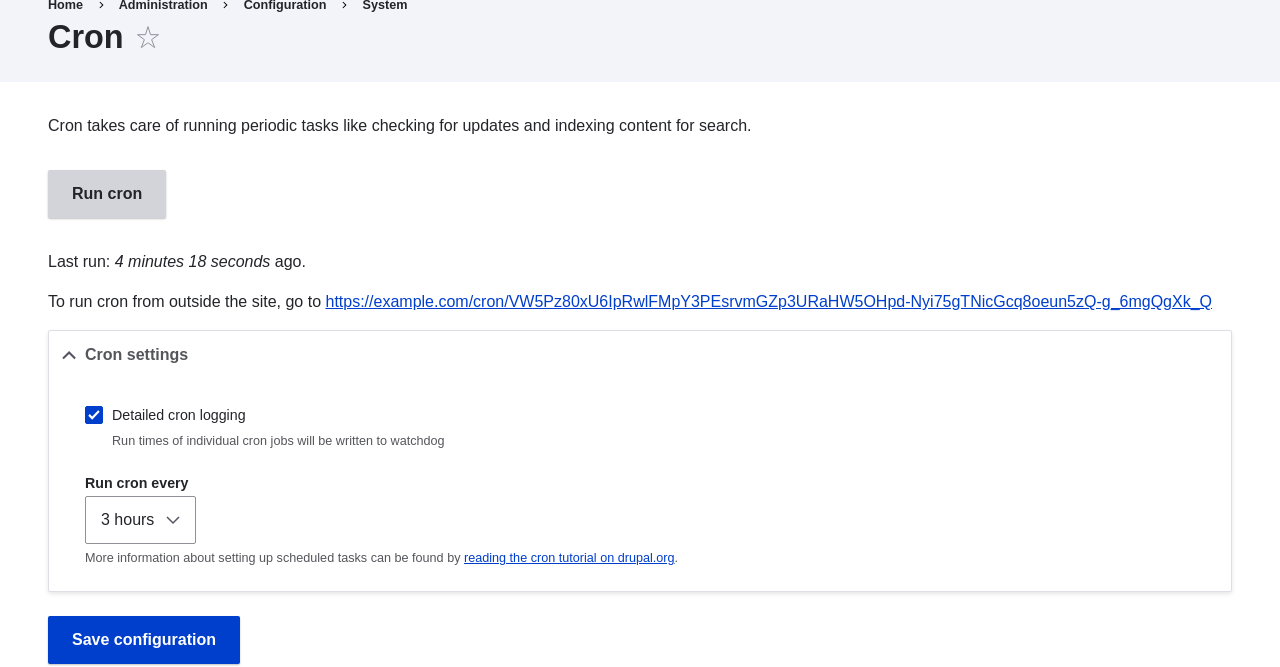
1. If you want to run cron maintenance tasks from outside the website, uninstall
the core Automated Cron module (see [Uninstalling Unused Modules](/link/708)). Next, find the
cron URL. This URL is shown in the _Status report_ (see [Concept: Status Report](/link/776)), and
in the _Cron_ administration page (see previous step). The URL looks
like this:
_http://www.example.com/cron/0MgWtfB33FYbbQ5UAC3L0LL3RC0PT3RNUBZILLA0Nf1Re_
Whenever this URL is visited, cron maintenance tasks will run. Set up one of
the following schedulers to access this URL regularly:
* [The Cron daemon](https://www.drupal.org/docs/7/setting-up-cron/configuring-cron-jobs-using-the-cron-command) (Linux, OS X, Solaris, BSD)
* [Scheduled Tasks](https://www.drupal.org/docs/7/setting-up-cron-for-drupal/configuring-cron-jobs-with-windows) (Windows)
* A cron SASS provider (software as a service)
* A cron manager provided by your web hosting provider (see the documentation
provided by your provider)
## Related concepts
[Concept: Security and Regular Updates](/link/780)
## Videos
[Configuring Cron Maintenance Tasks](https://www.youtube.com/watch?v=ts4g1jTEAt4)
## Additional resources
* [Drush page "Running Drupal cron tasks from Drush"](https://www.drush.org/latest/cron/)
* [_Drupal.org_ community documentation page "Setting up cron"](https://www.drupal.org/docs/7/setting-up-cron/overview)
# Concept: Security and Regular Updates
## Prerequisite knowledge
* [Concept: Drupal as a Content Management System](/link/681)
* [Concept: Modules](/link/682)
* [Concept: Themes](/link/683)
* [Concept: The Drupal Project](/link/686)
## What are security updates?
Any software occasionally has bugs, and sometimes these bugs have security
implications. When security bugs are fixed in the core software, modules, or
themes that your site uses, they are released in a _security update_. When
critical security updates are announced, they will be shown in the
administration pages of your website. You will need to apply security updates in
order to keep your site secure. See [Keeping Track of Updates](/link/781) to learn how to be
notified of security updates by email, and [Updating the Core Software](/link/782),
[Updating a Module](/link/783), and [Updating a Theme](/link/784) to learn how to make
updates.
## What is the security team?
The Drupal open-source project has a team of volunteers who track
security-related bugs and release security updates. They also help other
developers fix bugs, and maintain information for users on how to keep their
websites secure. You can learn more about the security team and their practices
and processes at the
[_Drupal.org_ Security Team](https://www.drupal.org/drupal-security-team/general-information) page.
## How are security bugs reported?
It is important that security problems be kept confidential until they are
fixed, so that sites are less likely to be compromised before they can be
secured. If you find a potential security problem in any of the software you
downloaded from the _Drupal.org_ website, follow the procedures on the
[_Drupal.org_ Security Team](https://www.drupal.org/drupal-security-team/general-information) page to report
it.
## What are regular (non-security) updates?
The core software, modules, and themes also periodically have regular updates to
add new features and fix bugs. These updates are less critical than security
updates. As a general best practice, updates should be applied as long as they
do not cause problems with your site. Testing on a development copy of your site
is always a good idea before applying updates on a live site. This is because
some updates may include changes that are not compatible with the modules or
themes on your site, or that will break a particular functionality on your site.
## Related topics
* [Keeping Track of Updates](/link/781)
* [Updating the Core Software](/link/782)
* [Updating a Module](/link/783)
* [Updating a Theme](/link/784)
* [Making a Development Site](/link/767)
## Additional resources
* [_Drupal.org_ community documentation page "Securing your site"](https://www.drupal.org/security/secure-configuration)
* ["Security advisories" on Drupal.org](https://www.drupal.org/security)
* [_Drupal.org_ Security team](https://www.drupal.org/drupal-security-team/general-information)
# Keeping Track of Updates
## Goal
Keep your site safe and up-to-date by keeping up with the latest security
updates.
## Prerequisite knowledge
[Concept: Security and Regular Updates](/link/780)
## Steps
There are a few different ways to receive notifications of security releases:
* Highly critical security announcements will be displayed on the administration
pages of your website. A link will be shown to the announcement on Drupal.org
which explains when and how you can update your website.
* In the _Manage_ administrative menu, navigate to _Reports_ > _Available
updates_ > _Settings_. Enter the email addresses to be notified when updates are
available. You can also specify whether you want daily or weekly updates. Click
_Save configuration_.
* Subscribe to the security announcements email list. To subscribe, log in to
_Drupal.org_, go to your user profile page and subscribe to the security
newsletter on the _Edit_ > _My newsletters_ tab.
* Follow @drupalsecurity on X.
* Subscribe to RSS feeds for
[core security updates](https://www.drupal.org/security/rss.xml),
[contributed project updates](https://www.drupal.org/security/contrib/rss.xml) and
[public service announcements](https://www.drupal.org/security/psa/rss.xml).
## Related concepts
* [Concept: Security and Regular Updates](/link/780)
* [Updating the Core Software](/link/782)
* [Updating a Module](/link/783)
* [Updating a Theme](/link/784)
## Videos
[Keeping Track of Updates](https://www.youtube.com/watch?v=GcamYLNeGAs)
## Additional resources
* ["Security advisories" on _Drupal.org_](https://www.drupal.org/security)
* [_Drupal.org_ Security Team](https://www.drupal.org/drupal-security-team/general-information)
* [@drupalsecurity on X](https://x.com/drupalsecurity)
# Updating the Core Software
## Goal
Update the core software, either through the administrative interface or by
using Drush.
## Site prerequisites
* If you want to use Drush, Drush must be installed. See [Concept: Additional Tools](/link/699).
* If your site is live, you should test this process in a development
environment before running it on your production site. See
[Making a Development Site](/link/767).
## Steps
1. Make a complete backup of your site. Refer to [Concept: Data Backups](/link/774).
1. Open _settings.php_ (_/sites/default/settings.php_) in any plain text
editor. Find the line with the _$settings['update_free_access']_ variable. By
default, it is set to "FALSE" due to security reasons. Change the setting to
"TRUE":
```text
$settings['update_free_access'] = TRUE;
```
1. Disable any caching technique (memcache, varnish, and so on) your application
might be using.
1. Put your site in maintenance mode. See [Enabling and Disabling Maintenance Mode](/link/761).
1. If you are using Composer to manage dependencies, skip the next six steps, and
instead see [Using Composer to Download and Update Files](/link/702) for instructions on downloading updated
files. Continue with the _update.php_ step.
1. Download the tar.gz or zip file archive for the latest version of Drupal core
for the branch you are currently using (such as 8.x or 9.x) from
[_Drupal.org_ Drupal Core Downloads](https://www.drupal.org/project/drupal).
See [Preparing to Install](/link/697) for more details on how to find the latest version.
1. Upload the archive file to your web hosting server.
1. Extract the archive file to a temporary directory on your server (should be
outside the directory where the site is hosted). Your hosting control panel's
file manager should provide a way to extract the files. Or, if you have
terminal access to your hosting server (running Linux), you can use a command
like:
```text
tar -xzf drupal-8.3.2.tar.gz
```
1. In your site hosting directory, delete the _core_ and _vendor_ directories,
and all files that are not in a subdirectory, including _.htaccess_,
_composer.json_, and _autoload.php_. Don't delete custom and customized files
because you may end up losing the custom functionality stored in them.
1. Copy the _core_ and _vendor_ directories and the non-custom/non-customized
files that you deleted in the preceding step from the temporary directory to
your site directory.
1. Run the _update.php_ script using either of the following:
* Visit _http://www.example.com/update.php_ in your browser (where
_www.example.com_ is your site's URL). Click _Continue_ in the first screen
to run the updates and successfully complete the script.
* Run the following Drush command: `drush updatedb`
1. If you get any error or warning, re-run the _update.php_ script
again till all the updates have been completed successfully.
1. Open _settings.php_ (_/sites/default/settings.php_) in a text editor. Find the
line with the _$settings['update_free_access']_ variable and update it to
"FALSE":
```text
$settings['update_free_access'] = FALSE;
```
1. Click _Administration pages_ to return to the administration section of your
site.
1. Take your site out of maintenance mode. See [Enabling and Disabling Maintenance Mode](/link/761).
1. Clear the cache. See [Clearing the Cache](/link/773).
1. Re-enable any caching technique you disabled at Step 3.
1. You should have the updated version running. You can verify the current
version of your software by checking the _Status report_ (see
[Concept: Status Report](/link/776)).
## Expand your understanding
* [Concept: Additional Tools](/link/699)
* [Making a Development Site](/link/767)
* [Concept: Data Backups](/link/774)
## Related concepts
[Concept: Status Report](/link/776)
## Videos
[Updating the Core Software](https://www.youtube.com/watch?v=DqYqxp4xByk)
## Additional resources
* ["Drupal Core Downloads" page on _Drupal.org_](https://www.drupal.org/project/drupal)
* ["Registry Rebuild" page on _Drupal.org_](https://www.drupal.org/project/registry_rebuild)
* The file _/core/UPDATE.txt_ within your installation.
# Updating a Module
## Goal
Update a contributed module and run the _Database updates_ script.
## Prerequisite knowledge
* [Concept: Security and Regular Updates](/link/780)
* [Concept: Cron](/link/778)
## Site prerequisites
* A contributed module has been installed and there is an update available for
it. See [Downloading and Installing a Module from _Drupal.org_](/link/762) and [Keeping Track of Updates](/link/781).
* If your site is live, you should test this process in a development
environment before running it on your production site. See
[Making a Development Site](/link/767).
* You have created a full-site backup. See [Concept: Data Backups](/link/774).
* If you want to use the user interface to check for updates, the core Update
Manager module must be installed. See [Installing a Module](/link/707) for instructions on
installing core modules.
## Steps
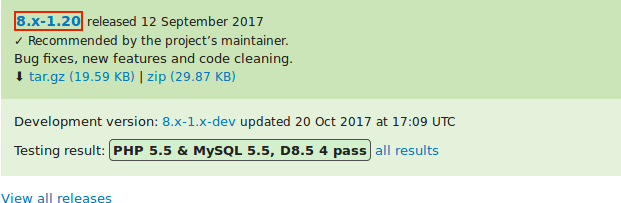
Before you start, check for module-specific update instructions. Read and
understand all module-specific requirements before proceeding with the updates.
To find instructions, check the module's project page _Read Documentation_ link.
To view further instructions, after downloading the updated files, look for
_README.txt_, _INSTALL.txt_, and _UPGRADE.txt_ that come with the module. Also,
review the release notes on the project page by clicking the version number
you're downloading.
Updating a module requires first putting your site into maintenance mode, then
obtaining the new code files and applying any required database updates, then
finally taking the site out of maintenance mode.
You can update the code for a contributed module using Composer. If you are
updating a custom module rather than a contributed module, obtain the new module
files, then continue with instructions for running the database updates via the
administrative interface below.
This assumes that you are using Composer to manage the files in your site; see
[Using Composer to Download and Update Files](/link/702).
### Update a contributed module with Composer
1. Put your site in maintenance mode. See [Enabling and Disabling Maintenance Mode](/link/761).
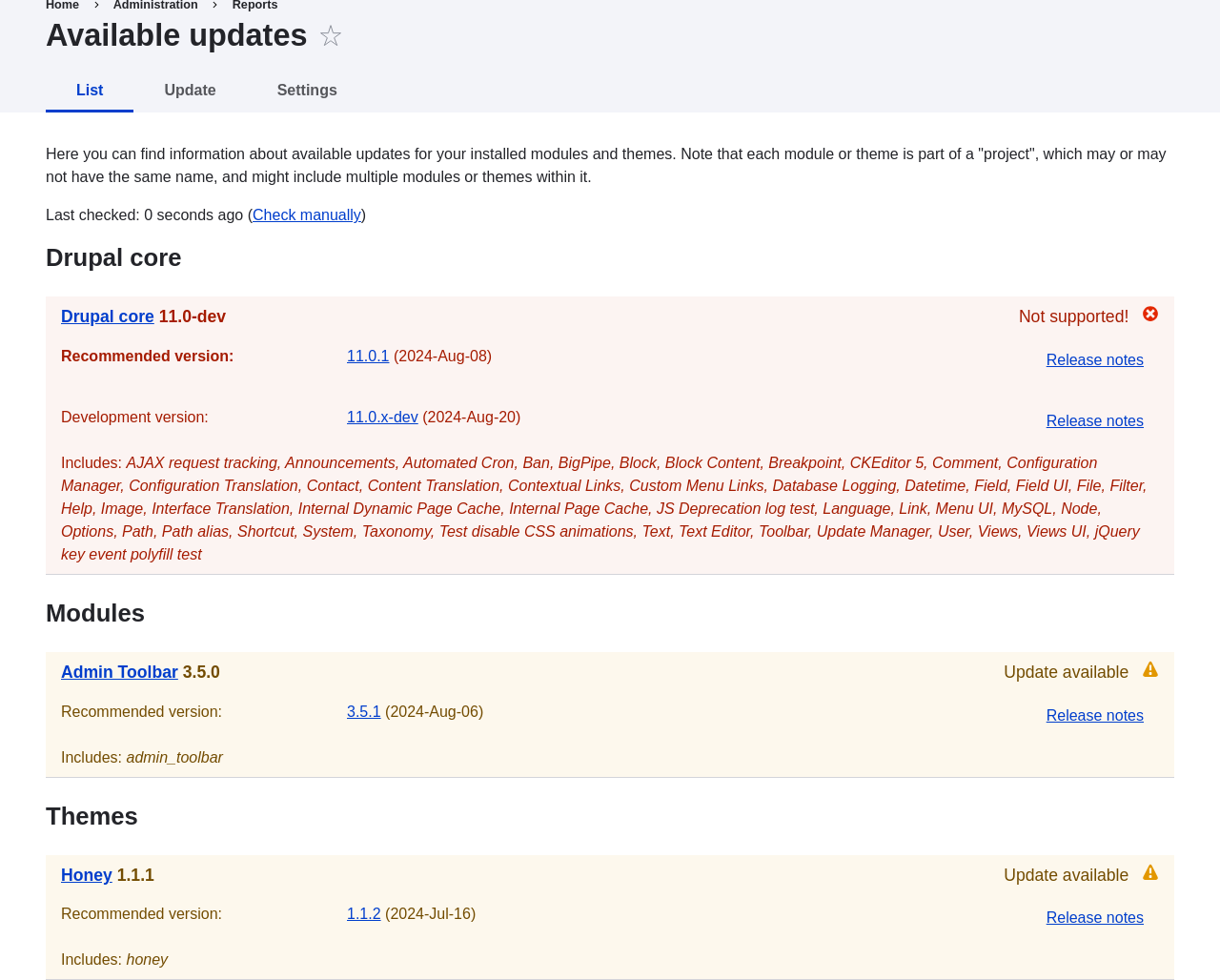
1. In the _Manage_ administrative menu, navigate to _Reports_ >
_Available updates_ > _Update_ (_admin/reports/updates_).
1. Find and check the module in the list. Click _Download these updates_ for the
module.
 1. Determine the short name of the project you want to update. For contributed
modules and themes, it is the last part of the URL of the project page; for
example, the Geofield module, at https://www.drupal.org/project/geofield, has
short name `geofield`.
1. If you want to update to the latest stable release, use the following
command, substituting the short name of the project to be updated for
`geofield`:
```text
composer update drupal/geofield --with-dependencies
```
To learn how to download specific versions see [Using Composer to Download and Update Files](/link/702).
1. After obtaining the new module files run any database updates page by typing
the URL _example.com/update.php_ in your browser.
1. Click _Continue_ to run the updates. The database update scripts will be
executed.
1. Click _Administration pages_ to return to the administration section of your
site.
1. Take your site out of maintenance mode. See [Enabling and Disabling Maintenance Mode](/link/761).
1. Clear the Drupal cache (refer to [Clearing the Cache](/link/773)).
## Expand your understanding
* Review the site log (refer to [Concept: Log](/link/775)) once the updates are complete
to check for errors.
* [Updating a Theme](/link/784)
## Videos
[Updating a Module](https://www.youtube.com/watch?v=wxWW-lPQ_Pc)
# Updating a Theme
## Goal
Update a contributed theme on your site and run the _Database Updates_ script.
## Prerequisite knowledge
* [Concept: Security and Regular Updates](/link/780)
* [Concept: Cron](/link/778)
## Site prerequisites
* A contributed theme has been installed and there is an update available for
it. See [Downloading and Installing a Theme from _Drupal.org_](/link/764) and [Keeping Track of Updates](/link/781).
* If your site is live, you should test this process in a development
environment before running it on your production site. See
[Making a Development Site](/link/767).
* You have created a full site backup. See [Concept: Data Backups](/link/774).
* If you want to use the user interface to check for updates, the core Update
Manager module must be installed. See [Installing a Module](/link/707) for instructions on
installing core modules.
## Steps
Updating a contributed theme requires first putting your site into maintenance
mode, then obtaining the new code files and applying any required database
updates, then finally taking the site out of maintenance mode.
You can update the code for a contributed theme using Composer. If you are
updating a custom theme rather than a contributed theme, obtain the new theme
files, then continue with instructions for running the database updates via the
administrative interface below.
This assumes that you are using Composer to manage the files in your site; see
[Using Composer to Download and Update Files](/link/702).
### Update a contributed theme with Composer
1. Put your site in maintenance mode. See [Enabling and Disabling Maintenance Mode](/link/761).
1. In the _Manage_ administrative menu, navigate to _Reports_ >
_Available updates_ > _Update_ (_admin/reports/updates_).
1. Find any themes in the list that need updating.
1. Determine the short name of the project you want to update. For contributed
modules and themes, it is the last part of the URL of the project page; for
example, the Geofield module, at https://www.drupal.org/project/geofield, has
short name `geofield`.
1. If you want to update to the latest stable release, use the following
command, substituting the short name of the project to be updated for
`geofield`:
```text
composer update drupal/geofield --with-dependencies
```
To learn how to download specific versions see [Using Composer to Download and Update Files](/link/702).
1. After obtaining the new module files run any database updates page by typing
the URL _example.com/update.php_ in your browser.
1. Click _Continue_ to run the updates. The database update scripts will be
executed.
1. Click _Administration pages_ to return to the administration section of your
site.
1. Take your site out of maintenance mode. See [Enabling and Disabling Maintenance Mode](/link/761).
1. Clear the Drupal cache (refer to [Clearing the Cache](/link/773)).
## Expand your understanding
* Review the site log (refer to [Concept: Log](/link/775)) once the updates are complete
to check for errors.
* [Updating a Theme](/link/784)
## Videos
[Updating a Module](https://www.youtube.com/watch?v=wxWW-lPQ_Pc)
# Updating a Theme
## Goal
Update a contributed theme on your site and run the _Database Updates_ script.
## Prerequisite knowledge
* [Concept: Security and Regular Updates](/link/780)
* [Concept: Cron](/link/778)
## Site prerequisites
* A contributed theme has been installed and there is an update available for
it. See [Downloading and Installing a Theme from _Drupal.org_](/link/764) and [Keeping Track of Updates](/link/781).
* If your site is live, you should test this process in a development
environment before running it on your production site. See
[Making a Development Site](/link/767).
* You have created a full site backup. See [Concept: Data Backups](/link/774).
* If you want to use the user interface to check for updates, the core Update
Manager module must be installed. See [Installing a Module](/link/707) for instructions on
installing core modules.
## Steps
Updating a contributed theme requires first putting your site into maintenance
mode, then obtaining the new code files and applying any required database
updates, then finally taking the site out of maintenance mode.
You can update the code for a contributed theme using Composer. If you are
updating a custom theme rather than a contributed theme, obtain the new theme
files, then continue with instructions for running the database updates via the
administrative interface below.
This assumes that you are using Composer to manage the files in your site; see
[Using Composer to Download and Update Files](/link/702).
### Update a contributed theme with Composer
1. Put your site in maintenance mode. See [Enabling and Disabling Maintenance Mode](/link/761).
1. In the _Manage_ administrative menu, navigate to _Reports_ >
_Available updates_ > _Update_ (_admin/reports/updates_).
1. Find any themes in the list that need updating.
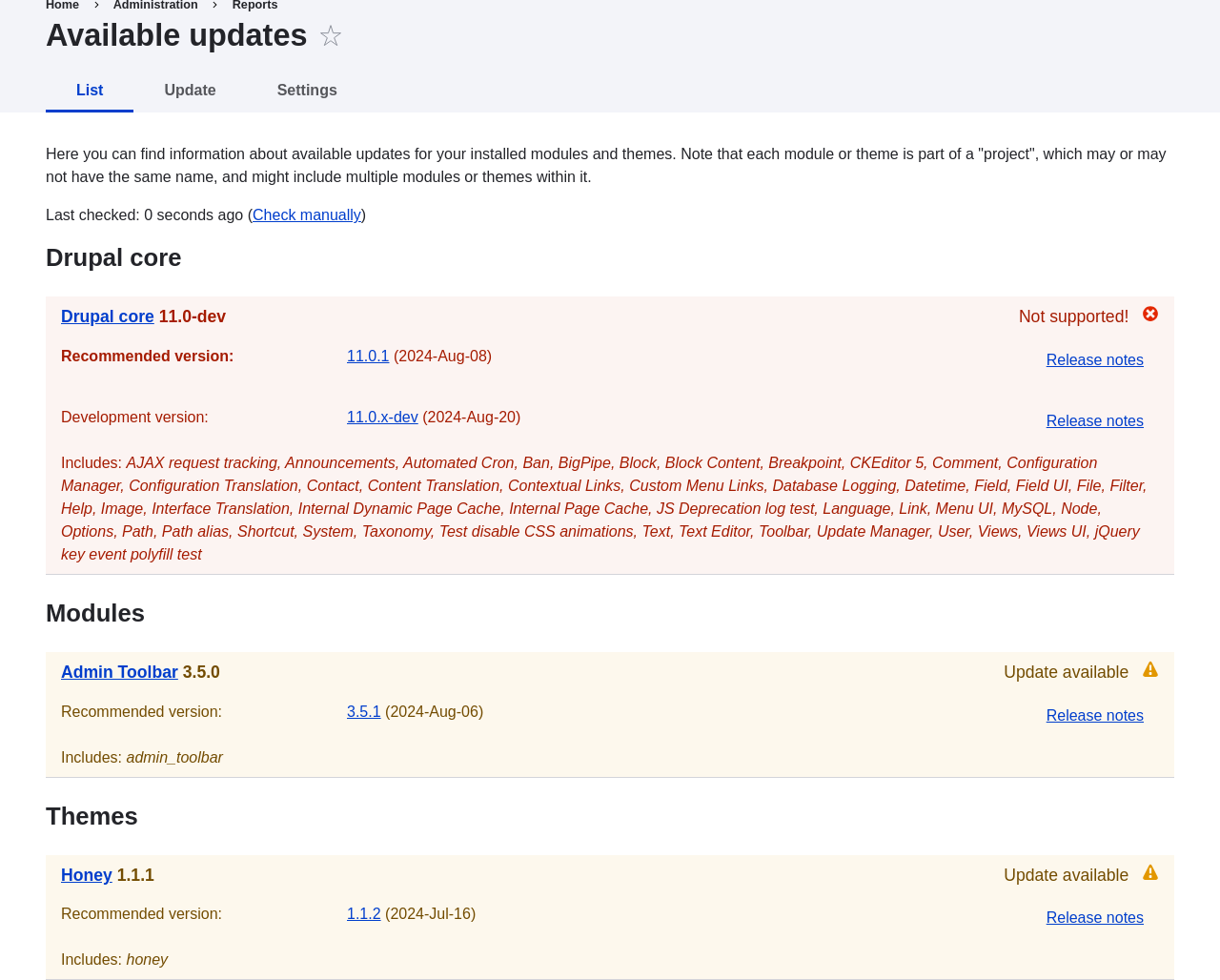 1. Determine the short name of the project you want to update. For contributed
modules and themes, it is the last part of the URL of the project page; for
example, the Honey theme, at https://www.drupal.org/project/honey, has
short name `honey`.
1. If you want to update to the latest stable release, use the following
command, substituting the short name of the project to be updated for
`honey`:
```text
composer update drupal/honey --with-dependencies
```
To learn how to download specific versions see [Using Composer to Download and Update Files](/link/702).
1. After obtaining the new theme files run any database updates page by typing
the URL _example.com/update.php_ in your browser.
1. Click _Continue_ to run the updates. The database update scripts will be
executed.
1. Click _Administration pages_ to return to the administration section of your
site.
1. Take your site out of maintenance mode. See [Enabling and Disabling Maintenance Mode](/link/761).
1. Clear the Drupal cache (refer to [Clearing the Cache](/link/773)).
## Expand your understanding
* Review the site log, see [Concept: Log](/link/775), once the updates are complete to
check for errors.
* [Updating a Module](/link/783)
## Videos
[Updating a Theme](https://www.youtube.com/watch?v=elVnWoaQMkk)
1. Determine the short name of the project you want to update. For contributed
modules and themes, it is the last part of the URL of the project page; for
example, the Honey theme, at https://www.drupal.org/project/honey, has
short name `honey`.
1. If you want to update to the latest stable release, use the following
command, substituting the short name of the project to be updated for
`honey`:
```text
composer update drupal/honey --with-dependencies
```
To learn how to download specific versions see [Using Composer to Download and Update Files](/link/702).
1. After obtaining the new theme files run any database updates page by typing
the URL _example.com/update.php_ in your browser.
1. Click _Continue_ to run the updates. The database update scripts will be
executed.
1. Click _Administration pages_ to return to the administration section of your
site.
1. Take your site out of maintenance mode. See [Enabling and Disabling Maintenance Mode](/link/761).
1. Clear the Drupal cache (refer to [Clearing the Cache](/link/773)).
## Expand your understanding
* Review the site log, see [Concept: Log](/link/775), once the updates are complete to
check for errors.
* [Updating a Module](/link/783)
## Videos
[Updating a Theme](https://www.youtube.com/watch?v=elVnWoaQMkk)