# Chapter 2: Planning Your Site

# Concept: Regions in a Theme

## Prerequisite knowledge

[Concept: Themes](/link/683)
## What is a region?

Besides its primary content, a web page contains other content such as site
branding (site name, slogan, and logo), navigation aids (menus, links, and
icons), formatted text, and images. Each theme provides a set of named regions,
such as _Header_, _Content_, and _Sidebar_, where site builders may choose to
place their content.

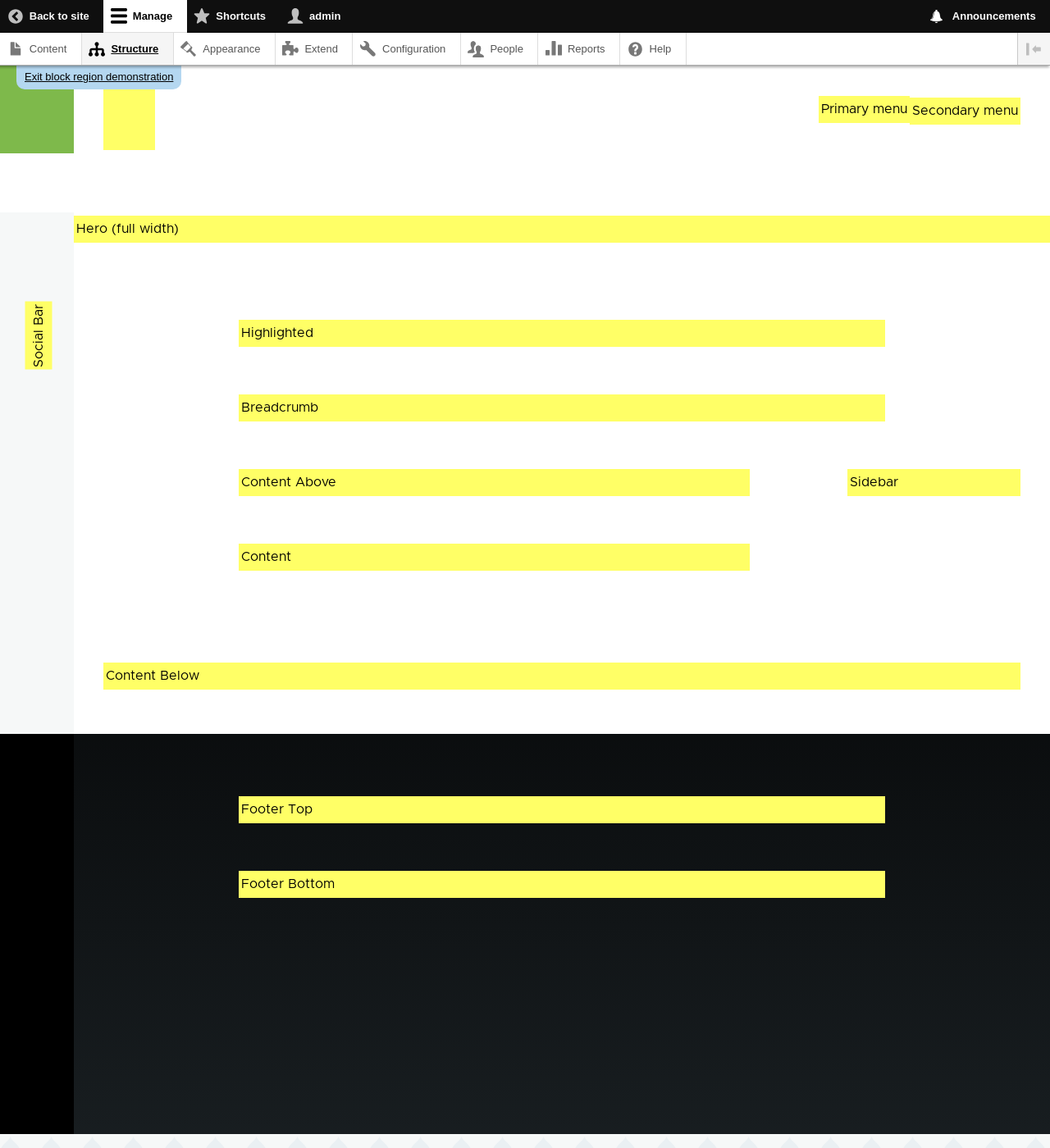
The available regions depend on the theme design. Only the Content region,
which contains the primary content, is required; others are optional.  The
core Olivero theme provides the regions highlighted in the following image.

<img src="https://docs.cocobook.com/uploads/images/gallery/2026-10/block-regions-olivero.png" alt="core Olivero theme regions" width="100%" />

## Related topics

* [Concept: Blocks](/link/745)
* [Concept: Content Entities and Fields](/link/691)
* [Placing a Block in a Region](/link/747)


# Planning Your Site Layout

## Goal

Plan the navigation and layout of the site, for both mobile and desktop
browsers.
## Prerequisite knowledge

* [Concept: Themes](/link/683)
* [Concept: Regions in a Theme](/link/689)
* [Guiding Scenario](/link/679)
## Steps

It is a good idea to plan the site layout before you start building
the site and writing content; however, your plan may need to be revised either
before you start implementing it or after you have some of the site built with
draft content in place, based on budgetary concerns or stakeholder feedback.

1. Make a list of the information that your site should present to visitors. In
    the farmers market scenario, this might include:
    * Location of the market, with directions and a map
    * Hours and days the market is open
    * History of the market
    * List of vendors
    * Details about each vendor
    * Searchable list of recipes
    * Details about each recipe
    * List of the most recently added recipes
1. Decide which information should be on which pages or types of pages on the
    site:
    - **Information that should be on all pages:** Address, hours, and recently-added recipes list
    - **Vendor details pages:** Information about each vendor on its own page
    - **Recipe details pages:** Details of each recipe on its own page
    - **Home page:** Location, map, directions, and hours
    - **About page:** History of the market
    - **Vendors list page:** List of vendors, with links to vendor detail pages
    - **Recipe list page:** Searchable list of recipes, with links to recipe detail pages
1. Decide which information is the most important on each page. Site visitors
    using mobile phones or other small browsers will often only see the content that
    is presented first, and they may not scroll down to see all of the information.
1. Decide which of these pages should appear in the main site navigation. For
    instance, the main navigation might consist of the Home, About, Vendors, and
    Recipes pages.
1. Make a rough design sketch for each page, showing how it would look when
    viewed on a small screen such as a phone, as well as on a larger screen such as
    a desktop browser. Considering that most site visitors will be using smaller
    browsers, it is a good idea to start with the phone-size layout, to make sure
    that these visitors will be able to find the information they need without too
    much scrolling.
    In making these page layout plans, you might find that you need to revise your
    plan for which information should be on which pages. For example, you might
    decide that the address, hours, and recently-added recipes list would all fit
    well in the right sidebar area of all pages, when the site is viewed on
    desktop-sized browsers. On the other hand, you might decide that for mobile
    browsers, you would instead put the address and hours in a short format at the
    top of each page, but only display the recent recipe list at the bottom of the
    home page.

## Expand your understanding

[Planning your Content Structure](/link/693)
## Videos

[Planning Your Site Layout](https://www.youtube.com/watch?v=35e16QDFE7k)


# Concept: Content Entities and Fields

## Prerequisite knowledge

* [Concept: Types of Data](/link/685)
* [Concept: Modules](/link/682)
## What is a content entity?

A _content entity_ (or more commonly, _entity_) is an item of content data,
which can consist of text, HTML markup, images, attached files, and other data
that is intended to be displayed to site visitors. Content entities can be
defined by the core software or by modules.

Content entities are grouped into _entity types_, which have different purposes
and are displayed in very different ways on the site. Most entity
types are also divided into _entity subtypes_, which are divisions within an
entity type to allow for smaller variations in how the entities are used and
displayed. Here is a table of some common content entity types:

| Entity type | Entity subtype | Defining Module | Main uses |
| --- | --- | --- | --- |
| Content item | Content type | Node module | Content intended to be the main page area for pages on the site<br><br>*Example:* In the farmers market site example, you might have content types for basic pages, vendor pages, and recipe pages. |
| Comment | Comment type | Comment module | Commentary added to content entities (typically to Content item entities)<br><br>*Example:* On a blog site, blog posts might have comments. They are not needed in the farmers market site example. |
| User profile | (none) | User module | Data related to a person with a user account (login access) on the site<br><br>*Example:* Every site has at least basic user profiles with user names and email addresses; social networking sites may have more complex user profiles with more information. |
| Custom block | Block type | Custom Block module | Text and images in smaller chunks, often displayed in the site header,<br><br>*Example:* In the farmers market site example, you might put the hours and location in a sidebar block. |
| Taxonomy term | Vocabulary | Taxonomy module | Used to classify other types of content<br><br>*Example:* In the farmers market site example, you might classify Recipe content with an Ingredients taxonomy vocabulary, with taxonomy terms like Carrots and Tomatoes. In a blogging site, blog posts might be classified using a Tags vocabulary, and perhaps also a Categories vocabulary. |
| File | (none) | File module | An image or attachment file that is tracked and managed by the site, often<br><br>*Example:* In the farmers market site example, both Recipe and Vendor pages might have image attachments, which would (behind the scenes) be managed as File entities by the site. |
| Contact form | Form type | Contact module | A form that lets site visitors contact site owners<br><br>*Example:* A contact form is needed in the farmers market site example. |
## What is a field?

Within entities, the data is stored in individual _fields_, each of which
holds one type of data, such as formatted or plain text, images or other files,
or dates. Field types can be defined by the core software or by modules.

Fields can be added by an administrator on entity subtypes, so that all
entities of a given entity subtype have the same collection of fields
available. For example, the Vendor content type in the farmers market example
might have fields for the vendor name, a logo image, website URL, and
description, whereas the _Basic page_ content type might only have fields for
the title and page body. When you create or edit entities, you are
specifying the values for the fields on the entity.
## Related topics

* [Planning your Content Structure](/link/693)
* [Creating a Content Item](/link/713)
* [Adding a Content Type](/link/720)
* [Concept: Taxonomy](/link/724)
* [Concept: Users, Roles, and Permissions](/link/737)
* [Concept: Blocks](/link/745)


# Concept: Modular Content

## Prerequisite knowledge

* [Concept: Content Entities and Fields](/link/691)
* [Planning Your Site Layout](/link/690)
## What is modular content?

Given that the content of your site is stored in a database, it is desirable to
make the content _modular_, meaning that certain pages on your site, rather than
being edited as a whole page, are instead generated automatically from other
content items. For instance, in the farmers market site scenario, you might
create individual content items for recipes. If the recipe content items have a
field that keeps track of ingredients, then your site could include a composite
page that would list recipes, and allow visitors to search for a recipe that
contained some particular ingredient they had bought at the market.

Smaller sections of pages can also be generated as composites. For instance,
recipe content items could have a field that keeps track of which vendor
submitted the recipe (see [Concept: Reference Fields](/link/723)), with the vendor
details edited in separate vendor content items. This would allow you to do the
following on your site:

* On each Recipe page, there could be an area that displays some information
about the vendor that submitted the recipe, such as their name and market stall
number.
* Each vendor page could have a section that lists the recipes they have
submitted.

The key idea is that each piece of information is only edited in one place.
When vendor information is updated, all recipe pages that display that vendor
information are automatically updated; when a recipe is submitted by a vendor,
it is automatically displayed on the vendor page. The core Views module is the
usual way to use modular content to create composite pages and page sections;
see [Concept: Uses of Views](/link/749) for more information. Also, _view modes_ are useful for
defining different ways to display each content item; see
[Concept: View Modes and Formatters](/link/729) for more information.
## Related topics

* [Planning your Content Structure](/link/693)
* [Adding a Content Type](/link/720)
* [Adding Basic Fields to a Content Type](/link/722)
* [Concept: Reference Fields](/link/723)
* [Concept: View Modes and Formatters](/link/729)
* [Concept: Uses of Views](/link/749)


# Planning your Content Structure

## Goal

Make a plan for the content structure of the site (which type and subtype of
entity to use for which content), and which pages will contain listings of
content.
## Prerequisite knowledge

* [Concept: Content Entities and Fields](/link/691)
* [Concept: Modular Content](/link/692)
* [Guiding Scenario](/link/679)
## Steps

1. Brainstorm about what content your site needs to contain, which could include
    content that visitors would be looking for, as well as content that you want
    to show to visitors. The result could be the description in
    [Guiding Scenario](/link/679).
1. For each identified piece of content, decide which content entity type would
    be the best fit. In doing this, you'll need to consider where and how
    the content will be used and edited on the site. For example, in the farmers
    market site scenario, you might want to display the hours and location of the
    farmers market on the sidebar of every page. For that content, a single custom
    block makes sense. As another example, you might decide that pages displaying
    information about each vendor should be content items managed by the core Node
    module, because you want vendors to be able to edit their own listings.
    The core Node module permission system lets you do this easily.
    These decisions do not necessarily always have only one right answer; for
    instance, you could decide that vendor pages should be user profiles instead of
    content items, but if you did that the content would be tied to a specific user
    account, and it would not be as easy to later change the ownership of a vendor
    page to a different user account.
1. Within each content entity type you identified, decide what division into
    entity subtypes would make sense. For example, in the farmers market site
    example, you would probably decide that under the Content item entity type,
    there should be one content type for basic pages (Home and
    About), one for vendor pages, and one for recipe pages.
1. For each entity subtype you decided on, decide what fields are needed. For
    instance, the Vendor content type might need fields for the vendor name, web
    page URL, image, and description.
1. Decide on what entity listings are needed, which could be entire pages or
    smaller areas on the page. For each listing, you'll need to determine which
    entities should be listed. Then you'll need to decide in what order and with
    what filtering options they should be displayed; for example, you might want to
    give the site visitor the option to search by keyword, to filter the list down
    to a subset, or to sort the list. You'll also need to decide what information
    from the entities should be shown, which might result in adding to the list
    of fields you determined in the previous step. The farmers market site, for
    example, needs to have a Recipes listing page that lists content items of type
    Recipe, with the ability to filter by ingredients, so that means that the Recipe
    content type needs an Ingredients field.
1. For each identified field on each entity subtype, identify what type of data
    it should contain (such as plain text, formatted text, a date, an image file,
    etc.), and how many values should be allowed. Most fields are
    single-valued, but for example, a Recipe should allow for multiple values in
    its Ingredients field.
1. Consider which fields would be best as references to taxonomy term entities:
    fields whose values should be chosen from a list of allowed values. Allowed
    values that are expected to change and grow over time, are good candidates. An
    example is the Ingredients field for the Recipe content type.
1. Consider which fields should reference other content entities. An example is
    that since vendors will be submitting recipes, a field will be needed on
    the Recipe content type that references the Vendor content item for the vendor
    who submitted the recipe.

    Here's an example of the resulting content structure for the farmers market
    scenario example site:

    <table>
      <thead>
        <tr>
          <th>Entity type</th>
          <th>Entity subtype</th>
          <th>Examples</th>
          <th>Fields</th>
        </tr>
      </thead>
      <tbody>
        <tr>
          <td>Content item</td>
          <td>Basic page</td>
          <td>Home page, about page</td>
          <td>Title, page body</td>
        </tr>
        <tr>
          <td>Content item</td>
          <td>Vendor</td>
          <td>A page for each vendor at the market</td>
          <td></td>
        </tr>
        <tr>
          <td>Content item</td>
          <td>Recipe</td>
          <td>A page for each submitted recipe</td>
          <td></td>
        </tr>
        <tr>
          <td>Custom block</td>
          <td>(generic)</td>
          <td>Copyright notice for footer, Hours and location for sidebar</td>
          <td>No special fields</td>
          <td></td>
        </tr>
        <tr>
          <td>Taxonomy term</td>
          <td>Ingredients</td>
          <td>Carrots, tomatoes, and other recipe ingredients</td>
          <td></td>
        </tr>
        <tr>
          <td>Contact form</td>
          <td>(generic)</td>
          <td>Generic contact form</td>
          <td>Name, email, subject, message</td>
        </tr>
        <tr>
          <td>User profile</td>
          <td>(none)</td>
          <td>Will not be displayed on site</td>
          <td>No special fields</td>
        </tr>
      </tbody>
    </table>

    And here are the listings the site needs:

    <table>
      <thead>
        <tr>
          <th>Page or page area</th>
          <th>Entity type and subtype</th>
          <th>Filter/sort/pagination</th>
          <th></th>
        </tr>
      </thead>
      <tbody>
        <tr>
          <td>Vendors page</td>
          <td>Vendor content items</td>
          <td>All vendors, alphabetical, paged</td>
          <td></td>
        </tr>
        <tr>
          <td>Recipes page</td>
          <td>Recipe content items</td>
          <td>Filter by ingredients, alphabetical, paged</td>
          <td>Image, recipe name</td>
          <td></td>
        </tr>
        <tr>
          <td>Recent recipes sidebar</td>
          <td>Recipe content items</td>
          <td>List 5 most recent</td>
          <td></td>
        </tr>
      </tbody>
    </table>

## Expand your understanding

* [Adding a Content Type](/link/720)
* [Adding Basic Fields to a Content Type](/link/722)
* [Setting Up a Taxonomy](/link/725)
## Related concepts

[Concept: Taxonomy](/link/724)
## Videos

[Planning Your Content Structure](https://www.youtube.com/watch?v=CaNt4DEeIgU)


# Concept: Editorial Workflow

## Prerequisite knowledge

* [Concept: Drupal as a Content Management System](/link/681)
* [Concept: Content Entities and Fields](/link/691)
## What is an editorial workflow?

An _editorial workflow_ is the process organizations follow to create, review,
edit, and publish content. Multiple people in different roles in the
organization can be part of the process. For example, content creators could
collect information and write content; editors could review, edit, ask for
changes, and publish the content once it's ready to be shared with the
audience. Later on, content revisions could go through a simple process for
small changes, or a more complex process with reviews for larger changes.
## What tools are available for managing workflows?

- **Published/Unpublished status:** The Content item entity type supports marking each content item as either Published or Unpublished. Viewing permissions are separate for published and unpublished content; for example, all site visitors might be able to see published content items, while only content creators and editors can see unpublished content items.
- **Revision tracking:** Some content entity types support revision tracking, meaning that as content is revised, the software stores the older revisions, so that they can be compared or reverted.
- **Workflows:** The core Workflows module lets you define workflow states and transitions, beyond just having content be published or unpublished. The companion core Content Moderation module lets you assign permissions and roles to the workflow transitions. Both can be used with both Content item and Custom block entity types.
- **Block placement:** The Custom block content entity lets you create a custom block and edit it, but only make it visible on the site once it is ready.
## Related topics

* [Creating a Content Item](/link/713)
* [Editing a Content Item](/link/714)
* [Creating A Custom Block](/link/746)
* [Placing a Block in a Region](/link/747)


# Concept: User Interface, Configuration, and Content translation

## Prerequisite knowledge

* [Concept: Types of Data](/link/685)
* [Concept: Modules](/link/682)
* [Concept: Content Entities and Fields](/link/691)
## What languages does the software support?

The base language for the software that your site runs (core software, modules,
and themes) is English. However, using this software you can create a site whose
default language is not English, in which case anyone viewing the site should
see only that language (assuming that the site is fully translated). You can
also use this software to create a multi-lingual site, with a language switcher
that site visitors can use to switch to their preferred language. You need to
have the core Language module installed in order to use a language other than
English on the site.
## What can be translated on your site?

There are three types of information that you can translate, each with its own
method for translating:

- **User interface text:** Built-in text present in the core software, modules, and themes. This can be translated from the base English language of the software into the language(s) of your site. Typically, rather than needing to translate this text yourself, you can download translations. You need to have the core Interface Translation module installed in order to translate this text, and the core Update Manager module installed in order to automatically download translations.
- **Configuration text:** Text whose structure and initial values are defined by the core software, modules, and themes, but that you can edit. Examples include the labels for fields in your content types, header text in views, your site name, and the content of automatic email messages that your site sends out. After creating configuration text in the default language of your site, you can translate it into other languages. For default configuration supplied by the core software, modules, and themes, translation is included with the downloads of user interface text translations. You need to have the core Configuration Translation module installed in order to translate this text.
- **Content text and files:** If your site is multilingual, you can configure the content fields on your site to be translatable. After creating content in one language, you can translate it into other languages. Fields can contain textual information or uploaded files, and for each field on each entity subtype, you can configure it to be translatable or non-translatable. You need to have the core Content Translation module installed in order to translate this text.
## What information will remain in English on my site?

Even if the default language of your site is not English, you will still see
English text on certain administrative pages used to manage configuration. The
reason is that when you edit configuration, you are editing the base,
untranslated configuration values; translating configuration is a separate
operation. For example, if you visit the _Menus_ administration page, you will
see menu names in English (for the menus that were set up when you installed
your site), and if you click an _Edit menu_ link, you will be editing the
English name and description of the menu. To edit the menu name in a different
language, you would need to have the core Configuration Translation module
installed, and use the _Translate_ link to edit the translated menu information.
## Related topics

* [Adding a Language](/link/755)
* [Configuring Content Translation](/link/756)
* [Translating Content](/link/757)
* [Translating Configuration](/link/758)