# Chapter 3: Installation

# Preparing to Install

## Goal

Outline the steps to download the core software, and handle any required
prerequisites.
## Prerequisite knowledge

* How to install and configure server software (if installing on your own
computer)
* How to set up hosting for a generic web site
* How to create a database
## Site prerequisites

Server software must be installed on the computer where you plan to host your
site. See [Concept: Server Requirements](/link/698) for a list of requirements.

See [Setting Up an Environment with DDEV](/link/701) for the recommended way to get started running the software
locally.

Depending on how you plan to download the core software, you may need to install
additional software tools first. See [Concept: Methods for Downloading and Installing the Core Software](/link/700) and [Concept: Additional Tools](/link/699).
## Steps

1. Choose methods for downloading and installing the core software, from those
    listed in [Concept: Methods for Downloading and Installing the Core Software](/link/700). The rest of these instructions apply to the
    Composer and manual download options; if you chose other options, like a
    one-click installer from a hosting provider, consult the relevant documentation
    for any additional steps.
1. Set up a URL and hosting for your site on the server. Verify that the hosting
    is working by putting a simple HTML file in the web root directory of the
    hosting, and visiting the URL for your site.
1. Create a database, along with a database user account with full access.
1. Download the core software files to the web root directory, using the method
    you decided on. See [Concept: Methods for Downloading and Installing the Core Software](/link/700) for links to instructions.

## Expand your understanding

See [Running the Interactive Installer](/link/703) to run the interactive installer.
## Videos

[Preparing to Install](https://www.youtube.com/watch?v=7Aib3y9DM80)

## Additional resources

[Drush](http://www.drush.org)


# Concept: Server Requirements

## What are the requirements for running the core software?
### Disk space

The total amount of disk space needed for your site is not a fixed amount, as it
depends on your site. The base files for the core software take up about 100 MB
on the web server. You will need more space if you install additional modules or
themes, and you'll also need space for media, backups, and other files generated
by and uploaded to your site. The database also uses disk space, although that
is typically not in the same area (and in some cases, not even on the same
server) as that used by the site files.
### PHP

PHP 8.3 or a higher PHP 8 version. PHP must be set up with a minimum memory size
of 64MB; if you are running multiple modules on your site or using
memory-intensive PHP-based command-line tools (such as Composer), considerably
more memory than that may be needed.

Certain PHP extensions are also required; the exact list of required PHP
extensions depends on how you install the core software and which modules you
are using on your site. Generally, hosting service providers have installed all
the PHP extensions you will need. If you are self-hosting or running your site
on your local computer, you will get error messages during installation if any
required PHP extensions are missing, and should be able to install them and
continue. See 
[PHP requirements](https://www.drupal.org/docs/getting-started/system-requirements/php-requirements)
for a complete list of requirements.
### Web server

- **Apache (Recommended):** Apache is the most commonly used web server. The core software will work on Apache 2.4.7 or higher hosted on UNIX/Linux, OS X, or Windows that have the Apache mod_rewrite module installed and enabled. The Apache VirtualHost configuration must contain the directive _AllowOverride All_ to allow the _.htaccess_ file to be used.
- **PHP Local Server:** You can temporarily run a local demo site on your computer using just PHP, without installing web server software.
- **Nginx:** Nginx is a commonly used web server that focuses on high concurrency, performance and low memory usage. The core software will work on Nginx 0.7 or greater hosted on UNIX/Linux, OS X, or Windows. The ngx_http_rewrite_module must be installed and enabled.
### Database

Use one of the following databases:

* MySQL - 8.0+ (MariaDB 10.6+, Percona 8.0+) or higher with an
InnoDB-compatible primary storage engine
* PostgreSQL - 16 or higher with the pg_trgm extension
* SQLite - 3.45 or higher. Temporary local demo sites use SQLite, which is
distributed as part of PHP and doesn't require installing separate database
software, but make sure your version of PHP has the minimum SQLite included.
## Additional resources

* [_Drupal.org_ community documentation page "System requirements"](https://www.drupal.org/docs/system-requirements)
* [PHP Runtime Configuration (PHP memory limit and other settings)](https://secure.php.net/manual/en/configuration.php)
* [Installing a new Drupal application on your local machine](https://www.drupal.org/docs/official_docs/en/_local_development_guide.html)
* [Creating a Drupal demo application for evaluation purposes](https://www.drupal.org/docs/official_docs/en/_evaluator_guide.html)

# Concept: Additional Tools

## What tools are available for site builders?

There are several additional tools available that help you create sites faster,
more accurately and with less effort.

- **Drush:** See below for more about command-line tools.
- **Git:** See below for more about version control tools.
- **Composer:** See below for more about Composer.
- **Devel:** The [contributed Devel module](https://www.drupal.org/project/devel) helps with development tasks such as debugging and inspecting code, and generating dummy content.
## What are command-line tools?

Command-line tools provide an alternative to using the administrative interface
for various operations on your site. Many site builders and maintainers have
invested the time to install and learn a command-line tool, because:

* Administrative tasks are typically faster and less tedious when performed at
the command line than in the user interface.
* You can write scripts that combine site-related commands with other commands
on the server, to automate more complicated tasks.
* Command-line tools provide additional functionality not available via the
administrative interface; for example, running database queries.

The most popular tool is [Drush](https://www.drush.org/). Drush is a command-line
interface and scripting tool that can speed up common tasks for developers, site
builders, and DevOps teams. This guide documents commands from the latest stable
version of Drush for many tasks; it does not document commands for older
versions of Drush, but you can look them up in the Drush documentation.

To use these tools, you will need to have command-line terminal access to the
environment where your website will be hosted, and you will need to install
Composer first in order to install Drush.

To install Drush first make sure your project is using Composer to manage
dependencies. See below for more about Composer. Then use the following
commands:

```text
# Install Drush
composer require drush/drush
```
## What is a version control system?

A version control system is software that keeps copies of files and revision
history in a _repository_, and allows you to add, delete, and update files. For
a web site project, revision control software can help you:

* Test locally before deploying files on the live site
* Look at, compare with, and revert to previous versions of files
* Look at the added, changed, or deleted files before you _commit_ the changes
(update the repository)
* Merge changes from different team members together
* Keep files and configuration synchronized between local and live sites

There are many proprietary and open-source version control systems to choose
from; a popular choice is [Git](https://git-scm.com/), which is open-source
software that runs on most computer platforms. Git is a _distributed_ version
control system that allows you to have one or more copies of your repository,
which allows you to commit changes to a copy and then only _push_ them to the
repository you've designated as _canonical_ when you're ready to share them with
others. The canonical git repository can be hosted on your local computer or a
server at your company, but many software projects and individuals host their
Git repositories using third-party services provided by
[GitLab](https://about.gitlab.com/) or [GitHub](https://github.com/).
## What is Composer used for?

[Composer](https://getcomposer.org/) is a tool for managing PHP dependencies,
where the developer specifies what version of each external library is needed,
and Composer manages the process of downloading and installing the libraries.

[Composer can be installed](https://getcomposer.org/doc/00-intro.md) on the
local development environment or webserver but is often already available in
[Drupal development tool kits](https://www.drupal.org/docs/develop/development-tools/development-tools-overview).

The core software is a primary user of Composer, because it makes use of several
externally-developed software libraries, which must be downloaded and installed
in order for the core software to work. When you install the core software, you
either need to download an archive that contains compatible versions of the
external libraries, or you need to run Composer to download the external
libraries after the initial download. The Drush command-line tool is also
downloaded using Composer.

Some contributed modules also make use of externally-developed software
libraries; for example, a Facebook integration module might require Facebook's
integration library to be installed for the module to work, and a geographical
module might make use of a standard library of geographical functions. To
install a module with external dependencies, you will need to run Composer.
## What tools are available for module and theme developers?

In addition to the site builder tools mentioned above, the following tools are
useful for module and theme developers.

- **Drush:** [Drush](https://www.drush.org/) is a command-line tool that can be used to generate boilerplate code and interact with a Drupal site. It can generate, for example, block or form code, install modules and themes, clear the cache, and create dummy content.
- **Coder:** [Coder](https://www.drupal.org/project/coder) is a command-line tool that checks if your modules and themes comply with coding standards and other best practices. It can also fix coding standard violations.
- **Browser debugging tools:** Web browsers such as Firefox and Chrome include tools that allow viewing, editing, debugging, and monitoring CSS, HTML, and JavaScript. You can open the debugging pane or window by right-clicking the mouse in an area of your window, and choosing "Inspect" or "Inspect element".
## Related topics

[Using Composer to Download and Update Files](/link/702)
## Additional resources

* [_Drupal.org_ community documentation page "Development tools overview"](https://www.drupal.org/docs/develop/development-tools/development-tools-overview)
* [_Drupal.org_ community documentation page "Using Composer with Drupal"](https://www.drupal.org/docs/develop/using-composer/using-composer-with-drupal)
* [Wikipedia article "Distributed version control"](https://en.wikipedia.org/wiki/Distributed_version_control)


# Concept: Methods for Downloading and Installing the Core Software

## Prerequisite knowledge

* [Concept: Additional Tools](/link/699)
* [Concept: Server Requirements](/link/698)
* [Concept: Distributions](/link/684)
## What methods are available for downloading the core software?

Before you can build a site, you will need to first download the core software.
Depending on your plans, there are several ways that you can download the core
software:

- **Use Composer:** If you plan to build a site, and continue to develop it over time you should use Composer to download the core software, because Composer will manage the dependencies properly. If you plan to use the Drush tool (see [Concept: Additional Tools](/link/699)), using Composer is required. See [Using Composer to Download and Update Files](/link/702) for instructions.
- **Try a free online demo:** If you are evaluating whether or not to use Drupal to build a site, you can use an online provider to get a demo installation of the core software in 20 minutes or less. See the [_Drupal.org_ page "Try Drupal"](https://www.drupal.org/try-drupal).
- **Use a one-click installer from your hosting provider:** If you choose to install the core software at your hosting provider, your hosting provider may have specific documentation and/or a one-click install that you can use. See [_Drupal.org's_ list of hosting providers that support Drupal](https://www.drupal.org/hosting).
- **Use a pre-configured environment:** Use a pre-configured environment or virtual machine that contains Drupal and all the required supporting software to install Drupal locally. See the section for your operating system under [_Drupal.org_ community documentation page "Local server setup guide"](https://www.drupal.org/docs/develop/local-server-setup) for possible options.
## What happens when I install the core software?

_Installing_ the core software means setting up some database tables,
configuration, and an administrative user account, so that you can build and use
your site.
## What methods are available for installing the core software?

There are several ways to install the core software:

- **Behind-the-scenes installer:** If you choose to use an online demo or one-click installer from a hosting provider, the core software may be installed for you automatically.
- **Interactive installer:** The core software has an interactive installer that presents you with several on-line forms, and then completes the installation using the information you provide in the forms. See [Preparing to Install](/link/697) and [Running the Interactive Installer](/link/703).
- **Command-line tool:** Command-line tools (see [Concept: Additional Tools](/link/699)) can also be used to perform the installation steps.
- **Demo site installer:** Quickly create a temporary demo site that uses the built-in web server and SQLite database that are part of PHP by running the command below from the root directory of your project. In this case, you will not run the interactive installer. See the [Evaluator Guide](https://www.drupal.org/docs/official_docs/evaluator-guide) to learn more.

```text
  php -d memory_limit=256M core/scripts/drupal quick-start demo_umami
```


# Setting Up an Environment with DDEV

## Goal

Set up a local development environment using DDEV to serve the application and
Composer to download the required files.
## Prerequisite knowledge

[Concept: Server Requirements](/link/698)
[Using Composer to Download and Update Files](/link/702)
## Why use DDEV?

DDEV is a local development environment for PHP applications built on Docker. It
includes all the necessary components to run the core software, and is used by
many developers in the Drupal community.
## Steps

1. Follow the
    [official DDEV installation instructions](https://ddev.readthedocs.io/en/stable/users/install/ddev-installation/)
    to install DDEV on your local machine. DDEV is available for Windows, Mac, and
    Linux. The installation process is different for each operating system, so be
    sure to follow the instructions for your OS.
1. After installing DDEV, follow the
    [Drupal Quickstart instructions](https://ddev.readthedocs.io/en/stable/users/quickstart/#drupal)
    to download the core software using Composer and install it in the DDEV
    environment.
1. Run the command `ddev launch` from the directory created in the previous step
    to open the site in your web browser and confirm the environment is working
    correctly.

## Related topics

* [Concept: Server Requirements](/link/698)
* [Concept: Development Sites](/link/766)
* [Concept: Additional Tools](/link/699)
## Additional resources

* [DDEV documentation](https://ddev.readthedocs.io/en/stable/)
* [Install Drupal using DDEV for local development](https://www.drupal.org/docs/getting-started/installing-drupal/install-drupal-using-ddev-for-local-development)


# Using Composer to Download and Update Files

## Goal

Use Composer to download or update files and dependencies in the core software,
or in add-on modules and themes.
## Prerequisite knowledge

[Concept: Additional Tools](/link/699)
## Site prerequisites

If you want to use Composer, it must be installed either on a local development
server or your live site. See [Concept: Additional Tools](/link/699).
## Steps

If you are unable to install the Composer tool on your live server, you can
follow the steps in any of the sections below on your local server, and then
transfer any updated or added files to your live server. The recommended
procedure is to make an archive or zip file of the new and changed directories,
transfer the archive to your live server, delete the directories that have
changed, and extract the archive. Make sure to check for updates and additions
to the following files, in the root of your installation:

* _vendor_ directory
* _autoload.php_
* _composer.json_
* _composer.lock_
### Using Composer to download the core software

Follow these steps if you have not yet downloaded or installed the core
software, and you want to use Composer to download both the core software and
its external dependencies:

1. At the command line, change to one level above the directory where you want
    the software to reside.
1. Enter this command, where _mydir_ is the directory you want to create:
    ```text
    composer create-project drupal/recommended-project mydir
    ```
1. The latest release of the core software will be downloaded to the _mydir/web_
    sub-directory.

### Using Composer to download a module or theme

Follow these steps if you are already using Composer to manage the core
software, and you want to use Composer to add a contributed module or theme with
its dependencies.

1. Each time you want to add a contributed module or theme, determine the
    project's short name. This is the last part of the URL of the project page; for
    example, the Geofield module, at
    https://www.drupal.org/project/geofield, has short name `geofield`.
1. To download the contributed module or theme, along with its external
    dependencies, enter the following command at the root of your site (substituting
    the short name of the module or theme for `geofield`):
    ```text
    composer require drupal/geofield
    ```

### Using Composer to update previously-downloaded files

Follow these steps to update the files for the core software or a contributed
module or theme, after having already started to manage dependencies with
Composer:

1. Determine the short name of the project you want to update. For the core
    software, it is _core_. For contributed modules and themes, it is the last
    part of the URL of the project page; for example, the Geofield module, at
    https://www.drupal.org/project/geofield, has short name `geofield`.
1. If you want to update to the latest stable release, use the following
    command, substituting the short name of the project to be updated for
    `geofield`:
    ```text
    composer update drupal/geofield --with-dependencies
    ```
1. If you need a specific version, determine how to enter the version number you
    want to update to. For example, for version 8.x-1.16 of a contributed module, you
    would enter just the 1.16, and for the core software version 9.0.7, you would
    enter 9.0.7. Then enter the following command at the root of your site
    (substituting the short name of the project for `geofield` and the correct
    version number):
    ```text
    composer require drupal/geofield:1.16
    ```

## Expand your understanding

You can learn more about Composer commands by using Composer's built-in help
system. For example, to learn more about the `create-project` command, enter
`composer help create-project` in your command window.
## Videos

[Using Composer and Git to Download Files](https://www.youtube.com/watch?v=v-WeFthdmD4)

## Additional resources

* [_Drupal.org_ community documentation page "Using Composer to manage Drupal site dependencies"](https://www.drupal.org/docs/develop/using-composer/using-composer-to-manage-drupal-site-dependencies)
* [_Drupal.org_ community documentation page "Update Drupal core via Composer"](https://www.drupal.org/docs/updating-drupal/update-drupal-core-via-composer)
* [_Drupal.org_ community documentation page "Add Composer to an existing site"](https://www.drupal.org/docs/installing-drupal/add-composer-to-an-existing-site)


# Running the Interactive Installer

## Goal

Install the core software and create the admin account by running the included
installer.
## Site prerequisites

[Preparing to Install](/link/697)

Note that if you followed the instructions in [Setting Up an Environment with DDEV](/link/701) the core software
was already installed. If you wish to install the core software again, you can
run the command `ddev drush sql:drop` and then follow the instructions below.
## Steps

1. If you are using a 1-click install from a hosting provider or demo site, you
    will most likely see some or all of the following screens as part of the
    installation process. If you uploaded the core files manually or using Composer,
    to start the installer, open a browser and visit the URL that you set up for
    your hosting.
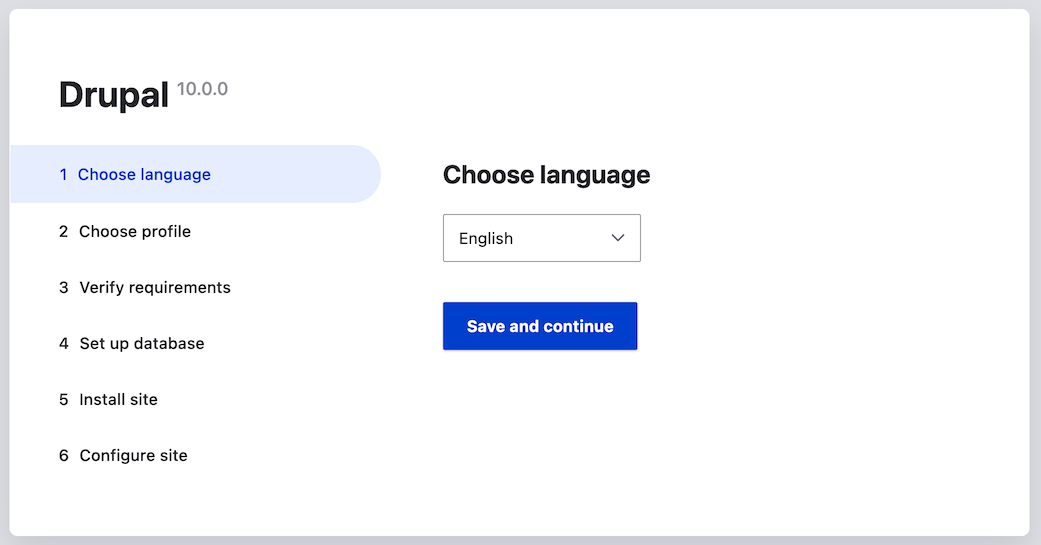
1. Select a language on the first page of the installer; for example,
    English. You could optionally choose from any of the other listed languages.
    The language files for the chosen language will be downloaded and installed so
    that the rest of the installation process can be finished in the chosen
    language. After choosing a language, click _Save and continue_.
    <img src="https://docs.cocobook.com/uploads/images/gallery/2026-10/install-run-1.png" alt="Choose a language" width="100%" />
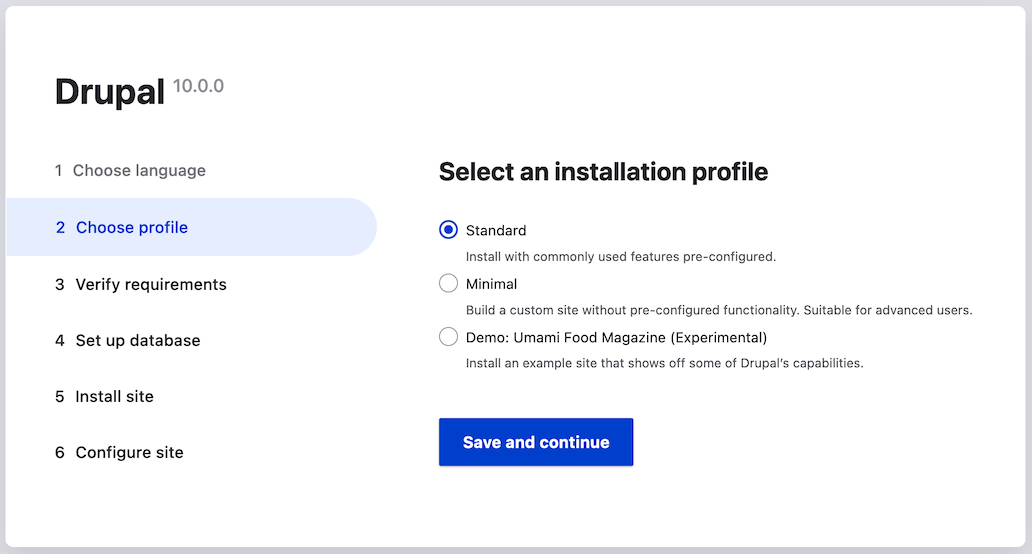
1. Select an installation profile. Installation profiles provide site features
    and functions for a specific type of site as a single download containing
    the core software, contributed modules, themes, and pre-defined
    configuration. Core contains two installation profiles. Select the core
    Standard installation profile. Click _Save and continue_.
    <img src="https://docs.cocobook.com/uploads/images/gallery/2026-10/install-run-2.png" alt="Choose an installation profile" width="100%" />
1. The next step in the installer will verify that your system meets the minimum
    requirements. If it does not, you'll be presented with an outline of what
    needs to be corrected in order to proceed. If it does, the installer will
    automatically advance to the next step.
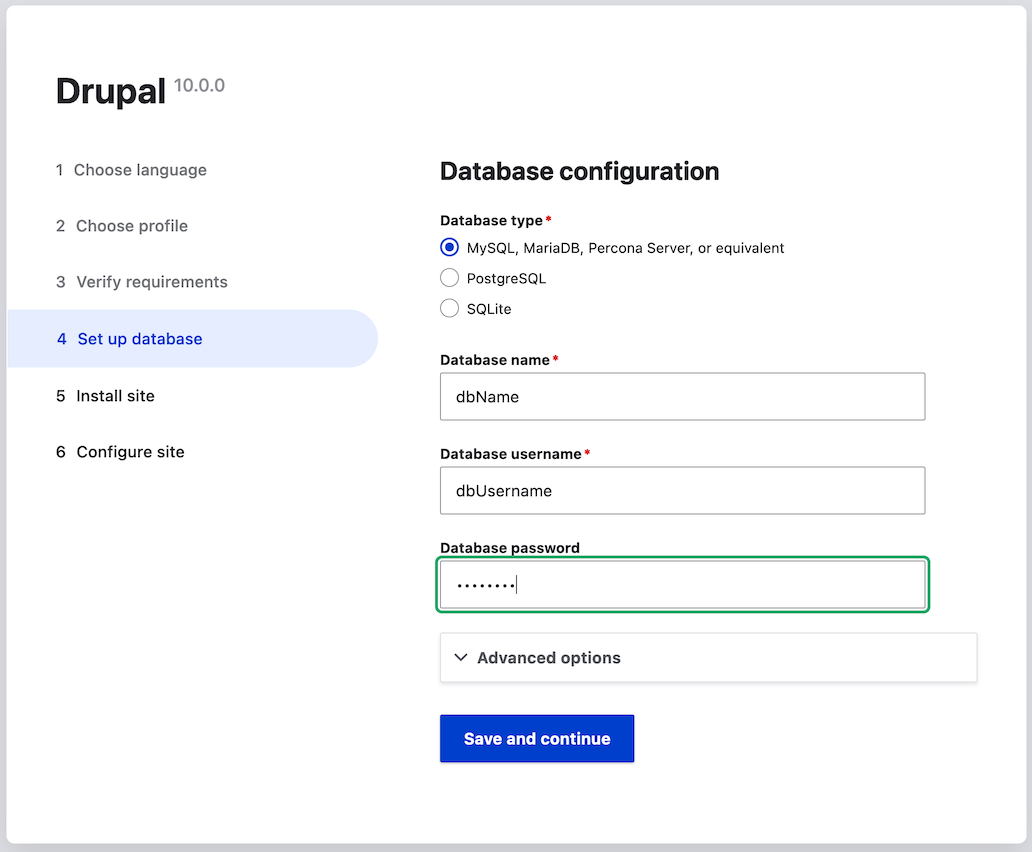
1. Provide details of the database you created in the [Preparing to Install](/link/697)
    chapter. Then click _Save and continue_.
    <table>
      <thead>
        <tr>
          <th>Field name</th>
          <th>Explanation</th>
          <th>Value</th>
        </tr>
      </thead>
      <tbody>
        <tr>
          <td>Database name</td>
          <td>The custom name given to the database</td>
          <td>drupal</td>
        </tr>
        <tr>
          <td>Database username</td>
          <td>Username created</td>
          <td>databaseUsername</td>
        </tr>
        <tr>
          <td>Database password</td>
          <td>Password chosen</td>
          <td>************</td>
        </tr>
      </tbody>
    </table>

    <img src="https://docs.cocobook.com/uploads/images/gallery/2026-10/install-run-3.png" alt="Database configuration form" width="100%" />

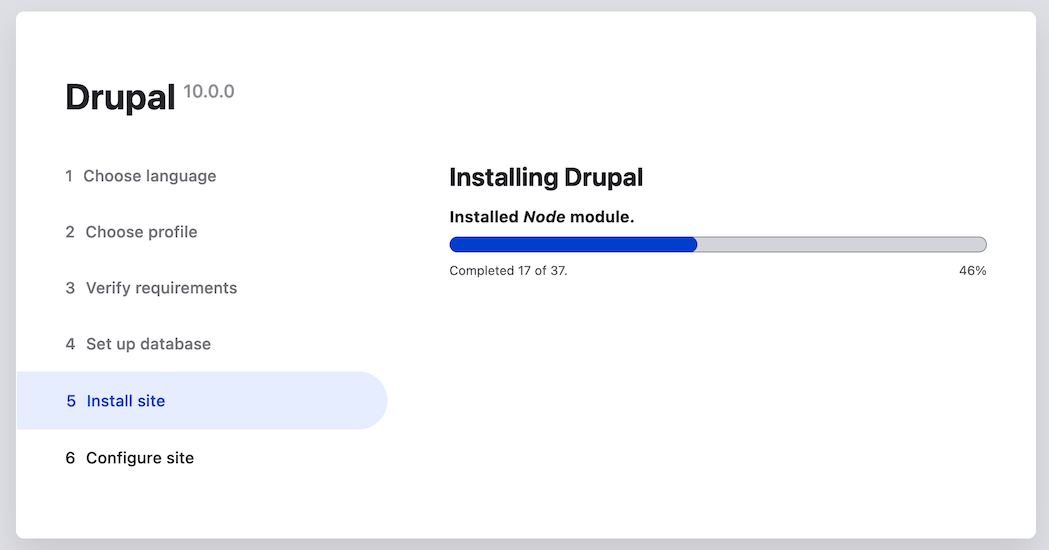
1. The next step will display a progress bar under the heading _Installing
    Drupal_. After the installer has completed, it will automatically advance to
    the next step.
    <img src="https://docs.cocobook.com/uploads/images/gallery/2026-10/install-run-4.png" alt="Installation progress bar" width="100%" />
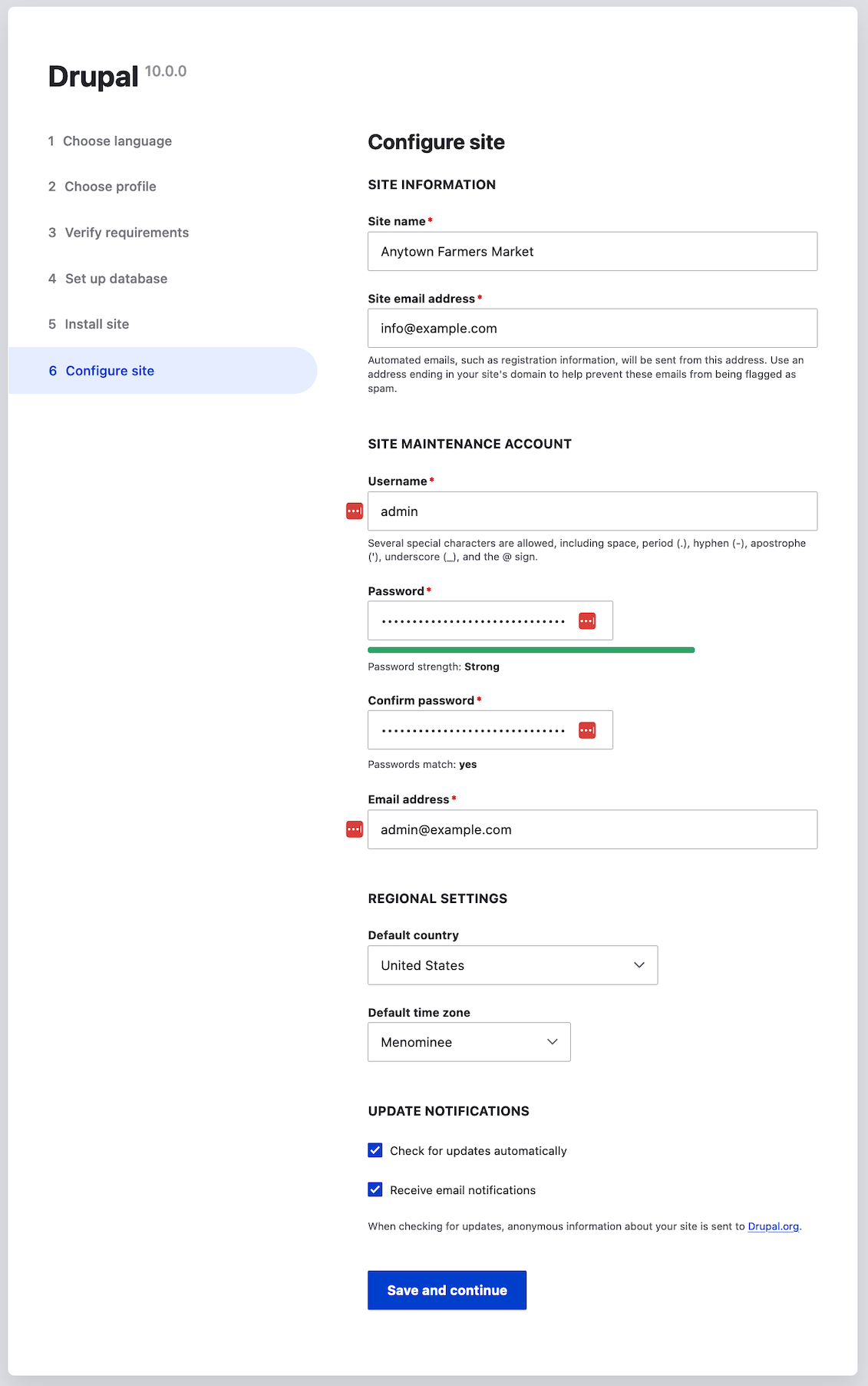
1. The next step is to configure some basic information about your new site
    (also notice if there is a warning about file permissions, for a later step).
    Note that the user account you create in this step is the site's admin
    account. See [Concept: The User 1 Account](/link/738) for important information about this unique
    account. You can safely name this account "admin", and make sure to choose a
    secure and unique password.
    Fill in the form with the following information:
    <table>
      <thead>
        <tr>
          <th>Field name</th>
          <th>Explanation</th>
          <th>Value</th>
        </tr>
      </thead>
      <tbody>
        <tr>
          <td>Site name</td>
          <td>The name chosen for the site</td>
          <td>Anytown Farmers Market</td>
        </tr>
        <tr>
          <td>Site email address</td>
          <td>The email associated with the site</td>
          <td>info@example.com</td>
        </tr>
        <tr>
          <td>Username</td>
          <td>The designated user's credentials</td>
          <td>admin</td>
        </tr>
        <tr>
          <td>Password</td>
          <td>The password chosen</td>
          <td>************</td>
        </tr>
        <tr>
          <td>Confirm password</td>
          <td>Repeat the password</td>
          <td>************</td>
        </tr>
        <tr>
          <td>Email address</td>
          <td>The user's email</td>
          <td>admin@example.com</td>
        </tr>
      </tbody>
    </table>

    The remaining fields can likely be left at their default values.
    <img src="https://docs.cocobook.com/uploads/images/gallery/2026-10/install-run-5.png" alt="Configuration form" width="100%" />

1. Click _Save and continue_.
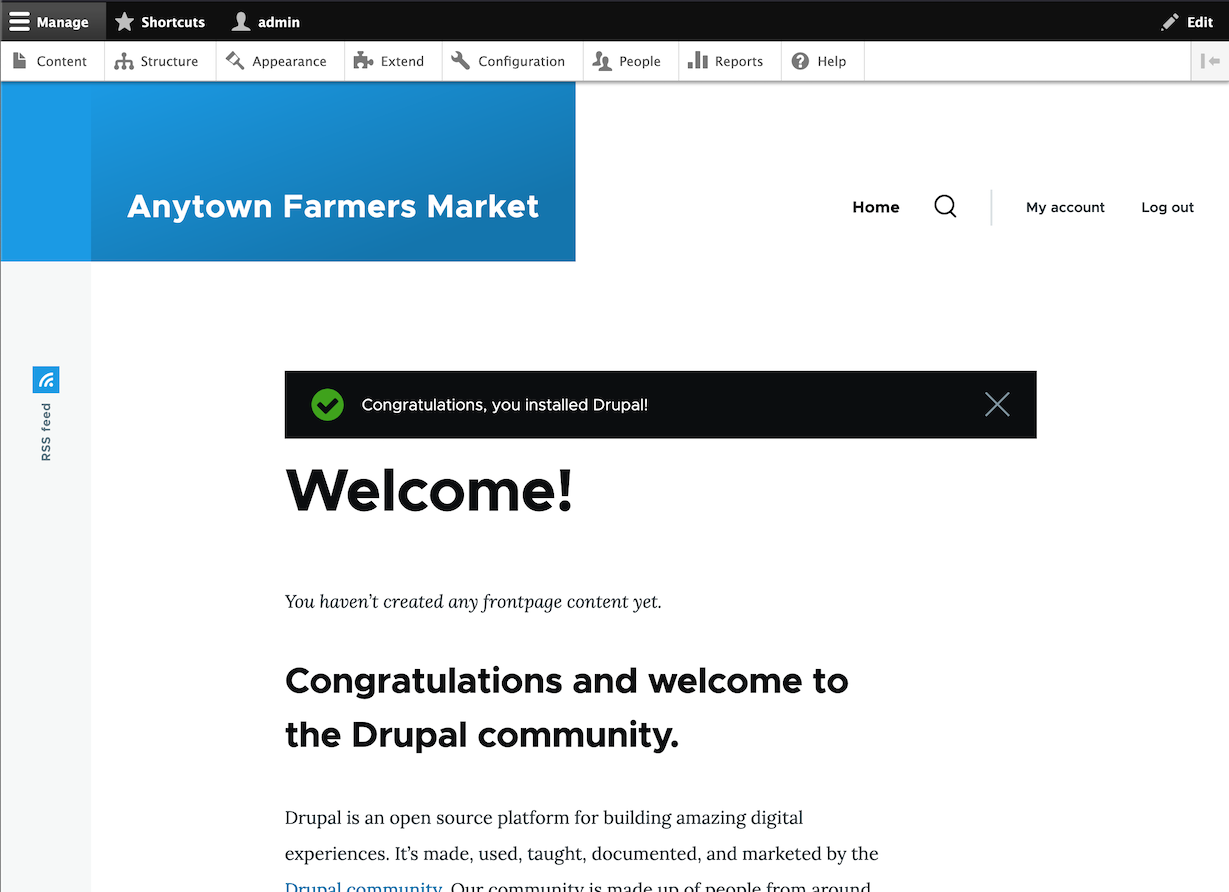
1. You will be redirected to the front page of your new site and you should see
    the message _Congratulations, you installed Drupal!_ displayed at the top of
    the page.
    <img src="https://docs.cocobook.com/uploads/images/gallery/2026-10/install-run-6.png" alt="Installation success" width="100%" />
1. You may have seen a warning in the Configuration step about file permissions,
    and you may continue to see this warning until you fix the permissions. To
    avoid the warning and make your site more secure, change the permissions on the
    _sites/default_ directory and the _sites/default/settings.php_ file so that they
    are read-only (you may need to consult your hosting company documentation about
    how to do that).

## Expand your understanding

Alternatively, you can install the software using Drush instead of the UI. Use
the following Drush command, from inside the directory that you downloaded the
software to, where _DB_NAME_, _DB_USER_ and _DB_PASS_ are your database's
credentials:

```text
drush site:install standard --db-url='mysql://DB_USER:DB_PASS@localhost/DB_NAME' --site-name=example
```

Check the Status Report to see if there are any problems with the
installation. See [Concept: Status Report](/link/776).
## Related concepts

* [Concept: Development Sites](/link/766)
* [Concept: Additional Tools](/link/699)
## Videos

[Running the Installer](https://www.youtube.com/watch?v=LGfRKKKDjv8)

## Additional resources

* [_Drupal.org_ community documentation page "Create a database"](https://www.drupal.org/docs/installing-drupal/step-3-create-a-database)
* [_Drupal.org_ community documentation section "Webhosting issues"](https://www.drupal.org/server-permissions)