| Field name | Explanation | Example value | ||
|---|---|---|---|---|
| Maintenance status | How actively should the module be maintained? | Actively maintained | ||
| Development status | What kind of development should the module undergo? | Any | ||
| Module categories | The module's topic area. | Administration | ||
| Core compatibility | The version of the core software the module is compatible with. | 9.x | ||
| Status | Project status: _Sandbox projects_ are experimental projects. _Full projects_ have already gone through an approval process, but they can still be in development. | Full projects | Stability | Whether or not the project maintainer has created a production-ready version. |
| Has a supported stable release | Security advisory coverage | Whether or not the project maintainer has agreed to follow Drupal | ||
| Search modules | Search for _Admin Toolbar_, a module that will be covered in detail later. Alternatively, you can also leave the field blank if you are not sure which module to search for. | Admin Toolbar | ||
| Sort by | Order your search results by criteria like _Most installed_ (popular modules that many sites use) or _Last release_ (date of latest version released). | Most installed |
| Field name | Explanation | Value | |
|---|---|---|---|
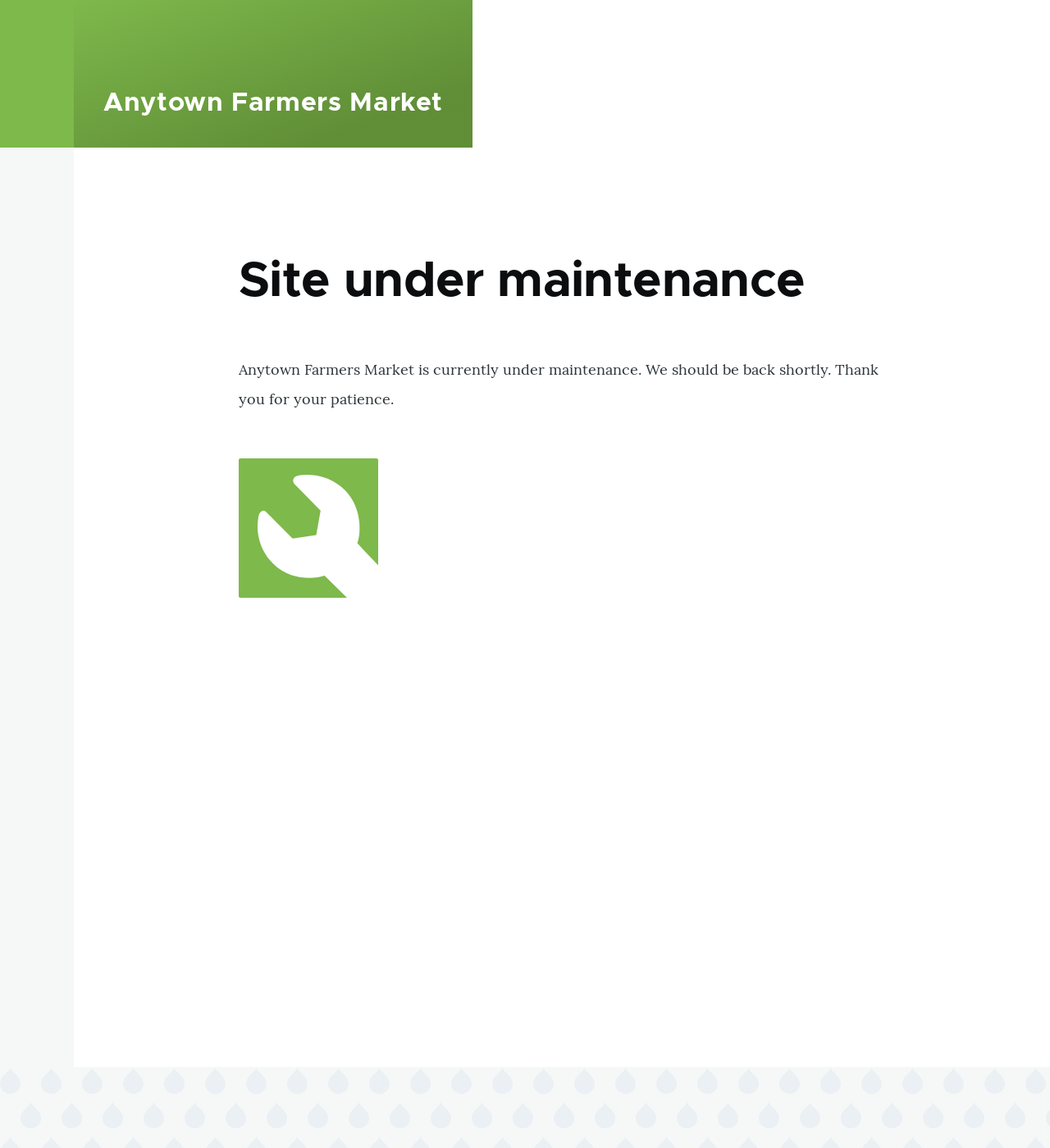
| Put site into maintenance mode | Enable the maintenance mode | ||
| Message to display when in maintenance mode | The information that is shown to website visitors when the mode is enabled. Variables such as @site can be used in the message | @site is currently under maintenance but should be back shortly. Thank you for your patience. |
 ### Disabling maintenance mode using the administrative interface
1. In the _Manage_ administrative menu, navigate to _Configuration_ >
_Development_ > _Maintenance mode_ (_admin/config/development/maintenance_). The
_Maintenance mode_ page appears.
1. Fill in the fields as shown below.
### Disabling maintenance mode using the administrative interface
1. In the _Manage_ administrative menu, navigate to _Configuration_ >
_Development_ > _Maintenance mode_ (_admin/config/development/maintenance_). The
_Maintenance mode_ page appears.
1. Fill in the fields as shown below.
| Field name | Explanation | Value |
|---|---|---|
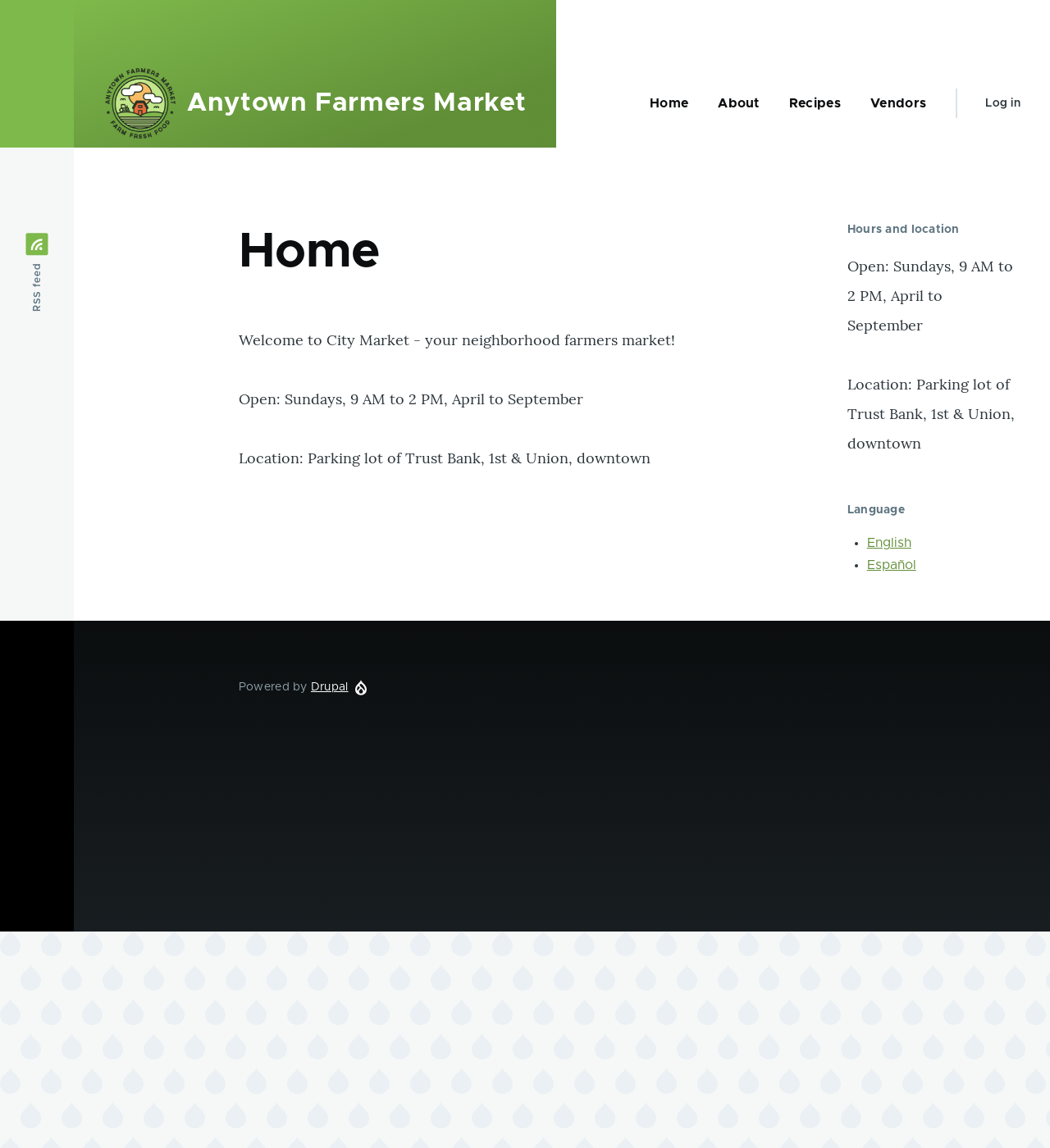
| Put site into maintenance mode | Disable the maintenance mode | |
| Message to display when in maintenance mode | No message required while disabling. You can leave the field blank. |
 ### Enabling or disabling maintenance mode using Drush
1. Follow the user interface steps above to edit the site maintenance message, if
desired.
1. Run the following Drush commands to enable maintenance mode and clear the
cache:
```text
drush config:set system.maintenance message "Optional message" -y
drush state:set system.maintenance_mode 1 --input-format=integer
drush cache:rebuild
```
1. Run the following Drush commands to disable maintenance mode and clear the
cache:
```text
drush state:set system.maintenance_mode 0 --input-format=integer
drush cache:rebuild
```
1. After running either set of commands, verify that your site is either in or
out of maintenance mode by visiting the site in a browser where you are not
logged in.
## Expand your understanding
* [Updating the Core Software](/link/782)
* [Updating a Theme](/link/784)
* [Updating a Module](/link/783)
## Videos
[Enabling and Disabling Maintenance Mode](https://www.youtube.com/watch?v=IQbqQs5h03Q)
# Downloading and Installing a Module from _Drupal.org_
## Goal
Download and install the
[contributed Admin Toolbar module](https://www.drupal.org/project/admin_toolbar),
which allows you to easily browse through the administration section of the
website.
## Prerequisite knowledge
* [Concept: Modules](/link/682)
* [Finding Modules](/link/760)
* [Concept: Additional Tools](/link/699)
## Site prerequisites
Composer must be installed to download modules. If you want to use Drush, Drush
must be installed. See [Concept: Additional Tools](/link/699).
## Steps
To install a contributed module, first download the module with Composer. Then
install it using either the administrative interface or Drush. If you are
installing a custom module rather than a contributed module that is not
available via Composer, skip the steps for downloading the module, and refer to
[Manually Installing Module or Theme Files](/link/765). Then return here and follow the steps for installing
the module using either the administrative interface or Drush.
### Download the contributed module with Composer
1. On the _Admin toolbar_ project page on drupal.org
(_https://www.drupal.org/project/admin_toolbar_), scroll to the _Releases_
section at the bottom of the page.
1. Copy the provided Composer command for the version of the module you want to
install.
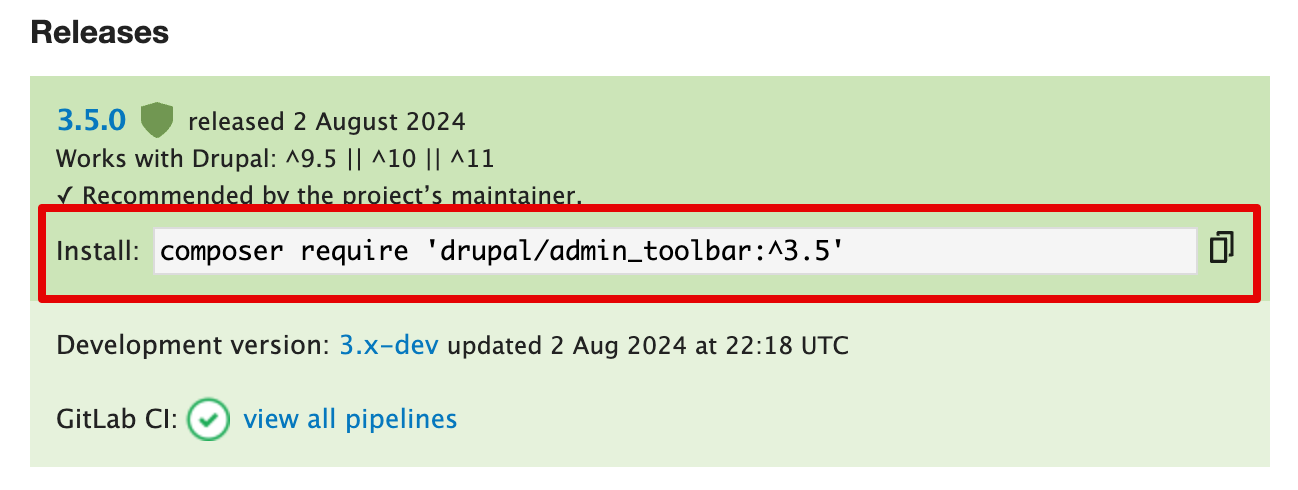
1. Alternatively, type the following command (substituting
the short name of the module and desired version for `admin_toolbar:^3.5`):
```text
composer require 'drupal/admin_toolbar:^3.5'
```
1. At the command line, change to the root directory of your project. Paste the
Composer command and execute it.
1. You should see a message about the module being successfully downloaded.
### Install the module using the administrative interface
1. In the _Manage_ administrative menu, navigate to _Extend_
(_admin/modules_). The _Extend_ page appears.
1. Locate the _Admin toolbar_ module and check it.
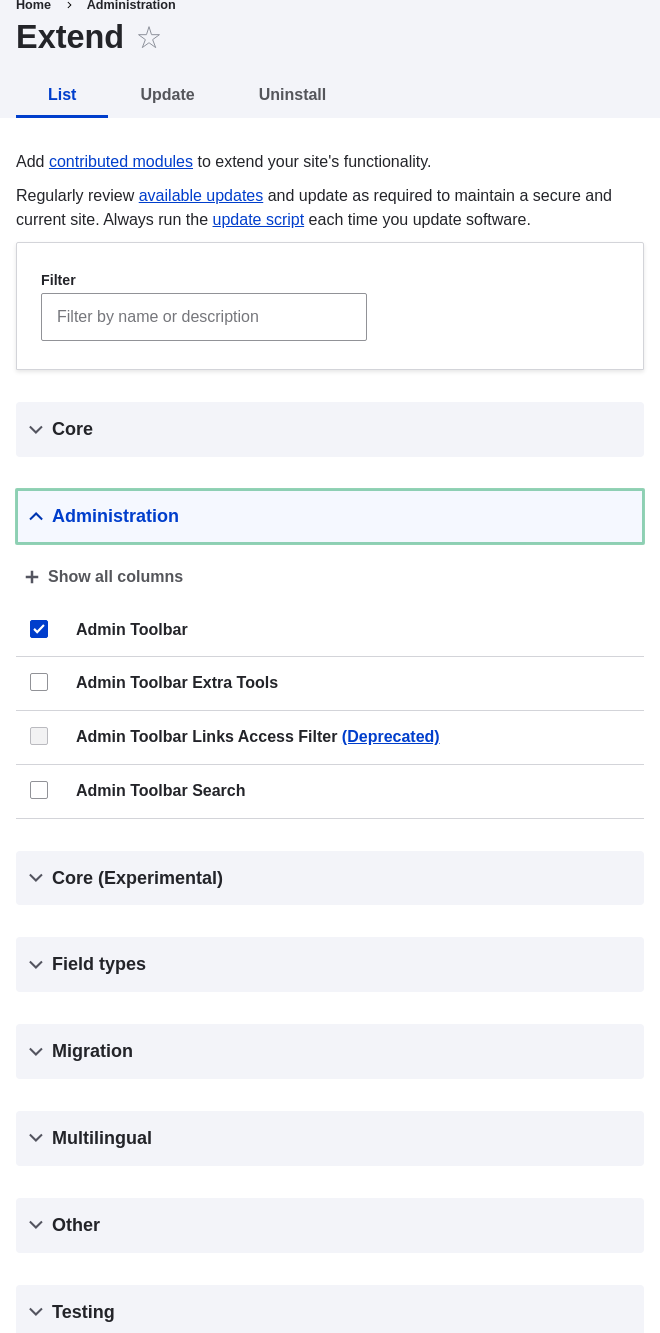
1. Click _Install_ to turn on the new module.
### Install the module using Drush
1. Run the following Drush command, giving the project name (for example,
`admin_toolbar`) as a parameter:
```text
drush pm:enable admin_toolbar
```
1. Follow the instructions on the screen.
## Expand your understanding
* Verify that the
[contributed Admin Toolbar module](https://www.drupal.org/project/admin_toolbar)
is working by browsing through the menu in the administration section.
* Install and configure the
[contributed Pathauto module](https://www.drupal.org/project/pathauto)
so that content pages in your site get nice URLs by default. See
[Concept: Paths, Aliases, and URLs](/link/712) for more on URLs.
* If you do not see the effect of these changes in your site, you might need
to clear the cache. See [Clearing the Cache](/link/773).
## Videos
[Downloading and Installing a Module from Drupal.org](https://www.youtube.com/watch?v=vx9nWJE1Kbk)
## Additional resources
* [_Drupal.org_ community documentation page "Installing Drupal modules"](https://www.drupal.org/docs/extending-drupal/installing-drupal-modules)
* ["Download and Extend" page on _Drupal.org_](https://www.drupal.org/download)
* [Admin Toolbar module on _Drupal.org_](https://www.drupal.org/project/admin_toolbar)
# Finding Themes
## Goal
Find and evaluate themes on _Drupal.org_.
## Prerequisite knowledge
* [Concept: Drupal as a Content Management System](/link/681)
* [Concept: Themes](/link/683)
## Steps
1. Go to https://www.drupal.org, and navigate to _Download & Extend > Themes_
(https://www.drupal.org/project/project_theme).
1. Filter your search using the categories on the theme search page.
For example, you might use these filters:
### Enabling or disabling maintenance mode using Drush
1. Follow the user interface steps above to edit the site maintenance message, if
desired.
1. Run the following Drush commands to enable maintenance mode and clear the
cache:
```text
drush config:set system.maintenance message "Optional message" -y
drush state:set system.maintenance_mode 1 --input-format=integer
drush cache:rebuild
```
1. Run the following Drush commands to disable maintenance mode and clear the
cache:
```text
drush state:set system.maintenance_mode 0 --input-format=integer
drush cache:rebuild
```
1. After running either set of commands, verify that your site is either in or
out of maintenance mode by visiting the site in a browser where you are not
logged in.
## Expand your understanding
* [Updating the Core Software](/link/782)
* [Updating a Theme](/link/784)
* [Updating a Module](/link/783)
## Videos
[Enabling and Disabling Maintenance Mode](https://www.youtube.com/watch?v=IQbqQs5h03Q)
# Downloading and Installing a Module from _Drupal.org_
## Goal
Download and install the
[contributed Admin Toolbar module](https://www.drupal.org/project/admin_toolbar),
which allows you to easily browse through the administration section of the
website.
## Prerequisite knowledge
* [Concept: Modules](/link/682)
* [Finding Modules](/link/760)
* [Concept: Additional Tools](/link/699)
## Site prerequisites
Composer must be installed to download modules. If you want to use Drush, Drush
must be installed. See [Concept: Additional Tools](/link/699).
## Steps
To install a contributed module, first download the module with Composer. Then
install it using either the administrative interface or Drush. If you are
installing a custom module rather than a contributed module that is not
available via Composer, skip the steps for downloading the module, and refer to
[Manually Installing Module or Theme Files](/link/765). Then return here and follow the steps for installing
the module using either the administrative interface or Drush.
### Download the contributed module with Composer
1. On the _Admin toolbar_ project page on drupal.org
(_https://www.drupal.org/project/admin_toolbar_), scroll to the _Releases_
section at the bottom of the page.
1. Copy the provided Composer command for the version of the module you want to
install.

1. Alternatively, type the following command (substituting
the short name of the module and desired version for `admin_toolbar:^3.5`):
```text
composer require 'drupal/admin_toolbar:^3.5'
```
1. At the command line, change to the root directory of your project. Paste the
Composer command and execute it.
1. You should see a message about the module being successfully downloaded.
### Install the module using the administrative interface
1. In the _Manage_ administrative menu, navigate to _Extend_
(_admin/modules_). The _Extend_ page appears.
1. Locate the _Admin toolbar_ module and check it.

1. Click _Install_ to turn on the new module.
### Install the module using Drush
1. Run the following Drush command, giving the project name (for example,
`admin_toolbar`) as a parameter:
```text
drush pm:enable admin_toolbar
```
1. Follow the instructions on the screen.
## Expand your understanding
* Verify that the
[contributed Admin Toolbar module](https://www.drupal.org/project/admin_toolbar)
is working by browsing through the menu in the administration section.
* Install and configure the
[contributed Pathauto module](https://www.drupal.org/project/pathauto)
so that content pages in your site get nice URLs by default. See
[Concept: Paths, Aliases, and URLs](/link/712) for more on URLs.
* If you do not see the effect of these changes in your site, you might need
to clear the cache. See [Clearing the Cache](/link/773).
## Videos
[Downloading and Installing a Module from Drupal.org](https://www.youtube.com/watch?v=vx9nWJE1Kbk)
## Additional resources
* [_Drupal.org_ community documentation page "Installing Drupal modules"](https://www.drupal.org/docs/extending-drupal/installing-drupal-modules)
* ["Download and Extend" page on _Drupal.org_](https://www.drupal.org/download)
* [Admin Toolbar module on _Drupal.org_](https://www.drupal.org/project/admin_toolbar)
# Finding Themes
## Goal
Find and evaluate themes on _Drupal.org_.
## Prerequisite knowledge
* [Concept: Drupal as a Content Management System](/link/681)
* [Concept: Themes](/link/683)
## Steps
1. Go to https://www.drupal.org, and navigate to _Download & Extend > Themes_
(https://www.drupal.org/project/project_theme).
1. Filter your search using the categories on the theme search page.
For example, you might use these filters:
| Field name | Explanation | Example value | |||
|---|---|---|---|---|---|
| Maintenance status | How actively is the theme maintained? If a theme is actively maintained, you can expect bug fixes and improvements on a regular basis. | Actively maintained | |||
| Development status | What kind of development is the theme undergoing? If you select _Under active development_, you can expect new features to be added, and some aspects may still change. If you select _Maintenance fixes only_, it means that the theme is considered complete. | Any | Core compatibility | The Drupal version the theme is compatible with. | 9.x |
| Status | _Sandbox projects_ are experimental projects. _Full projects_ have already gone through an approval process, but they can still be in development. | Full projects | Stability | Whether or not the project maintainer has created a production-ready | |
| Security advisory coverage | Whether or not the project maintainer has agreed to follow Drupal Security Team procedures. | Has security advisory coverage | Search themes | Search by search term in the theme's description. | - |
| Sort by | Order your search results by criteria like _Most installed_ (popular themes that many sites use) or _Last release_ (date of latest version released). | Most installed |
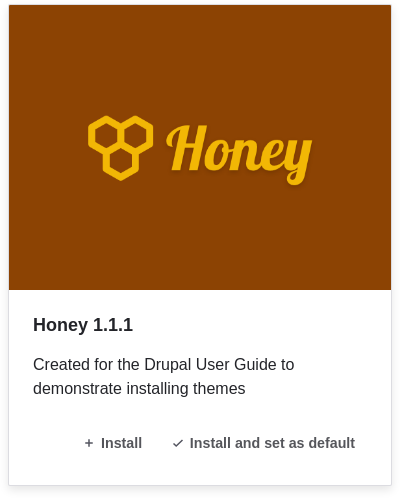 ### Install the theme using Drush
1. To install the theme, and set it as the default, run the following Drush\
commands, giving the project name (for example, _honey_) as a parameter:
```text
drush theme:enable honey
drush config:set system.theme default honey
```
1. Follow the instructions on the screen.
## Expand your understanding
* In the _Manage_ administrative menu, navigate to _Appearance_
(_admin/appearance_) and uninstall any themes that you are not using.
* [Finding Modules](/link/760)
* [Downloading and Installing a Module from _Drupal.org_](/link/762)
* If you do not see the effect of these changes in your site, you might need
to clear the cache. See [Clearing the Cache](/link/773).
## Videos
[Downloading and Installing a Theme from Drupal.org](https://www.youtube.com/watch?v=UFgddj0F_bU)
# Manually Installing Module or Theme Files
## Goal
Custom modules and themes may not be available via Composer and their files will
need to be manually installed.
## Prerequisite knowledge
* [Concept: Modules](/link/682)
* [Finding Modules](/link/760)
* [Concept: Themes](/link/683)
* [Finding Themes](/link/763)
## Site prerequisites
Use this approach if you created a custom module/theme or received its files
from someone.
When installing or updating the core software, contributed modules, and
contributed themes you should use Composer. See [Using Composer to Download and Update Files](/link/702),
[Downloading and Installing a Module from _Drupal.org_](/link/762), and [Downloading and Installing a Theme from _Drupal.org_](/link/764) instead of this topic.
## Steps
If you are installing a module or theme from _Drupal.org_, follow the
downloading instructions, and then the uploading/unpacking instructions. If
you created the module or theme, skip the downloading step. Instead, create
an archive file (that you know how to extract on the server) and proceed with
the steps in uploading/unpacking, using whatever method is appropriate for the
way you initially created the archive file.
### Uploading the files to your site and unpacking them
1. If you are adding a new module or theme, create subdirectories in your
top-level _modules_ and _themes_ directories (if they don't already
exist). Typically, people make a _contrib_ subdirectory for contributed modules
and themes that are downloaded from _Drupal.org_, and a _custom_ subdirectory
for modules and themes that they created. Your _modules_ directory might look
like this:
### Install the theme using Drush
1. To install the theme, and set it as the default, run the following Drush\
commands, giving the project name (for example, _honey_) as a parameter:
```text
drush theme:enable honey
drush config:set system.theme default honey
```
1. Follow the instructions on the screen.
## Expand your understanding
* In the _Manage_ administrative menu, navigate to _Appearance_
(_admin/appearance_) and uninstall any themes that you are not using.
* [Finding Modules](/link/760)
* [Downloading and Installing a Module from _Drupal.org_](/link/762)
* If you do not see the effect of these changes in your site, you might need
to clear the cache. See [Clearing the Cache](/link/773).
## Videos
[Downloading and Installing a Theme from Drupal.org](https://www.youtube.com/watch?v=UFgddj0F_bU)
# Manually Installing Module or Theme Files
## Goal
Custom modules and themes may not be available via Composer and their files will
need to be manually installed.
## Prerequisite knowledge
* [Concept: Modules](/link/682)
* [Finding Modules](/link/760)
* [Concept: Themes](/link/683)
* [Finding Themes](/link/763)
## Site prerequisites
Use this approach if you created a custom module/theme or received its files
from someone.
When installing or updating the core software, contributed modules, and
contributed themes you should use Composer. See [Using Composer to Download and Update Files](/link/702),
[Downloading and Installing a Module from _Drupal.org_](/link/762), and [Downloading and Installing a Theme from _Drupal.org_](/link/764) instead of this topic.
## Steps
If you are installing a module or theme from _Drupal.org_, follow the
downloading instructions, and then the uploading/unpacking instructions. If
you created the module or theme, skip the downloading step. Instead, create
an archive file (that you know how to extract on the server) and proceed with
the steps in uploading/unpacking, using whatever method is appropriate for the
way you initially created the archive file.
### Uploading the files to your site and unpacking them
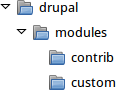
1. If you are adding a new module or theme, create subdirectories in your
top-level _modules_ and _themes_ directories (if they don't already
exist). Typically, people make a _contrib_ subdirectory for contributed modules
and themes that are downloaded from _Drupal.org_, and a _custom_ subdirectory
for modules and themes that they created. Your _modules_ directory might look
like this:
 1. If you are replacing an existing module or theme with an updated version, put
the site into maintenance mode. See [Enabling and Disabling Maintenance Mode](/link/761).
1. If you are replacing an existing module or theme with an updated version, find
and delete all the existing files and directories for the existing module
or theme. Modules are normally located in directories under the top-level
_modules_ directory, and themes are normally located in directories under the
top-level _themes_ directory.
1. Upload the _.tar.gz_ file (or whatever archive you created) to your site.
Place it in either the same location from which you deleted the directory
(if replacing an existing module or theme) or the appropriate subdirectory
of _modules_ or _themes_ (if adding a new module or theme).
1. Extract the files from the _.tar.gz_ archive (or whatever archive you
created), making a subdirectory in the same location as the archive file.
If you do not have terminal access, or your hosting server is not running
Linux, your hosting control panel's file manager should provide a way to
extract the files. If you have terminal access to your hosting server
(running Linux) and you are using a tar.gz file, you can use a command like:
```text
tar -xzf custom_toolbar-2.4.0.tar.gz
```
1. Delete the compressed file from the server, unless your unpacking method
already deleted it.
1. Refer to [Downloading and Installing a Module from _Drupal.org_](/link/762), [Downloading and Installing a Theme from _Drupal.org_](/link/764),
[Updating a Module](/link/783), or [Updating a Theme](/link/784) to complete the
installation or update of the module or theme. Start at the step after the
automatic download has been completed.
## Expand your understanding
* If you work with multiple environments (for example, a local development site
and a production site) you will have to repeat the steps on each environment, or
re-clone the environment. See [Making a Development Site](/link/767).
* If you added a new theme, navigate in the _Manage_ administrative menu to
_Appearance_ (_admin/appearance_) and uninstall the old theme.
## Videos
[Manually Downloading Module or Theme Files](https://www.youtube.com/watch?v=kOzQz9q3Kf8)
## Additional resources
* [_Drupal.org_ community documentation page "Updating modules"](https://www.drupal.org/docs/extending-drupal/updating-modules)
* [_Drupal.org_ community documentation page "Installing Drupal modules"](https://www.drupal.org/docs/extending-drupal/installing-drupal-modules)
* [_Drupal.org_ community documentation page "Installing themes"](https://www.drupal.org/docs/extending-drupal/installing-themes)
# Concept: Development Sites
## What are Development Sites?
Development Sites are different copies of the same site used for developing,
updating, and testing a site without risking the integrity of the live site.
An example deployment workflow for site building will usually include the sites
mentioned below:
- **Local environment:** The development process starts with developers working on new features, bug fixes, theming, and configuration in their local environment. The recommended tool for setting up a local environment is DDEV. See [Setting Up an Environment with DDEV](/link/701).
- **Development site:** Developers push the changes they've been working on to the development site. For a team of more than one developer, version control is usually used. Git is a version control system that tracks your files for any changes. You can then commit those changes to a repository. Using Git allows team members to work on the same site without overriding each other's work. It also makes it possible to easily roll back to previous stages of the development.
- **Staging site:** The staging site can be used for testing, or presenting the changes to the client for approval. QA (Quality Assurance) and UAT (User Acceptance Testing) are most often carried out on the staging site. It is recommended to have live content on both the development and staging sites, so that you can test how the new features will work with the existing content.
- **Production site:** The live site on the web available to visitors. It contains new features that have been proven safe to go live.
Based on the project's size, scope, requirements, or stakeholders, stages from
the above workflow can be removed, or additional stages can be added. For
example, a testing site before staging can be added to separate testing and user
acceptance processes.
## Related topics
* [Making a Development Site](/link/767)
* [Setting Up an Environment with DDEV](/link/701)
* [Concept: Editorial Workflow](/link/694)
* [Managing File and Configuration Revisions with Git](/link/770)
# Making a Development Site
## Goal
Make a copy of a site that you can use to develop new features and test updates
on.
## Prerequisite knowledge
[Concept: Development Sites](/link/766)
## Site prerequisites
* You have a live, developed site that you would like to make a copy of for
development purposes.
* If you want to use Drush for some of the steps in this task, Drush must be
installed. See [Concept: Additional Tools](/link/699).
* If you want to use DDEV for your local environment follow the steps in
[Setting Up an Environment with DDEV](/link/701). Then, follow the instructions in the DDEV-specific section
below.
## Generic steps for making a development site
1. Follow the steps in [Preparing to Install](/link/697), so that you have hosting set up for
your development site, you know where the web root is for your development site,
and you have an empty database and database user for your development site to
use.
1. The next step is to make a database dump file, containing the contents of your
site's database. This file can be quite large, but there are two things you can
do to reduce the size:
* Compress the file, using gzip or another compression utility.
* Exclude the contents of the database tables for the internal caching system,
by truncating these tables. Their data is temporary, and you need only the
table structure and not the table contents in order to make a copy of the
site.
To make the database dump, try one of the following methods:
* If you use Drush, use this command, which will include only the structure
and not the contents of the cache tables, and gzip-compress the output:
```text
drush sql:dump --gzip --structure-tables-list="cache,cache_*" \
--result-file='PATH/TO/BACKUPFILE.sql'
```
* If you are using MySQL and have access to the command line, use this
command after truncating the cache tables (substituting in your site's
database name, user name, and password):
```text
mysqldump -u'USERNAME' -p'PASSWORD' DATABASENAME | \
gzip > PATH/TO/BACKUPFILE.sql.gz
```
* If you are using MySQL as your database, and your live site's server has
phpMyAdmin installed (it is available from many hosting control panels),
you can truncate the cache tables by selecting them in the phpMyAdmin table
structure list and choosing the _Empty_ operation at the bottom of the page.
Then use the _Export_ tab in phpMyAdmin to export in _SQL_ format, with
_gzip_ compression to reduce the file size.
* Use the [contributed Backup and Migrate module](https://www.drupal.org/project/backup_migrate)
from within your live site. See [Downloading and Installing a Module from _Drupal.org_](/link/762) for instructions on
installing contributed modules.
You now have a database dump stored in the file _BACKUPFILE.sql.gz_. For
security reasons, avoid storing this file on your hosting server anywhere under
the Drupal site root. This will prevent others from getting a copy of your
database.
1. Copy all of the files from the web root of your live site to the web root of
your development site. You may wish to use Git to do this; if so, see
[Managing File and Configuration Revisions with Git](/link/770).
1. Edit the _sites/default/settings.php_ file under your development site's
top-level directory in a plain-text editor. Find the lines near the end that
contain the database name, database username, and database password, and update
them to the information about the development site database you set up. The
lines look something like this (before editing):
```text
$databases['default']['default'] = [
'database' => 'live_site_database_name',
'username' => 'live_site_database_username',
'password' => 'live_site_database_password',
…
```
1. Check whether your _settings.php_ file has the following setting; if yes, then
you will need to edit this to point to your development site URL instead of your
production site URL:
```text
$settings['trusted_host_patterns']
```
1. Check whether your _settings.php_ file has the following setting, and has it
set to a random string value. If it does not, then you will need to add or edit
it in order to prevent fatal errors:
```text
$settings['hash_salt'] = 'any_string_value';
```
One way to produce a random string for the hash salt is the following Drush
command:
```text
drush php-eval 'echo
\Drupal\Component\Utility\Crypt::randomBytesBase64(55) . "\n";'
```
If you don't use Drush, there are numerous web sites and applications that
provide random string generators; you'll want to generate a string that is about
74 characters long.
1. Import the database dump file you created, into the development site's
database. Try one of the following methods:
* If you are using MySQL as your database, and your live site's server has
phpMyAdmin installed (it is available from many hosting control panels),
use the _Import_ tab in phpMyAdmin. You may find that you have to restart the
import a few times, if your database was large.
* If you are using MySQL and have access to the command line, use this
command (substituting in your site's database name, user name, and password;
if you made a gzip-compressed backup file, you will also need to uncompress it
first):
```text
gunzip < PATH/TO/BACKUPFILE.sql.gz | \
mysql -u'USERNAME' -p'PASSWORD' DATABASENAME
```
* If you prefer to use Drush, use this command:
```text
drush sql:query --file='PATH/TO/BACKUPFILE.sql.gz'
```
1. If your development and live sites need to have different configuration, then
you have to use configuration overrides in the _settings.php_ file. The
_$config_ variable will help you maintain override values separately from the
standard configuration data. For instance, you might want the site name to be
"Anytown Farmers Market" on the production site, but "Development Site for
Anytown Farmers Market" on the development site. To do that, you could have the
production value in the site configuration (in the database), and on the
development site, in the settings.php file, you would need to have:
```text
$config['system.site']['name'] =
"Development Site for Anytown Farmers Market";
```
## DDEV-specific steps for making a development site
1. In the directory where you copied all of the files from your live site, run the
following command to configure, and start, the DDEV environment:
```text
ddev config --project-type=drupal11 --docroot=web
ddev start
```
This assumes that you are using the recommended directory structure where the
web root is in a subdirectory called _web_. If you are using a different
directory structure, you will need to adjust the _--docroot_ option accordingly.
1. Use the following command to import the database dump file you created:
```text
ddev import-db --file=PATH/TO/BACKUPFILE.sql.gz
```
## Expand your understanding
* Verify that the development site is working correctly.
* Log in to the development site as an administrator, and clear the cache. See
[Clearing the Cache](/link/773).
* [Deploying New Site Features](/link/768)
* [Managing File and Configuration Revisions with Git](/link/770)
## Videos
[Making a Development Site](https://www.youtube.com/watch?v=FSBNm4oAkaA)
## Additional resources
* [Installing a new Drupal application on your local machine](https://www.drupal.org/docs/official_docs/en/_local_development_guide.html)
* [Creating a Drupal demo application for evaluation purposes](https://www.drupal.org/docs/official_docs/en/_evaluator_guide.html)
# Deploying New Site Features
## Goal
Copy a view that you have created in a local development site to the production
site.
## Prerequisite knowledge
* [Making a Development Site](/link/767)
* [Synchronizing Configuration Versions](/link/769)
* [Concept: Development Sites](/link/766)
## Site prerequisites
* The core Configuration Manager module must be installed in both the
development and production sites. See [Installing a Module](/link/707) for
instructions on installing core modules.
* The Vendor content type must exist in both the development and production
sites, with the same fields. See [Adding a Content Type](/link/720).
* The Vendors view must exist in the development site but not the production
site. See [Creating a Content List View](/link/751).
## Steps
1. Open the local development site.
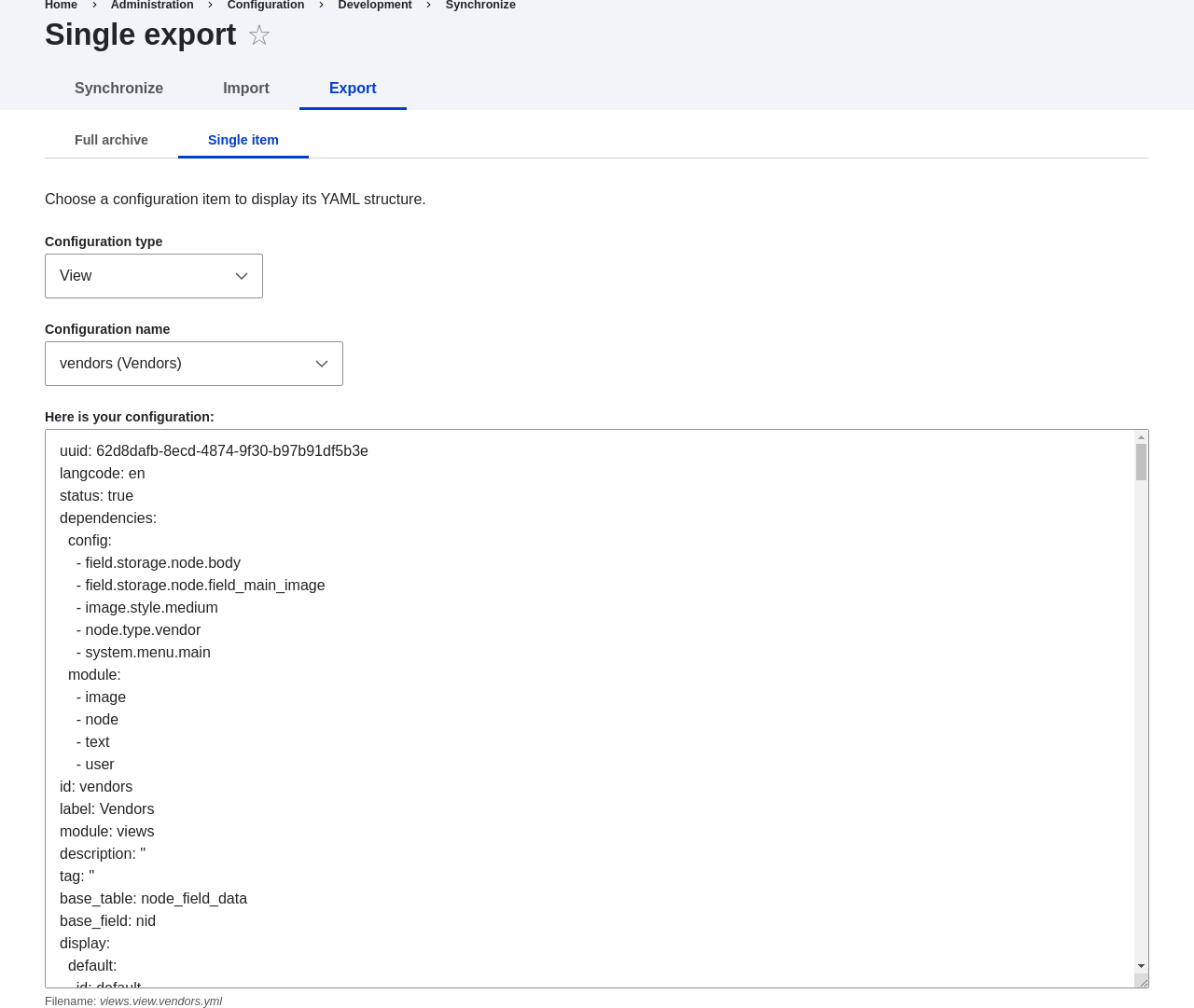
1. In the _Manage_ administrative menu, navigate to _Configuration_ >
_Development_ > _Configuration synchronization_ > _Export_ > _Single item_
(_admin/config/development/configuration/single/export_).
The _Single export_ page appears.
1. Select _View_ from the _Configuration type_ list.
1. Select Vendors from the _Configuration name_ list. The configuration
appears in the textarea.
1. Copy the configuration from the textarea.
1. Open the production site.
1. In the _Manage_ administrative menu, navigate to _Configuration_ >
_Development_ > _Configuration synchronization_ > _Import_ > _Single item_
(_admin/config/development/configuration_). The _Import_ page appears.
1. Select _View_ from the _Configuration type_ list.
1. Paste the configuration in the textarea.
1. Click _Import_. The confirmation page appears.
1. Click _Confirm_.
1. Verify that the view was imported by navigating in the _Manage_
administrative menu to _Structure_ > _Views_.
## Expand your understanding
The steps in this topic show how to export and import a single configuration
item. However, often if you develop functionality on a development website
and want to transfer it to your production site, you will need to transfer
multiple configuration items. For instance, if you developed a new content
type with fields, you would need to transfer several configuration items for
each field, one for the content type itself, and possibly multiple view mode
and form mode items, and they would have to be transferred in the right order.
Getting this right can be both tedious and difficult.
As an alternative, you can export and import the complete configuration of the
site. For this, you would need a local development site that is a clone
of the production site (see [Making a Development Site](/link/767)), and then you can follow the
steps in [Synchronizing Configuration Versions](/link/769) to synchronize configuration between
development and production sites.
Another alternative is to use the
[contributed Features module](https://www.drupal.org/project/features), which
allows exporting and importing bundled functionality (for example, all the
configuration for a photo gallery).
Finally, if you do not see the effect of these changes in your site, you might
need to clear the cache. See [Clearing the Cache](/link/773).
## Related concepts
* [Concept: Development Sites](/link/766)
* [Concept: Editorial Workflow](/link/694)
## Videos
[Deploying New Site Features](https://www.youtube.com/watch?v=hysqVDIfLTA)
# Synchronizing Configuration Versions
## Goal
Synchronize the configuration between a development and live site.
## Prerequisite knowledge
* [Concept: Types of Data](/link/685)
* [Preparing to Install](/link/697)
* [Concept: Development Sites](/link/766)
* [Making a Development Site](/link/767)
## Site prerequisites
* You must have a development copy of your production site. See
[Making a Development Site](/link/767).
* The core Configuration Manager module must be installed on both the
development and production sites. See [Installing a Module](/link/707) for instructions on how
to install core modules.
* You must have changed configuration on either the production or development
site (the _source site_), and want to synchronize the changes to the other site
(the _destination site_). As an example, you can develop a new content type,
fields, and views on your development site, and when it is all working
correctly, deploy the changes to the live site.
* All configuration that should not be synchronized between the source and
destination sites must be stored in configuration overrides in the
_settings.php_ file rather than in the database. See [Making a Development Site](/link/767).
## Steps
1. In the source site, in the _Manage_ administrative menu, navigate to
_Configuration_ > _Development_ > _Configuration synchronization_ > _Export_
(_admin/config/development/configuration/full/export_).
1. Click _Export_. Your site will generate an archive of the full site
configuration. Save the file on your local computer.
1. In the destination site, in the _Manage_ administrative menu, navigate to
_Configuration_ > _Development_ > _Configuration synchronization_ > _Import_
(_admin/config/development/configuration/full/import_).
1. Browse to find the downloaded configuration archive, and click _Upload_. Your
configuration archive will be uploaded to the destination site, and you will be
redirected to the configuration _Synchronize_ page
(_admin/config/development/configuration_) with a message saying your files were
uploaded.
1. Verify that the differences shown on the page are what you expect. You may see
configuration items that have been added, deleted, or changed; for changed
items, you can click _View differences_ to see what the changes are.
1. When you are satisfied, click _Import all_ to import the configuration
changes.
## Expand your understanding
* If the changes you have made involve only one configuration item (such as one
view), you can use the single configuration export/import feature to deploy
the change between sites. See [Deploying New Site Features](/link/768).
* After the step where you export the full configuration from the source site,
you might also want to unpack the archive and commit it to a version control
system, such as Git, to track changes in your site configuration. See
[Managing File and Configuration Revisions with Git](/link/770).
## Videos
[Synchronizing Configuration Versions](https://www.youtube.com/watch?v=dLUGQk8GKa0)
# Managing File and Configuration Revisions with Git
## Goal
Use the Git revision control tool to manage revisions to files and configuration
on your site.
## Prerequisite knowledge
* [Concept: Additional Tools](/link/699)
* [Concept: Methods for Downloading and Installing the Core Software](/link/700)
* [Concept: Development Sites](/link/766)
* How to set up a Git repository and find its _clone_ URL. For example, if
you want to use GitLab to host your repository, see
[GitLab "Create a project" page](https://docs.gitlab.com/ee/gitlab-basics/create-project.html)
and
[GitLab "Command Line basic commands" page](https://docs.gitlab.com/ee/gitlab-basics/command-line-commands.html).
And if you want to use GitHub to host your repository, see
[GitHub "Create a repo" page](https://help.github.com/en/articles/create-a-repo)
and
[GitHub "Which remote URL should I use" page](https://help.github.com/en/articles/which-remote-url-should-i-use).
* How to open and use a command terminal window and a plain-text editor.
* To manage configuration, how to unpack and pack archive files (such as _.zip_
and _.tar.gz_).
## Site prerequisites
* You must have downloaded the software for your site, using one of the methods
in [Concept: Methods for Downloading and Installing the Core Software](/link/700). If you want to manage configuration, you must have
installed the software and have a running site.
* Git client software must be installed on your site's server. See
[Git](https://git-scm.com/) for instructions.
* You must have a new repository created and know its Git clone URL.
## Steps
### Initializing the repository
Do these steps once, after creating a Git repository, to connect your local
directory to the repository and add the initial files to it.
1. Open a command terminal window, and change to the directory where your site's
files are located. This is your "top" directory.
1. Determine where your web root is. If the _core_, _modules_, and _themes_
directories are located directly in this directory, then you are in your web
root. If you have used Composer to download the software, then these files are
located inside the _web_ subdirectory (which is your web root).
1. In a plain text editor, create a new file called _.gitignore_ in the top
directory (or edit it if it already exists). This file contains a list of files
and directories that Git should ignore (not add to the repository). For example,
the _settings.php_ file for your site should not be added to Git, because it
contains your database account information, and the media files uploaded to
your site (usually in _sites/default/files_) should not be in Git either -- the
objective is to have the software in the repository, not the site content.
1. Make sure the following lines are in the _.gitignore_ file. If your web root
is not your top directory, check each of these to see if they need a prefix. For
example, _sites_ may need to be replaced with _web/sites_.
```text
sites/*/settings*.php
sites/*/files
config
```
1. Enter the following commands:
```text
git init
git add -A
```
1. Optionally, verify the list of files you will be adding to your Git repository
by entering this command and scrolling through the (very long) list:
```text
git status
```
1. Enter the following commands. You can substitute your own _commit message_ for
"Initial file add" if you wish, and you will need to substitute your own Git
clone URL for the URL in the second command:
```text
git commit -m "Initial file add"
git remote add origin https://gitlab.com/example-name/example-repo.git
git push -u origin main
```
1. If you are using GitLab, GitHub, or another host with online access, you can
now go to your repository page and see that the files are there.
### Updating files in the repository
Use these steps when you have updated, added, or deleted one or more files in
your site, in order to send the changes (_push_) to your repository.
1. Open a command terminal window, and change to the directory where your site's
files are located.
1. Check the list of files that have been added, changed, or deleted:
```text
git status
```
1. Optionally, for text files that have been changed (not images), look at the
differences between the new and old versions of the file:
```text
git diff path/to/file.txt
```
1. Stage all the changes for the next commit, and verify that they are staged:
```text
git add -A
git status
```
1. You can omit a particular file from the commit that you have already staged,
or add another file to the ones you have already staged. If a particular file
or directory keeps getting added by mistake, consider adding it to the
_.gitignore_ file so that it will be ignored by Git. Omit/add commands:
```text
git reset HEAD path/to/file.txt
git add path/to/file.txt
```
1. Commit and push your changes. Substitute something meaningful for the commit
message:
```text
git commit -m "commit message here"
git push
```
1. If you have other copies of your repository, update them by opening a command
window in the directory of each copy and running the following command:
```text
git pull
```
### Making a copy of the files in your repository
Follow these steps if you want to copy all the files in your repository to a
new location. For example, you might have both a local development copy of your
site and a production site, or several team members might all have local
copies of the site.
1. Open a command window in the location where you want the files to be.
1. Enter the following command, substituting your repository clone URL for the
URL, and the name of the subdirectory you want them in for _dirname_:
```text
git clone https://gitlab.com/example-name/example-repo.git dirname
```
### Managing configuration in the repository
1. Follow the instructions on [Synchronizing Configuration Versions](/link/769) to export a complete
archive of your site's configuration.
1. If you have not already initialized configuration in the repository, unpack
the configuration archive into a new directory, preferably above the web root
directory, and follow the instructions above to add these files to your
repository.
1. After initializing, whenever your site configuration changes, export and
unpack the configuration archive in the same location. Follow the instructions
above to update these files in your repository.
1. To import updated configuration to another site, make an archive of the
configuration directory from your repository. Then follow the instructions on
[Synchronizing Configuration Versions](/link/769) to upload and import this archive into the site.
## Related concepts
[Concept: Development Sites](/link/766)
1. If you are replacing an existing module or theme with an updated version, put
the site into maintenance mode. See [Enabling and Disabling Maintenance Mode](/link/761).
1. If you are replacing an existing module or theme with an updated version, find
and delete all the existing files and directories for the existing module
or theme. Modules are normally located in directories under the top-level
_modules_ directory, and themes are normally located in directories under the
top-level _themes_ directory.
1. Upload the _.tar.gz_ file (or whatever archive you created) to your site.
Place it in either the same location from which you deleted the directory
(if replacing an existing module or theme) or the appropriate subdirectory
of _modules_ or _themes_ (if adding a new module or theme).
1. Extract the files from the _.tar.gz_ archive (or whatever archive you
created), making a subdirectory in the same location as the archive file.
If you do not have terminal access, or your hosting server is not running
Linux, your hosting control panel's file manager should provide a way to
extract the files. If you have terminal access to your hosting server
(running Linux) and you are using a tar.gz file, you can use a command like:
```text
tar -xzf custom_toolbar-2.4.0.tar.gz
```
1. Delete the compressed file from the server, unless your unpacking method
already deleted it.
1. Refer to [Downloading and Installing a Module from _Drupal.org_](/link/762), [Downloading and Installing a Theme from _Drupal.org_](/link/764),
[Updating a Module](/link/783), or [Updating a Theme](/link/784) to complete the
installation or update of the module or theme. Start at the step after the
automatic download has been completed.
## Expand your understanding
* If you work with multiple environments (for example, a local development site
and a production site) you will have to repeat the steps on each environment, or
re-clone the environment. See [Making a Development Site](/link/767).
* If you added a new theme, navigate in the _Manage_ administrative menu to
_Appearance_ (_admin/appearance_) and uninstall the old theme.
## Videos
[Manually Downloading Module or Theme Files](https://www.youtube.com/watch?v=kOzQz9q3Kf8)
## Additional resources
* [_Drupal.org_ community documentation page "Updating modules"](https://www.drupal.org/docs/extending-drupal/updating-modules)
* [_Drupal.org_ community documentation page "Installing Drupal modules"](https://www.drupal.org/docs/extending-drupal/installing-drupal-modules)
* [_Drupal.org_ community documentation page "Installing themes"](https://www.drupal.org/docs/extending-drupal/installing-themes)
# Concept: Development Sites
## What are Development Sites?
Development Sites are different copies of the same site used for developing,
updating, and testing a site without risking the integrity of the live site.
An example deployment workflow for site building will usually include the sites
mentioned below:
- **Local environment:** The development process starts with developers working on new features, bug fixes, theming, and configuration in their local environment. The recommended tool for setting up a local environment is DDEV. See [Setting Up an Environment with DDEV](/link/701).
- **Development site:** Developers push the changes they've been working on to the development site. For a team of more than one developer, version control is usually used. Git is a version control system that tracks your files for any changes. You can then commit those changes to a repository. Using Git allows team members to work on the same site without overriding each other's work. It also makes it possible to easily roll back to previous stages of the development.
- **Staging site:** The staging site can be used for testing, or presenting the changes to the client for approval. QA (Quality Assurance) and UAT (User Acceptance Testing) are most often carried out on the staging site. It is recommended to have live content on both the development and staging sites, so that you can test how the new features will work with the existing content.
- **Production site:** The live site on the web available to visitors. It contains new features that have been proven safe to go live.
Based on the project's size, scope, requirements, or stakeholders, stages from
the above workflow can be removed, or additional stages can be added. For
example, a testing site before staging can be added to separate testing and user
acceptance processes.
## Related topics
* [Making a Development Site](/link/767)
* [Setting Up an Environment with DDEV](/link/701)
* [Concept: Editorial Workflow](/link/694)
* [Managing File and Configuration Revisions with Git](/link/770)
# Making a Development Site
## Goal
Make a copy of a site that you can use to develop new features and test updates
on.
## Prerequisite knowledge
[Concept: Development Sites](/link/766)
## Site prerequisites
* You have a live, developed site that you would like to make a copy of for
development purposes.
* If you want to use Drush for some of the steps in this task, Drush must be
installed. See [Concept: Additional Tools](/link/699).
* If you want to use DDEV for your local environment follow the steps in
[Setting Up an Environment with DDEV](/link/701). Then, follow the instructions in the DDEV-specific section
below.
## Generic steps for making a development site
1. Follow the steps in [Preparing to Install](/link/697), so that you have hosting set up for
your development site, you know where the web root is for your development site,
and you have an empty database and database user for your development site to
use.
1. The next step is to make a database dump file, containing the contents of your
site's database. This file can be quite large, but there are two things you can
do to reduce the size:
* Compress the file, using gzip or another compression utility.
* Exclude the contents of the database tables for the internal caching system,
by truncating these tables. Their data is temporary, and you need only the
table structure and not the table contents in order to make a copy of the
site.
To make the database dump, try one of the following methods:
* If you use Drush, use this command, which will include only the structure
and not the contents of the cache tables, and gzip-compress the output:
```text
drush sql:dump --gzip --structure-tables-list="cache,cache_*" \
--result-file='PATH/TO/BACKUPFILE.sql'
```
* If you are using MySQL and have access to the command line, use this
command after truncating the cache tables (substituting in your site's
database name, user name, and password):
```text
mysqldump -u'USERNAME' -p'PASSWORD' DATABASENAME | \
gzip > PATH/TO/BACKUPFILE.sql.gz
```
* If you are using MySQL as your database, and your live site's server has
phpMyAdmin installed (it is available from many hosting control panels),
you can truncate the cache tables by selecting them in the phpMyAdmin table
structure list and choosing the _Empty_ operation at the bottom of the page.
Then use the _Export_ tab in phpMyAdmin to export in _SQL_ format, with
_gzip_ compression to reduce the file size.
* Use the [contributed Backup and Migrate module](https://www.drupal.org/project/backup_migrate)
from within your live site. See [Downloading and Installing a Module from _Drupal.org_](/link/762) for instructions on
installing contributed modules.
You now have a database dump stored in the file _BACKUPFILE.sql.gz_. For
security reasons, avoid storing this file on your hosting server anywhere under
the Drupal site root. This will prevent others from getting a copy of your
database.
1. Copy all of the files from the web root of your live site to the web root of
your development site. You may wish to use Git to do this; if so, see
[Managing File and Configuration Revisions with Git](/link/770).
1. Edit the _sites/default/settings.php_ file under your development site's
top-level directory in a plain-text editor. Find the lines near the end that
contain the database name, database username, and database password, and update
them to the information about the development site database you set up. The
lines look something like this (before editing):
```text
$databases['default']['default'] = [
'database' => 'live_site_database_name',
'username' => 'live_site_database_username',
'password' => 'live_site_database_password',
…
```
1. Check whether your _settings.php_ file has the following setting; if yes, then
you will need to edit this to point to your development site URL instead of your
production site URL:
```text
$settings['trusted_host_patterns']
```
1. Check whether your _settings.php_ file has the following setting, and has it
set to a random string value. If it does not, then you will need to add or edit
it in order to prevent fatal errors:
```text
$settings['hash_salt'] = 'any_string_value';
```
One way to produce a random string for the hash salt is the following Drush
command:
```text
drush php-eval 'echo
\Drupal\Component\Utility\Crypt::randomBytesBase64(55) . "\n";'
```
If you don't use Drush, there are numerous web sites and applications that
provide random string generators; you'll want to generate a string that is about
74 characters long.
1. Import the database dump file you created, into the development site's
database. Try one of the following methods:
* If you are using MySQL as your database, and your live site's server has
phpMyAdmin installed (it is available from many hosting control panels),
use the _Import_ tab in phpMyAdmin. You may find that you have to restart the
import a few times, if your database was large.
* If you are using MySQL and have access to the command line, use this
command (substituting in your site's database name, user name, and password;
if you made a gzip-compressed backup file, you will also need to uncompress it
first):
```text
gunzip < PATH/TO/BACKUPFILE.sql.gz | \
mysql -u'USERNAME' -p'PASSWORD' DATABASENAME
```
* If you prefer to use Drush, use this command:
```text
drush sql:query --file='PATH/TO/BACKUPFILE.sql.gz'
```
1. If your development and live sites need to have different configuration, then
you have to use configuration overrides in the _settings.php_ file. The
_$config_ variable will help you maintain override values separately from the
standard configuration data. For instance, you might want the site name to be
"Anytown Farmers Market" on the production site, but "Development Site for
Anytown Farmers Market" on the development site. To do that, you could have the
production value in the site configuration (in the database), and on the
development site, in the settings.php file, you would need to have:
```text
$config['system.site']['name'] =
"Development Site for Anytown Farmers Market";
```
## DDEV-specific steps for making a development site
1. In the directory where you copied all of the files from your live site, run the
following command to configure, and start, the DDEV environment:
```text
ddev config --project-type=drupal11 --docroot=web
ddev start
```
This assumes that you are using the recommended directory structure where the
web root is in a subdirectory called _web_. If you are using a different
directory structure, you will need to adjust the _--docroot_ option accordingly.
1. Use the following command to import the database dump file you created:
```text
ddev import-db --file=PATH/TO/BACKUPFILE.sql.gz
```
## Expand your understanding
* Verify that the development site is working correctly.
* Log in to the development site as an administrator, and clear the cache. See
[Clearing the Cache](/link/773).
* [Deploying New Site Features](/link/768)
* [Managing File and Configuration Revisions with Git](/link/770)
## Videos
[Making a Development Site](https://www.youtube.com/watch?v=FSBNm4oAkaA)
## Additional resources
* [Installing a new Drupal application on your local machine](https://www.drupal.org/docs/official_docs/en/_local_development_guide.html)
* [Creating a Drupal demo application for evaluation purposes](https://www.drupal.org/docs/official_docs/en/_evaluator_guide.html)
# Deploying New Site Features
## Goal
Copy a view that you have created in a local development site to the production
site.
## Prerequisite knowledge
* [Making a Development Site](/link/767)
* [Synchronizing Configuration Versions](/link/769)
* [Concept: Development Sites](/link/766)
## Site prerequisites
* The core Configuration Manager module must be installed in both the
development and production sites. See [Installing a Module](/link/707) for
instructions on installing core modules.
* The Vendor content type must exist in both the development and production
sites, with the same fields. See [Adding a Content Type](/link/720).
* The Vendors view must exist in the development site but not the production
site. See [Creating a Content List View](/link/751).
## Steps
1. Open the local development site.
1. In the _Manage_ administrative menu, navigate to _Configuration_ >
_Development_ > _Configuration synchronization_ > _Export_ > _Single item_
(_admin/config/development/configuration/single/export_).
The _Single export_ page appears.
1. Select _View_ from the _Configuration type_ list.
1. Select Vendors from the _Configuration name_ list. The configuration
appears in the textarea.
1. Copy the configuration from the textarea.

1. Open the production site.
1. In the _Manage_ administrative menu, navigate to _Configuration_ >
_Development_ > _Configuration synchronization_ > _Import_ > _Single item_
(_admin/config/development/configuration_). The _Import_ page appears.
1. Select _View_ from the _Configuration type_ list.
1. Paste the configuration in the textarea.
1. Click _Import_. The confirmation page appears.
1. Click _Confirm_.
1. Verify that the view was imported by navigating in the _Manage_
administrative menu to _Structure_ > _Views_.
## Expand your understanding
The steps in this topic show how to export and import a single configuration
item. However, often if you develop functionality on a development website
and want to transfer it to your production site, you will need to transfer
multiple configuration items. For instance, if you developed a new content
type with fields, you would need to transfer several configuration items for
each field, one for the content type itself, and possibly multiple view mode
and form mode items, and they would have to be transferred in the right order.
Getting this right can be both tedious and difficult.
As an alternative, you can export and import the complete configuration of the
site. For this, you would need a local development site that is a clone
of the production site (see [Making a Development Site](/link/767)), and then you can follow the
steps in [Synchronizing Configuration Versions](/link/769) to synchronize configuration between
development and production sites.
Another alternative is to use the
[contributed Features module](https://www.drupal.org/project/features), which
allows exporting and importing bundled functionality (for example, all the
configuration for a photo gallery).
Finally, if you do not see the effect of these changes in your site, you might
need to clear the cache. See [Clearing the Cache](/link/773).
## Related concepts
* [Concept: Development Sites](/link/766)
* [Concept: Editorial Workflow](/link/694)
## Videos
[Deploying New Site Features](https://www.youtube.com/watch?v=hysqVDIfLTA)
# Synchronizing Configuration Versions
## Goal
Synchronize the configuration between a development and live site.
## Prerequisite knowledge
* [Concept: Types of Data](/link/685)
* [Preparing to Install](/link/697)
* [Concept: Development Sites](/link/766)
* [Making a Development Site](/link/767)
## Site prerequisites
* You must have a development copy of your production site. See
[Making a Development Site](/link/767).
* The core Configuration Manager module must be installed on both the
development and production sites. See [Installing a Module](/link/707) for instructions on how
to install core modules.
* You must have changed configuration on either the production or development
site (the _source site_), and want to synchronize the changes to the other site
(the _destination site_). As an example, you can develop a new content type,
fields, and views on your development site, and when it is all working
correctly, deploy the changes to the live site.
* All configuration that should not be synchronized between the source and
destination sites must be stored in configuration overrides in the
_settings.php_ file rather than in the database. See [Making a Development Site](/link/767).
## Steps
1. In the source site, in the _Manage_ administrative menu, navigate to
_Configuration_ > _Development_ > _Configuration synchronization_ > _Export_
(_admin/config/development/configuration/full/export_).
1. Click _Export_. Your site will generate an archive of the full site
configuration. Save the file on your local computer.
1. In the destination site, in the _Manage_ administrative menu, navigate to
_Configuration_ > _Development_ > _Configuration synchronization_ > _Import_
(_admin/config/development/configuration/full/import_).
1. Browse to find the downloaded configuration archive, and click _Upload_. Your
configuration archive will be uploaded to the destination site, and you will be
redirected to the configuration _Synchronize_ page
(_admin/config/development/configuration_) with a message saying your files were
uploaded.
1. Verify that the differences shown on the page are what you expect. You may see
configuration items that have been added, deleted, or changed; for changed
items, you can click _View differences_ to see what the changes are.
1. When you are satisfied, click _Import all_ to import the configuration
changes.
## Expand your understanding
* If the changes you have made involve only one configuration item (such as one
view), you can use the single configuration export/import feature to deploy
the change between sites. See [Deploying New Site Features](/link/768).
* After the step where you export the full configuration from the source site,
you might also want to unpack the archive and commit it to a version control
system, such as Git, to track changes in your site configuration. See
[Managing File and Configuration Revisions with Git](/link/770).
## Videos
[Synchronizing Configuration Versions](https://www.youtube.com/watch?v=dLUGQk8GKa0)
# Managing File and Configuration Revisions with Git
## Goal
Use the Git revision control tool to manage revisions to files and configuration
on your site.
## Prerequisite knowledge
* [Concept: Additional Tools](/link/699)
* [Concept: Methods for Downloading and Installing the Core Software](/link/700)
* [Concept: Development Sites](/link/766)
* How to set up a Git repository and find its _clone_ URL. For example, if
you want to use GitLab to host your repository, see
[GitLab "Create a project" page](https://docs.gitlab.com/ee/gitlab-basics/create-project.html)
and
[GitLab "Command Line basic commands" page](https://docs.gitlab.com/ee/gitlab-basics/command-line-commands.html).
And if you want to use GitHub to host your repository, see
[GitHub "Create a repo" page](https://help.github.com/en/articles/create-a-repo)
and
[GitHub "Which remote URL should I use" page](https://help.github.com/en/articles/which-remote-url-should-i-use).
* How to open and use a command terminal window and a plain-text editor.
* To manage configuration, how to unpack and pack archive files (such as _.zip_
and _.tar.gz_).
## Site prerequisites
* You must have downloaded the software for your site, using one of the methods
in [Concept: Methods for Downloading and Installing the Core Software](/link/700). If you want to manage configuration, you must have
installed the software and have a running site.
* Git client software must be installed on your site's server. See
[Git](https://git-scm.com/) for instructions.
* You must have a new repository created and know its Git clone URL.
## Steps
### Initializing the repository
Do these steps once, after creating a Git repository, to connect your local
directory to the repository and add the initial files to it.
1. Open a command terminal window, and change to the directory where your site's
files are located. This is your "top" directory.
1. Determine where your web root is. If the _core_, _modules_, and _themes_
directories are located directly in this directory, then you are in your web
root. If you have used Composer to download the software, then these files are
located inside the _web_ subdirectory (which is your web root).
1. In a plain text editor, create a new file called _.gitignore_ in the top
directory (or edit it if it already exists). This file contains a list of files
and directories that Git should ignore (not add to the repository). For example,
the _settings.php_ file for your site should not be added to Git, because it
contains your database account information, and the media files uploaded to
your site (usually in _sites/default/files_) should not be in Git either -- the
objective is to have the software in the repository, not the site content.
1. Make sure the following lines are in the _.gitignore_ file. If your web root
is not your top directory, check each of these to see if they need a prefix. For
example, _sites_ may need to be replaced with _web/sites_.
```text
sites/*/settings*.php
sites/*/files
config
```
1. Enter the following commands:
```text
git init
git add -A
```
1. Optionally, verify the list of files you will be adding to your Git repository
by entering this command and scrolling through the (very long) list:
```text
git status
```
1. Enter the following commands. You can substitute your own _commit message_ for
"Initial file add" if you wish, and you will need to substitute your own Git
clone URL for the URL in the second command:
```text
git commit -m "Initial file add"
git remote add origin https://gitlab.com/example-name/example-repo.git
git push -u origin main
```
1. If you are using GitLab, GitHub, or another host with online access, you can
now go to your repository page and see that the files are there.
### Updating files in the repository
Use these steps when you have updated, added, or deleted one or more files in
your site, in order to send the changes (_push_) to your repository.
1. Open a command terminal window, and change to the directory where your site's
files are located.
1. Check the list of files that have been added, changed, or deleted:
```text
git status
```
1. Optionally, for text files that have been changed (not images), look at the
differences between the new and old versions of the file:
```text
git diff path/to/file.txt
```
1. Stage all the changes for the next commit, and verify that they are staged:
```text
git add -A
git status
```
1. You can omit a particular file from the commit that you have already staged,
or add another file to the ones you have already staged. If a particular file
or directory keeps getting added by mistake, consider adding it to the
_.gitignore_ file so that it will be ignored by Git. Omit/add commands:
```text
git reset HEAD path/to/file.txt
git add path/to/file.txt
```
1. Commit and push your changes. Substitute something meaningful for the commit
message:
```text
git commit -m "commit message here"
git push
```
1. If you have other copies of your repository, update them by opening a command
window in the directory of each copy and running the following command:
```text
git pull
```
### Making a copy of the files in your repository
Follow these steps if you want to copy all the files in your repository to a
new location. For example, you might have both a local development copy of your
site and a production site, or several team members might all have local
copies of the site.
1. Open a command window in the location where you want the files to be.
1. Enter the following command, substituting your repository clone URL for the
URL, and the name of the subdirectory you want them in for _dirname_:
```text
git clone https://gitlab.com/example-name/example-repo.git dirname
```
### Managing configuration in the repository
1. Follow the instructions on [Synchronizing Configuration Versions](/link/769) to export a complete
archive of your site's configuration.
1. If you have not already initialized configuration in the repository, unpack
the configuration archive into a new directory, preferably above the web root
directory, and follow the instructions above to add these files to your
repository.
1. After initializing, whenever your site configuration changes, export and
unpack the configuration archive in the same location. Follow the instructions
above to update these files in your repository.
1. To import updated configuration to another site, make an archive of the
configuration directory from your repository. Then follow the instructions on
[Synchronizing Configuration Versions](/link/769) to upload and import this archive into the site.
## Related concepts
[Concept: Development Sites](/link/766)