| Field name | Explanation | Value | ||
|---|---|---|---|---|
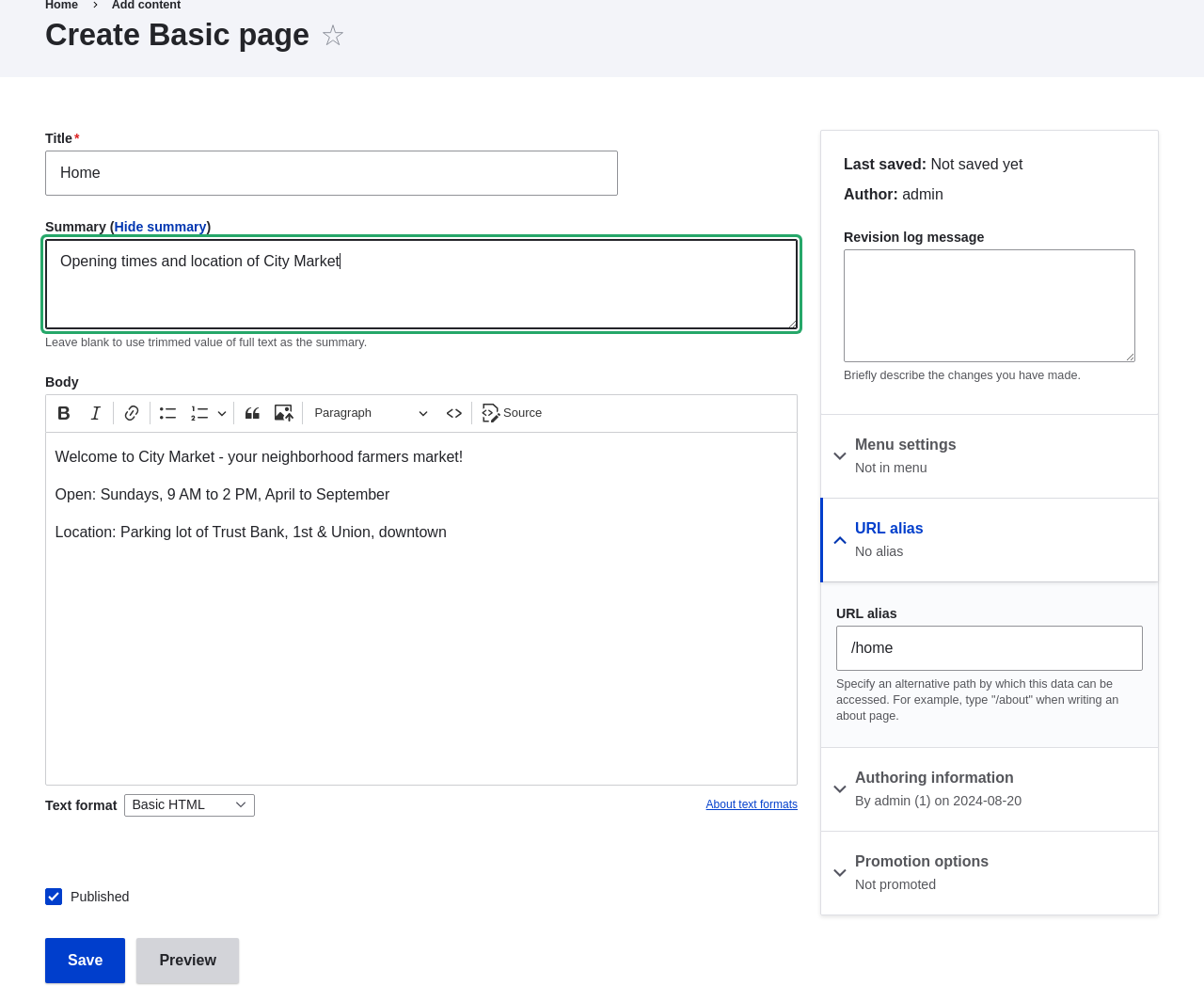
| Title | Title of the page. Will also be used as a meta tag in the source code, URL alias, and as label of the content item in administration screens | Home | Summary | Summary of the value of the body field. Can be used as teaser |
| Body | Full content of the page | Welcome to City Market - your neighborhood | ||
| Published | Whether the content is published for public view or not | Checked | ||
| URL alias > URL alias | Alternate relative path for the content | /home |
 1. Click _Preview_ to ensure everything looks like expected.
1. Click _Back to content editing_.
1. Click _Save_. The content is saved and can be found on the
_Content_ page.
1. Follow the same steps to create an About page, with title "About", and a body
telling about the history of the farmer's market.
## Expand your understanding
* [Designating a Front Page for your Site](/link/715)
* [Adding a Page to the Navigation](/link/717)
* [Translating Content](/link/757)
## Related concepts
* [Concept: User Interface, Configuration, and Content translation](/link/695)
* [Concept: Paths, Aliases, and URLs](/link/712)
* [Editing a Content Item](/link/714)
## Videos
[Creating a Content Item](https://www.youtube.com/watch?v=h312fekiSNE)
## Additional resources
[_Drupal.org_ community documentation page "About nodes"](https://www.drupal.org/docs/core-modules-and-themes/core-modules/node-module/about-nodes)
# Editing a Content Item
## Goal
Update the hours on the Home page content item.
## Prerequisite knowledge
[Creating a Content Item](/link/713)
## Site prerequisites
A content item for the Home page must exist. See [Creating a Content Item](/link/713).
## Steps
1. In the _Manage_ administrative menu, navigate to _Content_ (_admin/content_).
1. If the content item you want to edit was updated or created recently, it
should appear near the top of the content list on that page. If not, you can
use the _Content type_, _Title_, or other filters to locate the content item.
1. Click _Preview_ to ensure everything looks like expected.
1. Click _Back to content editing_.
1. Click _Save_. The content is saved and can be found on the
_Content_ page.
1. Follow the same steps to create an About page, with title "About", and a body
telling about the history of the farmer's market.
## Expand your understanding
* [Designating a Front Page for your Site](/link/715)
* [Adding a Page to the Navigation](/link/717)
* [Translating Content](/link/757)
## Related concepts
* [Concept: User Interface, Configuration, and Content translation](/link/695)
* [Concept: Paths, Aliases, and URLs](/link/712)
* [Editing a Content Item](/link/714)
## Videos
[Creating a Content Item](https://www.youtube.com/watch?v=h312fekiSNE)
## Additional resources
[_Drupal.org_ community documentation page "About nodes"](https://www.drupal.org/docs/core-modules-and-themes/core-modules/node-module/about-nodes)
# Editing a Content Item
## Goal
Update the hours on the Home page content item.
## Prerequisite knowledge
[Creating a Content Item](/link/713)
## Site prerequisites
A content item for the Home page must exist. See [Creating a Content Item](/link/713).
## Steps
1. In the _Manage_ administrative menu, navigate to _Content_ (_admin/content_).
1. If the content item you want to edit was updated or created recently, it
should appear near the top of the content list on that page. If not, you can
use the _Content type_, _Title_, or other filters to locate the content item.
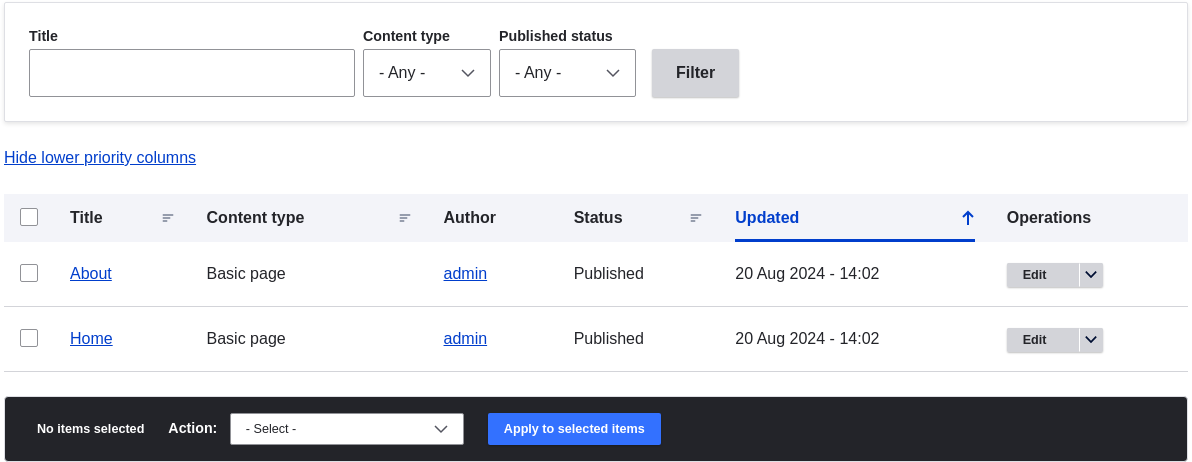 1. Click _Edit_ in the row of the content item you want to edit (Home), to
open the content editing form. Update the opening hours in the _Body_ field. See
[Creating a Content Item](/link/713) for an explanation of the fields and a screenshot.
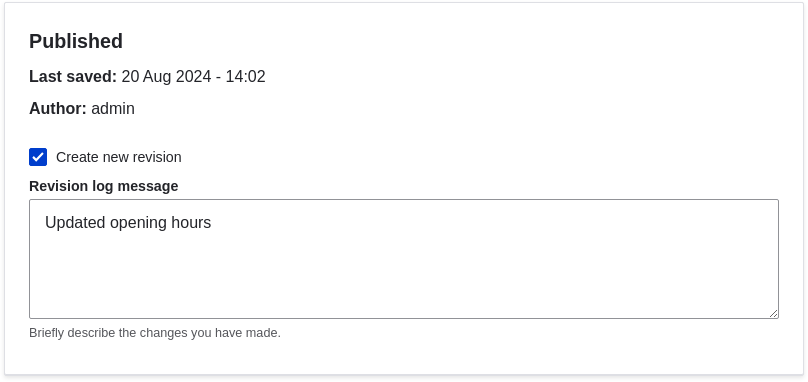
1. Check _Create new revision_ under _Published_, if it is not already
checked, and enter a _Revision log message_ explaining what changes you are
making (for example, you might enter "Updated opening hours"). This text
will appear in the revision log for the page.
1. Click _Save_ to save your changes.
1. You will be redirected back to the _Content_ administrative page, and there
should be a message showing that the content item was updated.

## Expand your understanding
As an alternative to the first two steps above, you can also reach the
content edit form as follows:
1. Starting from your site's home page, use the site's navigation menus to locate
the page where the content you want to edit is displayed to visitors.
1. Most themes will display an _Edit_ link or tab near the top of that page to
people with permission to edit the page; clicking the link will take you to
the full content edit form.
## Videos
[Editing a Content Item](https://www.youtube.com/watch?v=TAFZMcuOqG0)
# Designating a Front Page for your Site
## Goal
Configure which content item is displayed as the front page of your website.
## Site prerequisites
The content item that you want to designate as the front page of your site must
exist. See [Creating a Content Item](/link/713).
## Steps
1. In the _Manage_ administrative menu, navigate to _Configuration_ > _System_ >
_Basic site settings_ (_admin/config/system/site-information_).
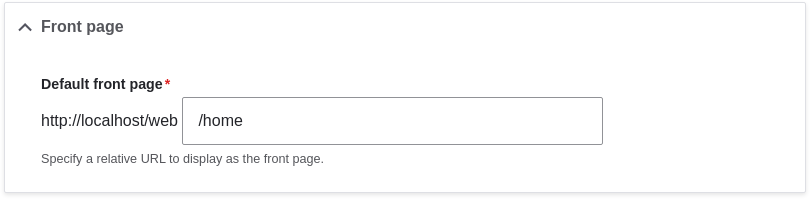
1. Under _Front page_, replace _/node_ with the name of the page you
would like to make the home page. To use the home page that was previously
created, provide its path _/home_. Click _Save configuration_.
1. Navigate to the home page to verify that it displays content as configured by
you.
1. Click _Edit_ in the row of the content item you want to edit (Home), to
open the content editing form. Update the opening hours in the _Body_ field. See
[Creating a Content Item](/link/713) for an explanation of the fields and a screenshot.
1. Check _Create new revision_ under _Published_, if it is not already
checked, and enter a _Revision log message_ explaining what changes you are
making (for example, you might enter "Updated opening hours"). This text
will appear in the revision log for the page.

1. Click _Save_ to save your changes.
1. You will be redirected back to the _Content_ administrative page, and there
should be a message showing that the content item was updated.

## Expand your understanding
As an alternative to the first two steps above, you can also reach the
content edit form as follows:
1. Starting from your site's home page, use the site's navigation menus to locate
the page where the content you want to edit is displayed to visitors.
1. Most themes will display an _Edit_ link or tab near the top of that page to
people with permission to edit the page; clicking the link will take you to
the full content edit form.
## Videos
[Editing a Content Item](https://www.youtube.com/watch?v=TAFZMcuOqG0)
# Designating a Front Page for your Site
## Goal
Configure which content item is displayed as the front page of your website.
## Site prerequisites
The content item that you want to designate as the front page of your site must
exist. See [Creating a Content Item](/link/713).
## Steps
1. In the _Manage_ administrative menu, navigate to _Configuration_ > _System_ >
_Basic site settings_ (_admin/config/system/site-information_).
1. Under _Front page_, replace _/node_ with the name of the page you
would like to make the home page. To use the home page that was previously
created, provide its path _/home_. Click _Save configuration_.

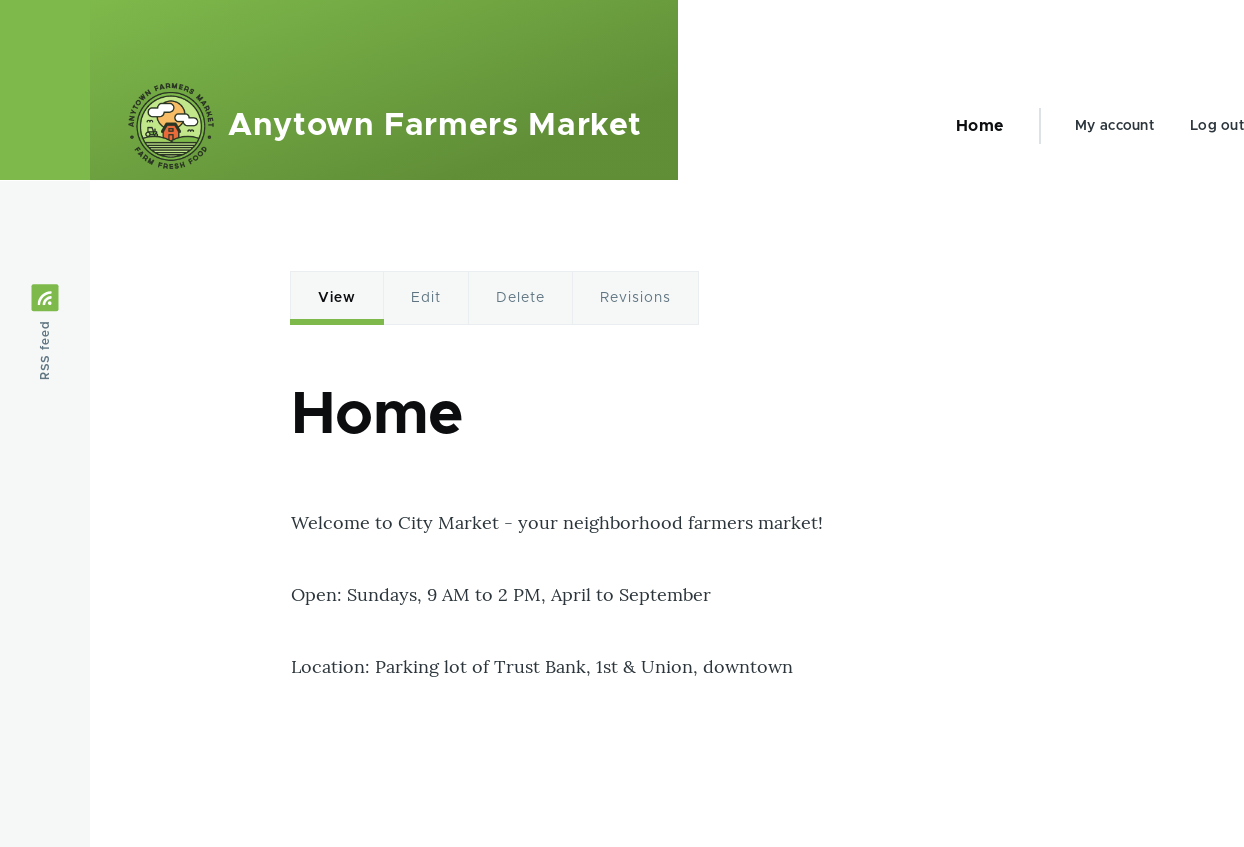
1. Navigate to the home page to verify that it displays content as configured by
you.
 ## Expand your understanding
* [Adding a Page to the Navigation](/link/717)
* Follow [Creating a Content Item](/link/713) to create an error page to be used as a 404 (page
not found) or 403 (not authorized) response on your site. Then following the
steps here, you can designate it as the error response, in the _Error pages_
section of the configuration.
## Related concepts
[Concept: Menu](/link/716)
## Videos
[Designating a Front Page for Your Site](https://www.youtube.com/watch?v=qOL8arBYpJ4)
# Concept: Menu
## What is a menu?
Menus are a collection of links used to navigate a website. The
core Menu UI module provides an interface to control and customize the menu
system. Menus are primarily displayed as a hierarchical list of links. By
default, new menu links are placed inside a built-in menu labeled _Main
navigation_, but administrators can also create custom menus.
The core Standard installation profile contains five menus:
- **Main navigation:** Links to sections intended for site visitors. They are usually created by site administrators.
- **Administration:** Links to administrative tasks. This menu mainly contains links supplied by modules on your site.
- **User account menu:** Links to tasks associated with the user account such as _My account_ and _Log out_.
- **Footer:** Links to important pages within the site intended for the footer. They are usually created by site administrators.
- **Tools:** Links to tasks necessary for site visitors. Some modules feature their links here.
You can customize menus in the following ways, using the menu administration
functionality:
* Creating new custom menus.
* Adding new menu links.
* Reordering menu links by setting their "weight" or by dragging them into
place.
* Renaming menu links (link title).
* Changing the link description (the tooltip that appears when you mouse over a menu
link).
* Moving a menu link into a different menu by editing its _Parent link_
property.
A menu link will only be shown to a visitor if they have the rights to view the
page it links to. For example, the admin menu link is not shown to visitors who
are not logged in.
## Related topics
* [Adding a Page to the Navigation](/link/717)
* [Changing the Order of Navigation](/link/718)
* To display a menu, you will need to place the block that corresponds to the
menu in a region of your theme; see [Concept: Blocks](/link/745), [Concept: Regions in a Theme](/link/689), and
[Placing a Block in a Region](/link/747). The core Standard installation profile places all of the menus
it defines except Administration in regions of the core Bartik theme. The core
Toolbar module, which is installed by the core Standard installation profile,
displays the Administration menu; it is also displayed by the contributed Admin
Toolbar module.
# Adding a Page to the Navigation
## Goal
Add a page to the navigation. For example, the About page.
## Prerequisite knowledge
* [Concept: Menu](/link/716)
* [Editing a Content Item](/link/714)
## Site prerequisites
The About page content item must exist. See [Creating a Content Item](/link/713).
## Steps
1. In the _Manage_ administrative menu, navigate to _Content_ (_admin/content_).
1. Find the About page, and click _Edit_ in that row. The content editing form
appears.
## Expand your understanding
* [Adding a Page to the Navigation](/link/717)
* Follow [Creating a Content Item](/link/713) to create an error page to be used as a 404 (page
not found) or 403 (not authorized) response on your site. Then following the
steps here, you can designate it as the error response, in the _Error pages_
section of the configuration.
## Related concepts
[Concept: Menu](/link/716)
## Videos
[Designating a Front Page for Your Site](https://www.youtube.com/watch?v=qOL8arBYpJ4)
# Concept: Menu
## What is a menu?
Menus are a collection of links used to navigate a website. The
core Menu UI module provides an interface to control and customize the menu
system. Menus are primarily displayed as a hierarchical list of links. By
default, new menu links are placed inside a built-in menu labeled _Main
navigation_, but administrators can also create custom menus.
The core Standard installation profile contains five menus:
- **Main navigation:** Links to sections intended for site visitors. They are usually created by site administrators.
- **Administration:** Links to administrative tasks. This menu mainly contains links supplied by modules on your site.
- **User account menu:** Links to tasks associated with the user account such as _My account_ and _Log out_.
- **Footer:** Links to important pages within the site intended for the footer. They are usually created by site administrators.
- **Tools:** Links to tasks necessary for site visitors. Some modules feature their links here.
You can customize menus in the following ways, using the menu administration
functionality:
* Creating new custom menus.
* Adding new menu links.
* Reordering menu links by setting their "weight" or by dragging them into
place.
* Renaming menu links (link title).
* Changing the link description (the tooltip that appears when you mouse over a menu
link).
* Moving a menu link into a different menu by editing its _Parent link_
property.
A menu link will only be shown to a visitor if they have the rights to view the
page it links to. For example, the admin menu link is not shown to visitors who
are not logged in.
## Related topics
* [Adding a Page to the Navigation](/link/717)
* [Changing the Order of Navigation](/link/718)
* To display a menu, you will need to place the block that corresponds to the
menu in a region of your theme; see [Concept: Blocks](/link/745), [Concept: Regions in a Theme](/link/689), and
[Placing a Block in a Region](/link/747). The core Standard installation profile places all of the menus
it defines except Administration in regions of the core Bartik theme. The core
Toolbar module, which is installed by the core Standard installation profile,
displays the Administration menu; it is also displayed by the contributed Admin
Toolbar module.
# Adding a Page to the Navigation
## Goal
Add a page to the navigation. For example, the About page.
## Prerequisite knowledge
* [Concept: Menu](/link/716)
* [Editing a Content Item](/link/714)
## Site prerequisites
The About page content item must exist. See [Creating a Content Item](/link/713).
## Steps
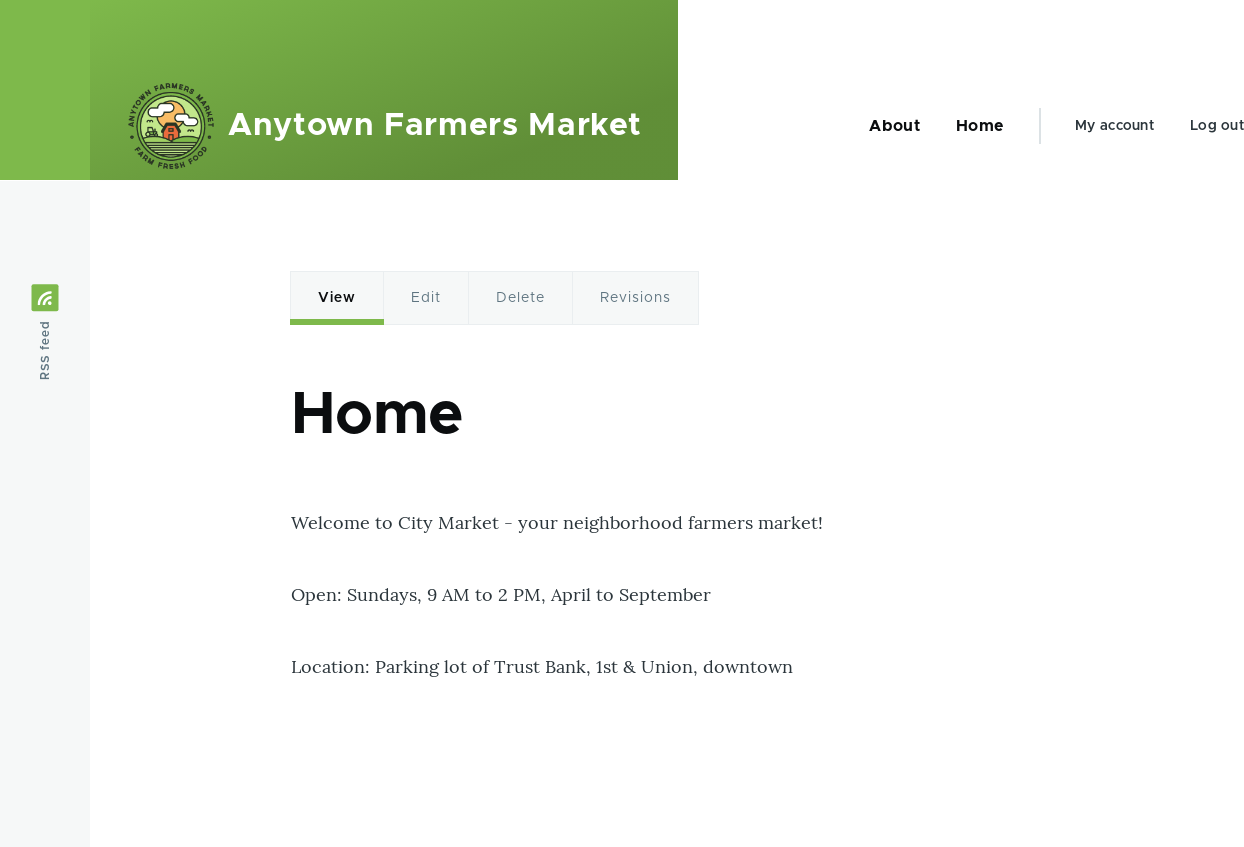
1. In the _Manage_ administrative menu, navigate to _Content_ (_admin/content_).
1. Find the About page, and click _Edit_ in that row. The content editing form
appears.
 1. Click _Menu settings_ on the right to expand it.
1. Check _Provide a menu link_ for the menu options to appear.
1. Enter values from the table below:
1. Click _Menu settings_ on the right to expand it.
1. Check _Provide a menu link_ for the menu options to appear.
1. Enter values from the table below:
| Field name | Explanation | Example value | ||
|---|---|---|---|---|
| Menu link title | Title that will be displayed in the menu | About | ||
| Description | Text that will be displayed when a visitor hovers over the link | History of the market | ||
| Parent link | Location of the page in the menu hierarchy. For example, if you choose _<Main navigation>_, the page will appear in the highest level of the navigation. By choosing another menu link as parent, you can create a menu hierarchy of multiple levels. | <Main navigation> | Weight | The order in which the page should appear in the menu (lower-weighted |
 ## Expand your understanding
[Changing the Order of Navigation](/link/718)
## Videos
[Adding a Page to the Navigation](https://www.youtube.com/watch?v=JE_3INtBcTw)
## Additional resources
[_Drupal.org_ community documentation page "Adding a link to a menu"](https://www.drupal.org/docs/core-modules-and-themes/core-modules/menu-ui-module/adding-a-link-to-a-menu)
# Changing the Order of Navigation
## Goal
Reorder the links in a menu.
## Prerequisite knowledge
* [Concept: Menu](/link/716)
* [Adding a Page to the Navigation](/link/717)
## Site prerequisites
Home and About pages must exist in the main navigation menu. See
[Adding a Page to the Navigation](/link/717).
## Steps
1. In the _Manage_ administrative menu, navigate to _Structure_ > _Menus_
(_admin/structure/menu_) where all menus on your site are listed. Click _Edit
Menu_ from the _Operations_ dropdown for _Main navigation_. You can also reach
this page using contextual links (refer to [Concept: Administrative Overview](/link/705)) for the
menu. Note that the names and descriptions of the menus that were provided by
your installation profile are shown in English on this page; see
[Concept: User Interface, Configuration, and Content translation](/link/695) for an explanation.
## Expand your understanding
[Changing the Order of Navigation](/link/718)
## Videos
[Adding a Page to the Navigation](https://www.youtube.com/watch?v=JE_3INtBcTw)
## Additional resources
[_Drupal.org_ community documentation page "Adding a link to a menu"](https://www.drupal.org/docs/core-modules-and-themes/core-modules/menu-ui-module/adding-a-link-to-a-menu)
# Changing the Order of Navigation
## Goal
Reorder the links in a menu.
## Prerequisite knowledge
* [Concept: Menu](/link/716)
* [Adding a Page to the Navigation](/link/717)
## Site prerequisites
Home and About pages must exist in the main navigation menu. See
[Adding a Page to the Navigation](/link/717).
## Steps
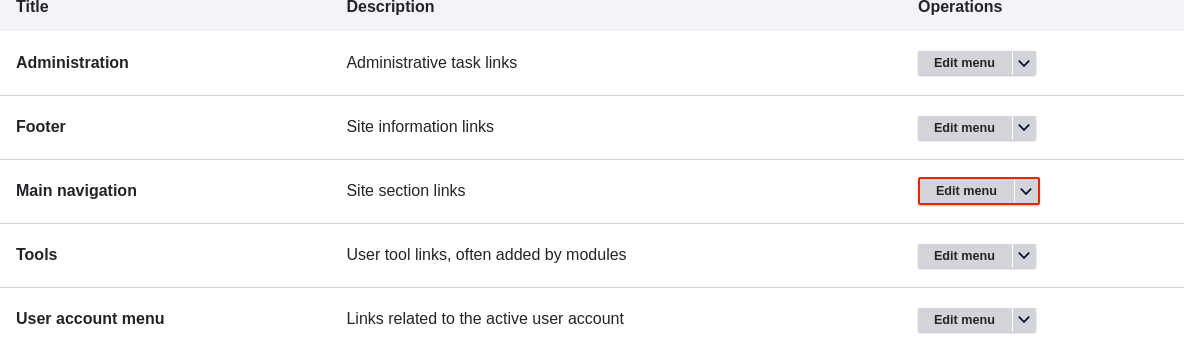
1. In the _Manage_ administrative menu, navigate to _Structure_ > _Menus_
(_admin/structure/menu_) where all menus on your site are listed. Click _Edit
Menu_ from the _Operations_ dropdown for _Main navigation_. You can also reach
this page using contextual links (refer to [Concept: Administrative Overview](/link/705)) for the
menu. Note that the names and descriptions of the menus that were provided by
your installation profile are shown in English on this page; see
[Concept: User Interface, Configuration, and Content translation](/link/695) for an explanation.
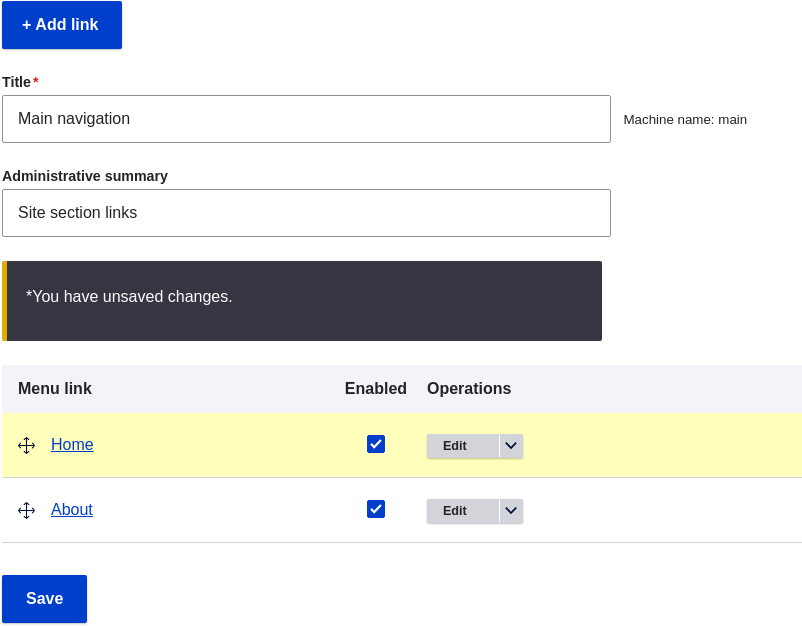
 1. The _Edit menu_ page will display a list of each link in the menu you
chose (_Main navigation_).
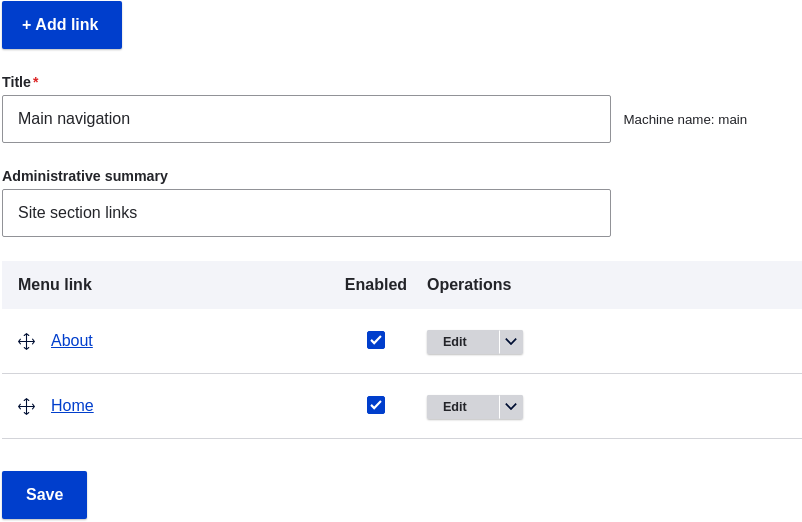
1. Drag the cross bar handles of menu links to change their order: Home, then
About. As an alternative to dragging, you can click the _Show row weights_ link
at the top of the table and select numerical weights (menu links with lower or
more negative weights will be shown first).
1. Click _Save_.
1. The home page now displays the main navigation with the Home menu
link displayed first.

## Expand your understanding
Add a menu link called _Contact_, leading to the _/contact_ page, to your Main
navigation menu. The contact page is provided by the core Contact module; you
may want to edit its layout and fields (see [Changing Content Entry Forms](/link/728)).
## Related concepts
[Concept: Menu](/link/716)
## Videos
[Changing the Order of Navigation](https://www.youtube.com/watch?v=OtT8e8lLx5E)
1. The _Edit menu_ page will display a list of each link in the menu you
chose (_Main navigation_).

1. Drag the cross bar handles of menu links to change their order: Home, then
About. As an alternative to dragging, you can click the _Show row weights_ link
at the top of the table and select numerical weights (menu links with lower or
more negative weights will be shown first).

1. Click _Save_.
1. The home page now displays the main navigation with the Home menu
link displayed first.

## Expand your understanding
Add a menu link called _Contact_, leading to the _/contact_ page, to your Main
navigation menu. The contact page is provided by the core Contact module; you
may want to edit its layout and fields (see [Changing Content Entry Forms](/link/728)).
## Related concepts
[Concept: Menu](/link/716)
## Videos
[Changing the Order of Navigation](https://www.youtube.com/watch?v=OtT8e8lLx5E)