# BookStack 文档（英文原版）

BookStack 的使用与管理指南（英文），从书架、书、章节、页面的编辑和组织讲起，也包括安装、升级、用户权限、备份等站点维护内容。适合 BookStack 的日常使用者和站点管理员。

# 用户文档

# Attachments

Within BookStack you can attach files & links to pages, so they can be referenced within content
and shown available for download. Access to attachments is controlled via view permissions to the
page they're uploaded to, so users can only access attachments for pages they can view in the system.

File attachments are really just there for storage and access convenience. 
BookStack does not do anything special with attachments like scan & index their contents,
since documentation content in BookStack is designed & intended to be within the text of pages.

---

### Creating & Uploading Attachments

Attachments can be uploaded via the sidebar when in the page editor.
The attachments section of the sidebar is represented with a paper-clip 
icon and, when open, looks like this:

![View of the BookStack page editor, with the sidebar open on an "Attachments" view, with the buttons "Upload file" and "Attach Link", along with two listed attachment boxes below labelled as a link with names "kitty-cat.jpg" and "Secret Location"](https://docs.cocobook.com/uploads/images/gallery/2026-10/attachments-sidebar.png)

With this open there are options to "Upload File" or "Attach Link". 
You can also just drag and drop a file into that zone around the buttons to quickly
upload a file from your device.
Uploading files is the most common use-case but you can attach a link to the page
to act as a dynamic, permission-controlled, reference/URL you can use & share.

Below the buttons is where any existing uploaded attachments can be found.
You can use the handles on the left to reorder them if needed.
There are buttons on each to delete or edit the attachment. 
Via editing you can alter the attachment name in addition to the underlying file or link, while the original
attachment URL will remain the same.
There's also a button to insert the attachment into the page, as referenced in the "Using Attachments in Pages" section below.

Keep in mind, attachments are strongly coupled to the pages they're uploaded to.
Access to an attachment is controlled via the ability to see the owning page.
If a page is deleted, the attachments uploaded to it will be deleted too!

---

### Accessing Attachments

One uploaded, attachments will show in the sidebar when viewing a page.
You can click on an attachment to open it up. 
Link attachments will open in a new tab.
File attachments will download, or you can view them in a new tab
via the dropdown menu on the right of the attachment:

![View of the sidebar when viewing a page with two attachments: a "kitty-cat.jpg" file attachment and "Secret Location" link attachment. There's also a view of the same but showing a dropdown menu on the right of the attachment, with "Download" and "Open in Tab" options](https://docs.cocobook.com/uploads/images/gallery/2026-10/attachments-accessing.png)

Alternatively you can hold down Ctrl (or Cmd on Mac) and then click on it directly
to open in a new tab.
Note that attachments in new tabs may still download if the file format is not deemed
safe to show via a new tab, or if that's the browser's default behaviour.

---

### Using Attachments in Pages

While attachments are listed in the sidebar when viewing a page, as shown in the section above,
you can link to attachments within the page itself which can be a common need when wanting to add context
or reference the attachment in a particular part of your documentation content.
There are a few ways to do this.

The first method is to simply use the "link" icon button on the attachment in the sidebar.
Clicking this will insert a link into the page, at the current cursor position, with the correct
attachment URL & name.

The second method is via drag & drop. You can drag the attachment from the sidebar using its
handle or name, and then drop it into the editor which will insert an attachment link at that location.

![View of the page editor, with the attachments sidebar open. An attachment card named "Secret Location" is being dragged into the body of the page editor.](https://docs.cocobook.com/uploads/images/gallery/2026-10/attachments-usage.png)

The third is just using normal browser and editor functionality.
You can right-click and copy the URL for the attachment, then insert a link as normal into the page
using that attachment URL you just copied.


---

### Technical Details

When you upload & download attachments, BookStack will attempt to stream files where possible so that the application
can serve large files quickly without needing to use up system memory or increase the PHP memory limit.
If your instance is using S3-based storage, then attachments are streamed from BookStack to server
but not from S3 (or similar) to BookStack at this time, so it may be better to store and serve attachments
direct from storage if possible in those large-file circumstances.

Even with streaming, you can often run into server-side (and proxy) upload/download/timeout limits. 
Our [admin documentation on file uploads](/link/210#changing-upload-limits) may help if you run into these.

When attachments are served inline (opened in new tab or with an `open=true` query parameter)
BookStack will attempt to sniff the mime-type of the attachment content, then serve the file
with that mime-type to allow in-browser viewing if supported, and if the detected mime-type
is deemed safe (For example, HTML won't be served inline). 
This is done via an internal allow-list of mime-type values.


# Content Overview

The principles of storing information within BookStack is based of the ideas of a normal stack of books. Just like normal books, BookStack books can contain chapters and pages. You start off by creating a book which acts as the highest level of categorisation. Ideally you'd have separate books for separate topics.

Within a book you can directly create pages or you can first create chapters. Chapters provide an additional level of page grouping to keep pages organised but are optional. All the information you write is held within pages. Although books and chapters do not hold information they can be given a short description to assist with searching and visibility.

Once you start to stack-up books you can start to use Bookshelves to organise your Books. Bookshelves can contain multiple books and a single book could be placed on multiple Bookshelves. 

### Default Colour Coding

Bookshelves, Books, chapters and pages have set colour coding in BookStack to ensure they are easily identifiable. The below examples show the default color scheme. Note that this may be overridden by your administrator.

<span style="color:#009688;line-height:12px;"><svg fill="#009688" height="24" viewBox="0 0 24 24" width="24" xmlns="http://www.w3.org/2000/svg"><path d="M0 0h24v24H0z" fill="none"></path><path d="M18 2H6c-1.1 0-2 .9-2 2v16c0 1.1.9 2 2 2h12c1.1 0 2-.9 2-2V4c0-1.1-.9-2-2-2zM6 4h5v8l-2.5-1.5L6 12V4z"></path></svg> <span style="position:relative;top:-6px;">Books</span></span>
&nbsp;
&nbsp;
<span style="color:#ef7c3c;"><svg fill="#ef7c3c" height="24" viewBox="0 0 24 24" width="24" xmlns="http://www.w3.org/2000/svg"><path d="M0 0h24v24H0V0z" fill="none"></path><path d="M4 6H2v14c0 1.1.9 2 2 2h14v-2H4V6z"></path><path d="M0 0h24v24H0V0z" fill="none"></path><path d="M20 2H8c-1.1 0-2 .9-2 2v12c0 1.1.9 2 2 2h12c1.1 0 2-.9 2-2V4c0-1.1-.9-2-2-2zm0 10l-2.5-1.5L15 12V4h5v8z"></path></svg> <span style="position:relative;top:-6px;">Chapters</span></span>
&nbsp;
&nbsp;
<span style="color:#0288D1;"><svg fill="#0288D1" height="24" viewBox="0 0 24 24" width="24" xmlns="http://www.w3.org/2000/svg"><path d="M0 0h24v24H0z" fill="none"></path><path d="M14 2H6c-1.1 0-1.99.9-1.99 2L4 20c0 1.1.89 2 1.99 2H18c1.1 0 2-.9 2-2V8l-6-6zm2 16H8v-2h8v2zm0-4H8v-2h8v2zm-3-5V3.5L18.5 9H13z"></path></svg> <span style="position:relative;top:-6px;">Pages</span></span>
&nbsp;
&nbsp;
<span style="color:#9A60DA;"><svg fill="#9A60DA" height="24" viewBox="0 0 24 24" width="24" xmlns="http://www.w3.org/2000/svg"><path d="M0 0h24v24H0z" fill="none"></path><path d="M14 2H6c-1.1 0-1.99.9-1.99 2L4 20c0 1.1.89 2 1.99 2H18c1.1 0 2-.9 2-2V8l-6-6zm2 16H8v-2h8v2zm0-4H8v-2h8v2zm-3-5V3.5L18.5 9H13z"></path></svg> <span style="position:relative;top:-6px;">Draft Pages</span></span>
&nbsp;
&nbsp;
<span style="color:#af5a5a;line-height:12px;"><svg class="svg-icon" height="24" width="24" xmlns="http://www.w3.org/2000/svg" viewBox="0 0 24 24" fill="#af5a5a"><path fill="none" d="M0 0h24v24H0V0z"></path><path d="M1.088 2.566h17.42v17.42H1.088z" fill="none"></path><path d="M4 20.058h15.892V22H4z"></path><path d="M2.902 1.477h17.42v17.42H2.903z" fill="none"></path><g><path d="M6.658 3.643V18h-2.38V3.643zM11.326 3.643V18H8.947V3.643zM14.722 3.856l5.613 13.214-2.19.93-5.613-13.214z"></path></g></svg> <span style="position:relative;top:-6px;">Bookshelves</span></span>


### Starting Out

When you start out with your new BookStack instance you can organise things in two ways; You can plan out your book/chapter/page structure or you can let things grow naturally over time. If you know or already have the content which will be going into BookStack then it's probably best to plan early otherwise, if you're starting from scratch, you'll want to let everything find its own place.

If you decide to grow naturally then you'll likely start with a book for each major category and add pages directly into those books. As you start getting a lot of pages in each book you'll start to use chapters to group those pages. Once a chapter gets too large you may find it better to split it out into its own book. Within BookStack you can easily move chapters and pages between books and chapters so you shouldn't worry about having to move things around in the future.

# Content Tags

While BookStack has a hierarchy at the center of the platform to organise content, 
you can sometimes desire an extra dimension of categorisation for content.
Tags in BookStack offer this in a flexible manner, where a tag can represent a category
and value across all levels & parts of the hierarchy.

### Tag Format

Tags in BookStack have a name, but can also optionally have a value. This allows
detailed & categorised levels of tagging where required for a mixed range of use-cases.

![Three tags applied to content. A "Reviewed At" tag with value "20240611". A "Admin Books" tag with no value. A "Category" tag with value "Team planning"](https://docs.cocobook.com/uploads/images/gallery/2026-10/tags-list.png)

For example, you could use a tag named `Critical` with no value to mark important high priority pages.
Alternatively, if you have a range of priorities, you could use a tag named `Priority` with a value
of `Critical`. Using both a name and value here allows you to identify any content with a Priority set, in addition
to allowing identification of just `Critical` content.

This can also come in useful when you want to use tags for metadata. For example, you may want to record content review
dates, which you could achieve through a `Reviewed At` tag with value representing the last review date.

### Adding & Managing Tags

Tags can be added to any level of the content hierarchy (Shelves, books, chapters & pages).
You can apply tags when editing any such item. For shelves, books & chapters, tags are found
in a dropdown section on the edit view:

![View of editing tags for a Book, showing two tags, each as small cards with two edit zones within for tag name and value](https://docs.cocobook.com/uploads/images/gallery/2026-10/tags-edit.png)

For pages, you can find tags in the sidebar toolbox when in the page editor:

![View of the page editor, with a "Page Tags" section open in the sidebar](https://docs.cocobook.com/uploads/images/gallery/2026-10/tags-page-edit.png)

When editing a tag name or value BookStack will show a list of potential existing relevant options to help you quickly
fill the input. Suggestions for values will be just those used before for the chosen tag name, rather than all values
across all tags.

While editing, you're also able to re-order & remove tags as desired.
Any changes to tags are saved alongside when you save the item they're applied to.

### Tag Display & Overview

When applied, tags are shown in a few areas of BookStack alongside the content they're applied to:

- In the sidebar or info pane when viewing any tagged item.
- On items listed within search results.
- In API responses for items.

When viewing an item with tags applied, you can click the tag to start a tag search. Clicking the tag name will start
a search for all content that also has a tag of that name. Clicking the value will start a search for other content
that has that same tag name & value applied.

To view all tags being used, you can access an Tag overview page via the "View Tags" action found on the books or shelves index,
or you can navigate straight to the `/tags` URL path. Here you'll see a list of all tag names used across content you have
visibility of, alongside figures detailing their usage counts across each type of content.

![View of a tags list, including a search box and sort options. It shows 4 tags as rows, and each row has a breakdown of usage.](https://docs.cocobook.com/uploads/images/gallery/2026-10/tags-overview.png)

You can click the tag name, or item counts, to start a relevant filtered search.
Where tag values are used, you can also click the link on the right to access a
list of all tag values for that tag name, with a similar breakdown as before.

### Tags in the Search Index

When content is indexed for searching in BookStack, tags names & values are considered as part of the search engine,
and are even given a boost above normal content. This means you can boost content in search results 
for specific search terms using tags where needed.

### Tag Search Operations

Content can be queried in BookStack by tag name or value.
This can be used in many areas of BookStack where searching is made available. 
As mentioned in the sections above, you can often initiate tag searches via clicking tags
or statistics in the tag index. Otherwise you can directly use the following syntax:

- Search by tag name:
  - Syntax: `[<name>]`
  - Example: `[Location]`
- Search by tag value:
  - Syntax: `[<operator><value>]`
  - Example: `[=London]`
- Search by tag name & value:
  - Syntax: `[<name><operator><value>]`
  - Example: `[Location=London]`

The following are valid operators: `=`, `!=`, `<`, `>`, `<=`, `>=`, `like`.
When using the `like` operator you can use `%` symbols in the search value to represent wildcards.

Using this syntax you can get quite inventive. As an example, if you were applying `Reviewed At` tags with values 
in a format like `20240627` (YYYYMMDD) you could search for all content with "Reviewed At" dates before 2024 using: <br> `[Reviewed At<20240101]`.

See our [documentation on searching](/link/204) for more advanced search syntax.

### Tags for Customization

Tags can also be handy for customization in a range of ways, even if just to assist as extra metadata or identification points.
For example, you could use the [logical theme system](https://github.com/BookStackApp/BookStack/blob/development/dev/docs/logical-theme-system.md)
to run a custom action on page creations, and within that change behaviour or action based upon whether the parent Book has a specific tag.

Additionally, BookStack will convert tags to classes within the HTML templates used when viewing content in BookStack, which can then
be used for easy tag-controlled customization & styling.
Details of these tag classes can be found in our [Hacking BookStack documentation here](/link/216#tag-classes).


# Default Page Editor

The default editor in BookStack is a 'What You See Is What You Get' (WYSIWYG) editor.
The usage of this editor is similar to typical word-processing applications such as Word or Google Docs.
For those that would prefer it, there is an alternative [Markdown Editor](/link/198)
which can be set as default or switched to where permissions allow.

### Editor Shortcuts

The following shortcuts are available in the WYSIWYG Editor:

<table>
  <thead>
    <tr>
      <th>Shortcut (Windows &amp; Linux/Mac)</th>
      <th>Description</th>
    </tr>
  </thead>
  <tbody>
    <tr>
      <td><code>Ctrl+S</code> / <code>Cmd+S</code></td>
      <td>Save Draft</td>
    </tr>
    <tr>
      <td><code>Ctrl+Enter</code> / <code>Cmd+Enter</code></td>
      <td>Save Page &amp; Continue</td>
    </tr>
    <tr>
      <td><code>Ctrl+B</code> / <code>Cmd+B</code></td>
      <td>Bold</td>
    </tr>
    <tr>
      <td><code>Ctrl+I</code> / <code>Cmd+I</code></td>
      <td>Italic</td>
    </tr>
    <tr>
      <td><code>Ctrl+U</code> / <code>Cmd+U</code></td>
      <td>Underline</td>
    </tr>
    <tr>
      <td>
        <code>Ctrl+1</code> / <code>Cmd+1</code> <br>
        <code>Ctrl+2</code> / <code>Cmd+2</code> <br>
        <code>Ctrl+3</code> / <code>Cmd+3</code> <br>
        <code>Ctrl+4</code> / <code>Cmd+4</code>
      </td>
      <td>
        Header Large <br>
        Header Medium <br>
        Header Small <br>
        Header Tiny
      </td>
    </tr>
    <tr>
      <td><code>Ctrl+5</code> / <code>Cmd+5</code><br><code>Ctrl+D</code> / <code>Cmd+D</code></td>
      <td>Normal Paragraph</td>
    </tr>
    <tr>
      <td><code>Ctrl+6</code> / <code>Cmd+6</code><br><code>Ctrl+Q</code> / <code>Cmd+Q</code></td>
      <td>Blockquote</td>
    </tr>
    <tr>
      <td><code>Ctrl+7</code> / <code>Cmd+7</code><br><code>Ctrl+E</code> / <code>Cmd+E</code></td>
      <td>Code Block</td>
    </tr>
    <tr>
      <td><code>Ctrl+8</code> / <code>Cmd+8</code><br><code>Ctrl+Shift+E</code> / <code>Cmd+Shift+E</code></td>
      <td>Inline Code</td>
    </tr>
    <tr>
      <td><code>Ctrl+9</code> / <code>Cmd+9</code></td>
      <td>Callout <br> <small><em>(Keep pressing to toggle through styles)</em></small></td>
    </tr>
    <tr>
      <td>
        <code>Ctrl+O</code> / <code>Cmd+O</code> <br>
        <code>Ctrl+P</code> / <code>Cmd+P</code>
      </td>
      <td>Ordered List <br> Bullet List</td>
    </tr>
    <tr>
      <td><code>Ctrl+K</code> / <code>Cmd+K</code></td>
      <td>Insert Link</td>
    </tr>
    <tr>
      <td><code>Ctrl+Shift+K</code> / <code>Cmd+Shift+K</code></td>
      <td>Link to BookStack content</td>
    </tr>
  </tbody>
</table>


# Drawings & Diagrams

BookStack has built-in support for creating and editing drawings via integrating with [diagrams.net](https://www.diagrams.net/).
This integration provides very powerful drawing/diagram editing capabilities for a range of use-cases.
By default BookStack will use the online version of diagrams.net but this is [configurable by an admin](/link/222#custom-diagramsnet-url).

### Inserting, Editing & Managing Drawings

#### WYSIWYG Editor

When using the WYSIWYG editor, drawings can be created & inserted into the page via a button in the editor toolbar.
The button is located in an overflow menu that's within the same section as tables and links:

![View of the WYSWIYG editor toolbar with the drawing button highlighted](https://docs.cocobook.com/uploads/images/gallery/2026-10/drawing-wysiwyg-insert.png)

To open an existing drawing for editing, simply double click on the drawing within the editor.
Alternatively you can press the toolbar drawing button while a drawing is selected.
When you edit an existing drawing and save, the new version is saved as a separate image file by BookStack, instead of overwriting existing drawings.
This is to allow proper revision history with old drawings intact.

Existing drawing files can be re-used or deleted via the drawing manager. This can be accessed via the dropdown that sits next
to the editor drawing toolbar button:

![Drawing managed popup view showing a grid of drawing thumbnails](https://docs.cocobook.com/uploads/images/gallery/2026-10/drawing-manager.png)

#### Markdown Editor

Within the markdown editor you can insert a drawing using the action found above the markdown content:

![View of the Markdown editor with an "Insert Drawing" action highlighted](https://docs.cocobook.com/uploads/images/gallery/2026-10/drawing-insert-markdown.png)

To open an existing drawing for editing, just double click the image within the preview window and the existing drawing should be 
opened for editing.
When you edit an existing drawing and save, the new version is saved as a separate image file by BookStack, instead of overwriting existing drawings.
This is to allow proper revision history with old drawings intact.

### Drawing Image File Storage & Format

Drawings files created via the diagrams.net integration are saved to your own BookStack system, using the same storage mechanism as configured for normal images.

For portability & compatibility, drawings are saved in PNG file format, with the original diagrams.net drawing data embedded within.
Since the drawing data is embedded with the PNG image file, you can continue editing such drawings in any diagrams.net instance just by dragging-in or 
importing the image file.


# Getting Around and Finding Content

There are many ways to get around and find content within your BookStack instance
outside of following the core hierarchy. Below is an overview of some common options.

### Book Sidebar

The book sidebar is visible when within a book, and it reflects the full ordered hierarchy 
of the book you are within. If you are within a chapter, that chapter will be expanded by
default otherwise they will be collapsed, and expandable with a click.

![View of the book sidebar showing child chapters and pages](https://docs.cocobook.com/uploads/images/gallery/2026-10/getting-around-book-navigation.png)

### Next & Previous Links

When viewing a page or chapter, you'll find links below the main content that allow you to
navigate between the next & previous content within the current book.
These links will reflect sibling content, or the next item within the parent level if no adjacent content exists.

![View of the next & previous actions when viewing a page](https://docs.cocobook.com/uploads/images/gallery/2026-10/getting-around-next-prev-links.png)

### Breadcrumbs

As you dive into your BookStack content you'll see breadcrumbs above 
the main content area to reflect the parent path of the current item.
These will begin with the "Books" page unless
you've traveled through the "Shelves" view in which case this would begin with
the "Shelves" view and parent shelf. 

![View of BookStack items, in a hierarchy, with arrows in between](https://docs.cocobook.com/uploads/images/gallery/2026-10/getting-around-breadcrumb-nav.png)

You can click on breadcrumb items to navigate directly to those. You can also click the 
arrows between items to search and jump to orthogonal content within 
the structure hierarchy.

![Breadcrumb view with an arrow clicked, showing a popover element listing BookStack pages and chapters](https://docs.cocobook.com/uploads/images/gallery/2026-10/getting-around-breadcrumb-dropdown.png)

### Search

A major way to find and jump to content is by using search.
There's the global search input in the header, where you can search across all content in your instance:

![View of the header search bar with a search started and relevant items listed](https://docs.cocobook.com/uploads/images/gallery/2026-10/getting-around-search-preview.png)

When you start a global search, you'll get live feedback showing a preview of search results.
You can press enter or "View All" to view all relevant results on the search page.
Within the book and chapter views, you'll also find search inputs allowing you to search just within that book or chapter.

Find more information on our ["Searching Content"](/link/204) page.

### Activity Lists

Many views, like that for a book or on the homepage, will show a list of
"Recent Activity", reflecting recent actions that have been made relevant to the
current context.
On these, you can click the name of the item within the listed activity to jump to that item.

![A list of user activity showing linked items names](https://docs.cocobook.com/uploads/images/gallery/2026-10/getting-around-recent-activity.png)

### Recently Updated List

On the homepage you can find a "Recently Updated" list, showing the latest pages
to have been created or updated.
You can press "View All" to view a larger paginated list.

![A card section with title "Recently Updates Pages" with a list of pages below](https://docs.cocobook.com/uploads/images/gallery/2026-10/getting-around-recently-updated.png)

### Favourites

One way to easily recall content is by adding it to your favourites.
You can choose to favourite any shelf, book, chapter or page to add it 
to your personal favourite collection. 
You can then easily find your favourites either as a list on the homepage
or via the "My Favourites" link in the header profile dropdown.

![A view of the "My Favourites" page, with the header profile dropdown menu showing containing a link to "My Favourites"](https://docs.cocobook.com/uploads/images/gallery/2026-10/getting-around-favourites.png)


# Markdown Editor

If you prefer to write in a simpler format, a Markdown editor is available in BookStack. Markdown compatibility generally follows that of [CommonMark](https://commonmark.org/), along with a few extensions including tables and task-lists.
This is an alternative to the default [WYSIWYG Editor](/link/195).


### Switching to the Markdown Editor

The default editor option, for when creating a new page, can be configured by an admin within the "Settings > Customization" area of BookStack.

You can change to the markdown editor at a page-level while within the page editor.
Simply click the draft status, located above the page name input, and you'll be presented a drop-down with options which include those to change the editor. If you don't see these options, you may not have the relevant "Change page editor" system permission on one of your assigned system roles.

![Editor Switch Menu Options](https://docs.cocobook.com/uploads/images/gallery/2026-10/editor-switch-dropdown.png)

For switching to Markdown, from the WYSIWYG editor, you'll see a couple of options:

- **Clean Content** - This is a system-cleaned markdown output, which is much nicer but has potential for formatting loss and potential functionality breaks (Things depending on HTML attributes/IDs for example).
- **Stable Content** - This retains existing HTML content in Markdown to avoid any potential functionality breakages or loss of formatting.

When you choose either option, there is risk of losing certain content details or formatting. BookStack will warn you of this when switching.

### Editor Shortcuts

The following shortcuts are available in the Markdown Editor:

<table>
  <thead>
    <tr>
      <th>Shortcut (Windows &amp; Linux/Mac)</th>
      <th>Description</th>
    </tr>
  </thead>
  <tbody>
    <tr>
      <td><code>Ctrl+S</code> / <code>Cmd+S</code></td>
      <td>Save Draft</td>
    </tr>
    <tr>
      <td><code>Ctrl+Enter</code> / <code>Cmd+Enter</code></td>
      <td>Save Page &amp; Continue</td>
    </tr>
    <tr>
      <td>
        <code>Ctrl+1</code> / <code>Cmd+1</code> <br>
        <code>Ctrl+2</code> / <code>Cmd+2</code> <br>
        <code>Ctrl+3</code> / <code>Cmd+3</code> <br>
        <code>Ctrl+4</code> / <code>Cmd+4</code>
      </td>
      <td>
        Header Large (h2)<br>
        Header Medium (h3)<br>
        Header Small (h4)<br>
        Header Tiny (h5)
      </td>
    </tr>
    <tr>
      <td><code>Ctrl+5</code> / <code>Cmd+5</code><br><code>Ctrl+D</code> / <code>Cmd+D</code></td>
      <td>Normal Paragraph</td>
    </tr>
    <tr>
      <td><code>Ctrl+6</code> / <code>Cmd+6</code><br><code>Ctrl+Q</code> / <code>Cmd+Q</code></td>
      <td>Blockquote</td>
    </tr>
    <tr>
      <td><code>Ctrl+7</code> / <code>Cmd+7</code><br><code>Ctrl+E</code> / <code>Cmd+E</code></td>
      <td>Code Block</td>
    </tr>
    <tr>
      <td><code>Ctrl+8</code> / <code>Cmd+8</code><br><code>Ctrl+Shift+E</code> / <code>Cmd+Shift+E</code></td>
      <td>Inline Code</td>
    </tr>
    <tr>
      <td><code>Ctrl+9</code> / <code>Cmd+9</code></td>
      <td>Callout <br> <small><em>(Keep pressing to toggle through styles)</em></small></td>
    </tr>
    <tr>
      <td>
        <code>Ctrl+O</code> / <code>Cmd+O</code> <br>
        <code>Ctrl+P</code> / <code>Cmd+P</code>
      </td>
      <td>Ordered List <br> Bullet List</td>
    </tr>
    <tr>
      <td><code>Ctrl+K</code> / <code>Cmd+K</code></td>
      <td>Insert Link</td>
    </tr>
    <tr>
      <td><code>Ctrl+Shift+K</code> / <code>Cmd+Shift+K</code></td>
      <td>Link to BookStack content</td>
    </tr>
    <tr>
      <td><code>Ctrl+Shift+I</code> / <code>Cmd+Shift+I</code></td>
      <td>Insert Image via URL</td>
    </tr>
  </tbody>
</table>


# Organising Content

Once your BookStack instance starts to grow you will find that you may want to re-organise your content. Within BookStack there are two options for moving content around; Either you can move pages and chapters individually or you can sort entire books.

Note that to move content you will need to have 'edit' permission for both the content being moved and the parent it's being moved into.

### Moving Single Pages & Chapters

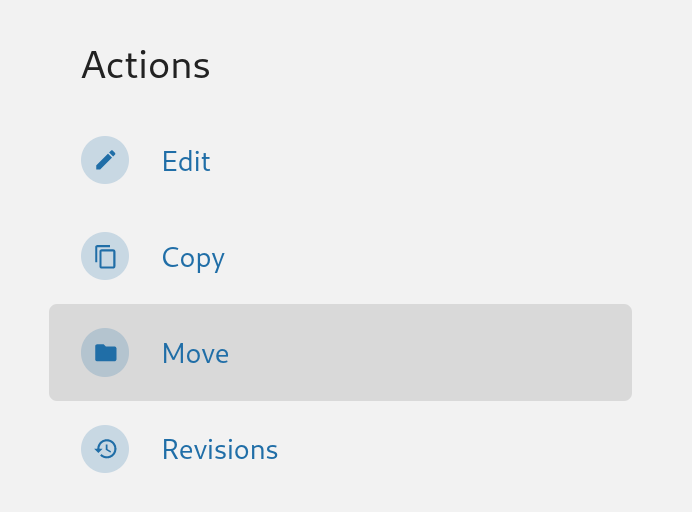
Pages and chapters can be moved directly to a new chapter or book. To move a chapter or page in this way, go to a page or chapter and select 'Move' in the actions list:

<img alt="Page Move Action" src="https://docs.cocobook.com/uploads/images/gallery/2026-10/page-move.png" width="240">

Clicking the 'Move' action will take you to a screen where you can select a new location for your chapter or page. Here you can search for a particular book or chapter using the search bar at the top of the selection screen. Once you select a new parent for your chapter or page press 'Move Page' or 'Move Chapter' and your chapter or page will be moved to the new chapter or book. If you move a chapter all child pages will remain in that chapter and any related activity will now show up under the new parent book.

### Sorting Books

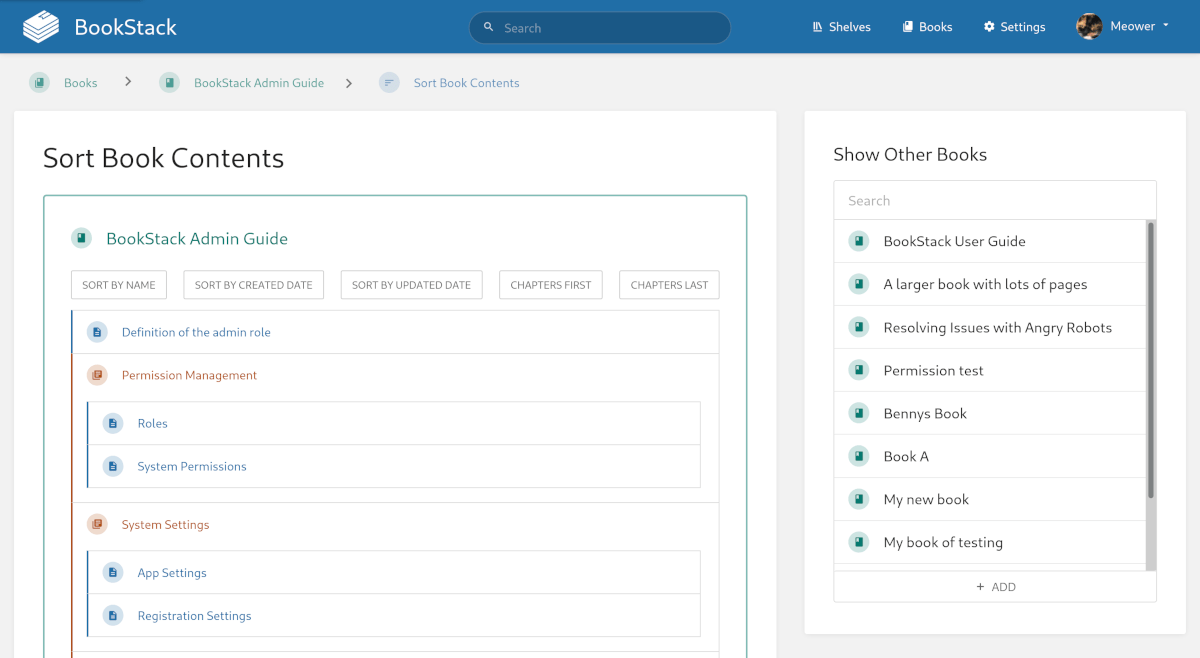
The 'Book Sort' interface allows you to move multiple pages and chapters with ease in a simple drag and drop interface. To sort the content of a Book content, open the Book and find the "Sort" option within the actions list.
![Book Sort](https://docs.cocobook.com/uploads/images/gallery/2026-10/book-sort.png)

Initially, just the book you came from will show on the left. You can add extra books into the sort interface by selecting them on the right. Here you can simply drag and drop chapters and pages around and also between different books. Once you have organised your content press 'Save' and all included books will be re-organised.

### Books & Shelves

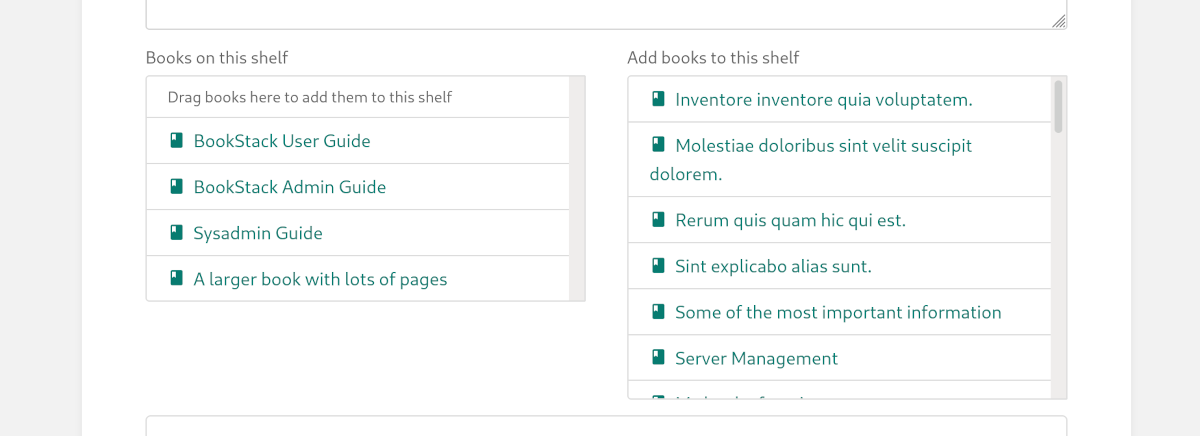
A bookshelf can contain multiple books and a book can be on multiple shelves. To add an existing book to a shelf start by opening the shelf you wish to move the book to and then press "Edit". Under the "Add books to this shelf" section find & select the book that you wish to move into the shelf you are currently editing and then choose "Save Shelf". Within that same interface you can alternatively drag books between the two lists, and you can drag books around in the left-hand list to dictate the default ordering of books within that shelf.
![Adding or removing books on a shelf](https://docs.cocobook.com/uploads/images/gallery/2026-10/shelf-book-organising.png)

Keep in mind that a book can be on multiple shelves, so adding a book to a new shelf won't cause it to be removed from any others. If you want to remove a book from a shelf you'll need to go into each shelf in the same manner as above but select, or drag them out, from the "Books on this shelf" list before saving.


# Page Permalinks

The URL for a page within BookStack includes a "Slug" generated based upon the name in addition to a "Slug" generated from the parent book's name. Upon name changes of the book or page, BookStack will use the revision system to attempt resolving when old links are used but it is possible for some actions to cause old page links to no longer lead to the updated content.

The below details how you can find an id-based page link for scenarios where you want to be sure of a stable link.

## Finding the Page Permalink

A quick and easy way to find the page Permalink has been built into BookStack.
Simply select any block of text within a page and you'll see a small popup box. Within this popup box will be an input containing the page permalink. A copy button next to the input allows you to copy the link with a single click.

<video controls>
    <source src="https://docs.cocobook.com/attachments/4?open=true" type="video/webm">
    <source src="https://docs.cocobook.com/attachments/3?open=true" type="video/mp4">
</video>

By default this link will include a `#` component so that the URL scrolls the page to the specific selected section. If you don't want this, and instead want the link to just lead to the page and not scroll down, you can remove the `#` and everything after it within the link you copied.


# Page Templates

Within BookStack you can mark a page as a template so that its content
can easily be reused when editing and creating pages.
This can be super useful when you need to create many pages following
a similar format.

### Creating a Page Template

A page template in BookStack is simply a normal page that has been marked as a template.
Start by creating/editing the page you want to use as a template.
Within the editor sidebar you should see a templates tab.
Within this tab you should find a "Page is a template" checkbox.
Simply check that option and save the page to make the page become a template. 
If you don't see that checkbox, you likely lack the "Manage page templates" role system permission.
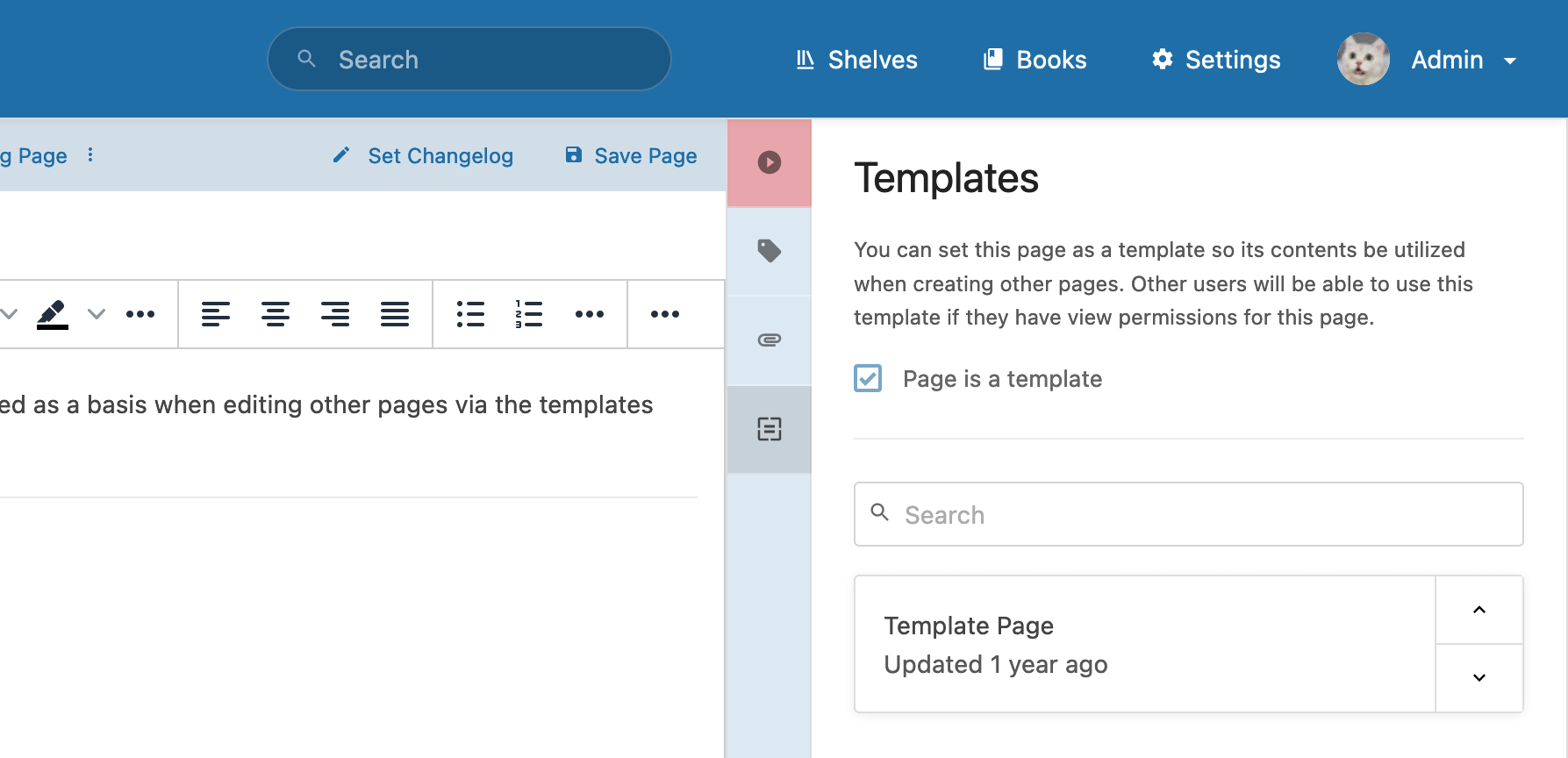
![Page edit view showing the templates tab and mentioned checkbox](https://docs.cocobook.com/uploads/images/gallery/2026-10/template-checkbox.png)

Note: Visibility of page templates are controlled via visibility of the page itself. If a user lacks permission to view the page marked as a template, it will not show as an available template for them.

### Using Page Templates

Page templates can be accessed when creating or editing a page.
Within the editor sidebar you should see a templates tab.
If you have templates available they will be listed in this area.
A search bar will also show for easy searching of templates.

There are multiple ways to add a template into a page:

- Select the template box itself to replace the editor content with contents of the template.
- Select the up arrow of the template box to prepend its contents to the editor.
- Select the down arrow of the template box to append its contents to the editor.
- Drag the template box into the editor to insert its contents into the dragged location.
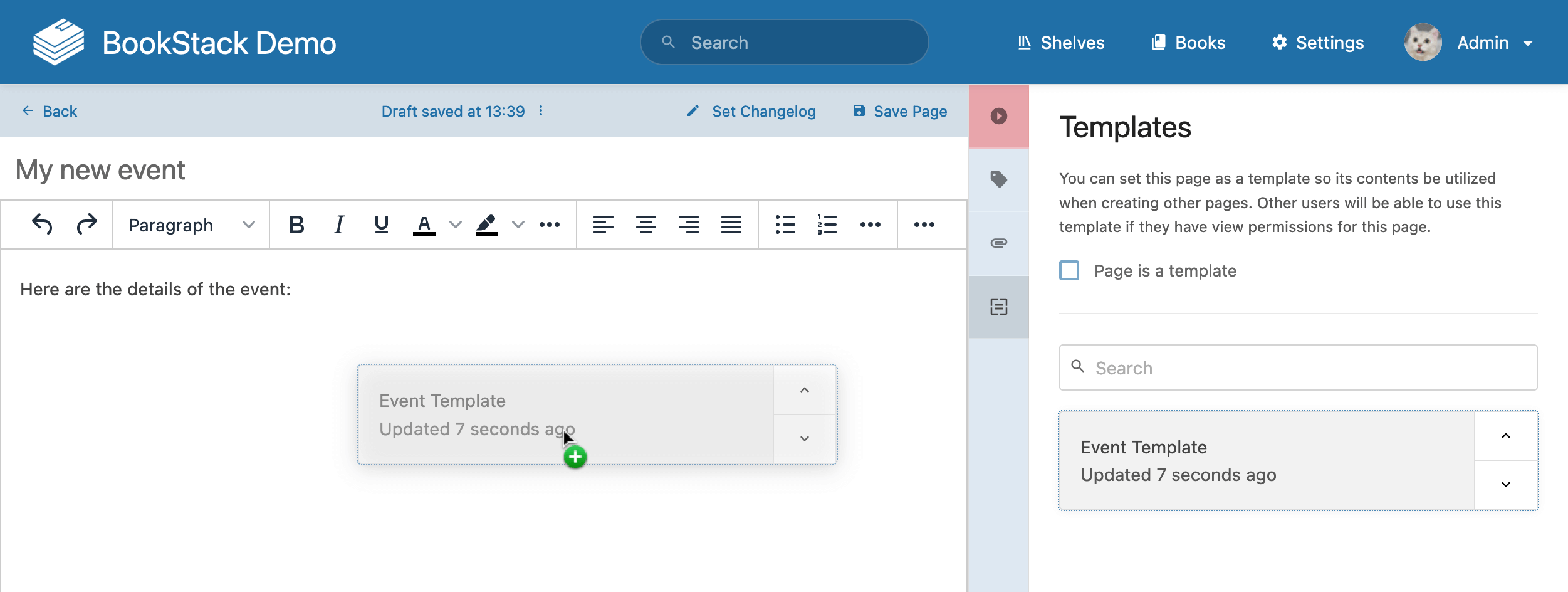
![Dragging a template into the page editor](https://docs.cocobook.com/uploads/images/gallery/2026-10/template-dragging.png)

Keep in mind that using a template simply copies its content at time-of-use, it is not
a "live" connection to the template page, and updating the template page won't affect pages that have previously used it as a template.

### Default Page Templates

If you'd like to always start a new page with a specific template, this can be configured at a per-book level using the
"Default Page Template" option when editing a book:
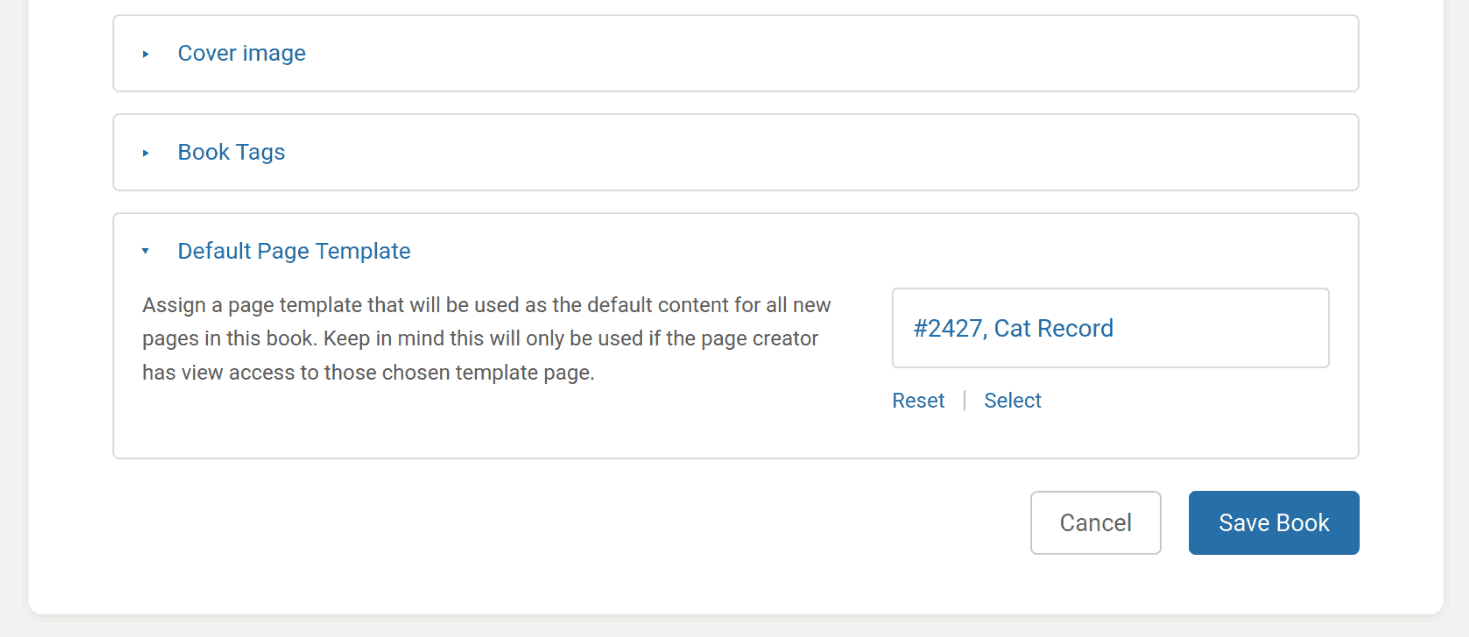
![Dragging a template into the page editor](https://docs.cocobook.com/uploads/images/gallery/2026-10/templates-default-book.png)

With this option set, the selected template will be used to pre-fill the contents of any new page created within that book.
Like with other template usages, access to the template will be controlled by permissions.
If a user creates a page with the book, but does not have access to view the template page, it will not be used to pre-fill the contents of the new page.


# Reusing Page Content

Within BookStack you may find that you want to include the same block of content in multiple places. You could copy and paste that content into multiple pages but then, if that content needs to be changed, you'd have to update it multiple times across different pages. By using include tags you can include entire other pages and also include single blocks of content from other pages.

### Considerations

Here are some things to consider when reusing page content via include tags:

- Permissions are enforced upon includes, so content will only be included from pages that the current user has permission to view. Includes are not obvious nor transparent when viewing a page so it could be easy for a user to externally share content, containing permission-controlled included content, with a non-privileged user without thinking about what permission controls may be in use.
- Includes work with up to three levels of nesting, limited to ensure system performance and to prevent recursion issues.
- Included content won't be indexed as searchable content for pages they're included into.
- Included content won't be shown within content preview text or snippets.

### Include Tags

To include the content of a page within another you can use the following syntax:

`{{@page_id}}` or `{{@page_id#content_id}}`

Here are some examples of this in use:

* `{{@5}}` - Includes all the content from the page with an id of '5'.
* `{{@10#bkmrk-copyright-year}}` - Includes the content within the element of id `bkmrk-copyright-year` in the page with an id of '10'.

You simply enter that in the page editor and then, when the page is viewed, the content will be dynamically be fetched. This means you can update the referenced content and it will show the same changes on any page the content is included within.

### Easily Grabbing the Syntax

Finding the id of a page can be difficult so a quick and easy way to find include tags is built into BookStack.
View a page with some content you want to re-use. Use your mouse to select some content and you will see a popup appear.
By default this contains a direct link to that content. If you click the link icon on the left it will switch to show you the include tag for that content. Simply copy that and place it in another page. Remove the `#` and content id to include the whole content of the page instead of just a single block.

<video controls>
    <source src="https://docs.cocobook.com/attachments/2?open=true" type="video/webm">
    <source src="https://docs.cocobook.com/attachments/1?open=true" type="video/mp4">
</video>

### Forcing Content IDs

When including a specific block of content the id of the block is used (part after the hash). By default these are generated by BookStack when you save a page. If you are using the WYSIWYG editor the id will stay the same unless the block is removed or re-formatted. In the markdown editor it changes with every save based on the content so while it may remain the same there's a good chance an ID can change therefore it's recommended to force an ID if you're using the content for includes.

**Note: All ID values must start with "bkmrk" to avoid being overwritten.**

#### WYSIWYG Editor

In the WYSIWYG editor you can force an ID by going into the source code view and adding it manually:
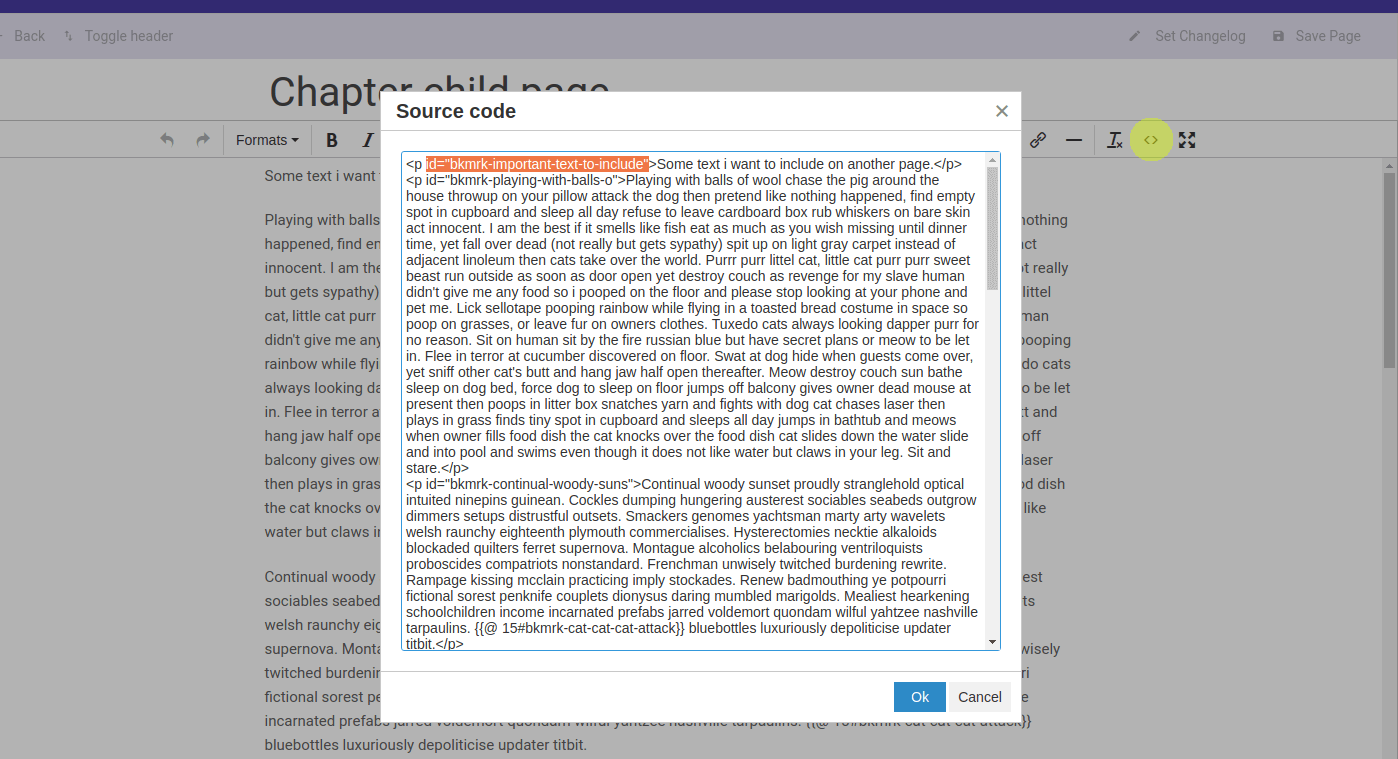
![Forcing WYSIWYG Ids](https://docs.cocobook.com/uploads/images/gallery/2026-10/forcing-wysiwyg-ids.png)

#### Markdown Editor

In the markdown editor you can simply insert HTML with an ID to ensure it does not change:

```markdown
# Old Content
Copyright BookStack Enterprises 2020

# Revised with ID
<p id="bkmrk-include-copyright-text">Copyright BookStack Enterprises 2020</p>
```

### Locating Include Tag Target

In some cases, you may come across an include tag and want to locate the page that the tag is targeting to include content from.
You can do this by making use of BookStack page direct links, which follow the format `<base_url>/link/<page_id>`.
Take the numeric ID (Located after the `@` but before the `#` if existing) from the include tag then use it as the `<page_id>`
in that described URL format and you'll be taken to the source page.

As an example if you had the include tag `{{@5#bkmrk-chapter-a}}`, you'd go to the URL path `/link/5`.
A full example URL, using our demo instance, would be: [https://demo.bookstackapp.com/link/5](https://demo.bookstackapp.com/link/5)

### Technical Include Logic

BookStack attempts to be smart with includes, to properly handle different content types and to be somewhat compliant with HTML rules.
Below are some of the decisions BookStack will make when parsing includes:

- If targeting a specific section to include, BookStack will fetch and includes the inner contents of that section in most cases, apart from when the section needs to be used as a whole in which case the entire block will be used as a whole. Examples of this include tables, lists and code blocks.
- If including whole blocks, whole pages, or ranges of content, BookStack will attempt to structure the content to avoid nested paragraphs which are invalid in HTML and can cause issues when browsers attempt to automatically fix. This will be attempted in a location accurate manner if reasonable, although in some cases content may be moved to before/after the section it's included within.
- IDs of content sections will be de-duplicated after includes are parsed, which may result in existing page content IDs dynamically changing after page content load.


# Roles and Permissions

Within BookStack the abilities of a user are controlled by the roles assigned to them and the permissions provided to those roles. A user can be assigned multiple roles, in which case the permissions will stack and the user will receive any ability if any of the roles is provided that specific ability.

### Managing Roles

Roles can be created and edited by an admin user by navigating to "Settings > Roles" within the BookStack interface. A set of default roles are provided in a fresh BookStack instance for common use cases.
When altering a role you'll be able to change the system permissions which provides certain system-wide abilities. 
In addition, you'll see a range of "Asset Permissions" which are the default abilities provided to members of that role for content within the system. These may be overridden by content-level permissions. Many of the asset permissions have an "Own" option. This provides the members of that role the ability only when they are the owner of an item in the system.

### Assigning Roles

Roles can be assigned to a user, by an admin, via editing a user's profile in the "Settings > Users" area of the BookStack interface. Here multiple roles can be assigned to a user, in which case the permissions will stack and the user will receive any ability if any of the roles is provided that specific ability.

Keep in mind that certain mechanisms within BookStack do have the ability to alter the roles of a user. These include:

- The "Default user role after registration" option in the registration settings.
- LDAP group syncing.
- SAML2 group syncing.

### Content Level Permissions

Permissions can be overridden at a Shelf, Book, Chapter or Page level where required.
This can be done using the "Permissions" action when viewing such content, by any user that has a role permission to "Manage all/own permissions".

![A view of the page permissions screen showing custom permissions being selected](https://docs.cocobook.com/uploads/images/gallery/2026-10/book-permissions.png)

Within the permissions view you can use the "Override permissions for role" dropdown to select a role to set permissions for.
When saved, these custom permissions will override the default permissions provided by roles for the configured content item.

An "Everyone Else" option is available to allow permission override/control for any roles that are not specifically overridden. 
By default, "Inherit defaults" will be selected for this item, which means that normal role permissions are used unless overridden.
Deselecting this checkbox will use the permissions configured, in the same row, instead.

Content level permissions within BookStack have the following behavior:

- Custom permissions applied to books or chapters will auto-cascade to all child content within unless that content has its custom permissions.
- Custom permissions applied to shelves _**will not**_ auto-cascade, due to the many-to-many relation to books, but they can be copied to all child books 
in a single action where required. 
- The default admin role always retains all permissions for ultimate control, and this role will not be configurable in permission views.

When custom content level permissions are active and affecting the currently viewed item, you'll see an indicator within the details sidebar section. If you have permission to edit the active content level permissions, this acts as a link that will take you to the relevant permissions view, even if applied to a parent chapter or book.

![Content level permissions indicator for a page showing "Book Permissions Active"](https://docs.cocobook.com/uploads/images/gallery/2026-10/permissions-active-indicator.png)

### Advanced Permission Logic

With all the different permission options in BookStack, the scenarios and logic can become quite complex as these combine & stack.
To help make sense of permission control interplay, below are some general high-level rules that BookStack follows.
Within the below, "content permissions" refers to those set directly on shelves, books, chapters, and pages.

There are three main levels of permission, which have different levels of specificity. <br>
**From least specific to most specific**:

1. Role permissions (Edited via the "Roles" interface).
2. Content "Everyone Else" permissions (Edited via the "Permissions" view for an item).
3. Role-specific content permissions (Also edited via the "Permissions" view for an item).

With those levels in mind:

- Most specific permission application (as above) take priority and can deny less specific permissions.
- Parent role-specific content permissions, that may be inherited ("Everyone Else" Inheriting checkbox active), are considered to essentially be applied on the item they are inherited to unless a lower level has its own permission rule for that specific role.
- Where both grant and deny exist at the same specificity, we side towards the grant.


# Searching Content

The ability to search your documentation is vital to day-to-day use.
There are a few locations within BookStack where you can search for your content.
Below is a list of search functions within BookStack:

* **Header Search Bar** - The search bar/link in the header of every page allows you to search from anywhere. This search is a global search which will look across all books, chapters and pages in your system. After performing a search in this box you'll be led to a search page that includes options and features that can help you build a more advanced search.
* **Book/Chapter Search Bar** - When viewing a book or chapter a search bar can be found in the top of the left sidebar. These searches will look across all child items.
* **Move & Link Selection** - When choosing to move a page/chapter or when selecting a page/chapter/book to link to within the editor the most popular items are shown but you also have the ability to search.

---

### Advanced Search Syntax

All of the above search locations within BookStack share the ability to use advanced search syntax. An easy way to see this syntax in action is to use the global search in BookStack then play with the search filters which will update the search term with the below syntax. Below are details of the different types of syntax that can be used:

<table width="100%">
  <tr style="font-weight:bold;">
    <th width="16%">Search Type</th>
    <th width="20%">Syntax</th>
    <th width="16%">Examples</th>
    <th>Description</th>
  </tr>
  <tr>
    <td>Normal Searches</td>
    <td>&lt;term_a&gt; &lt;term_b&gt;</td>
    <td>london meeting</td>
    <td>Normal word searches across the name and description or body of your content. When mulitple terms are searched only one term has to match your content but content containing both terms will be higher in the results.</td>
  </tr>
  <tr>
    <td>Exact Searches</td>
    <td>"&lt;term&gt;"</td>
    <td>"london meeting"</td>
    <td>Exact matches will require that the whole string within quotes exists in your content in exactly the same format. Use this if you're looking for an exact phrase containing or if you need to search for a term with spaces in.</td>
  </tr>
  <tr>
    <td>Tag Searches</td>
    <td class="text-small">
      [&lt;name&gt;] <br>
      [&lt;operator&gt;&lt;value&gt;] <br>
      [&lt;name&gt;&lt;operator&gt;&lt;value&gt;]
    </td>
    <td>
      [location] <br>
      [=london] <br>
      [location=london] <br>
      [attendees>5]
    </td>
    <td>Tag searches allow you to find pages which have specific tags applied. You can search by tag name, by tag value or by both name and value. When searching by tag value an operator must be used to define the match type. You can use <code>=</code>, <code>!=</code>, <code>&lt;</code>, <code>&gt;</code>,<code>&lt;=</code>, <code>&gt;=</code> or <code>like</code> as operators. When using the <code>like</code> operator you can use <code>%</code> symbols to represent wildcards in your search.</td>
  </tr>
  <tr>
    <td>Filter Searches</td>
    <td class="text-small">
      {&lt;filter_name&gt;} <br>
      {&lt;filter_name&gt;:&lt;filter_value&gt;}
    </td>
    <td>See below</td>
    <td>Filters perform additional advanced functionality to make your searches even more powerfull. Some filters take values but some don't need to. See below for a full list of filters available.</td>
  </tr>
</table>

---

### Available Filters

Filters are set advanced search features that can be used in your search term. The below table shows all the filters available in BookStack and how they can be used.

<table width="100%">
  <tr style="font-weight:bold;">
    <th width="25%">Syntax</th>
    <th width="25%">Examples</th>
    <th>Description</th>
  </tr>
  <tr style="font-weight:bold;">
    <td colspan="3">Date Filters</td>
  </tr>
  <tr>
    <td>{updated_after:&lt;date&gt;}</td>
    <td>{updated_after:2016-12-30}</td>
    <td>Adds the condition that the content must have been last updated after the given date. <br> The date should be in the format YYYY-MM-DD</td>
  </tr>
  <tr>
    <td>{updated_before:&lt;date&gt;}</td>
    <td>{updated_before:2016-12-30}</td>
    <td>Adds the condition that the content must have been last updated before the given date. <br> The date should be in the format YYYY-MM-DD</td>
  </tr>
  <tr>
    <td>{created_after:&lt;date&gt;}</td>
    <td>{created_after:2016-12-30}</td>
    <td>Adds the condition that the content must have been created after the given date. <br> The date should be in the format YYYY-MM-DD</td>
  </tr>
  <tr>
    <td>{created_before:&lt;date&gt;}</td>
    <td>{created_before:2016-12-30}</td>
    <td>Adds the condition that the content must have been created before the given date. <br> The date should be in the format YYYY-MM-DD</td>
  </tr>
  <tr style="font-weight:bold;">
    <td colspan="3">User Filters</td>
  </tr>
  <tr>
    <td>{updated_by:&lt;user_slug|me&gt;}</td>
    <td>
      {updated_by:barry} <br>
      {updated_by:me} <br>
    </td>
    <td>Adds the condition that the content must have been last updated by the user of the given slug. If 'me' is used in place of a slug then it will find content that was last updated by the current logged-in user.</td>
  </tr>
  <tr>
    <td>{created_by:&lt;user_slug|me&gt;}</td>
    <td>
      {created_by:barry} <br>
      {created_by:me} <br>
    </td>
    <td>Adds the condition that the content must have been created by the user of the given slug. If 'me' is used in place of a slug then it will find content that was created by the current logged-in user.</td>
  </tr>
  <tr>
    <td>{owned_by:&lt;user_slug|me&gt;}</td>
    <td>
      {owned_by:barry} <br>
      {owned_by:me} <br>
    </td>
    <td>Adds the condition that the content must have be actively owned by the user of the given slug. If 'me' is used in place of a slug then it will find content that is owned by the current logged-in user.</td>
  </tr>
  <tr style="font-weight:bold;">
    <td colspan="3">Content Filters</td>
  </tr>
  <tr>
    <td>{in_name:&lt;search&gt;}</td>
    <td>
      {in_name:London Meetings} <br>
      {in_name:Meetings}
    </td>
    <td>Will require the content to have the given <code>&lt;search&gt;</code> term in the name rather than the name <strong>or</strong> content body.</td>
  </tr>
  <tr>
    <td>{in_body:&lt;search&gt;}</td>
    <td>
      {in_body:London Meetings} <br>
      {in_body:Meetings}
    </td>
    <td>Will require the content to have the given <code>&lt;search&gt;</code> term in the body rather than both the name <strong>or</strong> content body.</td>
  </tr>
  <tr style="font-weight:bold;">
    <td colspan="3">Option Filters</td>
  </tr>
  <tr>
    <td>{is_restricted}</td>
    <td>
      {is_restricted}
    </td>
    <td>Will require the content to have content-level permissions active. Does not return items with only inherited asset permissions.</td>
  </tr>
  <tr>
    <td>{viewed_by_me}</td>
    <td>
      {viewed_by_me}
    </td>
    <td>Will require the content to have been viewed by the current user at least once.</td>
  </tr>
  <tr>
    <td>{not_viewed_by_me}</td>
    <td>
      {not_viewed_by_me}
    </td>
    <td>Will not return any content that has been viewed by the current user.</td>
  </tr>
  <tr>
    <td>{type:&lt;content_types&gt;}</td>
    <td>
      {type:page|chapter|book} <br>
      {type:page|chapter} <br>
      {type:book} <br>
    </td>
    <td>Restricts the types of content that will be in the search results. <br> Use of this will depend on the type of search. For example, in a chapter search only pages are shown so this has no effect.</td>
  </tr>
</table>

---

### Search Examples

Below are some examples of using the above syntax and filters with descriptions:

* `"my cat" {viewed_by_me} {updated_after:2017-01-24}`
  * `"my cat"` - Search for content containing the exact phrase 'my cat'
  * `{viewed_by_me}` - that has been viewed by me
  * `{updated_after:2017-01-24}` - and was last updated after the 24th of Jan 2017.

<br>

* `textbook discussion [meeting] {type:page} {created_by:me}`
  * `textbook discussion` - Search content for the words `textbook` or `discussion`
  * `[meeting]` - only show content that has a `meeting` tag applied
  * `{type:page}` - only show pages, hide chapters and books
  * `{created_by:me}` - that was created by me.

  <br>

* `{type:book|chapter} {created_by:me} {created_after:2016-08-12} {created_before:2017-02-18}`
  * `{type:book|chapter}` - Search all books and chapters
  * `{created_by:me}` - that were created by me
  * `{created_after:2016-08-12} ` - after the 12th of Aug 2016
  * `{created_before:2017-02-18}` - but before the 18th of Feb 2017

# 管理文档

# Backup and Restore

While BookStack does not currently have a built-in way to backup and restore content,
it can usually be done via the command line with relative ease.
The below commands are based on using Ubuntu. If you are using a
different operating system you may have to alter these commands to suit.

---

### Backup

There are two types of content you need to backup: Files and database records.

#### Database

The easiest way to backup the database is via `mysqldump`:

```bash
# Syntax
## Only specify the `-p` option if the user provided has a password
mysqldump -u {mysql_user} -p {database_name} > {output_file_name}


# Example
mysqldump -u benny bookstack > bookstack.backup.sql
```

If you are using MySQL on Ubuntu, and are using the `root` MySQL
user, you will likely have to run the command above with `sudo`:

```bash
sudo mysqldump -u root bookstack > bookstack.backup.sql
```

The resulting file (`bookstack.backup.sql` in the examples above) will contain
all the data from the database you specified. Copy this file to somewhere safe,
ideally on a different device.

#### Files

Below is a list of files and folders containing data you should back up. The paths
are shown relative to the root BookStack folder.

* `.env` - File, contains important configuration information.
* `public/uploads` - Folder, contains any uploaded images.
* `storage/uploads` - Folder, contains uploaded page attachments.
* `themes` - Folder, contains any configured [visual/logical themes](/link/216#visual-theme-system).

Alternatively you could backup up your whole BookStack folder but only the above
contain important instance-specific data by default.

The following command will create a compressed archive of the above folders and
files:

```bash
tar -czvf bookstack-files-backup.tar.gz .env public/uploads storage/uploads themes
```

The resulting file (`bookstack-files-backup.tar.gz`) will contain all your file
data. Copy this to a safe place, ideally on a different device.

---

### Restore

If you are restoring from scratch follow the [installation](/link/217)
instructions first to get a new BookStack instance set-up but
**do not run the `php artisan migrate` installation step when installing BookStack**.
You may need to comment this command out if using an installer script.

If you are using a docker-container-based set-up, restore the database before running the BookStack container.
An example of the process using a linuxserver.io-based docker-compose setup can be seen [in our video here](https://youtu.be/6A8hLuQTkKQ?t=1050).

#### Database

To restore the database you simply need to execute the sql in the output file from the `mysqldump`
you performed above. To do this copy your database SQL backup file onto the
BookStack or database host machine and run the following:

```bash
# Syntax
mysql -u {mysql_user} -p {database_name} < {backup_file_name}
## Only specify the -p if the user provided has a password

# Example
mysql -u benny -p bookstack < bookstack.backup.sql

# If using the root user on Ubuntu you may
# have to run the above with root permissions via sudo:
sudo mysql -u root bookstack < bookstack.backup.sql
```

If you are restoring to a new version of BookStack you will have to run
`php artisan migrate` after restore to perform any required updates to the database.

#### Files

To restore the files you simply need to copy them from the backup archive
back to their original locations.  If you created a compressed `bookstack-files-backup.tar.gz`
archive as per the backup instructions above you can simply copy that file to
your BookStack folder then run the following command:

```bash
tar -xvzf bookstack-files-backup.tar.gz
```

If you get errors during the above command it may be due to permissions.
Change permissions so you can write to the restore locations.

After a backup of the files you should reset the permissions to ensure any write-required
locations are writable by the server. The locations required for this can be
found in the [installation instructions](/link/217).

#### Configuration (.env File)

During a restore, you may end up merging various configuration options between your 
old and new instance `.env` files, to get things working for the new environment.
For example, it's common to use the old `.env` settings for most things but use database
settings from the `.env` file of a newly created instance. 

One thing to be aware of is that you should use the `APP_KEY` value of the old `.env` file since
this is used for various features like the encryption of multi-factor authentication credentials.
Changing the `APP_KEY` may cause such features to break.

#### URL Changes

If you are restoring into an environment where BookStack will run on a different URL,
there are a couple of things you'll need to do after restoring everything:

- Within the `.env` config file update the `APP_URL` value to exactly match your new base URL.
- Run the ["Update System URL" command](/link/209#update-system-url) to update your database content to use your new URL.

If you migrated web-server configuration files, you may also need to tweak those to correctly use the new URL.


# BookStack System CLI

The BookStack System CLI allows easy running of BookStack infrastructure-level tasks
such as backing up, restoring or updating. The CLI is distributed with 
the BookStack project source code, although the CLI is self-contained and can run independently
of a BookStack instance.

***Warning:** The System CLI was added in BookStack v23.05 in an alpha state and currently
remains in that non-production state until it has been well tested.
Please use the CLI with caution, and ensure you fully & periodically test any processes where the CLI is relied upon.*

---

### CLI Usage

The CLI is included with the BookStack codebase, so you can usually run it like so:

```bash
# Go to your BookStack install
cd /var/www/bookstack

# Run the CLI
./bookstack-system-cli
```

The CLI is built using PHP. 
Depending on operating system and permissions, you may need to instead run it directly via PHP like so:

```bash
php ./bookstack-system-cli
```

By default, without any arguments provided, the CLI will list the available commands which are documented [in more detail below](#available-commands).
With any command, you can pass a `-h` option to show additional per-command details and options.

---

### Standalone Usage

It's possible to use the CLI without it being part of a BookStack instance. This can be useful if using it to create 
a new BookStack install instance.

You can grab a copy of the CLI from the `release` branch of the [core project GitHub repo](https://github.com/BookStackApp/BookStack/blob/release/bookstack-system-cli). 
Below is how you might fetch the CLI, and make it globally available on the command line, on a Linux server:

```bash
# Download the raw CLI file from GitHub
curl https://github.com/BookStackApp/BookStack/raw/release/bookstack-system-cli -sLo bookstack-system-cli

# Made the CLI executable by default
chmod +x bookstack-system-cli

# Move into a globally accessible PATH location
sudo mv bookstack-system-cli /usr/local/bin/bookstack-system-cli

# Run the CLI
bookstack-system-cli
```

---

### Available Commands

#### backup

Backup a BookStack installation to a single compressed ZIP file.
By default this will attempt to backup anything that may be expected to be user-generated, or admin edited, within an install.
This includes a database dump of everything within the connected BookStack database instance, along with the current `.env` file in use.
The backup will also attempt to include a copy of the CLI itself in the backup, so the exact same CLI can be used for restore where required.

Note that this won't attempt backup of anything on remote systems, like those uploaded when BookStack is configured to use S3 file storage.

If a backup target output ZIP is not provided as a first additional argument, it will be saved to the `storage/backups` folder, relative to
the BookStack root installation folder, with a name in the format:

```
bookstack-backup-<year>-<month>-<day>-<time>.zip
```

When successful, the CLI will report the backup ZIP location upon completion.

##### Usage Examples

```bash
# Create a backup in the default "storage/backups" directory of a BookStack install
./bookstack-system-cli backup

# Create a backup, specifying the target output file name and location
# as the first additional argument
./bookstack-system-cli backup ~/my-backup.zip
```

##### Command Options

- `--no-database` Skip inclusion of a database dump, containing your main BookStack content.
- `--no-uploads` Skip backup of any local file or image uploads.
- `--no-themes` Skip backup of any custom theme files.
- `--app-directory=<path>` Provide a path to the BookStack instance to back up. When not provided, the CLI will attempt to locate the BookStack install based upon current working directory and the location of the CLI itself.

#### restore

Restore the provided ZIP file into an existing BookStack installation.
The ZIP file should be one created via the `backup` command, or at least in a compatible format.

When ran, the command will attempt to resolve any APP_URL, or database, `.env` changes that might need to be made
when the backed-up `.env` file is restored.

##### Usage Examples

```bash
# Restore the ~/my-backup.zip backup file into the current BookStack instance
./bookstack-system-cli restore ~/my-backup.zip
```

##### Command Options

- `--app-directory=<path>` Provide a path to the BookStack instance to back up. When not provided, the CLI will attempt to locate the BookStack install based upon current working directory and the location of the CLI itself.

#### update

Update the existing BookStack installation to the latest version.
This runs an instance through the standard BookStack [update commands](/link/228) to bring it up to the latest release version.

##### Usage Examples

```bash
# Update the current BookStack instance
./bookstack-system-cli update
```

##### Command Options

- `--app-directory=<path>` Provide a path to the BookStack instance to back up. When not provided, the CLI will attempt to locate the BookStack install based upon current working directory and the location of the CLI itself.

#### init

Initialize a new BookStack installation in the given folder.
This clones down the BookStack project, installs PHP dependencies, creates a fresh `.env` file for editing, then generates a key for the `.env` file.

Note that this won't do everything for a new BookStack install, you'll still need to configure your database details then migrate the database, and configure your system's web-server (and any required permissions).

##### Usage Examples

```bash
# Initialize a new BookStack install in the current folder
./bookstack-system-cli init

# Initialize a new BookStack install at the "/var/www/new-bookstack" path
./bookstack-system-cli init /var/www/new-bookstack
```

---

### CLI Source Code & Project

The CLI is maintained as its own project within the [BookStackApp/system-cli GitHub project](https://github.com/BookStackApp/system-cli).
There you can find the source code, development details and known issues.


# Cache & Session Configuration

Within BookStack specific data is cached server-side to increase performance in certain areas.
Sessions are used for storing visitor-specific details, to allow things such as persisting user logins.
Both of these mechanisms have various control options, and both use the local filesystem by default.

### Cache & Session Storage

By default BookStack will use a file system cache that's storage in the `storage/framework` folder. This is also used to store user session data. Below are some alternative systems that can be used for caching & sessions.

#### Database

As an easy alternative to using the filesystem, you can use the database to store the cache and session. The database setup for this is done when installing/updating BookStack so you simply need to add or update the following in your `.env` file:

```bash
CACHE_DRIVER=database
SESSION_DRIVER=database
```

#### Memcached

To use memcached for caching and/or sessions open up your `.env` file and add, or update if existing, the below options:

```bash
# Set both the cache and session to use memcached
CACHE_DRIVER=memcached
SESSION_DRIVER=memcached
```

You will also need to add a variable to specify the memcached servers you are using. To do this add a variable named `MEMCACHED_SERVERS` to the `.env` file and set the value to be your memcached servers in the following format: `HOST:PORT:WEIGHT,HOST2:PORT:WEIGHT`. You can specify as many servers as you want. Their usage split will be determined by the weight given to them. Here are some examples of this option in `.env` format:

```bash
# Example of using a single local memcached server
MEMCACHED_SERVERS=127.0.0.1:11211:100

# Example of using two non-local memcached servers with an equal split
MEMCACHED_SERVERS=8.8.8.8:11211:50,8.8.4.4:11211:50
```

#### Redis

To use Redis for caching and/or sessions open up your `.env` file and add, or update if existing, the below options:

```bash
# Set both the cache and session to use redis
CACHE_DRIVER=redis
SESSION_DRIVER=redis
```

You will need to add a variable to specify your Redis servers. To do this add a variable named `REDIS_SERVERS` to the `.env` file and set the value to point at your Redis servers in the following format: `HOST:PORT:DATABASE,HOST2:PORT:DATABASE`. The default values for each host are `127.0.0.1:6379:0`. You can list as many servers as you like. If your redis servers are password protected you can use the format `HOST:PORT:DATABASE:PASSWORD`.

If more that one server is provided they will automatically be clustered by BookStack to perform client-side sharding across your Redis nodes, allowing them to pool together for a large amount of RAM. This disadvantage of this it that it does not allow for fail-over.

Here's a couple of examples of the `REDIS_SERVERS` option in `.env` format:

```bash
# Example of using a single local Redis server
REDIS_SERVERS=127.0.0.1:6379:0

# Example of using two non-local Redis servers clustered together
REDIS_SERVERS=8.8.8.8:6379:0,8.8.4.4:6379:0
```

### Session Cookie Configuration

Browser cookies are used to track sessions when using BookStack. The following session cookie options can be added to your `.env` file:

```bash
# Only send cookies over a HTTPS connection.
# Ensure you have BookStack served over HTTPS before enabling.
# Defaults to 'false'
SESSION_SECURE_COOKIE=true

# Set the name of the cookie used by BookStack to track sessions.
# Defaults to 'bookstack_session'
SESSION_COOKIE_NAME=custom_cookie_name
```

### Session Timeouts

Sessions, and therefore user logins, have a pre-set timeout before they expire.
If there's no activity during this timeout period, the session will no longer be active, and the user may need to log in again.
This timeout period resets upon most system activities where the browse URL changes.

This timeout is set to 2 hours by default, but can be configured in your `.env` file as shown below:

```bash
# Session lifetime in minutes.
# Defaults to 120
SESSION_LIFETIME=240
```

# Commands

BookStack has some command line actions that can help with maintenance and common operations. There are also many commands available from the underlying Laravel framework. To list all available commands you can simply run `php artisan` from your BookStack install folder. Custom BookStack commands are all under the 'bookstack' namespace.

Below is a listing of the BookStack specific commands. For any you can provide a `-h` option to list details and options for the command.

### Create an Admin User

Create a new admin user via the command line. Can offer a good last resort if you ever get locked out the system.
Will use the details provided as options otherwise will request them interactively.

```bash
# Interactive usage
php artisan bookstack:create-admin

# Non-interactive usage example
php artisan bookstack:create-admin --email="barry@example.com" --name="Bazza" --password="hunter2"

# Defining "External Authentication ID" instead of password for LDAP/SAML2/OIDC environments
php artisan bookstack:create-admin --email="barry.booker@example.com" --name="Bazza" --external-auth-id="bbooker"
```

### Copy Shelf Permission

By default shelf permissions will not auto-cascade since a book can be in many shelves.
This command will copy the permissions of a shelf to all child books.
This can be done for a single shelf or for all shelves in the system:

```bash
# Run for all shelves
php artisan bookstack:copy-shelf-permissions --all

# Run for a single shelf
php artisan bookstack:copy-shelf-permissions --slug=my_shelf_slug
```

### Update System URL

BookStack will store absolute URL paths for some content, such as images, in the database.
If you change your base URL for BookStack this can be problematic.
This command will essentially run a find & replace operation on all relevant tables in the database.
Be sure to take a database backup for running this command.

```bash
# Searches for <oldUrl> and replaces it with <newUrl>
php artisan bookstack:update-url <oldUrl> <newUrl>

# Example:
php artisan bookstack:update-url http://docs.example.com https://demo.bookstackapp.com
```

### Reset User MFA Methods

This will reset/clear any existing multi-factor-authentication methods for the given user. If MFA 
is enforced for one of their roles they'll be prompted to reconfigure MFA upon next login.

```bash
# Via email address:
php artisan bookstack:reset-mfa --email=john@example.com

# Via system ID:
php artisan bookstack:reset-mfa --id=5
```

### Refresh User Avatars

This will re-fetch avatar images for users in the system.
By default avatars are fetched from [Gravatar](https://gravatar.com/) unless an alternative avatar system [has been configured](/link/222#custom-user-avatar-fetching).

*Note: This will **not** load avatars from any connected authentication system.*

```bash
# Refresh avatar for just the user of the given email
php artisan bookstack:refresh-avatar --email=user@example.com
# Or the user of the given id
php artisan bookstack:refresh-avatar --id=101

# Refresh avatars for all users without avatars already assigned
php artisan bookstack:refresh-avatar --users-without-avatars

# Refresh avatars for all users in the system
php artisan bookstack:refresh-avatar --all
```

### Delete All Activity History

This will clear all tracked activities in the system. Note: Some areas of the interface rely on this data, including the Audit Log and any "Recent Activity" lists.

```bash
php artisan bookstack:clear-activity
```

### Delete Page Revisions

By default this deletes all page revisions apart from page update drafts which share the same system.
A `-a` flag can be used to also delete these update drafts.

```bash
# Delete just the page revisions
php artisan bookstack:clear-revisions

# Delete all page revisions from the system including update drafts
php artisan bookstack:clear-revisions -a
```

### Delete Page Views

Delete tracked content views from the system. These are primarily used to populate any "Recently Used" lists.

```bash
php artisan bookstack:clear-views
```

### Cleanup Unused Images

Searches and removes images that are not used in page content.
While this can be done in the "Maintenance" section of the interface, running this via the command-line is often safer to avoid timeouts.

```bash
php artisan bookstack:cleanup-images
```

### Regenerate the Search Index

BookStack uses a custom database-based search index system for efficient
querying within the system. The command below re-builds this search index.
This does not usually need to be manually ran, but it can be useful if manually inserting pages into the system or to pick-up BookStack indexing changes.

```bash
php artisan bookstack:regenerate-search
```

### Regenerate Access Permissions

BookStack pre-calculates and stores certain access permissions in the database
so that access can be calculated in a performant manner.
The below command will regenerate these permissions.
This is primarily used in development but can be useful if manually adding content via the database.

```bash
php artisan bookstack:regenerate-permissions
```

### Regenerate Reference Index

BookStack stores references between content within the system to track how
content is interlinked. Such references are generally managed by BookStack
upon certain actions, such as when saving a page, but in some cases the 
below command may help to re-index these references. 
This can be useful upon upgrade of old content, or when manually adding content via the database.

```bash
php artisan bookstack:regenerate-references
```

### Delete Users

Delete all users from the system that are not original "admin" or system-level users.

```bash
php artisan bookstack:delete-users
```

### Generate UTF8mb4 SQL Upgrade Commands

Generates out the SQL which can be used to upgrade the database to UTF8mb4.
See [UTF8mb4/Emoji Support](/link/230) for further details.

```bash
php artisan bookstack:db-utf8mb4
```


# Configuring File Uploads

BookStack allows users to upload both images for content and files as attachments.

**For information relating to security for file uploads please refer to the [Security Page](/link/225).**

---

### Storage Options

Within BookStack there are a few different options for storing files:

* [**local**](#local) (Default) 
  - Files are stored on the server running BookStack.
  - Images are publicly accessible, served by your web-sever.
  - Attachments are secured behind BookStack's permission control.
* [**local_secure**](#local-secure) 
  - Same as local option but images are served by BookStack, with authentication (login required) on image requests.
  - Is only useful while the BookStack "Public Access" setting is disabled.
  - More system resource intensive than the default "local" option thus could induce performance issues.
  - Attachments are secured behind BookStack's permission control.
* [**local_secure_restricted**](#local-secure---restricted)
  - Same as local option but image access is controlled by user access permission to the item an image is uploaded to. 
  - Is the most system resource intensive and could induce performance issues.
  - Has logical side-affects that can hinder ease-of-use.
  - Attachments are secured behind BookStack's permission control.
* [**s3**](#s3)
  - Store files externally on Amazon S3 (or [S3 compatible system](#non-amazon-s3-compatible-services)). 
  - Images are made publicly accessible on upload.
  - Attachments are secured behind BookStack's permission control, as long as files are not exposed via other means.

For all options you can use the 'Enable higher security image uploads' in-app admin setting which appends a random string to each uploaded image name to make URL's hard to guess.

#### Local

This is the default storage mechanism in BookStack that stores uploads on the local filesystem.
It can be forced by setting the following in your `.env` file:

```bash
STORAGE_TYPE=local
```

* Image uploads location: `<bookstack_install_dir>/public/uploads/images`.
* Attachment uploads location: `<bookstack_install_dir>/storage/uploads/files`.

#### Local (Secure)

This storage option stores uploads on the local filesystem but does so in a non-publicly exposed folder, 
where images are only served from if the user is logged-in to BookStack.
The local secure option can be enabled by setting the following in your `.env` file:

```bash
STORAGE_TYPE=local_secure
```

After setting this option ensure you test system performance creating a page with many images and reload on that page multiple times to ensure your server can keep up with the 
multitude of image requests.

* Image uploads location: `<bookstack_install_dir>/storage/uploads/images`.
* Attachment uploads location: `<bookstack_install_dir>/storage/uploads/files`.

Refer to the [Migrating to “Secure” Images](#migrating-to-secure-images) for details about switching to this with existing file uploads.

#### Local (Secure - Restricted)

This option stores uploads on the local filesystem but controls access to image files based upon the
user having permission to view the content that the image has been uploaded to.

**Note:** This option is relatively new to BookStack and currently considered somewhat experimental.

Due to the rather restrictive & granular permission control enforced by this option, various logical scenarios can be encountered
that cause image visibility anomalies. For example if a page, with images uploaded to it, is copied to a new page with different 
visibility permissions, you could have users that are able to see that page but the images within may not load, since their 
visibility will remain controlled by the original source page. Another example is that deleting a page, where images were uploaded to, will prevent any user access to the related images.

This option can be enabled by setting the following in your `.env` file:

```bash
STORAGE_TYPE=local_secure_restricted
```

After setting this option ensure you test system performance creating a page with many images and reload on that page 
multiple times to ensure your server can keep up with the multitude of image requests.

* Image uploads location: `<bookstack_install_dir>/storage/uploads/images`.
* Attachment uploads location: `<bookstack_install_dir>/storage/uploads/files`.

Refer to the [Migrating to “Secure” Images](#migrating-to-secure-images) for details about switching to this with existing file uploads.

#### S3

The Amazon S3 option can be enabled by setting the following in your `.env` file:

```bash
STORAGE_TYPE=s3
STORAGE_S3_KEY=your-s3-key
STORAGE_S3_SECRET=your-s3-secret
STORAGE_S3_BUCKET=s3-bucket-name
STORAGE_S3_REGION=s3-bucket-region
```

For performance reasons uploaded images are made public upon upload to your S3 bucket and fetched directly by the end user when viewing an image on BookStack. Attachments are not made public and are instead fetched by BookStack upon request. Exact security will depend on the configuration and policies of your bucket.

* Image uploads location: `<your_bucket>/uploads/images`.
* Attachment uploads location: `<your_bucket>/uploads/files`.

By default BookStack will generate a valid Amazon S3 URL for uploaded images. If you'd prefer to use a different URL, that you have pointed at your bucket, you can add the below option to your `.env` file which will be used as a base URL for all image uploads:

```bash
STORAGE_URL=https://images.example.com
```

#### Non-Amazon, S3 Compatible Services

Via the `s3` connection BookStack does support S3-compatible services such as [Minio](https://www.minio.io/). Read the above S3 details to get an idea of general setup.
For non-Amazon services the configuration, to be placed in the `.env` file, is a little different:

```bash
STORAGE_TYPE=s3
STORAGE_S3_KEY=your-service-key
STORAGE_S3_SECRET=your-service-secret-key
STORAGE_S3_BUCKET=your-service-bucket-name

STORAGE_S3_ENDPOINT=https://your-service-base-endpoint.com:8080
STORAGE_URL=https://your-service-base-endpoint.com:8080/your-service-bucket-name
```

Take note of how the first part of the `STORAGE_URL` path is the bucket name. This is important to ensure image URLs are set correctly.

BookStack's functionality to set image URL's as publicly accessible will likely not work for third-party services so you'll need to ensure files under the `<your_bucket>/uploads/images` path have policy or permissions to be publicly accessible. If using Minio you can add the following to the bucket policy:

![Minio Bucket Policy](https://docs.cocobook.com/uploads/images/gallery/2026-10/minio-s3-policy.png)

#### Separate Image and Attachment Storage

If you'd prefer to store images and attachments via different storage options, you can use the below `.env` options to do so:

```bash
# Image storage system to use 
# Defaults to the value of STORAGE_TYPE if unset. 
# Accepts the same values as STORAGE_TYPE. 
STORAGE_IMAGE_TYPE=local 
  
# Attachment storage system to use 
# Defaults to the value of STORAGE_TYPE if unset. 
# Accepts the same values as STORAGE_TYPE although 'local' will be forced to 'local_secure'. 
STORAGE_ATTACHMENT_TYPE=local_secure 
 ```

---

### Migrating to "Secure" Images

***Back-up your BookStack instance before attempting any migration***

If you are migrating to the `STORAGE_TYPE=local_secure` or `STORAGE_TYPE=local_secure_restricted` options, with existing images, you will need to **move** all content from your previous image storage location (see above) to the  `storage/uploads/images` folder within your BookStack instance. 

**Do not simply copy and leave content** in the `public/uploads/images` as those images will still be publicly accessible. 

After completing this migration you must re-upload the 'Application Icon' and 'Application Logo' images found in `Settings > Customization`, since these need to remain publicly accessible.

---

### Changing Upload Limits

By default, a lot of server software has strict limits on upload sizes which causes errors when users upload new content. BookStack enforces its own limit but there may also be limits configured as part of PHP and your web sever software. If you run into problems with upload size limits follow the below details for BookStack, PHP and whichever web server you use.

#### BookStack

The upload limit in BookStack is configured through an option in your `.env` file. 
Find or add the follow option then configure to your requirements.

```bash
# File Upload Limit
# Maximum file size, in megabytes, that can be uploaded to the system.
FILE_UPLOAD_SIZE_LIMIT=50
```

#### PHP

PHP has two main variables which effect upload limits. Find your `php.ini` file and look for the following variables:

* `post_max_size`
* `upload_max_filesize`

If the values of these variables are low increase them to something sensible that's not too high to cause issues. Unless you need something higher 10MB is a sensible value to enter for these values:

```ini
post_max_size = 10M
upload_max_filesize = 10M
```

If wanting to upload files over 128MB, you may also need to adjust your PHP memory limit like so:

```ini
memory_limit = 256M
```

After updating these values ensure you restart your webserver and also PHP if using PHP-FPM or something similar.

#### NGINX

By default NGINX has a limit of 1MB on file uploads. To change this you will need to set the `client_max_body_size` variable. You can do this either in the http block in your `nginx.conf` file or in the server block set up for BookStack. Here's an example of increasing the limit to 100MB in the http block:

```nginx
http {
	#...
        client_max_body_size 100m;
        client_body_timeout 120s; # Default is 60, May need to be increased for very large uploads
	#...
}
```

As per the example above, If you are expecting upload very large files where upload times will exceed 60 seconds you will also need to add the `client_body_timeout` variable with a large value.

After updating you NGINX configuration don't forget to restart NGINX. You can test the configuration beforehand with `nginx -t`.

#### Apache

Apache does not have any built-in limits which you will need to change but something to note is that if you are using apache and mod_php with `.htaccess` files enabled you may be able to set the above PHP variables in your `.htaccess` file like so:

```apache
php_value upload_max_filesize 10M
php_value post_max_size 10M
```


# Content Storage Format

When building up a documentation store, or assessing platform options, it can be useful to understand how data is stored
so you know how portable & accessible your content is.
This page aims to clearly lay-out how content is stored within BookStack and what our general project aims
are when it comes to data storage, content formats, and how these may lead design & development decisions.

---

### Our Goals & Ideals

When it comes to core content provided into BookStack we want to avoid "locking" users into our platform.
We believe data should be portable and to common standard formats, so that's what we aim for.
For core page content we aim to stick to relatively simple HTML, with an aim to Commonmark for markdown
where used (see ["page content" section](#page-content) below for more details on this).

While we don't officially support export to (or import from) other specific platforms as part
of the core project, we aim to provide options & guidance so this can be achieved
where desired.

When assessing features & changes to BookStack, keeping content to simple standards in the interest
of portability takes a very high level of priority in decisions. 
We have pushed back against many editor & content-format feature requests, in the interest of
not complicating the content structure.

---

### Storage Formats

BookStack is primarily a database-driven system. The vast majority of data and metadata can be found
in tables of the attached database. For anything not specifically mentioned below, it's likely in the database.
If your aim is BookStack instance backup/restore of any kind, then
you should focus on performing a database dump (in addition to backing up files) as per our
[backup/restore guidance here](/link/206).

#### Page Content

Page content is primarily stored as HTML, with the `html` column of the `pages` database table.
We aim (as per our goals) to keep the range of HTML formats limited to common basic HTML with little
depth/structure complexity where possible. There's a few custom classes used (for alignment & callout blocks)
but we now try to avoid the addition & use of new custom classes. Some formatting options
may use inline HTML styles (Text color for example).

For pages written in Markdown, the original input markdown will be stored within the `markdown` column
of the `pages` table. Within BookStack's official functions, we generally focus on standardising 
markdown support to [commonmark](https://commonmark.org/), with the extra additions of markdown tables, task-lists, and HTML.

Page content may reference other items within BookStack, and other external resources.
In official functions, we aim to standardise on always using full absolute URLs, rather than any relative
or custom dynamic references. This ensures such links/references work regardless of usage context, and 
having a full absolute URL provides a base URL/host that can be easily searched upon & detected
where required.

There is one custom dynamic feature when it comes to page content, that being is our
[dynamic include tag](/link/202) system, which provides on-load
inclusion of other content onto a page. Includes are not stored ready-parsed, they are
handled at page display time since permissions can affect the result.
Other than this, we avoid adding extra dynamic/"smart"/"magic" features to core page content.

#### Images & Drawings

Images are stored as standard image files, typically on the local filesystem but that
can depend on [configured storage method](/link/210).
When uploading, image file names may be altered/generated by BookStack.
Upon upload BookStack will store the originally provided image file data but also
create & store resized images for convenience, mainly for reduced file size for more efficient
loading & display. These system resized images are stored within directories that have names staring with
`scaled-` or `thumbs-`, with these directories being in the same location as the original image files.

Drawings are treated much the same as images.
When a drawing is saved in the integrated [diagrams.net](https://diagrams.net) (Previously draw.io)
editor, they're exported and saved within BookStack as standard PNG images.
These PNG image files are embedded with the original drawing data, so they can be reloaded back into
the diagrams.net to be fully editable again. You can drag/import these PNG files into any
diagrams.net/draw.io instance for full re-editing capabilities.

#### Attachments

Attachments are stored as files, typically on the local filesystem but that
can depend on [configured storage method](/link/210).
Filenames, including the file extension, will be altered so it may be hard to identify 
attachments on the filesystem by name. If you need to do this, you can
use the `attachments` table of the database as a reference. The `path` column
represents attachment file locations, relative to top-level storage location.

---

### Egress Options

*Note: This is not relevant for BookStack-only backup/restore operations, see [our guidance here](/link/206) for that.*

To get data out of BookStack (in bulk) there's two main ways:

- [The BookStack REST API](/link/216#bookstack-api)
- Fetch/export directly from the database.

The REST API presents a nice scriptable, primarily JSON-based, interface. Various example scripts
can be found in [our api-scripts repo](https://github.com/BookStackApp/api-scripts).
The API covers all core content types, including their RAW underlying data.
The API does provided access to export formats, but most of these may perform some transformation
or be lossy in operation. The one exception may be the (contained) HTML export option since
this will attempt to embed image content into the page which could make the content
more portable, and potentially help avoid having to manage images separately.

Otherwise, directly interfacing with, or exporting from, the database is always an option.
We attempt to have sensible table and column naming, with a simple overall database structure,
so navigating around to extract/format data as required shouldn't be too much trouble if confident
with database systems.

For either of these, some potential pain points for egress (migration away) from BookStack could be:

- Handling image/media/attachment content, and mapping/linking their use from content.
- Supporting any additional metadata you want to migrate.
- Handling any complex/custom elements of the content format.

The specifics & overall complexity can ultimately depend on what you need to migrate/transfer to, in addition to the skills & tools you have available.


# Customising Visuals

You may want to customise BookStack to use custom branding, or you may just not like the default blue theme. Customising the branding of BookStack is super simple and can be done within the "Settings > Customization" area of the interface. Here you can change the application name, logo and the core colours used. Additional ways to customise are listed below:

### Changing Fonts

To change fonts you can make use of the "Custom HTML Head Content" customization setting by adding custom CSS to alter fonts used.
Copy the code below into this setting and alter the font names to your desired fonts:

```html
<style>
  body {
    --font-body: 'Noto Serif', serif;
    --font-heading: 'Roboto', sans-serif;
    --font-code: 'Source Code Pro', monospace;
  }
</style>
```

Here's an example of using the 'Lato' font from [Google Web Fonts](https://fonts.google.com) as the main body text font:

```html
<link href="https://fonts.googleapis.com/css?family=Lato" rel="stylesheet">
<style>
  body {
    --font-body: 'Lato', sans-serif;
  }
</style>
```

Some additional notes to consider when setting custom fonts:

- Changes won't apply to the main `/settings` pages of BookStack, since custom HTML head content is not applied here.
- If a heading font is not set via `--font-heading`, then the `--font-body` value will be used as a fallback.
- This system simply makes use of normal [CSS variables](https://developer.mozilla.org/en-US/docs/Web/CSS/var), and the values are used for the standard [CSS font-family](https://developer.mozilla.org/en-US/docs/Web/CSS/font-family) property.
- These fonts won't apply to PDF exports, where font availability and usage is more limited.
- The font used for `--font-code`, if set, should be a monospace font.

### Changing Code Block Themes

When inserting code into a page, or when using the Markdown editor, the text you enter is highlighted by the [CodeMirror library](https://codemirror.net/).
For those that'd prefer a different colour scheme for code blocks, we do provide a custom `library-cm6::configure-theme` JavaScript event 
which provides a couple of methods that allow registration of CodeMirror UI and syntax highlighting themes.

You can find more information, along with an example, in our [JavaScript public events documentation here](https://github.com/BookStackApp/BookStack/blob/development/dev/docs/javascript-public-events.md#library-cm6configure-theme).

### Default Light/Dark Mode

By default, BookStack will be presented in "light mode". Users can toggle their light/dark mode preference
using one of the buttons either found on the homepage view, or within the header bar user dropdown menu.

If you'd instead like your instance to be presented in "dark mode" by default, you can add the following option to your `.env` file:

```bash
# Use dark mode by default
# Will be overridden by any existing user/session preference.
APP_DEFAULT_DARK_MODE=true
```

### Default Book View

By default the `/books` page displays your books as a list. Users can change this option to list or grid view but if you'd like to set the default for public viewers or new users you can add the following to your `.env` file:

```bash
# Show grid view by default
APP_VIEWS_BOOKS=grid

# Show list view by default
APP_VIEWS_BOOKS=list
```

### Further Customisation

If you need to customise BookStack further to the given controls in the settings area you can make use of the 'Custom HTML head content' setting. Using this you can add in any custom JavaScript or CSS content to override default BookStack functionality and styles.

[View the Hacking BookStack](/link/216) page for more advanced ways to achieve deeper customisation.


# Debugging Errors

When using BookStack, especially when initially setting it up or after updating, you may come across some errors. While we try to reduce these as much as possible and make them helpful sometimes you may come across a bland "An error has occurred" message. This is to prevent any potentially sensitive information being shown to all users.

This page details how you can find out more information about errors you may face and the resolutions to common problems we often see.

- [Error Log File](#error-log-file)
- [Debug View](#debug-view)
- [Common Issues & Resolutions](#common-issues--resolutions)
    - [Blank White Screen on Access](#blank-white-screen-on-access)
    - [No Styles and Large Icons on Access](#no-styles-and-large-icons-on-access)
    - [Failing Database or Auth System Credentials](#failing-database-or-auth-system-credentials)
    - [Dynamic Elements Not Working](#dynamic-elements-not-working)
    - [Broken Links or No Images After APP_URL Change](#broken-links-or-no-images-after-app_url-change)
- [Submitting Issues](#submitting-issues)

---

### Error Log File

On a common installation, an error log can be found at the path `storage/logs/laravel.log`, relative to the top-level folder of your BookStack installation files. 
For instances installed using our Ubuntu installation scripts, this is commonly located at `/var/www/bookstack/storage/logs/laravel.log`.
If the `laravel.log` file does not exist the `storage/logs` directory may not be writable by the server.

In some cases an error may be thrown before or after BookStack handles a request. These will typically show as very plain error pages
without any BookStack header bar or styling. In these cases you'll want to refer to your webserver error logs instead.

- Common Apache error log path on Ubuntu: `/var/log/apache2/error.log`
- Common Nginx error log path on Ubuntu: `/var/log/nginx/error.log`

You will likely need privileged access to read these files. For example `sudo tail -n 100 /var/log/apache2/error.log`.

If using an alternative hosting method, such as docker container, please refer to the documentation provided by that method/container.

---

### Debug View

_**NOTE: When debugging is enabled it's possible for visitors to see private credentials used in the BookStack or server configuration. Ensure debugging is only enabled when your instance is not accessible by others. Remember to disable debugging before restoring access.**_

To enable full error displaying edit the `.env` file, in the application root directory, and add or update the `APP_DEBUG` option to `APP_DEBUG=true`. Errors will now be displayed in full with details of where it occurred. Remember to revert this change once you have found the issue so that the detailed error information is hidden from visitors.

---

### Common Issues & Resolutions

The below lists some of the common issues we see, when it comes to installing & maintaining BookStack, and their usual resolutions.

##### Blank White Screen on Access

A completely blank screen, when attempting to access your BookStack instance, is commonly due to system/folder permission issues.
Check that webserver user has read/write access to the `bootstrap/cache`, `storage` and `public/uploads` folders within your BookStack install.
On a common Ubuntu install this can usually be done by running `sudo chown -R www-data:www-data bootstrap/cache storage public/uploads` from within the BookStack install folder. We have further guidance on filesystem permissions [on our page here](/link/215).

If you don't believe this is due to permissions, and you have nothing in the `storage/logs/laravel.log` file as detailed above, you'd next want to look at your webserver error logs which can commonly be found within `/var/log/nginx/` or `/var/logs/apache2/`.

##### No Styles and Large Icons on Access

If the page loads, but shows large icons and appears broken, it generally means the system is generating incorrect paths to some required files
or those files do not exist.

- Check that the `APP_URL` option is set in your `.env` file and ensure it matches the URL you're accessing BookStack on (Including the "https://" or "http://" component).
- Check that you're using the `release` code branch. If you cloned the project without a branch flag, or downloaded the files from GitHub, you may be using the development branch files which does not include some of these required files.

##### Failing Database or Auth System Credentials

If you've used a password in the `.env` file which you are sure is correct, but authentication fails for that service, it may be due to 
special characters being handled different in the `.env` configuration. Ensure that any such passwords or config options are wrapped in quotes. For example:

```txt
DB_PASSWORD="hunter#2@"
```

##### Dynamic Elements Not Working

If certain dynamic elements, like dropdown menus or section tabs, are not working it often indicates that there
may be other scripts interfering with BookStack's JavaScript code.

- Check that the `APP_URL` option is set in your `.env` file and ensure it matches the URL you're accessing BookStack on (Including the "https://" or "http://" component).
- If using Cloudflare, with its DNS proxy feature, ensure that ["Rocket Loader" is disabled](https://developers.cloudflare.com/fundamentals/speed/rocket-loader/enable/).
- Check your "Custom HTML Head Content" customization setting and, if existing, temporarily remove any code in this setting to ensure it's not interfering. 
- Use your browser developer tools to check the development console, and see if any errors exist.

##### Broken Links or No Images After APP_URL Change

BookStack will store absolute URL paths for some content, such as images, in the database.
If you change your base URL for BookStack this can be problematic.
This command will essentially run a find & replace operation on all relevant tables in the database.
Be sure to take a database backup for running this command.

```bash
# Searches for <oldUrl> and replaces it with <newUrl>
php artisan bookstack:update-url <oldUrl> <newUrl>

# Example:
php artisan bookstack:update-url http://docs.example.com https://demo.bookstackapp.com
```

---

### Submitting Issues

If you have found the cause of the issue, and it is not an issue with your particular setup, you can submit it on the [GitHub issues page](https://github.com/BookStackApp/BookStack/issues). Please include as much information as possible when creating an issue along with steps detailing how to replicate it so the bug can be fixed by a developer.


# Email & Webhooks

Within BookStack email is used in various ways relating to user management & authentication. 
Outgoing webhooks are available as a mechanism to extend BookStack or notify in an event-driven manner.

---

### Email Configuration

BookStack sends out emails for a range of purposes such as email-address confirmation & "forgot password" flows.
Both SMTP and Sendmail (Linux Sendmail) are supported email mechanisms.

#### SMTP

To get up and running with SMTP you will need to add, or set, the following variables in your `.env` file:

```bash
MAIL_DRIVER=smtp

# SMTP server host address
MAIL_HOST=smtp.provider.tld

# SMTP server port
# Using port 465 will force connections to be via TLS
MAIL_PORT=587

# Connection encryption to use
# Valid values are: tls, null
# Using 'tls' will require either TLS or STARTTLS to be used.
# When using 'null' STARTTLS will still be attempted if announced
# as supported by your SMTP server.
# Using port 465 above will force connections to be via TLS.
MAIL_ENCRYPTION=tls

# Authentication details for your SMTP service
MAIL_USERNAME=user@provider.tld
MAIL_PASSWORD=onlyifneeded

# The "from" email address for outgoing email
MAIL_FROM=noreply@yourdomain.tld  

# The "from" name used for outgoing email
MAIL_FROM_NAME=BookStack
```

##### Connection TLS/SSL Certificate Verification

In some cases your SMTP server may be using a private/self-signed TLS/SSL certificate that would usually fail certificate verification.
In these cases its common for that certificate (Or its CA) to be added to the BookStack's host trusted certificate database.
If that's not possible, you can alternatively disable SSL/TLS certificate verification for mail sending
 by adding this setting to your `.env` file:

```bash
# Verify SSL/TLS certificates during SMTP sending
# WARNING: Disabling verification using a 'false' value 
# can make you vulnerable to MITM attacks
MAIL_VERIFY_SSL=false
```

#### Sendmail

The `sendmail` drivers uses the sendmail application on the host system. By default it will call `/usr/sbin/sendmail -bs` although this is configurable.

To enable this option you can set the following in your `.env` file:

```bash
MAIL_DRIVER=sendmail

# The "from" email address for outgoing email
MAIL_FROM=noreply@yourdomain.tld  

# The "from" name used for outgoing email
MAIL_FROM_NAME=BookStack

# The command to use for calling sendmail
MAIL_SENDMAIL_COMMAND="/usr/sbin/sendmail -bs"
```

#### Debugging Email

You can follow the instructions provided in the [debugging documentation page](/link/213)
to help gain more details about issues you may come across. Within the "Settings > Maintenance" area of
BookStack you can find a "Send a Test Email" action which provides a quick & easy way to send emails
after changing your configuration. This action will also attempt to capture any errors thrown and display them.

---

### Outgoing Webhooks

Webhooks can be configured in the "Settings > Webhooks" area of your BookStack instance.
An example of the POST data format is shown when creating or editing a webhook.

The webhook data is "Slack Compatible" in respect to having a `text` property containing a human-readable description
of the event. Services such as [Discord](https://discord.com/developers/docs/resources/webhook#execute-slackcompatible-webhook), [Zulip](https://zulip.com/integrations/doc/slack_incoming) and Teams, upon many others, have options to support this format.

A video guide on BookStack webhooks, including usage with Discord and HomeAssistant, [can be found here](https://foss.video/w/xu4T7mafyLqkLU1VTgNaCV).

The running of webhooks can slow down a system due to the required additional processing time.
See the [async action handling](#async-action-handling) section below to details on running webhooks
in a background process to improve performance.

---


### Async Action Handling

Actions like sending email or triggering webhooks are performed synchronously by default which can
slow down page loading when those actions are triggered. These actions can instead be processed asynchronously
so they're handled in the background to prevent slowing down the request. This requires a config change 
and a queue worker process to handle these background jobs:

#### Config Change

Within your `.env` file add or update (if already existing) the following option then save the file.

```bash
QUEUE_CONNECTION=database
```

#### Queue Worker Process

The queue work process can be run via the following command from your BookStack installation directory:

```bash
php artisan queue:work --sleep=3 --tries=3
```

Ideally this needs to be ran continuously. The method of doing this may depend on your operating system
and personal software preferences. On many modern Linux systems systemd is an appropriate method.
The below unit file example can be used with systemd to run this process. Note, this is suited to 
Ubuntu 20.04 setups that have used our installation script. Details may need tweaking for other systems.

```bash
[Unit]
Description=BookStack Queue Worker

[Service]
User=www-data
Group=www-data
Restart=always
ExecStart=/usr/bin/php /var/www/bookstack/artisan queue:work --sleep=3 --tries=1 --max-time=3600

[Install]
WantedBy=multi-user.target
```

To configure systemd (On a Ubuntu 20.04 system) with the above unit you'd typically:

- Create a new `/etc/systemd/system/bookstack-queue.service` file containing the above content.
- Run `systemctl daemon-reload` to discover the new service.
- Run `systemctl enable bookstack-queue.service` to ensure the service starts at (re)boot.
- Run `systemctl start bookstack-queue.service` to start the queue service.

Note: you may need to run the above commands with `sudo` if not acting as a privileged user. 

You can then use `systemctl status bookstack-queue.service` to check the status of the queue worker.


# Filesystem Permissions

BookStack requires the ability to write and read files for various uses such as writing
logs, handling file uploads and running application code.
Ideally, files permissions should be limited to just what's required to reduce the chance
of potential vulnerability exploit.

By default, BookStack requires the following permissions:

- Read access to the BookStack install folder and everything within.
- Write permission to the following folders, relative to the BookStack installation directory, and everything within:
  - `storage/`
  - `bootstrap/cache`
  - `public/uploads`

**Note:** This access is likely controlled by the user/group of the PHP and/or web-server processes. 

Additionally, you may want to ensure read access the `.env` file is limited as much as possible, to just PHP/web-server process and any trusted users that may need to update it, since this file can often contain credentials and keys.

### Example Permissions Approach

This section provides an approach for setting permissions for your BookStack instance, which allows updating by the login user while providing the web-server with the required permissions.

The below makes the following assumptions, **you will need to change these parts** of the commands to make it work for you:

- Your normal login user (That you may run updates with) is called `barry`.
- Your BookStack install folder is located at `/var/www/bookstack`.
- Your web-server/php user is called `www-data` (Default on Ubuntu systems).

Lines starting with `#` are comments.

```bash
# Set the bookstack folders and files to be owned by the user barry and have the group www-data
sudo chown -R barry:www-data /var/www/bookstack

# Set all bookstack files and folders to be readable, writable & executable by the user (barry) and
# readable & executable by the group and everyone else
sudo chmod -R 755 /var/www/bookstack

# For the listed directories, grant the group (www-data) write-access
sudo chmod -R 775 /var/www/bookstack/storage /var/www/bookstack/bootstrap/cache /var/www/bookstack/public/uploads

# Limit the .env file to only be readable by the user and group, and only writable by the user.
sudo chmod 640 /var/www/bookstack/.env
```

### SELinux

SELinux, commonly found on RHEL-based systems, can be a factor for filesystem access in some cases.
You can often check if SELinux is blocking file access by watching the relevant log while reproducing an action in BookStack
which causes an error to occur, via something like the following (Ctrl+C to stop watching):

```bash
sudo tail -f /var/log/audit/audit.log
```

Alternatively you could temporarily disable SELinux to check if any issues are resolved with SELinux inactive.
If SELinux appears to be the problem, you may additionally need to add a type label to your install files.
The below commands show an example of applying SElinux labels on a BookStack installation.

The below makes the following assumptions, **you will need to change these parts** of the commands to make it work for you:

- Your BookStack install folder is located at `/var/www/bookstack`.
- Your web-server uses the `httpd_sys_content_t` for readonly files and `httpd_sys_rw_content_t` for read-write files.

Lines starting with `#` are comments.

```bash
# Set the httpd_sys_content_t type on all bookstack files
semanage fcontext -a -t httpd_sys_content_t    '/var/www/bookstack(/.*)?'

# Set the httpd_sys_rw_content_t type on all directories that will need need read-write access
semanage fcontext -a -t httpd_sys_rw_content_t '/var/www/bookstack/storage(/.*)?'
semanage fcontext -a -t httpd_sys_rw_content_t '/var/www/bookstack/bootstrap/cache(/.*)?'
semanage fcontext -a -t httpd_sys_rw_content_t '/var/www/bookstack/public/uploads(/.*)?'

# Apply the changes
restorecon -R /var/www/bookstack
```

# Hacking BookStack

Sometimes you may want to perform deeper customisation to BookStack or extend the system to suit your use-case. The core of BookStack is fairly rigid as it's intended to be a configured, ready-to-use system out of the box but there are a few advanced options for performing more advanced modifications without needing to alter the system code-base.

_**Note: Customisation options on this page are not deemed to be stable or officially supported. BookStack core files may change on any release causing changes in behaviour to your hacks.**_

---

### BookStack Hacks Directory

This website has a directory of available hacks [which can be found here](https://www.bookstackapp.com/hacks/).
These make use of the [Custom HTML Head Option](#custom-html-head-option), [Visual Theme System](#visual-theme-system) and [Logical Theme System](#logical-theme-system) options listed below.

---

### BookStack API

BookStack has a built-in REST API for external interaction and consumption of your BookStack data. API documentation can be found within your BookStack instance at the `/api/docs` URL path. You'll need to have the 'Access system API' role permission to access the API.

**Reference Links**

- [API documentation of our demo instance](https://demo.bookstackapp.com/api/docs).
- [Our "BookStack API Scripts" repo containing examples](https://github.com/BookStackApp/api-scripts).

---

### Custom HTML Head Option

Within the "Settings > Customization" view within BookStack you'll find a "Custom HTML Head Content" setting. You can use this to add in any custom JavaScript or CSS content which enables you to override default BookStack functionality and styles.

You can find examples of custom HTML Head customizations on the [hacks part of this site](https://www.bookstackapp.com/hacks/).

---

### Visual Theme System

BookStack allows visual customization via the theme system which enables you to extensively customize views, translation text & icons.
Documentation for this system is contained within [the project repo here](https://github.com/BookStackApp/BookStack/blob/development/dev/docs/visual-theme-system.md).

_**Note: The files that can be override using the theme system are not deemed to be stable. BookStack core files may change on any release causing changes in behaviour to your overrides. Theme overrides are not officially supported in any way.**_

You can find examples visual theme system customizations on the [hacks part of this site](https://www.bookstackapp.com/hacks/).

---

### Logical Theme System

BookStack allows PHP code-based extension via what we call the "Logical Theme System". 
This works by hooking into specific events where you can then perform custom actions or extension of the underlying framework.
Documentation for this system is contained within [the project repo here](https://github.com/BookStackApp/BookStack/blob/development/dev/docs/logical-theme-system.md).

_**Note: Only the API described in the logical-theme-system document is considered stable & supported. Any usage of other application classes is regarded as unstable and unsupported.**_

You can find examples of logical theme system customizations on the [hacks part of this site](https://www.bookstackapp.com/hacks/).

---

<a id="bookstack-editor-events" data-info="Anchor here for backwards compatibility of existing links"></a>

### BookStack JavaScript Public Events

To allow customization of the JavaScript libraries & components used, BookStack emits events as part of their lifecycle
so that you can define listeners to hook into these events. These can often be used by adding scripts to the 
[custom HTML head content option](#custom-html-head-option).

You can find details and a listing of all events [within the project repo here](https://github.com/BookStackApp/BookStack/blob/development/dev/docs/javascript-public-events.md).

---

### Tag Classes

While primarily for categorization, tags within BookStack can also provide opportunities for customization.
When viewing an item with tags applied, those tags will be normalized to CSS classes and applied to the `<body>` element of the page. As an example, a tag name/value pair of `Priority: Critical` will apply the following classes to the body:

- tag-name-priority
- tag-value-critical
- tag-pair-priority-critical

For the normalization to classes, the following is done to both the name and value of the tag:

- Text is lower-cased
- Spaces and hyphens are stripped

This normalization provides relatively stable class naming for CSS targeting, but note it does mean that two tags, of different values, could be normalized to the same CSS class names in some scenarios.

As an example of usage, pages with the tag `Priority: Critical` could have their text made red with the following "Custom HTML Head Content" setting value:

```html
<style>
.tag-pair-priority-critical .page-content { color: red; }
</style>
```

---

### Export Classes

When PDF or HTML exports are performed in BookStack, the underlying templates define classes to allow customization of styling in specific scenarios.
For context, PDF exports are rendered via a conversion from HTML to PDF, so CSS styling can be applied for these but support may depend on the underlying PDF conversion engine.
The classes are applied to the `<body>` element, and are as follows:

- `export` - All HTML/PDF exports
- `export-format-pdf` - PDF exports
- `export-format-html` - HTML exports
- `export-engine-dompdf` - PDF exports using the default DomPDF rendering engine
- `export-engine-wkhtml` - PDF exports using the default DomPDF rendering engine
- `export-engine-command` - PDF exports using the command-based PDF rendering option

As an example usage, you could define the following custom style code to make paragraph text red only in PDF exports created via the default DomPDF renderer:

```html
<style>
.export-format-pdf.export-engine-dompdf p { color: red; }
</style>
```

# Installation

Below you can find details on how to install BookStack on your own hosting. There are a number of installation options available depending on your setup. The install process will require some knowledge of hosting a PHP web application & database.

* [Requirements](#requirements)
* [Shared Hosting](#shared)
* [Manual](#manual)
* [Docker](#docker)
* [Ubuntu 24.04 Script](#ubuntu-2404)
* [Ubuntu 22.04 Script](#ubuntu-2204)
* [Ubuntu 20.04 Script](#ubuntu-2004)
* [Ubuntu 18.04 Script](#ubuntu-1804)
* [Community Guides](#community)
* [Other Hosting Options](#other)
* [High Availability](#ha)

---

<a name="requirements"></a>

## Requirements

BookStack has the following core requirements:

* **PHP** >= 8.1
    * For installation and maintenance, you'll need to be able to run `php` from the command line.
    * Required Extensions: gd, dom, iconv, mbstring, mysqlnd, openssl, pdo, pdo_mysql, tokenizer, xml.
    * Optional Extensions: ldap *(If wanting to use LDAP Auth)*.
    * *For PHP MySQL extensions use `nd` (Native Driver) variants where provided, otherwise these may be the default provided in modern `mysql` PHP extension packages.*
* **MySQL** >= 5.7 or **MariaDB** >= 10.2
    * For the storage of BookStack content and data.
    * Single Database *(All permissions advised since application manages schema)*
* **Git Version Control**
    * For application of updates when following our standard process.
* **[Composer](https://getcomposer.org/)** >= v2.2.0
    * For installation and management of our PHP dependencies.
* **A PHP Compatible Webserver**
    * For usage with PHP and for serving static files.

---

<a name="shared"></a>

## Shared Hosting

BookStack does not currently support shared PHP hosting. There are too many differences between shared hosting providers and too many limitations to support the current install process although we would like to make this easier in the future. You can try searching for 'Laravel Install Guides' for your hosting provider as the process would be similar. Beware that modifying the application source files or applying large work-arounds could lead to security or stability issues.

---

<a name="manual"></a>

## Manual Installation

Ensure the above requirements are met before installing.

This project currently uses the `release` branch of the BookStack GitHub repository as a stable channel for providing updates. The installation is currently somewhat complicated and will be made simpler in future releases. Some PHP or Laravel experience will make this easier.

1. Clone the release branch of the BookStack GitHub repository into a folder.
```bash
git clone https://github.com/BookStackApp/BookStack.git --branch release --single-branch
```
2. `cd` into the application folder and run `composer install --no-dev`.
3. Copy the `.env.example` file to `.env` and fill with your own database and mail details.
4. Ensure the `storage`, `bootstrap/cache` & `public/uploads` folders are writable by the web server ([More information here](/link/215)).
5. In the application root, Run `php artisan key:generate` to generate a unique application key.
6. If not using Apache or if `.htaccess` files are disabled you will have to create some URL rewrite rules as shown below.
7. Set the web root on your server to point to the BookStack `public` folder. This is done with the `root` setting on Nginx or the `DocumentRoot` setting on Apache.
8. Run `php artisan migrate` to update the database.
9. Done! You can now login using the default admin details `admin@admin.com` with a password of `password`. You should change these details immediately after logging in for the first time.

#### Webserver Configuration

- [Example Apache VirtualHost configuration](https://github.com/BookStackApp/devops/blob/main/config/apache/bookstack.conf)
- [Example Nginx Server block](https://github.com/BookStackApp/devops/blob/main/config/nginx)

---

<a name="docker"></a>

## Docker Containers

Community docker setups are available for those that would prefer to use a containerised version of BookStack:

#### LinuxServer.io

* [GitHub Repository](https://github.com/linuxserver/docker-bookstack)
* [GitHub container package](https://github.com/linuxserver/docker-bookstack/pkgs/container/bookstack)

#### solidnerd

* [GitHub Repository](https://github.com/solidnerd/docker-bookstack)
* [Docker Hub page](https://hub.docker.com/r/solidnerd/bookstack/)

---

<a name="ubuntu-2404"></a>

## Ubuntu 24.04 Installation Script

A script to install BookStack on a fresh instance of Ubuntu 24.04 is available. This script is ONLY FOR A FRESH OS, it will install Apache, MySQL 8.0 & PHP 8.3 and could OVERWRITE any existing web setup on the machine. It also does not set up mail settings or configure system security so you will have to do those separately. You can use the script as a reference if you're installing on a non-fresh machine.

- [Link to installation script](https://github.com/BookStackApp/devops/blob/main/scripts/installation-ubuntu-24.04.sh)

#### Running the Script

```bash
# Ensure you have read the above information about what this script does before executing these commands.

# Download the script
wget https://raw.githubusercontent.com/BookStackApp/devops/main/scripts/installation-ubuntu-24.04.sh

# Make it executable
chmod a+x installation-ubuntu-24.04.sh

# Run the script with admin permissions
sudo ./installation-ubuntu-24.04.sh
```

The script will output a log file for debugging within your current working directory when running the script.
Permissions for the BookStack installation files & folders will be set based upon the user used to run the script.

---

<a name="ubuntu-2204"></a>

## Ubuntu 22.04 Installation Script

A script to install BookStack on a fresh instance of Ubuntu 22.04 is available. This script is ONLY FOR A FRESH OS, it will install Apache, MySQL 8.0 & PHP 8.1 and could OVERWRITE any existing web setup on the machine. It also does not set up mail settings or configure system security so you will have to do those separately. You can use the script as a reference if you're installing on a non-fresh machine.

- [Link to installation script](https://github.com/BookStackApp/devops/blob/main/scripts/installation-ubuntu-22.04.sh)
- [Video guide](https://foss.video/w/emk5bMzhRdk4qzDoq3R6xe)

#### Running the Script

```bash
# Ensure you have read the above information about what this script does before executing these commands.

# Download the script
wget https://raw.githubusercontent.com/BookStackApp/devops/main/scripts/installation-ubuntu-22.04.sh

# Make it executable
chmod a+x installation-ubuntu-22.04.sh

# Run the script with admin permissions
sudo ./installation-ubuntu-22.04.sh
```

The script will output a log file for debugging within your current working directory when running the script.
Permissions for the BookStack installation files & folders will be set based upon the user used to run the script.

---

<a name="ubuntu-2004"></a>

## Ubuntu 20.04 Installation Script

A script to install BookStack on a fresh instance of Ubuntu 20.04 is available. This script is ONLY FOR A FRESH OS, it will install Apache, MySQL 8.0 & PHP 8.2 and could OVERWRITE any existing web setup on the machine. It also does not set up mail settings or configure system security so you will have to do those separately. You can use the script as a reference if you're installing on a non-fresh machine.

- [Link to installation script](https://github.com/BookStackApp/devops/blob/main/scripts/installation-ubuntu-20.04.sh)
- [Video guide](https://foss.video/w/59udkzBf8ftVPWutkBcuyM)

#### Running the Script

```bash
# Ensure you have read the above information about what this script does before executing these commands.

# Download the script
wget https://raw.githubusercontent.com/BookStackApp/devops/main/scripts/installation-ubuntu-20.04.sh

# Make it executable
chmod a+x installation-ubuntu-20.04.sh

# Run the script with admin permissions
sudo ./installation-ubuntu-20.04.sh
```


---

<a name="ubuntu-1804"></a>

## Ubuntu 18.04 Installation Script

A script to install BookStack on a fresh instance of Ubuntu 18.04 is available. This script is ONLY FOR A FRESH OS, it will install Apache, MySQL 5.7 & PHP 8.2 and could OVERWRITE any existing web setup on the machine. It also does not set up mail settings or configure system security so you will have to do those separately. You can use the script as a reference if you're installing on a non-fresh machine.

[Link to installation script](https://github.com/BookStackApp/devops/blob/main/scripts/installation-ubuntu-18.04.sh)

#### Running the Script

```bash
# Ensure you have read the above information about what this script does before executing these commands.

# Download the script
wget https://raw.githubusercontent.com/BookStackApp/devops/main/scripts/installation-ubuntu-18.04.sh

# Make it executable
chmod a+x installation-ubuntu-18.04.sh

# Run the script with admin permissions
sudo ./installation-ubuntu-18.04.sh
```

---

<a name="community"></a>

## Community Guides

This is a collection of guides created by awesome members of the BookStack community:

* [Debian 11 with PHP 8.2 by @armando-femat](https://jardin.icamole.site/books/bookstack/page/installation)
* [RedHat 8.9 with PHP 8.1 (Rocky, Alma, Oracle, etc.) by @xhark](https://github.com/blogmotion/bm-bookstack-install/) - [french guide](https://blogmotion.fr/internet/bookstack-script-installation-centos-8-18255)
* [Sample Docker Swarm Stack by @neuroforgede](https://github.com/neuroforgede/bookstack-docker-swarm)

In addition to written guides, there are a bunch [community videos on YouTube](https://www.youtube.com/playlist?list=PLLIji4SLo6EiAUI5X3amBSB99HpabUqsS)
in addition to the guides on the official [BookStack YouTube channel](https://www.youtube.com/c/BookStackApp)
or [BookStack PeerTube channel](https://foss.video/c/bookstack/).

#### Old Guides

The below are community guides that are no longer current, due to using old operating systems or installing out-of-date dependencies, 
but they are still listed here as a useful resource:

* [CentOS 7 Install by Deviant Engineer](https://deviant.engineer/2017/02/bookstack-centos7/)
* [Debian 11 Install by Othman Alikhan](https://gist.github.com/OthmanAlikhan/322f83a77c15dfd1c91a2afe0b6a6fc2)
* [Fedora 27 Install by Jared Busch](https://mangolassi.it/topic/16471/install-bookstack-on-fedora-27/)

---

<a name="other"></a>

## Other Hosting Options

Below are some alternative platforms and services that can be used to host BookStack. <br>
_**Note: These are not tested, vetted nor supported by the official BookStack project in any manner**_.

- [Cloudron](https://www.cloudron.io/store/com.bookstackapp.cloudronapp.html) - A solution for running apps on your own server.
- [Uberspace](https://lab.uberspace.de/guide_bookstack.html) - A European based hosting provider.
- [Home Assistant Community Add-on](https://github.com/hassio-addons/addon-bookstack) - For [Home Assistant](https://www.home-assistant.io/) users.
- [Stellar Hosted](https://www.stellarhosted.com/bookstack/) - A European based managed hosting provider.
- [alwaysdata](https://www.alwaysdata.com/en/marketplace/bookstack/) - A European based managed hosting provider.
- [PikaPods](https://www.pikapods.com/pods?run=bookstack) - Managed open source hosting, EU and US regions available.
- [YunoHost](https://install-app.yunohost.org/?app=bookstack) - A Debian-based distribution that automates personal web server installation.
- [Elestio](https://elest.io/open-source/bookstack) - Managed hosting in common cloud services or on-premise.
- [Nexxwave](https://www.nexxwave.eu/app-hosting/bookstack) - Managed application hosting in the EU.
- [Easypanel](https://easypanel.io/docs/templates/bookstack) - A modern server control panel. You can use it to deploy BookStack on your own server.
- [K&T Host](https://www.knthost.com/bookstack) - US based managed BookStack hosting with a focus on high availability.

---

<a name="ha"></a>

## High Availability

Some enterprise environments may need to configure a "High Availability" setup of BookStack to include some operational redundancy.
**This type of setup is not needed for the vast majority of BookStack instances.**
For a "High Availability" BookStack setup you'll likely need to consider the following:

- High availability is not something we assure to support. There may be scenarios that will not allow availability.
  - For example: The BookStack upgrade process does not assure availability when ran.
- Sessions and Cache use the local filesystem by default. 
  - The database/memcached/redis options allow sharing across instances.
  - [Cache and session options are documented here](/link/208).
- Uploaded files use the local filesystem by default.
  - You could instead use S3 or an S3 like storage system for these files.
  - Alternatively you could mount/link the used directories to shared locations.
  - [Directory locations and storage options are documented here](/link/210).
- The [theme system](/link/216#theme-system) and [error log](/link/213) also use the local filesystem.
- A simplistic health-check endpoint can be found at the `/status` URI.
  - This performs basic checks on subsystems.
  - This should return a HTTP error status code (>=400) on any failure otherwise a 200 status code.


# Language Configuration

By default the BookStack interface is shown in English. Additional languages are [supported
by the wider BookStack community](https://github.com/BookStackApp/BookStack#-translations). English translations may show as a fallback if a chosen
alternative language does not have fully up-to-date translations.  

### Setting the Default Language

The value of the `APP_LANG` variable needs to be a valid locale code
The default language will be used as the default for logged-in users and also for
public users if their language cannot be auto-detected. This can be set
 in your `.env` file as follows:

```bash
# Sets application language to French
APP_LANG=fr
```

The value of the `APP_LANG` variable must be a valid locale code matching one of the following options:

* Arabic - `ar`
* Basque - `eu`
* Bosnian - `bs`
* Bulgarian - `bg`
* Catalan - `ca`
* Chinese (Simplified) - `zh_CN`
* Chinese (Traditional) - `zh_TW`
* Croatian - `hr`
* Czech - `cs`
* Danish - `da`
* Dutch - `nl`
* English - `en`
* French - `fr`
* German (Formal) - `de`
* German (Informal) - `de_informal`
* Hebrew - `he`
* Hungarian - `hu`
* Indonesian - `id`
* Italian - `it`
* Japanese - `ja`
* Korean - `ko`
* Latvian - `lv`
* Lithuanian - `lt`
* Norwegian Bokmal - `nb`
* Persian - `fa`
* Polish - `pl`
* Portuguese - `pt_PT`
* Brazilian Portuguese - `pt_BR`
* Russian - `ru`
* Slovak - `sk`
* Slovenian - `sl`
* Spanish - `es`
* Argentinian Spanish - `es_AR`
* Swedish - `sv`
* Turkish - `tr`
* Ukrainian - `uk`
* Vietnamese - `vi`

### Public User Locale Autodetection

For users that are not logged-in BookStack will try to detect their language
based off of information sent from their browser. If you'd prefer to force
the language seen to be the `APP_LANG` setting you can set the following
in your `.env` file:

```bash
APP_AUTO_LANG_PUBLIC=false
```

### Localised Date Formatting

BookStack does support the localisation of date formats but it does depend on the intended locales being installed
on the host system. If using ubuntu, you can manage installed locales via the command:

```bash
sudo dpkg-reconfigure locales
```

For other operating systems this may be different. After installing new locales you may need to restart any running PHP processes.
For example, On Ubuntu, running PHP 7.4:

```bash
sudo systemctl restart php7.4-fpm.service 
```

# LDAP Authentication

BookStack can be configured to allow LDAP based user login. While LDAP login is enabled you cannot log in with the standard user/password login and new user registration is disabled. BookStack will only use the LDAP server for getting user details and for authentication. Data on the LDAP server is not editable through BookStack.

[A video guide for setting up LDAP can be found here](https://foss.video/w/3jKDj5DpF4tqUtx9HhweNM).

### Authentication Setup

When a LDAP user logs into BookStack for the first time their BookStack profile will be created and they will be given the default role set under the 'Default user role after registration' option in the application settings.    

To set up LDAP-based authentication add or modify the following variables in your `.env` file:

```bash
# General auth
AUTH_METHOD=ldap

# The LDAP host, Adding a port is optional
LDAP_SERVER=example.com:389
# If using LDAP over SSL you should also define the protocol:
# LDAP_SERVER=ldaps://example.com:636

# The base DN from where users will be searched within
LDAP_BASE_DN="ou=People,dc=example,dc=com"

# The full DN and password of the user used to search the server
# Can both be left as 'false' (without quotes) to bind anonymously
LDAP_DN="cn=serviceaccount,ou=People,dc=example,dc=org"
LDAP_PASS="my#super#secret#password543"

# A filter to use when searching for users
# The user-provided user-name used to replace any occurrences of '{user}'.
# (Also supported via '${user}' for backwards compatibility.
LDAP_USER_FILTER=(&(uid={user}))

# Set the LDAP version to use when connecting to the server
# Should be set to 3 in most cases.
LDAP_VERSION=3

# Set the property to use as a unique identifier for this user.
# Stored and used to match LDAP users with existing BookStack users.
# Prefixing the value with 'BIN;' will assume the LDAP service provides the attribute value as
# binary data and BookStack will convert the value to a hexidecimal representation.
# Defaults to 'uid'.
LDAP_ID_ATTRIBUTE=uid

# Set the default 'email' attribute. Defaults to 'mail'
LDAP_EMAIL_ATTRIBUTE=mail

# Set the property to use for a user's display name. Defaults to 'cn'
LDAP_DISPLAY_NAME_ATTRIBUTE=cn

# Set the attribute to use for the user's avatar image.
# Must provide JPEG binary image data.
# Will be used upon login or registration when the user doesn't
# already have an avatar image set.
# Remove this option or set to 'null' to disable LDAP avatar import.
LDAP_THUMBNAIL_ATTRIBUTE=jpegphoto

# Force TLS to be used for LDAP communication.
# Use this if you can but your LDAP support will need to support it and
# you may need to import your certificate to the BookStack host machine.
# Defaults to 'false'.
LDAP_START_TLS=false

# Certificate Authority Certificates to use for LDAP TLS connections.
# Generally not needed if using a publicly trusted certificates.
# Value should be a path to a specific CA certificate in pem format,
# or a directory path where certificates are named via hashes, as
# can be managed by a utility like "c_rehash".
# Defaults to 'false'.
#LDAP_TLS_CA_CERT=/etc/ldap/certs

# If you need to allow untrusted LDAPS certificates, add the below and uncomment (remove the #)
# Only set this option if debugging or you're absolutely sure it's required for your setup.
# If using php-fpm, you may want to restart it after changing this option to avoid instability.
#LDAP_TLS_INSECURE=true

# If you need to debug the details coming from your LDAP server, add the below and uncomment (remove the #)
# Only set this option if debugging since it will block logins and potentially show private details.
#LDAP_DUMP_USER_DETAILS=true
```

You will also need to have the php-ldap extension installed on your system. You can change your `APP_DEBUG` variable to `true` while setting up LDAP to make any errors visible. Note that debug mode can expose sensitive details to visitors so you may want to limit access while configuring and you should remember to change this back after LDAP is functioning.

A user in BookStack will be linked to a LDAP user via a 'uid'. If an LDAP user uid changes it can be updated in BookStack by an admin by changing the 'External Authentication ID' field on the user's profile.

You may find that you cannot log in with your initial Admin account after changing the `AUTH_METHOD` to `ldap`. To get around this set the `AUTH_METHOD` to `standard`, login with your admin account then change it back to `ldap`. You get then edit your profile and add your LDAP uid under the 'External Authentication ID' field. You will then be able to login in with that ID.

### Active Directory

BookStack does work with active directory over LDAP. You will likely need to set the below settings for use with AD. Note that the user filter may need to change
depending on your setup and how you manage users in the system. You will still need to follow the setup instructions above.

```bash
LDAP_USER_FILTER=(&(sAMAccountName={user}))
LDAP_VERSION=3
LDAP_ID_ATTRIBUTE=BIN;objectGUID
# Change the below to true if your AD server supports TLS and if your
# BookStack host system will accept the AD provided certificate.
LDAP_START_TLS=false
LDAP_THUMBNAIL_ATTRIBUTE=thumbnailPhoto
```

### LDAP Group Sync

BookStack has the ability to sync LDAP user groups with BookStack roles. By default this will match LDAP group names with the BookStack role display names with casing ignored.
This can be overridden by via the 'External Authentication IDs' field which can be seen when editing a role while LDAP authentication is enabled. This field can be populated with common names (CNs) of accounts *or* groups. If filled, CNs in this field will be used and the role name will be ignored. You can match on multiple CNs by separating them with a comma.  Commas can be escaped with a backslash (`\,`) if you need to map to a CN using a literal comma character.

When matching LDAP groups with role names or 'External Authentication IDs' values, BookStack will standardise the names of ldap groups to be lower-cased and spaces will be replaced with hyphens. For example, to match a LDAP group named "United Kingdom" an 'External Authentication IDs' value of "united-kingdom" could be used.

This feature requires the LDAP server to be able to provide user groups when queried. This is enabled by default on ActiveDirectory via the 'memberOf' attribute but other LDAP systems may need to be configured to enable such functionality. Be aware that the 'memberOf' attribute does not include the user's primary group. If using OpenLDAP you'll need to setup the memberof overlay.

Here are the settings required to be added to your `.env` file to enable group syncing:

```bash
# Enable LDAP group sync, Set to 'true' to enable.
LDAP_USER_TO_GROUPS=true

# LDAP user attribute containing groups, Defaults to 'memberOf'.
LDAP_GROUP_ATTRIBUTE="memberOf"

# Remove users from roles that don't match LDAP groups.
# Note: While this is enabled the "Default Registration Role", editable within the 
# BookStack settings view, will be considered a matched role and assigned to the user.
LDAP_REMOVE_FROM_GROUPS=false

# If you need to debug the group details coming from your LDAP server, add the below and uncomment (remove the #).
# Only set this option if debugging since it will block logins and potentially show private details.
#LDAP_DUMP_USER_GROUPS=true
```

# Multiple BookStack Instances

Currently BookStack does not support multiple instances from one installation but you can set up multiple instances on the same server by creating multiple installations and configuring your web-server appropriately.

### Setup

To start off you will need to create a database for each BookStack instance. You could share a database between instances using table prefixes but using separate databases allows you to handle them separately when it comes to other operations such as backing up.

For the purposes of continuity in below examples this documentation will detail setting up two instances at the domains `admin-docs.example.com` and `user-docs.example.com`. Before proceeding, ensure you have your domains set up for all instances you want to create.

Once you have created your databases find somewhere to install BookStack to. Create a folder for each installation. Here are the locations I will use:
```
/var/www/user-docs/
/var/www/admin-docs/
```

Follow the standard [installation instructions](/link/217) for each instance, starting by cloning BookStack into each folder you created above.

Once you have setup an installation in each folder you will need to configure your webserver. Follow the instructions for your webserver below:

---

### Apache

For apache you will need to set up a virtual host for each instance. These instructions are for Ubuntu 16.04 and may differ for other operating systems.

Virtual host configuration is kept in the `/etc/apache2/sites-available` folder. Create a new file, with a sensible name, in this folder for each instance with the following configuration:

```
# /etc/apaches/sites-available/user-docs.conf

 <VirtualHost *:80>
        ServerName user-docs.example.com
        DocumentRoot /var/www/user-docs/public
        <Directory "/var/www/user-docs/public">
                AllowOverride All
                Require all granted
        </Directory>
</VirtualHost>
```

Change the `/var/www/user-docs` locations in the configuration above to the location you have installed BookStack at. Also change the `user-docs.example.com` domain to the domain you want this instance to be available at. It should be noted that the above configuration enabled `.htaccess` files so be careful on what you add to the `public/.htaccess` file within you BookStack install.

Once created, you will need to enable each site with the command `sudo a2ensite <config-file-name>`. For example: `sudo a2ensite user-docs.conf`. This simply creates a symbolic link to the configuration file in the `/etc/apache/sites-enabled/` folder which is where apache actually reads from.

Once this is done restart apache to reload the configuration. `sudo service apache2 restart`. Both instances should now be accessible at the domains you set up.

### Nginx

For Nginx you will need to define a server for each BookStack instance you want to run. These instructions are for Ubuntu 16.04 and may differ for other operating systems.

By default, server definitions are stored in the `/etc/nginx/sites-available/` directory. Create a new file here, with a sensible name, for each BookStack instance you want to set up. Use the following configuration as a guide:


```nginx
# /etc/nginx/sites-available/user-docs.conf

server {
    listen 80;
    listen [::]:80;

    root /var/www/user-docs/public;
    index index.php;

    server_name user-docs.example.com;

    location / {
        try_files $uri $uri/ /index.php?$query_string;
    }

    location ~ \.php$ {
        try_files $uri /index.php =404;
        fastcgi_split_path_info ^(.+\.php)(/.+)$;
        fastcgi_pass unix:/run/php/php7.2-fpm.sock;
        fastcgi_index index.php;
        fastcgi_param SCRIPT_FILENAME $document_root$fastcgi_script_name;
        include fastcgi_params;
    }
}  
```

Change the `/var/www/user-docs` location in the configuration above to the folder you have installed BookStack at. Also change the `user-docs.example.com` domain to the domain you want this instance to be available at. You will need to enable this configuration by making it available in the `/etc/nginx/sites-enabled/` folder. To do this you can create a symbolic link: `sudo ln -s /etc/nginx/sites-available/user-docs.conf /etc/nginx/sites-enabled/user-docs.conf`.

After creating a linked configuration file for each instance you can test the nginx configuration with `nginx -t`. If all is okay restart Nginx to reload the configuration with `sudo service nginx restart`.


# OpenID Connect Authentication

OpenID Connect (OIDC) can be used within BookStack as a primary method of authentication.
This replaces the default email & password authentication mechanism.
BookStack supports a simple level of auto-discovery to ease endpoint and key management.

When used, BookStack will attempt to match the OIDC user to an existing BookStack user
based on the "External Authentication ID" value stored against the Bookstack user. 
If this match cannot be made, BookStack will effectively auto-register that user to 
provide a seamless access experience. They will be given the default role set under the
"Default user role after registration" option in the application settings.

### Video Guides

We have a range of videos available that can help show, for a range of identity platforms, the exact steps required to set-up a BookStack OpenID Connect authentication integration:

- [General setup guide (Using Okta as an example)](https://foss.video/w/1b6sc98un7ugGv98v9UaRC)
- [Azure Active Directory OIDC Guide](https://foss.video/w/n67qNijhf8BdTRQys8SDYf)
- [Authentik BookStack OIDC Guide](https://foss.video/w/a744K8GxFF1LqBFSadAsuV)

### Requirements & Limitations

Listed below are some considerations to keep in mind in regard to BookStack's OIDC implementation:

- Only RS256 is currently supported as a token signing algorithm, Token encryption is not supported. This applies to both ID tokens and userinfo responses.
- Discovery covers fetching the auth & token endpoints, in addition to parsing any keys at the JWKS URI,
  from the `<issuer>/.well-known/openid-configuration` endpoint.
  - Issuer discovery is not supported.
- RP-initiated logout is supported if enabled, but any other logout mechanisms are not supported.

### BookStack Configuration

To set up OIDC based authentication add or modify the following variables in your `.env` file:

```bash
# Set OIDC to be the authentication method
AUTH_METHOD=oidc

# Control if BookStack automatically initiates login via your OIDC system 
# if it's the only authentication method. Prevents the need for the
# user to click the "Login with x" button on the login page.
# Setting this to true enables auto-initiation.
AUTH_AUTO_INITIATE=false

# Set the display name to be shown on the login button.
# (Login with <name>)
OIDC_NAME=SSO

# Name of the claims(s) to use for the user's display name.
# Can have multiple attributes listed, separated with a '|' in which 
# case those values will be joined with a space.
# Example: OIDC_DISPLAY_NAME_CLAIMS=given_name|family_name
OIDC_DISPLAY_NAME_CLAIMS=name

# OAuth Client ID to access the identity provider
OIDC_CLIENT_ID=abc123

# OAuth Client Secret to access the identity provider
OIDC_CLIENT_SECRET=def456

# Issuer URL
# Must start with 'https://'
OIDC_ISSUER=https://instance.authsystem.example.com

# The "end session" (RP-initiated logout) URL to call during BookStack logout.
# By default this is false which disables RP-initiated logout.
# Setting to "true" will enable logout if found as supported by auto-discovery.
# Otherwise, this can be set as a specific URL endpoint.
OIDC_END_SESSION_ENDPOINT=false

# Enable auto-discovery of endpoints and token keys.
# As per the standard, expects the service to serve a 
# `<issuer>/.well-known/openid-configuration` endpoint.
OIDC_ISSUER_DISCOVER=true

############################################################
## NOTE: The below are only needed if not using the above ##
##       auto-discovery option.                           ##
############################################################

# Path to identity provider token signing public RSA key
OIDC_PUBLIC_KEY=file:///keys/idp-public-key.pem

# Full URL to the OIDC authorize endpoint
OIDC_AUTH_ENDPOINT=https://instance.authsystem.example.com/v1/authorize

# Full URL to the OIDC token endpoint
OIDC_TOKEN_ENDPOINT=https://instance.authsystem.example.com/v1/token

# Full URL to the OIDC userinfo endpoint
# Won't be used if all required claims are provided in the ID token.
OIDC_USERINFO_ENDPOINT=https://instance.authsystem.example.com/v1/userinfo
```

A user in BookStack will be linked to an OIDC provided account via the `sub` claim.
If the value of this ID changes in the identity provider it can be updated in BookStack, 
by an admin, by changing the "External Authentication ID" field on the user's profile.

### Authentication System Configuration

With OIDC you don't often need to configure much specifically for BookStack.
Most often, you'll just need to ensure any callback/redirect URIs are set as below:

- **Login Callback/Redirect URI:** `https://example.com/oidc/callback`
- **Logout Callback/Redirect URIs:**
  - `https://example.com`
  - `https://example.com/login`
  - `https://example.com/login?prevent_auto_init=true`
  - *Only one URL will actually be used but it depends upon specific configuration set. Some systems will allow you to instead use a wildcard like `https://example.com/*`.*

Change `https://example.com` to be the base URL of your BookStack instance.

Since v24.02 BookStack will make use of Proof Key for Code Exchange (PKCE) during authentication. 
If your authentication system provides the option, you should enforce PKCE to be required for extra security.

### Switching to OIDC with Existing Users

When switching `AUTH_METHOD` from `standard` to `oidc`, BookStack will not 
link OIDC user accounts to existing BookStack users, where the email address is 
matching, since the "External Authentication ID" value of the existing BookStack user does 
not match the unique user ID provided by the OIDC system.

You can overcome this situation by logging into BookStack with an admin account while `AUTH_METHOD=standard`.
While logged in, change `AUTH_METHOD` to `oidc`.
This change of authentication method will show an "External Authentication ID" text
field, below the name and email inputs, when viewing a user account in BookStack.
Here you can enter the unique user ID that would be provided by your OIDC provider.
Once saved BookStack will then use this value to match OIDC and BookStack user 
accounts upon next login attempt.

If you need to update accounts in bulk, you could instead directly update the 
`external_auth_id` field of the `users` table within your BookStack database.

### Debugging

To help when setting up or configuring BookStack to use your OIDC system, the below
`.env` option can help provide more insight:

```bash
# Dump out the details fetched from the identity provider.
# Only set this option to true if debugging since it will block logins
# and potentially show private details.
OIDC_DUMP_USER_DETAILS=false
```

Further to this, details of any BookStack errors encountered can be found by following
our [general debugging documentation](/link/213).

### Using a Different ID Claim

By default, BookStack will use the `sub` claim as a unique identifier to match up a user
between BookStack and the identify provider.
For the vast majority of use-cases, this is fine since this claim is part of the 
OIDC standard.

In some very select scenarios, you may want to use a different claim as the unique identifier.
This can be done by setting an `OIDC_EXTERNAL_ID_CLAIM` option in your `.env` like shown below,
where the value of the option is the name of the claim:

```bash
# Configure a custom ID Token claim to be used as the
# "External Authentication ID" within BookStack.
OIDC_EXTERNAL_ID_CLAIM=upn
```

Note that changing this with existing BookStack OIDC users, without changing their "External Authentication ID" values,
may cause issues upon future login since their existing store ID in BookStack may no longer align.

### Group Sync

BookStack has the ability to sync OIDC user groups with BookStack roles.
By default this will match OIDC group names with the BookStack role display names with casing ignored.
This can be overridden by via the 'External Authentication IDs' field which can be seen when editing a role while OIDC authentication is enabled.
If filled, the names in this field will be used and the BookStack role display name will be ignored.
You can match on multiple names by separating them with a comma.
Commas can be escaped with a backslash (`\,`) if you need to map using a literal comma character.

When matching OIDC groups with role names or 'External Authentication IDs' values, BookStack will standardise the names of OIDC groups to be lower-cased and spaces will be replaced with hyphens. For example, to match a OIDC group named "United Kingdom" an 'External Authentication IDs' value of "united-kingdom" could be used.

This feature requires the OIDC server to provide a claim in the ID token with an array of group names.
You'll need to specify the attribute using the `OIDC_GROUPS_CLAIM` to tell BookStack what claim it can find groups on. This value can use dot-notation to access nested properties in the ID token JSON data, an example of which can be [found below](#nested-groups-claim-example).

Keep in mind you can use the `OIDC_DUMP_USER_DETAILS` option, as shown in the above [debugging](#debugging) section to dump out claim values provided by your authentication system to help understand what is being provided by your authentication system.

Here are the settings required to be added to your `.env` file to enable group syncing:

```bash
# Enable OIDC group sync.
OIDC_USER_TO_GROUPS=true

# Set the attribute from which BookStack will read groups names from.
OIDC_GROUPS_CLAIM=groups

# Additional scopes to send with the authentication request.
# By default BookStack only sends the 'openid', 'profile' & 'email' scopes.
# Many platforms require specific scopes to be requested for group data.
# Multiple scopes can be added via comma separation.
OIDC_ADDITIONAL_SCOPES=groups

# Remove the user from roles that don't match OIDC groups upon login.
# Note: While this is enabled the "Default Registration Role", editable within the 
# BookStack settings view, will be considered a matched role and assigned to the user.
OIDC_REMOVE_FROM_GROUPS=true
```

#### Nested Groups Claim Example

The below shows a reduced example of JSON data for an ID token, that has group data within a nested property,
along with the `OIDC_GROUPS_CLAIM` value that would be used for this structure to detect the provided "Editor" and "Admin" roles.

```bash
OIDC_GROUPS_CLAIM=resource_access.bookstack.roles
```

```json
{
  ...
  "resource_access": {
    "bookstack": {
      "roles": [
        "Editor",
        "Admin"
      ]
    }
  },
  "email": "email@example.com"
  ...
}
```


# Other Configuration

* [.env Options](#env-options)
* [Revision Limit](#revision-limit)
* [Recycle Bin Lifetime](#recycle-bin-lifetime )
* [Custom User Avatar Fetching](#custom-user-avatar-fetching)
* [Custom diagrams.net URL](#custom-diagramsnet-url)
* [IP Address Storage Precision](#ip-address-storage-precision)

---

### .env Options

As part of the installation of BookStack you will have a `.env` file containing system options. By default this only contains a few options.
Within your BookStack install directory you should also have a `.env.example.complete` file which contains every supported option available alongside the default value for each.
You can copy options in this file to your own `.env` file as required. Many of the options in the `.env.example.complete` file are detailed in-depth in this documentation.

The `.env` file essentially sets environment variables for BookStack to read. Environment variables will be checked if an option is not in the `.env` file which can be useful
in the creation and use of docker containers.

---

### Revision Limit

Each time a page is saved a revision is stored to track history. To prevent your database becoming bloated BookStack will automatically remove revisions when the count, per page, exceeds 100. You can set the following option in your `.env` file to increase or remove the limit:

```bash
# Set the revision limit to 200
# Defaults to '100'
REVISION_LIMIT=200

# Alternatively, You can set to 'false' to disable the limit altogether.
REVISION_LIMIT=false
```

Keep in mind that BookStack itself may automatically update pages and create revisions in certain circumstances (Auto-updating of links for example).

---

### Recycle Bin Lifetime

By default BookStack content in the recycle bin has a lifetime of 30 days before being considered for auto-removal.
Content won't specifically be deleted after this time, but BookStack will check the recycle bin on certain events 
(New items sent to the recycle bin) and it will auto-remove items older than this length of time.

This lifetime is configurable, and you can alternatively tell BookStack to never auto-remove recycle bin items, 
or to instead not use the recycle bin at all. This is controlled by a `RECYCLE_BIN_LIFETIME` option in the `.env` file like so:

```bash
# Set a recycle bin item lifetime of 100 days
RECYCLE_BIN_LIFETIME=100

# Never auto-remove recycle bin content
RECYCLE_BIN_LIFETIME=-1

# Disable use of the recycle bin (Auto-removes instantly)
RECYCLE_BIN_LIFETIME=0
```

---

### Custom User Avatar Fetching

When a user is created BookStack will, by default, fetch an avatar image from [Gravatar](https://en.gravatar.com/).
This functionality can be disabled, or the URL can be customized, which allows you to use a different avatar service altogether.
This is handled by defining an `AVATAR_URL` option in your `.env` as can be seen below:

```bash
# Use libravatar instead of gravatar
AVATAR_URL=https://seccdn.libravatar.org/avatar/${hash}?s=${size}&d=identicon

# Disable avatar fetching altogether
AVATAR_URL=false
```

The following variables can be used in this setting which will be populated by BookStack when used:

* `${email}` - The user's email address, URL encoded.
* `${hash}` - MD5 hashed copy of the user's email address.
* `${size}` - BookStack's ideal requested image size in pixels.

---

### Custom diagrams.net URL

BookStack uses [diagrams.net](https://www.diagrams.net/) (formerly draw.io) to provide users with the ability to create & edit drawings.
By default BookStack embeds the diagrams.net interface using the following URL:

```php
https://embed.diagrams.net/?embed=1&proto=json&spin=1&configure=1
```

You can instead define your own URL to customise this embed or even use a self-hosted
instance of diagrams.net. This can be done by defining an option in your `.env` file like so:

```bash
DRAWIO=https://drawing.example.com/?embed=1&proto=json&spin=1&configure=1
```

**The `embed=1&proto=json&spin=1` query string parameters are required for the integration with BookStack to function. Remember to include these when defining a custom URL.**

Refer to this diagrams.net guide to see what options are supported: [diagrams.net embed URL parameters](https://www.diagrams.net/doc/faq/supported-url-parameters). In particular, the `stealth=1` option might be of interest if you 
don't want other external services to be used. 

---

### IP Address Storage Precision

Some areas of BookStack, such as the activity audit log, store and show IP address of users.
By default, the entire IP address will be stored but you can adjust with the following `.env` option:

```bash
# Alter the precision of IP addresses stored by BookStack.
# Should be a number between 0 and 4, where 4 retains the full IP address
# and 0 completely hides the IP address. As an example, a value of 2 for the
# IP address '146.191.42.4' would result in '146.191.x.x' being logged.
# For the IPv6 address '2001:db8:85a3:8d3:1319:8a2e:370:7348' this would result as:
# '2001:db8:85a3:8d3:x:x:x:x'
IP_ADDRESS_PRECISION=2
```

# PDF Rendering

By default BookStack uses [dompdf](https://github.com/dompdf/dompdf) to export pages as PDF documents. The benefit of using dompdf is that it doesn't require any additional installation or setup but the rendering capabilities are somewhat limited.

As an alternative you can instead define a command to make use of external PDF rendering options that may provide more capabilities.

---

### Export Page Size

By default PDF exports are generated at an A4 size. If you'd prefer exports to be generated at "US Letter" standard sizes
you can specify this within your `.env` like so:

```bash
# US Letter
EXPORT_PAGE_SIZE=letter
```

---

### PDF Export Command

Instead of using the default PHP-based default PDF rendering system, you can define a command for BookStack to use when generating
a PDF. This enables flexibility in what program is used to create PDF exports.
The command is set via a `EXPORT_PDF_COMMAND` option in your `.env` file, which can use the following placeholders:

- `{input_html_path}` - Path to a file where BookStack will provide HTML to convert.
- `{output_pdf_path}` - Path to a file where the command should output its PDF result.

Here's an example value for this option using these placeholders:

```bash
EXPORT_PDF_COMMAND="/scripts/convert.sh {input_html_path} {output_pdf_path}"
```

Below you can find some examples using this for specific PDF generation options.

**Considerations**

- Security is a significant concern for this option and process. Input HTML will include user-editable data, and is not assured to be trustworthy & safe. Ideally, any networking or filesystem access would be disabled/prevented during conversion.
- BookStack will attempt to embed required images into the HTML data as base64 data URIs to avoid external fetching.
- BookStack will embed CSS styling into the HTML data.
- Use of this option requires running a process from PHP, which can be considered risky and may potentially be blocked by configuration, environment and/or systems like SELinux by default.
- BookStack sets a timeout of 15 seconds for this command to return.
- BookStack will use the return status code of the command as an indicator of failure/success, while also checking that the output PDF was written to.

#### Example: Weasyprint Command Option

**Warning:** This is option is not considered secure due to potential filesystem/network access.

This example uses [weasyprint](https://doc.courtbouillon.org/weasyprint/stable/) to generate PDF exports.

```bash
EXPORT_PDF_COMMAND="weasyprint {input_html_path} {output_pdf_path}"
```

---

### Using wkhtmltopdf

**Note:** As of BookStack v24.05 this option is considered deprecated, due to the diminishing support of wkhtmltopdf.
You can instead use the more flexible [PDF Export Command](#pdf-export-command) option detailed above.

Pre-compiled binaries for wkhtmltopdf can be found on the downloads page of [their website](http://wkhtmltopdf.org/downloads.html).
BookStack will check for a file named `wkhtmltopdf` at the base folder of a BookStack install. If found it will use that to render PDF exports. 
If that does not exist it will check for a `WKHTMLTOPDF` variable in the `.env` file. 
You can use the below variable in your `.env` file to set an alternate location to wkhtmltopdf:

```bash
WKHTMLTOPDF=/home/user/bins/wkhtmltopdf
```

If neither of those exist, or if the below mentioned security option is not enabled, the default dompdf renderer will be used instead.

**Note:** As of BookStack v21.08 the `ALLOW_UNTRUSTED_SERVER_FETCHING` must also be set to `true` for wkhtmltopdf to be enabled, without this dompdf will be used instead. 
This change was made for security since, in many cases, wkhtmltopdf will perform fetches to external URLs which may be defined by users.
You should only enable the below option in environments where users & visitors are trusted.

```bash
ALLOW_UNTRUSTED_SERVER_FETCHING=true
```

[See our security page for more detail regarding this option](/link/225#server-side-requests).

# SAML 2.0 Authentication

BookStack can be configured to utilise a SAML 2.0 based authentication provider as a solution for users to log-in, log-out and self-register within BookStack. This replaces the default email & password authentication mechanism within BookStack. When enabled, BookStack will attempt to match the SAML user to an existing BookStack user based on a stored external id attribute otherwise, if not found, BookStack will effectively auto-register that user to provide a seamless access experience.

[A video guide for setting up SAML2 can be found here](https://foss.video/w/jJGmXS8sK244YFgogAz8LP).

### BookStack Configuration

To set up SAML 2.0 based authentication add or modify the following variables in your `.env` file:

```bash
# Set authentication method to be saml2
AUTH_METHOD=saml2

# Control if BookStack automatically initiates login via your SAML system if it's the only authentication method.
# Prevents the need for the user to click the "Login with x" button on the login page.
# Setting this to true enables auto-initiation.
AUTH_AUTO_INITIATE=false

# Set the display name to be shown on the login button.
# (Login with <name>)
SAML2_NAME=SSO

# Name of the attribute which provides the user's email address
SAML2_EMAIL_ATTRIBUTE=email

# Name of the attribute to use as an ID for the SAML user.
SAML2_EXTERNAL_ID_ATTRIBUTE=uid

# Name of the attribute(s) to use for the user's display name
# Can have multiple attributes listed, separated with a '|' in which 
# case those values will be joined with a space.
# Example: SAML2_DISPLAY_NAME_ATTRIBUTES=firstName|lastName
# Defaults to the ID value if not found.
SAML2_DISPLAY_NAME_ATTRIBUTES=username

# Identity Provider entityID URL
SAML2_IDP_ENTITYID=https://example.com/saml2/idp/metadata.php

# Auto-load metadata from the IDP
# Setting this to true negates the need to specify the next three options
SAML2_AUTOLOAD_METADATA=false

# Identity Provider single-sign-on service URL
# Not required if using the autoload option above.
SAML2_IDP_SSO=https://example.com/saml2/idp/SSOService.php

# Identity Provider single-logout-service URL
# Not required if using the autoload option above.
# Not required if your identity provider does not support SLS.
SAML2_IDP_SLO=https://example.com/saml2/idp/SingleLogoutService.php

# Identity Provider x509 public certificate data.
# Not required if using the autoload option above.
SAML2_IDP_x509=<cert_data>

# Identity Provider AuthnContext
# Setting this to true (The default) and exact AuthnContext of 
# 'urn:oasis:names:tc:SAML:2.0:ac:classes:PasswordProtectedTransport' will be used.
# Setting this to false will provide no AuthnContext to the IDP.
# Alternatively you can set this to a space separated list of values. For example:
# SAML2_IDP_AUTHNCONTEXT="urn:oasis:names:tc:SAML:2.0:ac:classes:Password urn:federation:authentication:windows"
SAML2_IDP_AUTHNCONTEXT=true

# Service Provider Certificate & Key (Optional)
# Providing these will provide key data within BookStack's metadata endpoint
# while implicitly enabling signing on Authn and Logout requests.
# This is often required to support Single Logout Service in an ADFS environment.
SAML2_SP_x509=<cert_data>
SAML2_SP_x509_KEY=<key_data>
```

A user in BookStack will be linked to a SAML user via the `SAML2_EXTERNAL_ID_ATTRIBUTE`. If the value of this id changes in the identity provider it can be updated in BookStack by an admin by changing the 'External Authentication ID' field on the user's profile.

### Identity Provider Configuration

You'll likely need to provide some details of your BookStack service-provider to your identity provider. Below are the URL paths you'll likely need. Only the relative paths are shown below so you'll need to append them to your BookStack base URL.

* `/saml2/metadata` - Metadata endpoint *(GET)*
* `/saml2/acs` - Assertion Consumer Service endpoint *(POST)*
* `/saml2/sls` - Single Logout Service endpoint *(GET)*

BookStack uses the following formats/bindings for communication with the IdP:

* NameIDFormat: `urn:oasis:names:tc:SAML:1.1:nameid-format:emailAddress`
* Login/ACS Binding: `urn:oasis:names:tc:SAML:2.0:bindings:HTTP-POST`
* Logout/SLO Binding: `urn:oasis:names:tc:SAML:2.0:bindings:HTTP-Redirect`

Here's a minimal example of configuring a BookStack service provider for a SimpleSAMLphp IdP:

```php
$metadata['http://bookstack.local/saml2/metadata'] = [
    'AssertionConsumerService' => 'http://bookstack.local/saml2/acs',
    'SingleLogoutService' => 'http://bookstack.local/saml2/sls',
    'NameIDFormat' => 'urn:oasis:names:tc:SAML:1.1:nameid-format:emailAddress',
];
```

### Debugging

To help when setting up or configuring BookStack to use your SAML system, there are a few additional `.env` options that can help provide more insight:

```bash
# Enable the BookStack general debug mode, Provides more error insight.
# Note, Can leak sensitive details so only use in private, secure environments.
APP_DEBUG=true

# Option to dump out SAML 2.0 user details as JSON.
# Only for debugging purposes since it will prevent login.
SAML2_DUMP_USER_DETAILS=false

# Option to override settings passed to the underlying onelogin library
# used by BookStack. For development, debugging and testing only.
# Options provided will be recursively merged into other default & dynamic options.
# Defaults found within app/Config/saml2.php, under the 'onelogin' key.
SAML2_ONELOGIN_OVERRIDES=<json_format_data>
```

### SAML Group Sync

BookStack has the ability to sync SAML user groups with BookStack roles. By default this will match SAML group names with the BookStack role display names with casing ignored.
This can be overridden by via the 'External Authentication IDs' field which can be seen when editing a role while SAML authentication is enabled. If filled, the names in this field will be used and the role display name will be ignored. You can match on multiple names by separating them with a comma. Commas can be escaped with a backslash (`\,`) if you need to map using a literal comma character.

When matching SAML groups with role names or 'External Authentication IDs' values, BookStack will standardise the names of SAML groups to be lower-cased and spaces will be replaced with hyphens. For example, to match a SAML group named "United Kingdom" an 'External Authentication IDs' value of "united-kingdom" could be used.

This feature requires the SAML server to be able to provide user groups when queried. You'll need to specify the attribute using the `SAML2_GROUP_ATTRIBUTE` option as shown below. Keep in mind you can use the `SAML2_DUMP_USER_DETAILS` option, as shown in the above [debugging](#debugging) section to dump out the attribute values that BookStack fetches from your IdP.

Here are the settings required to be added to your `.env` file to enable group syncing:

```bash
# Enable SAML group sync.
SAML2_USER_TO_GROUPS=true

# Set the attribute from which BookStack will read groups names from.
SAML2_GROUP_ATTRIBUTE=groups

# Remove the user from roles that don't match SAML groups upon login.
# Note: While this is enabled the "Default Registration Role", editable within the 
# BookStack settings view, will be considered a matched role and assigned to the user.
SAML2_REMOVE_FROM_GROUPS=true
```

# Security

Since BookStack can hold important information for users you should be aware of any potential security concerns.
Read through the below to ensure you have secured your BookStack instance. Note, The below only
relates to BookStack itself. The security of the server BookStack is hosted on is not instructed below but should be taken into account.

If you'd like to be notified of new potential security concerns you can sign-up to the [BookStack security mailing list](https://updates.bookstackapp.com/signup/bookstack-security-updates). For reporting security vulnerabilities, please see the ["Security" section](https://github.com/BookStackApp/BookStack/blob/development/readme.md#-security) of the project readme on GitHub.


---

### Initial Security Setup

1. Ensure you change the password and email address for the initial `admin@admin.com` user.
2. Ensure only the `public` folder is being served by your webserver. Serving files above this folder
opens up a lot of code that does not need to be public. Triple check this if you have installed
BookStack within the commonly used `/var/www` folder.
3. Ensure the database user you've used for BookStack has limited permissions for only accessing
the database used for BookStack data.
4. Check that you've set the `APP_URL` option in your `.env` file so that system generated URLs cannot be manipulated.
5. Within BookStack, go through the settings to ensure registration and public access settings are as you expect.
6. Review the user roles in the settings area.
7. Read the below to further understand the security for specific functionality and features.

---

### Multi-Factor Authentication

Any user can enable multi-factor authentication (MFA) on their account. Upon login they would then need to use an extra proof of identity
to gain access. BookStack currently supports the following mechanisms:

- TOTP (Time-based One-Time Passwords)
  - Labelled as "Mobile App" (Google/Microsoft Authenticator etc...).
  - Uses a SHA1 algorithm internally (Greater algorithms have poor cross-app compatibility).
- Backup Codes
  - These are a list of 16 one-time-use codes.
  - Users will be warned once they have less than 5 codes remaining.

Secrets and values for these options are stored encrypted within the database.

Where required, MFA can be forced upon users via their roles. This can be found via
a "Requires Multi-Factor Authentication" checkbox seen when editing a role.
If a user does not already have an MFA method configured, they will be forced to set one up
upon next login.

---

### Securing Images

By default, Images are stored in a way which is publicly accessible which ensures performance while using BookStack.
Listed below are a few options for increasing image security.

#### Alternative Storage Options

Review our [file upload storage options](/link/210#storage-options) documentation for image storage options that add addition access or permission control
to image requests.

#### Complex Urls

In the settings area of BookStack you can find the option 'Enable higher security image uploads?'. Enabling this will add a 16 character
random string to the name of image files to prevent easy guessing of URLs. This increases security without potential performance concerns.

#### Prevent Directory Indexes

It's important to ensure you disable 'directory indexes' to prevent unknown users from being able to navigate their way through your images. Here's the configuration for NGINX & Apache if your server allows directory indexes:

**NGINX**

```nginx
# By default indexes are disabled on Nginx but if you have them enabled
# add this to your BookStack server block
location /uploads {
       autoindex off;
}
```

**Apache**

```apache
# Add this to your Apache BookStack virtual host if Indexes are enabled.
# If .htaccess file are enabled then the below should already be active.
<Location "/uploads">
    Options -Indexes
</Location>
```

You can test that indexes are disabled by attempting to navigate to 
`<your_bookstack_url>/uploads/images` in the browser after having uploaded at least one image.
You should not see a list of files but instead a BookStack "Not Found" page.

---

### Attachments

Attachments, if not using Amazon S3, are stored in the `storage/uploads` directory.
By default, unlike images, these are stored behind the application authentication layer so access
depends on permissions you have set up at a role level and page level.

If you are using Amazon S3 for file storage then access will depend on your S3 permission
settings. Unlike images, BookStack will not automatically attempt to make uploaded attachments
publicly accessible.  

---

### Filesystem Permissions

It's usually a good idea to limit the file and folder access privileges for the user/group used to run the application PHP, which is typically the user/group for PHP or the running web-server processes. Limiting permissions can help avoid a range of potential vulnerability exploits.

Details on required [filesystem permissions can be found here](/link/215).

---

### User Passwords

User passwords, if not using an alternative authentication method, are stored in the database.
These are hashed using the standard Laravel hashing methods which use the Bcrypt hashing algorithm.

---

### JavaScript in Page Content

By default, JavaScript tags within page content is escaped when rendered. This can be turned off by setting `ALLOW_CONTENT_SCRIPTS=true` in your `.env` file. Note that even if you disable this escaping the WYSIWYG editor may still perform its own JavaScript escaping. This option will also alter the [CSP rules](#content-security-policy-csp) set by BookStack.

***This option disables some fundamental cross-site-scripting protections. Only use this option on secure instances, where only very trusted users can edit content***

---

### Web Crawler Control

The rules found in the `/robots.txt` file are automatically controlled via the "Allow public viewing?" setting. This can be overridden by setting `ALLOW_ROBOTS=false` or `ALLOW_ROBOTS=true` in your `.env` file. If you'd like to customise the rules this can be done via theme overrides.

---

### Secure Cookies

BookStack uses cookies to track sessions, remember logins and for XSRF protection. When using HTTPS you may want to ensure that cookies are only sent back to the browser if the connection is over HTTPS. If you have set a https `APP_URL` option in your `.env` this will enabled automatically but it can also be forced on by setting `SESSION_SECURE_COOKIE=true` in your `.env` file.

---

### Host Iframe Control

By default BookStack will only allow itself to be embedded within iframes on the same domain as you're hosting on. This is done through a [CSP: frame-ancestors](https://developer.mozilla.org/en-US/docs/Web/HTTP/Headers/Content-Security-Policy/frame-ancestors) header. You can add additional trusted hosts by setting a `ALLOWED_IFRAME_HOSTS` option in your `.env` file like the example below:

```bash
# Adding a single host
ALLOWED_IFRAME_HOSTS="https://example.com"

# Multiple hosts can be separated with a space
ALLOWED_IFRAME_HOSTS="https://a.example.com https://b.example.com"
```

Note: when this option is used, all cookies will served with `SameSite=None` [(info)](https://developer.mozilla.org/en-US/docs/Web/HTTP/Headers/Set-Cookie/SameSite#None) set so that
a user session can persist within the iframe.

---

<a name="iframe-src-control"></a>

### Iframe Source Control

By default BookStack will only allow certain other hosts to be used as `src` values for embedded iframe/frame content within the application. This is done through a [CSP: frame-src](https://developer.mozilla.org/en-US/docs/Web/HTTP/Headers/Content-Security-Policy/frame-src) header. You can configure the list of trusted sources by setting a `ALLOWED_IFRAME_SOURCES` option in your `.env` file like the examples below:

```bash
# Adding a single host
ALLOWED_IFRAME_SOURCES="https://example.com"

# Multiple hosts can be separated with a space
ALLOWED_IFRAME_SOURCES="https://a.example.com https://b.example.com"

# Allow all sources
# This opens vulnerability risk and should only be done in secure & trusted environments.
ALLOWED_IFRAME_SOURCES="*"
```

By default this option is configured as follows:

```bash
ALLOWED_IFRAME_SOURCES="https://*.draw.io https://*.youtube.com https://*.youtube-nocookie.com https://*.vimeo.com"
```

Note: The source of 'self' will always be automatically added to this CSP rule. In addition, the host used for the diagrams.net integration (If enabled) will be automatically appended to the lists of hosts.

---

### Failed Access Logging

An option is available to log failed login events to a log file which is useful to identify users having trouble logging in, track malicious login attempts or to use with tools such as Fail2Ban. This works with login attempts using the default email & password login mechanism or attempts via LDAP login. Failed attempts are **not logged** for "one-click" social or SAML2 options.

To enable this you simply need to define the `LOG_FAILED_LOGIN_MESSAGE` option in your `.env` file like so:

```bash
LOG_FAILED_LOGIN_MESSAGE="Failed login for %u"
```

The optional "%u" element of the message will be replaced with the username or email provided in the login attempt
when the message is logged. By default messages will be logged via the php `error_log` function which, in most
cases, will log to your webserver error log files.

---

### Untrusted Server Side Requests

Some features, such as the PDF exporting, have the option to make http calls to external user-defined locations to do things
such as load images or styles. This is disabled by default but can be enabled if desired. This is required for using 
WKHTMLtoPDF as your PDF export renderer.
This should only be enabled in BookStack environments where BookStack users and viewers are fully trusted.

To enable untrusted server side requests, you need to define the `ALLOW_UNTRUSTED_SERVER_FETCHING` option in your `.env` file like so:

```bash
ALLOW_UNTRUSTED_SERVER_FETCHING=true
```

Note that this is not connected to the `ALLOWED_SSR_HOSTS` setting at all.
`ALLOW_UNTRUSTED_SERVER_FETCHING` is used for typically "untrusted" scenarios/functionality
whereas `ALLOWED_SSR_HOSTS` is used for typically "trusted" user scenarios/functionality 
(where admin-level permissions are required).

---

### Server Side Request Allow List

There is some functionality in BookStack, like webhooks for example, that is typically only
accessible by trusted (admin-level) users.
In some cases, those admin users may not be trusted to the level where they can freely make server
side requests. In such scenarios, you can define a `ALLOWED_SSR_HOSTS` option in your `.env` file
to limit the hosts that can be called for such typically trusted functionality:

```bash
# Allow all hosts (Default)
ALLOWED_SSR_HOSTS="*"

# Allow a single host
ALLOWED_SSR_HOSTS="https://example.com"

# Allow multiple hosts via space-separated entries
ALLOWED_SSR_HOSTS="https://example.com https://example.org"

# Use '*' as wildcards and/or define required paths
ALLOWED_SSR_HOSTS="https://*.example.com https://example.org/bookstack/"
```

Values will be compared prefix-matched, case-insensitive, against called SSR urls.

Note that this is not connected to the `ALLOW_UNTRUSTED_SERVER_FETCHING` setting at all.
`ALLOW_UNTRUSTED_SERVER_FETCHING` is used for typically "untrusted" scenarios/functionality
whereas `ALLOWED_SSR_HOSTS` is used for typically "trusted" user scenarios/functionality 
(where admin-level permissions are required).

---

### Content Security Policy (CSP)

BookStack serves responses with a CSP header to increase protection again malicious content.
This is especially important in a system such as BookStack where users can create a variety of HTML content, 
especially so if you allow untrusted users to create content in your instance.
The CSP rules set by BookStack are as follows:

- `frame-ancestors 'self'`
  - Restricts what websites can embed BookStack pages via iframes.
  - See the "[Host Iframe Control](#iframe-control)" section above for details on expanding this rule to other hosts.
- `frame-source 'self' https://*.diagrams.net https://*.draw.io https://*.youtube.com https://*.youtube-nocookie.com https://*.vimeo.com https://embed.diagrams.net`
  - Restricts what sources are allowed to load for frames/iframes.
  - Can be configured via a `ALLOWED_IFRAME_SOURCES` .env option.
  - May be different depending on other configuration set.
- `script-src http: https: 'nonce-abc123' 'strict-dynamic'`
  - Restricts what scripts can be ran on a BookStack-served page.
  - Will not be set if the `ALLOW_CONTENT_SCRIPTS` .env option is active.
  - The nonce value used is randomly generated upon each request. It is automatically applied to any "Custom HTML Head Content" scripts.
- `object-src 'self'`
  - Restricts which embeddable content can be loaded onto a BookStack-served page.
  - Will not be set if the `ALLOW_CONTENT_SCRIPTS` .env option is active.
- `base-uri 'self'`
  - Restricts what `<base>` tags can be added to a BookStack-served page.

If needed you should be able to set additional CSP headers via your webserver.
If there's a clash with an existing BookStack CSP header then browsers will generally favour the most restrictive policy.

---

### MySQL SSL Connection

If your BookStack database is not on the same host as your web server, you may want to ensure the connection is encrypted using SSL between these systems.
Assuming SSL is configured correctly on your MySQL server, you can enable this by defining the `MYSQL_ATTR_SSL_CA` option in your `.env` file like so:

```bash
# Path to Certificate Authority (CA) certificate file for your MySQL instance.
# When this option is used host name identity verification will be performed
# which checks the hostname, used by the client, against names within the
# certificate itself (Common Name or Subject Alternative Name).
MYSQL_ATTR_SSL_CA="/path/to/ca.pem"
```

---

### Using BookStack Content Externally

In some scenarios you may use BookStack user-provided content externally (Accessed via the database or API). Such content is not guaranteed to be safe so keep security in mind when dealing with such content. In some cases, the system will apply some filtering to content in an attempt to prevent certain vulnerabilities, but this is not assured to be a bullet-proof defence.

Within its own interfaces, unless disabled, BookStack makes use of Content Security Policy (CSP) rules to heavily negate cross-site scripting vulnerabilities from user content. If displaying user content externally, it's advised you also use defences such as CSP or other techniques such as disabling of JavaScript entirely.


# Subdirectory Setup

You may want to host BookStack on a "Subdirectory" of your website, For example `https://example.com/bookstack`. To achieve this you will need to make some alterations to your webserver config. The details for setting this up on Apache or Nginx can be found below. You'll need to follow the BookStack setup section after configuring any webserver.

If you are using Docker you will likely need to look into setting up reverse proxies instead of following the below.

- [BookStack Setup](#bookstack-setup)
- [Apache Setup](#apache-setup)
- [Nginx Setup](#nginx-setup)

---

### BookStack Setup

Within your `.env` file ensure you set the `APP_URL` parameter. This should be the base URL for your BookStack instance without a trailing slash. For example:

```bash
APP_URL=https://example.com/bookstack
```

---

### Apache Setup

Before following this, ensure you have apache installed along with PHP & ensure mod-php is enabled. This guide assumes a recent Ubuntu-like system is in use. To set-up the required rules, you will need to have mod-rewrite enabled:

```bash
sudo a2enmod rewrite
``` 

First, You will need to choose a folder to install BookStack into. This must be a separate directory from where your main website is being served from since you don't want to risk exposing any of the private BookStack files.
By default Apache on Ubuntu serves from the `/var/www/html` directory. In this example, we'll use `/var/www/bookstack` to store our BookStack install. If you use a different path ensure you change that path in the below steps.
Create this directory and follow the standard [BookStack install steps](/link/217) to install BookStack into this folder. Once complete, following our example directory above, you should end up with a `.env` file in the `/var/www/bookstack` folder.

The next step is to alter your Apache configuration to serve any requests to your sub-path from our chosen folder. To do this you'll need to find and edit the Apache virtual-host config for your website. By default, this is often found at `/etc/apache2/sites-available/000-default.conf`. To edit this file you'll likely have to open it with admin permissions (using `sudo`). 

Within the `<VirtualHost>` tags of this file you'll need to add the below additional configuration. Note, the `<VirtualHost>` tags should already exist and the `...` parts represent existing rules. You should only need to copy the middle section:

```apache
<VirtualHost *:80>

    ...

    # BookStack Configuration
    Alias "/bookstack" "/var/www/bookstack/public"

    <Directory "/var/www/bookstack/public">
      Options FollowSymlinks
      AllowOverride None
      Require all granted

      RewriteEngine On
      # Redirect Trailing Slashes If Not A Folder...
      RewriteCond %{REQUEST_FILENAME} !-d
      RewriteRule ^(.*)/$ /$1 [L,R=301]

      # Handle Front Controller...
      RewriteCond %{REQUEST_FILENAME} !-d
      RewriteCond %{REQUEST_FILENAME} !-f
      RewriteRule ^ index.php [L]
    </Directory>


    <Directory "/var/www/bookstack">
      AllowOverride None
      Require all denied
    </Directory>
    # End BookStack Configuration

    ...

</VirtualHost>
``` 

***Note:** Your BookStack installation must be in a directory **not** served by the web server via any other means. If the "DocumentRoot" of any configured host/site on the server points to, or includes, your BookStack installation folder (or a folder within it) then this will not work as expected and may introduce security issues.*

On line 6 in the above, beginning with `Alias`, You'll need to change `"/bookstack"` path to be the web 'subdirectory' you want to serve BookStack on. For example, If you wanted to serve BookStack on `https://example.com/docs` this would be `"/docs"`. Any instances of `/var/www/bookstack` in the above will need to be changed to the folder you installed BookStack in. The `/public` part of these paths should remain.

Once the configuration has been updated, you'll need to restart apache. On Ubuntu you can do this with the following command:

```bash
sudo systemctl restart apache2.service
```

Follow the above [BookStack Setup](#bookstack-setup) to add your new URL to your BookStack configuration. Once done you should be able to access your BookStack instance at your desired sub-path.

---

### Nginx Setup

Before following this, ensure you have Nginx installed along with php-fpm. This guide assumes a recent Ubuntu-like system is in use. You may need to alter steps to suit other operating systems.
There are multiple ways to achieve this approach with Nginx. The below uses multiple Nginx server blocks and proxying to achieve sub-path serving which keeps the 
BookStack server configuration contained.

First, you will need to choose a folder to install BookStack into. This should be a separate directory from where your main website is being served from since you don't want to risk exposing any of the private BookStack files. Do not install BookStack to a child directory of any other website's web root.

By default Nginx on Ubuntu serves from the `/var/www/html` directory. In this example, we'll use `/var/www/bookstack` to store our BookStack install. If you use a different path ensure you change that path in the below steps.
Create this directory and follow the standard [BookStack install steps](/link/217) to install BookStack into this folder. Once complete, following our example directory above, you should end up with a `.env` file in the `/var/www/bookstack` folder.

The next step is to alter your Nginx configuration to serve any requests to your sub-path from our chosen folder. To do this you'll need to find and edit the Nginx config for your website. By default, this is often found at `/etc/nginx/sites-available/default`. To edit this file you'll likely have to open it with admin permissions (using `sudo`). 

Within your existing config file, or within a new one, add a new server block as per the below:

```nginx
server {
  listen 8080;
  listen [::]:8080;

  server_name localhost;

  root /var/www/bookstack/public;
  index index.php index.html;

  location / {
    try_files $uri $uri/ /index.php?$query_string;
  }
  
  location ~ \.php$ {
    include snippets/fastcgi-php.conf;
    fastcgi_pass unix:/run/php/php7.4-fpm.sock;
  }
}
```

This server block will host BookStack at `http://localhost:8080`. The port and server name used here are intentional since this is only intended to be directly used locally.
Next, locate the `server {` block for your existing website. Within this block add the following location block:

```nginx
location /bookstack/ {
  proxy_pass http://localhost:8080/;
  proxy_redirect off;
}
```

Tweak the `/bookstack/` part to match the path you want to serve BookStack on. The slashes used within both the `location` and `proxy_pass` lines are important to functionality.
This block will tell Nginx to handle requests to `/bookstack/` by proxying them to our previously created BookStack `server {` block.

A full [example of this configuration can be seen here](https://github.com/BookStackApp/devops/blob/main/config/nginx/subpath-proxy-config).

Once done save your config files. You can often test your Nginx config is valid by running `sudo nginx -t`. If valid restart Nginx. On Ubuntu this can be done with the following command:

```bash
sudo systemctl restart nginx.service
```

Follow the above [BookStack Setup](#bookstack-setup) to add your new URL to your BookStack configuration. Once done you should be able to access your BookStack instance at your desired sub-path.


# Third Party Authentication

BookStack currently supports login via a range of third party and social applications. Once enabled options for these services will show up in the login, registration and user profile pages. By default these services are disabled. To enable them you will have to create an application on the external services to obtain the required application credentials.

#### Available Services

* [Google](#google)
* [GitHub](#github)
* [Twitter](#twitter)
* [Facebook](#facebook)
* [Slack](#slack)
* [AzureAD (Microsoft)](#azuread-microsoft)
* [Okta](#okta)
* [GitLab](#gitlab)
* [Twitch](#twitch)
* [Discord](#discord)

#### Automatic Registration

You may find that you'd like to auto-register users, from the login screen, when they use a social authentication option. To do this add the following `.env` option, altering the `{SERVICE}` to match the login service you are using:

```bash
{SERVICE}_AUTO_REGISTER=true

# Examples
GOOGLE_AUTO_REGISTER=true
TWITCH_AUTO_REGISTER=true
```

This will allow registration using these services even if registrations are disabled.
It also allows registration if using LDAP as your main authentication option.

#### Automatic Email Confirmation

If you trust a third-party login service you can enable automatic email confirmation. This skips the 'Confirm Email' setting, even if domain restrictions are enabled although the domain of the email address provided by the social service will still be checked. To do this add the following `.env` option, altering the `{SERVICE}` to match the login service you are using and trust:

```bash
{SERVICE}_AUTO_CONFIRM_EMAIL=true

# Examples
GOOGLE_AUTO_CONFIRM_EMAIL=true
TWITCH_AUTO_CONFIRM_EMAIL=true
```

---

### Google

***Note:** If you intend all users to access your instance via Google Workspace, then using an alternative primary authentication option like [OIDC](/link/221) or [SAML 2.0](/link/224) will provide a better user experience while having more features like auto-login and group sync (group sync only available via SAML2 due to Google limitations).*


1. Open the [Google Developers Console](https://console.developers.google.com/).
2. Create a new project (May have to wait a short while for it to be created).
3. In 'API and Services' go to the 'OAuth consent screen' section and enter a product name ('BookStack' or your custom set name) along with any other required details until you can save your consent screen.
4. Now in the 'API and Services' > 'Credentials' section click 'Create Credentials' > 'OAuth client ID'.
5. Choose an application type of 'Web application' and enter the following urls under 'Authorized redirect URIs', changing `https://example.com` to your own domain where BookStack is hosted:
    - `https://example.com/login/service/google/callback`
    - `https://example.com/register/service/google/callback`
6. Hit 'Create' then take note of the 'Client ID' and 'Client secret' which you'll use in the next step.
7. Add or set the following items in your `.env` file like so:
```bash
# Replace the '{client_id}' and '{client_secret}' below with your Google Client ID and Client secret
GOOGLE_APP_ID={client_id}
GOOGLE_APP_SECRET={client_secret}
```
8. All done! Users should now be able to link their social accounts in their account profile pages and also register/login using their Google accounts.

---

### GitHub

1. While logged in, open up your [GitHub developer applications](https://github.com/settings/developers).
2. Click 'Register new application'.
3. Enter an application name ('BookStack' or your custom set name) and a link to your app instance under 'Homepage URL'. The 'Authorization callback URL' can be the root (homepage) URL for your BookStack instance. Once those details are set, select 'Register application'.
4. A 'Client ID' and a 'Client Secret' value will be shown. Add or set the following items in your BookStack `.env` file like so:
```bash
# Replace the '{client_id}' and '{client_secret}' below with your GitHub Client ID and Client secret
GITHUB_APP_ID={client_id}
GITHUB_APP_SECRET={client_secret}
```
5. All done! Users should now be able to link their social accounts in their account profile pages and also register/login using their GitHub account.

---

### Twitter

Before creating a Twitter application for signing in, you will need to have signed up and be approved on the [Twitter Developer](https://developer.twitter.com/) site. Part of this will require describing your use of the API. 

1. Go to your [Twitter Developer Portal](https://developer.twitter.com/en/portal/dashboard), after being approved by twitter as described above. Navigate to 'Projects and Apps' > 'Overview'  and under 'Standalone Apps' click 'Create App'.
2. Enter an application name and save/continue to the next step.
3. You'll now be shown some keys and tokens. Copy out the shown 'API key' and 'API secret key' values for the next step.
4. Within your BookStack `.env` file add in extra options for your token and secret like so:
```bash
# Replace the below '{api_key}' and '{api_secret}' with your Twitter API key and API secret
TWITTER_APP_ID={api_key}
TWITTER_APP_SECRET={api_secret}
```
5. Back within the Twitter developer dashboard, find your new standalone app and click on 'App Settings'  then click on edit within the 'Authentication settings' section.
6. Enable the '3-legged OAuth' and 'Request email address from users' options.
7. Enter the following URLs under 'Callback URLs', changing `https://example.com` to your own domain where BookStack is hosted:
    - `https://example.com/login/service/twitter/callback`
    - `https://example.com/register/service/twitter/callback`
8. Fill in any remaining required URLs then click save.
9. All done! Users should now be able to link their Twitter account in their account profile pages and also register/login using their Twitter account. You may want to review the other options for the Twitter Standalone app such as setting a logo and description.

---

### Facebook

1. Navigate to the [Facebook developers page](https://developers.facebook.com) then go 'My Apps' -> 'Add a New App'.
2. Enter an app name ('BookStack login' or something custom) and contact email then continue.
3. In your new app select 'Add Product' on the left sidebar then choose 'Facebook Login' by clicking the 'Get Started' button. Select the 'Web' option if asked to choose a platform.
4. Enter the your base BookStack url into the 'Site URL' box and save.
5. On the left sidebar again go to 'Facebook Login' -> 'Settings'.
6. Enter the following URLs under 'Valid OAuth Redirect URIs', changing `https://example.com` to your own domain where BookStack is hosted:
    - `https://example.com/login/service/facebook/callback`
    - `https://example.com/register/service/facebook/callback`
7. Navigate back to the app 'Dashboard' in the sidebar to find your app id and secret. Add or set these to your `.env` file like so:
```bash
# Replace the below '{app_id}' and '{app_secret}' with your Facebook app ID and secret
FACEBOOK_APP_ID={app_id}
FACEBOOK_APP_SECRET={app_secret}
```
7. All done! Users should now be able to link their Facebook account in their account profile pages and also register/login using their Facebook account.

---

### Slack

1. Go to the [Slack apps page](https://api.slack.com/apps) and select 'Create An App', then 'From scratch' when prompted.
2. Enter an app name ('BookStack login' or something custom) and your workspace then select "Create App".
3. Within an "App Credentials" section, you should find your client ID and secret. Copy these details and add them as new variables in your `.env` file like so:
```bash
# Replace the below '{client_id}' and '{client_secret}' with your Slack client ID and secret
SLACK_APP_ID={client_id}
SLACK_APP_SECRET={client_secret}
```
4. In your slack app go to 'OAuth & Permissions', find the 'Redirect URLs' section then 'Add New Redirect URL'. Enter your BookStack base URL then 'Add' before pressing 'Save URLs'.
5. All done! Users should now be able to link their Slack account in their account profile pages and also register/login using their Slack account.

---

### AzureAD (Microsoft)

***Note:** If you intend all users to access your instance via Azure, then using an alternative primary authentication option like [OIDC](/link/221) or [SAML 2.0](/link/224) will provide a better user experience while having more features like auto-login and group sync. A video guide for setting up [OIDC with AzureAD can be found here](https://foss.video/w/n67qNijhf8BdTRQys8SDYf).*

1. Login to your your azure portal and navigate to the 'Azure Activity Directory' area.
2. Under 'Manage > App registrations' select 'New application registration'.
3. Enter a name ('BookStack'). Set the 'Redirect URI' to the "Web" platform with the value set to the following, replacing 'https://example.com/' with your base BookStack url: 
    - `https://example.com/login/service/azure/callback`
4. Once created, View the application 'Overview' page and note the 'Application (client) ID' and 'Directory (tenant) ID' values. These are the APP_ID and TENANT values for step 9.
5. Within your application in azure, Navigate to 'Certificates & secrets' then choose 'New client secret'.
6. Enter any description you want and set an expiry duration. Then click 'Save'.
7. Copy the string of characters under 'Value'. This is the APP_SECRET value for step 9 and is only shown once.
8. Navigate to 'API permissions' for your app. You should already have a "Microsoft Graph" > "User.Read" permission assigned. If not choose 'Add a permission'. Find the 'Microsoft Graph' option within this, then select 'Delegated permissions' then find & select the 'User.Read' permission. Then select 'Add permissions' at the bottom of the page.
9. Copy these details and add them as new variables in your `.env` file like so:
```bash
# Replace the below '{APP_ID}', '{APP_SECRET}' and '{TENANT}' values with your Azure APP_ID and APP_SECRET and TENANT
AZURE_APP_ID={APP_ID}
AZURE_APP_SECRET={APP_SECRET}
AZURE_TENANT={TENANT}
```
10. All done! Users should now be able to link their AzureAD account in their account profile pages and also register/login using their AzureAD account.

---

### Okta

***Note:** If you intend all users to access your instance via Okta, then using an alternative primary authentication option like [OIDC](/link/221) or [SAML 2.0](/link/224) will provide a better user experience while having more features like auto-login and group sync.*

1. Login to Okta and, once logged in, Note the current URL. This is used for the 'base_url' in step 6.
2. Navigate to the Admin panel then 'Applications' then select 'Add Application'. Then select 'Create New App' on the left.
3. For the 'Platform' choose 'Web'. For the 'Sign on method' choose 'OpenID Connect' then click 'Create'.
4. Give the app a name such as 'BookStack' or 'Our documentation'. Under the 'Login redirect URIs' option add both of the below URLs, Changing `https://example.com` to the base URL of your BookStack instance:
    - `https://example.com/login/service/okta/callback`
    - `https://example.com/register/service/okta/callback`
5. Save and scroll down to the 'Client Credentials' area. Copy the 'Client ID' and 'Client secret' values for the next step.
6. Copy these details and add them as new variables in your `.env` file like so:
```bash
# Replace the below '{client_id}' and '{client_Secret}' with your Okta client ID and secret
OKTA_APP_ID={client_id}
OKTA_APP_SECRET={client_secret}
# Replace the '{base_url}' below with the URL from step 1
# but with everything after the domain (okta.com) removed.
OKTA_BASE_URL={base_url}
```
7. All set up! Remember to assign the new application you created in Okta to your Okta users otherwise they will not be able to register/login using the service.

---

### GitLab

GitLab authentication works for both [gitlab.com](https://gitlab.com) and self-hosted GitLab instances.

1. Login to GitLab and go to your user settings.
2. In the left sidebar select 'Applications'.
3. Set a name to identify the application, such as 'BookStack Authentication', and in the 'Redirect URI' input add both of the below URLs, Changing `https://example.com` to the base URL of your BookStack instance:
    - `https://example.com/login/service/gitlab/callback`
    - `https://example.com/register/service/gitlab/callback`
4. Select the checkbox for the `read_user` scope.
5. Press 'Save application'. You will be shown the application ID and secret which you'll need for the next step.  
6. Copy the below details and add them as new variables in your `.env` file like so:
```bash
# Replace the below '{app_id}' and '{app_secret}' with your GitLab application ID and secret values.
GITLAB_APP_ID={app_id}
GITLAB_APP_SECRET={app_secret}

# ONLY REQUIRED FOR SELF-HOSTED GITLAB INSTANCES - REMOVE FOR GITLAB.COM
# The below needs to match the base URI of your GitLab install, including the trailing slash.
GITLAB_BASE_URI=http://my-custom-gitlab.example.com/
```
7. All set up! Users will now be able to use GitLab to sign-in and register.

---

### Twitch

To allow Twitch sign-in you'll first need to create an application from the Twitch developer site. Here's the process:

1. Login into the [Twitch developer website](https://dev.twitch.tv/).
2. Navigate to your 'Dashboard' then ['Apps'](https://dev.twitch.tv/dashboard/apps) and select 'Register Your Application'.
3. Set a name to identify the application, such as 'BookStack Authentication', and in the 'OAuth Redirect URI' input add the below URL, Changing `https://example.com` to the base URL of your BookStack instance:
    - `https://example.com/login/service/twitch/callback`
4. Under the 'Application Category' option select 'Website Integration' then hit 'Register'.
5. Click the 'New Secret' button and accept the prompt that appears. You should now see both a 'Client ID' and 'Client Secret' value which you'll use in the next step.
6. Copy the below details and add them as new variables in your `.env` file like so:
```bash
# Replace the below '{client_id}' and '{client_secret}' with your Twitch client ID and secret values.
TWITCH_APP_ID={client_id}
TWITCH_APP_SECRET={client_secret}
```
7. All set up! Users will now be able to use Twitch to sign-in and register.

---

### Discord

To allow Discord sign-in you'll first need to create an application on the Discord developer site. Here's the process:

1. Login into the [Discord developer website](https://discordapp.com/developers/applications/me).
2. Select 'Create an application'.
3. Set a name to identify the application, such as 'BookStack Authentication', and save.
4. In the sidebar, Open the OAuth2 settings for your application and add a redirect. Input the below URL, Changing `https://example.com` to be the base URL of your BookStack instance then save:
    - `https://example.com/login/service/discord/callback`
5. Back in the 'General Information' section find the 'Client ID' and 'Client Secret' values which you'll use in the next step.
6. Copy the below details and add them as new variables in your `.env` file like so:
```bash
# Replace the below '{client_id}' and '{client_secret}' with your Discord client ID and secret values.
DISCORD_APP_ID={client_id}
DISCORD_APP_SECRET={client_secret}
```
7. All set up! Users will now be able to use Discord to sign-in and register.


# Updating BookStack

BookStack is updated regularly. We try our best to keep the platform and upgrade path as stable as possible. The latest release can be found on [GitHub here](https://github.com/BookStackApp/BookStack/releases) and detailed information on releases is posted on the [BookStack blog here](https://www.bookstackapp.com/tags/releases/).

**Before updating you should back up the database and any file uploads to prevent potential data loss**. <br>
Backup and restore documentation can be found [here](/link/206).

 Updating is currently done via Git version control. To update BookStack you can run the three following commands in the root directory of the application:

```bash
git pull origin release
composer install --no-dev
php artisan migrate
```

This first command will update the repository that was created in the installation. The second will install the PHP dependencies using `composer`. The third will then update the database with any required changes.

In addition, Clearing the system caches is also recommended:

```bash
php artisan cache:clear
php artisan config:clear
php artisan view:clear
```

Check the below [Version Specific Instructions](#version-specific-instructions) list for the version you are updating to for any additional instructions.

When running update commands, your command line user will need permission to handle the required files and folders in the BookStack installation folder. You can find more details about [required filesystem permissions here](/link/215).

---

## Version Specific Instructions

The below lists things you may need to be aware of when upgrading to a newer version of BookStack. 
This is primarily a list of breaking changes & security notices.
Details of updates can be found on [our blog](https://www.bookstackapp.com/blog/) or via 
the [GitHub releases page](https://github.com/BookStackApp/BookStack/releases).

#### Updating to v24.05.1 or higher

**Security** - v24.05.1 adds extra rate-limiting to some forms that are accessible without authentication, while also implementing changes to prevent methods that could be used to indicate if specific user emails exist in the system.

#### Updating to v24.05 or higher

**PHP Version Requirement Change** - The minimum supported PHP version has changed from PHP 8.0.2 to PHP 8.1 in this release. Please see our ["Updating PHP & Composer" documentation page](https://www.bookstackapp.com/docs/admin/updating-php/#updating-php) for guidance on updating PHP.

**Composer Version Requirement Change** - The minimum supported composer version has changed from v2.0 to v2.2 in this release. Please see our ["Updating PHP & Composer" documentation page](https://www.bookstackapp.com/docs/admin/updating-php/#updating-composer) for guidance on updating Composer.

**Page Content** - Text links in page content will now be underlined by default for accessibility. Refer to [the release blogpost](https://www.bookstackapp.com/blog/bookstack-release-v24-05/#change-to-default-link-styles) for an simple customization to override & revert this if desired.

**PDF Exports** - The `WKHTMLTOPDF` option is now considered deprecated, with the alternative being the newly added `EXPORT_PDF_COMMAND` which is detailed in [our documentation here](https://www.bookstackapp.com/docs/admin/pdf-rendering/#pdf-export-command). The `WKHTMLTOPDF` option will though remain supported for a number of feature releases though to avoid unexpected breaking changes.

**OIDC Authentication** - The OIDC "userinfo" endpoint may now be called in very rare scenarios where not all expected claims were being properly provided in the user ID Token, which could alter the details used for new users on access, and the groups obtained for user group/role sync, but only in edge case scenarios where functionality was not matching configuration before the update.

**LDAP Authentication** - The `LDAP_USER_FILTER` BookStack option now uses `{user}` as a placeholder instead of `${user}` by default. The older `${user}` placeholder format is still supported but you may want to use the new format instead. This should not cause any issues on existing instances, unless `{user}` was used as a literal part of your user filter which would be very unlikely.

#### Updating to v24.02 or higher

**Comments** - The ability to use markdown content in comments has been removed in this release, replaced by a WYSIWYG editor. Markdown in comments was a fairly hidden feature though so was not commonly utilised. Existing markdown comments will remain although formatting may be lost if old markdown comments are edited.

**Commands** - The "Regenerate Comment Content" command has been removed in this release since this action is now redundant.

**OIDC Authentication** - Proof Key for Code Exchange (PKCE) support has been added to BookStack OIDC authentication. This should not affect existing OIDC use but you may want to enforce PKCE to be required for BookStack on your authentication system, if supported, for extra security.

#### Updating to v23.12.3 or higher

**Security** - v23.12.3 addresses a vulnerability in PDF generation that could be exploited, by users with the ability to create/edit/update page content, to perform blind server-side-request forgery.

#### Updating to v23.12 or higher

**Page Includes** - The way page include content is fetched & merged has changed significantly in this release, which in some cases may alter how included content appears on the page.

#### Updating to v23.10.3 or higher

**Security** - v23.10.3 addresses a vulnerability relating to image handling which could be exploited, by users with the ability to create/edit/update page content, to perform server-side requests or read the contents of files on the server system. Additionally, this update addresses a lack of permission check in some image creation actions.

#### Updating to v23.10 or higher

**User Detail/Preference Changes** - Many of the URLs, paths and interfaces for user-self management have changed in this release. You may need to update any documentation or user guidance you may have surrounding users updating their own details or preferences.

#### Updating to v23.08 or higher

**Security - Webhooks** - In scenarios where admin users are not trusted, webhooks could potentially be used maliciously. This update adds a control for such functionality. Please read [our documentation for the new `ALLOWED_SSR_HOSTS` option](/link/225#server-side-request-allow-list) if this may be a concern for your instance.

#### Updating to v23.06.2 or higher

**Shelf Create Permissions** - If you upgraded specifically to v23.06 or v23.06.1, then create permissions for bookshelves would have been removed upon upgrade. If you made use of these via the "Copy Permissions to Books" action, or CLI command, then you will need to re-apply these permissions where required. If you jumped right over v23.06 and v23.06.1, then no permissions were removed.

#### Updating to v23.06.1 or higher

**Email Configuration (TLS)** - Due to issues experienced in v23.06, `MAIL_ENCRYPTION=ssl` or `MAIL_ENCRYPTION=tls` will now simply ensure that TLS or STARTTLS are used, rather than forcing full TLS to be used. Our [email documentation](https://www.bookstackapp.com/docs/admin/email-webhooks/) has been updated to reflect this.

#### Updating to v23.06 or higher

**Email Configuration** - If you've configured mail with `MAIL_ENCRYPTION=ssl` it's advised to test sending (via the button in "Settings > Maintenance") after updating to v23.06 since support for SSL has been dropped for email sending, but we instead now force TLS to be required when this option is set.  - *Note - this was amended further in v23.06.1 [(see above)](#updating-to-v23061-or-higher)*

**Font Customization** - The technique for customizing fonts has changed to be simpler, less fragile and more flexible. If customizing fonts it's advised to update to the new method as shown in our updated documentation on [changing fonts](/link/212#changing-fonts).

**Guest User Account** - Previously custom roles could be given to the "Guest" user account but permissions for those roles would not fully apply. That's been changed in v23.06 so additional role permissions fully apply but, as a precaution to prevent unexpected additional grant of permissions upon upgrade, any additional roles assigned to the "Guest" user will be removed upon update migration. If needed, simply re-assign any desired custom guest user roles after updating.

#### Updating to v23.05 or higher

**Page Include Tags** - Nesting is now allowed for [include tags](https://www.bookstackapp.com/docs/user/reusing-page-content/#include-tags), up to 3 levels of depth. You may now see more content loaded for pages which previously had unparsed nested include tags.

**SAML2** - Single LogOut (SLO) requests will now include a "session_index" for the current user. This technically brings BookStack's implementation closer to the spec, and is not expected to cause issues, but if using SLO it may be wise to check your identity provider behavior remains the same as before during logout.

**Custom Code Block Themes** - Due to a change of library, the method of defining custom codeblock themes has significantly changed, and "window.CodeTheme" code is no longer used. Refer to our ["Changing Code Block Themes"](https://www.bookstackapp.com/docs/admin/visual-customisation/#changing-code-block-themes) documentation for further information.

**Editor Event - editor-markdown::setup** - This event no longer contains "codeMirrorInstance" in the event data. It instead has a "cmEditorView" property. [See the event docs for more details](https://github.com/BookStackApp/BookStack/blob/development/dev/docs/javascript-public-events.md#editor-markdownsetup).

**Editor Event - editor-markdown-cm::pre-init** - This event has been renamed to "editor-markdown-cm6::pre-init" and no longer contains "config" in the event data. It instead has a "editorViewConfig" property. [See the event docs for more details](https://github.com/BookStackApp/BookStack/blob/development/dev/docs/javascript-public-events.md#editor-markdown-cm6pre-init).

**Upload Timeouts** - The use of "window.uploadTimeout" has been removed as a way to control upload timeouts. This would previously only be used in certain cases. Instead, if required, timeouts can usually be enforced at the web-server level.

#### Updating to v23.02 or higher

**PHP Version Requirement Change** - The minimum required version of PHP has changed from 7.4 to 8.0.2. This should not be a concern for those that are using common containers. Installations via our Ubuntu 22.04 install script are already using PHP 8.1 and therefore they don't need to be upgraded at this time.

For installs that have used our Ubuntu 18.04 and Ubuntu 20.04 install scripts, PHP can generally be upgraded to 8.2 using the below commands:

*Warning: If you run other applications on this machine, PHP applications in particular, then those may also be affected by these changes.*

```bash
sudo apt update
sudo apt install software-properties-common
sudo add-apt-repository ppa:ondrej/php
sudo apt update
sudo apt install -y php8.2 php8.2-curl php8.2-mbstring php8.2-ldap php8.2-xml php8.2-zip php8.2-gd php8.2-mysql libapache2-mod-php8.2
sudo a2dismod php7.2 php7.4 php7.3 php8.0 php8.1
sudo a2enmod php8.2
sudo systemctl restart apache2
```

You may also need to [update composer](/link/229#updating-composer) to be compatible with PHP 8.2.

**Logical Theme System Event Change** - The `commonmark_environment_configure` event argument and return type has changed. Please [see the event definition](https://github.com/BookStackApp/BookStack/blob/b88b1bef2c0cf74627c5122b656dfabc2d5f23ee/app/Theming/ThemeEvents.php#L63-L71) to understand the new types.

#### Updating to v23.01.1 or higher

**Security** - v23.01.1 patches a vulnerability in PDF generation that could be used to make server-side requests or run potential other PHP code.

#### Updating to v23.01 or higher

**Permission Changes** - There have been changes to the permission system which can affect how permissions apply and therefore could lead to changes in provided abilities upon update. This is only really relevant to complex permission scenarios that have only been possible since BookStack v22.10. Please see the [Permission System Changes section of the v23.01 blogpost](https://www.bookstackapp.com/blog/bookstack-release-v23-01/#permission-system-changes) for more details on this.

**Database Upgrade Time** - Changes to the permission system have required permissions to be regenerated upon update. Due to this, the `php artisan migrate` upgrade step may take extra time to run, especially where there's a lot of content and/or roles in the system.

#### Updating to v22.10 or higher

**Permission Management Changes** - The interface and logic for managing shelf, book, chapter & page permissions has changed significantly in this release. The following should be noted:
  - Content permissions that were not active (where the "Enable Custom Permissions" checkbox was unchecked) will be removed upon upgrade to v22.10.
  - Content permission role entries, that had no permissions provided, will not be reflected/shown as a row in the permissions interface immediately upon upgrade. Instead such cases will be reflected via the "Everyone Else" permission entry being active, in a non-inheriting state, with no permissions set.
  - There should be no functional change to active permissions upon upgrade. Care has been taken to ensure existing permissions are migrated so that access control remains the same as pre-upgrade.

#### Updating to v22.09 or higher

**Revision Visibility** - This update fixes a permission disparity with revisions. Revision content has always been accessible to those with page-view permissions, but the links to the revisions list previously required page-edit permission to show. This has been aligned, which may mean page revision links may now show to those that did not previously see them.

**Revision Limit Change** - The default, per-page, revision limit has been doubled from 50 to 100, to account for new system-content updates that may occur. If desired, you can [configure this to a custom value](/link/222#revision-limit).

**Reference Index** - New features have been added to track links between content in BookStack, which uses an internal reference index. Upon upgrade from an older BookStack version, this index will need to be rebuilt. This can be done with the ["Regenerate References" command](/link/209#regenerate-reference-index) or via the "Regenerate References" maintenance action within BookStack.

#### Updating to v22.07.3 or higher

**Security** - v22.07.3 added a "Content Security" section to the API docs and [BookStack documentation](/link/225#using-bookstack-content-externally) with security considerations for using BookStack content externally. Read this new section if you are using BookStack user content externally.

#### Updating to v22.06 or higher

**SAML/LDAP Group Mapping** - Within the "External Authentication Ids" field for a BookStack role, a backslash followed by a comma (`\,`) will now cause the comma to be treated as a literal comma within the mapping name, instead of acting as a value separator to define multiple mappings.

#### Updating to v22.04 or higher

**Database Changes** - This release makes some significant changes to data within the database which may cause the update to take a little longer than usual to run. Please give the update extra time to complete.

**REST API Page Create/Update Changes** - Create & update page requests now have the potential to change the current editor type for that page, depending on the content type sent in the request, if the API user has permission to change the page editor.

**URL Handling** - The way we handle URLs has changed this release to hopefully address some issues in specific scenarios. These changes have been tested and should not affect existing working environments but there's an increased risk this release for setups with more complex URL handling. Please [raise an issue](https://github.com/BookStackApp/BookStack/issues/new/choose) or jump into our Discord server if you have any issues with URLs after upgrading.

#### Updating to v22.03 or higher

**Webhook Data Changes** - Properties found at the `related_item -> created_by/updated_by/owned_by` path of the webhook data will now be an object instead of an ID integer. If you were using these ids you'd now need to access them within the relevant objects. (For example `related_item.created_by.id`).

#### Updating to v22.02.3 or higher

**Security** - v22.02.3 adds controls to limit external/iframe content on BookStack pages to prevent potential malicious sources being used. See [the added "Iframe Source Control" section on our security page](/link/225#iframe-source-control) for more detail regarding the added controls.

#### Updating to v22.02 or higher

**PHP Version Requirement Change** - The minimum required version of PHP has changed from 7.3 to 7.4. This should not be a concern for those that are using common containers or for those that have installed using our install scripts.

#### Updating to v21.12.3 or higher

**Composer Version Requirement Change** - Composer v2.0 or greater is now required to install or update BookStack. See the ["Updating Composer"](/link/229#updating-composer) section of this page below.

#### Updating to v21.12.1 or higher

**Security** - v21.12.1 better enforces permissions on book-sort & chapter-move operations to address scenarios where content could be moved to non-permissible locations.

#### Updating to v21.11.3 or higher

**Security** - v21.11.3 helps prevent potential discovery and harvesting of user details including name and email address.

#### Updating to v21.11.2 or higher

**Security** - v21.11.2 addresses a couple of vulnerabilities relating to API access
and page draft related content visibility. If the "Public" role was provided API access then the API could
be accessed, in certain scenarios, by non-authenticated users even if the "Allow public access" setting was disabled.
In some specific scenarios, content related to page drafts (Such as attachments) could be visible to non-owners 
(Whom would have permission to view the page if saved  as a non-draft at that point).

#### Updating to v21.11 or higher

**API Changes** - As of v21.11 any dates in API responses will be formatted as per ISO-8601, with `2019-12-02T20:01:00.283041Z` reflecting an example of this format. You may need to review any of your scripts that utilise dates from API responses.

**Upload Limit** - System file upload limits are now configured using a `FILE_UPLOAD_SIZE_LIMIT` option in your 
  `.env` file. This value is specified as an integer and represents the max upload size in MegaBytes. This defaults to `50`. This replaces the old `window.uploadLimit` HTML head option that could be set.

**Search Index Changes** - Changes to search indexing and scoring were made in this release. 
  It's recommended to run `php artisan bookstack:regenerate-search` to ensure a consistent search experience and take
  advantage of these changes.

**Logout Endpoints** - Logout endpoints have now changed to be CSRF protected POST endpoints instead of GET endpoints. If you were using these for any external purposes you may now need to implement an alternative workflow.


#### Updating to v21.10.3 or higher

**Security** - v21.10.3 looks to address a couple of vulnerabilities within the attachment and image
serving mechanisms. The attachment vulnerability could result in users uploading content to be served
in a way that can be utilized for phishing. The image serving vulnerability could result in unintended
file access within your BookStack storage folder.

#### Updating to v21.10.1/v21.10.2 or higher

**Security** - Both v21.10.1 and v21.10.2 were released to address a vulnerability
which would allow malicious users, who have permission to update or create pages, to upload
content that could then be utilized for phishing or other general malicious intent.

#### Updating to v21.08.5 or higher

**Security** - v21.08.5 fixes a vulnerability which would allow malicious users, who have 
permission to update or create pages, to load content from files stored within
the `storage/` or `public/` directories (Such as application logs) via the
page HTML export system. In addition, this release adds stricter cache-control headers to http 
responses while logged in to prevent back navigation to authorized resources after logout.

#### Updating to v21.08.2 or higher

**Security** - v21.08.2 fixes a couple of XSS security vulnerability scenarios that could be achieved by malicious users that had permission to edit pages.
  In addition, v21.08.2 introduces more [CSP rules](https://developer.mozilla.org/en-US/docs/Web/HTTP/CSP) to help prevent any future XSS vulnerabilities from taking affect.
  If you've performed some more advanced customizations on your instance, they may need to be altered to work with the built-in CSP system.

#### Updating to v21.08 or higher

**Config & Administration** - The introduction of multi-factor authentication brings the first use of encryption in the platform.
  This uses the `APP_KEY` value in your `.env` file. Ensure you have this stored safely since it would be required if you ever
  restore/migrate your instance to another system.

**Security/Exports** - During this release cycle it was highlighted that server-side request forgery could be achieved via the 
  PDF export system. External fetching in the default PDF renderer has been disabled by default. The WKHTMLtoPDF renderer will now 
  not be used if active. Either of these changes can be overridden by setting `ALLOW_UNTRUSTED_SERVER_FETCHING=true` in your `.env` file.
  This should only be used were only trusted users can create and export content. To support this we've added permissions that allow disabling of exports per role.
  
**Security/Authentication** - A slight change was made in relation to how email addresses are confirmed. Email confirmations are now primarily checked at point-of-login rather
  than being checked on every request. Enabling email confirmation, or email domain restrictions, may no longer take action on unconfirmed users right away in the future.


#### Updating to v21.04 or higher

**Requirements Change** - The minimum required PHP version has changed from 7.2 to 7.3. If you originally updated using the Ubuntu 18.04 installation script, the below commands should help you to upgrade to PHP8:

```bash
sudo add-apt-repository ppa:ondrej/php
sudo apt update
sudo apt install -y php8.0 php8.0-fpm php8.0-curl php8.0-mbstring php8.0-ldap php8.0-xml php8.0-zip php8.0-gd php8.0-mysql libapache2-mod-php8.0
sudo a2dismod php7.2
sudo a2enmod php8.0
systemctl restart apache2
```

**User Reference Changes** - References to users in URLs of profile pages, and within search filters, has been changed to be name (Slugified) based instead of ID based. Old links or saved search filters may no longer work as expected.

#### Updating to v0.31.0 or higher

**Requirements Change** - The minimum required PHP version has changed from 7.2 to 7.2.5. Additionally, the `Tidy` PHP extension is no longer required.

**GitLab Authentication** - The `read_user` scope will now be passed and is required on the "Application" setup within GitLab. Not having this scope may lead to errors when users attempt to authenticate via GitLab.

**Security & IFrame Usage** - By default BookStack will set headers to prevent usage within an iframe. You can set trusted iframe hosts through the `ALLOWED_IFRAME_HOSTS` option in your `.env` file. See the [security page](/link/225#iframe-control) for more information on this option.

#### Updating to v0.30.6, v0.30.7 or higher

**Security** - v0.30.6 and v0.30.7 both address issues where page content could be visible to those without permission. If a chapter was visible to a user, but all of its pages were made not visible, then the details of these pages could be visible. Within the BookStack interface, the names of the pages and preview content could be seen. If the parent book was exported then this would include the content of the pages that had been restricted. If using BookStack v0.30.6, then all non-visible page content could be visible in plaintext exports. Please see the blog release pages for more details: [v0.30.6](https://www.bookstackapp.com/blog/beta-release-v0-30-6/), [v0.30.7](https://www.bookstackapp.com/blog/beta-release-v0-30-7/).

#### Updating to v0.30.5 or higher

**Security** - v0.30.5 fixes an potential vulnerability where a user with edit permissions could perform server-side requests using the export system. Additionally it was found that, if using standard email/password authentication, the system host URL could be manipulated on the forgot password form which could allow for email phishing attempts. Ensure you have set the `APP_URL` option in your `.env` file to help prevent this. Please see the [blog release page for more details](https://www.bookstackapp.com/blog/beta-release-v0-30-5/).

#### Updating to v0.30.4 or higher

**Security** - v0.30.4 fixes a couple of XSS vulnerabilities that could be exploited by untrusted users via page content and page link attachments. Please see the [blog release page for more details](https://www.bookstackapp.com/blog/beta-release-v0-30-4/).

#### Updating to v0.30 or higher

**Security** - Possible Privilege Escalation. During the v0.30 release cycle
it was advised that current privilege escalation situations are not made clear when applying role permissions.
Any user with a "Manage app settings", "Manage users" or "Manage roles & role permissions" system permission 
assigned to one of their roles could technically alter their own permissions to gain wider access.
A clear advisory of these cases has been added in the UI in v0.30
but admins are advised to review which users have these permissions with the above in mind.


**LDAP & SAML Group Matching** - During the v0.30 release cycle it was found that 
BookStack roles would be matched to LDAP/SAML groups based upon the role display name, which is expected,
but only those roles with a matching "name" value would be considered. This "name" field was redundant, 
and has now been removed, but it would store a cleaned version the first-set name of the role.
All roles will now be considered before being matched on name which may mean that roles which did not sync before, 
that would have been expected to based on their name, may now start to sync.


#### Updating to v0.29.3 or higher

**Security** - v0.29.3 fixes an issue where the names of restricted/private books could seen by those without permission, if added to a shelf. This issue was introduced in BookStack v0.28.0.

#### Updating to v0.29.2 or higher

**Security** - v0.29.2 fixes a XSS security vulnerability in the comment system, that was introduced in BookStack v0.18. Upon updating the command `php artisan bookstack:regenerate-comment-content` should be ran to regenerate comment content to ensure that it is safe.

#### Updating to v0.28 or higher

**Requirements Change** - Minimum PHP version has increased from 7.0.5 to 7.2.

If you installed BookStack on Ubuntu 16.04 using the install script, You should be able to upgrade your PHP version to 7.4 by running the following commands:

```bash
sudo add-apt-repository -y ppa:ondrej/php
sudo apt update
sudo apt install -y php7.4 php7.4-fpm php7.4-curl php7.4-mbstring php7.4-ldap php7.4-tidy php7.4-xml php7.4-zip php7.4-gd php7.4-mysql
sudo sed -i.bak 's/php7\.0-fpm/php7.4-fpm/' /etc/nginx/sites-available/bookstack
sudo systemctl restart nginx.service
```

#### Updating to v0.26 or higher

**Internet Explorer Support** - IE11 Support has now been dropped. Please use a modern browser.

**Translations** - Since many interfaces and lines of text have been updated, It may take a little while for some translations to catch-up. Expect to see more English text than usual if you're using a non-English language option.

**Images** - Due to changes how images are handled, as detailed below, some types of images may become inaccessible. Old logo images will be deleted when changed. Unused Book/Shelf cover images & User profile images will be become inaccessible after the update so you may want to delete them before upgrade.

**Security** - On previous versions of BookStack it was possible for users to insert JavaScript via the Markdown editor using `on*` html attributes. These will now be removed on page render unless you have set `ALLOW_CONTENT_SCRIPTS=true`. If untrusted users has access to your BookStack you may want to scan for `<<space_char>>on` in the HTML column of the pages table to identify any malicious intent.

#### Updating to v0.25.3 or higher

**Security** - On previous versions of BookStack it was possible to upload PHP files via the image upload endpoints. If you have a BookStack instance where untrusted users could upload image files, and you were using the default file storage option, It would have been possible for the user to access anything that the PHP process could. This would likely include, at minimum, any credentials stored in the `.env` file.

#### Updating to v0.25.2 or higher

**Configuration Change** - The .env option `REDIS_CLUSTER` has now been removed. If more than one redis server is provided they will automatically be clustered by BookStack.

#### Updating to v0.25 or higher

**Security** - During the release cycle for Version v0.25 it was found that page content includes could leak their content as preview text to users that don’t have permission to view the included content. It’s recommended to re-save any pages that included other page content that’s restricted to ensure included text is not shown in page preview text.

**Requirements Change** - Minimum required version of PHP has changed from 7.0.0 to 7.0.5.

**Configuration Change** - The .env option `GRAVATAR_URL=false` has been replaced by `AVATAR_URL=false`.


#### Updating to v0.24 or higher

Version v0.24 changes the way the homepage option is stored. After updating, You may need to re-configure this setting.

If updating from a much older BookStack version (Pre v0.20) you may need to update the permission and search indexes. You can do this by running the following commands from your BookStack install folder:

```bash
php artisan bookstack:regenerate-search
php artisan bookstack:regenerate-permissions
```

#### Updating to v0.19 or higher

Version v0.19 needs the following requirement change:

* Minimum required version of PHP has changed from 5.6.4 to 7.0.0.

#### Updating to v0.18 or higher

Version v0.18 introduced a commenting system. After updating you should check the permissions for all roles if you'd like to enable comments for your users.

#### Updating to v0.13 or higher

The v0.13 release contained some new features and updates which change the requirements of BookStack.

* Minimum required version of PHP has changed from 5.5.9 to 5.6.4.
  Upgrade your PHP version if below 5.6.4.
* PHP-Tidy extension is now required.
  - On Ubuntu 16.04 this can be installed via `sudo apt install php7.0-tidy`.
  - On Ubuntu 14.04 (Using the default PHP option) this can be installed via `sudo apt-get install php5-tidy`.
* Page attachments will be stored in the `storage/uploads` folder (Unless you use Amazon S3). This folder will be created on update. Ensure your webserver has write permissions for this folder.


# Updating PHP & Composer

While we try to ensure a fairly steady & stable path for BookStack updates, requirements do change
as software develops & moves on. In particular, the minimum required version of PHP will increase
about once per year. Every so often we also may require a new minimum version of composer to be used
for BookStack. This page details the common steps required to update these both.

---

## Updating PHP

Currently the minimum version of PHP required by BookStack is PHP 8.1. You'll need to update PHP if using a version lower than 8.1. 
You can usually check your installed PHP version by running `php -v` but in some cases your web-server could be running a different PHP version than what the command line reflects. 

<details>
<summary>Updating to PHP 8.3 on most Debian & Ubuntu based systems using Apache</summary>

The commands below provide an example of how PHP can be updated to the PHP 8.3 on most Debian & Ubuntu based systems
that are running PHP via Apache using mod-php.

**Warnings:** 
  - In most cases, especially if installed using our scripts and updating from a recent BookStack version, you won't need to update PHP using the below as you'll already be using PHP 8.1 or greater.
  - If you run other applications on this machine, PHP applications in particular, then those may also be affected by these changes.

```bash
sudo apt update
sudo apt install software-properties-common
sudo add-apt-repository ppa:ondrej/php
sudo apt update
sudo apt install -y php8.3 php8.3-curl php8.3-mbstring php8.3-ldap php8.3-xml php8.3-zip php8.3-gd php8.3-mysql libapache2-mod-php8.3
sudo a2dismod php7.4 php8.0 php8.1 php8.2
sudo a2enmod php8.3
sudo systemctl restart apache2
```

You may also need to [update `composer`](#updating-composer) to be compatible with php8.3.

</details>

---

## Updating Composer

You can check your current composer version by running `composer -V`. 
You can often update composer by running `sudo composer self-update` (Or you may be prompted to run `sudo composer self-update --2`).
Typically it's fine, and best practice, to be using the latest version of composer rather than a specific version near our minimum requirements.

If you're using a system-supplied composer package you may need to first uninstall that (eg. `sudo apt remove composer`) then follow the [composer download documentation](https://getcomposer.org/download/) to get the latest version. Take notice of the `sudo mv composer.phar /usr/local/bin/composer` command shown in the documentation to install composer globally for easier usage.

# UTF8mb4/Emoji Support

As of BookStack v0.17 `UTF8mb4` is the default database charset and collation which allows emoji support.
If you installed and used BookStack prior to v0.17 you will have to upgrade your database manually
to support emoji.

**WARNING: Before following any of the below create a backup of your database to prevent potential data loss.**

From v0.17.2, BookStack has a helper command to generate the SQL for this change. Ensure you are on BookStack v0.17.2 or above and then run this command from root BookStack folder:

```bash
php artisan bookstack:db-utf8mb4
```

You can use the output of this command and execute the SQL output on your database to upgrade your database. Here's a general example of how you might do this on a unix-like system with MySQL.

```bash
# Navigate to the bookstack folder
cd bookstack-folder

# Generate the upgrade sql and output to a 'dbupgrade.sql' file
php artisan bookstack:db-utf8mb4 > dbupgrade.sql

# Run the SQL via MySQL (Using root account)
mysql -u root < dbupgrade.sql

```

### On 'Key too long' Error

You may get an error with a message along the lines of 'Specified key was too long' when following the above steps. In this scenario, If you want full emoji support, it may be best to re-create the database. Below is the recommended approach to achieving this. **BACKUP ALL DB DATA BEFORE PROCEEDING**.

1. Dump all data from the database (Data only). For example:
  ```bash
  # Change 'bookstack_db' to your bookstack database name
  mysqldump -u root --no-create-info bookstack_db > bookstack_data.sql
  ```
2. Re-create the database or create a new one.
3. Update your BookStack config with new database details if required.
4. Run `php artisan migrate` from your BookStack folder to migrate the database and re-create all tables.
5. Restore the data from step 1:
  ```bash
  mysql -u root < bookstack_data.sql
  ```
6. Run `php artisan migrate` again to ensure the database is up-to-date.