# Select
## Description
The Select field creates a dropdown list with selectable choices.
## Screenshots
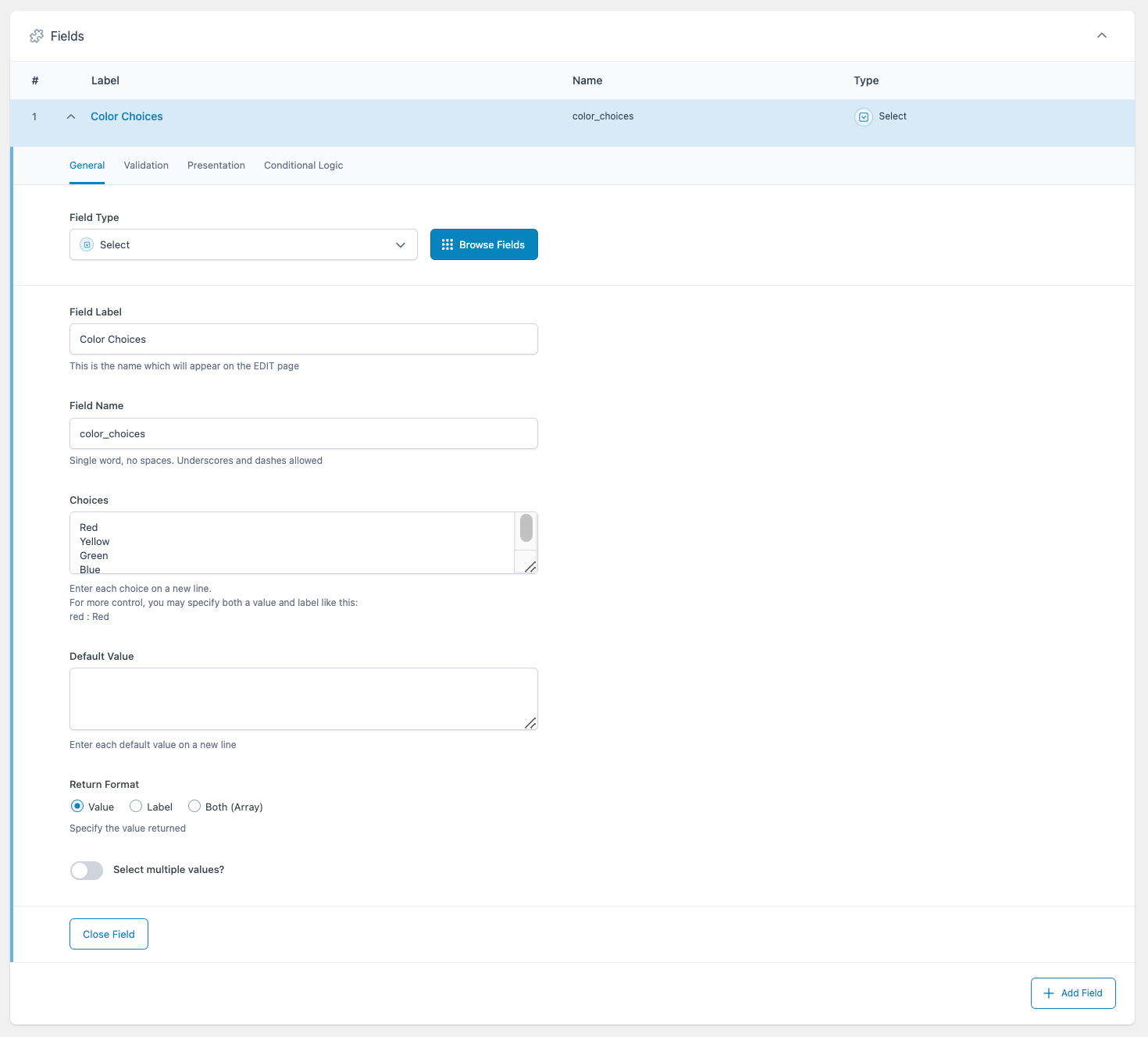
Creating a Select field in an ACF field group.
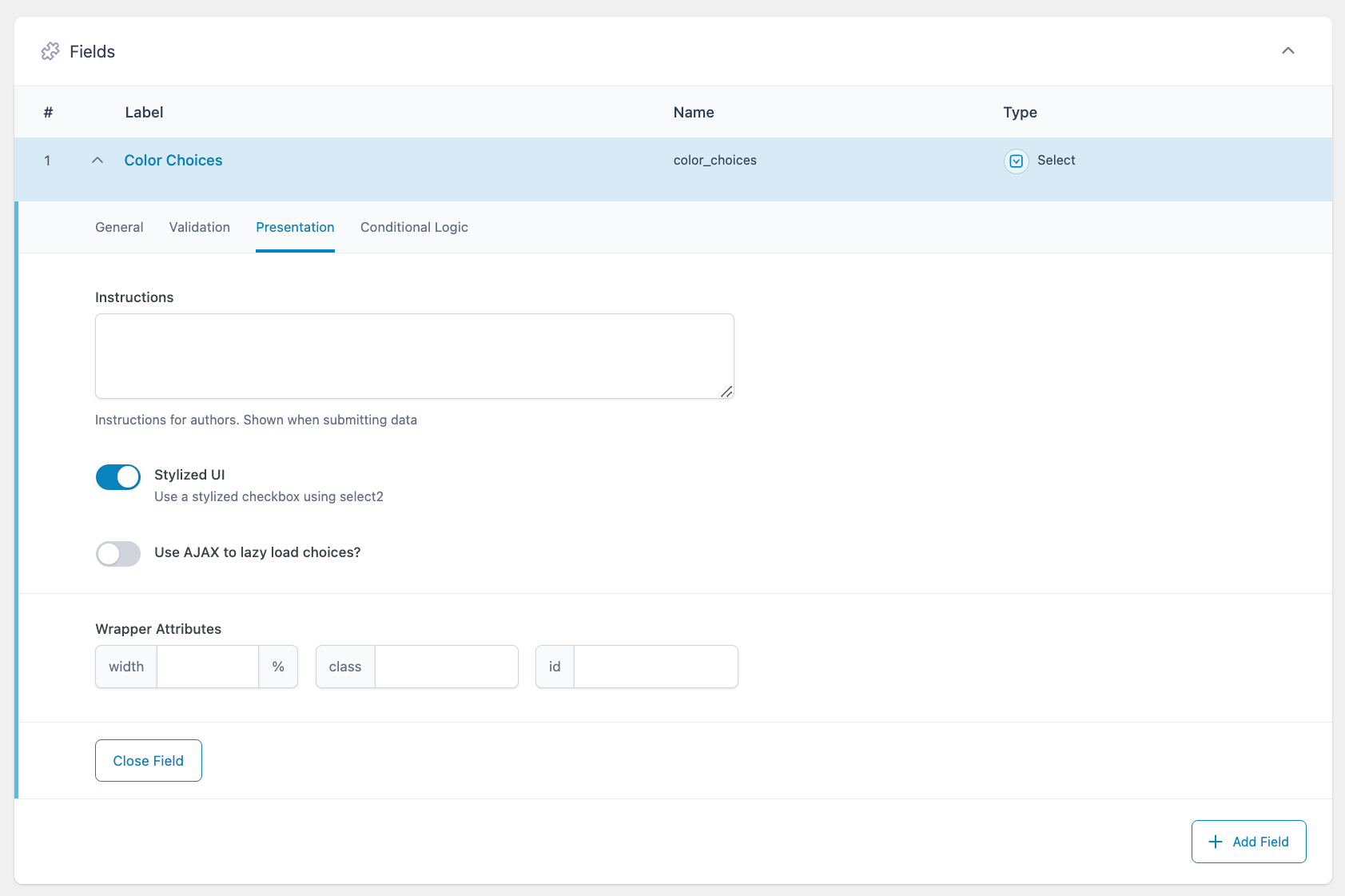
Settings on the Presentation tab impact how the field will appear to content editors.
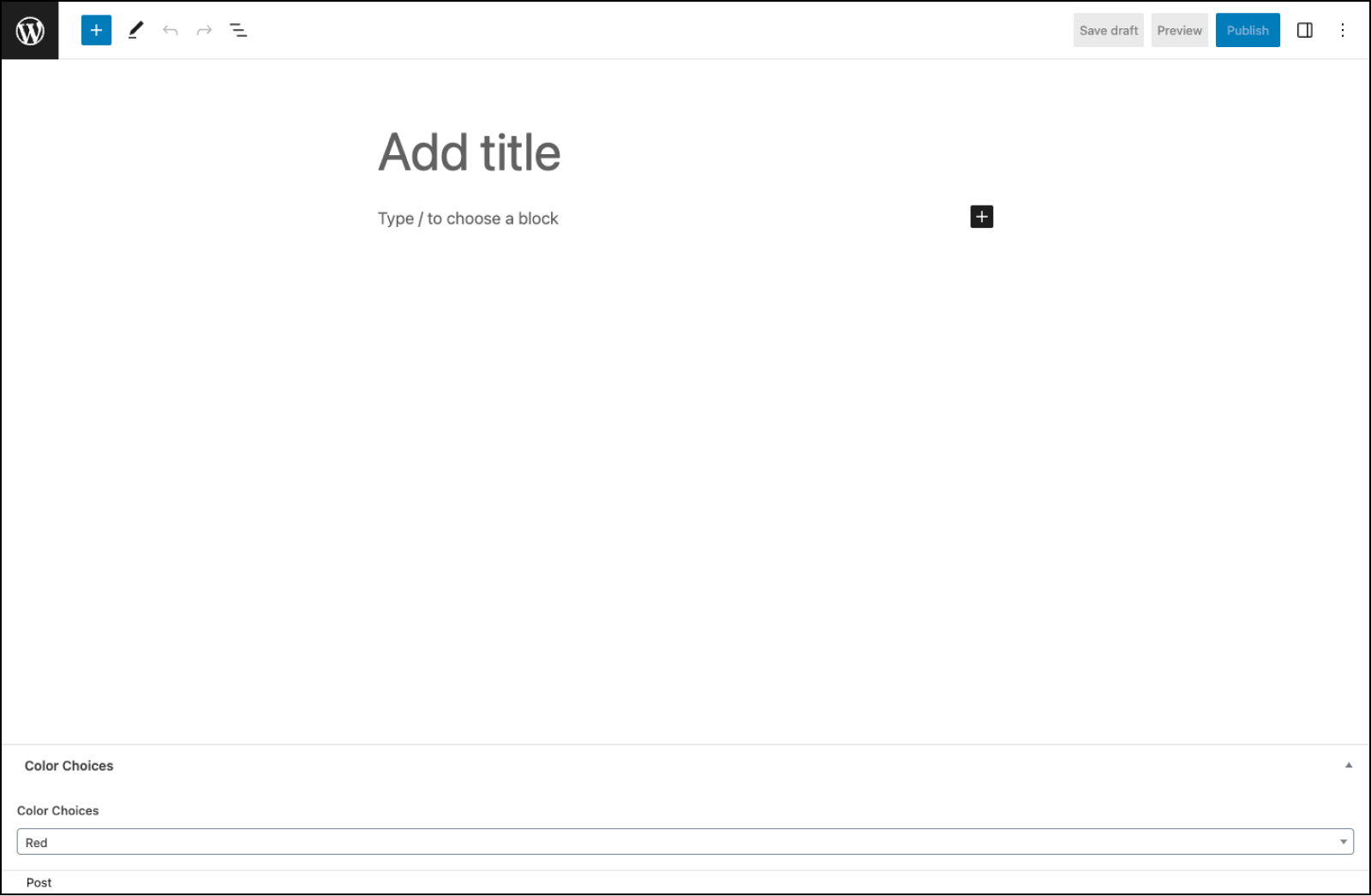
An example of how the Select field might appear to content editors.
## Changelog
- Added `Return Format` setting in version 5.4.0.
- Added `Stylized UI` (Select2) setting in version 5.0.0.
- Added `Create Options` and `Save Options` settings in version 6.4.1
## Settings
- **Choices**
The choices displayed by the Select field. Enter each choice on a new line using the field’s label (eg. `Red`). For more control, you may specify both a value and a label like this: ‘red : Red’.
- **Default Value**
The default value(s) selected when first editing the field’s value. Enter only values, not labels.
- **Return Format**
Specifies the value format returned by ACF functions. Choose from “Value,” “Label”, or “Both (Array)”.
- **Select Multiple Values?**
Allows more than one choice to be selected. If using the “Stylized UI” setting, you may also drag and drop to reorder the selected choices.
- **Required**
Found on the Validation tab, this prevents the field from accepting empty values. Defaults to off.
- **Allow Null**
If selected, the list will begin with an empty choice labeled “- Select -”. If using the “Stylized UI” setting, this choice will be replaced by an ‘x’ icon allowing you to remove the selected value(s).
- **Instructions**
Shows instructions to content editors when submitting data.
- **Stylized UI**
This setting uses the Select2 JavaScript library to enhance your Select field with more functionality, such as search, AJAX, and reordering.
- **AJAX**
This setting appears if using the “Stylized UI” setting. It uses AJAX to [dynamically populate the Select field’s choices](https://www.advancedcustomfields.com/resources/dynamically-populate-a-select-fields-choices/), helping to speed up page loading when using the [acf/load\_field](https://www.advancedcustomfields.com/resources/acf-load_field/) filter.
- **Create Options**
Allow content editors to create new options by typing in the Select input. Multiple options can be created from a comma separated string. Requires the “Select Multiple” and “Stylized UI” settings to be enabled.
- **Save Options**
Save created options back to the “Choices” setting in the field definition. Requires the “Create Options” setting to be enabled.
- **Conditional Logic**
Enabling this setting allows you to customize the logic which determines if the current field should be visible. Groups of conditional logic rules can be created to allow for multiple and/or statements.
## Template usage
### Display single selected value
This example demonstrates how to load and display a single selected value.
```
Color:
```
### Display multiple values
This example demonstrates how to load and display multiple selected values.
```
Color:
```
### Display value and label
This example demonstrates how to load a selected value and label without using the “Return Format” setting.
```
Color:
```
### Load value and label with Return Format
This example demonstrates how to load a selected value and label using the “Return Format” setting, in this case set to “Both (Array)”.
```
Color:
```
### Conditional
This example demonstrates how to use a selected value to conditionally perform a task. In this case, the conditional is checking to see if `red` matches the selected option.
```