# Adding fields to Menus
This guide will demonstrate how to add custom fields to a WordPress Menu and how to then modify the Menu’s HTML.
Menus are used to organize a group of links (menu items) for your theme to display as navigation. If you are unfamiliar with registering or editing a Menu, please read the [WordPress Menu User Guide](https://codex.wordpress.org/WordPress_Menu_User_Guide) and [Navigation\_Menus](https://codex.wordpress.org/Navigation_Menus) documentation.
**
Menus are used to group menu items. Learn how to [add fields to Menu Items](https://www.advancedcustomfields.com/resources/adding-fields-menu-items/).
## Changelog
- Added support for Menu in version 5.6.0
## Adding fields
The Advanced Custom Fields plugin makes it very easy to add custom fields to a Menu, please follow the steps below.
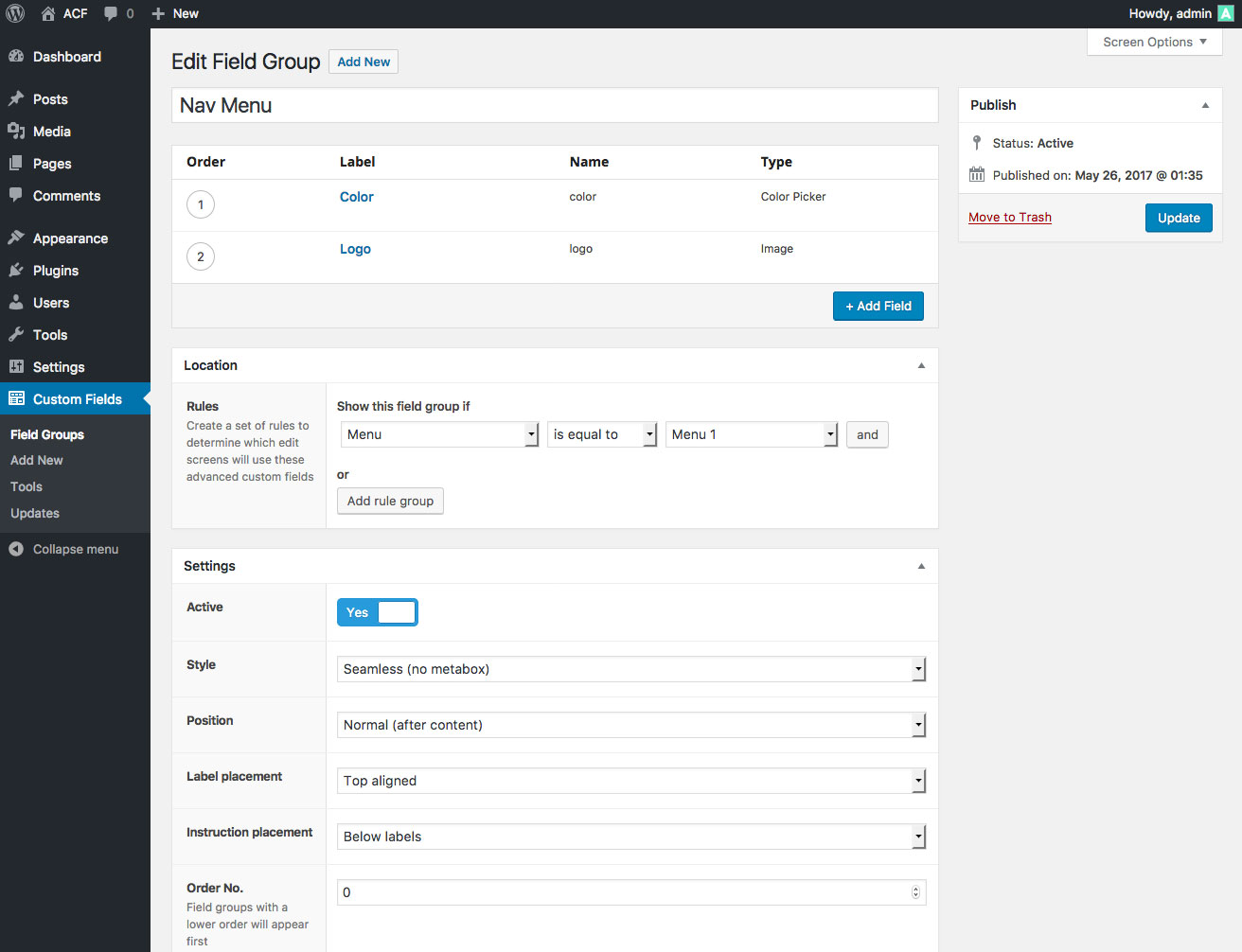
1. From the **Custom Fields** admin screen, click the **Add New** button to create a new field group.
2. Add the fields you would like to see when editing a Menu
3. Under **Locations**, select the **Menu** rule and choose either ‘All’ (to show this field group on all menus) or a specific menu/location (to show this field group only for a specific menu)
**
Change the **Style** setting to ‘Seamless’ if you wish for the field group to appear joined to the core settings (No heading or border) as shown in this guide’s screenshots.
[](https://www.advancedcustomfields.com/wp-content/uploads/2017/06/acf-adding-fields-to-menus-field-group.jpg)
## Editing fields
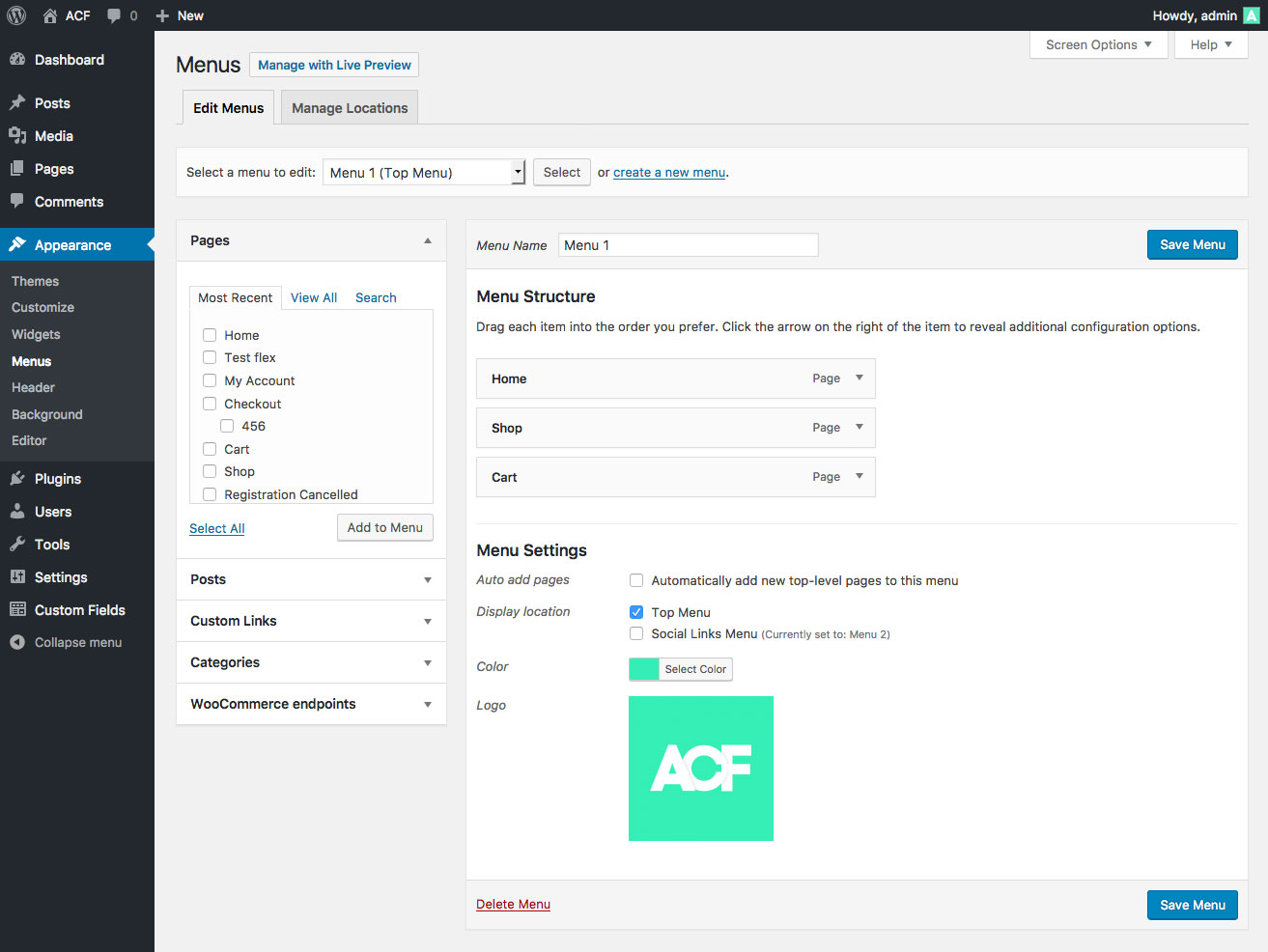
Once you have created a field group and assigned it to appear for a Menu edit screen, editing the field values is done by navigating to the **Appearance > Menus** admin page.
**
WP stores each Menu as a term object in the `wp_terms` table. ACF will store all custom field values in the `wp_termmeta` table.
[](https://www.advancedcustomfields.com/wp-content/uploads/2017/06/acf-adding-fields-to-menus-edit.jpg)
## Displaying fields
Customizing the HTML for a WordPress Menu can be easily done via the [wp\_nav\_menu\_items](https://developer.wordpress.org/reference/hooks/wp_nav_menu_items/) filter. This filter is run each time a Menu is rendered (via the [wp\_nav\_menu()](https://developer.wordpress.org/reference/functions/wp_nav_menu/) function) and allows you to modify the `` elements HTML for the Menu.
This example shows how to modify the main navigation menu from the twentyseventeen theme (Menu location is called ‘top’ in this theme). Please note that a second argument is required by the ACF functions to specify where to load the value from. Because each Menu is a term object, we can simply pass this object as the second parameter. The Menu term object is found by using the `$args->menu` data.
#### functions.php
```
add_filter('wp_nav_menu_items', 'my_wp_nav_menu_items', 10, 2);
function my_wp_nav_menu_items( $items, $args ) {
// get menu
$menu = wp_get_nav_menu_object($args->menu);
// modify primary only
if( $args->theme_location == 'top' ) {
// vars
$logo = get_field('logo', $menu);
$color = get_field('color', $menu);
// prepend logo
$html_logo = '';
// append style
$html_color = '';
// append html
$items = $html_logo . $items . $html_color;
}
// return
return $items;
}
```
## Conclusion
Here is a look at how this may look in your browser. Notice the new logo `![]() ` and color `