# Adding fields to Media Attachments
This guide will demonstrate how to add custom fields to a WordPress Attachment and how to then display these fields.
All the template functions ([get\_field()](https://www.advancedcustomfields.com/resources/get_field/ "get_field()"), [the\_field()](https://www.advancedcustomfields.com/resources/the_field/ "the_field()"), etc) can be used to load values from a media attachment, however, a second parameter is required to target the attachment.
## Changelog
- Added attachment types to location rule in version 5.6.0
## Adding fields
The Advanced Custom Fields plugin makes it very easy to add custom fields to an Attachment, please follow the steps below.
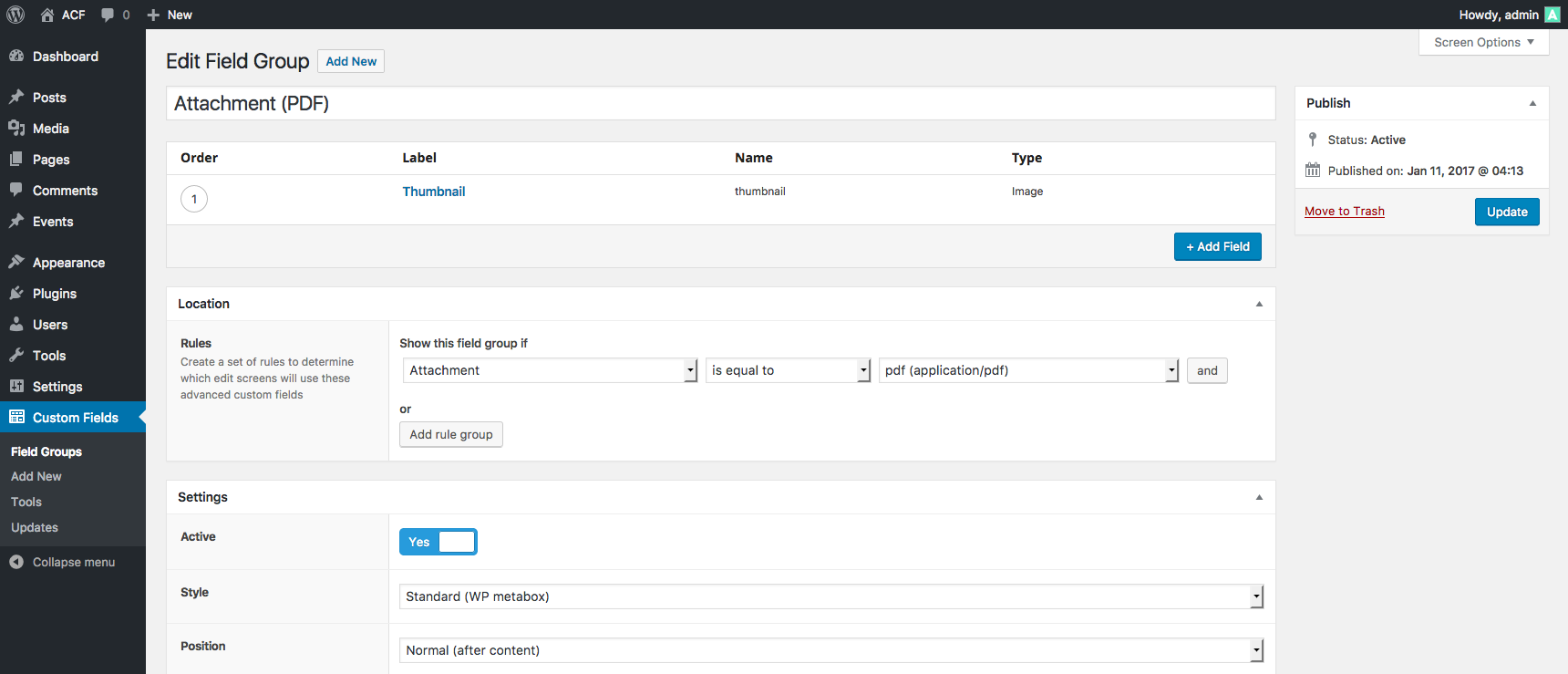
1. From the **Custom Fields** admin screen, click the **Add New** button to create a new field group
2. Add the fields you would like to see when editing an Attachment
3. Under **Locations**, select the **Attachment** rule and choose ‘All’ (to show this field group on all attachments) or a specific attachment type (to show this field group only for specific attachments)
[](https://www.advancedcustomfields.com/wp-content/uploads/2013/03/acf-adding-fields-to-attachments-field-group.png)
## Editing fields
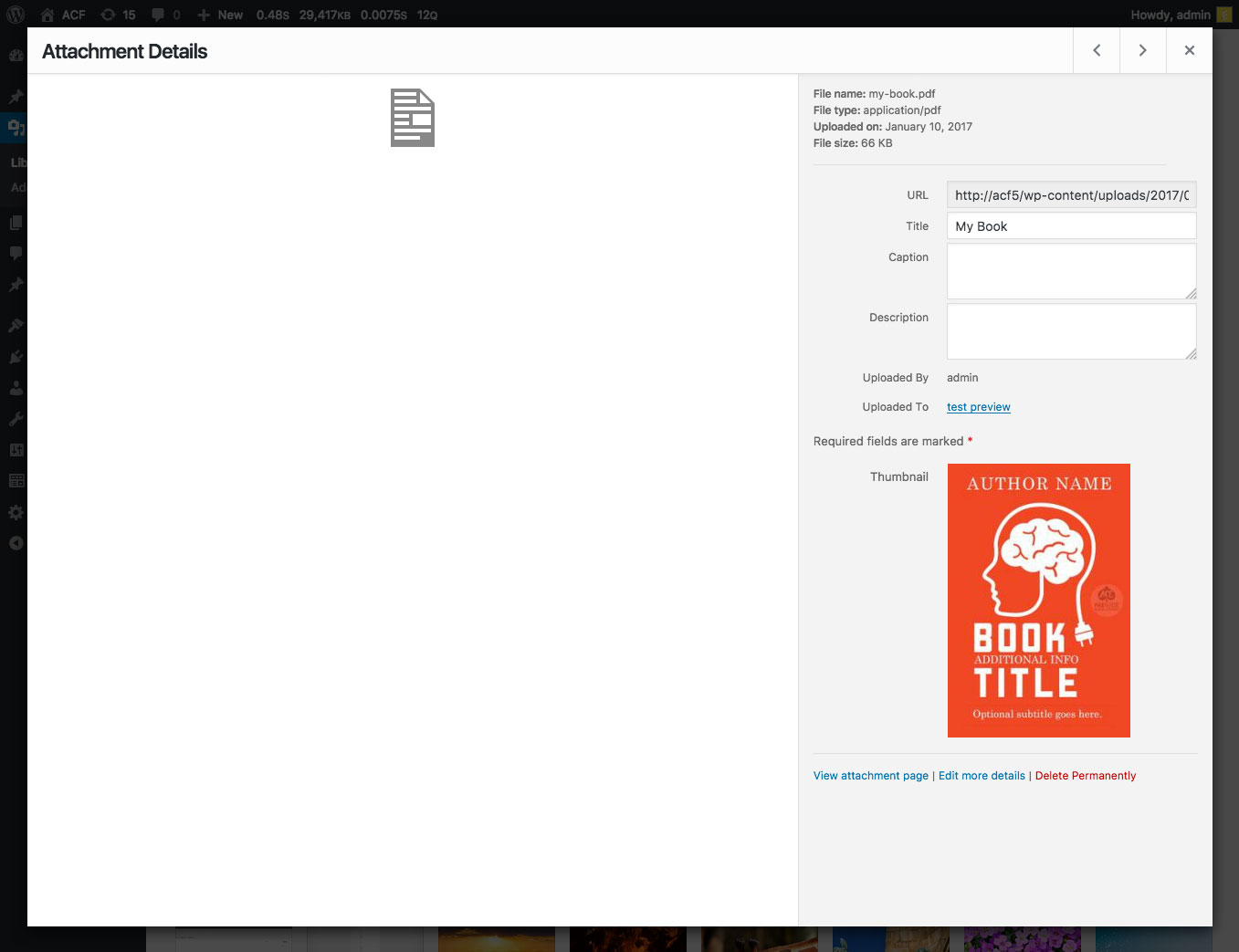
Once you have created a field group and assigned it to appear for an Attachment edit screen, editing the field values is done by one of the following:
- Navigating to the **Media > Library** admin page and selecting an attachment.
- Using the **Add Media** button when editing a post’s content.
- Using an ACF [image field](https://www.advancedcustomfields.com/resources/image/) or [file field](https://www.advancedcustomfields.com/resources/file/) to select an attachment.
**
WP stores each Attachment as a post object in the `wp_posts` table. ACF will store all custom field values in the `wp_postmeta` table.
[](https://www.advancedcustomfields.com/wp-content/uploads/2013/03/acf-adding-fields-to-attachments-edit.jpg)
## Displaying fields
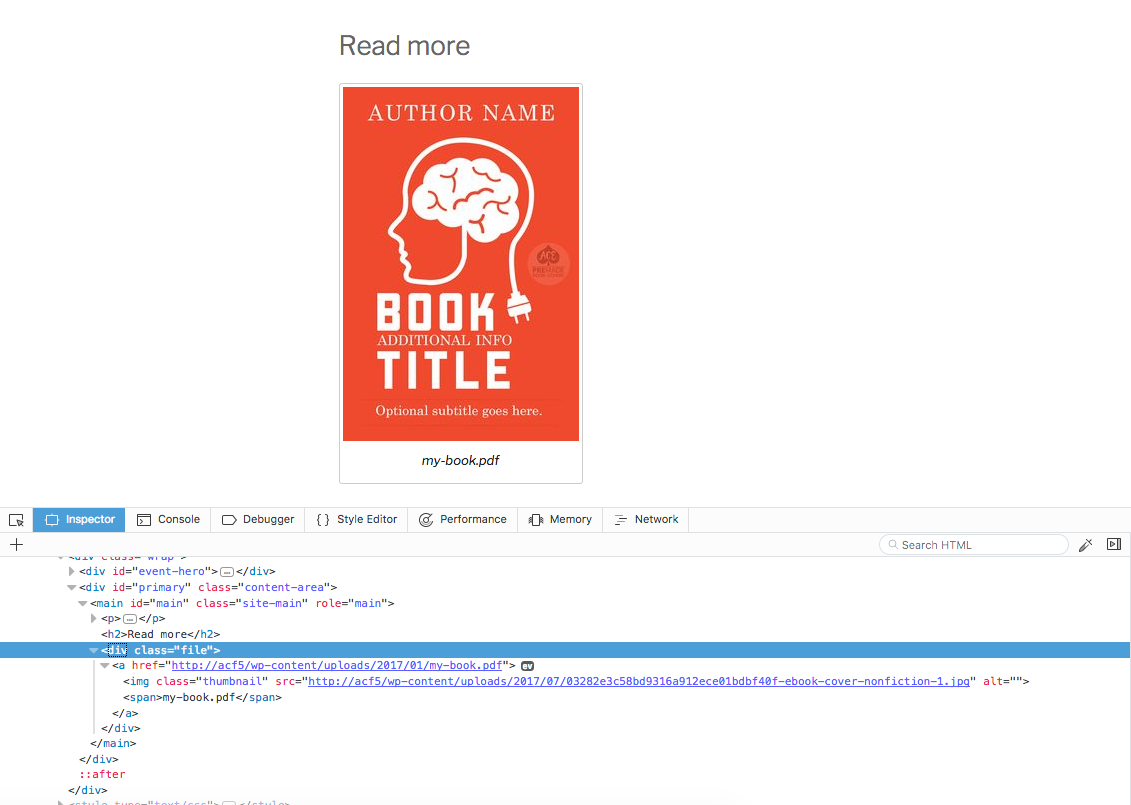
Customizing the HTML for a WordPress Attachment will differ depending on the context. Attachments are used in many ways by different themes. The following example uses a [file field](https://www.advancedcustomfields.com/resources/file/) (from a post edit screen) to select an Attachment. The selected Attachment (.pdf) has been assigned a ‘Thumbnail’ which is displayed with the file info below.
Note how the Attachment ID is used to load the field value from the selected Attachment.
#### single.php
```
Read more
```
### Result
Here is an example of the above code in action. Note the `![]() ` tag created with the Attachment’s **Thumbnail** value**.**
[](https://www.advancedcustomfields.com/wp-content/uploads/2013/03/acf-adding-fields-to-attachments-display.png)
## Examples
### Display a field
This example will display a field value from an Attachment (attachment ID = 12)
```
```
### Retrieve a field
This example will load a field value from an Attachment (attachment ID = 12)
```
```
### Retrieve from another image custom field
This example will show how to load a selected image from a custom field, and then load a custom field from that image.
```
` tag created with the Attachment’s **Thumbnail** value**.**
[](https://www.advancedcustomfields.com/wp-content/uploads/2013/03/acf-adding-fields-to-attachments-display.png)
## Examples
### Display a field
This example will display a field value from an Attachment (attachment ID = 12)
```
```
### Retrieve a field
This example will load a field value from an Attachment (attachment ID = 12)
```
```
### Retrieve from another image custom field
This example will show how to load a selected image from a custom field, and then load a custom field from that image.
```
![<?php echo $image['alt']; ?>](<?php echo $image['url']; ?>) ```
### Working with the Repeater Field
This example will show how to loop over an attachment field’s repeater field value (attachment ID = 123).
Note that when inside of a `have_rows` loop, you do not need to use the `$post_id` parameter for any sub field functions ([get\_sub\_field()](https://www.advancedcustomfields.com/resources/get_sub_field/ "get_sub_field()"), [the\_sub\_field()](https://www.advancedcustomfields.com/resources/the_sub_field/ "the_sub_field()"))
```
```
Save
Save
Save
Save
Save
Save
```
### Working with the Repeater Field
This example will show how to loop over an attachment field’s repeater field value (attachment ID = 123).
Note that when inside of a `have_rows` loop, you do not need to use the `$post_id` parameter for any sub field functions ([get\_sub\_field()](https://www.advancedcustomfields.com/resources/get_sub_field/ "get_sub_field()"), [the\_sub\_field()](https://www.advancedcustomfields.com/resources/the_sub_field/ "the_sub_field()"))
```
```
Save
Save
Save
Save
Save
Save